When the POS quietly does your books
Picture closing time. The shutter's halfway down, the day's cash is counted, and somewhere in a drawer there's a notebook you keep meaning to hand to your accountant. For most shopkeepers, that notebook is where "accounting" lives until the night before a tax deadline.
It doesn't have to. Plenty of POS systems record a sale and stop there. ClearRing keeps going. Every sale, purchase, expense, and refund quietly produces a proper double-entry journal entry, so your general ledger is being written in real time while you serve customers.
The payoff shows up later. When your accountant asks for financials, when you're filing tax, or when FBR comes knocking for an audit, the numbers are already sitting there, balanced and ready. No frantic reconstruction from memory and receipts.
A quick word on debits and credits
If double-entry bookkeeping always sounded like accountant's mysticism, here's the whole secret: every transaction gets recorded twice, once as a debit and once as a credit, and the two always cancel out. That's what keeps the books honest. Assets equal liabilities plus equity, every single time.
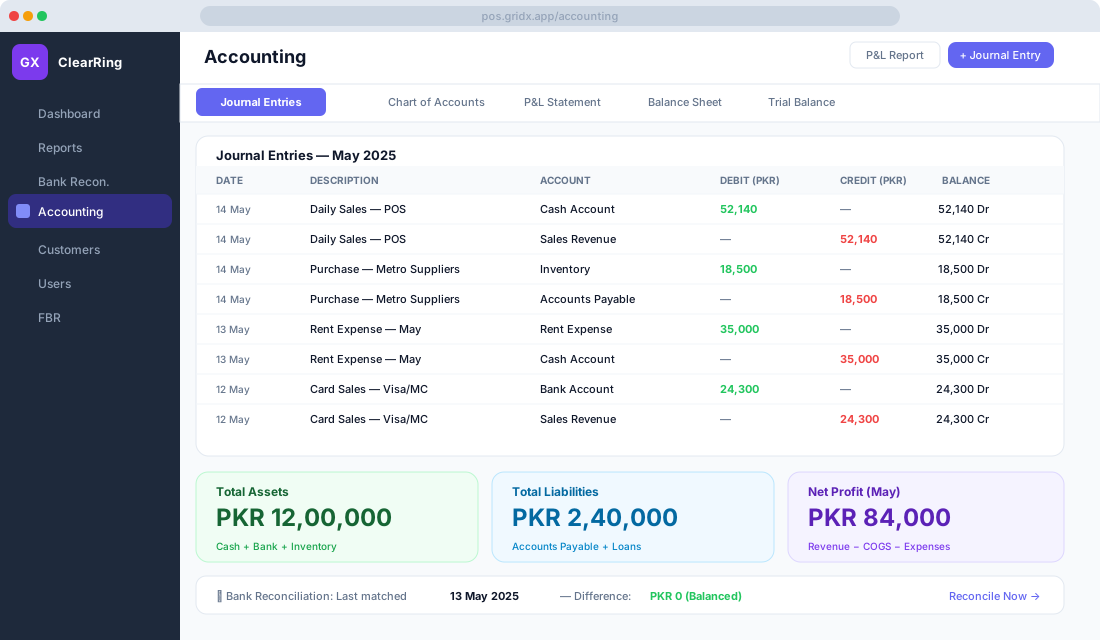
ClearRing handles both halves for you. Ring up a cash sale and it debits the Cash account (your cash went up) and credits Sales Revenue (your income went up). Receive stock against a purchase order and it debits Inventory and credits Accounts Payable, because you now own goods and owe a supplier. You'll never type these out yourself. They're written in the background the moment the transaction happens.
Your Chart of Accounts, already set up
Open Accounting then Chart of Accounts and you'll find the whole structure laid out. ClearRing ships with a sensible default Chart of Accounts built for Pakistani retail and F&B, so you're not starting from a blank page.
On the asset side you get a Cash account (1001), a main and secondary Bank account (1002 and 1003), Accounts Receivable (1010), Inventory (1020), and Prepaid Expenses (1030). Liabilities cover Accounts Payable (2001), Sales Tax Payable (2010), and Short-term Loans (2020). Equity holds Owner's Capital (3001) and Retained Earnings (3010).
Income splits into Sales Revenue (4001) and Other Income (4010). Expenses are broken out into Cost of Goods Sold (5001), Rent (5010), Salary (5020), Utilities (5030), and Marketing (5040). None of this is fixed in stone. Add accounts, rename them, or switch off the ones you don't use until the chart matches how your business actually works.
Reading the general ledger
Everything that's been posted lives under Accounting then Journal Entries. Each line shows the date, a description (auto-generated, or whatever you typed), the account it hit, the debit and credit amounts, and a running balance.
Most entries land here on their own. But some things never touch the POS, like a loan landing in your account, the owner taking money out, or a year-end adjustment your accountant suggests. For those, write a manual journal entry and the ledger stays complete.
Profit and loss in a few clicks
Head to Accounting then P&L Statement, pick a date range, and ClearRing builds the whole thing. It reads roughly like this:
Revenue
  Sales Revenue             PKR 7,84,500
  Other Income              PKR   12,000
  Gross Revenue             PKR 7,96,500

Cost of Goods Sold         (PKR 4,80,000)

Gross Profit               PKR 3,16,500

Operating Expenses
  Rent                     (PKR  70,000)
  Salaries                 (PKR  90,000)
  Utilities                (PKR  18,000)
  Marketing                (PKR  12,000)
  Total Expenses           (PKR 1,90,000)

Net Profit                 PKR 1,26,500
Export it as a PDF to hand your accountant, or as CSV if you'd rather slice it yourself in a spreadsheet.
What you're actually worth
The Balance Sheet, under Accounting then Balance Sheet, is your financial position frozen at any moment you choose. Total assets pull together cash, bank balances, inventory, and what customers owe you. Total liabilities cover what you owe suppliers and any outstanding loans. Net equity is the difference, what the business is genuinely worth to you.
Because every transaction was entered as a balanced double entry, this statement always balances. That matters the day you walk into a bank for a loan and need to show numbers that hold up to scrutiny.
Matching ClearRing to your bank
Reconciliation is just the act of checking that what ClearRing thinks happened matches what the bank says happened. Your records and the bank statement should tell the same story, and reconciliation is how you confirm they do.
Open Bank then Bank Reconciliation and the flow is straightforward. Download your statement from your bank's internet portal as CSV or PDF, then click Upload Statement in ClearRing. The matching engine pairs up transactions by amount and date on its own.
What's left over is where the value is. Some bank lines won't appear in ClearRing, usually bank charges or direct debits you forgot about. Some ClearRing entries won't show on the bank yet, like a post-dated cheque or a payment still in transit. Work through each one, either matching it by hand or writing a quick journal entry to record it. When the difference reaches PKR 0, click Mark as Reconciled and you're done.
The reason to bother is simple. Reconciling catches the payment you accidentally made twice, surfaces bank charges that have been quietly eating your profit, and gives you clean evidence of your cash flow if FBR ever wants to see it. It's also the first thing any auditor or lender will ask about.
Keeping GST straight
ClearRing tracks Sales Tax Payable as you go, at the standard 17% GST rate or whatever sector-specific rate applies to you. Every POS sale records its GST as a separate line in the Chart of Accounts, so the tax never gets tangled up with your revenue.
When you need the picture, Accounting then Tax Report shows the output tax you collected from customers, the input tax you paid on purchases (if you're a registered taxpayer), and the net GST you owe FBR. That same data feeds the FBR module when you prepare your Sales Tax Return, so you're not entering anything twice.
Logging the expenses that skip the till
Rent, utilities, salaries, and the like never pass through the POS, so they need recording directly. Go to Accounting then Expenses then New Expense, choose the category, enter the amount, date, and whether it was paid by cash or bank. Snap a photo of the receipt if you have it, then save. The journal entry writes itself.
A few habits that pay off
Close each month while it's fresh. Run your P&L and Balance Sheet on the 1st for the month just gone, because the longer you wait, the harder a stray figure is to trace.
Reconcile your bank at least monthly, and weekly if you're doing serious volume. Record every expense, even the small ones, since under-recording is how a lot of Pakistani businesses end up paying tax on income they never really kept.
Before you file, run the Tax Report and cross-check ClearRing's Sales Tax Payable against the figures in your FBR portal. And for the genuinely knotty transactions, talk to a CA. ClearRing keeps the books clean; a good adviser keeps you on the right side of the latest FBR circulars.