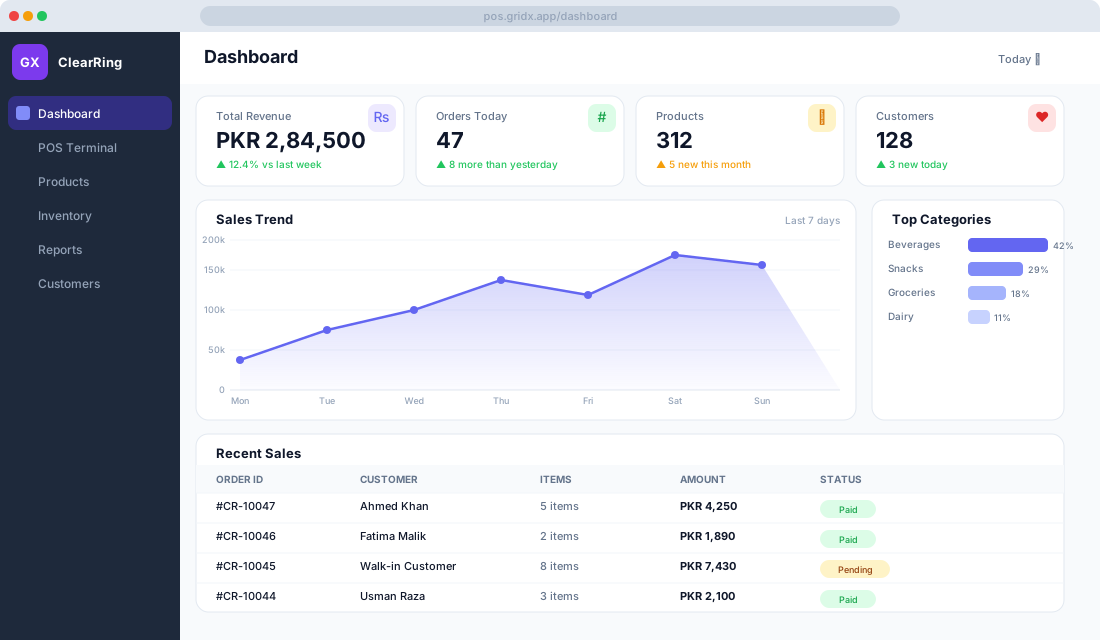
What the screen tells you the moment you log in
Log in to ClearRing and you don't land on a menu — you land on the Dashboard, and it's already talking. How much you've sold today, how many orders, which categories are carrying the day, the last few sales as they happen. No spreadsheet, no end-of-day tally, no quiet panic when the numbers finally surface at closing time.
Most owners glance at it twice a day and feel they know their shop. Read it properly and it'll tell you a good deal more. Here's how each piece works and what it's actually worth.
The four numbers across the top
Four KPI cards sit along the top of the dashboard, and each one refreshes the instant a sale completes.
Total Revenue shows gross sales for the period you've picked, which defaults to today. The small indicator beneath the figure compares it against the same period before — so on a Monday you're seeing this Monday against last Monday, not against a quiet Sunday. If that number is down sharply on yesterday, your first move should be to check that the POS Terminal is online and ringing sales rather than assuming trade has collapsed.
Orders Today counts your completed transactions. Read it next to Revenue and you get your average transaction value — revenue divided by orders. When that average climbs, it usually means staff are upselling well or baskets are simply getting bigger.
Products is the count of SKUs in your catalogue. It's a quiet health check: if it hasn't moved in weeks, your catalogue may be going stale. Customers shows your total registered customers with a small delta for new ones added today; watch it alongside your loyalty numbers to judge whether retention work is paying off.
Reading the sales trend
Under the cards runs a full-width area chart of daily sales over the last seven days, or whatever range you choose. The indigo fill makes the shape easy to read at a glance, and the shape is where the story lives. Many Pakistani retailers see the line lift on Friday and Saturday, dip on public holidays or during Ramadan schedule changes, and — if things are going right — climb a little week on week. A sudden dip that doesn't line up with a holiday is usually worth a look; a stock-out often hides behind it. Hover over any point to read the exact revenue for that day.
To change the window, use the date dropdown at the top-right of the chart and switch between Today, This Week, This Month, Last 30 Days, or a custom range.
Where your money actually comes from
The smaller bar chart on the right ranks your top revenue-generating categories as a share of total sales, and it's quietly one of the most useful things on the page. If Beverages is pulling 42% of your revenue, that's the shelf you never let run empty. It also points at your buying and your promotions: push the category that's lagging to even out the mix, or set per-category targets for floor staff who respond to a number.
The live feed of recent sales
At the bottom sits a running feed of your last twenty transactions. Each row carries the ClearRing order ID — something like #CR-10047 — the linked customer name or "Walk-in Customer," the number of line items, the amount paid, and a status of Paid, Pending, or Voided. Click any row to open the full order, view its FBR invoice, or process a refund. For a manager doing a morning review, this feed is the quickest way to spot a transaction that needs a second look.
Keeping an eye on your plan
Below the charts you'll find gauges showing how much of your subscription you're using: receipts this month against your plan limit, active users against the seats you've paid for, and locations configured against what's available. When a gauge nears its ceiling, ClearRing surfaces an upgrade prompt, though you can always head to Settings, then Subscription, to change plans on your own terms.
Nearby, Feature Unlock Cards show capabilities that are available but not yet switched on for you — Restaurant Mode, the Accounting module, Multi-Location, and the like. Click Enable to turn one on. Some need a plan upgrade; others are already part of your plan and simply need flipping on.
One date filter, everything moves
The date selector in the top-right corner governs every widget on the dashboard at once. Today gives you a live intraday view. Yesterday is the one most managers reach for first thing in the morning. This Week runs Monday to today, This Month runs from the 1st, Last 30 Days gives a rolling window for spotting trends, and Custom lets you pin any start and end date you like.
A morning routine that takes five minutes
Here's a habit worth building. Open the dashboard and check yesterday's revenue against your plan. Scan the recent sales feed for anything Pending or voided that needs attention. Read the KPI deltas to see whether orders and revenue are up or down on the same day last week. And if revenue is sitting below target, that's your cue to open the full Reports module and break it down by category or by staff member.
The dashboard is the starting point, not the answer. Its job is to tell you where to look harder, and then to get out of your way.
Checking in from your phone
The whole dashboard is responsive — the KPI cards stack on a small screen and the charts resize to fit. Plenty of owners glance at their store from a supplier's office or the back of a rickshaw between errands, and the mobile view is built so that a quick look while you're away from the counter actually tells you what you need to know.