How to generate an exam paper with AI on a small budget
Schedule a quiz, open its paper, describe what you want in a three-step blueprint and let AI draft the questions for review. The example is the exam "Algebra II Unit Test 1 - Grade 9", a 20-mark quiz on Quadratic equations.
Who it is forTeacher / head of departmentTime15 minutesProductSCMLevelIntermediate
Before you start
Steps
1
Know the cost controls
SCM makes one provider call for each topic, so a single topic is a single call. It asks for roughly twice the questions it needs, checks them, drops duplicates and keeps what it needs. Hard limits protect the bill: twelve topics and two hundred questions a draft, thirty questions a call, twenty AI drafts per user per hour. A double click is safe: the same request replays the saved result for ten minutes.
Cost controls: one call per topic, caps and a replay window
2
Schedule the exam and open Paper
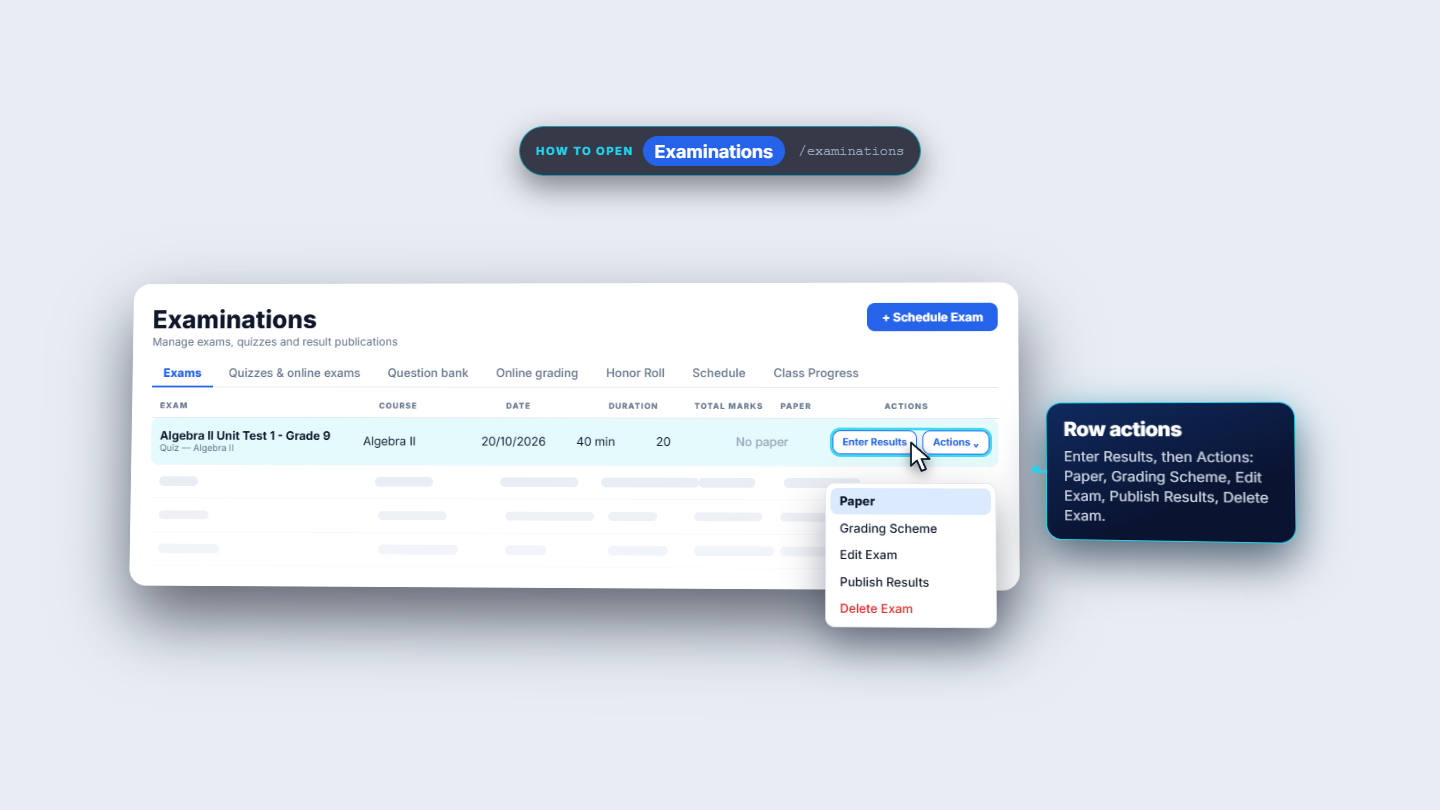
Schedule the exam first. Give it an Exam Title, Semester and Course; choose the Type (a quiz here), Date & Time, Total Marks (20), Passing Marks (8) and Duration (min) (40). In the Examinations list the paper column says No paper. Open the row actions and choose Paper; beside it are Grading Scheme, Edit Exam, Publish Results and Delete Exam. The Paper dialog has three tabs: Paper, Add from bank and Generate. The new paper is empty, zero marks, with a warning that the exam is set to twenty; you can still save.
Examinations list with the Paper action in the row menu
3
Pick the topic in the blueprint
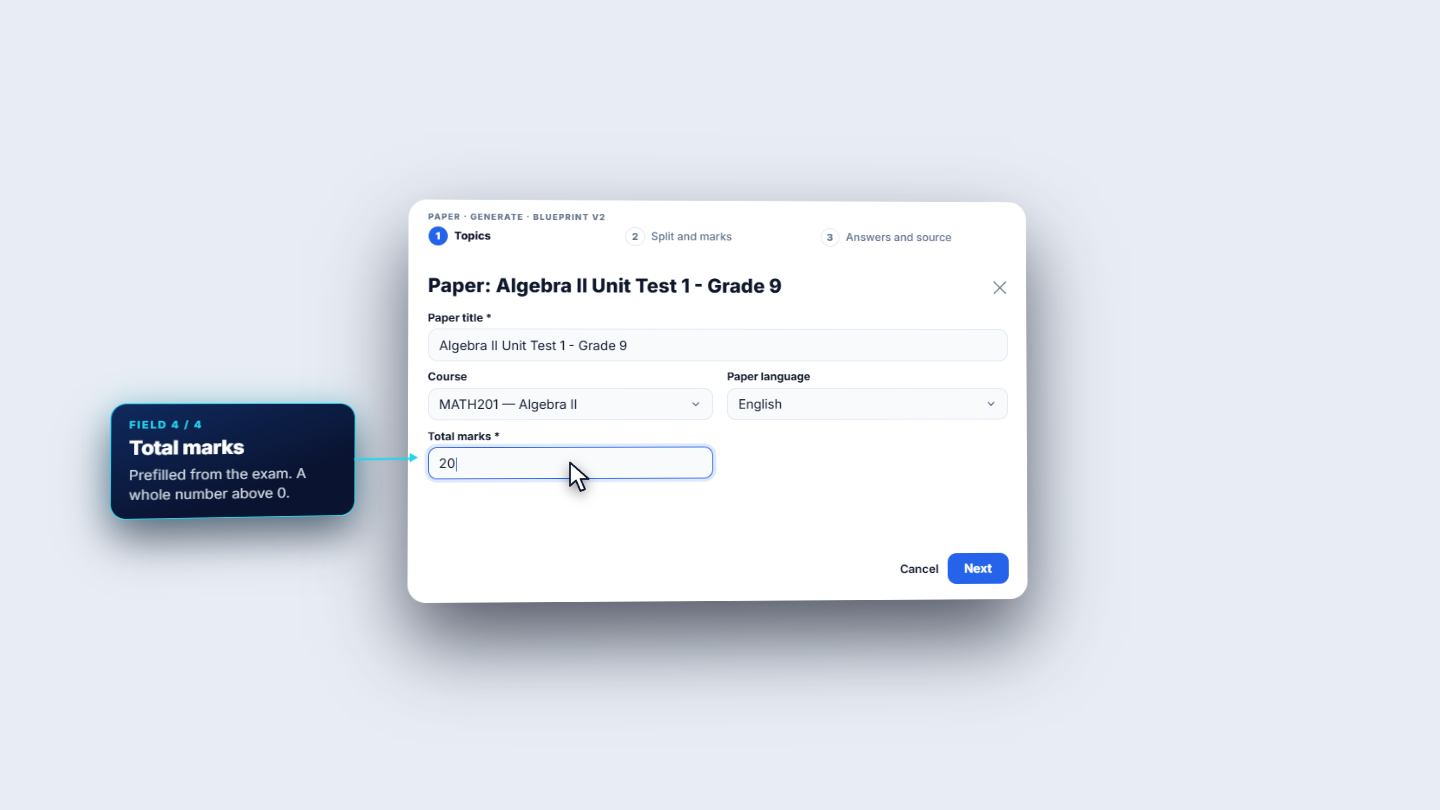
Open Generate. The three-step blueprint starts with Topics: the Paper title comes from the exam, the Course decides which lessons and outline you can pick, choose the Paper language (English or Arabic) and check Total marks. Below, the topic picker lists the course's published lessons and its outline. Tick a topic, here Quadratic equations; a count shows how many are selected. Sub-topics show their path, such as Nature of the roots under Quadratic equations. A custom topic can be typed for anything the course does not list.
Blueprint step 1: paper title, course, language, total marks
4
Know where the topic list comes from
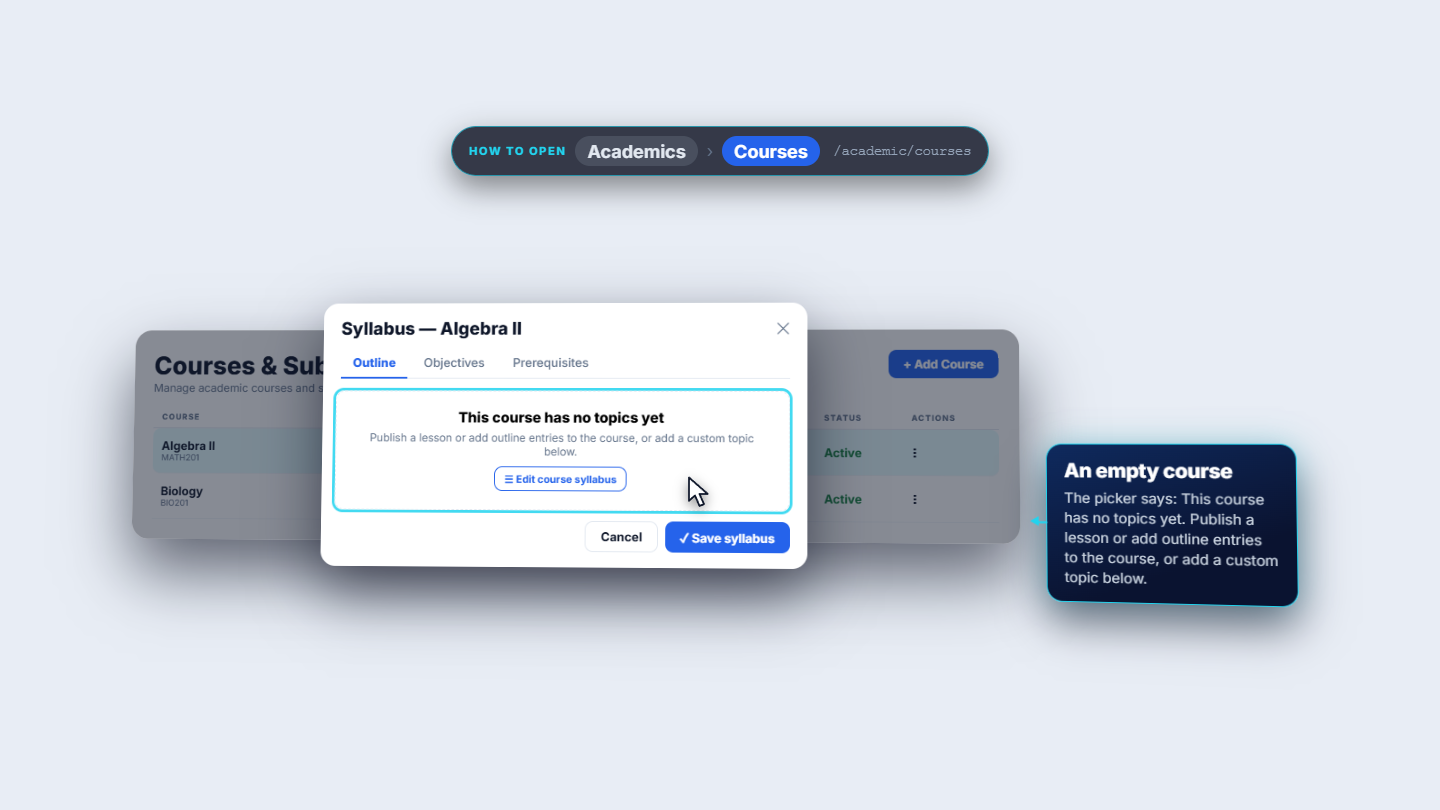
The list comes from Academics › Courses: open a course's row actions, choose Syllabus, and see the Outline tab. It holds the topics with their hours, and sub-topics sit indented. Every entry becomes a choice in the picker. A course with no topics shows This course has no topics yet. Add outline entries, publish a lesson, or use a custom topic.
Course Syllabus Outline tab with topics and sub-topics
5
Set the split, then the answer key and build mode
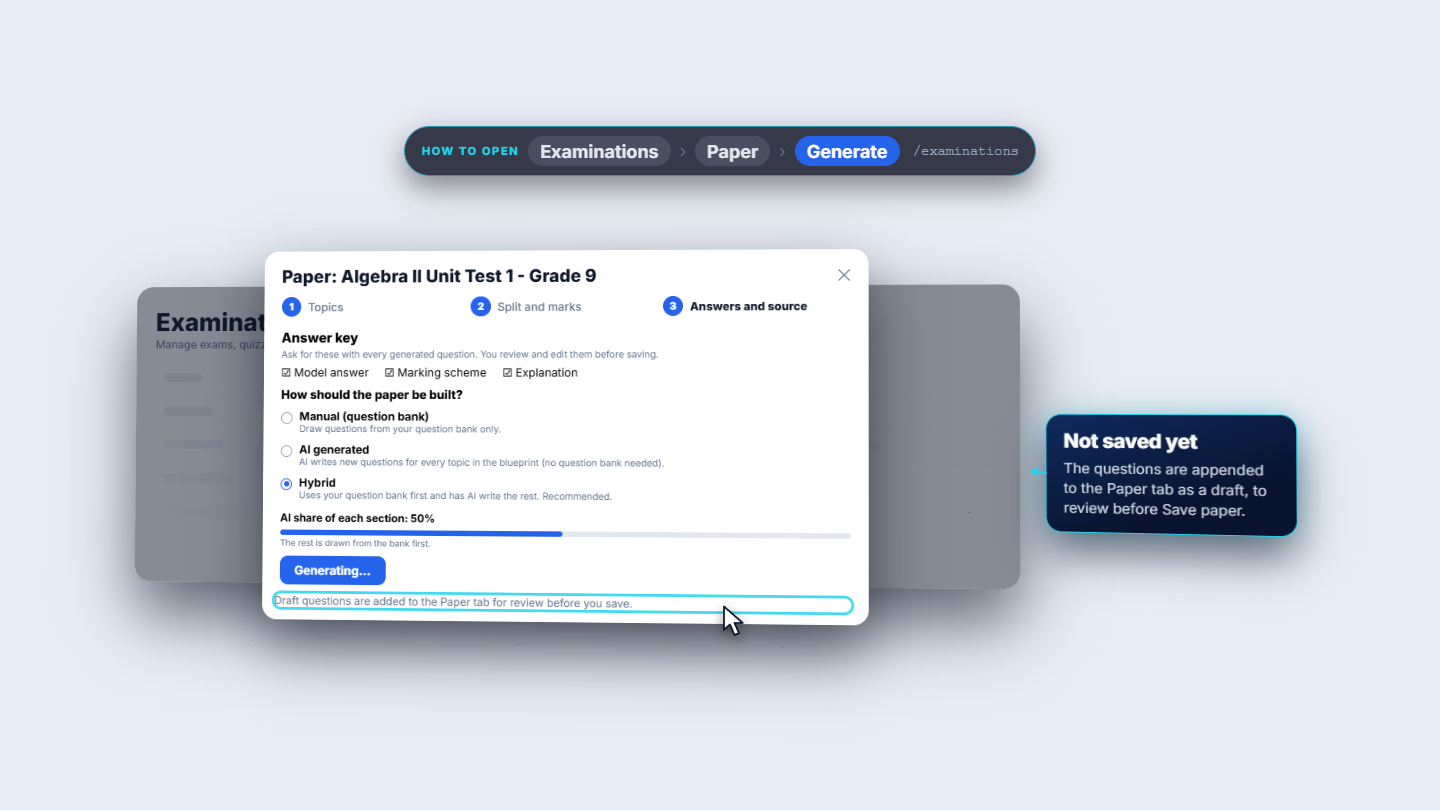
In Split and marks set the objective share (50%), split by number of questions or by marks, total questions (four here), the multiple choice and short answer shares, the marks per type (multiple choice 2, short answer 6) and the difficulty mix (30, 50, 20). In Answers and source tick Model answer, Marking scheme and Explanation, so they are written with every question. Choose how to build: Manual (question bank), AI generated or Hybrid, which uses the bank first and has AI write the rest; a slider sets the AI share (50%). Press Generate and add to paper. The button locks while it works. Nothing is saved yet: the questions land in the Paper tab for review.
Blueprint step 3: answer key and Hybrid build mode
6
Review, save and deliver
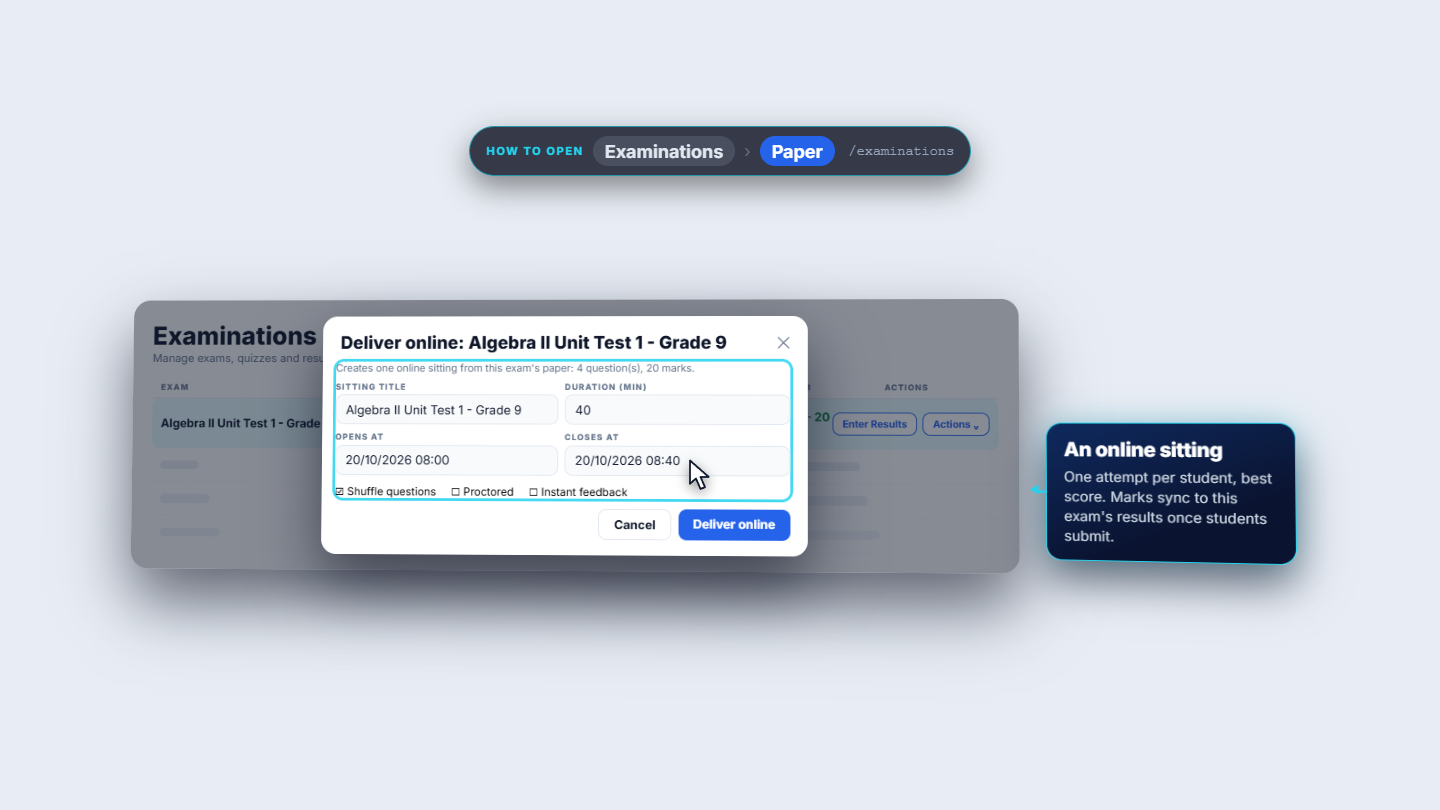
A note names the provider and model that wrote the draft. Each question shows its origin (AI or Bank), type, difficulty, topic and marks, with the model answer, marking scheme and explanation; AI-written schemes carry a review badge. A marking scheme must add up to the question's marks, otherwise the question is flagged and the paper cannot be saved until you fix it. Edit changes the text, Save to bank keeps the question for later, arrows reorder and the bin removes. Save paper stores the questions. Print options prints the paper or the answer key as a staff copy, with a PDF download. Deliver online turns the paper into a sitting with opening and closing time, duration, shuffle, proctoring and instant feedback.
Paper tab review with origin, answer key and delivery options
Check it worked
The Paper tab shows the questions with their marks adding up to the exam's total (20).
Each AI question carries its model answer and a marking scheme that adds up.
After Save paper, the Examinations list no longer says No paper.
Common mistakes
Mistake
What you see
Fix
Choosing many topics on a free model
Many AI calls, a larger bill
Use one topic and a few questions
Marking scheme does not add up
The question is flagged, saving is blocked
Fix the scheme or rescale
AI not set up
Placeholder questions that cannot be saved
Add a provider under Settings › Integrations
Quick reference
Item
Meaning / rule
Caps
12 topics, 200 questions a draft, 30 per call, 20 AI drafts per user per hour
Build mode
Manual, AI generated or Hybrid
Draft
Questions are added to the Paper tab, not saved until you press Save paper
Frequently asked questions
How many AI calls does a paper use? SCM makes one provider call for each topic, so a single topic is a single call. Choose one topic and a few questions when you use a free model.
Are the AI questions saved straight away? No. They land in the Paper tab for review and are saved only when you press Save paper.
What happens if AI is not set up? SCM creates marked placeholder questions instead and refuses to save them. Add a provider under Settings › Integrations.
What if a marking scheme does not add up to the question's marks? The question is flagged and the paper cannot be saved until you fix the scheme.