How to register a new patient and collect the registration fee
Every patient starts with one record and one MR number. This guide shows how to fill the Register patient form, collect the registration fee and find the patient afterwards, so that everything that follows (appointments, billing, the doctor's chart) attaches to the same record.
Who it is forFront-desk receptionistTime8 minutesProductHMSLevelBeginner
Before you start
Steps
1
Open the form and fill the Identity tab
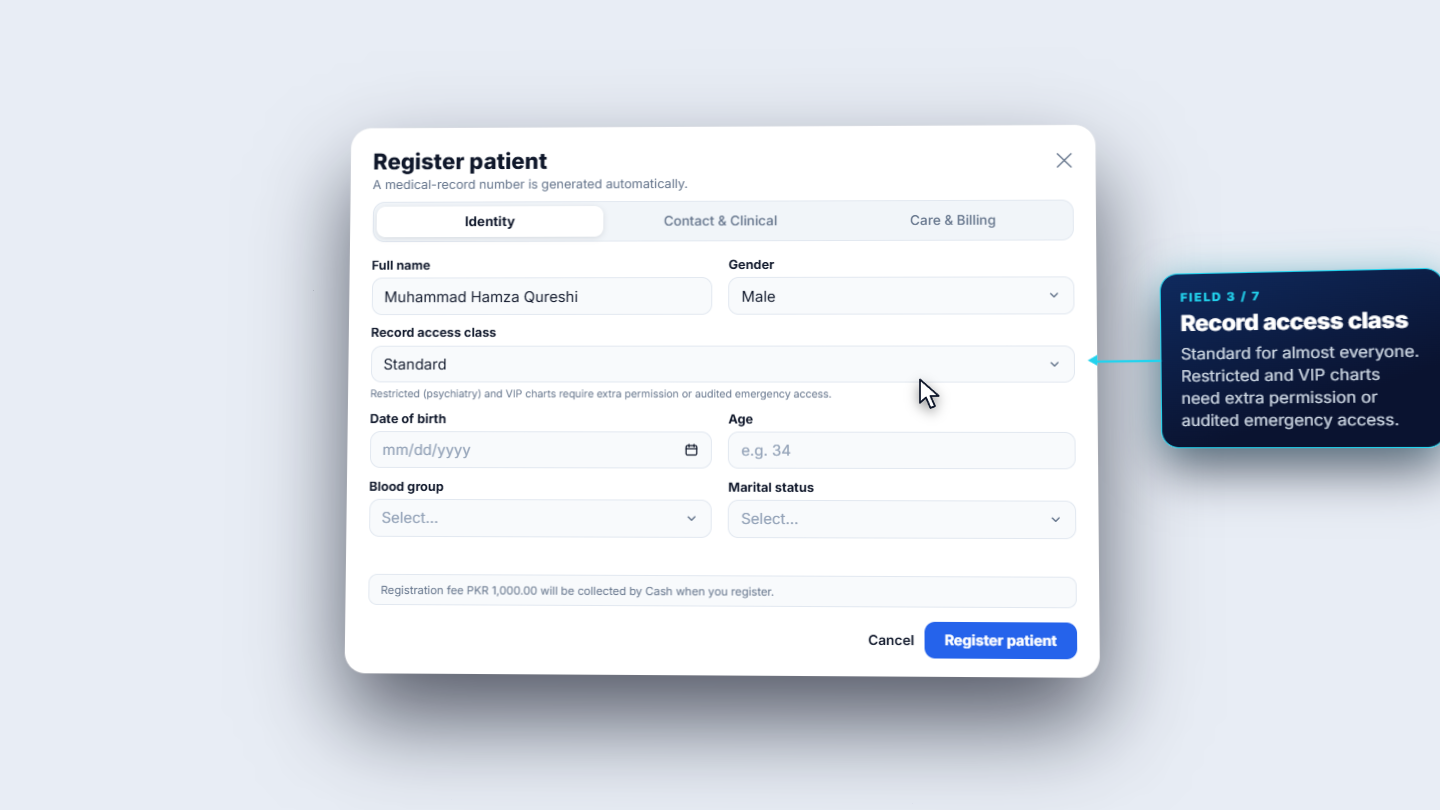
Click Front Desk › Registration › Patients, then Register patient. The dialog says the medical-record number is generated automatically. On the Identity tab type the Full name (Muhammad Hamza Qureshi) and choose the Gender (Male). Record access class stays Standard. Enter the Date of birth and the Age fills in automatically. Then choose the Blood group and Marital status.
Register patient dialog, Identity tab, with Standard record access class
2
Add contact details and clinical basics
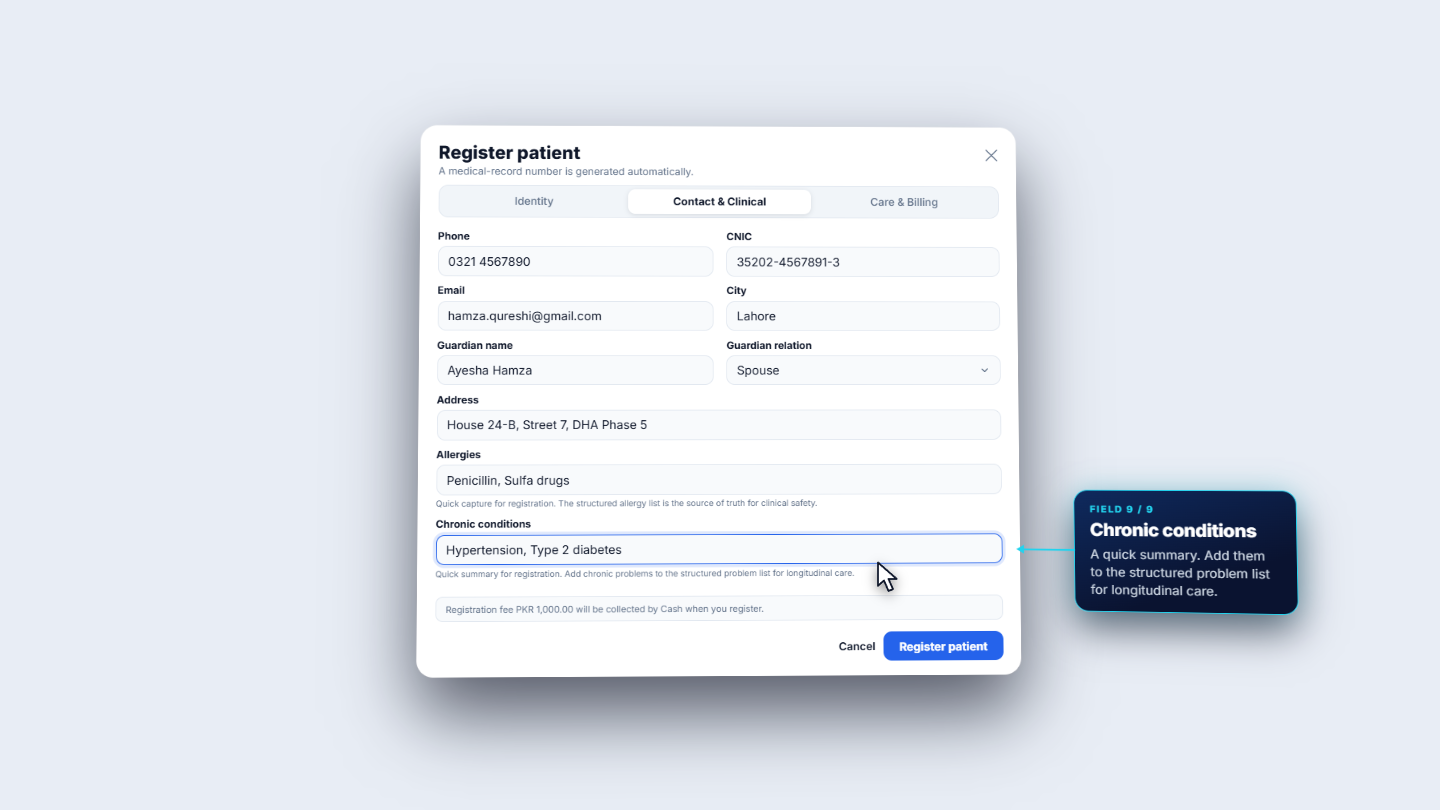
Open the Contact & Clinical tab. Fill Phone (0321 4567890), CNIC (35202-4567891-3), Email (hamza.qureshi@gmail.com) and City (Lahore). Add the Guardian name (Ayesha Hamza) and choose the Guardian relation: Father, Mother, Spouse, Son, Daughter, Brother, Sister, Guardian or Other. Type the Address (House 24-B, Street 7, DHA Phase 5). Record Allergies (Penicillin, Sulfa drugs) and Chronic conditions (Hypertension, Type 2 diabetes).
Contact & Clinical tab filled with phone, CNIC, guardian, address and allergies
3
Set care needs, discount and the fee
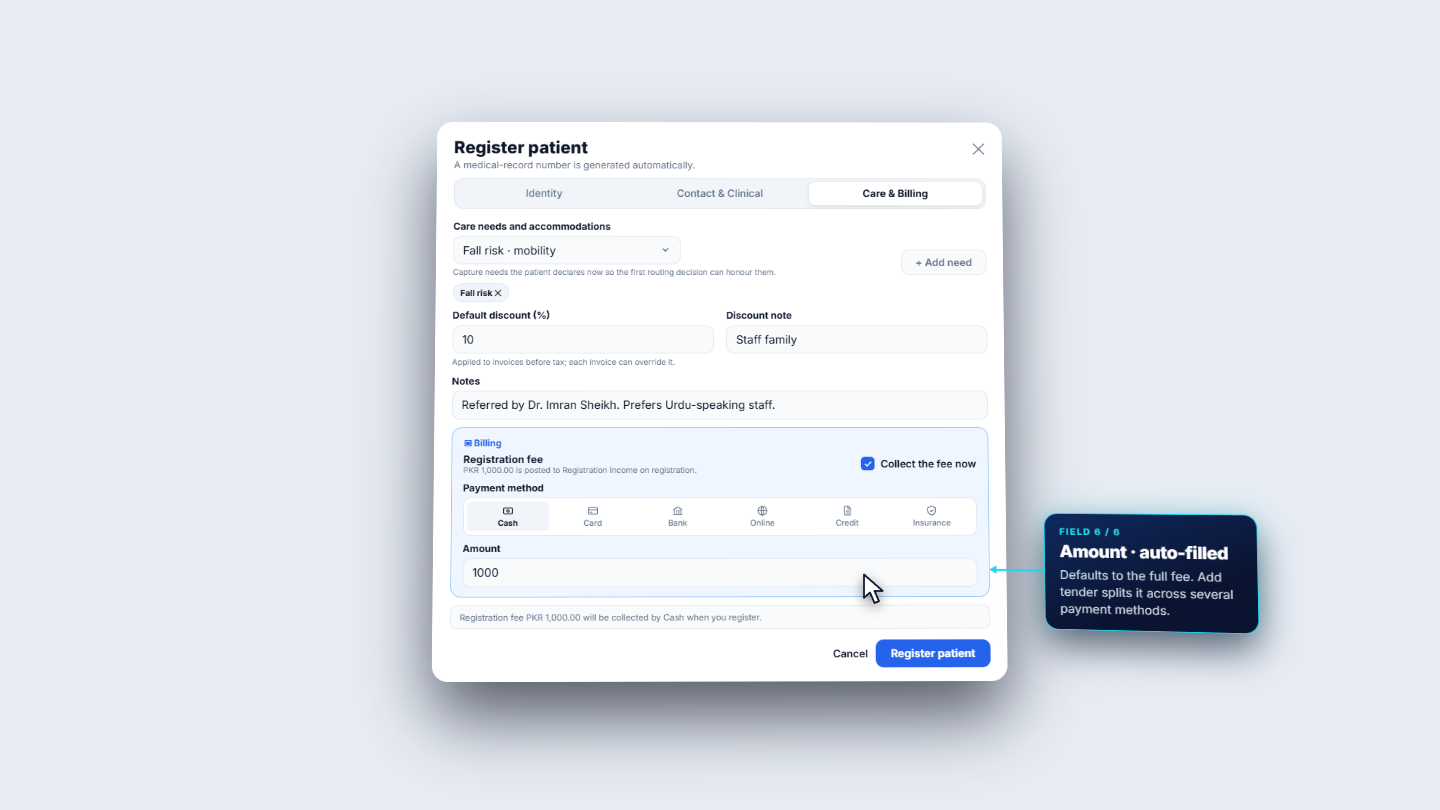
Open Care & Billing. Choose a care need such as Fall risk · mobility and press + Add need; it appears as a chip. Set Default discount (%) to 10 and write the Discount note (Staff family) so the discount can be audited. Add front-desk Notes, for example "Referred by Dr. Imran Sheikh. Prefers Urdu-speaking staff." Keep Collect the fee now ticked. The Amount defaults to the full fee, 1000.
Care & Billing tab with fall risk, 10 percent discount, notes and Amount 1000
4
Choose how the patient pays
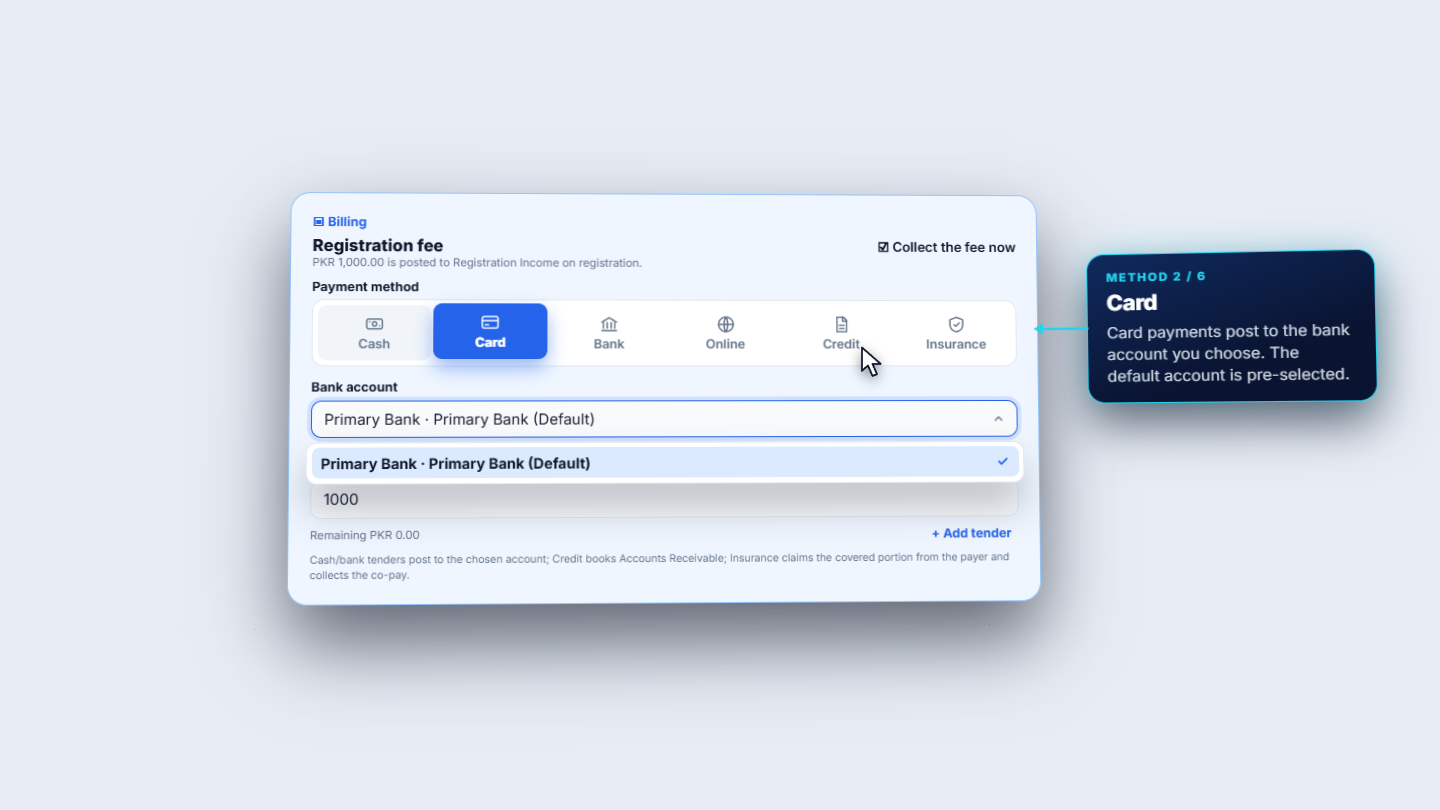
Pick one of the six Payment method buttons. Cash is paid at the counter. Card posts to the bank account you choose. Bank covers transfers and cheques. Online is credited to a bank account. Credit is billed to receivables. Insurance claims the covered part from the payer and collects the co-pay.
Payment method chips with Card selected and Bank account list
5
Know where the bank account list comes from
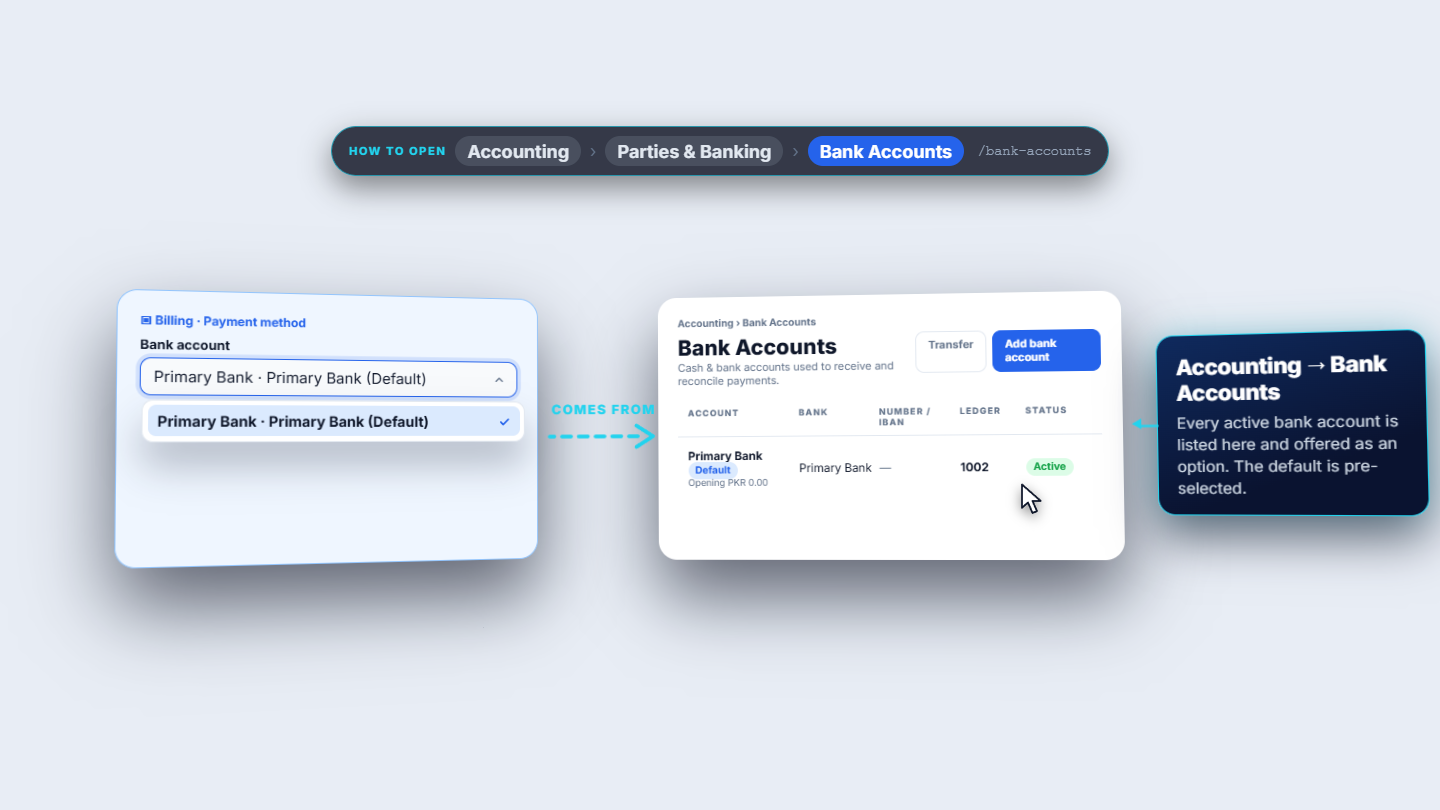
The Bank account dropdown lists the accounts under Accounting › Parties & Banking › Bank Accounts. Here there is one, Primary Bank (the default), with ledger code 1002. Add a bank there once and it appears in this list. Insurers come from Billing › Payers; each has a type and a coverage percentage.
Bank account list linked to the Bank Accounts page, Primary Bank 1002
6
Register and print the receipt
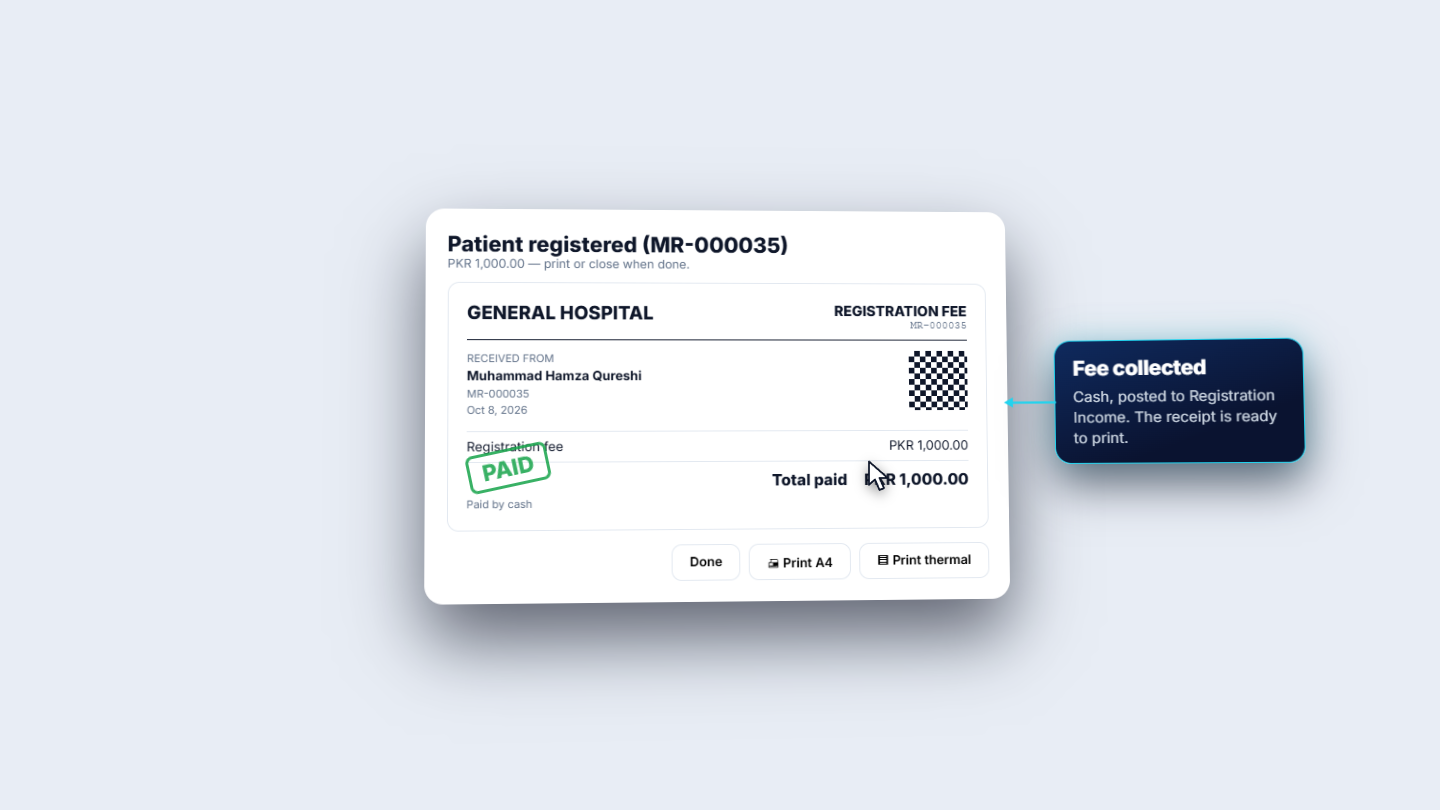
Press Register patient. The dialog title changes to Patient registered (MR-000035) and shows the Registration fee receipt for Muhammad Hamza Qureshi: PKR 1,000.00, PAID, paid by cash. Press Print A4 or Print thermal, then Done.
Patient registered (MR-000035) with the fee receipt marked PAID
Check it worked
The new patient is at the top of the Patients list.
Open the patient's Patient 360: the allergies and chronic conditions you typed are already there.
The receipt shows the MR number, the amount and the payment method.
Common mistakes
Mistake
What you see
Fix
Card chosen with no bank account
The Bank account list is empty
Add the account under Accounting › Bank Accounts first
Fee left unticked by accident
Collect the fee now is off
Tick it before registering, or collect the fee later
Discount given with no note
Nobody can tell why
Always fill Discount note
Quick reference
Item
Meaning
MR number
The patient's lifelong record number, generated automatically
Record access class
Standard for almost every patient; Restricted and VIP need extra permission
Default discount (%)
Applied to invoices before tax; each invoice can override it
Add tender
Splits the fee across several payment methods
Frequently asked questions
How is the MR number created? The medical-record number is generated automatically when you press Register patient. The receipt and the dialog title show it, for example MR-000035, and it is the number every other desk uses to find the record.
Can I split the registration fee across several payment methods? Yes. Press Add tender to split the fee across several payment methods. The six methods are Cash, Card, Bank, Online, Credit and Insurance.
Why is the Bank account list empty when I choose Card? The Bank account list shows the accounts under Accounting › Parties & Banking › Bank Accounts. Add the account there once and it appears in the list.
How do I record a discount so it can be audited? Set Default discount (%) on the Care & Billing tab and always fill the Discount note, for example Staff family, so anyone can see why the discount was given.