A single grocery store in Gulberg becomes a neighbourhood chain of five. A clothing boutique on M.M. Alam Road turns into a franchise across Lahore and Islamabad. That's a great problem to have, and also the exact point where a lot of retailers discover their software was only ever built for one shop.
The trick with multiple locations is holding two things at once: a single view of the whole business, and genuinely separate books for each branch. From the moment you add your second location, ClearRing keeps both. The owner sees everything; each store runs its own show.
Adding a location
You set branches up under Settings, then Locations. Click Add Location, enter the branch name, address, and city, and assign a Location Manager — that's any ClearRing user with the Manager role. Then configure the things that differ store to store: its tax registration (STRN), its receipt header, and its printer.
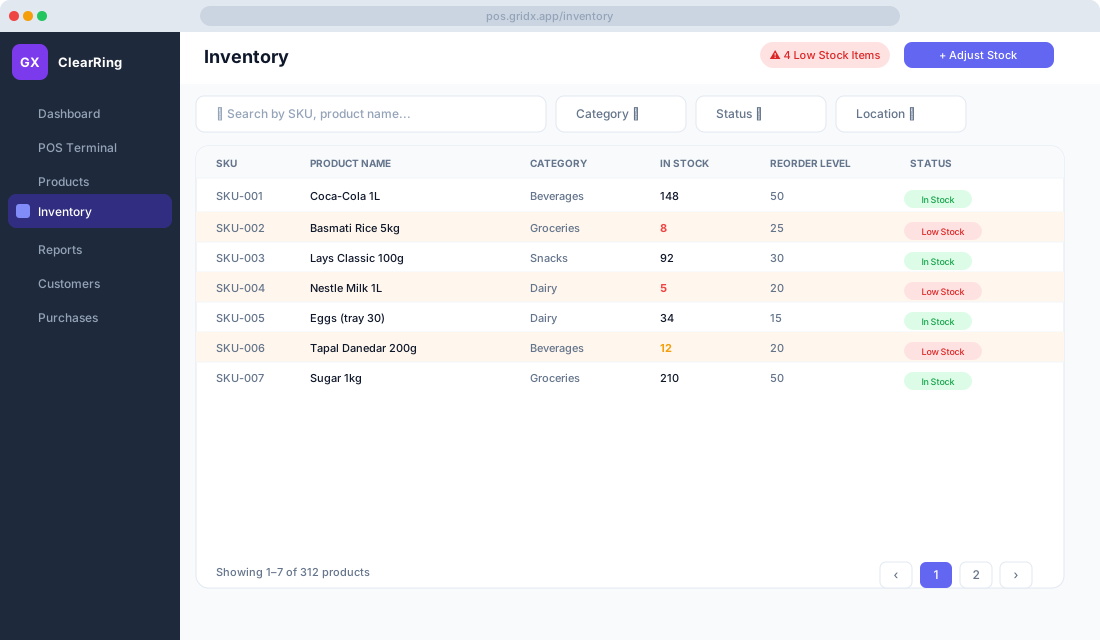
From there, each location runs on its own rails. It keeps its own inventory ledger, its own POS terminal sessions, its own sales reports, and its own FBR submission queue. Nothing bleeds between branches unless you deliberately move it.
Moving between branches
The Location Switcher sits in the top navigation bar. Click it and you get a dropdown of every branch; pick one and the whole application shifts to that context — Inventory, Reports, POS, and Purchases all start showing that branch and only that branch.
Who sees what depends on their role. Owners and Admins can move across all locations. Managers and Cashiers are pinned to their assigned branch, so a cashier in Clifton can't accidentally wander into the Saddar store's numbers or, worse, change them. For a franchise, that boundary isn't a nicety — it's the whole point.
Seeing the chain at a glance
When an owner picks All Locations in the switcher, the dashboard stops being about one store and starts being about the business. It pulls together total revenue across every branch, orders and customers across the chain, and per-location KPI cards lined up for quick comparison.
In practice this is the screen you check with your morning chai. One branch outperforming the rest tells you what's working; one lagging tells you where to look. And a branch showing oddly low sales first thing is often your earliest warning of a POS outage or a stuck FBR submission — long before anyone phones to tell you.
Reports that respect the branch you're in
The Reports module honours whatever location filter you've set, which makes a handful of reports especially useful across a chain. A Sales Summary across all locations lets you put branch revenue side by side. Inventory Valuation per location shows where your stock value is actually sitting. Staff Sales per location surfaces the strongest cashiers in each branch. And Category Sales per location tells you how the product mix shifts from one neighbourhood to the next — the DHA store and the suburban one rarely sell the same things. Any of these exports to CSV when you want to slice it further in Excel or Google Sheets.
Transferring stock between branches
Stock transfers move inventory from one location to another, and they earn their keep in a few familiar situations: one branch is running dry while another's overstocked, you're seeding a brand-new branch from the warehouse, or you want to pull slow-moving stock into one place to clear it.
Creating one is straightforward. Under Stock Transfers, choose New Transfer, pick the source location the stock leaves from and the destination it arrives at, add the products and quantities, drop in a note if it helps (something like "EID stock top-up"), and submit.
Receiving is where the discipline pays off. At the destination, open Pending Transfers under Stock Transfers, find the incoming one, and enter the actual quantity received — which matters when something gets damaged in transit and the count doesn't match. Confirm receipt, and inventory drops at the source and rises at the destination in the same moment. The whole transfer is logged with timestamps and usernames at both ends, so there's never a mystery about who sent what or who signed for it.
One catalogue, every store
Your product catalogue is shared across all locations. You keep one master list of products, prices, and barcodes, and that gives you price consistency between branches, promotions you manage centrally and apply everywhere, and a single source of truth for FBR product codes.
If one branch carries something the others don't, you don't need a separate catalogue for it. Create the product once and simply don't stock it elsewhere — it'll just read as zero quantity at the other branches.
Permissions, location by location
The role system maps neatly onto a chain. An Owner has full access to every location and all settings. An Admin has the same reach minus billing. A Manager gets full access to their assigned location, or locations, and nothing beyond. A Cashier gets POS Terminal access at their branch only. For a franchise model, where each franchisee should see strictly their own data and no one else's, that scoping is what makes the whole arrangement workable.
FBR across branches
Each location needs its own FBR POSID. In ClearRing you go to Settings, then FBR, for the specific branch, enter the POSID that FBR issued for it, and from then on the system stamps the correct POSID onto every invoice from that location. The FBR Invoice Log is per-location too, found under FBR, then Invoice Log, so you can audit compliance one branch at a time instead of untangling everything at once.
A few habits that keep a chain tidy
Name your locations so they're impossible to confuse — city plus area, like "Karachi – Clifton" or "Lahore – DHA Phase 5." Set up a central warehouse as a virtual location for bulk receiving, then transfer out to the retail branches from there. Check the consolidated dashboard every morning to catch a quiet branch early. Set reorder levels per location, since a busy city-centre store burns through stock faster than a sleepy suburban one. And run a location-level P&L each month using the Accounting module's branch filtering, so you know which branches are genuinely carrying the business and which are just busy.
Growth shouldn't mean losing the grip you had when it was one shop. Done right, the fifth store feels as legible as the first.