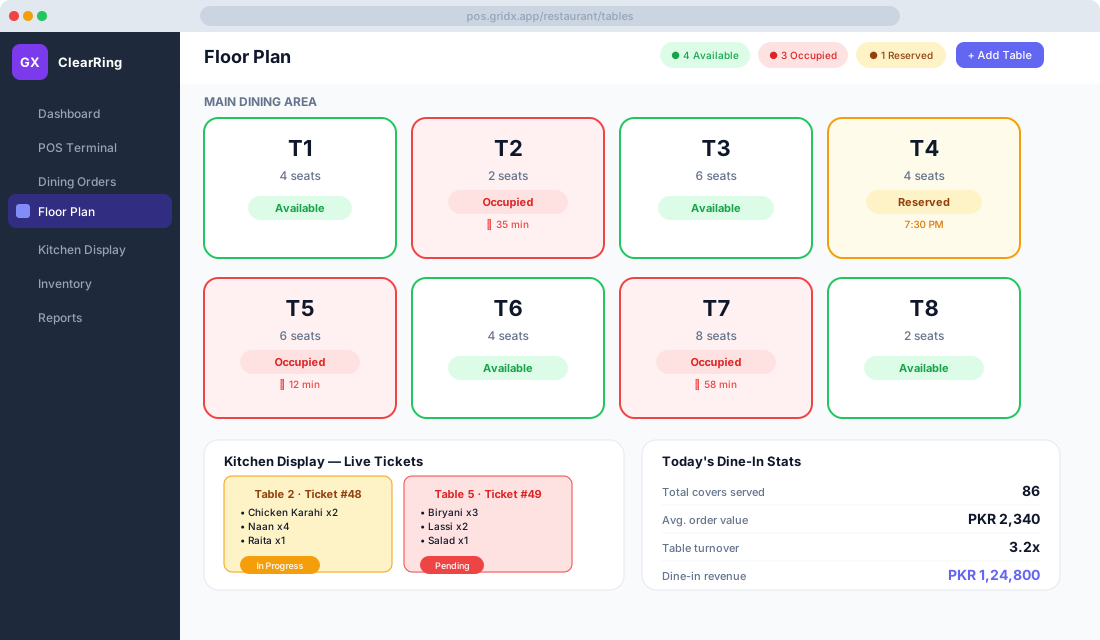
Flip one switch and ClearRing stops behaving like a retail till and starts behaving like a restaurant. Restaurant Mode adds a visual floor plan, a kitchen display, dine-in order tracking, and FBR-compliant invoicing built for food service. Whether you're running a fast-food outlet in Saddar, a fine-dining room in Gulberg, or a café tucked into Islamabad's F-7, this is the workflow that fits.
Here's how it all hangs together, from turning it on to closing out the night.
Turning it on
Restaurant Mode is a feature toggle, so switching it on takes about a minute. Open Settings, then Features, and toggle on Restaurant Mode. From there you'll set up your dining sections — Main Hall, Outdoor, Private Room, whatever matches your space — and add tables to each one.
The moment it's enabled, three new items appear in the sidebar: Floor Plan, Kitchen Display, and Dining Orders. Those three screens are the whole restaurant workflow.
The floor plan, at a glance
The Floor Plan screen lays your restaurant out as a grid of table cards. Each card shows the table number (T1, T2, and so on), its seating capacity, and its current status. Available tables sit green and ready. Occupied tables turn red and show how long the table's been seated — "35 min" — so nobody has to guess. Reserved tables show amber with the booking time attached.
Tap any available table and you drop into the Dine-In Order screen for that table. It's the same screen as the POS Terminal, just scoped to one table: add menu items, apply modifiers like "extra spicy" or "no onion," and save.
That elapsed timer is quietly one of the most useful things on the screen. It helps a floor manager spot tables that have been sitting too long, and any table that pushes past your turn-time target — which you set in Restaurant Settings — deepens to a darker red so it stands out.
When groups shift around, you've got two moves. Merge combines two adjacent tables into a single order, handy when a large party turns up and pulls tables together. Split divides one table's order into separate bills so people can pay individually. Both live in the table's context menu, reached by long press or right-click.
Taking a dine-in order
From an occupied table, the order screen works course by course. Pick items from the menu grid exactly as you would on the POS Terminal. Tap an item to open its modifier popup and choose size, spice level, or extras. When the round is ready, hit "Send to KDS" to push the ticket through to the kitchen.
The nice part is that an order is never frozen. Come back to the table whenever the guests want more, add items, and those new items fly straight to the kitchen. Anything added after the first send is marked "Added" on the kitchen ticket, so the kitchen staff know precisely what's new and what they've already got going.
The kitchen display
Open Kitchen Display and you've got the KDS view, usually running on a dedicated screen by the pass. Tickets move through three states. A pending ticket shows red — received, not started. An in-progress ticket shows amber — the kitchen's on it. A ready ticket shows green — time to serve.
Working a ticket is just tapping. Tap once to mark it In Progress, tap again to mark it Ready, and ready tickets flash to catch the floor staff's eye. Every ticket carries the table number, the ticket number, and all the line items with their quantities and modifiers, so nobody's deciphering handwriting or shouting across the line.
You can tune the KDS in Kitchen Settings. Set an alert time so tickets older than a set number of minutes turn red with a pulsing border. Assign stations so the grill screen only shows grill items. And switch on sound alerts so a new ticket announces itself even when the kitchen's heads-down.
Keeping an eye on everything
The Dining Orders screen in the sidebar lists every active table order in one place — exactly the view a floor manager or head waiter wants mid-service. You can see all open orders across the floor, the running value of each table, how long it's been since each table last sent something to the kitchen, and which tables have food sitting ready to be served. From here you can jump into any table to add items, apply a discount, or head to checkout.
Checkout and FBR
When the guests are ready to settle, open the table's order from either the Floor Plan or Dining Orders and click Checkout. Apply any discounts or promo codes, choose the payment method — cash, card, or a split — and confirm.
ClearRing then does three things at once. It generates and submits the FBR invoice, which is required on all restaurant sales. It marks the table Available again. And it prints the receipt complete with the FBR invoice number and QR code. That receipt carries your restaurant's name, address, STRN, and every line item, in line with FBR's invoicing requirements for restaurants.
Reservations
Bookings live under Floor Plan, then Reservations. Log a guest's name and phone number, the number of covers, the date and time, and a preferred table if they've asked for one. On the day, the table flips to Reserved automatically one hour before the booking, which keeps a walk-in party from being seated at a table you've already promised.
The numbers worth watching
The Reports module carries restaurant-specific metrics that tell you how service is really going: covers served by day, week, or month; average order value per cover; table turnover rate, meaning how many seatings each table does in a day; KDS efficiency, the average time from a ticket landing to being marked Ready; and your best-selling dishes, pulled from the product sales report filtered to your food menu.
A few things that help in practice
Set up separate dining sections for indoor and outdoor seating — Karachi weather means your outdoor capacity swings with the seasons, and you'll want to open and close that section cleanly. Use the KDS even if your kitchen is tiny; an eight-thousand-rupee Android tablet running the display ends the miscommunication between counter and cook. Switch FBR invoicing on from your first day, since restaurant audits have stepped up and a compliant receipt builds trust with diners too.
Lean on modifiers for the way Pakistani menus actually work — a single "Biryani" item can carry modifiers for Chicken or Mutton, Full or Half, Raita or no raita, instead of cluttering your menu with four near-identical entries. And train your waitstaff to send to the KDS before they walk back to the pass: the table timer starts from the order, not from when you reach the kitchen, so every second of walking is a second the kitchen didn't have.