How to take a child from enquiry to enrolled student
A family asks about a place, applies, pays the application fee, sits an entrance test, is admitted and is enrolled in a batch. This guide follows that whole path on the Admissions screen, the way a registrar works it.
Who it is forSchool registrar / admissions officerTime15 minutesProductSCMLevelBeginner
Before you start
Steps
1
Read the enquiry pipeline
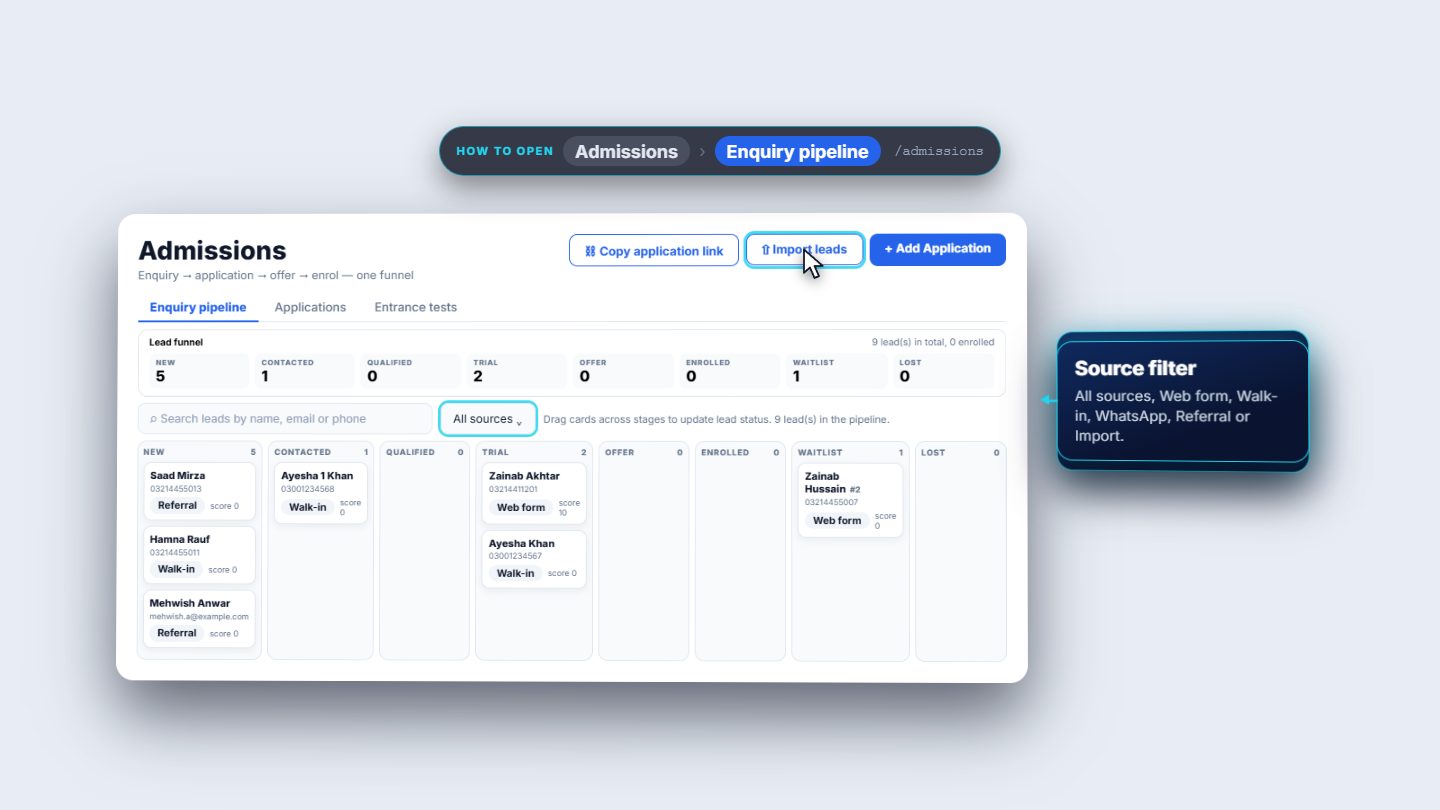
Click Admissions. The screen has three tabs: Enquiry pipeline, Applications and Entrance tests. On Enquiry pipeline the Lead funnel counts the enquiries in eight stages, from New to Lost. Each card shows the child, the guardian contact, the source and a score. Use Import leads to load a CSV and the source filter to narrow the board.
Admissions screen with the Lead funnel of eight stages and the lead cards
2
Add the application and answer the duplicate check
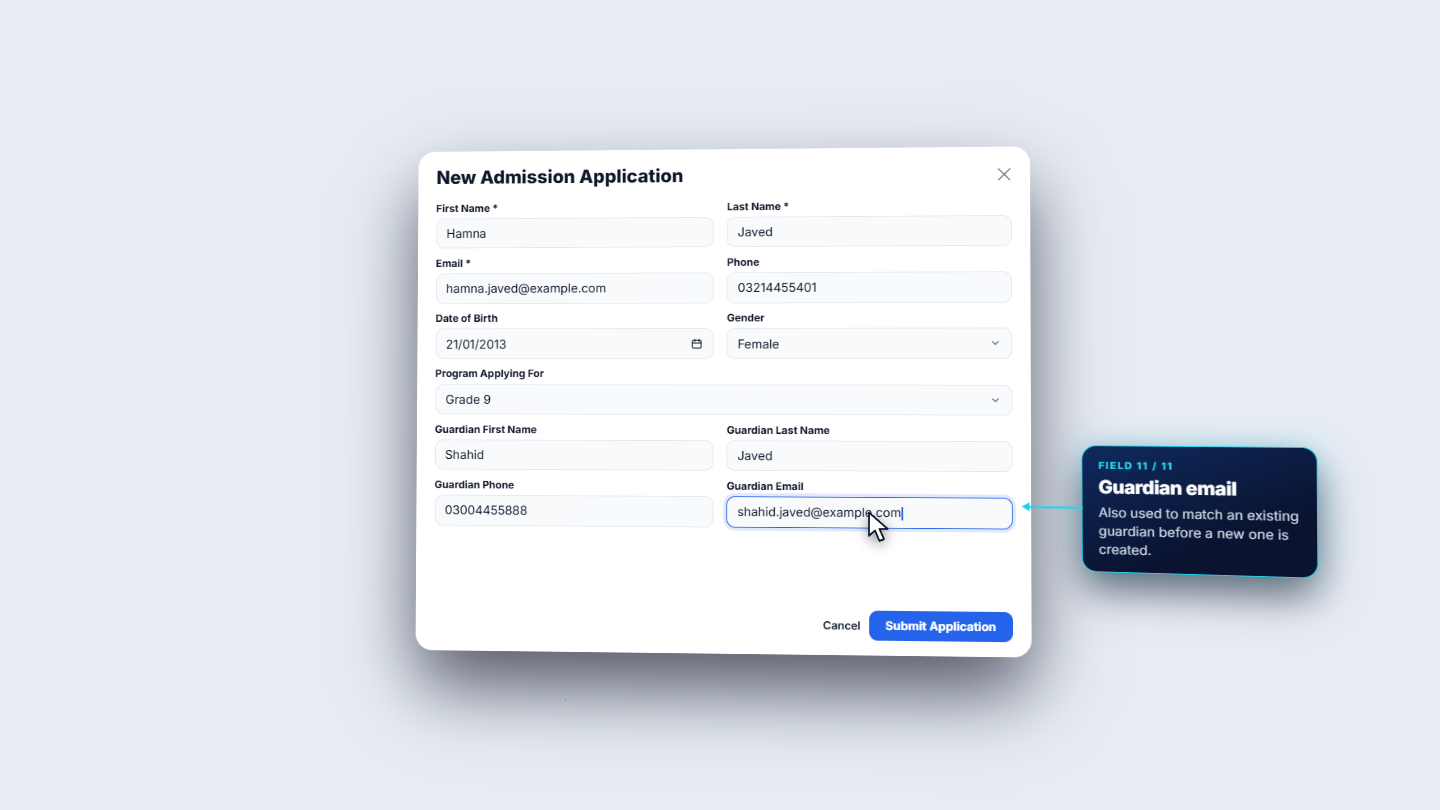
Press Add Application. Fill First Name, Last Name and Email (all required), then Phone, Date of Birth, Gender and Program Applying For. Under the guardian, fill the first name, last name, phone and email. SCM uses the guardian phone to find a guardian who already exists. Before it saves, SCM checks for a duplicate: the same name and birth date, or the same guardian phone or email. In the example, Hamna Javed's guardian already has Hira Javed here, so Hira is listed as a student and as an applicant. Choose Create anyway for a genuine sibling. The toast reads Application created.
New admission application form for Hamna Javed
3
Record the application fee
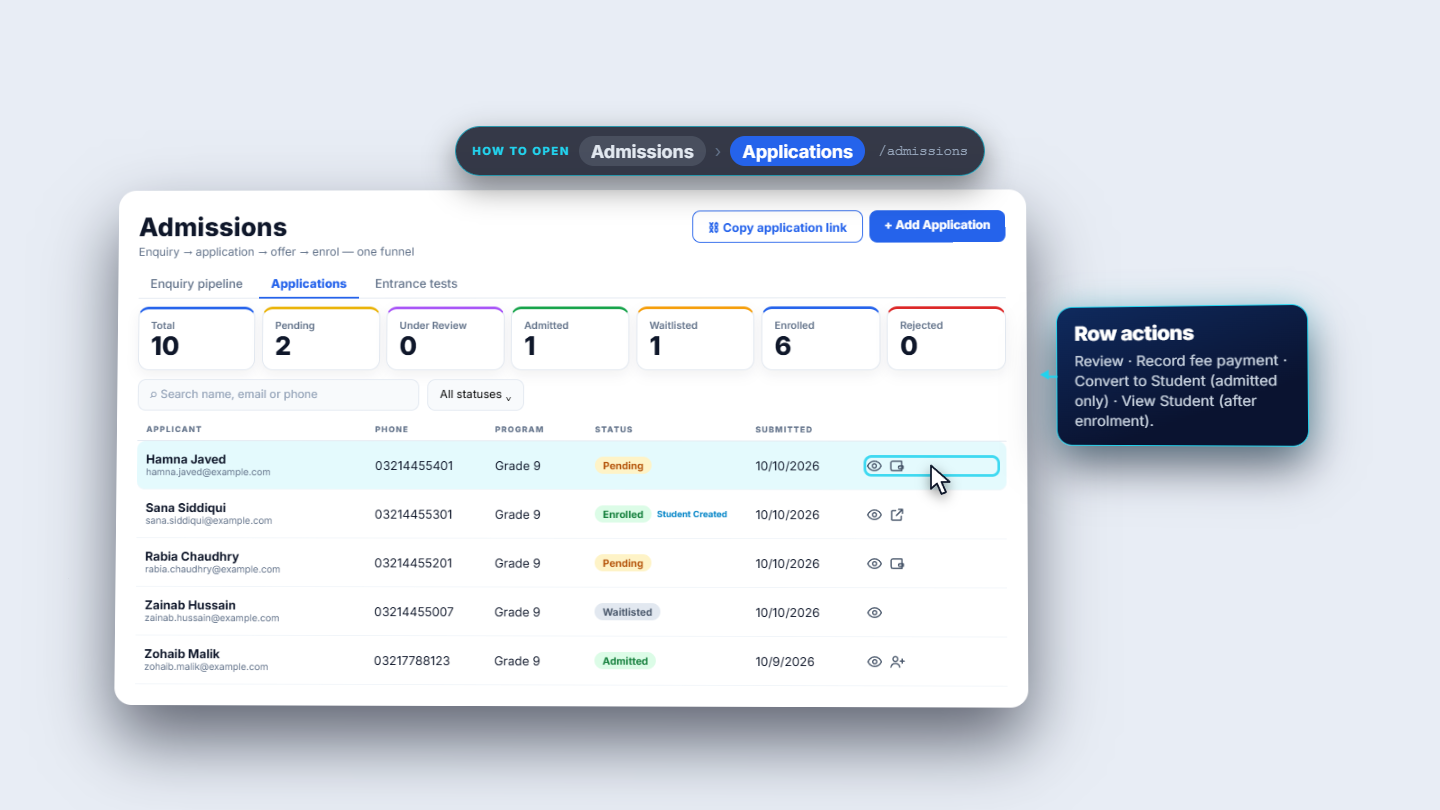
On the Applications tab the new row is at the top as Pending. In the row, the wallet icon is Record fee payment. Enter the Amount actually received (here 2,500 rupees) and choose a Payment method: Cash, Bank Transfer, Cheque, Credit Card, Debit Card or Online. The bank methods also ask for a Bank Account and a Transaction Reference.
Applications tab with the new Pending application
4
Check the receipt
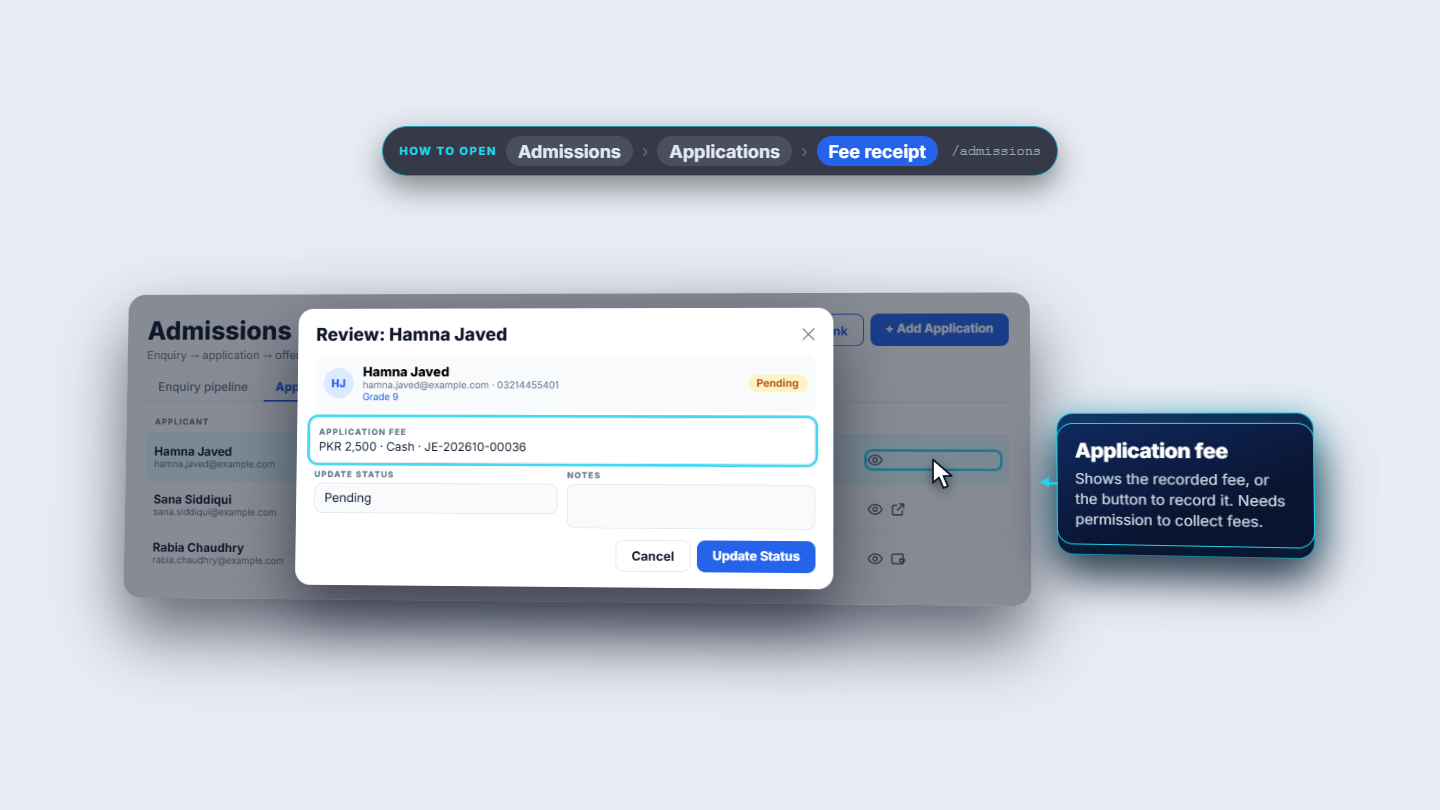
The dialog now shows the fee recorded: the amount, the method, a reference the app generates, and the journal entry number. The fee is posted to the ledger once. If you record it again, SCM returns the original receipt instead of posting a second payment. Afterwards the wallet icon disappears from the row, and the Review box shows the fee.
Application fee receipt with amount, method, reference and journal entry
5
Schedule the entrance test and record the result
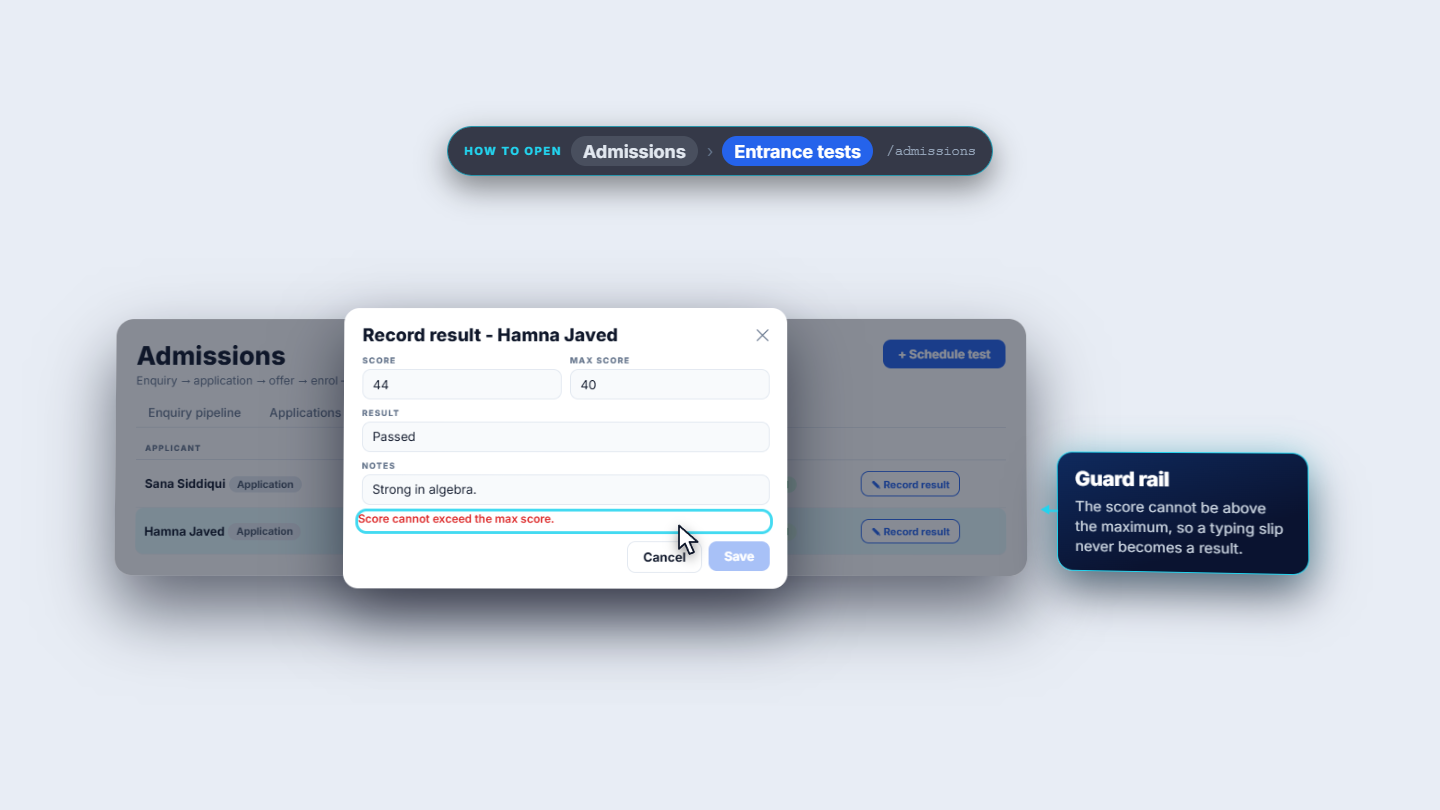
Open Entrance tests and Schedule entrance test. Choose who it is for (a lead or an application), the Type (written, oral, interview or assessment), the applicant, the date and time, and a note for the family. After the test, Record result takes the score, the maximum and the result: Pending, Passed, Failed or Absent.
Entrance tests result: score against the maximum
6
Move the application to Admitted
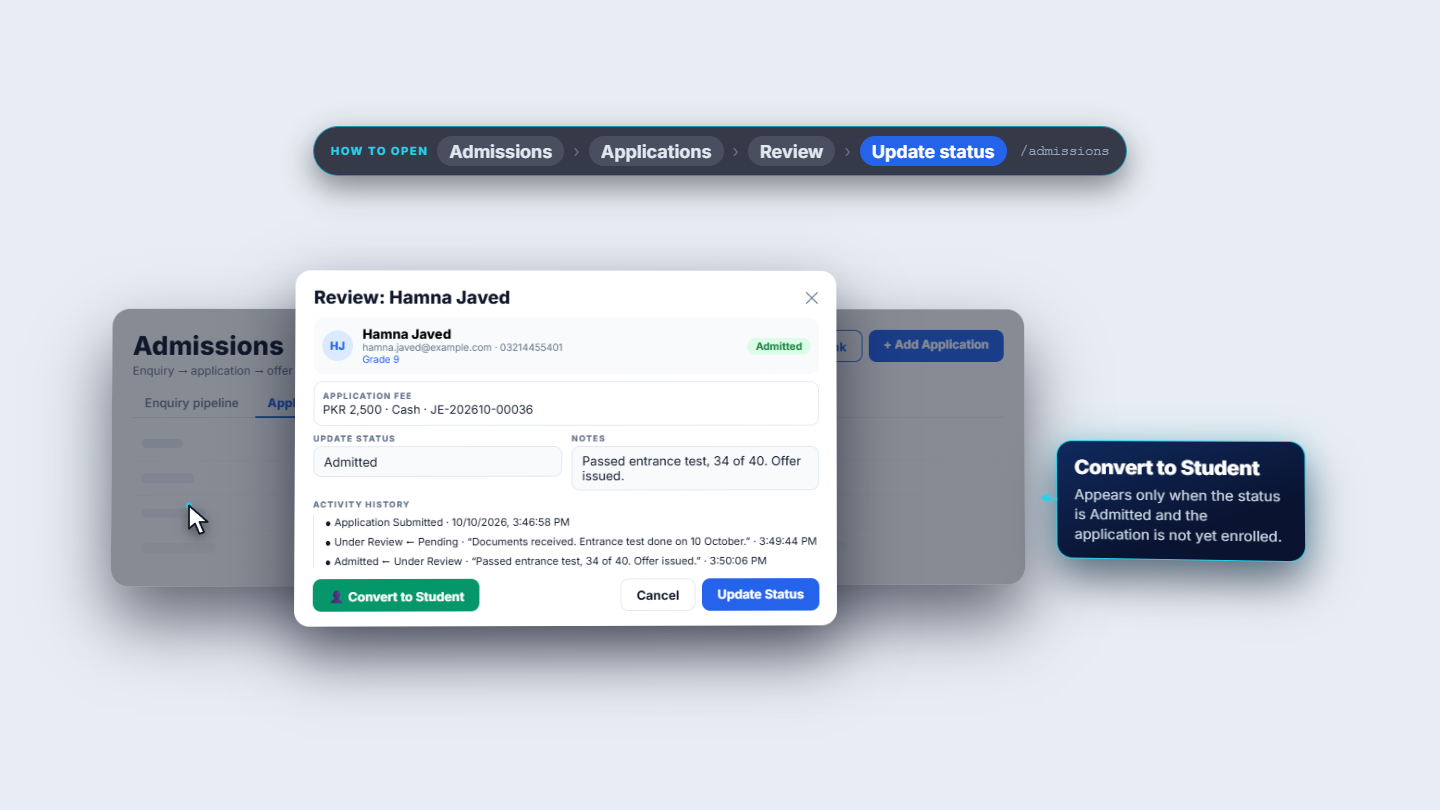
Press Review on the row. Use Update status to move it: first Under Review, with a note about what you received, then Admitted after the test. Notes are saved with each change, so the Activity history lists every step with its time and note.
Review dialog showing the activity history of status changes
7
Convert to student and enrol
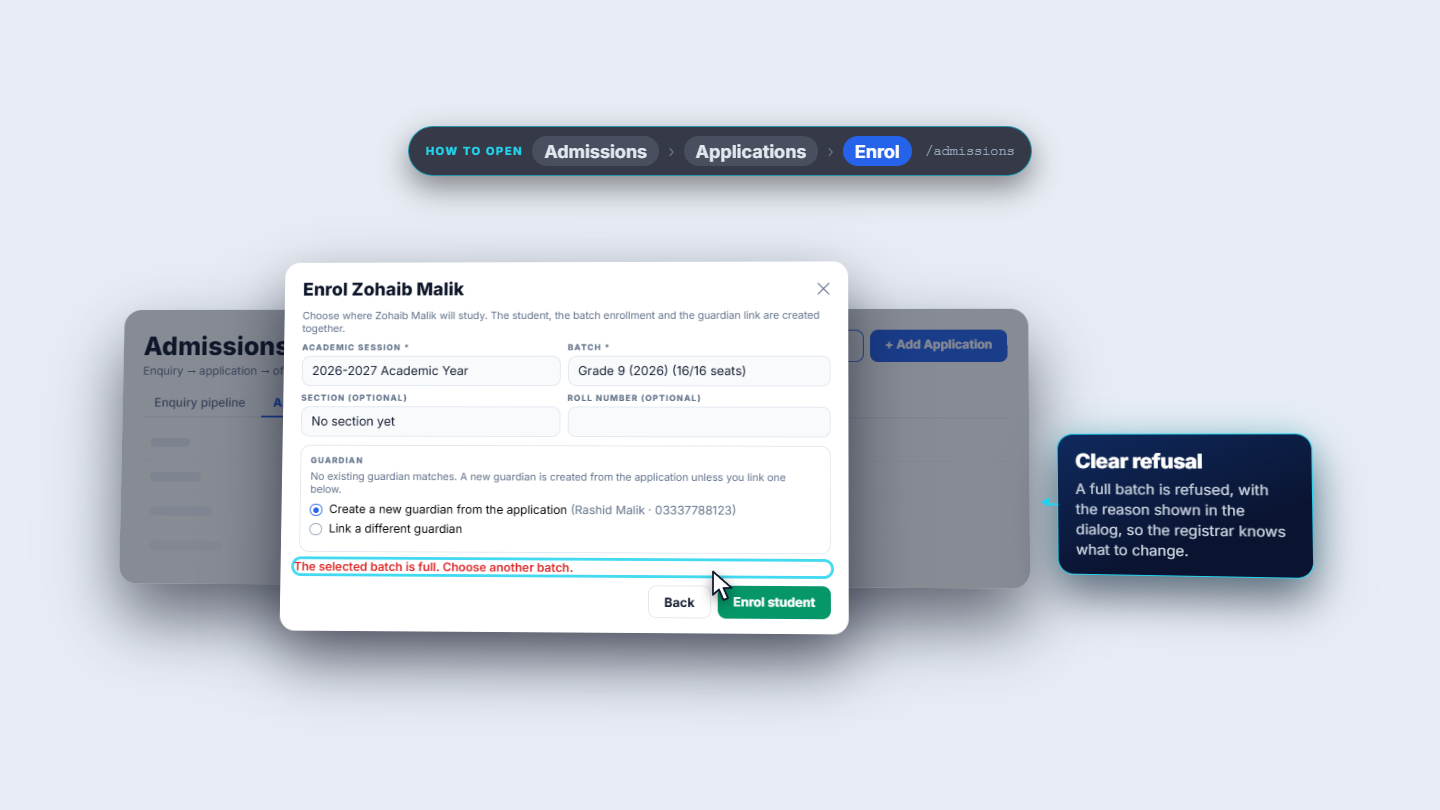
Press Convert to Student. Choose the Academic session, the Batch (the label shows how many seats are taken), optionally a Section and a Roll number. At the guardian box, link the guardian SCM found by phone, create a new one, or link a different one. Press Enrol student. If the dialog asks about a possible duplicate again, Create anyway confirms. If the batch has no seats left, the dialog says The selected batch is full. Choose another batch.
Enrol dialog with session, batch, section, roll number and guardian
Check it worked
You land on the new student profile with a registration number, the batch, the section and the roll number.
The guardian is already linked as primary, with phone and email.
The student's login exists in Administration › Users with the Student role.
After adding the application, the Total and Pending counters went up by one.
Common mistakes
Mistake
What you see
Fix
Recording the fee twice
The original receipt is returned, nothing is posted again
Nothing to fix; use the existing receipt
Score higher than the maximum
A message under the score, Save stays off
Correct the score or the maximum
Enrolling into a full batch
The selected batch is full. Choose another batch.
Pick a batch with free seats
No Convert to Student button
Button missing on the row
Set the application to Admitted first
Quick reference
Item
Meaning / rule
Lead
An enquiry that has not applied yet (eight pipeline stages)
Application status
Pending, Under Review, Admitted or Rejected
Application fee
Recorded once per application, with a receipt and a journal entry
Entrance test result
Pending, Passed, Failed or Absent
Convert to Student
Creates the student, enrolment, guardian link, first invoice and login together
Frequently asked questions
What is the difference between a lead and an application? A lead is a family that has only asked about a place. It becomes an application once the family applies, and the counters at the top (Pending, Under Review, Admitted, Waitlisted, Enrolled, Rejected) count applications, not leads.
Why can I not see the Convert to Student button? The button only appears when the application is Admitted. Set the status to Under Review and then Admitted from the Review box first.
What happens if I record the application fee twice? SCM returns the original receipt instead of posting a second payment, so the fee is posted to the ledger once.
What does converting an application to a student create? One step creates the student, the batch enrolment, the guardian link, the first fee invoice and the student's login with the Student role.