How to build a class timetable by hand or generate a week
Place lectures in the weekly grid yourself, see clashes the moment they happen, or let SCM draft a whole week for a batch and then adjust it. The example batch is Grade 9 (2026).
Who it is forAcademic coordinator / timetable officerTime15 minutesProductSCMLevelIntermediate
Before you start
Steps
1
Open the builder and pick the batch
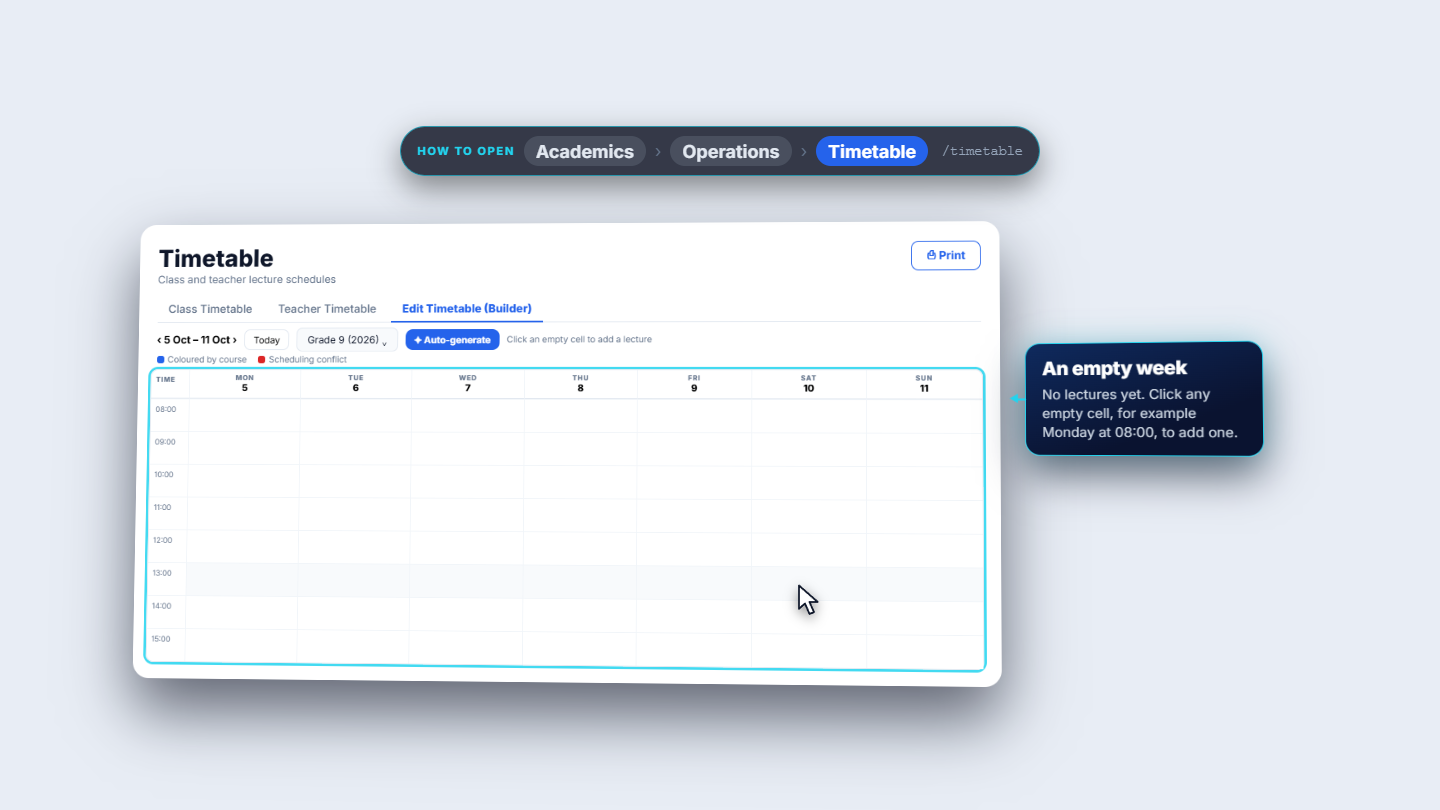
Click Timetable and the Edit Timetable (Builder) tab. Pick a batch to edit, here Grade 9 (2026), and the weekly grid appears. A new batch has no lectures. The hint beside the batch says: click an empty cell to add a lecture.
Edit Timetable (Builder) with Grade 9 chosen and an empty weekly grid
2
Add a lecture by hand
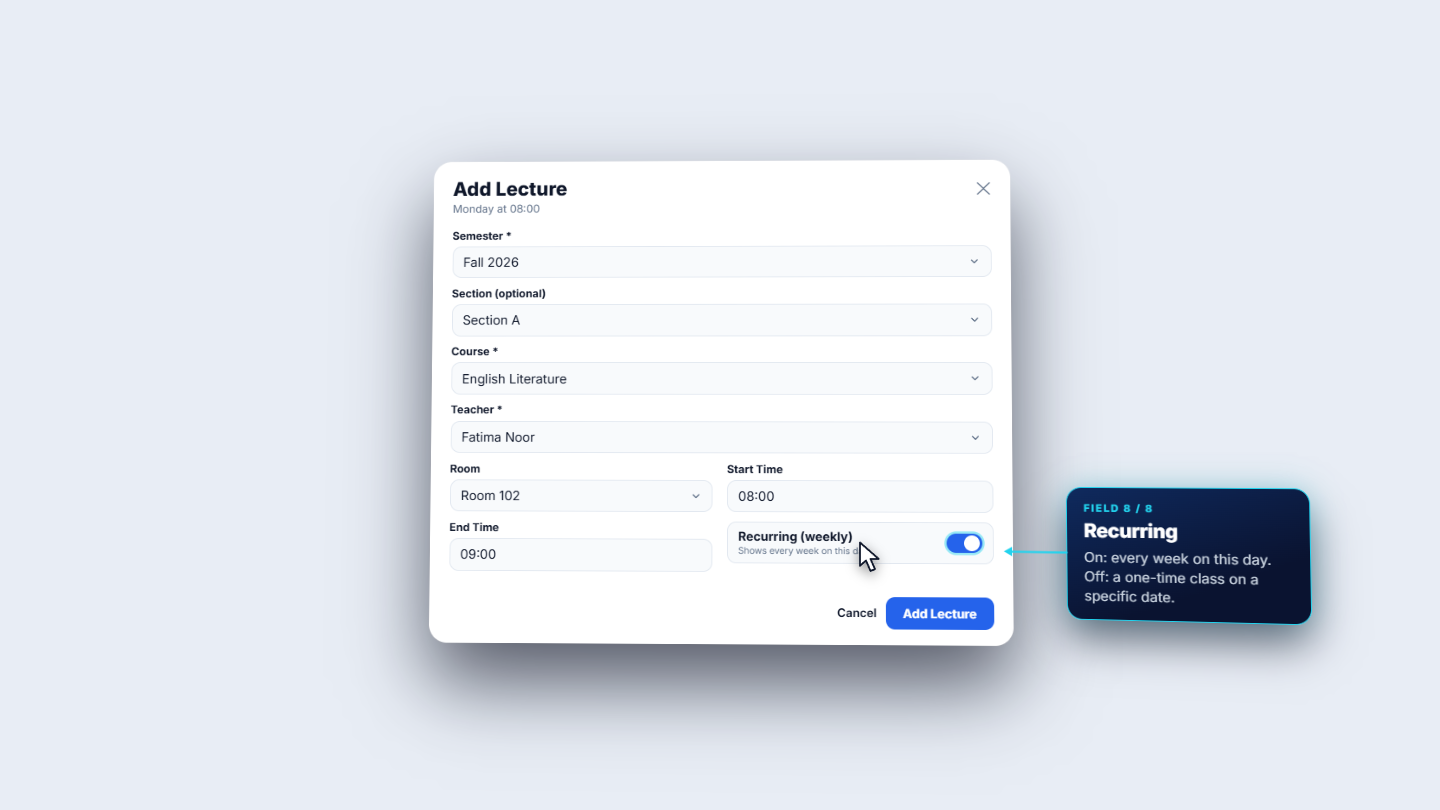
Click an empty cell, for example Monday at eight. Add Lecture opens with the day and time from the cell. Pick the Semester, the Section (optional), the Course, the Teacher (search and pick), and the Room. Start Time and End Time come from the cell, one hour by default. Recurring (weekly) repeats the lecture every week; switch it off for a one-time class. The lecture appears in its cell coloured by course, with the teacher and room.
Add Lecture dialog for Monday at eight
3
Read the conflict warnings
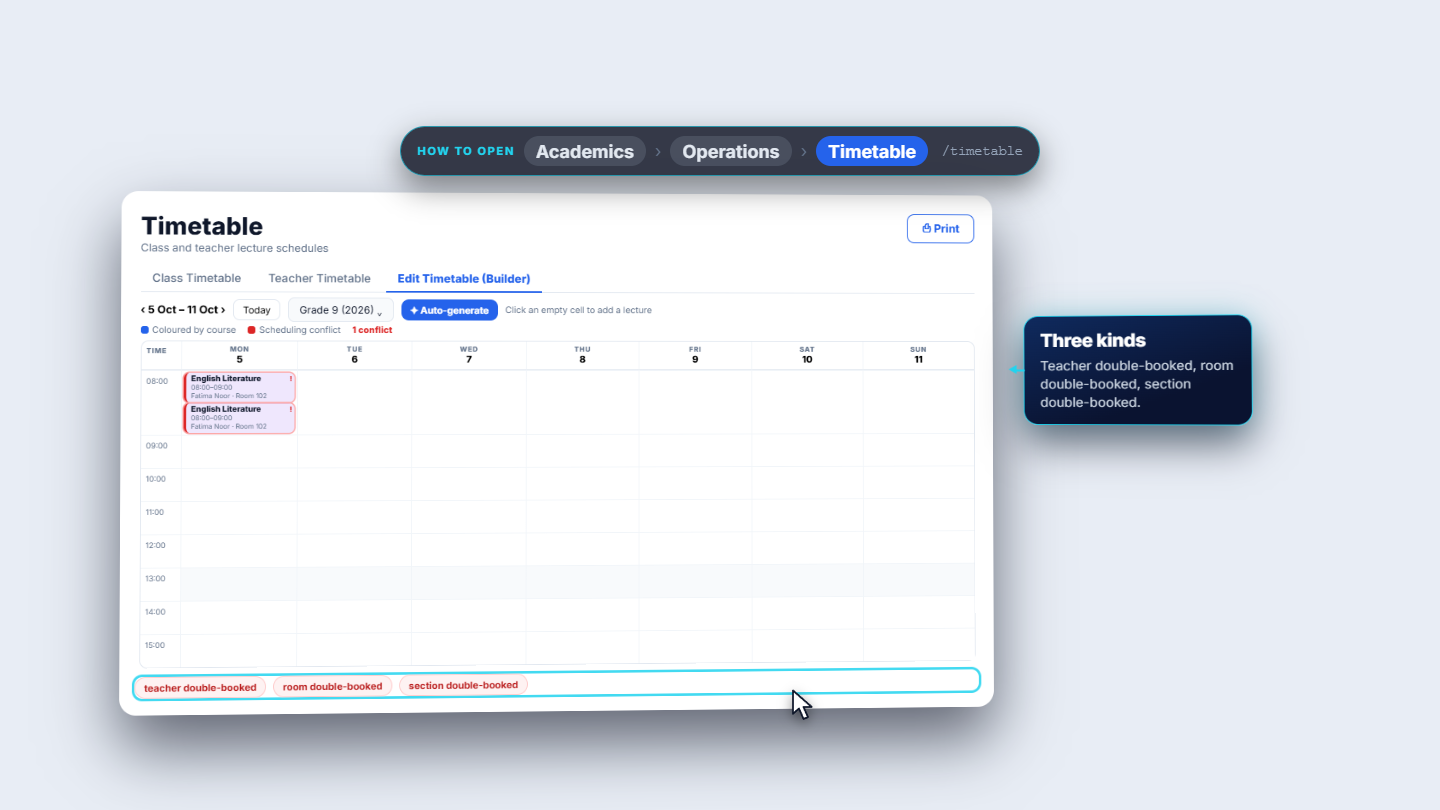
Add the same teacher in the same hour for another section and SCM flags a red conflict. It names the clash: teacher double-booked, room double-booked or section double-booked.
Two lectures in the same cell flagged red with the three kinds of clash
4
Auto-generate a week
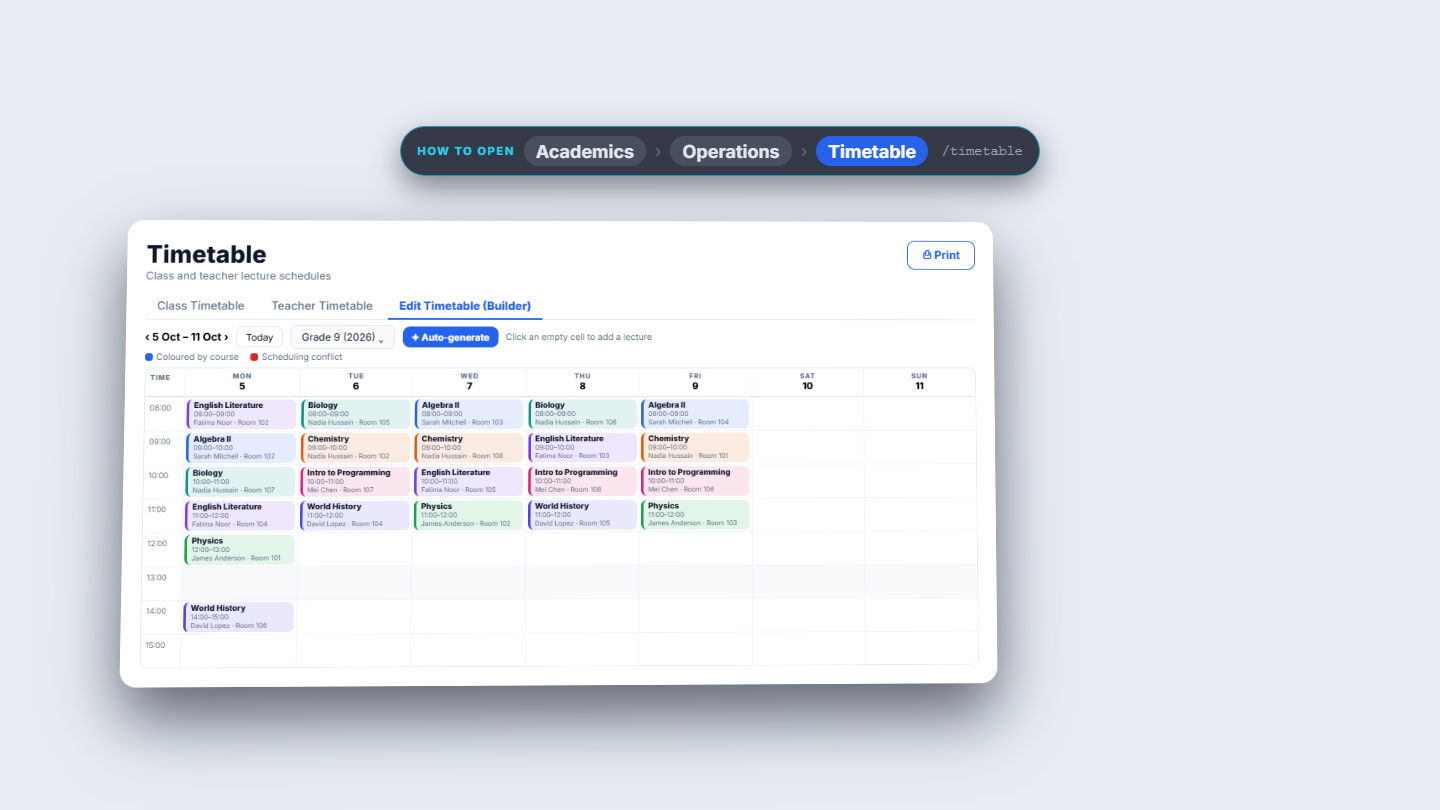
Press Auto-generate. It appears only in edit mode with a batch chosen. It builds a clash-free weekly draft from the program's courses, teacher availability and room capacity. Periods per course a week is optional; left empty, it uses each course's contact or credit hours. Tick replace to cancel the batch's existing lectures first; leave it off to keep them. It fills Monday to Friday in one-hour slots, 8 to 1 and 2 to 4, and never double-books a teacher, a room or a section. The result says how many lectures were created and how many courses still need slots.
Weekly grid filled by Auto-generate for Grade 9
5
Treat the result as a draft
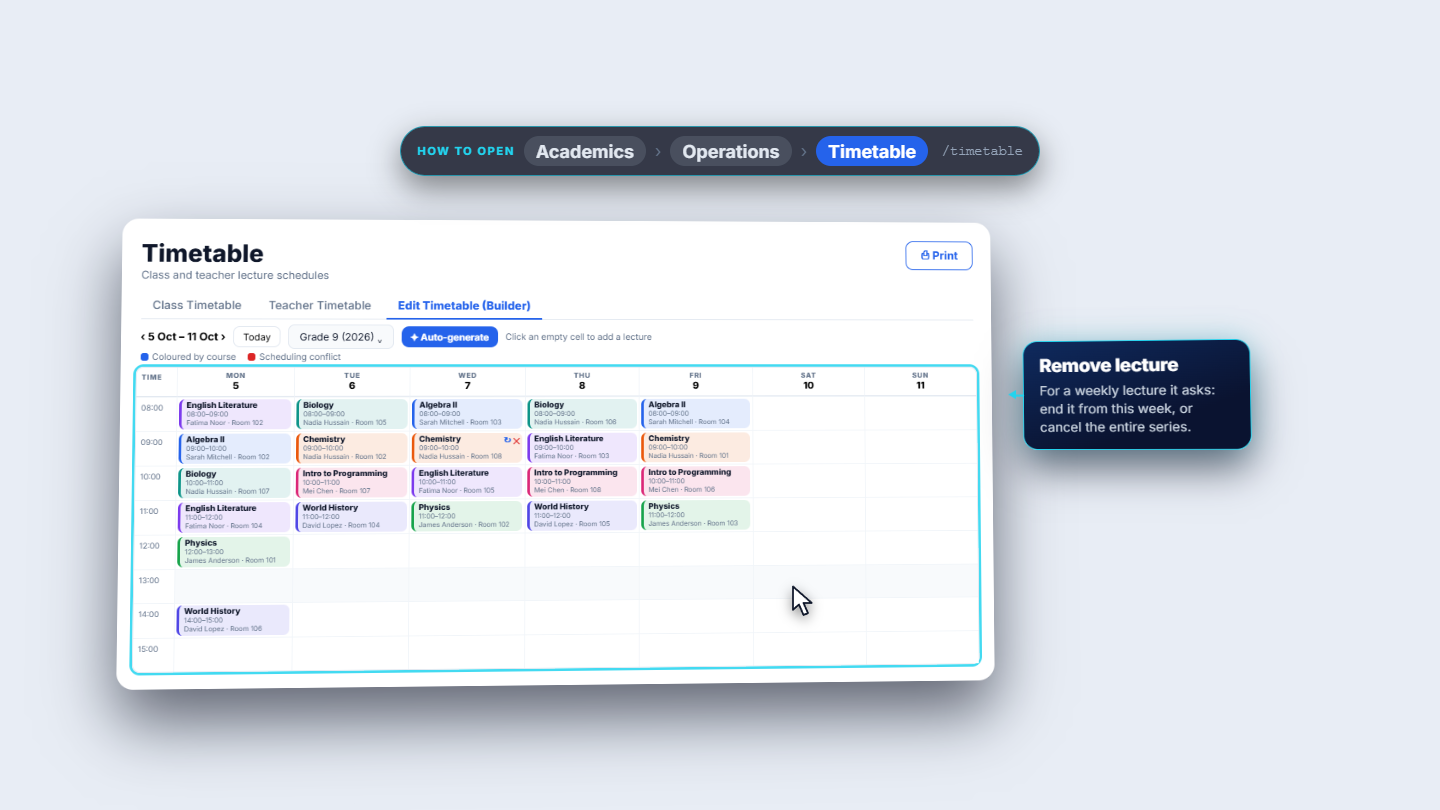
The draft is in the grid, and a lecture you added by hand (Fatima's Monday at eight in the example) is kept; the generator plans around it. Each lecture can be moved to the next free slot or removed. Regenerate slot moves a lecture to the next slot where its teacher, room and section are all free.
Draft in the grid with lecture actions
6
Remove a lecture
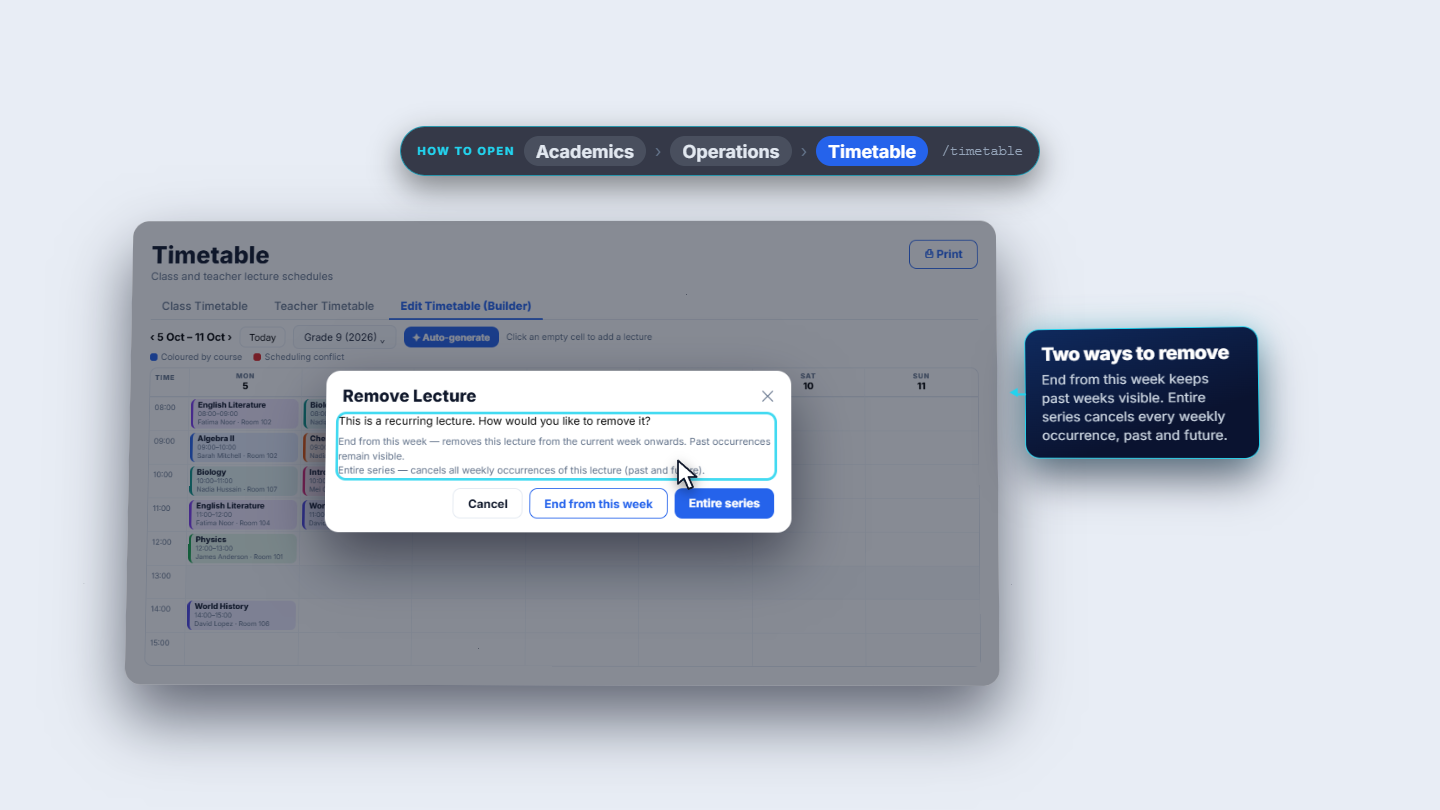
Remove on a weekly lecture asks how. Choose to end it from this week onward, so past weeks stay visible, or to cancel the entire series.
Remove choice: end from this week or cancel the whole series
7
Check the read-only views
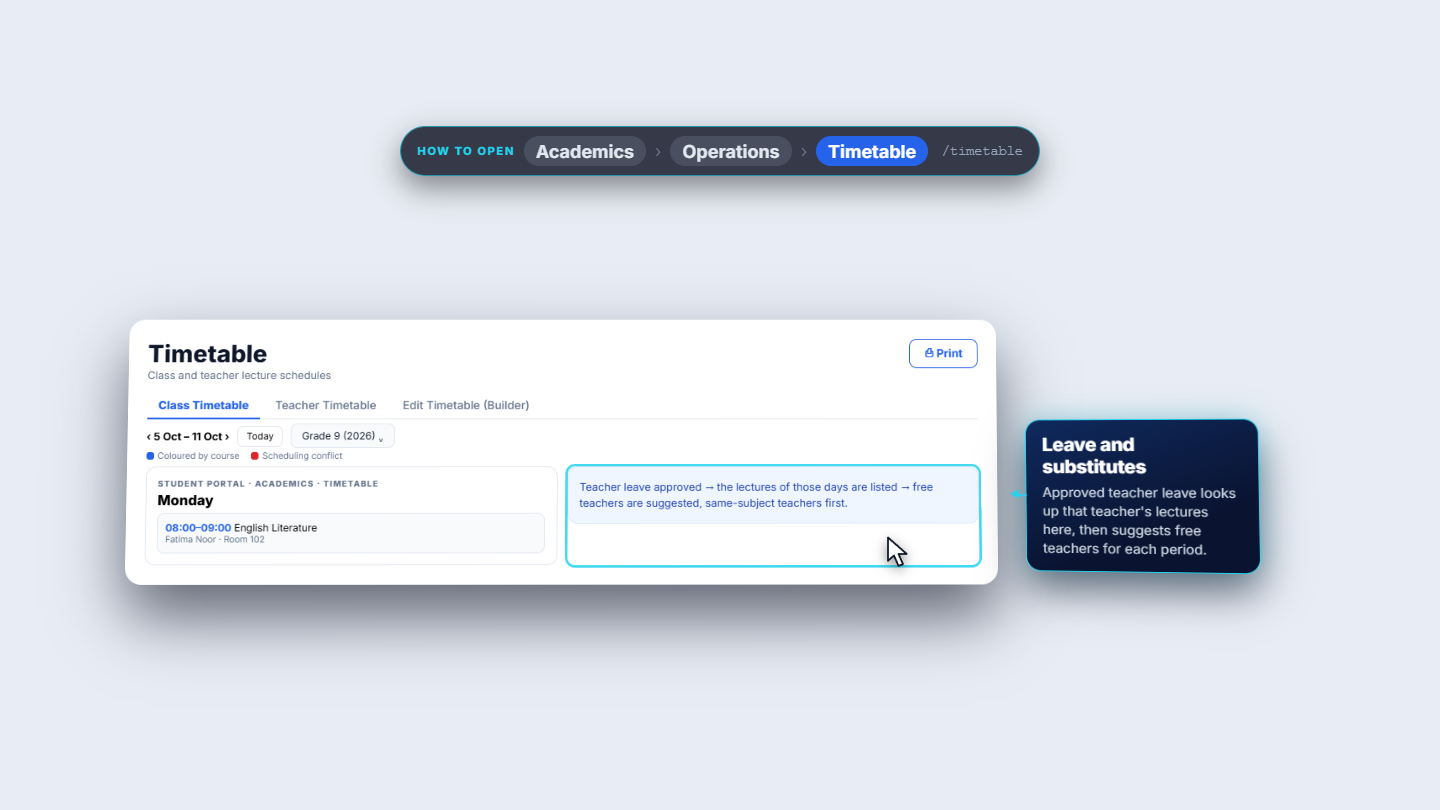
Class Timetable is the read-only weekly view of one batch, with week arrows and Today. Teacher Timetable shows one teacher across every class, for example Fatima's week. Print sends the grid to the printer. Students and guardians see the same timetable in their portals, so there is one source.
Class Timetable view for one batch
Check it worked
Every lecture shows in its cell with the course colour, teacher and room.
No cell carries a red conflict flag, or you know which clash to fix.
The Class Timetable and the Teacher Timetable show the same lectures.
Common mistakes
Mistake
What you see
Fix
Same teacher added twice in one hour
A red conflict, teacher double-booked
Move one lecture or choose another teacher
Auto-generate with replace ticked by accident
Existing lectures are cancelled first
Leave replace off to keep what you have
Trusting the generated teacher names
A free teacher outside the subject may appear
Review the names after generating
Quick reference
Item
Meaning / rule
Recurring (weekly)
Repeats every week; off means a one-time class
Auto-generate slots
Monday to Friday, one hour, 8 to 1 and 2 to 4
Periods per course
Optional; empty uses contact or credit hours
Regenerate slot
Moves a lecture to the next free slot
Frequently asked questions
How does SCM warn me about clashes? It flags a red conflict that names the clash: teacher double-booked, room double-booked or section double-booked.
Does Auto-generate delete the lectures I already added? Not unless you tick replace. Left off, your lectures are kept and the generator plans around them.
Can I trust the teachers that Auto-generate picks? Review the names. SCM tries teachers who already teach the course, then those whose specialization matches the course Subjects field, and may use a free teacher if nobody fits.