How to register a teacher, assign subjects and arrange cover
Add a teacher with their employment details, give them a login, link them to the courses they teach, mark staff attendance and request a substitute when a teacher is away. The example teacher is Fatima Noor.
Who it is forSchool admin / HR officerTime15 minutesProductSCMLevelBeginner
Before you start
Steps
1
Add the teacher: profile and employment
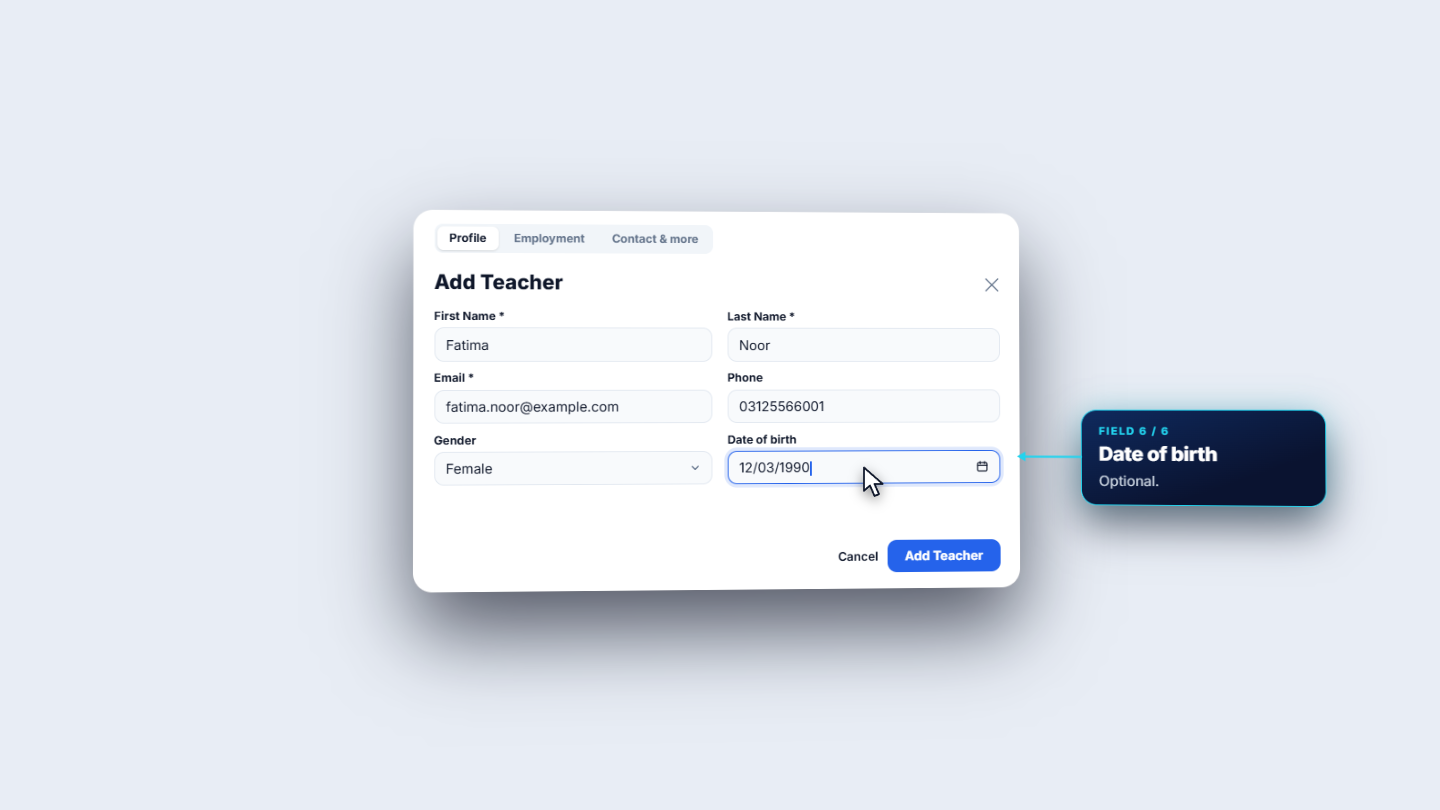
Click Staff, then Teachers. The header has Attendance, Substitutes, Export CSV and Add Teacher. Three counters show total staff, how many are active and how many departments they belong to. Press Add Teacher. On the Profile tab fill First Name and Last Name (required), Email (required for a new teacher), then phone, gender and date of birth. On the Employment tab set the designation, qualification, department, primary campus and joining date. Choose the Contract Type: full-time, part-time, visiting or contract. In Specialization list the subjects, separated by commas.
Add Teacher dialog, Profile tab
2
Emergency contact and address
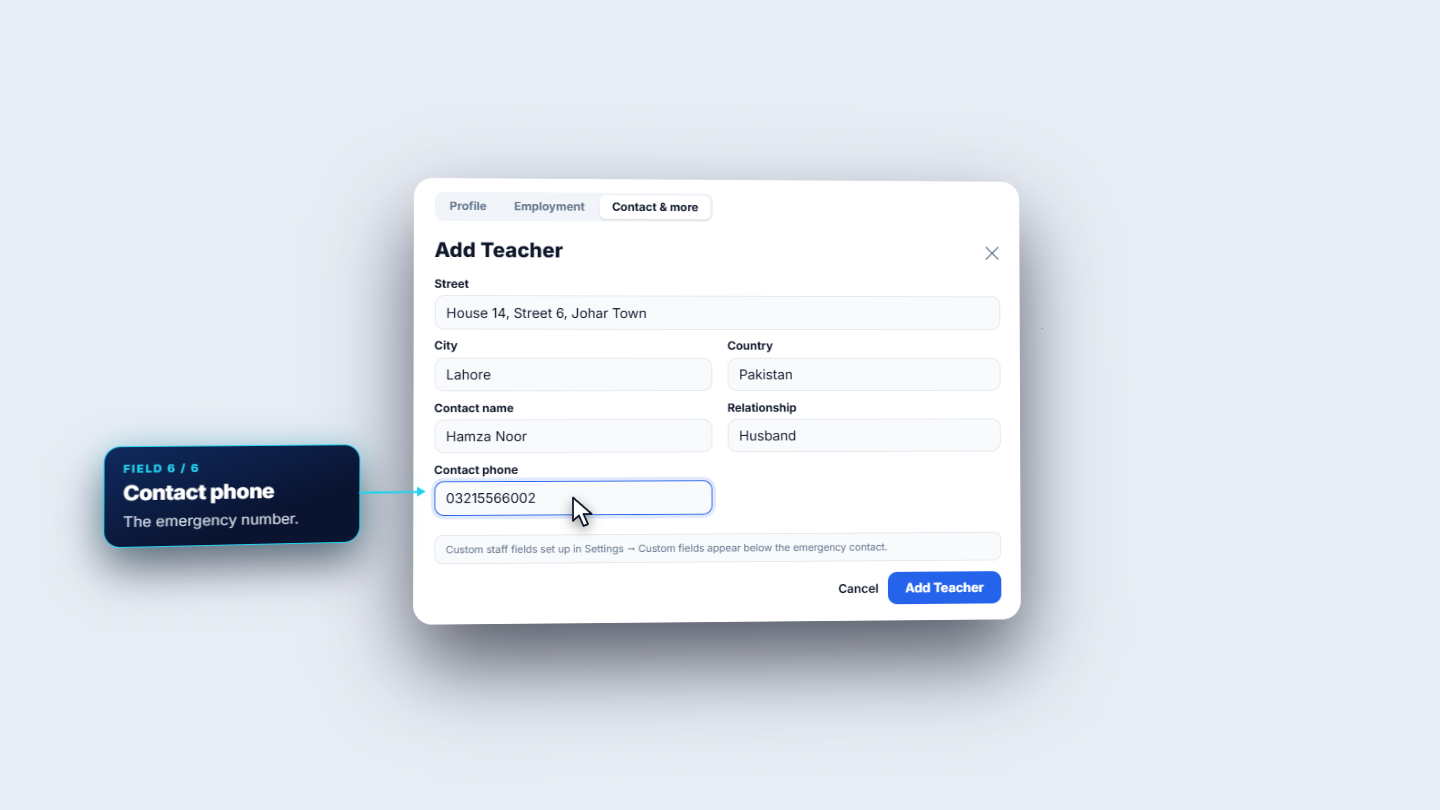
On the contact tab enter the street, city and country, then an emergency contact: name, relationship and phone. The school's own custom staff fields appear below. Save, and the new teacher appears at the top of the list, active, with a generated employee ID (EMP, the year and a running number). Total staff and active both go up by one.
Contact and more tab with address and emergency contact
3
Open the teacher profile and create the login
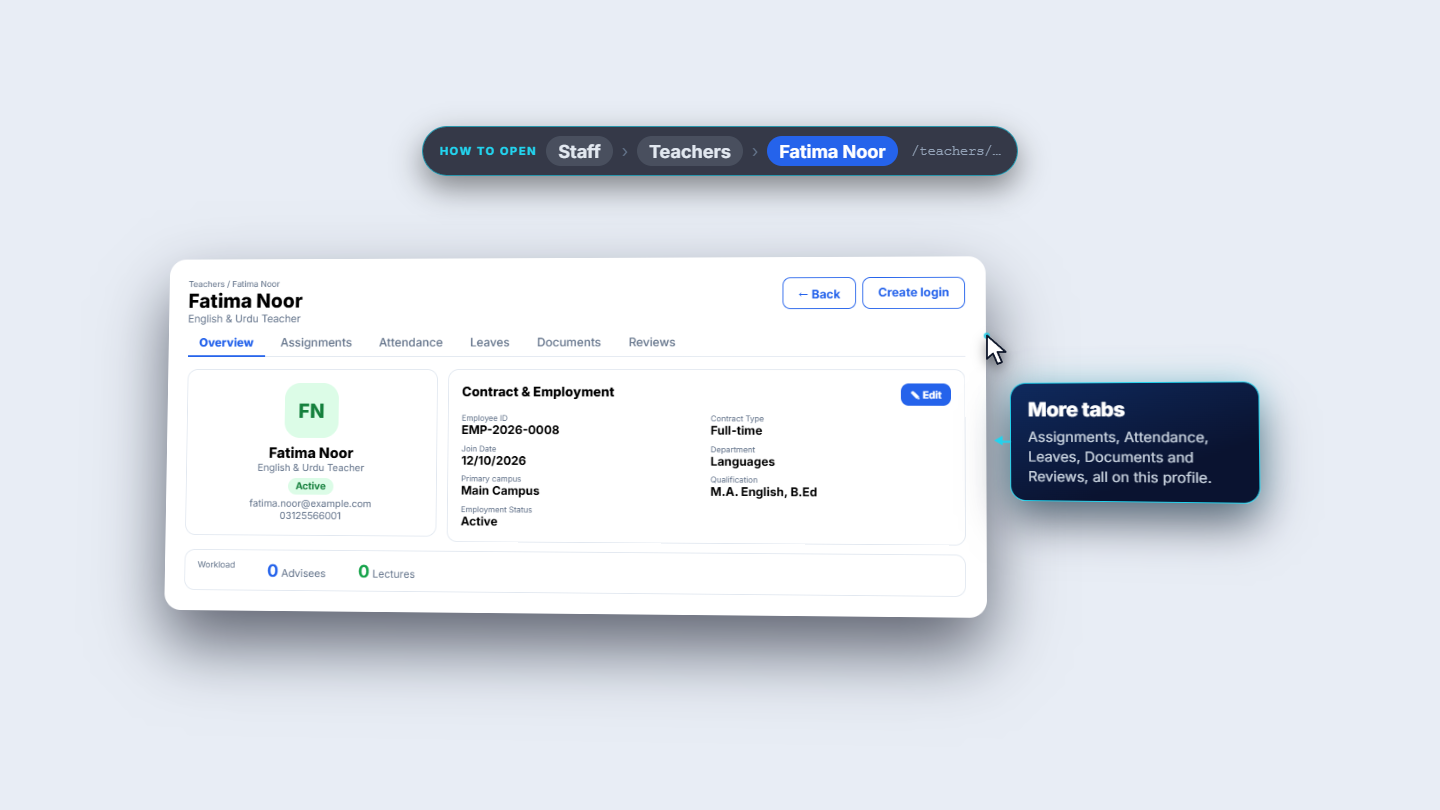
Press View. The profile shows the name, designation, status, email and phone. Contract and Employment holds the employee ID, contract type, join date, department, campus, qualification and status. Workload counts advisees and lectures, both zero until she is assigned. To let her sign in, press Create login. SCM creates a login for her email, or links the existing user with that email, and emails a temporary password. The Teacher role is added automatically; the checklist also offers Tenant Administrator, Student and Guardian if she needs more.
Teacher profile with employment details and Create login
4
Assign a subject
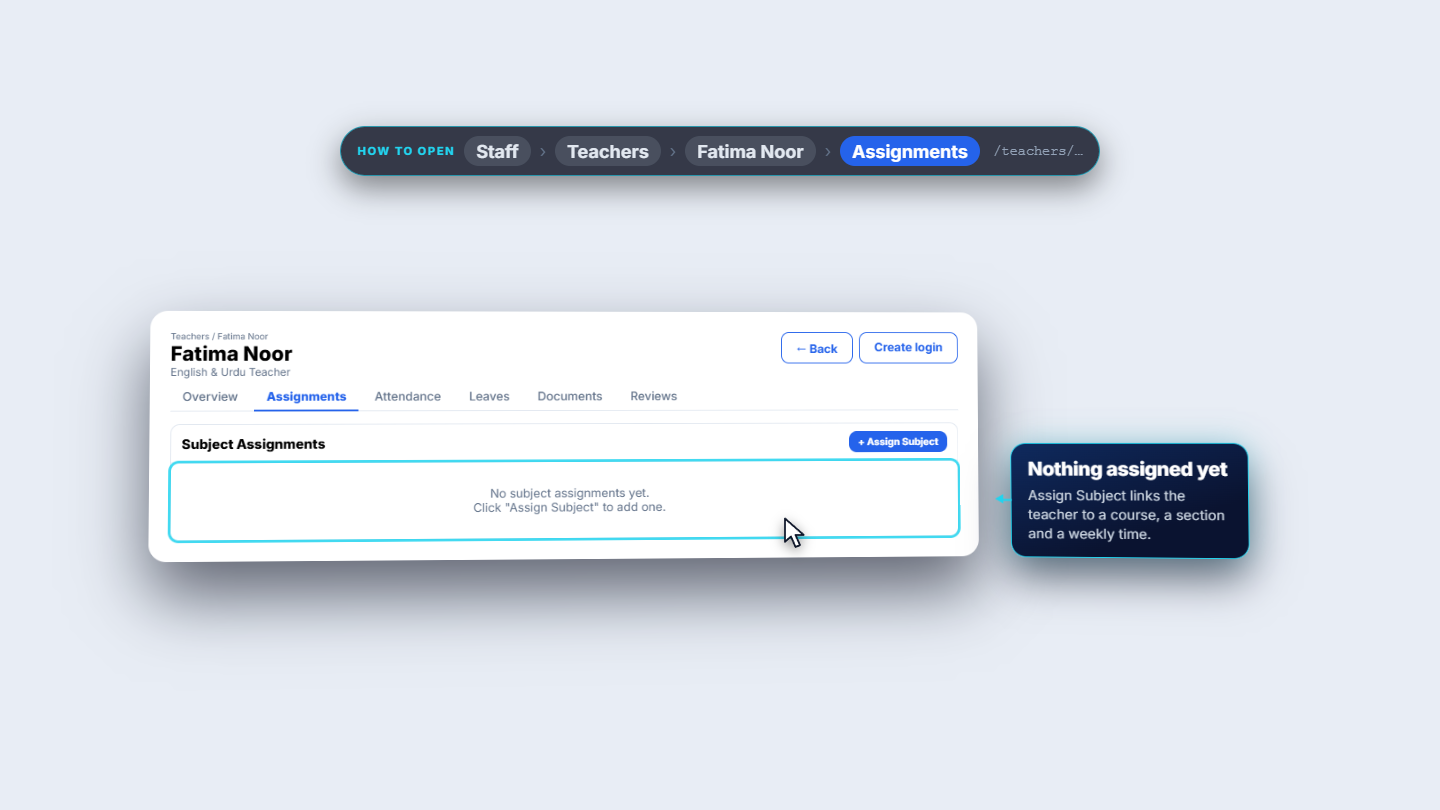
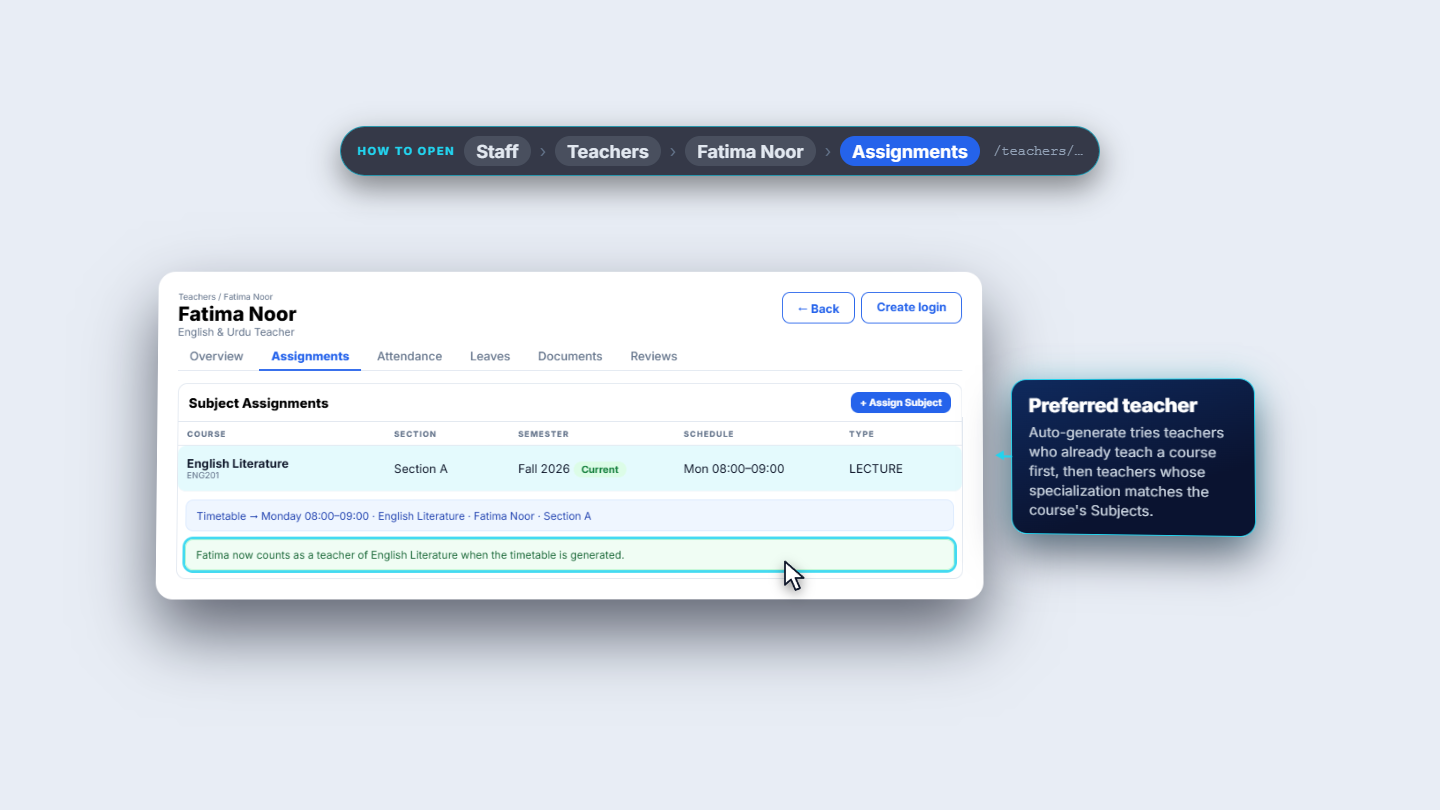
Open the Assignments tab. It starts empty. Press Assign Subject, choose the Course, optionally a Section, the Day, the Type (a lecture), the Start Time and End Time. Tick Online class for a virtual session, then press Assign.
Assignments tab with Assign Subject button
5
See what an assignment creates
The assignment lists the course, section, semester, schedule and type. Assigning a subject also creates the lecture slot in the timetable, and later auto-generate tries teachers who already teach a course first.
Assigned subject row with course, section, schedule and type
6
Mark staff attendance and request cover
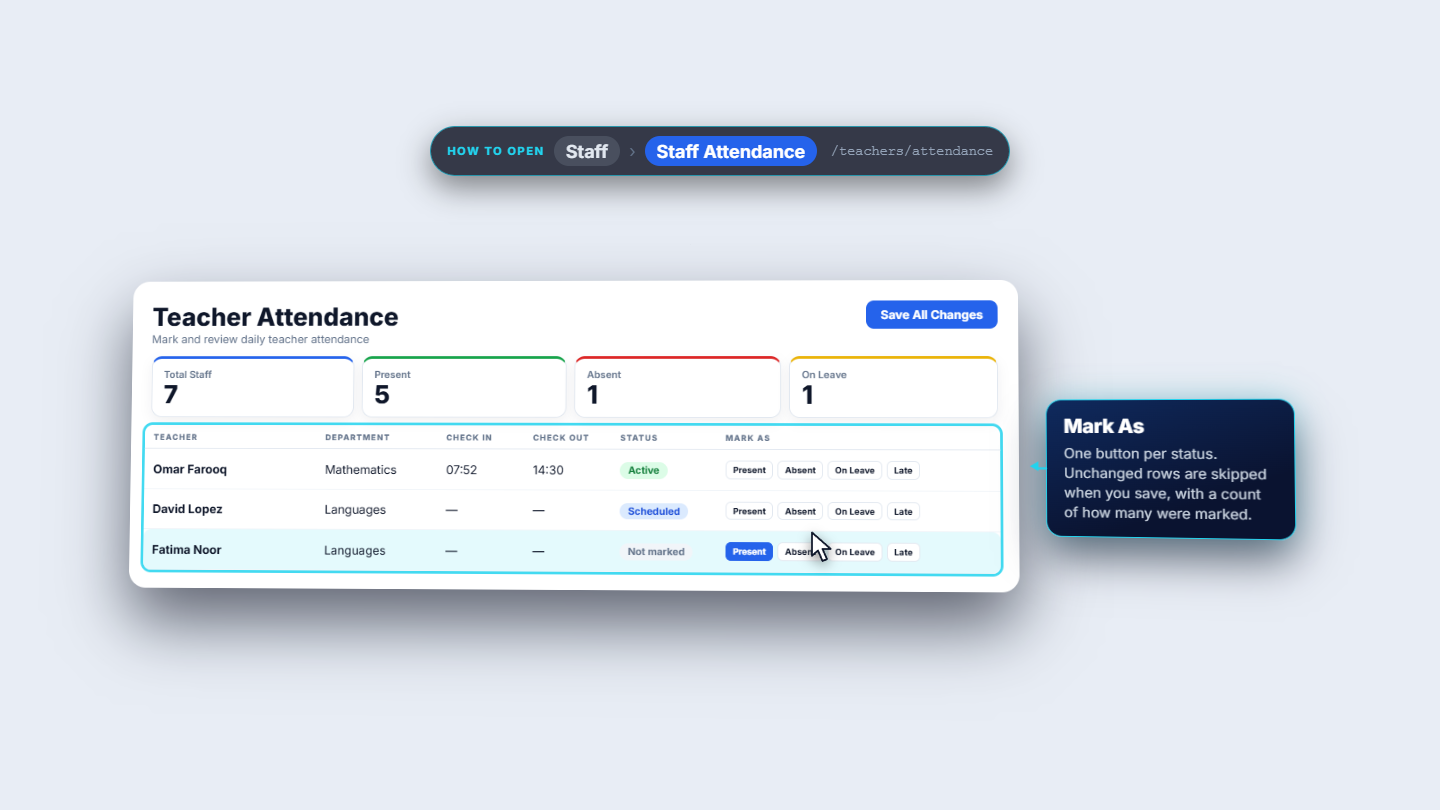
Open Staff Attendance. It marks the whole staff for a day: choose Present, Absent, On Leave or Late for each teacher, then Save All Changes. Only changed rows are saved. For cover, open Substitutes. It lists every cover assignment with status and approval. Request Substitute starts with the absent teacher and the date and lists their periods that day. Suggest substitutes proposes teachers who are free for each period, same-subject teachers first. Pending requests are approved with one click.
Teacher Attendance with Present, Absent, On Leave and Late buttons
Check it worked
Fatima Noor appears at the top of the Teachers list as active with an employee ID.
Her profile shows the contract details and, after Step 4, one assignment with its schedule.
The lecture appears in the timetable.
Common mistakes
Mistake
What you see
Fix
No email entered
The teacher cannot be saved
Enter the email; it is required
Teacher cannot sign in
No login exists yet
Press Create login on the profile
Marking nobody before saving attendance
Nothing is saved
Choose a status for the rows, then Save All Changes
Quick reference
Item
Meaning / rule
Employee ID
Generated: EMP, the year and a running number
Contract type
Full-time, part-time, visiting or contract
Assign Subject
Links teacher to course and creates the timetable lecture
Suggest substitutes
Free teachers per period, same-subject first
Frequently asked questions
Why can a teacher not sign in after I added them? Adding a teacher does not create a login. Press Create login on the teacher profile; SCM emails a temporary password and adds the Teacher role automatically.
What is the Specialization field used for? List the subjects separated by commas. Timetable auto-generate later matches it against a course's Subjects field.
What does assigning a subject do? It links the teacher to the course and also creates the lecture slot in the timetable, so you do not type the lecture twice.
How do I find a substitute for an absent teacher? Open Substitutes and press Request Substitute. Suggest substitutes proposes teachers who are free for each period, same-subject teachers first, and pending requests are approved with one click.