How to create a booking, collect the advance and confirm it
A booking is the commercial commitment for an event: its contract, its advance and its payment schedule. This guide takes an approved quotation to a confirmed booking with a signed contract and money collected.
Who it is forSales person / event coordinatorTime20 minutesProductMMSLevelIntermediate
Before you start
Steps
1
Open Bookings and start a new booking
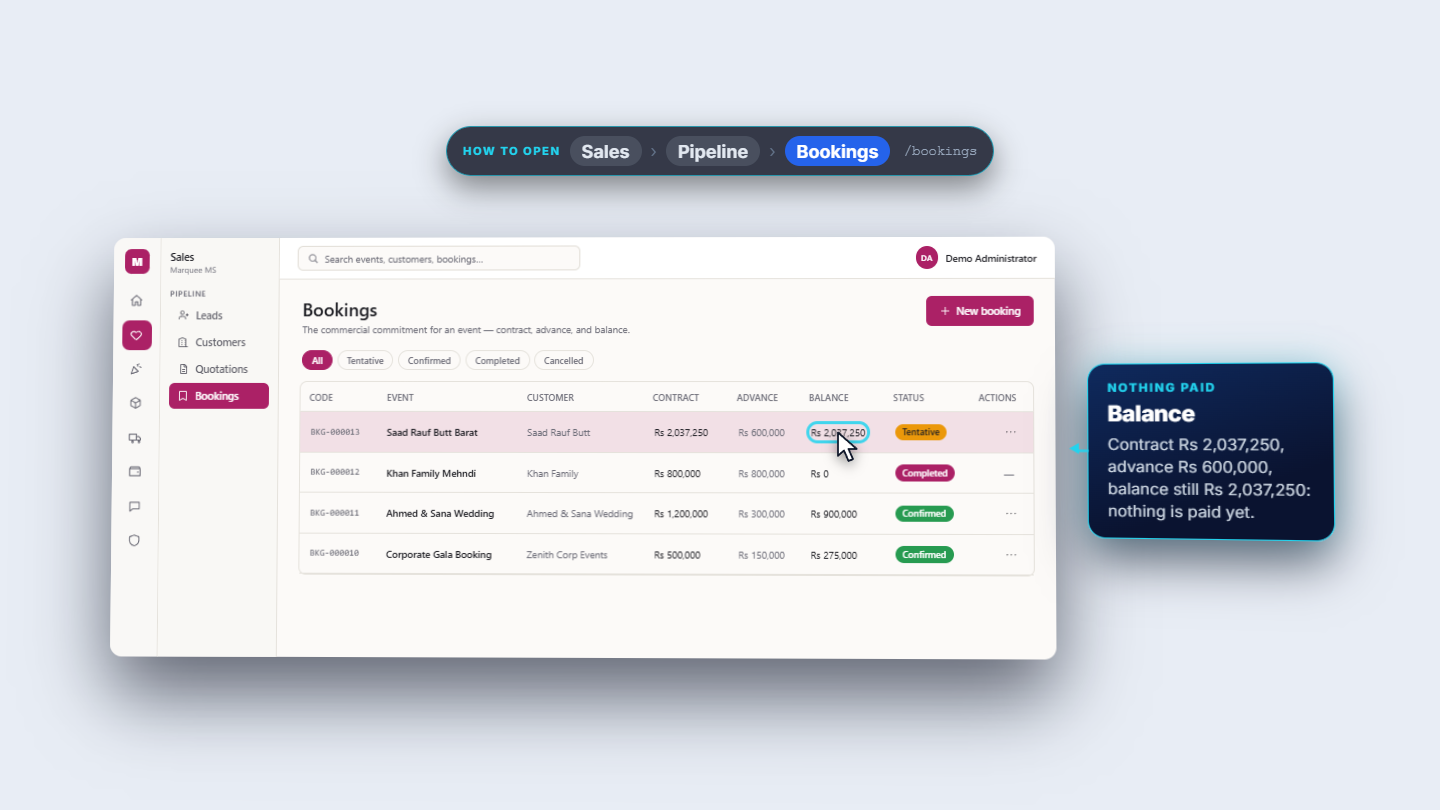
Click Sales › Pipeline › Bookings (/bookings). The table shows Code, Event, Customer, Contract, Advance, Balance, Status, Actions, and chips All, Tentative, Confirmed, Completed, Cancelled. Balance is the contract minus what has been paid, not minus the advance. Press New booking. Choose the Event (required). Under From approved quotation (optional) choose QTN-000007. Enter Contract amount (PKR) 2,037,250 and Advance (PKR) 600,000.
New booking dialog with event, approved quotation, contract amount and advance filled in
2
Add the payment schedule
Press Add installment. For each row pick a Label (Advance, Balance, Booking deposit, Security deposit, Installment, Final payment), a Due date and an Amount. Here: Installment, 12 November 2026, Rs 700,000; Final payment, 5 December 2026, Rs 737,250. A line under the rows adds up the advance plus the instalments. When it does not equal the contract it turns amber and names the amount unallocated. Add Notes if you wish, then press Create booking.
Booking dialog with two payment instalments and the allocation summary line
3
See the Tentative booking
The dialog closes with no message. BKG-000013, Saad Rauf Butt Barat, is on top with a Tentative badge: contract Rs 2,037,250, advance Rs 600,000, and a balance that is still the whole contract because nothing has been paid. In Sales › Pipeline › Quotations, QTN-000007 now reads Converted, so it cannot be booked twice.
The new booking at the top of the list with a Tentative badge
4
Know what the dialog refuses
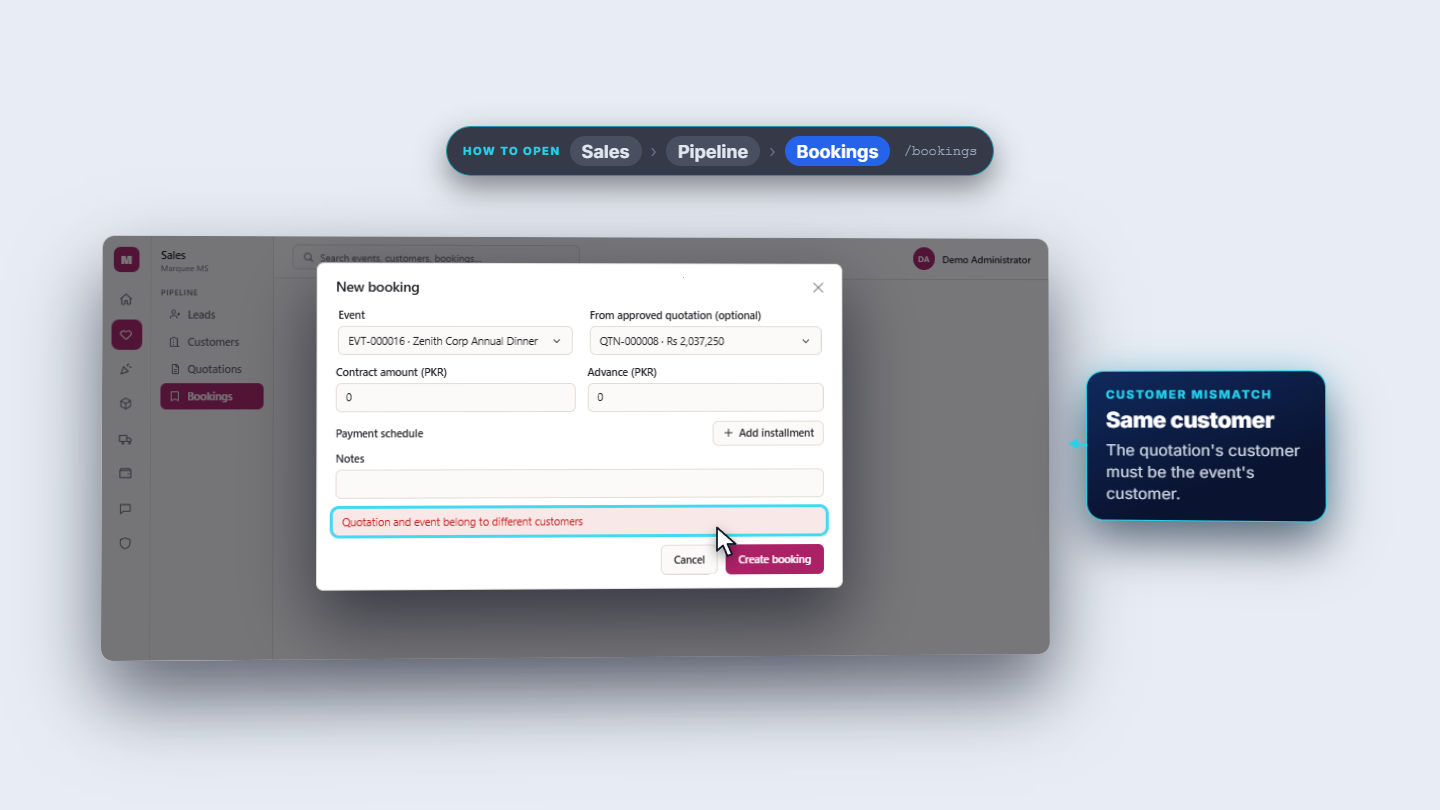
An event can hold only one active booking: choosing the Barat again gives "This event already has an active booking". A quotation must belong to the event's customer: a Zenith Corp quotation on a Saad Rauf Butt event gives "Quotation and event belong to different customers".
Quotation and event belong to different customers
5
Hold the hall before you confirm
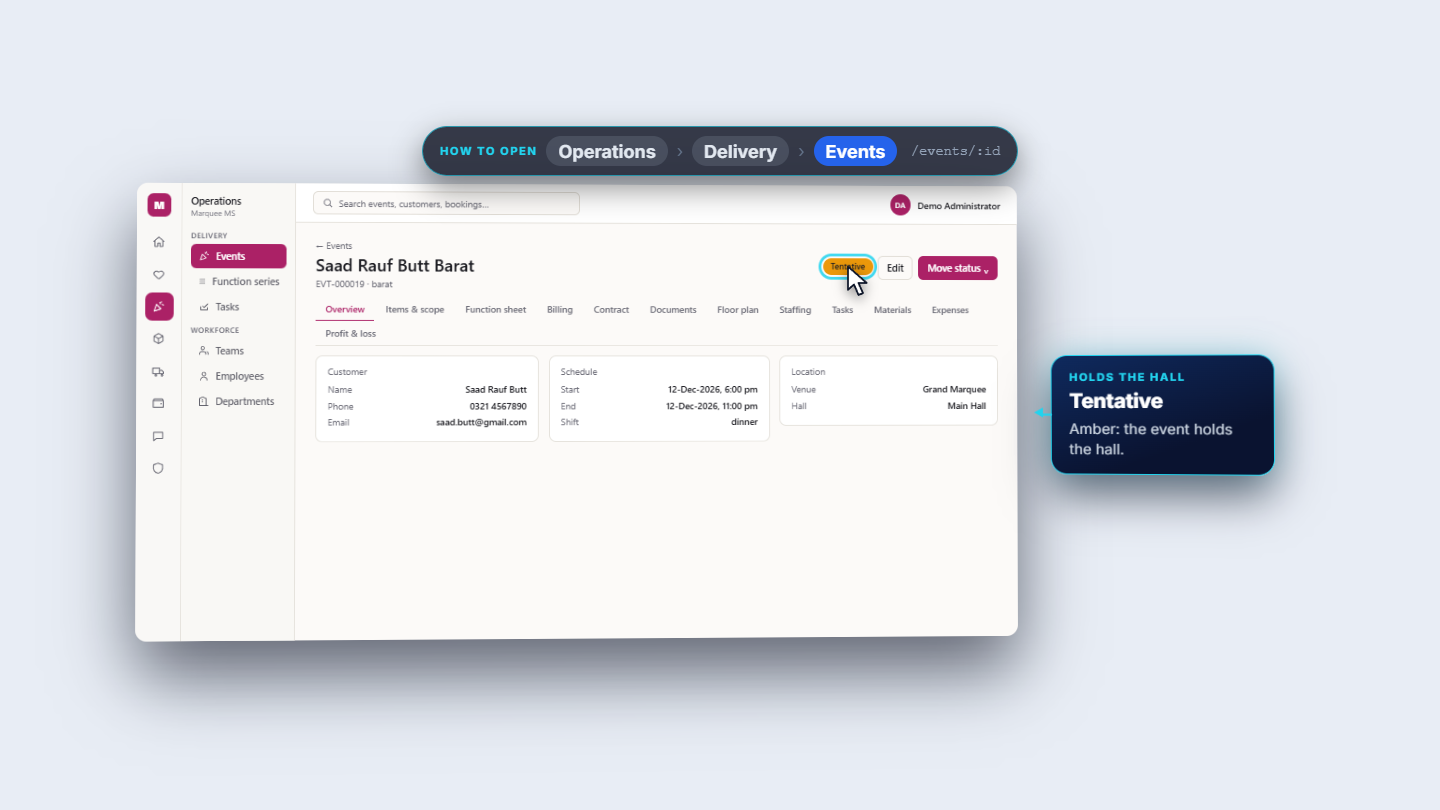
On a Tentative booking, Actions offers Confirm, Reschedule and Cancel booking (reschedule and cancel are explained in MMS-S32). Confirming now is refused: a red message appears above the table, "Move the event to 'tentative' (hold the hall) before confirming the booking", and the booking stays Tentative. Open Operations › Delivery › Events, open the Barat (badge Draft), press Move status and choose Tentative. The badge turns amber: the event now holds the hall.
Event page with the Move status menu used to hold the hall as Tentative
6
Generate and sign the contract
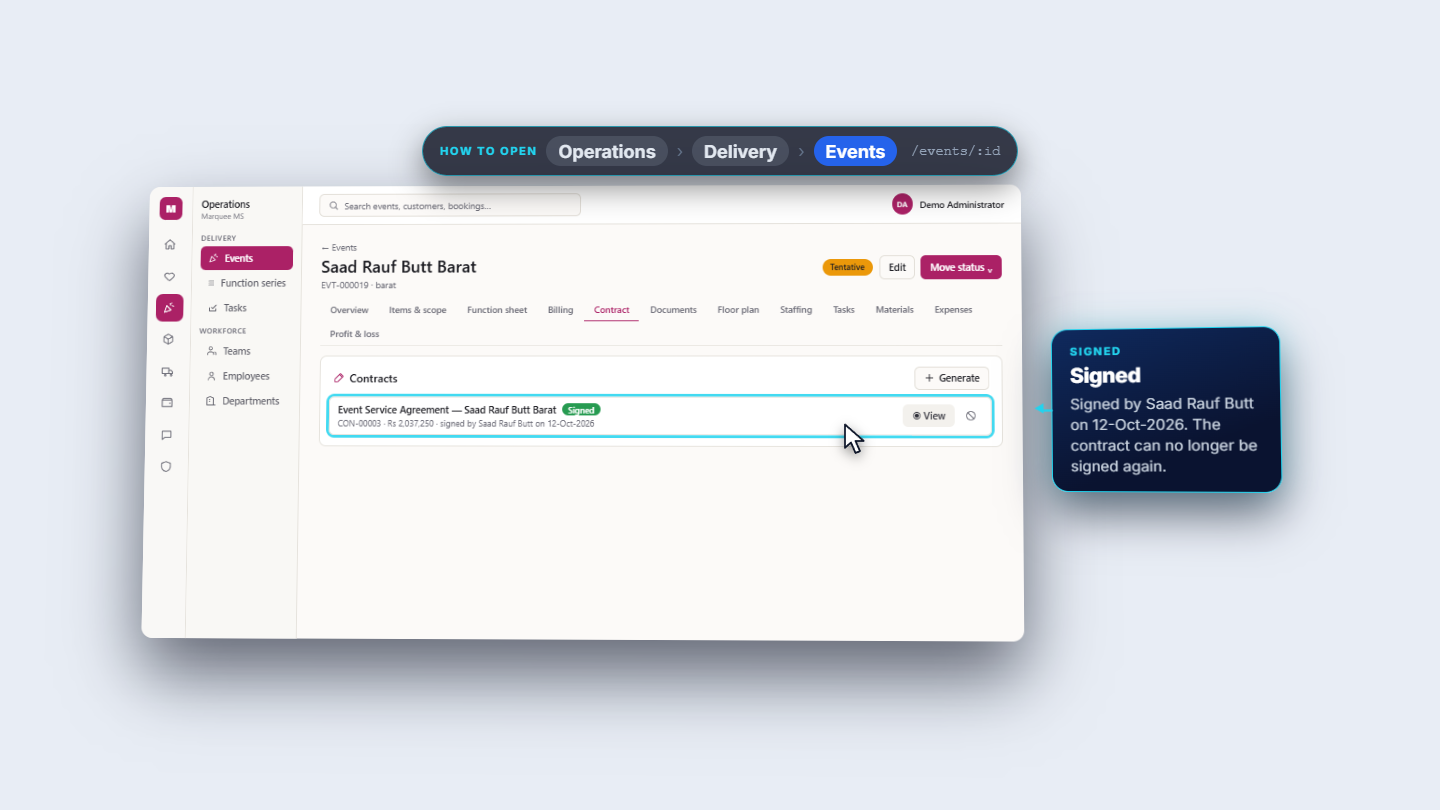
On the event, open the Contract tab ("No contract yet"). Press Generate: an Event Service Agreement (CON-00003, Draft, Rs 2,037,250) is written from the booking. View shows the venue, client, event date and time (12 December, 6 pm to 11 pm), booking reference and contract value. Press Sign. Enter the Signer name, optionally a Role (Customer), and draw the signature. Without them you see "Enter the signer's name." or "Please draw the signature." Press Sign & save: the contract is Signed on 12-Oct-2026.
Sign contract dialog with signer name, role and signature box
7
Collect the advance
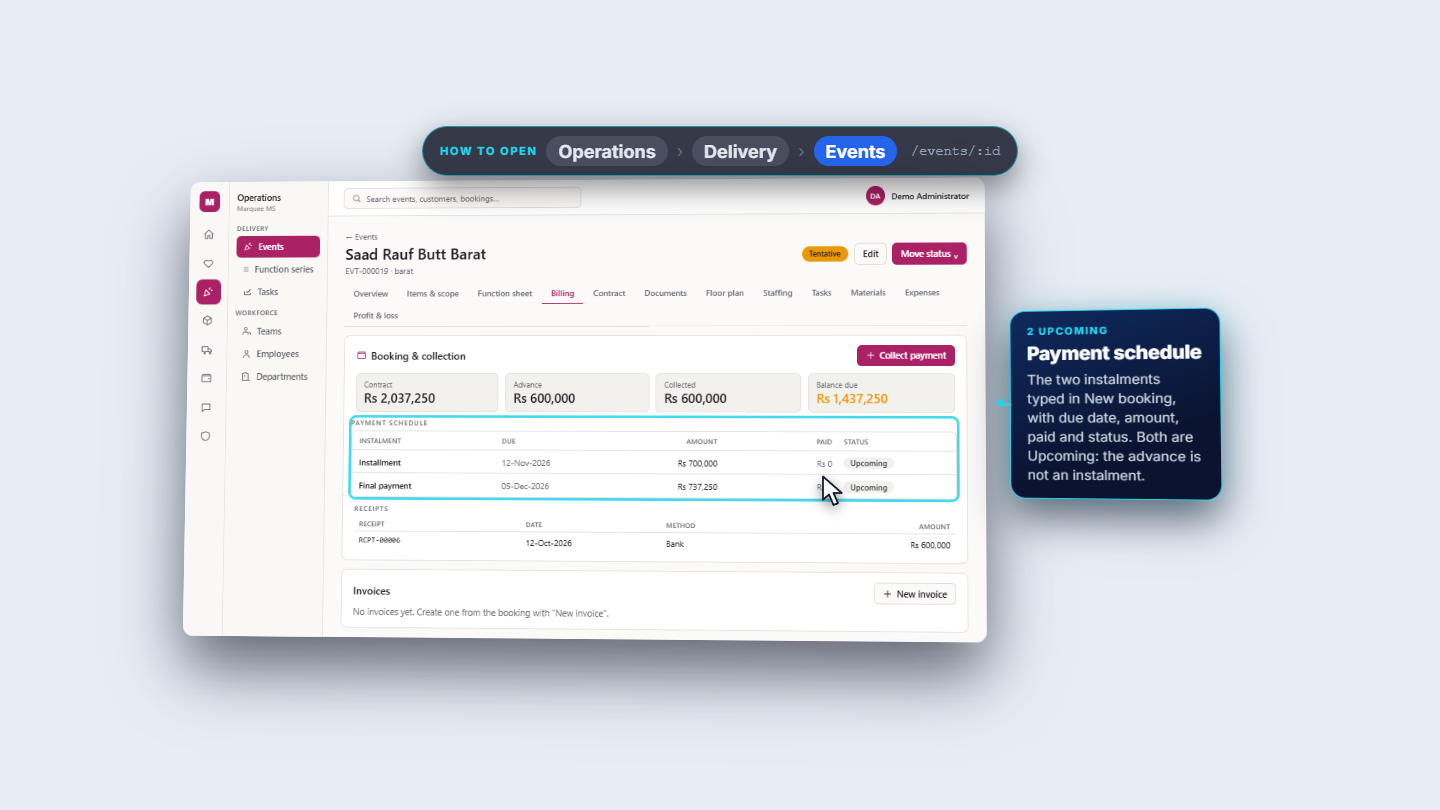
Open the Billing tab. Booking & collection shows Contract, Advance, Collected and Balance due. Press Collect payment. In Via choose Cash, Bank transfer, Online / gateway or Card / credit. For Bank transfer pick the Bank account (Main Account · Primary Bank), enter Amount 600,000, the Date and a Reference. Withholding tax withheld by customer offers 10%, left at 0 here. Leave "Customer says they paid — verify before posting" off, then press Post payment. Now Collected is Rs 600,000, Balance due Rs 1,437,250 and receipt RCPT-00006 is listed. Both instalments still read Upcoming: the advance is not an instalment.
Billing tab with payment schedule and the first receipt
8
See the money in the books
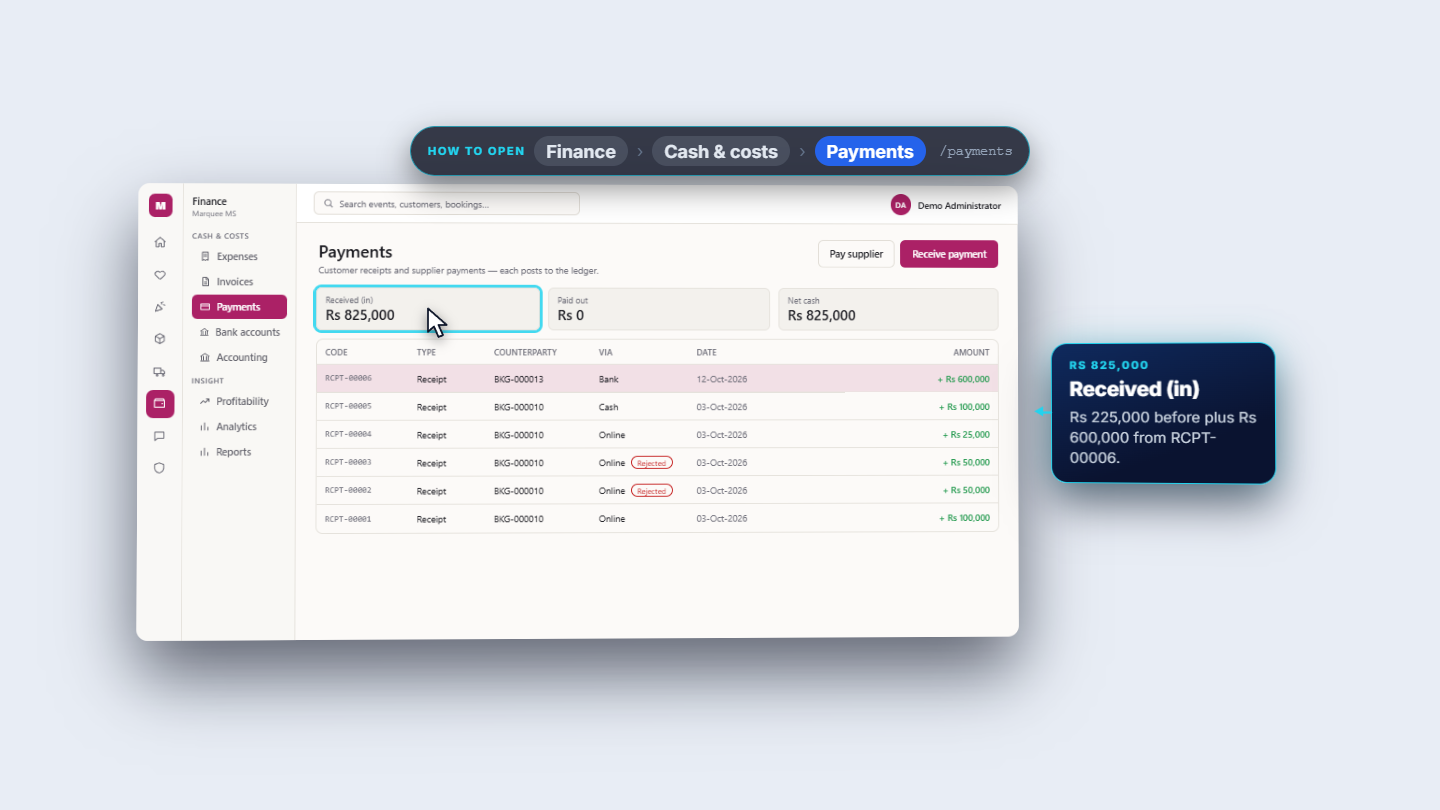
Creating the booking and signing the contract posted nothing. The payment posted JV-000007: debit Bank, Main Account Rs 600,000, credit Accounts Receivable Rs 600,000 against the customer. In Finance › Payments the same receipt, RCPT-00006 against BKG-000013, is listed as plus Rs 600,000.
Finance Payments list showing the booking receipt as a plus amount
9
Confirm the booking
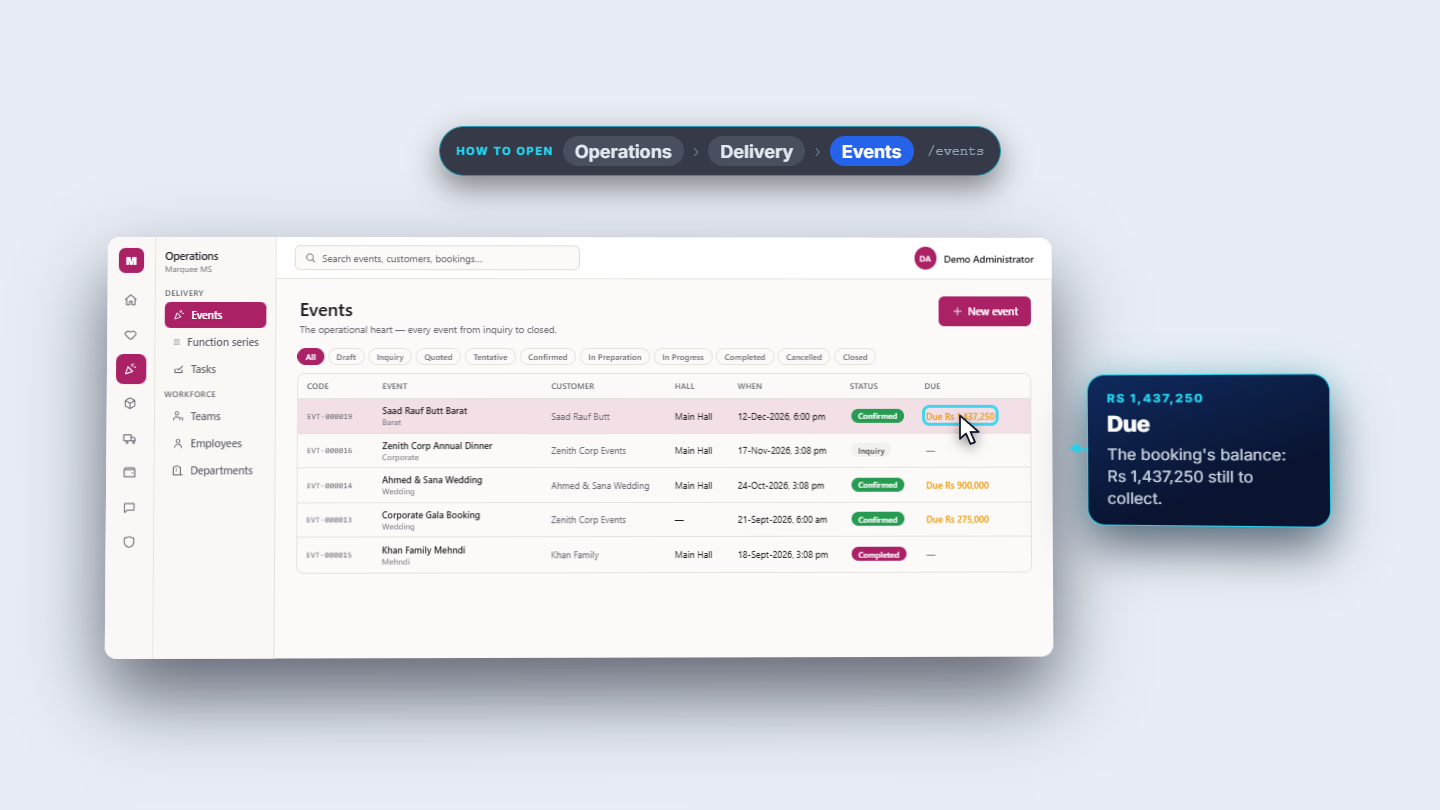
Back on Bookings, open Actions on the booking and choose Confirm. No message appears: the badge turns green and reads Confirmed, and the balance stays Rs 1,437,250. In Operations › Delivery › Events the Barat now reads Confirmed and Due shows Rs 1,437,250. On the event Overview, the Booking & contract card shows Next instalment: Installment, Rs 700,000, 12-Nov-2026.
The event now Confirmed with the balance due
10
Collect the first instalment
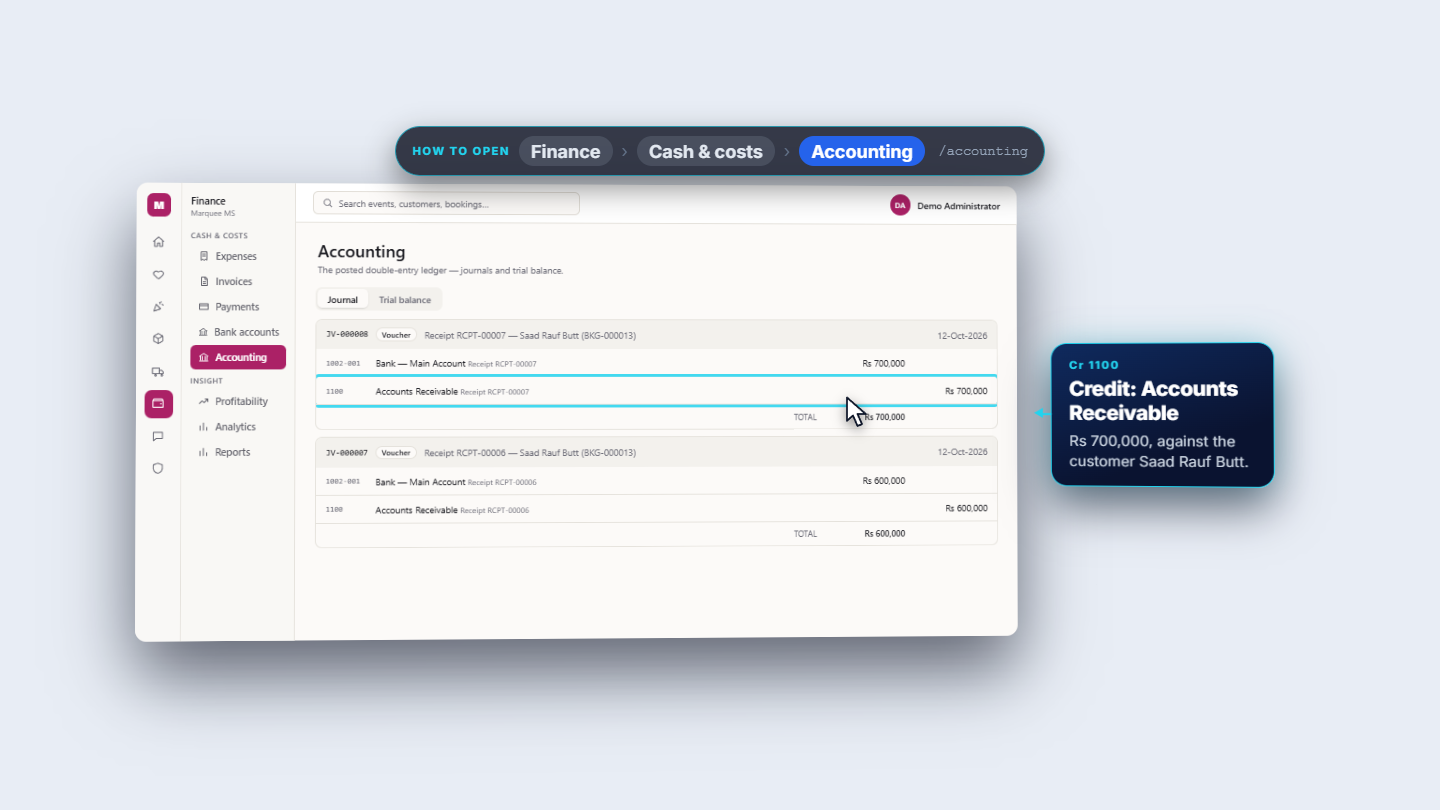
On Billing press Collect payment again: Bank transfer, Main Account, Rs 700,000, a reference. The schedule now marks Installment as Paid; Collected is Rs 1,300,000 and Balance due Rs 737,250. Next instalment moves to Final payment, Rs 737,250, due 5 December. Receipt RCPT-00007 posts JV-000008: debit Bank, Main Account Rs 700,000, credit Accounts Receivable Rs 700,000.
Journal voucher posted for the first instalment payment
Check it worked
Bookings shows BKG-000013 as Confirmed, contract Rs 2,037,250.
The Barat is Confirmed with the contract signed on 12-Oct-2026.
Billing shows Collected Rs 1,300,000, Balance due Rs 737,250, receipts RCPT-00006 and RCPT-00007.
Common mistakes
Mistake
What you see
Fix
Confirming while the event is still Draft
Red message above the Bookings table asking you to move the event to tentative
Hold the hall first (Step 5)
Booking an event that already has one
"This event already has an active booking"
Work with the existing booking
Quotation from another customer
"Quotation and event belong to different customers"
Pick that customer's event or quotation
Ticking "Customer says they paid"
Only a claim is recorded; ledger and balance do not move
Leave it off for money actually received
Quick reference
Item
Meaning / rule
Balance
Contract minus what has been paid
Advance
Agreed deposit; money only counts once a payment is posted
Tentative / Confirmed
Booking stages; the event must hold the hall before Confirm
Payment schedule
Instalments with due date, amount, paid and status
Payment journal
Debit bank, credit Accounts Receivable
Frequently asked questions
Does entering an advance on the booking collect any money? No. The advance is only a figure on the booking. Money counts once you press Collect payment and Post payment, which posts a journal voucher: debit Bank, credit Accounts Receivable.
Why is Confirm refused on my booking? The event is still Draft. Open the event, press Move status and choose Tentative to hold the hall, then choose Confirm on the booking.
Can one event have two bookings? No. An event can hold only one active booking, and a quotation must belong to the event's customer. Otherwise you see "This event already has an active booking" or "Quotation and event belong to different customers".