How to record the customer's answer to a quotation and revise it
After you send a quotation the customer says yes, no, or nothing. This guide shows how to record each answer, how to answer a rejection with a new version, and how an approved quotation reaches a booking.
Who it is forSales person / event coordinatorTime12 minutesProductMMSLevelBeginner
Before you start
Steps
1
Open the list and the Sent menu
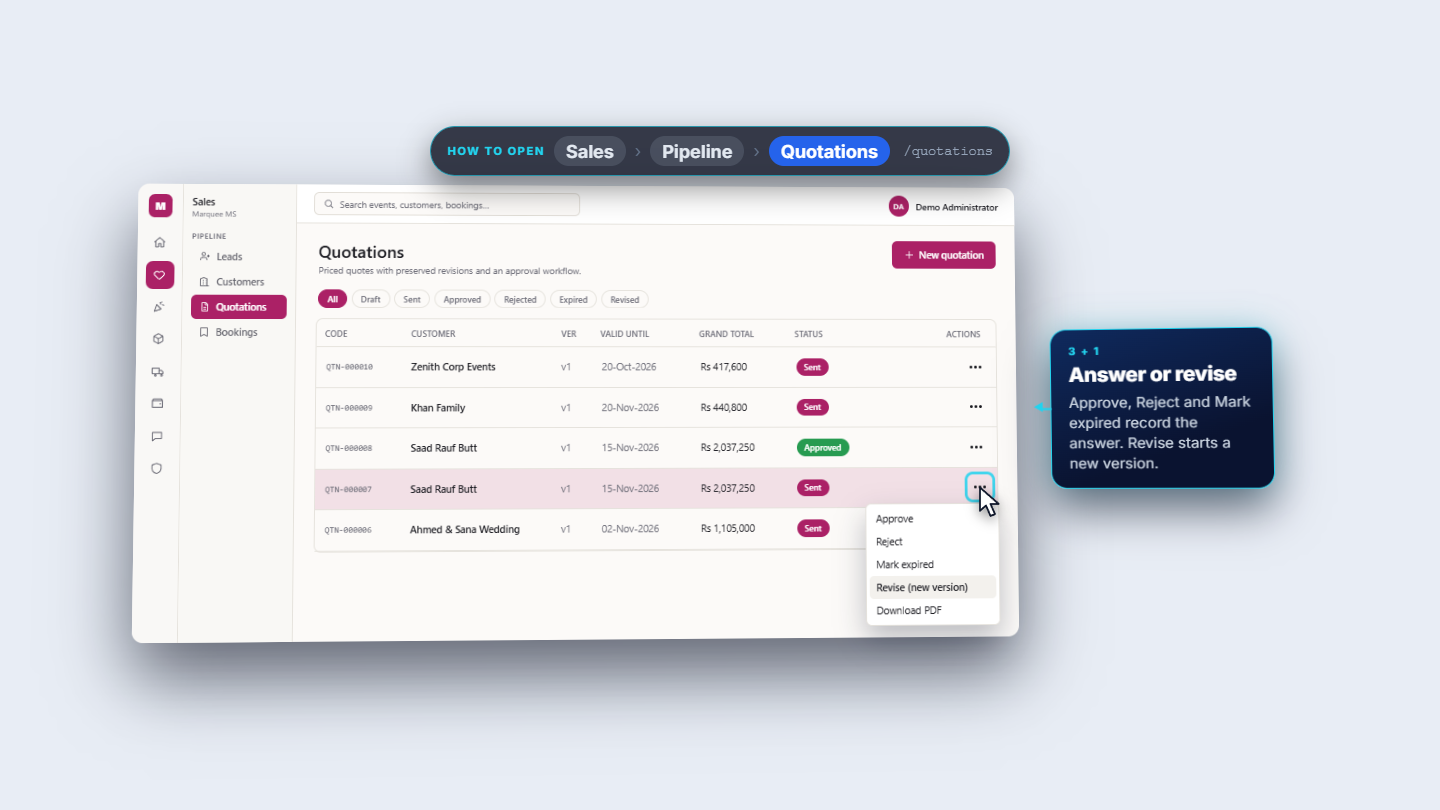
Click Sales › Pipeline › Quotations (/quotations). The chips are All, Draft, Sent, Approved, Rejected, Expired, Revised. Open Actions (the three dots) on a Sent quotation. It offers five items: Approve, Reject, Mark expired, Revise (new version) and Download PDF. The first three record the customer's answer; Revise starts a new version of the offer.
Quotations list with the Sent quotation's Actions menu open
2
The customer accepts: Approve
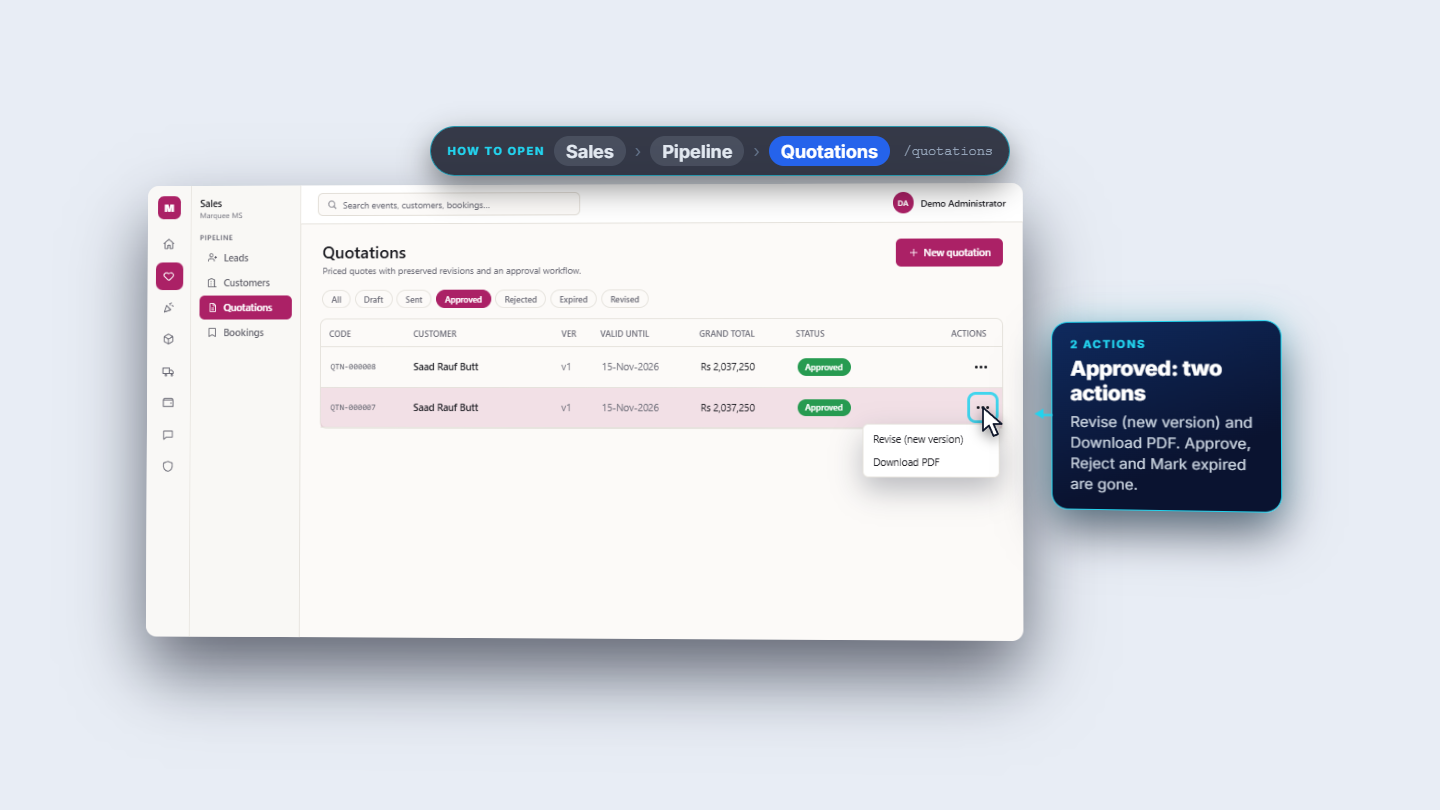
On QTN-000007, the Barat offer for Saad Rauf Butt (Rs 2,037,250), choose Approve. There is no confirmation box. The message reads "QTN-000007 approved", the badge turns green, and the Approved chip lists it. An approved quotation's menu has only Revise (new version) and Download PDF.
QTN-000007 with the green Approved badge
3
The customer declines: Reject
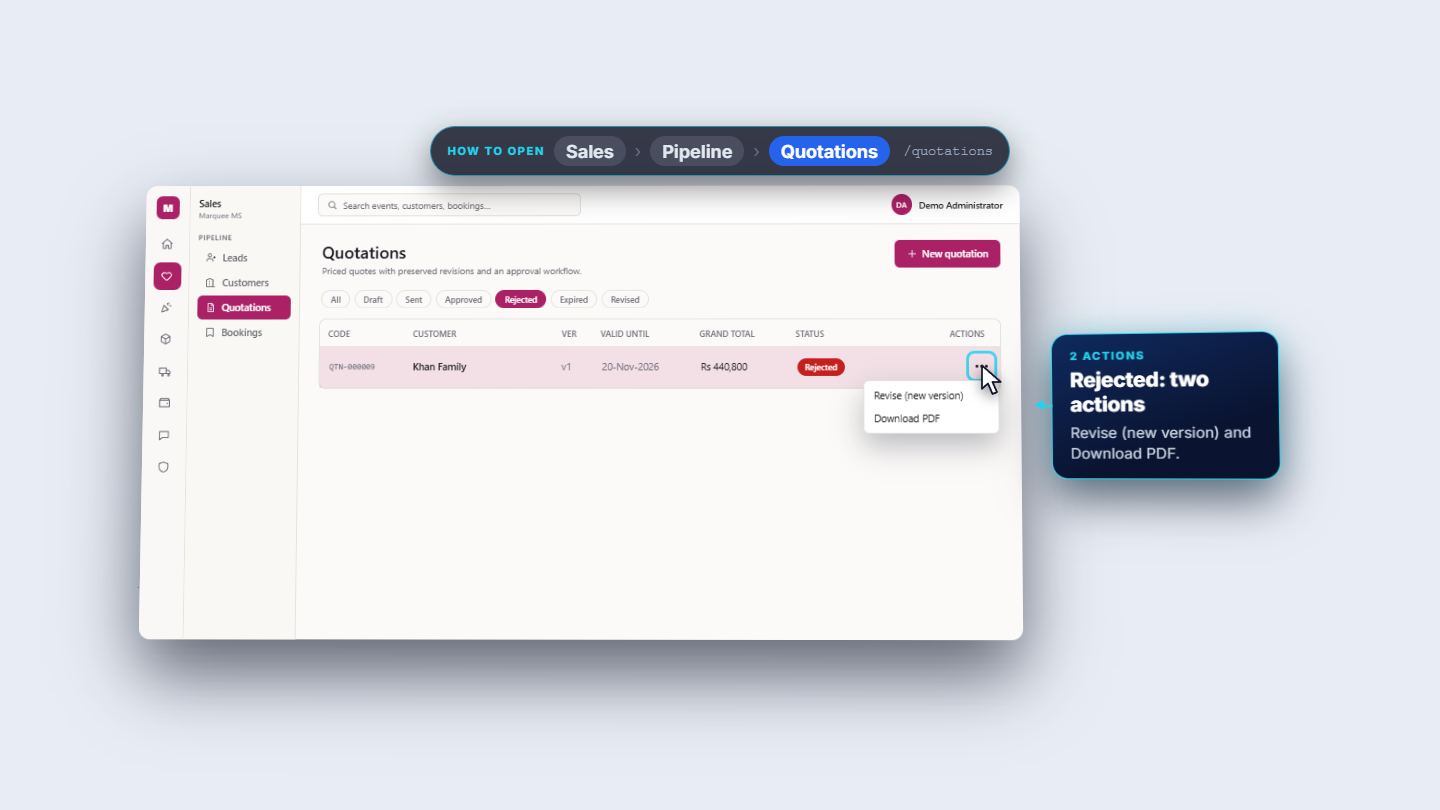
When the Khan Family decline their offer (QTN-000009, Rs 440,800), choose Reject on that row. The message reads "QTN-000009 rejected", the badge turns red and the Rejected chip lists it.
QTN-000009 with the red Rejected badge
4
No answer in time: Mark expired
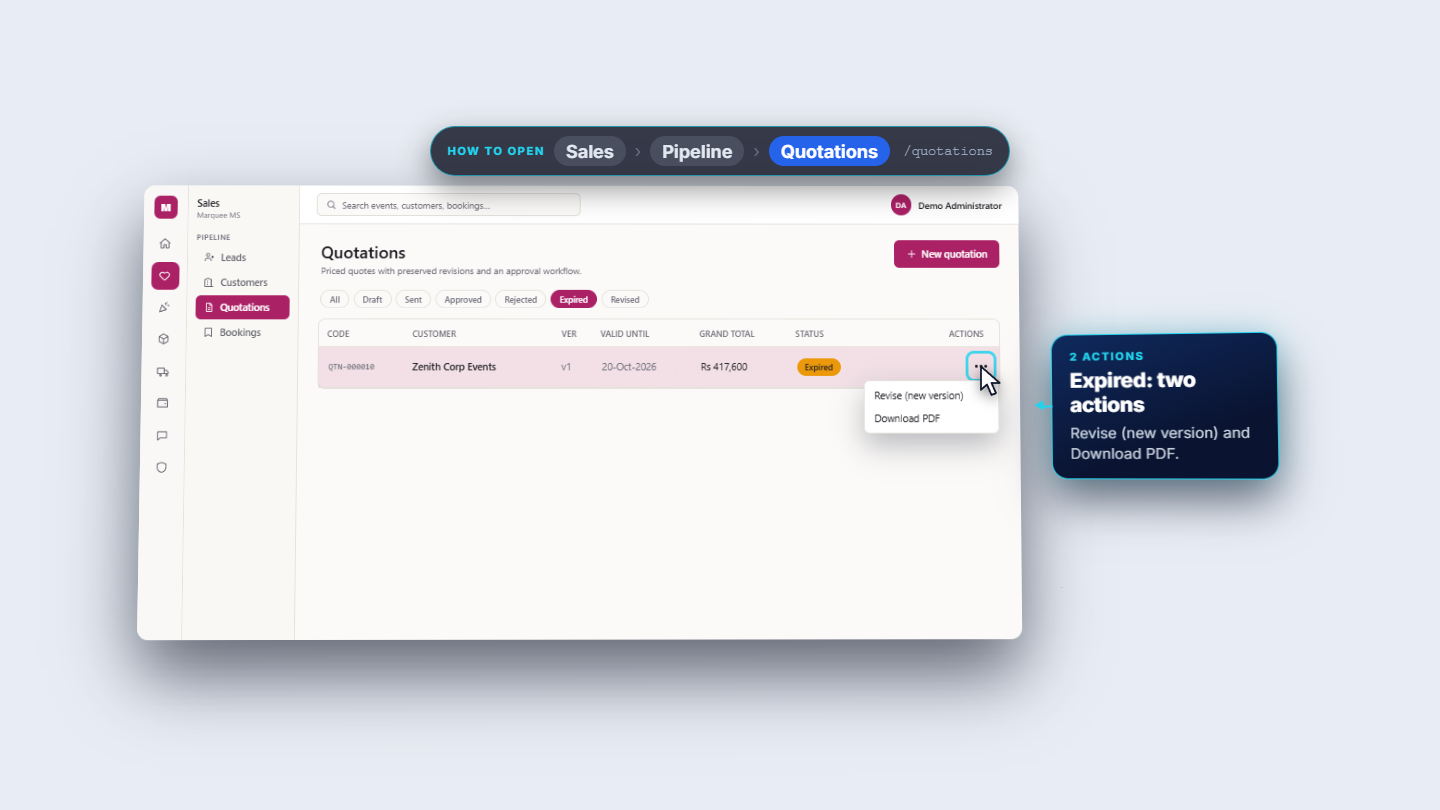
QTN-000010 for Zenith Corp Events was valid until 20-Oct-2026. When an offer runs out unanswered, choose Mark expired. You see "QTN-000010 marked expired", an amber badge, and the Expired chip lists it.
QTN-000010 with the amber Expired badge
5
Answer a rejection with a new version: Revise
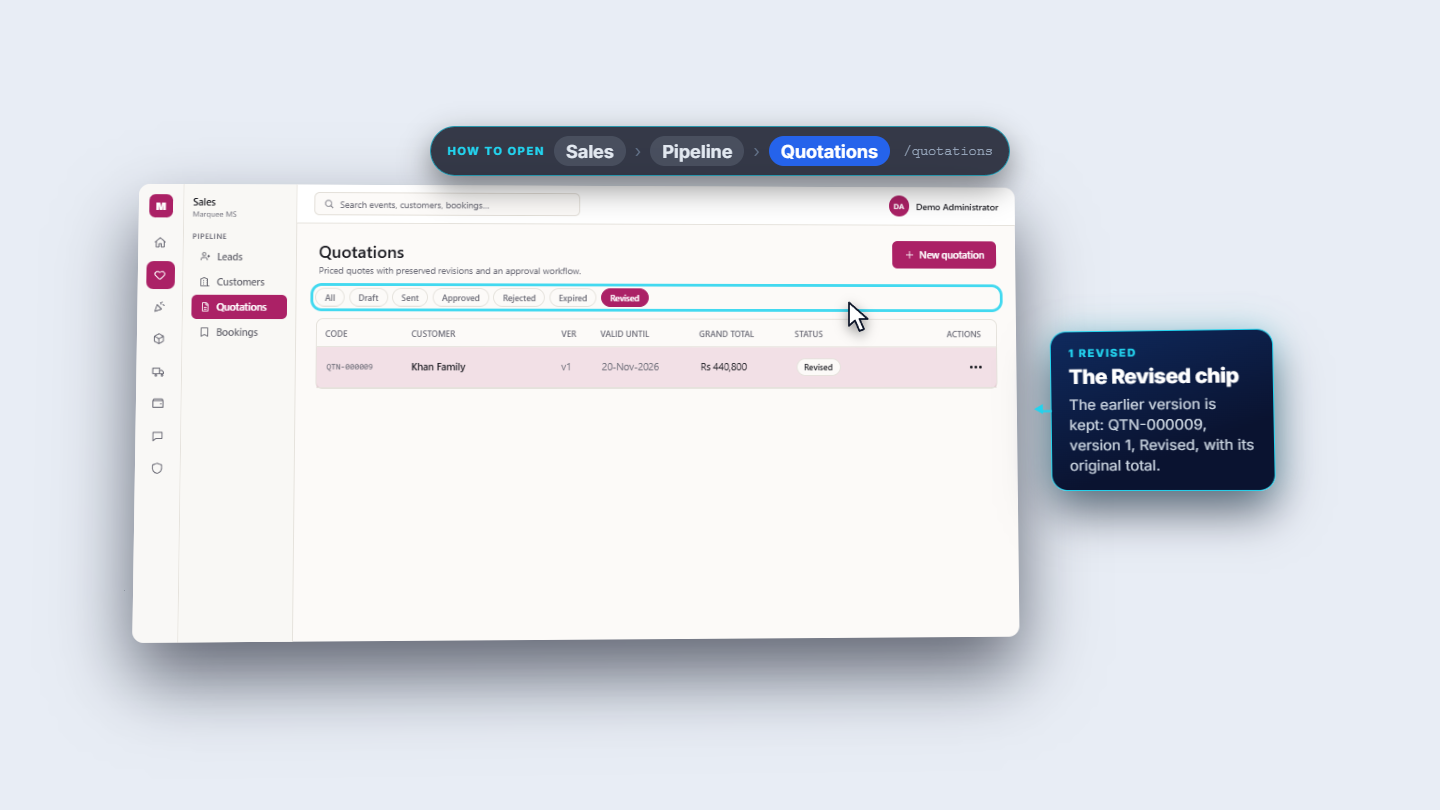
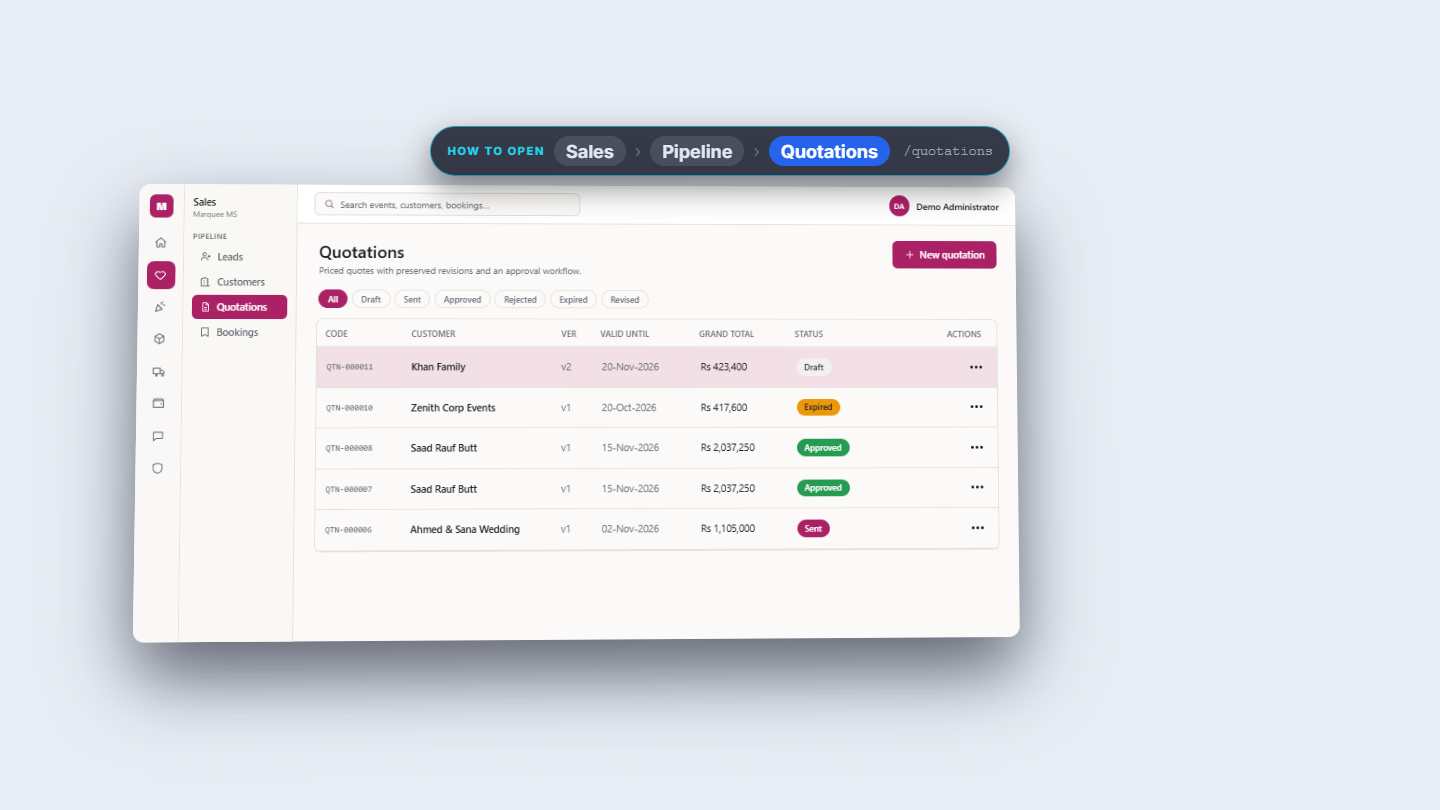
On QTN-000009 choose Revise (new version). The message reads "New version of QTN-000009 created". The new version has its own code, QTN-000011, version 2, a Draft with the same two lines and the same total. The earlier one is kept under the Revised chip: QTN-000009, version 1, with its original total.
Revised chip holding the earlier version QTN-000009
6
Edit the new version
A new version is a draft, so Actions offers Edit, Send and Download PDF. Open Edit: the dialog is titled Edit QTN-000011 with the customer, date, notes and both lines carried over. Change Disc% on the catering line from 0 to 5. The totals follow: discount Rs 15,000, tax Rs 58,400, Grand total Rs 423,400. Press Save changes; you see "Quotation saved (QTN-000011)".
Edit QTN-000011 dialog with the discount changed
7
Send the new version
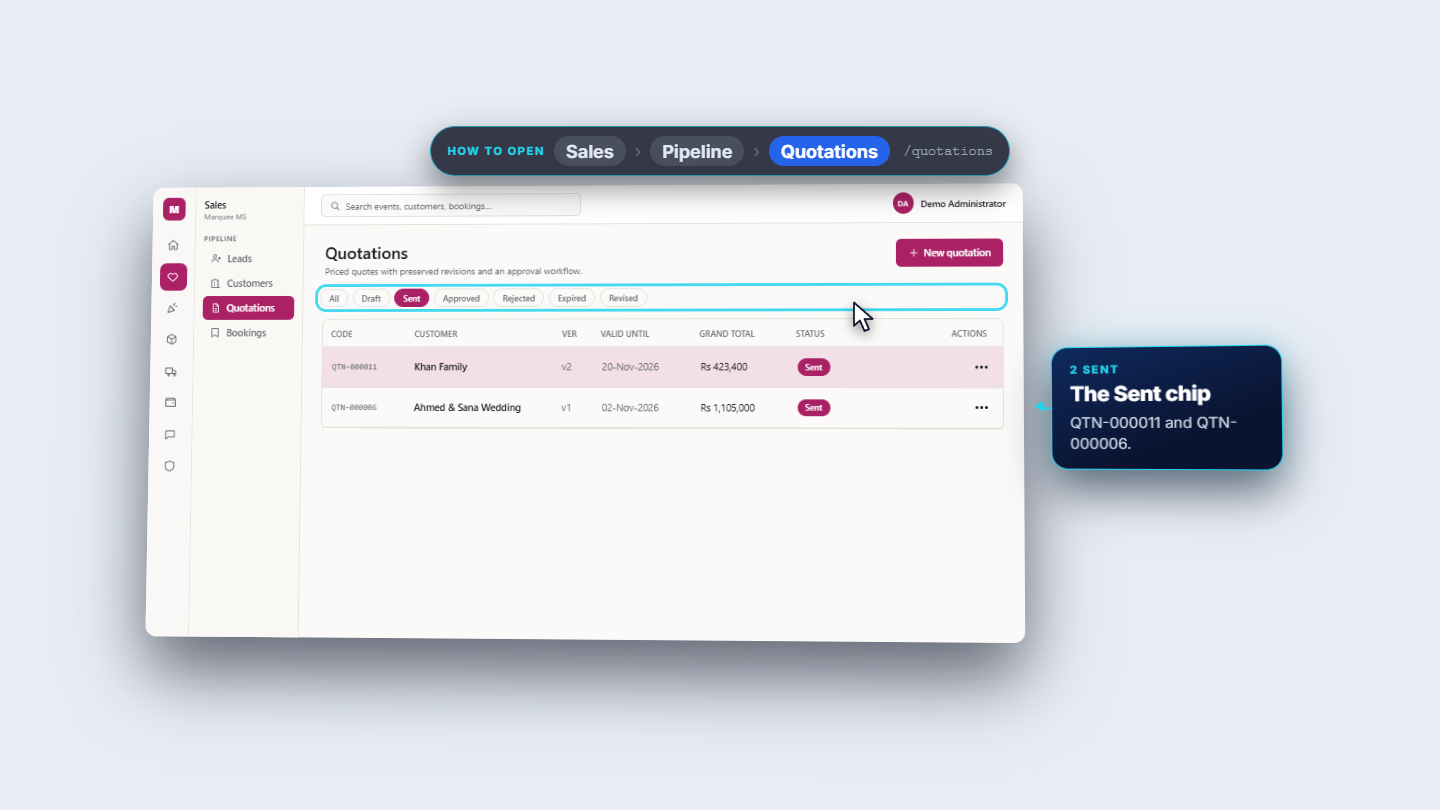
Choose Send from the same menu. The message reads "QTN-000011 marked as sent. Email/WhatsApp delivery is not set up, so share the PDF with the customer." The Sent chip now lists QTN-000011 and QTN-000006.
The Sent chip listing QTN-000011
8
Check that nothing was posted
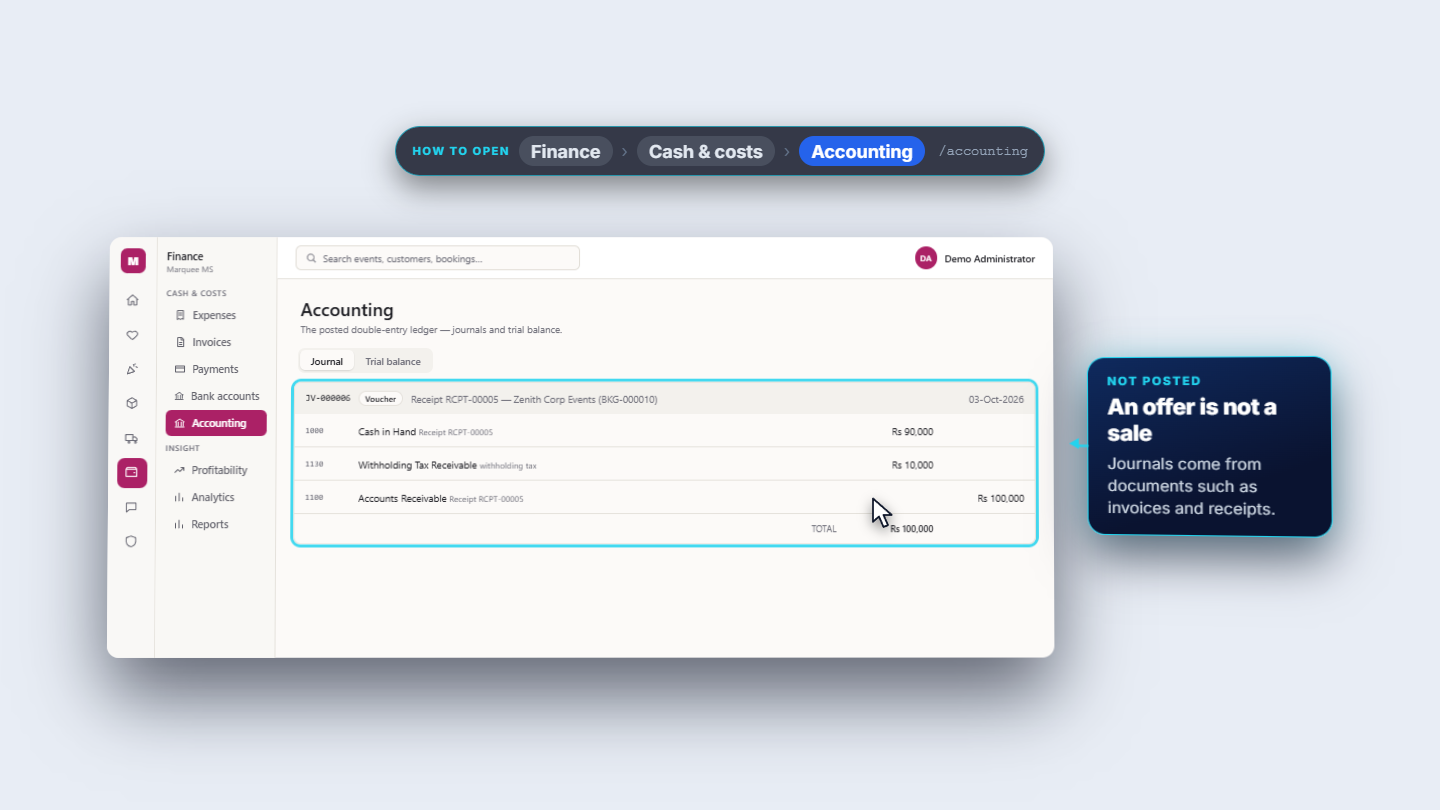
Open Finance › Cash & costs › Accounting. The newest voucher is still JV-000006 from 3 October. Approve, Reject, Mark expired and Revise posted nothing.
Accounting journal, newest voucher unchanged
9
Where an approval goes: New booking
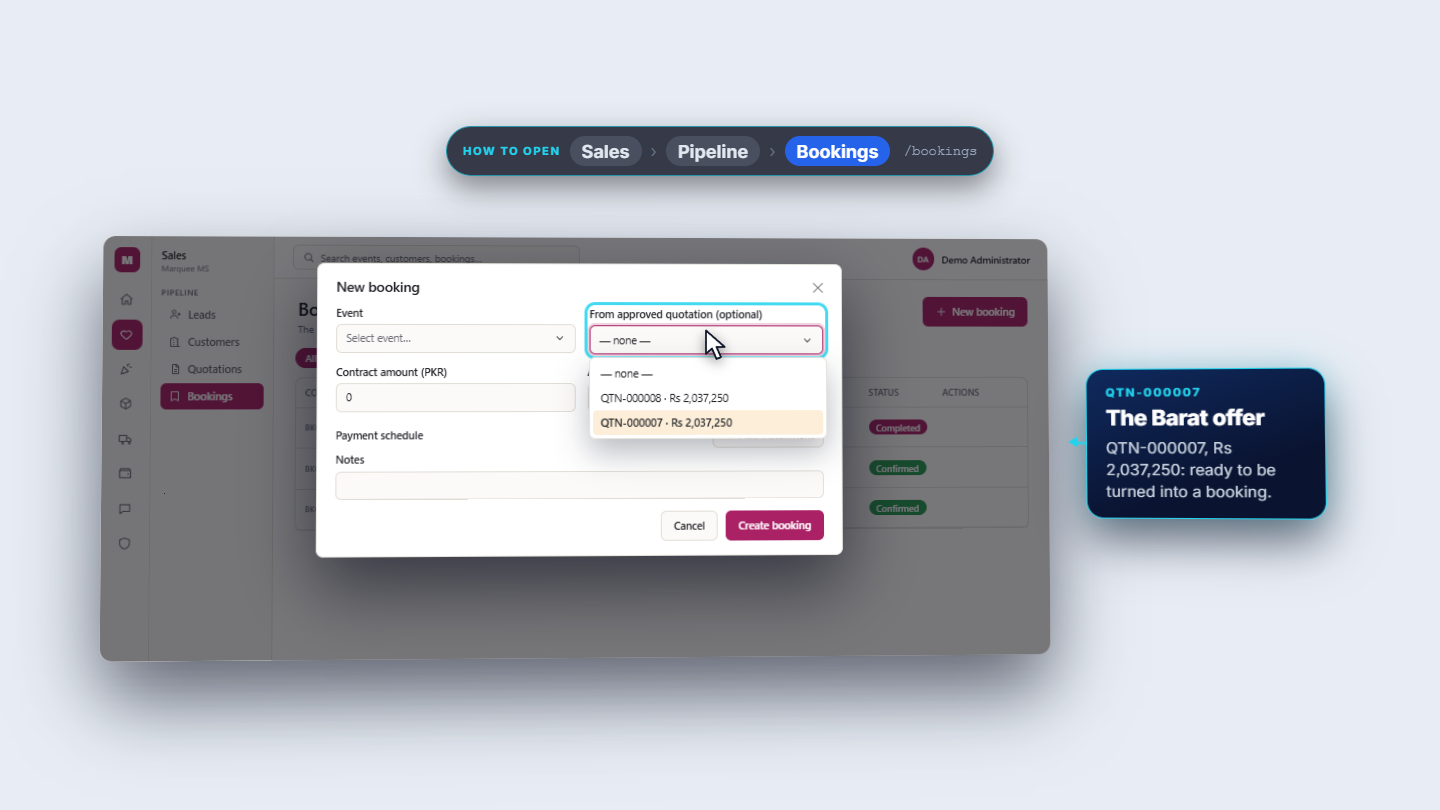
Approving does not create a booking by itself. Open Sales › Pipeline › Bookings and press New booking. The optional field From approved quotation lists only approved quotations: QTN-000008 and QTN-000007, each Rs 2,037,250. Drafts, sent, rejected and expired offers are not in it. How to finish the booking is in MMS-S31.
New booking dialog with approved quotations in the list
Check it worked
QTN-000007 shows a green Approved badge; QTN-000009 is under Revised; QTN-000010 shows Expired.
QTN-000011 (version 2) is Sent at Rs 423,400.
Accounting still shows JV-000006 as the newest voucher.
Common mistakes
Mistake
What you see
Fix
Looking for Edit on a sent quotation
The menu has no Edit
Use Revise (new version), then edit the draft
Approving the wrong row
No confirmation box, the status changes at once
Check the code and customer in the row before you click
Looking for a rejected offer in the main list
It was revised and moved
Open the Revised chip
Quick reference
Item
Meaning / rule
Sent
Approve, Reject, Mark expired, Revise, Download PDF
Approved, Rejected, Expired
Only Revise and Download PDF
Revise
New code, version plus one, a Draft with the same lines; the old one goes under Revised
From approved quotation
The New booking field; lists approved quotations only
Journal
None of these actions posts anything
Frequently asked questions
Can I edit a quotation after it was sent? No. A sent quotation has no Edit. Use Revise (new version), which creates a new draft you can edit and send, while the old one stays on record under the Revised chip.
Does approving a quotation create a booking? No. Approving only makes it usable for a booking. In Sales, Pipeline, Bookings, press New booking and pick it in From approved quotation, which lists approved quotations only.
Does approving, rejecting or revising post anything to Accounting? No. These actions post nothing, and the newest voucher in Accounting stays unchanged. An offer is not a sale.
Can I still use a rejected quotation? Yes. A rejected quotation can still be revised or downloaded as a PDF, so the work is not lost.