Every registered patient can carry a registration card with a QR code and barcode. This guide shows how to open the card, how a scan finds the patient, and what to do when a card is lost or stolen.
Who it is forFront-desk receptionistTime6 minutesProductHMSLevelBeginner
Before you start
Steps
1
Open the patient's MR card
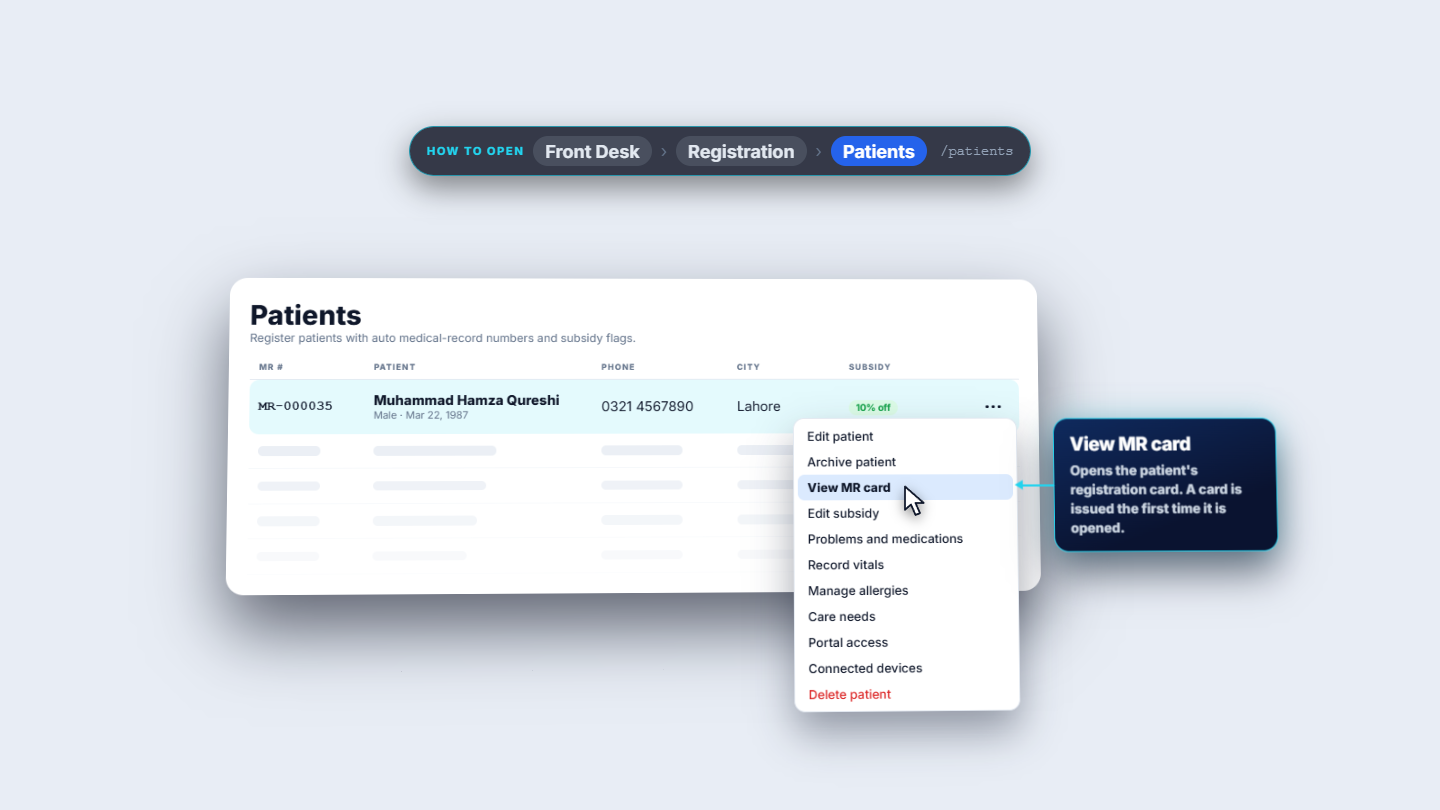
Click Front Desk › Registration › Patients. On the patient's row (MR-000035, Muhammad Hamza Qureshi, 0321 4567890, Lahore) press More actions and choose View MR card. A card is issued automatically the first time it is opened.
Patients row with the More actions menu open on View MR card
2
Read what the card carries
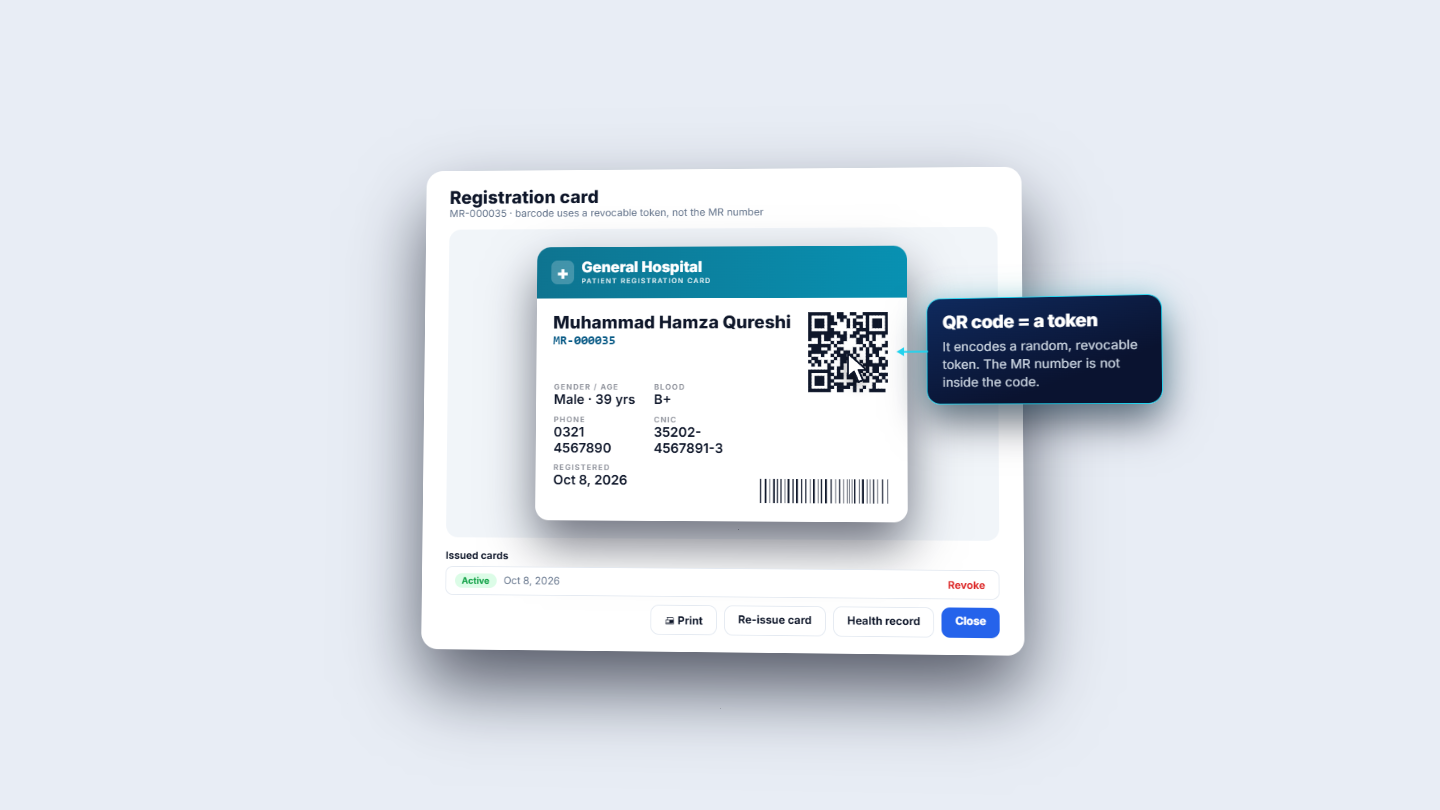
The Registration card shows the hospital, the patient's name and MR number for staff, and the gender and age, blood group, phone and CNIC. The QR code and the barcode carry a random, revocable token. The MR number is not inside the code.
Registration card with name, MR number, QR code and barcode
3
Check the Issued cards list
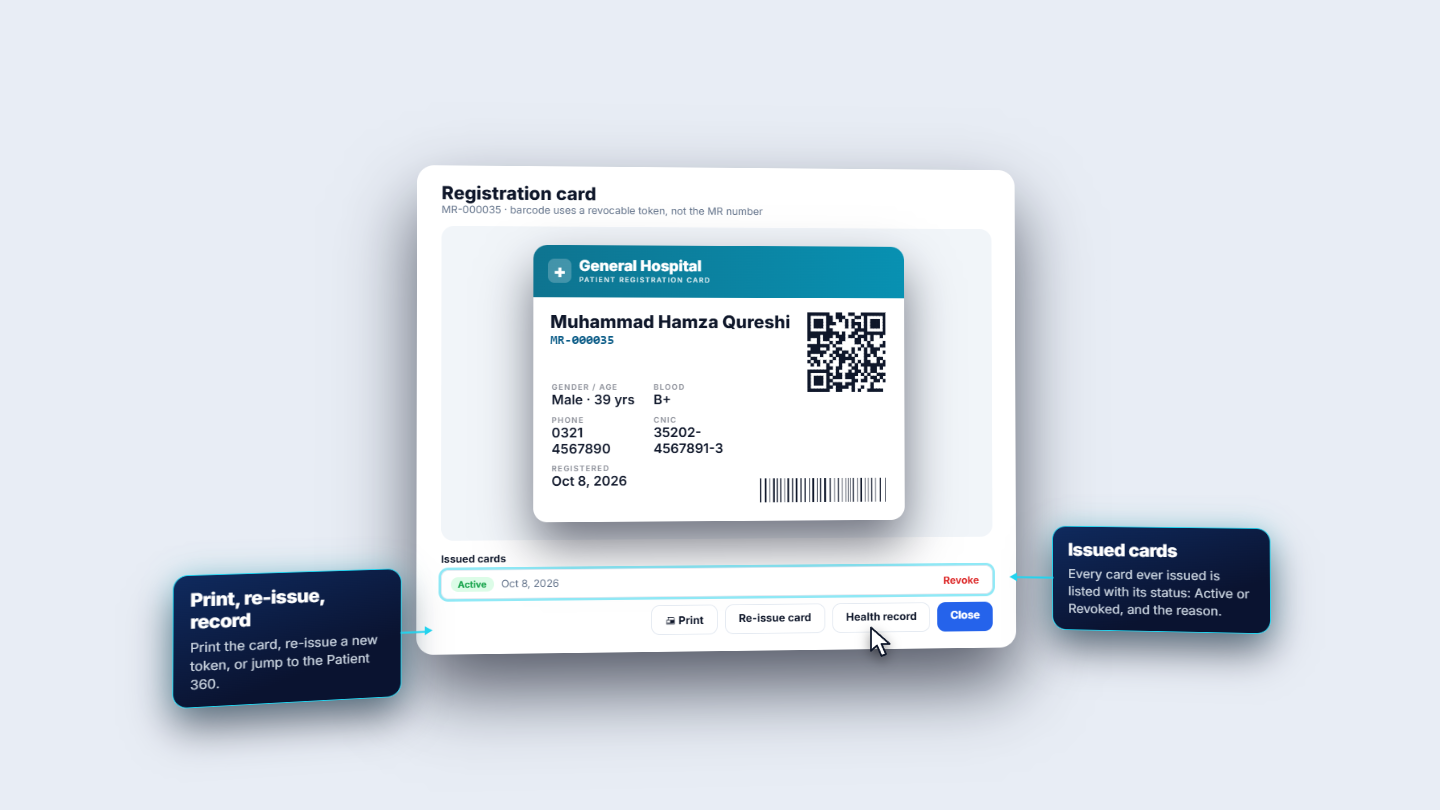
Under the card, Issued cards lists every card ever issued with its status, Active or Revoked, and the reason. The buttons below are Print, Re-issue card, Health record (jump to the Patient 360) and Close.
Issued cards row showing Active, with Print, Re-issue card and Health record
4
Scan the card to identify the patient
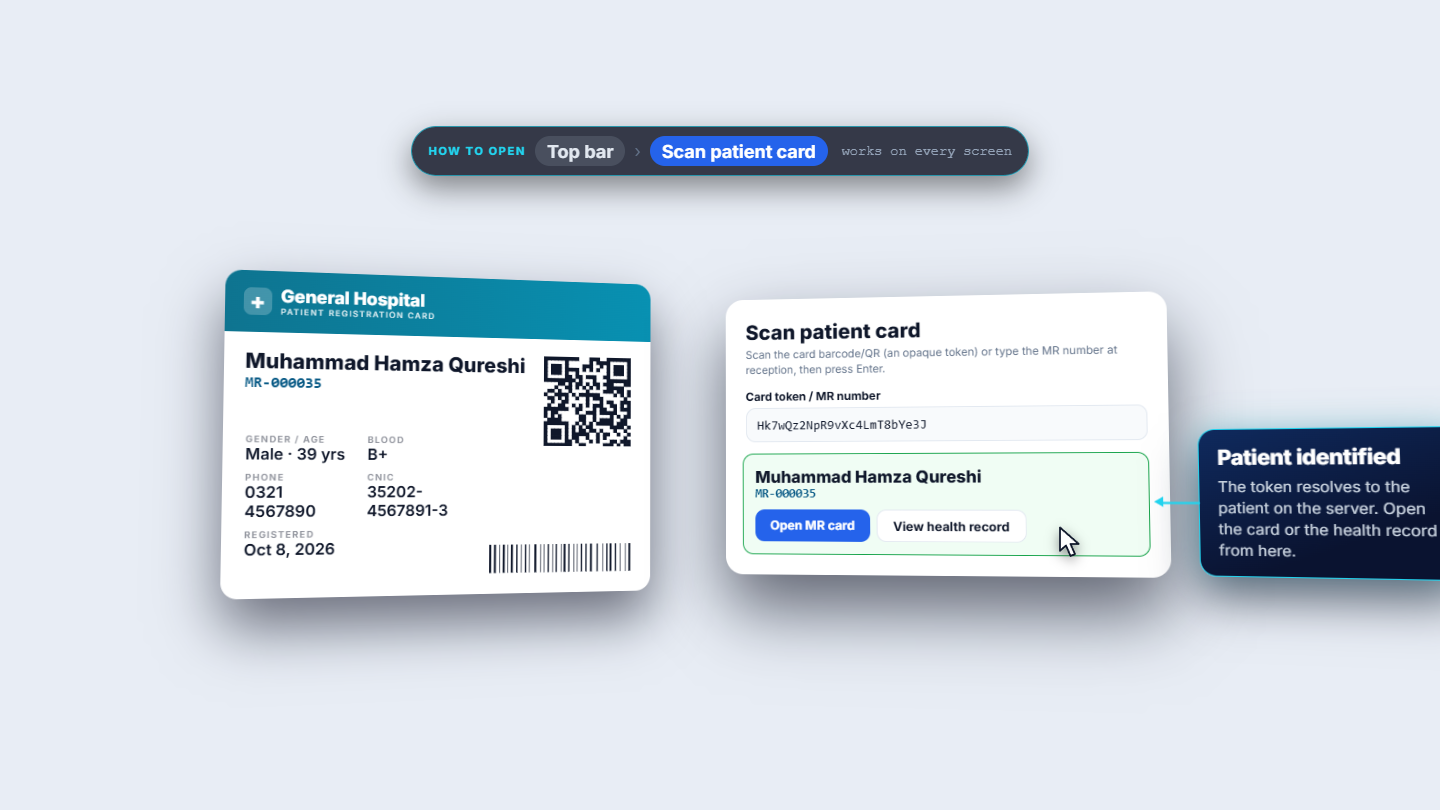
From any screen press Scan patient card in the top bar. Scan the card the way a keyboard types: the token fills Card token / MR number and the patient is identified. Here the result shows Muhammad Hamza Qureshi, MR-000035, with Open MR card and View health record one click away.
Scan patient card dialog showing Muhammad Hamza Qureshi identified
5
Revoke a lost or stolen card
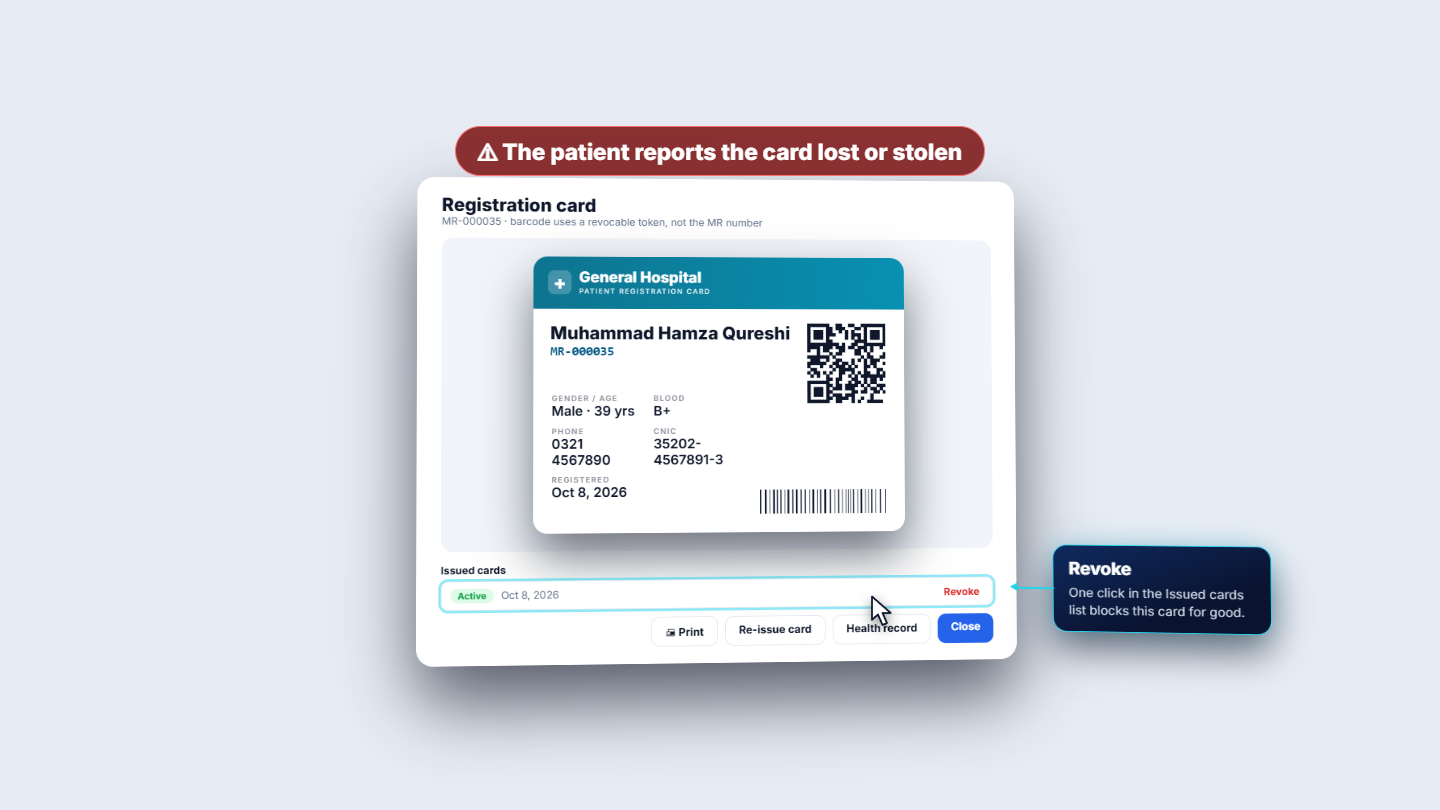
When the patient reports the card lost or stolen, open View MR card and, in Issued cards, press Revoke. A confirmation says the card stops working immediately and can no longer identify this patient at a scanner. Confirm it.
Issued cards row with the Revoke button while the patient reports the card stolen
6
See the revoked history
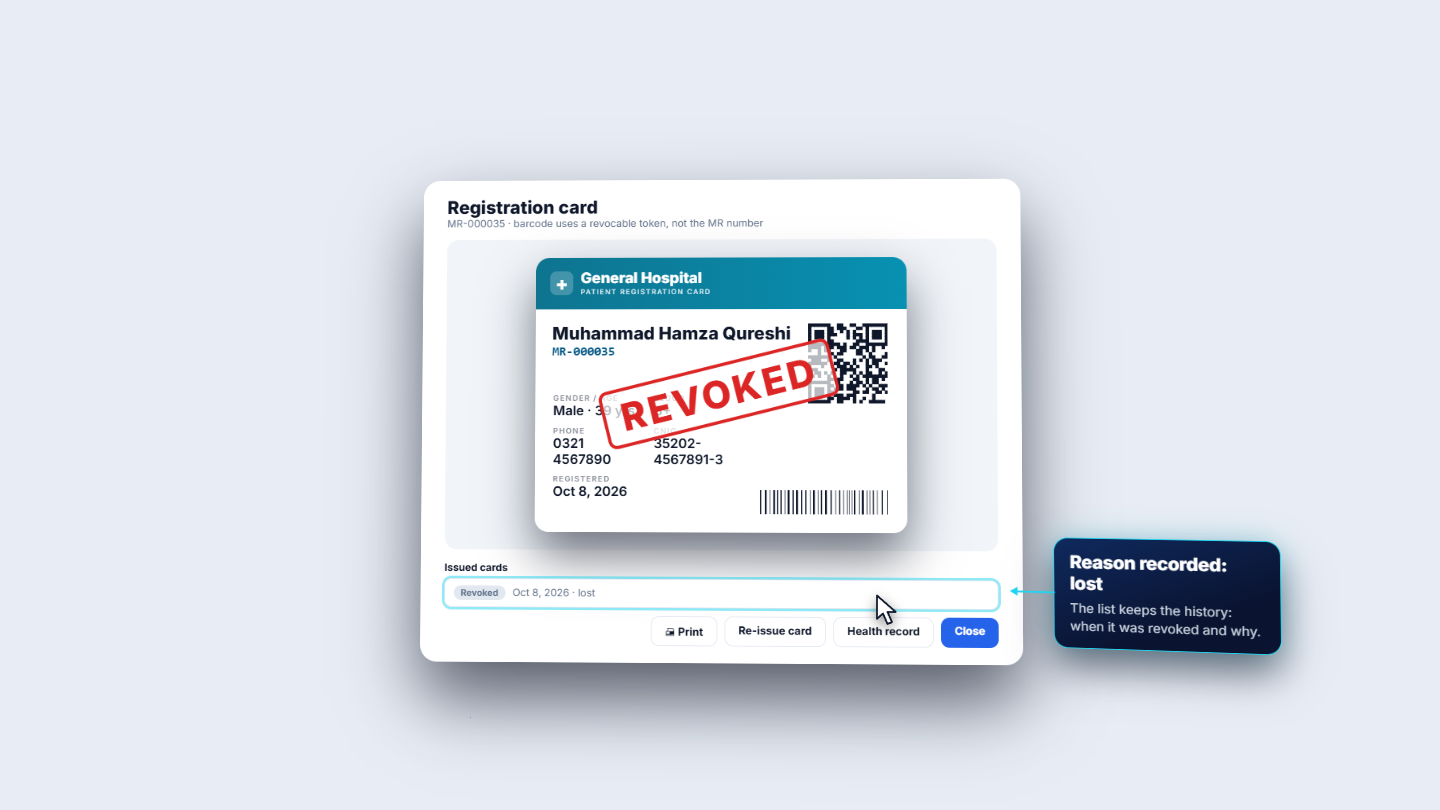
The card is stamped REVOKED, and the Issued cards row reads Revoked with the date and the reason, lost. The history stays in the list.
Card stamped REVOKED with the reason lost in Issued cards
7
Confirm the old card finds nobody
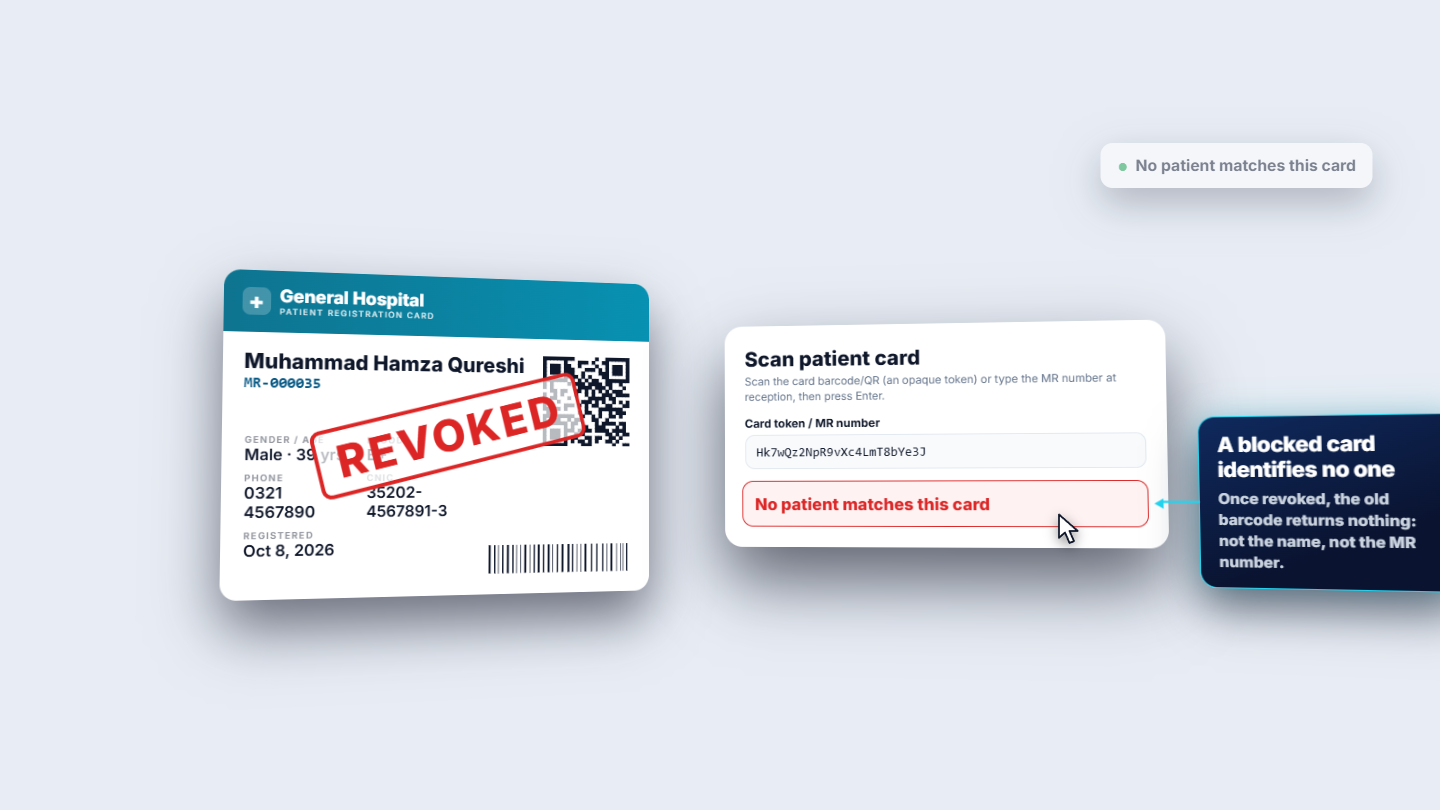
Scan the old card again. The scan shows No patient matches this card. A blocked card identifies no one: not the name and not the MR number.
Scan patient card showing No patient matches this card
8
Re-issue a new card
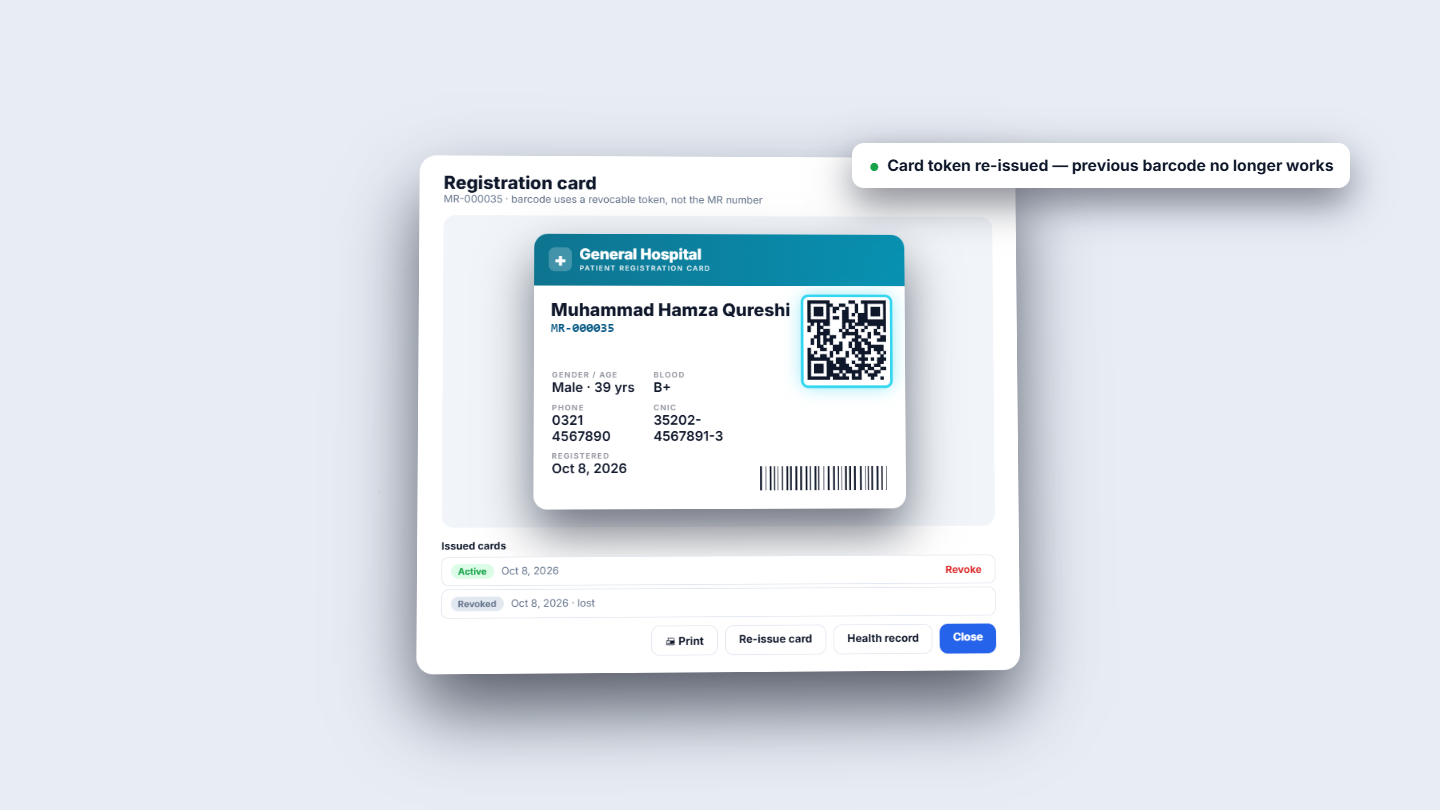
Press Re-issue card. A toast says Card token re-issued — previous barcode no longer works. The list now shows the new card Active above the old one Revoked. Press Print to print the new card.
Re-issued card with a new Active entry above the Revoked one
Check it worked
Issued cards shows one Active card and the old one Revoked with its reason.
Scanning the old barcode shows No patient matches this card.
Scanning the new card identifies Muhammad Hamza Qureshi, MR-000035.
Common mistakes
Mistake
What you see
Fix
Handing back the old printout after re-issue
No patient matches this card at a scanner
Print and give the new card
Looking for the MR number in the QR code
It holds only a token
Read the MR number printed on the card
Scanning inside the booking form
The picker does not take the token
Scan from the top bar first, then pick the patient by name
Quick reference
Item
Meaning
Scan patient card
Top-bar button that works on every screen
Token
The random value in the QR and barcode, not the MR number
Revoke
Stops the card at once; the history stays
Re-issue card
Creates a new token; the old barcode never works again
Frequently asked questions
Is the MR number inside the QR code or barcode? No. The QR code and the barcode carry a random, revocable token, not the MR number. The MR number is printed on the card for staff to read.
What happens to a lost or stolen card? Press Revoke in Issued cards and confirm. The card stops working at once, and scanning it shows No patient matches this card. The revoked card stays in the history with its reason.
How do I give the patient a new card? Press Re-issue card. A new token is created, the previous barcode no longer works, and you can press Print for the new card.
Can I scan a card inside the appointment booking form? No. The patient picker there does not read a scanned card. Scan from the top bar with Scan patient card first, then pick the patient by name.