How to capture an enquiry, follow it up and turn it into a customer
Every enquiry for a wedding, mehndi or corporate dinner starts as a lead. This guide shows how to record it, move it stage by stage, close it as lost with a reason, and convert it into a customer when the family is ready.
Who it is forSales personTime10 minutesProductMMSLevelBeginner
Before you start
Steps
1
Open the Leads screen
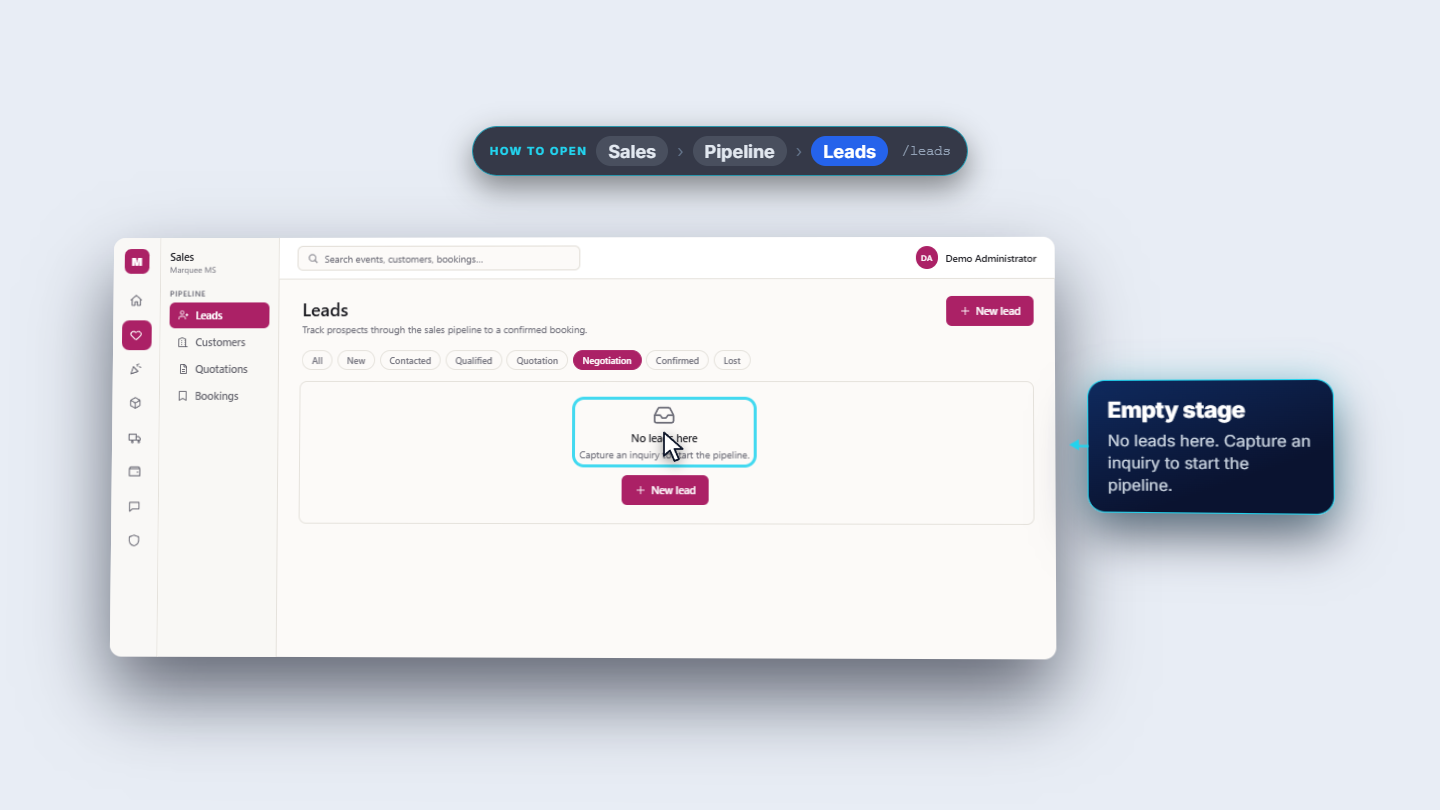
Click Sales › Pipeline › Leads (/leads). The page reads "Track prospects through the sales pipeline to a confirmed booking." The chips filter by stage: All, New, Contacted, Qualified, Quotation, Negotiation, Confirmed, Lost. The columns are Code, Name, Event, Expected value, Status, Actions. A stage with no leads shows "No leads here" and a New lead button.
Leads screen with stage chips, table and New lead button
2
Record a new enquiry
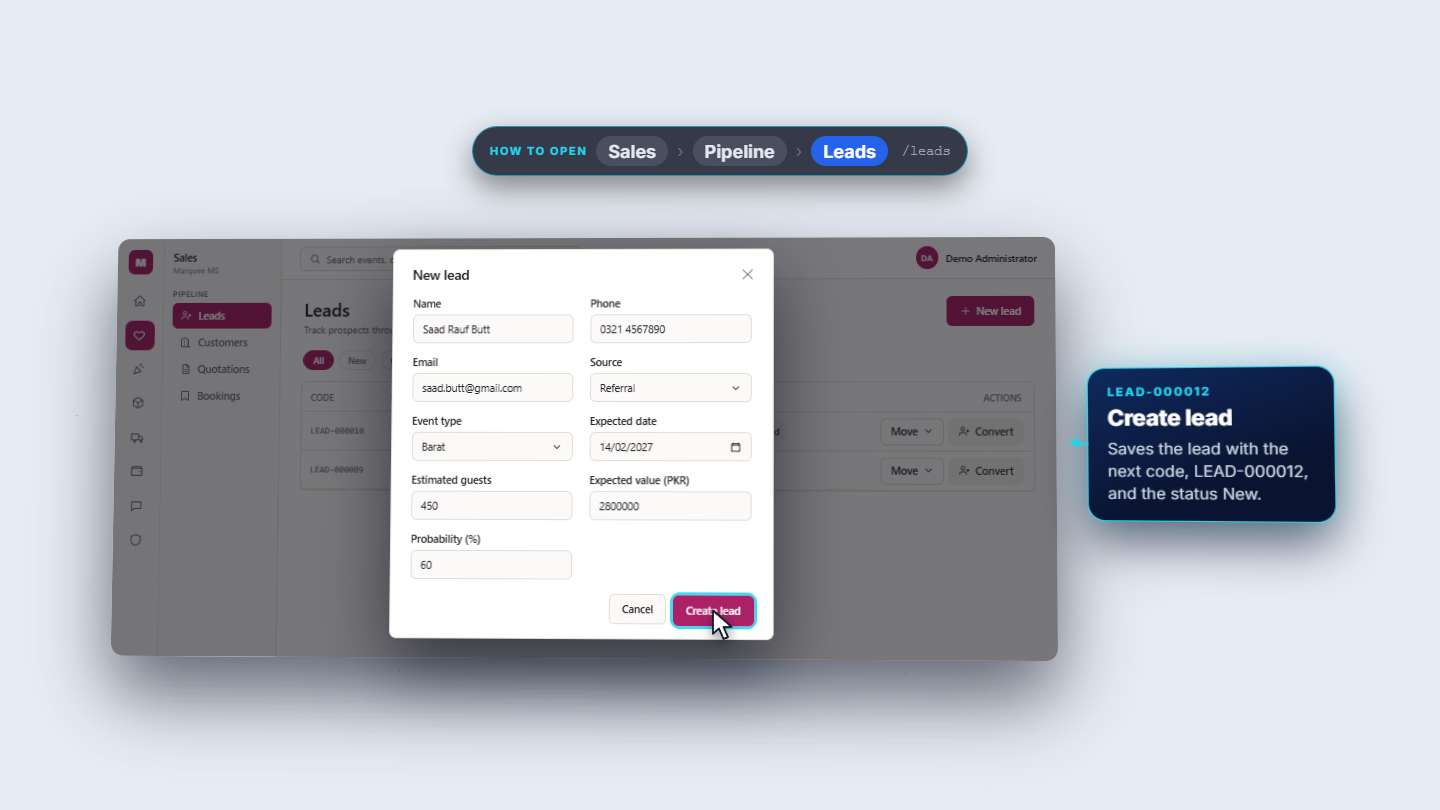
Press New lead. Enter Name (the only required field), for example Saad Rauf Butt, then Phone 0321 4567890 and Email saad.butt@gmail.com. Choose Source to say how the enquiry arrived (Referral, Walk-in, Website, Social media, WhatsApp, Phone call, Instagram, Facebook, Past client, Other) and Event type (Wedding, Barat, Walima, Mehndi, Nikah, Engagement, Birthday, Corporate, Conference, Seminar, Concert, Exhibition, Other). Here: Referral and Barat. Add the Expected date (14 February 2027), Estimated guests (450), Expected value (PKR) (2,800,000) and Probability (%) (60), then press Create lead.
New lead dialog filled in for Saad Rauf Butt
3
Find the new lead
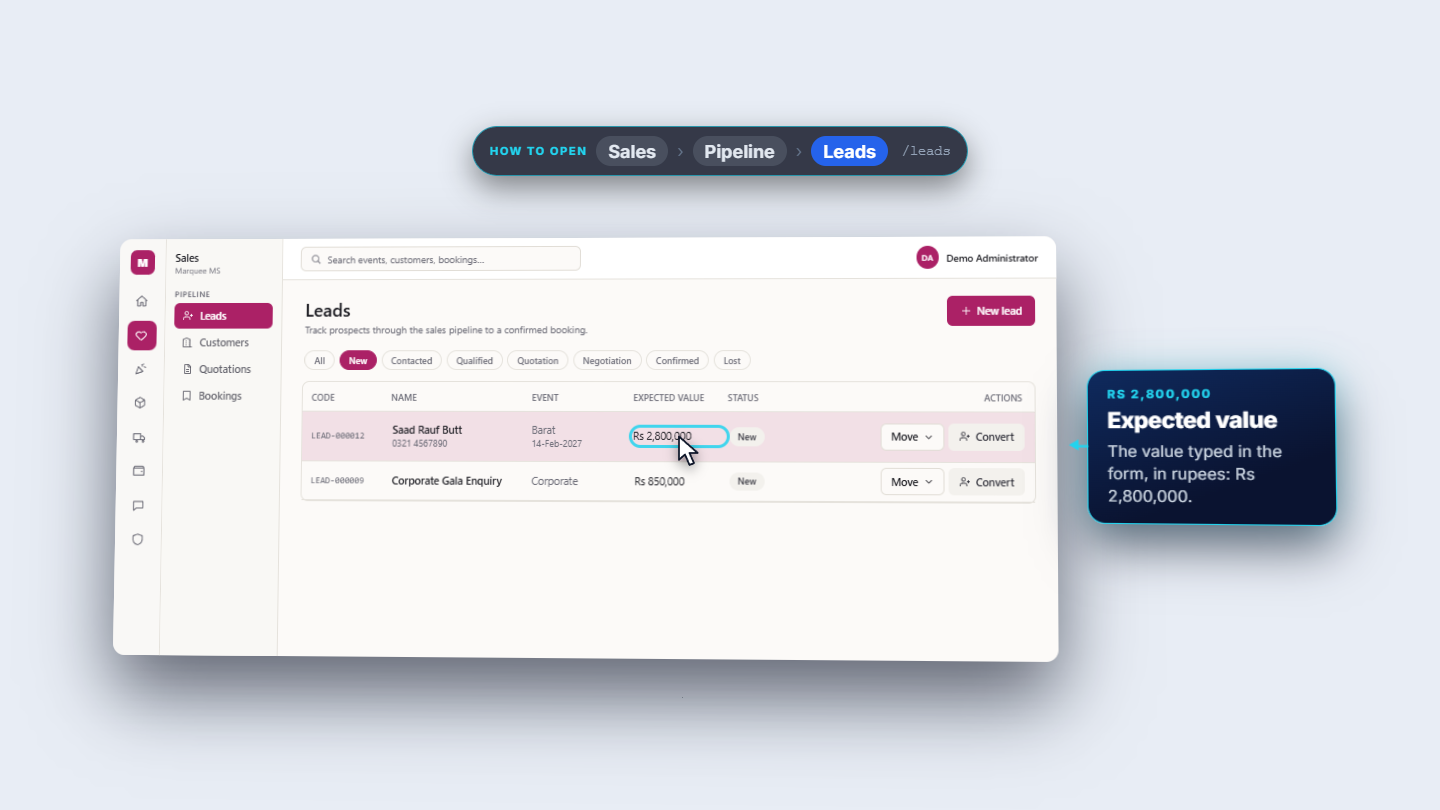
The dialog closes and a message at the bottom right says Lead created (LEAD-000012). In the New view Saad Rauf Butt is on top: phone under the name, the event type and date, Rs 2,800,000 and the status New. Empty number boxes show a dash.
New lead at the top of the New view
4
Move it stage by stage
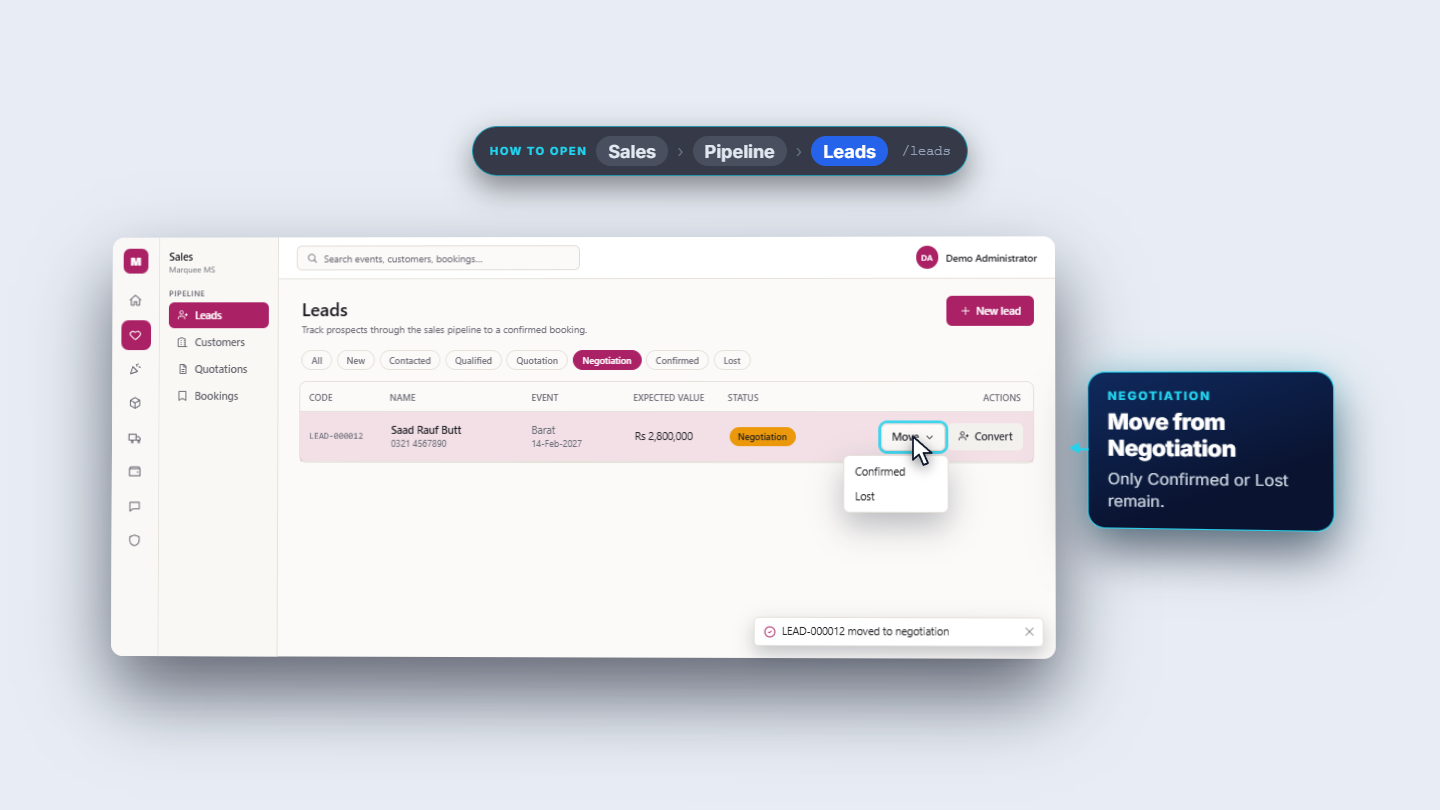
Press Move on the row. The menu shows only where the lead can go next. From New: Contacted, Qualified or Lost. From Contacted: Qualified, Quotation or Lost. From Qualified: Quotation, Negotiation or Lost. From Quotation: Negotiation, Confirmed or Lost. From Negotiation: Confirmed or Lost. Each move shows a message such as "LEAD-000012 moved to contacted".
Move menu from Negotiation
5
Close a lost enquiry with a reason
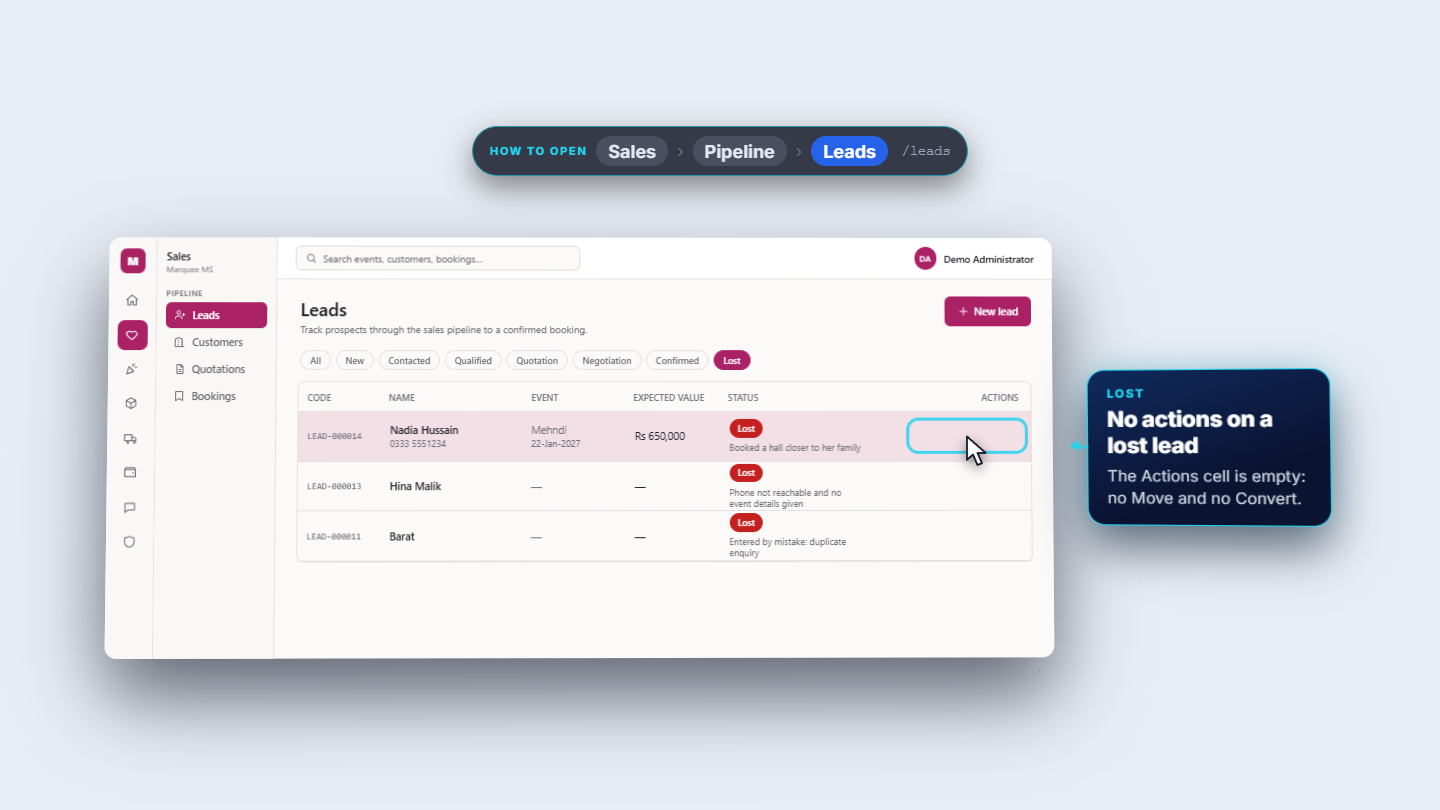
When a family goes elsewhere, press Move › Lost. A dialog "Mark Nadia Hussain as lost" asks for a Reason; empty gives "A reason is required". Type, for example, "Booked a hall closer to her family" and press Mark lost. In the Lost chip the badge is red and the reason is written under it. A lost lead has no Move and no Convert.
Lost leads with the reason under the badge
6
Convert a lead into a customer
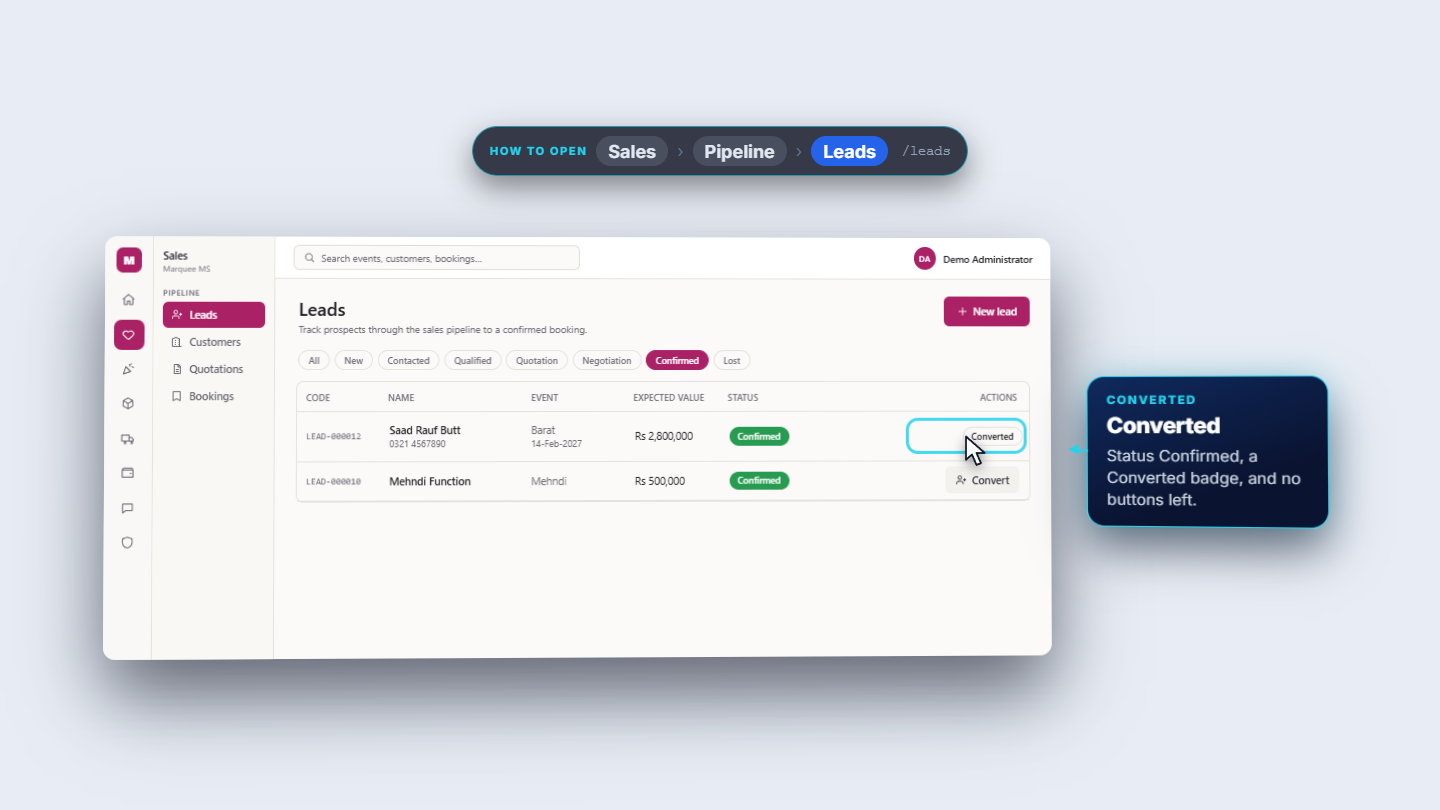
Moving a lead to Confirmed only changes its stage: Convert is still there because no customer exists yet. Press Convert on Saad Rauf Butt. A message says Lead converted (CUST-000014) with a link View customers. The row reads Confirmed with a Converted badge and no buttons.
Confirmed lead with the Converted badge
7
Check the customer it made
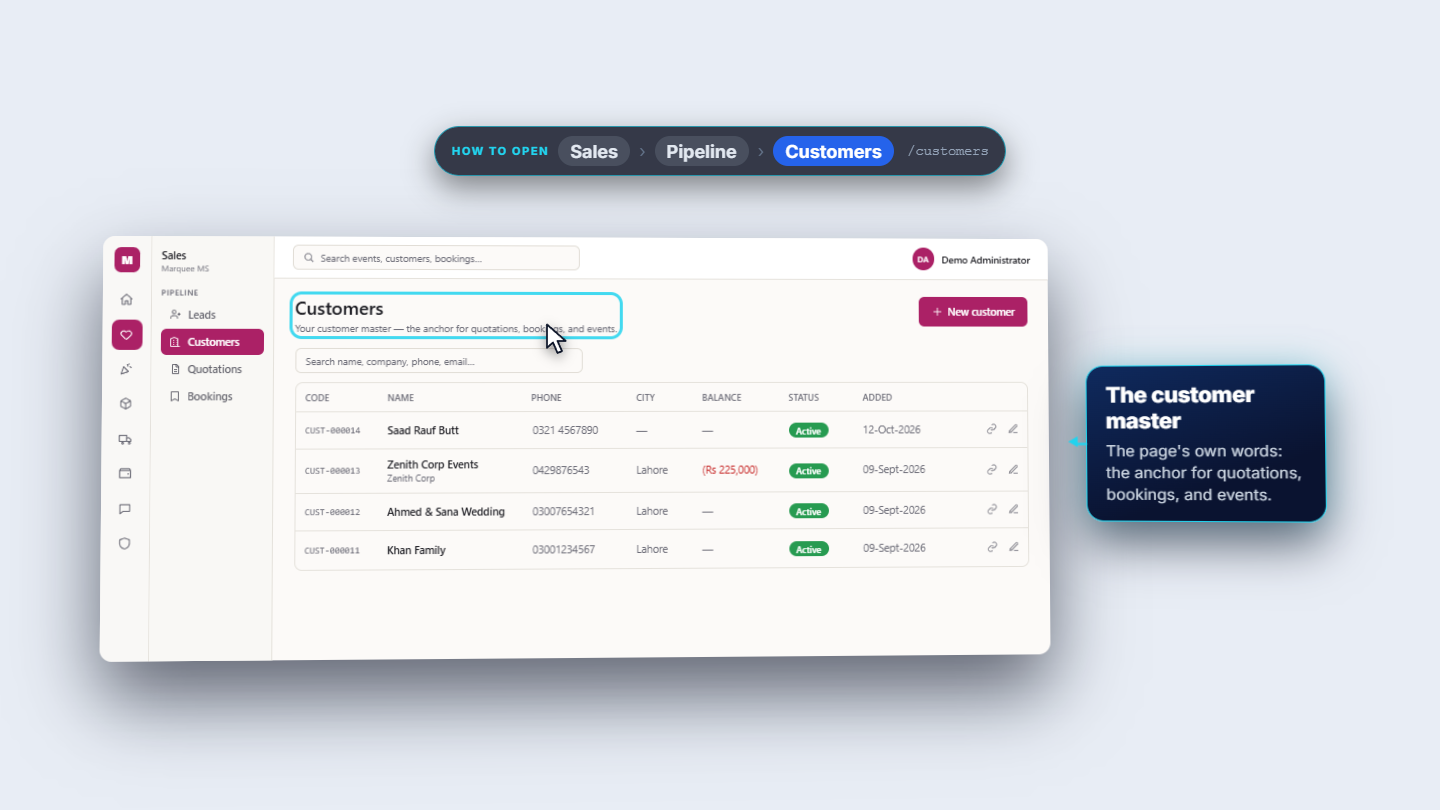
Open Sales › Pipeline › Customers (or use the link). The new customer is on top: CUST-000014, Saad Rauf Butt, 0321 4567890, Active, added 12-Oct-2026. Edit customer shows what Convert copied: name, phone, email and source (Referral). Event type, date, guests, value and probability stay on the lead.
Customers list with the new customer on top
Check it worked
LEAD-000012 shows Confirmed with a Converted badge and no buttons.
The new customer CUST-000014 appears on Customers.
A lost lead shows a red badge with its reason.
Common mistakes
Mistake
What you see
Fix
Leaving the name empty
"Name is required"
Type the name
Typing a probability above 100
"Probability must be 0 to 100"
Enter 0 to 100
Marking lost without a reason
"A reason is required"
Type why the enquiry was lost
Moving to Confirmed and expecting a customer
Convert is still offered
Press Convert
Quick reference
Item
Meaning / rule
Stages
New, Contacted, Qualified, Quotation, Negotiation, Confirmed, Lost
Move
Only forward; any open stage can go to Lost
Lost
Needs a reason; final
Convert
Creates a customer from name, phone, email and source
Frequently asked questions
Can I move a lead backwards to an earlier stage? No. A lead only moves forward, and the Move menu shows only the stages it can go to next. Any open stage can also go to Lost.
Does moving a lead to Confirmed create the customer? No. Confirmed only changes the stage, and Convert is still offered because no customer exists yet. Press Convert to create the customer from the lead's name, phone, email and source.
What do I need to enter to save a new enquiry? Only the Name is required. Phone, email, source, event type, expected date, estimated guests, expected value and probability (0 to 100) are optional but show what the pipeline is worth.
What happens when a family books elsewhere? Use Move then Lost and type a reason, which is required. The lead shows a red Lost badge with the reason under it, and a lost lead has no Move or Convert button.