A baker doesn't buy bread loaves. She buys flour, yeast, salt, and water, and turns them into loaves before the shop opens. If your business makes what it sells — a bakery, a food manufacturer, an assembly bench — plain inventory tracking only ever tells you half the story. It knows what's on the shelf, but not where it came from or what it cost to make.
That's the gap ClearRing's Production module fills. You write down what goes into each product, run a production batch from start to finish, draw the raw materials out of stock as you go, and let the finished goods land in your sellable inventory automatically. No manual journal entries, no guessing how much flour the morning shift used.
A few terms come up throughout, so it's worth fixing them early. A Bill of Materials, or BOM, is the list of raw ingredients and quantities needed to produce one batch of a finished product. A production run is a single execution of that BOM — "make 200 bread loaves on 15 January." Every run moves through three states, DRAFT to IN PROGRESS to COMPLETED. And yield is the number of finished units you actually ended up with, which isn't always the number you aimed for.
Writing the recipe: the Bill of Materials
Before you can run anything, each product you manufacture needs a BOM. Go to Production, then Bills of Materials, and click New BOM. Choose the finished product — it has to exist in your Products catalog already, so create it first if it doesn't — and then add the components.
For a batch of 200 bread loaves, that might be 20 kg of all-purpose flour, 200 g of active yeast, 400 g of salt, and 12 litres of water. Set the batch size to 200, which tells ClearRing that those quantities produce 200 finished units, and click Save BOM. Get this list right and everything downstream — stock deduction, costing, waste tracking — follows from it.
Starting a run
When it's time to bake, go to Production, then Runs, and click New Run.
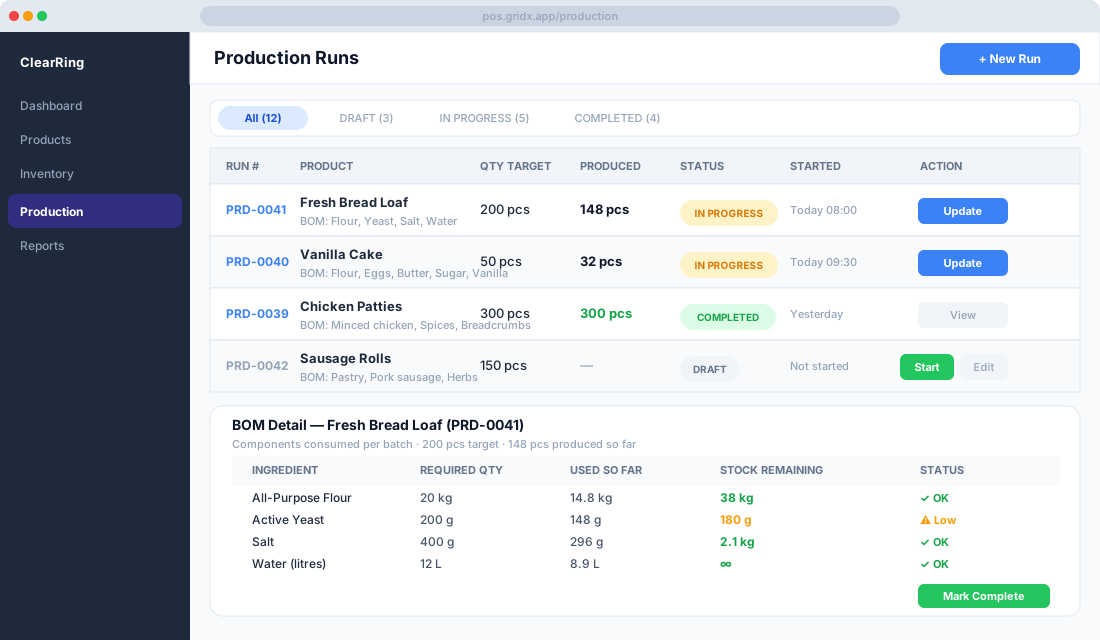
Fill in the details: the product, say Fresh Bread Loaf; the BOM, which auto-fills once you pick the product; a target quantity of 200 pieces; a scheduled start of today; and the location or shift, perhaps Kitchen, Morning Shift. Click Save as Draft and ClearRing immediately checks whether every required raw material is in stock. If anything falls short, you get a warning before you commit rather than halfway through mixing.
With the draft ready and production about to begin, open it and click Start Run. The status flips to IN PROGRESS, and the raw materials are reserved — held aside but not yet deducted. That reservation matters: it stops a second run from starting if there wouldn't be enough stock to cover both, which is exactly the kind of double-booking that catches busy kitchens out.
Tracking it as it happens
Long runs rarely finish in one clean go, so the operator can update progress along the way. Click Update Progress and enter the current count — 148 pieces done so far, for instance. ClearRing works out how much of each raw material that represents, consuming it proportionally, flags any ingredient running low with an amber or red warning, and updates the status bar on the run card. For a bakery adding tray after tray to inventory through the morning, that running view is far more useful than a single figure at the end of the day.
Closing the run out
When the baking's done, click Mark Complete and enter the final yield — the actual units produced, which may sit below target after waste or breakage. On completion ClearRing deducts the raw materials from inventory based on that actual yield, adds the finished goods to sellable inventory for the product, records any variance between target and actual, and logs the run as COMPLETED with a timestamp. If you aimed for 200 and got 188, a waste record is created for the twelve-loaf difference, so the shortfall is documented rather than quietly absorbed.
Looking back over your production
Go to Production, then Runs, then Completed to see your history. Each run shows target against actual yield and the variance percentage, with raw material consumption fully itemized, and clicking any run opens a printable Production Report. Over time this is where the useful patterns surface: recipes that consistently waste more than they should, which is a cue to refine the BOM quantities; production volumes worth knowing for capacity planning; and the finished-goods additions you'll want to reconcile against your inventory reports.
How it ties into inventory
The production module and inventory are joined at the hip throughout the cycle. Before a run, stock availability is checked automatically. During the run, materials are reserved. After completion, raw materials are deducted with a negative stock movement record, and finished goods are added with a positive one. Every one of those movements shows up in Inventory, then Stock Movements, tagged with the movement type "Production," so the whole chain is auditable from raw material to shelf.
For a product to be manufactured rather than purchased, flag it as Produced Internally in its settings. Go to Products, pick the product, open Settings, toggle Produced Internally on, and set a reorder point. When finished-goods stock drops to that level, ClearRing surfaces a production run suggestion on the dashboard — a quiet nudge before you actually run out.
The questions that come up most
Can a product be both purchased and produced? Yes. You can keep a BOM for a product and still receive it on a purchase order, and the system tracks both sources in stock movements.
What happens when a recipe changes? Edit the BOM whenever you need to. Changes apply to new runs only — completed runs keep the BOM snapshot that was active when they ran, so your history stays honest.
Does this only work for food? Not at all. The BOM accepts any product type, so a kit BOM might combine component A and component B to produce assembled product C — assembly and kitting work the same way as a bread recipe.
Is waste tracked on its own? Yes. Under a completed run, the Waste section shows the units you fell short of target and the estimated raw material cost of that waste.
Set your BOMs up carefully and run production through these structured cycles, and every finished item on your shelf traces cleanly back to the materials that made it. Production creates the goods, sales consume them, and your stock counts stay accurate without anyone touching a journal entry.