How to register a student and what the student sees in the portal
A student can be added straight to the register, in bulk from a CSV file, or enrolled from an admission. This guide covers adding a student, placing them in a batch, and the first sign-in to the Student Portal.
Who it is forRegistrar / school adminTime12 minutesProductSCMLevelBeginner
Before you start
Steps
1
Read the Students list and add a student
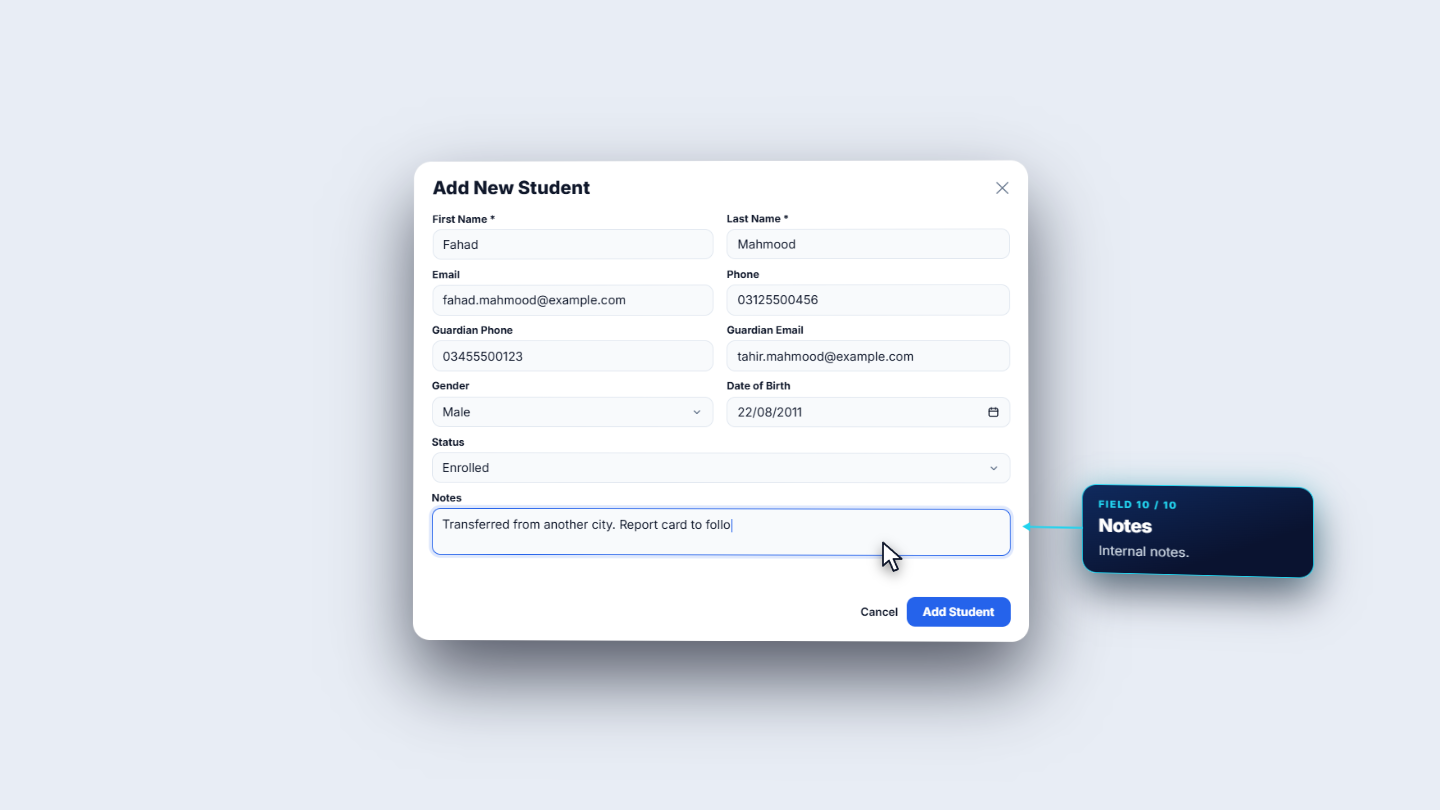
Click Students. The list shows three counters (total, active, new this month) and each row shows program and batch, contact, primary guardian and status. Contact details are masked; Show contacts reveals them for people allowed to see them. Search by name, registration number or email, and filter by status and gender. Press Add Student. First Name and Last Name are required. Email and phone of the student are optional. Fill the Guardian Phone and Guardian Email, then gender, date of birth, Status (enrolled, active or prospective) and notes.
Add New Student form with guardian phone and email
2
Understand the guardian match and the duplicate check
If the guardian phone matches an existing guardian, that guardian is linked. Otherwise a new guardian is created and linked as primary, named after the student's family; rename it later with Edit. The same duplicate check as in admissions runs first: same name and birth date, or the same guardian contact.
3
Import many students from a CSV file
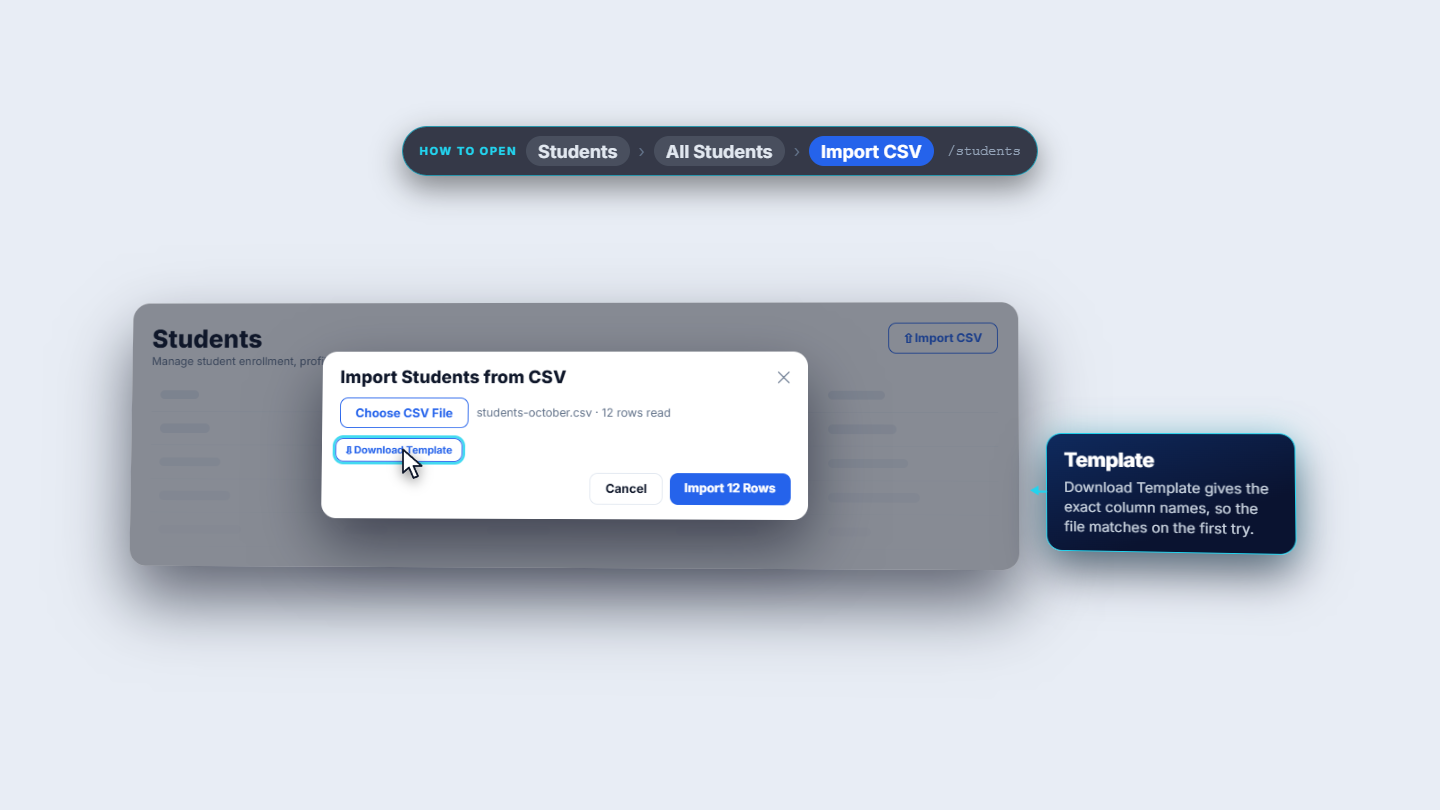
Press Import CSV. The dialog lists the columns and reads your file, showing how many rows it found. Download Template gives you the exact columns. Then Import adds the rows, and the same duplicate checks apply.
Import CSV dialog listing the columns
4
Enrol the student in a batch
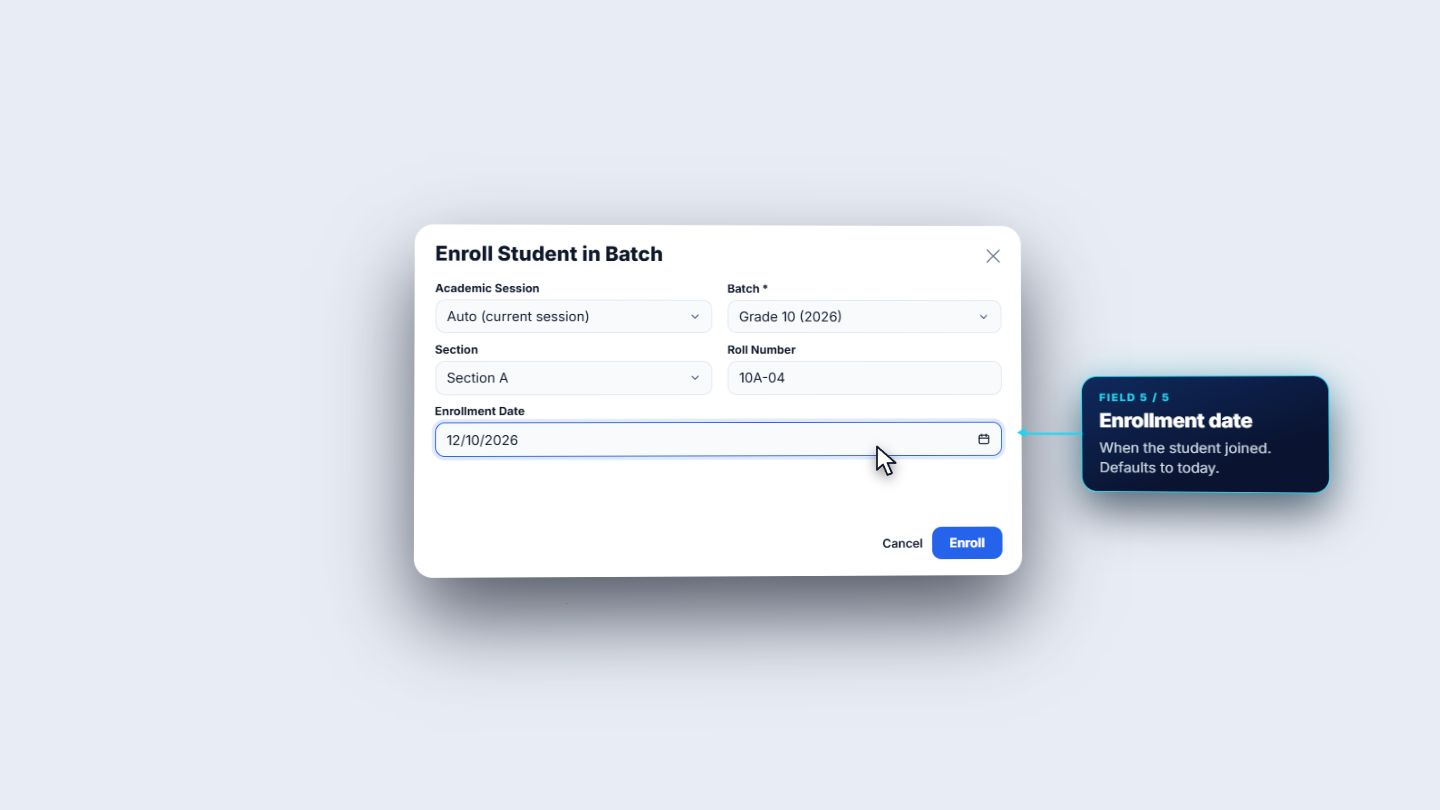
A student added directly has no batch yet. The profile says so and offers Enroll in Batch. Leave Academic Session on Auto (current session) or pick one. Choose the Batch (the grade and year, for example Grade 10 (2026)), optionally a Section and a Roll Number, and set the Enrollment Date, which defaults to today. Press Enroll. The enrollment card then shows program, batch, section, roll number and status. Academic advisor assigns a teacher and counts toward that teacher's advisee workload.
Enroll Student in Batch dialog: session, batch, section, roll number, date
5
First sign-in
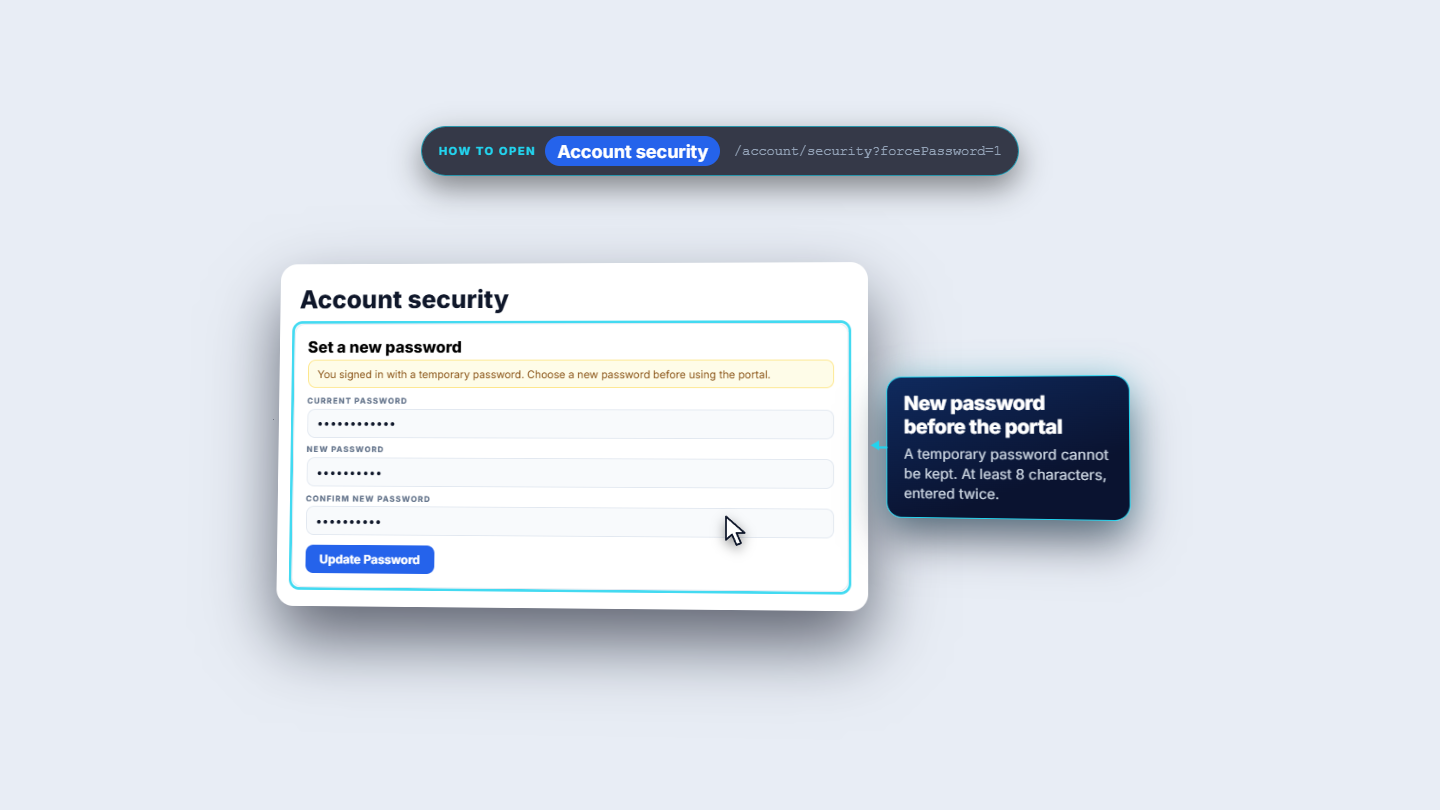
A student enrolled from Admissions receives an email with a temporary password. They sign in with the school code, their email and that password. Enrolment also gives the login the Student role, so the portal opens. SCM sends them straight to Account security to set a new password before they use the portal.
Account security page asking for a new password
6
What the student sees
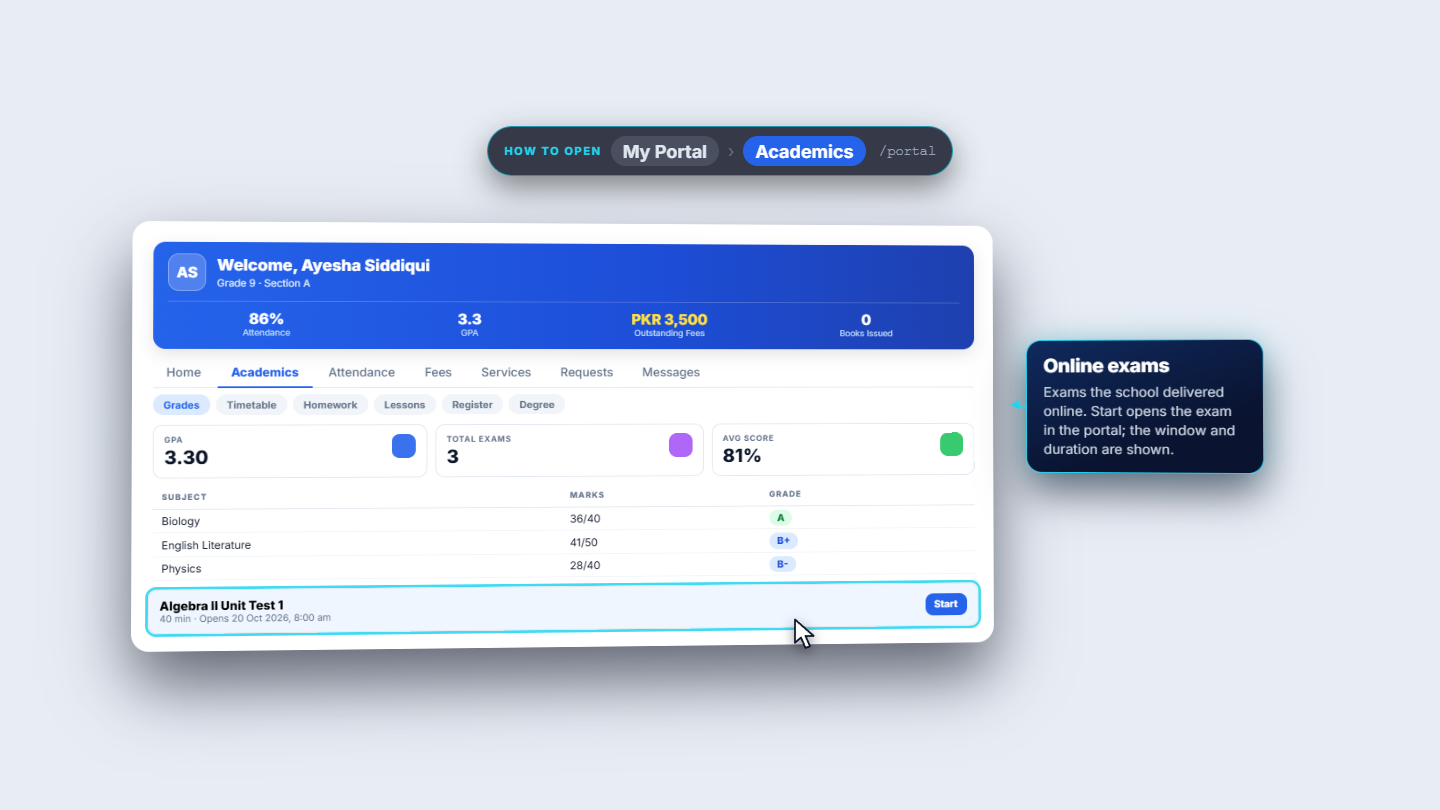
The portal opens on Home with a welcome and four numbers: attendance, GPA, outstanding fees and books issued. Today's classes come from the timetable, with room and an Online badge for virtual classes. Academics groups grades, timetable, homework and lessons; Grades shows the GPA, the number of exams, the average score and each published result, and Online exams lists exams the student can start inside the portal.
Student Portal Academics with grades and online exams
7
Attendance, fees and requests
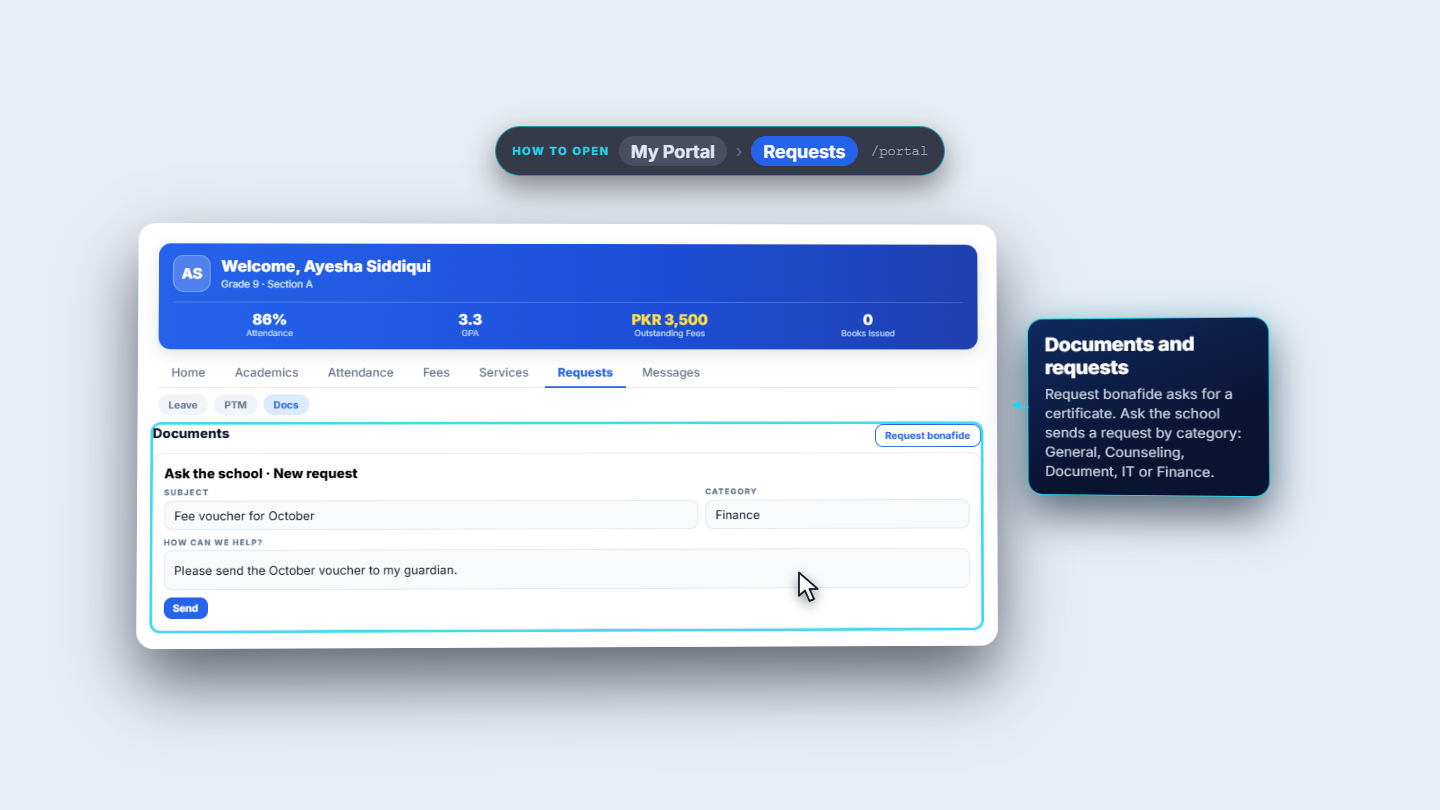
Attendance is a month calendar with present, absent and late days coloured. Fees shows total billed, total paid and outstanding, then every invoice with a Pay button. Requests holds Leave (dates and a reason of at least ten characters), parent-teacher meetings with a Book button, and Documents, where the student can request a bonafide certificate or use Ask the school.
Requests tab with leave, parent-teacher meetings and documents
Check it worked
The new student appears in the Students list with the right batch and status.
After enrolment the enrollment card shows program, batch, section and roll number.
A student enrolled from Admissions signs in, changes the temporary password and lands on the portal Home.
Common mistakes
Mistake
What you see
Fix
Expecting a login after Add Student
The student cannot sign in
Enrol the student from Admissions, which creates the login
Student has no batch
The profile says not enrolled
Press Enroll in Batch
Importing a file with the wrong columns
Rows fail to read
Download the template and use its columns
Quick reference
Item
Meaning / rule
Status
Enrolled, active or prospective when adding; more choices when editing
Guardian phone
Finds or creates the primary guardian
Roll number
Optional, set at enrolment
Account security
Forces a new password after a temporary one
Frequently asked questions
Why can a student I added not sign in? Add Student creates the record and the guardian link but no login. A student enrolled from Admissions gets a login, with a temporary password sent by email.
How do I add many students at once? Press Import CSV, use Download Template so the columns match, then Import. The same duplicate checks apply to the imported rows.
How does SCM decide which guardian a new student gets? It uses the guardian phone. If it matches an existing guardian, that guardian is linked; otherwise a new primary guardian is created, which you can rename with Edit.
What happens when a student signs in for the first time? SCM sends them straight to Account security to set a new password before they use the portal.