Open the Add Product form
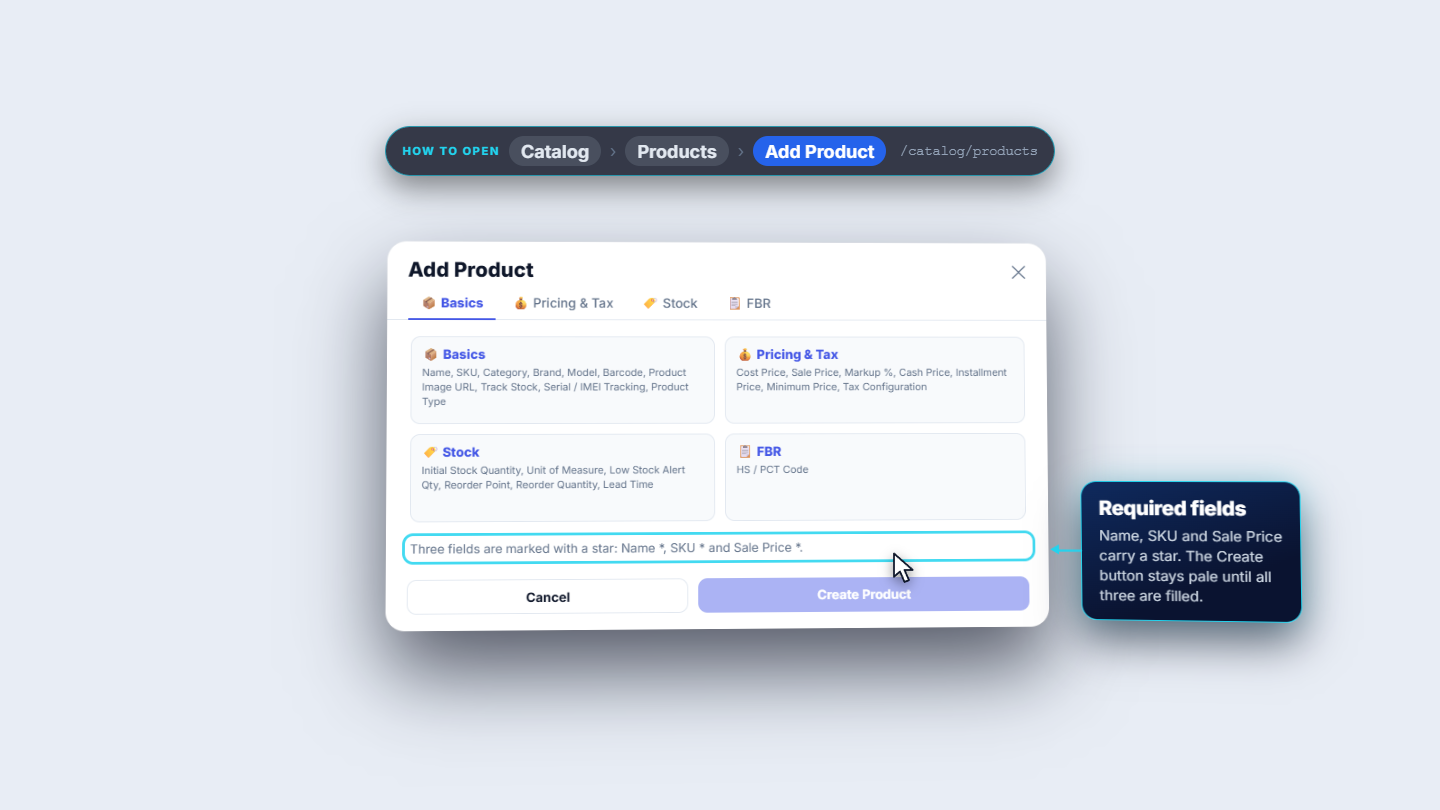
Go to Catalog › Products and press Add Product. The form has four tabs: Basics, Pricing & Tax, Stock and FBR. Only three fields carry a star: Name, SKU and Sale Price. Create Product stays pale until those three are filled.
Every item you sell must be in the catalogue before the cashier can scan it. This guide shows how to add a product such as Colgate MaxFresh Toothpaste 150g, set its prices, tax, FBR code and stock alerts, and later change its price.
Go to Catalog › Products and press Add Product. The form has four tabs: Basics, Pricing & Tax, Stock and FBR. Only three fields carry a star: Name, SKU and Sale Price. Create Product stays pale until those three are filled.
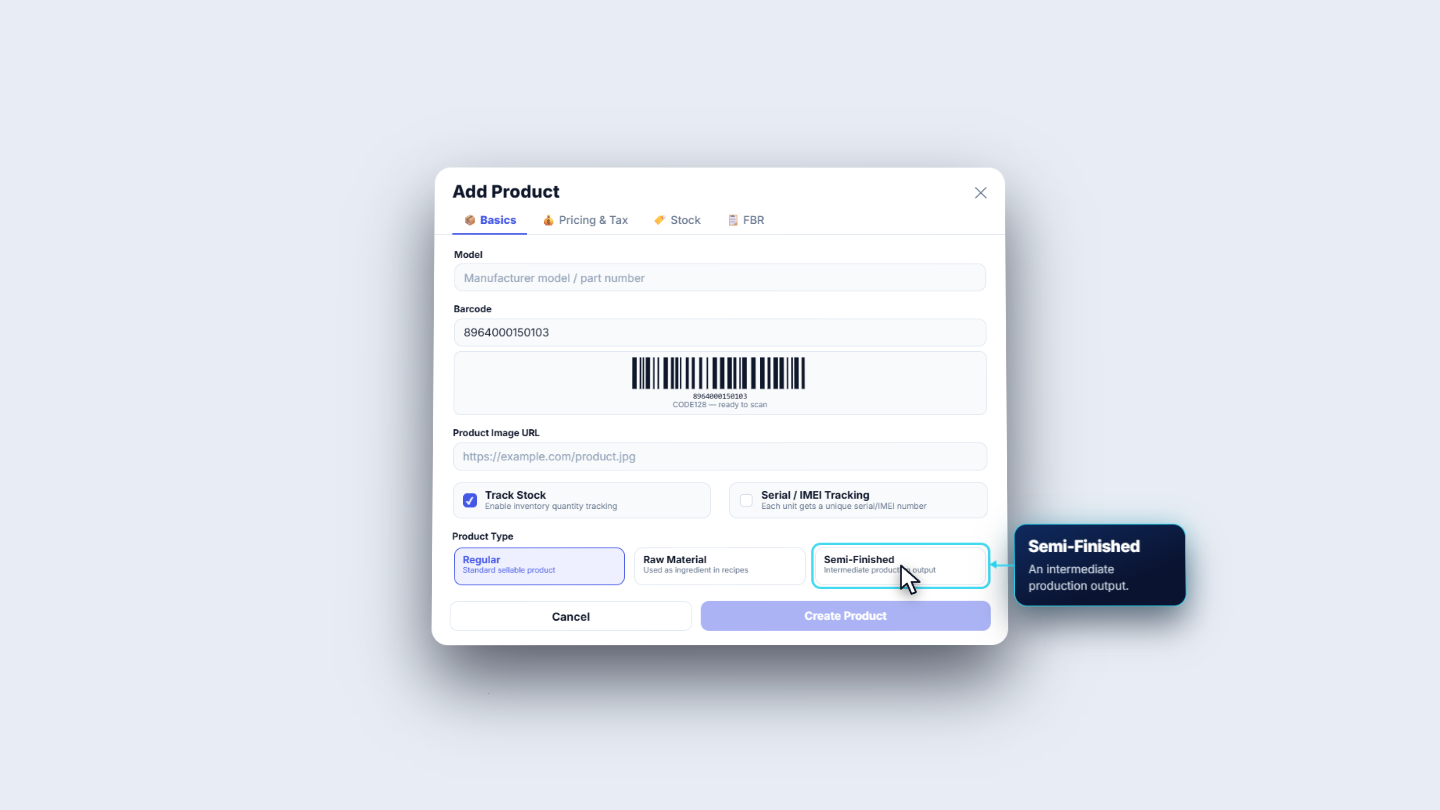
Type the Name (Colgate MaxFresh Toothpaste 150g) and a SKU (PC-COLG-150). Choose the Category, Personal Care. In Barcode type 8964000150103; the form draws a Code 128 preview so you know it will scan. Leave Track Stock on. Leave Serial / IMEI Tracking off for toothpaste. Product Type stays Regular.
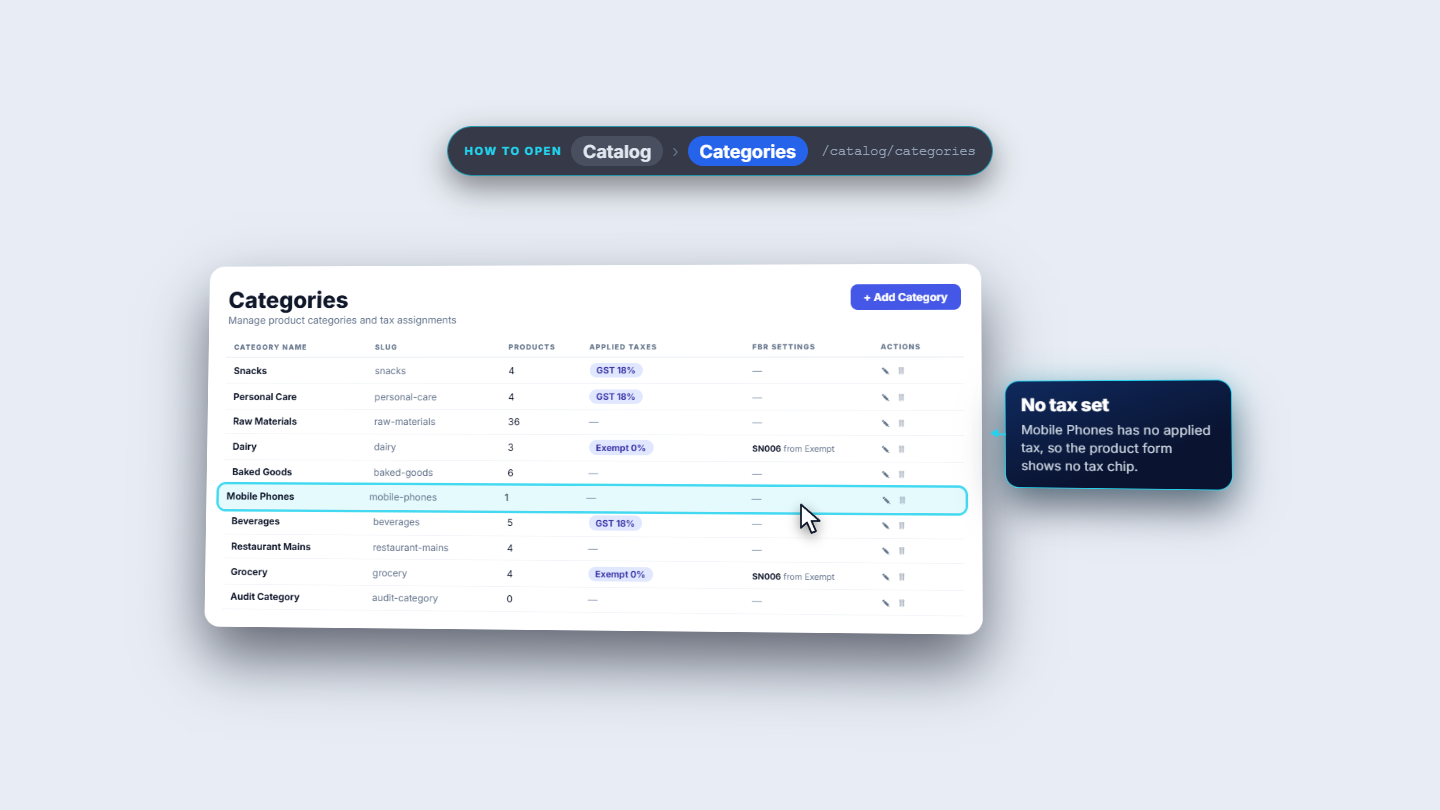
After you pick Personal Care, the form shows the tax the product inherits: GST 18% (excl). The list comes from Catalog › Categories, where each category carries its taxes. Snacks, Personal Care and Beverages carry GST 18%. Dairy and Grocery are Exempt at 0%.
Open Pricing & Tax. Type Cost Price 220 and Sale Price 285. Under Multi-tier Pricing & Markup type Markup % 30: the form shows Auto cash price: Rs 286. Fill Installment Price 310 and Minimum Price 260.
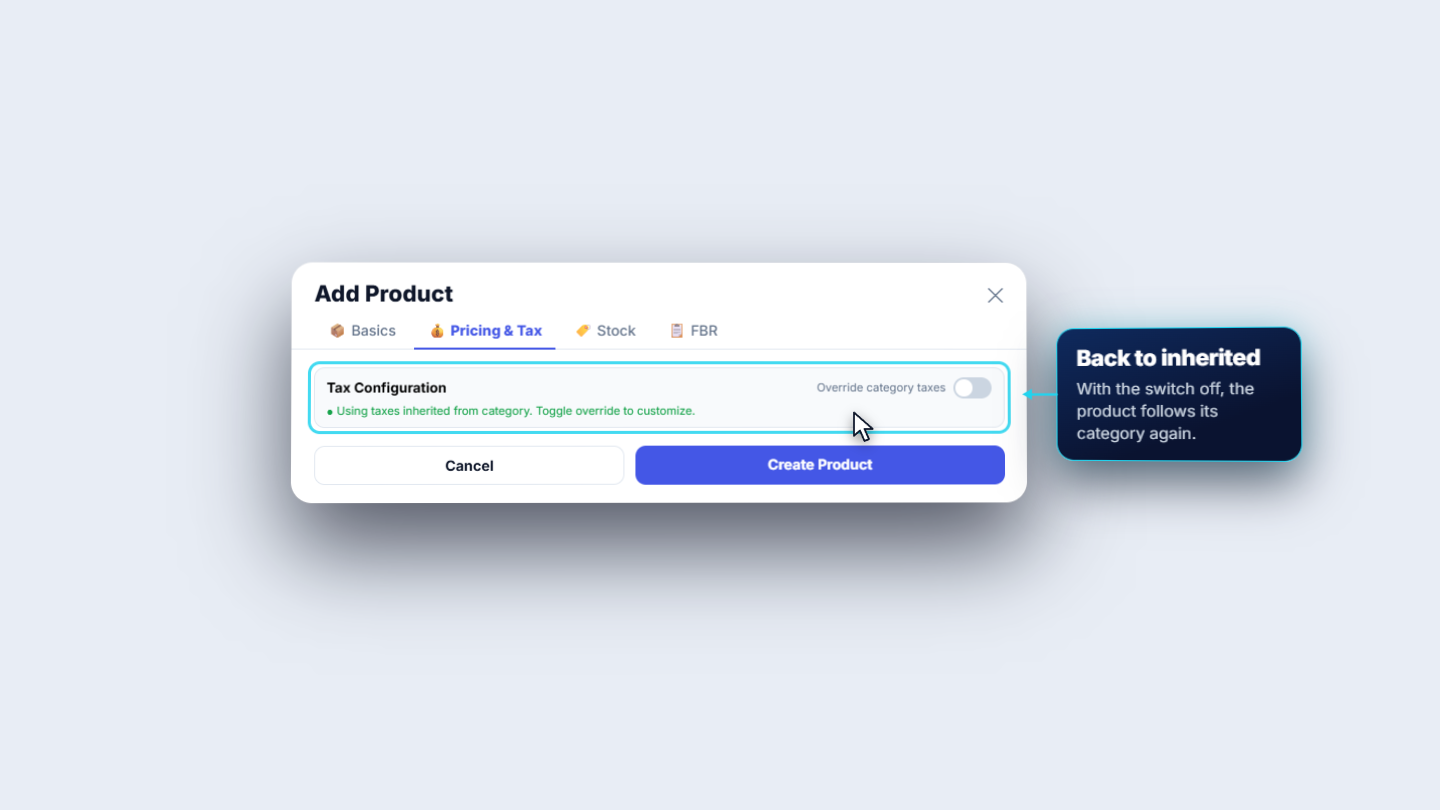
Tax Configuration says Using taxes inherited from category, so you need to enter nothing. Switch Override category taxes on only if this product needs its own taxes. You then choose from Exempt 0%, GST 18%, Reduced GST 5% and WHT 2%, all added on top of the price. For toothpaste, switch it off again.
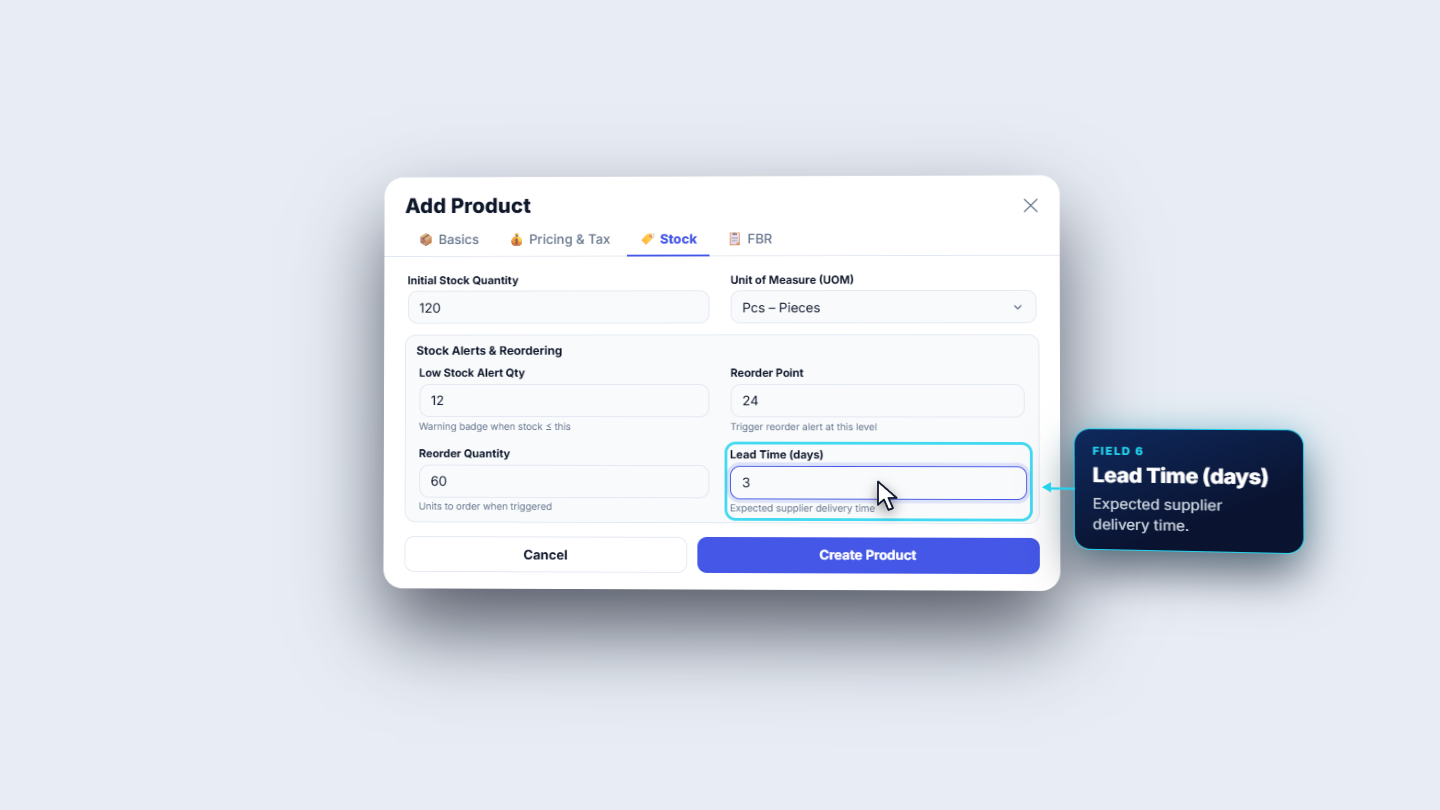
Open Stock. Type Initial Stock Quantity 120 and keep UOM at Pcs – Pieces. Set Low Stock Alert Qty to 12 (the default is 5), Reorder Point to 24, Reorder Quantity to 60 and Lead Time (days) to 3.
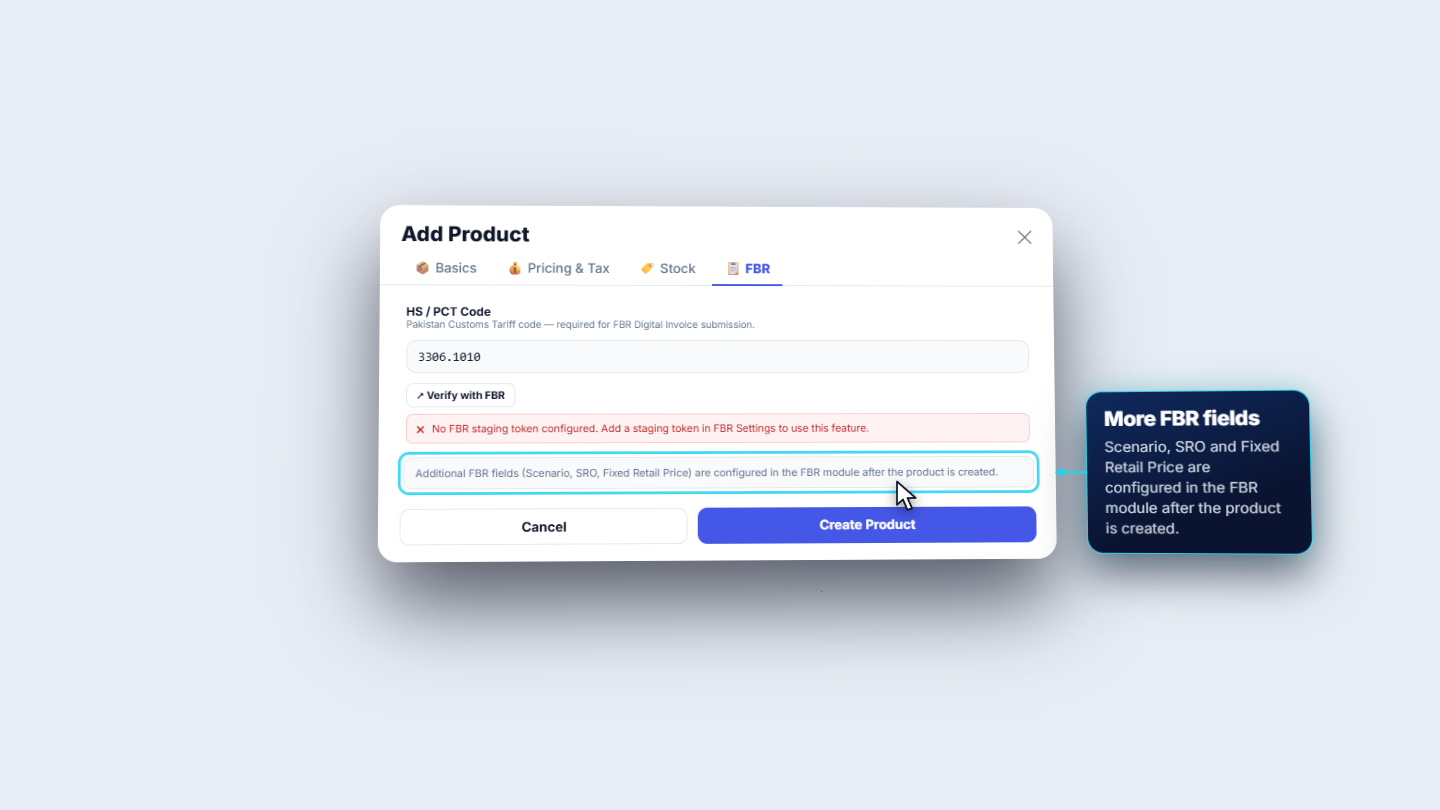
Open FBR. In HS / PCT Code type toothpaste or 3306. The list offers 3306.1010 TOOTH PASTE; pick it and the code fills the field. The Scenario, SRO and Fixed Retail Price are set in the FBR module after the product exists.
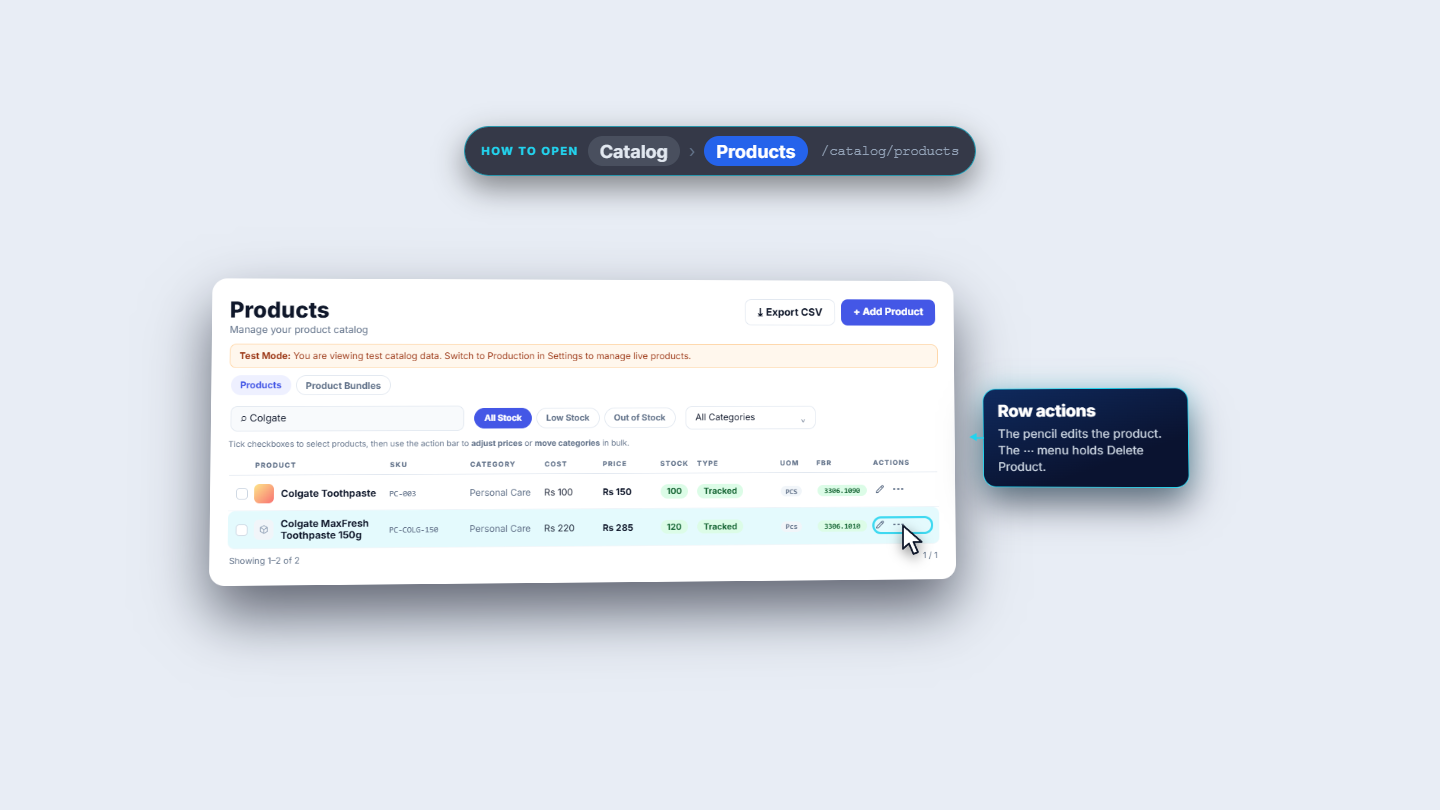
Press Create Product. The app says Product created. Search for "Colgate" in the list and you see the new row beside the older Colgate Toothpaste: SKU PC-COLG-150, category Personal Care, COST Rs 220, PRICE Rs 285, STOCK 120, UOM Pcs and FBR 3306.1010. Each row has a pencil to edit and a menu with Delete Product.
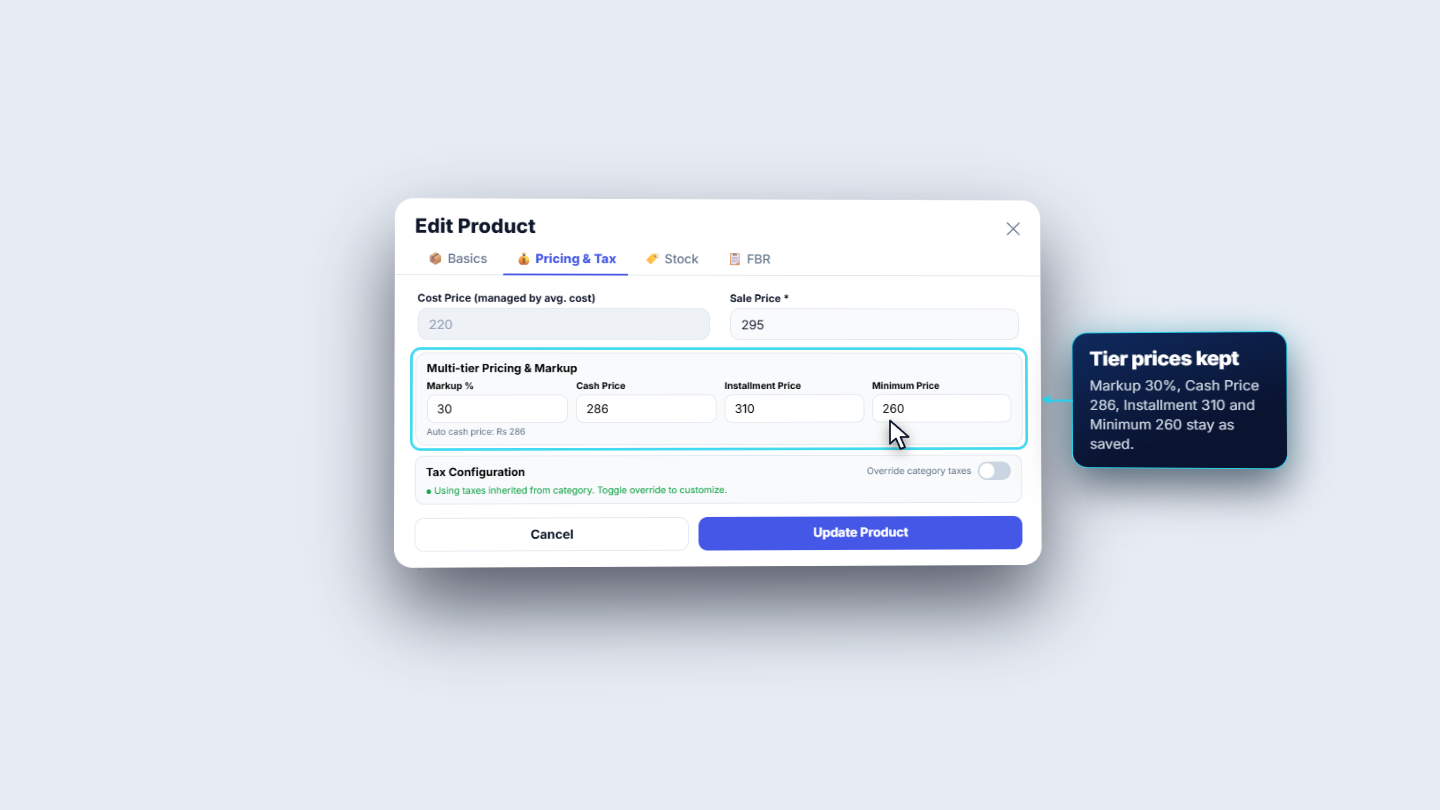
Press the pencil on the row. Edit Product opens with the same four tabs and the button Update Product. The SKU is greyed out, Cost Price reads "managed by avg. cost" and Stock Quantity is read only. Change Sale Price from 285 to 295 and press Update Product. The markup, cash, installment and minimum prices stay as saved.
3306.1010.| Mistake | What you see | Fix |
|---|---|---|
| SKU already used | SKU already exists, and the dialog stays open | Choose a new SKU |
| Create Product stays pale | Name, SKU or Sale Price is empty | Fill all three starred fields |
| Wanting to change stock in Edit Product | Stock Quantity is read only | Use Inventory › Adjust Stock |
| Item | Meaning / rule |
|---|---|
| SKU | Unique code, fixed after saving |
| Minimum Price | Lowest price a cashier may sell at |
| Low Stock Alert Qty | Level at which the stock badge warns you |
| Reorder Point / Quantity | When to reorder and how many units |
| HS / PCT Code | Customs code needed for FBR digital invoices |
Why can I not change the SKU of a product? The SKU must be unique and it is fixed once the product is saved. If you type one that is already used, the app says SKU already exists and the dialog stays open, so choose a new SKU.
Why does Create Product stay pale? Name, SKU and Sale Price are the three starred fields. The button stays pale until all three are filled.
How do I change the stock of an existing product? In Edit Product the Stock Quantity is read only. To change stock, use Inventory › Adjust Stock.
Where does a product's tax come from? The product inherits the taxes of its category, which you can see under Catalog › Categories. Switch Override category taxes on only if this product needs its own taxes.
ClearRing runs this whole workflow. See what ClearRing does and what it costs, or browse all step-by-step guides.