How to open a shift, ring up a cash sale and close the drawer
A cashier's day starts with a shift and ends with a counted drawer. This guide takes you from opening your shift, through your first cash sale with change and a receipt, to closing the shift with no cash short or over.
Who it is forCashierTime15 minutesProductPOSLevelBeginner
Before you start
Steps
1
Open your shift
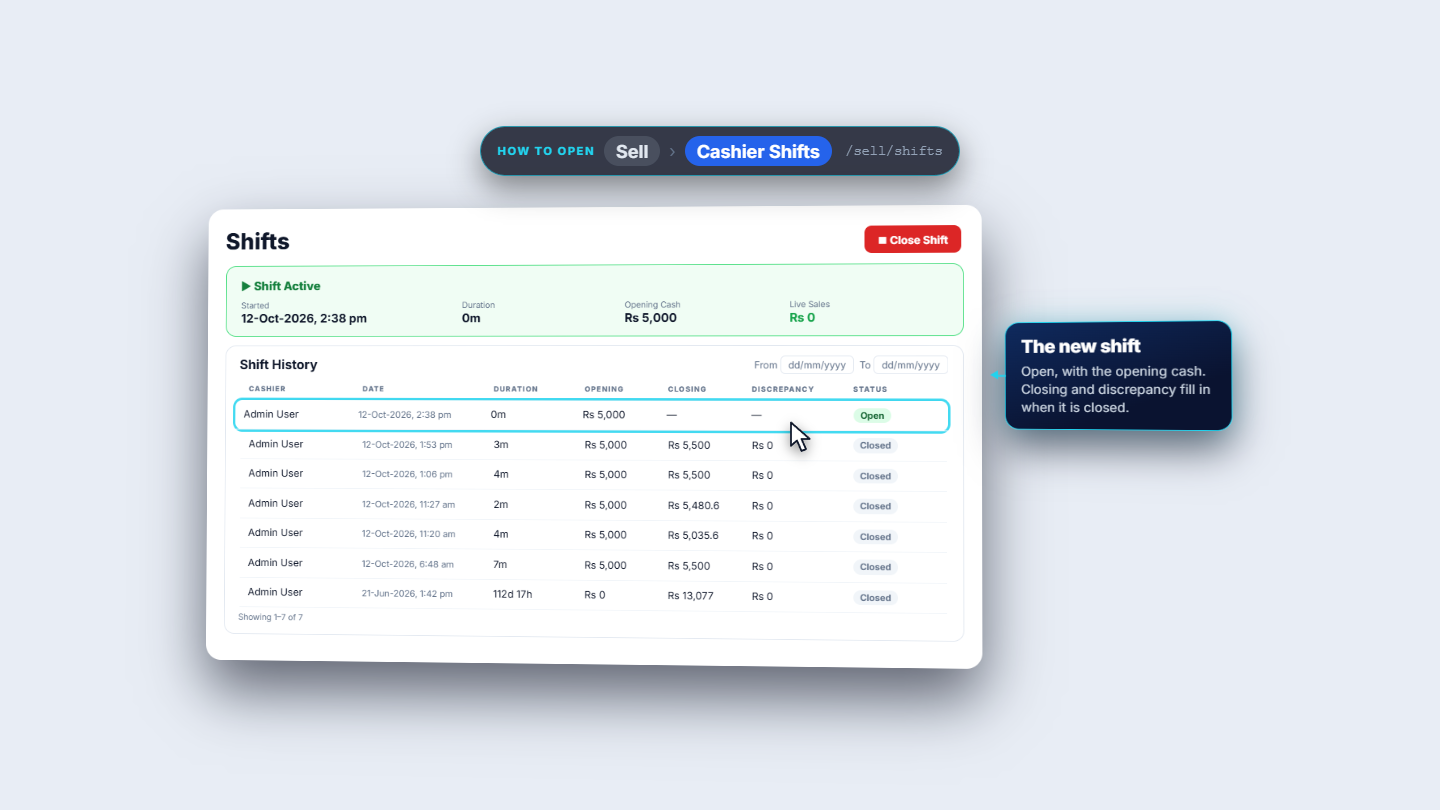
Press POS Terminal, add a product and press Charge before any shift is open. The app refuses: Please open a shift before making sales. Go to Sell › Cashier Shifts and press Open Shift. In Open New Shift type Opening Cash 5000. Notes are optional. Press Open Shift. The app says Shift opened. The Shift Active card shows Started, Duration, Opening Cash Rs 5,000 and Live Sales Rs 0, and the shift is listed as Open in Shift History.
Cashier Shifts with the new shift active
2
Scan the products
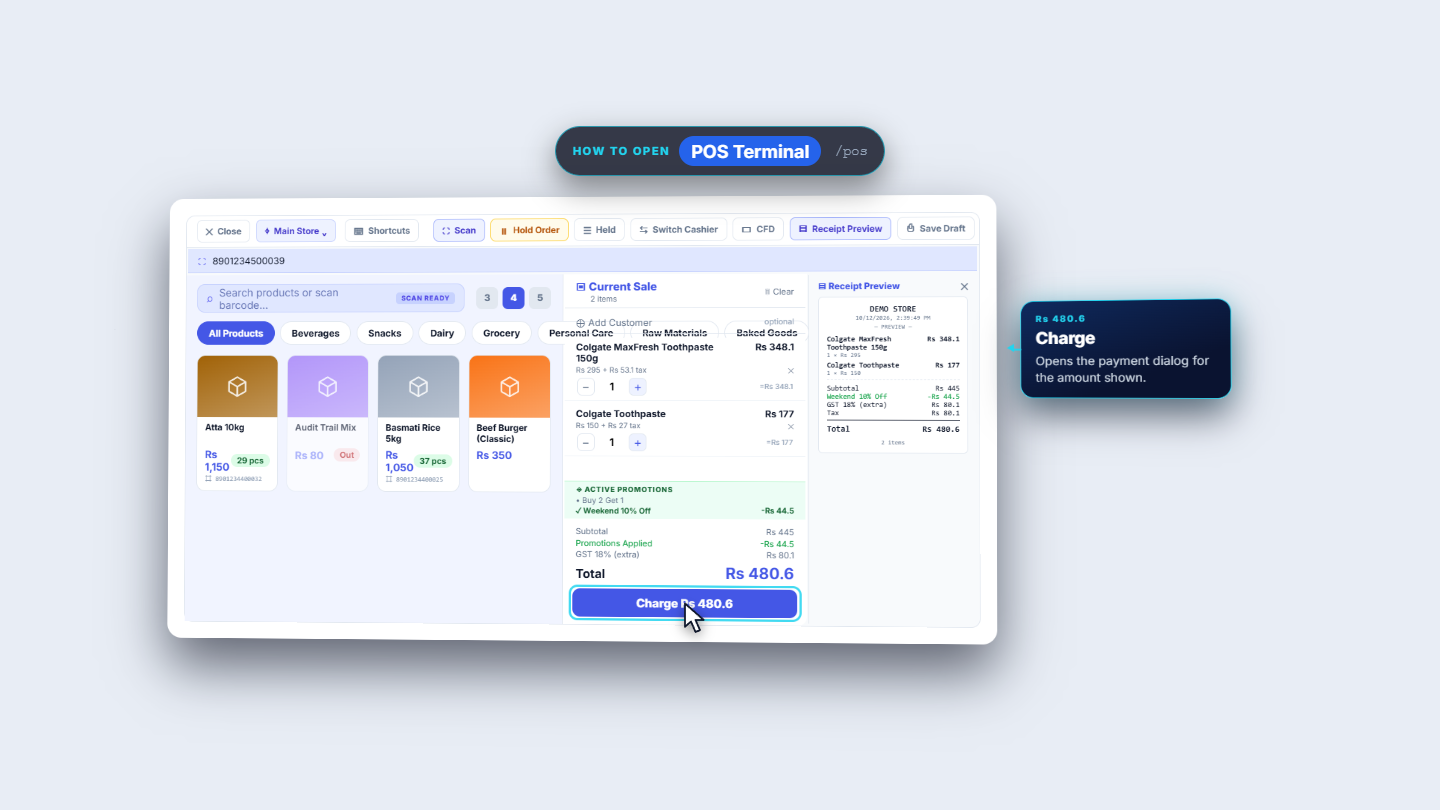
Go back to POS Terminal. Press Scan and type or scan the barcode 8964000150103, then Enter. The app says Added: Colgate MaxFresh Toothpaste 150g. Scan 8901234500039 to add Colgate Toothpaste. Each line shows its price plus its tax, for example Rs 295 + Rs 53.1 tax. The − and + buttons change the quantity and the cross removes the line.
Cart with two lines, promotion, total and Receipt Preview
3
Read the totals
Look at the bottom of the cart. Subtotal Rs 445, Promotions Applied -Rs 44.5 (Weekend 10% Off applied by itself), GST 18% (extra) Rs 80.1 and Total Rs 480.6. The Receipt Preview panel on the right shows the same total as the Charge Rs 480.6 button.
4
Take the cash
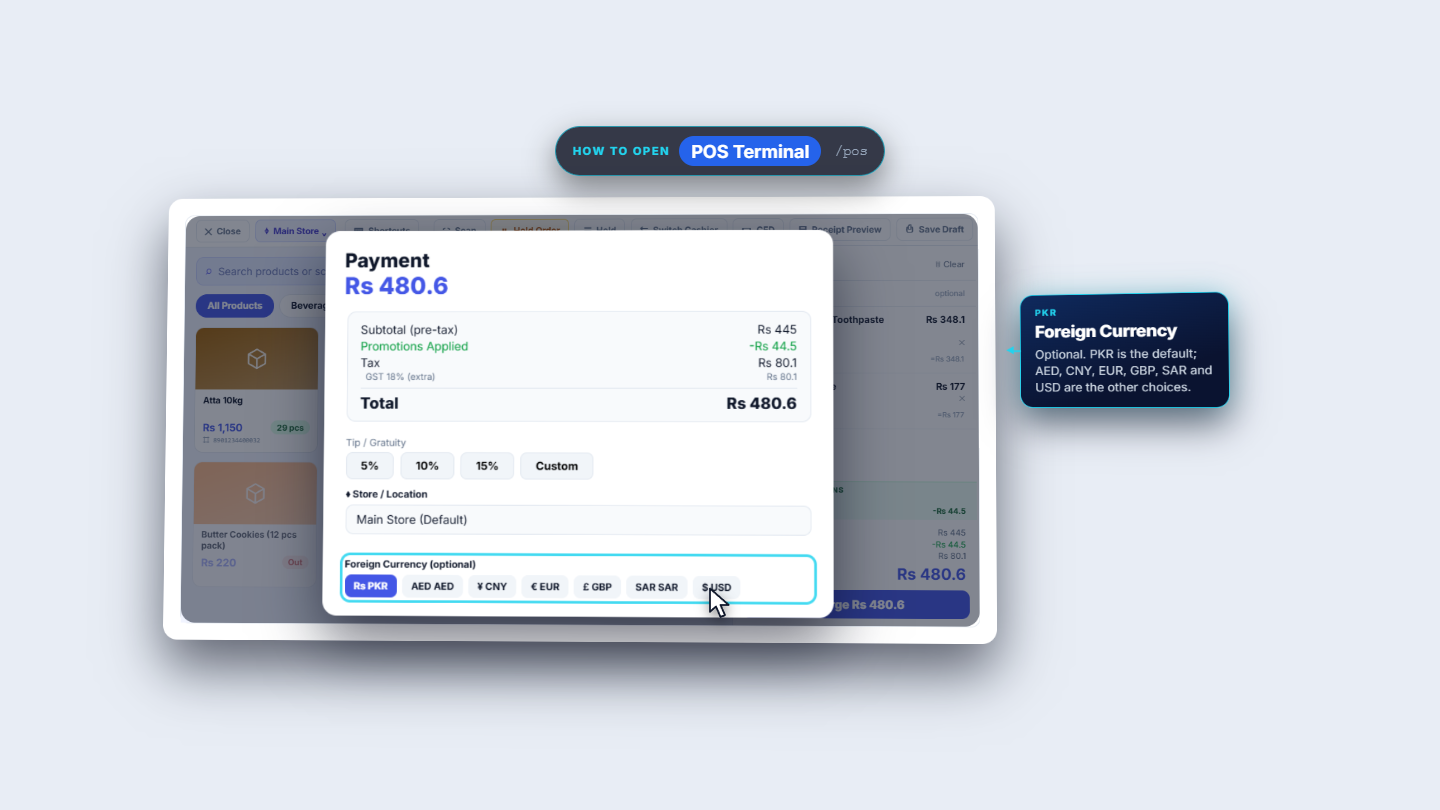
Press Charge Rs 480.6. The Payment dialog shows Subtotal (pre-tax) Rs 445, Promotions Applied, Tax Rs 80.1 and Total Rs 480.6. Cash is the default method. Amount Tendered starts at the total, and quick buttons offer Rs 480.6, Rs 500 and Rs 1,000. Press Rs 500. Change shows Rs 19.4. Press Complete Sale.
Payment dialog with totals and options
5
Give the receipt
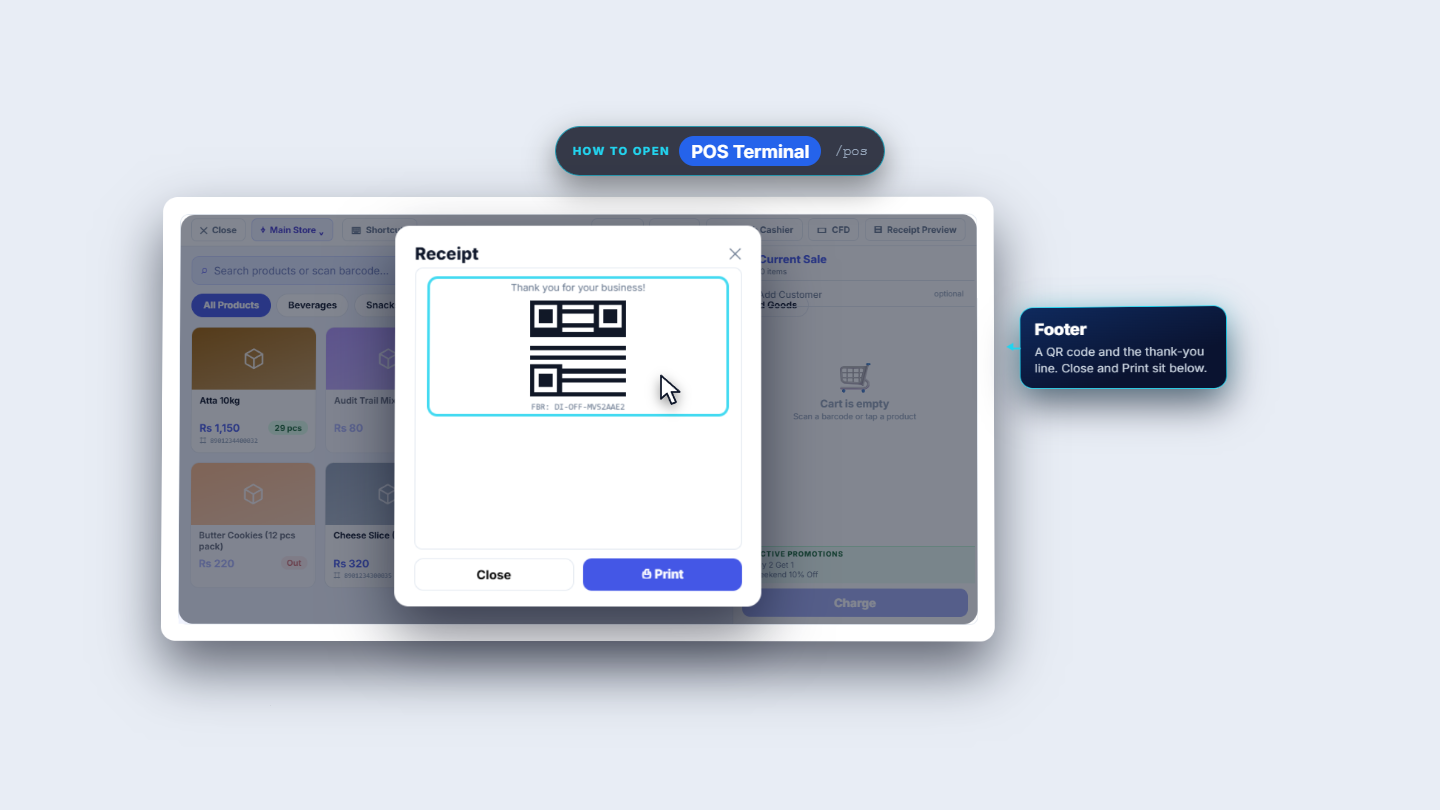
The app says Sale completed! Invoice: INV-20261012-0006. The receipt shows the store, Tax Invoice, the invoice number, each line with its GST (Rs 53.1 and Rs 27), Total 480.6, Paid 500, Change 19.4 and CASH: Rs 500. A QR code and Thank you for your business! close it. Press Print, then Close.
Receipt with the QR code and thank-you line
6
Check the sale and the stock
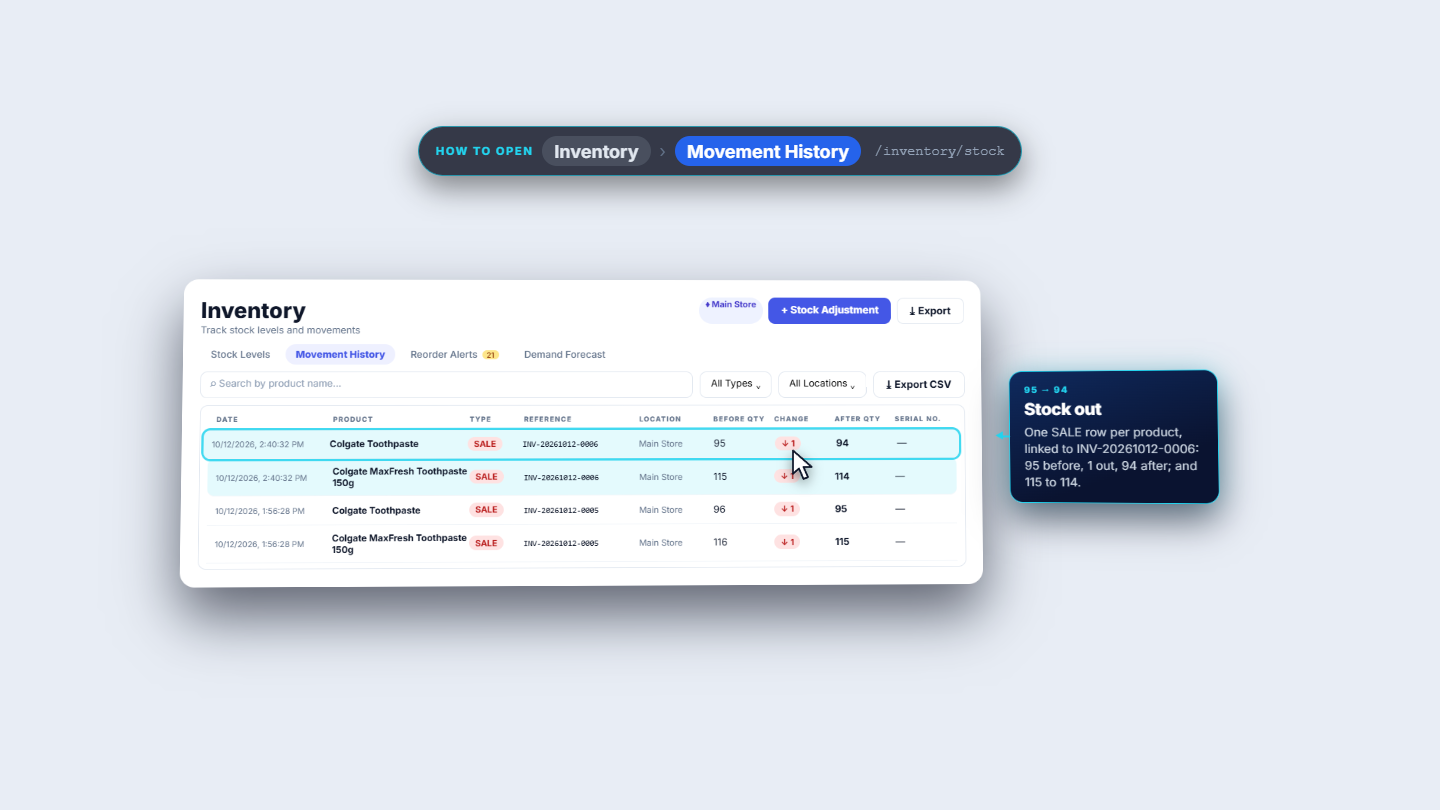
Open Sell › Sales History. The new sale is the top row: Walk-in, 2 items, Rs 480.6, tax Rs 80.1, Completed. Open Inventory › Movement History. Each product has a SALE row: Colgate MaxFresh Toothpaste goes down by 1 and Colgate Toothpaste goes down by 1.
Movement History with a SALE row for each product
7
See the sale in the books
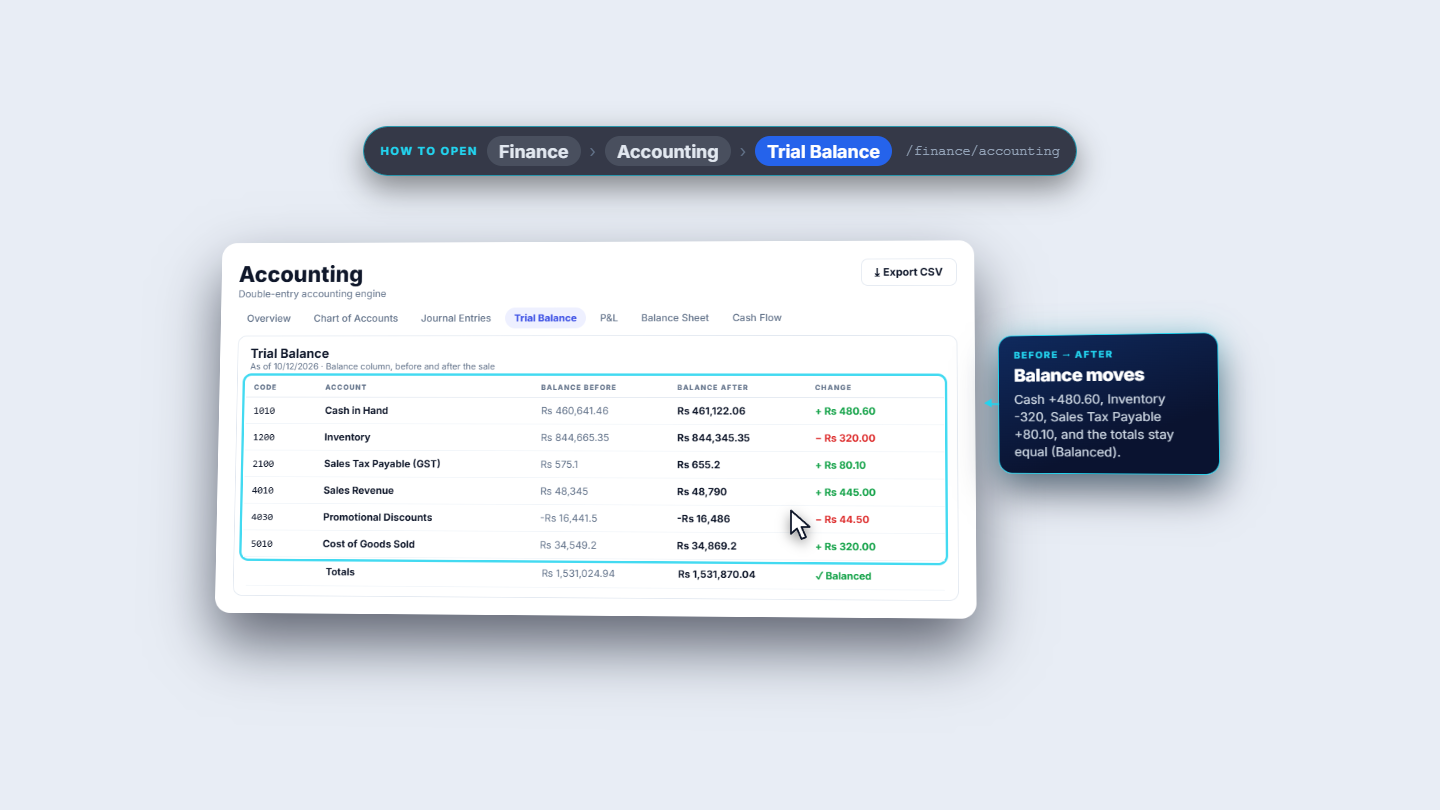
Open Finance › Accounting › Journal Entries. The entry JE-202610-0015 for the sale is Posted. It debits Cash in Hand Rs 480.6 and Promotional Discounts Rs 44.5, credits Sales Revenue Rs 445 and Sales Tax Payable Rs 80.1, and moves the cost of goods (Rs 320) from Inventory to Cost of Goods Sold. Debits and credits both total Rs 845.1, and the Trial Balance stays balanced.
Trial Balance after the cash sale
8
Close the shift
Back in Sell › Cashier Shifts press Close Shift. Expected Cash shows Rs 5,480.6: your opening cash plus the cash you kept (Rs 500 paid less Rs 19.4 change). Count the drawer and type it in Closing Cash. If it equals the expected amount, no Variance Reason is needed. Notes are optional. Press Close Shift. The app says Shift closed, and the history shows the shift as Closed with a discrepancy of Rs 0.
Shift History showing the shift
Check it worked
Sale completed! Invoice: INV-20261012-0006 appeared and the receipt lists CASH: Rs 500.
Sales History shows the sale as Completed.
Movement History shows one SALE row for each product.
The shift is Closed with a discrepancy of Rs 0.
Common mistakes
Mistake
What you see
Fix
Selling before opening a shift
Please open a shift before making sales
Open a shift in Sell › Cashier Shifts first
Counting the drawer wrongly at close
A cash short or over line and a Variance Reason request
Recount, and note the reason if the difference is real
Typing the opening cash wrongly
Expected Cash at close is off by the same amount
Close with the right count and explain the variance
Quick reference
Item
Meaning / rule
Opening Cash
The cash in the drawer when the shift starts
Live Sales
What this shift has sold so far
Amount Tendered
The cash the customer hands over
Change
Amount Tendered minus the total
Expected Cash
Opening cash plus the cash kept after change
Variance Reason
Explanation for cash over or short at close
Frequently asked questions
Why does the app say Please open a shift before making sales? Every sale belongs to a shift. Go to Sell › Cashier Shifts, press Open Shift and type the Opening Cash, then go back to POS Terminal.
What is Expected Cash when I close the shift? It is your opening cash plus the cash you kept, which is the amount paid less the change given. Count the drawer and type the result in Closing Cash.
What if my drawer count is different from Expected Cash? The app shows the shortage or surplus and may ask for a Variance Reason. Recount first, and note the reason if the difference is real.
Which payment methods can I use besides cash? The Payment dialog also offers Card, JazzCash/EP, QR Code, Bank, Credit (needs a customer), Cheque and Gift Card. Cash is the default method.