A draw pack is a payment plan you build once and apply to any quotation: a deposit, payments tied to stages, and a final payment. It decides when you bill your customer, so use it every time you want a payment schedule that adds up exactly to the quote total.
Who it is forEstimator or ownerTime15 minutesProductBuildFlowLevelIntermediate
Before you start
Steps
1
Open Draw packs and read the starter packs
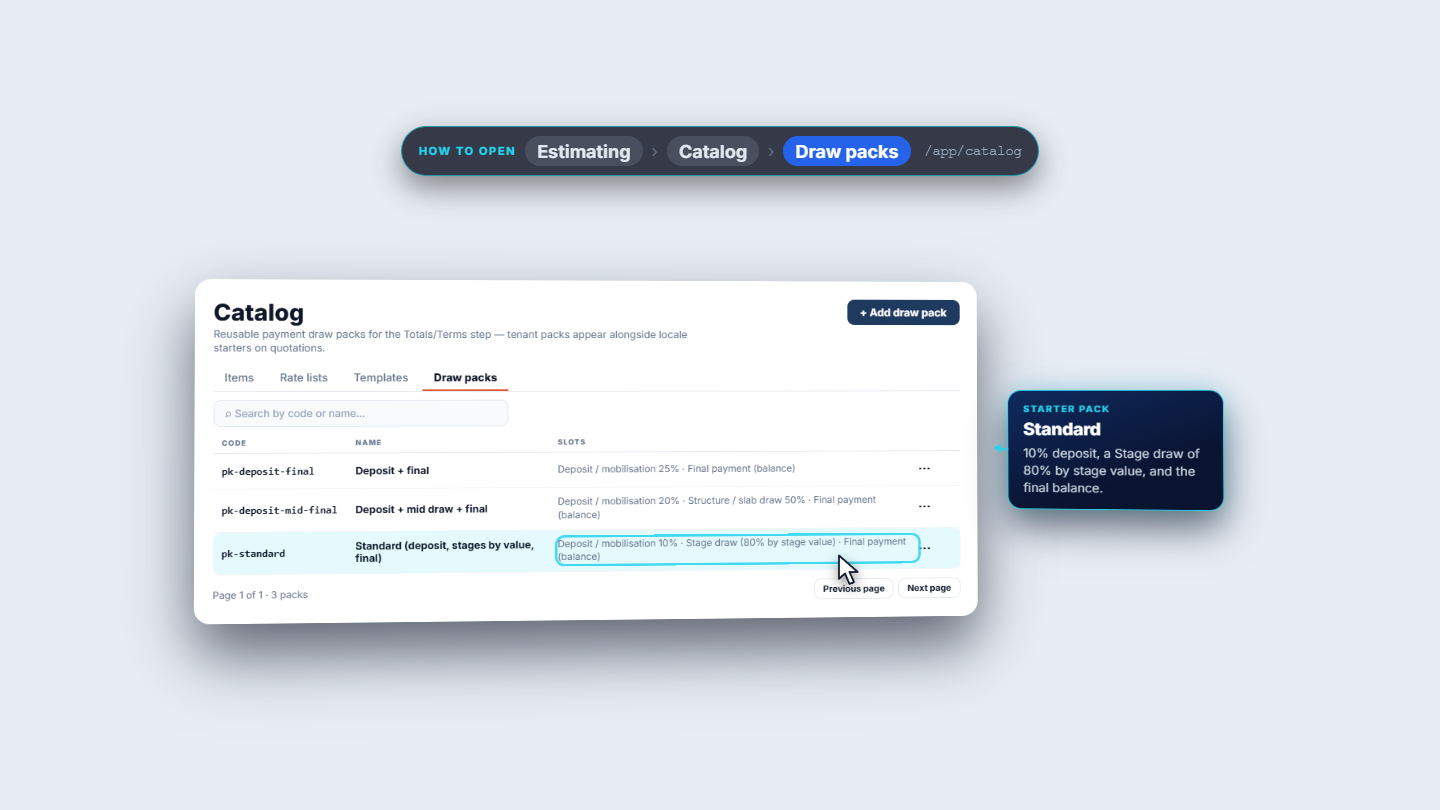
Click Estimating › Catalog › Draw packs (/app/catalog). The tab feeds the Totals & terms step of a quotation. Search finds a pack by code or name, and each row has a menu with Edit and Delete. The columns are Code, Name and Slots, the split in one line. Three starter packs are ready (the footer reads Page 1 of 1 · 3 packs):
Deposit + final: Deposit / mobilisation 25%, then Final payment (balance).
Deposit + mid draw + final: Deposit / mobilisation 20%, Structure / slab draw 50%, then the balance.
Standard: Deposit / mobilisation 10%, a Stage draw of 80% by stage value, then the balance.
Draw packs tab with the three starter packs and their slots
2
Create your own pack
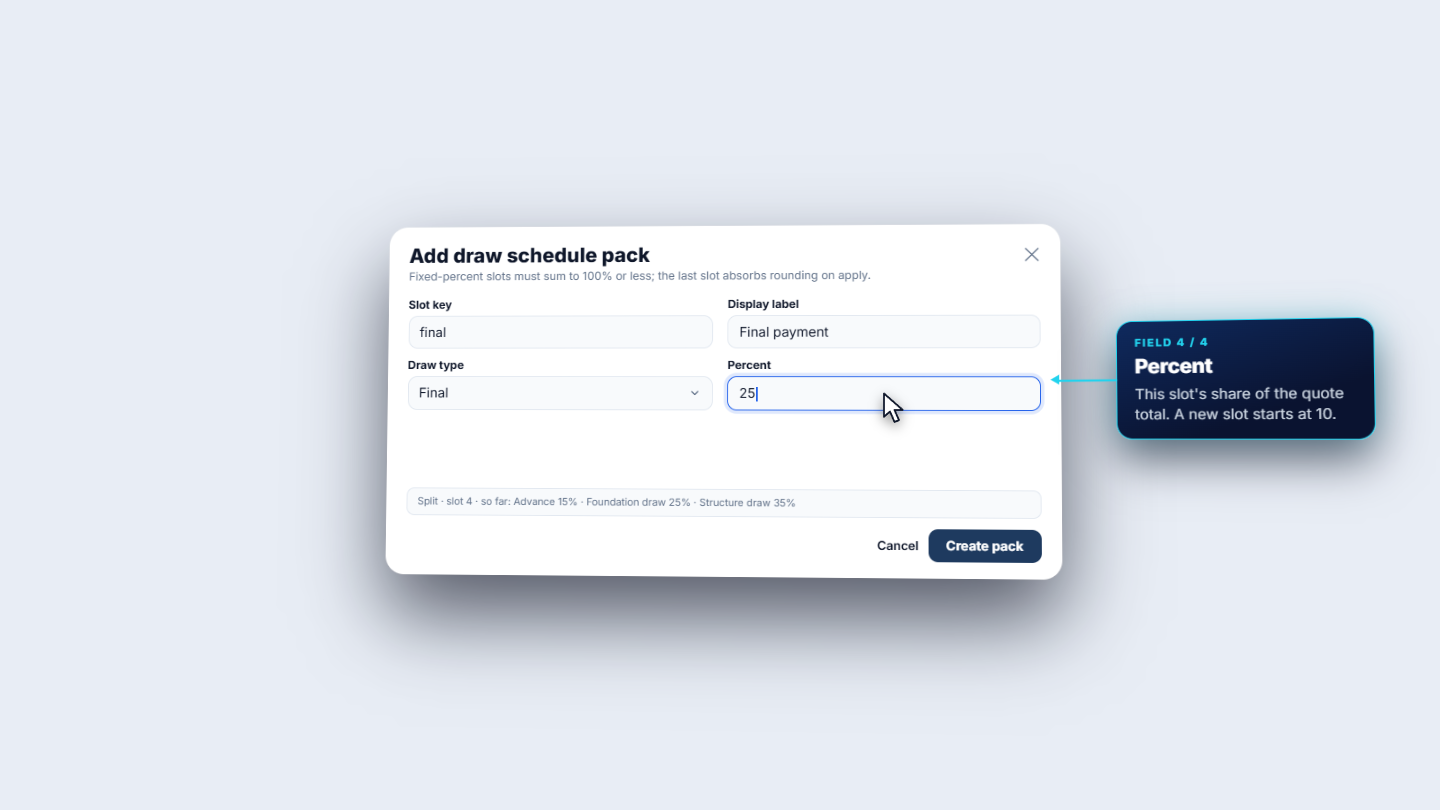
Click Add draw pack. Enter the Code (pk-4-milestone), which is locked once the pack exists, and the Name that staff pick on a quote: Four milestones 15 / 25 / 35 / 25. Then add the slots. Each slot has a Slot key, a Display label, a Draw type (Deposit, Stage draw or Final) and a Percent (a new slot starts at 10).
advance, Advance, Deposit, 15
foundation, Foundation draw, Stage draw, 25, Linked stage Foundation
Add slot gives another row and Remove slot deletes one. A Stage draw also shows Linked stage: a dash or one of the twelve stages, from Site prep and excavation to Handover.
Add draw schedule pack dialog on slot 4, Final payment at 25 percent
3
Save it and check the list
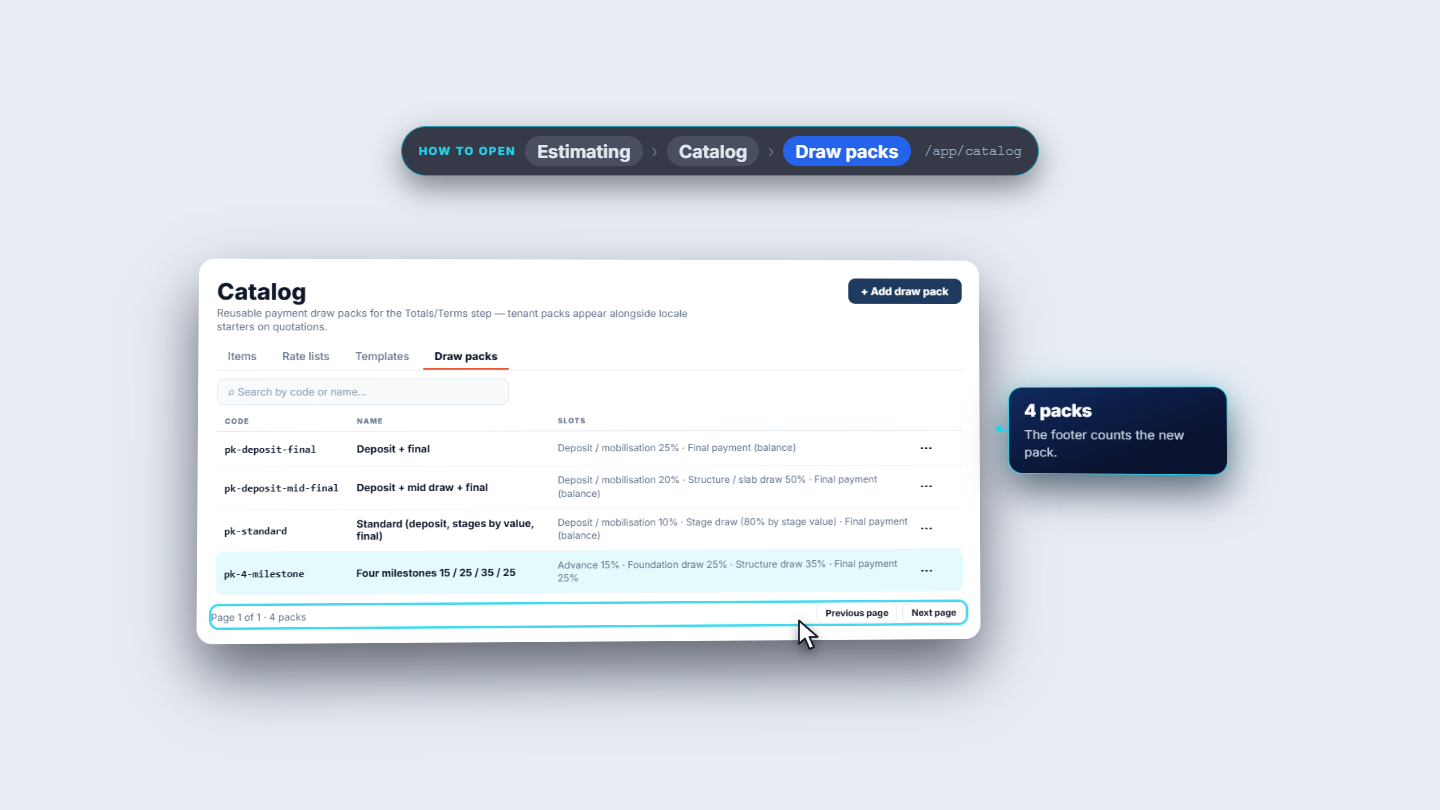
Click Create pack. The list refreshes with a fourth row, pk-4-milestone, and its Slots read Advance 15% · Foundation draw 25% · Structure draw 35% · Final payment 25%. The footer says 4 packs.
Draw packs list with the new pack pk-4-milestone and 4 packs in the footer
4
Apply the pack to a quotation
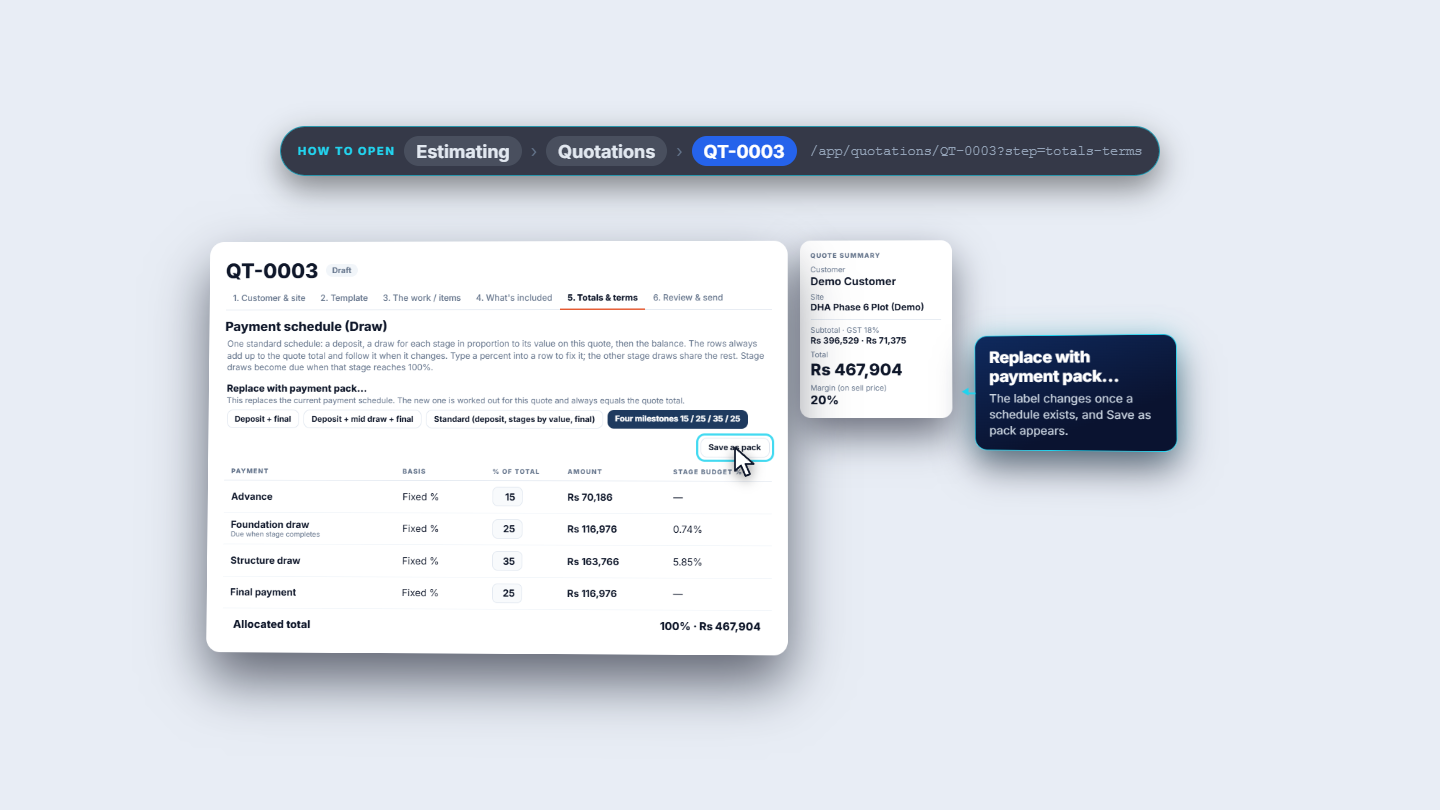
Open the draft quotation (QT-0003) and go to step 5, Totals & terms. Payment schedule (Draw) explains itself: a deposit, a draw per stage by value, then the balance. Until you apply a pack it says No draw allocations yet. Under Apply payment pack… you see one chip per pack, all four. Click Four milestones 15 / 25 / 35 / 25. The toast says Draw schedule saved. The columns are Payment, Basis, % of total, Amount and Stage budget %:
Advance: 15%, Rs 70,186
Foundation draw: 25%, Rs 116,976, due when the stage completes
Structure draw: 35%, Rs 163,766
Final payment: 25%, Rs 116,976
The Allocated total is 100% · Rs 467,904, the quote total (70,186 + 116,976 + 163,766 + 116,976).
Quotation payment schedule with the Four milestones pack applied
5
Swap to another pack and see the difference
Once a schedule exists the label reads Replace with payment pack…. Click Standard and the app asks Replace the existing payment draw schedule on this quote? with Cancel and Confirm. Confirm replaces it: a deposit of Rs 46,790, rows by stage value from Site prep to External works, and a Final payment of Rs 46,790.
6
Save a quote's schedule as a new pack
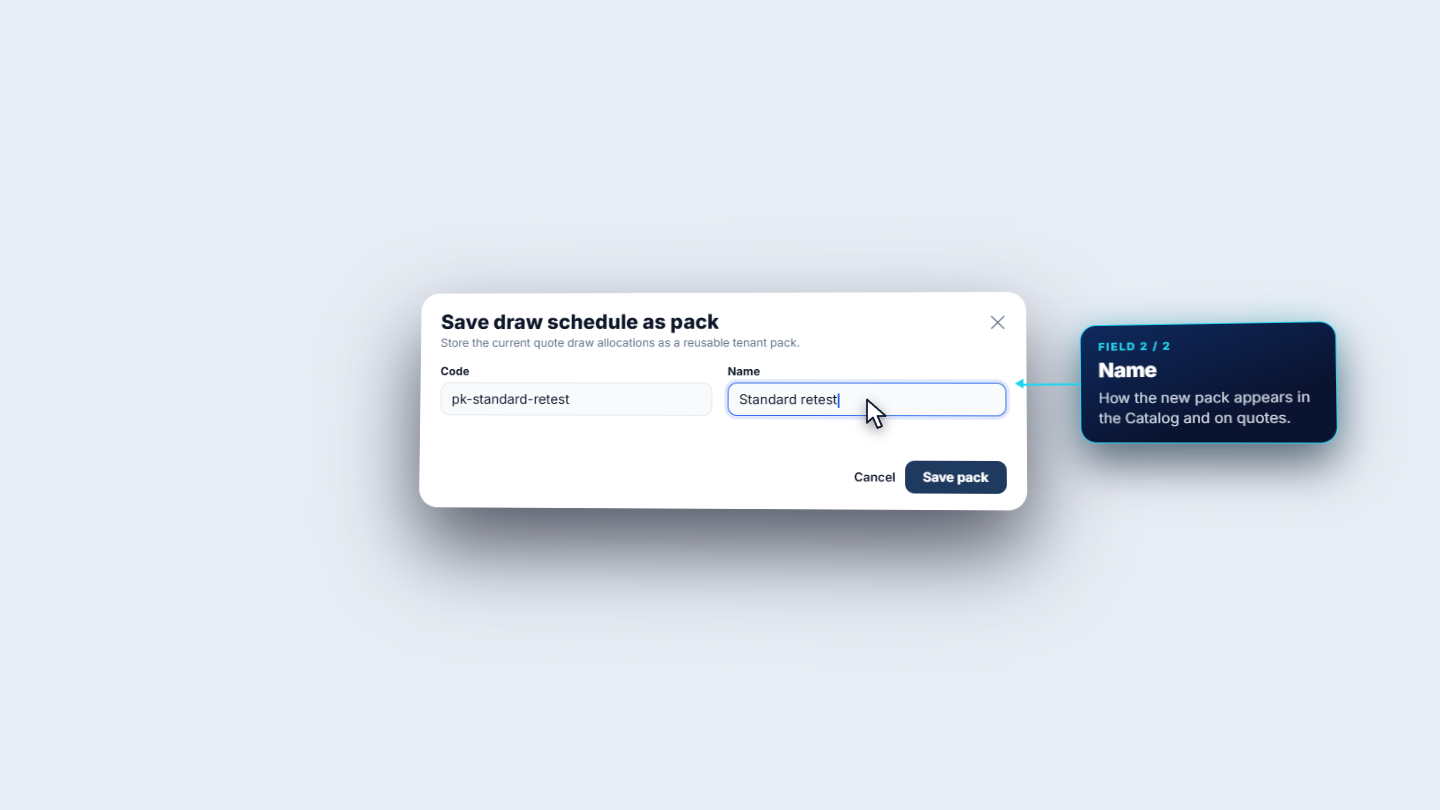
When a quote's schedule is right, click Save as pack. The dialog Save draw schedule as pack asks for a Code (pk-standard-retest) and a Name (Standard retest). Click Save pack. The toast says Draw schedule pack saved to Catalog. In the Catalog it is a new row, with the schedule as fixed percents and the stage names as the quote shows them.
Save draw schedule as pack dialog with code and name
7
Edit or delete a pack
Use the row menu of a pack. Edit opens Edit draw schedule pack, with the Code disabled: a pack keeps its code for good. Delete asks Delete draw schedule pack? and says that existing quotations are not changed. Delete pack confirms and the row disappears.
Check it worked
The new pack appears in Draw packs with the slots you entered.
On the quotation, Allocated total equals the quote total (Rs 467,904 in the example).
The pack's chip appears under Apply payment pack… on any draft quotation.
Common mistakes
Mistake
What you see
Fix
Percents add up to more than 100
The pack is not accepted
Lower a percent so the total is 100 or less
Trying to change a pack's code
The Code is disabled
Create a new pack with the code you want
Expecting a pack edit to change old quotes
Existing quotations keep their schedule
Apply the pack again on the quote
Applying a pack over an existing schedule by mistake
The app asks to replace the schedule
Choose Cancel to keep the current one
Quick reference
Item
Meaning / rule
Deposit
A percent of the quote, billed first
Stage draw
Linked to a stage; due when that stage reaches 100%
Final
The last payment, often the balance
Percent
Share of the quote total; fixed percents sum to 100 or less
Allocated total
Always equals the quote total
Frequently asked questions
What are the three draw types in a draw pack? A Deposit takes a percent of the quote. A Stage draw is tied to a stage and becomes due when that stage reaches 100%. Final is the last payment, shown in the starter packs as the balance.
Will the schedule always add up to the quote total? Yes. Fixed percents must sum to 100 or less, and the last slot absorbs any rounding. On the quotation, the Allocated total equals the quote total, so you never bill more or less than the quote.
If I edit or delete a pack, do existing quotations change? No. Packs are templates, not links. Deleting a pack leaves quotations that already use it as they are, and editing one does not change old quotes: apply the pack again on the quote.
Can I change a pack's code later? No. The Code is locked once the pack exists. Create a new pack with the code you want.