Turn a customer and a site into a priced, approved quotation. The template brings in the sections, the estimator fills in the quantities from the plot size, and a draw pack decides how the customer pays. You need this every time you price a new build.
Who it is forEstimatorTime20 minutesProductBuildFlowLevelIntermediate
Before you start
Steps
1
Start a new quotation
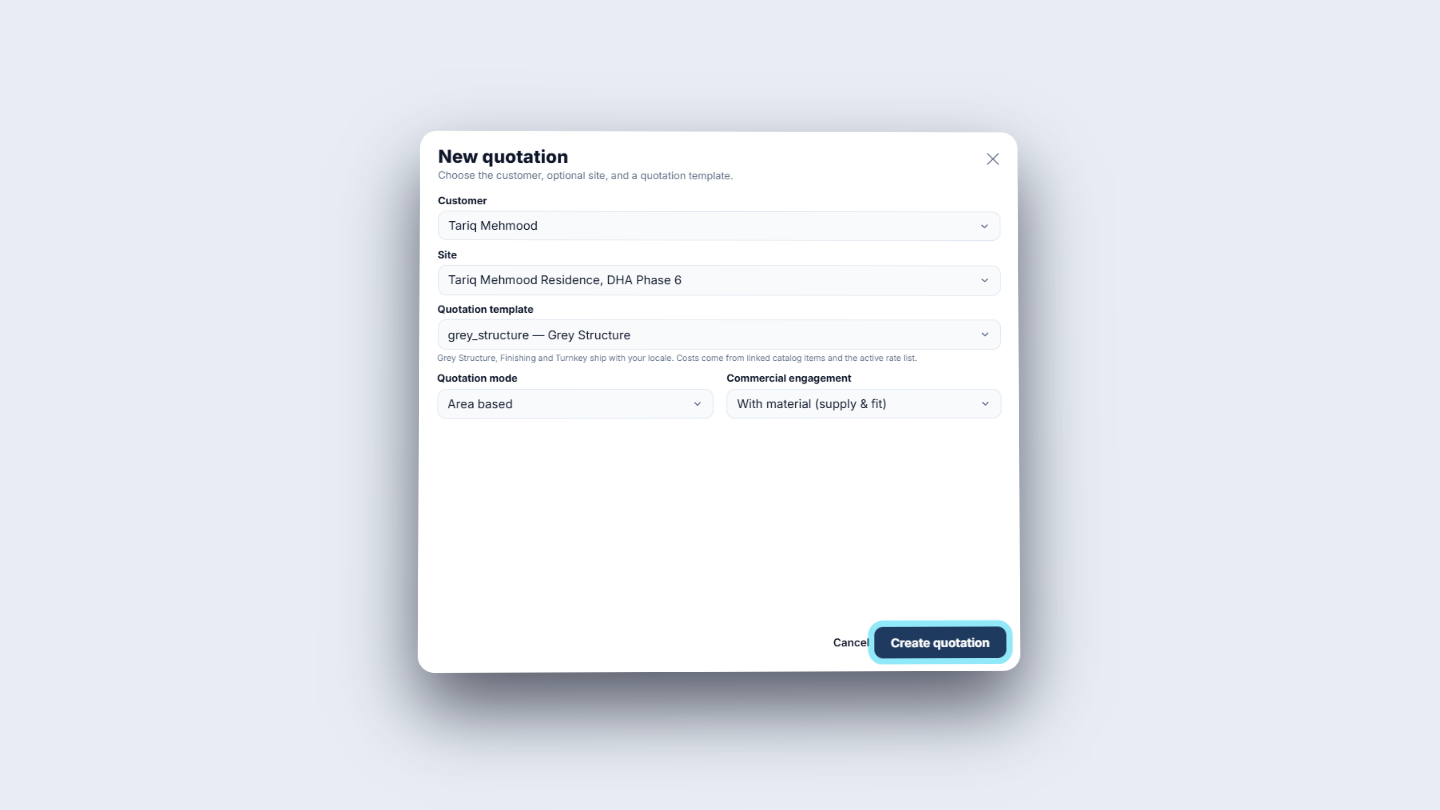
Open Estimating › Quotations and click New quotation. Choose the Customer (Tariq Mehmood) and the Site (Tariq Mehmood Residence, DHA Phase 6). Pick the Quotation template (here Grey Structure), the Quotation mode (Area based) and the Commercial engagement (With material, supply and fit). Click Create quotation.
New quotation dialog with customer, site, template, mode and engagement filled in
2
Check the rate list on the Template step
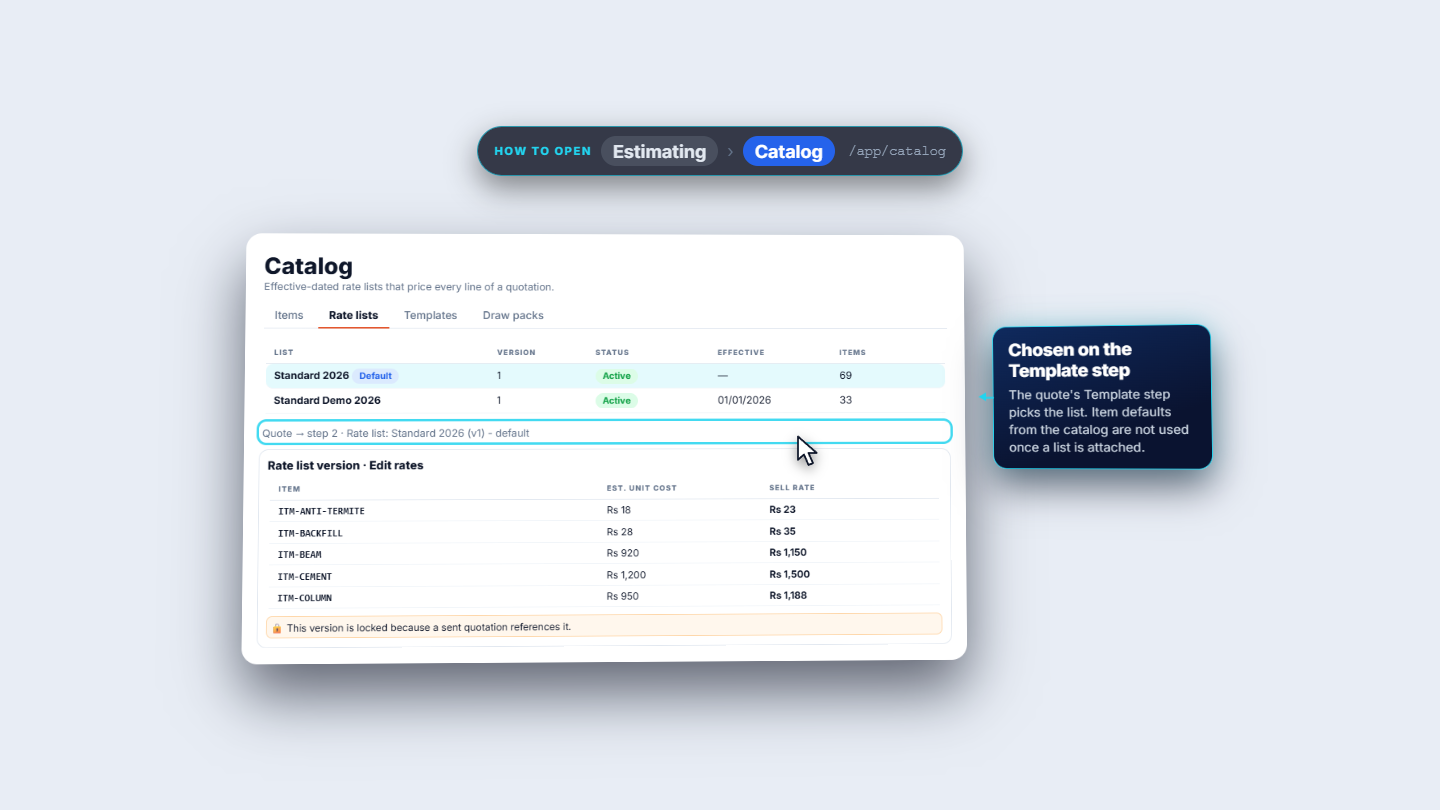
On step 2, Template, pick the rate list and check the tax rate: GST applies on top. In Estimating › Catalog › Rate lists you can see each list, its version and the cost and sell rate of every item.
Rate lists tab with Standard 2026 as the default list
3
Know which template fits the job
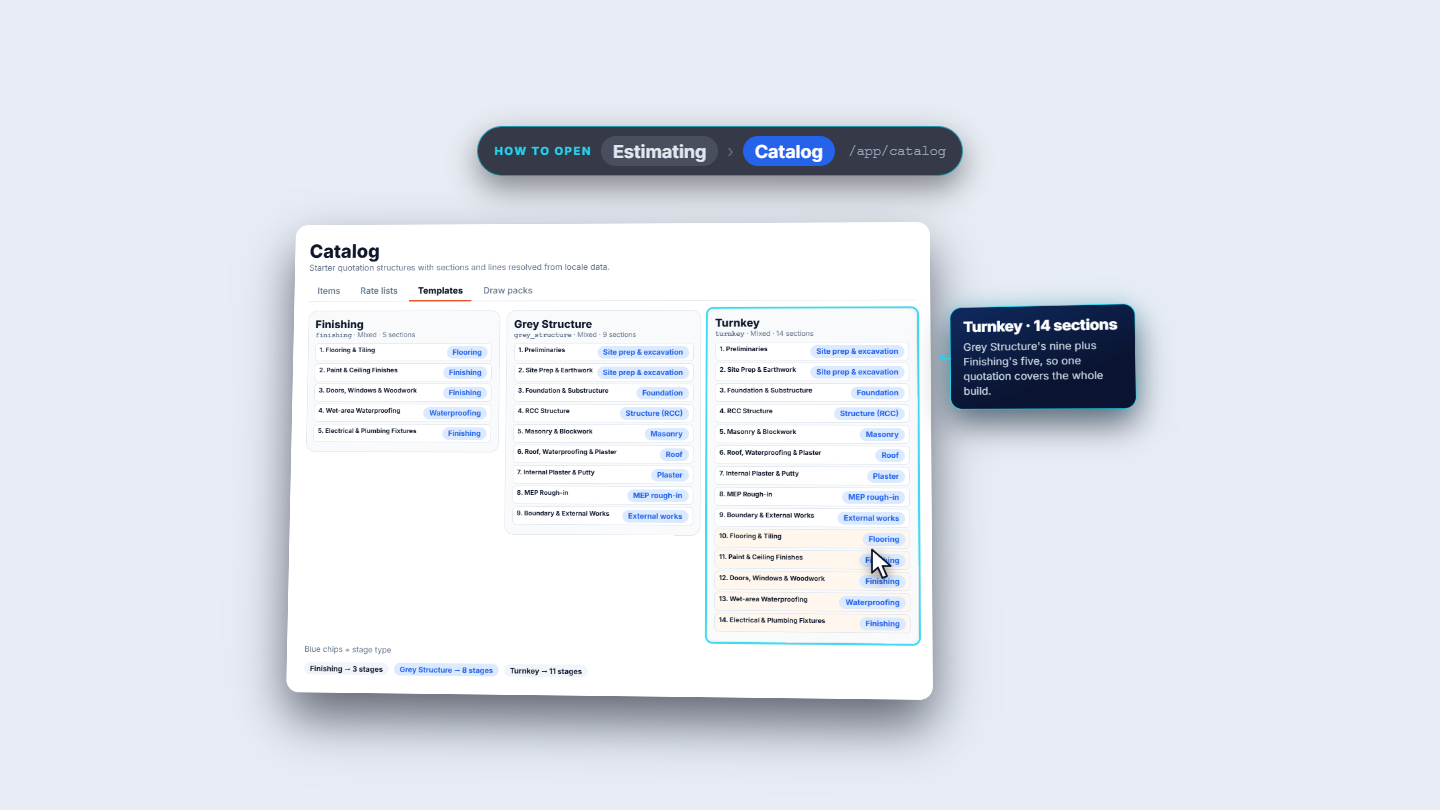
In Estimating › Catalog › Templates, Finishing has 5 sections, Grey Structure has 9 and Turnkey has all 14. Every section carries a stage tag such as Site prep & excavation, Structure (RCC) or Flooring.
Templates tab comparing Finishing, Grey Structure and Turnkey
4
Adapt a template for your market
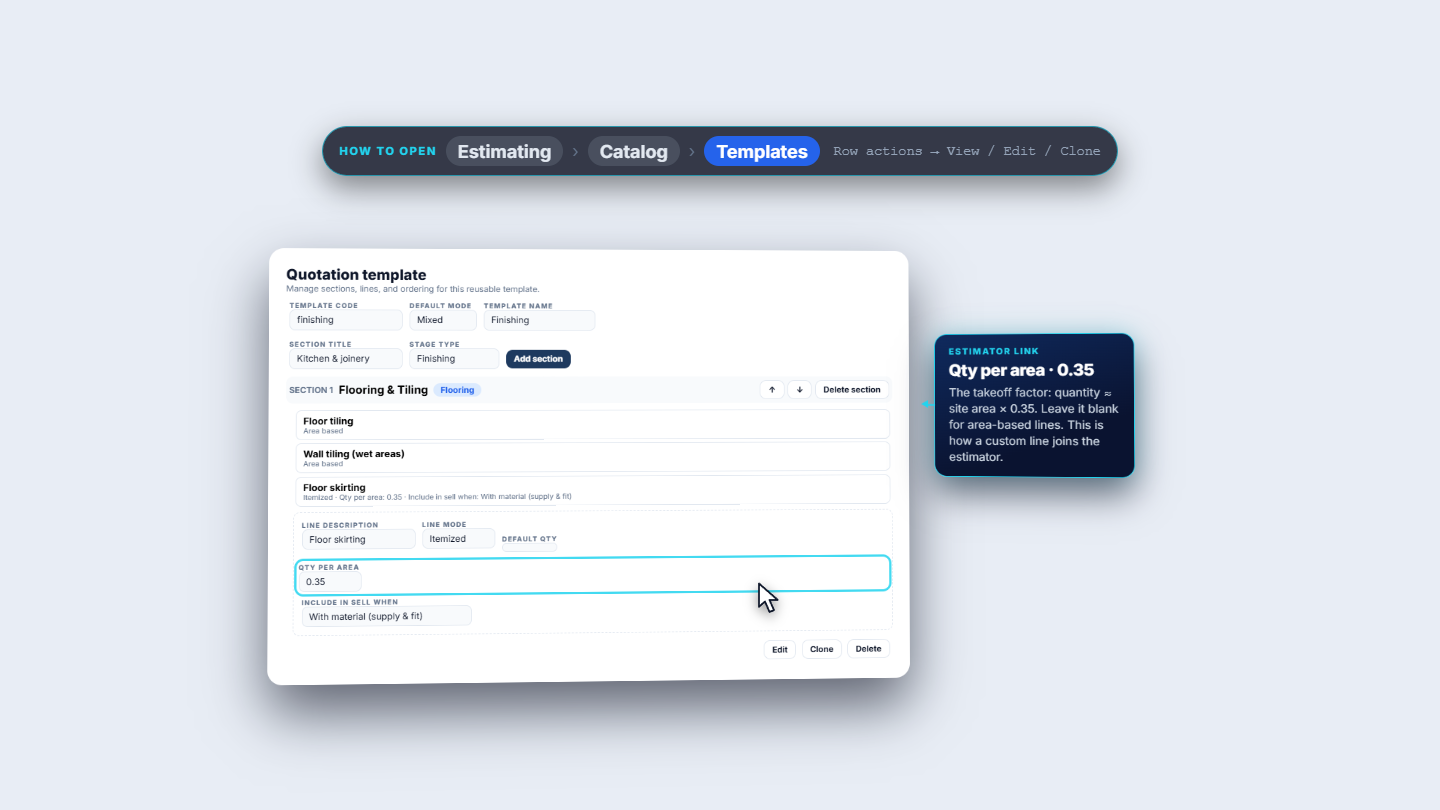
Open a template and use Add section, the up and down arrows, or Delete section. Each line has a Line description, a Line mode, a Default qty, a Qty per area and Include in sell when. Clone copies a template so you can change the copy. Edit scope on the template sheet opens one box for what the template includes and one for what it excludes, one line per item.
Quotation template editor with a line's quantity per area
5
Let the estimator fill in the quantities
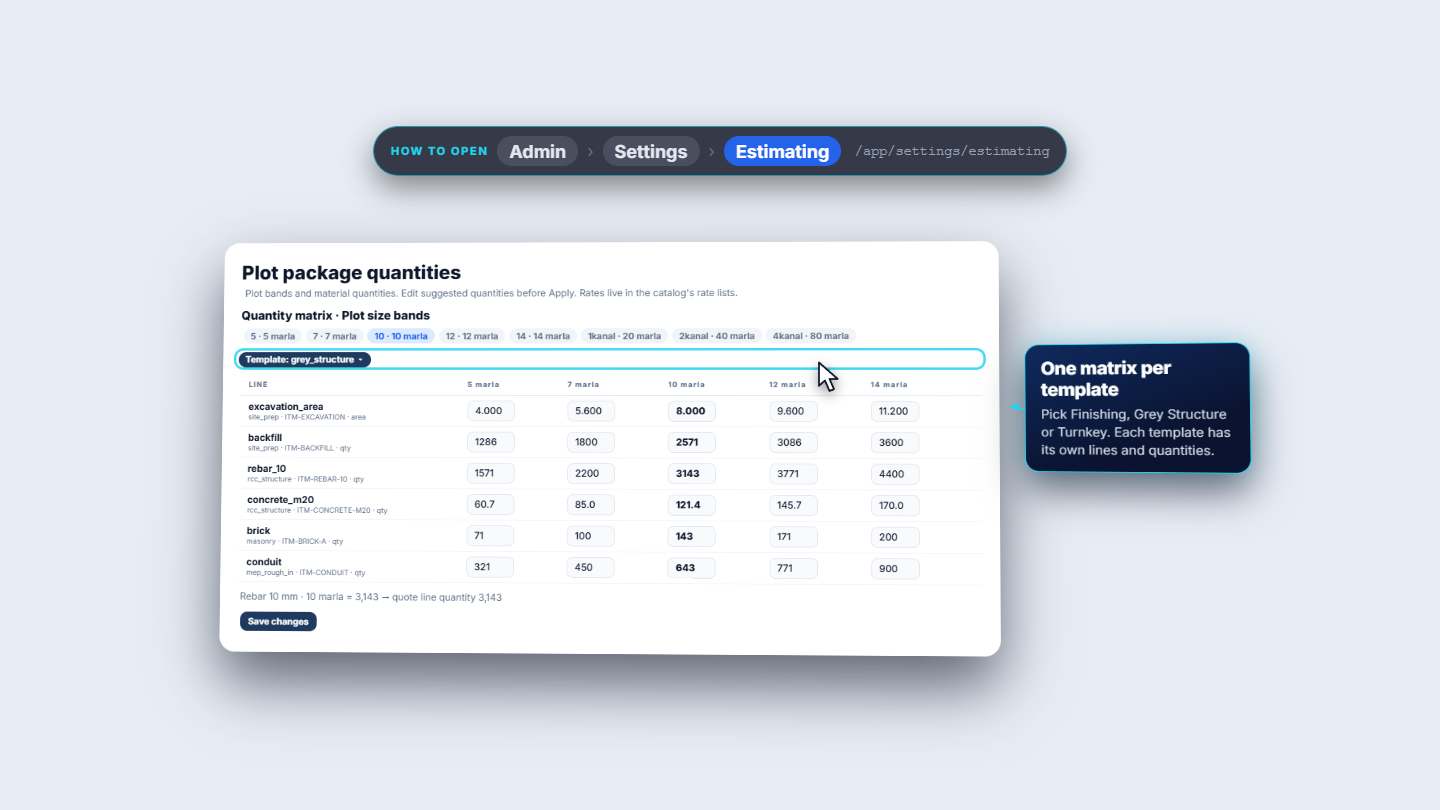
On step 3, The work / items, the estimator reads the site's plot area (10 marla). Click Review suggestions first. Nothing changes yet, but you see the quantity it would use for each of the 47 lines. Then click Apply suggestions and every section fills in. Its source is Admin › Settings › Estimating, Plot package quantities: one column per plot size, one matrix per template. For a 10 marla plot the Rebar 10 mm quantity is 3,143. Edit the matrix for your market.
Plot package quantities with the 10 marla column highlighted
6
Check each line
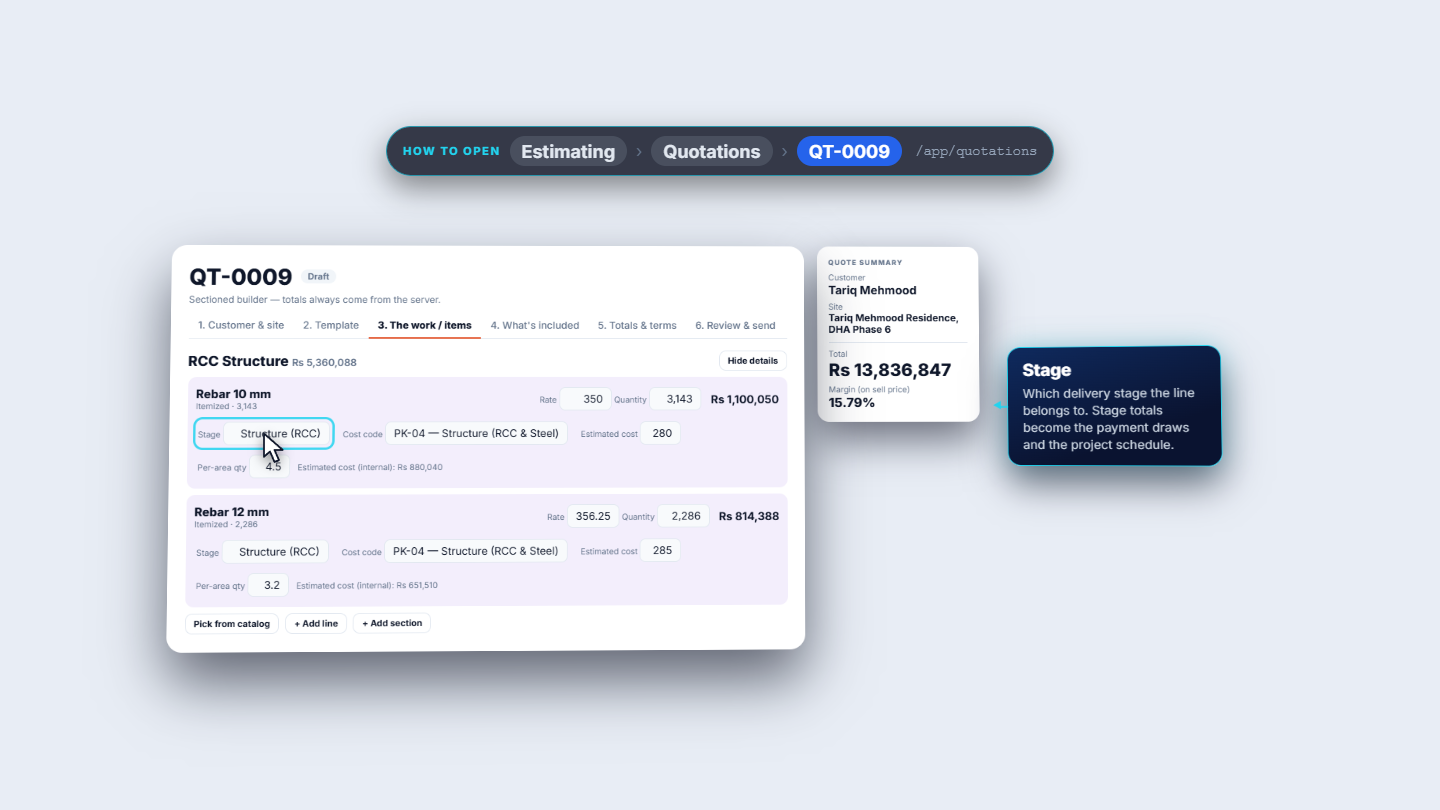
Every line has a Rate, a Quantity, a Stage, a Cost code, an Estimated cost (your internal cost) and the per-area factor. Rebar 10 mm at 3,143 shows Structure (RCC) and cost code PK-04. The quote summary on the right shows the total and your margin on sell price. The customer never sees the margin. On step 4, What's included, write what the price covers and, separately, what it does not. A new quote starts with the template's own wording, and you can add or remove lines for this quote.
Quotation line for Rebar 10 mm with rate, quantity, stage and cost code
7
Set the totals, margin and terms
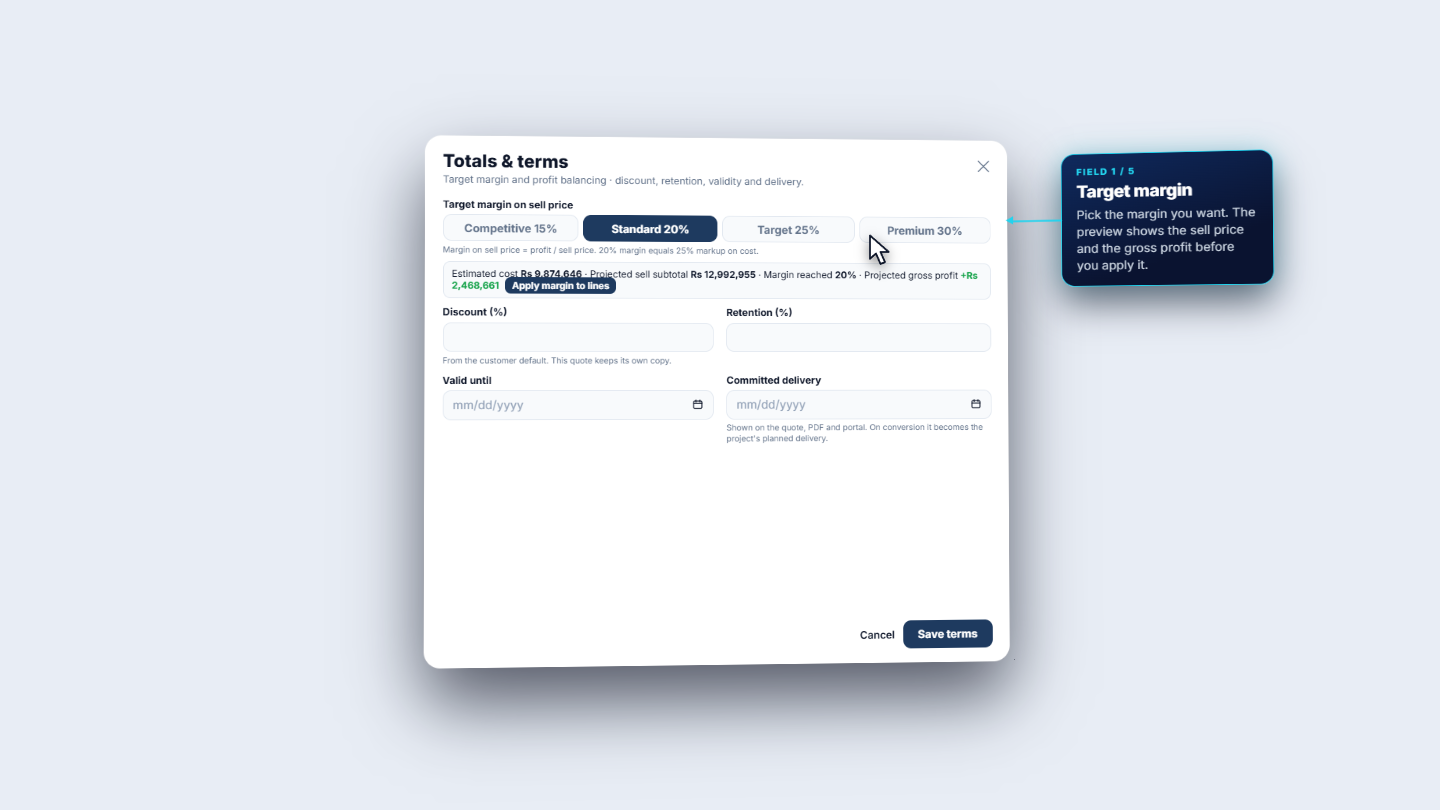
On step 5, Totals & terms, pick the Target margin on sell price: Competitive 15%, Standard 20%, Target 25% or Premium 30%. The preview shows the estimated cost, the projected sell subtotal and the projected gross profit. Click Apply margin to lines. Then set Discount (%) (5, taken from the customer), Retention (%) (5), Valid until and Committed delivery, and click Save terms.
Totals and terms with the margin choices and the terms fields
8
Choose or edit a payment pack
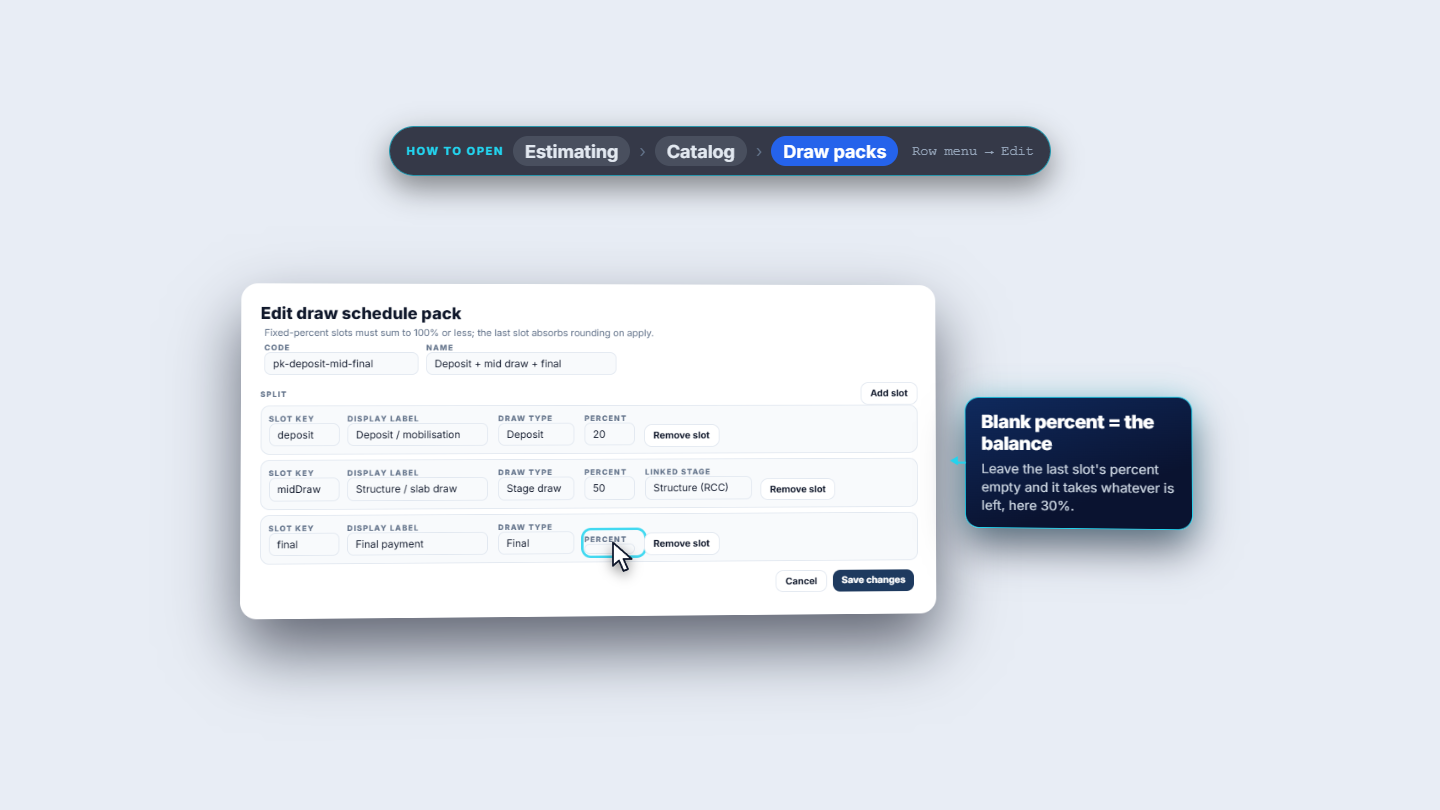
Draw packs are payment recipes under Estimating › Catalog › Draw packs. Deposit + final makes two payments, Deposit + mid draw + final adds a stage payment, and Standard gives a deposit, stage draws by value and a final payment. To change one, edit its slots: a Slot key, a Display label, a Draw type (Deposit, Stage draw or Final), a Percent and, for a stage draw, a Linked stage. Percentages must add up to 100 or less. Leave the last percent blank and it takes the balance.
Draw pack editor with the last percent left blank
9
Read the payment schedule, then send and approve
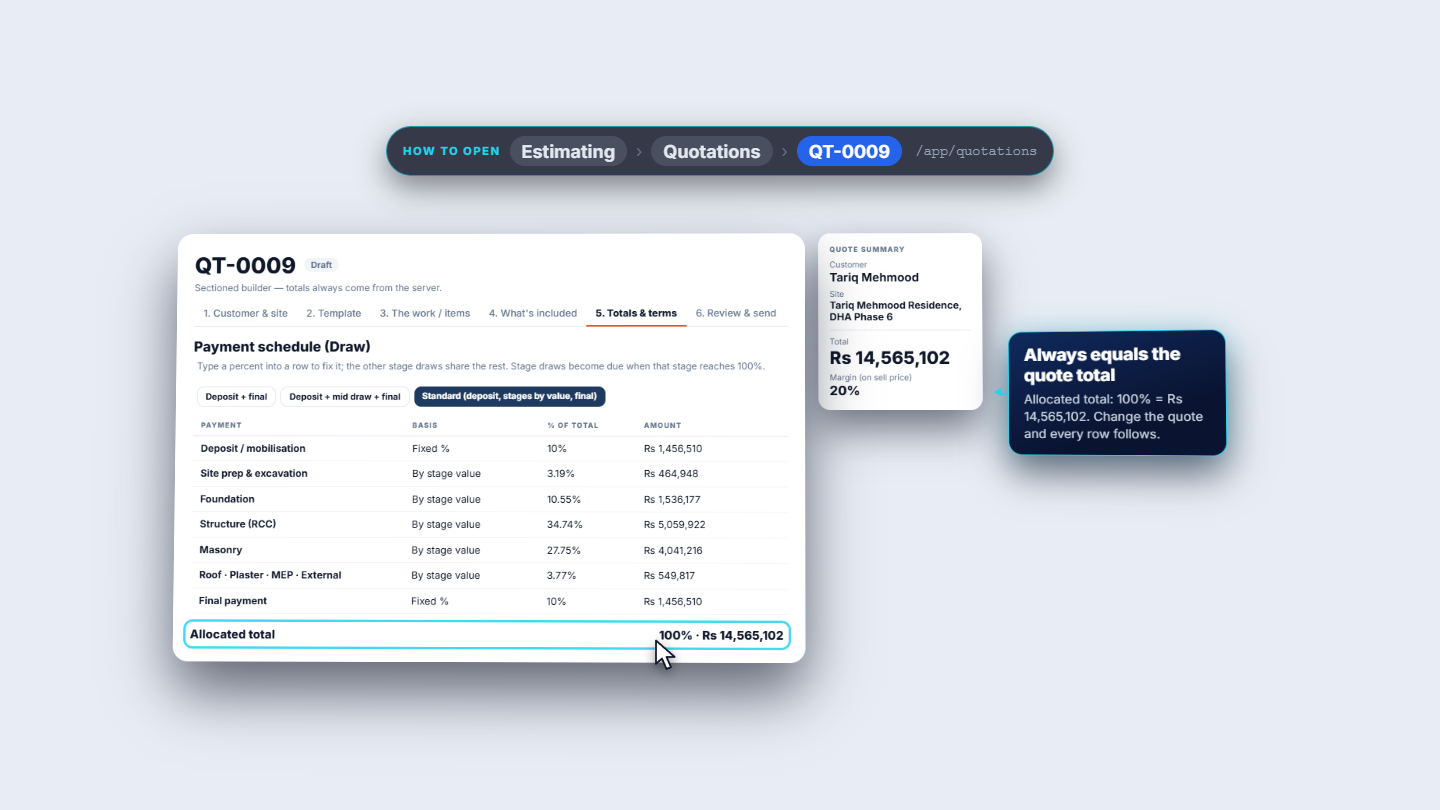
Pick the pack on the quote. With Standard, the schedule shows a Deposit / mobilisation of 10% (Rs 1,456,510), a draw per stage by value, and a Final payment of 10% (Rs 1,456,510). The Allocated total is 100%, Rs 14,565,102, the quote total. On step 6, Review & send, check the totals and send through the portal and PDF. The quote is frozen as version one. Record the approval with a note and Confirm, then convert the approved quote to a project.
Payment schedule with deposit, stage draws and final adding up to the quote total
Check it worked
Every section has quantities and the quote summary shows a total and a margin.
The Allocated total equals the quote total (Rs 14,565,102 in the example, QT-0009).
After approval the quote can be converted to a project, and everything priced carries over.
Common mistakes
Mistake
What you see
Fix
Quotation has no site
It cannot be sent or approved
Add the site first (BF-S01)
Applying suggestions without reviewing
Quantities you did not expect
Use Review suggestions first, edit the plot package if needed
Draw percentages above 100
The pack is not accepted
Make the percents add up to 100 or less, or leave the last one blank
Wrong template for the job
Too many or too few sections and stages
Choose Finishing, Grey Structure or Turnkey to match the scope
Decides the project stage and the payment draw of a section
Estimator
Quantity from the plot size band (for example 10 marla), applied only when you click Apply suggestions
Target margin
Profit divided by sell price: 15%, 20%, 25% or 30%
Retention
Share of each payment held back until the work is accepted
Draw pack
Reusable split of the quote into deposit, stage draws and final
Frequently asked questions
Does the estimator change my quantities by itself? No. Click Review suggestions to see the quantity it would use for each line, and nothing changes until you click Apply suggestions. The quantities come from the plot package quantities under Admin › Settings › Estimating.
Why can't I send or approve a quotation? A quotation cannot be sent or approved without a site. Add the site first (see BF-S01), then pick it on the quotation.
Which template should I choose? Choose the one that matches the scope: Finishing has 5 sections, Grey Structure has 9 and Turnkey has all 14. The template is fixed once the quotation is created.
How do the draw pack percentages work? The percentages must add up to 100 or less. Leave the last percent blank and it takes the balance, so the schedule always adds up to the quote total.