How to run a project from approved quote to first payment
Once a customer approves a quotation, you turn it into a project, plan the stages, bill the deposit and record the money that comes in. This guide follows one job from conversion to cost control, so you know where stages, payment draws and costs come from.
Who it is forProject manager or ownerTime20 minutesProductBuildFlowLevelIntermediate
Before you start
Steps
1
Convert the approved quote into a project
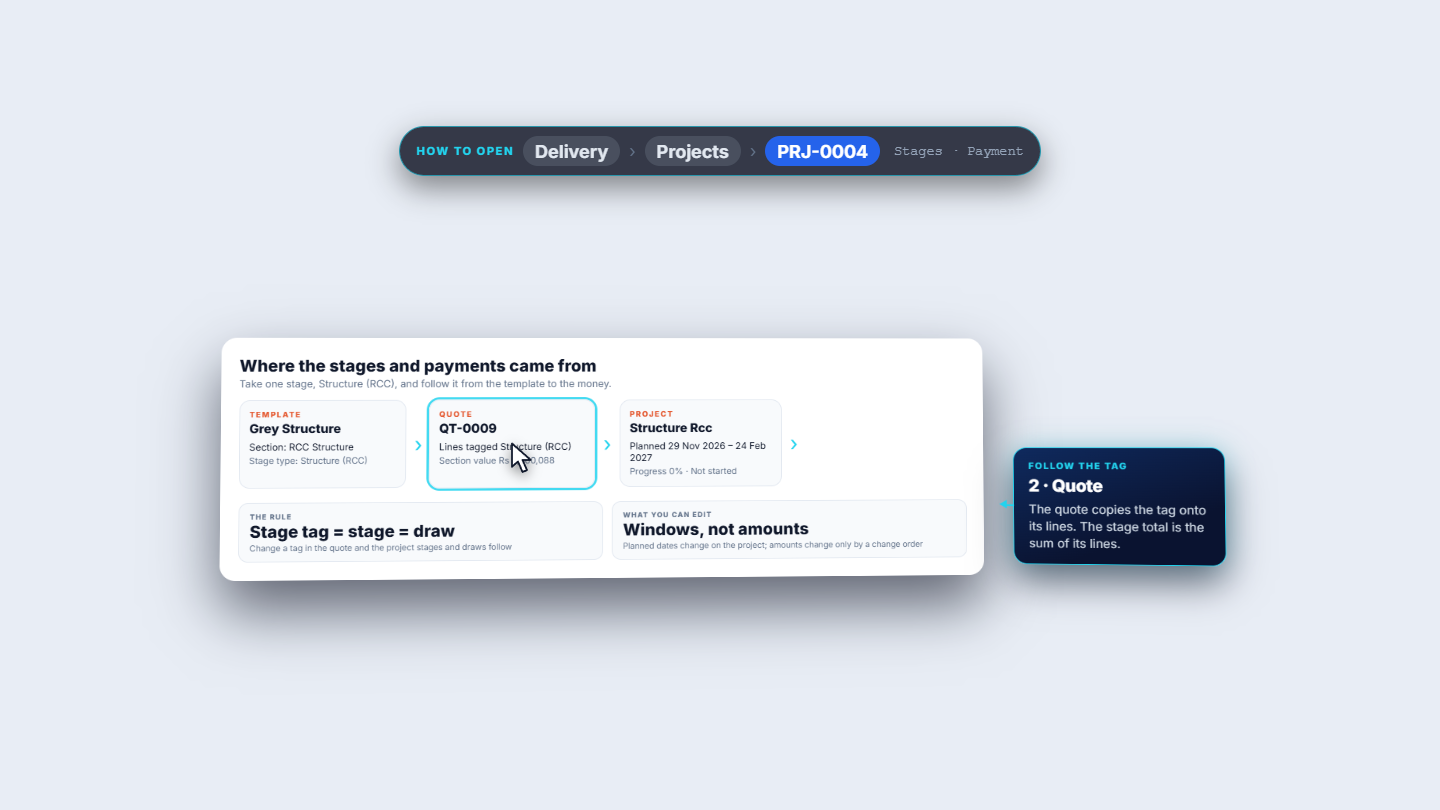
Open the approved quote and click Convert to project. One click creates the project (PRJ-0004) and its contract. The stages, the scope and the payments come across from the quote. Follow one stage, Structure (RCC): the template tags a section, the quote copies the tag onto its lines, the project gets a stage with that name, and each stage has a payment draw.
Chain from template to quote to project showing the stage tag rule
2
Know how many stages to expect
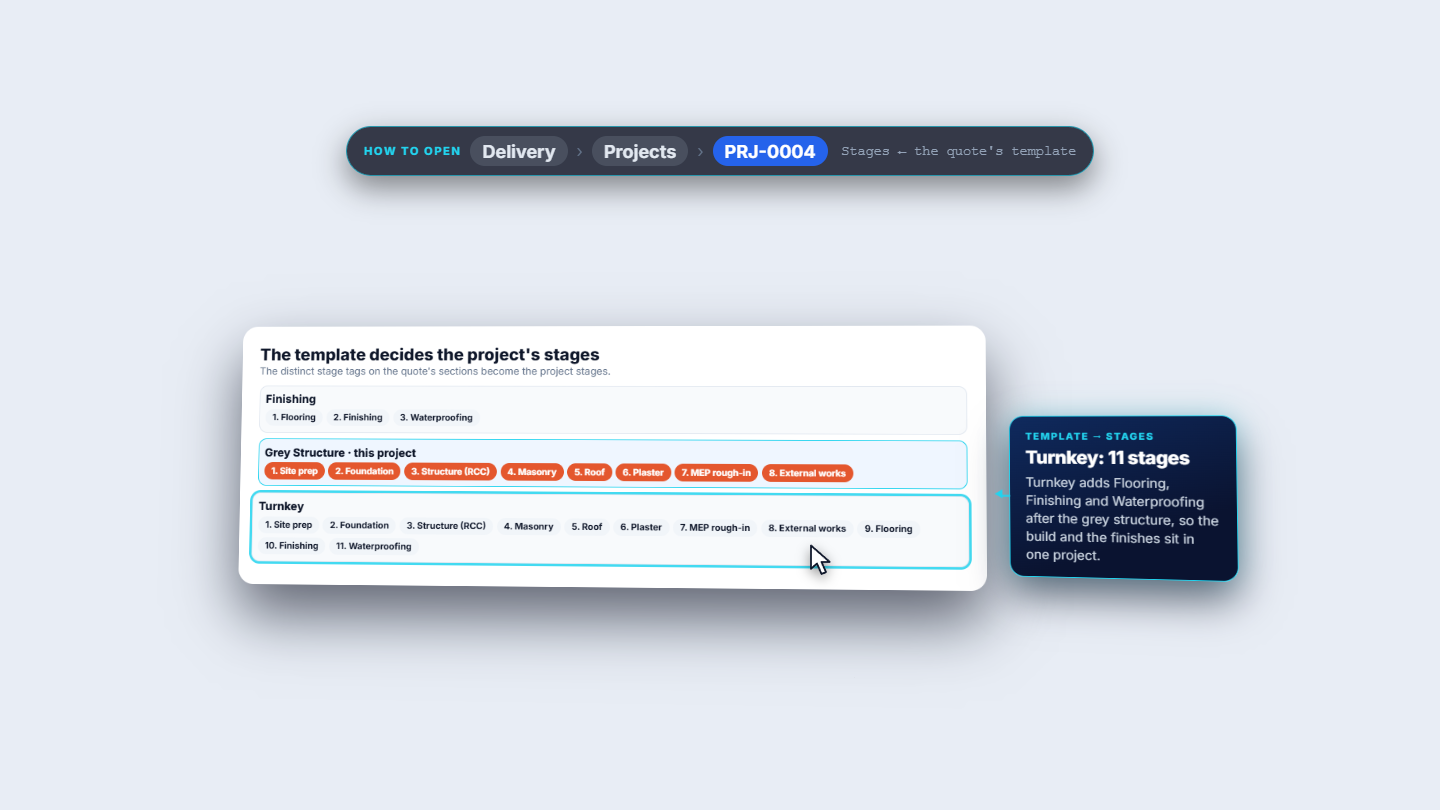
The template of the quote decides the stages. A Finishing quote gives 3 stages, Grey Structure gives 8 (this project) and Turnkey gives 11, because Turnkey adds Flooring, Finishing and Waterproofing after the grey structure.
Comparison of stages for Finishing, Grey Structure and Turnkey
3
Read the Overview
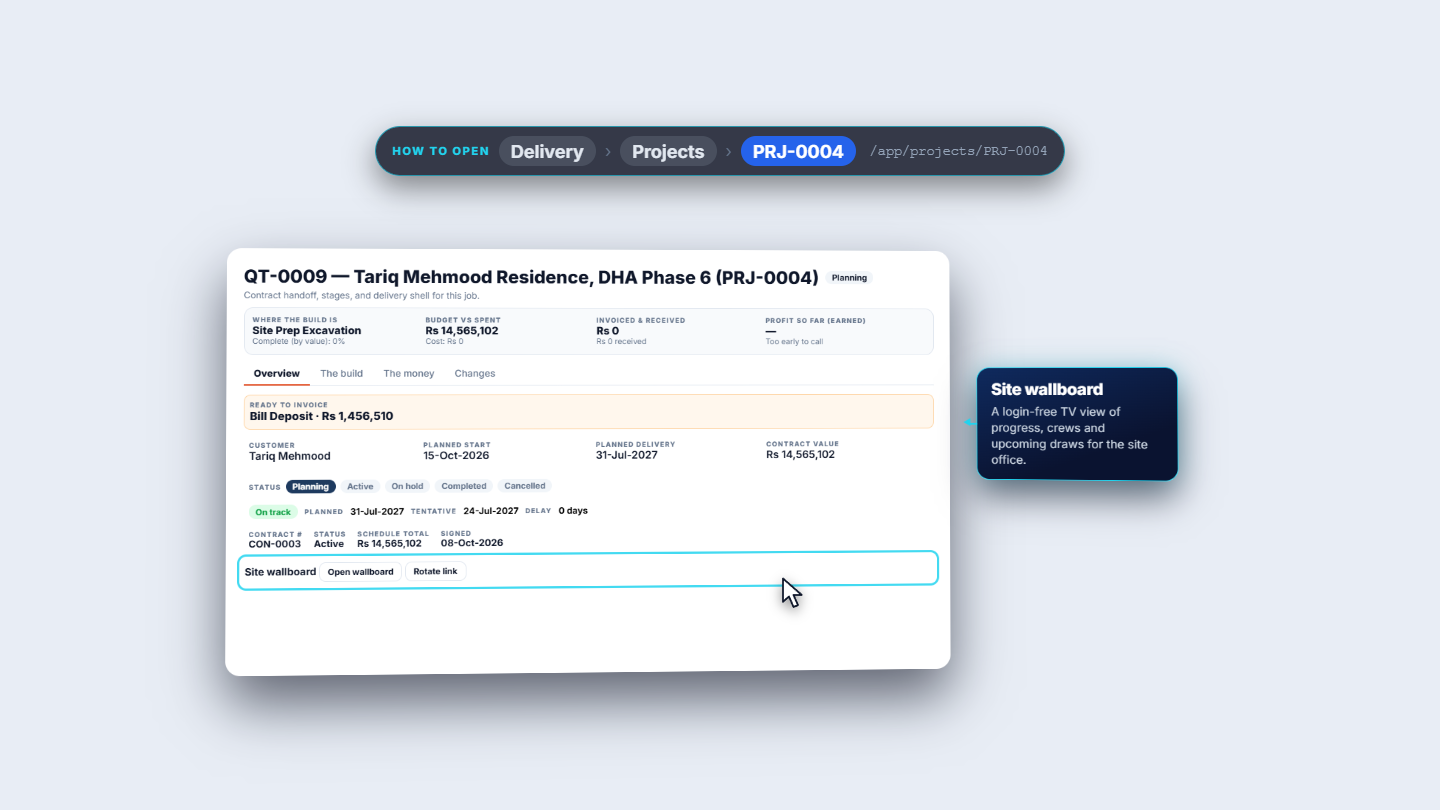
Open Delivery › Projects › PRJ-0004 and stay on Overview. It shows Ready to invoice (Bill Deposit · Rs 1,456,510), the customer, Planned start 15-Oct-2026, Planned delivery 31-Jul-2027, Contract value Rs 14,565,102 and contract CON-0003. Set the Status (Planning, Active, On hold, Completed, Cancelled) as the job moves on. The planned finish is compared with the forecast. Open wallboard gives a login-free TV view for the site office.
Project overview with contract, dates, status and the site wallboard
4
Plan the stages and enter progress
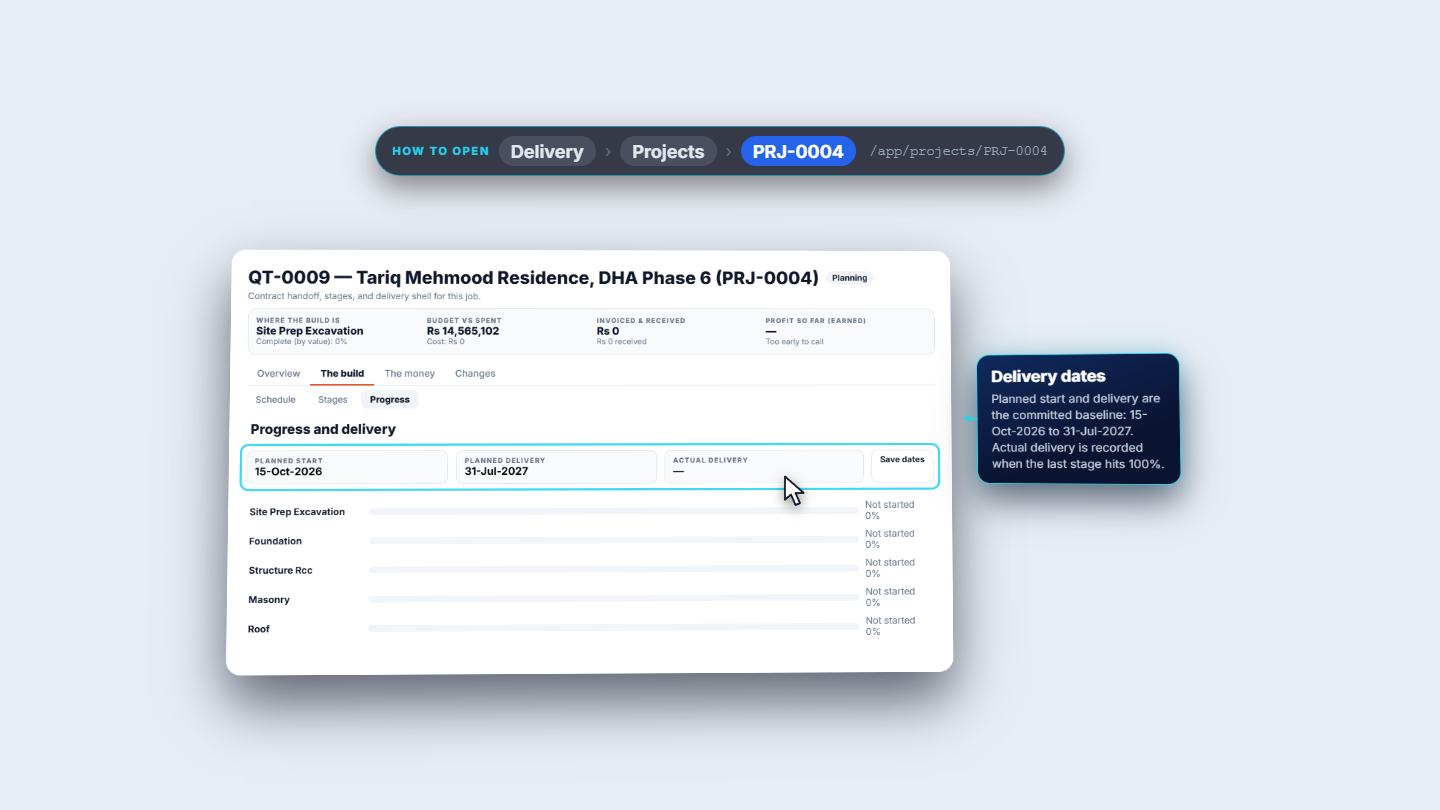
Open The build. Stages lists the stages in order of the work, each with a planned window. Those windows drive the payment due dates. You can also distribute the dates in one click. On Progress, set the percent complete for each stage. Planned start and Planned delivery are the committed baseline. Actual delivery is recorded when the last stage reaches 100%.
Progress and delivery with the planned start and delivery dates
5
Check the BOQ and where its quantities come from
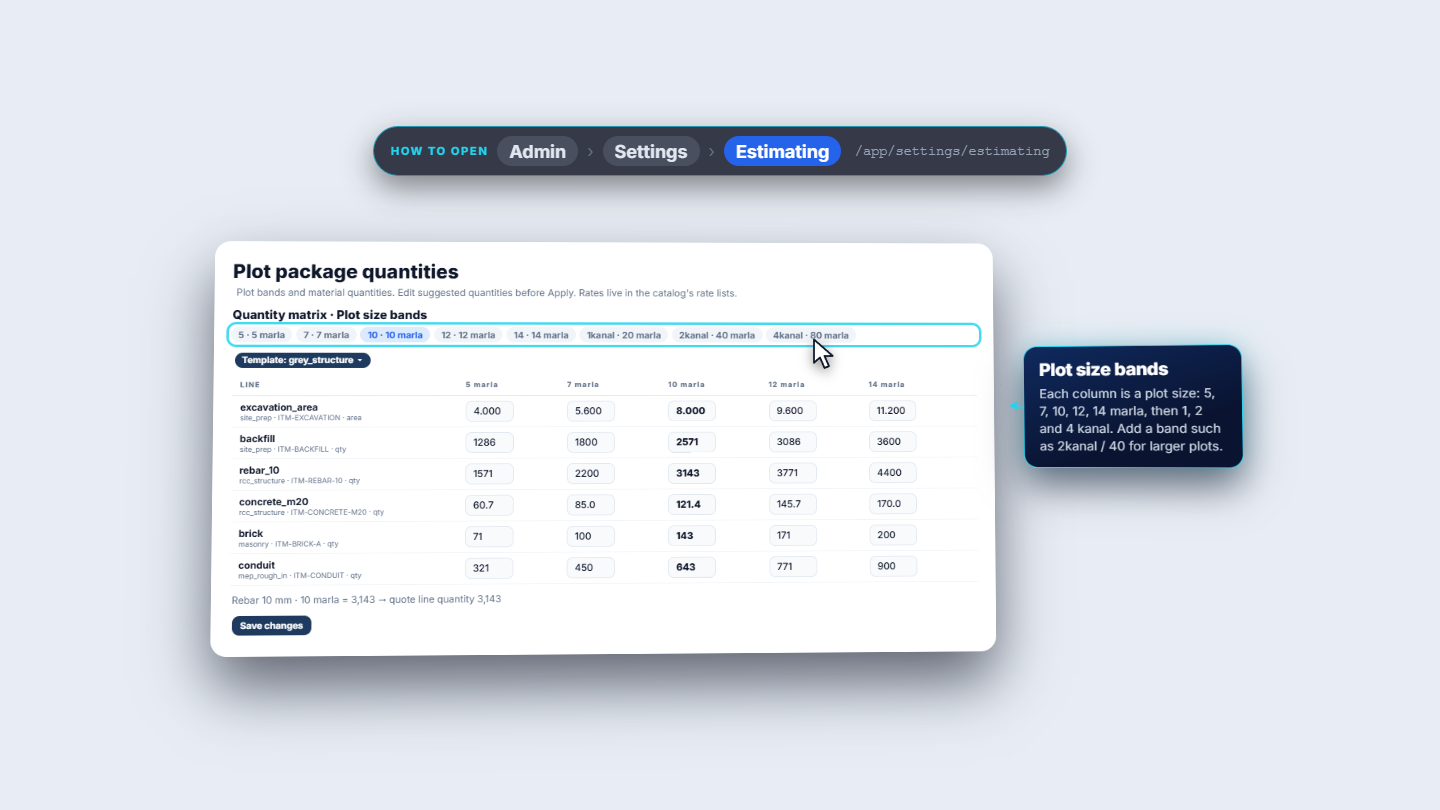
Open The money › BOQ. It lists every line of the quote, each with its internal estimated cost, in sections that follow the quote. The quantities come from the plot package for the site's size, set in Admin › Settings › Estimating. A 10 marla site uses the 10 marla column, for example Rebar 10 mm at 3,143.
Plot package quantities for the 10 marla column
6
Read the payment schedule and its due dates
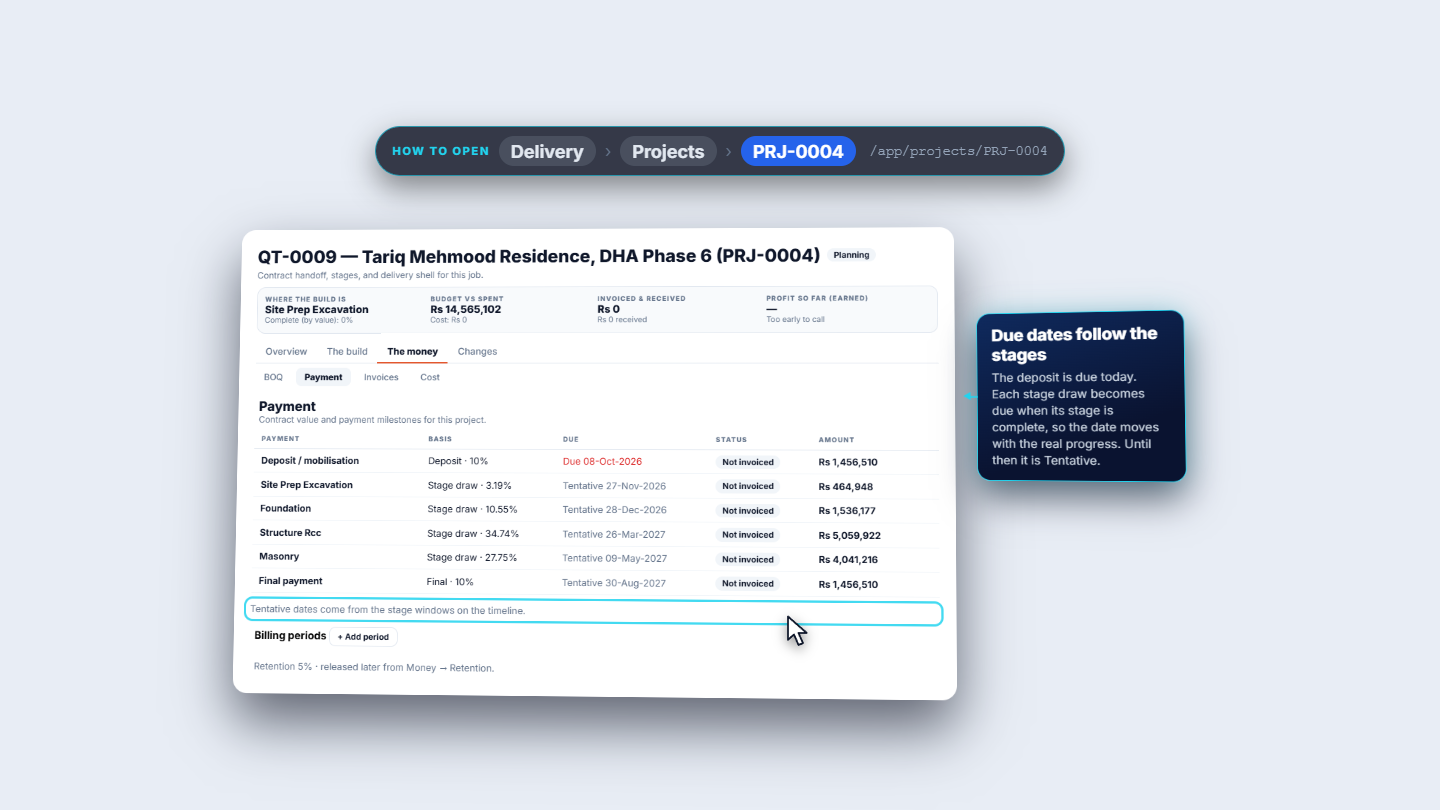
Open The money › Payment. The Deposit / mobilisation is Deposit · 10% (Rs 1,456,510), due 08-Oct-2026. Each stage draw becomes due when its stage is complete, so until then it shows a tentative date taken from the stage windows. The Final payment is Final · 10% (Rs 1,456,510). Use Add period under Billing periods to lock a billing period and close the books. Retention of 5% is held back until you release it from Money › Retention.
Payment tab with deposit, stage draws and final payment
7
Understand why the schedule looks the way it does
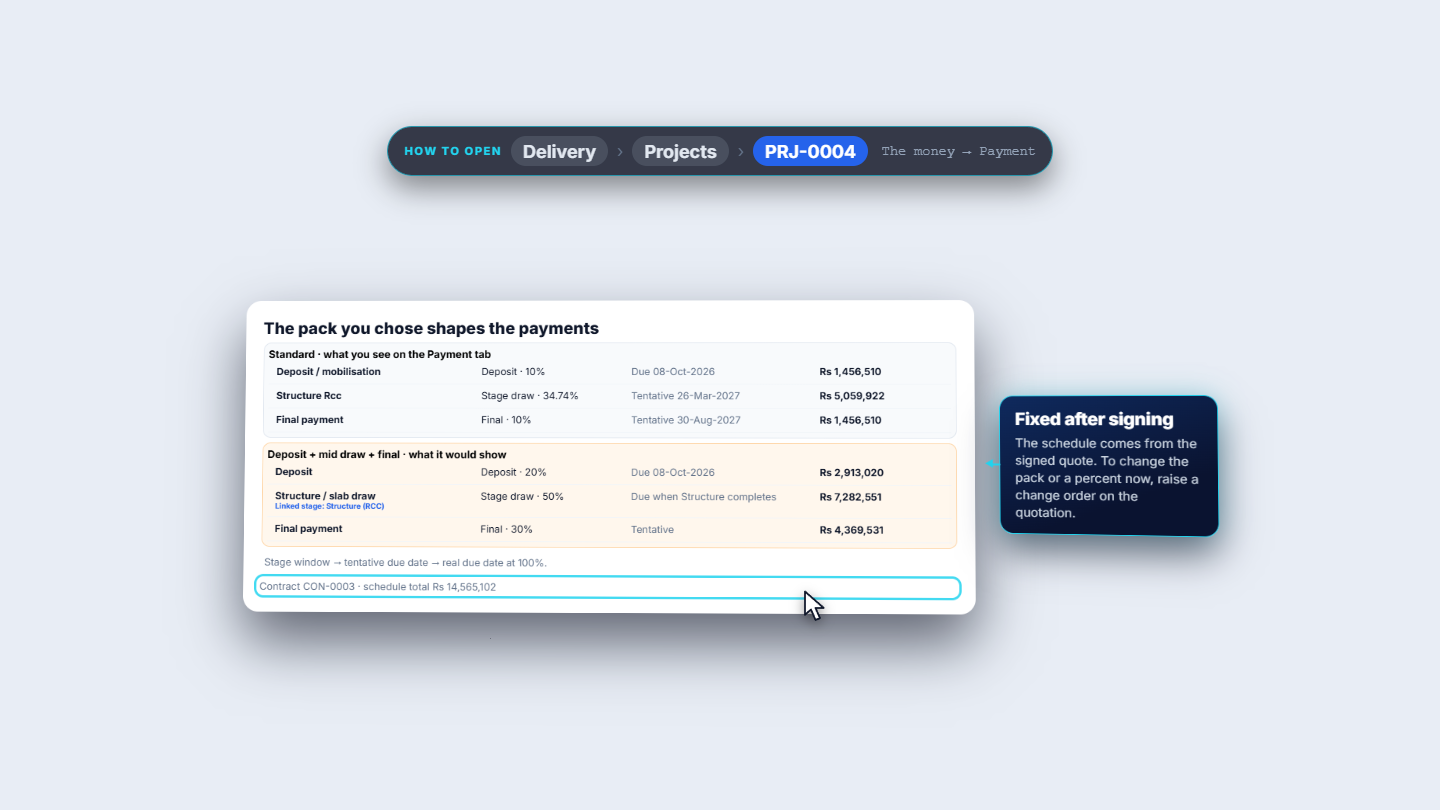
This project used the Standard pack. A pack that links a draw to a stage, such as Deposit + mid draw + final, would tie 50% to when Structure completes. The schedule comes from the signed quote, so to change the pack or a percent now, raise a change order on the quotation.
Standard pack compared with the mid-draw pack on the Payment tab
8
Bill the deposit
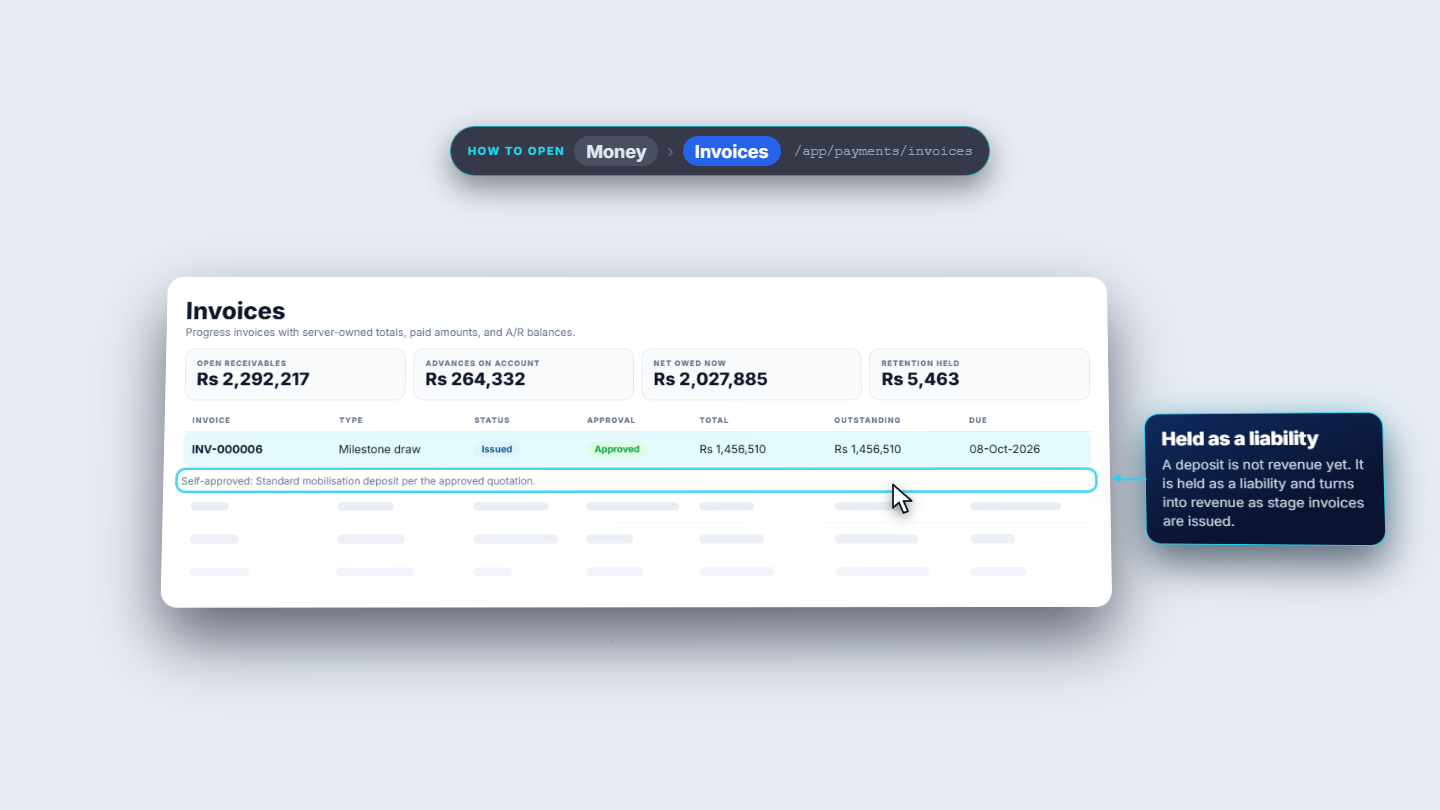
On Overview click Bill Deposit. Add a Memo (for example "Mobilisation deposit: 10 marla house, DHA Phase 6"). With nobody else to approve, the owner writes a Reason (self-approval) of at least 10 characters, such as "Standard mobilisation deposit per the approved quotation." Then issue the invoice. It appears under Money › Invoices as INV-000006, a Milestone draw of Rs 1,456,510, with the self-approval reason below it.
Invoices list with INV-000006 for the deposit
9
Record the customer's payment
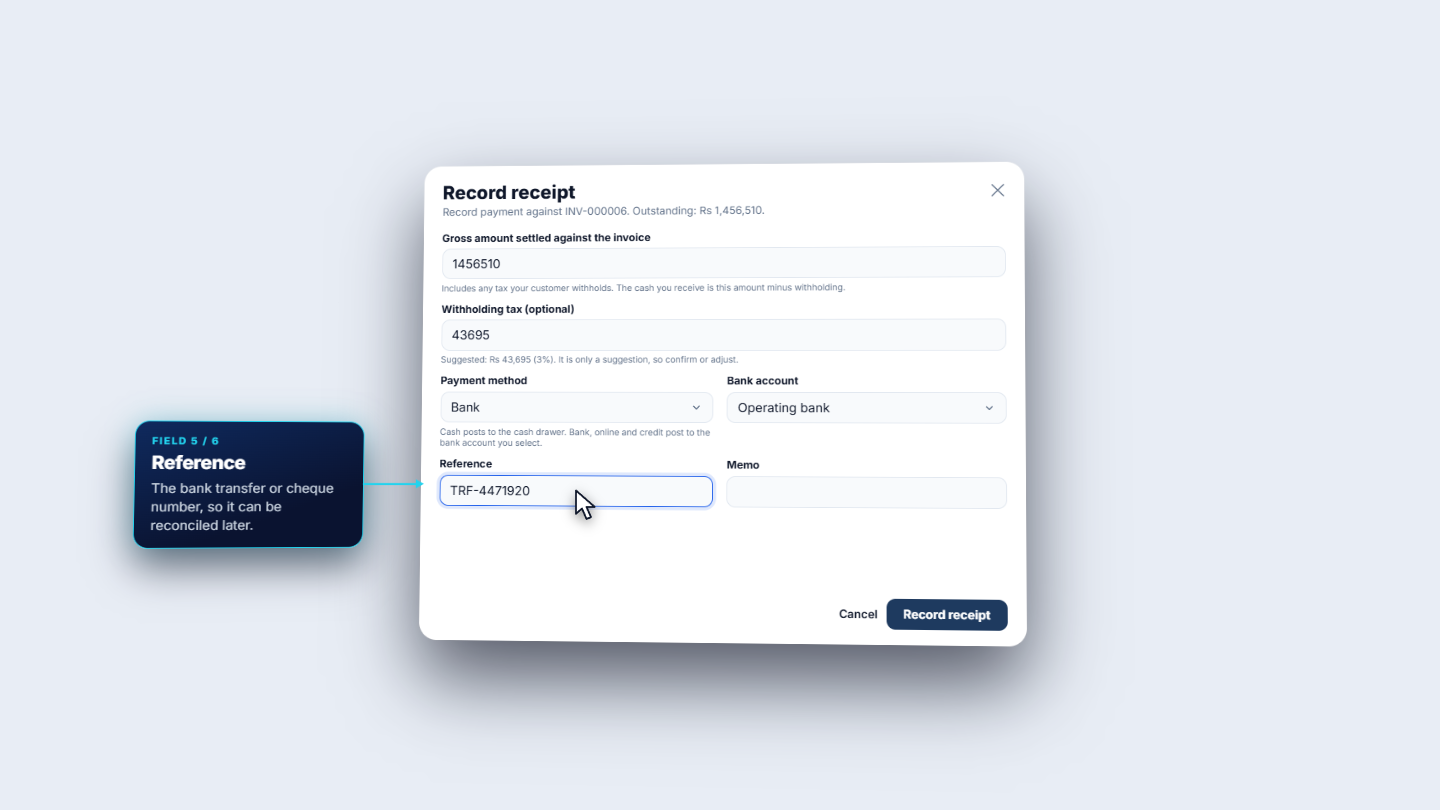
In the invoice row menu choose to record a receipt. Enter the Gross amount settled against the invoice (1456510), the Withholding tax (43695, the suggested 3%), the Payment method (Bank), the Bank account (Operating bank), the Reference (TRF-4471920) and a Memo. Click Record receipt.
Record receipt dialog with gross amount, withholding, method, bank and reference
10
Watch cost against budget
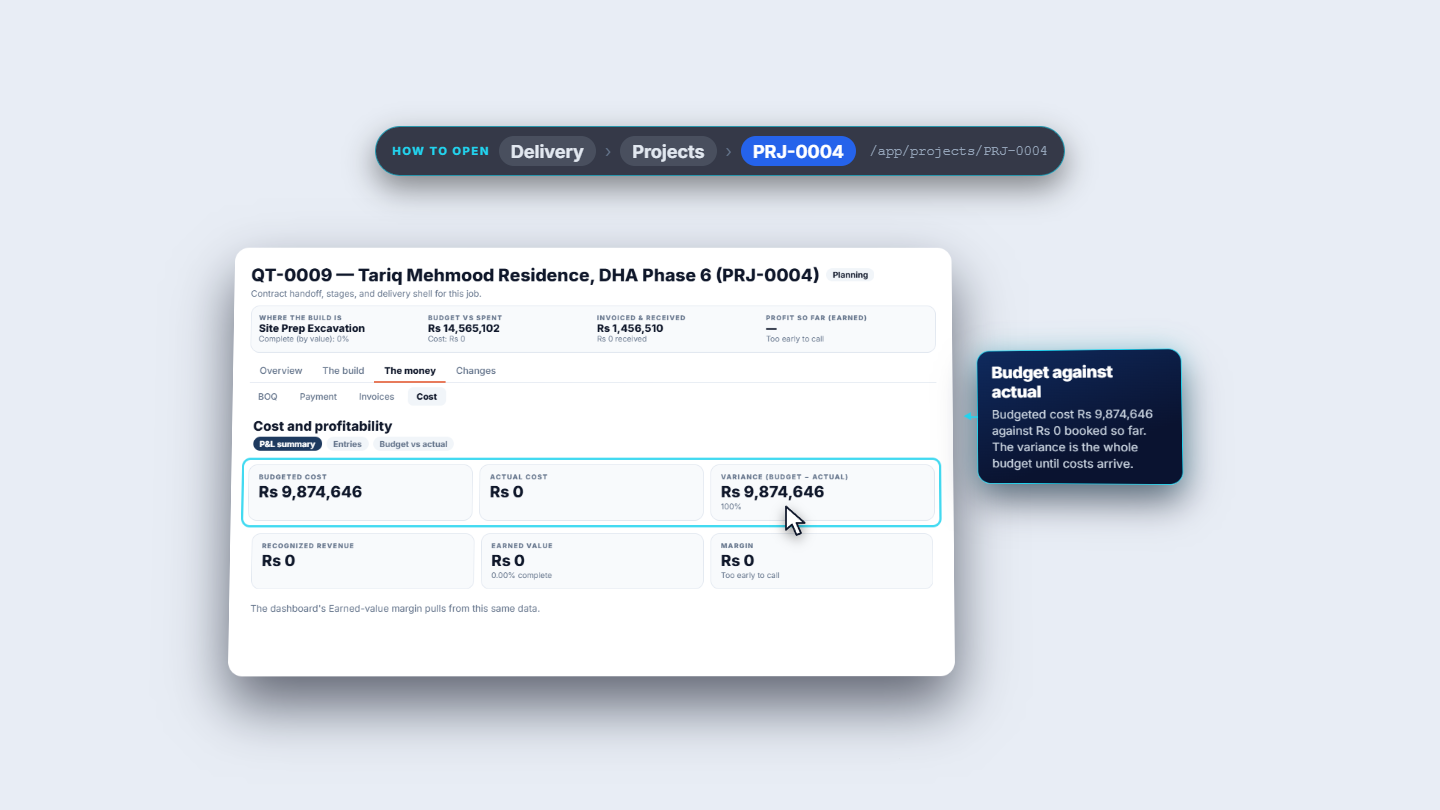
Open The money › Cost. Budgeted cost is Rs 9,874,646, Actual cost is Rs 0 and the Variance is the whole budget until costs arrive. Earned value shows what is really built, and the margin becomes clear as costs are booked. Everything about money sits under Money: receipts, retention, payouts, wages and statements.
Cost and profitability with budgeted cost, actual cost and variance
Check it worked
PRJ-0004 exists with contract CON-0003 and a planned delivery of 31-Jul-2027.
The Payment tab matches the draw schedule of the quote and totals Rs 14,565,102.
INV-000006 for Rs 1,456,510 shows under Money › Invoices.
Cost shows a budget of Rs 9,874,646 and no actual cost yet.
Common mistakes
Mistake
What you see
Fix
Trying to change amounts on the project
The schedule is fixed after signing
Raise a change order on the quotation
Leaving the planned windows empty
Draws only show tentative dates
Set or distribute the stage windows in The build
Recording the net cash as gross
The invoice stays partly open
Enter the gross amount and the withholding tax separately
Self-approving with a short note
The reason is not accepted
Write at least 10 characters
Quick reference
Item
Meaning / rule
Stage tag
Template tag becomes the project stage and its payment draw
Deposit
Billed first, held as a liability until stage invoices are issued
Stage draw
Due when its stage is complete; tentative until then
Retention
Share held back, released later from Money › Retention
Gross and withholding
Cash received is gross minus withholding
Budget vs actual
Budgeted cost against booked cost, with earned value
Frequently asked questions
Where do the project stages and payment draws come from? They come from the quotation. The template tags a section, the quote copies the tag onto its lines, the project gets a stage with that name, and each stage has a payment draw. The rule is stage tag = stage = draw.
How many stages will my project have? It depends on the template of the quote. A Finishing quote gives 3 stages, Grey Structure gives 8 and Turnkey gives 11, because Turnkey adds Flooring, Finishing and Waterproofing after the grey structure.
Can I change the payment amounts after the quote is signed? Not on the project. After signing you edit planned windows, but amounts change only by a change order raised on the quotation.
How do I record a payment when the customer withholds tax? In Record receipt, enter the gross amount settled against the invoice and the withholding tax separately. The cash you receive is the gross minus the withholding. Also type the transfer or cheque number in Reference so the bank can be reconciled later.