After a paper exam, you enter the marks for the class, publish the results and print the report card. This guide follows one exam, Algebra II Unit Test 1 for Grade 9, and one score of 17 out of 20 that appears on the Results page, in the Grade Book and on the student's report card.
Who it is forTeacher, exam coordinator or school administratorTime12 minutesProductSCMLevelIntermediate
Before you start
Steps
1
Find the exam
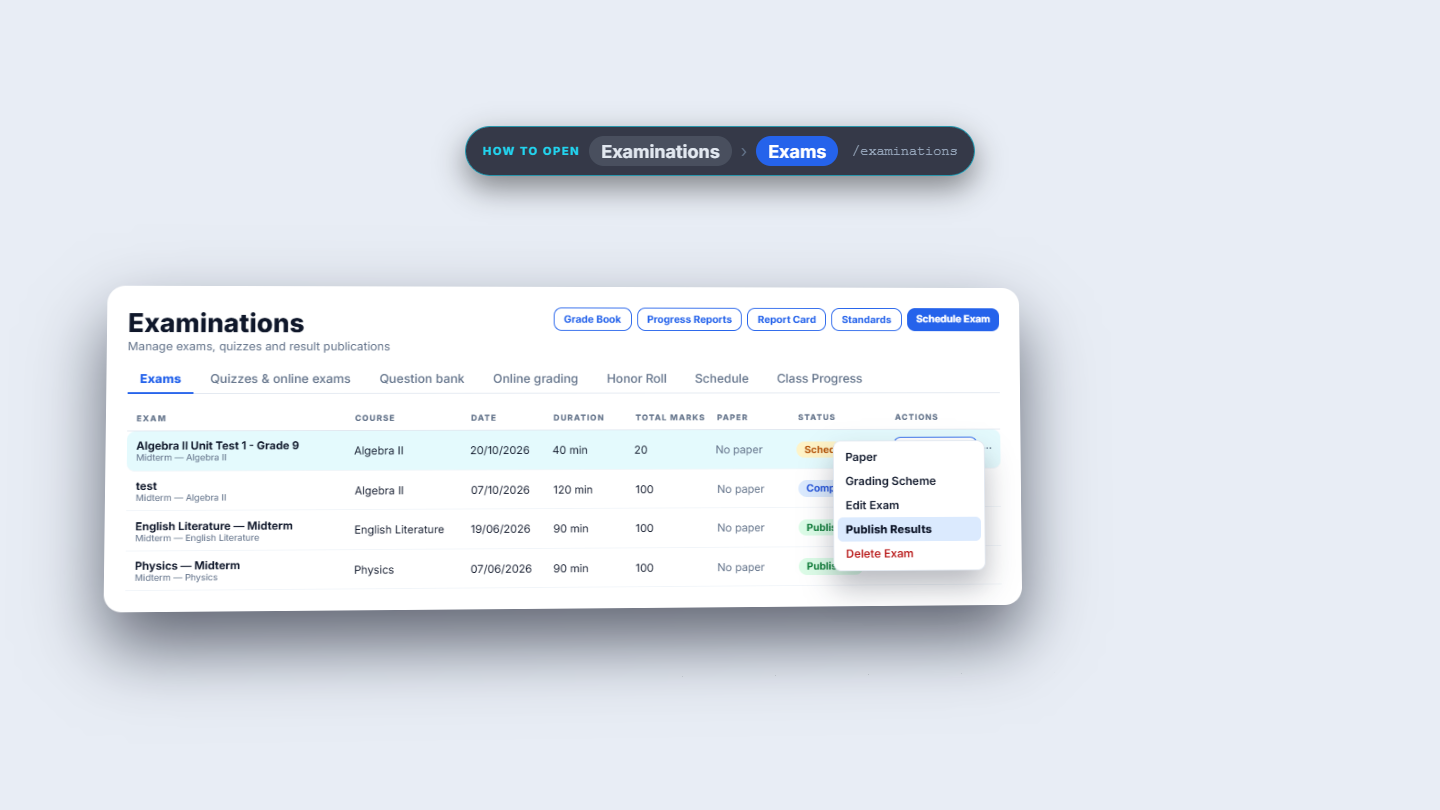
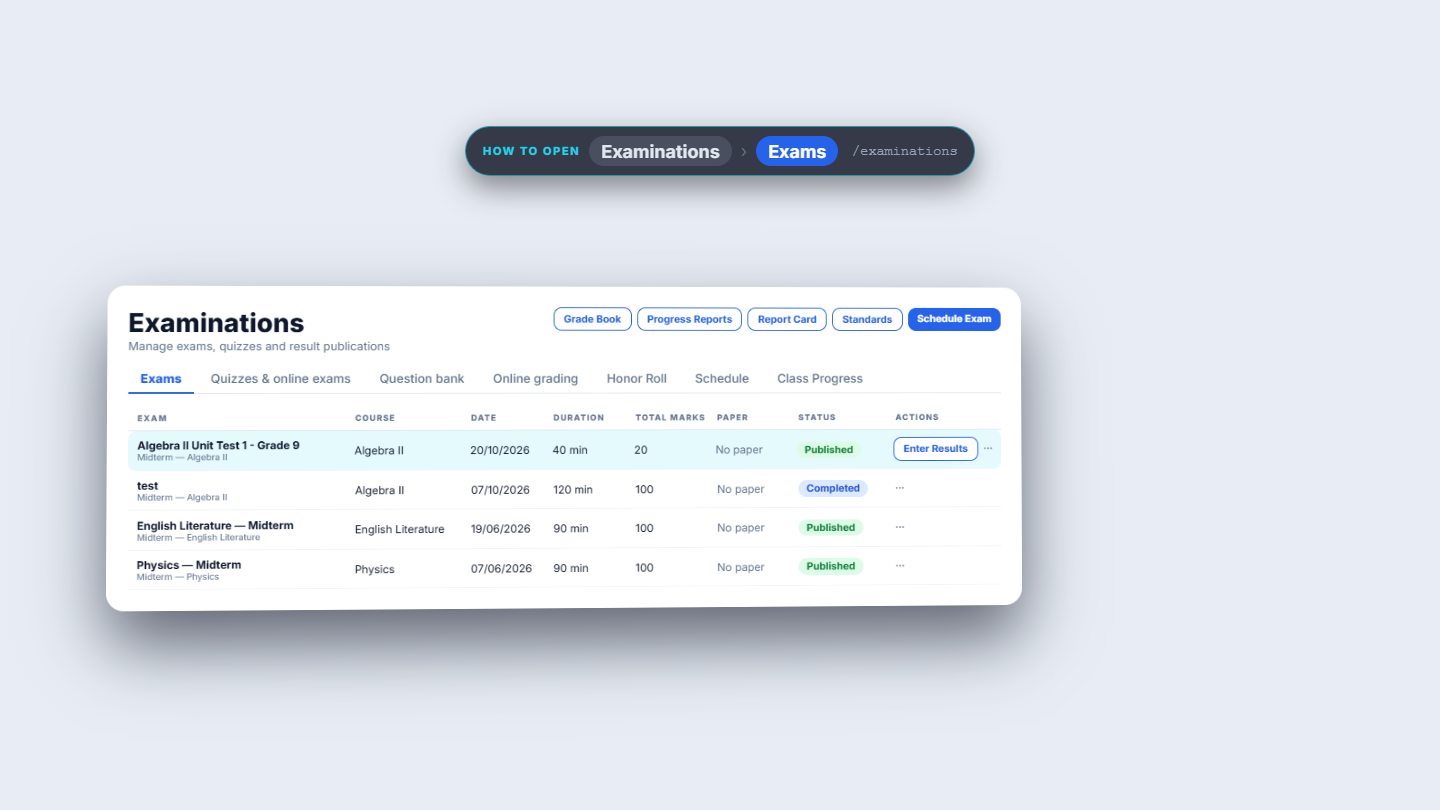
Open Examinations > Exams. The exam row shows Course, Date, Duration, Total Marks, Paper and Status. Here it is Algebra II (MATH201), 20/10/2026, 40 minutes, 20 marks, status Scheduled. The header buttons Grade Book, Progress Reports, Report Card, Standards and Schedule Exam take you to the later screens. The row's Actions menu holds Paper, Grading Scheme, Edit Exam, Publish Results and Delete Exam.
Exams list with the Algebra II Unit Test 1 row
2
Pick the exam on Exam Results
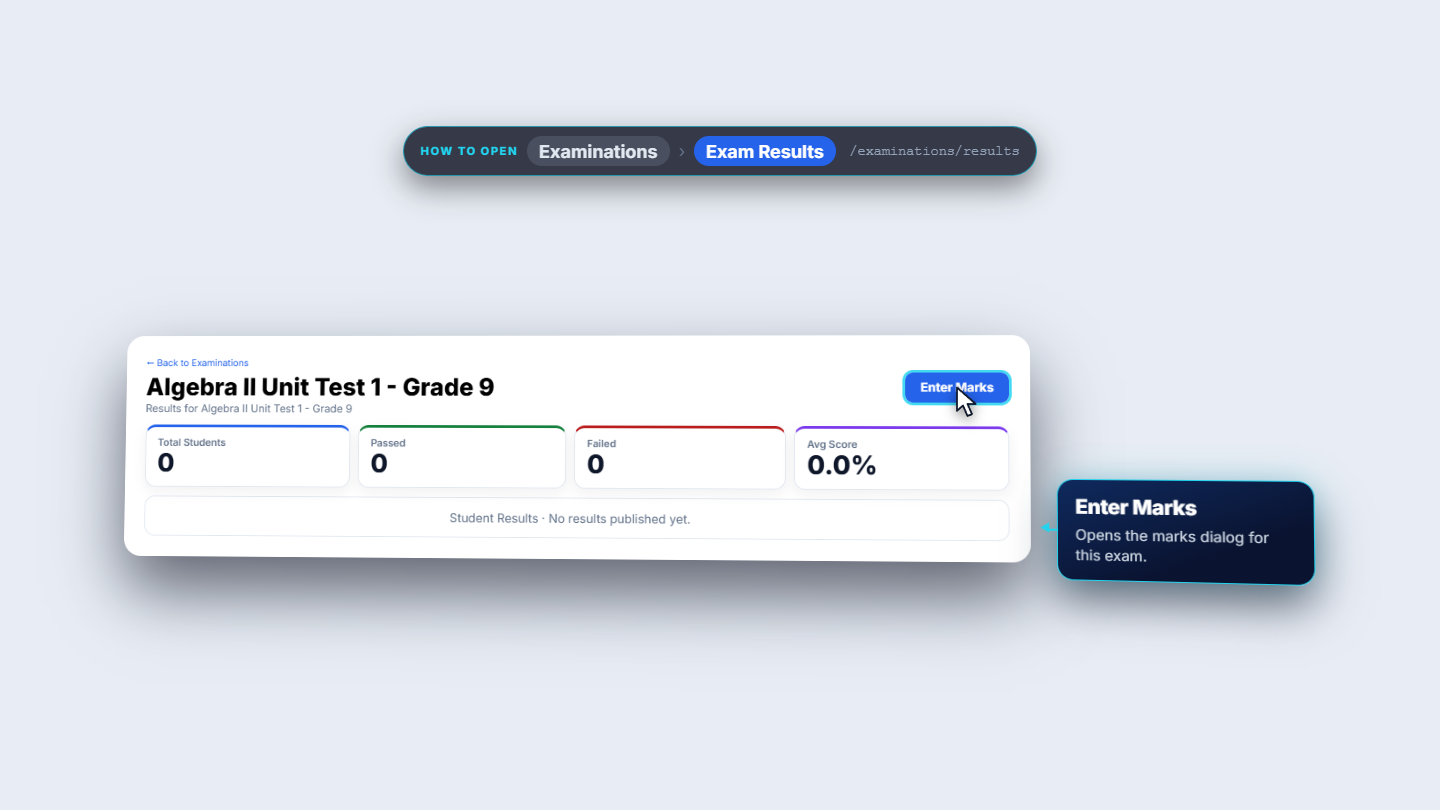
Open Examinations > Exam Results and choose Algebra II Unit Test 1 - Grade 9 (MATH201) from the Examination list. A new exam shows Enter Marks, four zero cards and "No results published yet."
Exam Results page with the exam chosen and four zero cards
3
Enter the marks for the class
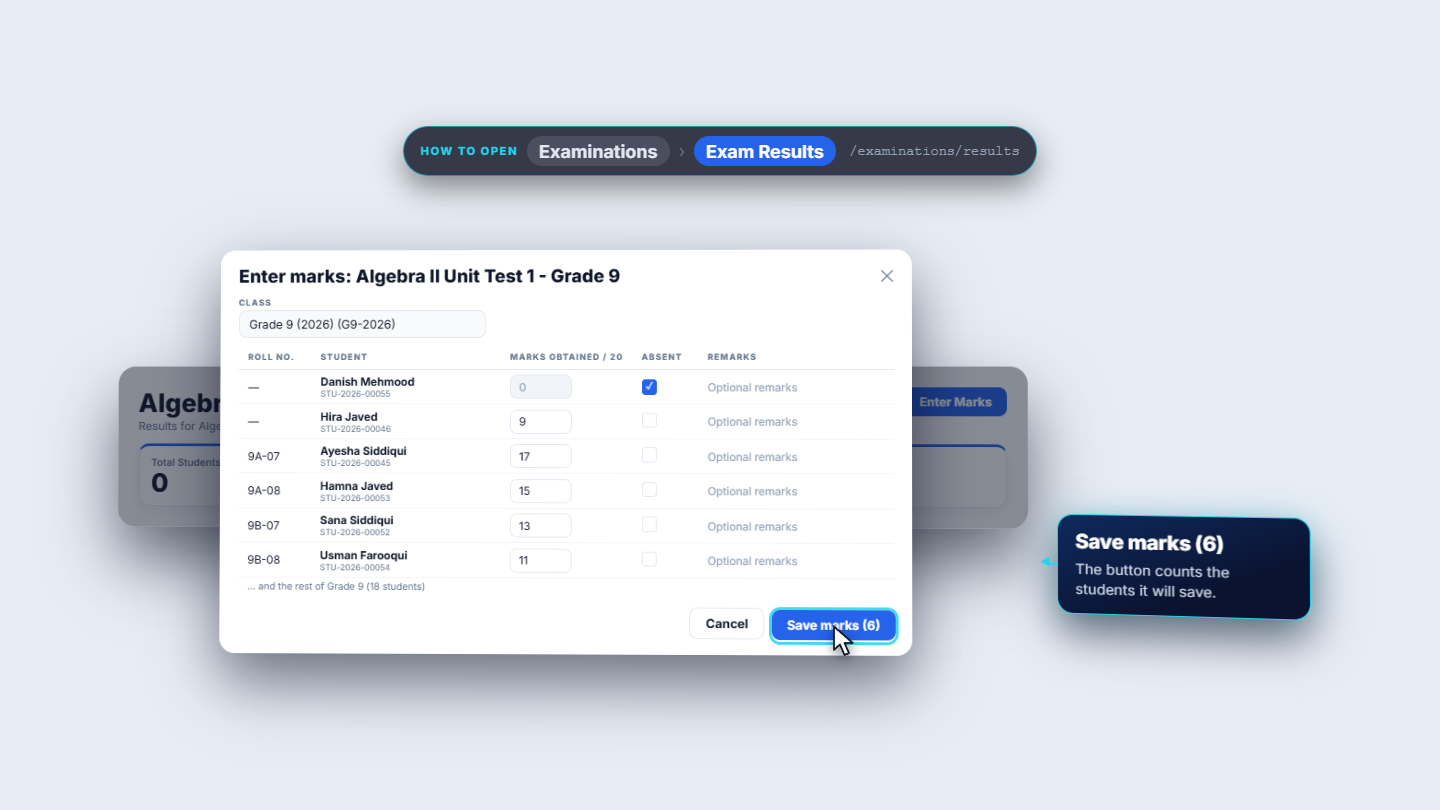
Press Enter Marks. In Class choose Grade 9 (2026) (G9-2026). Type each student's mark out of 20 in Marks Obtained: Ayesha Siddiqui 17, Hamna Javed 15, Sana Siddiqui 13, Usman Farooqui 11, Hira Javed 9. Tick Absent for Danish Mehmood; his mark box greys out. Add Remarks where it helps. The button reads Save marks (6).
Enter marks dialog with Grade 9 students and one Absent tick
4
Save and read the results
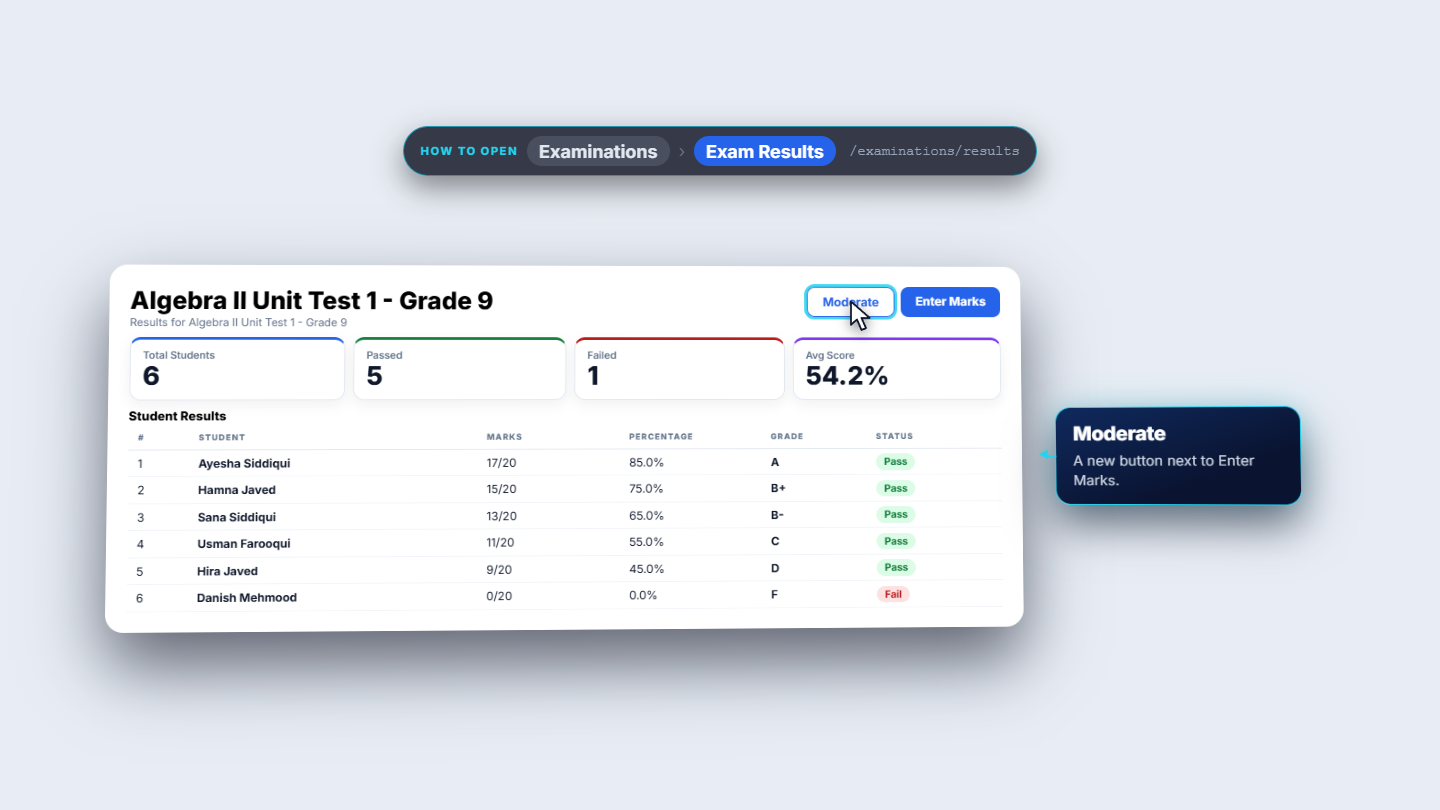
Press Save marks (6). The toast says "Marks saved for 6 students". The page shows Total Students 6, Passed 5, Failed 1 and Avg Score 54.2%. The table lists each student with Marks, Percentage, Grade and Status: Ayesha 17/20, 85.0%, A, Pass; Danish, who was absent, 0/20, 0.0%, F, Fail.
Results page with five passed, one failed and the marks table
5
Publish the results
Go back to Examinations > Exams, open the row's Actions menu and choose Publish Results. The Publish exam results dialog asks "Publish these results? Students and guardians will be able to see them immediately." Confirm. The toast says "Results published" and the status changes to Published.
Publish exam results confirmation dialog
6
Check the Grade Book
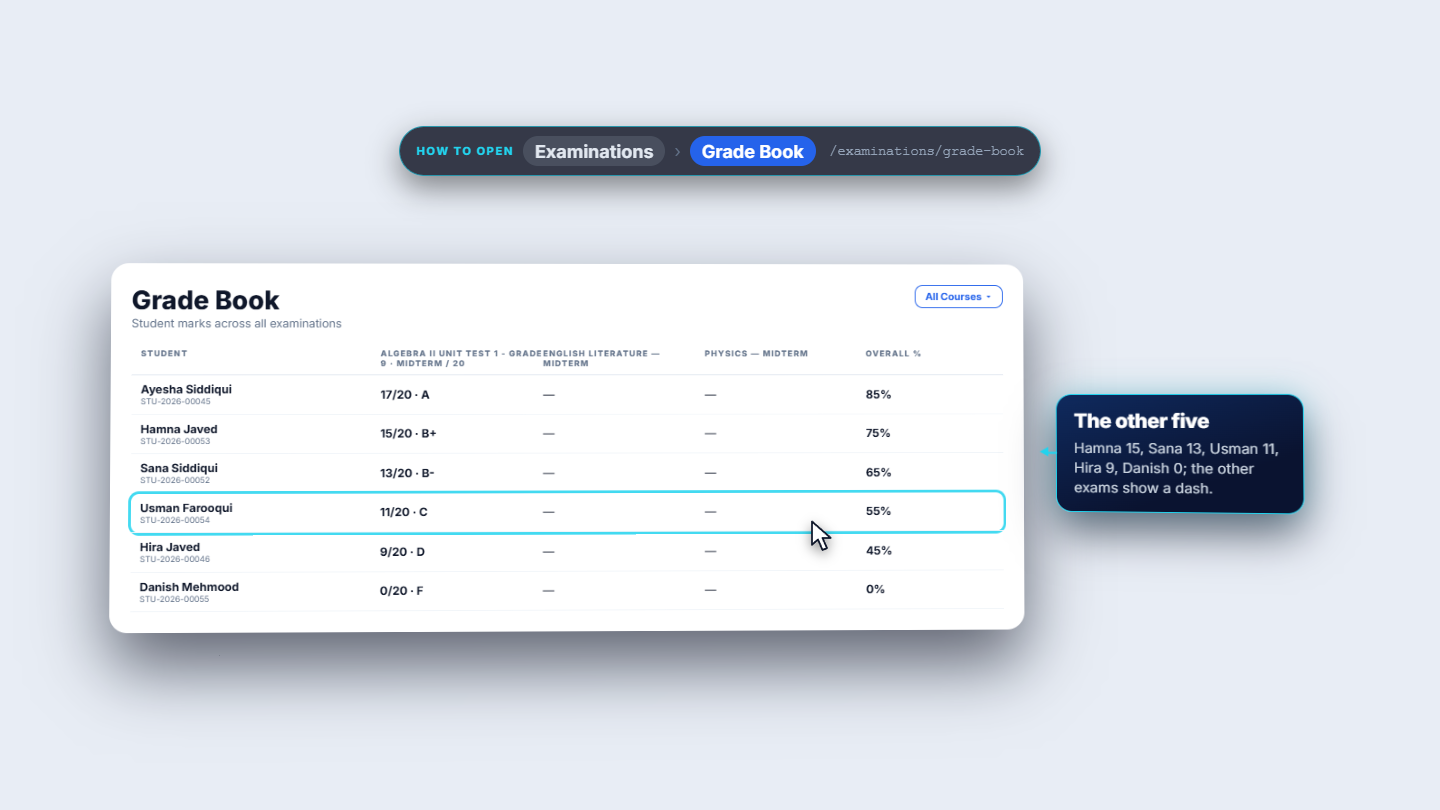
Open Examinations > Grade Book, "Student marks across all examinations". The new exam has its own column marked "MIDTERM / 20 marks". Ayesha shows 17/20, A, with Overall % 85%; Hamna 15/20 B+; Sana 13/20 B-; Usman 11/20 C; Hira 9/20 D; Danish 0/20 F. The other exams show "—" for these students. Use the All Courses filter to narrow the columns.
Grade Book with one column per exam and the Overall percentage
7
Print the report card
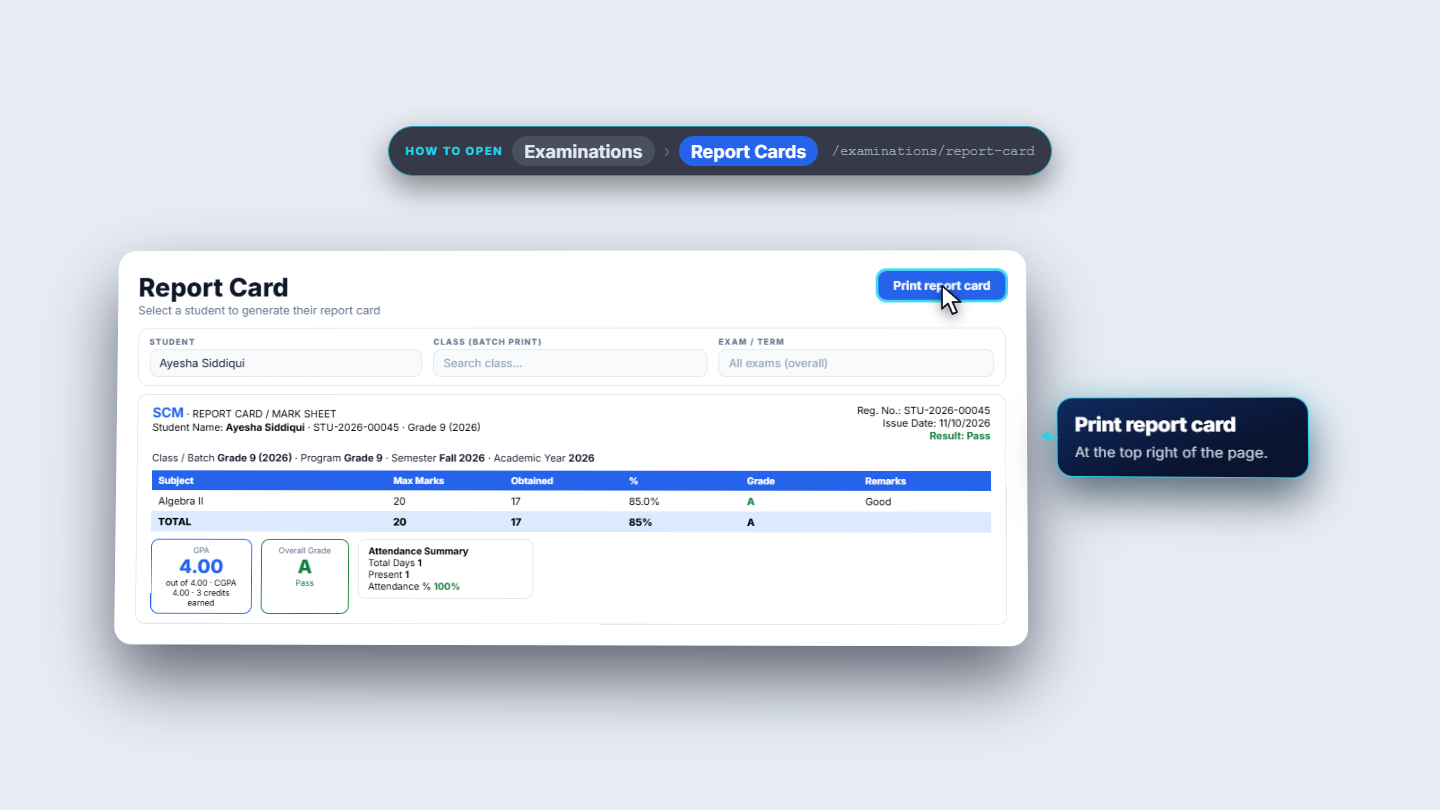
Open Examinations > Report Cards. Choose the Student, here Ayesha Siddiqui, and leave Exam / Term on "All exams (overall)". The card is titled "REPORT CARD / MARK SHEET" with Reg. No. STU-2026-00045, Class / Batch Grade 9 (2026), Result Pass. Algebra II shows Max 20, Obtained 17, 85.0%, grade A, remark Good, and the total is 20 / 17 / 85% / A. Press Print report card. To print a whole class, choose the class in Class (batch print).
Report card for Ayesha Siddiqui with Algebra II 17 out of 20
Check it worked
The toast said "Marks saved for 6 students", then "Results published".
The Results page shows 5 passed, 1 failed and an average of 54.2%.
Ayesha's 17/20 is the same on the Results page, in the Grade Book (Overall 85%) and on her report card.
The exam's status in the Exams list reads Published.
Common mistakes
Mistake
What you see
Fix
Forgetting to tick Absent for a student who missed the paper
The student has no mark and is not counted in the Save marks number
Tick Absent so the student is saved as absent.
Publishing before checking the marks
Students and guardians see the results at once
Read the Results table first, then publish.
Looking for the exam's column in the Grade Book before publishing
No marks for the exam
Publish the results first, then open the Grade Book.
Printing the card with a single exam in mind
The card shows all exams (overall)
Pick the exam in Exam / Term.
Quick reference
Item
Meaning / rule
Marks Obtained
A mark out of the exam's total, here 20
Absent
Counted as 0 out of 20, grade F, Fail
Save marks (n)
Counts students with a mark or an Absent tick
Publish Results
Students and guardians see the results immediately
Grade Book
One column per exam, with Overall % per student
Report card
Same marks as the Results page and the Grade Book
Frequently asked questions
Does the same mark appear on every screen? Yes. In this example Ayesha's 17 out of 20 shows on the Results page, in the Grade Book and on her report card.
How is an absent student shown? Absent students are stored as 0 out of 20 and shown with grade F and status Fail on every screen.
When can students and guardians see the marks? As soon as you confirm Publish Results. The dialog says they will see the results immediately.
Can I print report cards for a whole class? Yes. The Report Cards page has a Class (batch print) filter next to the Student filter.