You will find a vehicle in the fleet register, add a new one, read its full profile, assign a driver and mark it off the road. You need this whenever a car joins your fleet, goes to the workshop or changes hands.
Who it is forTaxi or fleet dispatcher or operator ownerTime6 minutesProductFMSLevelBeginner
Before you start
Steps
1
Open the register and filter it
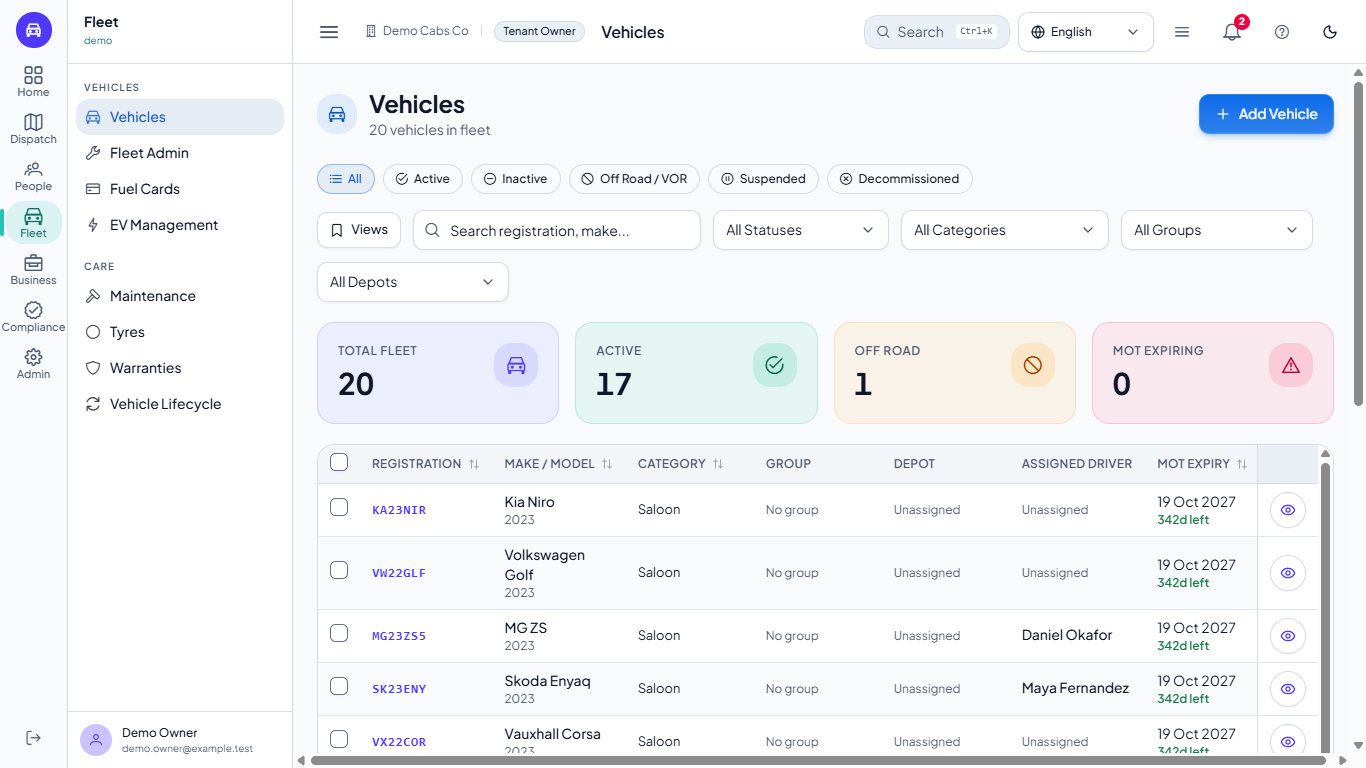
Open Fleet > Vehicles. The tabs split the fleet by status: All, Active, Inactive, Off Road / VOR, Suspended and Decommissioned. Four cards show Total Fleet, Active, Off Road and MOT Expiring, counted over the whole fleet, and the table pages through every vehicle (15 a time) and shows each vehicle's group and depot beside its assigned driver and MOT expiry. Search by registration or make; a plate is found with or without its spaces, so smkf33a finds SMK F33 A. You can also use the status, category, group and depot dropdowns. Click the Off Road / VOR tab to see only the cars that are not available.
The Vehicles list with status tabs, cards and table
2
Add a vehicle
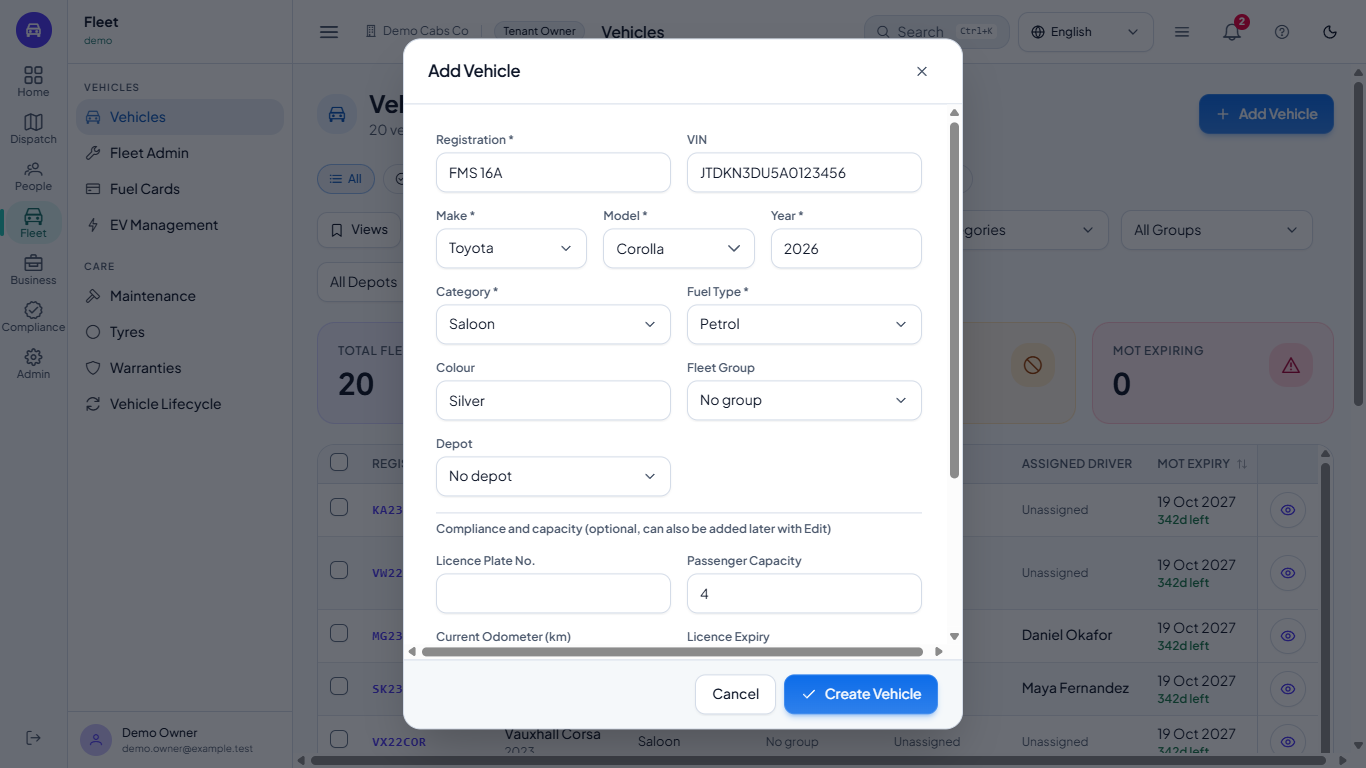
Click Add Vehicle. Fill in Registration, pick the Make and then the Model, set the Year, choose a Category and a Fuel Type, and add a Colour if you want. Fleet Group and Depot place the vehicle in your fleet structure; both start on No group and No depot. VIN is optional, and the section Compliance and capacity takes the passenger capacity, odometer and the licence, MOT, tax and insurance dates if you have them. If you press Create Vehicle with fields empty, each missing one turns red with a message. Click Create Vehicle; the message Vehicle created appears and the fleet count goes up by one.
The Add Vehicle dialog filled in for a Toyota Corolla
3
See the new vehicle in the list
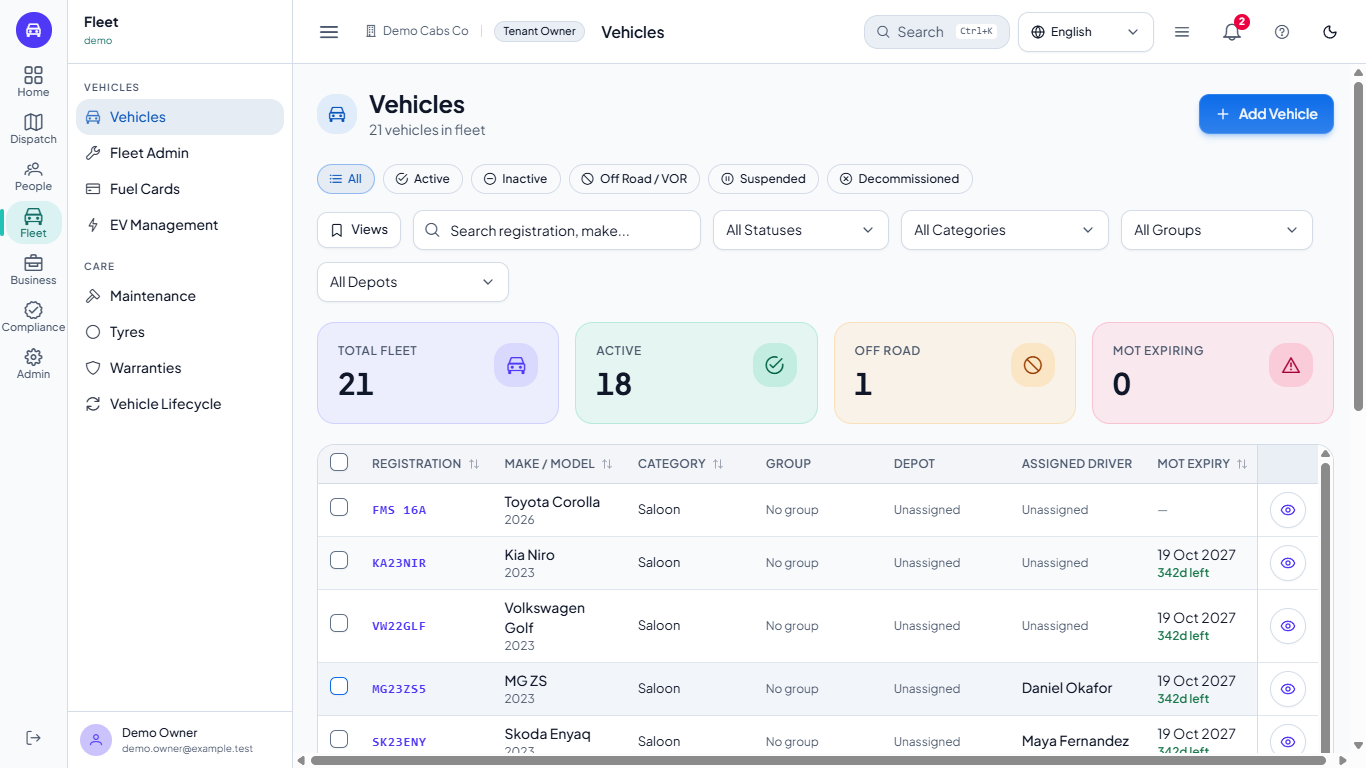
The new row shows first, ACTIVE and Unassigned, with a dash for MOT expiry until you enter the date. You can also search for the plate.
The new vehicle FMS 16A in the list as Active and unassigned
4
Read the vehicle profile
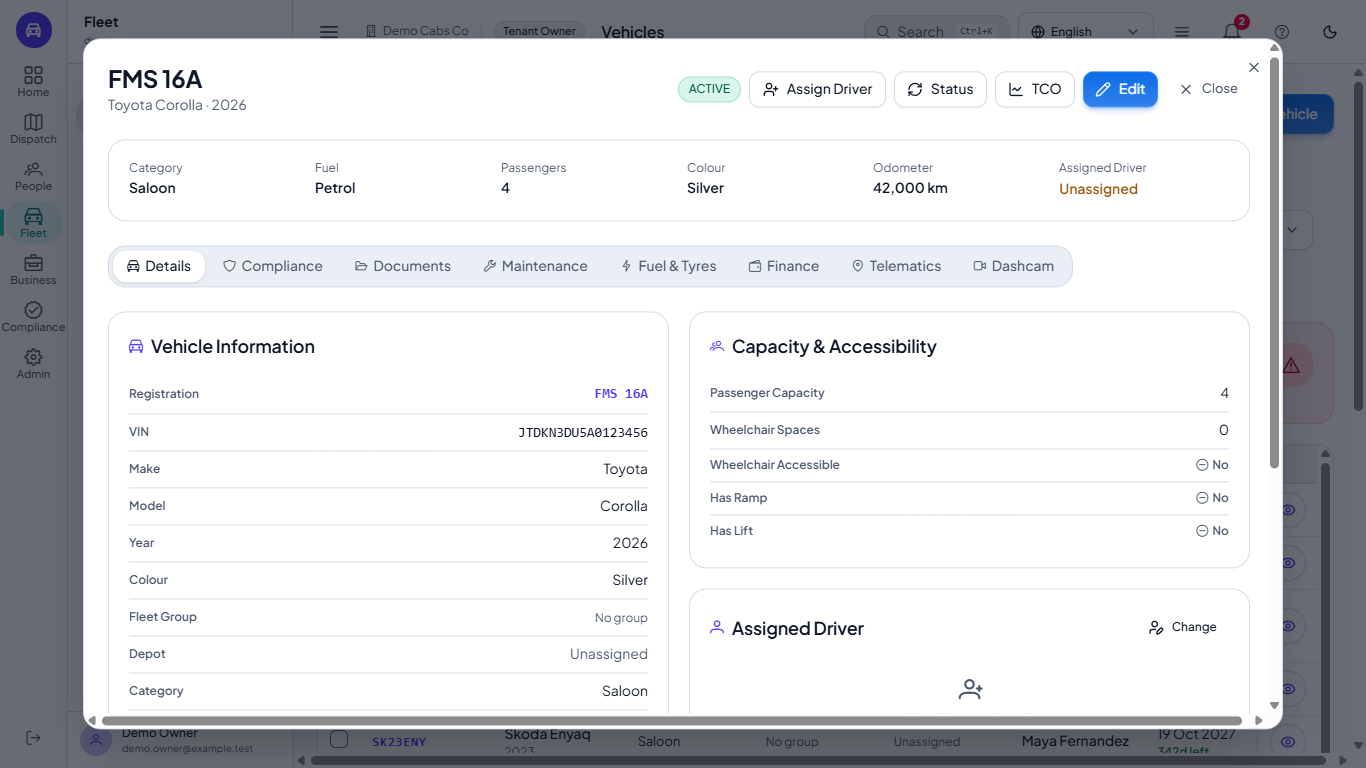
Click the registration or the eye button. The profile opens on the same screen. The top strip shows category, fuel, passengers, colour, odometer and assigned driver. Use the tabs Details, Compliance, Documents, Maintenance, Fuel & Tyres, Finance, Telematics and Dashcam. The Details tab also holds the Depot transfers and the History. Click Edit to add the engine size, capacity, MOT, tax and insurance dates, telematics device and notes. Click TCO to open the cost of ownership page for the vehicle.
The vehicle profile dialog with key facts and tabs
5
Assign a driver
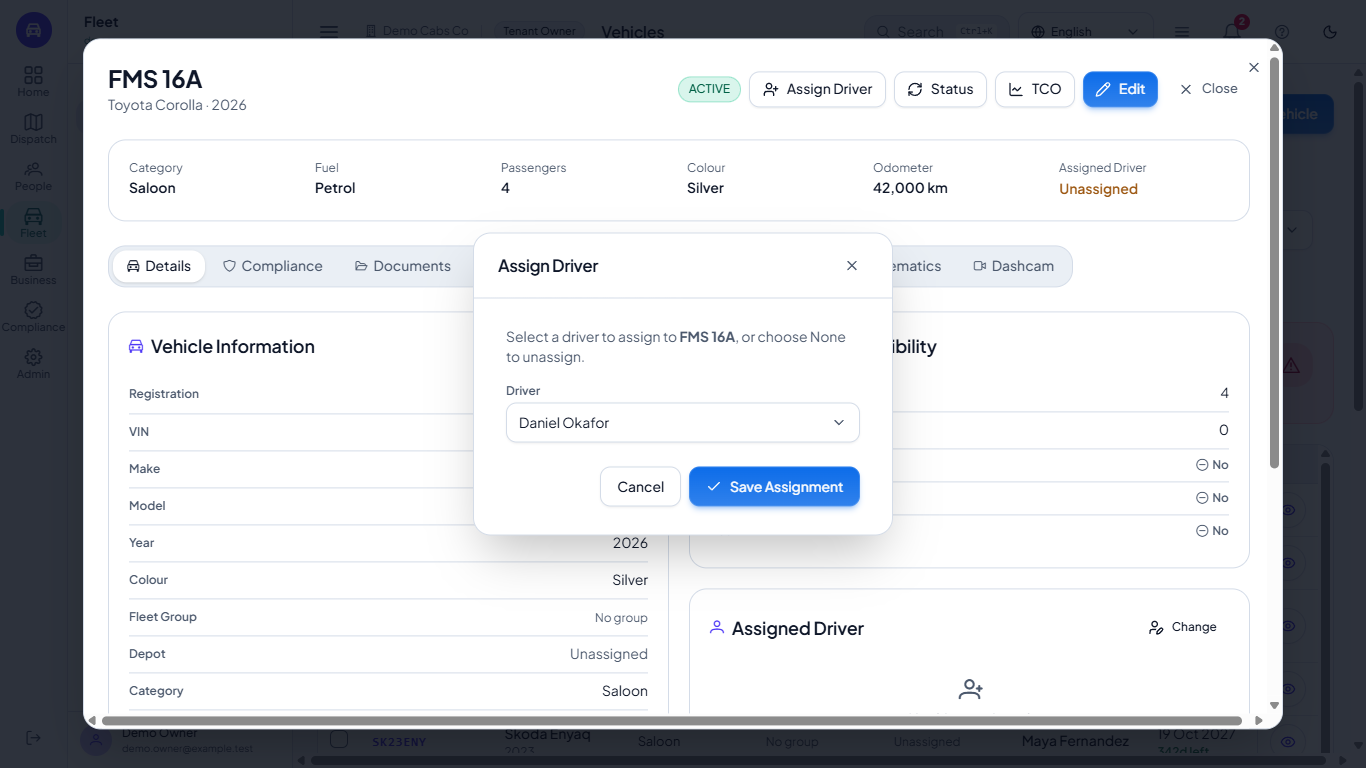
Click Assign Driver, choose a driver (or None to unassign) and click Save Assignment. The message Driver assignment updated appears and the strip now shows the driver.
The Assign Driver dialog with a driver chosen
6
Take the vehicle off the road
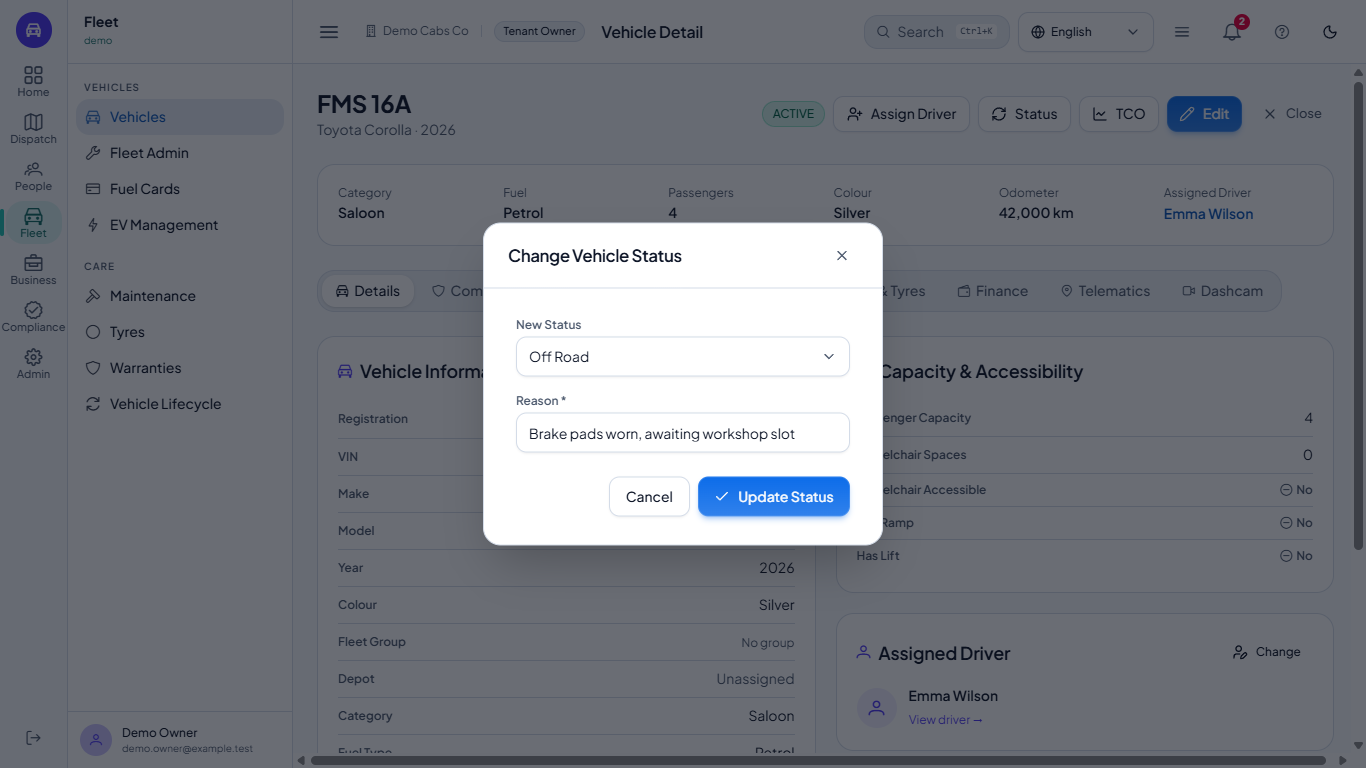
Click Status. The list offers only the statuses the vehicle can move to. Pick Off Road, type the reason, for example "Brake pads worn, awaiting workshop slot" (it is required when a vehicle leaves service) and click Update Status. The message Status updated appears and the badge turns OFF ROAD; the vehicle now shows under the Off Road / VOR tab, and the History on the vehicle records who changed it and why.
The Change Vehicle Status dialog set to Off Road with a reason
Check your work
The vehicle appears in the list with the status you set.
The profile strip shows the driver you assigned.
The History lists the change with your reason.
Common problems
"already exists" when adding: the plate is already in the fleet, possibly under another status. Search for it.
The year is refused: enter a year from 1900 onwards; the message tells you what is allowed.
A driver cannot be assigned: the driver already drives another vehicle, or the vehicle is decommissioned.
A decommissioned vehicle cannot be set back to Active: a decommissioned vehicle is retired for good; add it again as a new vehicle if it returns.
Frequently asked questions
Can I add the MOT and insurance dates when I create a vehicle? Yes. The Add Vehicle dialog has a Compliance and capacity section with the licence, MOT, tax and insurance dates; you can also add them later with Edit.
What happens to a vehicle I mark Off Road? Its badge turns OFF ROAD and it moves to the Off Road / VOR tab, so dispatch can see it is not available.
Can I change the plate later? Yes, with Edit. A plate that already belongs to another vehicle is refused with a clear message.