How to track vehicle MOT and insurance expiry dates
You will read a vehicle's compliance dates, change a date when a document is renewed and use the Document Expiry Dashboard to see what has expired or is about to. You need this every time an MOT, an insurance policy or a licence is renewed.
Who it is forTaxi or fleet dispatcher or operator ownerTime5 minutesProductFMSLevelBeginner
Before you start
Steps
1
Read the compliance dates of a vehicle
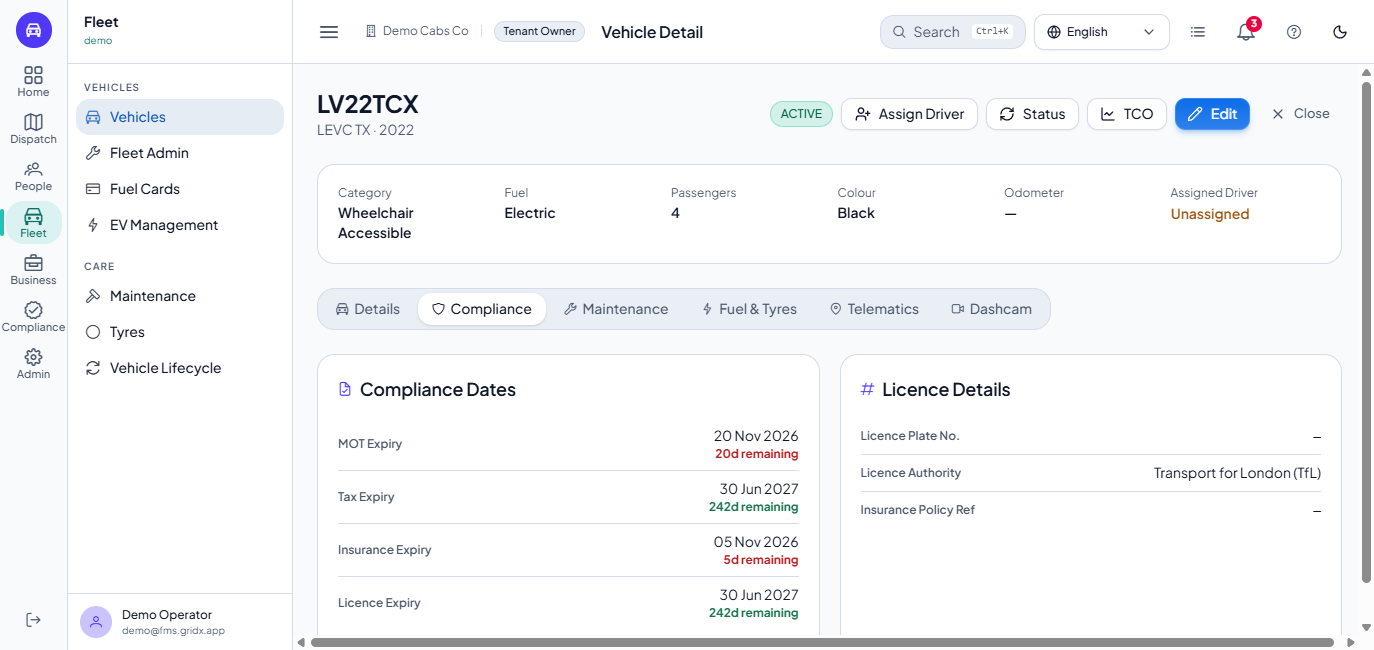
Open Fleet > Vehicles and click the registration (or the eye button) of a vehicle. Open the Compliance tab. The card Compliance Dates shows MOT Expiry, Tax Expiry, Insurance Expiry and Licence Expiry, each with the days remaining: red when the date is close, green when it is far away. Licence Details holds the licence plate number, the licence authority and the insurance policy reference.
The Compliance tab of a vehicle with MOT, tax, insurance and licence dates
2
Change a date after a renewal
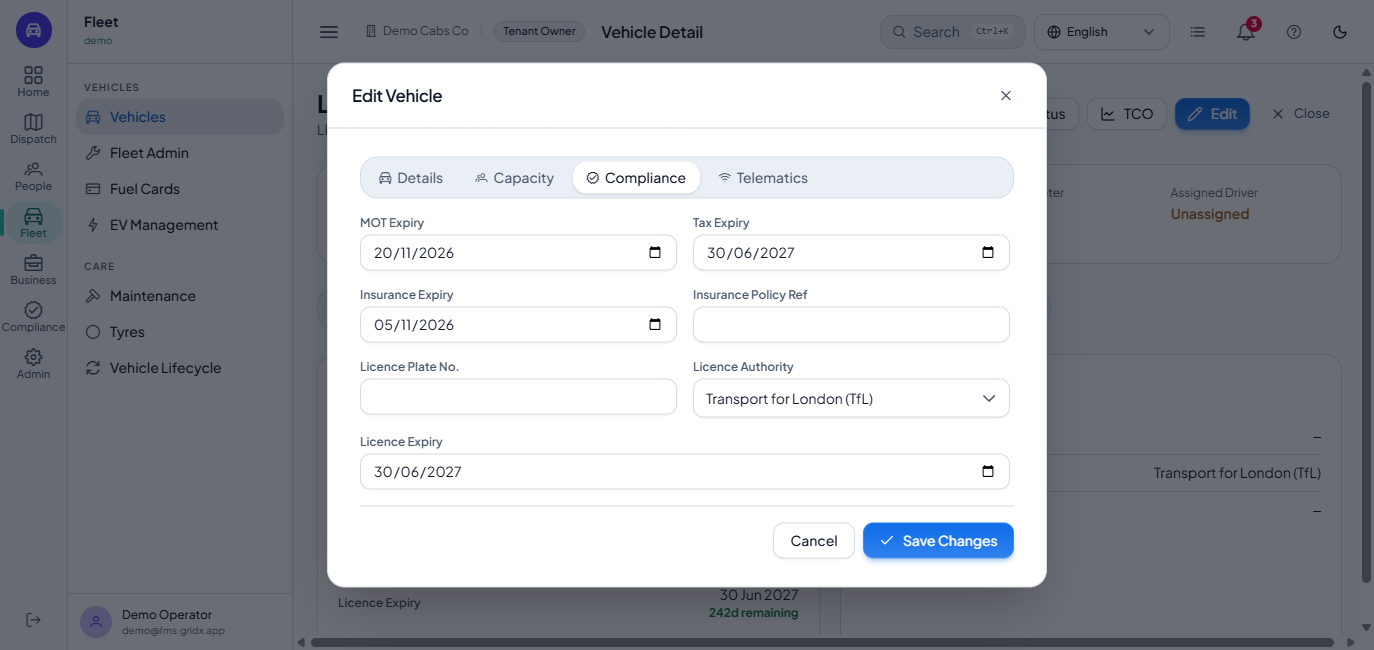
Click Edit and open the Compliance tab. Pick the new MOT Expiry, Tax Expiry, Insurance Expiry or Licence Expiry, add the Insurance Policy Ref if you want, and click Save Changes. The message Vehicle updated appears and the Compliance tab shows the new date and days.
The Edit Vehicle dialog on its Compliance tab
3
See everything that is due
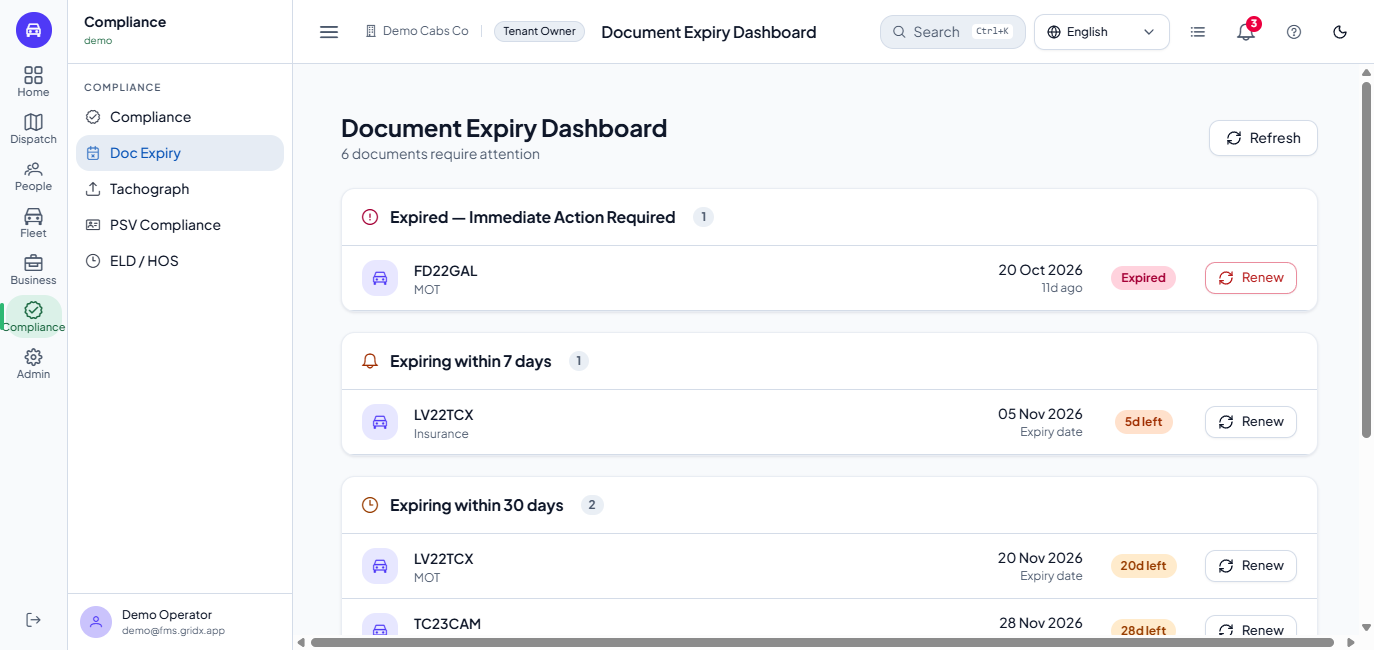
Open Compliance > Doc Expiry. The page lists vehicle and driver documents in three bands: Expired - Immediate Action Required, Expiring within 30 days and Expiring within 90 days, each with the registration or name, the document, the date and the days left. The subtitle counts how many documents need attention. Refresh reloads the lists.
The Document Expiry Dashboard with expired, 30 day and 90 day bands
4
Open the record to renew
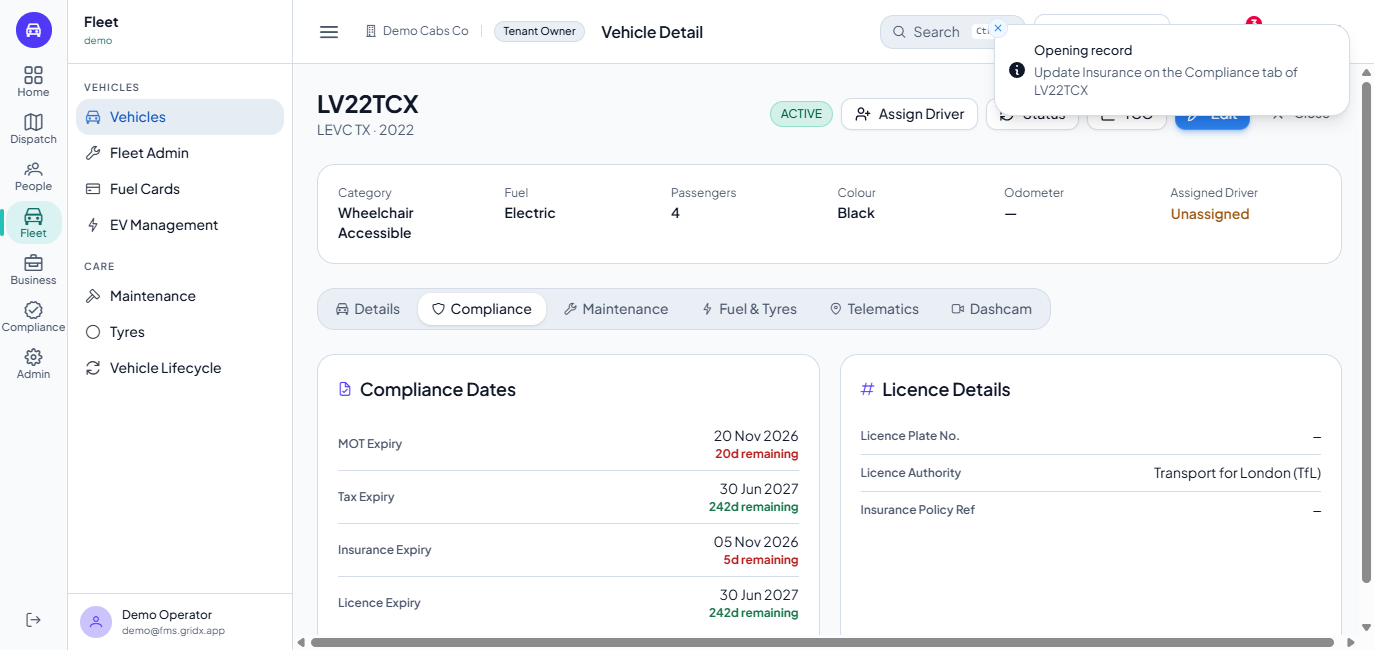
Click Renew on a row. The app opens that vehicle with the message "Navigate to ... to update documents". Open the Compliance tab and use Edit as in step 2. Once the new date is saved the item leaves the dashboard.
The vehicle page opened from Renew with a message
Check your work
The Compliance tab of the vehicle shows the new date and a green days-remaining figure.
The vehicle no longer appears in the 30 or 90 day band of the dashboard.
The Vehicles list card MOT Expiring counts the vehicles whose MOT is expired or due within 30 days.
Common problems
A document is missing from the dashboard: the dashboard lists Active vehicles only; a vehicle that is Off Road, Suspended or Decommissioned is not listed.
The date is refused: enter a real calendar date.
Road tax is not on the dashboard: the dashboard covers MOT, insurance and the vehicle licence; keep an eye on the Tax Expiry on the vehicle itself.
Frequently asked questions
Can I upload the MOT certificate? Not yet. The vehicle holds the dates and the policy reference, not the certificate file.
Does a vehicle stop being used when its MOT expires? The vehicle is suspended by an automatic check that runs once a night; until then it stays Active.
Why do the vehicle screen and the dashboard differ by a day? They round the days left differently; the date itself is the same.