How to hold a sale, serve the next customer and recall the cart later
A customer goes to fetch their wallet, or another customer is waiting. This guide shows how to park a cart without losing it, serve someone else, bring the first cart back with its customer, and finish it with a normal payment.
Who it is forCashierTime10 minutesProductPOSLevelBeginner
Before you start
Steps
1
Park the cart
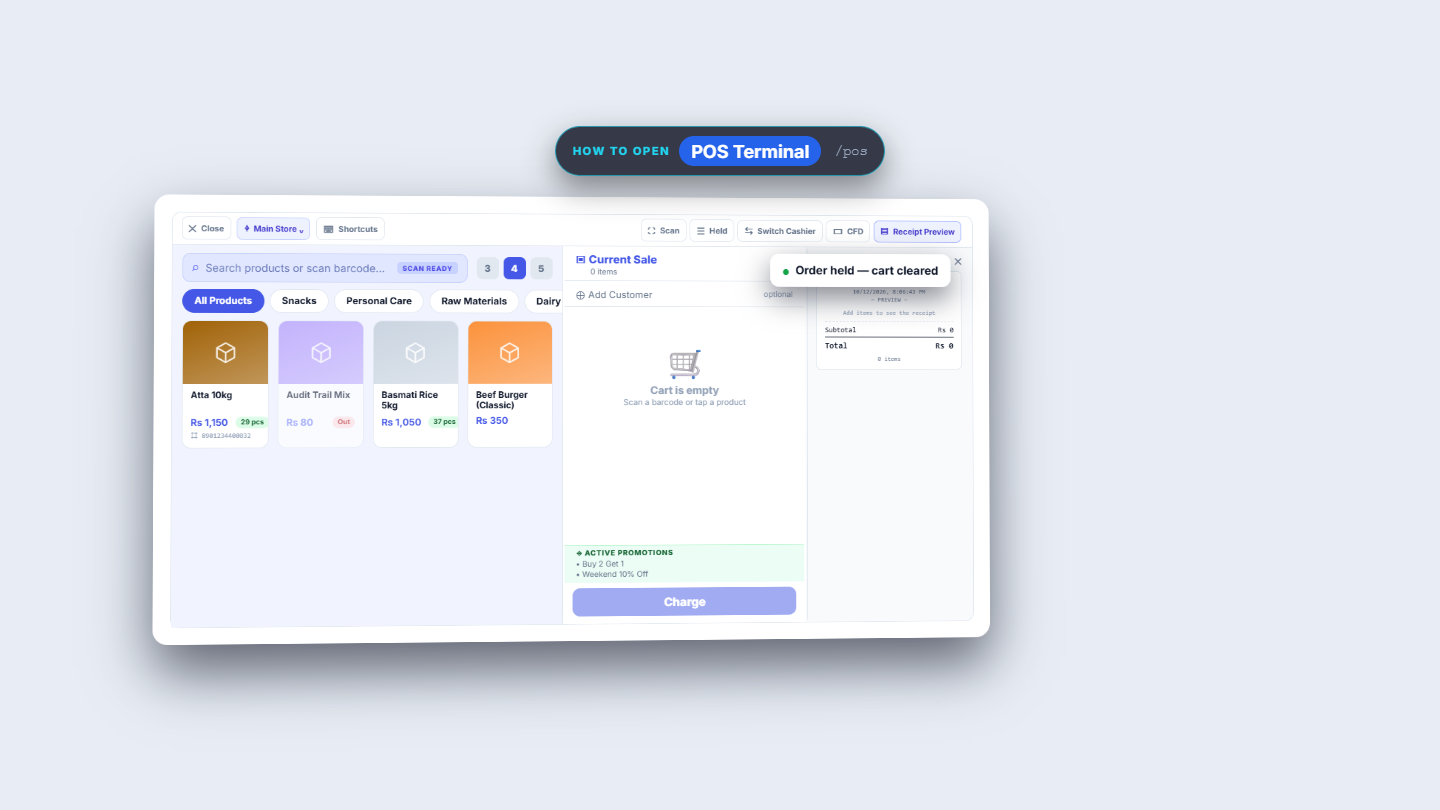
Nadia Rauf's cart holds Cheese Slice (10 pcs) and Atta 10kg: Subtotal 1,470, Weekend 10% Off -147, Total Rs 1,323. Press Hold Order in the top bar. A toast says Order held — cart cleared. The cart is empty for the next customer, and no payment was taken. Three buttons deal with parked carts: Hold Order, Held (the list of parked carts) and Save Draft.
POS Terminal with an empty cart after the toast Order held, cart cleared
2
Find the parked carts and bring one back
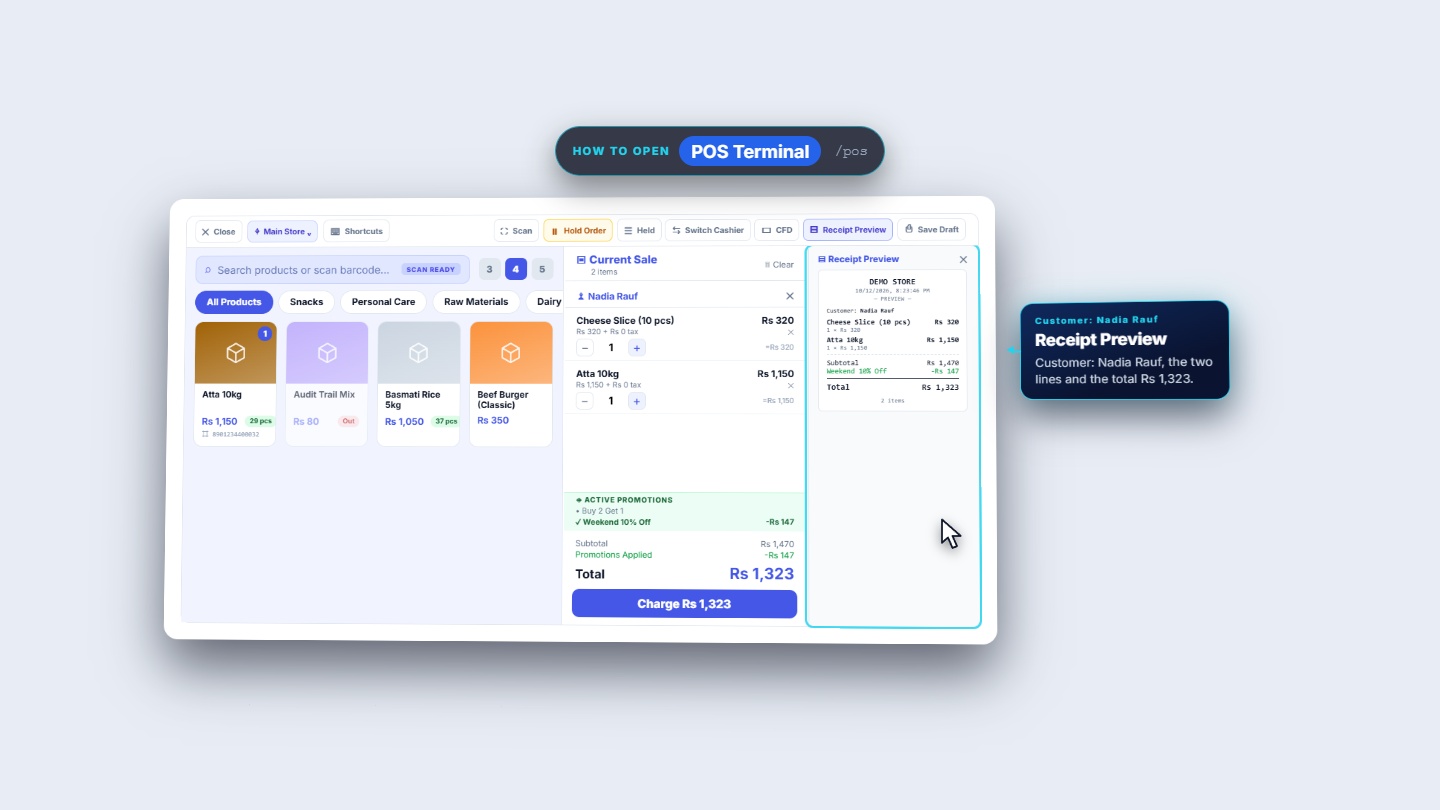
Press Held. The Held Orders window counts the parked carts, shows how much money is on hold, and lists each one with its invoice number, the customer or Walk-in, the item count and the time. Press Retrieve on Nadia's row. The toasts Held order cancelled and Cart restored from held order appear. Both lines are back, the total is Rs 1,323, and Nadia Rauf is on the cart again. Receipt Preview names her too.
Cart restored from a held order with Nadia Rauf and the Receipt Preview
3
Remember that paying needs a shift
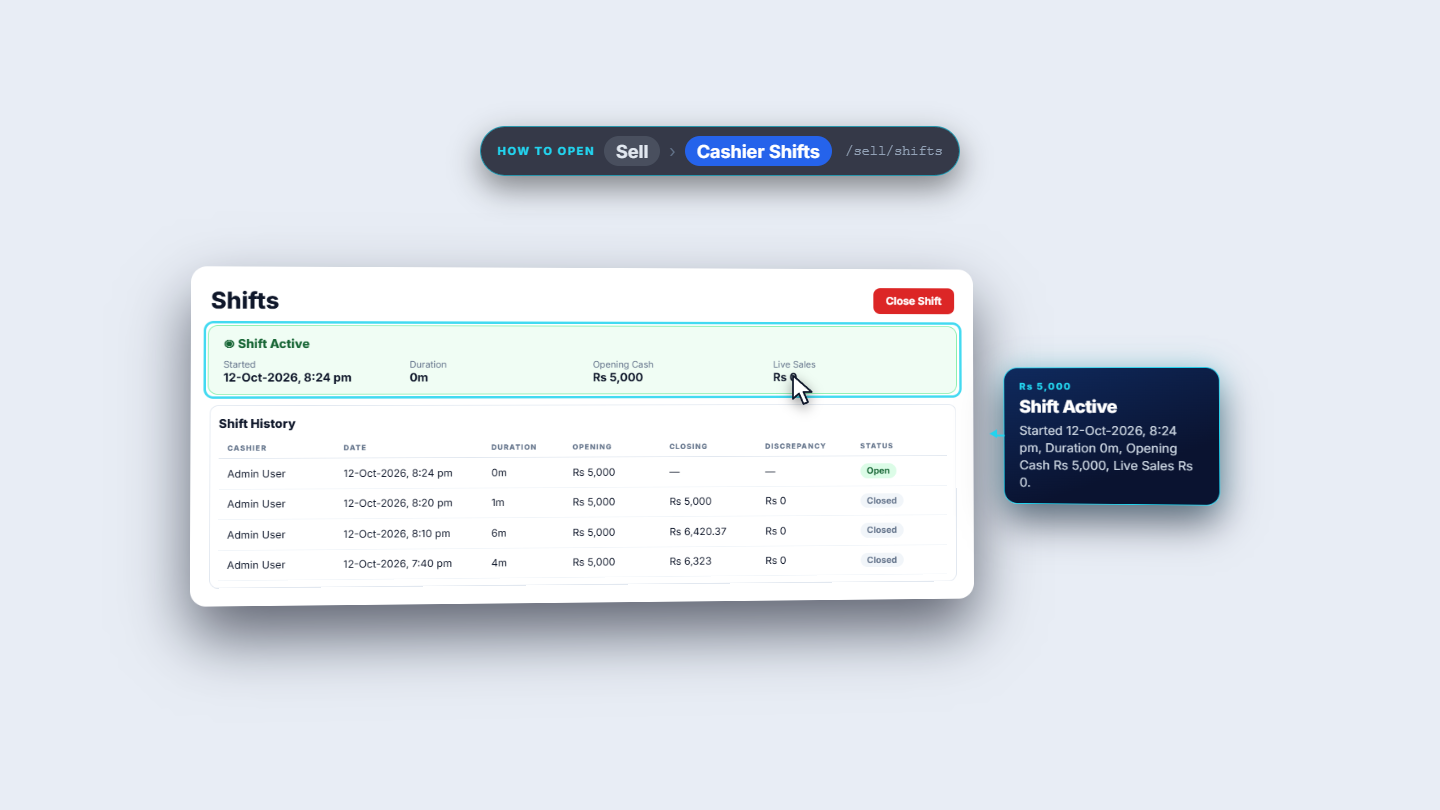
Press Charge with no shift open and the app says Please open a shift before making sales. Park the cart again with F8, then go to Sell › Cashier Shifts and press Open Shift. Type Opening Cash 5000 and press Open Shift. The app says Shift opened. Back at the terminal, Held still lists the cart; a hold survives leaving the terminal. Press Retrieve to bring it back.
Cashier Shifts page with the Shift Active card after opening the shift
4
Use Save Draft as a second way to park
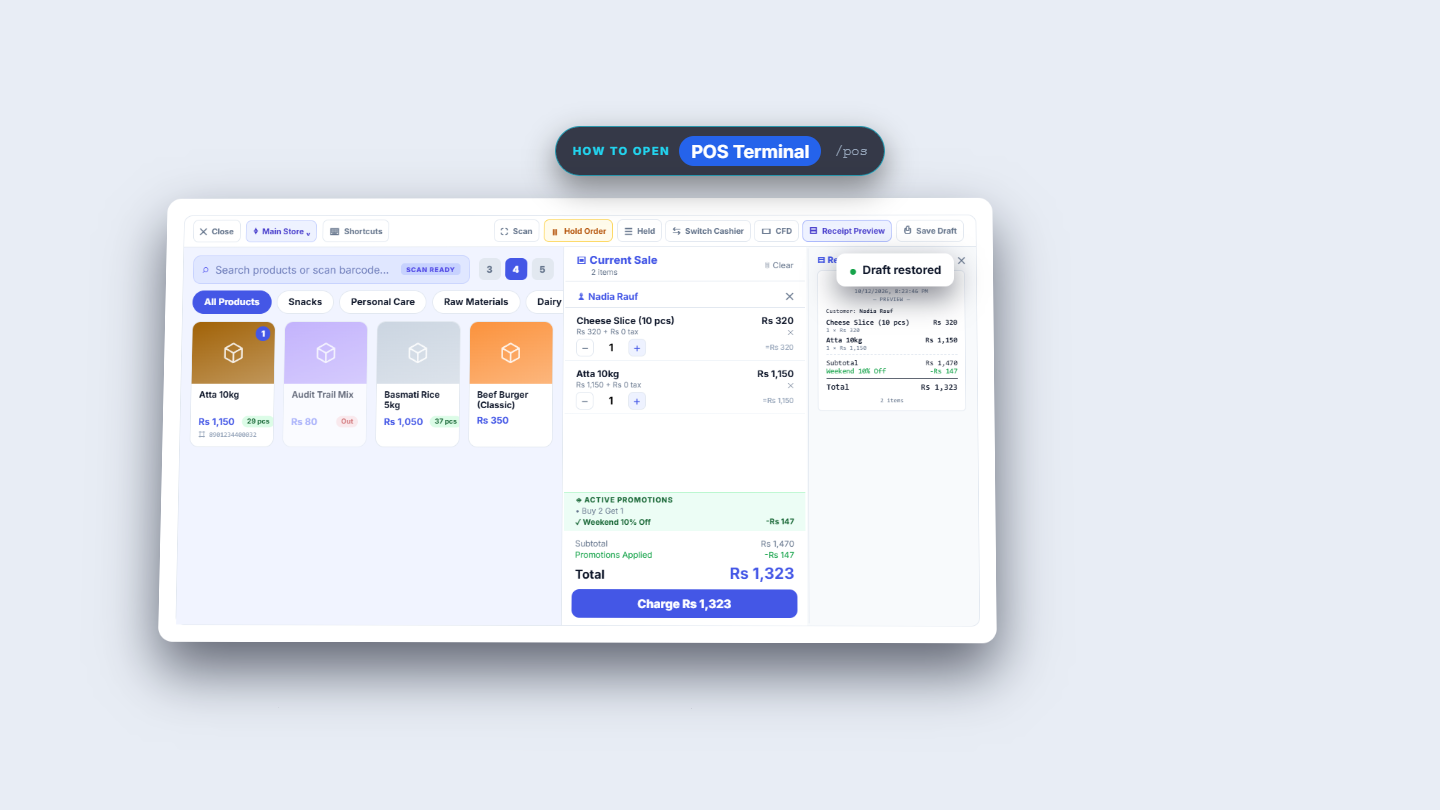
Press Save Draft. The app says Draft saved. The draft, customer included, is kept in this browser. Press Clear and confirm Are you sure you want to clear the cart?: the cart is empty. A Restore Draft button now shows in the top bar. Press it: the toast Draft restored appears with both lines and Nadia Rauf back, and the draft is gone.
POS Terminal with the draft restored, customer and both lines back
5
Take the payment
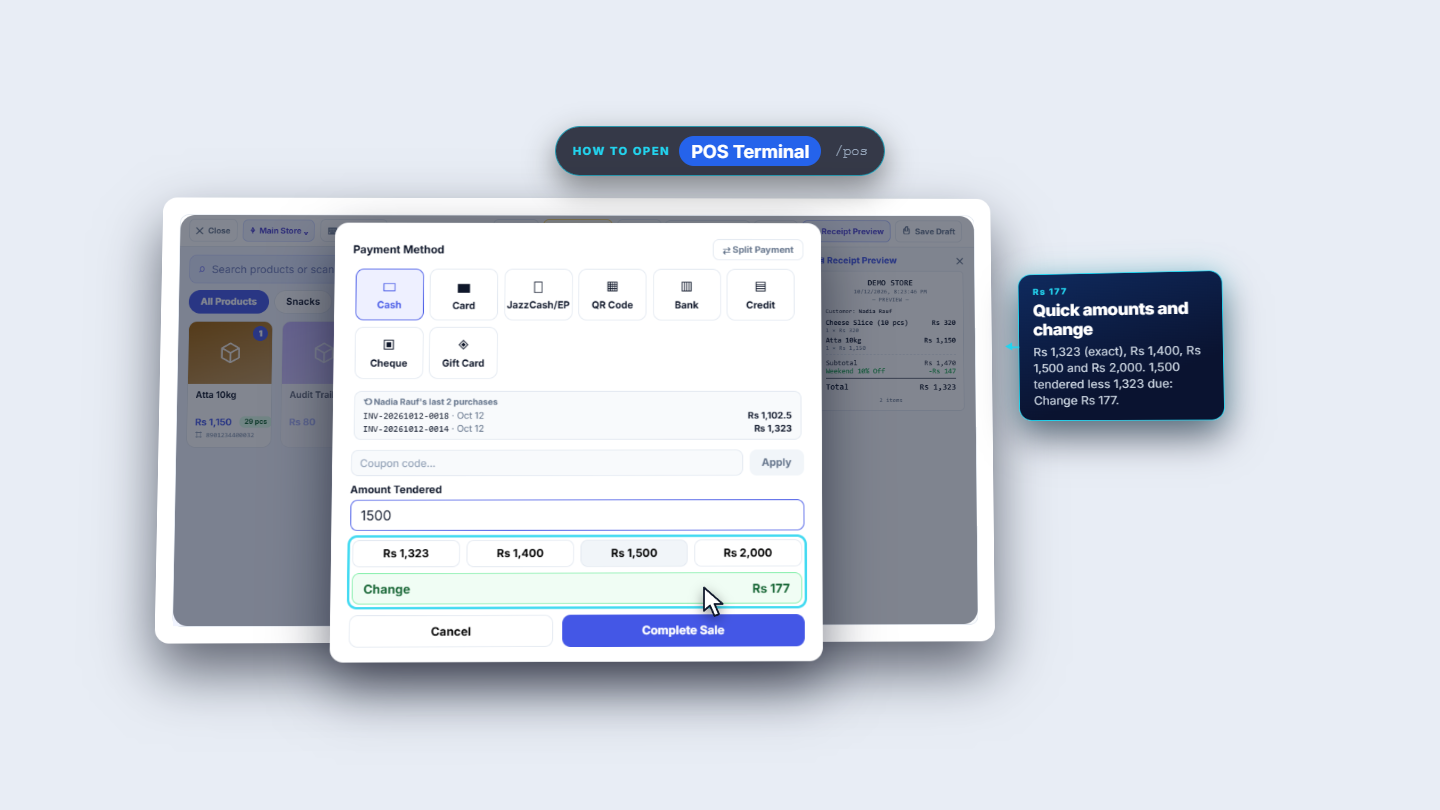
Nadia Rauf is already on the cart, so press Charge. Payment shows Subtotal 1,470, Promotions Applied -147, Tax 0 and Total 1,323 with 132 points to earn. Cash is selected. Below the methods her last 2 purchases are listed. Quick amounts offer 1,323, 1,400, 1,500 and 2,000. Press 1,500: Change shows 177. Press Complete Sale. The toast says Sale completed! Invoice: INV-20261012-0022, a new number rather than the hold's.
Payment dialog with Cash selected and quick amount buttons
6
Check Sales History
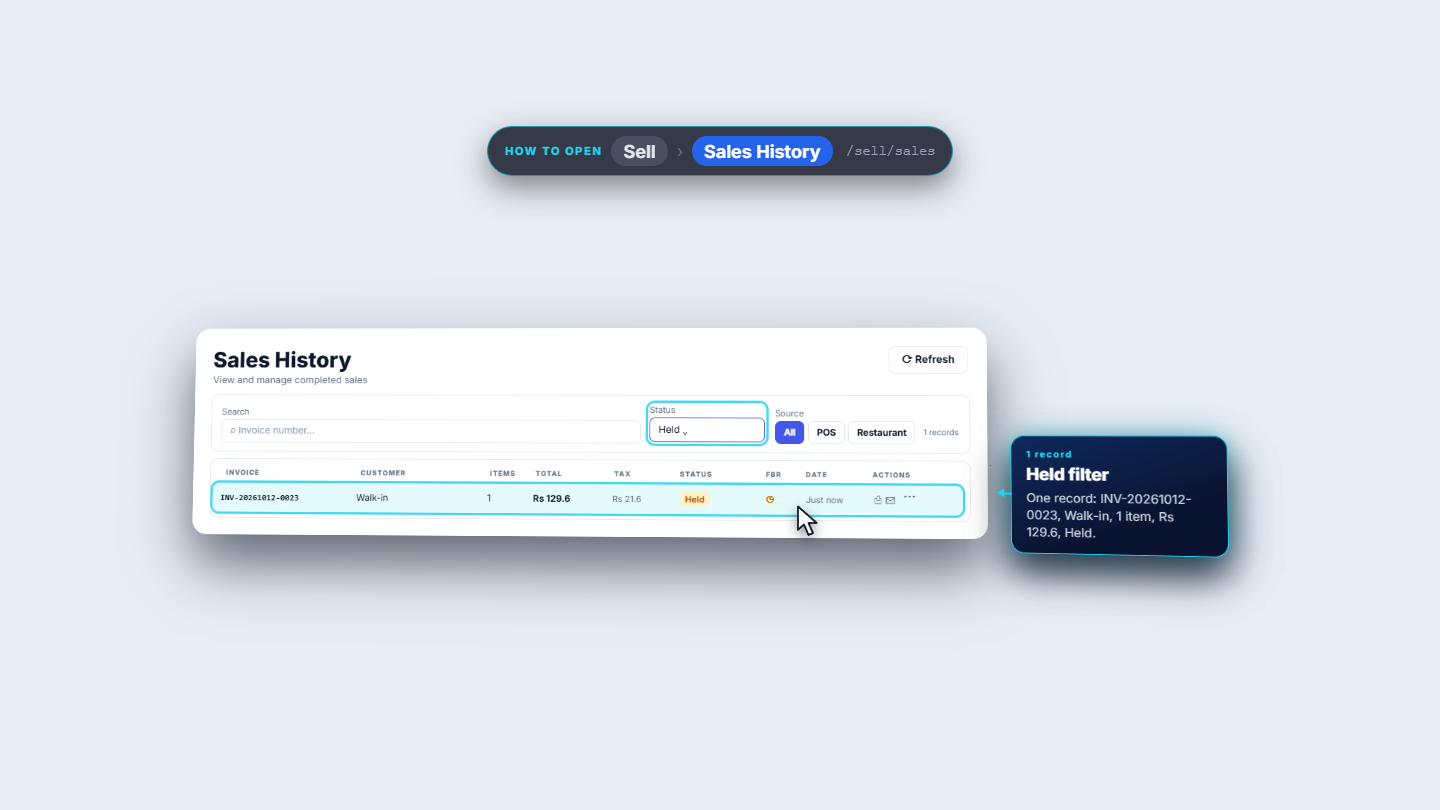
Open Sell › Sales History. The paid sale reads Completed. The holds you closed read Voided, and a hold that is still parked reads Held. The Status filter offers All statuses, Completed, Voided, Refunded and Held; choose Held to see only the parked carts.
Sales History list with Completed, Voided and Held rows
7
See that only the paid sale is in the books
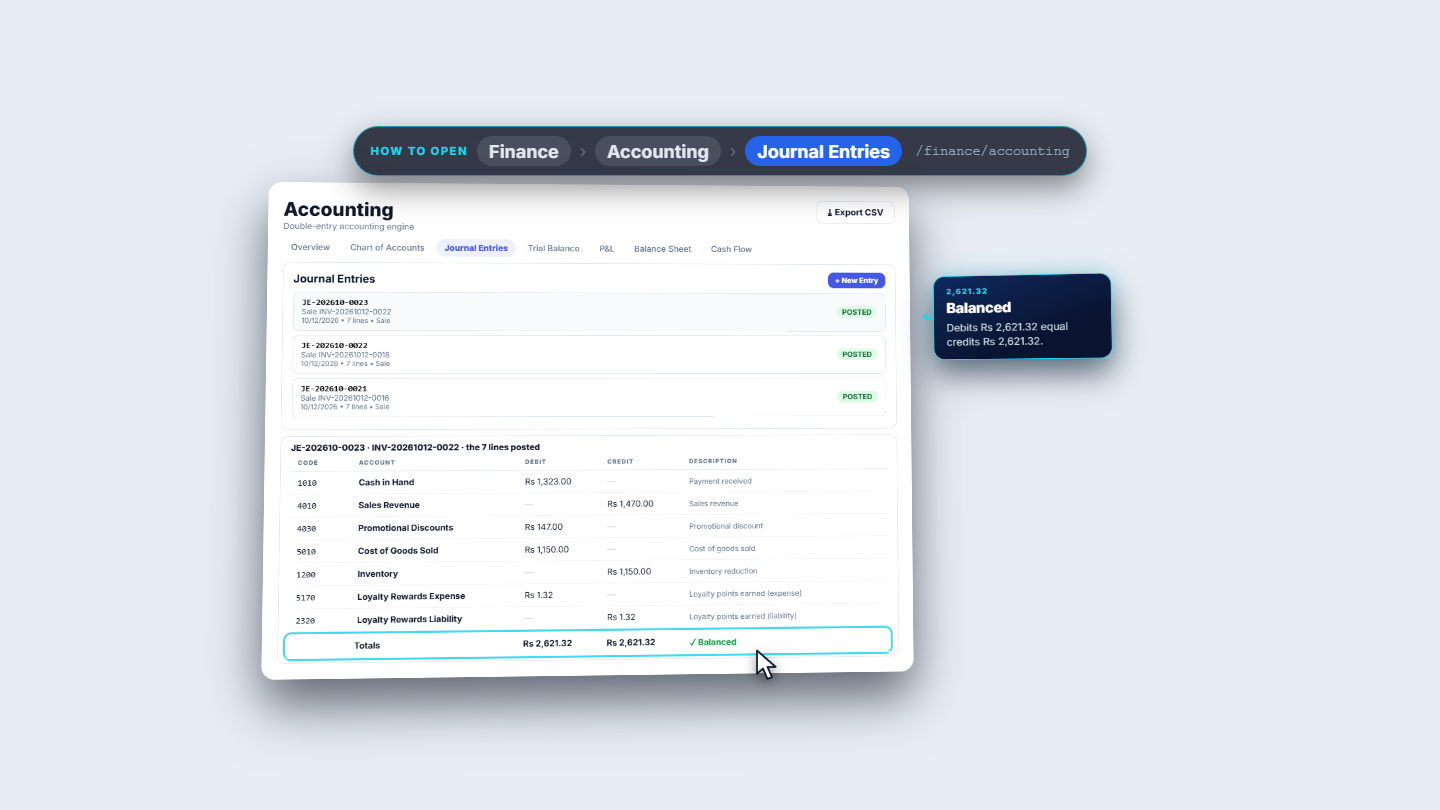
Open Finance › Accounting › Journal Entries. The paid sale has one entry, which debits Cash in Hand Rs 1,323, credits Sales Revenue Rs 1,470 and debits Promotional Discounts Rs 147, with the cost of goods against Inventory. The entry numbers run straight on: the holds posted nothing.
Journal Entries page showing the entry for the paid sale only
Check it worked
Held shows no carts you meant to finish, or No held orders.
The paid sale is Completed in Sales History, with Paid 1,500 and Change 177 on the receipt.
The Trial Balance moved only by the one paid sale and stays balanced.
Common mistakes
Mistake
What you see
Fix
Pressing Charge with no shift open
Please open a shift before making sales
Park the cart, open a shift, retrieve the cart
Cancelling a hold by accident
Held order cancelled, no confirmation
Rebuild the cart; Cancel does not ask
Looking for a draft on another computer
No Restore Draft button
Drafts stay in the browser that saved them; use Hold Order instead
Quick reference
Item
Meaning / rule
Hold Order (F8)
Parks the cart, with its customer, and clears the screen
Held
Lists parked carts; Retrieve restores one, Cancel removes it
Save Draft / Restore Draft
Parks the cart in this browser only
Voided
How Sales History shows a hold that was closed
Frequently asked questions
Can I park a cart if my shift is not open? Yes. Parking a cart needs no shift, but paying does. If you press Charge without a shift the app says Please open a shift before making sales, so open one under Sell › Cashier Shifts and retrieve the cart.
Does a held cart keep its customer? Yes. When you press Retrieve on a held order the cart comes back with both lines and the customer, for example Nadia Rauf, and Receipt Preview names her too.
What is the difference between Hold Order and Save Draft?Hold Order (F8) parks the cart in the Held list. Save Draft keeps the cart in this browser only, so use a held order when another till may need the cart.
Do held orders change the books? No. Holds post nothing, and only the paid sale has a journal entry. In Sales History a hold you closed reads Voided and a parked one reads Held.