It's the lunch rush and the line is out the door. Half those customers would happily tap their own order on a screen if you let them — and that's exactly what kiosk mode does. It turns any touchscreen, whether a wall-mounted tablet, a countertop screen, or a freestanding terminal, into a branded self-ordering station. Customers browse, customize, and pay on their own, and the order drops straight into your kitchen display or printer. No queue bottleneck, no extra cashier.
Here's how to set one up and what the customer experience looks like end to end.
What you'll need first
Before you start, make sure you've got a touchscreen device — a 10-inch screen is about the smallest that feels comfortable to tap on — with ClearRing either installed or running in browser mode. You'll also need your products set up with prices and at least one active category, since an empty menu makes for a short kiosk session.
Switch on kiosk mode
Go to Settings, then Terminals, and open the terminal you want to run as a kiosk (or create a new one). Toggle Kiosk Mode on, then set a few options to match how you want it to behave.
The settings worth getting right: auto-lock after idle, where around 120 seconds works well so the screen resets between customers; showing the category strip, which you'll generally want on; allowing guest checkout, also usually on so people can order without an account; and requiring a customer phone number, which you can leave optional unless you lean on loyalty or SMS receipts.
Save, then click Launch Kiosk from the terminal settings page — or just point that device's browser straight at /kiosk.
Lay out your menu
A kiosk lives or dies on how easy the menu is to scan. In Products, then Categories, drag your categories into the order you want them to appear in the strip along the top. Rename them to short, plain labels a hungry customer reads instantly — "Burgers" beats "Hot Sandwiches - Premium" every time.
For each product, a little prep goes a long way. Give it a clear name, ideally under about 20 characters before the card truncates it. Set the price. Write a short description, since it shows on the product card. And assign an emoji or product image — emojis in particular look great on the dark kiosk cards and make browsing feel quick.
How a customer places an order
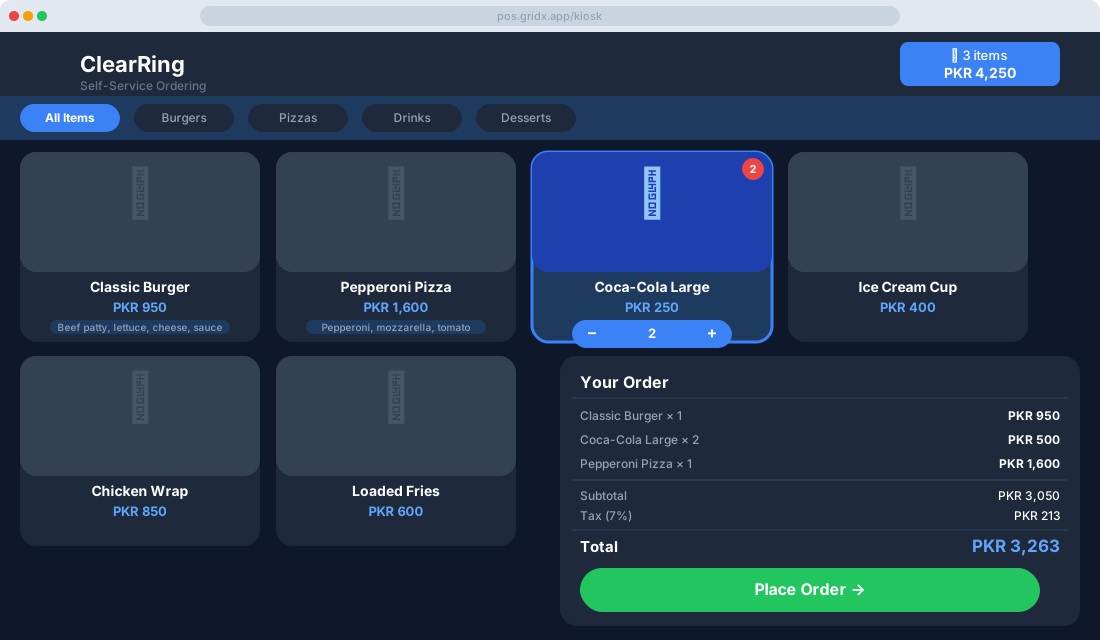
When someone steps up to the kiosk, they see three things: the category strip across the top to filter the menu, a grid of product cards each showing a name, price, and short description, and a live cart panel down the right that updates as they go.
Adding an item is a single tap on its card. If the product has no variants, it lands in the cart immediately. If it does — say a small or large size — a modal opens so they pick first. Once something's in the cart, plus and minus buttons appear on the card for adjusting quantity, and the cart panel keeps a running total in view the whole time.
When they're done, they tap the green Place Order button in the cart. A review screen lays out the final order — line items, subtotal, tax, and total. From there they can tap Back to keep browsing or Confirm Order to move to payment. No surprises, which is the point.
Paying at the kiosk
The payment screen shows whichever methods you've enabled. Most setups offer some mix of the following. Cash, where the customer pays at the counter and the order queues as "Pending Cash." Card through an integrated terminal, tapping or inserting on a reader attached to the kiosk. QR or mobile wallet, where they scan a code shown on screen. And loyalty points, available if they've entered their phone number.
Once payment goes through, the kiosk shows a success screen with the order number and an estimated wait time. The receipt either prints automatically or, if they entered a phone number, arrives by SMS.
The order reaches the kitchen
The moment payment confirms, the order appears on the Kitchen Display System, or prints on the kitchen printer if that's how you've set things up under Settings, then Printers. The kitchen ticket shows the order number in large type so it's readable across the room, the items with any customizations or notes, and the time the order was placed.
When the kitchen marks it Ready, a connected kiosk-area display can show that order number as ready for collection — closing the loop without anyone calling out names over the noise.
Making it look like yours
Under Settings, then Kiosk Appearance, you can dress the kiosk in your own brand. Upload a logo for the top-left, set a primary color for buttons and highlights, and choose a dark or light background theme. You can also configure the idle screen — either a slideshow of your product images or a promotional banner with a "Tap to Order" prompt to pull people in when no one's using it.
A few things that make kiosks work better
Keep each category tight, around 6 to 12 items; too much choice on a screen freezes people instead of helping them. Lean on good product images or clear emojis, because visual browsing converts better than a wall of text. Tag your top five sellers as Featured under Settings, then Products, so they surface first in the All Items view. And set a session timeout so that after a couple of minutes of inactivity the kiosk resets to its idle screen, ready for the next customer.
Questions that come up
Can the kiosk run without internet? In offline mode it accepts cash orders and queues them locally. Card payments still need connectivity, since they have to reach the payment gateway.
Can customers redeem loyalty points here? Yes. There's a phone number field at checkout, and if it matches a loyalty account the available points show up and can be redeemed on the spot.
Can I run kiosk mode on the same device as my main POS? You can, but for a busy outlet it's not ideal. A dedicated device gives a cleaner experience and stops staff from accidentally tapping out of kiosk mode mid-service.
Set up once, and the kiosk basically runs itself — customers order, pay, and grab their receipt on their own, while every order streams to your kitchen exactly like a regular sale. During peak hours, that's extra throughput without adding a single person to the rota.