How to take a new student from application to first fee payment
A family applies online, you record the application fee, admit and enrol the child, issue the first fee invoice, collect it in two payments and see the first absence alert reach the parent. This guide follows one applicant, Danish Mehmood in Grade 9, through the whole first month so you can see how the records connect.
Who it is forSchool admissions officer and fee clerkTime15 minutesProductSCMLevelIntermediate
Before you start
Steps
1
The family applies online
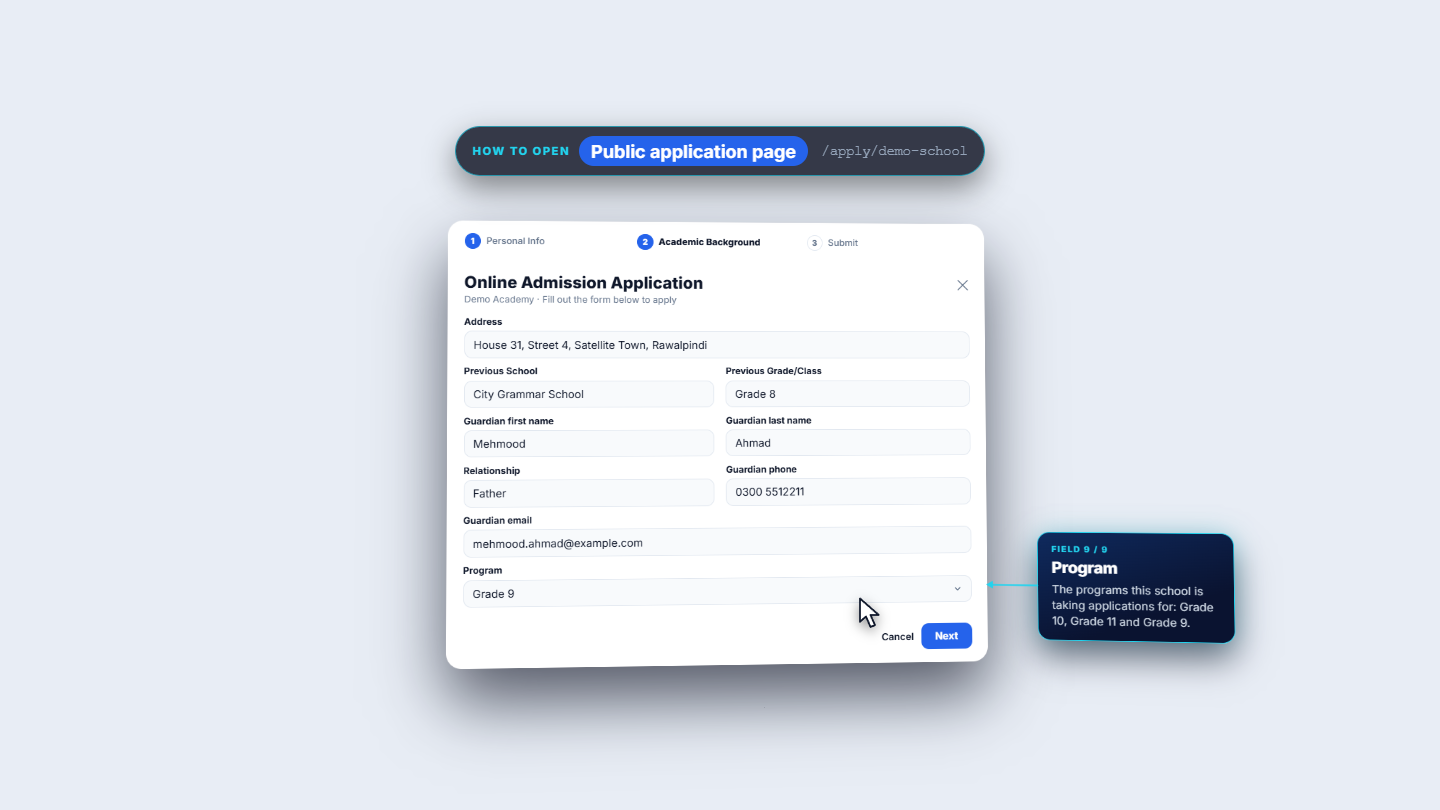
The father opens your school's public form (for example /apply/demo-school). Step 1 asks for first name, last name and email (required), phone, date of birth and gender. Step 2 asks for the address, previous school and class, the guardian's name, relationship, phone and email, and the Program (Grade 9, 10 or 11). Step 3 shows a review; Submit Application ends with "Application Submitted!".
Public admission form, step 2 with address, previous school and guardian details
2
See the application in Admissions
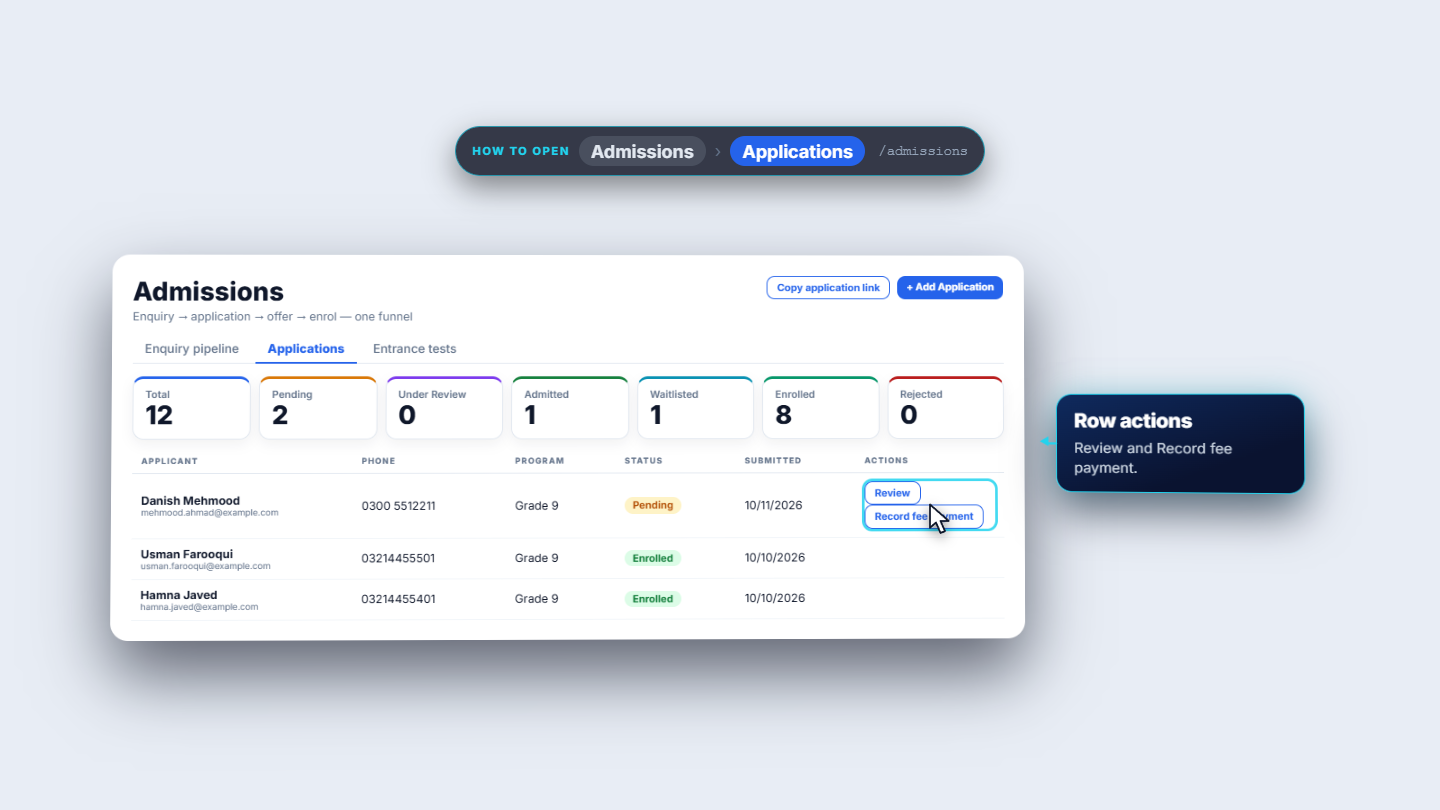
Open Admissions. The new application is in the list as Pending, and the totals at the top go up by one. Each row has Review and Record fee payment.
Admissions applications list with the new application marked Pending
3
Record the application fee
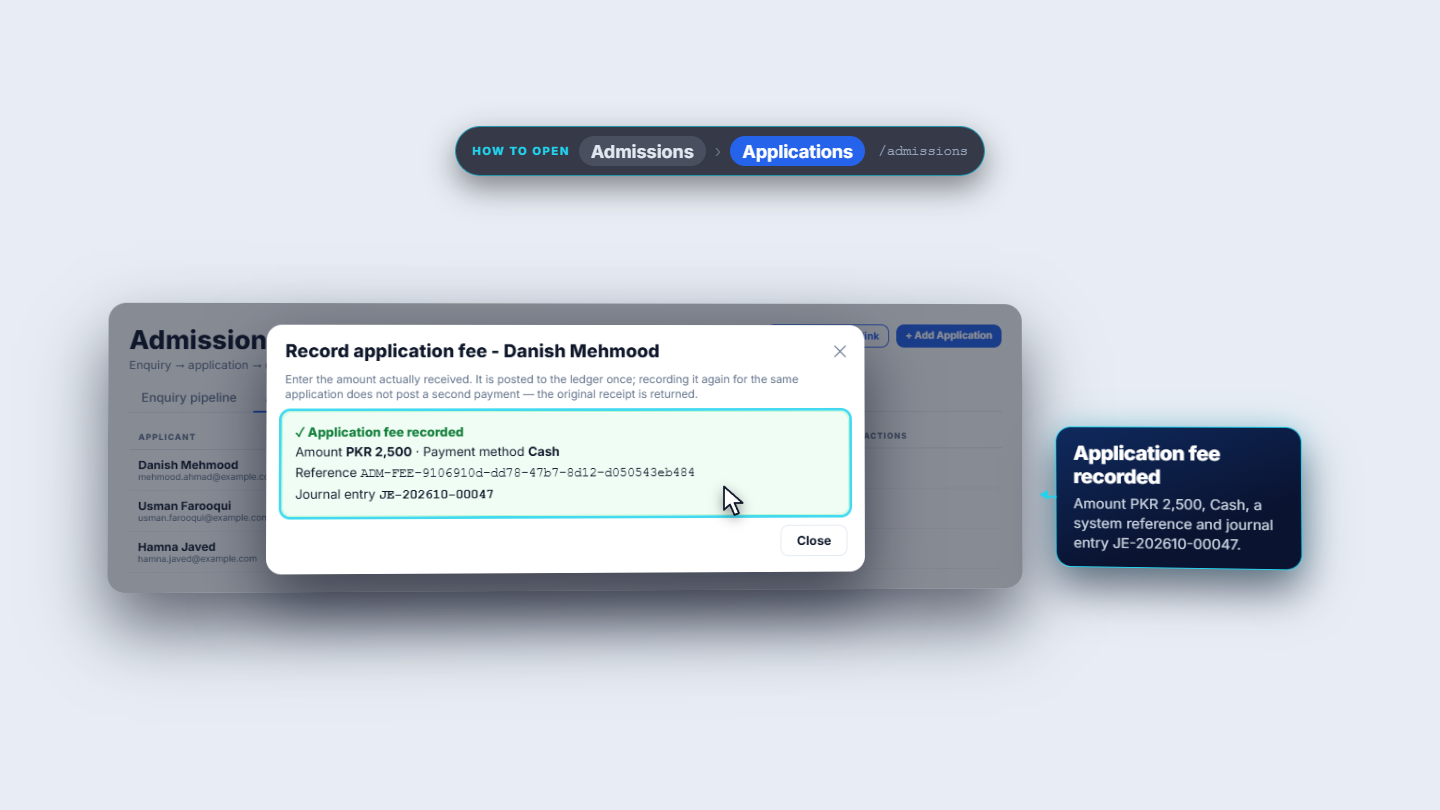
Press Record fee payment on the row. Enter the Amount actually received (here 2,500) and choose the Payment Method: Cash, Bank Transfer, Cheque, Credit Card, Debit Card or Online. The toast "Application fee recorded" shows the amount, the method, a reference and the journal entry.
Record application fee dialog and the confirmation toast with the journal entry
4
Review and admit
Press Review. The dialog shows the application fee with its method and journal entry. Under Update Status choose Admitted (the other choices are Pending, Under Review and Rejected), add a note if you wish and save. The toast says "Status updated" and a Convert to Student button appears.
5
Enrol the student
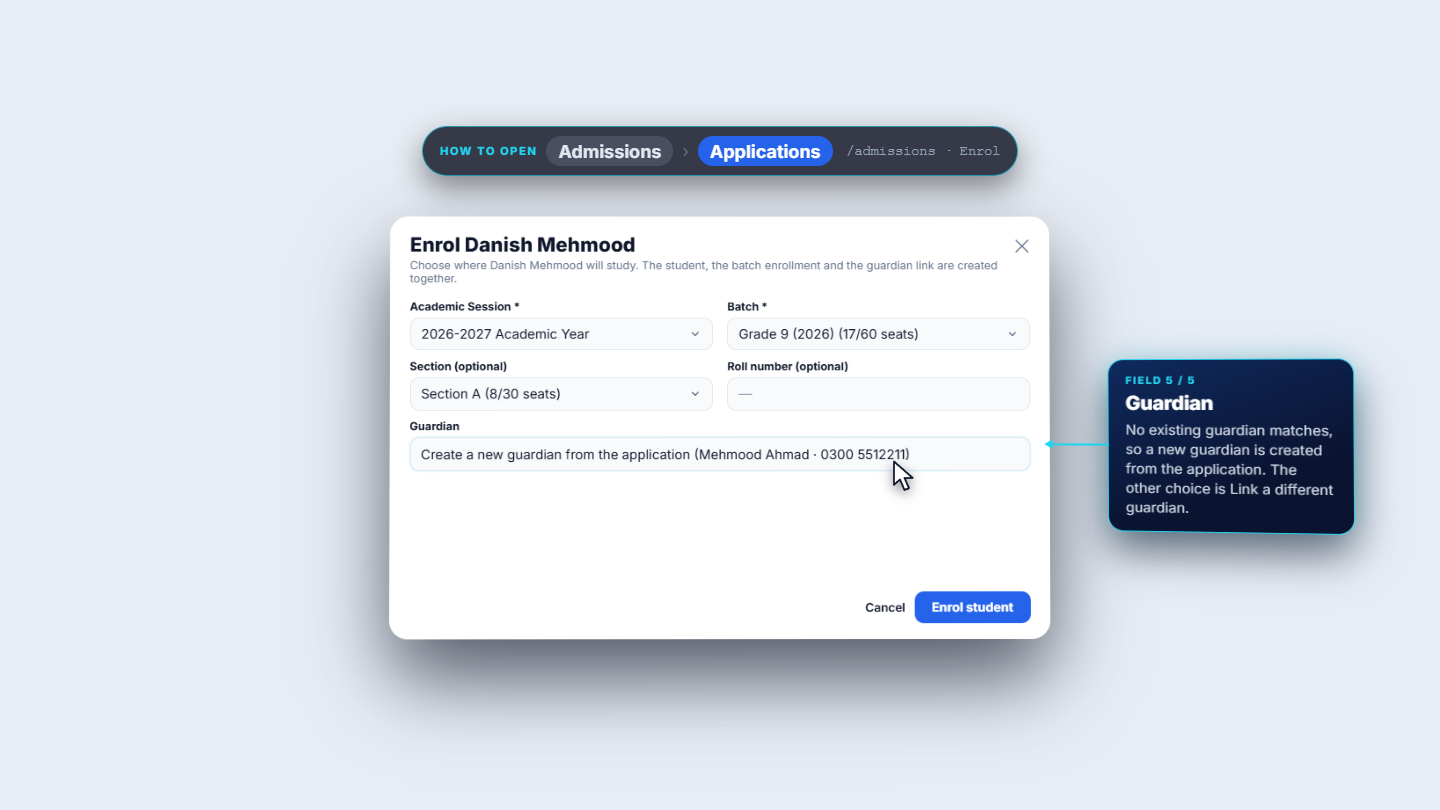
Press Convert to Student. Choose the Academic session, the Batch (Grade 9 shows its seats taken), an optional Section and an optional Roll number. Under Guardian keep "Create a new guardian from the application" or choose "Link a different guardian" if the family already has a child at the school. Press Enrol student. The toast gives the new registration number and the student's page opens.
Enrol dialog with session, batch, section and the guardian choice
6
Check the first invoice
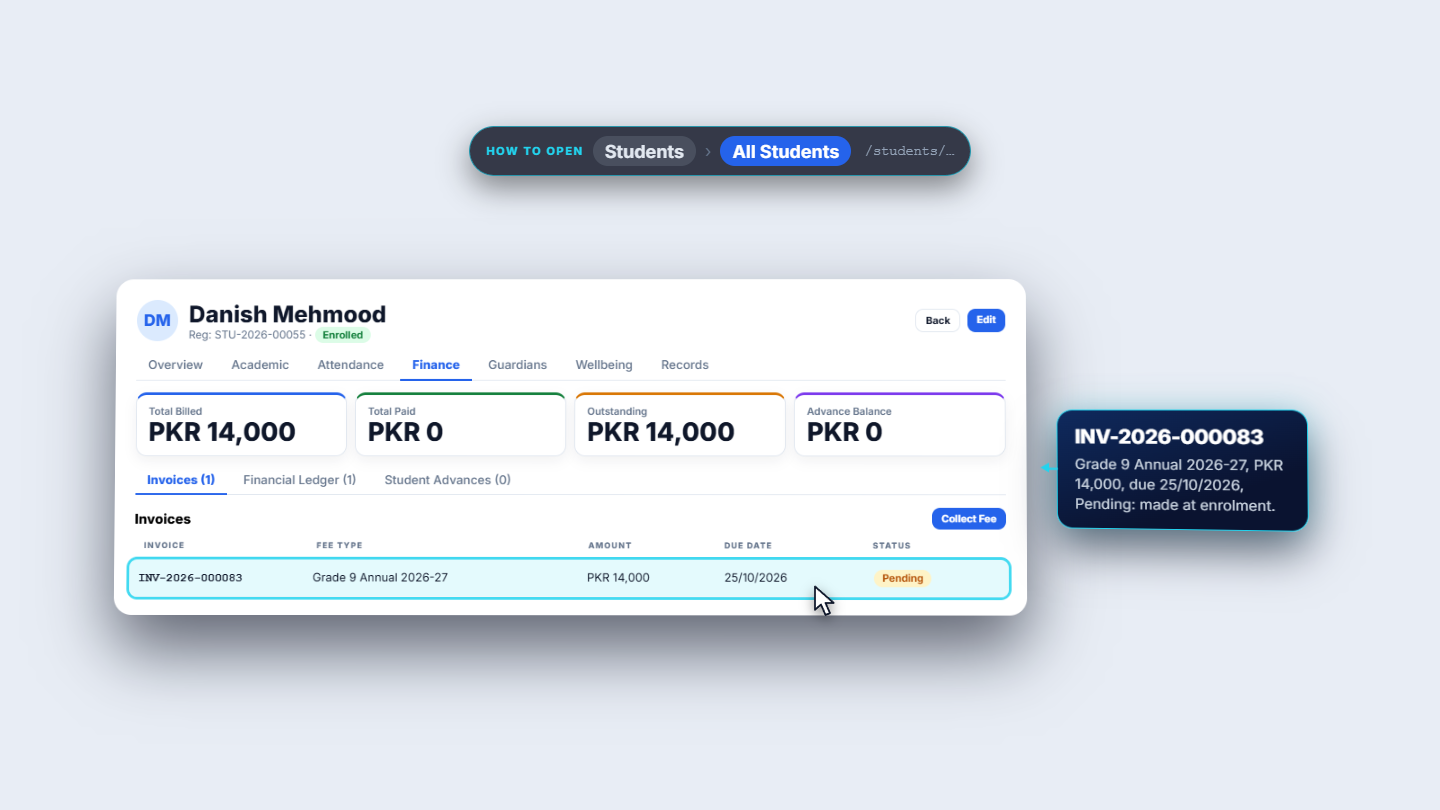
On the student's page open the Finance tab. The invoice for the fee structure is already there as Pending: total billed 14,000, paid 0, outstanding 14,000. The invoice lines come from the fee profile of the grade.
Student Finance tab showing the first fee invoice as Pending with totals
7
Collect the first payment
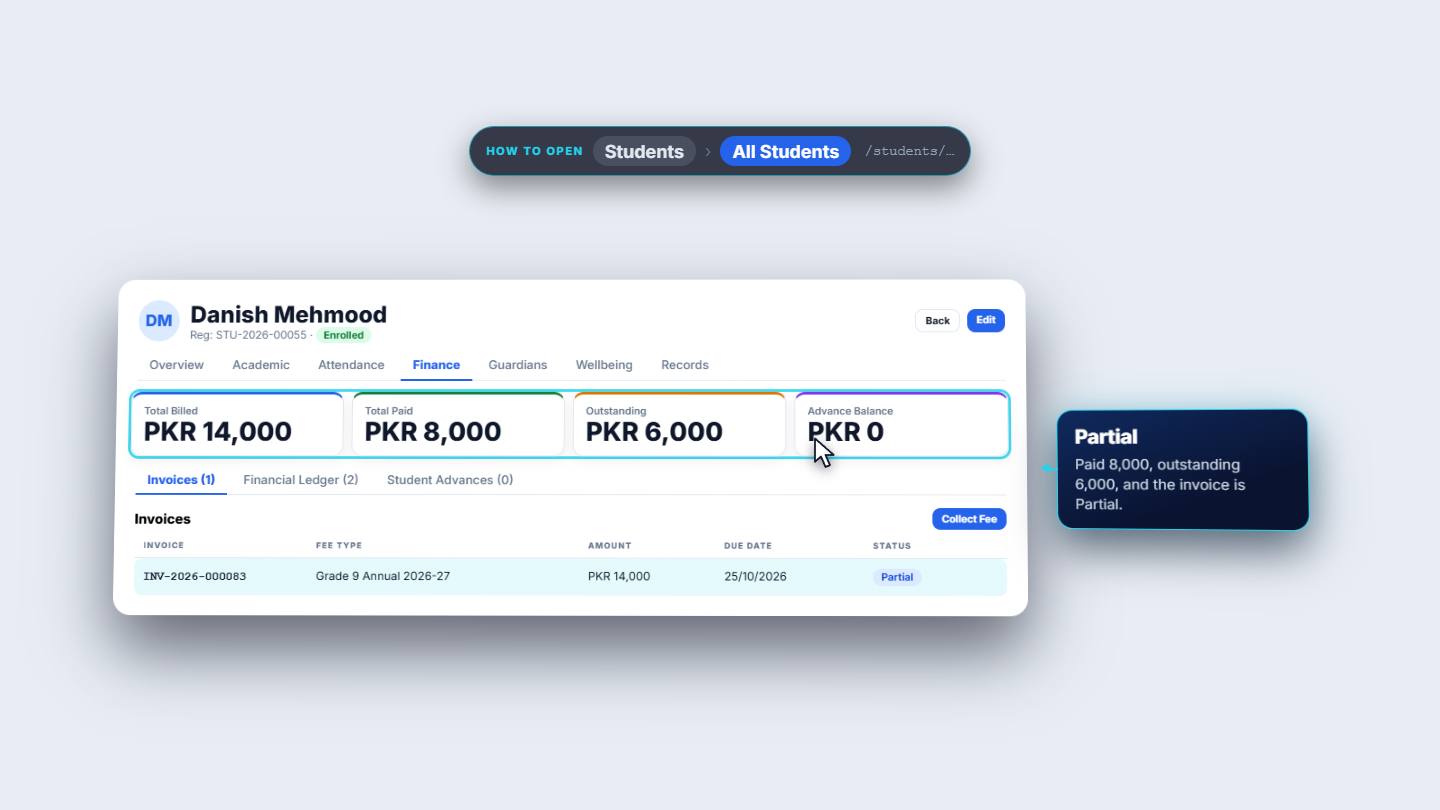
Press Collect Fee. Pick the invoice, enter the Amount (8,000) and choose Cash. Leave Allocation Method on its default unless you need to allocate to fee heads by hand. After "Payment collected" the invoice is Partial: paid 8,000, outstanding 6,000.
Student Finance tab after a cash payment of 8,000 showing the invoice as Partial
8
Collect the balance by bank transfer
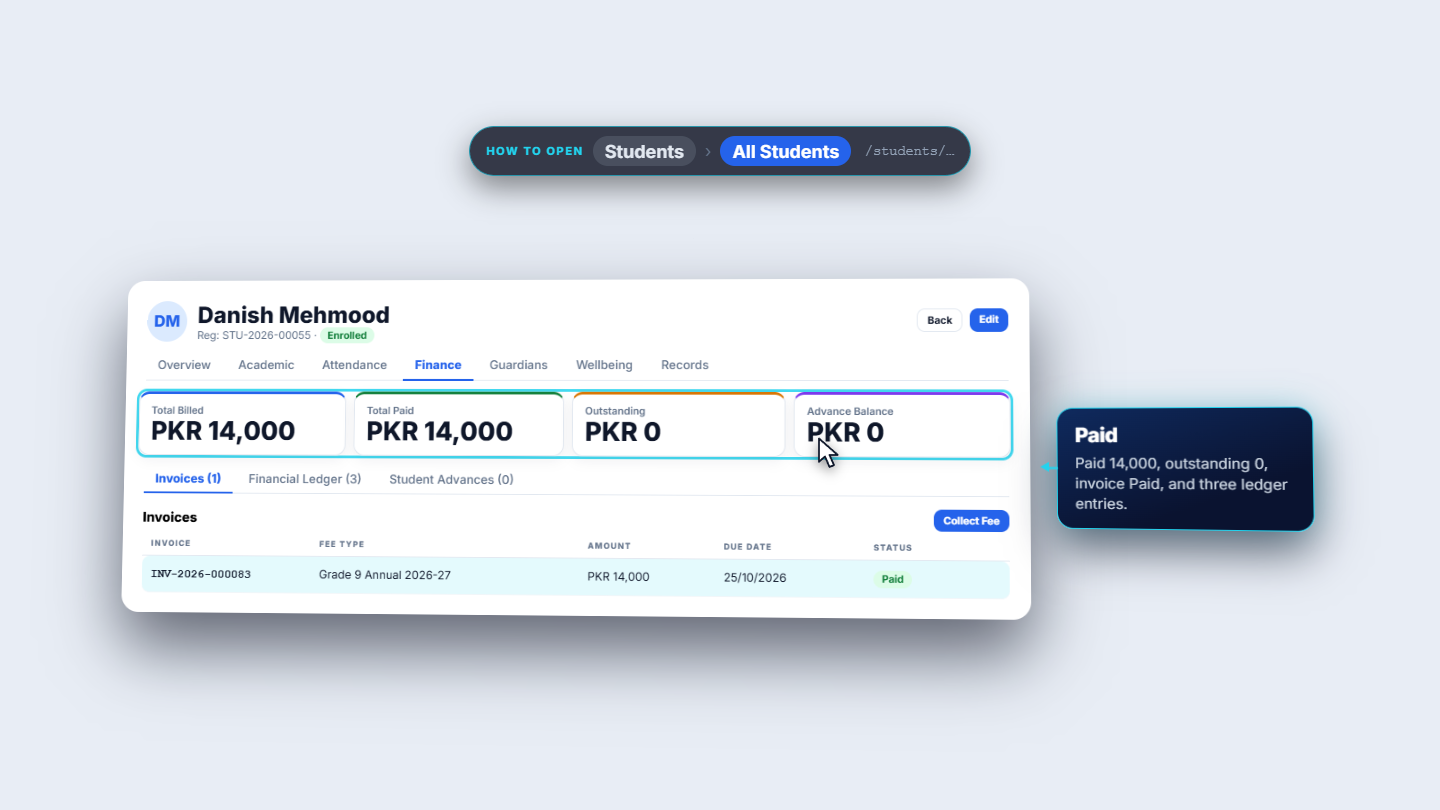
Open Collect Fee again; the amount is now the remaining 6,000. Choose Bank Transfer, then select the Bank Account and type the Transaction Reference from the slip. Collect. The invoice becomes Paid and outstanding is 0.
Student Finance tab after the second payment showing the invoice as Paid with nothing outstanding
9
Read the journals in Finance
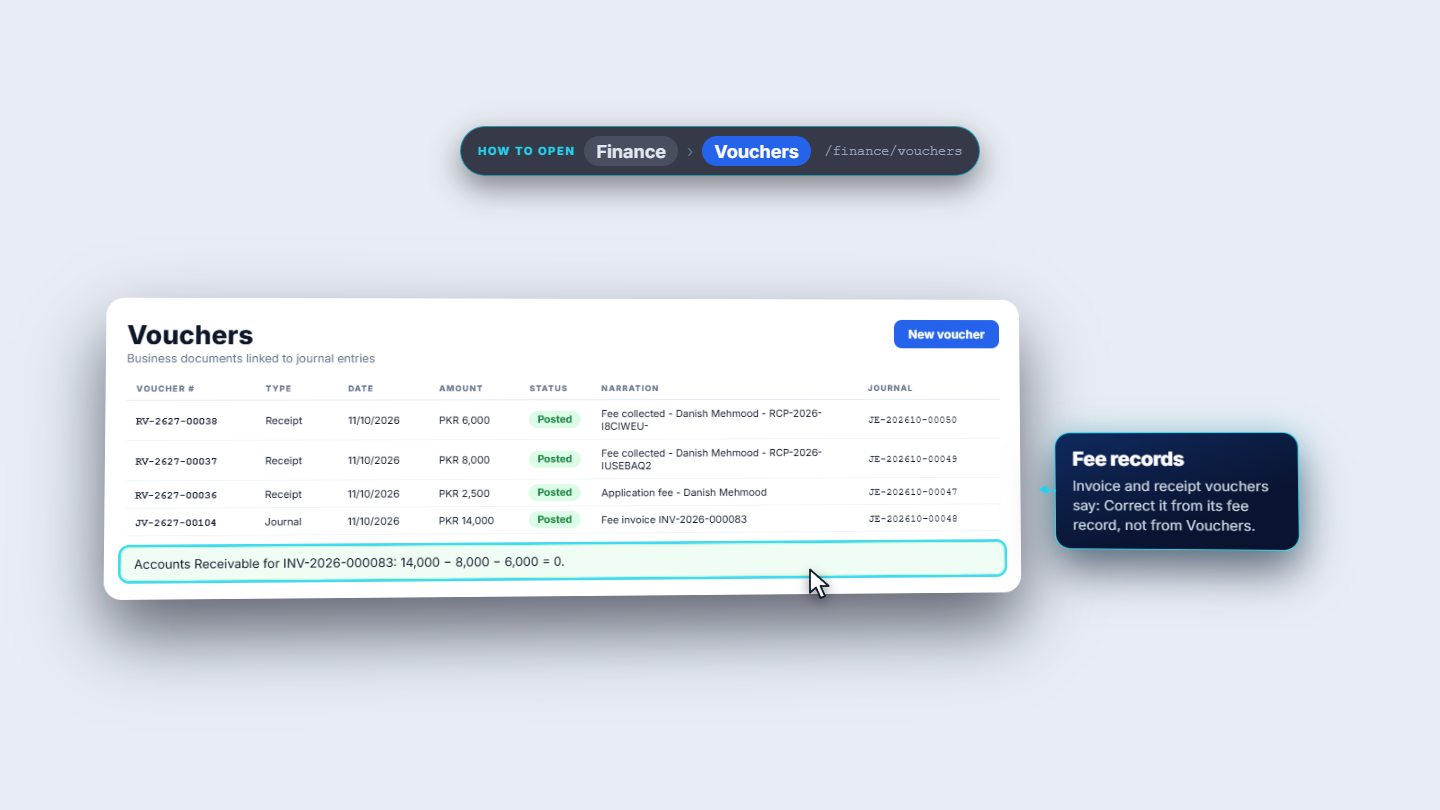
Open Finance, then Vouchers. You will see four vouchers for this child: the application fee receipt, the fee invoice journal and the two payment receipts. Open each to see its debit and credit lines. Cash payments debit Cash, the bank transfer debits the Bank Account, and both credit Accounts Receivable, which nets to zero once the invoice is fully paid.
Finance vouchers list with the fee, invoice and two receipt vouchers
10
Give the guardian a login
Open Guardians, choose the father and press Create login. If the same email address already received the student's login at enrolment, the dialog links the existing user instead of creating a second one. The toast says "Login created".
11
Mark the first absence
Open Attendance, choose the date and the Batch / Class (Grade 9), and set the student to Absent. The count changes from 18 present to 17 present and 1 absent. Press Save Attendance; the toast says "Attendance saved".
Attendance page with the Grade 9 batch and the new student marked Absent
Check it worked
The application shows Admitted in Admissions and the student has a registration number.
The invoice on the student's Finance tab is Paid, with 14,000 paid and 0 outstanding.
Finance, Vouchers lists the four vouchers for this family.
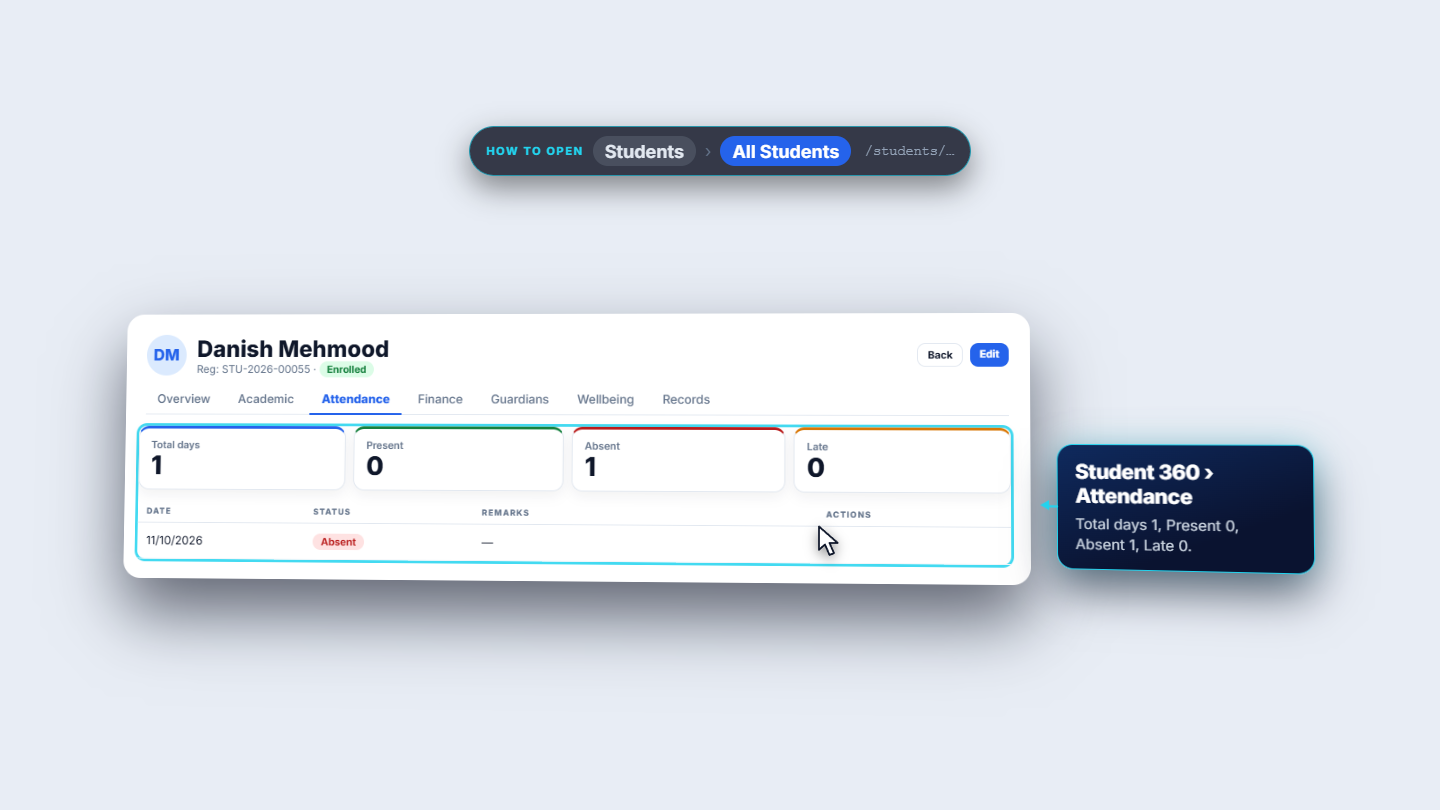
The student's Attendance tab shows 1 absent day, and Delivery Log lists the absence alert and the two payment notices.
Common mistakes
Mistake
What you see
Fix
Recording the application fee twice
The original receipt is returned, no second payment
Nothing to fix; check the first receipt
Choosing Bank Transfer with no bank account
A message that a bank account is required
Add the account under Finance, Accounting, Bank Accounts
Enrolling before admitting
No Convert to Student button
Set the status to Admitted first
Creating a second guardian for a family that is already enrolled
Two guardian records for one family
Choose "Link a different guardian" at enrolment
Quick reference
Item
Meaning / rule
Application fee
Posted once per application, to Cash or Bank and Admission Fees income
Enrolment
Creates the student, batch enrolment and guardian link together
Invoice
Created from the grade's fee structure; Pending, Partial, then Paid
Part payments
Each payment has its own receipt and voucher; the receivable nets to zero when the invoice is paid
Absence alert
Sent when attendance is saved; logged in the Delivery Log
Frequently asked questions
Can the family pay the invoice in more than two payments? Yes. Each time you press Collect Fee the amount defaults to what is still outstanding, and the invoice stays Partial until the balance reaches zero.
What if the family already has another child at the school? At enrolment choose "Link a different guardian" and pick the existing guardian, so the family keeps one record and one family balance.
Does the parent really get an email or SMS? Only when an email or SMS provider is connected for your school. Without one, every message is recorded in the Delivery Log as a test, and nothing leaves the system.