Before you can quote a job you need two records: the customer and the site where the work happens. This guide shows how to add a customer with their payment terms, discount and credit limit, check the record, and then add the site.
Who it is forEstimator or office administratorTime10 minutesProductBuildFlowLevelBeginner
Before you start
Steps
1
Open Customers and add the customer's contact details
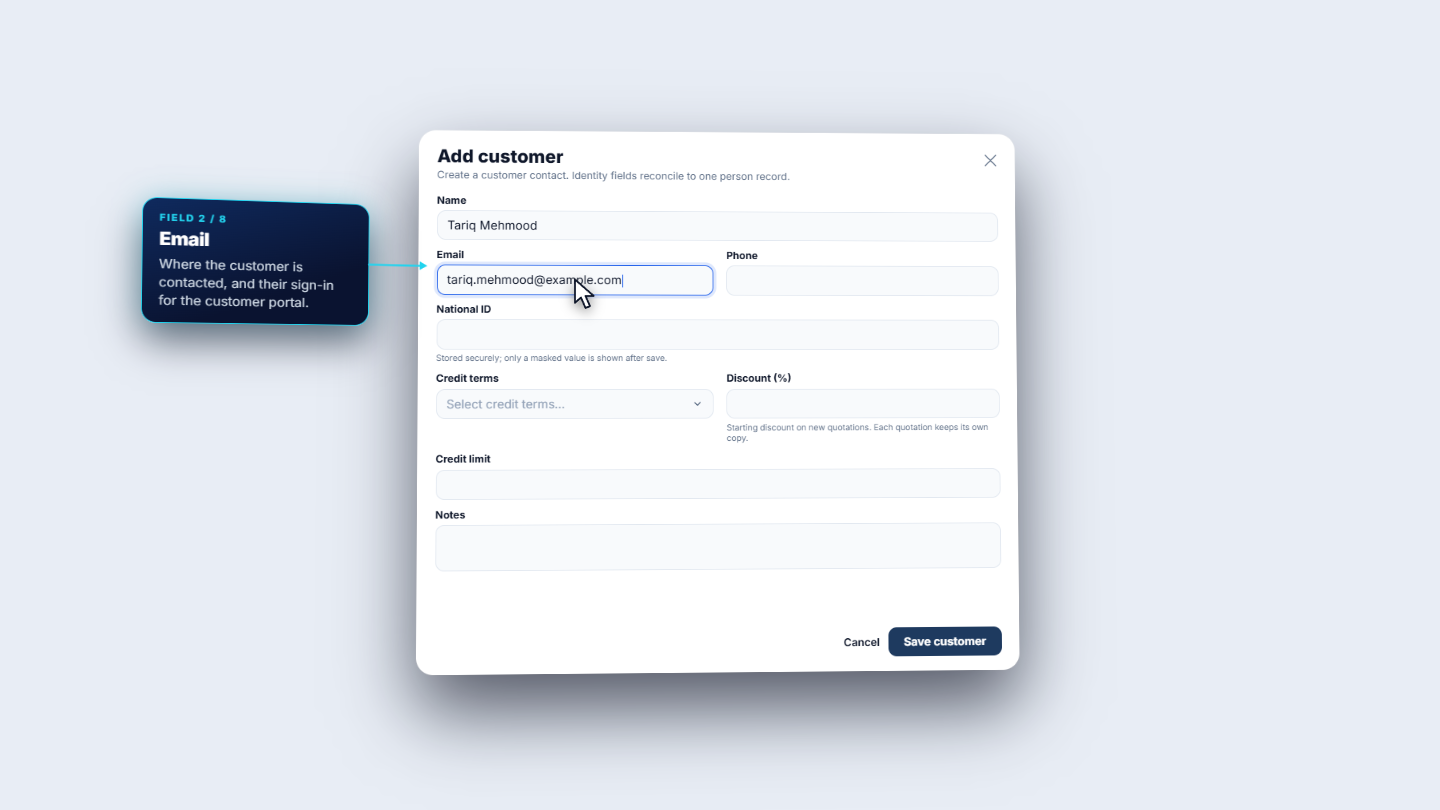
Click People › Customers (/app/customers/directory). Use the search box first, so you do not create a duplicate, and read the money columns (Net owed, Overdue, Limit used) to see who owes what. Then click Add customer. Fill in Name (Tariq Mehmood), Email (tariq.mehmood@example.com), Phone with the country code (+923214455667) and National ID (35202-8812345-7).
Add customer form with name, email and phone filled in
2
Set credit terms, discount and credit limit
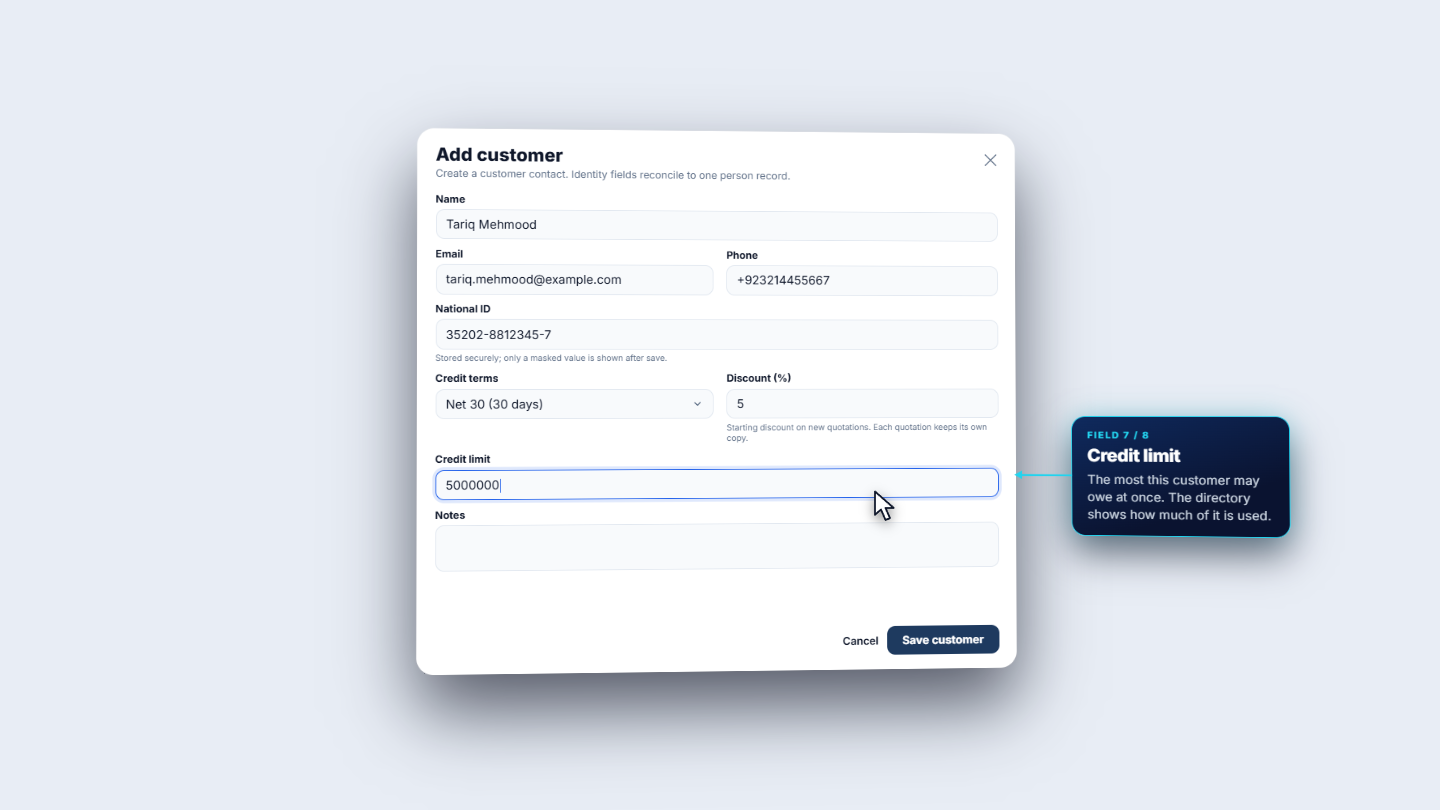
Choose Credit terms from the list: Due on receipt (0 days), Net 15 (15 days), Net 30 (30 days) or Net 45 (45 days). Tariq gets Net 30. Type Discount (%) as 5, and Credit limit as 5000000.
Credit limit field being filled in on the Add customer form
3
Add notes and save
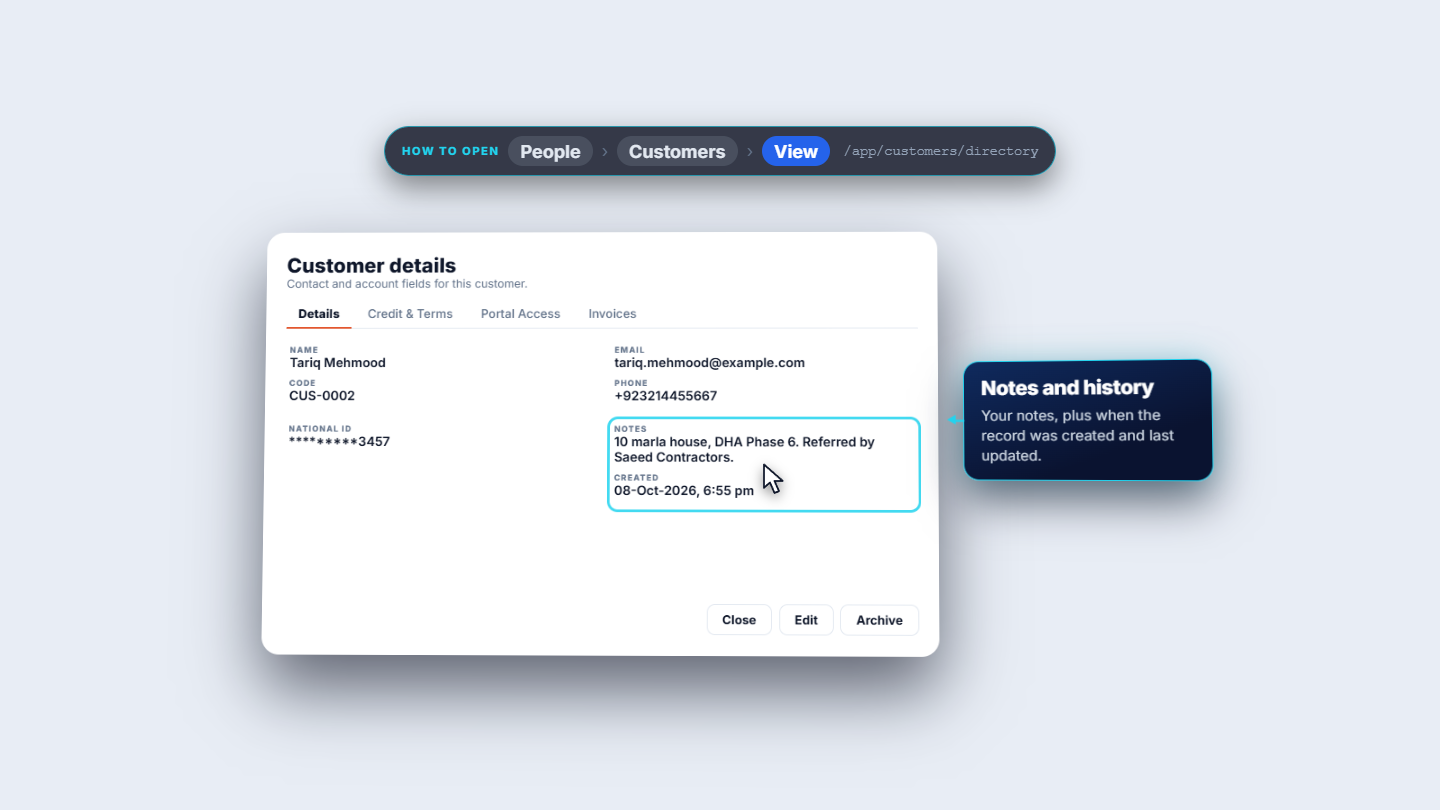
In Notes write what your team should know, for example "10 marla house, DHA Phase 6. Referred by Saeed Contractors." Click Save customer. Later, open the row menu and choose View: the Details tab shows the name, code CUS-0002, email, phone, a masked national ID (ending 3457), the notes and when the record was created.
Customer details showing the notes and the creation date
4
Check the saved row in the directory
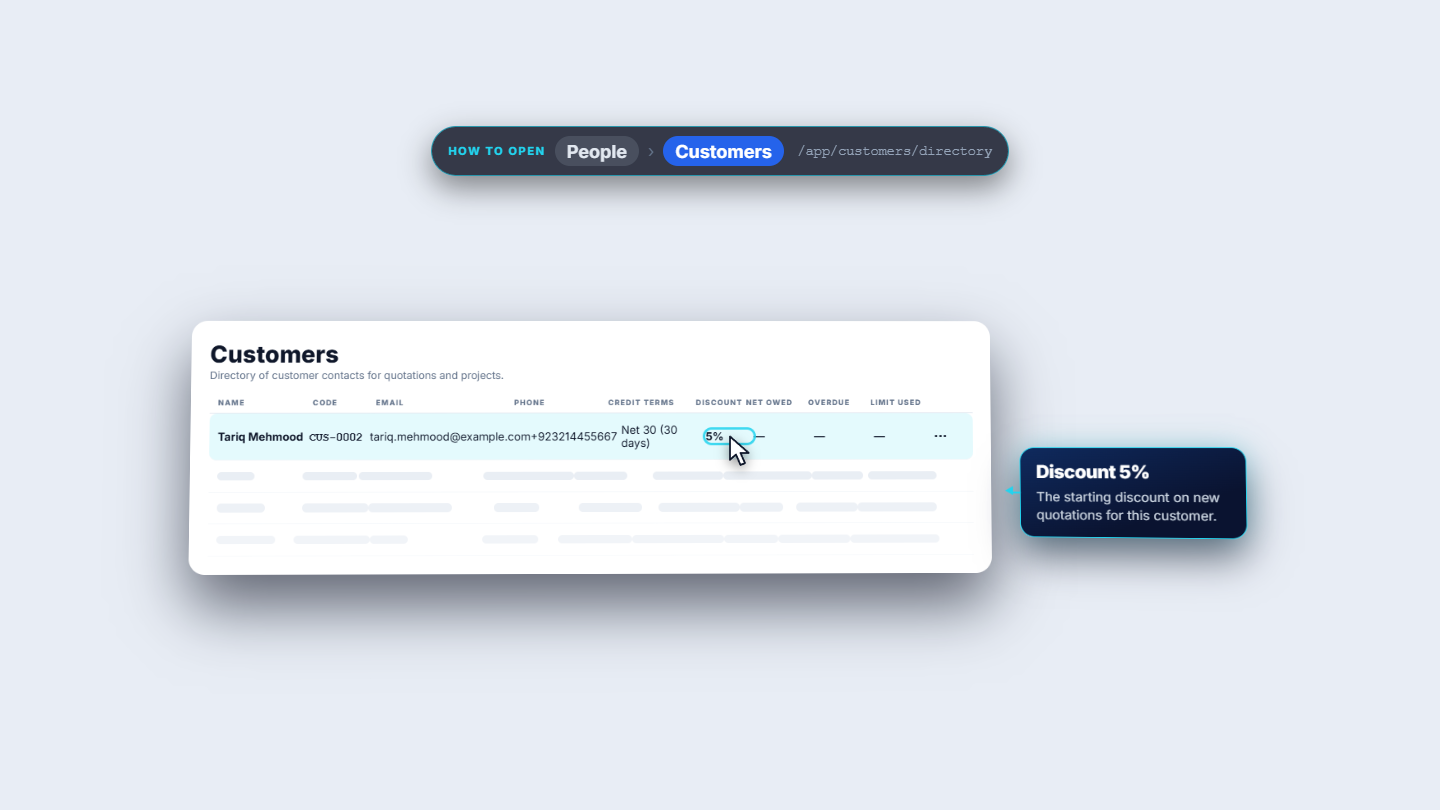
The new customer appears with a generated code (CUS-0002), Net 30 (30 days) and a 5% discount. Net owed, Overdue and Limit used show a dash until the customer has invoices. Each row has an actions menu: view, edit or archive the customer. Edit changes any field. Archive hides the customer without deleting their history.
Customers directory with the new row, 5% discount highlighted
5
Read the credit and portal tabs
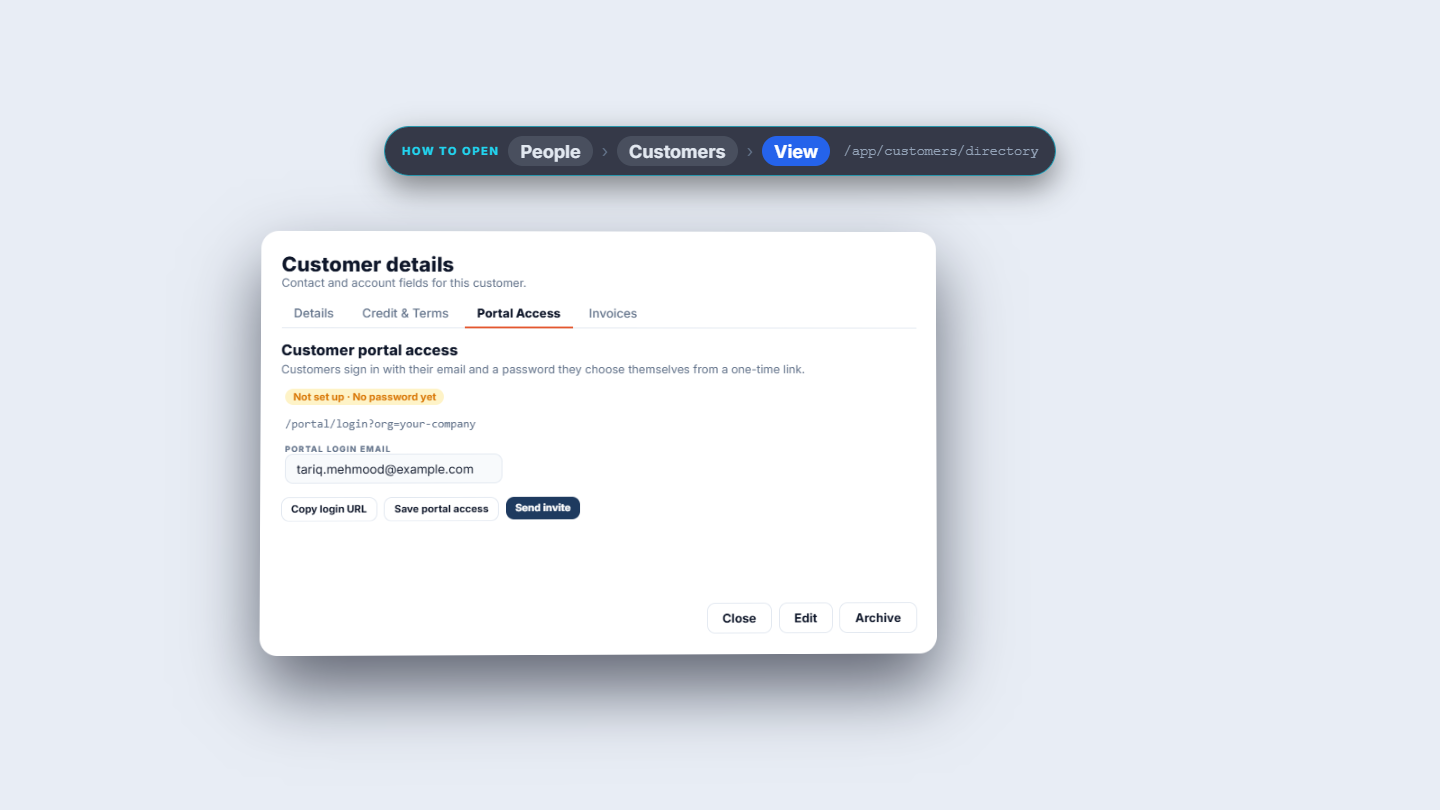
In View, the tab Credit & Terms shows the terms, discount and limit, with the outstanding and overdue amounts and the credit used. The tab Portal Access shows Not set up · No password yet, the one login address that every customer of your company uses, and the Portal login email. The buttons are Copy login URL, Save portal access and Send invite. Customer portal access is explained in full in BF-S05.
Portal Access tab with the login link, login email and buttons
6
See what the Invoices tab will hold
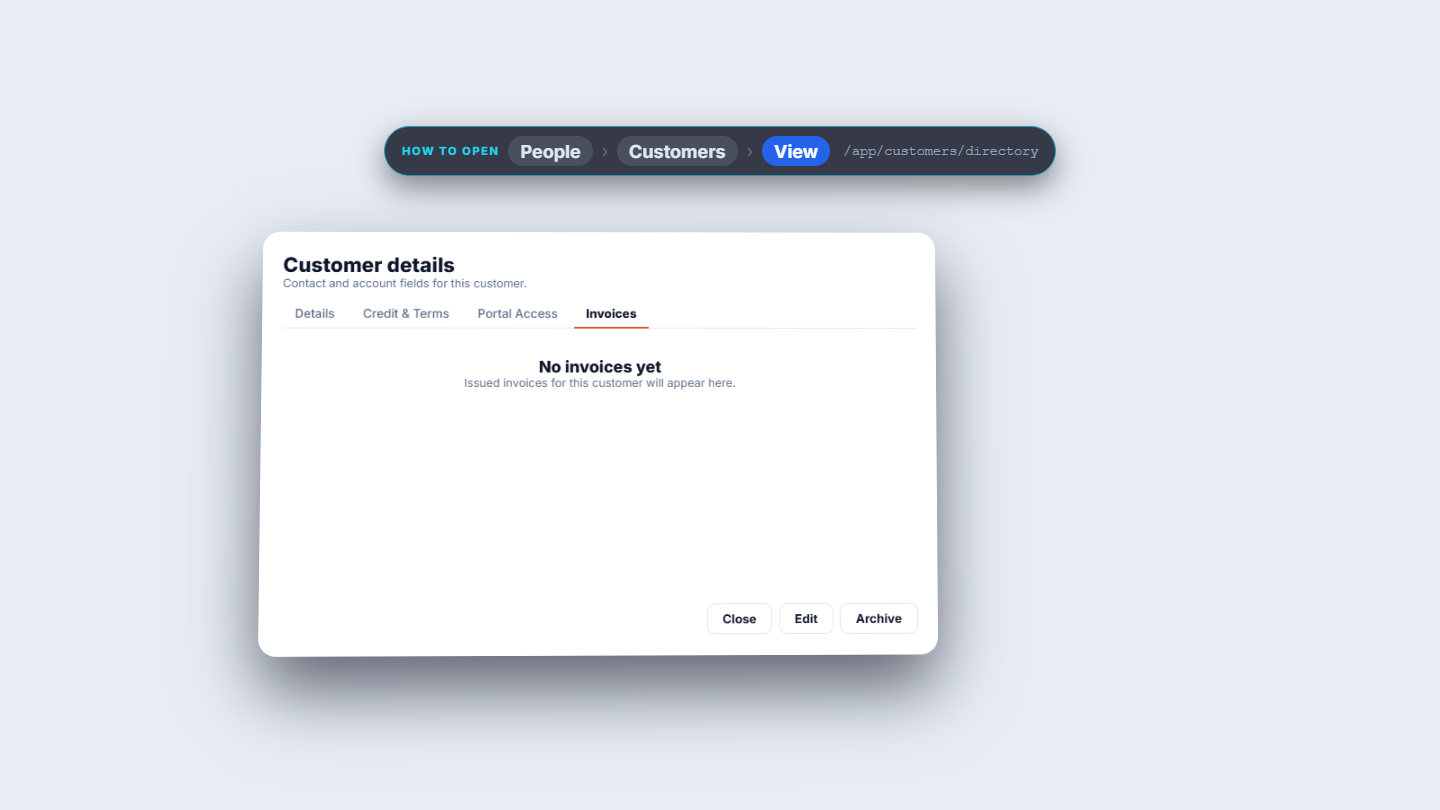
Open the Invoices tab. A new customer shows No invoices yet. Issued invoices for this customer appear here once their project is billed.
Invoices tab saying No invoices yet
7
Know where credit terms come from
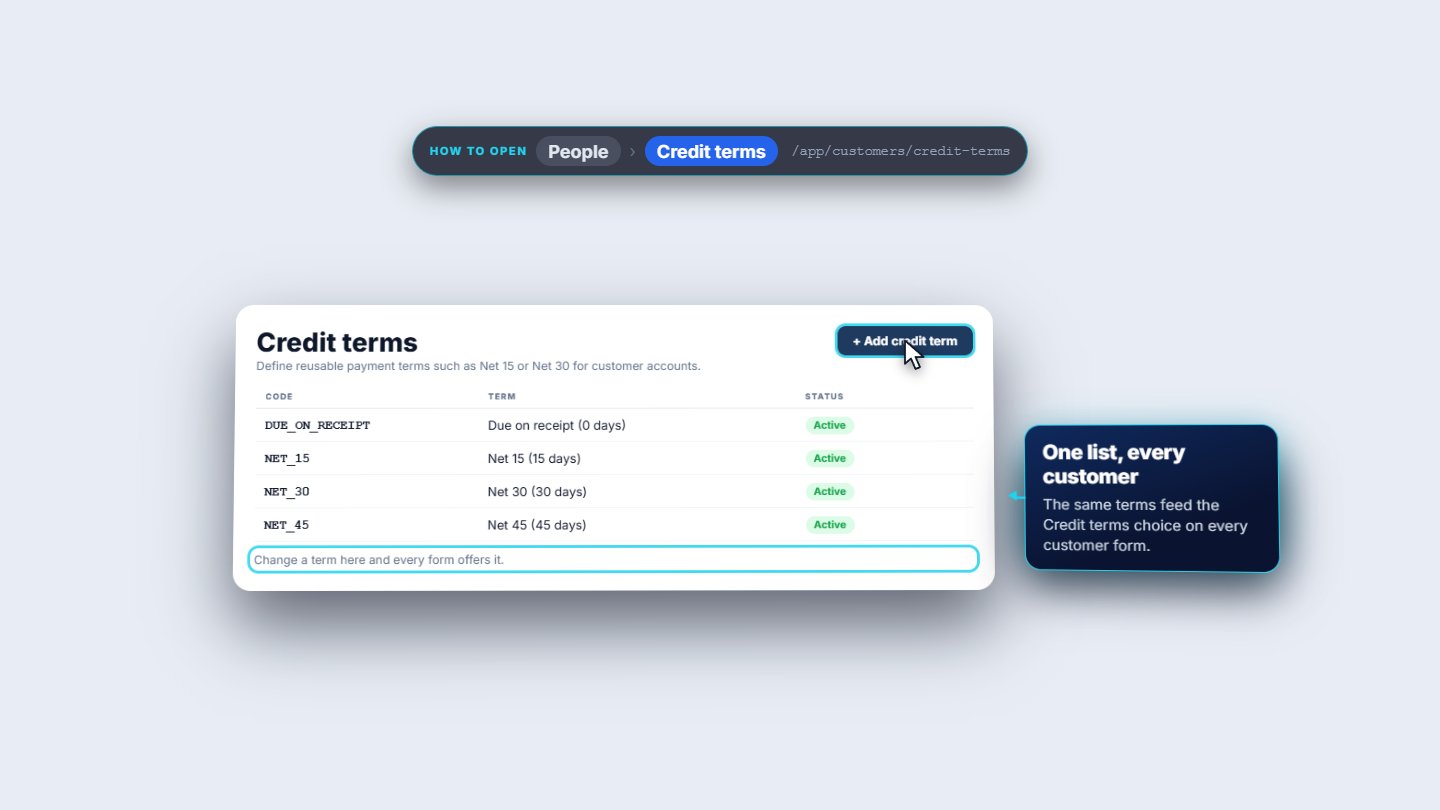
Open People › Credit terms (/app/customers/credit-terms). Four terms are ready and active. The same list feeds the Credit terms choice on every customer form, so change a term here and every form offers it. Credit terms are explained in full in BF-S04.
Credit terms list with Due on receipt, Net 15, Net 30 and Net 45
8
Know what your customer will see
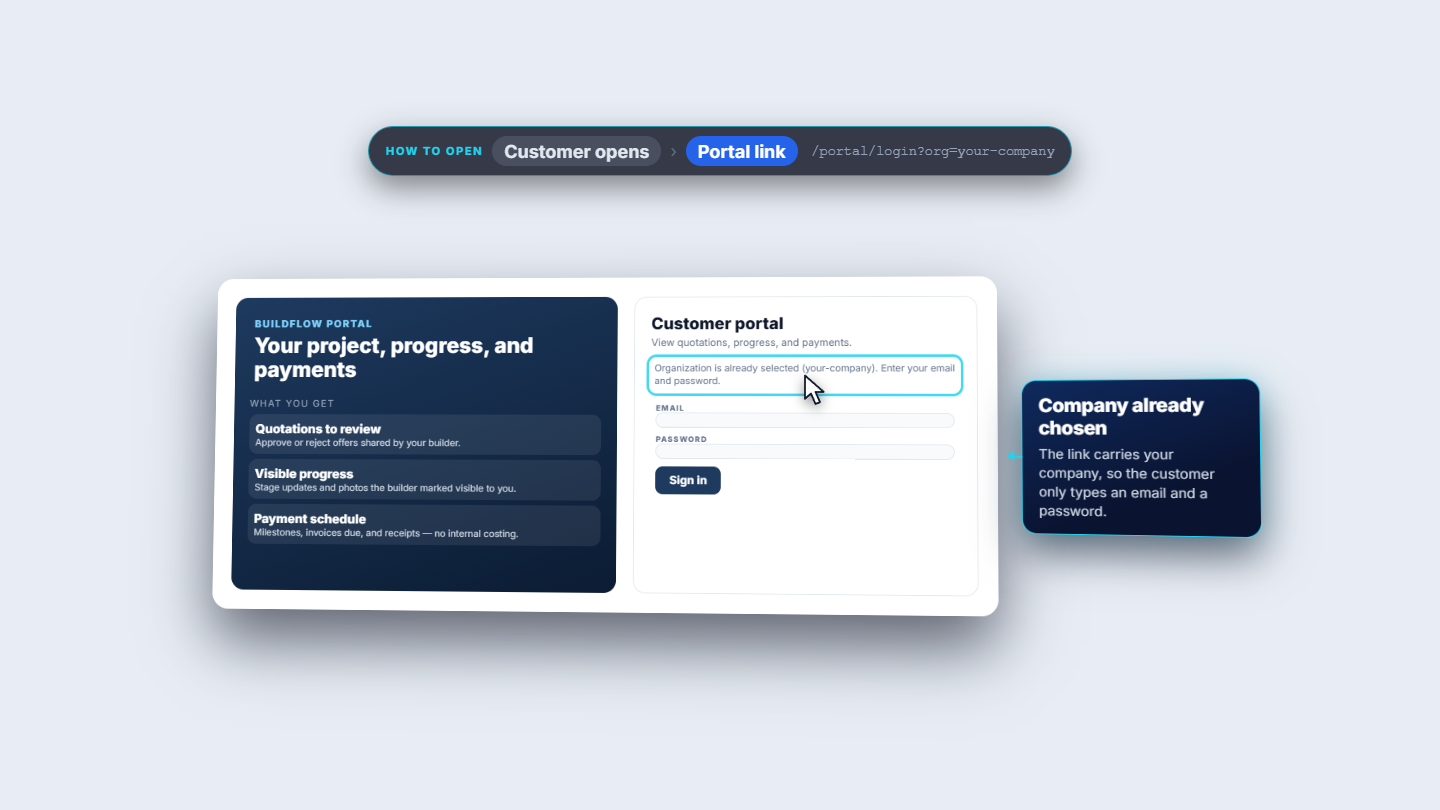
After you invite the customer, they open the portal link. The company is already chosen, so they only type an email and a password. In the portal they can review and approve quotations, follow the progress you make visible, and see their payment schedule.
Customer portal sign-in page with the company already chosen
9
Add the job site
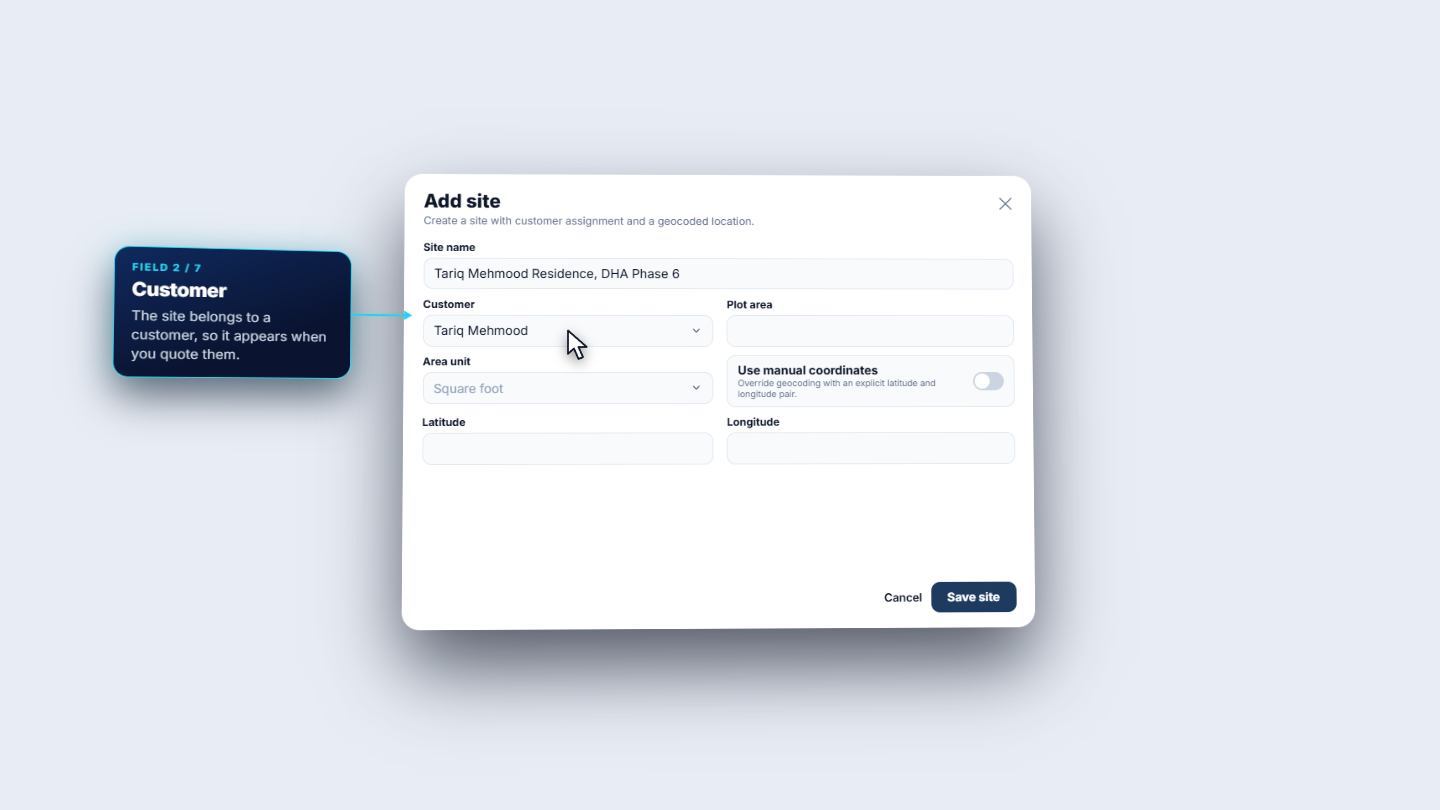
A quotation needs a site, so click Add site (Delivery › Sites). Give the Site name (Tariq Mehmood Residence, DHA Phase 6), pick the Customer (Tariq Mehmood), enter Plot area 10 and choose the Area unitMarla (the choices are Square foot, Square metre, Square yard (Gaz), Marla and Kanal).
Add site form with the site name, customer, plot area and unit
10
Set the location and save
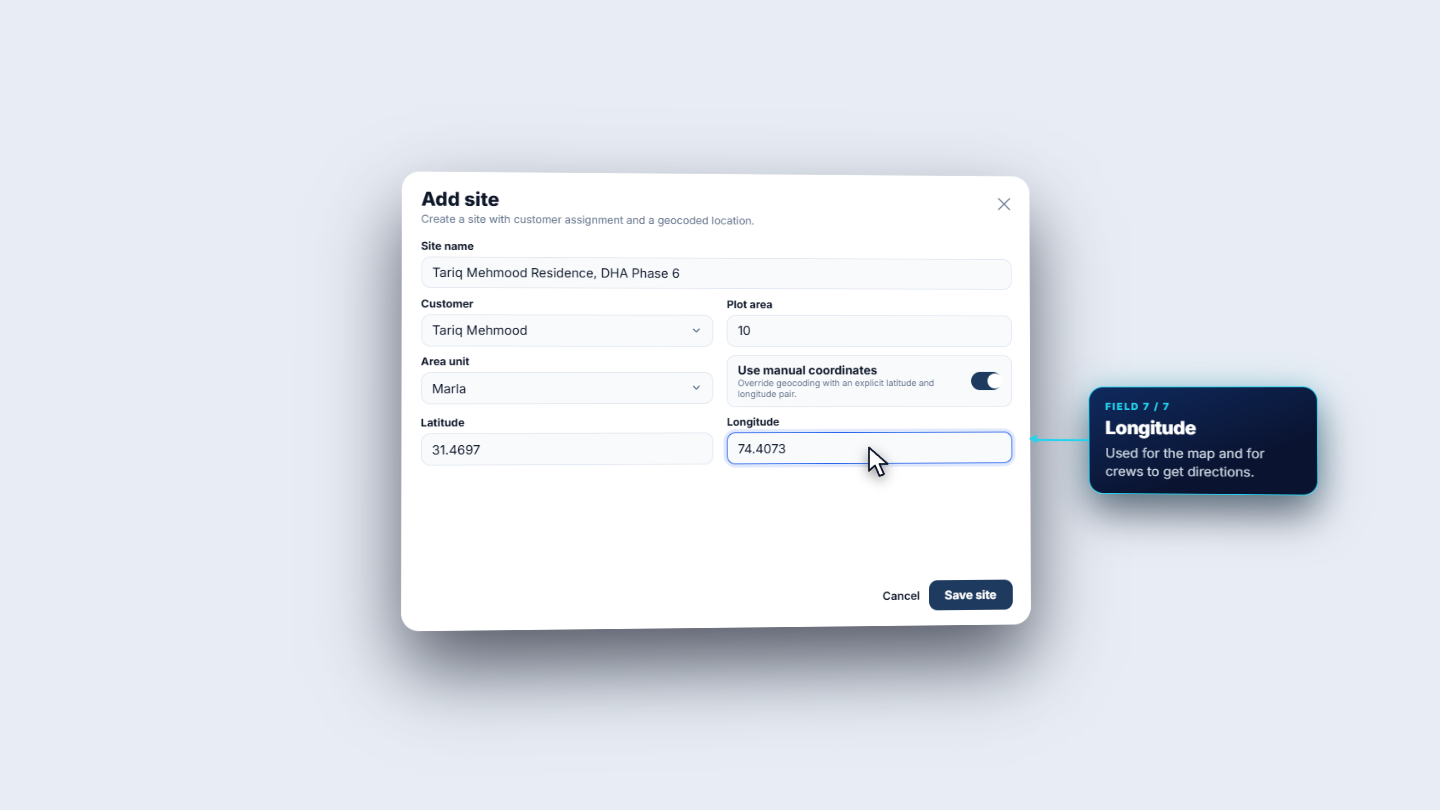
Switch on Use manual coordinates, which you need when no map key is set up. Enter Latitude 31.4697 and Longitude 74.4073, then click Save site.
Add site form with manual coordinates, latitude and longitude
Check it worked
Customers shows Tariq Mehmood with code CUS-0002, Net 30 (30 days) and 5%.
View shows the masked national ID and your notes.
The site Tariq Mehmood Residence, DHA Phase 6 is saved with 10 marla and the coordinates, ready to pick on a new quotation.
Common mistakes
Mistake
What you see
Fix
Quoting before a site exists
The quotation cannot be sent or approved without a site
Add the site first, then pick it on the quotation
Expecting the discount to change old quotations
Existing quotations keep their own copy
Change the discount on the quotation itself
Choosing terms that are not in the list
The list offers only the credit terms you have defined
Add or activate the term under People › Credit terms
Quick reference
Item
Meaning / rule
Credit terms
How long the customer has to pay an invoice
Discount (%)
Starting discount for new quotations; each quotation keeps its own copy
Credit limit
Most the customer may owe at once
National ID
Stored securely; only the last digits show after saving
Plot area and unit
Size of the site; the estimator reads it
Manual coordinates
Type latitude and longitude when no map key is set
Frequently asked questions
Why do I need to add a site before I quote a customer? A quotation cannot be sent or approved without a site. Add the site first (Delivery › Sites), then pick it on the quotation. The plot area you enter also feeds the estimator, which suggests quantities from the size of the site.
Does the customer discount change quotations I already made? No. The discount on the customer is only a starting point for new quotations, and each quotation keeps its own copy. To change an existing quotation, change the discount on the quotation itself.
What do the credit terms and the credit limit control? The credit terms decide how long the customer has to pay your invoices: Due on receipt, Net 15, Net 30 or Net 45. The credit limit is the most the customer may owe at once, and the directory shows how much of it is used.
How is the customer's national ID kept? It is stored securely. After you save, only the last digits show, and it also helps the system recognise the same person if they are added twice.