You keep a customer record so that sales can go on khata, FBR invoices carry the right buyer details and loyalty points have an owner. Do this when a new regular buyer or wholesale shop starts buying from you.
Who it is forShop owner or counter managerTime10 minutesProductPOSLevelBeginner
Before you start
Steps
1
Open the customer list
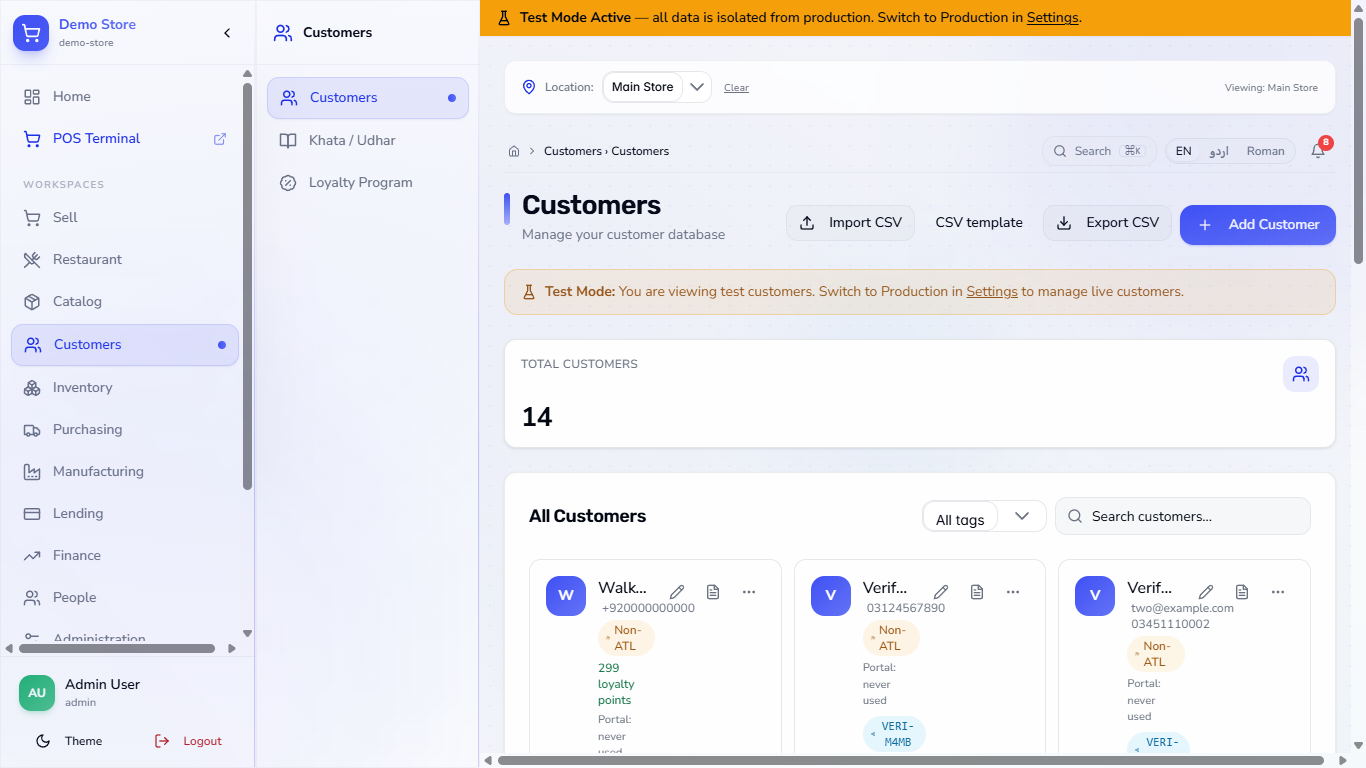
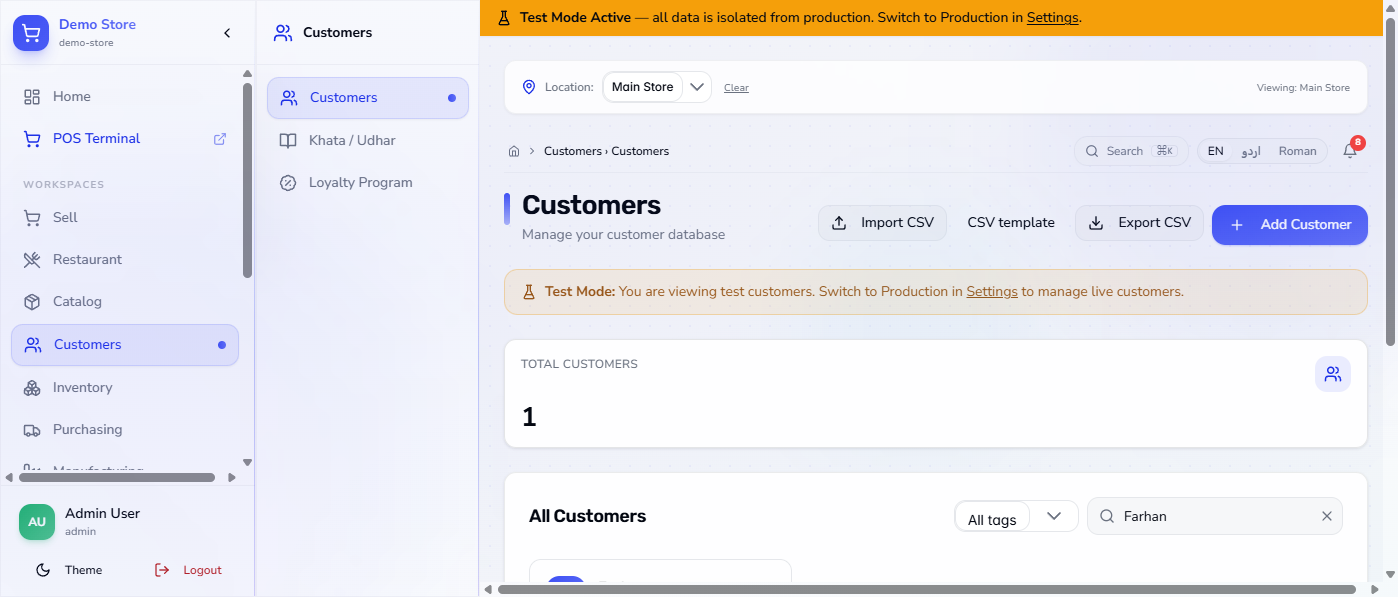
Go to Customers › Customers. Each customer is a card with phone, tax status (Non-ATL or ATL), loyalty points, the credit line (limit and what is due) and a portal line such as "Portal: never used". The box at the top shows TOTAL CUSTOMERS. The buttons Import CSV, CSV template and Export CSV sit next to Add Customer.
The Customers page with one card for each customer
2
Open the Add Customer form
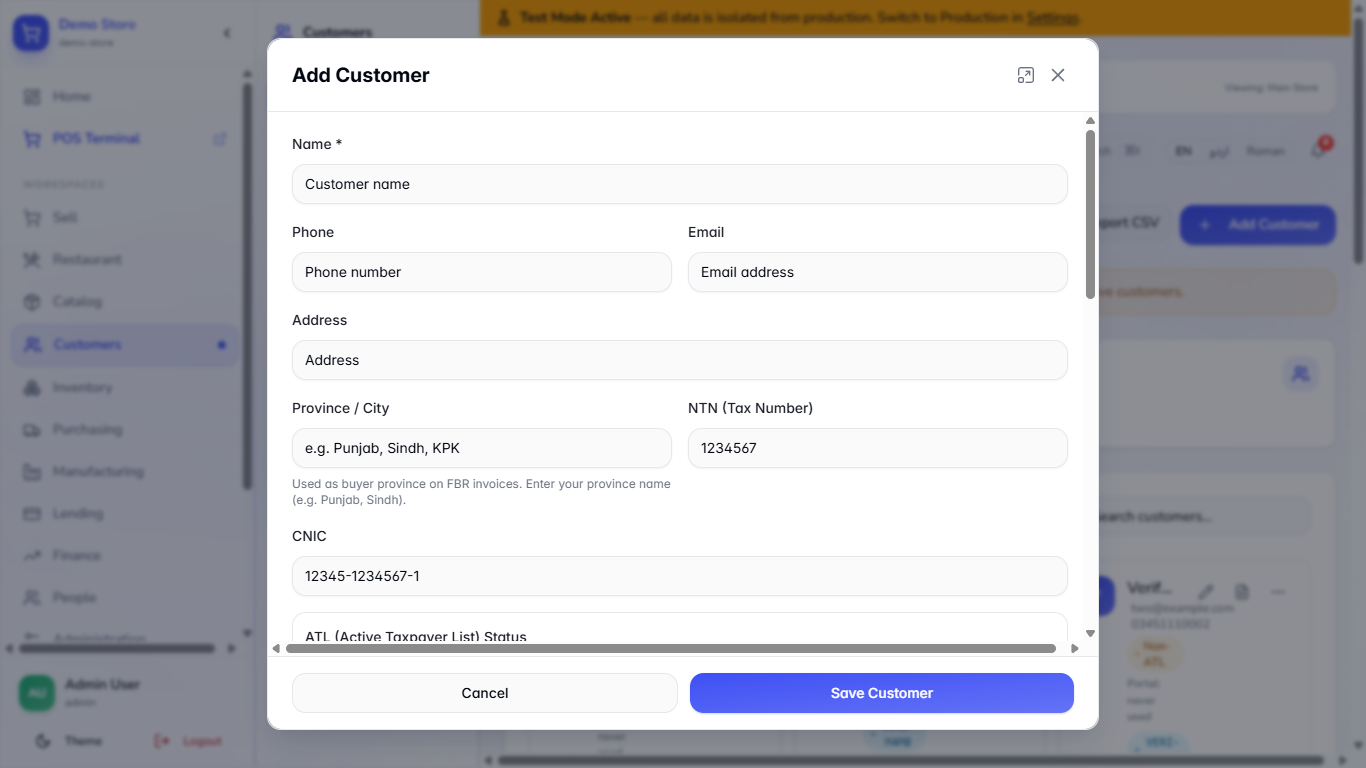
Press Add Customer. Only Name is required. Below it you find Phone, Email, Address, Province / City, NTN (Tax Number), CNIC, the ATL status buttons, Credit Limit (PKR), Notes, Tags, Price Tier, the marketing opt-ins and the Customer portal switch.
The empty Add Customer dialog
3
Fill in the customer
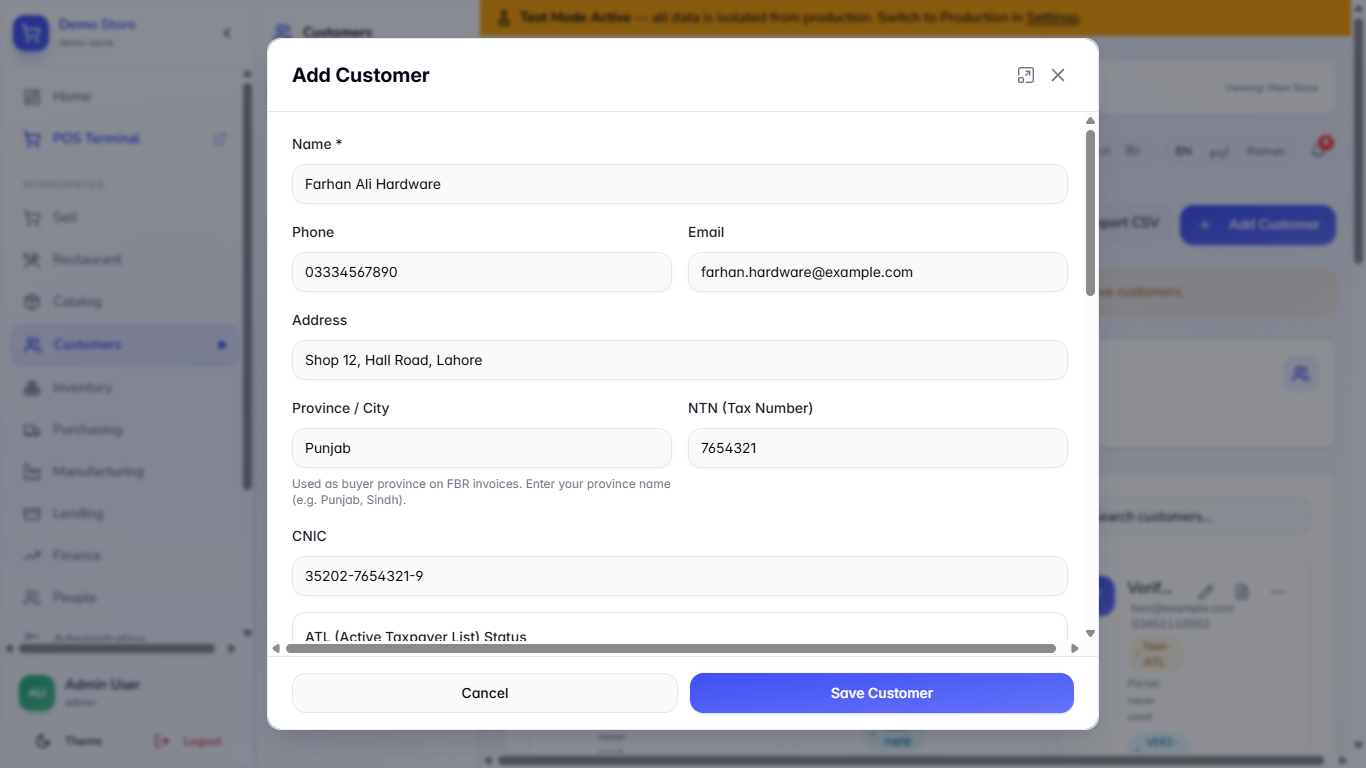
Type the name (Farhan Ali Hardware), phone, email, address, province, NTN and CNIC. Choose ATL (registered taxpayer) only if the buyer is on the Active Taxpayer List. Type the Credit Limit (PKR), for example 25000, a note, and tags such as "wholesale, hardware". Tick SMS marketing opt-in only if the customer agreed.
The form filled for Farhan Ali Hardware
4
Save
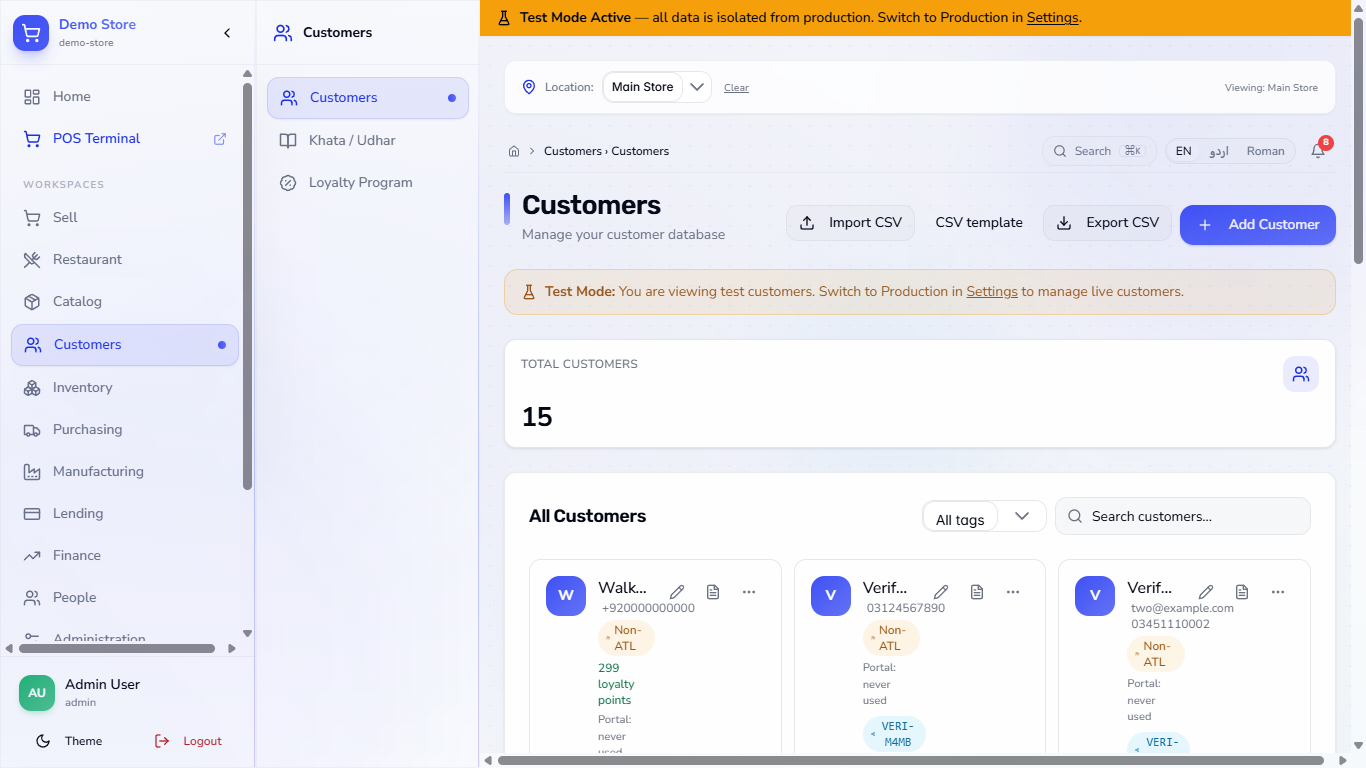
Press Save Customer. The app says Customer added and the new card appears with the ATL badge, Credit: Rs 25,000, the tags, the SMS chip, a referral code made from the name and the line Portal: never used.
Customer added message and the new customer card
5
Find a customer
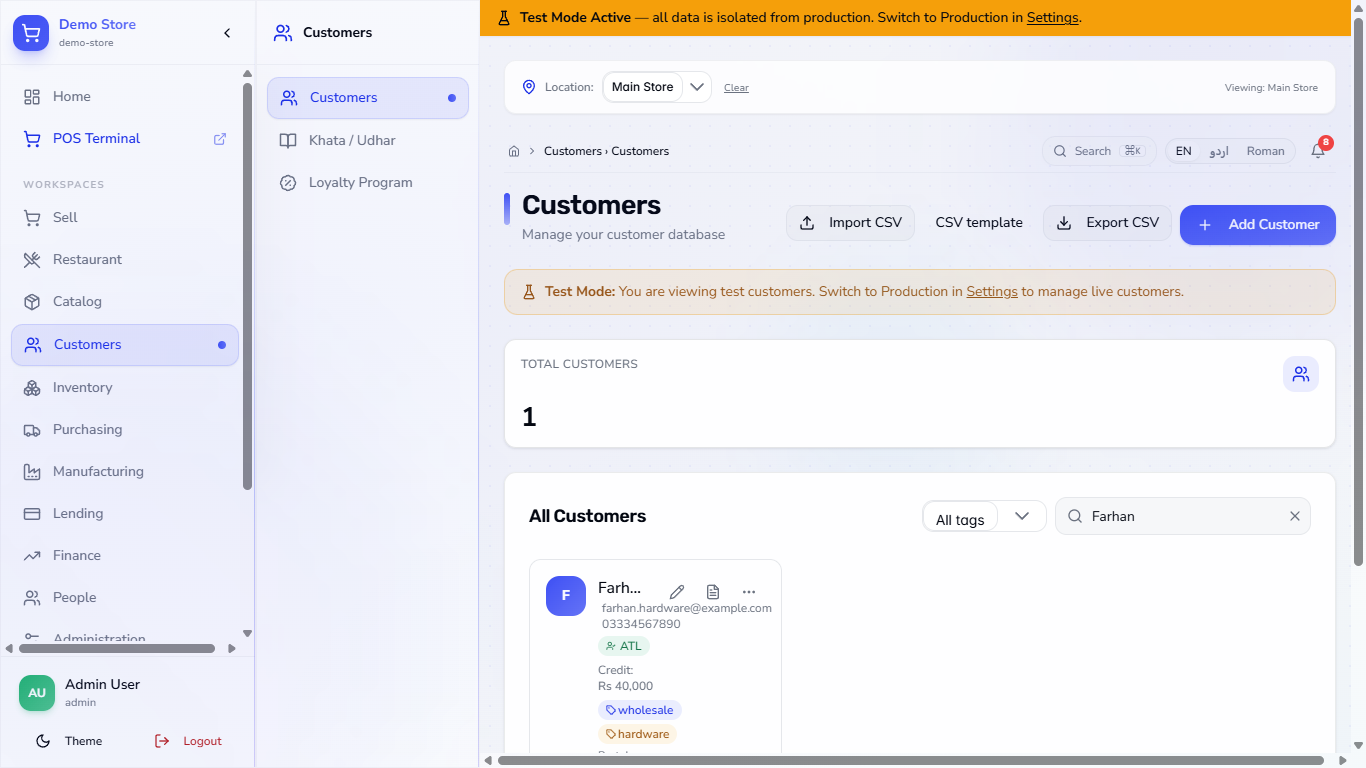
Type a name in Search customers... and the list narrows as you type. A name that matches nobody shows No customers yet with an Add Customer button; the x clears the search.
Search results for the name Farhan
6
Edit a customer
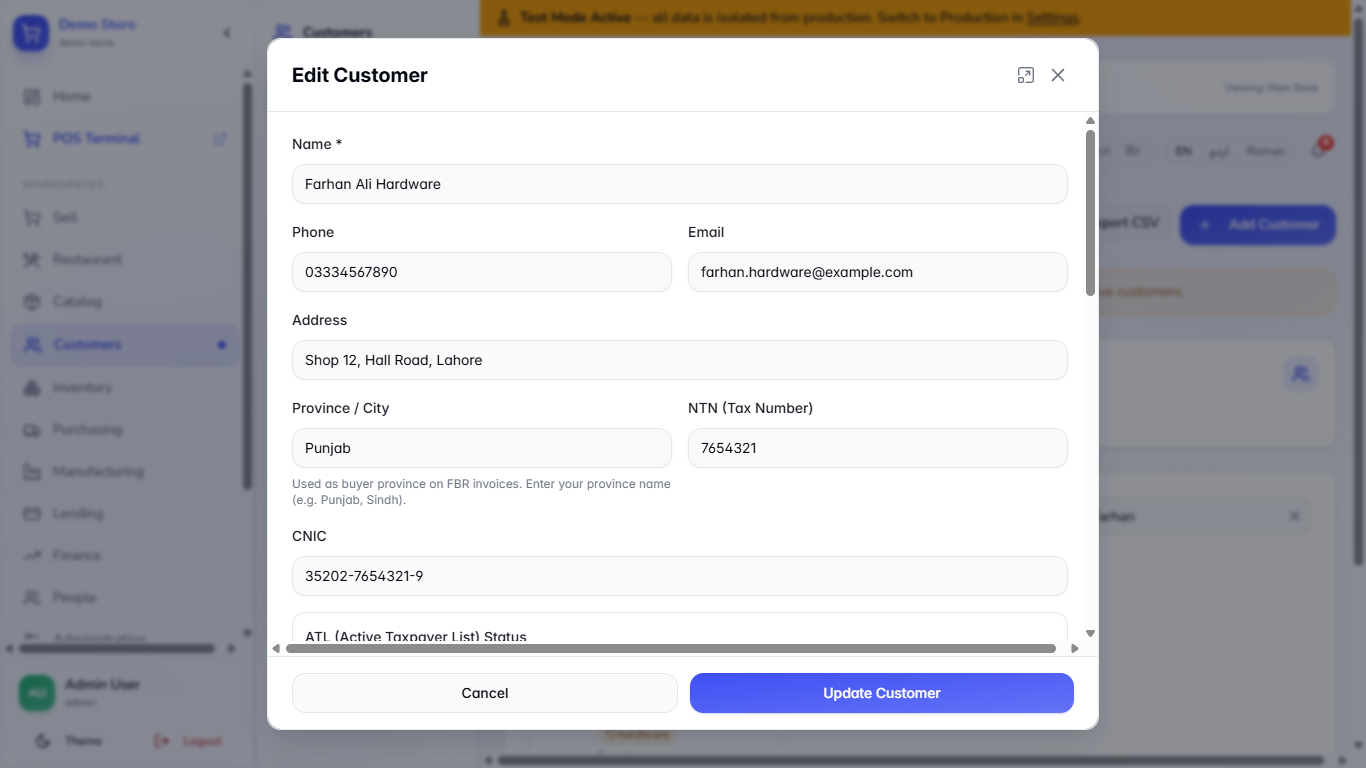
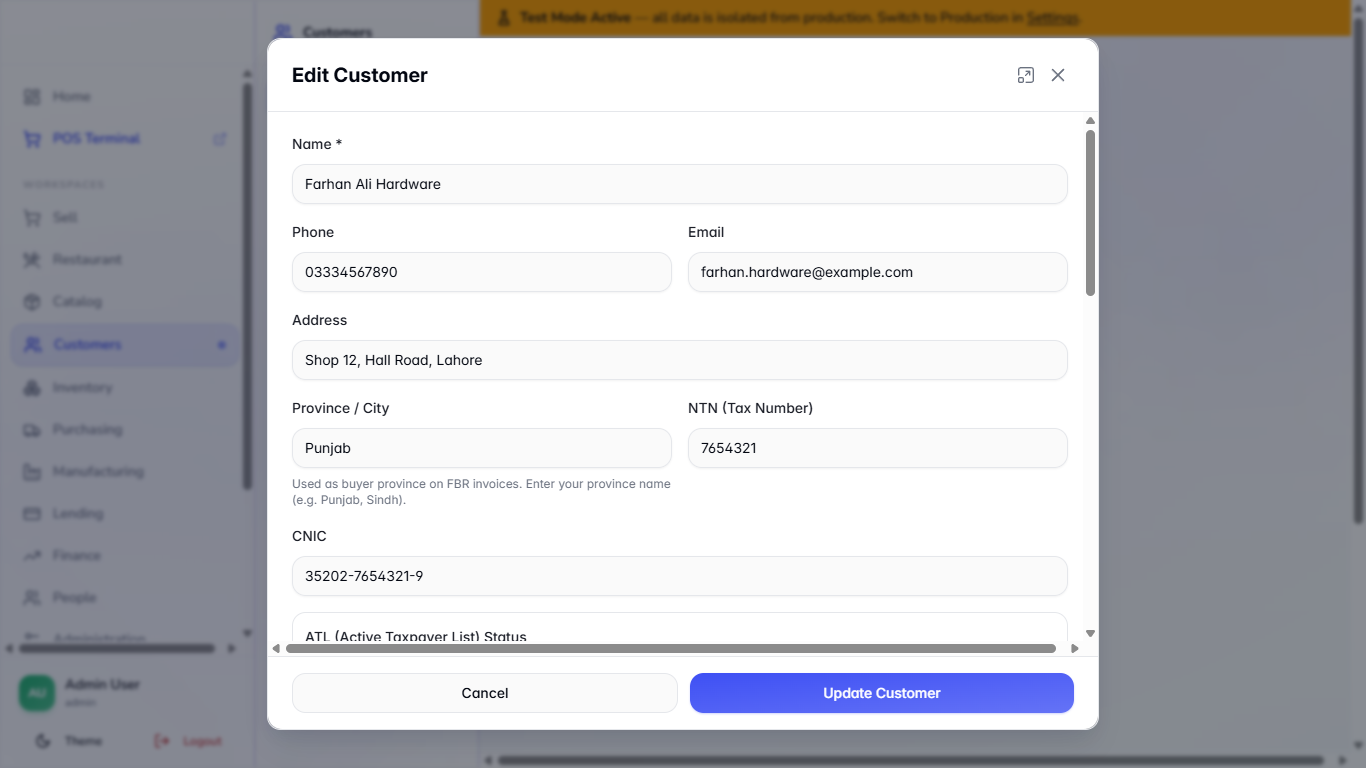
Press the pencil (Edit customer) on the card. The dialog has the same fields plus Documents and Guarantors sections for the proof you hold on credit customers.
The Edit Customer dialog with the saved values
7
Change the credit limit
Change Credit Limit (PKR) from 25000 to 40000 and press Update Customer. The app says Customer updated and the card shows Credit: Rs 40,000.
Customer updated message and the card with the new credit limit
8
Check what the form refuses
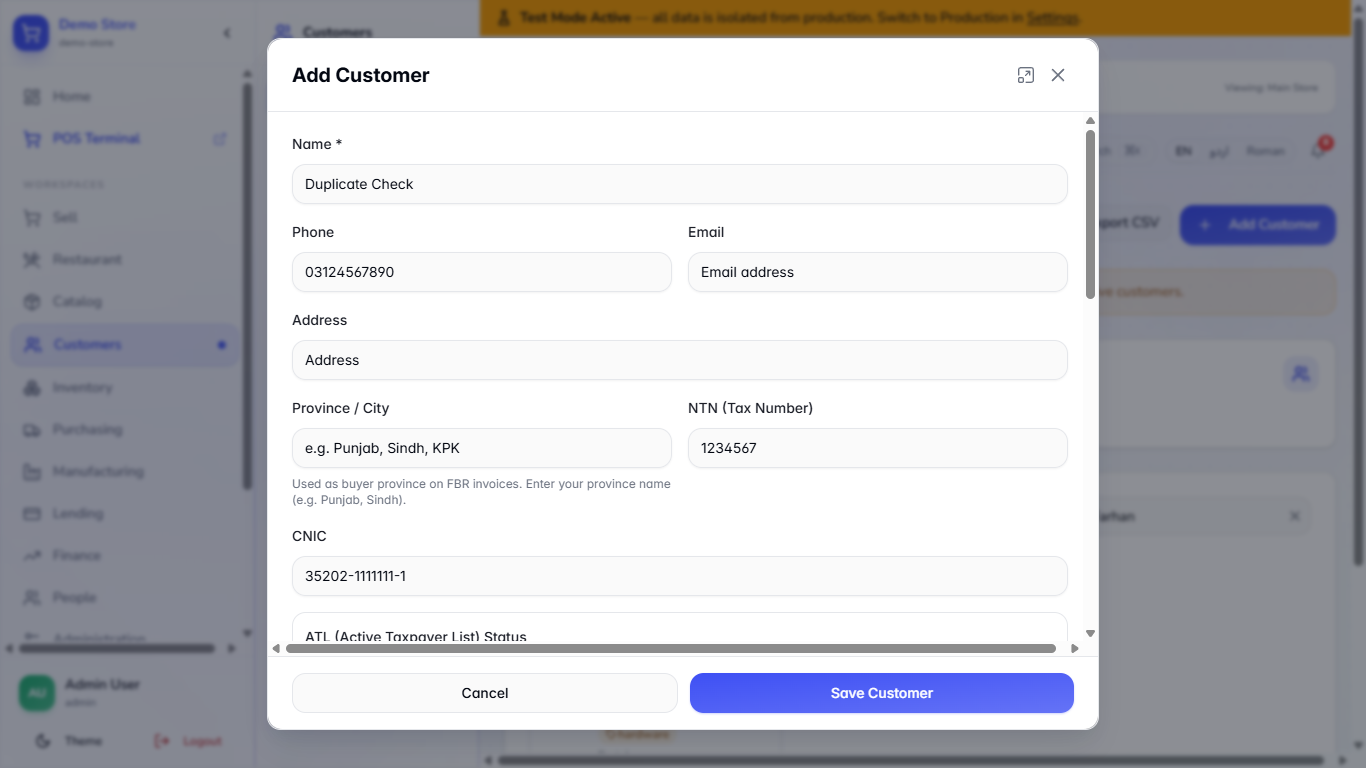
A CNIC with fewer than 13 digits gives CNIC must be 13 digits, and a bad email or a negative credit limit is stopped by the form. A phone number can belong to one customer only: using the number of another customer keeps the dialog open and says Another customer (Verify WhatsApp) already uses this phone number.
Add Customer form refused because the phone number belongs to another customer
9
Share the portal link on WhatsApp
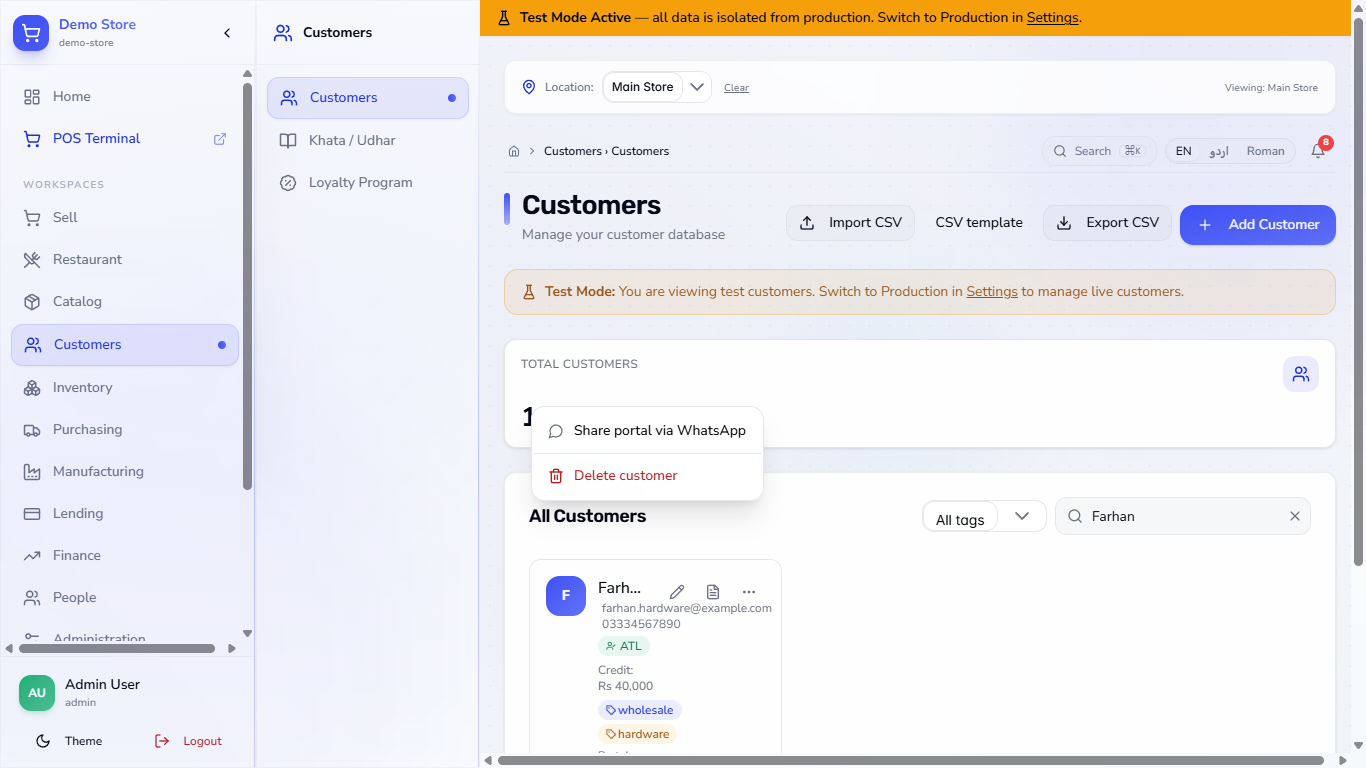
Press More actions on the card and choose Share portal via WhatsApp. WhatsApp opens with the customer's number, with the country code added, and a message with the link to their account. The card then reads "Portal: link sent" with the date and time, until the customer uses it.
To stop a customer using the portal, switch Customer portal off in Edit Customer. The card then reads Portal: off, and the customer gets no sign-in code and is signed out at once.
The card menu with Share portal via WhatsApp and Delete customer
Edit Customer with the Customer portal switch
10
See what the customer sees
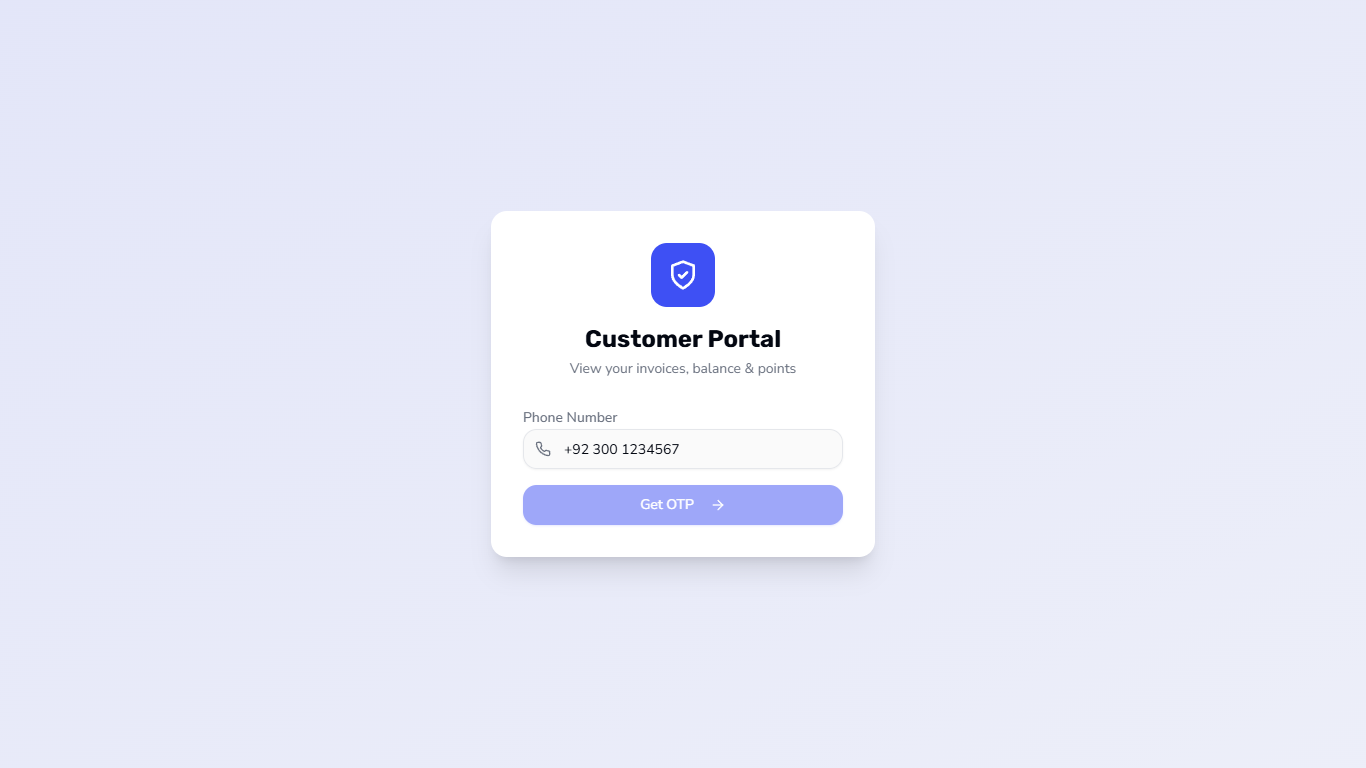
The customer opens the link and sees Customer Portal with a Phone Number box and Get OTP. They sign in with a one-time code sent to their phone, not with a password you create.
The Customer Portal sign-in page asking for a phone number
11
Delete a customer you added by mistake
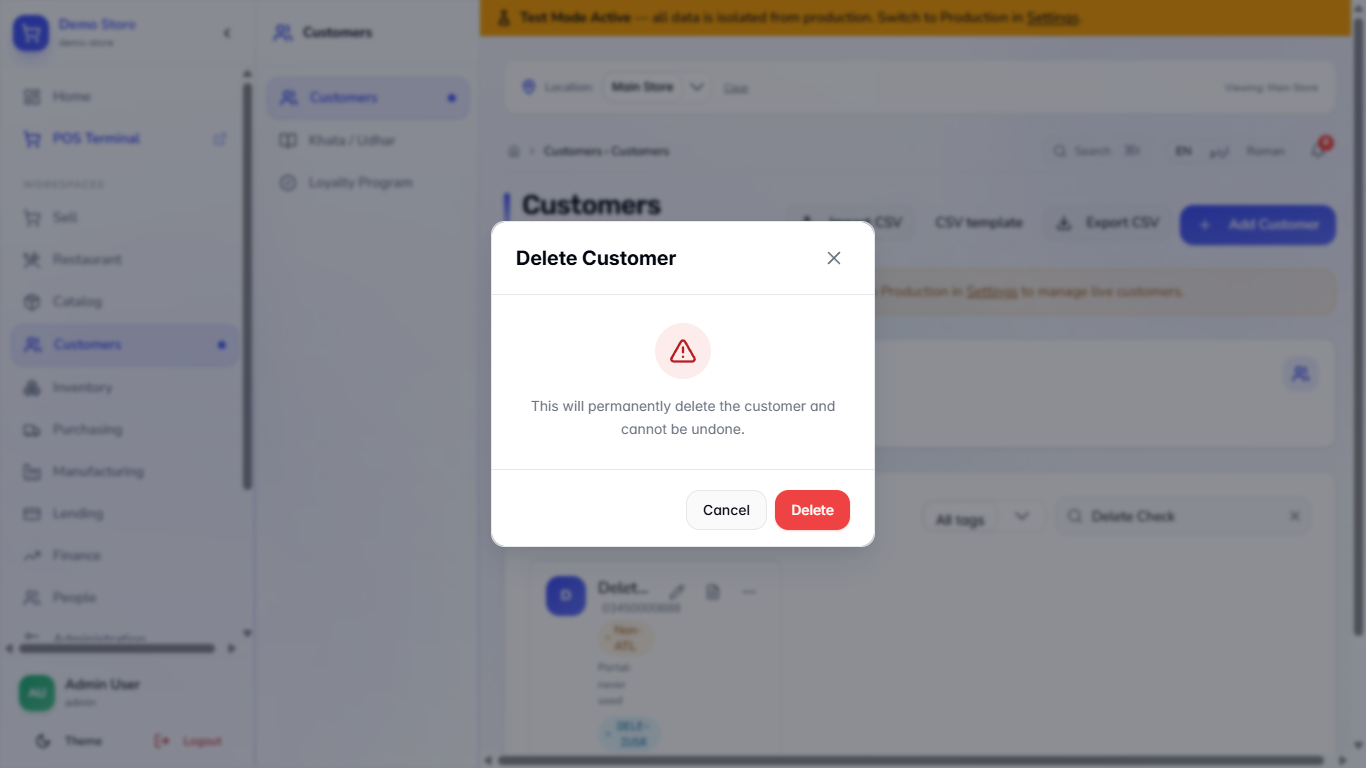
Press More actions and Delete customer. The dialog says this will permanently delete the customer and cannot be undone. Press Delete and the app says Customer deleted.
The Delete Customer confirmation
12
Open the customer's page
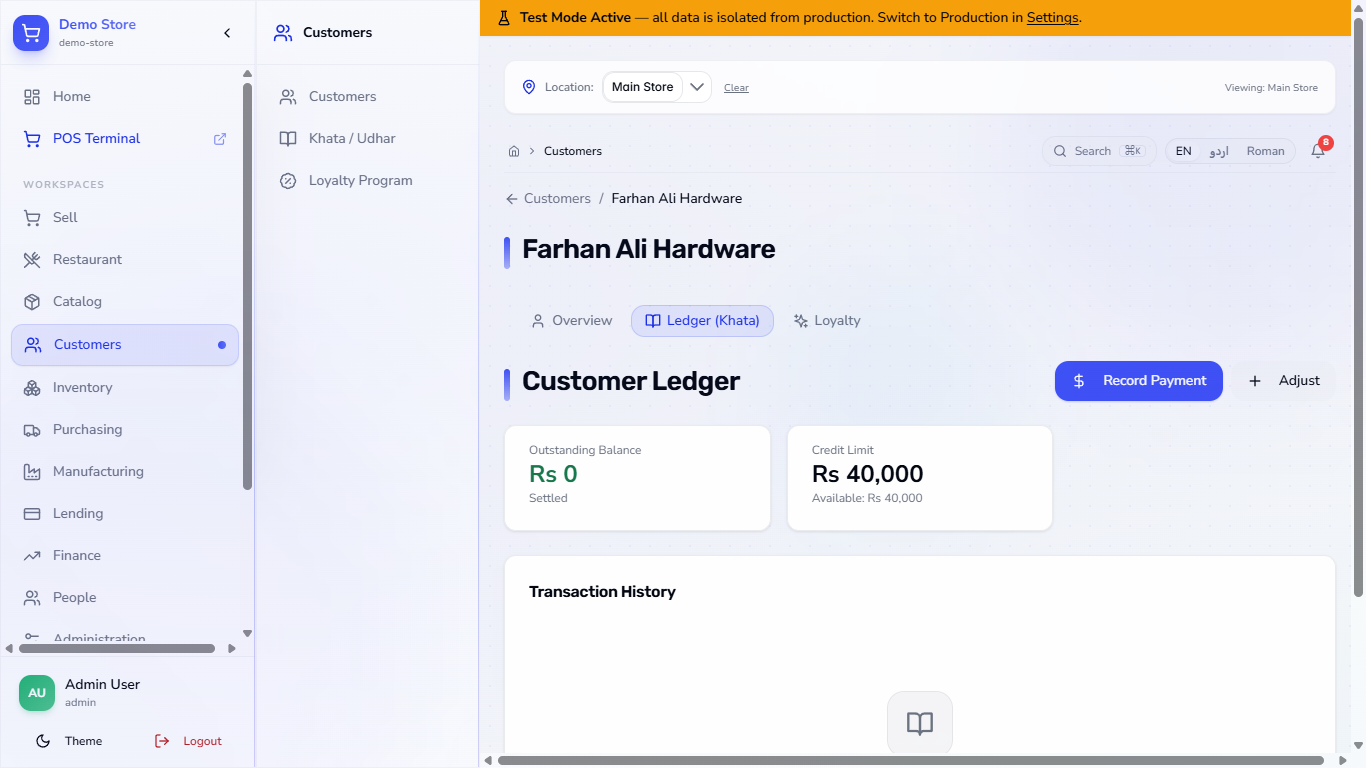
Press the document icon (View ledger) on a card. The page shows Outstanding Balance, Credit Limit and what is Available, with tabs for Overview, Ledger (Khata) and Loyalty.
The customer ledger page showing the credit limit
Check it worked
The customer card shows the right ATL badge and Credit: Rs 40,000.
The card shows the portal line you expect: never used, link sent, or off.
The ledger page shows Outstanding Balance Rs 0 and Credit Limit Rs 40,000.
Common mistakes
Mistake
What you see
Fix
CNIC typed with fewer than 13 digits
CNIC must be 13 digits
Enter 13 digits or the form 35202-7654321-9
Same phone number for a second customer
Another customer (Verify WhatsApp) already uses this phone number
Search the phone and use the existing customer
Deleted the wrong customer
Customer deleted, no undo
Check the name before pressing Delete
Quick reference
Item
Meaning / rule
Name
The only required field
Phone
Must be unique among customers
ATL
Registered taxpayer; Non-ATL buyers bear 3% further tax on federal GST goods
Credit Limit (PKR)
Maximum khata for this customer; empty means unlimited
Customer portal
On lets the customer sign in with a code; off blocks it
Referral code
Made automatically from the name when you save
Frequently asked questions
Can two customers have the same phone number? No. The app refuses the second one and names the customer who already uses the number.
How does a customer get into the portal? Press More actions, then Share portal via WhatsApp. The customer opens the link and signs in with a one-time code sent to their phone.
How do I stop a customer using the portal? Switch Customer portal off in Edit Customer. They get no sign-in code and are signed out at once.