The parent opens the Guardian Portal
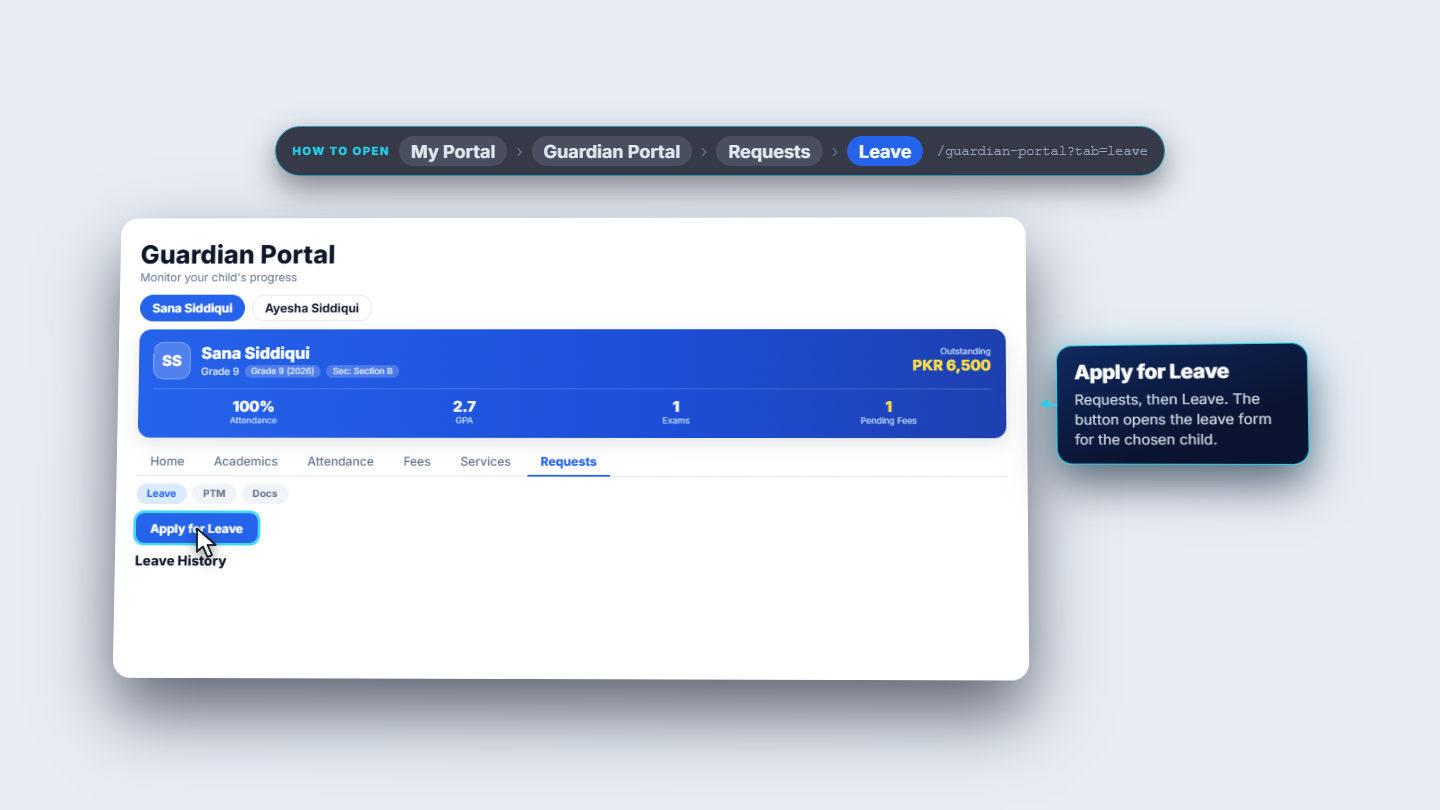
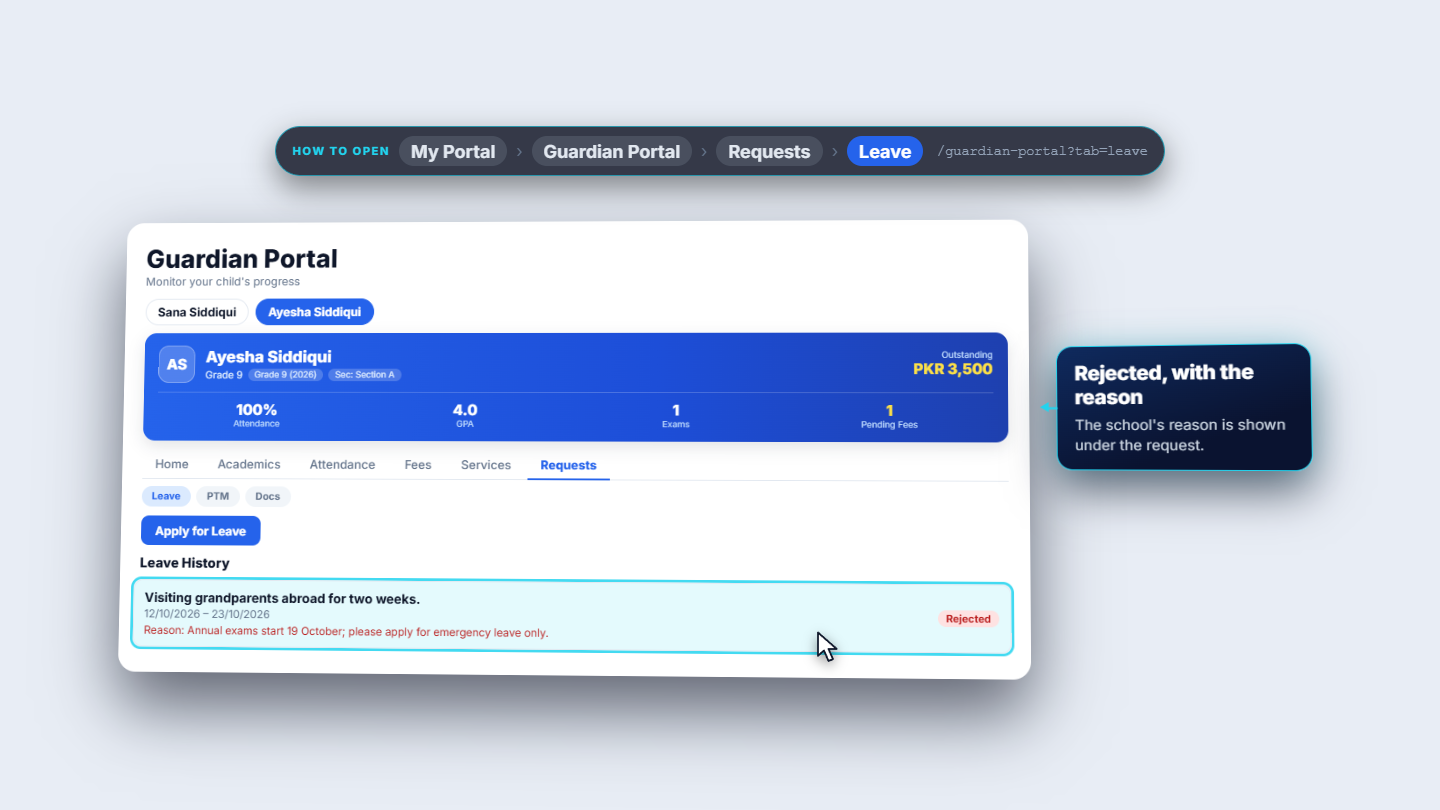
The parent opens the Guardian Portal, picks the child, and goes to Requests, then Leave. Apply for Leave sits above the Leave History.
A family tells the school a child will be away. This guide follows one request from the parent's form to the school's decision and back to the family, so nobody has to phone the office to ask.
The parent opens the Guardian Portal, picks the child, and goes to Requests, then Leave. Apply for Leave sits above the Leave History.
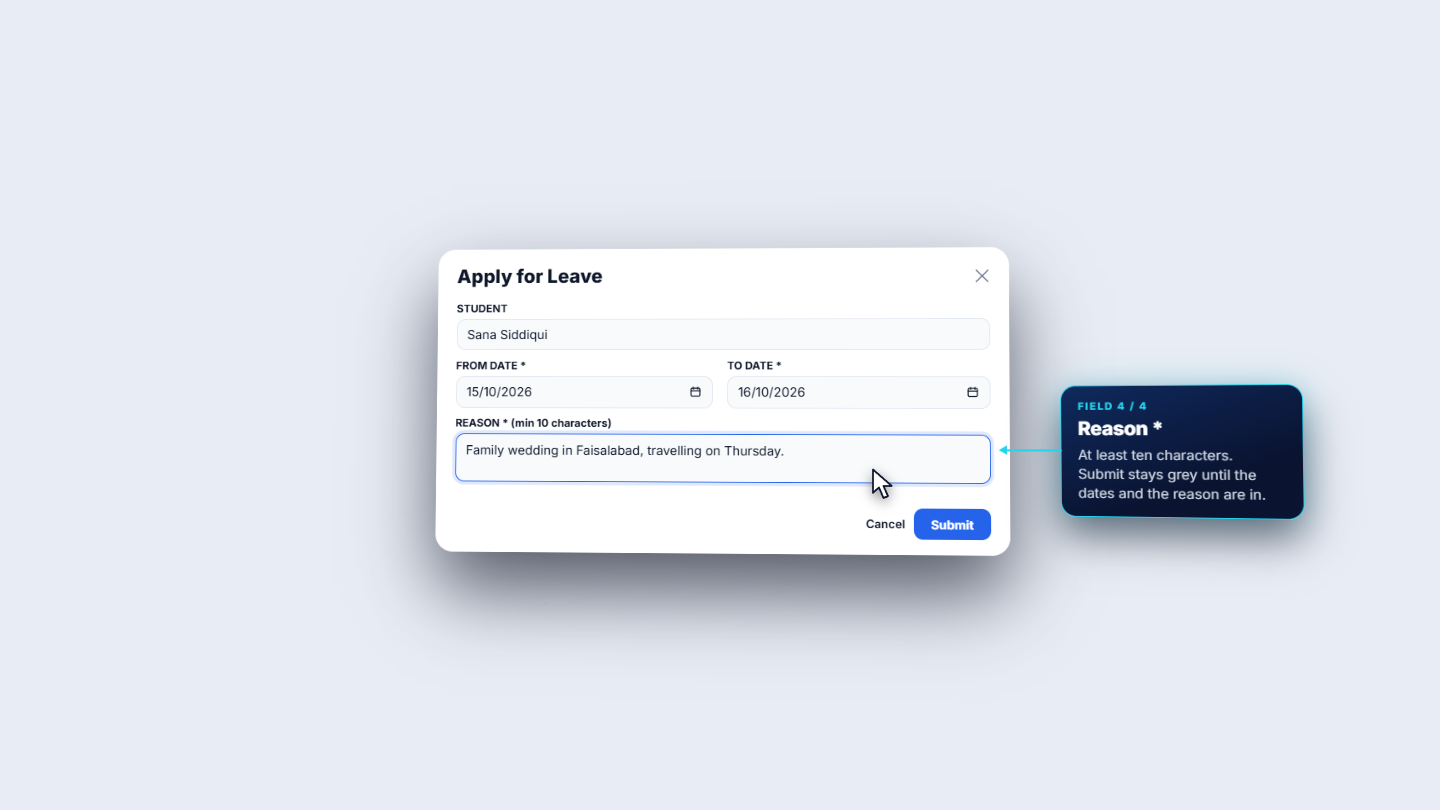
In Apply for Leave the Student is read-only and follows the child chosen above (Sana Siddiqui). Pick From date 15/10/2026 and To date 16/10/2026 (the last day away), then write the Reason: "Family wedding in Faisalabad, travelling on Thursday."
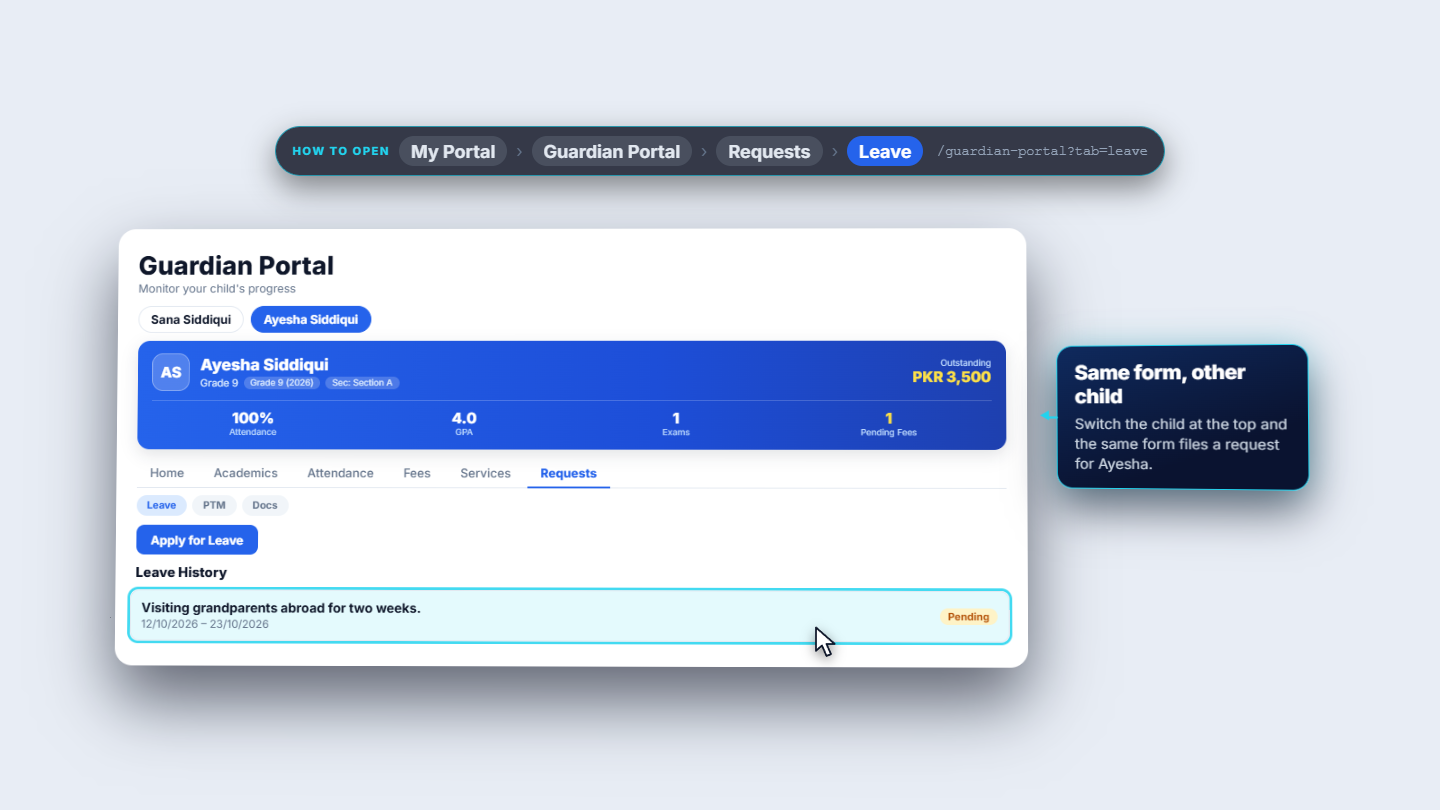
Press Submit. A toast says the request is pending the school's decision, and it appears under Leave History with the reason, the dates and a Pending chip. The parent can file more requests the same way, for example Ayesha for 12 to 23 October.
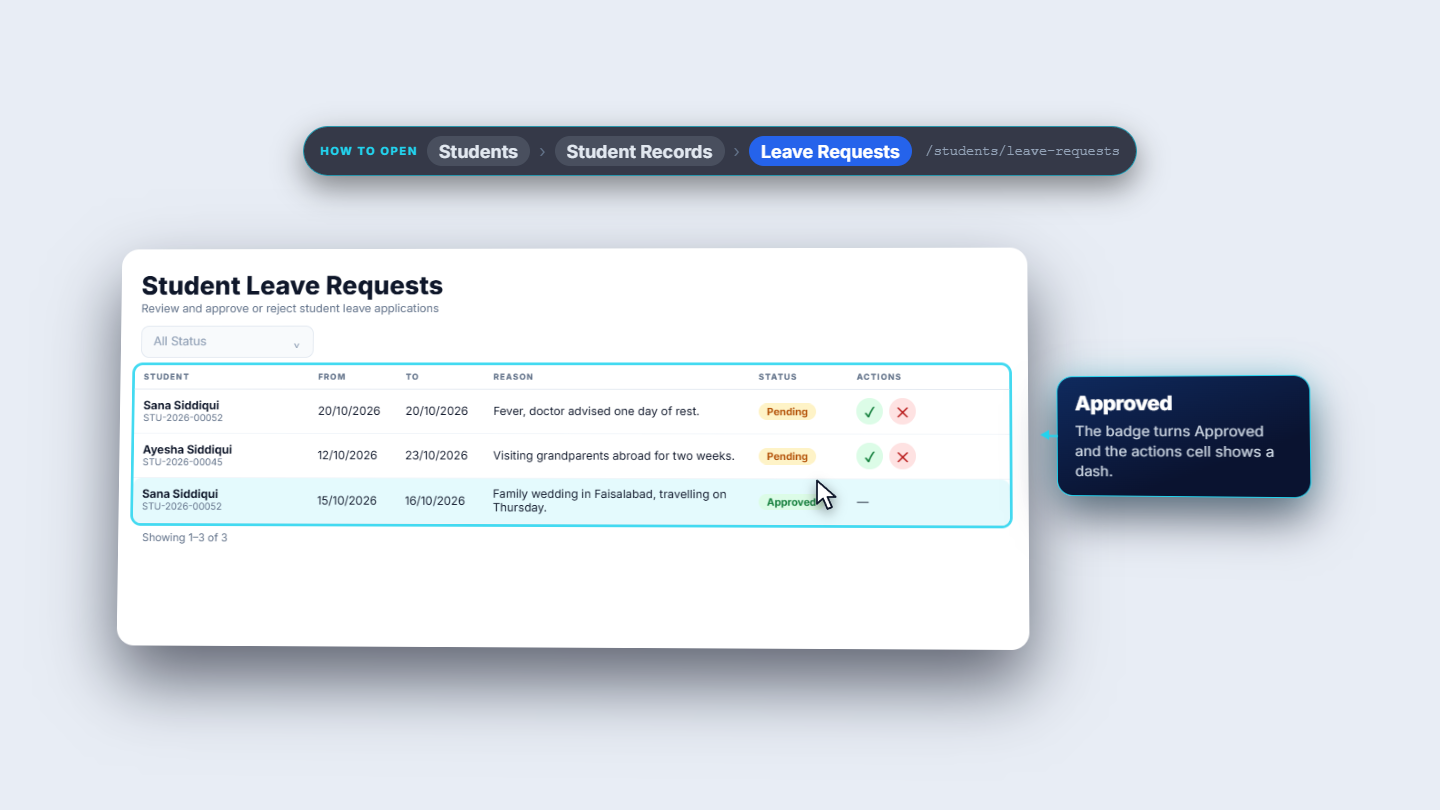
Staff open Students › Student Records › Leave Requests. The page Student Leave Requests lists the newest first, with the student and registration number, From, To, Reason, a status badge and the actions. The status filter offers Pending, Approved and Rejected; a status with no requests shows No leave requests found.
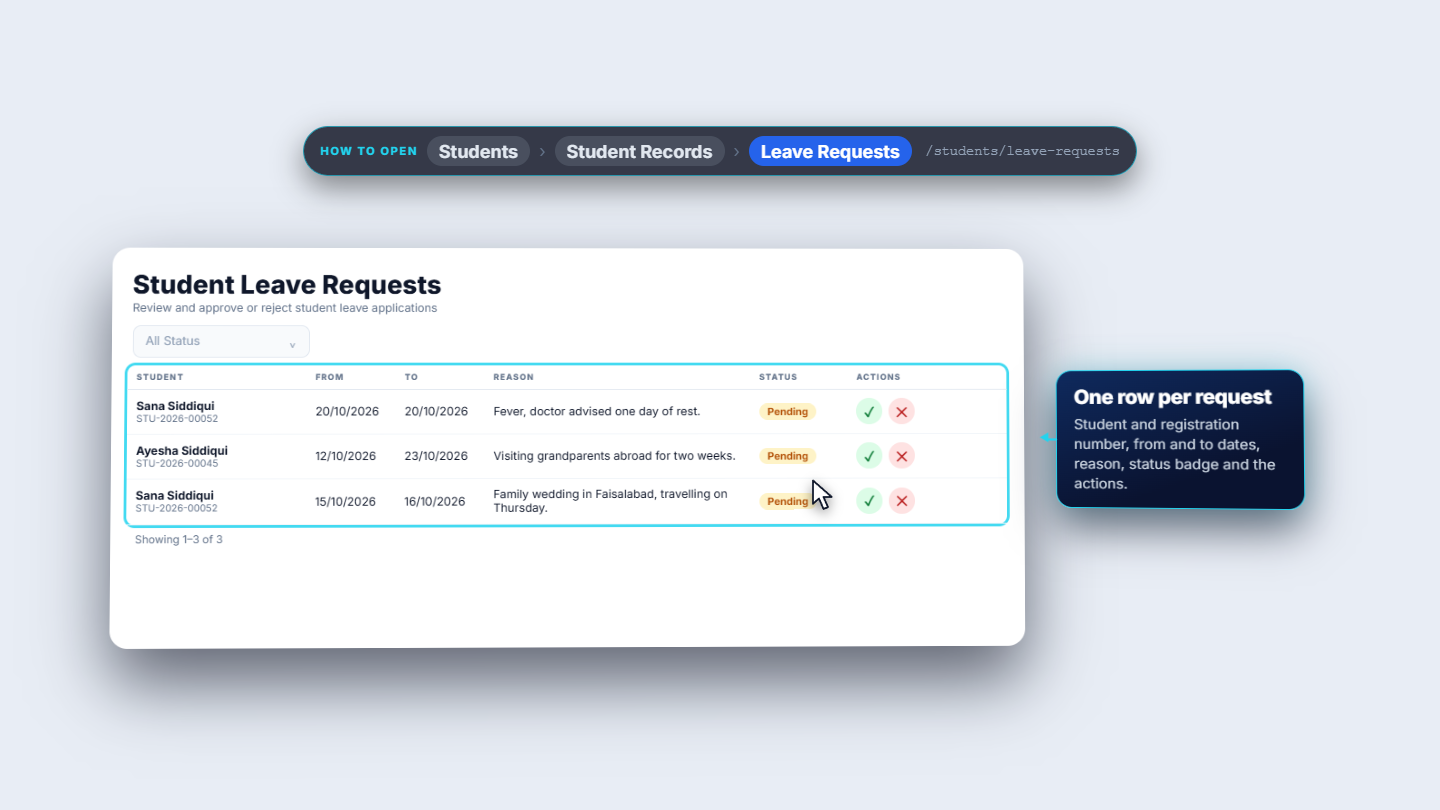
A pending row has two round buttons. The green check approves at once, with no confirmation. A toast says Leave request approved, the badge turns Approved and the actions cell shows a dash.
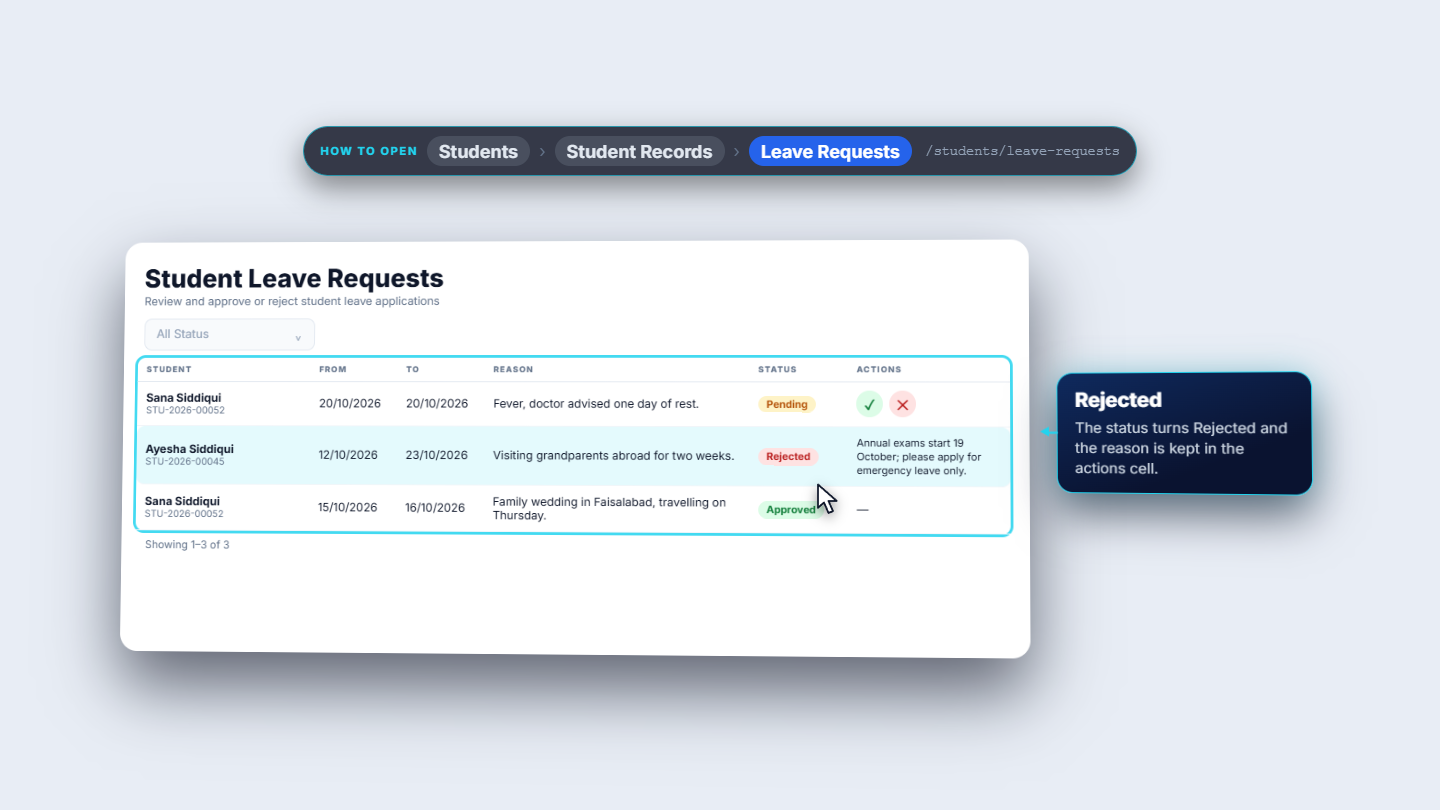
The red cross opens Reject Leave Request, naming the student. Reject stays grey until you type a reason, for example "Annual exams start 19 October; please apply for emergency leave only." The toast is Leave request rejected; the status turns Rejected and the reason shows in the actions cell.
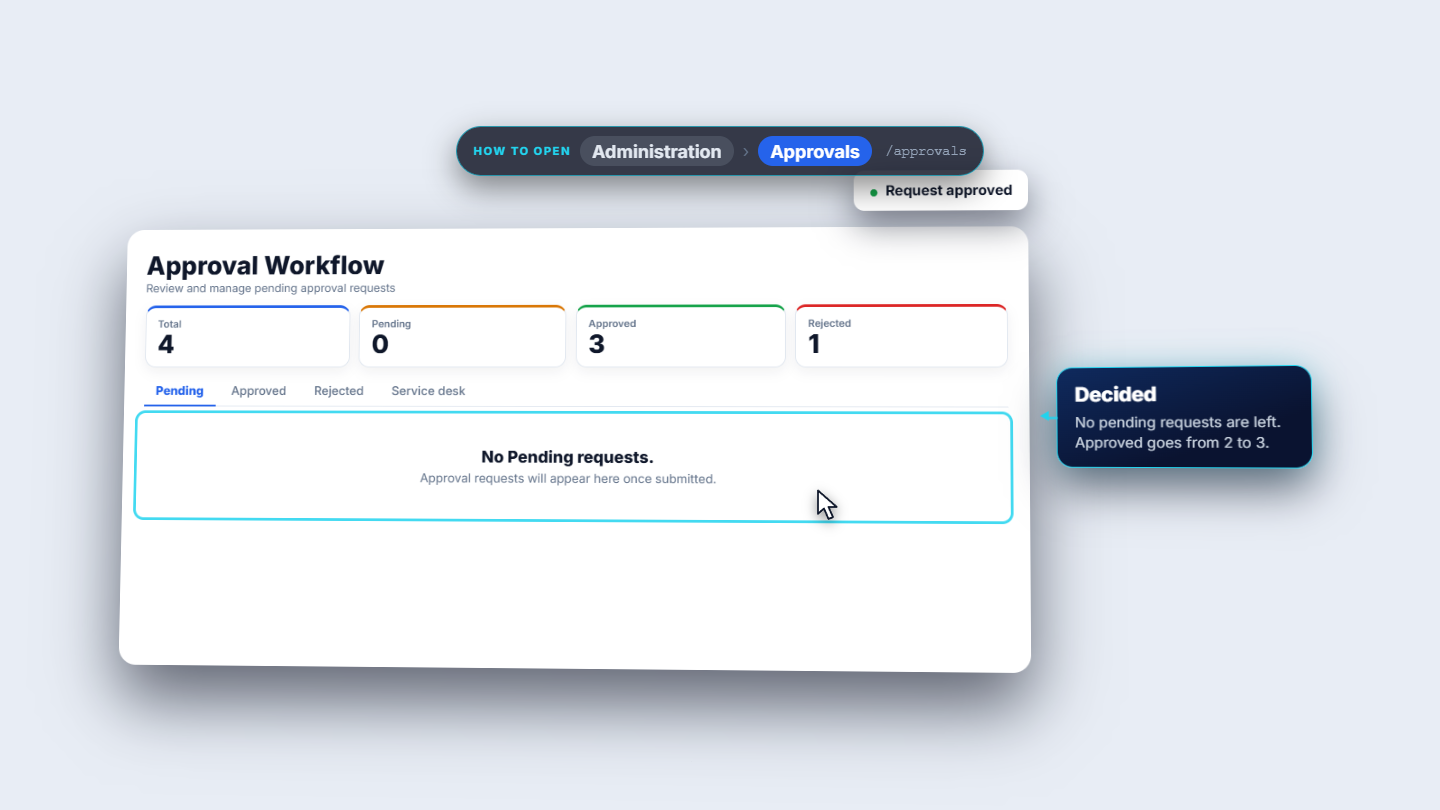
Every leave request is also a request in the Approvals inbox. The cards count Total, Pending, Approved and Rejected. The row reads Student leave with the requester (Imran Siddiqui). The green check opens Approve Request with an optional comment; Approve decides it and the toast says Request approved.
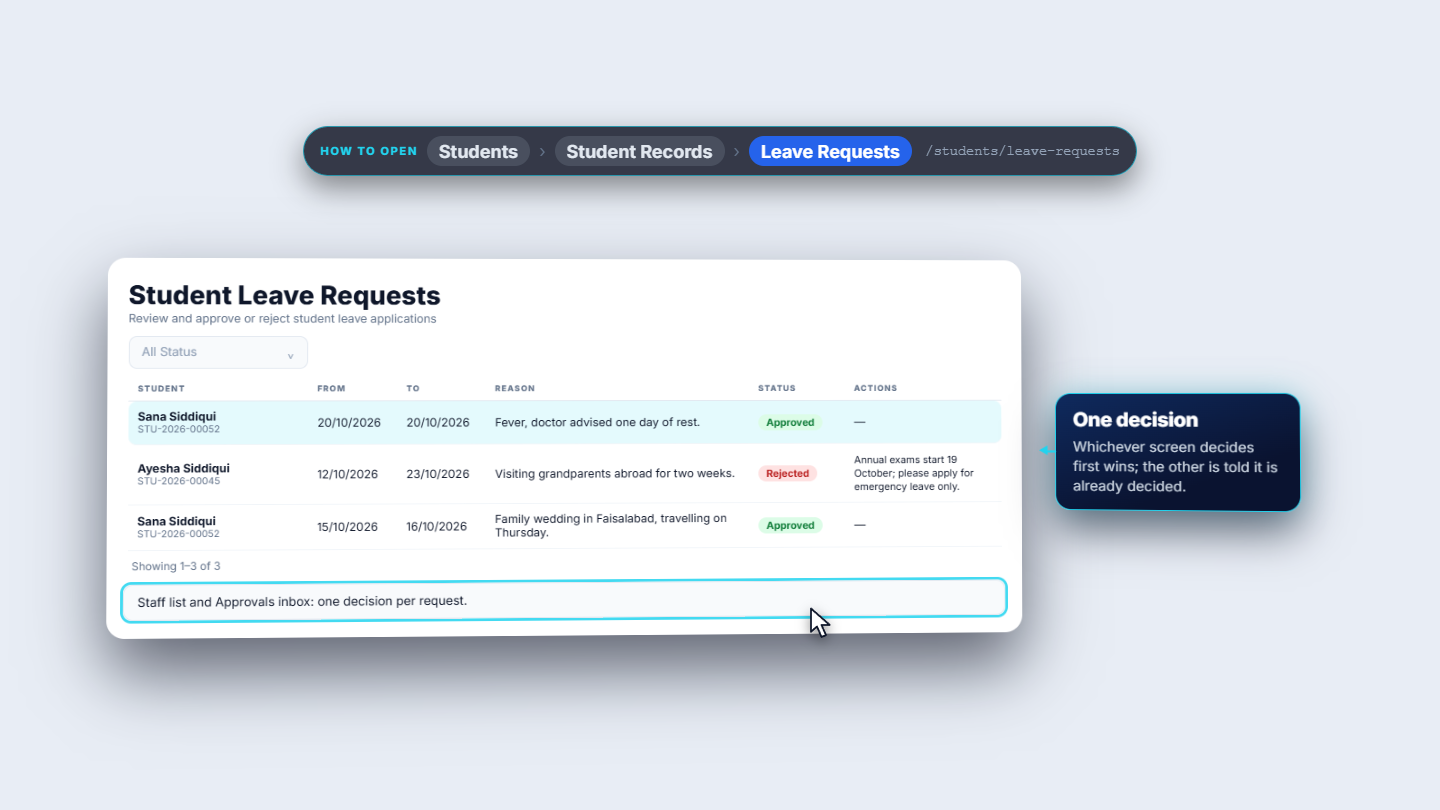
If a second person has the list open and approves the same request, the app answers This leave request has already been decided and the row refreshes to the real status.
Back in the Guardian Portal, Sana's request reads Approved. Ayesha's reads Rejected, with the school's reason underneath so the family knows why.
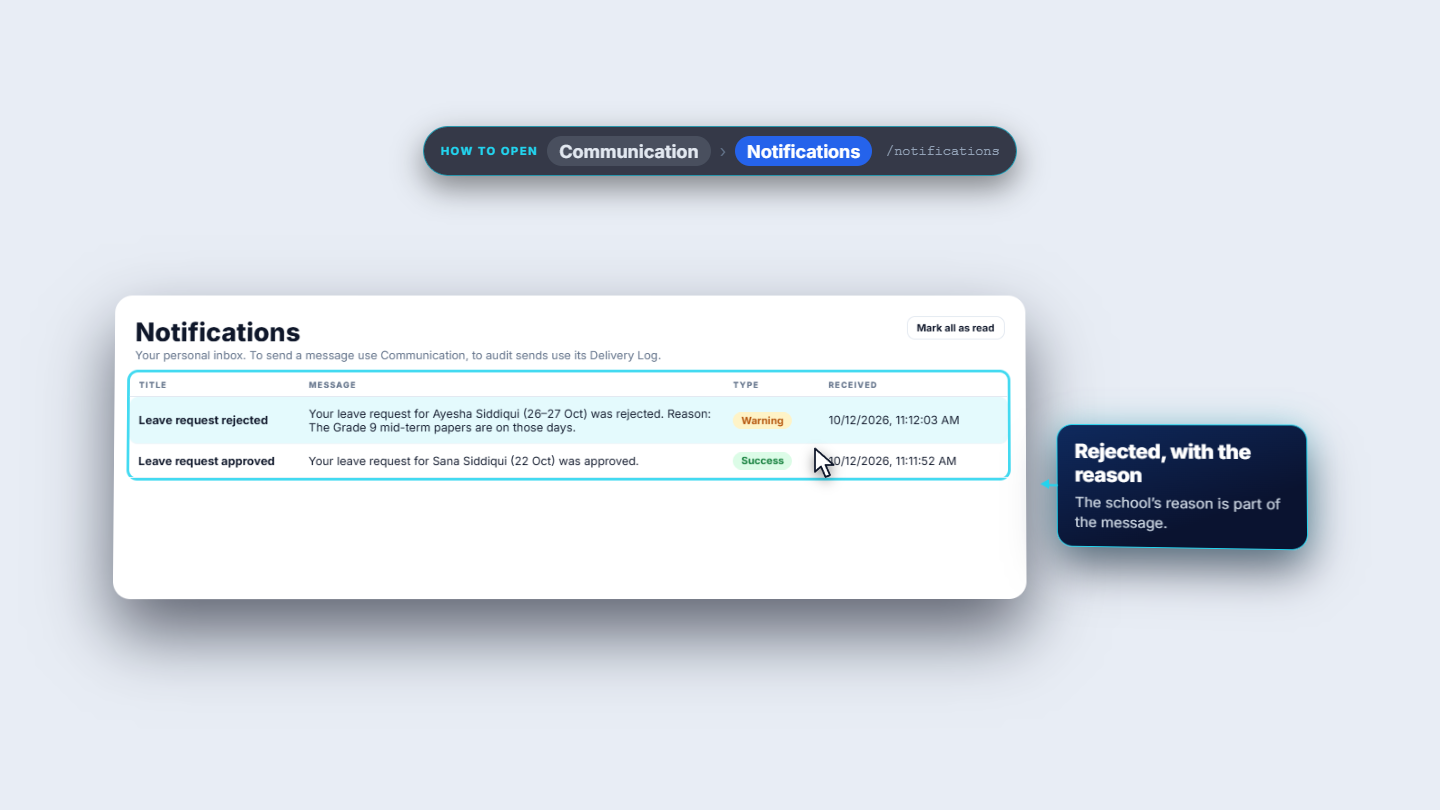
Each decision also reaches the parent as a notification. The title says Leave request approved, and the message names the child and the date. A rejection names the child, the dates and the school's reason.
| Mistake | What you see | Fix |
|---|---|---|
| Reason shorter than 10 characters | Submit stays grey | Write a fuller reason |
| Rejecting without a reason | Reject stays grey | Type the reason for the family |
| Deciding a request twice | This leave request has already been decided | Reload the list and read the real status |
| Item | Meaning / rule |
|---|---|
| Pending | Waiting for the school |
| Approved / Rejected | Final; one decision only |
| Reject reason | Shown to the family |
| Approvals inbox | A second place to decide the same request |
Can a leave request be decided twice? No. A request gets exactly one decision, from either the Leave Requests list or the Approvals inbox. A second attempt answers that it has already been decided.
Does a rejection need a reason? Yes. Reject stays grey until a reason is typed, and the family sees that reason in the Guardian Portal and in their notification.
Does the parent find out about the decision? Yes. The status in Leave History changes to Approved or Rejected, and the parent also receives a notification naming the child and the dates.
Where can staff decide a leave request? Either in Students > Student Records > Leave Requests, or in the Approvals inbox, where it appears as a Student leave request.
GridX SCM runs this whole workflow. See what GridX SCM does and what it costs, or browse all step-by-step guides.