Open the Drivers tab
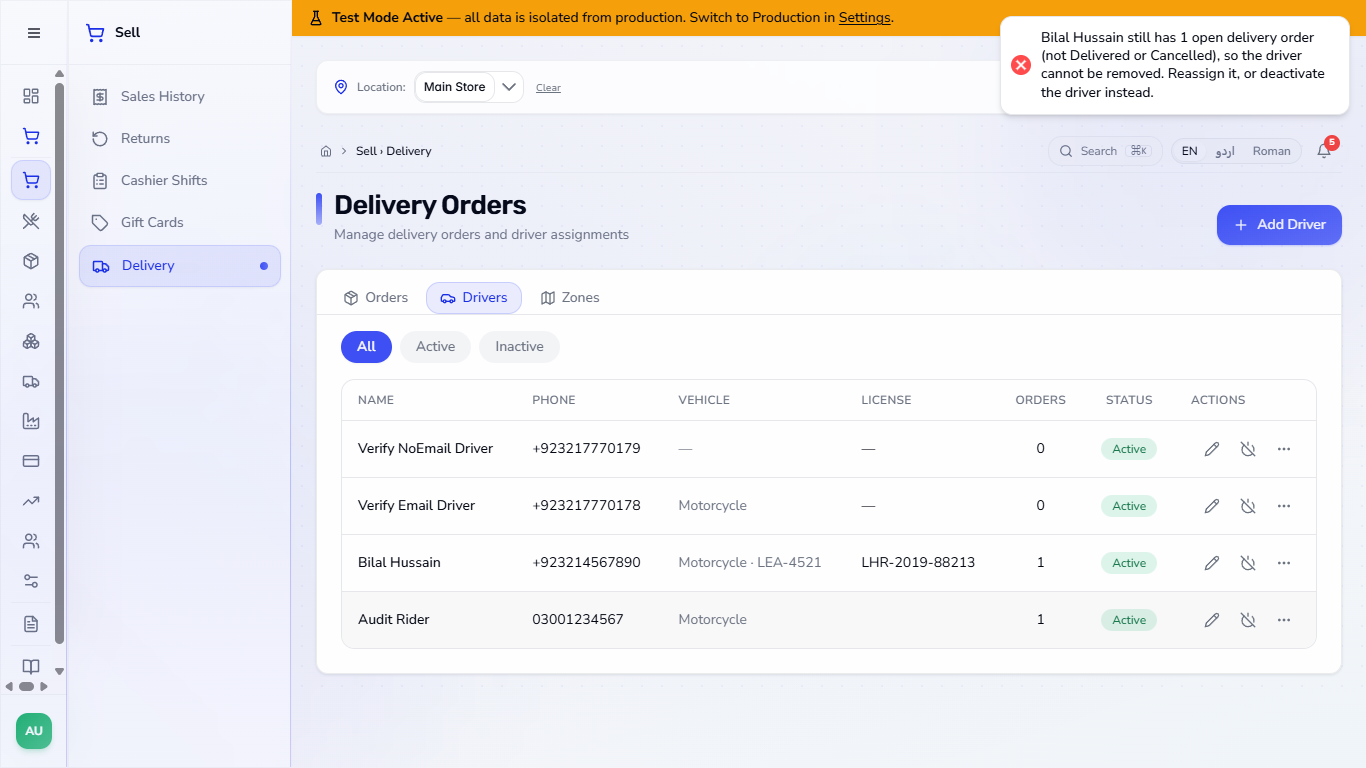
Go to Sell, then Delivery, then the Drivers tab. Each rider shows the phone, the vehicle as type and number, the licence, how many orders they hold and the status. The chips All, Active and Inactive filter the list.
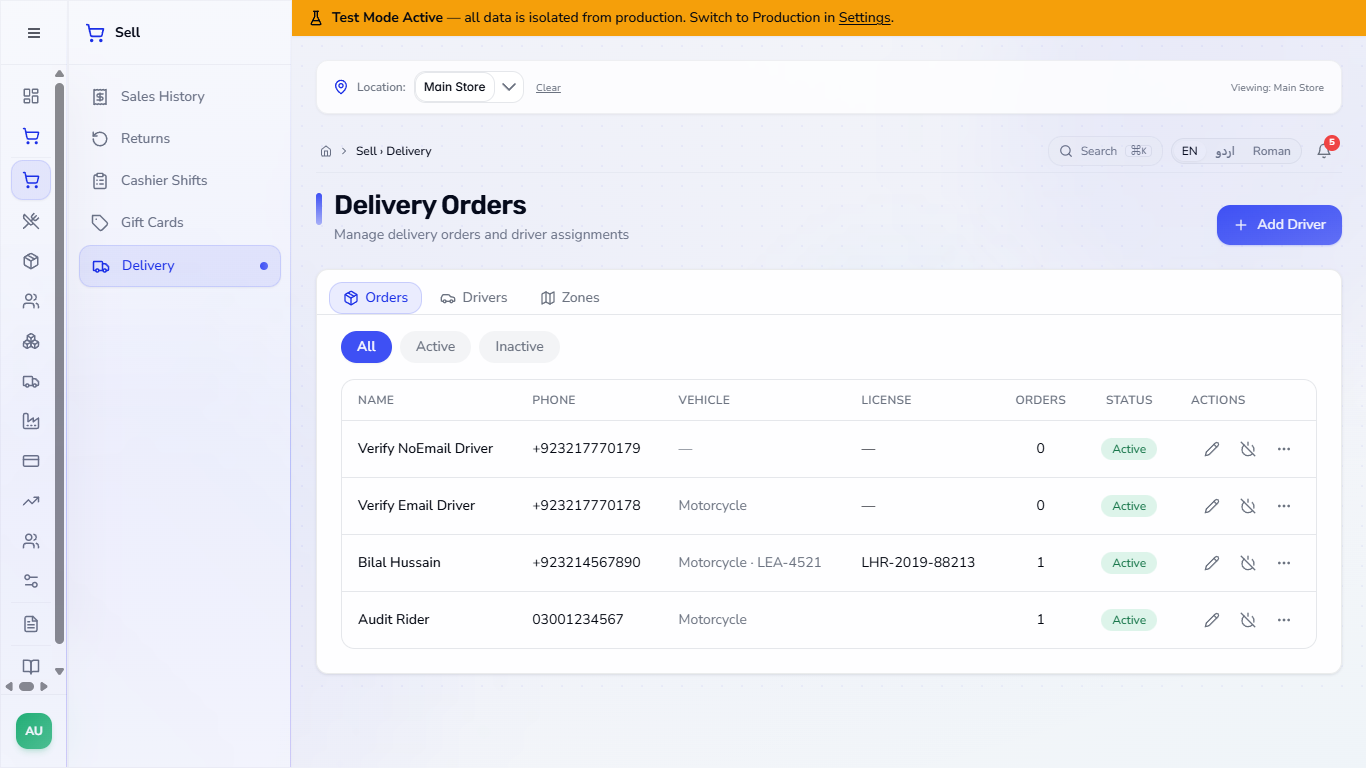
Before the shop can send a parcel out, it needs riders to assign and zones that tell the order form what to charge. This guide sets up both on the Delivery page and shows how the order form uses them.
Go to Sell, then Delivery, then the Drivers tab. Each rider shows the phone, the vehicle as type and number, the licence, how many orders they hold and the status. The chips All, Active and Inactive filter the list.
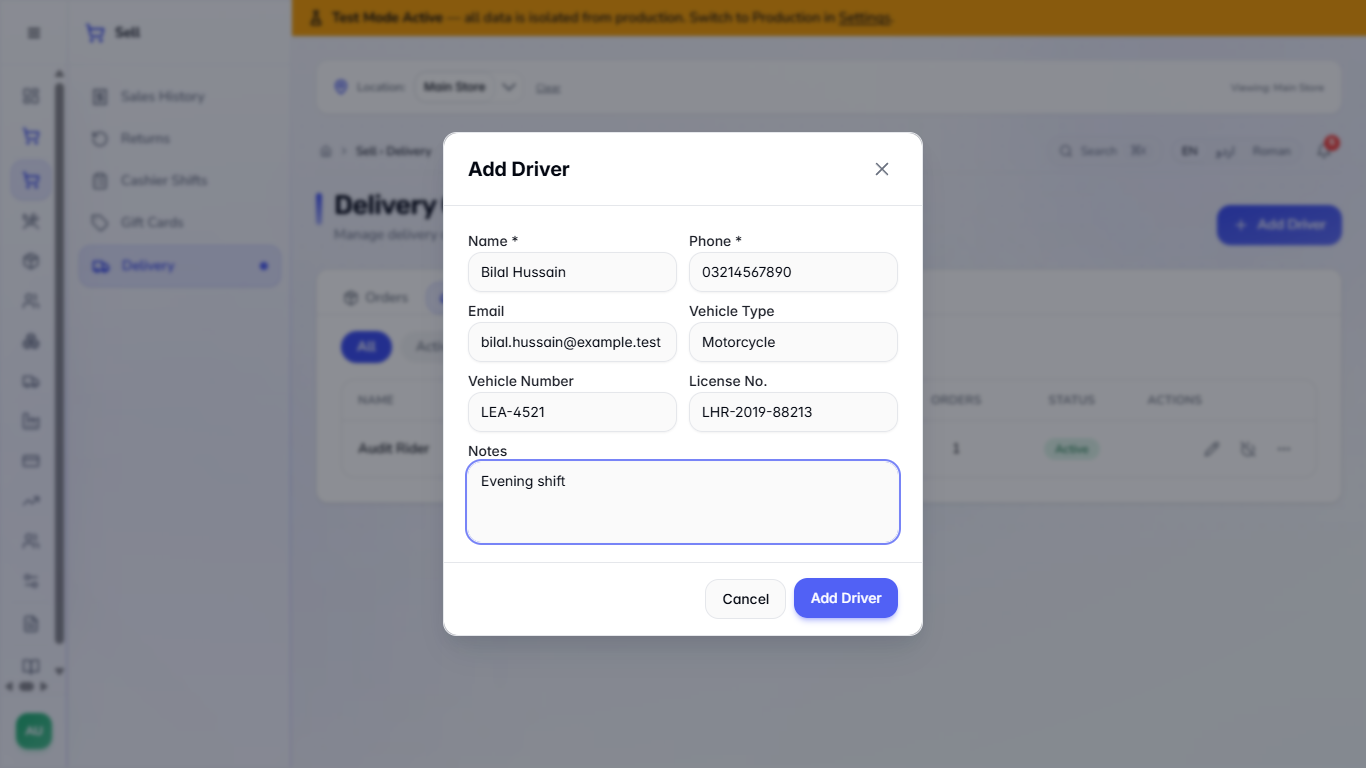
Press Add Driver. Only Name and Phone are required; the button stays grey until both are filled. Add the email, the vehicle type and number, the licence number and a note if you want them. Press Add Driver, and the toast says "Driver created".
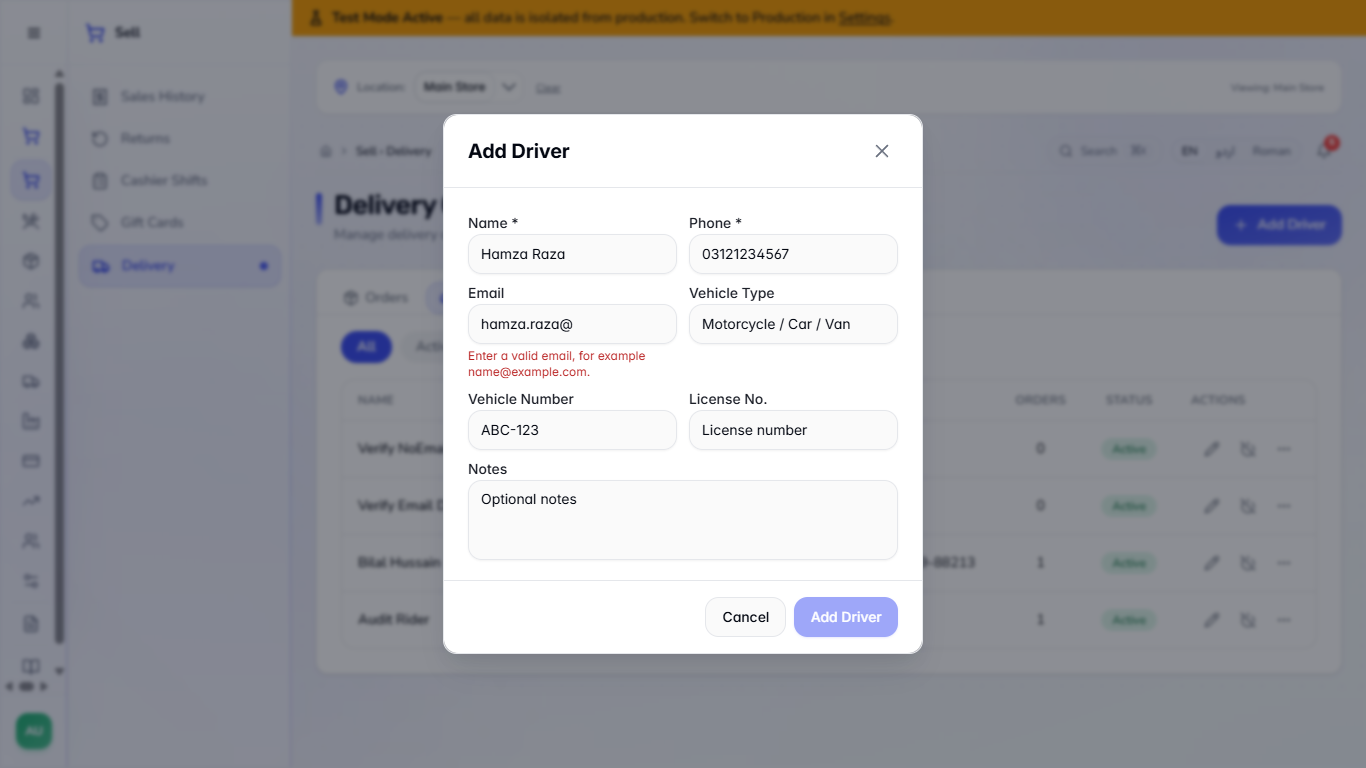
A wrong phone shows "Enter a valid Pakistani mobile number, for example 03XXXXXXXXX." under the field, and a wrong email shows "Enter a valid email, for example name@example.com." A name that already exists is refused with a toast, so add the vehicle number to tell two riders apart.
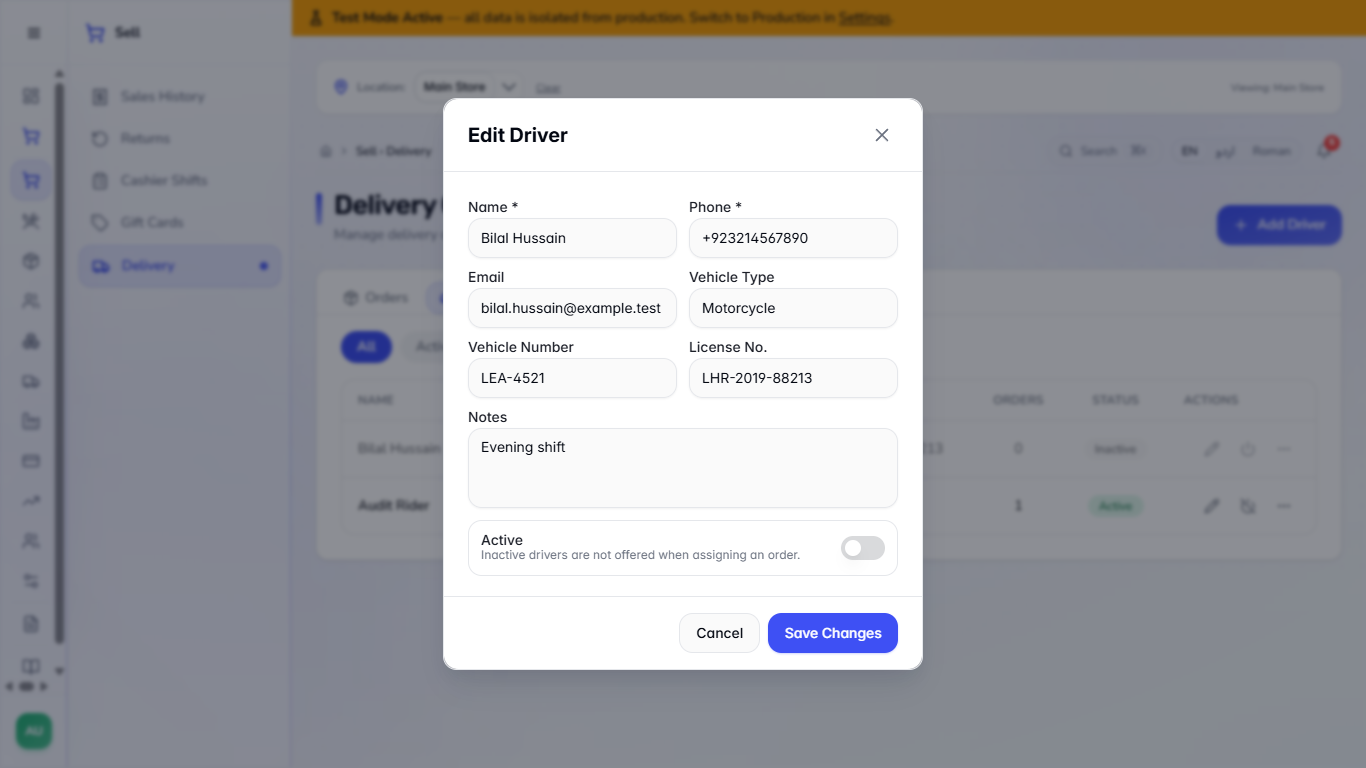
Press the pencil to change any detail. The Active switch (or the deactivate icon in the row) takes a rider off duty without deleting the history. An inactive rider shows Inactive in the list and is no longer offered when you assign an order.
Open More actions, then Delete driver. The dialog names the rider and says the profile is deleted for good. If the rider still holds an open order, the app refuses: "still has 1 open delivery order (not Delivered or Cancelled), so the driver cannot be removed. Reassign it, or deactivate the driver instead."
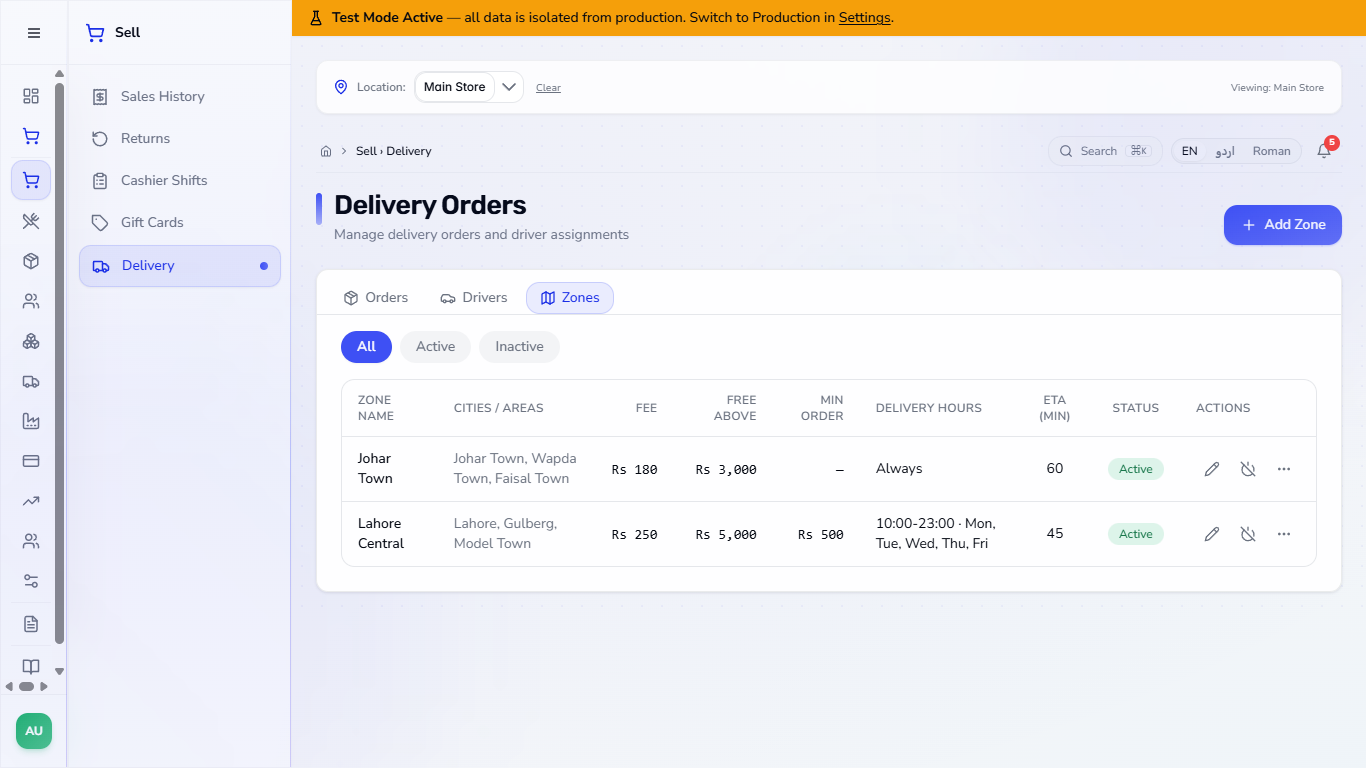
Open the Zones tab. Each zone lists the cities or areas it covers, the Fee, Free Above, Min Order, Delivery Hours, the minutes and the status. With no zones the tab says "No delivery zones yet" and offers Add Zone.
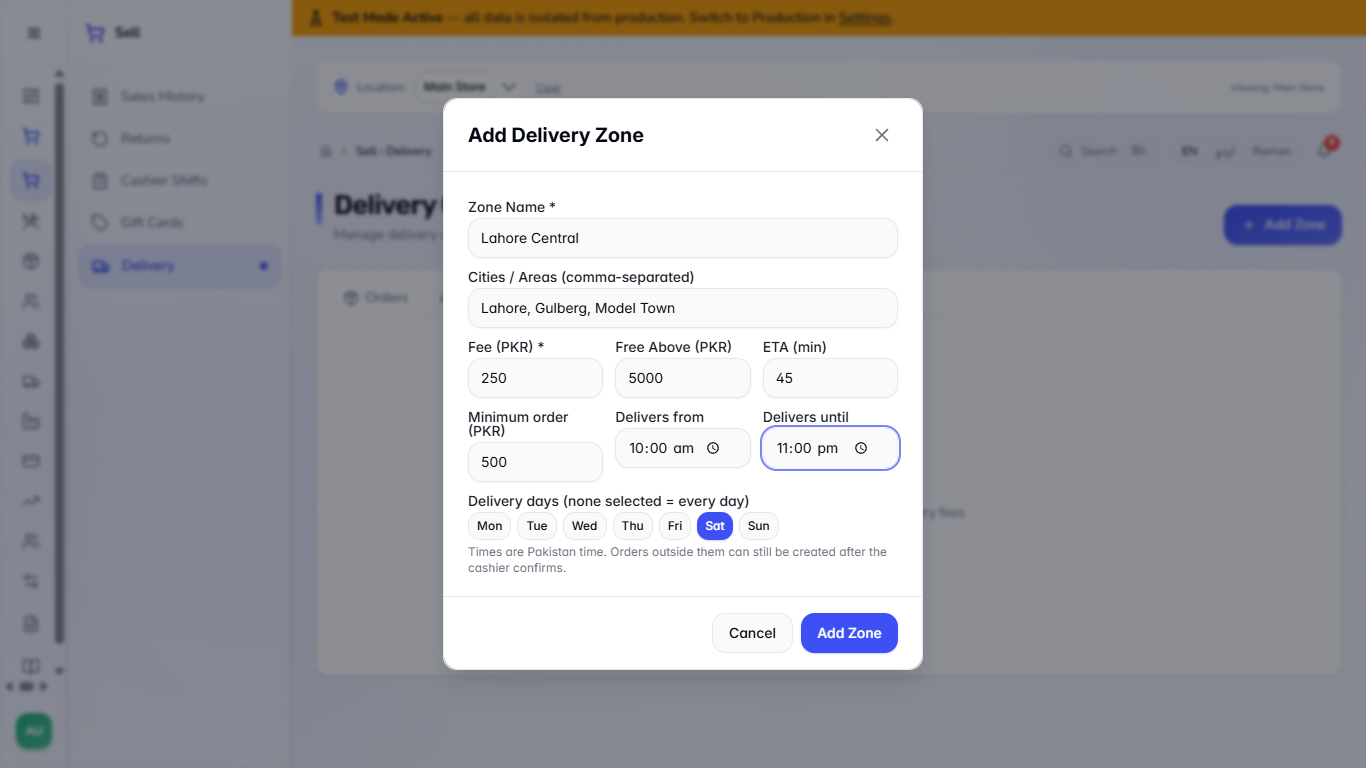
Press Add Zone. Type the Zone Name, the Cities / Areas separated by commas, the Fee, a Free Above amount (0 means never), the ETA in minutes and an optional Minimum order. Choose Delivers from and Delivers until, and press the day buttons for the days it delivers (none selected means every day). Press Add Zone.
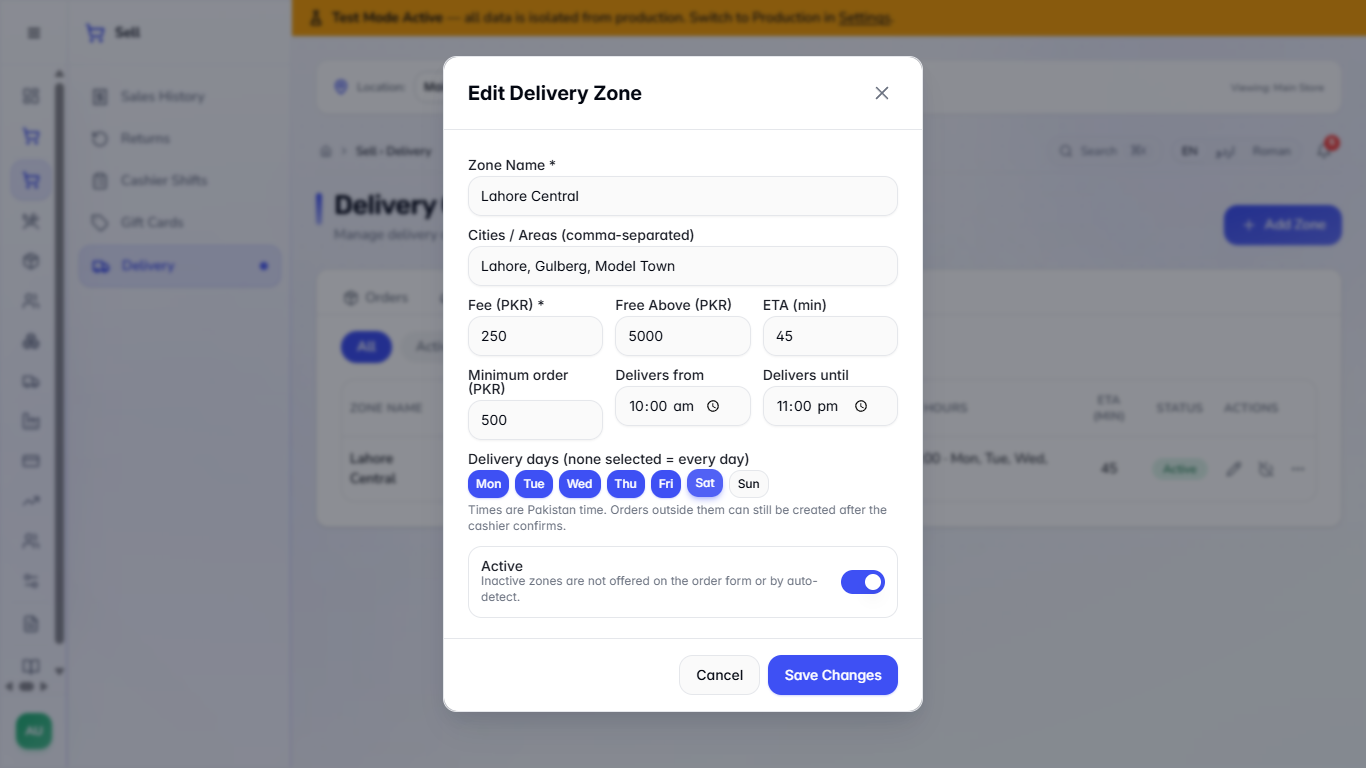
Press the pencil on a zone. Switch the day buttons on one by one, and the Active switch decides whether the zone is offered at all. Press Save Changes, and the row reads, for example, "10:00-23:00 · Mon, Tue, Wed, Thu, Fri, Sat".
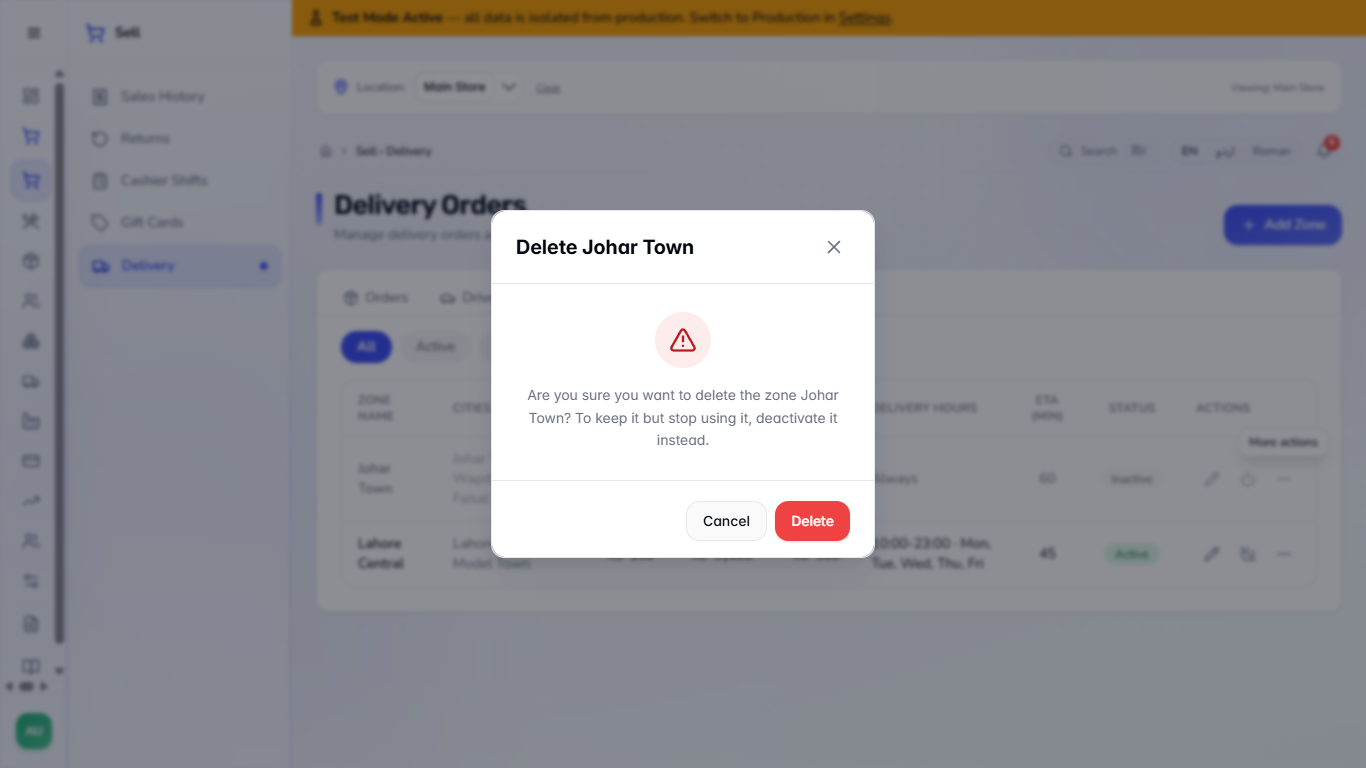
Open More actions, then Delete zone. The dialog names the zone and suggests deactivating it instead. Orders already booked keep the fee they were priced with.
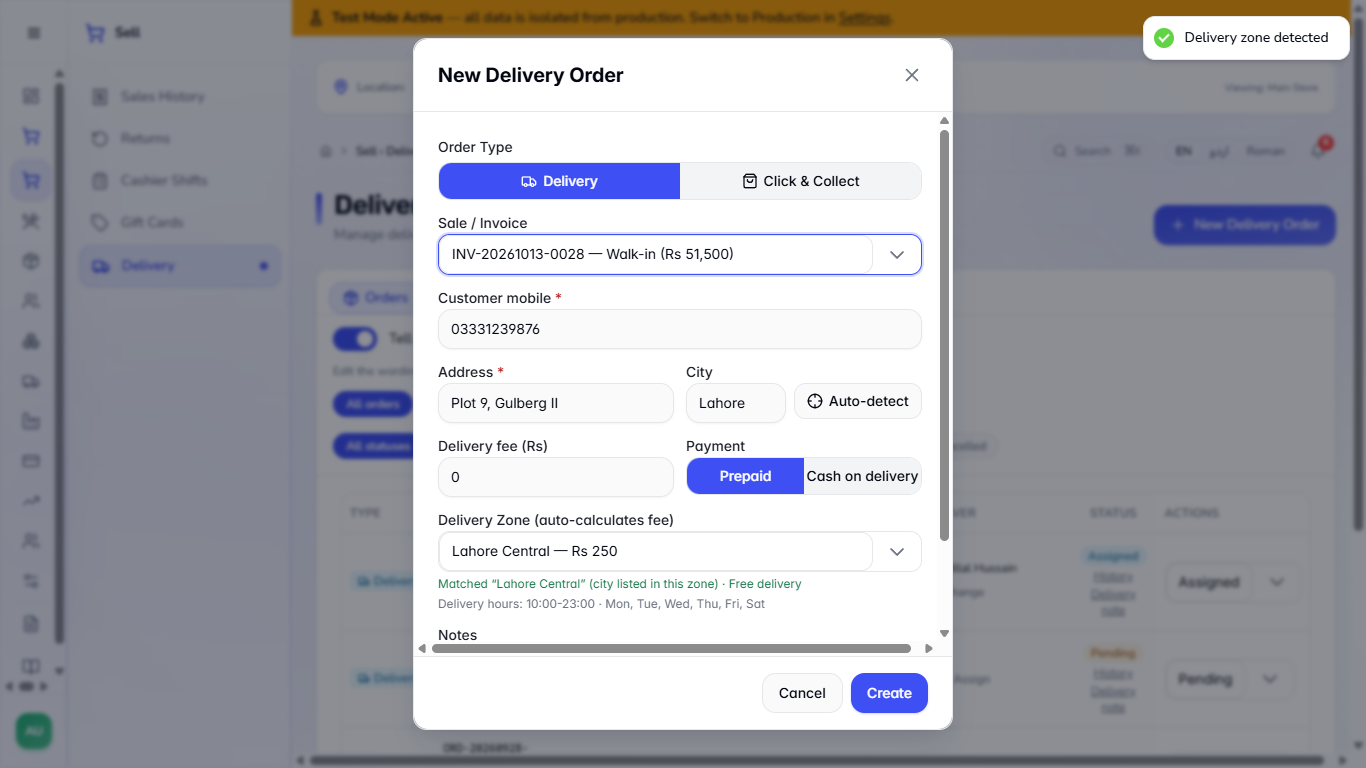
On Orders, press New Delivery Order, pick the sale, type the address and the city, and press Auto-detect. The zone, the fee and the minutes fill in. A big sale shows "Free delivery", and the delivery hours are shown under the match.
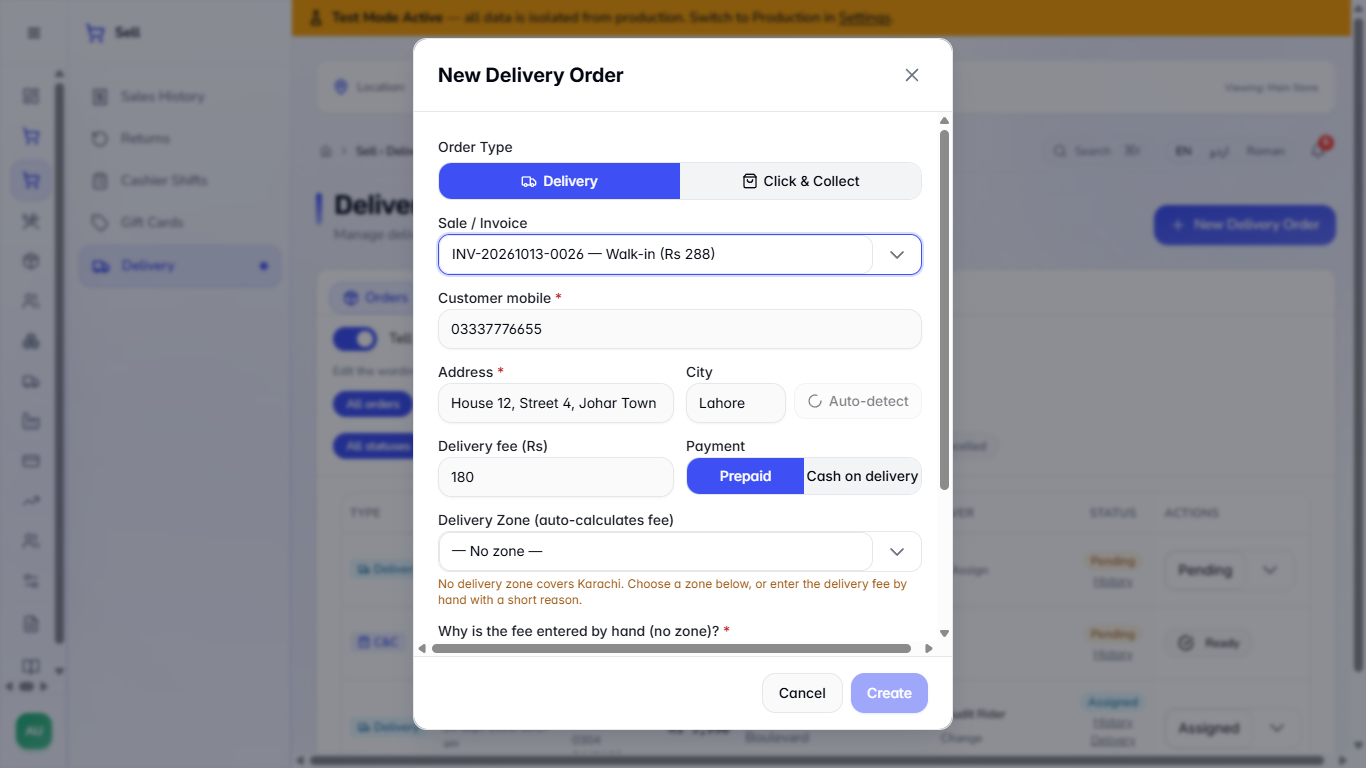
A city that no zone covers shows "No delivery zone covers Karachi", and the fee typed by hand needs a short reason that is saved in the order's History. An order outside the zone's hours opens "Outside delivery hours... Create the order anyway?" with Create anyway.
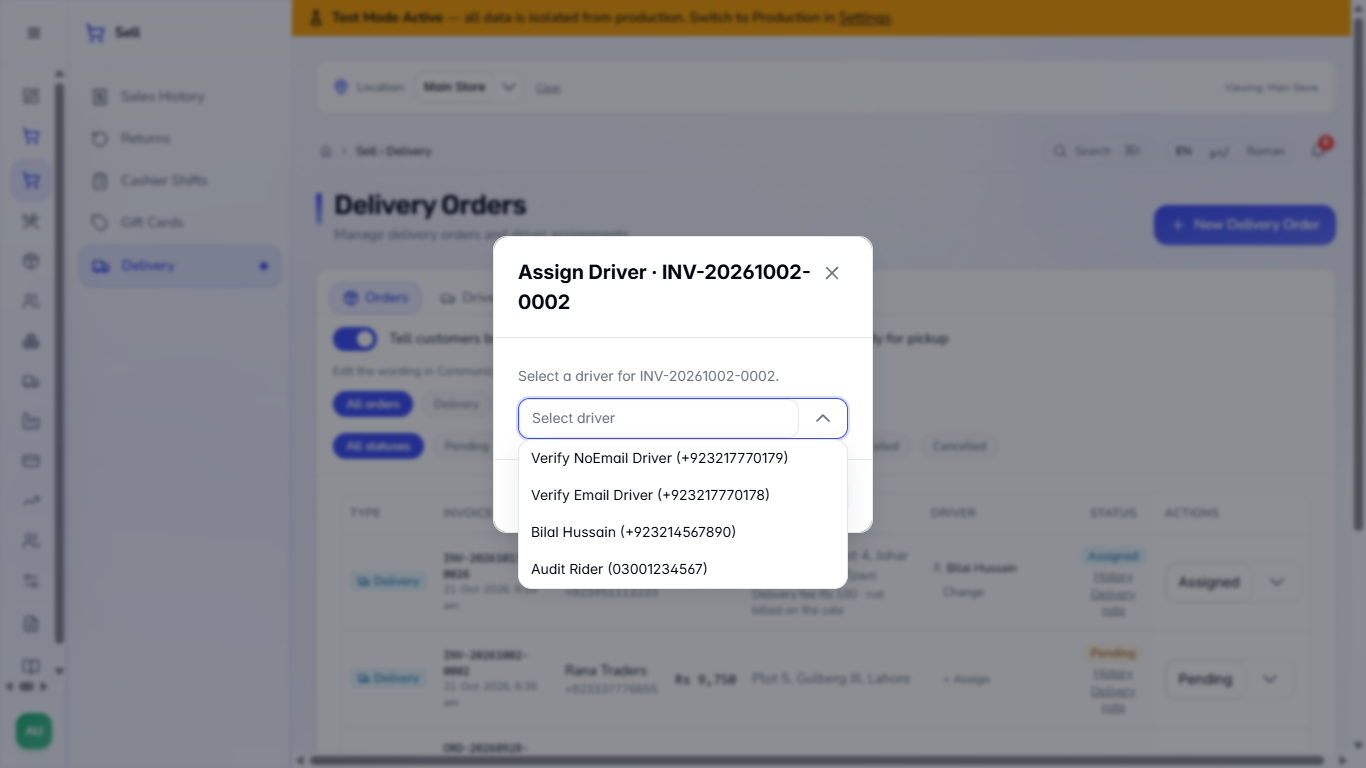
In the order list press + Assign and choose a rider; the list shows name and phone. The row shows the rider with Change, and the order count in the Drivers tab goes up.
| Mistake | What you see | Fix |
|---|---|---|
| A phone that is not a Pakistani mobile | "Enter a valid Pakistani mobile number" under Phone | Type it as 03XXXXXXXXX |
| Removing a rider who holds an open order | Toast: the driver cannot be removed | Reassign the order, or set the rider Inactive |
| A negative fee | "The fee cannot be negative" under Fee | Enter 0 for free delivery |
| A second zone with the same name | A toast says the zone already exists | Use another name or edit the existing zone |
| Item | Meaning / rule |
|---|---|
| Active / Inactive rider | Only active riders are offered in Assign Driver |
| Free Above | From this sale amount delivery is free (0 = never) |
| Minimum order | The smallest sale the zone delivers |
| Delivery hours and days | Outside them the cashier must confirm Create anyway |
| No zone | The fee is typed by hand with a reason |
Can I keep a rider but stop assigning them? Yes. Switch the rider to Inactive; the history stays and they disappear from the Assign list.
What happens to booked orders when I delete a zone? Nothing. Each order keeps the fee it was priced with.
Does free delivery apply to every zone? Each zone has its own Free Above amount; 0 means that zone never gives free delivery.
Does a zone have to deliver every day? No. Press the day buttons for the days it delivers; with none selected it delivers every day.
ClearRing runs this whole workflow. See what ClearRing does and what it costs, or browse all step-by-step guides.