How to book a delivery, collect the cash and hand over a click and collect order
When a sale leaves the shop with a rider, or the customer comes back to collect it, you track it on the Delivery page. This guide takes one sale from booking to delivered cash, then shows the counter steps for click and collect.
Who it is forShop owner or dispatch managerTime12 minutesProductPOSLevelIntermediate
Before you start
Steps
1
Open the delivery board
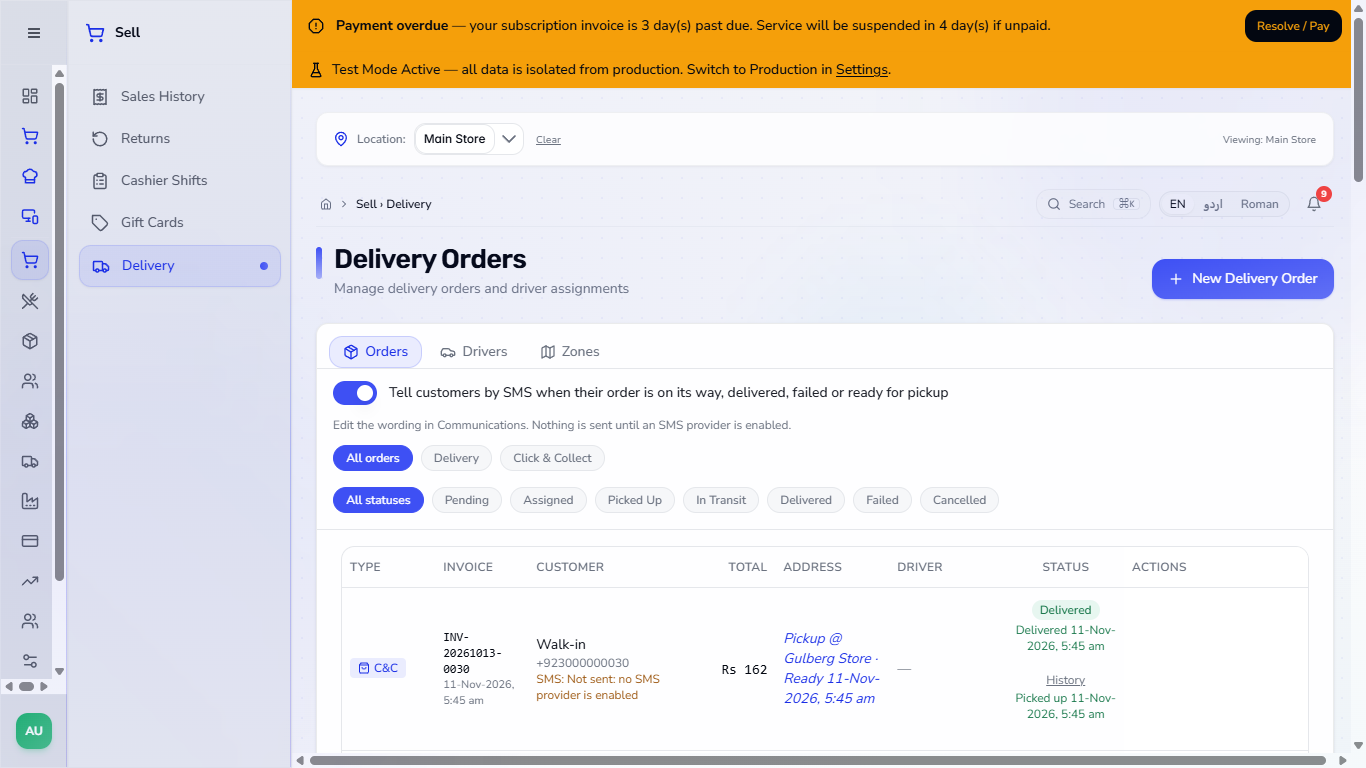
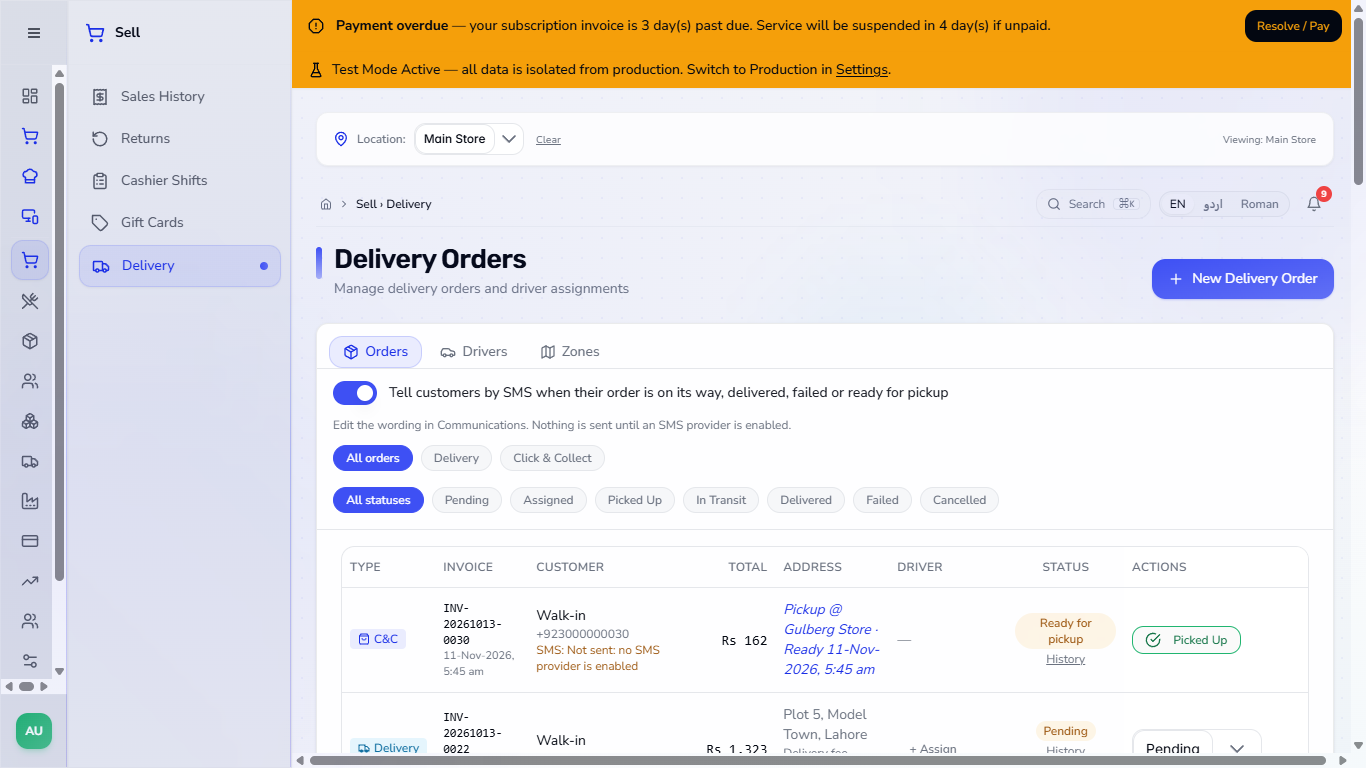
Go to Sell, then Delivery. The Orders tab lists every order with its type, invoice, customer, total, address, driver and status. Use the chips to filter by Delivery or Click & Collect and by status. The Actions column stays visible on the right, even on a small screen.
Delivery Orders page with the order list, the type chips and the status chips
2
Start a new delivery order
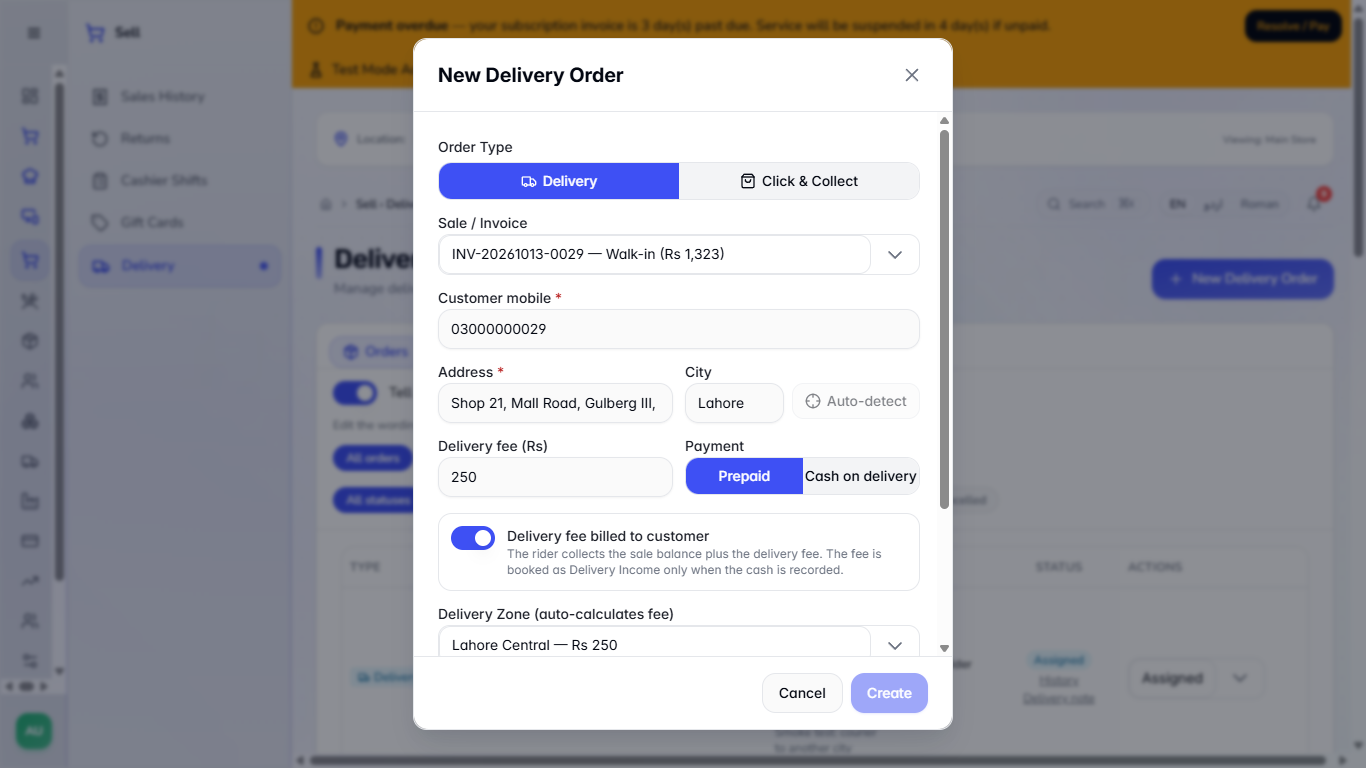
Press New Delivery Order. Pick the completed sale in Sale / Invoice (a sale that already has an order is greyed out), check the Customer mobile (it fills in from the sale's customer, and if you change the sale it switches to the new customer's number; a number you typed yourself is kept), type the Address and the City, then press Auto-detect. The zone and the fee fill in, for example "Lahore Central - Rs 250", with the delivery minutes and the zone's delivery hours. With no zone, type the fee yourself and give the reason in Why is the fee entered by hand (no zone)?; it is saved in the order history. If you change the sale after the zone fee was filled, the fee is quoted again for the new sale, unless you entered it by hand with a reason.
New Delivery Order dialog filled with the sale, the Lahore Central zone and the matched fee
3
Choose prepaid or cash on delivery
Choose Prepaid if the customer has paid everything, or Cash on delivery if the rider collects the money. With cash on delivery, the switch Delivery fee billed to customer decides whether the rider also collects the fee.
Cash on delivery chosen with the switch Delivery fee billed to customer
4
Create the order and read the cash to collect
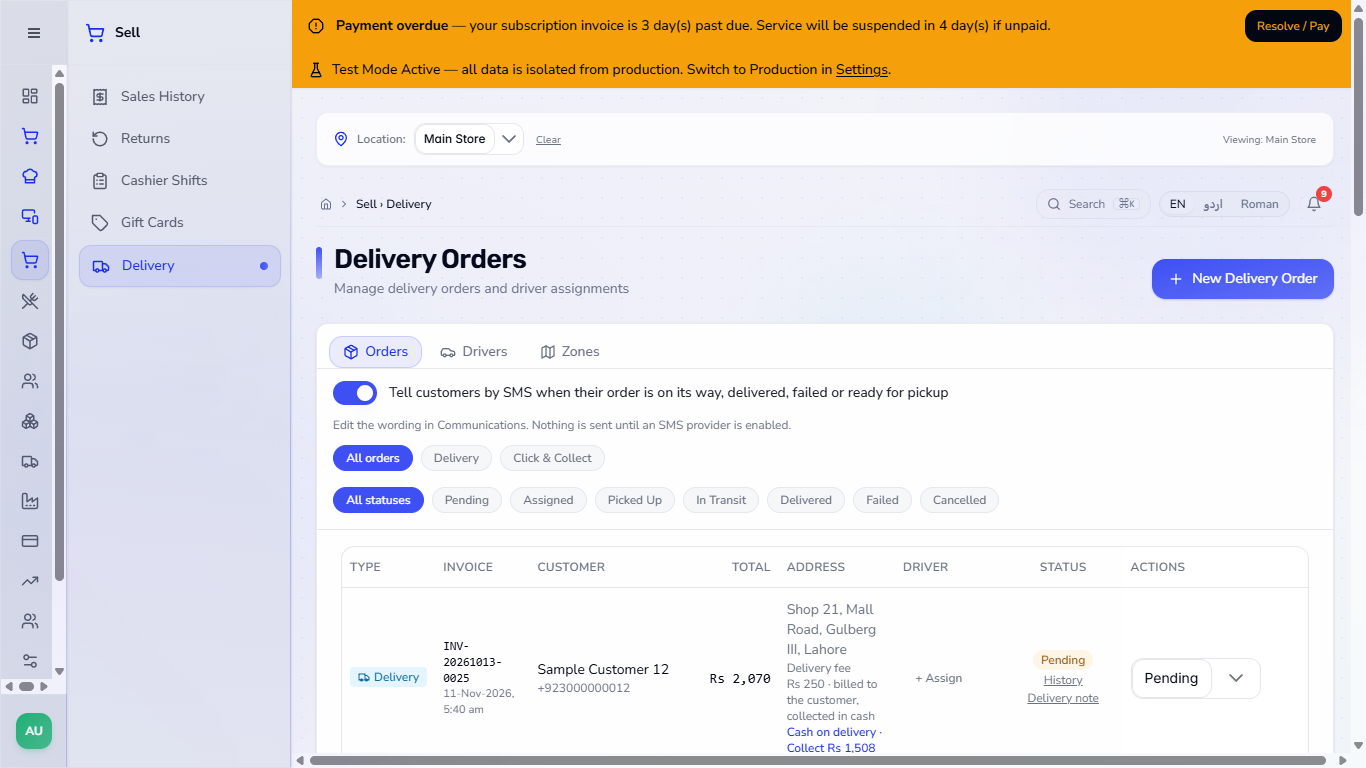
Press Create. The order lands at the top as Pending. On a paid sale with a fee of Rs 250 the row reads "Cash on delivery - Collect Rs 250"; on a khata sale with Rs 1,258 still unpaid it reads "Collect Rs 1,508" (sale balance plus fee). That is the amount the rider must bring back.
New order on top of the list, Pending, with the fee and Collect Rs 250
5
Assign a rider
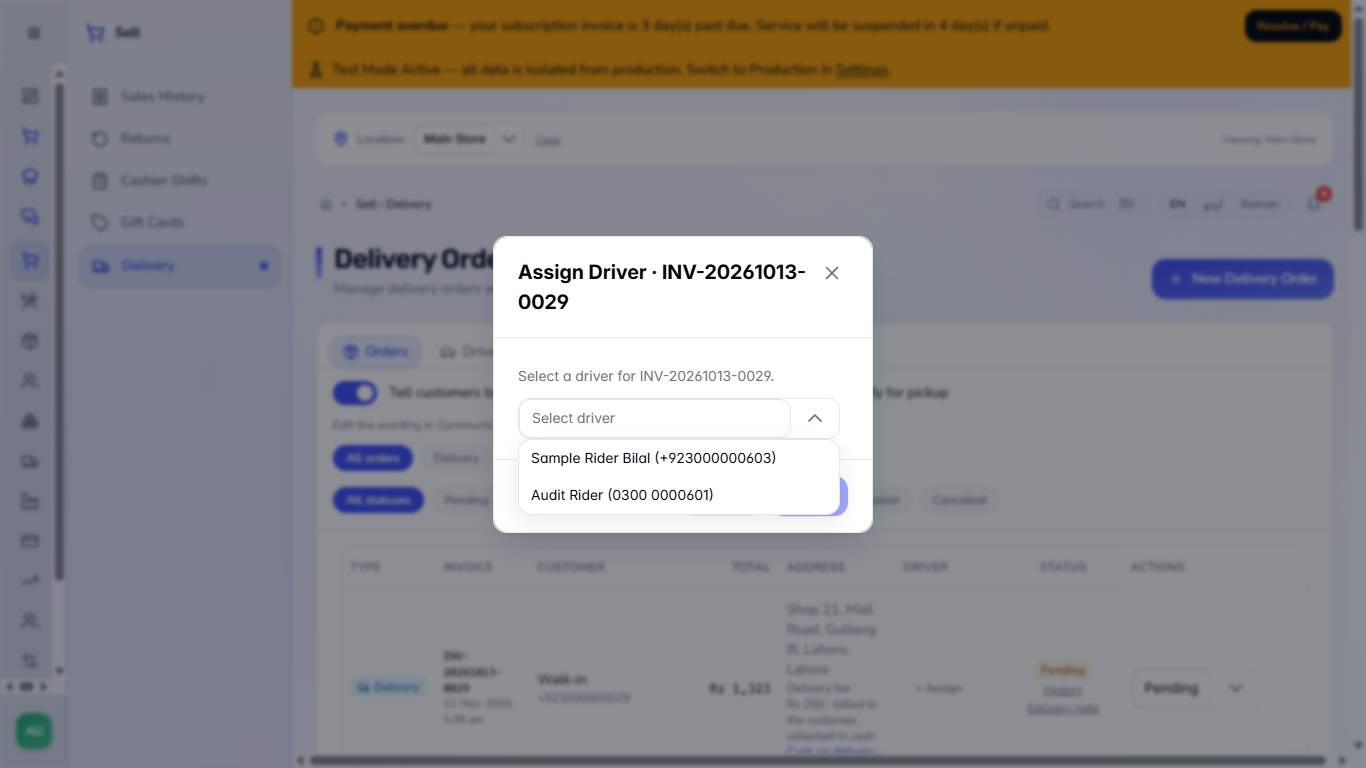
Press + Assign in the Driver column, choose the rider and press Assign. The name appears with a Change link and the status becomes Assigned. Use Change later to pick another rider or - Unassign -.
Assign Driver dialog listing the riders
6
Move the order through its statuses
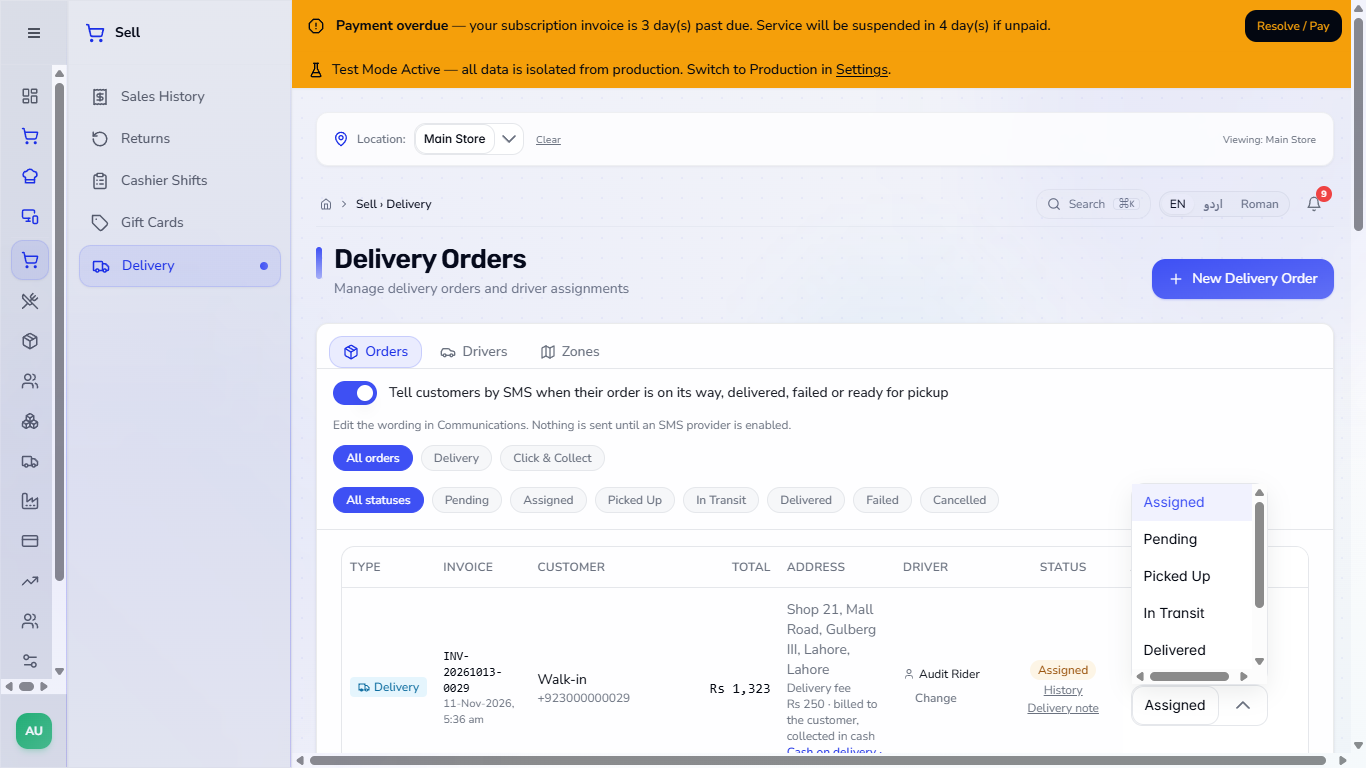
Open the status menu in the Actions column. It offers only the legal next steps. Choose Picked Up: the customer is told "your order is on its way with Audit Rider 0300 0000601. Please keep Rs. 250.00 ready." Then In Transit. From Picked Up the menu offers In Transit, Delivered, Failed and Cancelled.
Status menu offering only the legal next steps
7
Collect cash as the rider hands it over
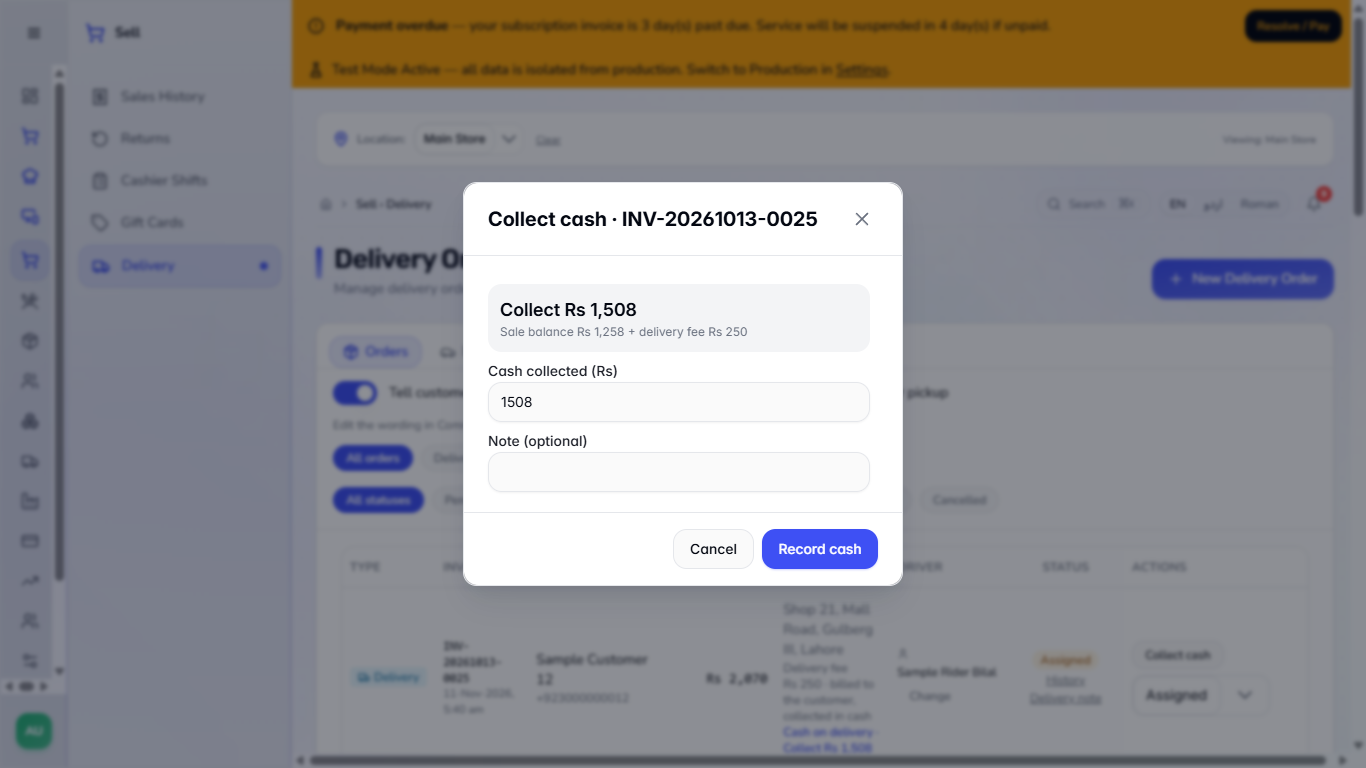
Once the order is Assigned, Collect cash is available. The dialog shows the amount due already filled in, for example "Collect Rs 1,508: Sale balance Rs 1,258 + delivery fee Rs 250". Type less and the app says "Partial: Rs N will still be due."; more than is due is refused ("More than is due."). Add a note and press Record cash.
Collect cash dialog showing the amount due, sale balance plus the delivery fee
8
Mark it Delivered with proof
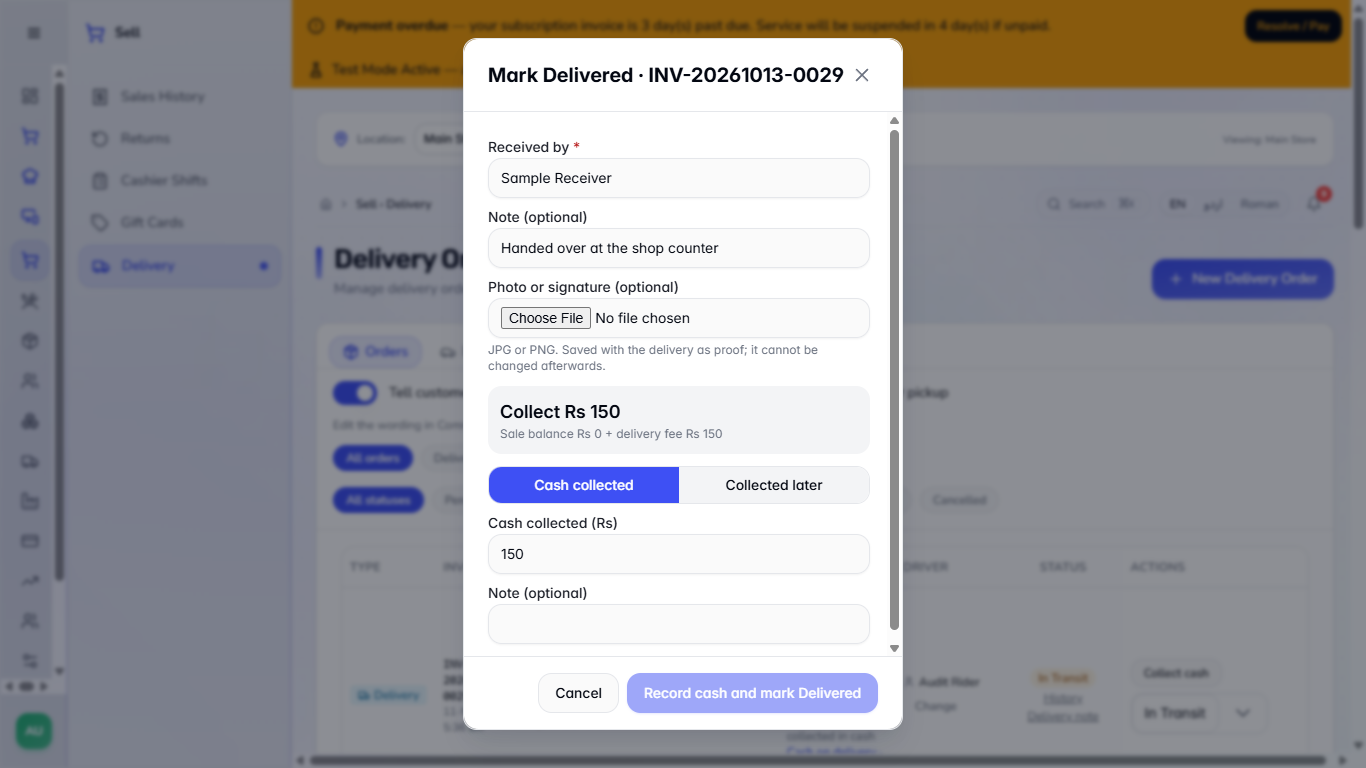
Choose Delivered. Fill Received by (required), an optional note and an optional photo or signature. The remaining cash is shown, here Rs 150. Choose Cash collected and press Record cash and mark Delivered. If the customer cannot pay now, choose Collected later and give the reason.
Mark Delivered dialog with Received by, note, photo and the remaining cash
9
Read the history
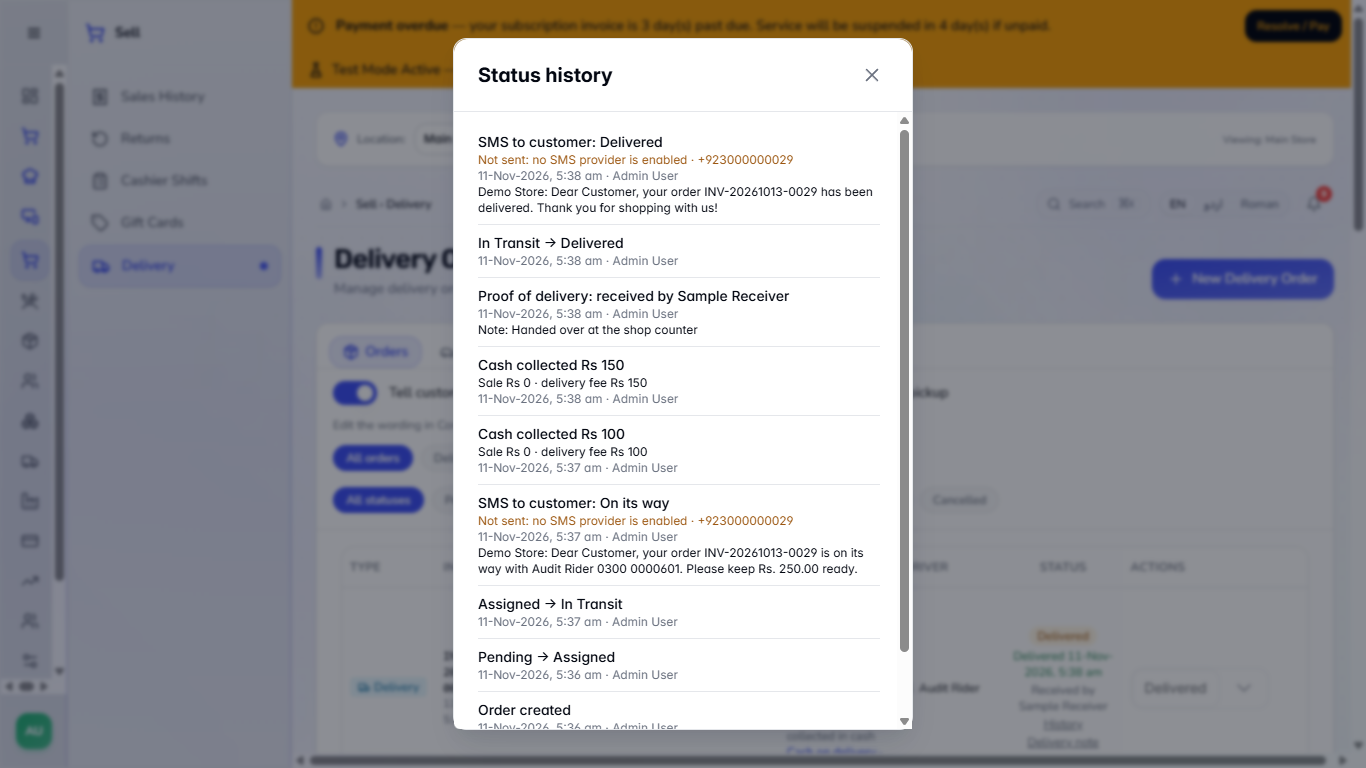
Press History in the Status column. It lists every step, newest first: the customer notices with their wording, the proof of delivery, and each cash collection split into the sale part and the delivery fee.
Status history with the notices, the proof and each cash collection
10
Print the delivery note for the rider
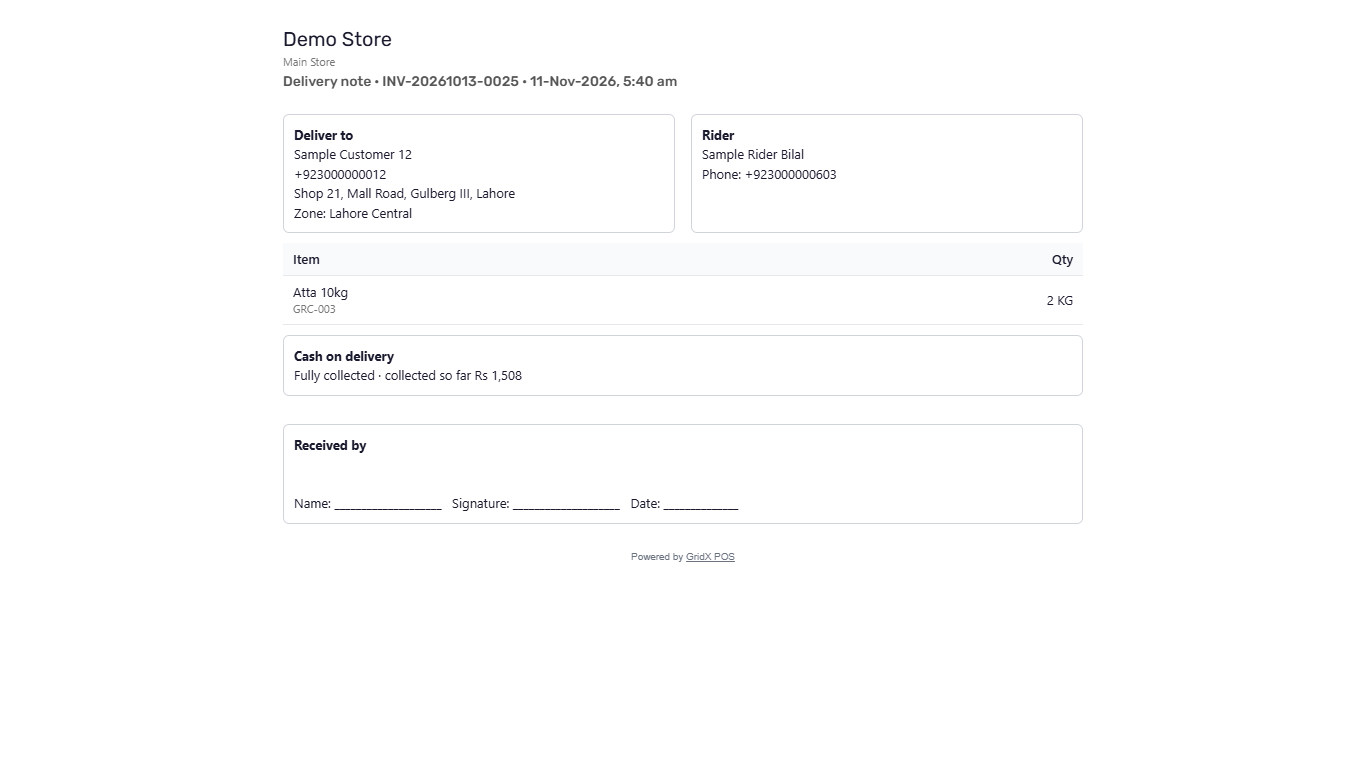
Press Delivery note. The page has the customer, address, zone, rider, the items, and a payment block: Cash on delivery with the amount to collect (or "Fully collected · collected so far Rs 1,508" once the cash is in), or Prepaid. At the foot is a Received by box for the name, signature and date, then the line "Powered by GridX POS". It carries no prices.
Delivery note with the address, the items, the cash on delivery block marked Fully collected and the Received by box
11
Check the books
Open Finance, Accounting, Journal Entries. The sale part (Rs 1,258) is "Khata payment received": cash in hand up, Accounts Receivable down. The fee collected (Rs 250) is "Delivery fee collected in cash": cash in hand up, Delivery Income up. The list shows each entry with its source and line count. No income is booked before the cash is collected.
Journal entries for the khata payment and the delivery fee
12
Hand over a click and collect order
In New Delivery Order choose Click & Collect, pick the sale, the customer mobile and the Pickup Location. Under the Click & Collect chip each row shows "Pickup @" and the store. Press Ready when the order is packed (the customer is told), then Picked Up when they collect. Both times are saved and no fee or rider is needed.
Click and Collect list with the pickup store and the Ready for pickup status
Check it worked
The order shows Delivered with "Received by" and, for cash on delivery, "fully collected".
History lists each cash collection and each customer notice.
Journal Entries show the khata payment and the delivery fee entries with the order number.
Common mistakes
Mistake
What you see
Fix
A mobile number that is too short
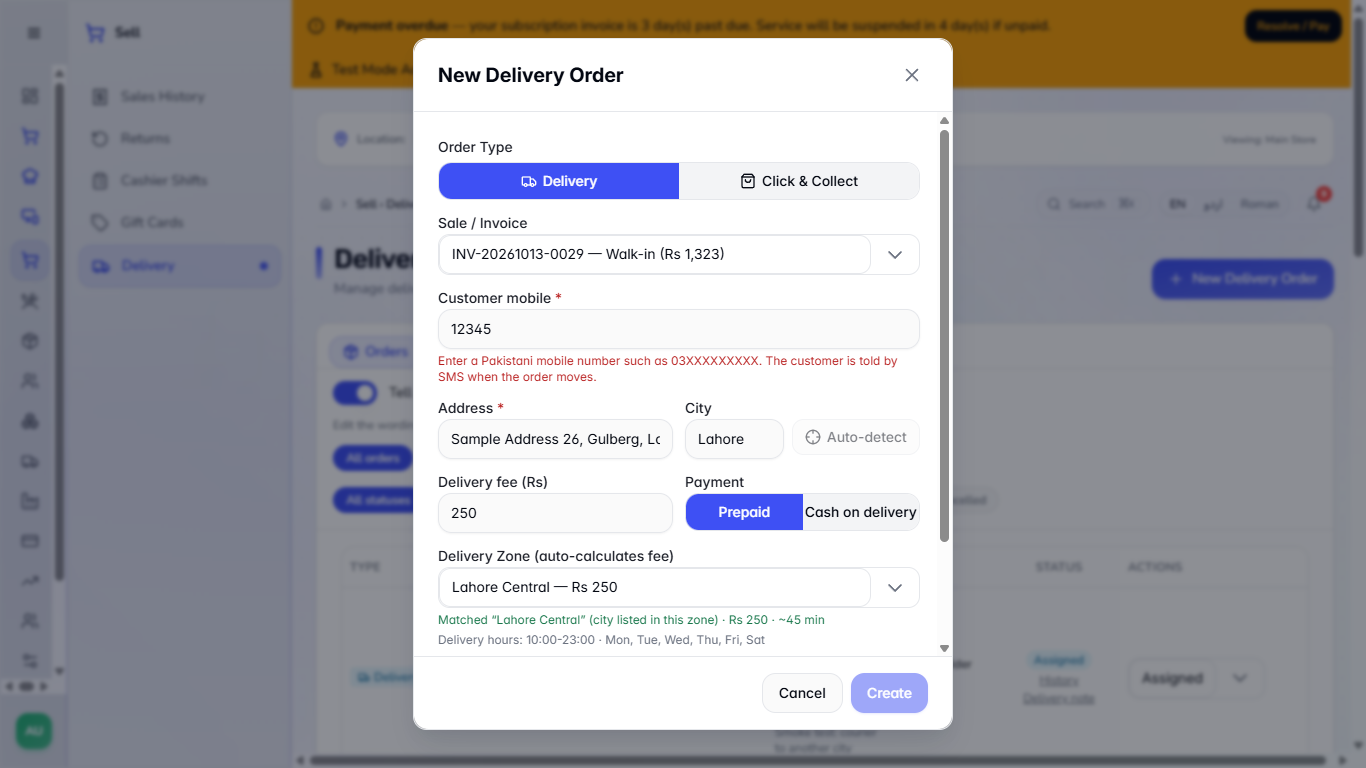
"Enter a Pakistani mobile number such as 03XXXXXXXXX."
Type the full 11-digit mobile number
Booking the same sale twice
The sale is greyed out as "already has a delivery order"
Open the existing order instead
Pressing Confirm on Failed or Cancelled with no reason
"Enter a reason first"
Type the reason, then Confirm
Jumping a Pending order to Delivered
Delivered is not offered
Assign, then Picked Up, then Delivered
A sale below the zone minimum
"Zone ... has a minimum order of Rs 500"; Create disabled
Choose another zone, add items, or use Click and Collect
A typed fee with no zone and no reason
Create refuses
Give the reason for the hand-entered fee
Quick reference
Item
Meaning / rule
Pending, Assigned, Picked Up, In Transit
The order is on its way; the customer is told at Picked Up
Delivered, Cancelled
Final; they cannot be changed
Failed
Can only go back to Pending or Assigned, or be Cancelled
Collect cash
Offered from Assigned; clears the unpaid sale first, then the delivery fee
Collected later
Delivered without the cash; needs a reason
Ready / Picked Up
The two counter steps of click and collect
Frequently asked questions
Can the customer be told when the rider leaves? Yes. The customer notice "on its way" goes out when you set the order to Picked Up, if the notices switch is on and an SMS provider is enabled.
What if the rider brings back only part of the cash? Record the part with Collect cash. The row shows what is still due, for example "Collect Rs 150 (collected Rs 100)".
When does the delivery fee become income? Only when the cash is recorded, and only for the amount collected. Until then there is no journal entry.
Does click and collect need a rider or a fee? No. You choose a pickup store, press Ready when it is packed and Picked Up when the customer collects.