How to bill an inpatient, clear discharge and settle the bill
You will read the running bill of an admitted patient, add a charge, take a payment, print the interim statement, clear the discharge checks, settle the bill (including by insurance) and send the bed to housekeeping.
Who it is forHospital billing clerk, ward nurse and discharge coordinatorTime12 minutesProductHMSLevelIntermediate
Before you start
Steps
1
Open the Billing & discharge tab
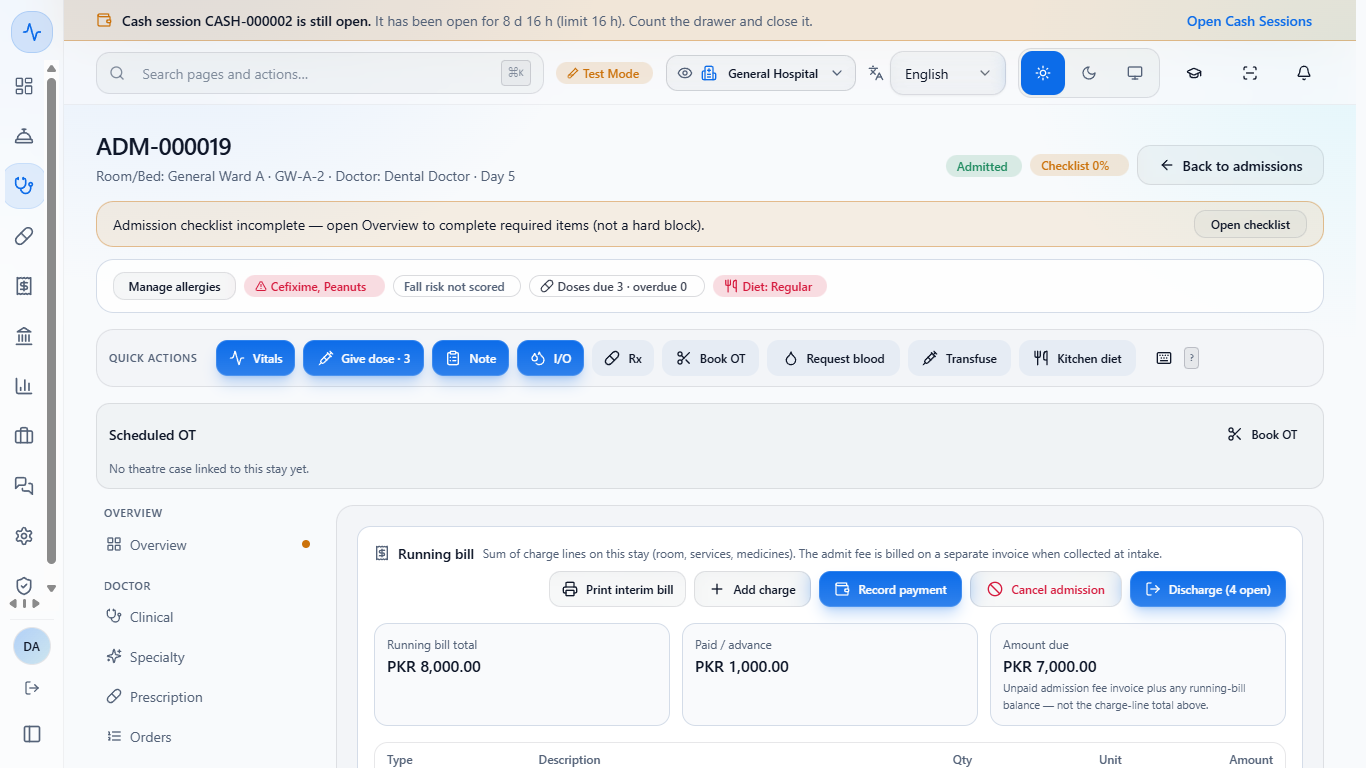
Open Clinical > Inpatient & Theatre > Admissions, open the admission and choose Billing & discharge. The running bill lists every room night and charge, with Paid / advance and Amount due. The lower card shows the admission charge, room rent per night, advance held and the invoice links.
Billing and discharge tab with the running bill
2
Add a charge
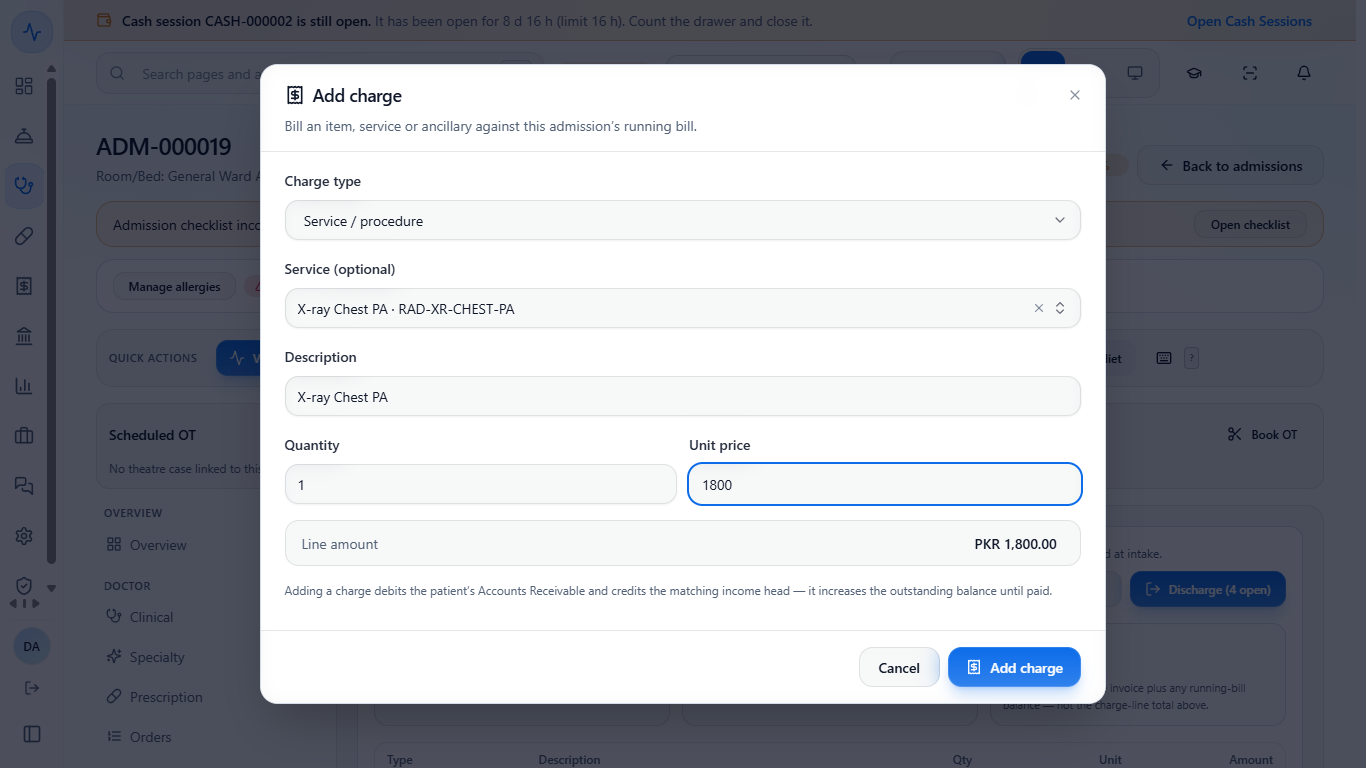
Press Add charge. Choose the Charge type (Room / bed, Medicine, Service / procedure, Consumable, Ancillary), optionally a service or item, then the description, quantity and unit price.
Add charge dialog
3
Check the running bill
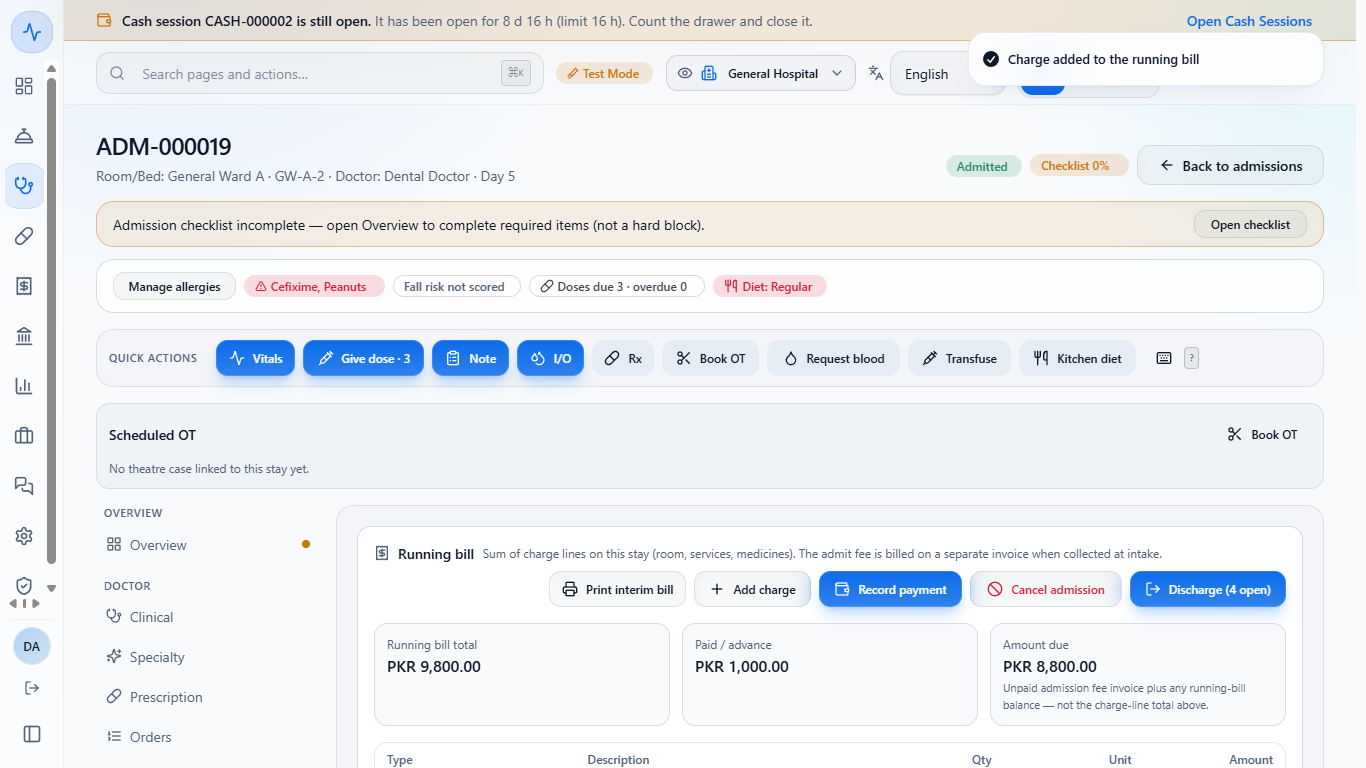
The toast Charge added to the running bill appears, the line joins the table and the total and Amount due go up by the charge.
Running bill after the charge
4
Record a payment
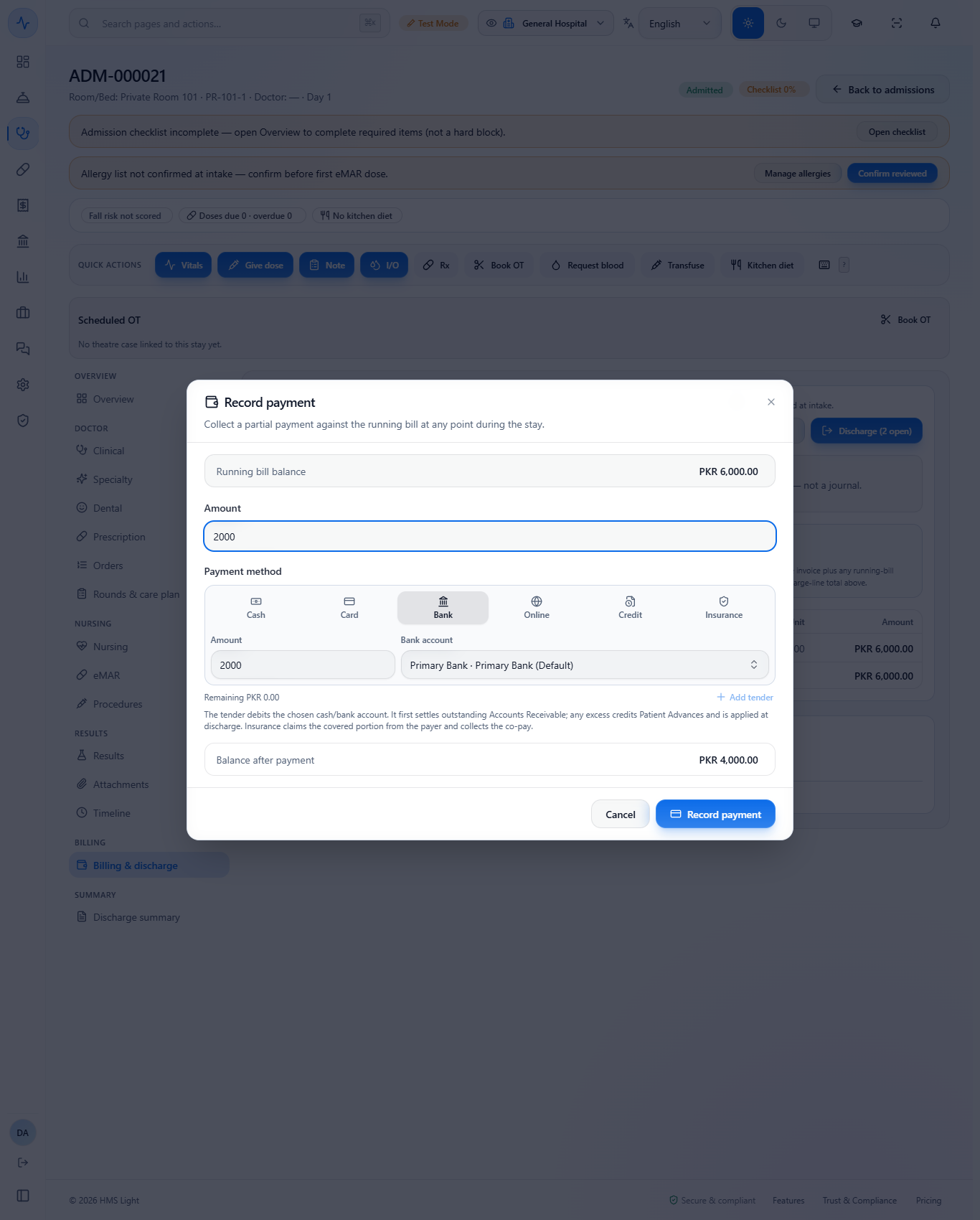
Press Record payment, enter the amount, choose Cash, Card, Bank, Online, Credit or Insurance, and for a bank payment pick the Bank account. The dialog shows the Balance after payment.
Record payment dialog with the Bank tender
5
Read the receipt
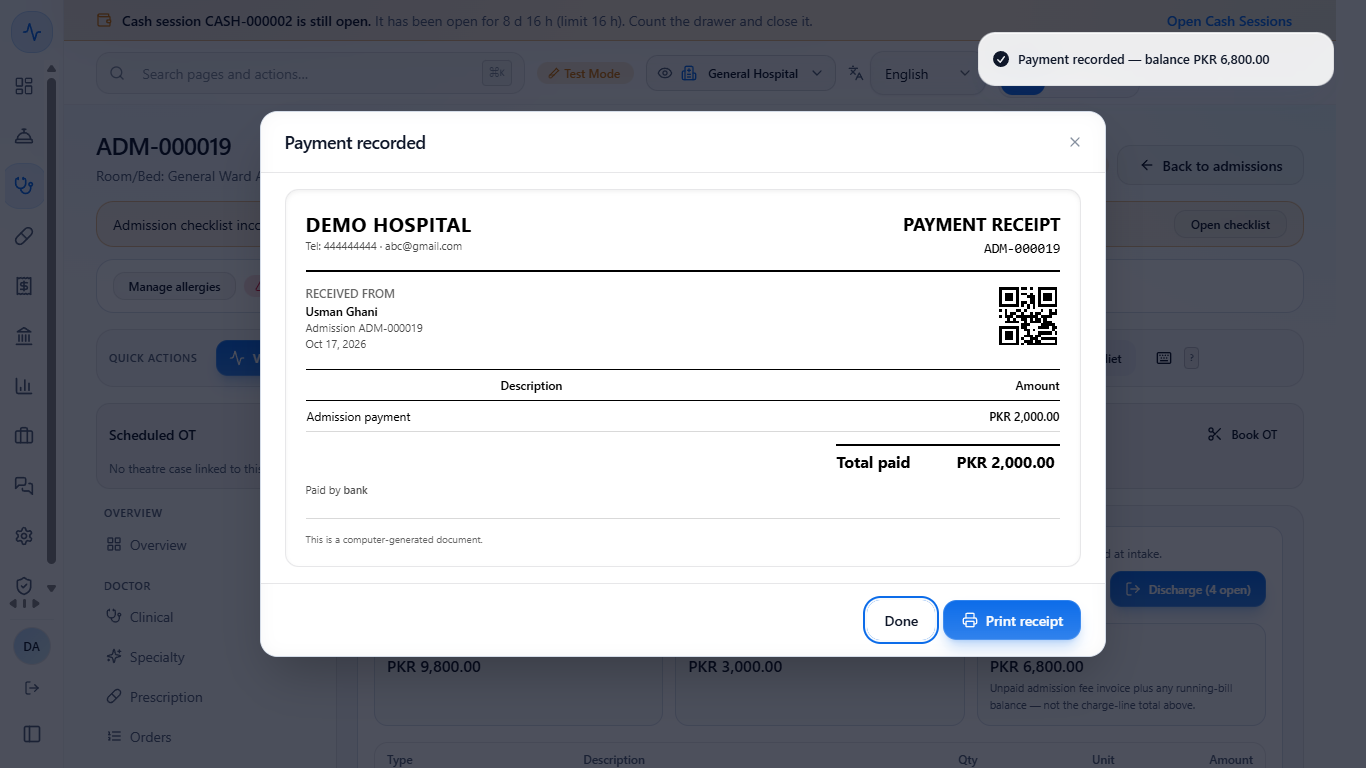
The toast shows the balance after payment. The receipt carries the admission number, who paid, the amount and how it was paid.
Payment receipt
6
Print the interim bill
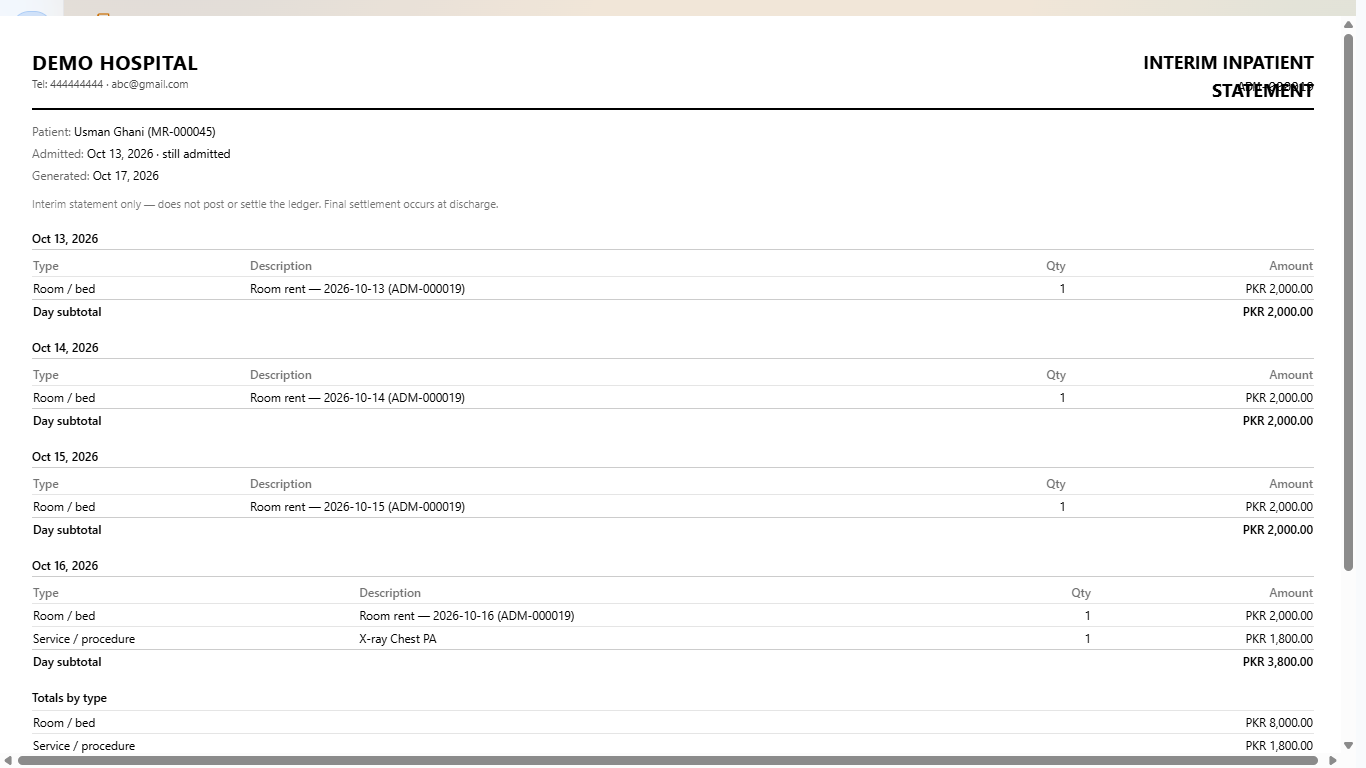
Press Print interim bill for a statement by day with totals by type and the payments received. It posts nothing; the final settlement happens at discharge.
Interim inpatient statement
7
Open the discharge wizard
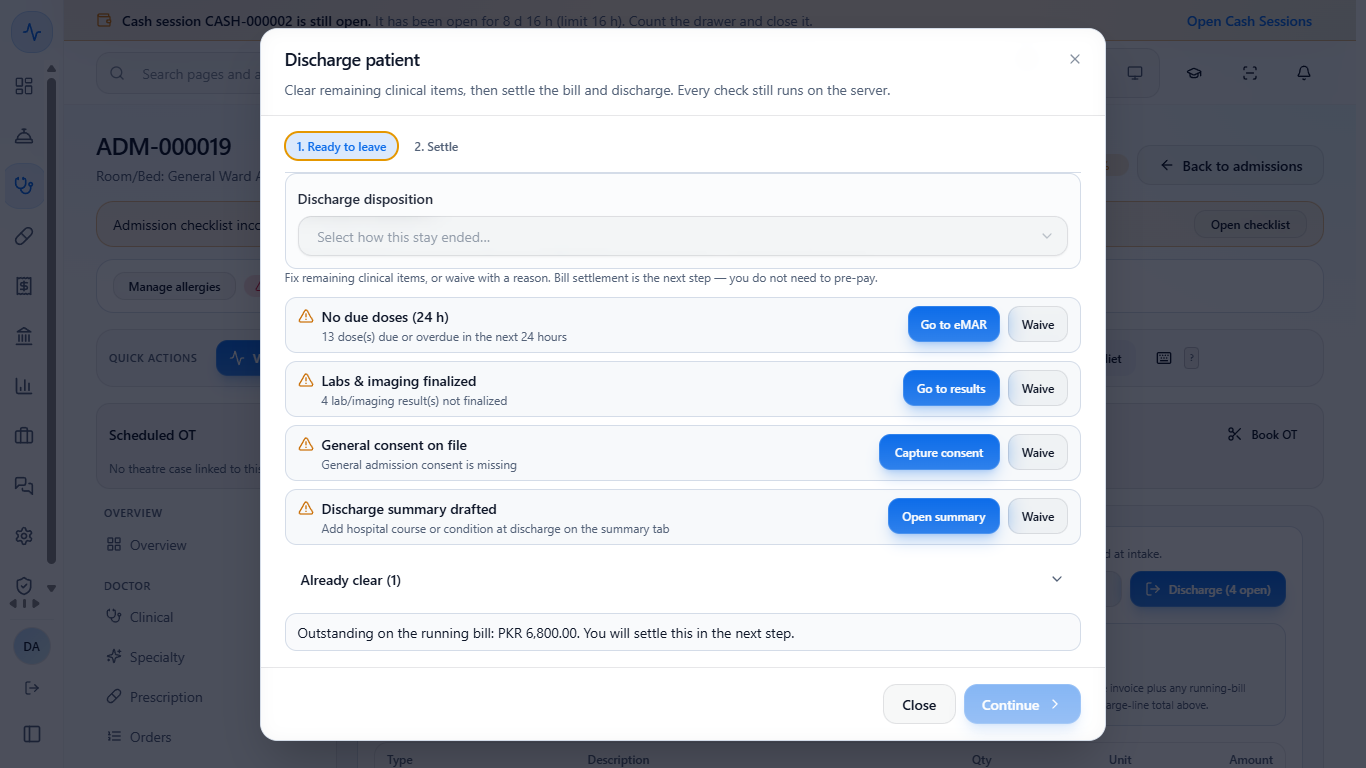
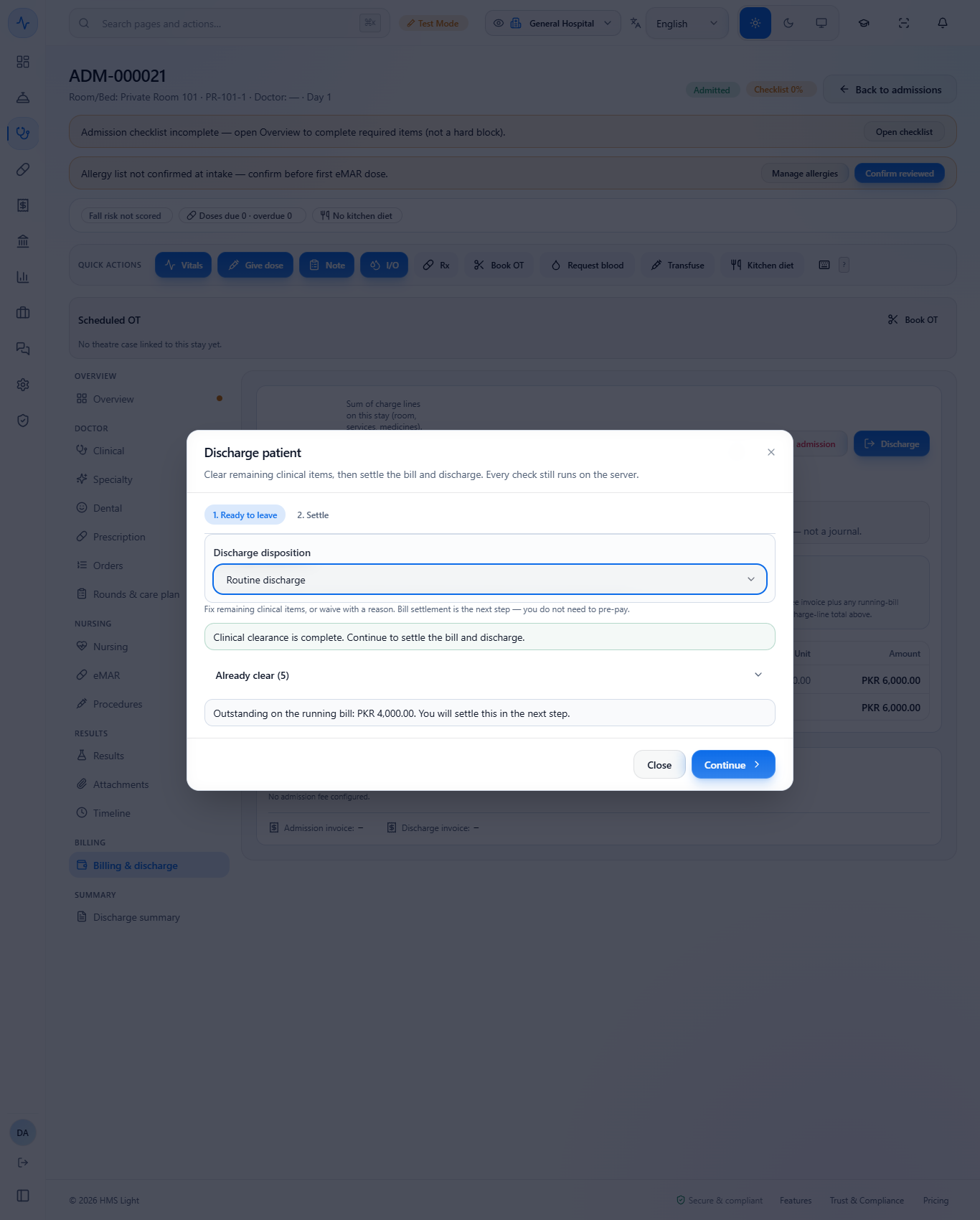
Press Discharge. Step 1 lists the open clearance checks (due doses, labs and imaging finalized, general consent on file, discharge summary drafted), each with its action, and a collapsed Already clear list of the checks that pass. The bill is not a check here: you settle it in step 2 and do not need to pre-pay.
Wizard step 1 with the clearance checks
8
Fix or waive a check
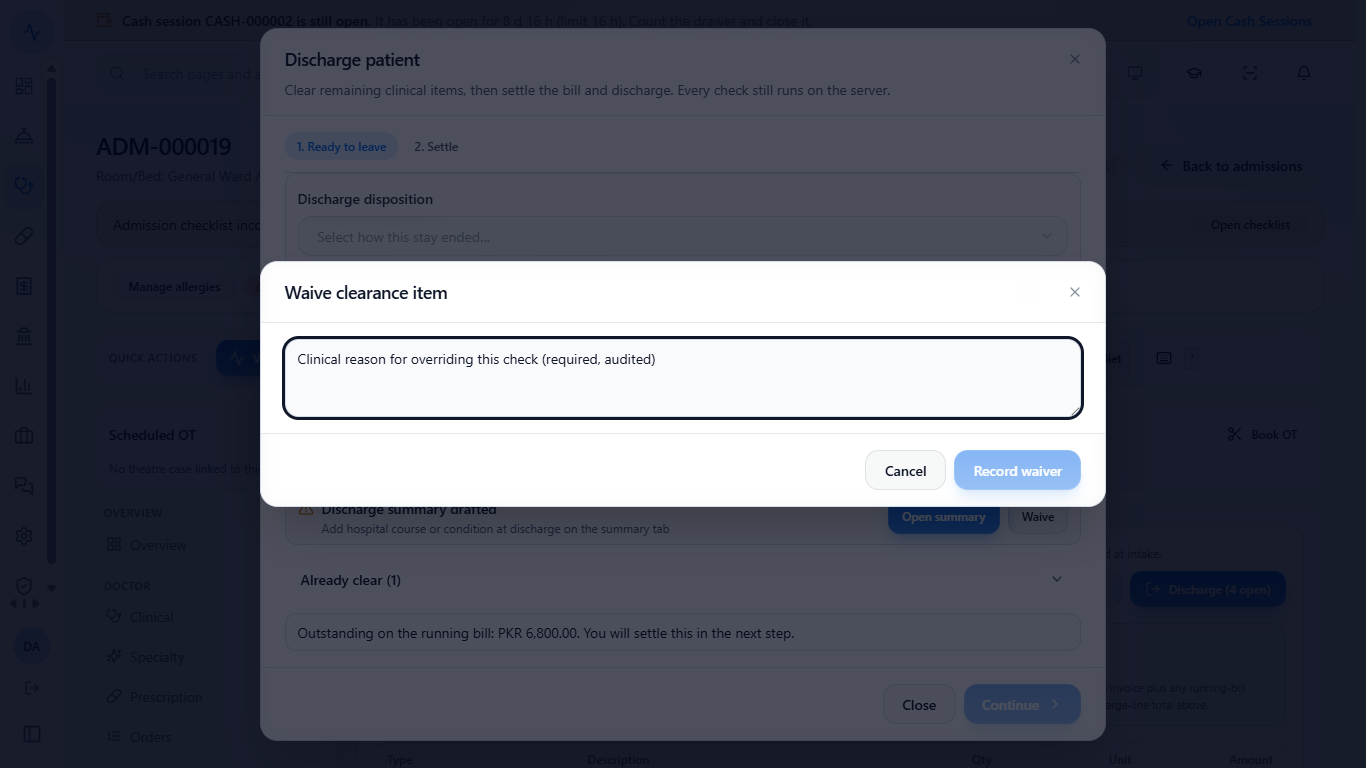
Fix the item (for example Capture consent with the signer's name and signature, or draft the discharge summary), or press Waive, type the clinical reason and press Record waiver.
Open Already clear to see the Waived badge with the reason. Choose the Discharge disposition (Routine discharge, Referred, Transferred out, LAMA, DAMA or Deceased) and press Continue.
Waive a clearance check
Checks waived and Routine discharge chosen
9
Settle the bill
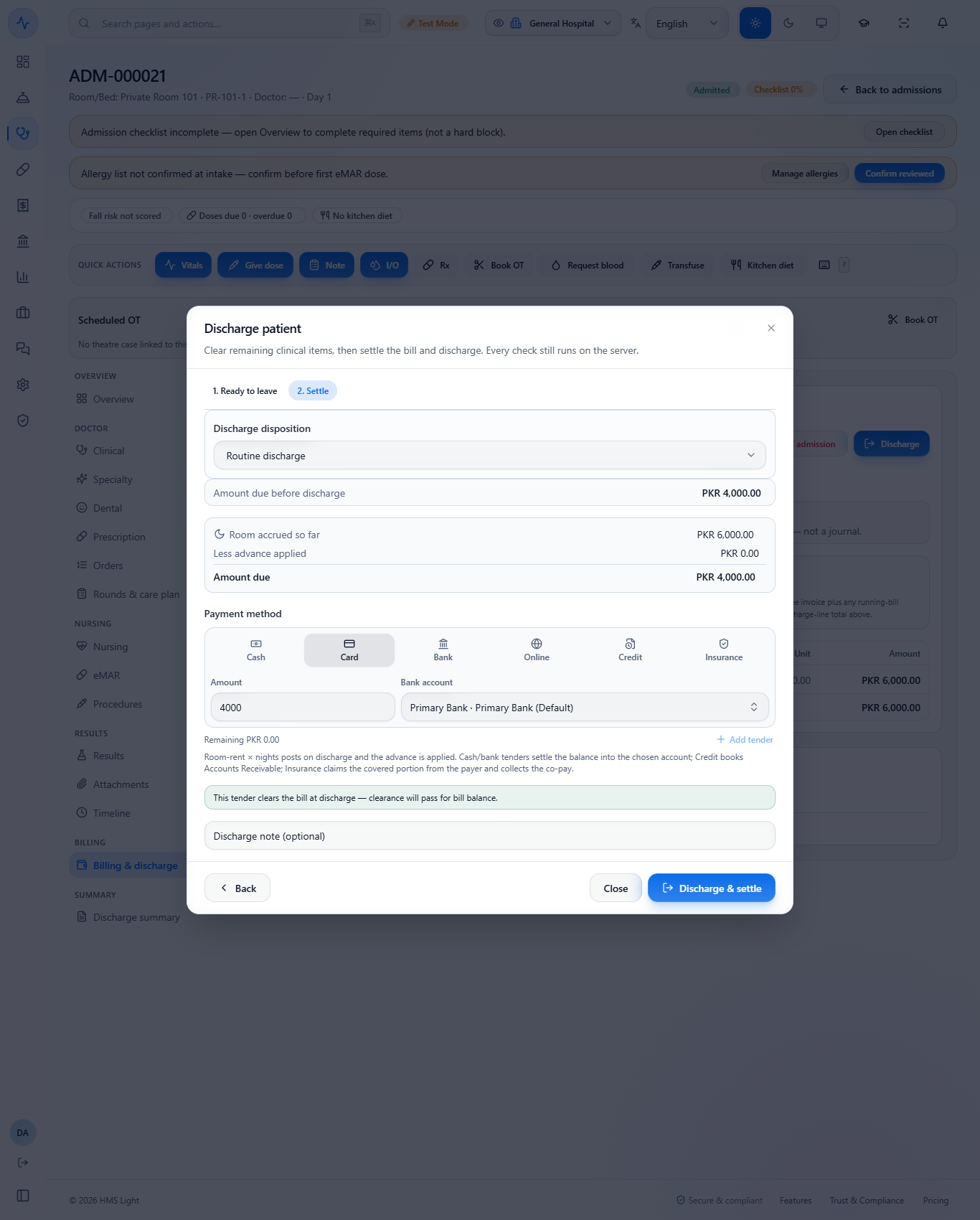
Step 2 shows the Amount due before discharge, the Room accrued so far, any Less advance applied and the Amount due. Pick the payment method and press Discharge & settle. The line under the tender says whether it clears the bill.
Settle step with Card and Bank account
10
Settle by insurance
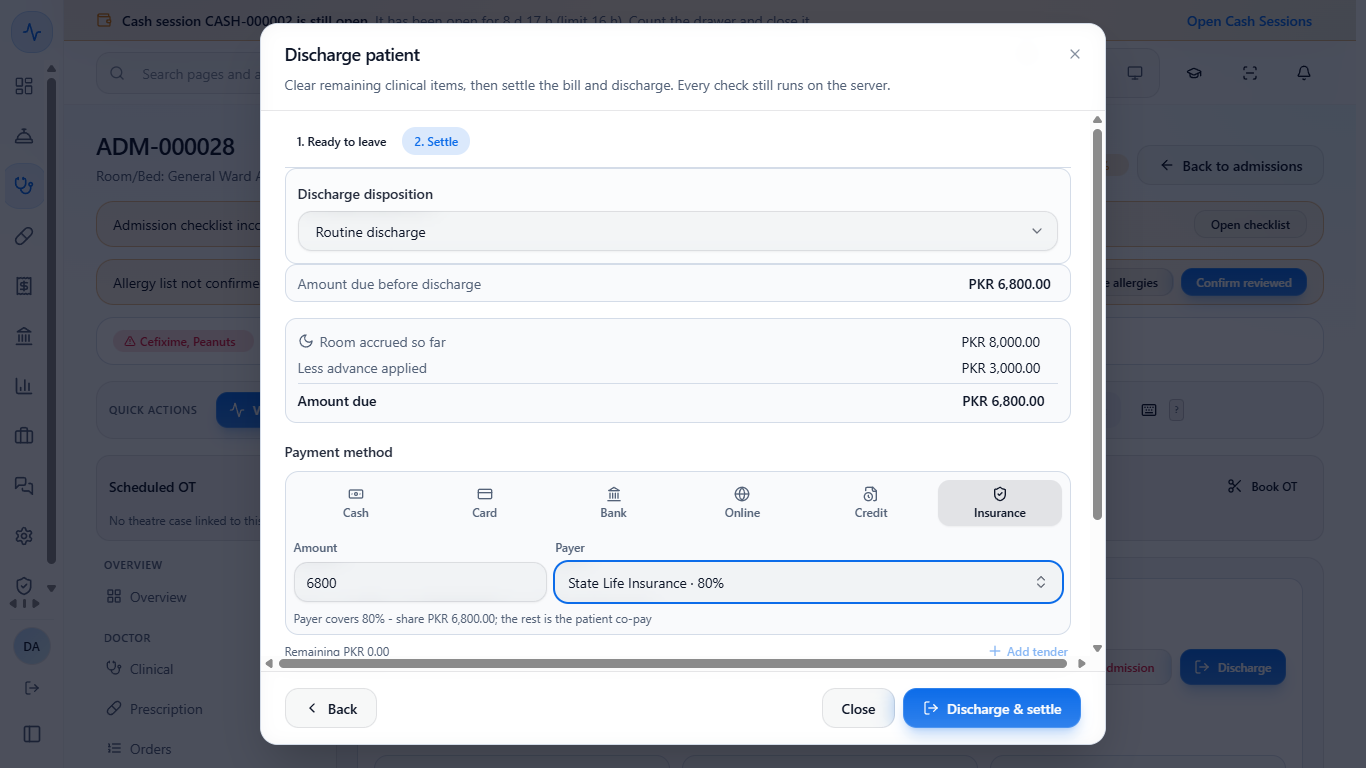
Choose Insurance and the payer. The hint shows the payer share: the payer's percentage of the whole bill, never more than what is still due. In the example the share is Rs 6,800, the same as the amount due, so there is no co-pay line and one claim is sent. If the share is lower than the amount due, collect the rest from the patient as a second tender.
Insurance settlement with the payer share equal to the amount due
11
Confirm the discharge
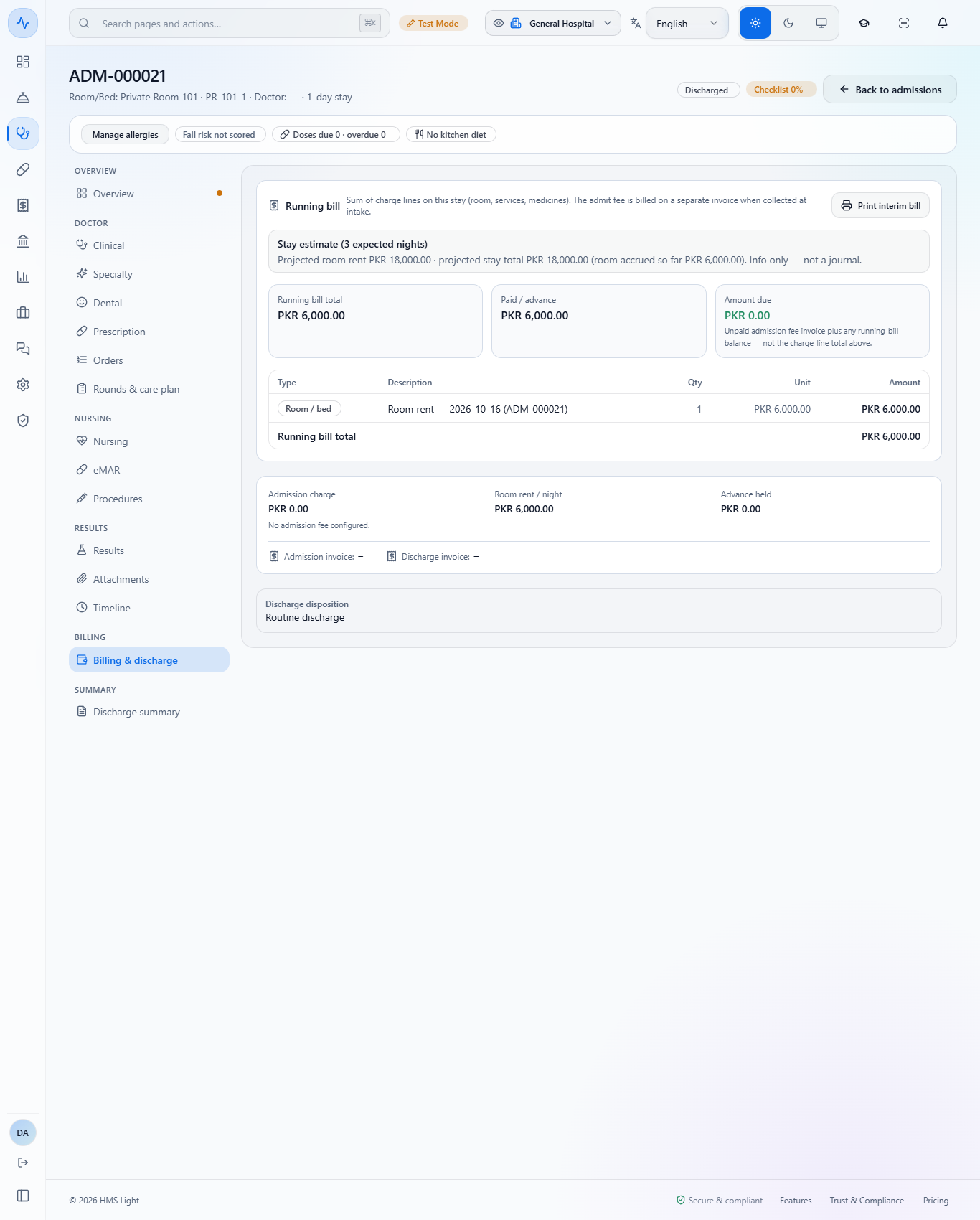
The toast Patient discharged appears, the status is Discharged, Paid / advance equals the bill and Amount due is zero. With insurance, the claim appears in Claims as Submitted.
Discharged admission with amount due zero
12
Release the bed
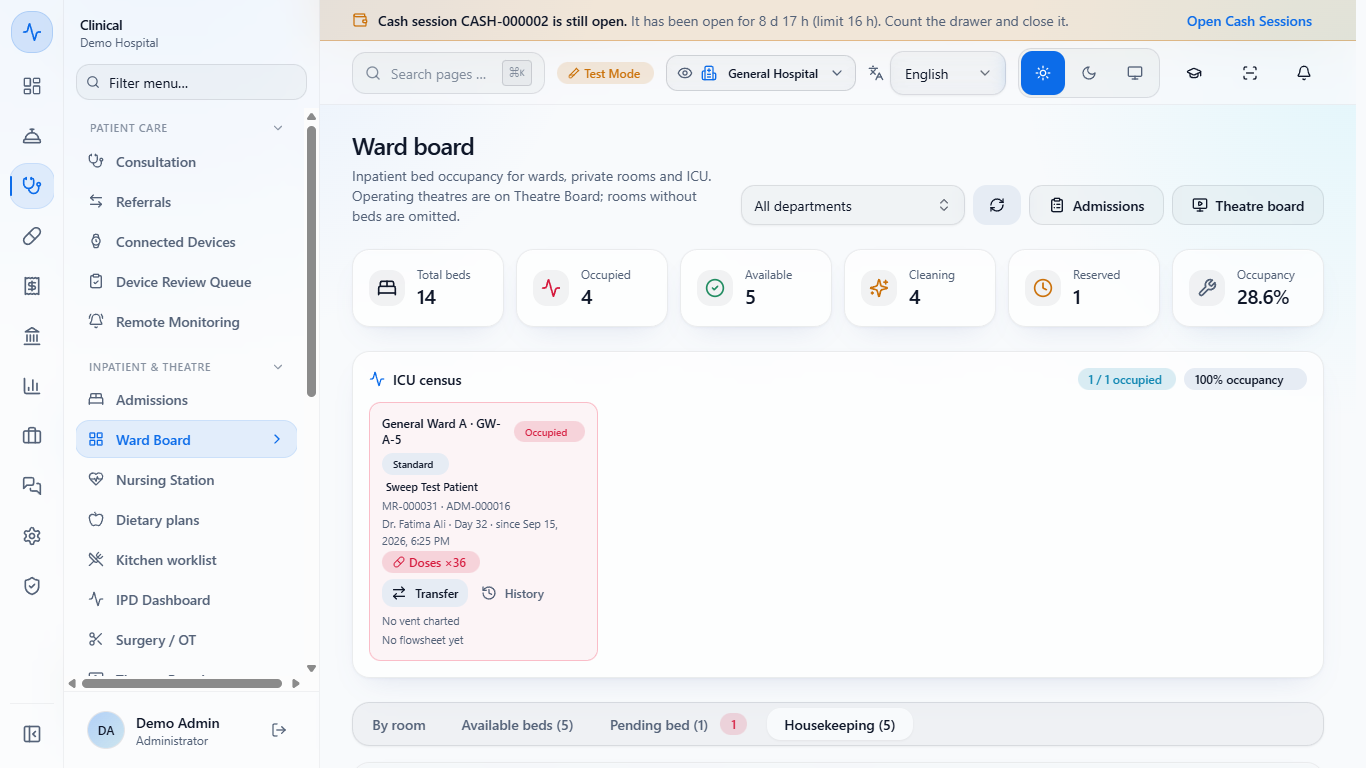
Open Ward Board > Housekeeping. The bed shows a pending discharge clean. Press Assign and choose the cleaner from Housekeeping / EVS staff (HR), which also shows each person's open tasks, then Confirm assign.
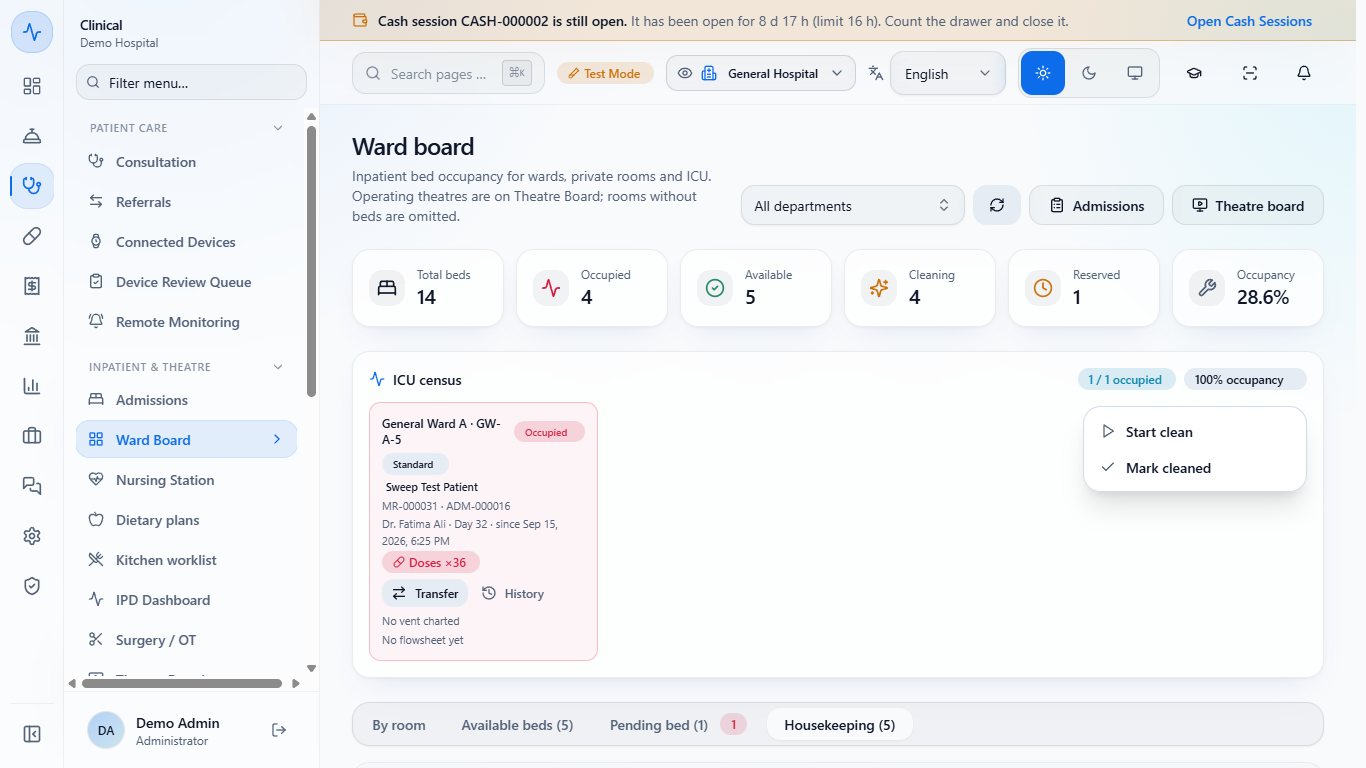
When the clean is done choose Mark cleaned. The toast says "Bed marked clean and available", the task moves to the finished cleans table with who did it and how long it took, and the bed is free for the next admission.
Housekeeping tab on the ward board
Row actions Start clean and Mark cleaned
Check it worked
The admission shows Discharged, Amount due is zero and the disposition is recorded.
With insurance, one claim for the covered amount is in Claims.
The bed went from Cleaning to Available and the finished clean is on record.
Common mistakes
Mistake
What you see
Fix
Adding a service without a price
The line is added at zero
Type the unit price yourself
Trying to pre-pay the bill before the wizard
Nothing to clear on step 1
Settle the bill in step 2
Waiving a check without a reason
The waiver is not recorded
Type the clinical reason
Leaving the bed in Cleaning
The bed is not offered to new admissions
Assign and mark the clean
Quick reference
Item
Meaning / rule
Running bill
All charges so far; built line by line
Interim bill
A statement only; posts nothing
Waiver
Needs a reason and the override permission; stays on the audit trail
Insurance share
Payer % of the whole bill, capped at the amount due
Cleaning
Bed is not available until marked clean
Frequently asked questions
Do I have to pay the bill before I start the discharge? No. Step 1 only checks clinical items. You settle the bill in step 2 of the wizard.
How much does the insurer pay at discharge? The payer's percentage of the whole bill, but never more than what is still due. If that covers the due amount there is no co-pay and one claim is sent.
Who can waive a clearance check? A user with the discharge override permission, and only with a written reason that stays on the audit trail.