Open Rooms & Beds
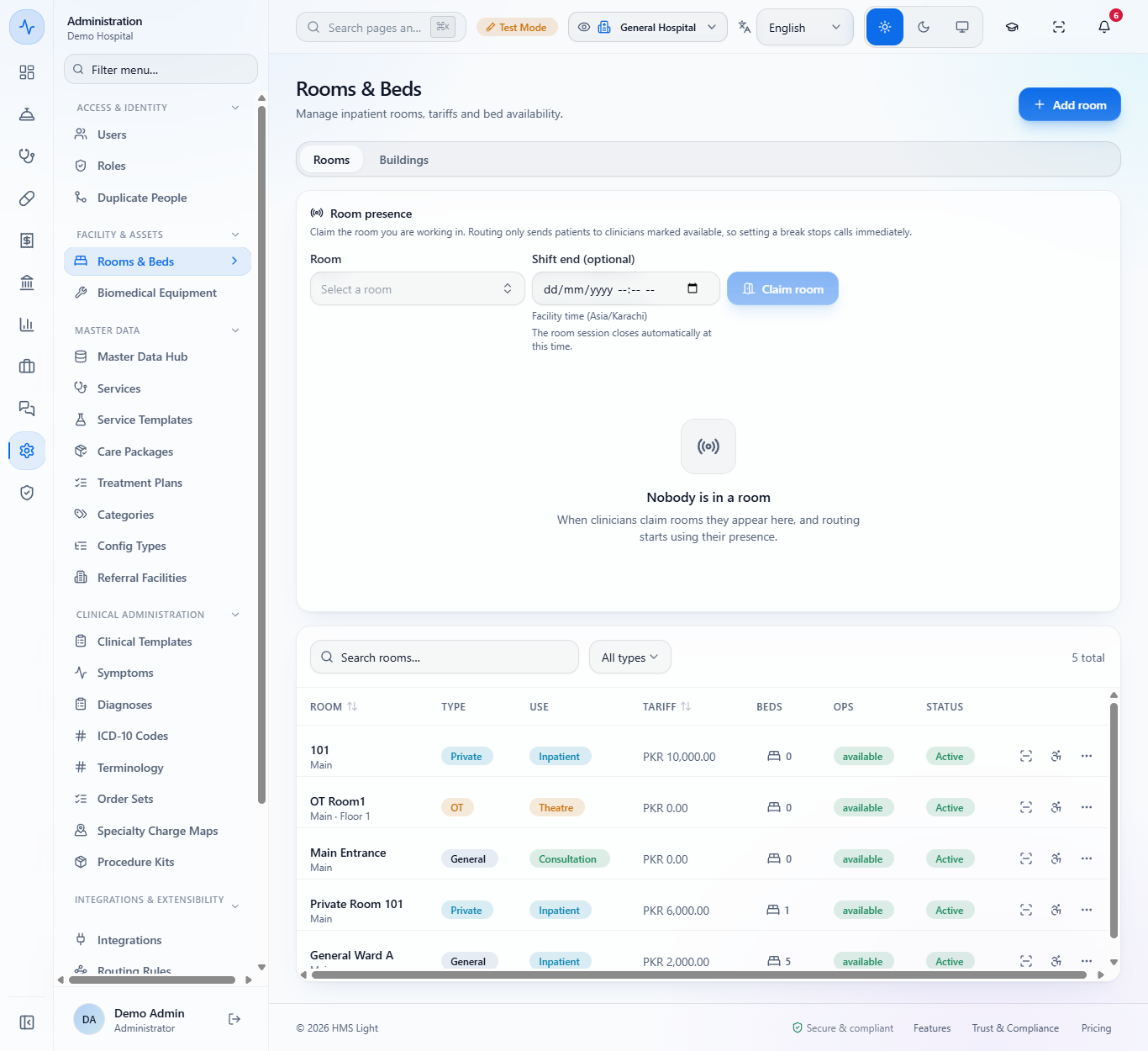
Open Administration > Facility & Assets > Rooms & Beds. Each row shows the room, its type, workflow use, daily tariff, the number of beds, its operational status and whether it is active.
You will set up the rooms and beds of your wards, admit a patient with the admission charge, an advance and a signed consent, and see the bed on the ward board.
Open Administration > Facility & Assets > Rooms & Beds. Each row shows the room, its type, workflow use, daily tariff, the number of beds, its operational status and whether it is active.
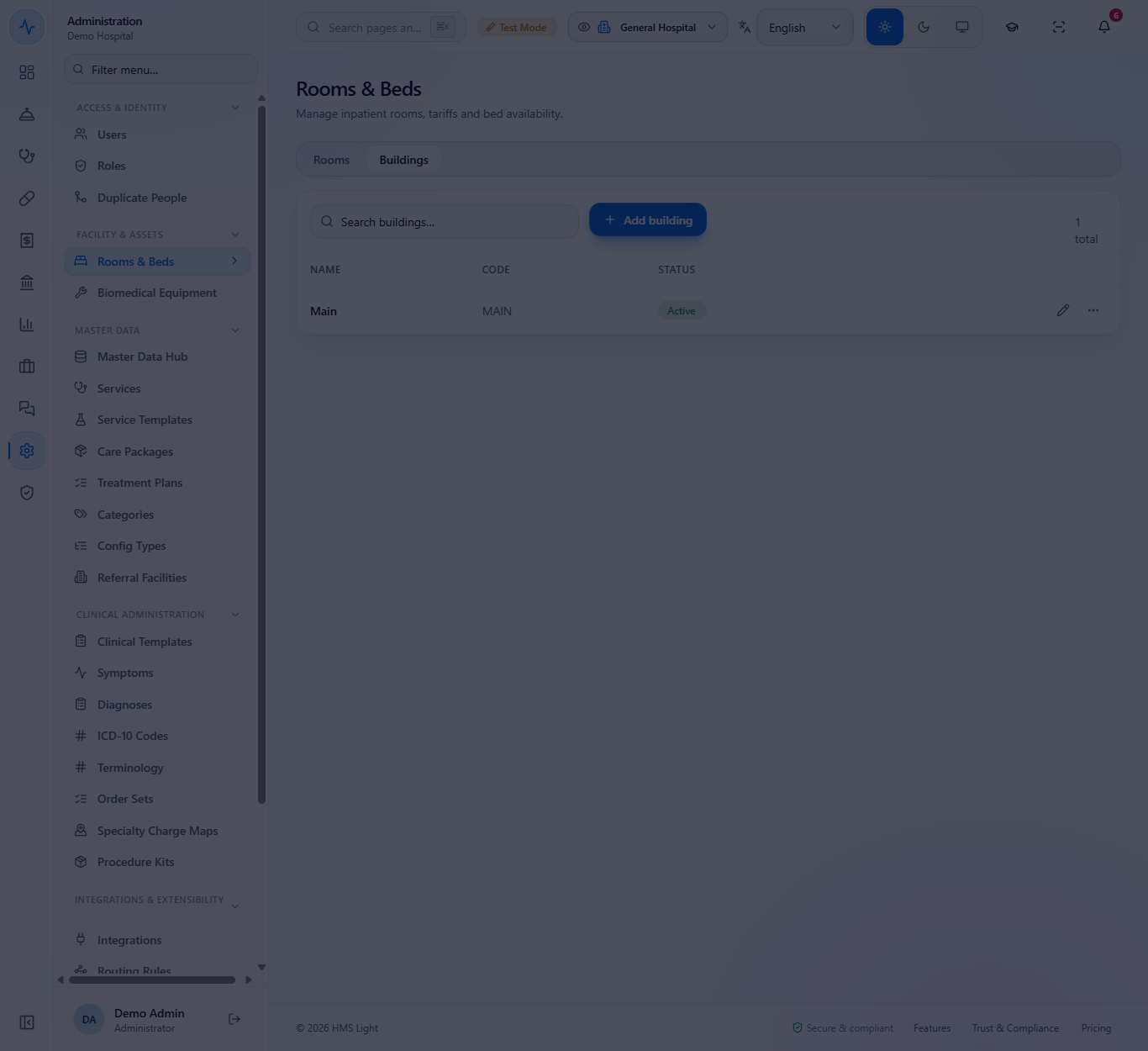
Open the Buildings tab, press Add building, type the Name and a short Code and press Create building. The toast says "Building created".
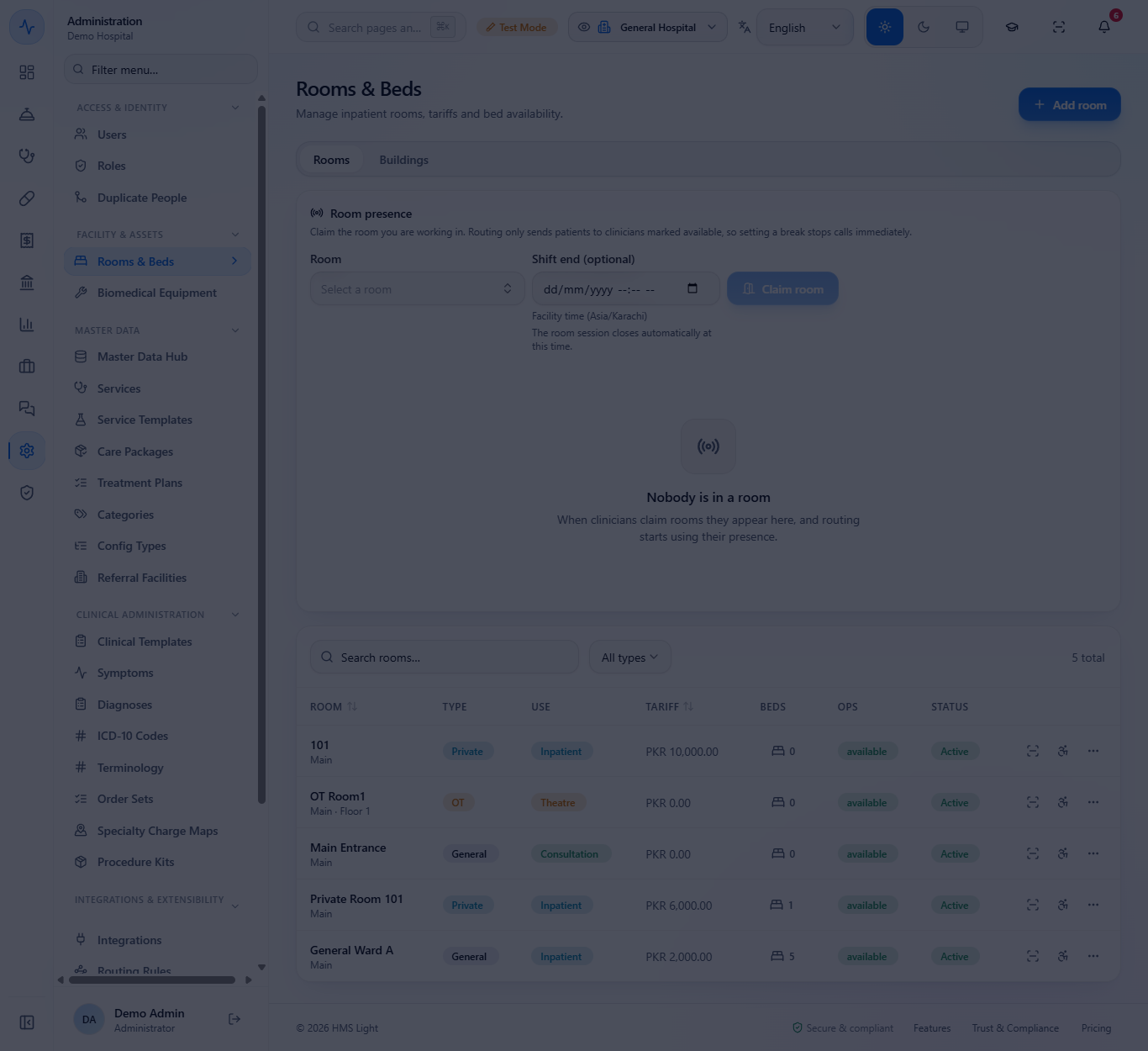
Press Add room. Enter the name, choose the Type and Workflow use (Inpatient for wards), the Daily tariff, Capacity, Floor and Building, then Create room.
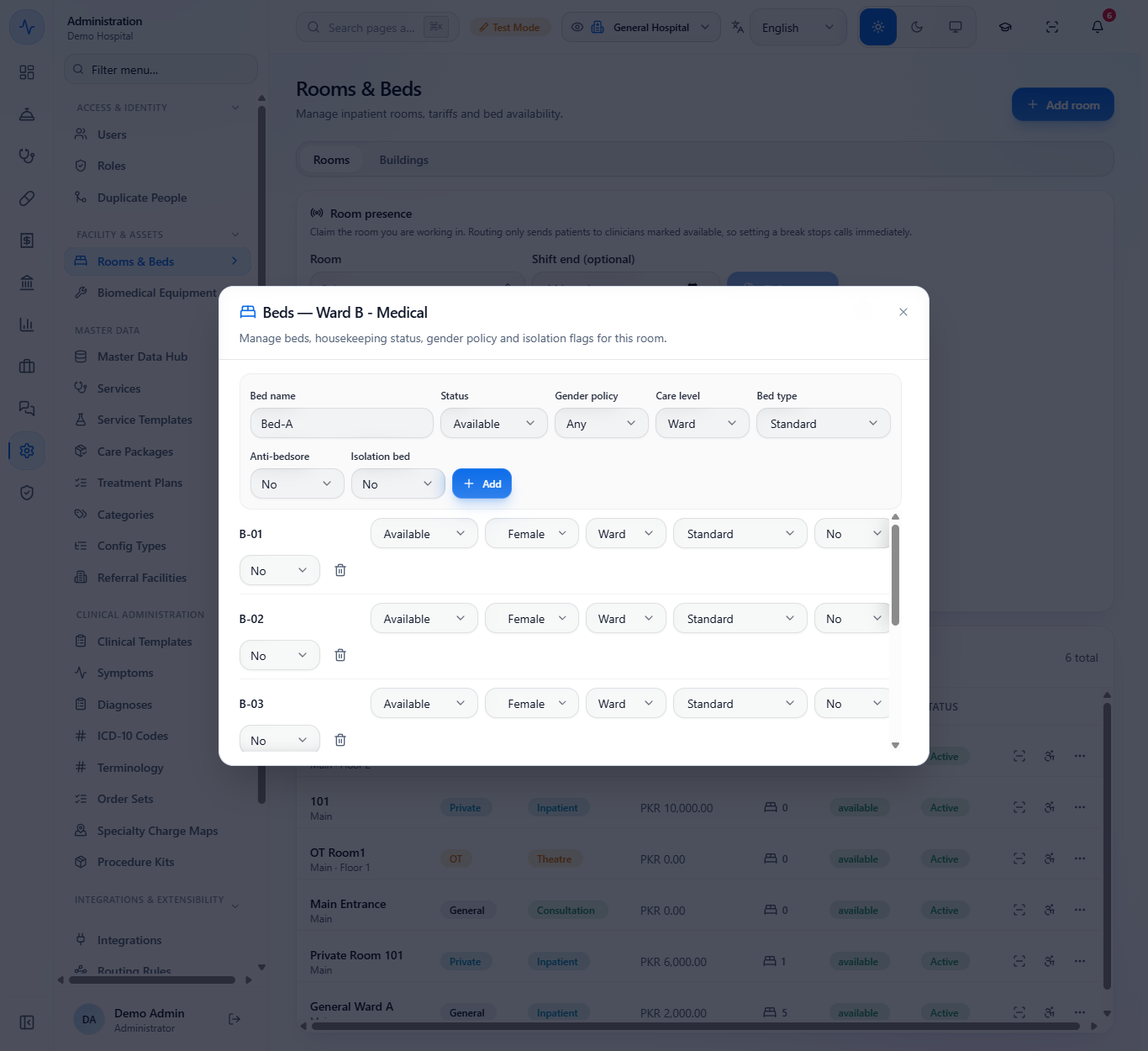
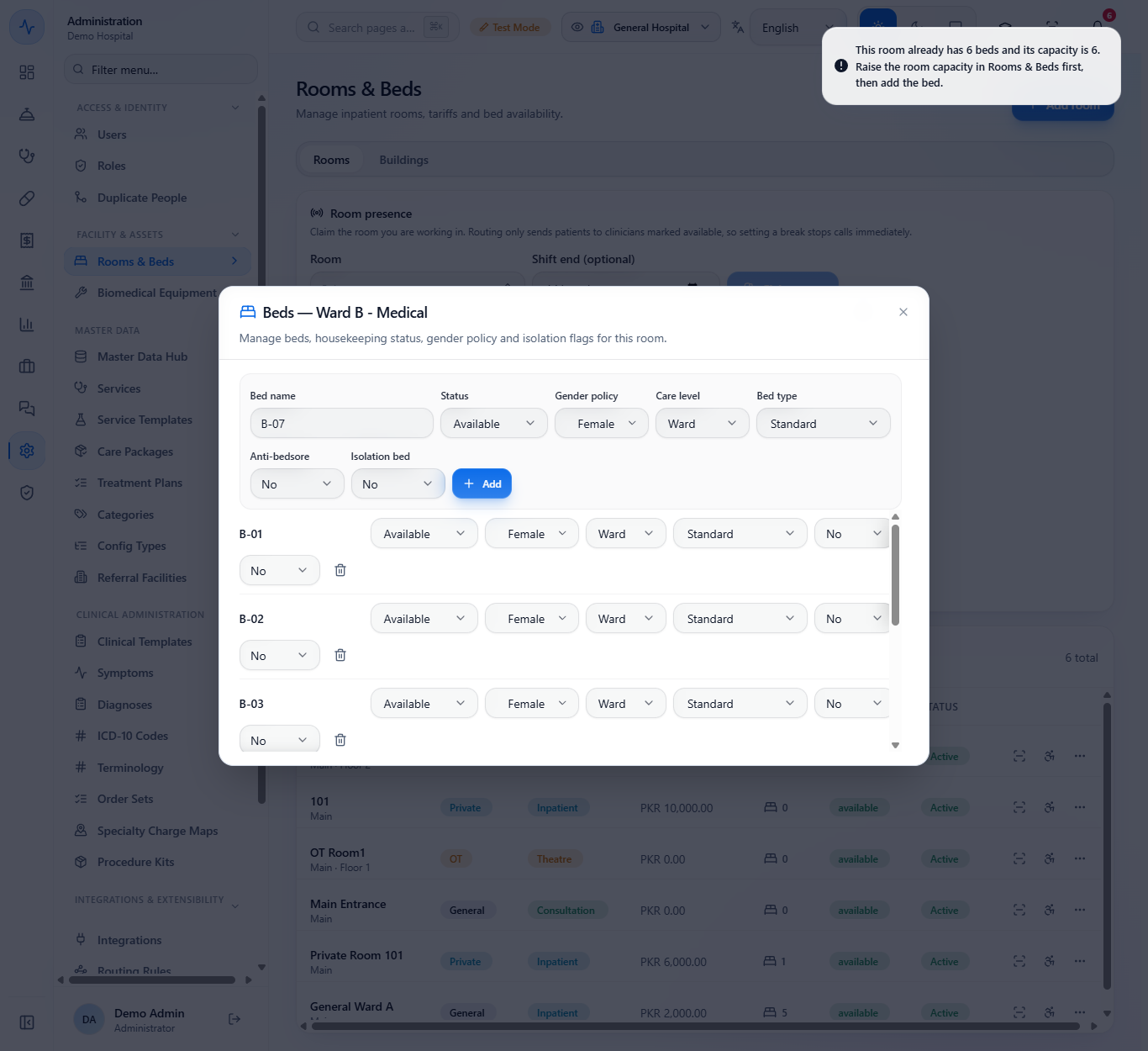
Press the bed count of the room. For each bed set the name, Gender policy, Care level, Bed type, Anti-bedsore and Isolation bed, then Add.
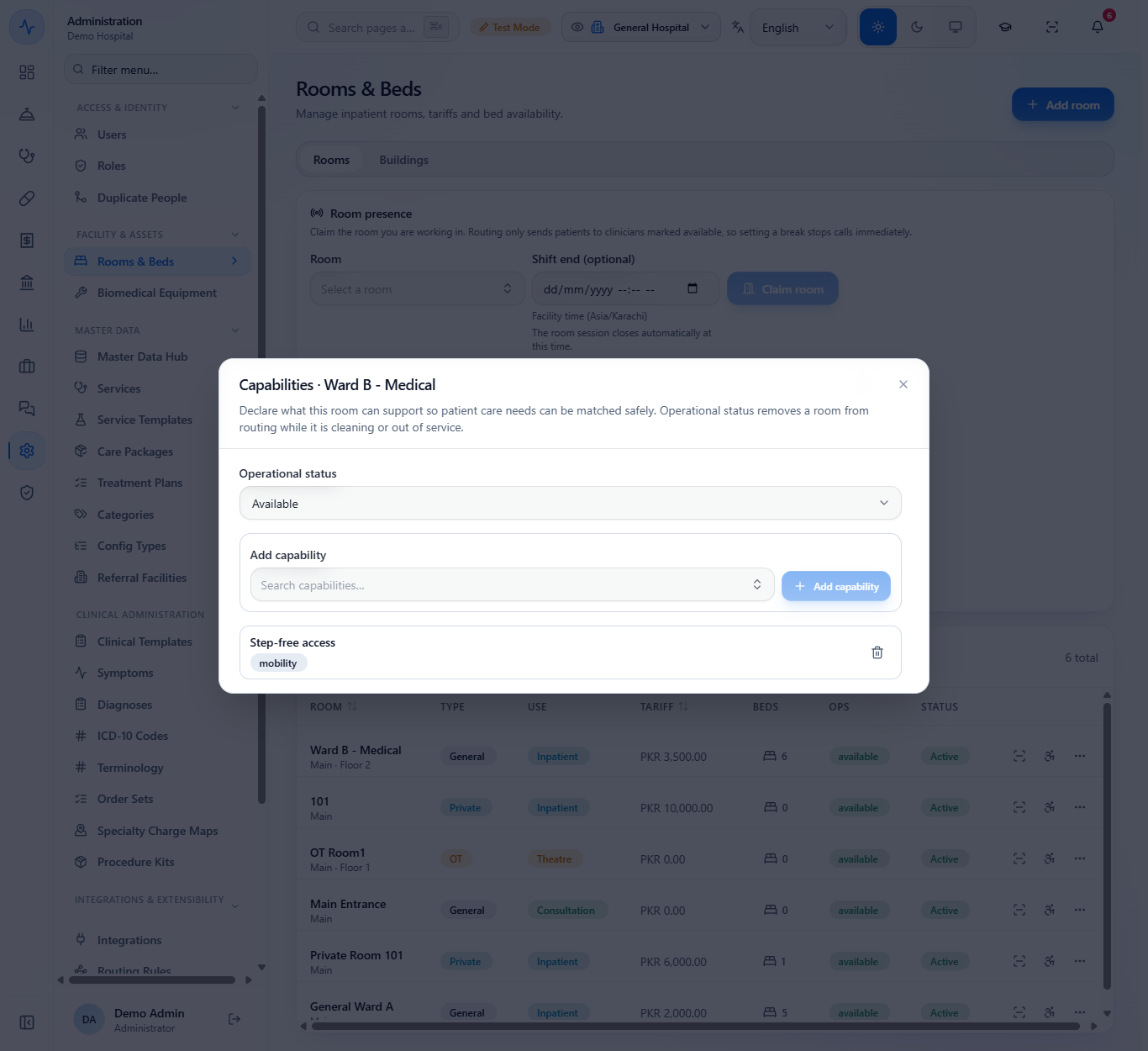
Press Room capabilities. Choose the Operational status (Available, Cleaning, Out of service) and add capabilities such as Step-free access so patients are routed to a suitable room.
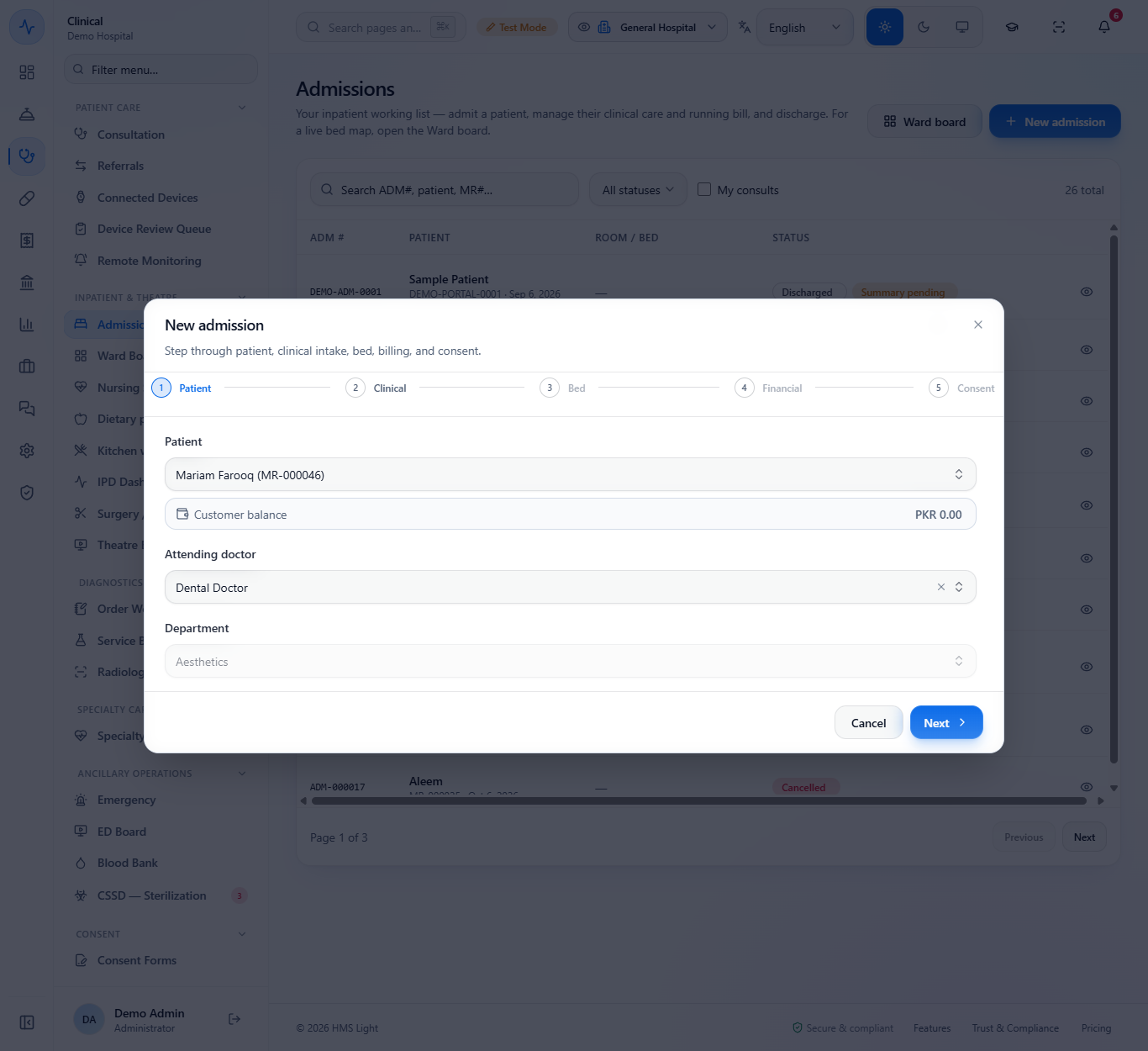
In Admissions press New admission. Pick the patient and the attending doctor. The department follows the doctor and sets the admission charge.
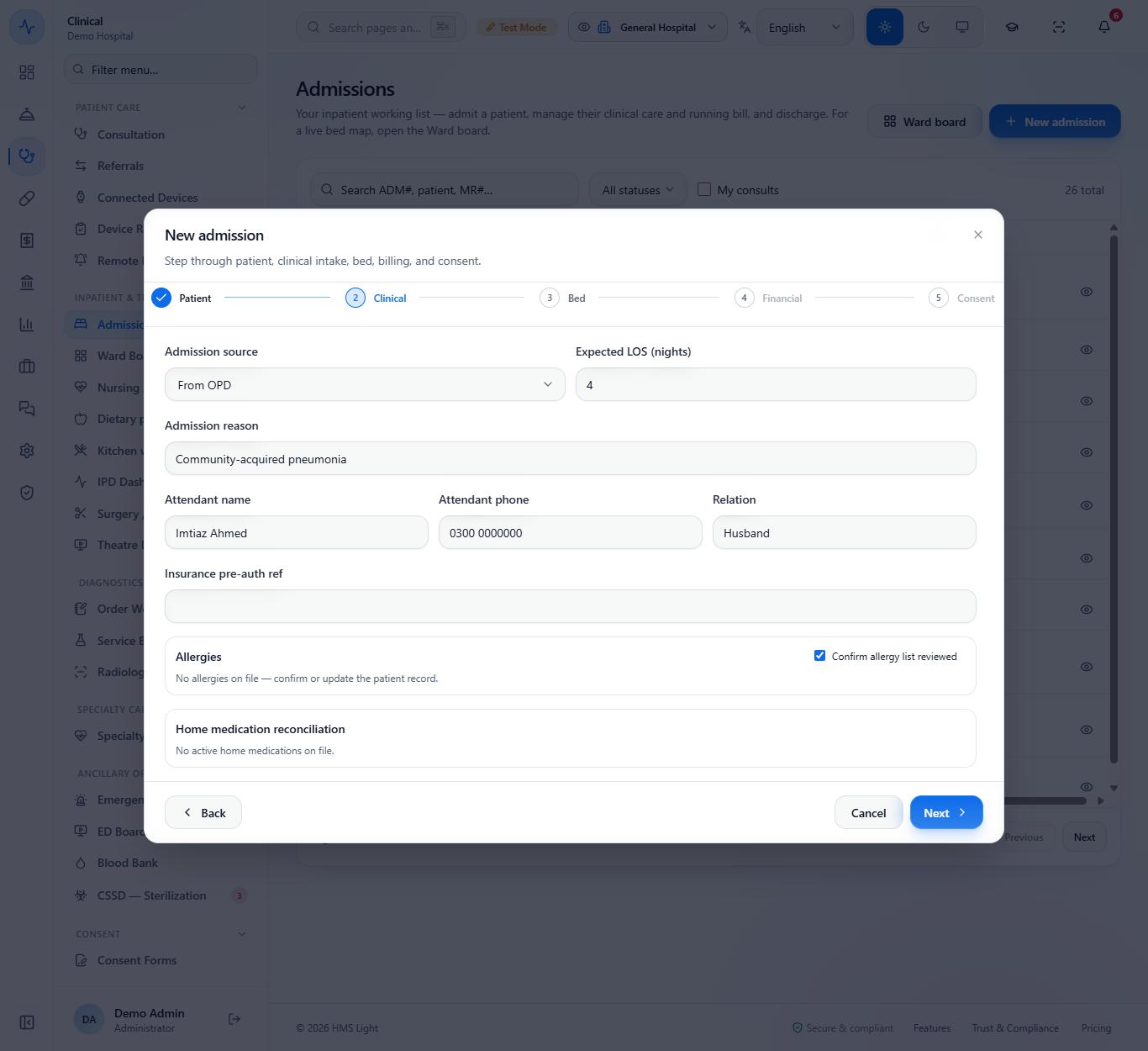
Choose the admission source, the expected stay in nights, the reason and the attendant, and tick Confirm allergy list reviewed.
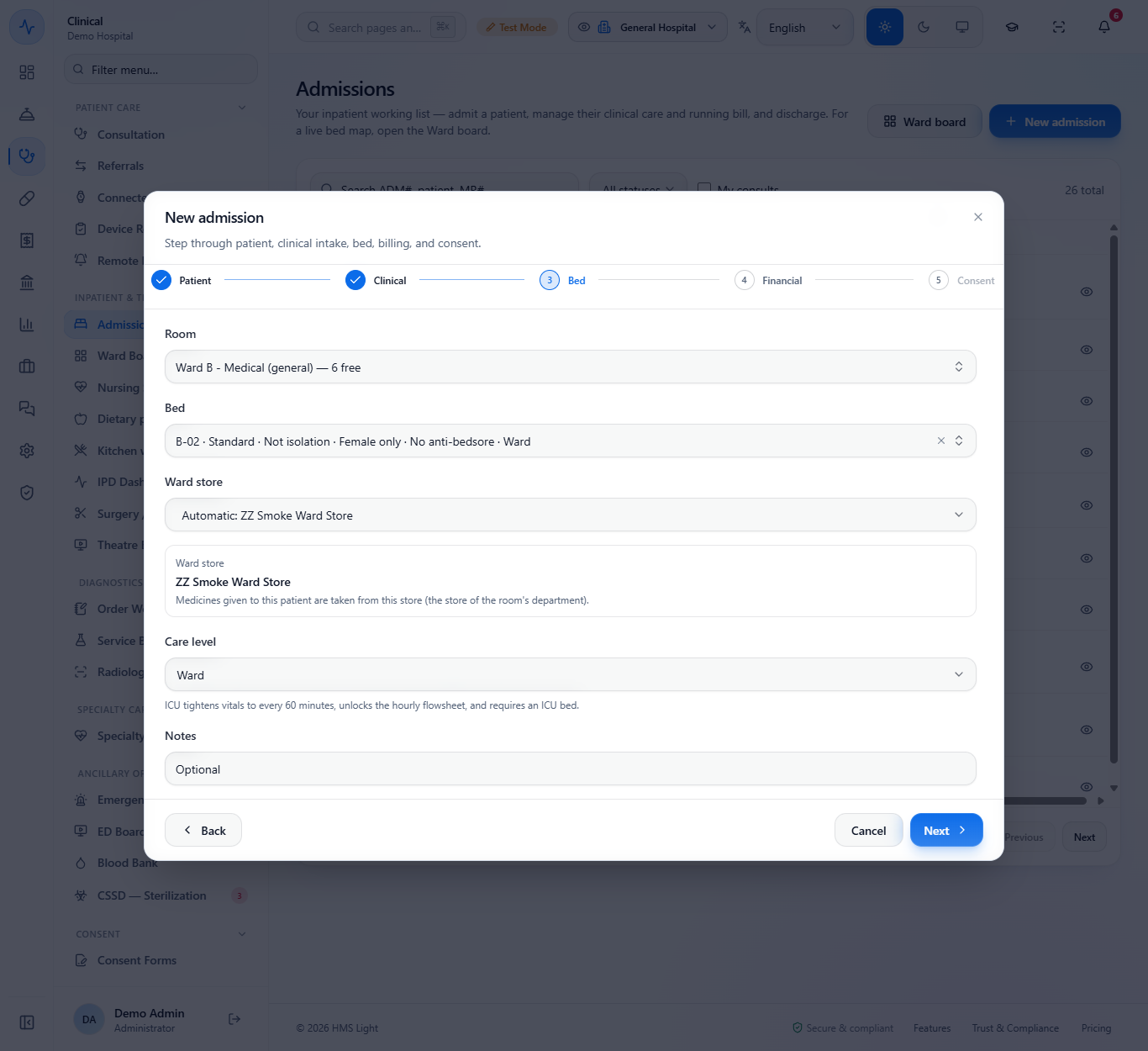
Pick a room with free beds, then a bed. The bed label shows its type, isolation, gender policy and care level. Leave the bed empty to admit the patient as pending bed.
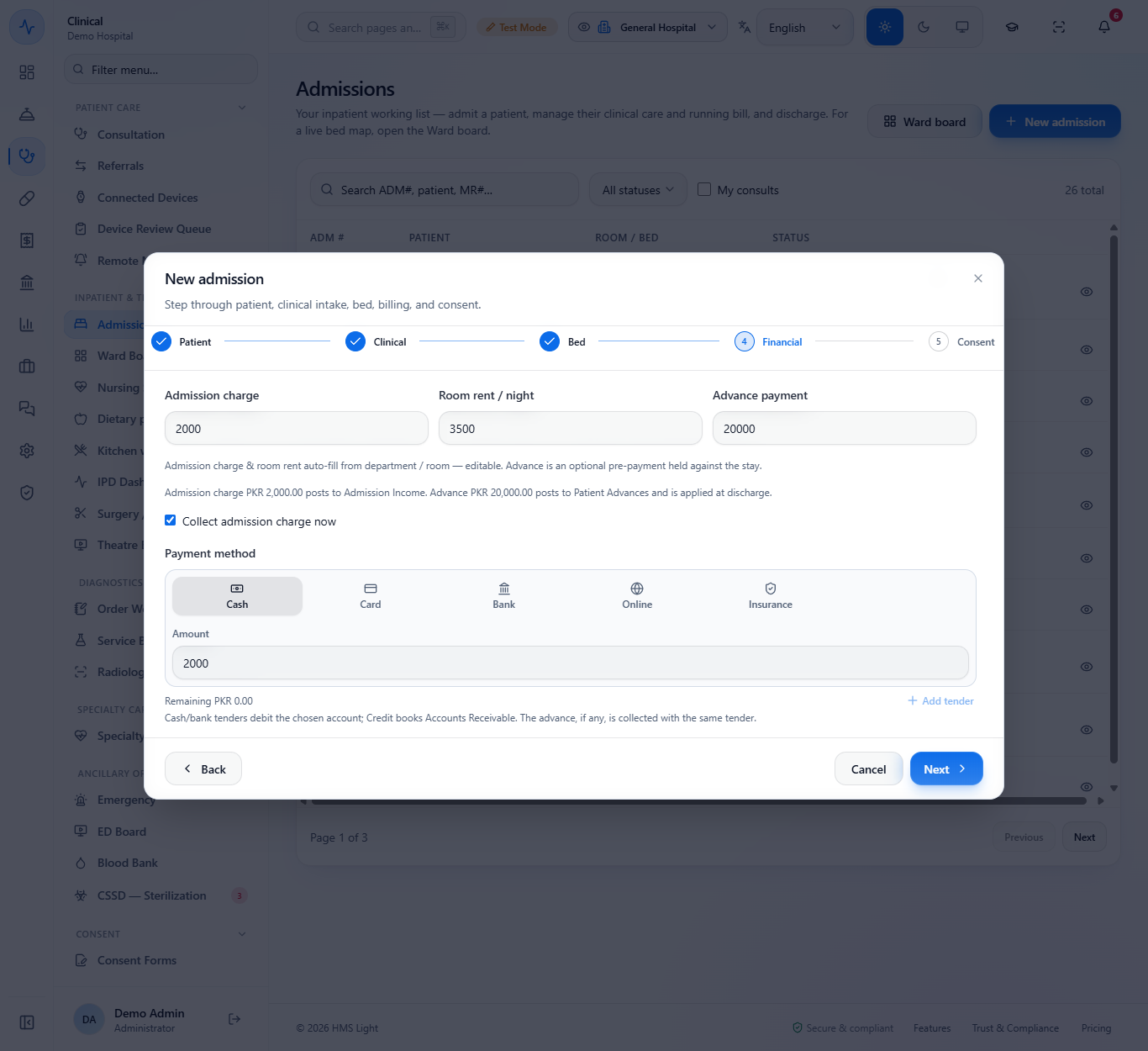
Check the Admission charge and Room rent / night, type the Advance payment, keep Collect admission charge now ticked and choose the payment method.
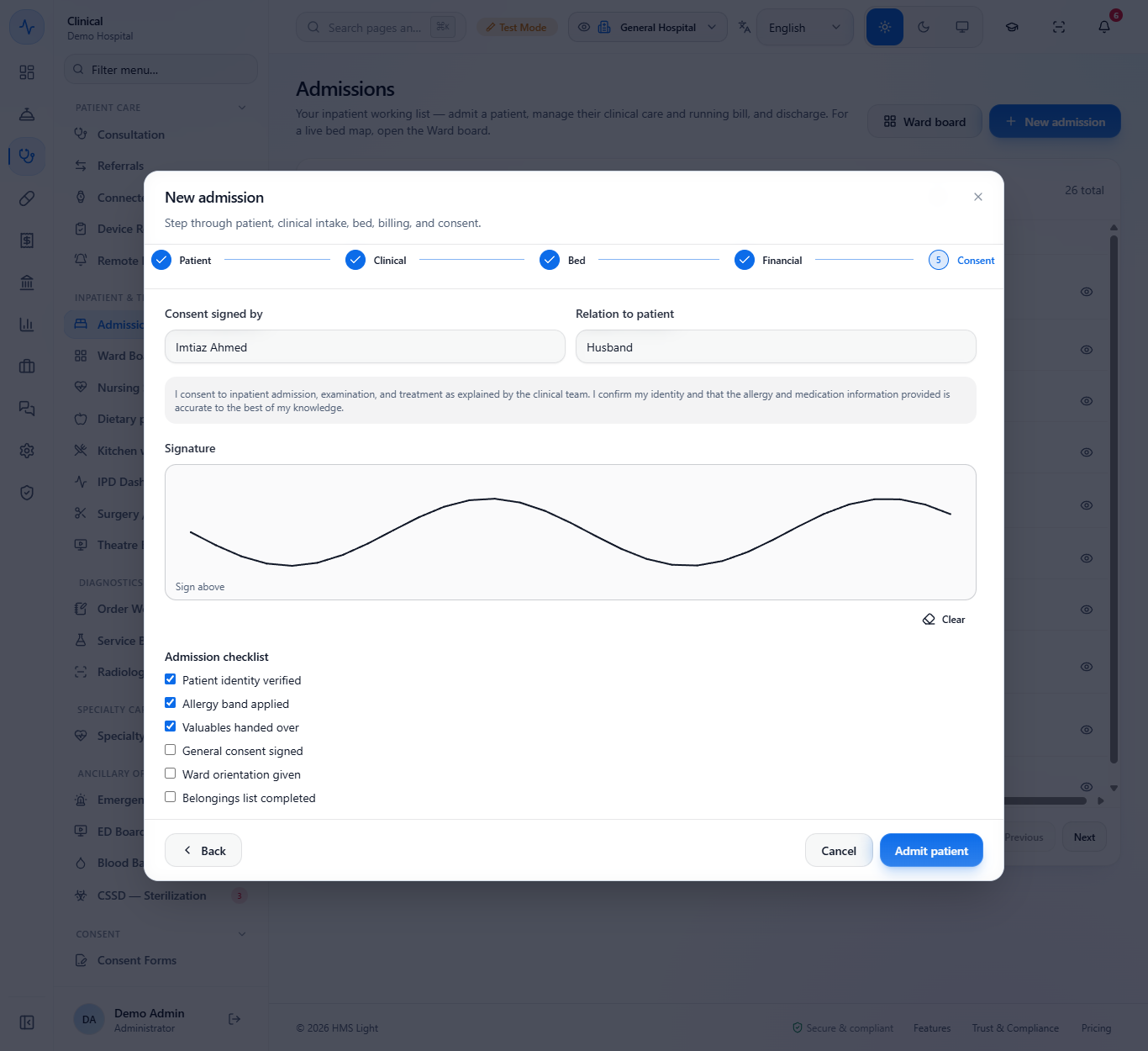
Type who signs and the relation, let them sign on the screen, tick the checklist items and press Admit patient. A typed name without a drawn signature is not accepted as signed.
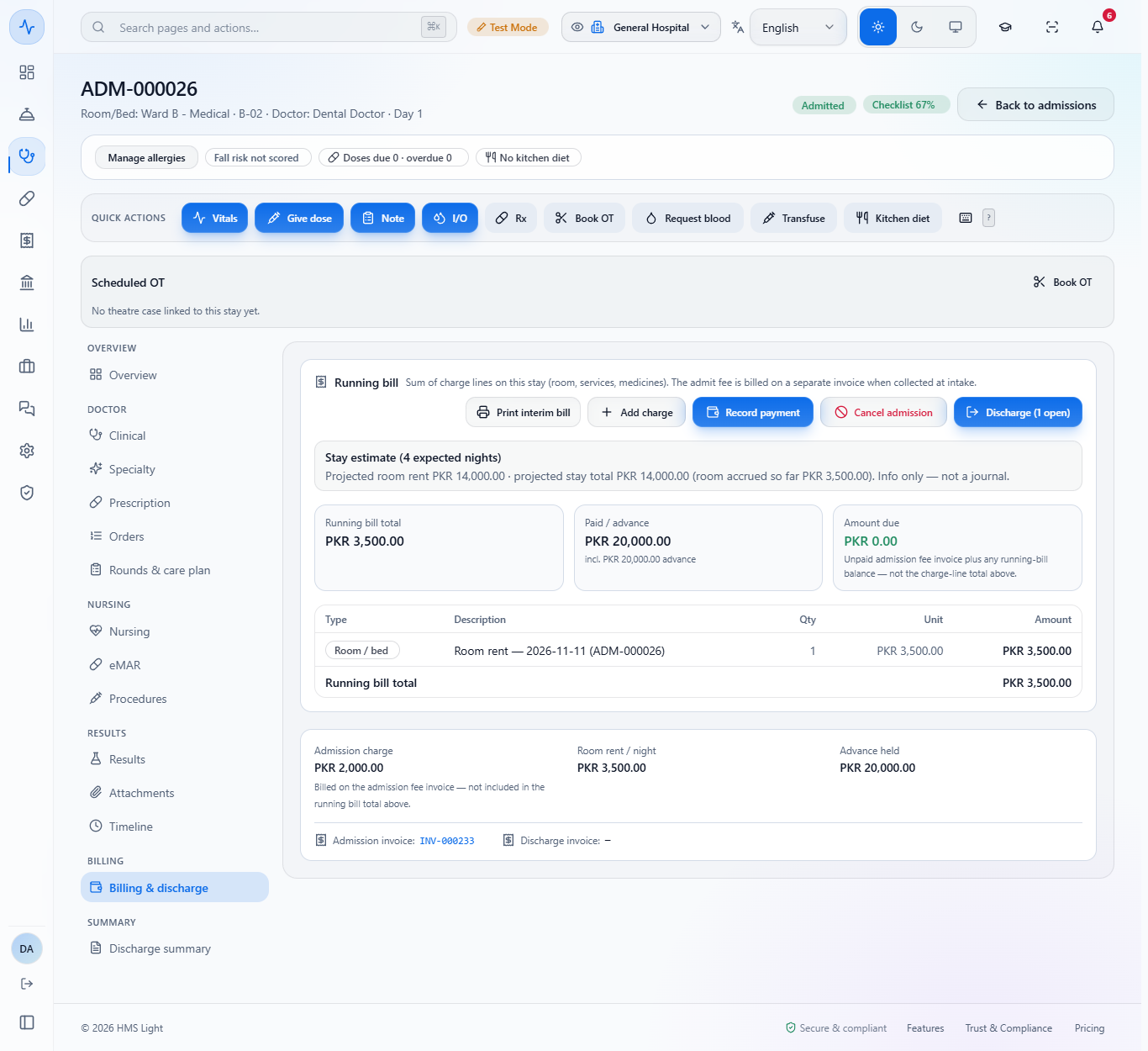
The chart opens and the toast says "Patient admitted" with the admission number. The Billing tab shows the running bill (the first night's room rent), the advance held, the Admission charge "Billed on the admission fee invoice" and the amount due. Click the Admission invoice link to open the fee invoice: it is Posted and Paid.
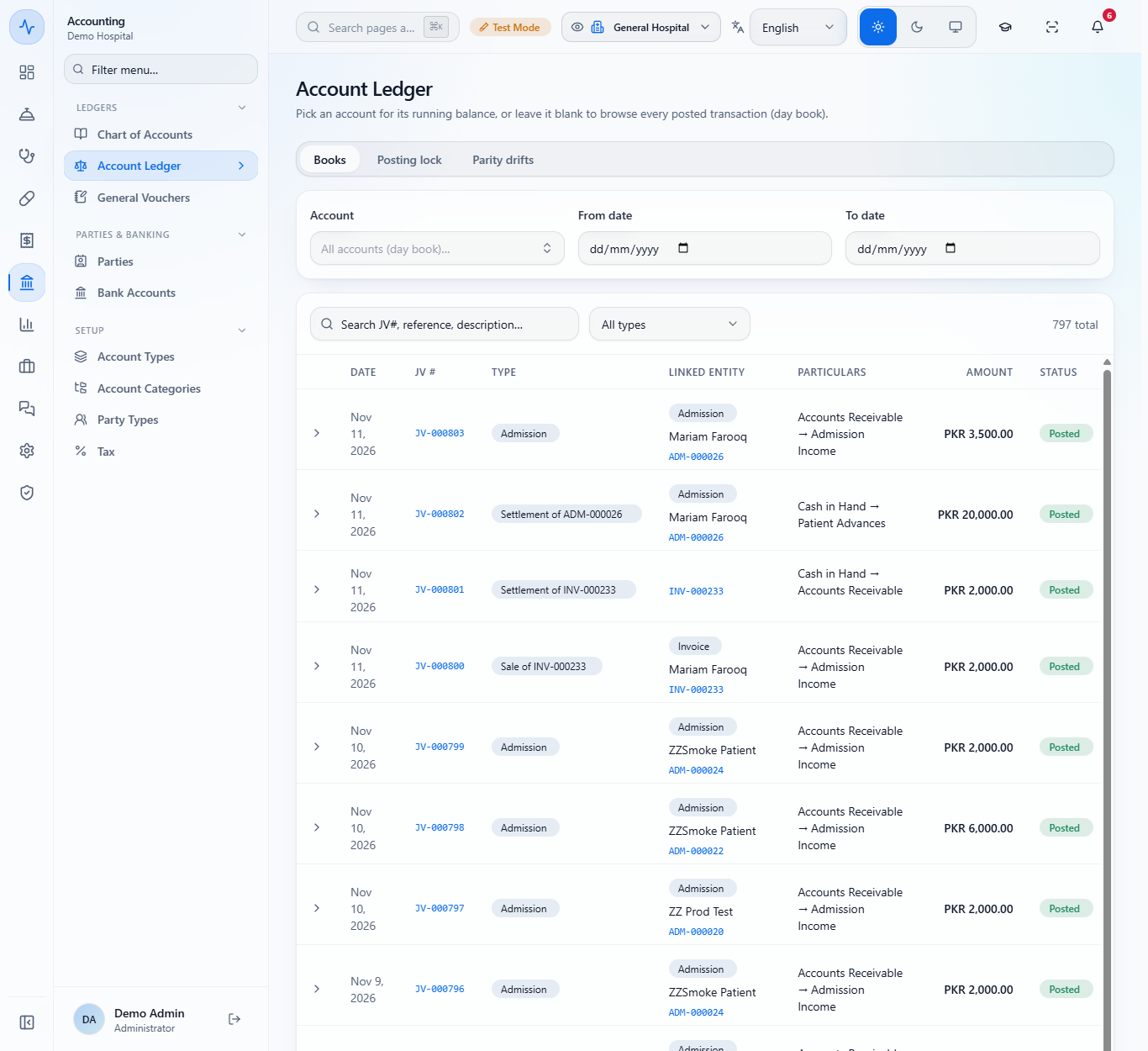
In the day book you see four entries: the fee sale (Accounts Receivable against Admission Income), its cash settlement, the advance (Cash in Hand against Patient Advances) and the first night's room rent.
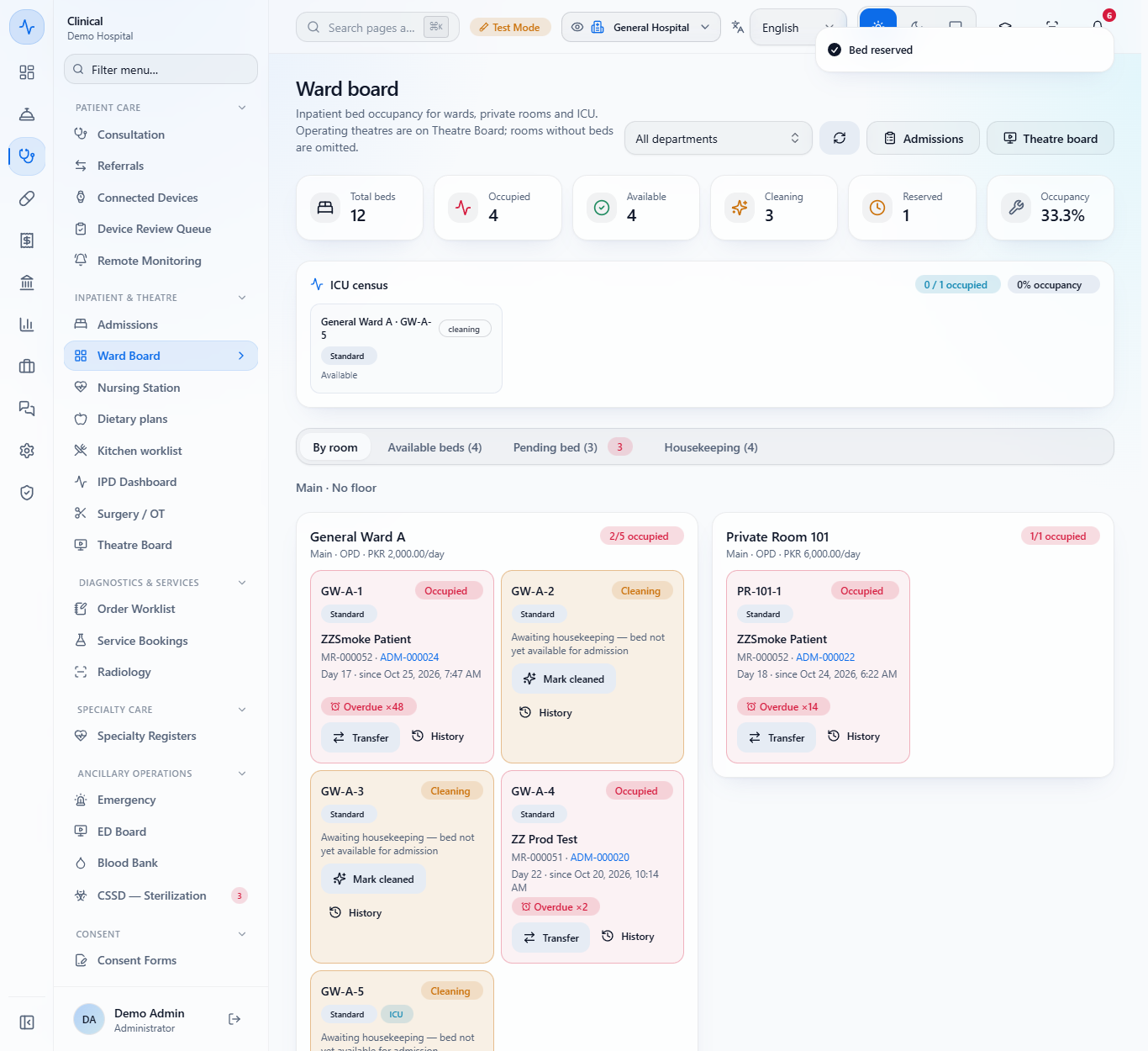
Open Ward Board. The bed shows Occupied with the patient. Reserve holds a free bed for a number of hours (24 by default).
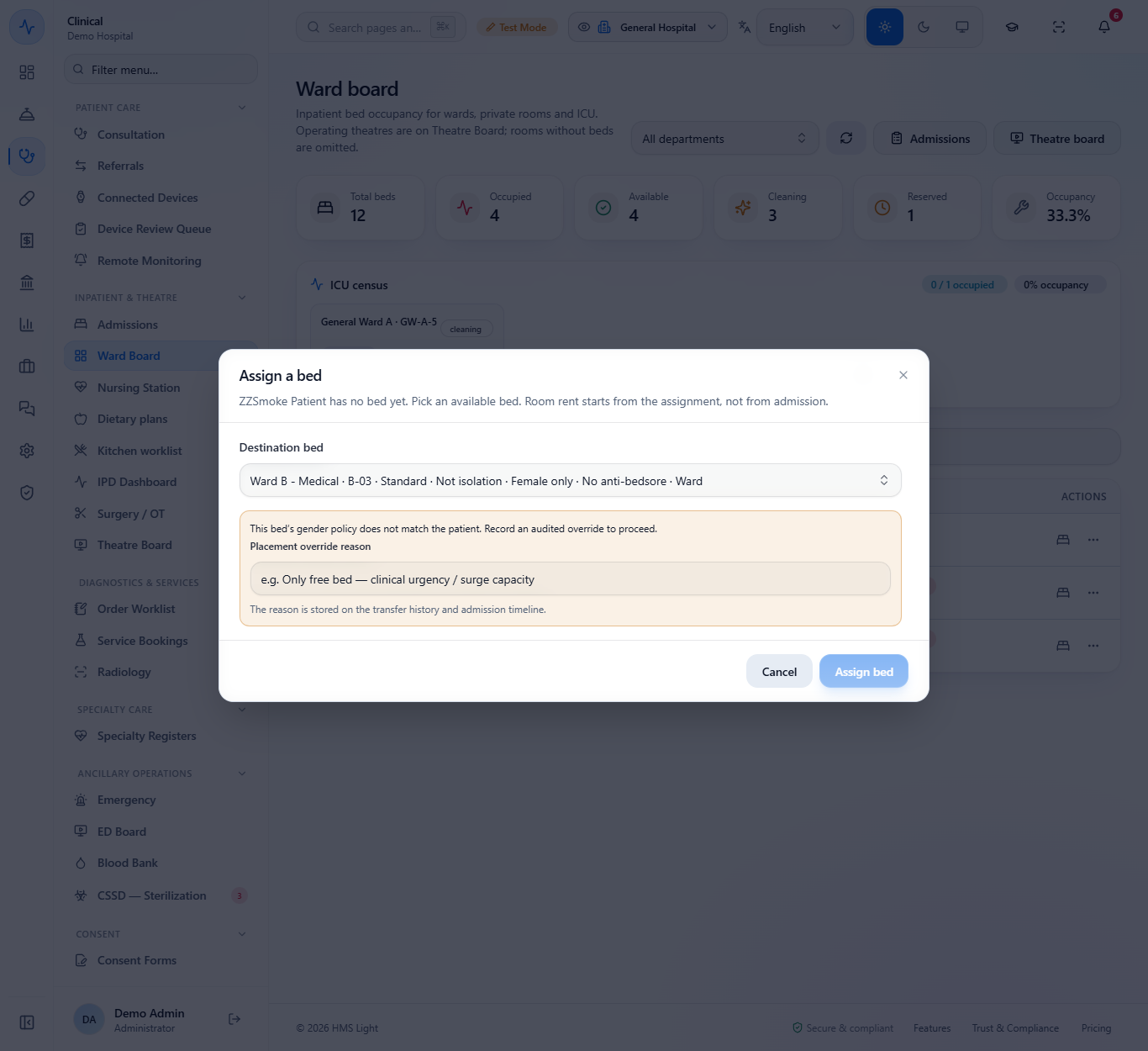
In the Pending bed tab press the bed icon on the patient. A bed whose gender policy or isolation flag does not fit asks for a Placement override reason. Pick a suitable bed and the toast says "Bed assigned"; room rent starts from that moment.
| Mistake | What you see | Fix |
|---|---|---|
| Adding more beds than the room capacity | "This room already has 6 beds and its capacity is 6..." | Raise the room capacity, then add the bed |
| Choosing a bed whose gender policy does not fit | A warning asking for an override reason | Pick another bed or write the reason |
| Leaving the bed empty | The patient shows Bed unassigned | Assign a bed from the Pending bed tab |
| Item | Meaning / rule |
|---|---|
| Daily tariff | Room rent per night, editable at intake |
| Bed capacity | A room cannot have more beds than its capacity |
| Admission charge | Own invoice, linked from the Billing tab |
| Advance | Held for the patient, applied at discharge |
Can I admit a patient before a bed is free? Yes. Leave the bed empty and the patient waits in the Pending bed tab until a bed is assigned.
Can I add more beds than the room capacity? No. The app refuses the extra bed and tells you to raise the room capacity first.
Where does the room rent come from? From the room's daily tariff, which you can edit on the Financial step.
GridX HMS runs this whole workflow. See what GridX HMS does and what it costs, or browse all step-by-step guides.