Open the Requests tab
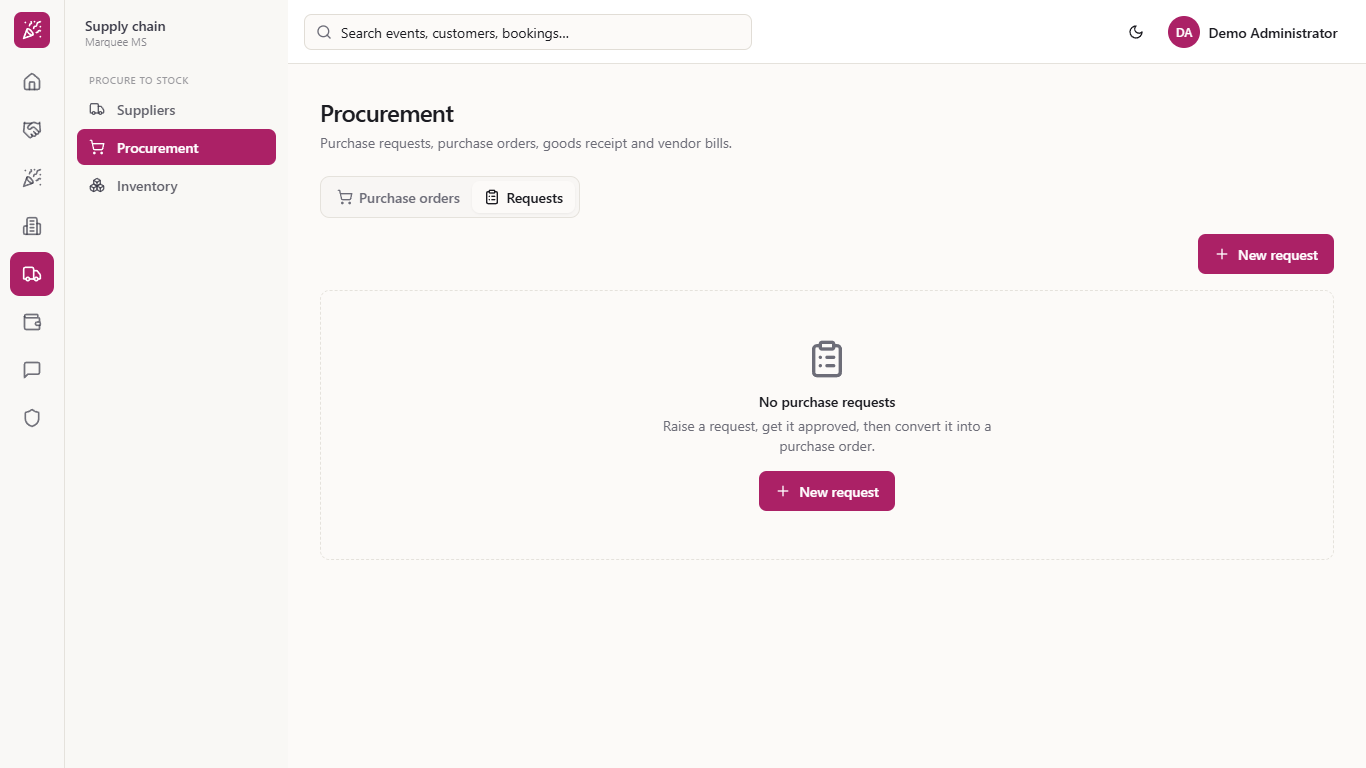
Go to Supply chain > Procurement and choose the tab Requests. A new venue sees "No purchase requests". Press New request.
Before a venue buys linen, chairs or kitchen stock, the department that needs it asks first. This guide shows how to raise the request for an event, get it approved or rejected, and turn the approved one into a purchase order.
Go to Supply chain > Procurement and choose the tab Requests. A new venue sees "No purchase requests". Press New request.
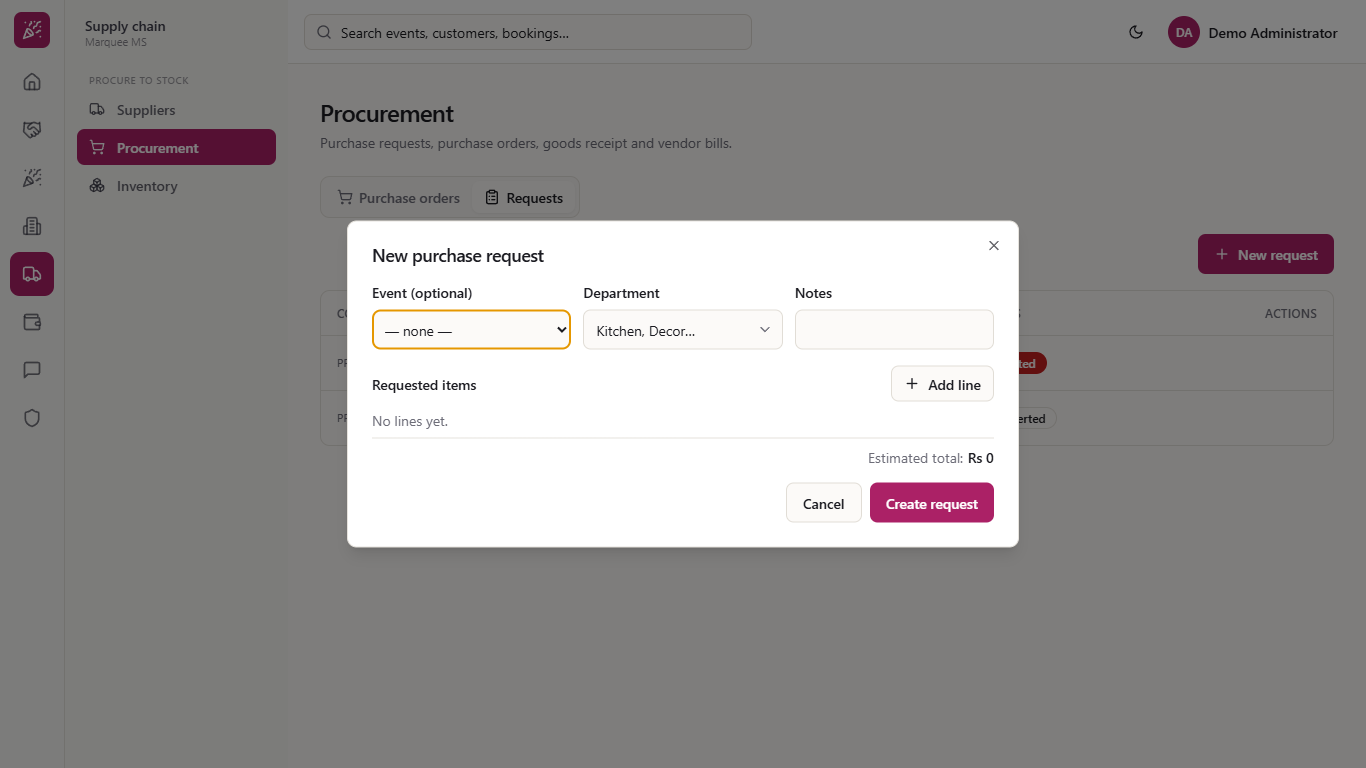
Choose the Event (optional) the goods are for, pick the Department (Kitchen, Decor, Service, Operations and so on) and write a short Notes line.
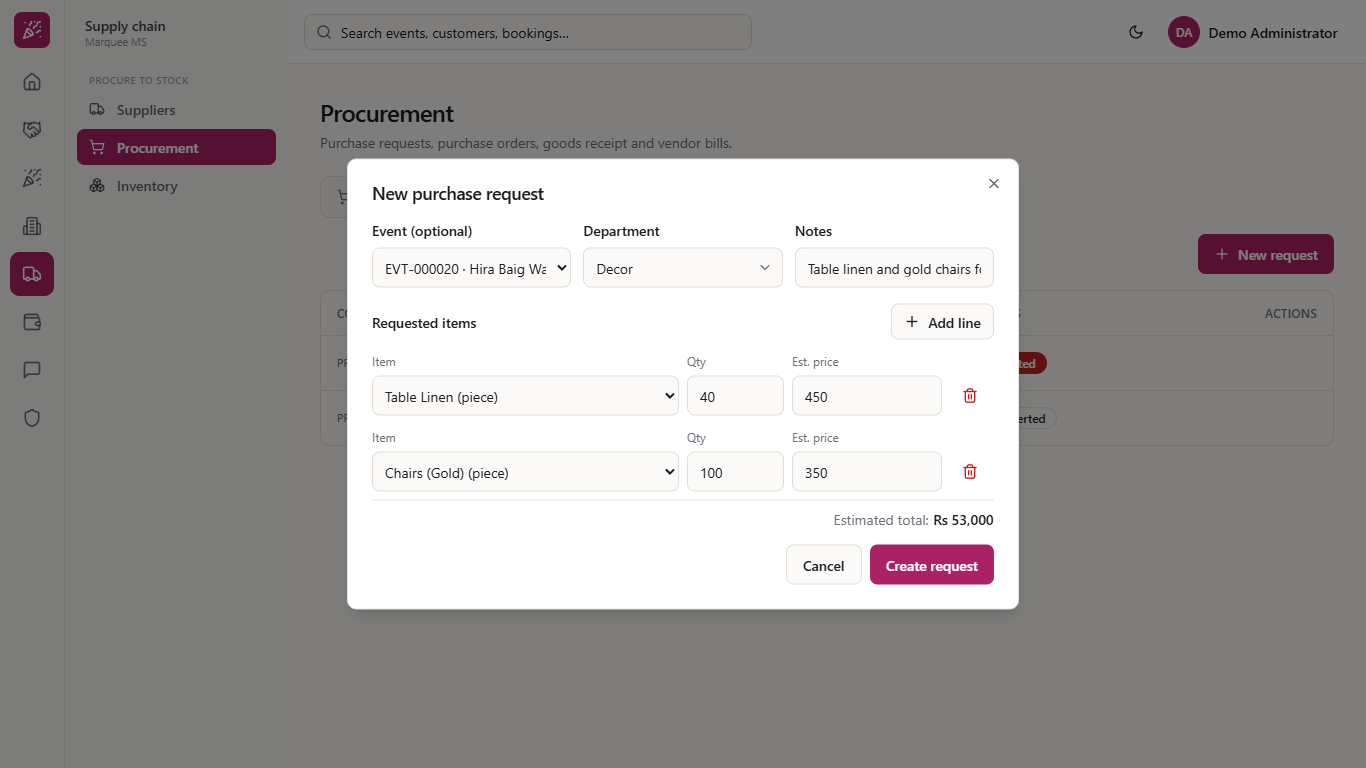
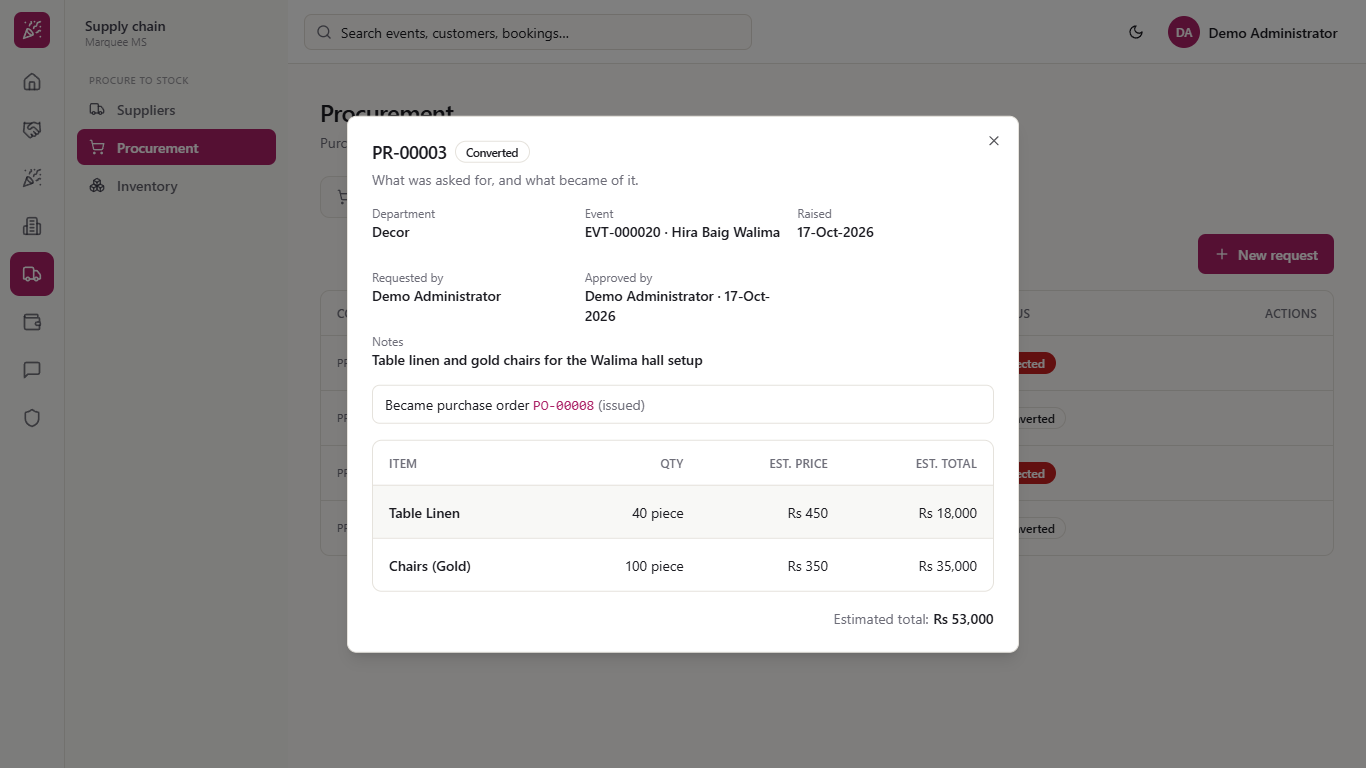
Press Add line for each item, choose the item, the Qty and the Est. price. The price fills in from the item and you can change it. The Estimated total updates as you type: here 40 table linen at Rs 450 and 100 gold chairs at Rs 350 give Rs 53,000.
Press Create request. It appears in the table with its own code (PR-00003), the department, the event, who raised it (Requested by), the number of lines and the status Draft.
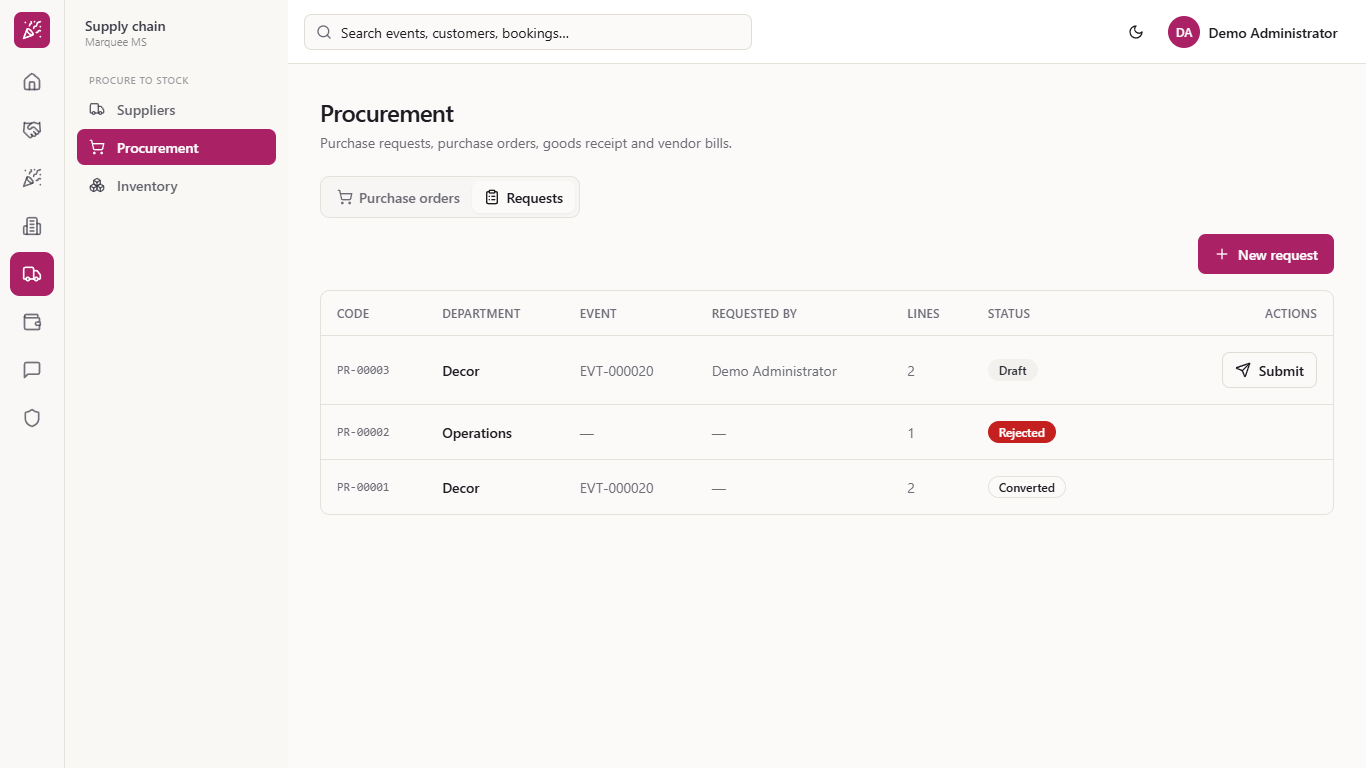
Press Submit on the row. The status becomes Submitted and the approver now sees Approve and a red cross to reject.
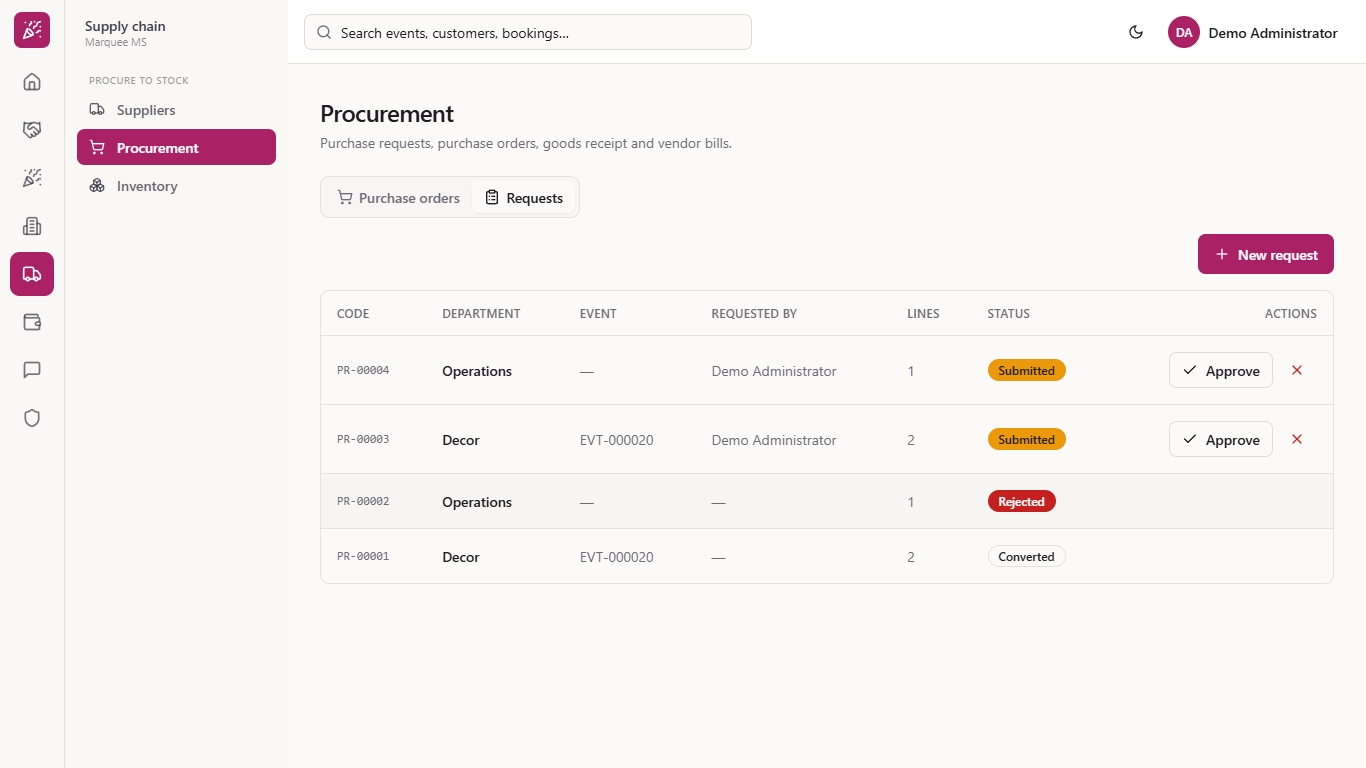
To turn one down, press the red cross, write the Reason for rejecting and press Reject request. The reason is required: an empty one is refused with "Reason for rejecting is required".
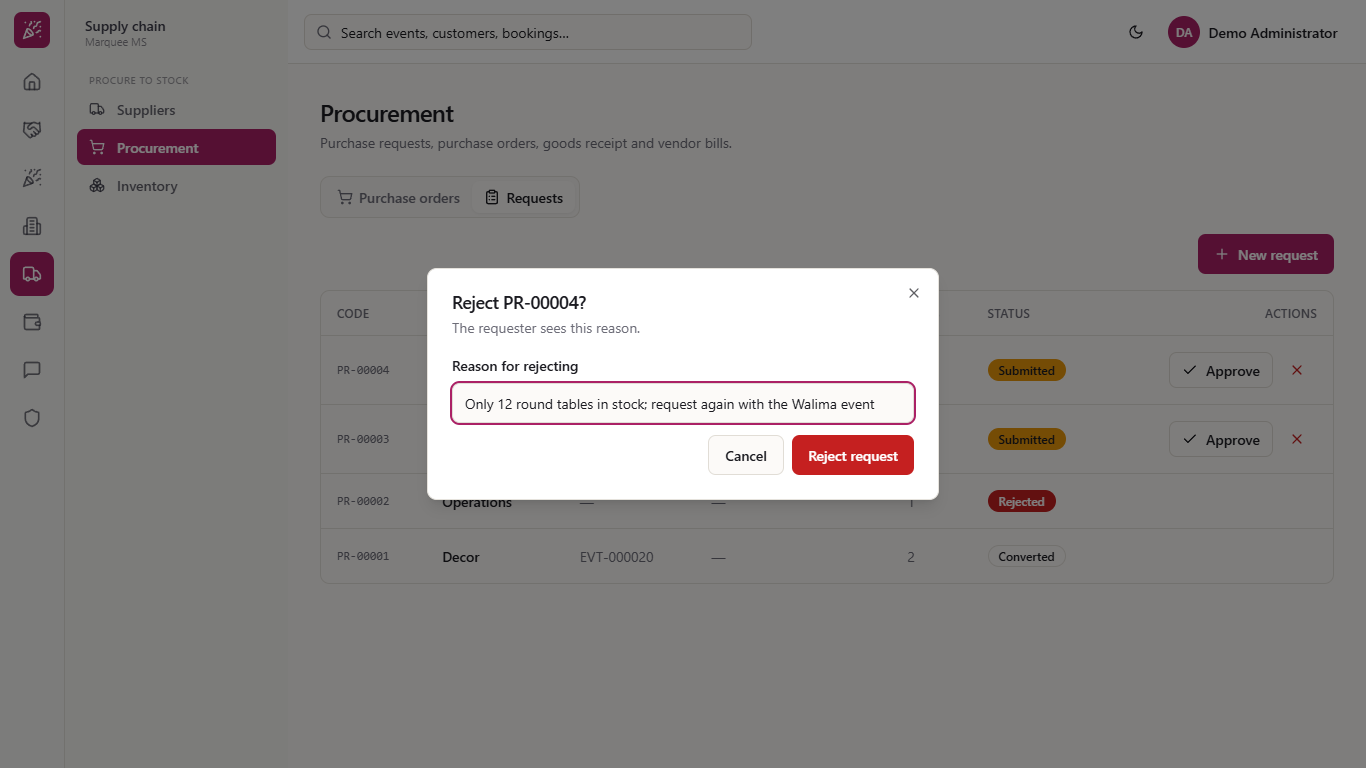
The request shows Rejected and has no more actions. The requester raises a new request if the need remains.
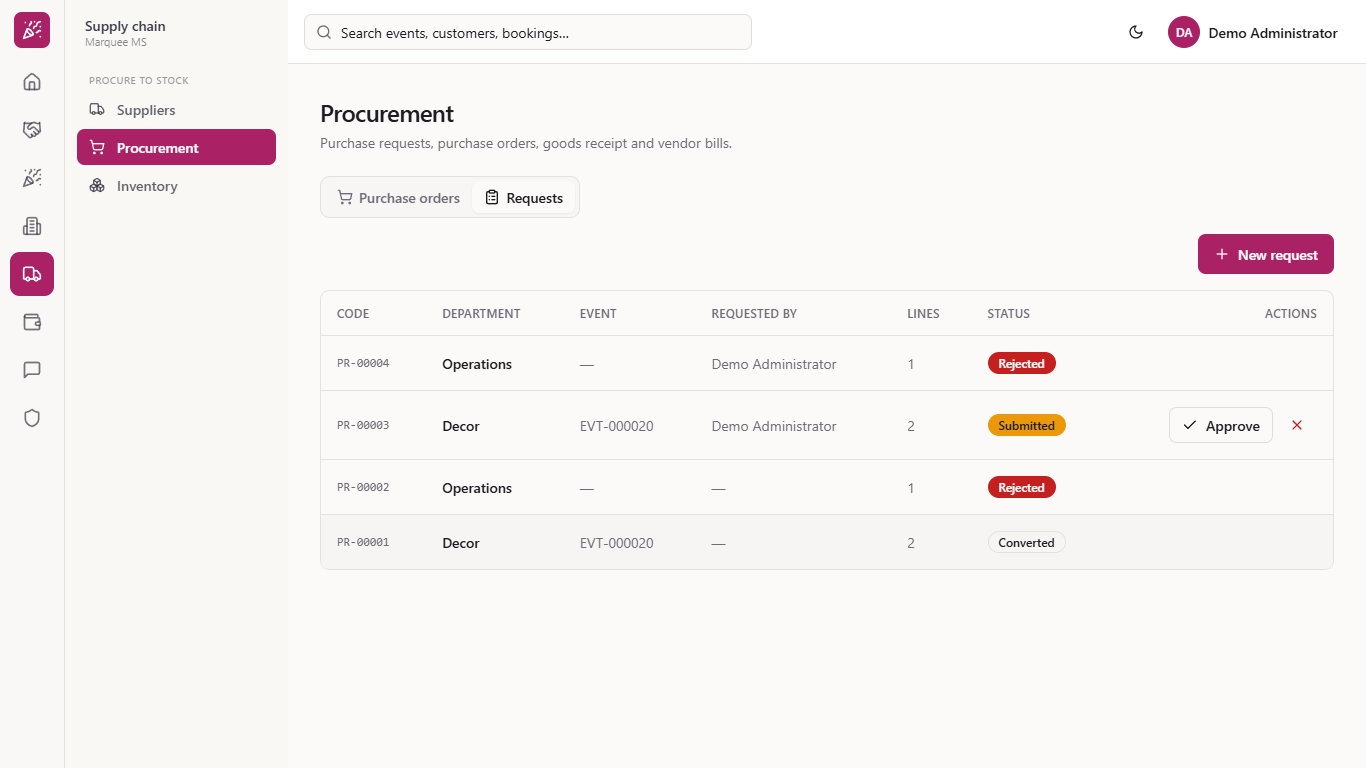
Click any row to read what was asked and what became of it: the department, event, who raised it, who rejected it and when, the reason in a red band, the items and the estimated total.
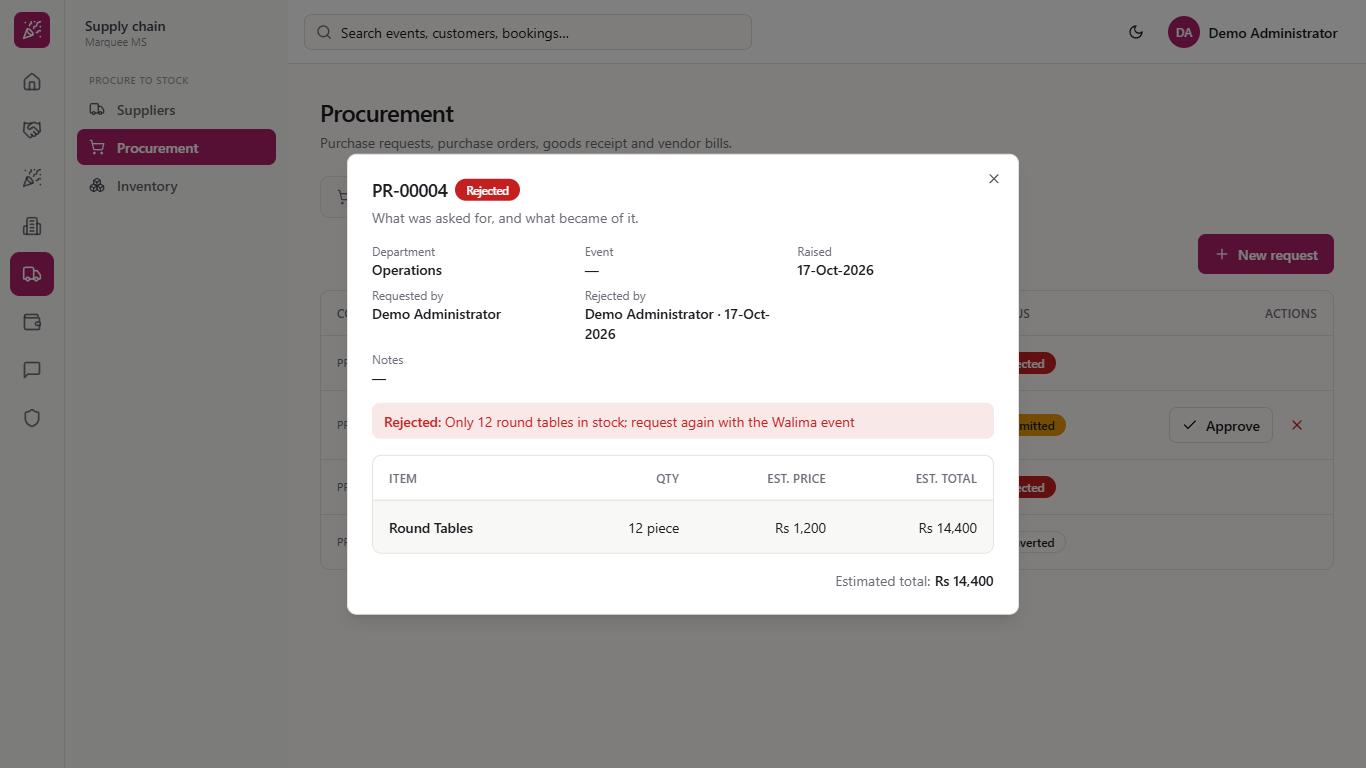
On the request you want to accept, press Approve. The status becomes Approved and the button Convert to PO appears.
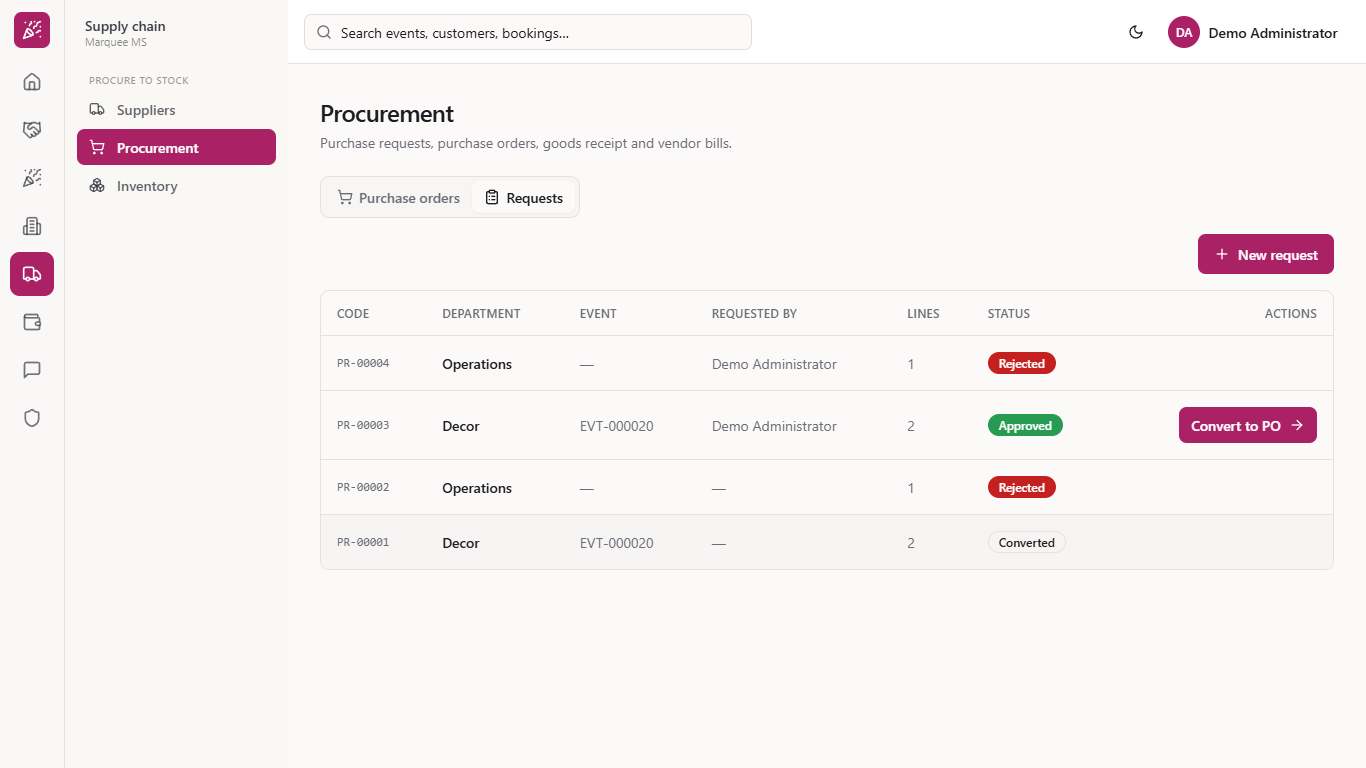
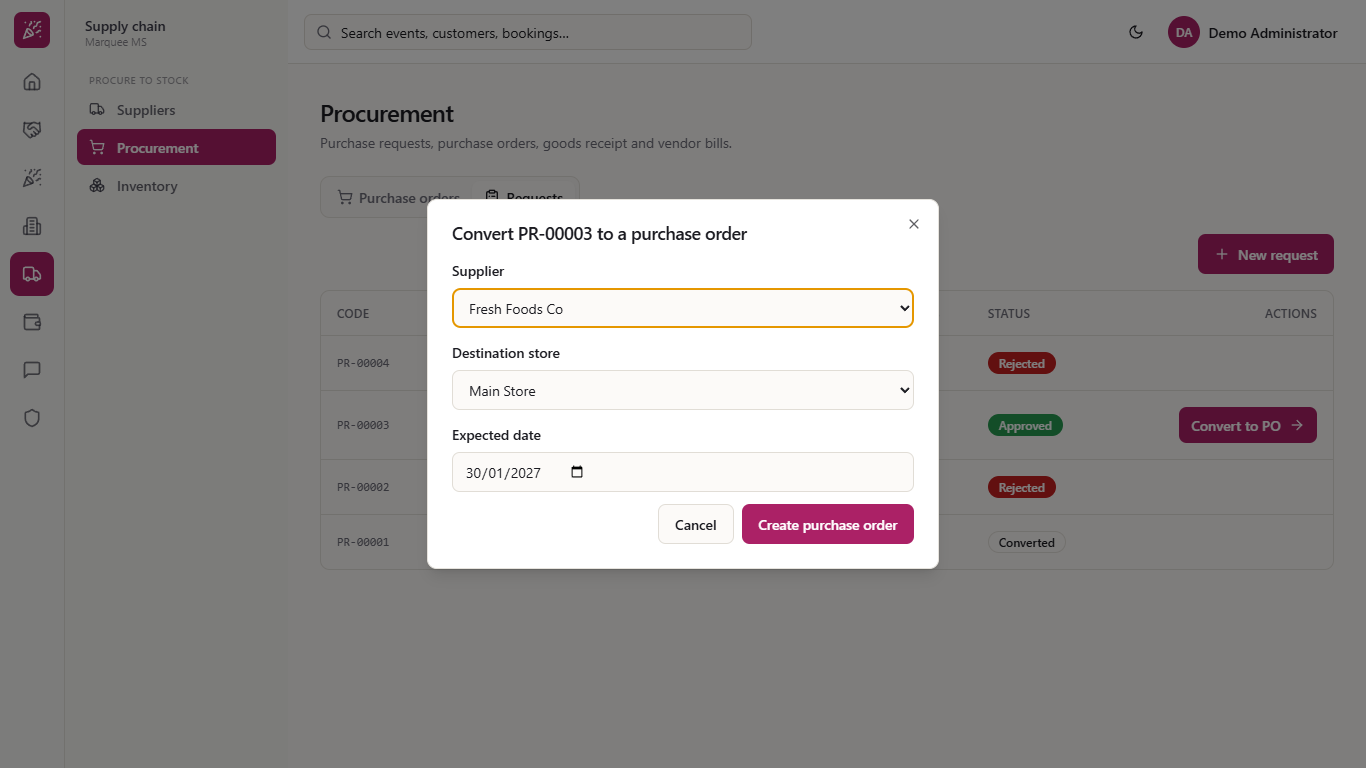
Press Convert to PO. Choose the Supplier (here Fresh Foods Co), the Destination store (Main Store) and the Expected date, then press Create purchase order. The request now shows Converted. Open it and it says which purchase order it became (here PO-00008).
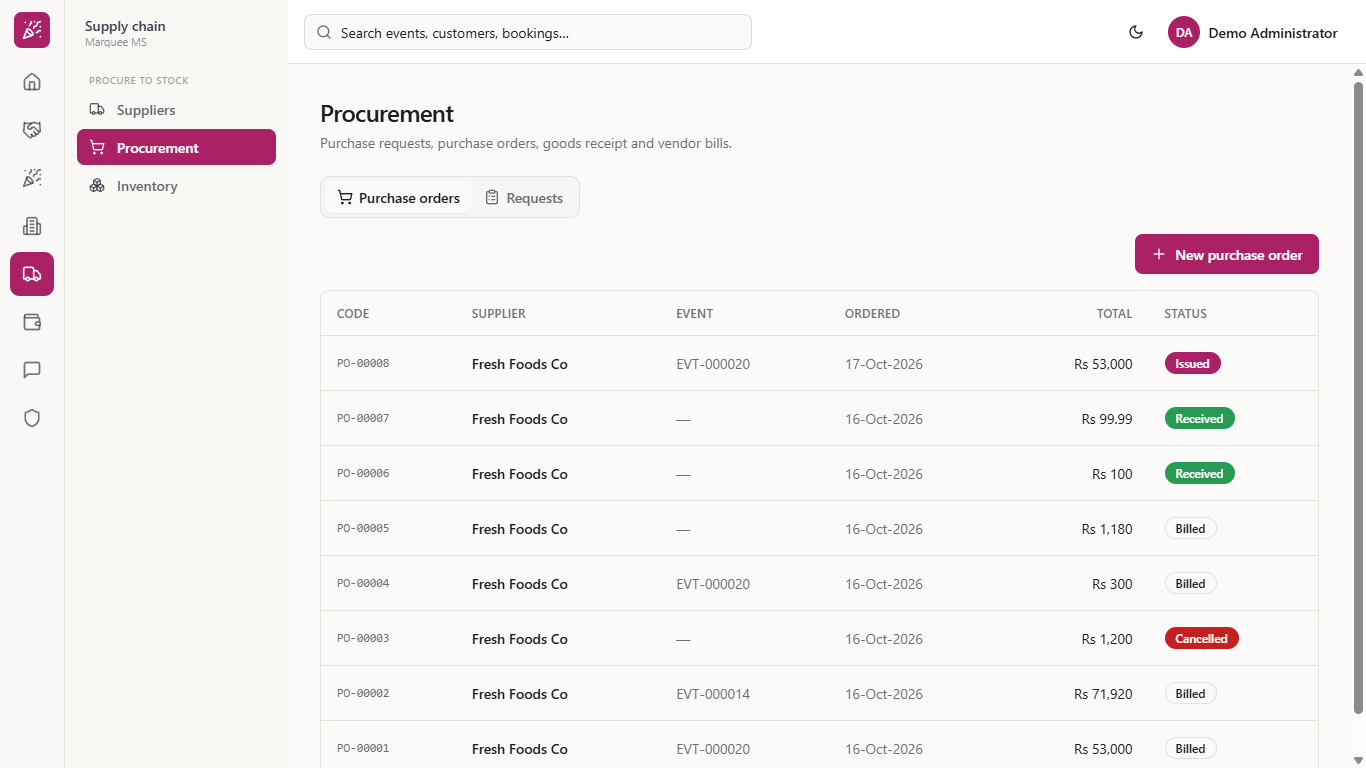
Open the tab Purchase orders. The new order PO-00008 is there for the supplier and the event, with the total Rs 53,000 and the status Issued. Receiving the goods and the supplier bill are covered in MMS-S44 and MMS-S45.
| Mistake | What you see | Fix |
|---|---|---|
| Creating a request with no items | "Add at least one line" | Press Add line and choose an item and quantity |
| Rejecting without a reason | "Reason for rejecting is required" | Type the reason, then press Reject request |
| Pressing Create purchase order with no supplier | Nothing happens | Choose a Supplier first |
| Item | Meaning / rule |
|---|---|
| Draft | Created, not yet sent for approval; only Submit is offered |
| Submitted | Waiting for the approver: Approve or reject |
| Approved | Accepted; Convert to PO is offered |
| Rejected | Closed with a reason; no further action |
| Converted | A purchase order was made from it |
Can I open a request to read its lines later? Yes. Click the row to see the items, the total, who raised it, who approved or rejected it, the rejection reason and the purchase order it became. A Draft can only be submitted: it cannot be edited or deleted.
Does the purchase order keep the event? Yes. PO-00008 shows the same event as the request and the same total as its estimate.
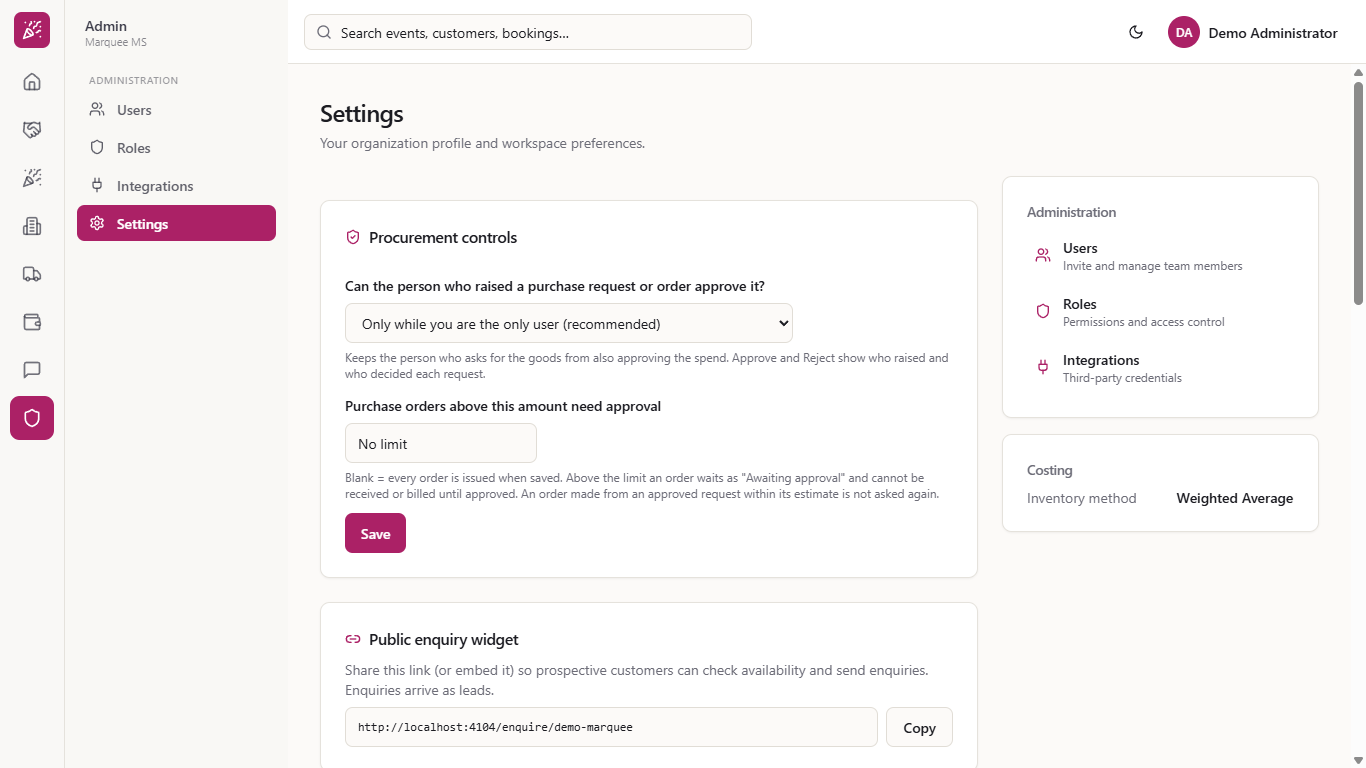
Who can approve? Only users whose role includes procurement:approve. On the demo venue that is the Administrator. Whether the person who raised a request may also approve it is set under Admin > Settings > Procurement controls: by default only while you are the only user, or never, or always.
Marquee runs this whole workflow. See what Marquee does and what it costs, or browse all step-by-step guides.