A shift ties every sale to one cashier and one cash drawer. This guide shows how to open a shift with the opening cash, record money taken out or added, close the shift by counting the drawer, and what the app does when the count differs from what it expects.
Who it is forCashier, supervisor and shop ownerTime10 minutesProductPOSLevelBeginner
Before you start
Steps
1
Look at the Shifts page
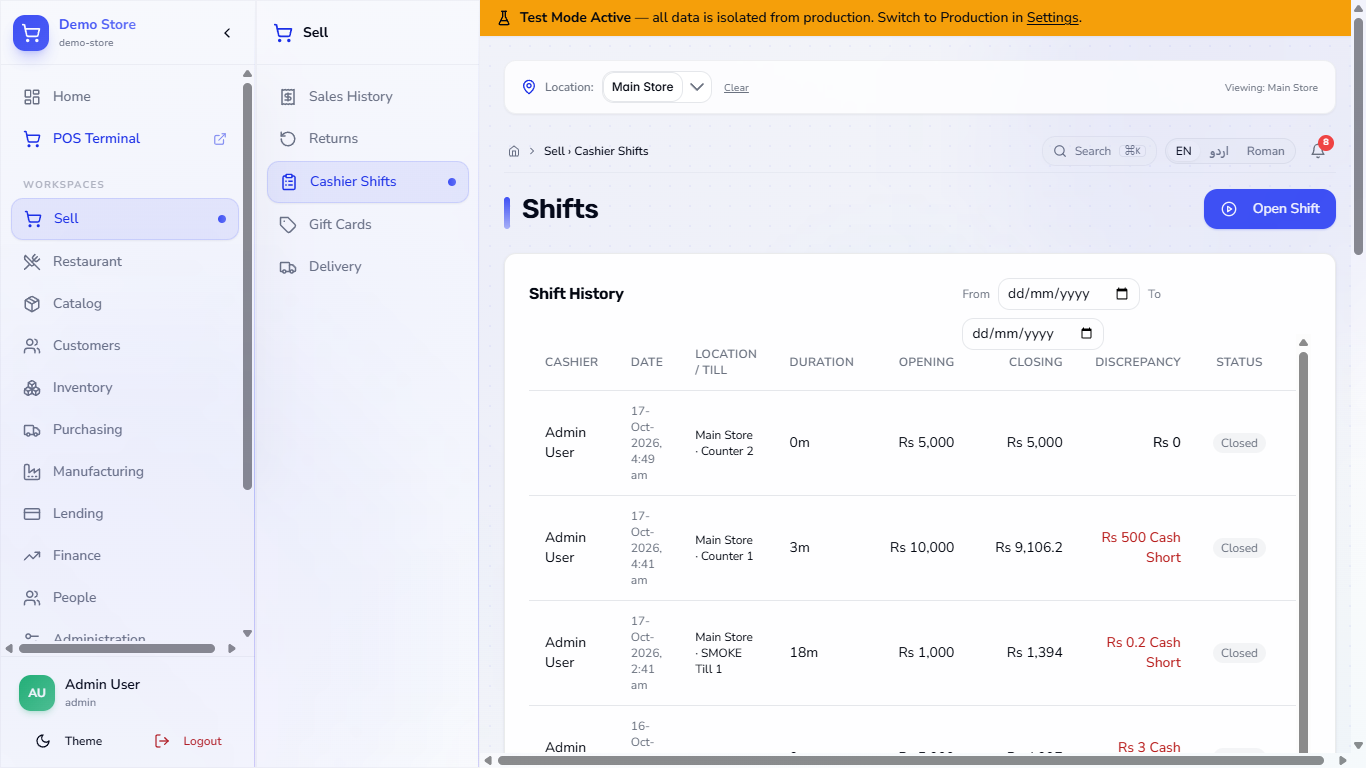
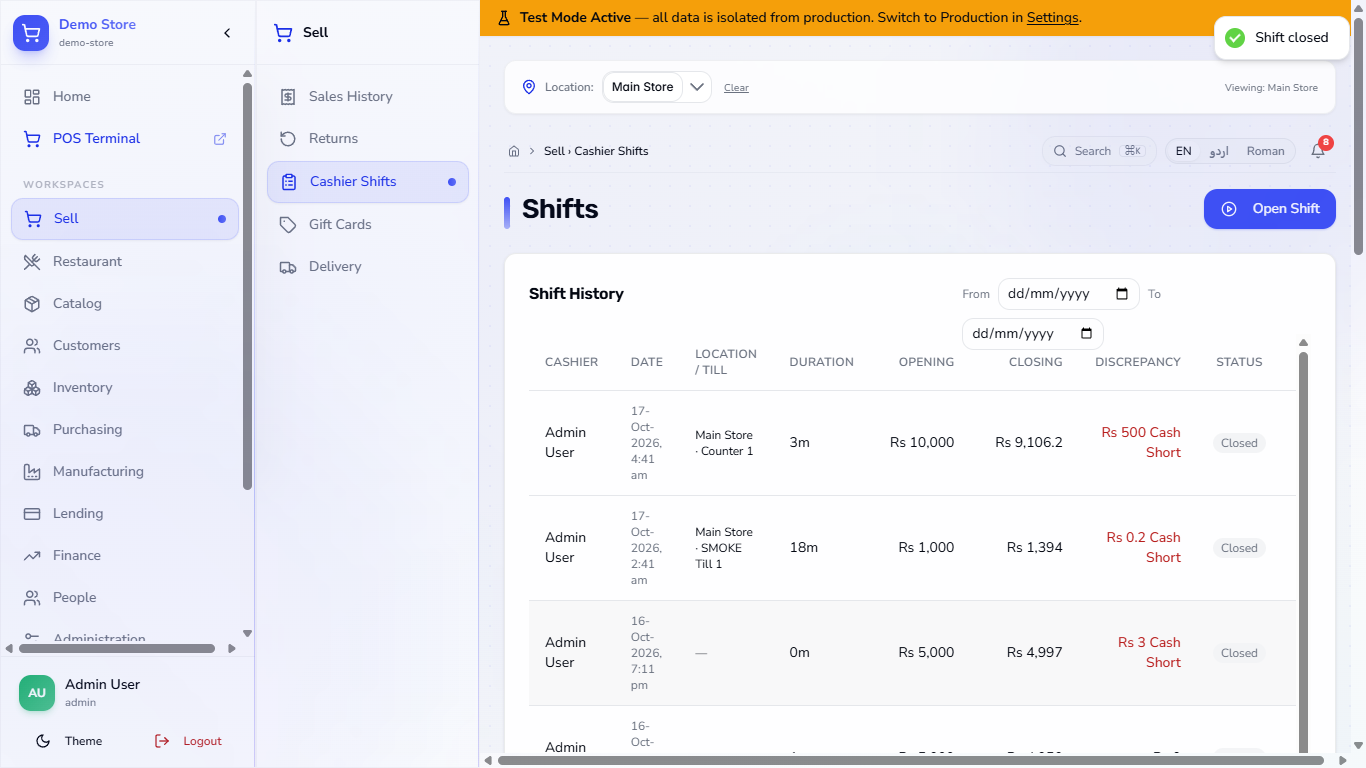
Open Sell › Cashier Shifts. Shift History lists every shift with CASHIER, DATE, LOCATION / TILL, DURATION, OPENING, CLOSING, DISCREPANCY and STATUS; press View to open one. Below it the Cashier Variance Leaderboard (30d) adds up each cashier's shorts and overs.
Shifts page with Shift History and the Cashier Variance Leaderboard
2
Choose the shift rules
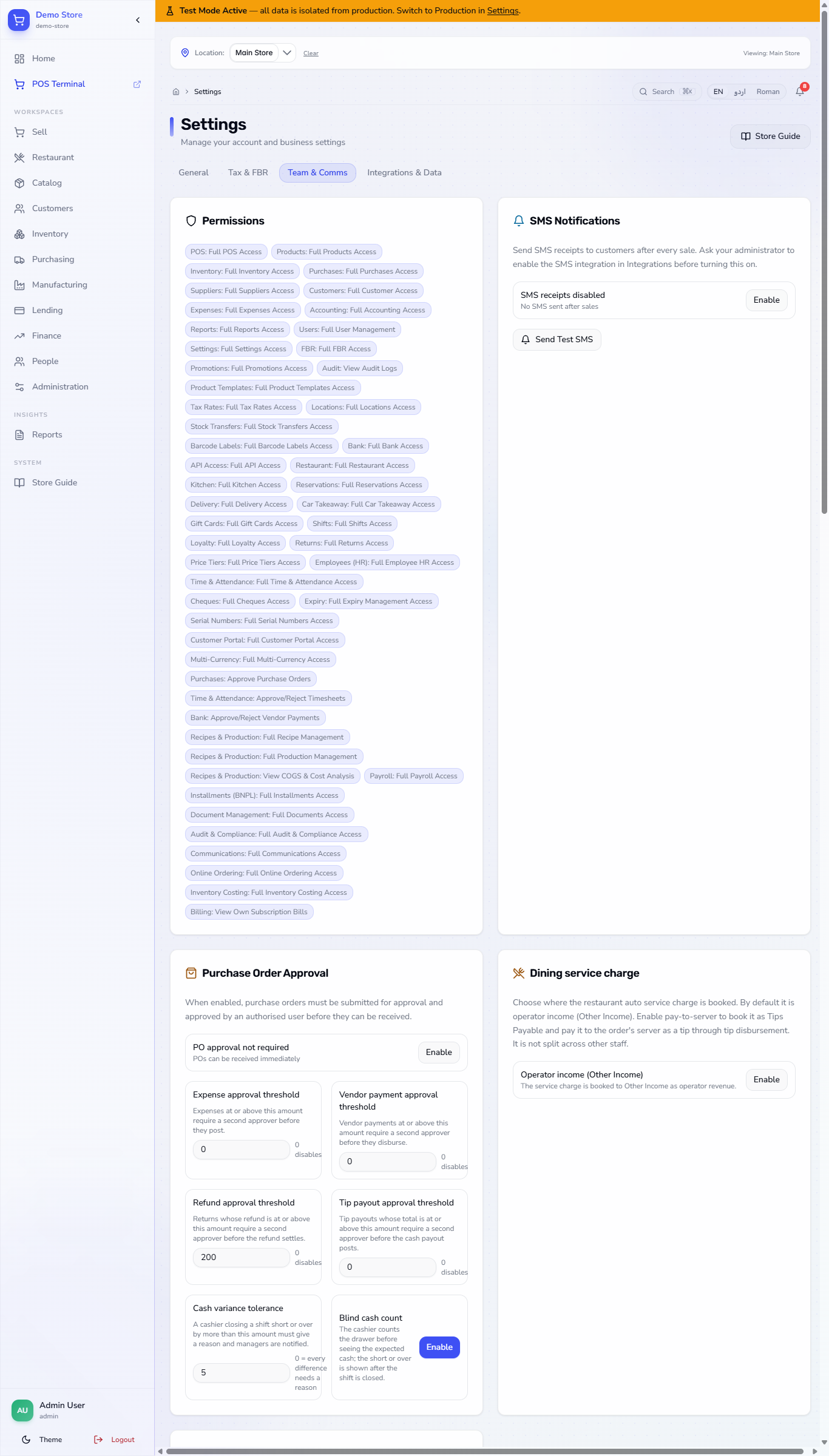
Open Settings › Team & Comms. Cash variance tolerance is the difference you accept without a reason (here 5); above it the cashier must explain and managers are notified. Blind cash count can be switched on with Enable so the cashier counts without seeing the expected cash.
Team and Comms settings with Cash variance tolerance and Blind cash count
3
See why a shift is needed
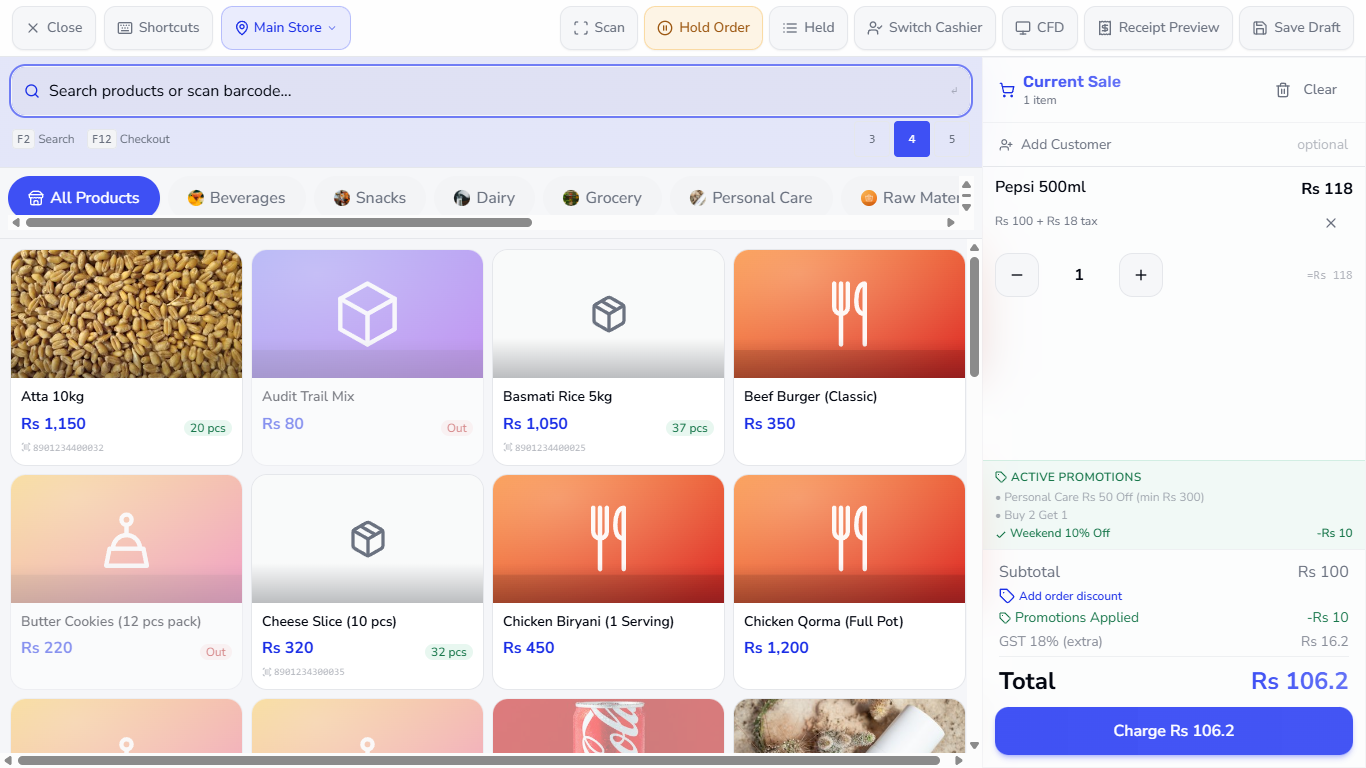
With no open shift, pressing Charge on the terminal gives Please open a shift before making sales. Every sale therefore belongs to a shift and to a cashier.
POS terminal refusing the sale because no shift is open
4
Open the shift
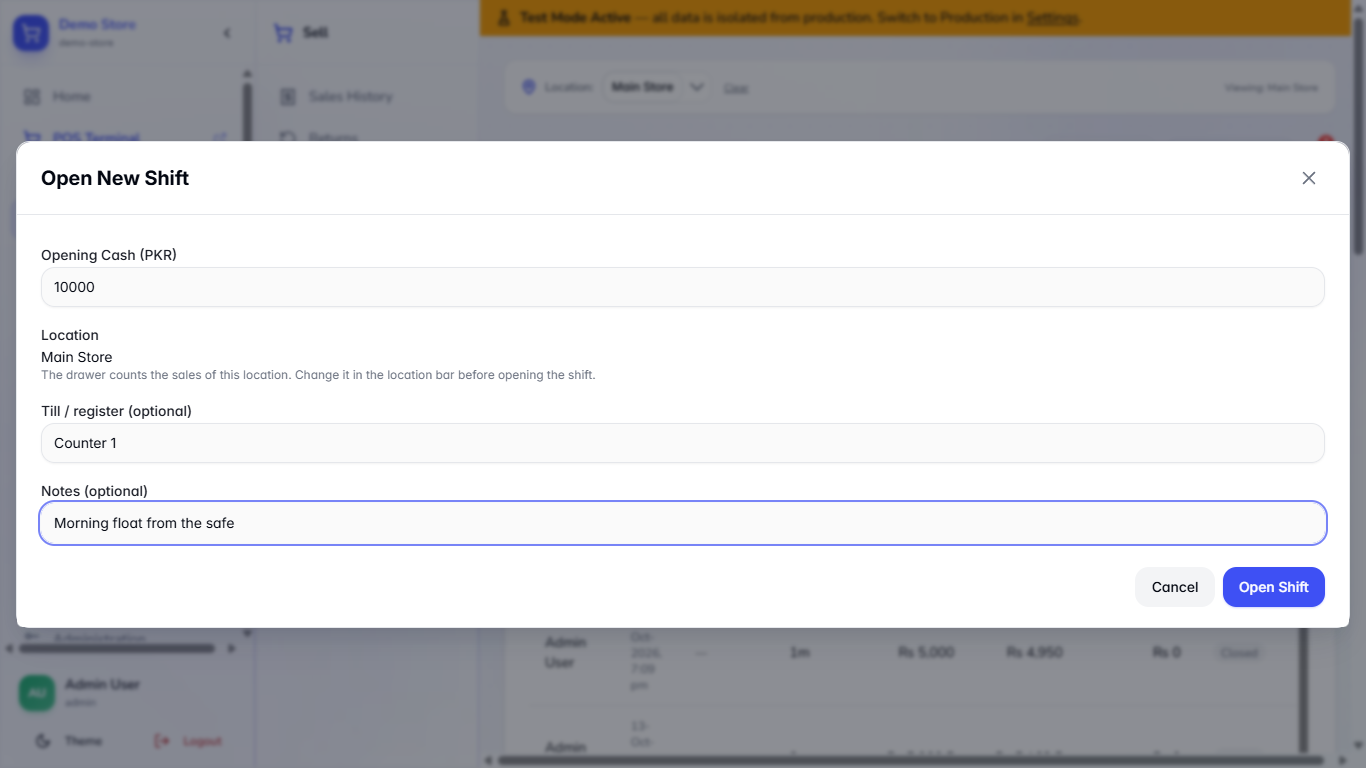
On the Shifts page press Open Shift. Type the cash in the drawer in Opening Cash (PKR), for example 10000. Location shows the store chosen in the location bar. Type the register name in Till / register (for example Counter 1), add Notes if you like and press Open Shift. A negative amount is refused.
Open New Shift dialog with 10000 opening cash and Counter 1
5
Run the shift and record cash in or out
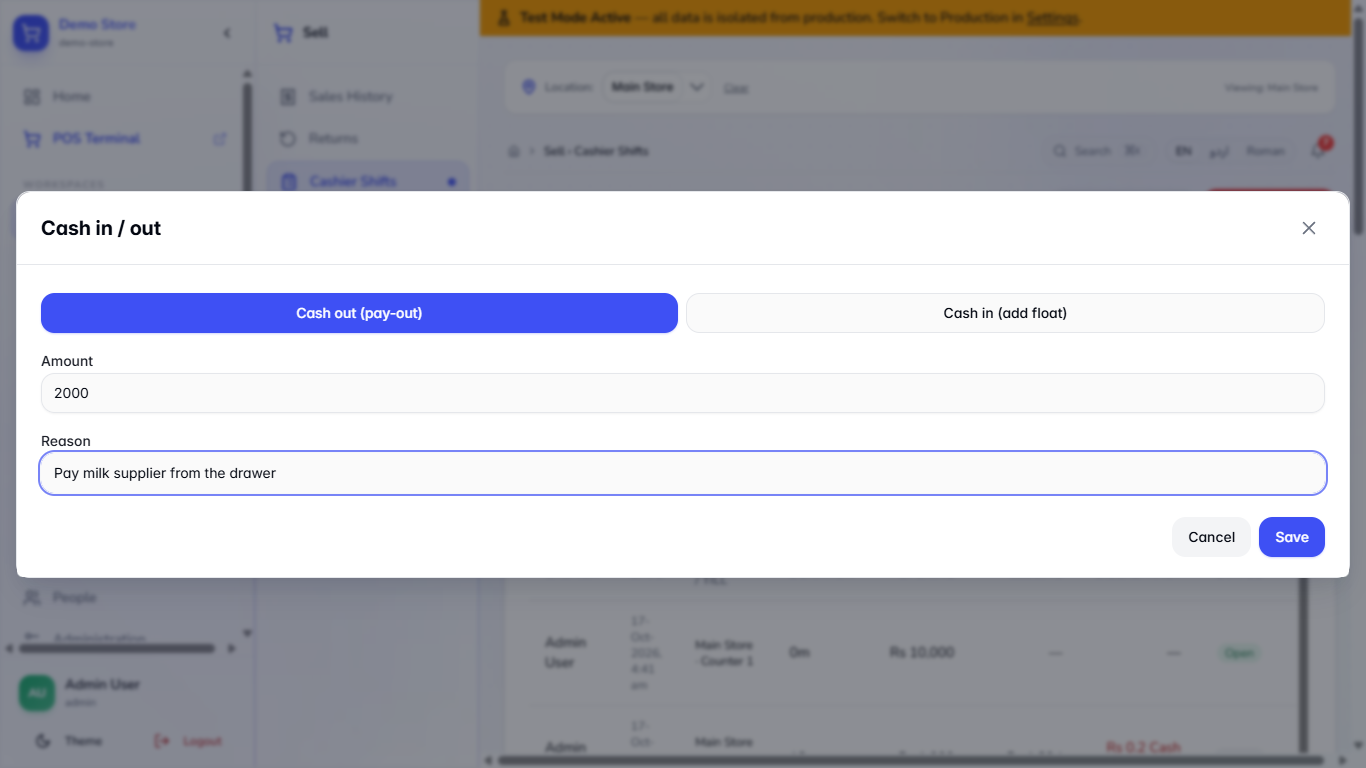
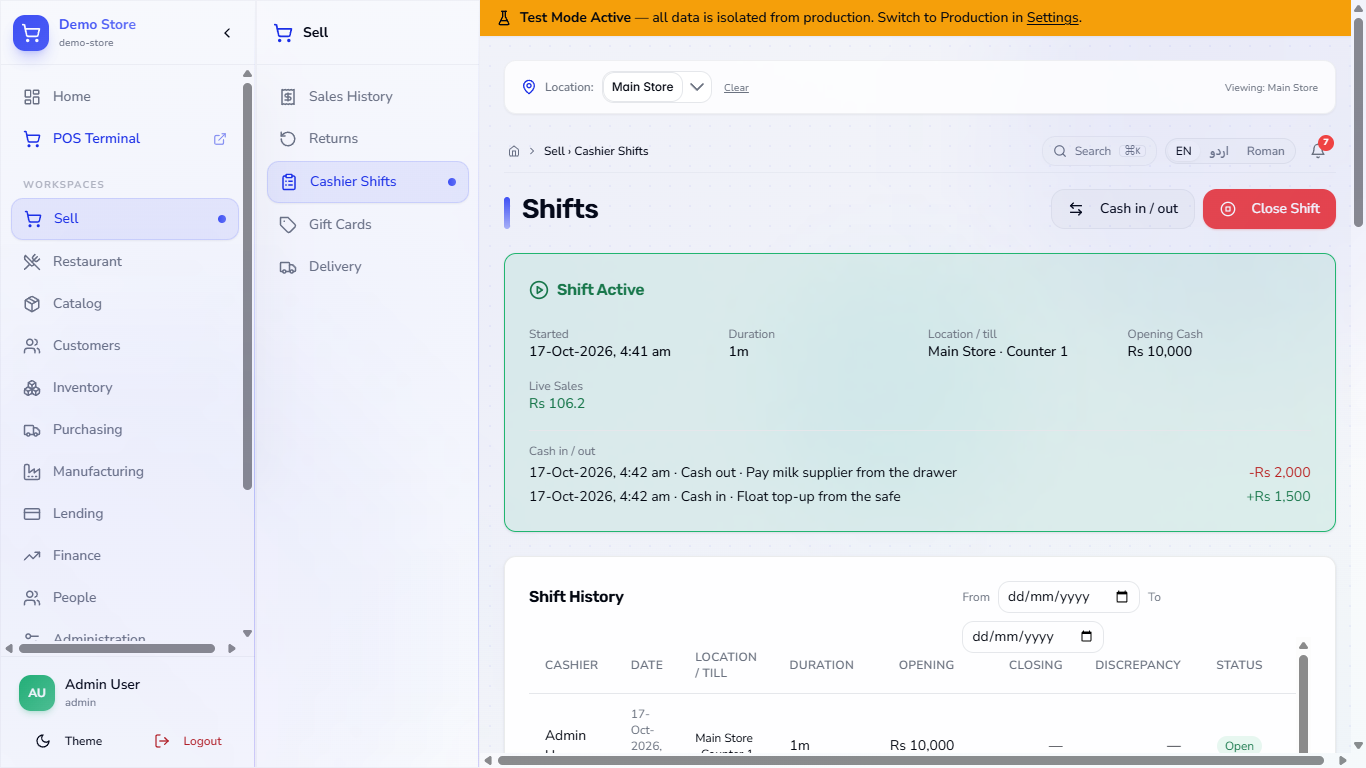
The app says Shift opened and the green Shift Active card shows Location / till, Opening Cash and Live Sales. When money leaves the drawer, press Cash in / out, choose Cash out (pay-out), type the Amount (2000) and a Reason such as "Pay milk supplier from the drawer". For float from the safe use Cash in (add float). The app says Cash entry saved.
Both entries are listed on the card (-Rs 2,000 and +Rs 1,500), and every cash sale adds to Live Sales.
Cash in and out dialog with a pay-out of 2000 and a reason
Shift Active card listing the cash out, the cash in and live sales
6
Count the drawer and close
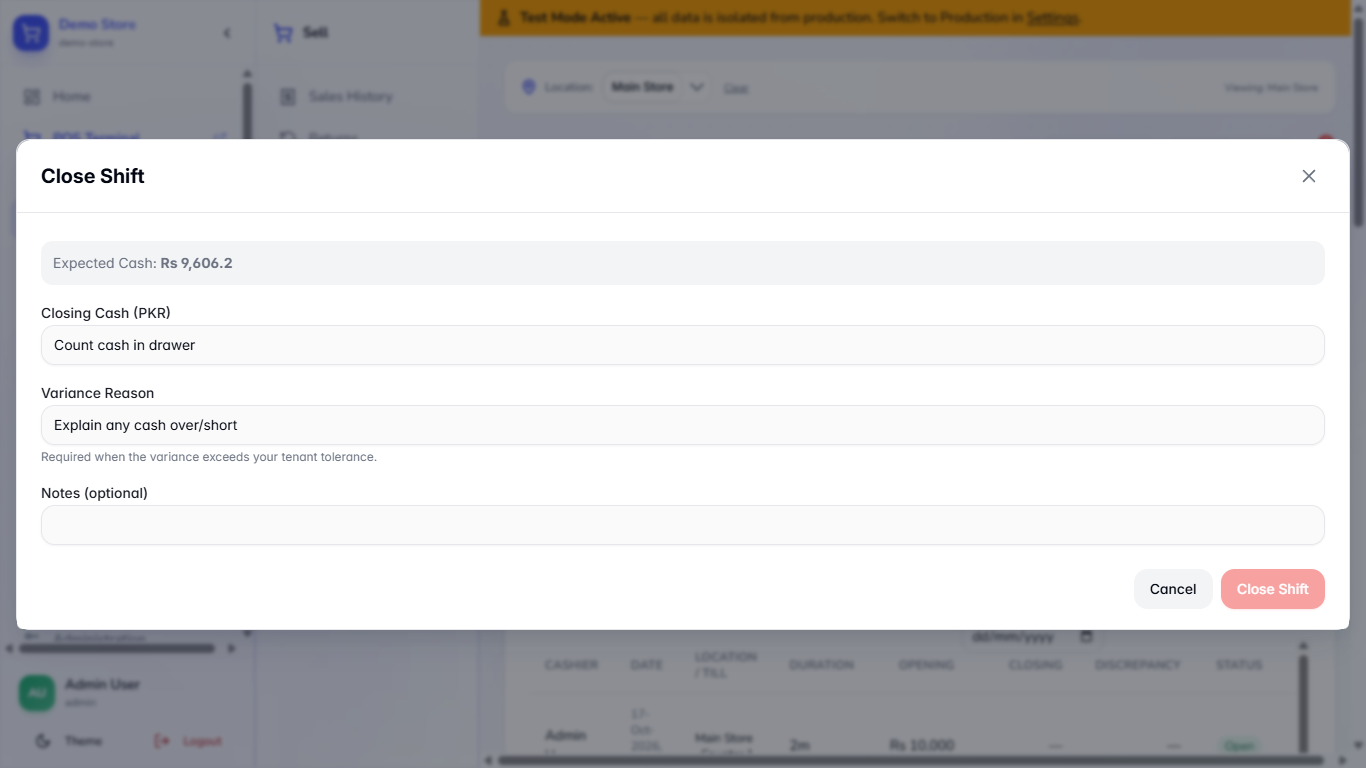
Press Close Shift. Expected Cash is the opening cash plus cash sales plus cash in, minus cash out: Rs 10,000 + 106.2 + 1,500 - 2,000 = Rs 9,606.2. Count the drawer and type it in Closing Cash (PKR). If it differs, a red Cash Short (or green Cash Over) line shows the amount.
Close Shift dialog showing Expected Cash of Rs 9,606.2
7
Give the reason for a difference
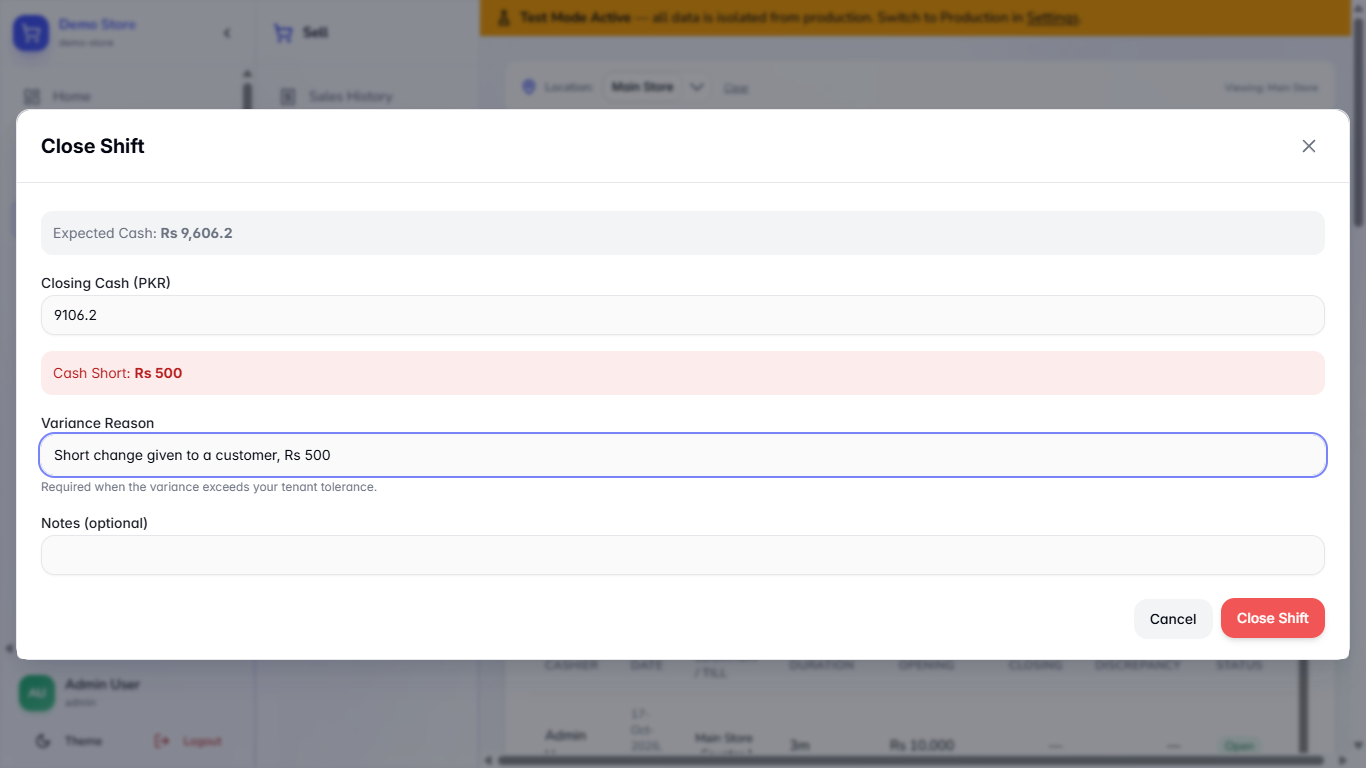
A difference above the tolerance needs a reason. Without one the app says Cash variance of 500.00 exceeds the tolerance of 5.00. A variance reason is required. Type the reason in Variance Reason (for example "Short change given to a customer, Rs 500") and press Close Shift.
The app says Shift closed and the history row shows Rs 500 Cash Short.
Close Shift dialog with Cash Short of Rs 500 and the variance reason filled in
Shift closed message
8
Count blind when you want to
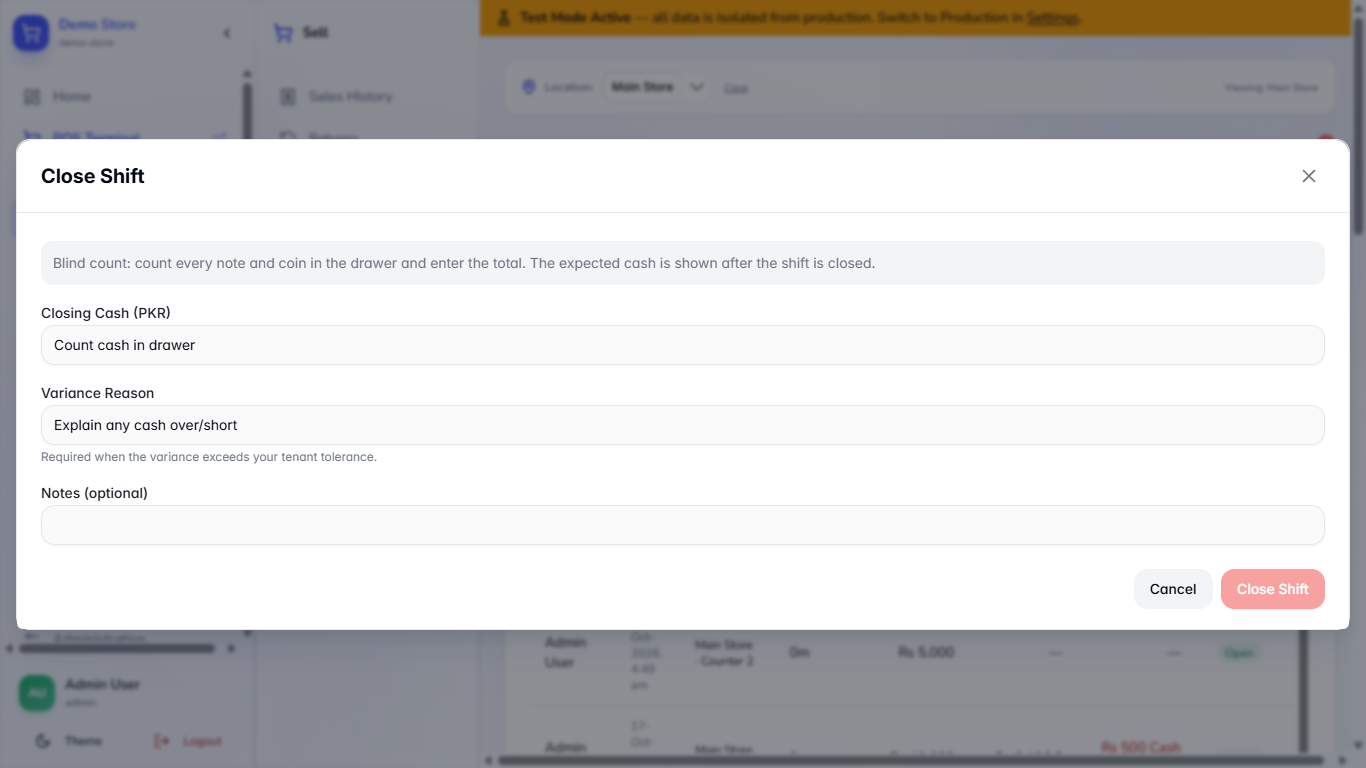
With Blind cash count on, the dialog says to count every note and coin and enter the total; the expected cash is shown only after the shift is closed. Counting 5000 on a shift opened with 5000 gives Shift closed. Expected cash Rs 5,000: balanced.
Close Shift dialog in blind count mode with no expected cash
9
Read the shift detail
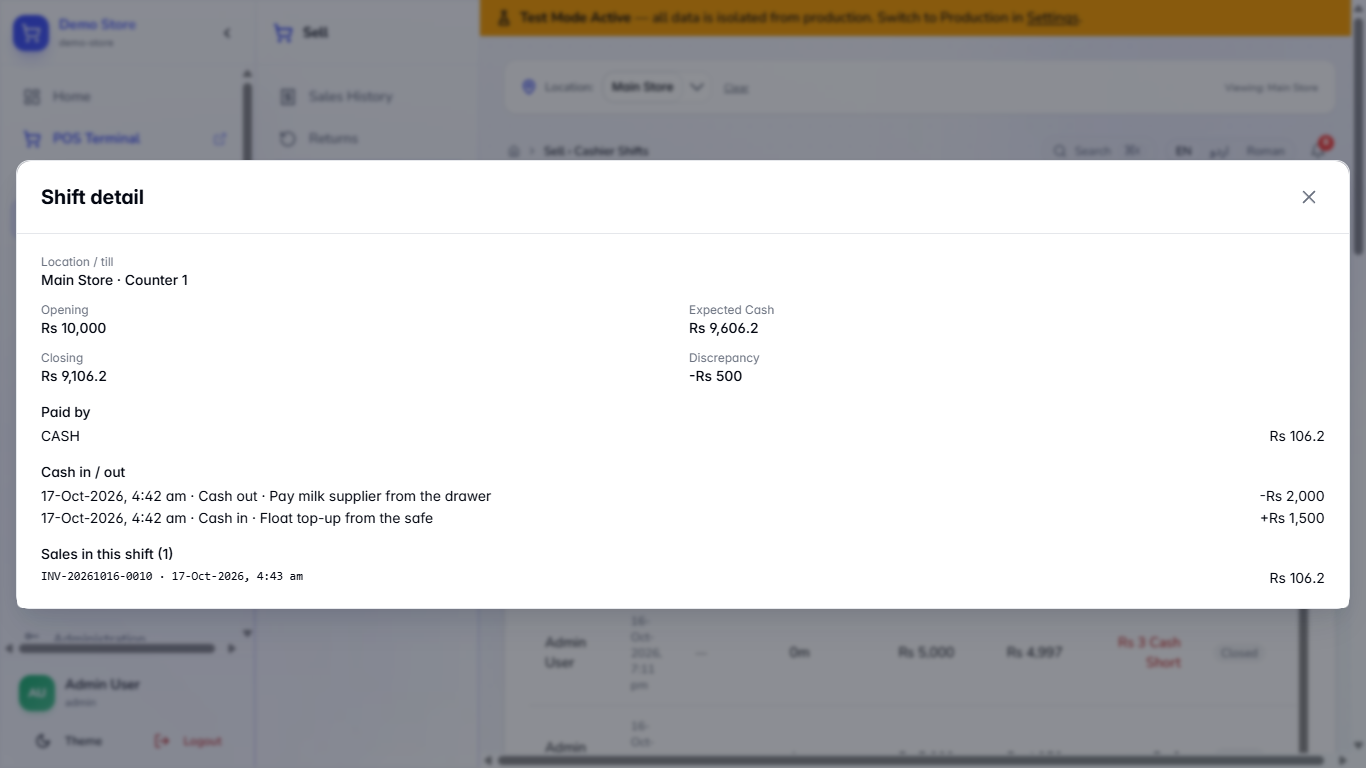
In Shift History press View. Shift detail shows Location / till, Opening, Expected Cash, Closing, Discrepancy (-Rs 500), how the sales were paid, the two cash entries and every sale of the shift.
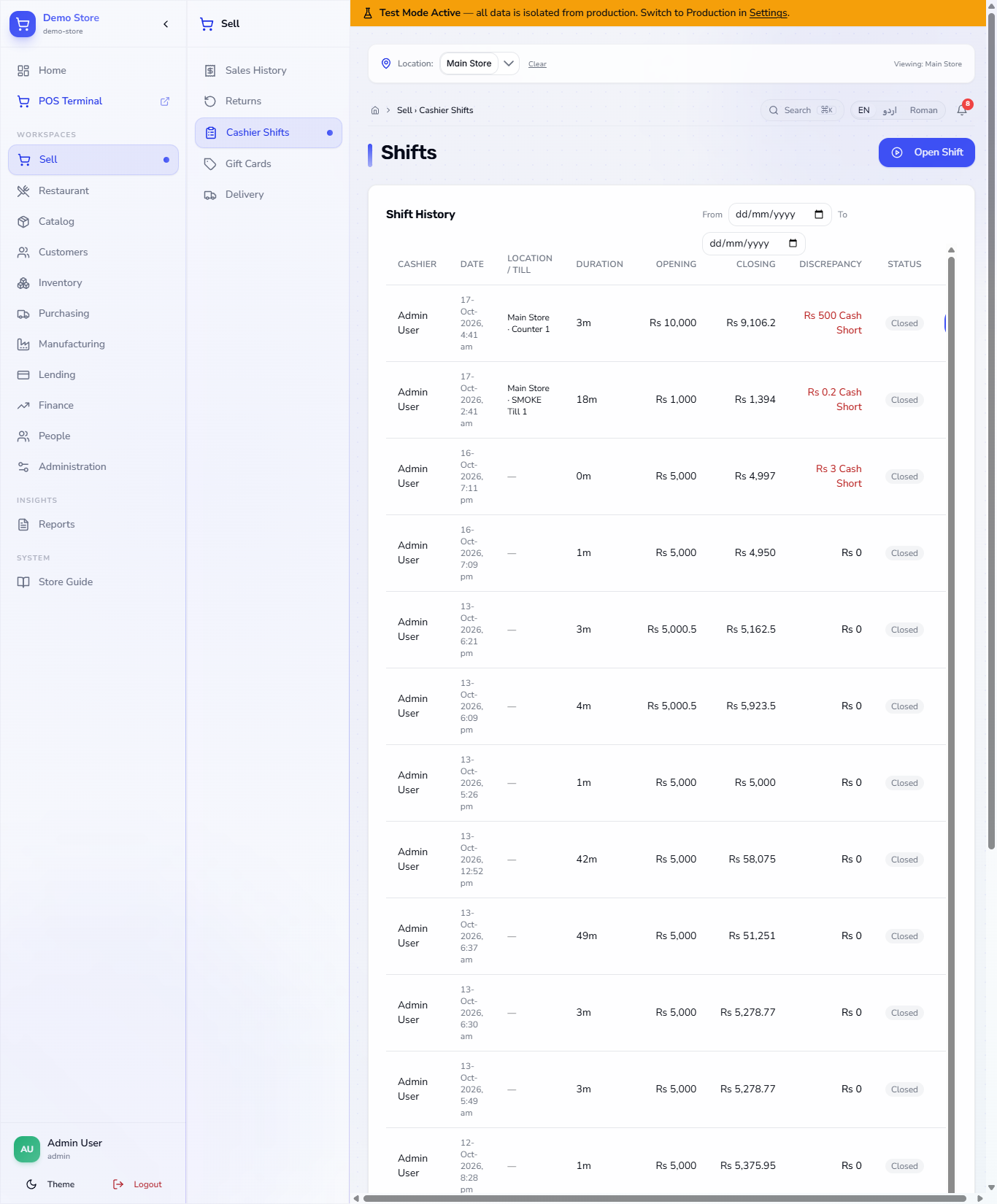
In the history the short is red, and the leaderboard shows each cashier's NET VARIANCE and SHORT / OVER, so repeated shortages stand out.
Shift detail dialog with opening, expected, closing, discrepancy and sales
History with the short in red and the Cashier Variance Leaderboard
10
See the books
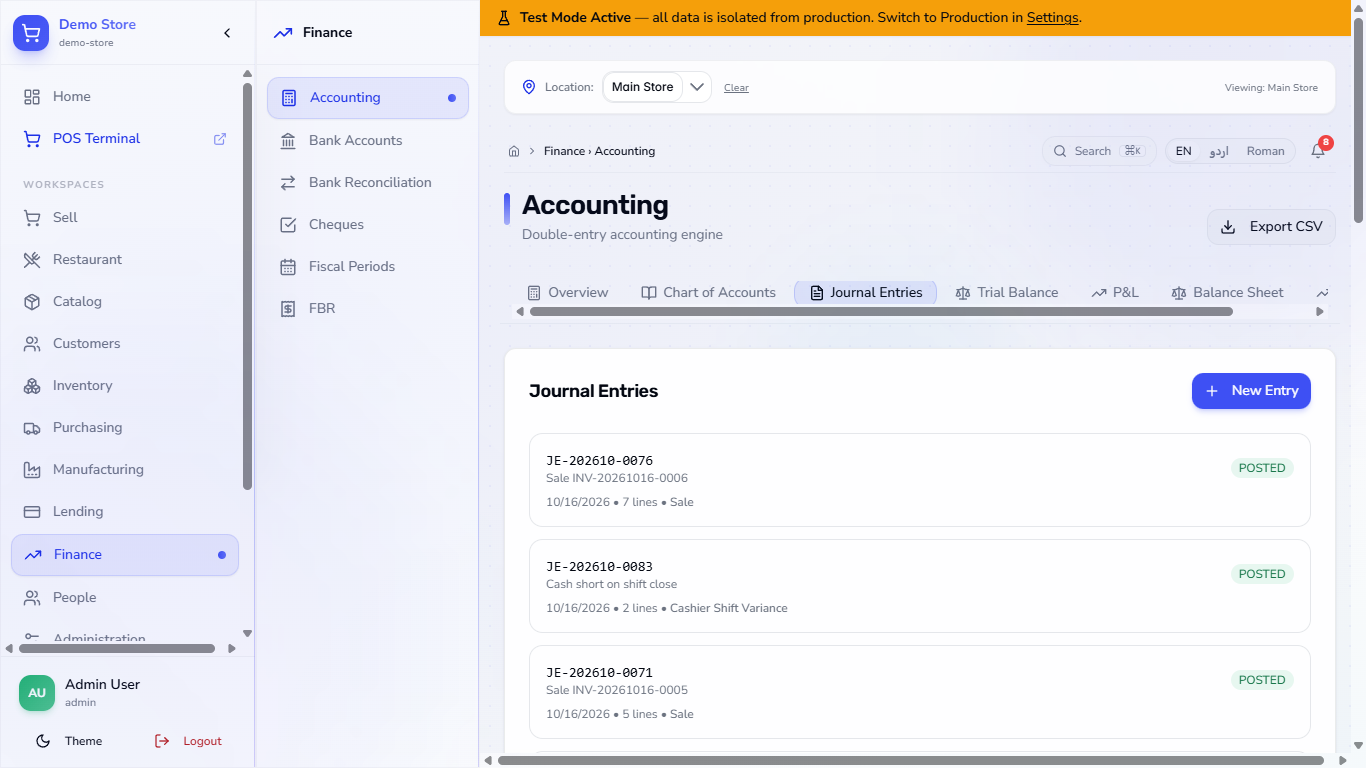
Open Finance › Accounting › Journal Entries. The entry Cash short on shift close debits Cash Over/Short and credits Cash in Hand by Rs 500, so the books agree with the drawer. Cash in and out do not post a journal; they only change the expected cash.
Journal Entries list with the cash short on shift close entry
Check it worked
The shift appears in Shift History as Closed with its Closing amount and DISCREPANCY.
Shift detail lists the cash entries and the sale.
A short or over has a journal entry; a balanced shift has none.
Common mistakes
Mistake
What you see
Fix
Closing with a difference and no reason
A variance reason is required
Type the reason in Variance Reason
Selling before opening a shift
Please open a shift before making sales
Open the shift first
Forgetting to record a pay-out
Expected Cash is higher than the drawer
Use Cash in / out when the money leaves
Quick reference
Item
Meaning / rule
Opening Cash
The money in the drawer at the start
Expected Cash
Opening + cash sales + cash in - cash out
Cash Short / Cash Over
Counted amount below or above the expected cash
Tolerance
A difference above it needs a reason
Blind cash count
Expected cash hidden until the shift is closed
Frequently asked questions
Can I record paying a supplier from the till? Yes. Press Cash in / out, choose Cash out (pay-out), type the amount and a reason. It lowers the expected cash of the shift.
Does a card sale count in the expected cash? No. Only cash is expected in the drawer.
What does a short do to the books? The app posts it to Cash Over/Short against Cash in Hand, so the books agree with the drawer.