How to run the patient queue and the waiting-room display board
Walk-ins and booked patients stand in one line per doctor. This guide shows how to put patients on a doctor's line, move them to another doctor, and show waiting patients their token number on the lobby TV.
Who it is forFront-desk receptionistTime10 minutesProductHMSLevelBeginner
Before you start
Steps
1
Open the queue and pick the doctor's line
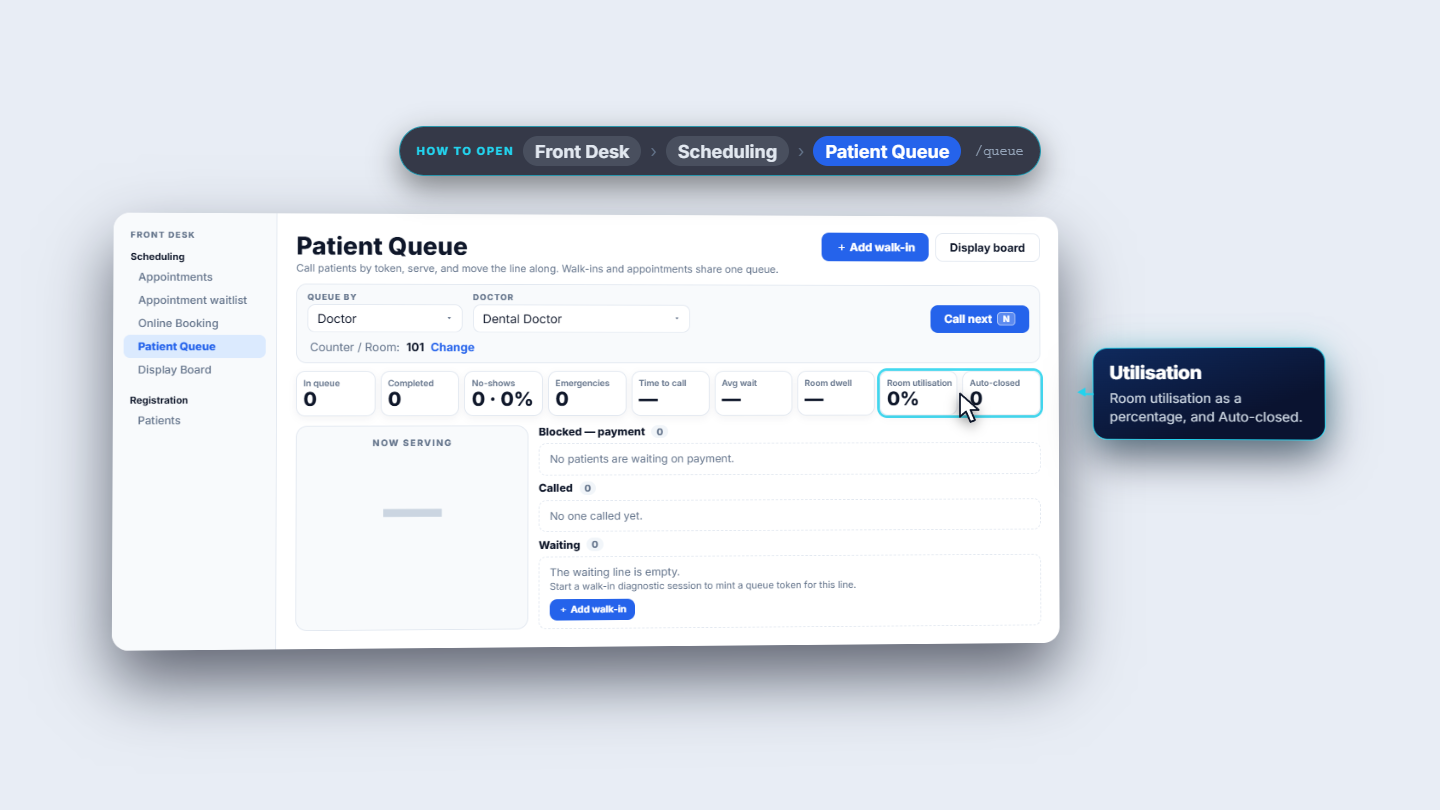
Click Front Desk › Scheduling › Patient Queue (/queue). Leave Queue by on Doctor and choose the doctor in the Doctor list. Each doctor has their own line, so patients never mix. Read the nine tiles at the top at a glance: In queue, Completed, No-shows and Emergencies are counts; Time to call, Avg wait and Room dwell are minutes (a dash until there is data); Room utilisation is a percentage; Auto-closed is the last tile.
Patient Queue with Queue by Doctor, the nine tiles and the four columns
2
Say which counter or room you are at
Next to Counter / Room it says Not set. Press Set, choose a room (rooms come first, then departments), and press Save. The row now shows your counter, for example 101, with a Change link.
3
Put a patient on the line
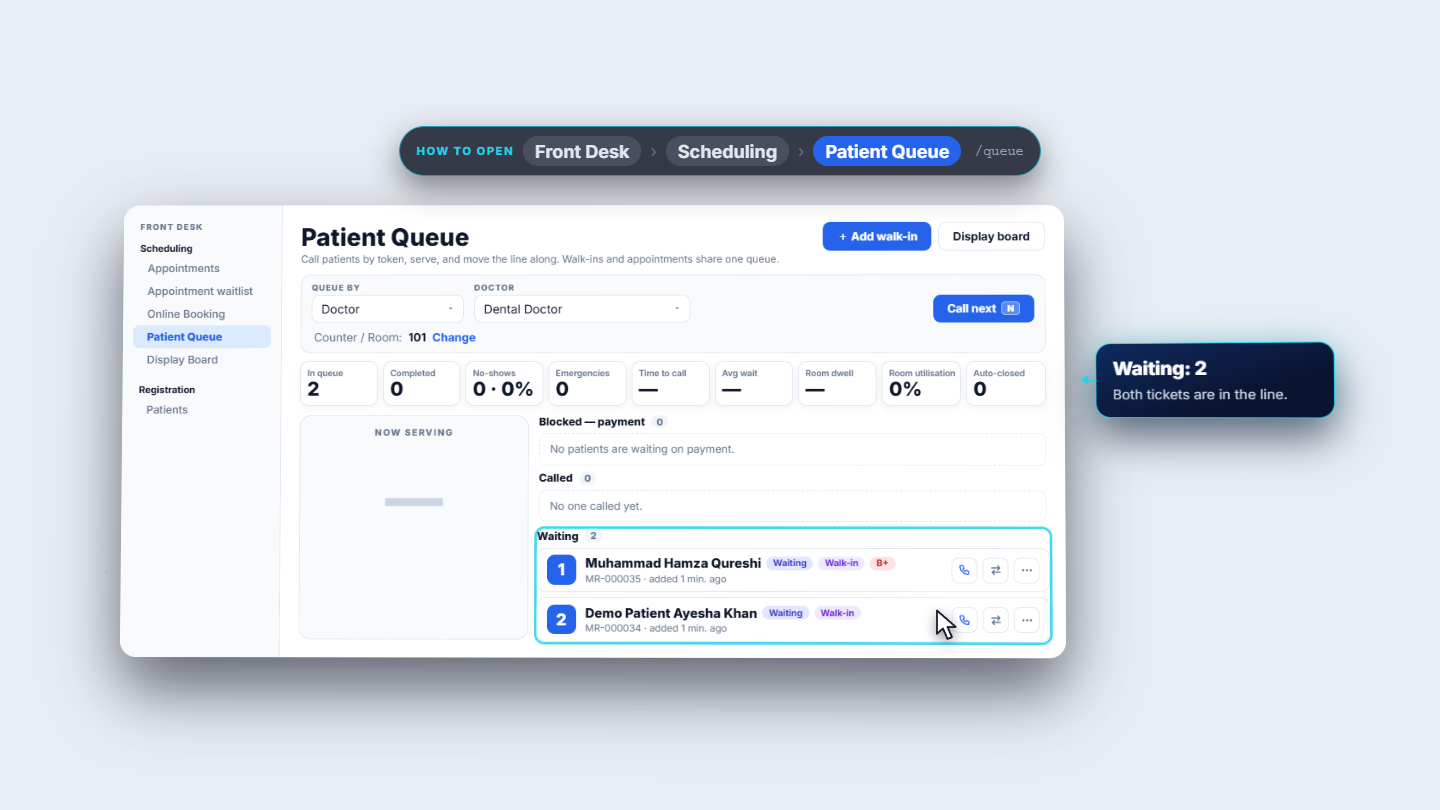
Press Add walk-in at the top right. The New diagnostic session form opens: pick the patient, then press Create session. The patient appears in Waiting with a token number (token 1, then 2). Each row shows the token, the name, a Waiting badge, Walk-in, the MR number with the time added, and the blood group. Check In queue at the top: it now counts the waiting patients.
Tokens 1 and 2 waiting on the Dental Doctor line
4
Move a patient to another doctor
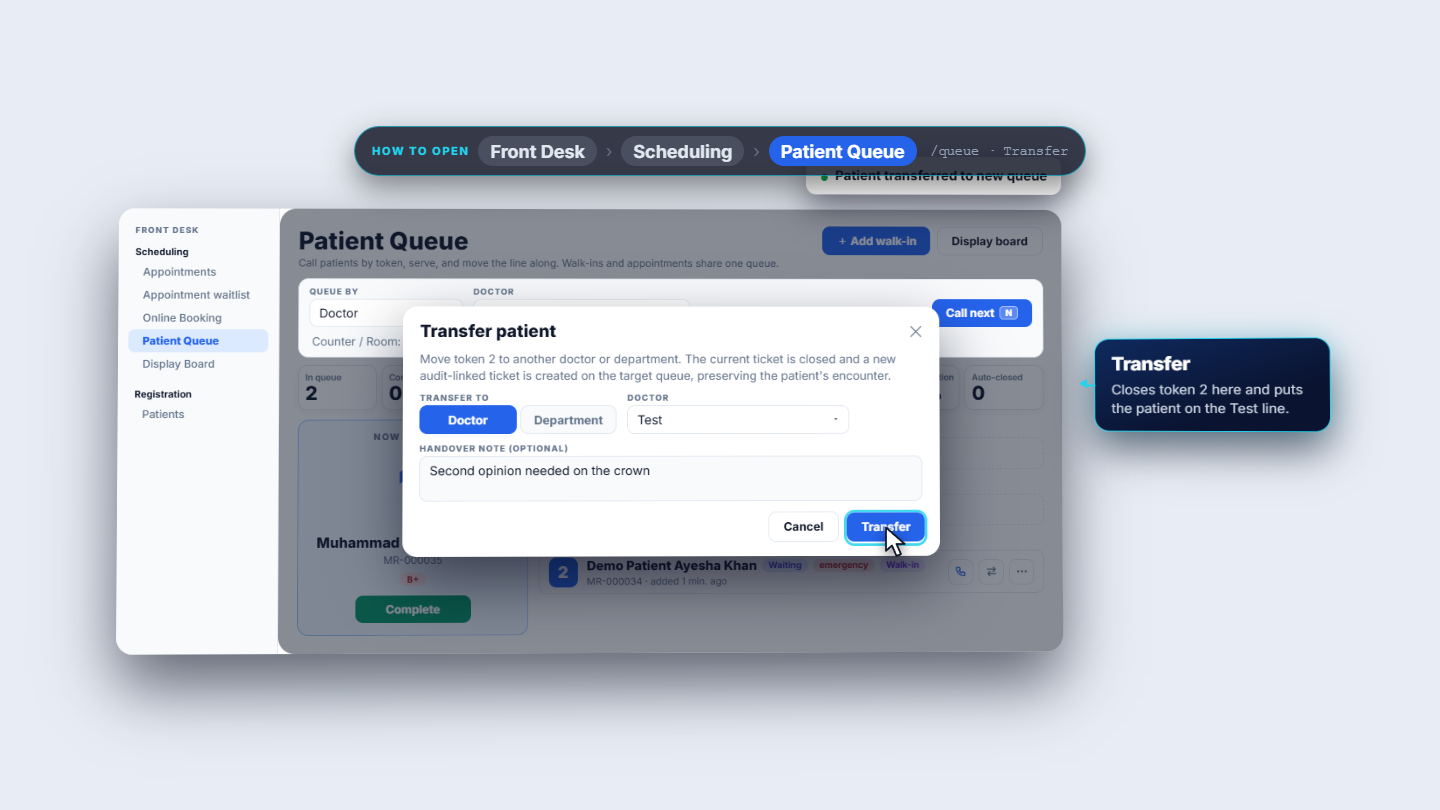
On the patient's row press the transfer button. In Transfer patient choose Doctor or Department under Transfer to, pick the target, and add an optional handover note such as "Second opinion needed on the crown". Confirm. You see Patient transferred to new queue, and the patient gets a new linked token on the other line.
Transfer patient dialog
5
Show several doctors on one waiting-room screen
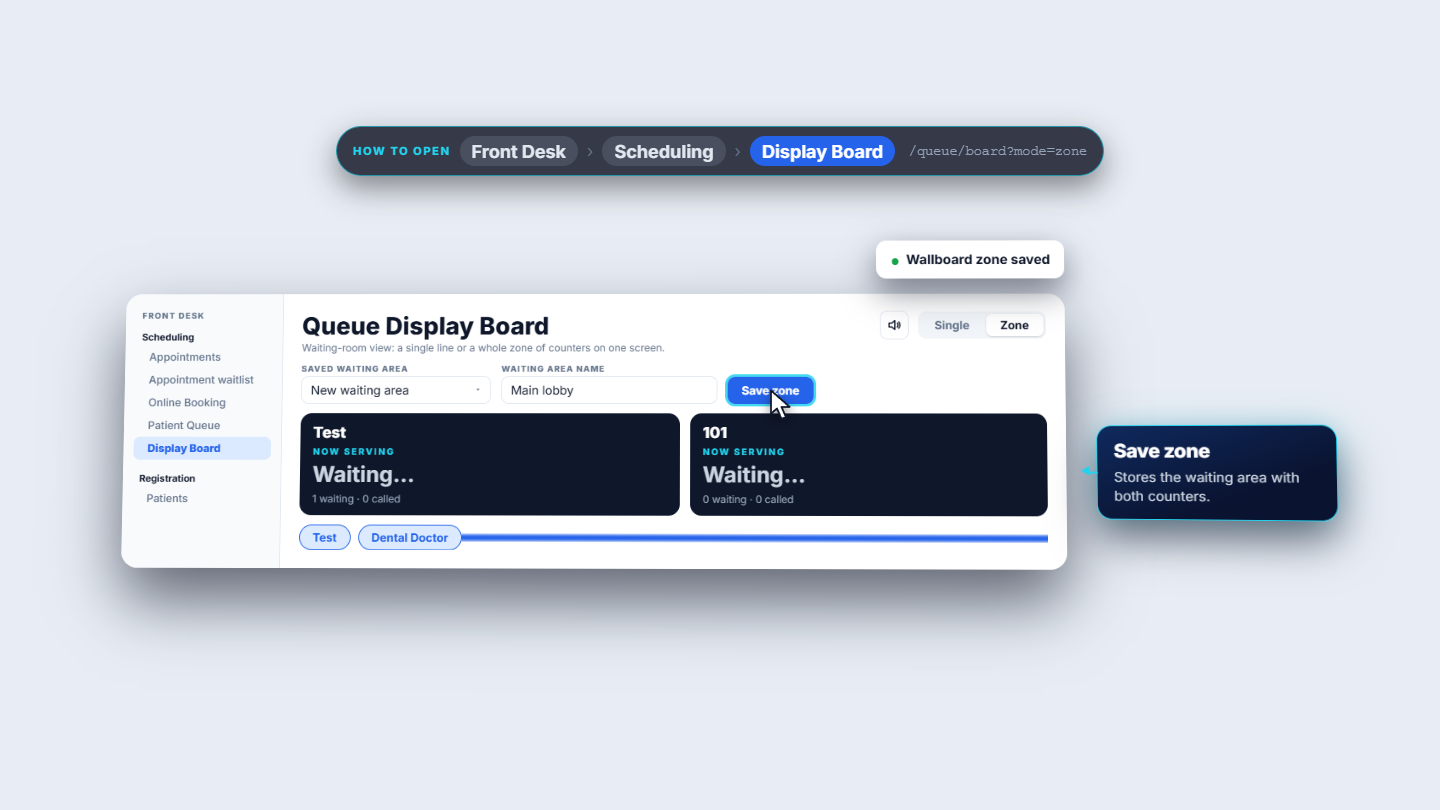
Open Display board and switch to Zone mode. Type a waiting-area name, for example Main lobby, then choose the counters (the chips) to include. Each chip adds a counter card, and the card shows the counter label you set in Step 2. Press Save zone: Wallboard zone saved.
Zone board with counter cards
6
Put it on the lobby TV
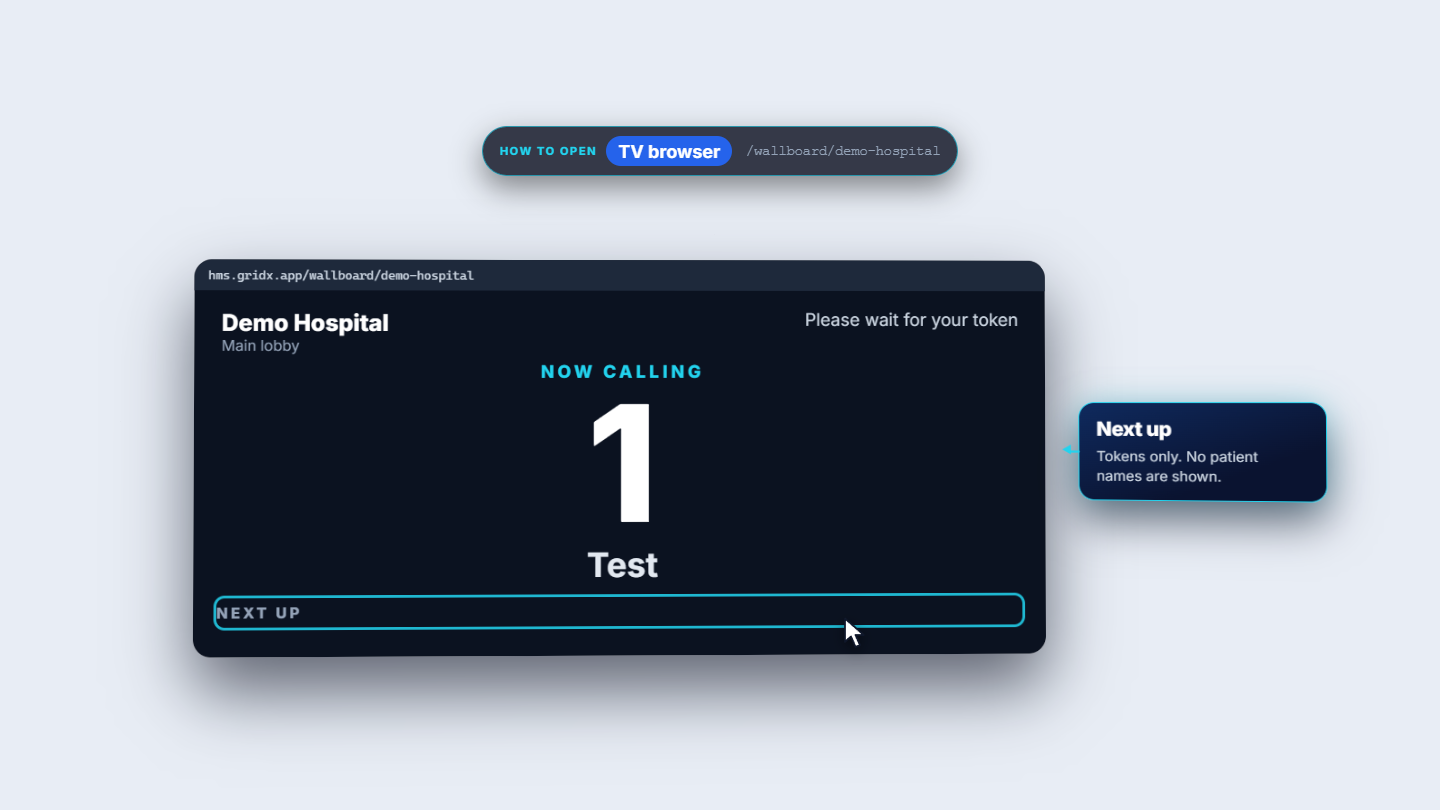
On the TV open the wallboard address you were given. Patients see the hospital and zone at the top left, Please wait for your token at the top right, Now calling with the token and counter, and Next up with token numbers only, never patient names.
The wallboard as patients see it
Check it worked
Your patients show in Waiting with consecutive tokens and In queue matches the count.
After a transfer, the toast reads Patient transferred to new queue and the row appears on the other doctor's line.
The lobby TV shows the token under Now calling with your counter label.
Common mistakes
Mistake
What you see
Fix
Counter / Room left unset
The TV and the zone card have no counter label
Press Set in Step 2 and save a room
Patient waits in Blocked, payment
They cannot be called
Complete the reception payment, then call next
Zone board shows nothing
The page asks you to select counters
Choose at least one counter chip and name the zone
Quick reference
Item
Meaning
Token
The number a patient waits for; each doctor's line has its own numbers
Call next (N)
Calls the next waiting patient
Transfer
Moves a patient to another doctor or department with a new linked ticket
Zone
One screen showing several counters for one waiting area
Frequently asked questions
Why can't I call a patient who is in the Blocked, payment column? Their fee is not settled yet. Complete the reception payment, then call next.
Does the lobby TV show patient names? No. It shows token numbers only, under Now calling and Next up, which protects patient privacy in a public waiting room.
How do I move a patient to another doctor? Press the transfer button on the patient's row, choose Doctor or Department under Transfer to, pick the target and confirm. The patient gets a new linked token on the other line.