How to set up the school year, its terms and the academic calendar
Every class, fee and exam belongs to a school year and a term. This guide shows how to add a new academic session with its semesters, make the right one current, and fill the calendar with holidays, breaks and deadlines.
Who it is forSchool administrator or academic coordinatorTime15 minutesProductSCMLevelBeginner
Before you start
Steps
1
Open Academic Sessions
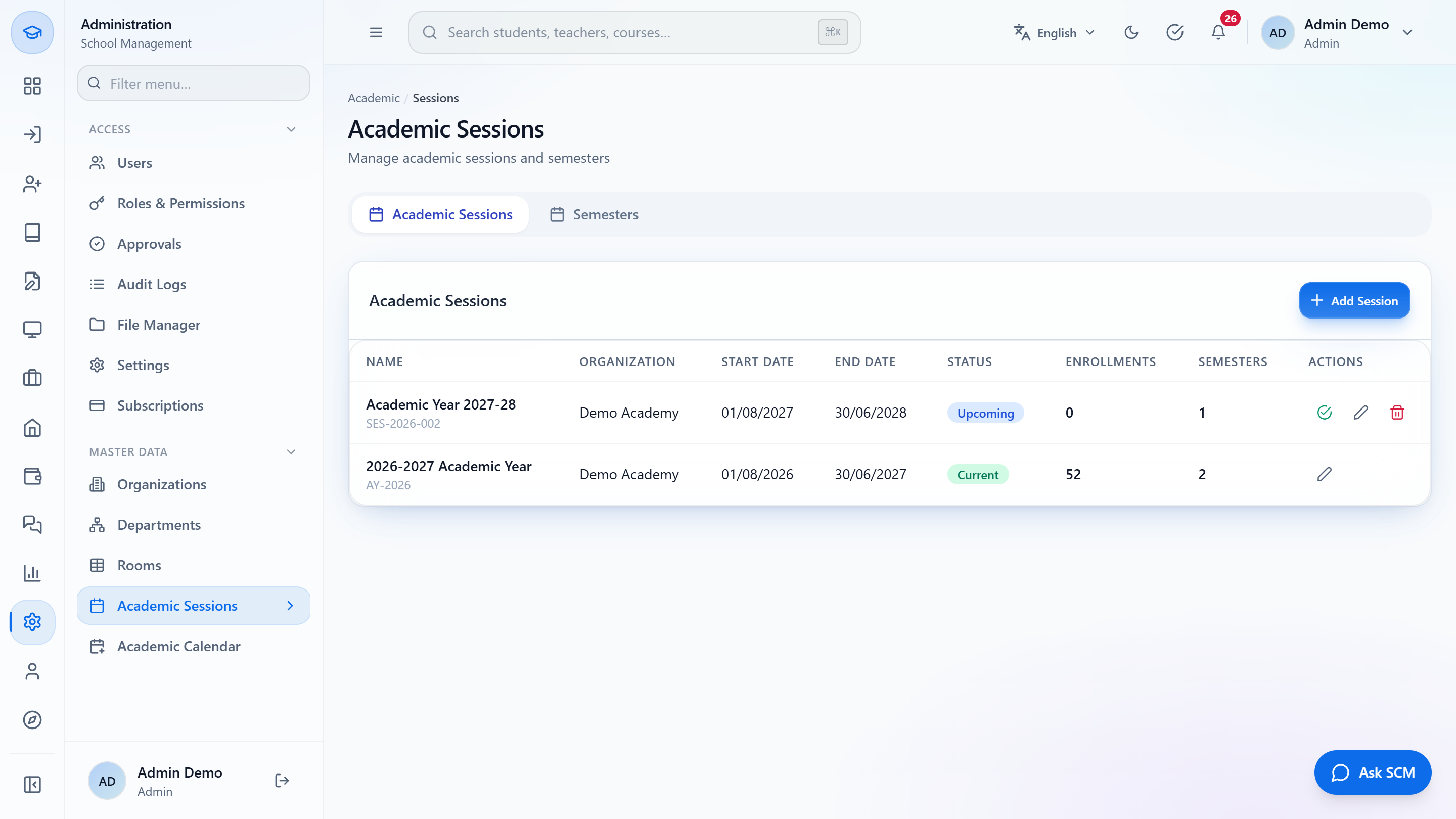
Click Administration › Master Data › Academic Sessions. Two tabs: Academic Sessions and Semesters. The session table shows Name (with code), Organization, Start Date, End Date, Status (Current, Upcoming or Past), Enrollments, Semesters and Actions.
Academic Sessions list with Current, Upcoming and Past statuses
2
Add the next school year
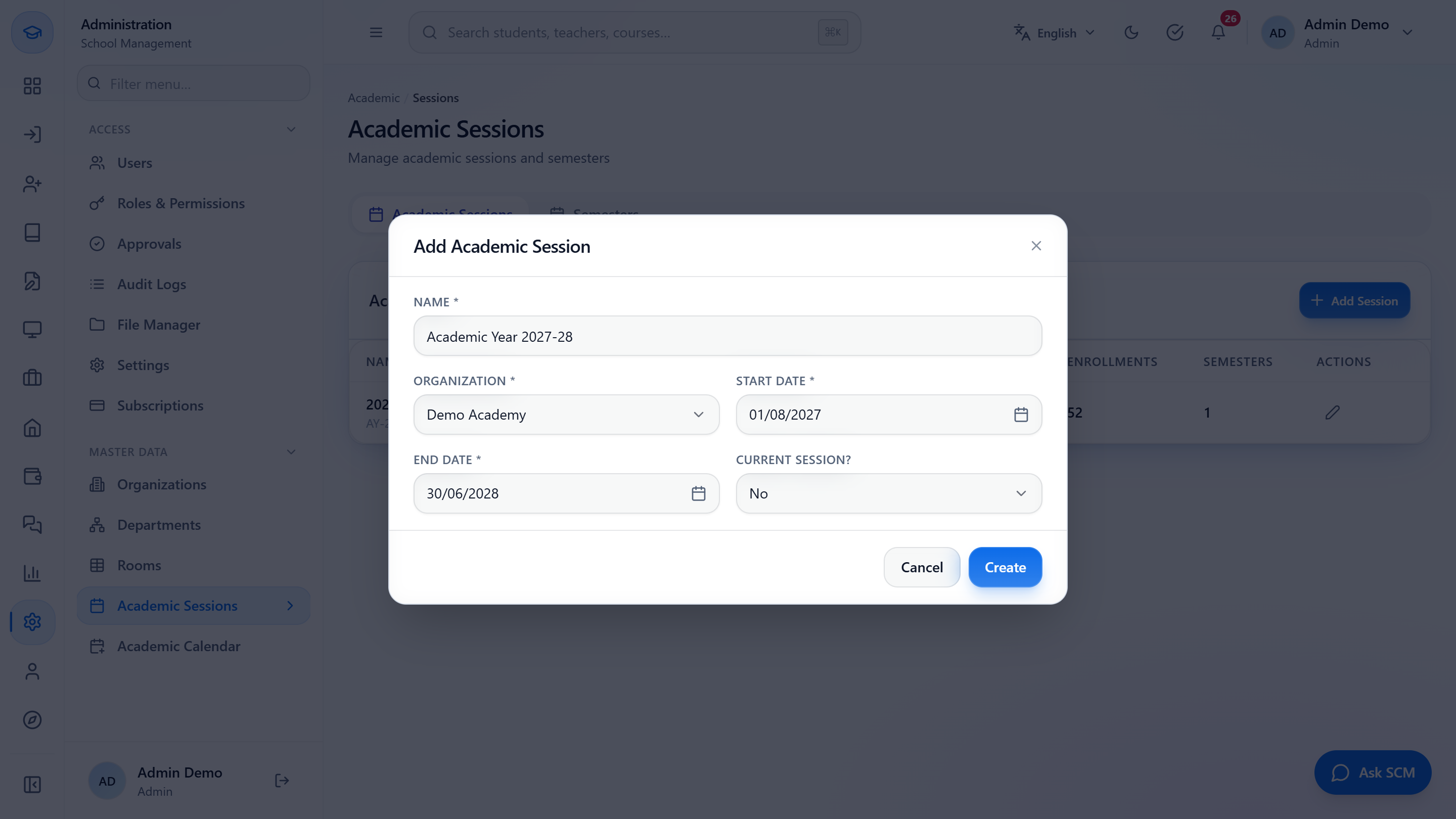
Press Add Session. Fill Name (Academic Year 2027-28), Organization (Demo Academy), Start Date 01/08/2027 and End Date 30/06/2028. Current Session? offers No (the default) and Yes; leave it on No so the new year does not replace the working year yet. Press Create.
Add Academic Session dialog filled in
3
Check the new session
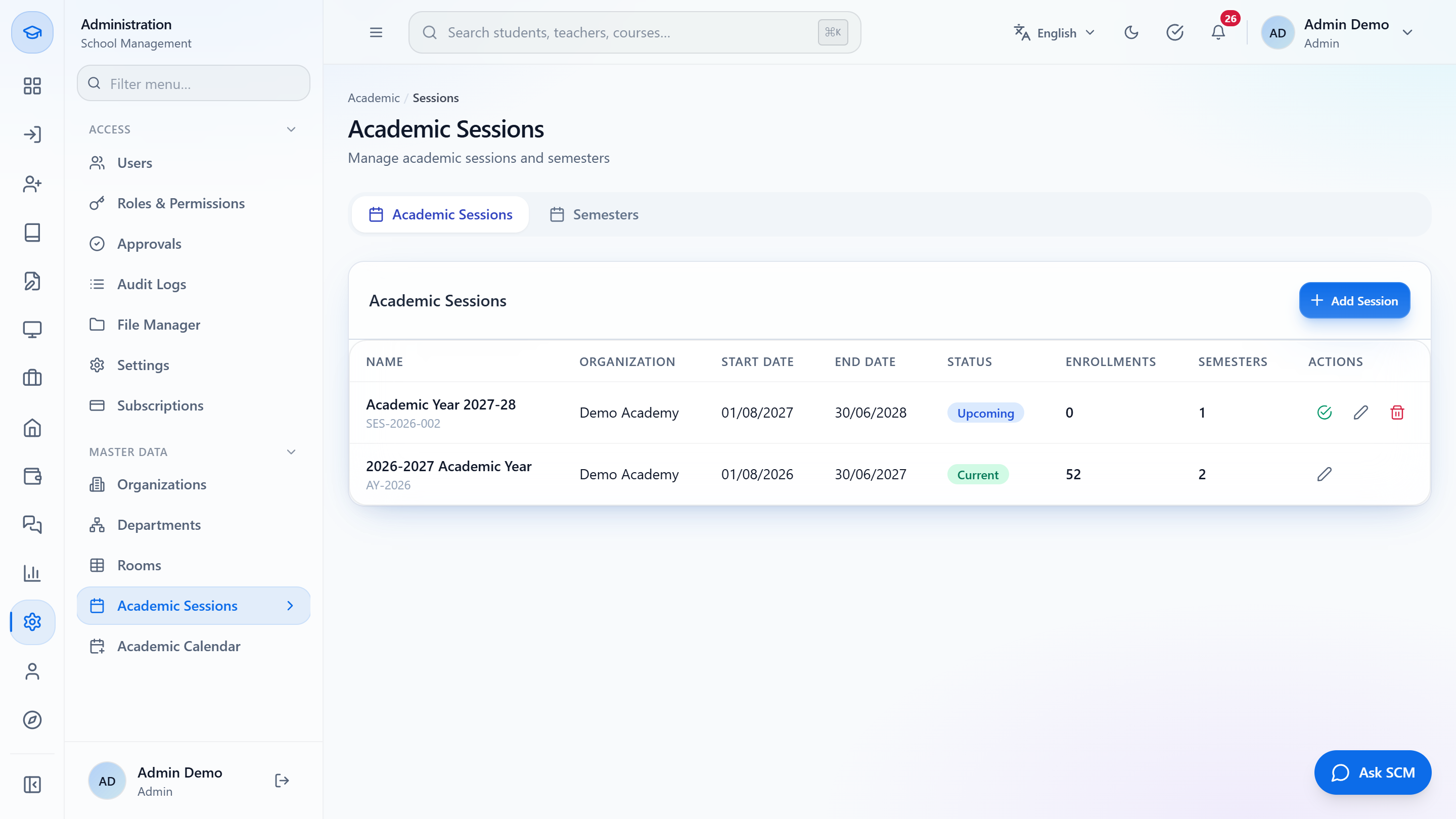
The toast says Session created. The row has a generated code (SES-2026-002), the dates, Upcoming, 0 enrollments and 0 semesters.
The new session listed as Upcoming
4
Make a session current, edit or remove it
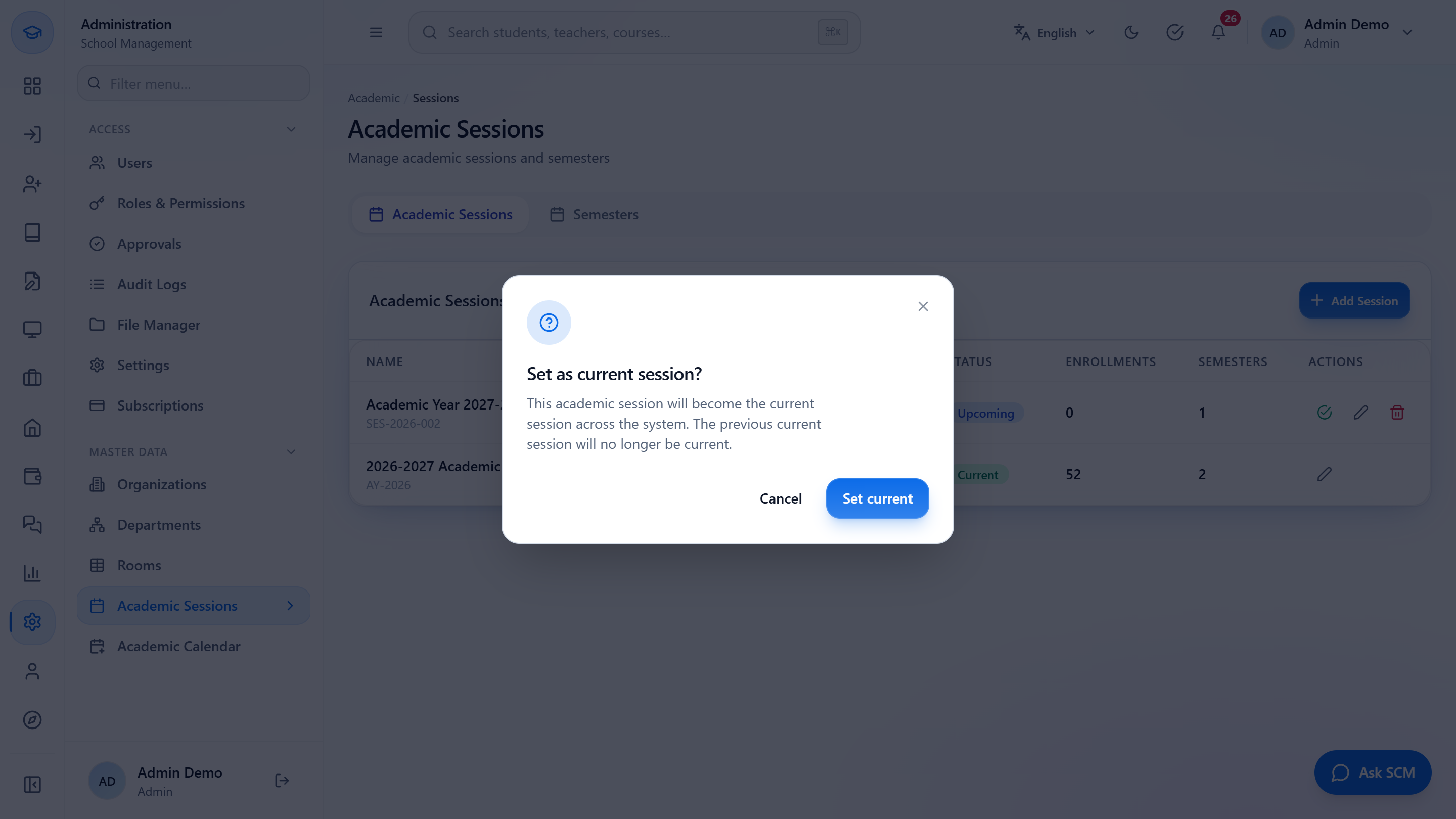
On a row, the tick makes it the current session. The confirmation says it becomes the current session across the system and the previous one stops being current; the toast is Session set as current. The pencil opens Edit Academic Session, with an Active switch. The bin asks before deleting.
Set as current session confirmation
5
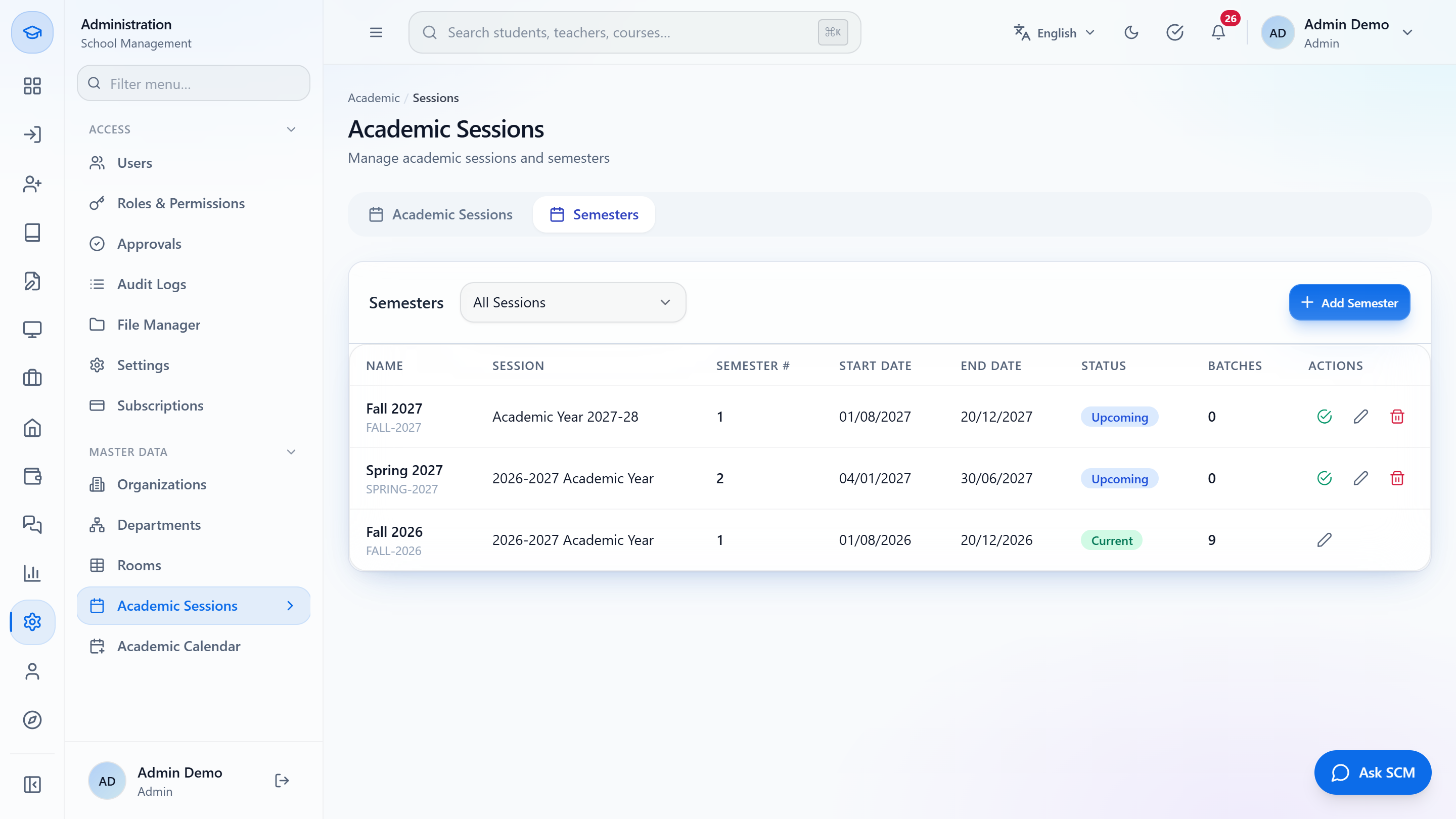
Open the Semesters tab
Open Semesters. The table shows Name (with code), Session, Semester #, Start Date, End Date, Status, Batches and Actions. The filter All Sessions narrows it to one year. Fall 2026 shows 9 batches.
Semesters tab with session filter
6
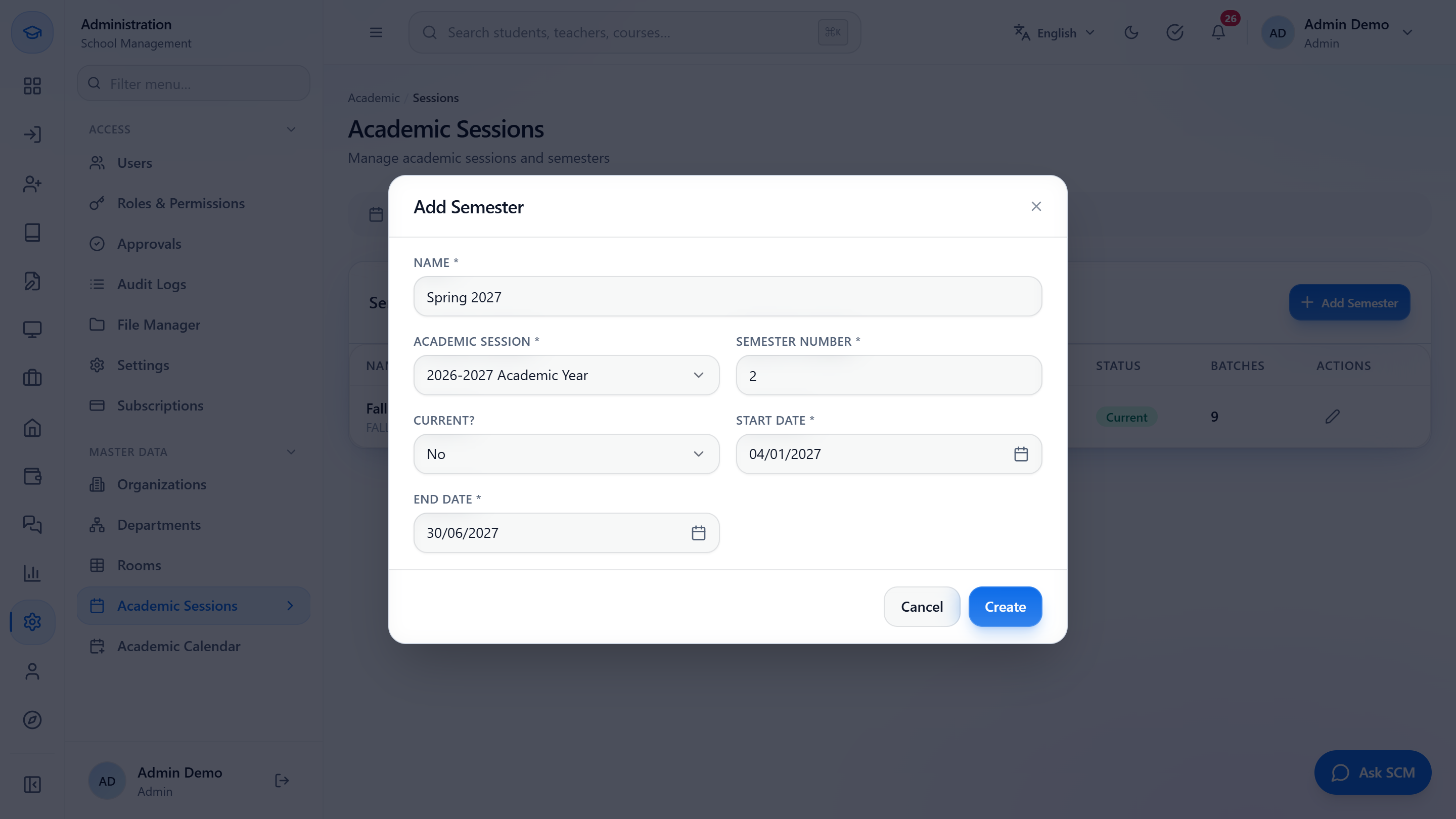
Add a semester
Press Add Semester. Enter Name (Spring 2027), choose the Academic Session (2026-2027 Academic Year), Semester Number (2) and the Start Date 04/01/2027 and End Date 30/06/2027, then press Create. The toast is Semester created and the code is generated. Add Fall 2027 the same way for Academic Year 2027-28.
Add Semester dialog filled in
7
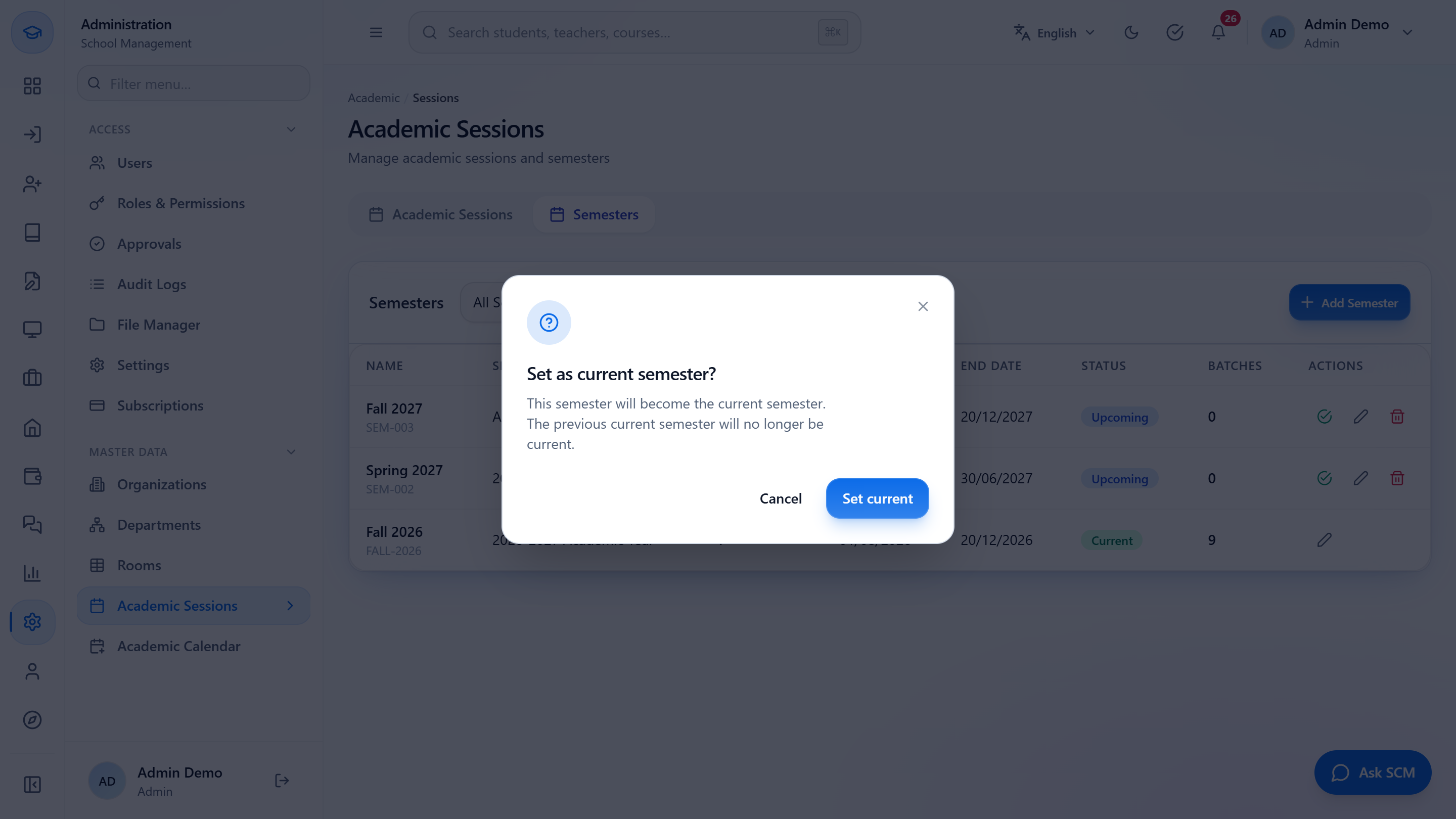
Make a semester current
The tick on a semester row asks "Set as current semester?" and says the previous one stops being current. The toast is Semester set as current. The pencil edits (with an Active switch) and the bin deletes after a confirmation.
Set as current semester confirmation
8
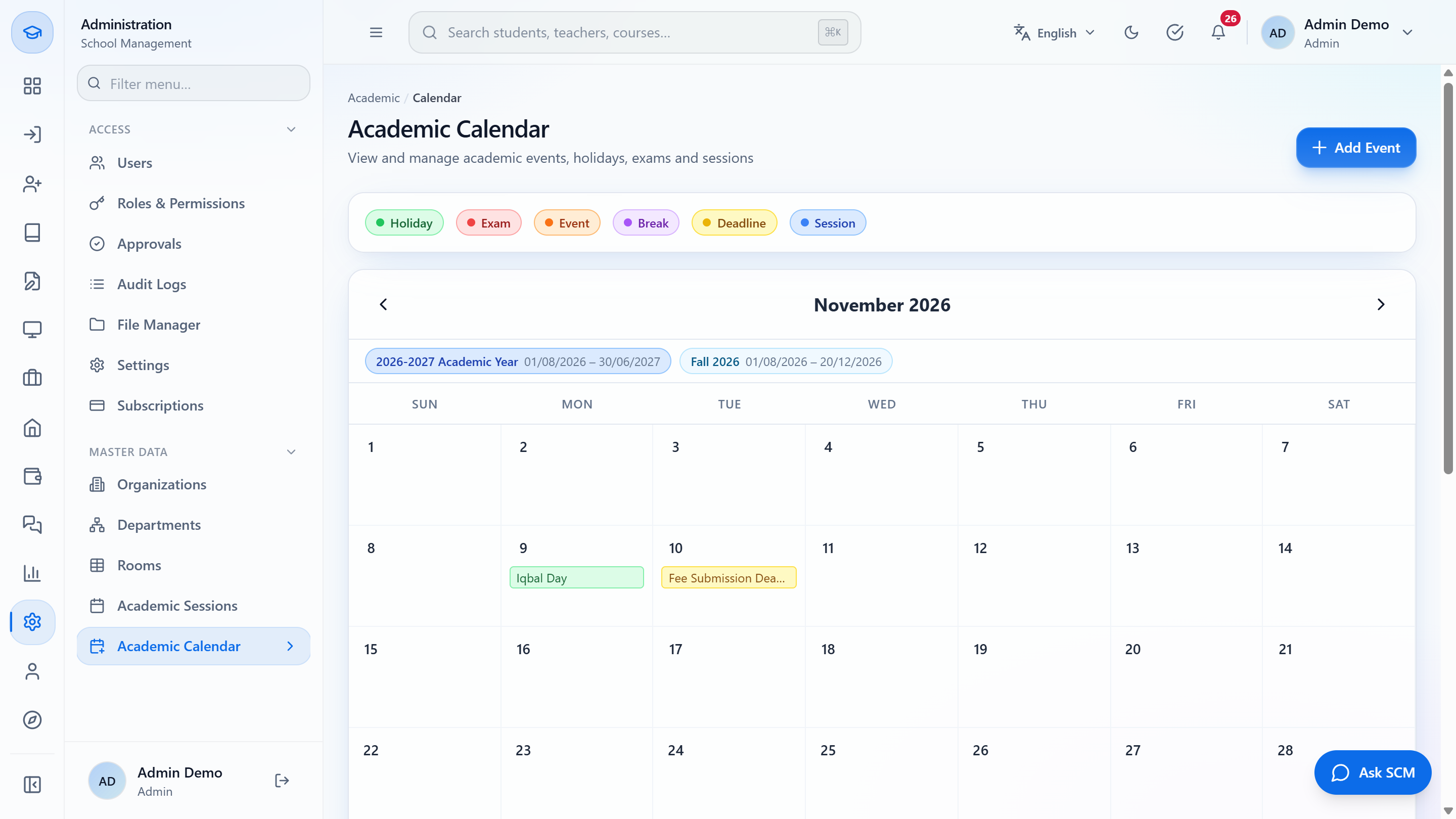
Read the Academic Calendar
Click Administration › Master Data › Academic Calendar. Chips above the grid show the session and the term. The legend lists Holiday, Exam, Event, Break, Deadline and Session; the colour tells the type. Exams from the Examinations module appear on their days by themselves.
Academic Calendar for November with holiday and deadline
9
Add an event
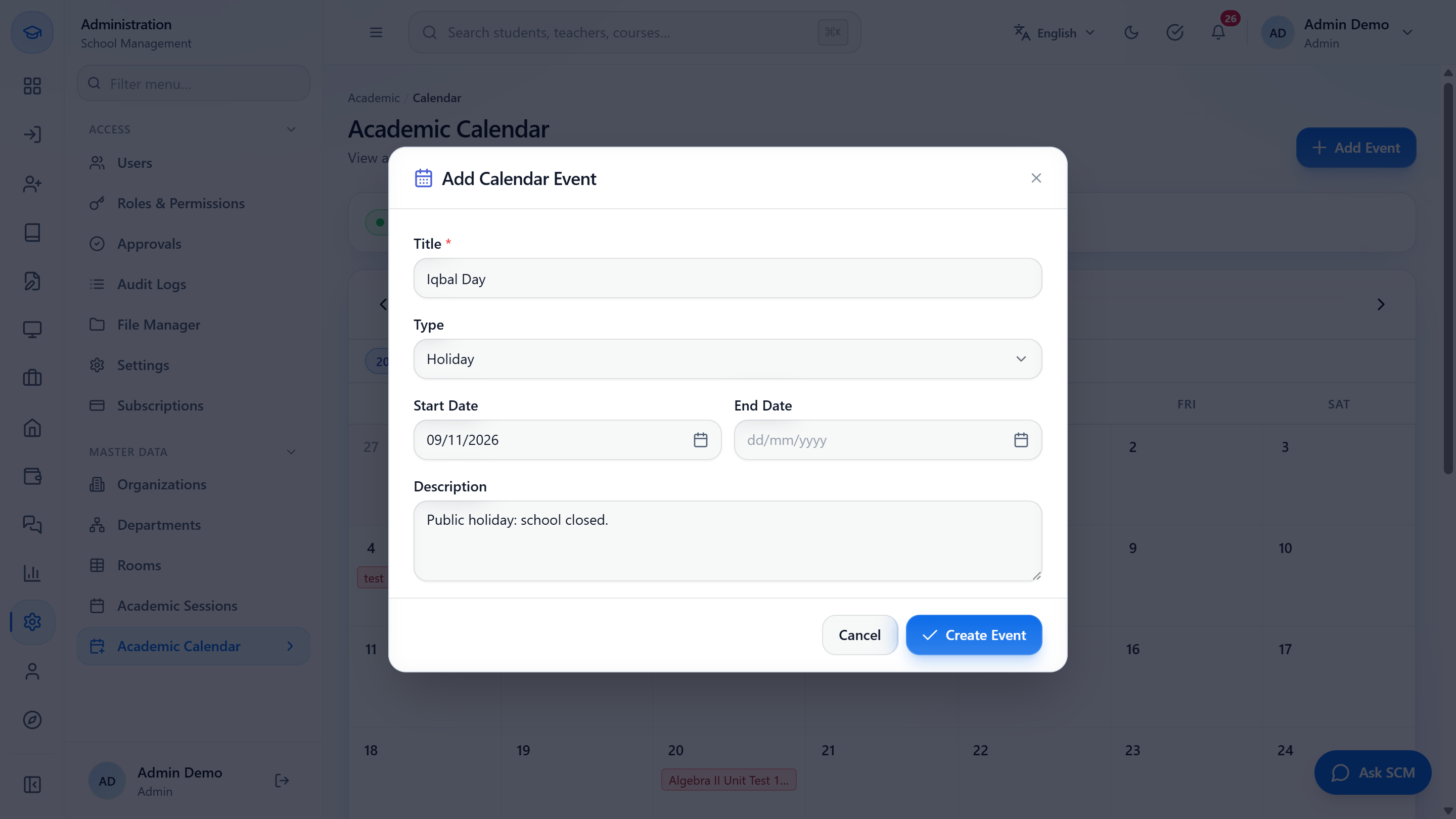
Press Add Event. Type the Title (required; Iqbal Day), choose the Type (Holiday, Exam, Event, Break, Deadline or Session), the Start Date (09/11/2026), an optional End Date (leave it empty for a single day) and a Description. Press Create Event; the toast is Event created.
Add Calendar Event dialog filled in
10
Add an event by clicking a day
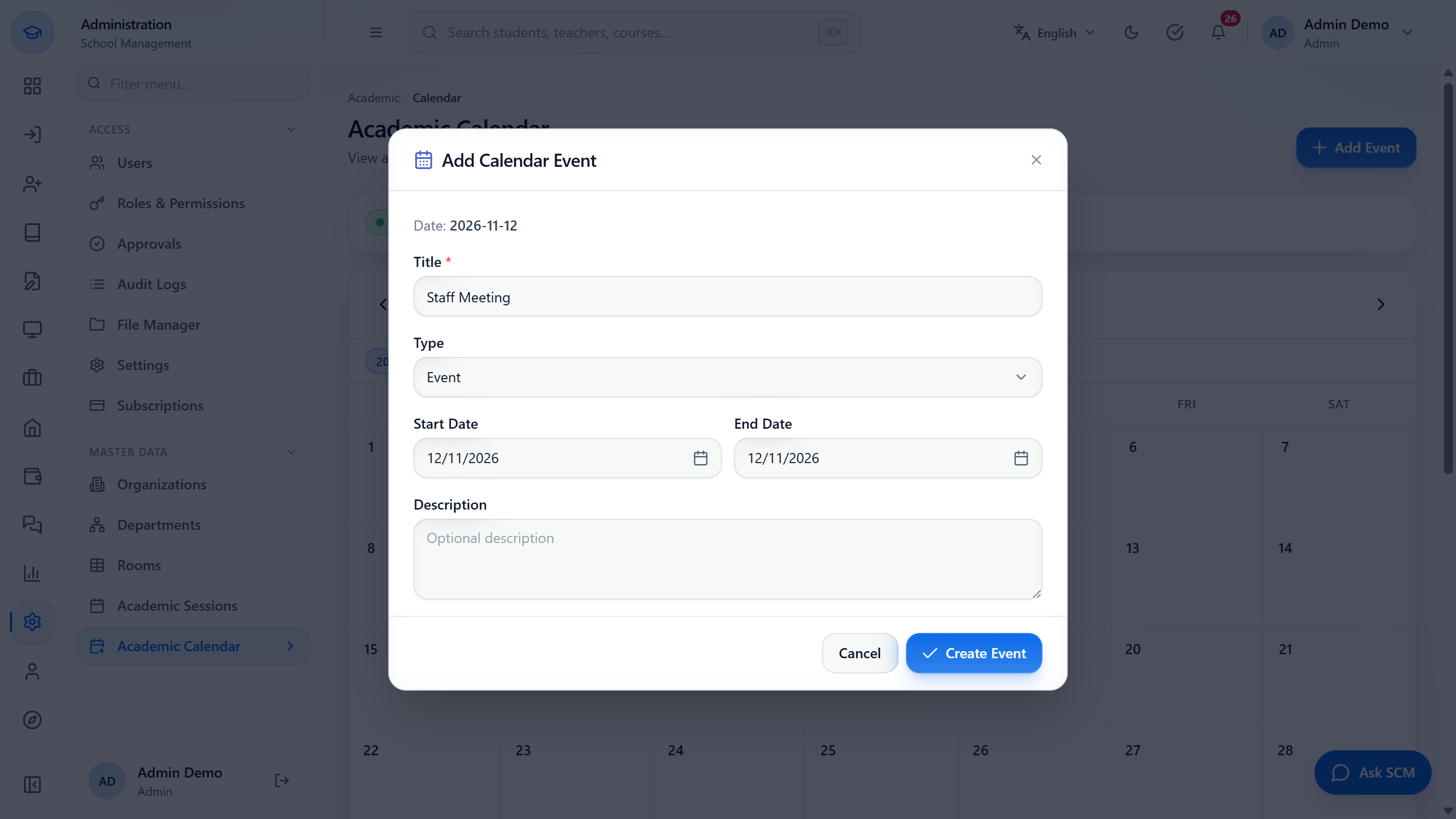
Click a day on the grid and the dialog opens with that date already filled in. Type the title and press Create Event. Below the calendar, the Parent-teacher meetings card is where meeting slots are published for parents; it has its own tutorial.
Dialog opened from a clicked day with the date filled in
Frequently asked questions
Can I have two current sessions? No. Only one session and one semester are Current. Making another one current moves the badge and the old one reads Past.
Why can I not delete a session? A session that is in use (semesters, enrollments, fee records or calendar events) is refused, and the message says what uses it. Open Edit, switch Active off and save, so the year stays in history.
How do I add a holiday that lasts several days? Press Add Event, choose the type Break or Holiday and set both the Start Date and the End Date. The event shows on every day of its range.
Do exams appear on the calendar by themselves? Yes. Exams from the Examinations module show on their days in red, next to the holidays, breaks and deadlines you add.
Check it worked
The new session appears with a code and Upcoming; only one session and one semester are marked Current.
Each semester shows under the right session.
Holidays, breaks and deadlines show on their days in the calendar, in the colour of their type.
Common mistakes
Mistake
What you see
Fix
Deleting a session that is in use
A message listing semesters, enrollments, fees or events