How to read your dispatch dashboard and save a bookings view
You will read the fleet counters and the latest bookings on the dashboard, then filter the Bookings list and save that filter as a view you can bring back with one click. You need this at the start of every shift, to see what needs attention and to jump straight to the list you work from.
Who it is forTaxi or fleet dispatcher or operator ownerTime8 minutesProductFMSLevelBeginner
Before you start
Steps
1
Open the dashboard
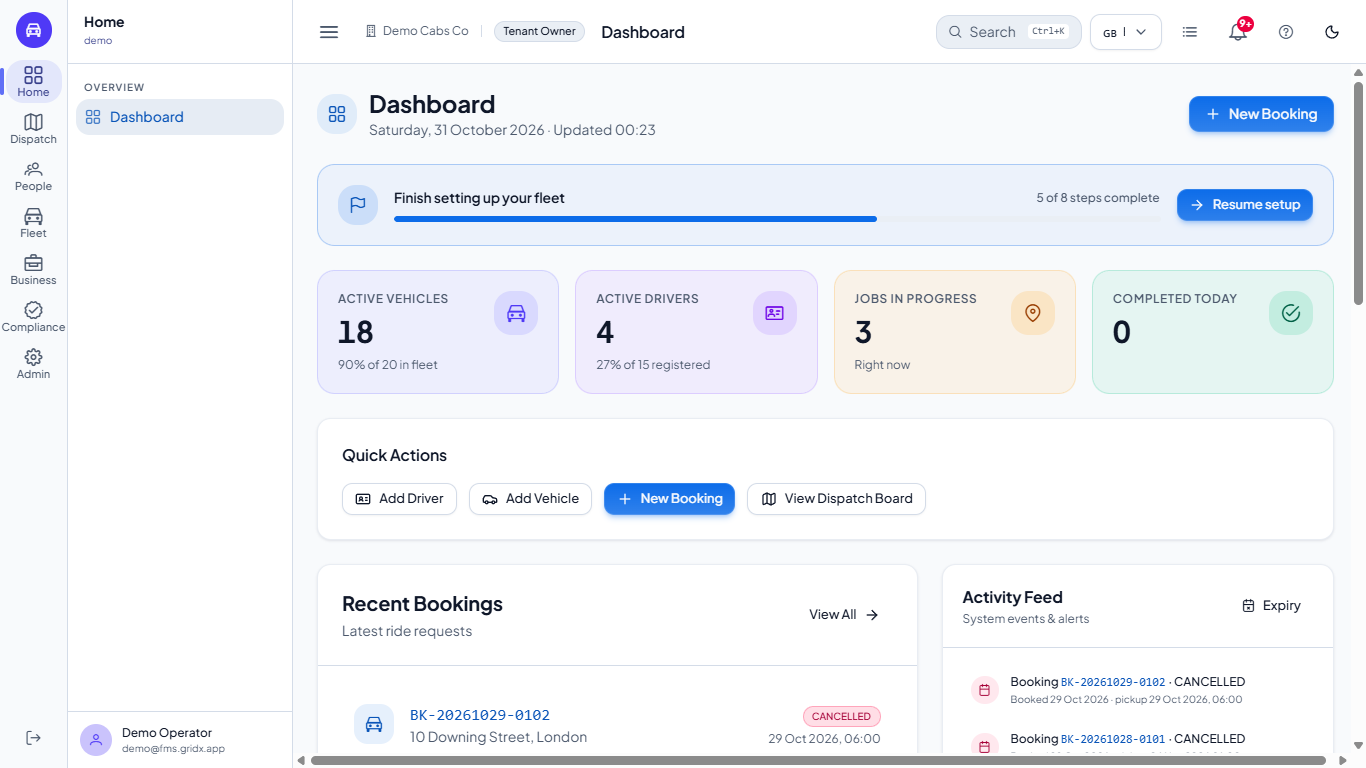
Go to Home > Dashboard. The header shows today's date, when the numbers were last refreshed (Updated 00:23) and the New Booking button. While the fleet is still being set up, a banner shows how many steps are done, for example 5 of 8 steps complete, with Resume setup. Under it you find the four counters, Quick Actions, Recent Bookings, the Activity Feed, your plan and Recent Activity.
Dashboard with the setup banner, four KPI cards and Quick Actions
2
Read the counters
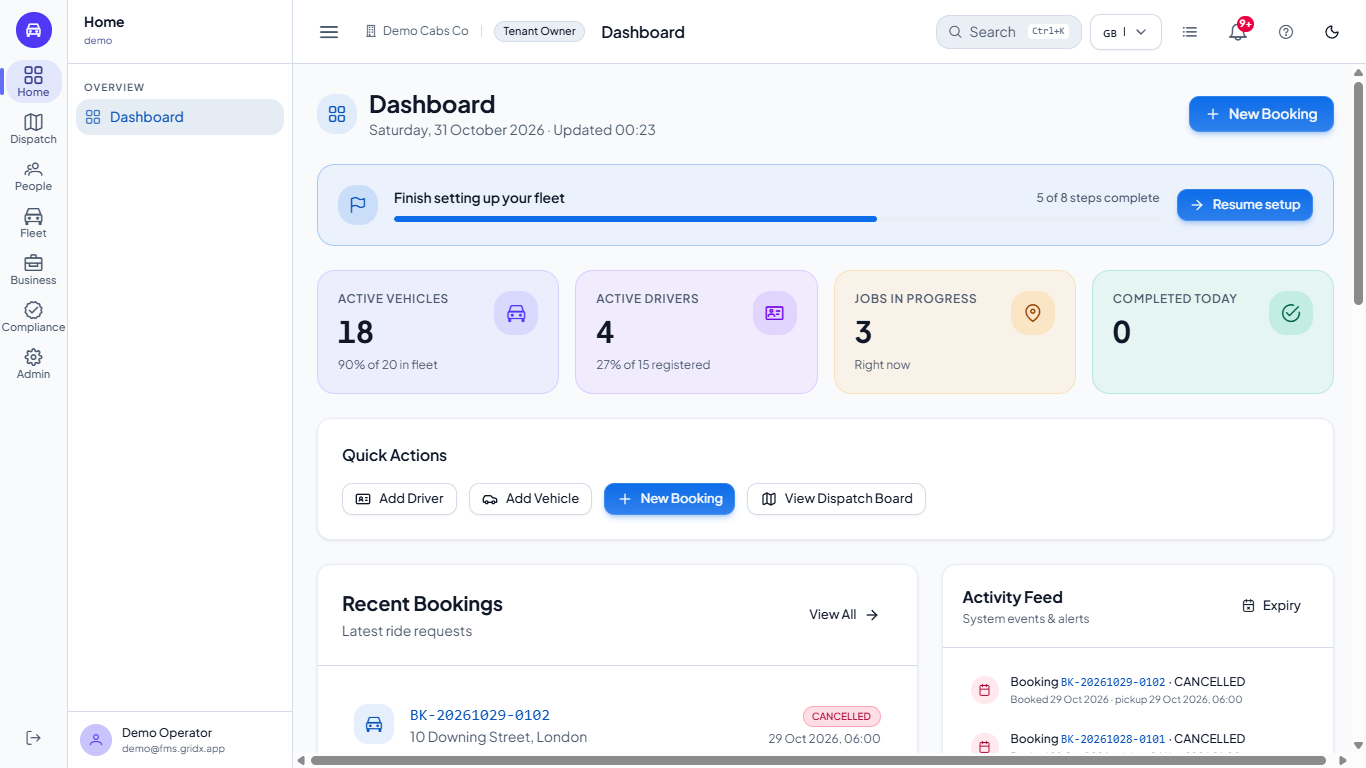
Active Vehicles shows how many vehicles are active out of the whole fleet, and Active Drivers the same for drivers. Jobs in progress counts rides running right now, and Completed today the rides finished today, with a comparison to yesterday once yesterday has finished jobs. Click a card to open the records behind it: Active Vehicles opens Vehicles, Active Drivers opens Drivers, Jobs in progress and Completed today open Bookings filtered to that status. The numbers refresh by themselves every minute or so.
The four cards Active Vehicles, Active Drivers, Jobs in progress and Completed today
3
Check recent bookings and the feed
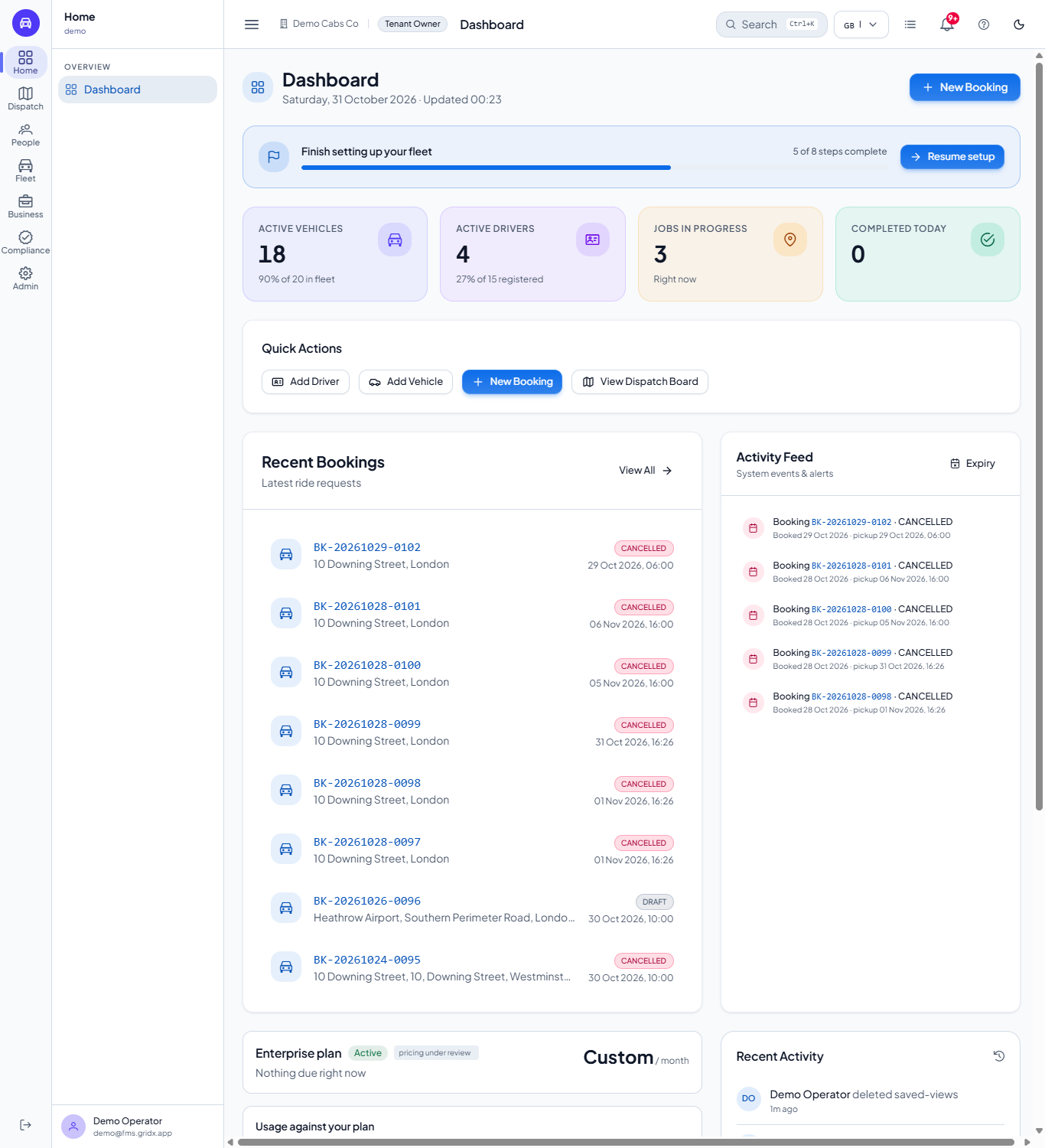
Recent Bookings lists the latest requests with the pickup address, a status chip and the scheduled time. Click a blue booking reference to open it beside the list. The Activity Feed shows the latest bookings with when each was made, and any licence, MOT or insurance expiry alerts; Expiry opens the Document Expiry Dashboard.
Recent Bookings list and the Activity Feed side by side
4
Filter the bookings list and save it
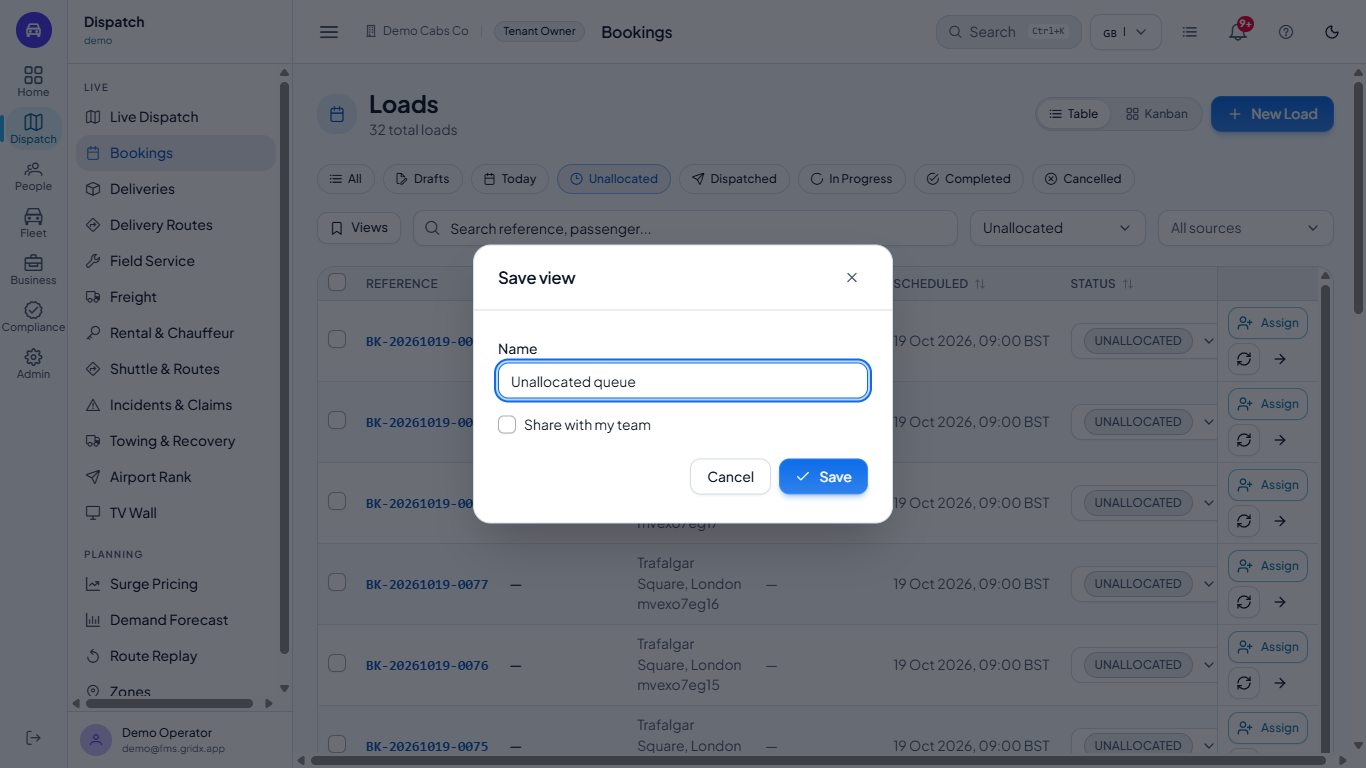
Go to Dispatch > Bookings and click a status chip, for example Unallocated (the bookings still waiting for a driver). Open Views and choose Save as new view. Type a name such as Unallocated queue. Tick Share with my team if colleagues should see it too, then click Save. Save stays grey until you type a name.
Save view dialog with the name Unallocated queue
5
Reopen your view
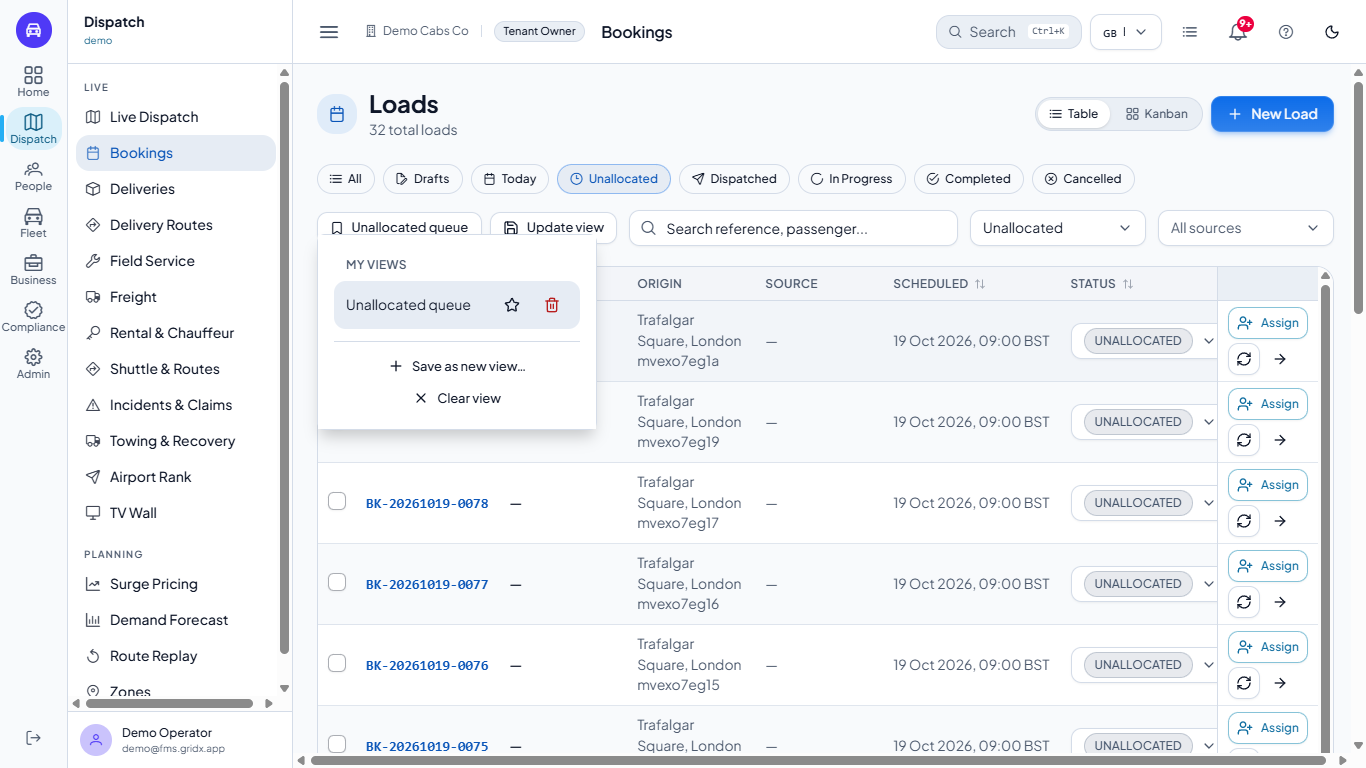
Open Views again: your view is listed under My views. Click its name to bring back the same search, source and status filter. The star makes it your default view, Update view stores changed filters under the same name, Clear view removes the filter again and the bin deletes the view.
Views menu listing Unallocated queue with a star and a bin
Check it worked
After saving, a message View created appears and the Views button shows Unallocated queue.
Click Clear view, then choose Unallocated queue from Views: the list returns to the 32 unallocated loads.
Common mistakes
Mistake
What you see
Fix
Saving a view with a name you already used
A message You already have a view called ... Choose another name. and the dialog stays open
Choose a new name, or use Update view on the existing one
Looking for a Pending chip
There is none: waiting bookings are called Unallocated
Click the Unallocated chip
Quick reference
Item
Meaning / rule
Active Vehicles / Drivers
Active count out of the total registered
Jobs in progress
Rides running right now; click to see them
Completed today
Rides finished today
Saved view
A named filter: search, source and status
Share with my team
Lets colleagues use the view
Frequently asked questions
Does the dashboard update by itself? Yes. The counters and the booking lists reload every 30 to 60 seconds, so you do not need to refresh the page.
Can I save the filters of other lists? Yes. The Views menu is also on the Drivers and Vehicles lists, and each list keeps its own views.
Who can see my view? Only you, unless you tick Share with my team when you save it.