How to secure your dispatch console with two-factor sign-in and API keys
You will start two-factor sign-in with an authenticator app, then create an API key that lets your website or booking system talk to your dispatch software with only the permissions it needs, from one address only. You will also rotate and revoke the key and see each action in the audit log.
Who it is forTaxi or fleet operator ownerTime10 minutesProductFMSLevelBeginner
Before you start
Steps
1
Open the Security tab
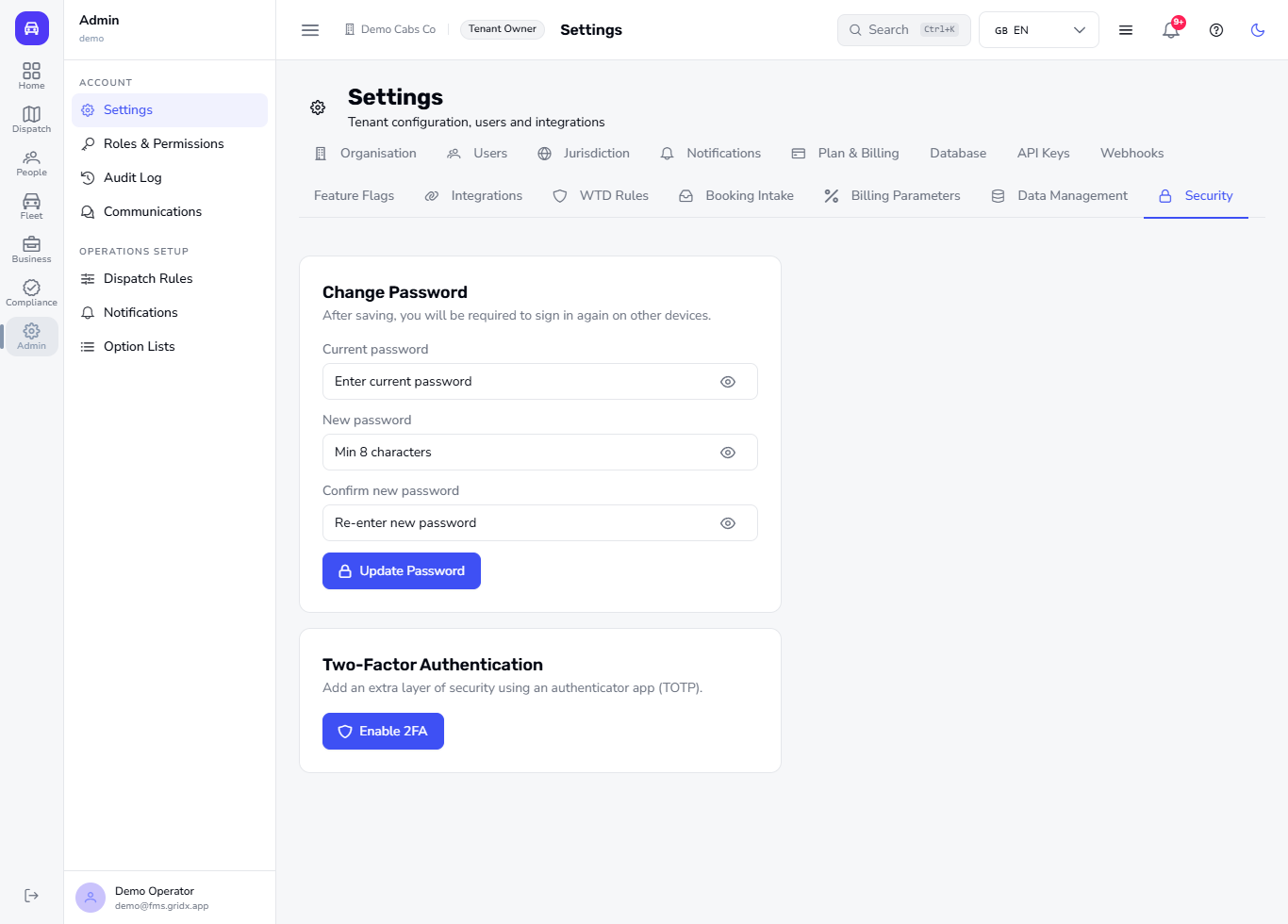
Go to Admin > Settings and open the Security tab. The first card changes your password: after you save, you must sign in again on your other devices. The second card, Two-Factor Authentication, adds an extra layer of security with an authenticator app.
Settings Security tab with Change Password and Two-Factor Authentication
2
Start two-factor setup
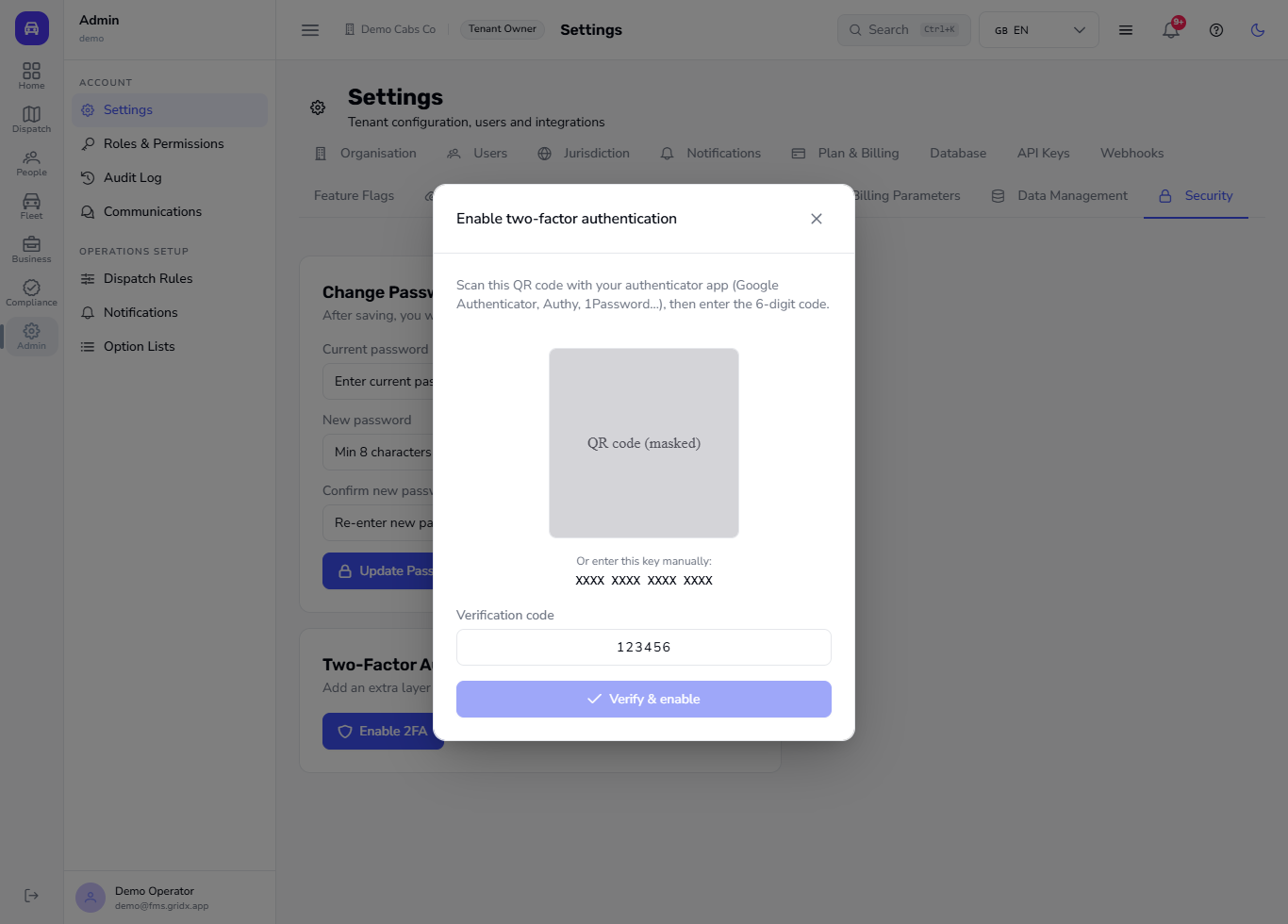
Click Enable 2FA. The dialog shows a QR code. Scan it with your authenticator app, or type the key shown under Or enter this key manually. Then type the 6-digit code from the app into Verification code; Verify & enable switches on once you have typed all 6 digits.
Enable two-factor authentication dialog with QR code and key
3
Open the API Keys tab
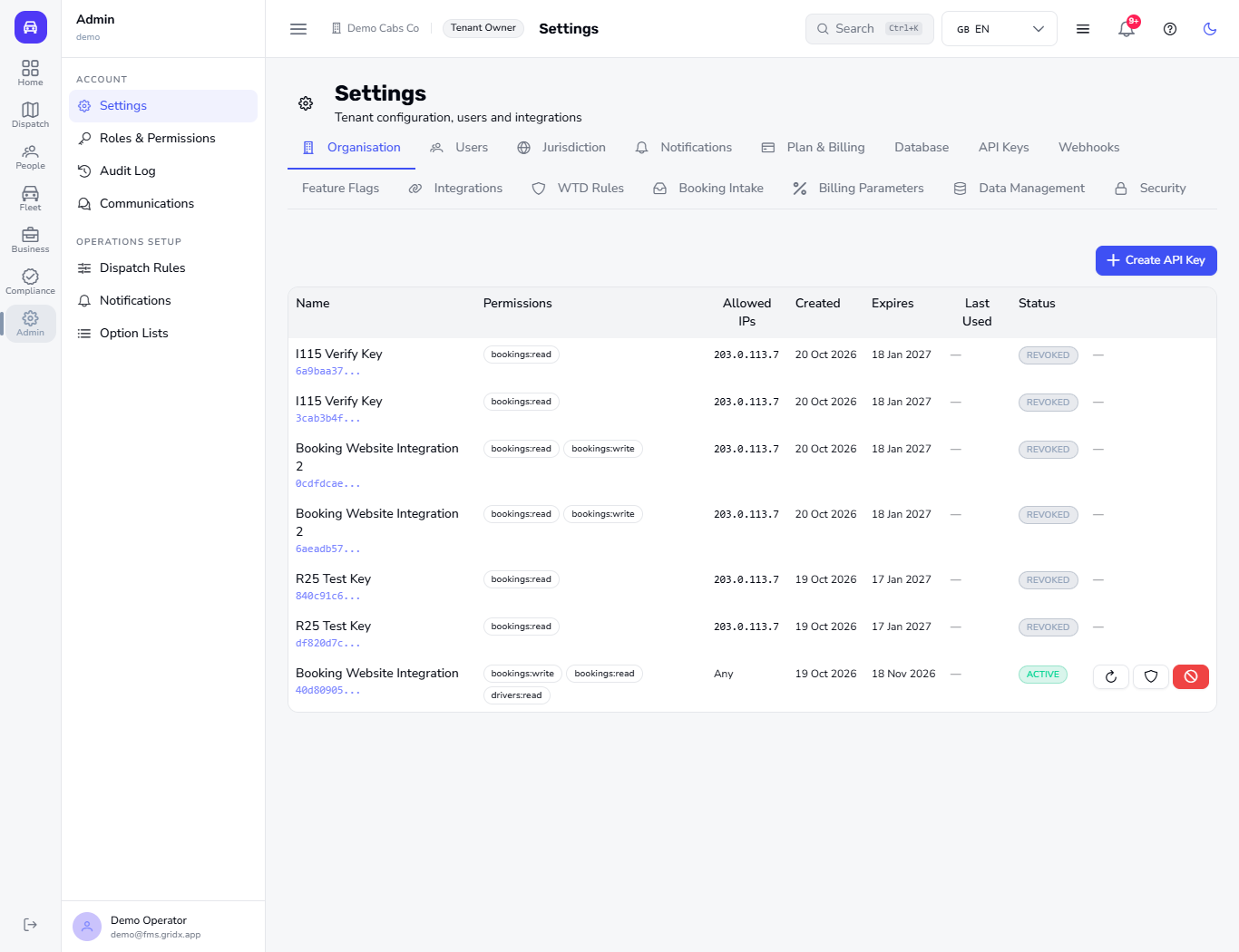
Open the API Keys tab. Each key shows its Name with its Prefix underneath, then Permissions, Allowed IPs, Created, Expires, Last Used and Status. Active keys have three small icon buttons: Rotate key, Allowed IPs and Revoke key (hover to see each name); revoked keys show a grey REVOKED badge and a dash instead of buttons.
API Keys list with prefixes, permissions, allowed IPs and status
4
Start a new key
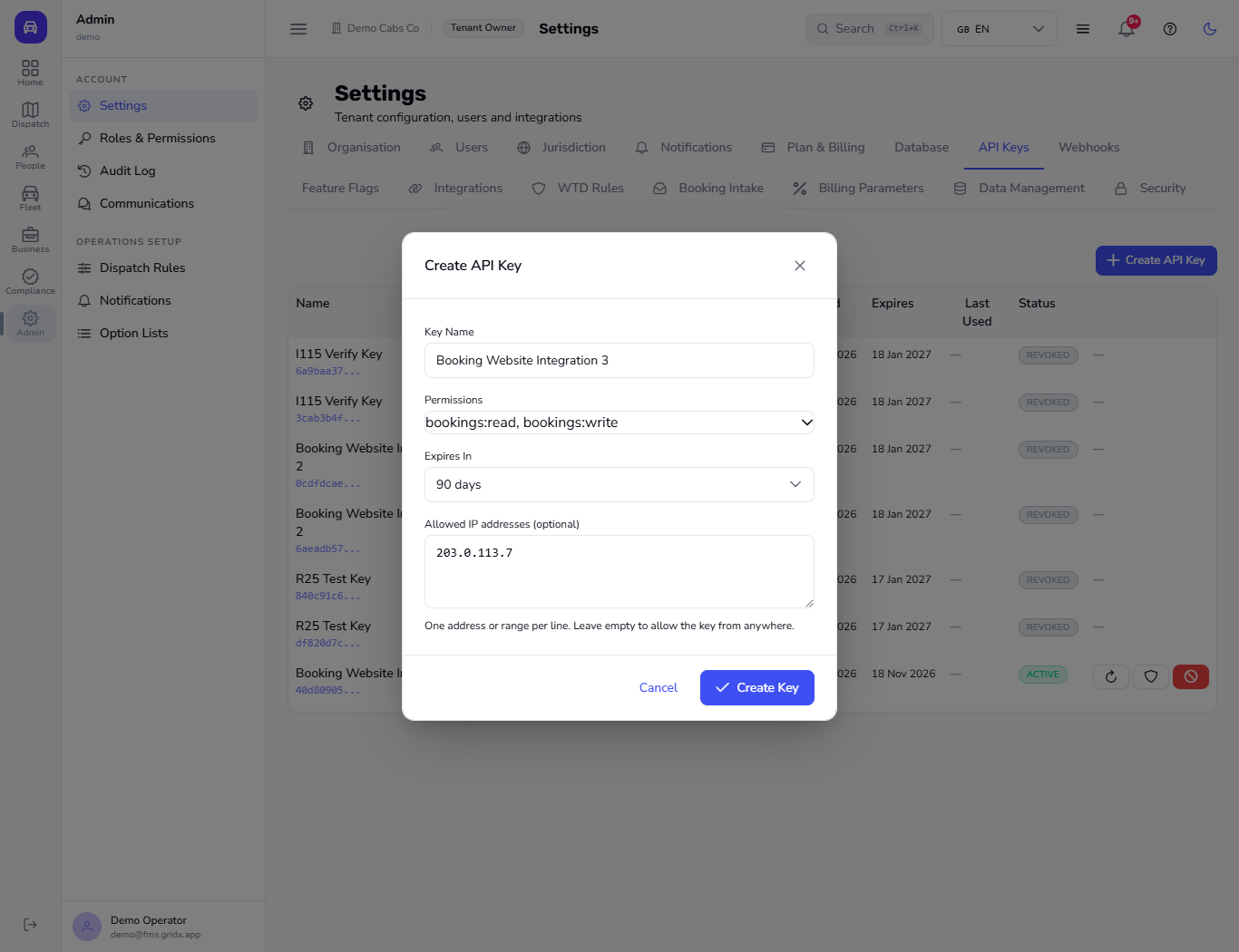
Click Create API Key. The dialog asks for a Key Name, the Permissions, Expires In (30 days, 90 days, 365 days or Never; 90 days is pre-selected) and, optionally, Allowed IP addresses, one address or range per line. Leave the addresses empty to allow the key from anywhere.
Create API Key dialog with default values
5
Name it, limit it, set an expiry and an address
Name the key after the system that will use it, for example Booking Website Integration 3. Open Permissions and choose only what that system needs: bookings:read, bookings:write, drivers:read, vehicles:read or reports:read. Here we choose bookings:read and bookings:write, keep 90 days and enter the server address 203.0.113.7. Click Create Key.
Create API Key dialog filled for the booking website
6
Copy the key now
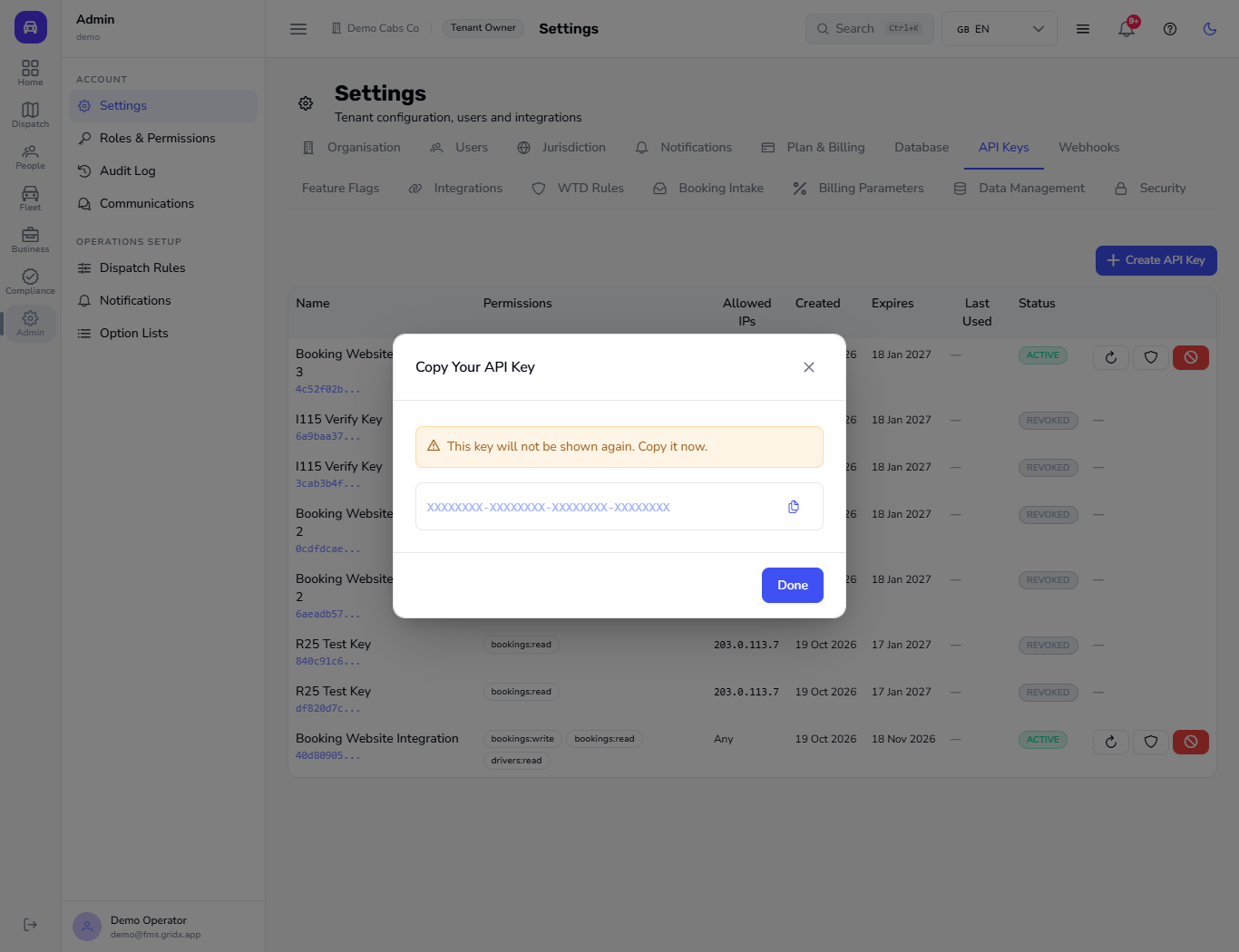
The dialog Copy Your API Key shows the key once, with the warning "This key will not be shown again. Copy it now." Click the copy icon, paste the key into your website or integration settings, then click Done.
Copy Your API Key dialog with the one-time warning
7
Check the key in the list
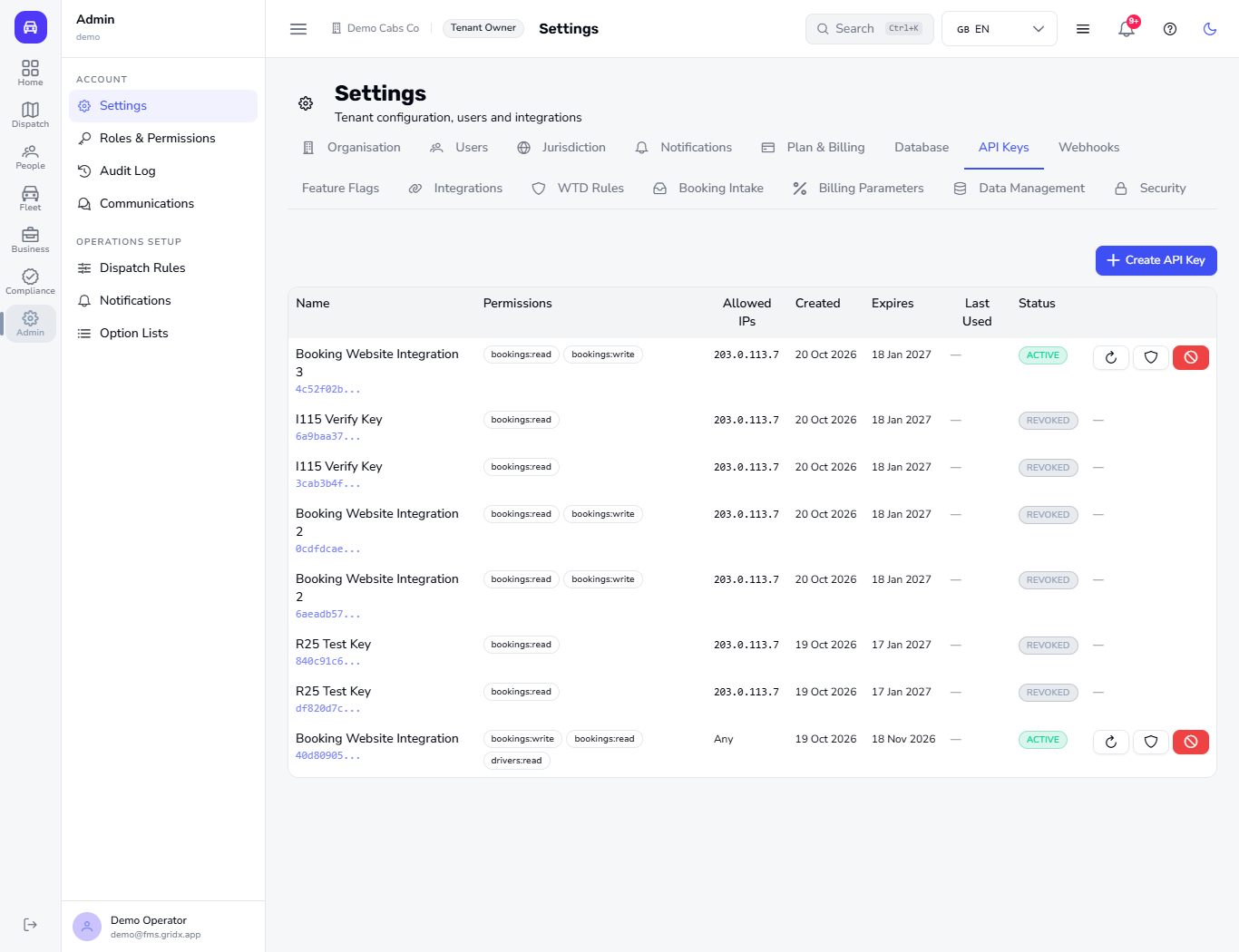
The new key is the first row: its name with the Prefix underneath, permission badges, Allowed IPs, Created and Expires dates and a green ACTIVE badge. Create one key per system, so you can tell them apart.
API Keys list with the new key at the top
8
Check or change the allowed addresses
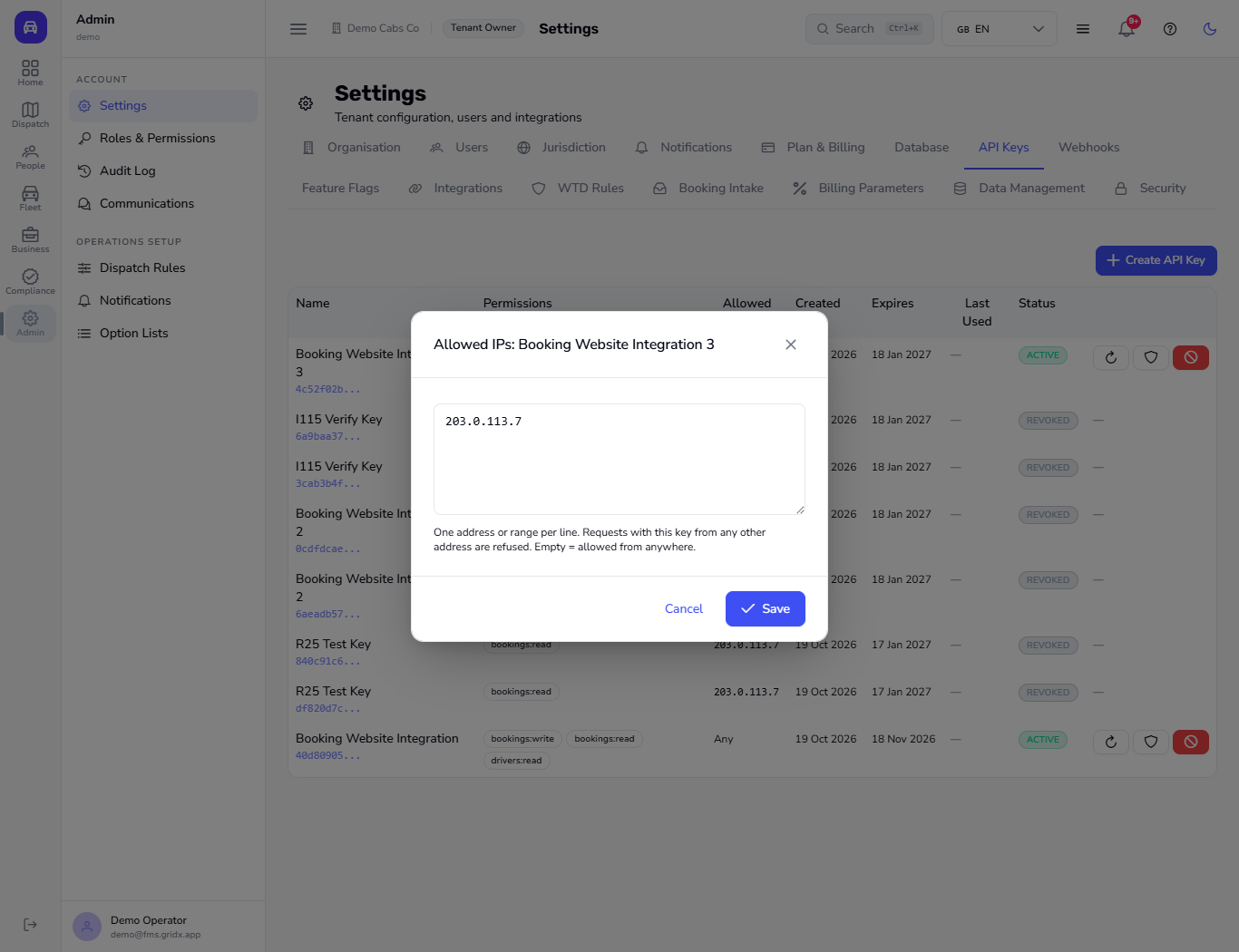
Click the Allowed IPs (shield) button on the row. The dialog lists the saved addresses. Requests with this key from any other address are refused; an empty box means the key works from anywhere. Click Save after a change, or Cancel to leave it as it is.
Allowed IPs dialog for the key
9
Rotate a key
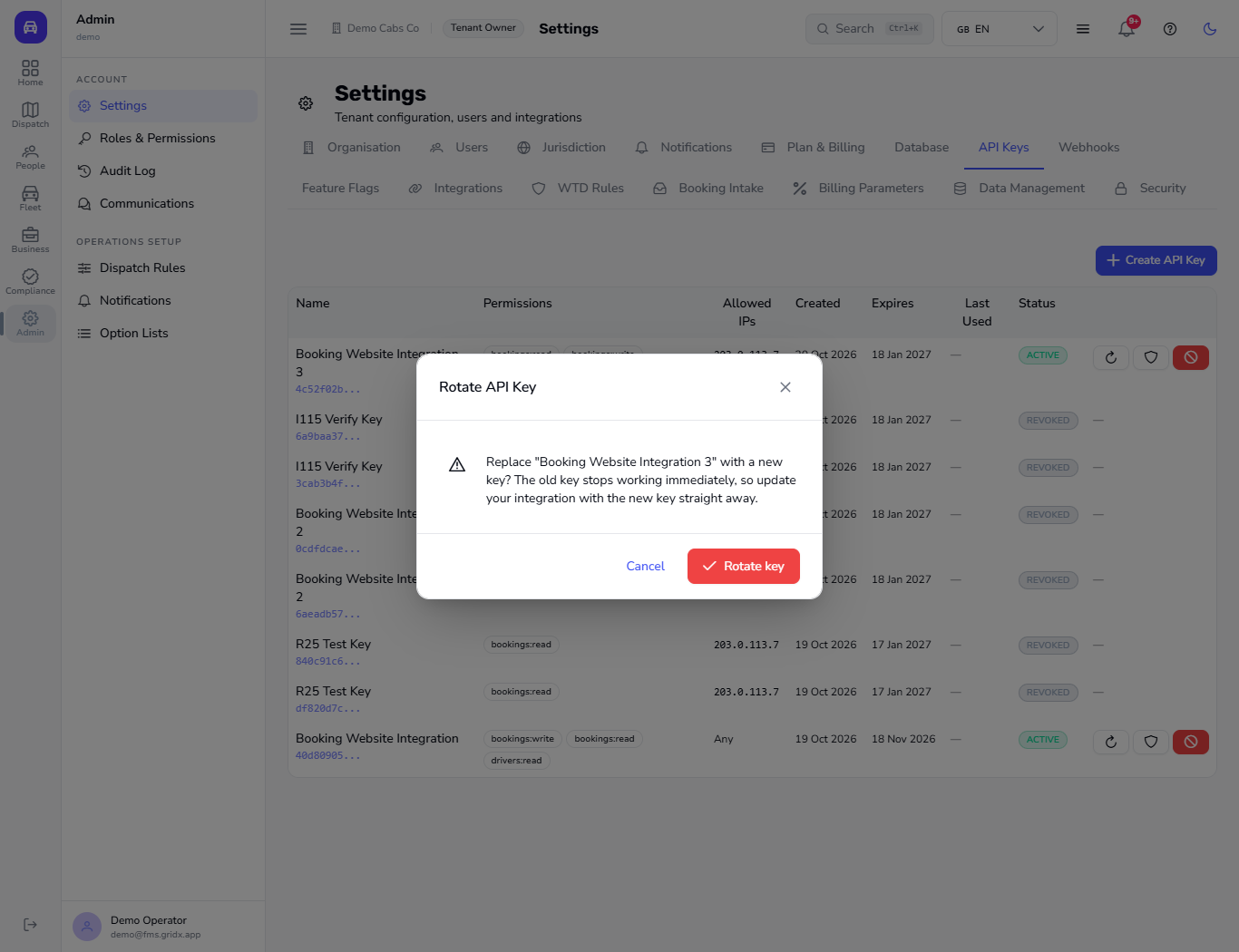
If a key may have leaked, click the Rotate key button on the row. The app asks you to confirm, because the old key stops working immediately. Click Rotate key, then update your integration with the new key straight away.
Rotate API Key confirmation
10
Copy the replacement key
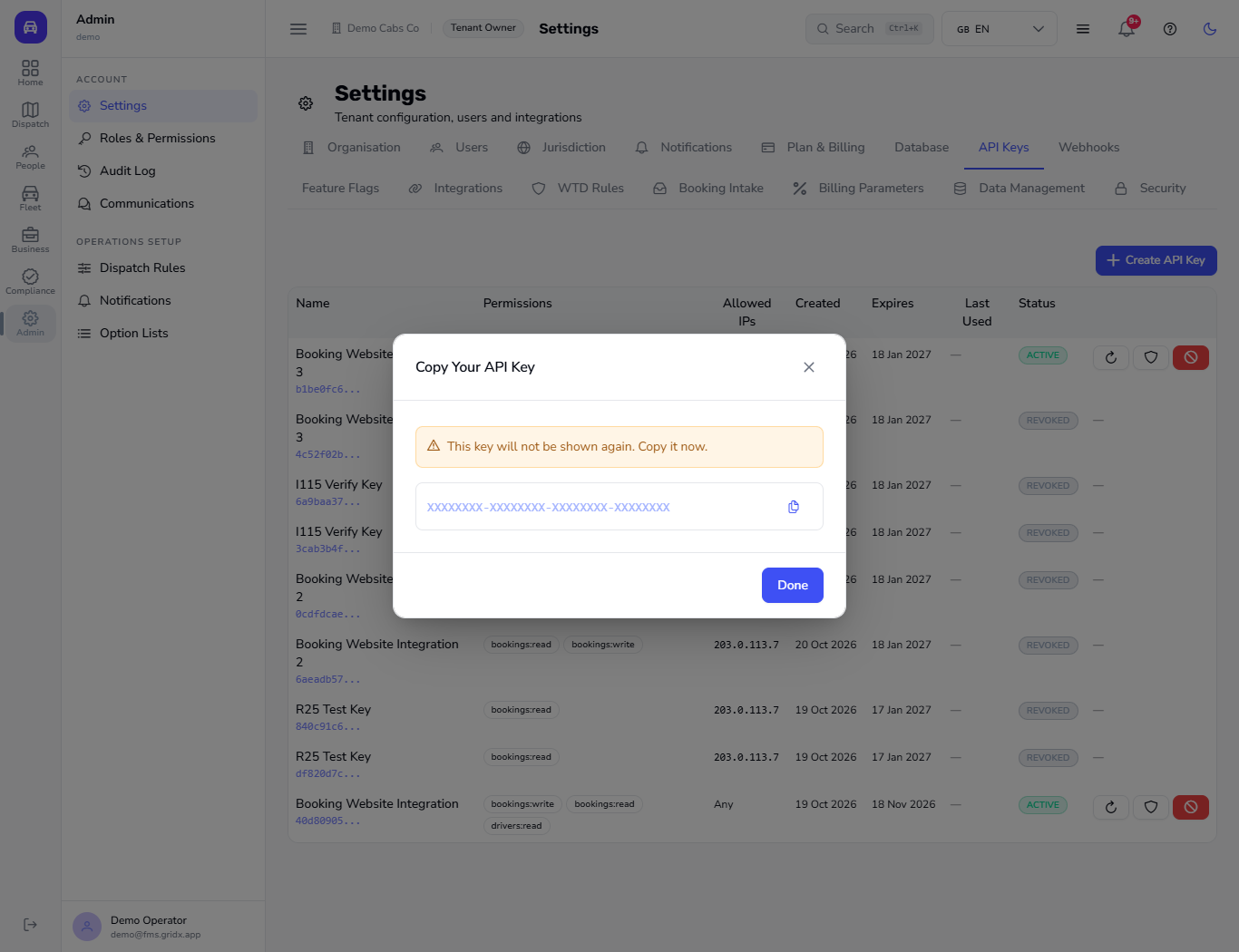
A toast says Key rotated and the dialog Copy Your API Key appears again for the replacement key, with the same permissions and addresses. Copy it, then click Done. In the list the new key is ACTIVE and the old one reads REVOKED.
Replacement key shown once after rotating
11
Revoke a key you no longer need
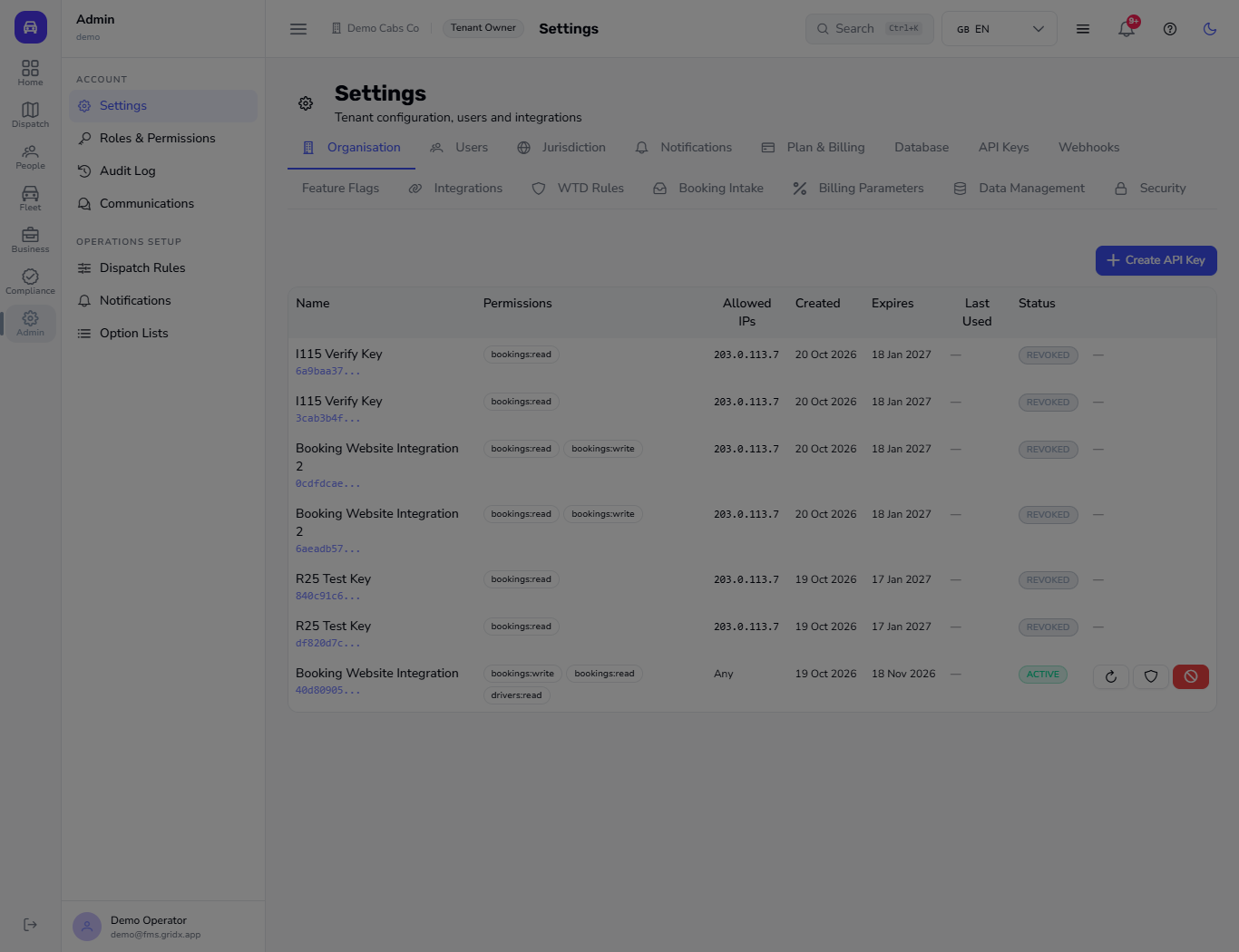
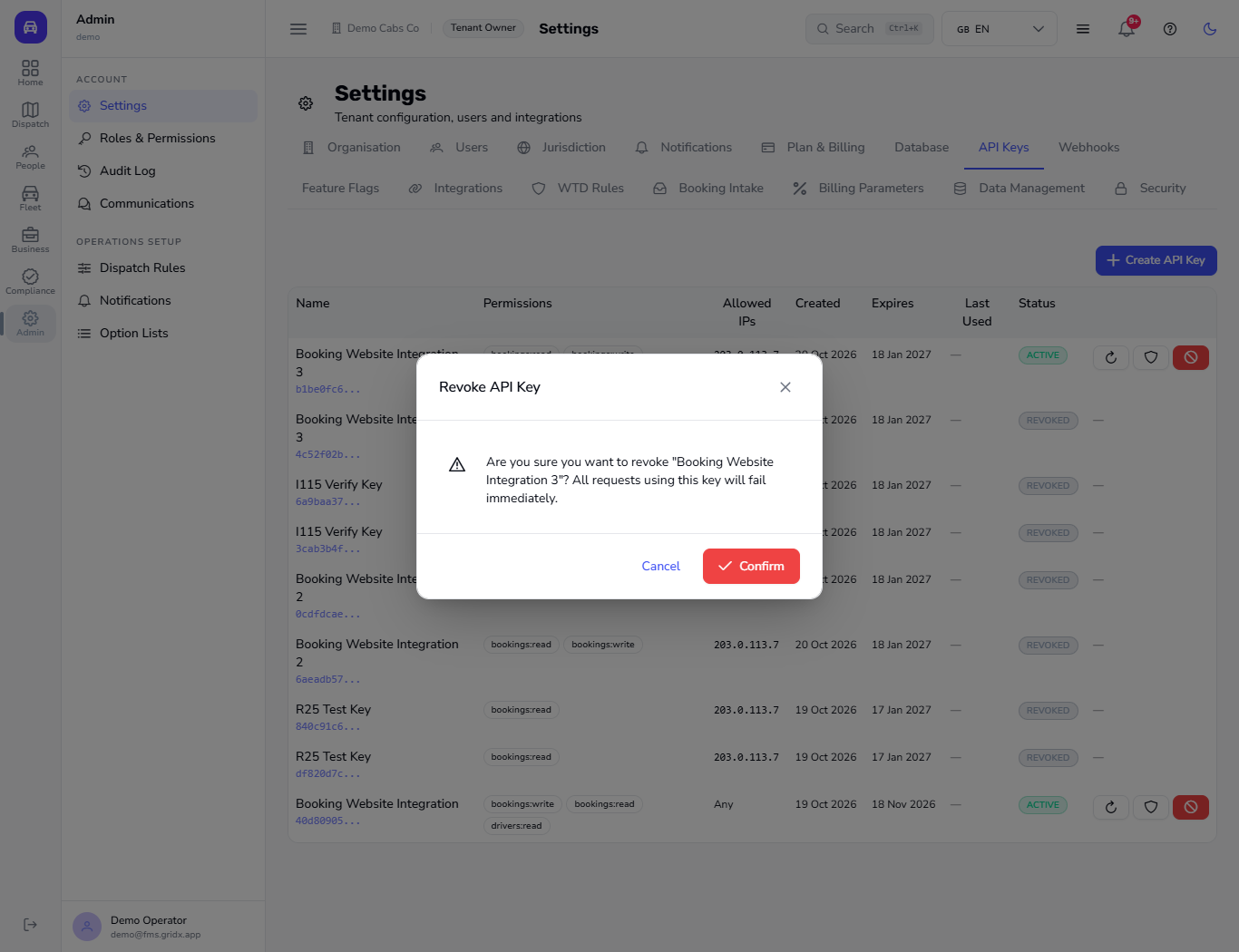
Click the Revoke key button on the row. The app asks: "Are you sure you want to revoke the key? All requests using this key will fail immediately." Click Confirm.
Revoke API Key confirmation
12
See the key as revoked
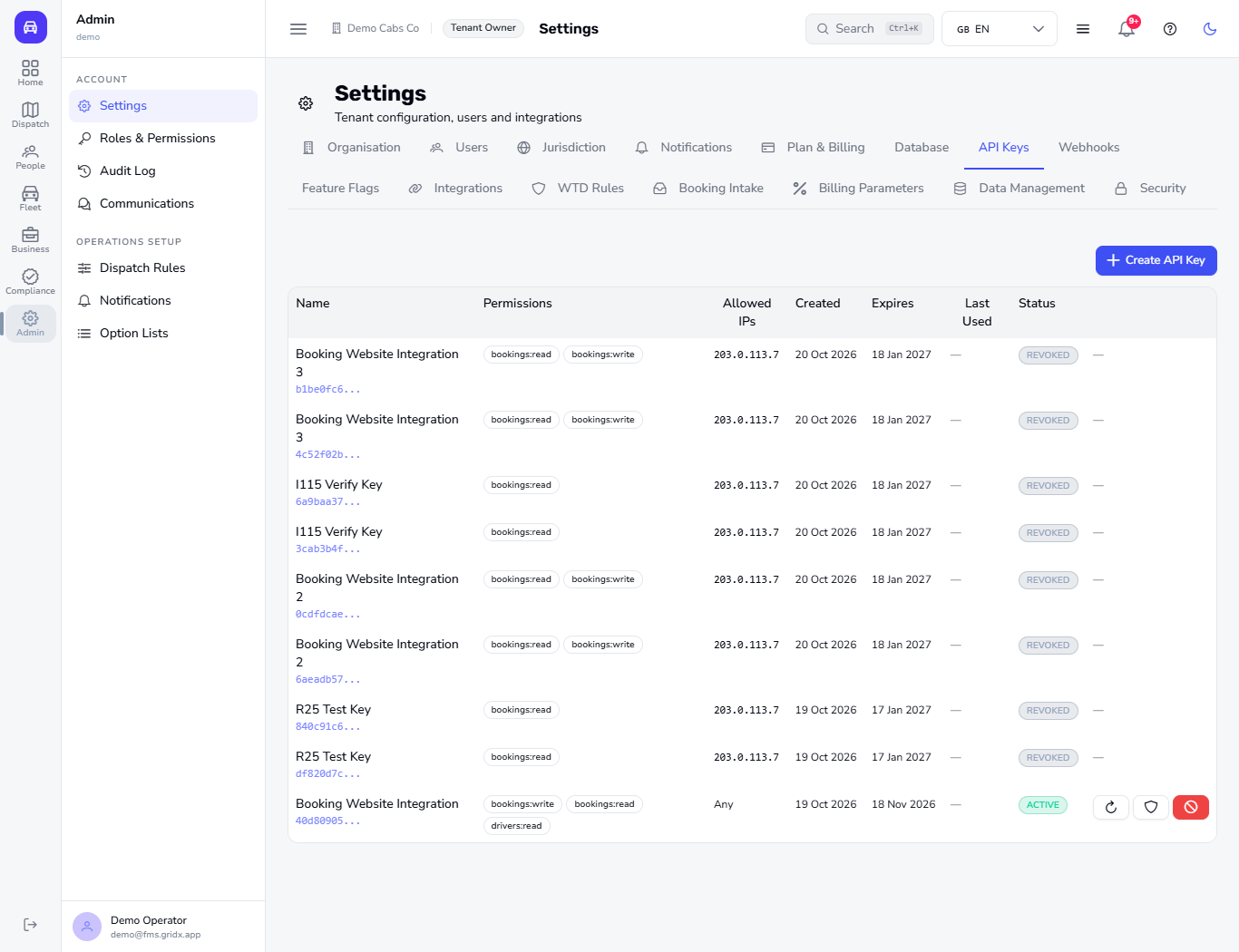
A toast says Key revoked. The row now reads REVOKED and its buttons are replaced by a dash. A revoked key cannot be switched on again: create a new one.
API Keys list with the key revoked
13
Check the audit log
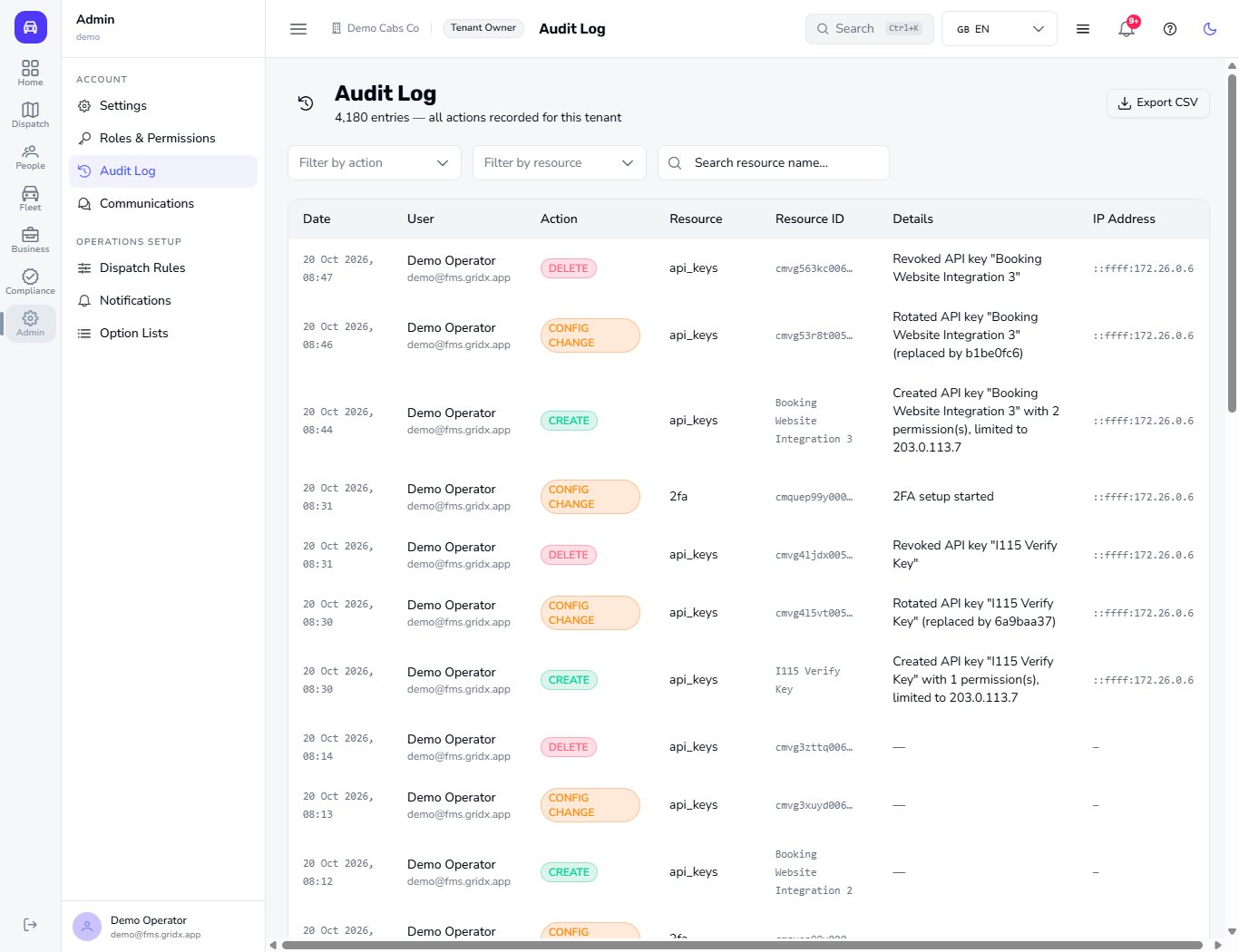
Open Admin > Audit Log. The newest rows read as plain sentences, each with the time and the address the request came from: for example "Created API key "Booking Website Integration 3" with 2 permission(s), limited to 203.0.113.7", "Rotated API key ... (replaced by ...)", "Revoked API key ..." and "2FA setup started".
Audit Log with the key and two-factor rows
Check it worked
The API Keys list shows your key with its prefix, permissions, allowed address and an expiry date.
After a rotate, the old key reads REVOKED and the new one ACTIVE.
The Audit Log has a row for each create, rotate and revoke, written as a sentence with the request address.
The Security tab still shows the Enable 2FA button until you confirm a code from your authenticator app.
Common mistakes
Mistake
What you see
Fix
Closing the key dialog before copying
The key is gone and cannot be shown again
Click Rotate to get a new one and copy it at once
Typing fewer than 6 digits in the verification code
Verify & enable stays disabled
Type all 6 digits from the app
Choosing every permission for convenience
A key that can do more than the website needs
Tick only what the system needs
Leaving Allowed IP addresses empty for a fixed server
The key works from anywhere
Enter the server address, one per line
Quick reference
Item
Meaning / rule
Two-factor (TOTP)
A 6-digit code from your authenticator app, in addition to your password
One address or range per line; empty means from anywhere
Rotate
Replaces the key in one step; the old key stops at once
Revoke
Switches the key off at once; it cannot be re-enabled
Prefix
The first characters of a key, used to tell keys apart
Frequently asked questions
Do I need two-factor sign-in to use the console? No. It is optional and set per person on the Security tab; you turn it on by scanning the QR code and confirming a 6-digit code.
Can I limit what an API key can do? Yes. You choose from five permissions, set when it expires and, if you like, the addresses it may be used from.
What if I lose a key? It is shown only once. Rotate the key to get a new one; the old key stops working immediately.
Where can I see who created or revoked a key? In Admin > Audit Log: every create, rotate and revoke is recorded with the user and the time.