How to assign staff to an event, pay them and see the labor cost
Every function needs a crew: a catering lead, a coordinator, waiters. Assign them to the event with their hours and Marquee works out what the crew costs. Pay them against the event and the same page shows what has been paid and what is still owed; the cost also lands in the event's profit and loss.
Who it is forEvent manager / operations coordinatorTime10 minutesProductMMSLevelBeginner
Before you start
Steps
1
Open the Staffing tab
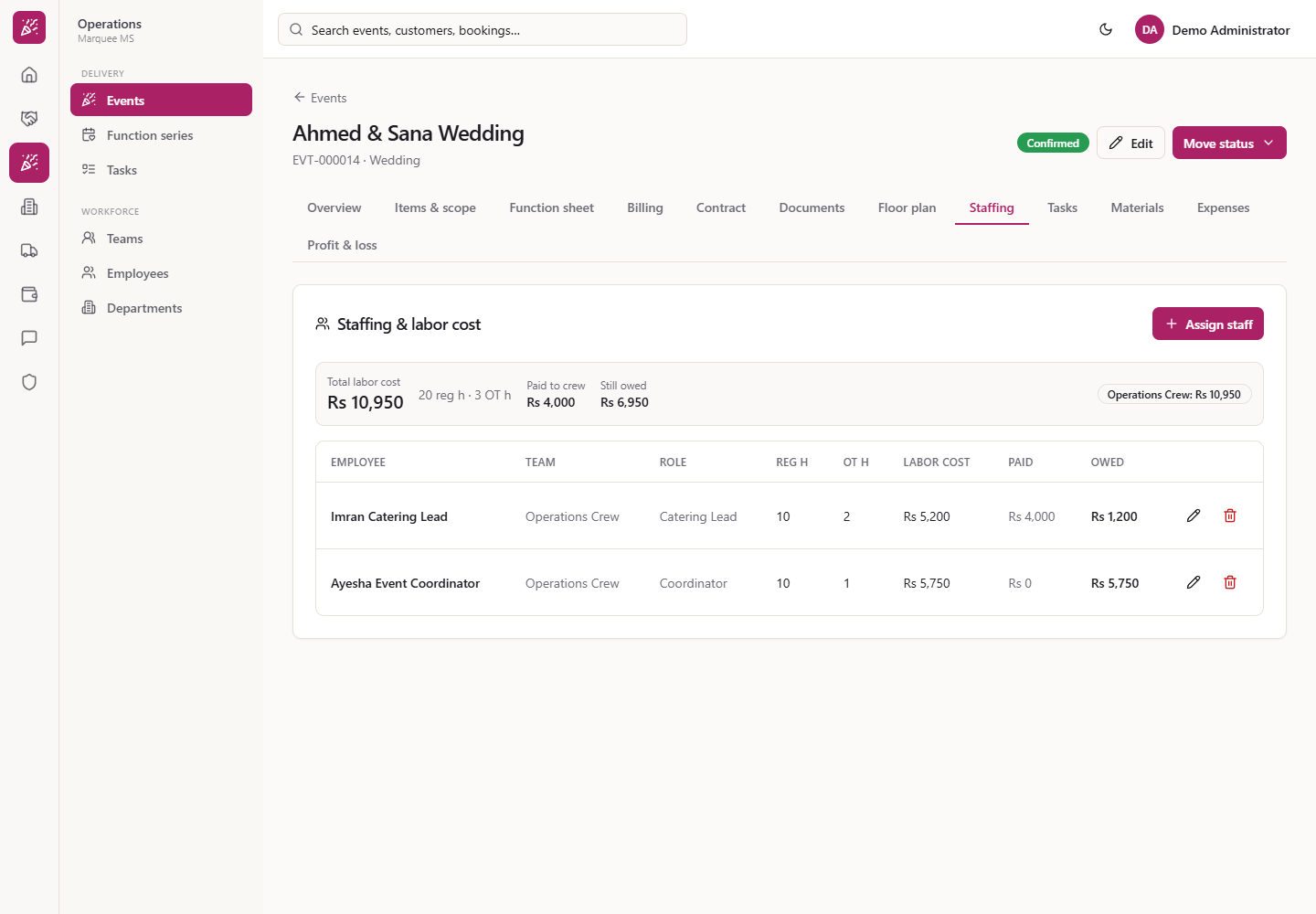
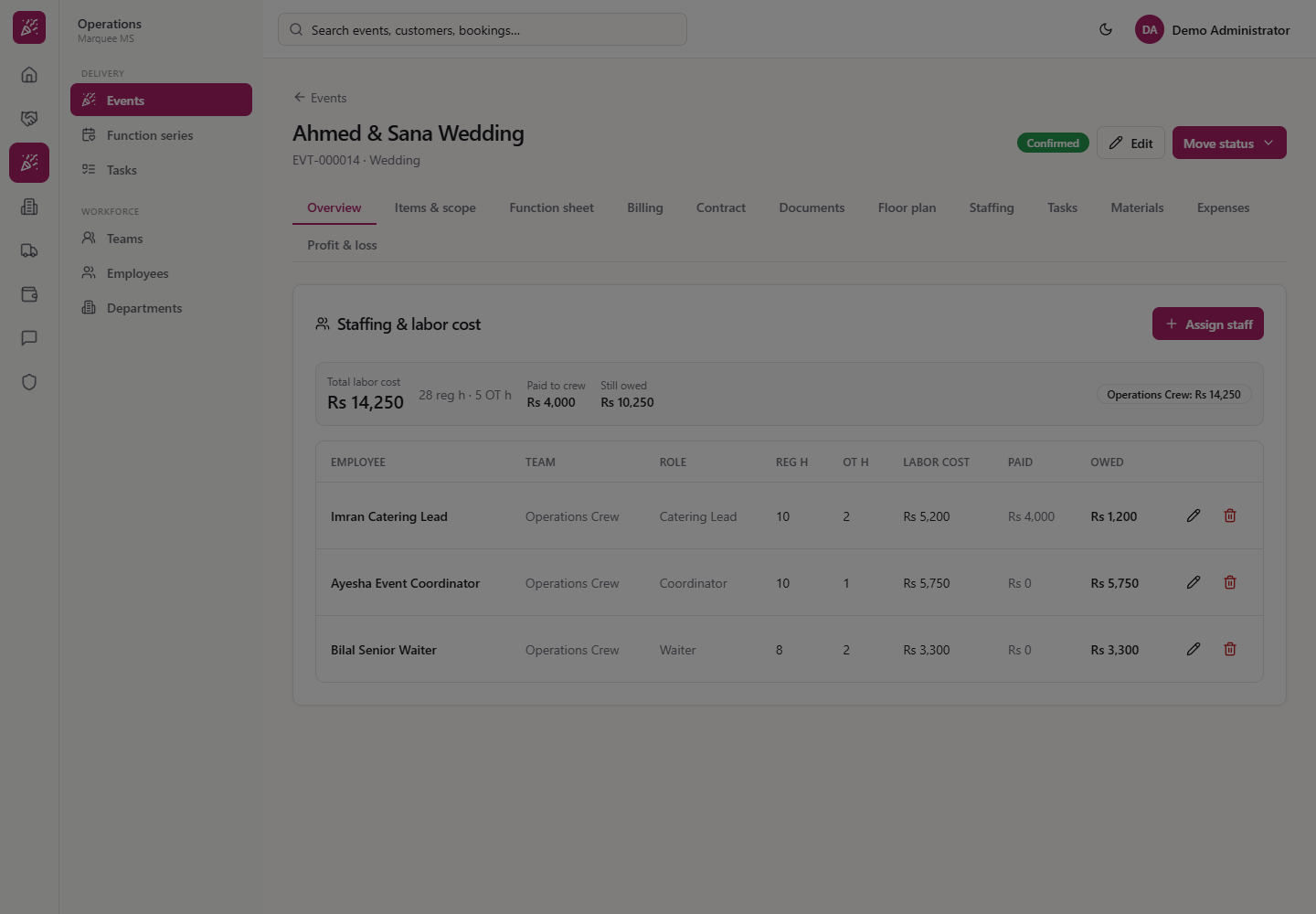
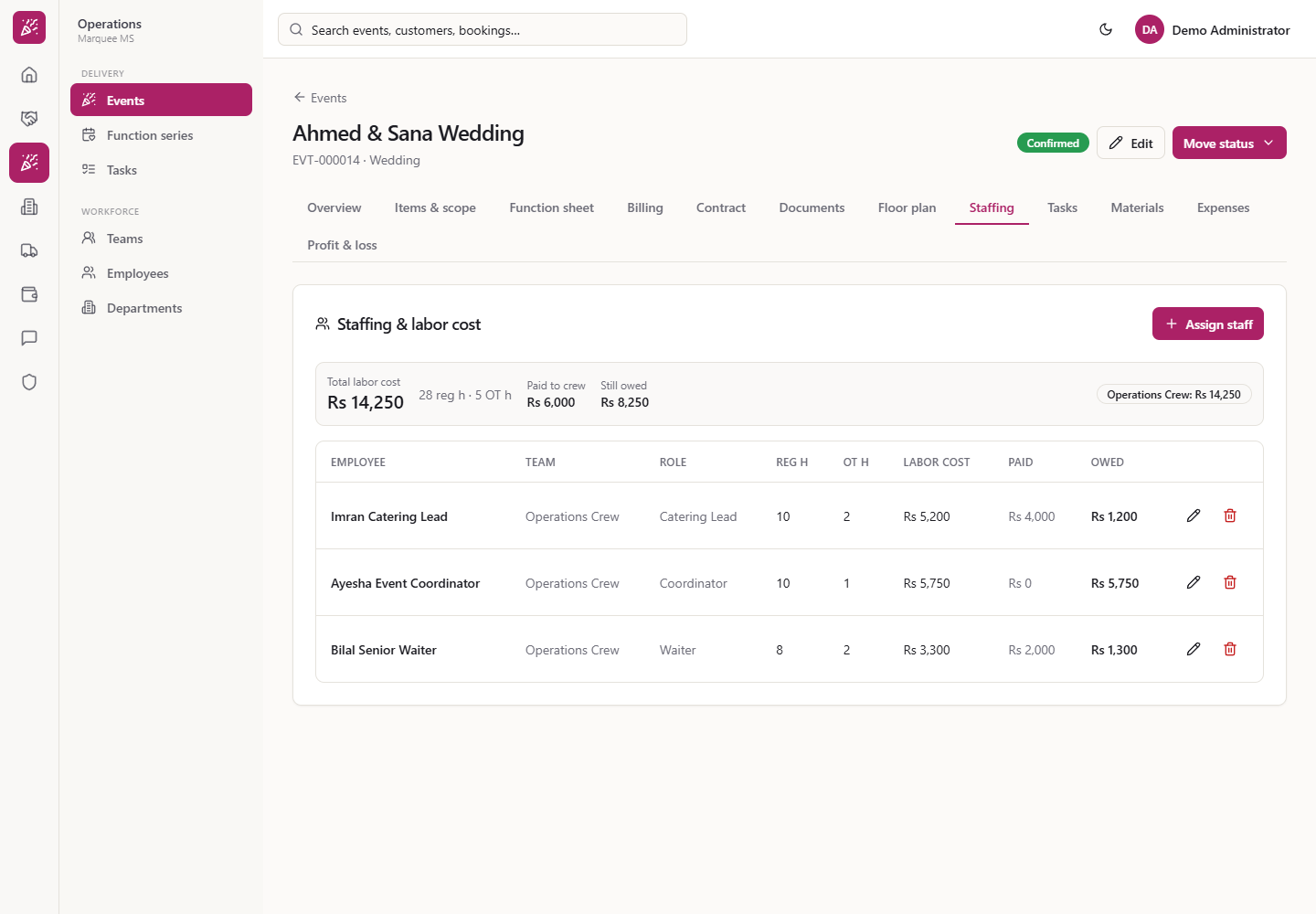
Open Operations › Delivery › Events, click the event (here Ahmed & Sana Wedding, EVT-000014) and choose Staffing. The card Staffing & labor cost shows a strip with the Total labor cost, the regular and overtime hours, Paid to crew and Still owed, a badge per team, and a table with Employee, Team, Role, Reg h, OT h, Labor cost, Paid and Owed. Every row has a pencil (Edit) and a bin (Remove).
Staffing tab of the Ahmed & Sana Wedding event
2
Press Assign staff
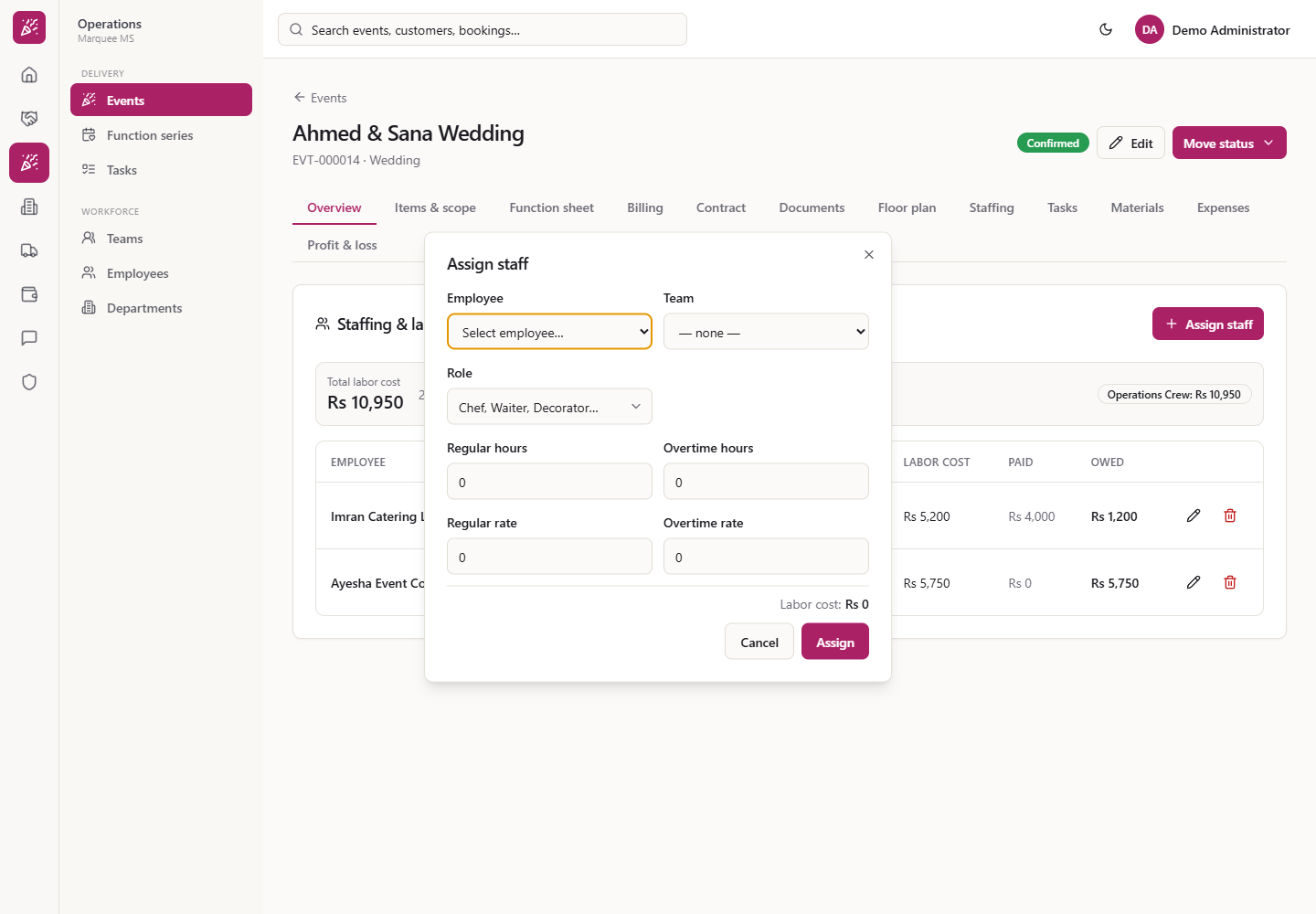
Press Assign staff. The form asks for Employee, Team, Role, Regular hours, Overtime hours, Regular rate and Overtime rate. The line Labor cost at the bottom starts at Rs 0.
Assign staff form
3
Choose the role
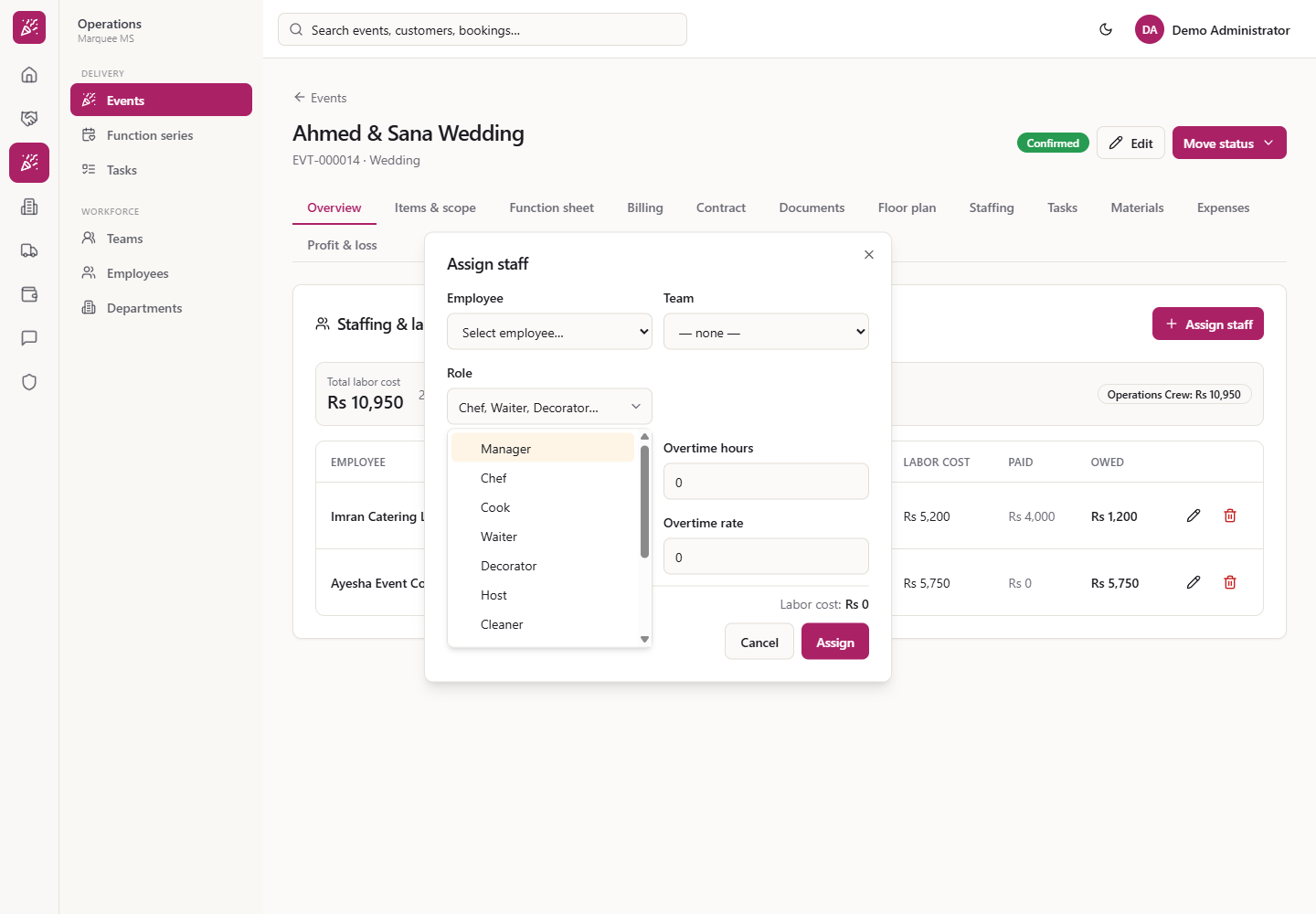
Open Role and pick one: Manager, Chef, Cook, Waiter, Decorator, Host, Cleaner, Security, Driver, Electrician, Helper or Other. You can also type your own.
Role list with Manager, Chef, Cook, Waiter and more
4
Choose the employee and enter the hours
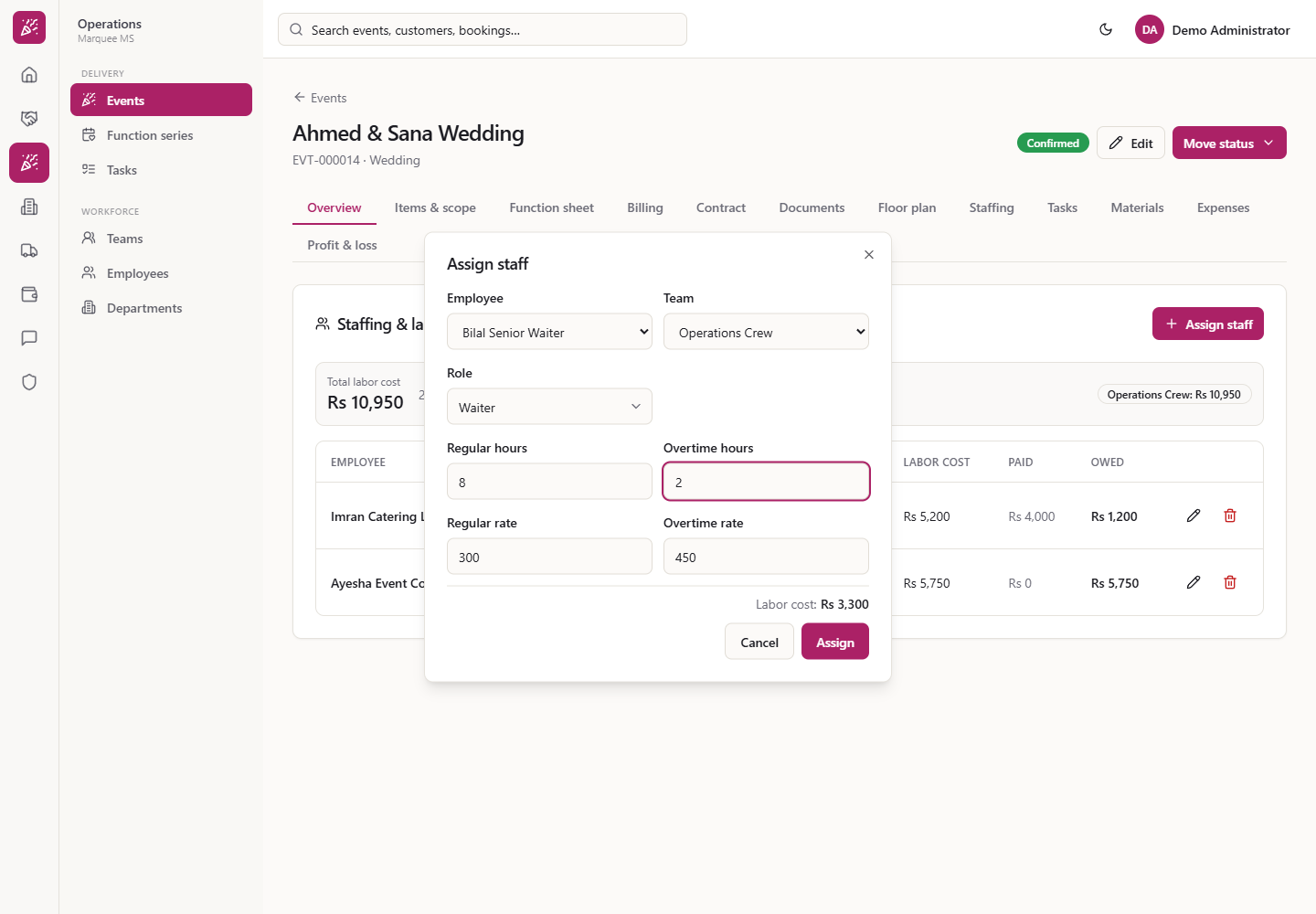
Choose the Employee (here Bilal Senior Waiter). The Team and both rates fill in from his record: Rs 300 regular, Rs 450 overtime. Enter Regular hours 8 and Overtime hours 2. The form shows Labor cost: Rs 3,300.
Form filled for Bilal Senior Waiter with a cost of Rs 3,300
5
Press Assign
Press Assign. The form closes and the person joins the table. The total moves from Rs 10,950 to Rs 14,250 (28 regular hours and 5 overtime hours) and the badge Operations Crew: Rs 14,250 follows.
Staffing table with three people and a total of Rs 14,250
6
Know the limits
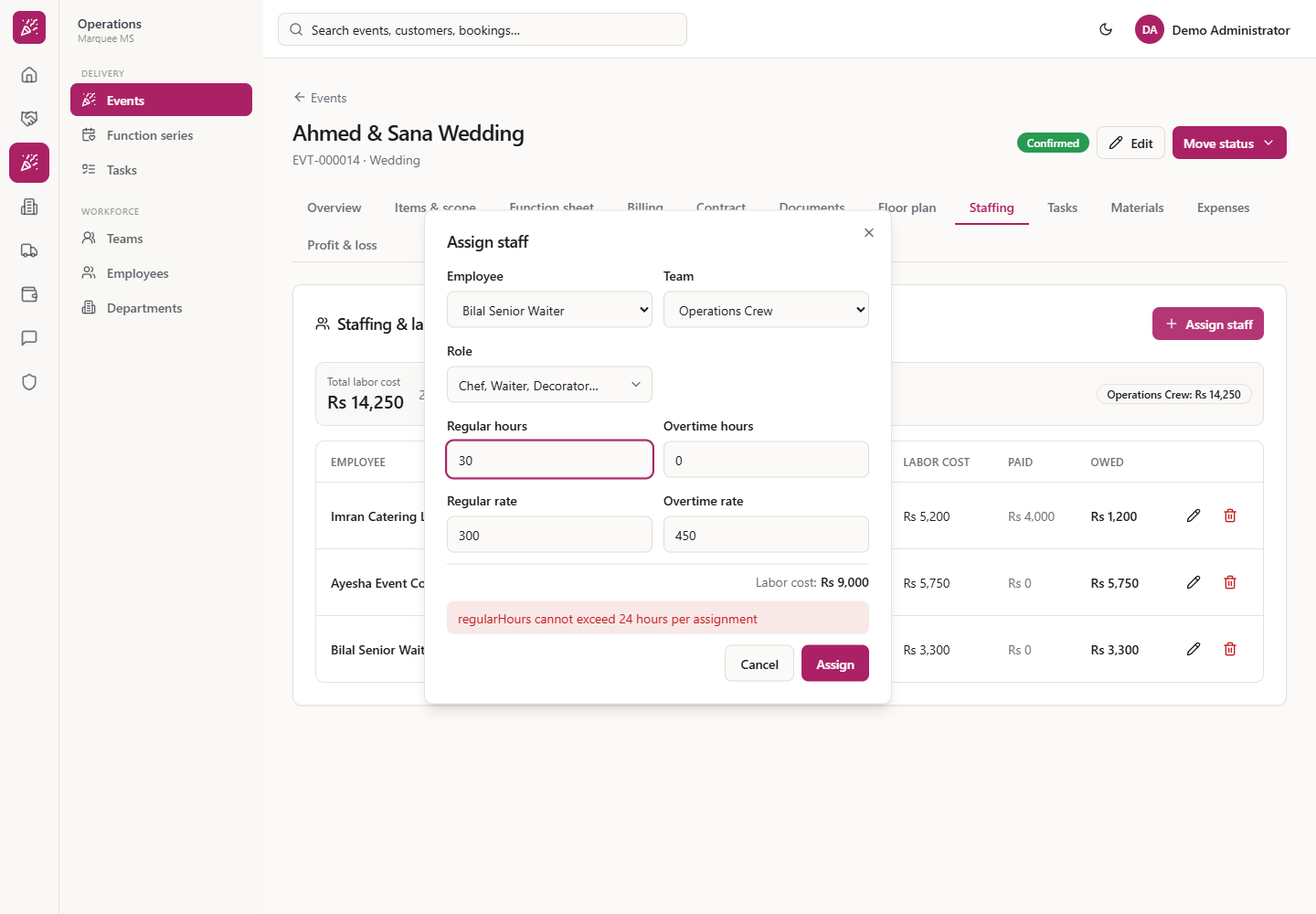
A single assignment cannot go over 24 regular or 24 overtime hours: typing 30 regular hours shows "regularHours cannot exceed 24 hours per assignment" and the form stays open with your entries.
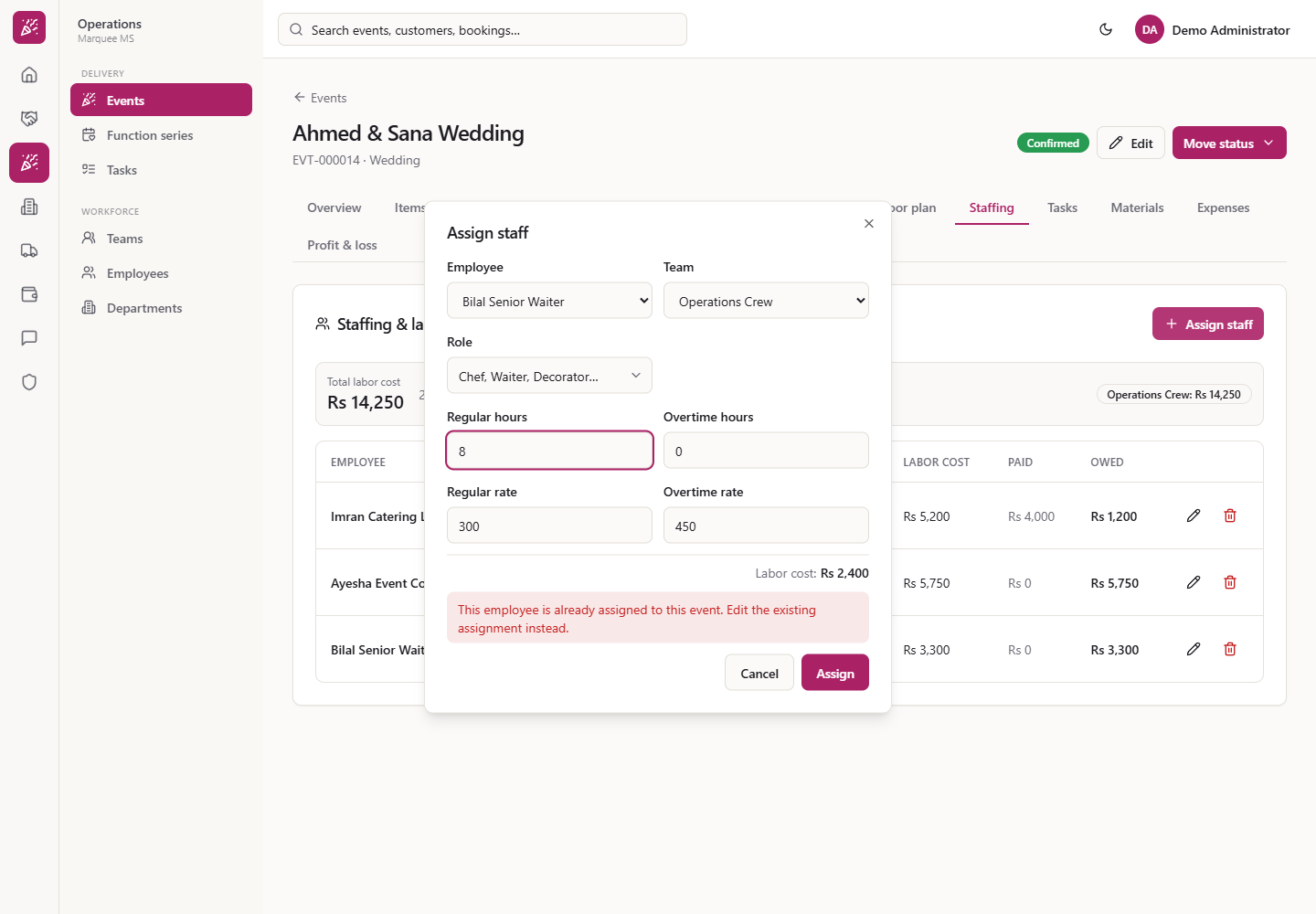
A person can be on an event only once. Assigning the same person again shows "This employee is already assigned to this event. Edit the existing assignment instead."
Message about the 24 hour limit in the Assign staff form
Message that the employee is already assigned
7
Correct a row with Edit
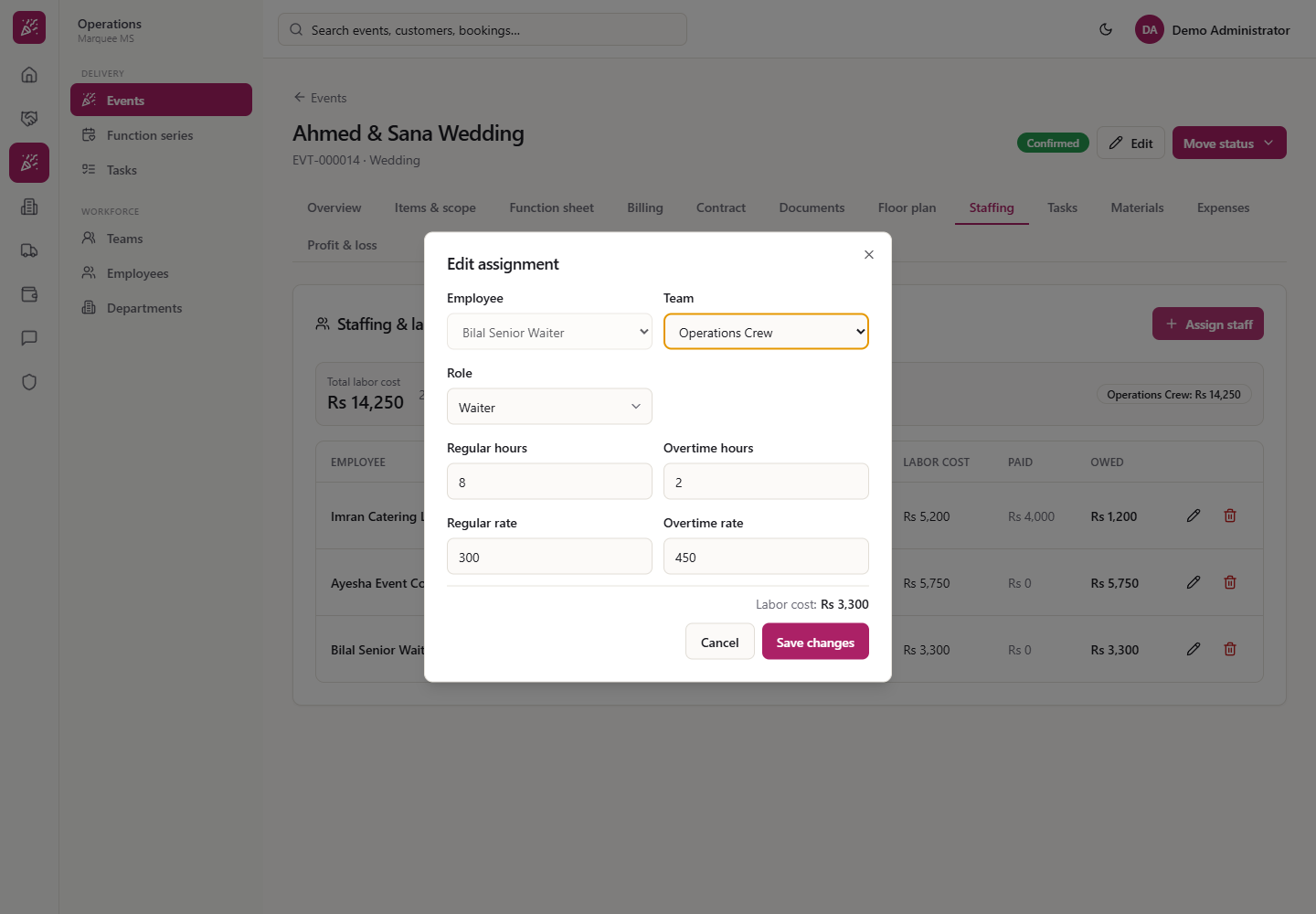
If an hour or a rate was typed wrong, press the pencil on the row. Edit assignment opens with the saved values; the Employee is fixed and the team, role, hours and rates can be changed. Labor cost updates as you type. Press Save changes and the row, the total, Paid and Owed are recalculated.
Edit assignment form with the saved values
8
Remove a person who has not been paid
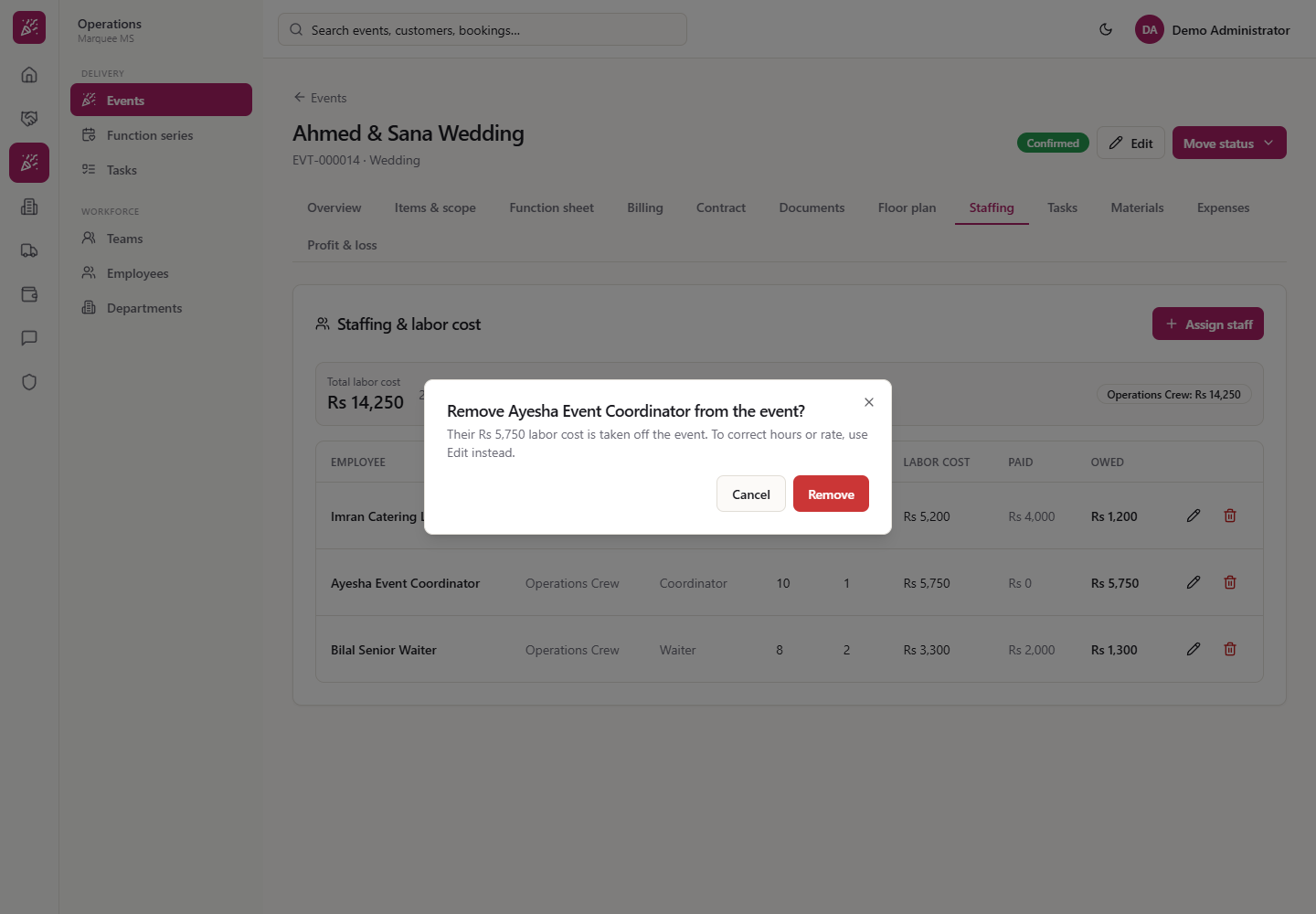
The bin asks first: "Remove Ayesha Event Coordinator from the event?" with "Their Rs 5,750 labor cost is taken off the event. To correct hours or rate, use Edit instead." Nothing is removed until you press Remove.
Confirmation before removing Ayesha Event Coordinator
9
Pay the crew for the event
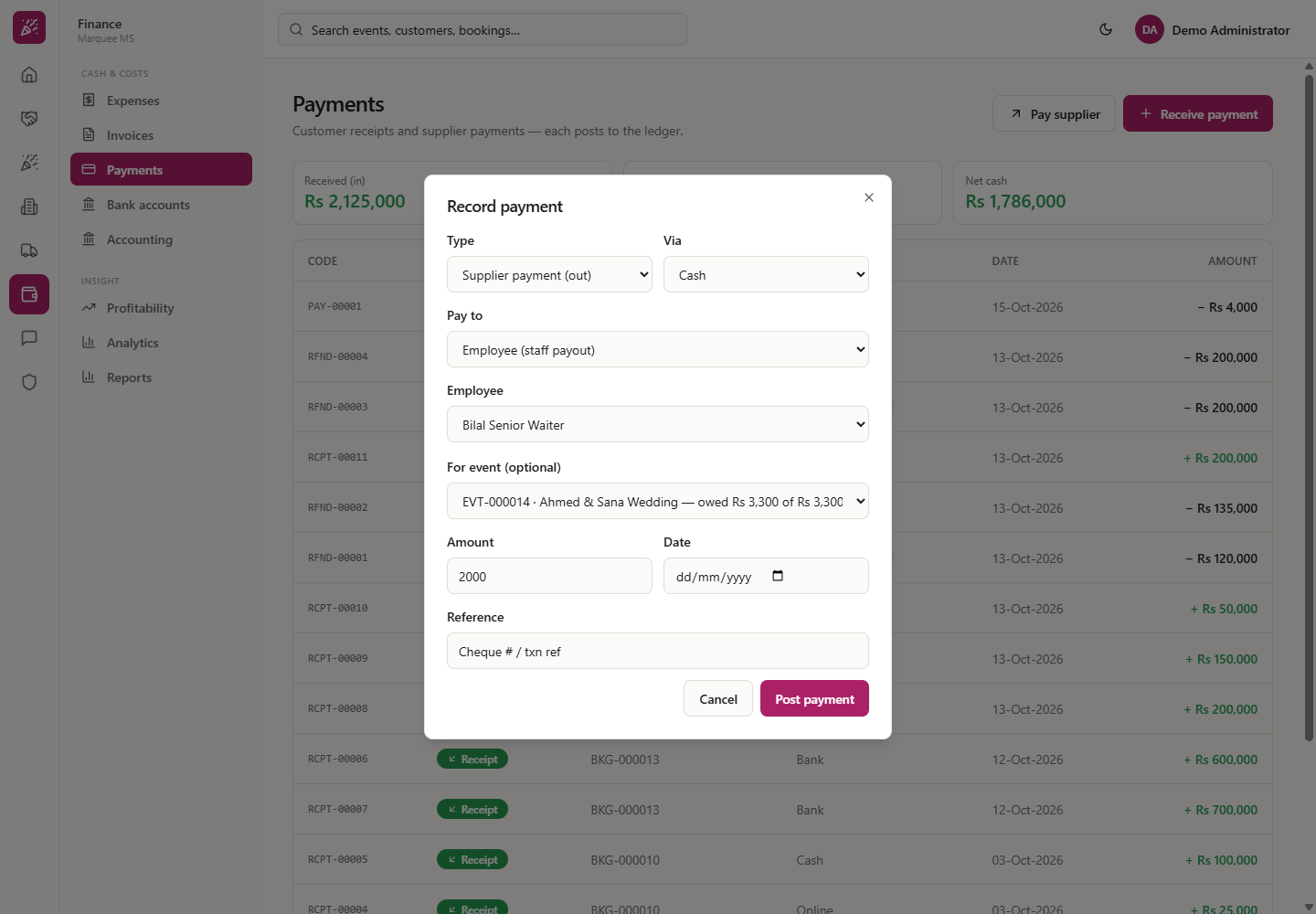
Open Finance › Payments, press Pay supplier and set Pay to to Employee (staff payout). Choose the Employee (Bilal Senior Waiter), then For event (optional). The list offers "— salary or advance, not for an event —" and "EVT-000014 · Ahmed & Sana Wedding — owed Rs 3,300 of Rs 3,300". Enter the Amount (here 2000, via Cash) and press Post payment.
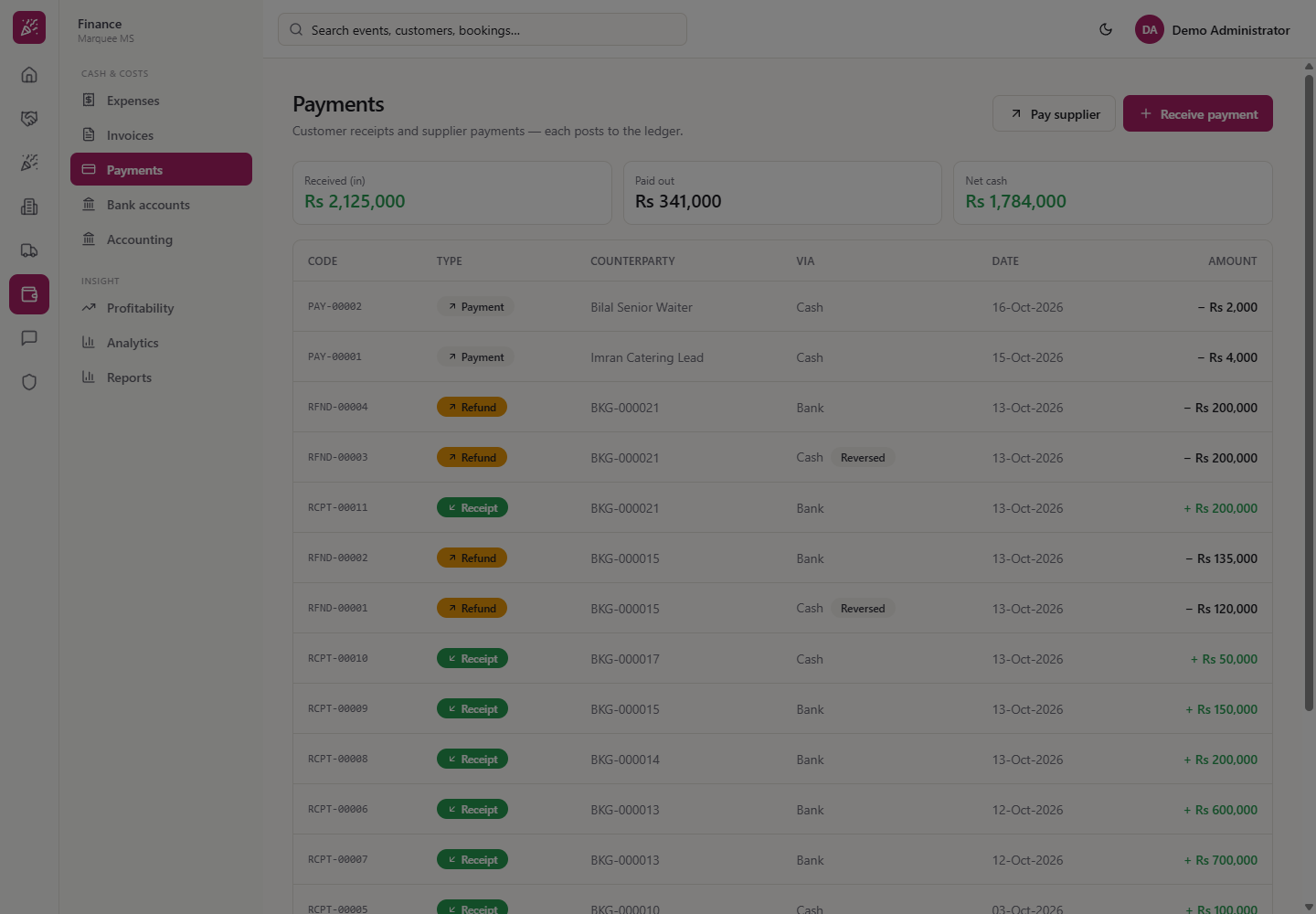
The payout appears at the top of the payments list: PAY-00002 · Payment · Bilal Senior Waiter · Cash · 16-Oct-2026 · − Rs 2,000. In the accounting journal it is a payroll entry that debits 5100 Labor Cost and credits 1000 Cash in Hand by Rs 2,000.
Record payment form with For event selected
Payments list with PAY-00002 at the top
10
See what is paid and what is owed
Back on the event's Staffing tab, Bilal's row now reads Rs 3,300 · Paid Rs 2,000 · Owed Rs 1,300, and the strip shows Paid to crew Rs 6,000 and Still owed Rs 8,250 on a total of Rs 14,250.
Staffing tab with Paid and Owed filled in
11
Paid people cannot be removed
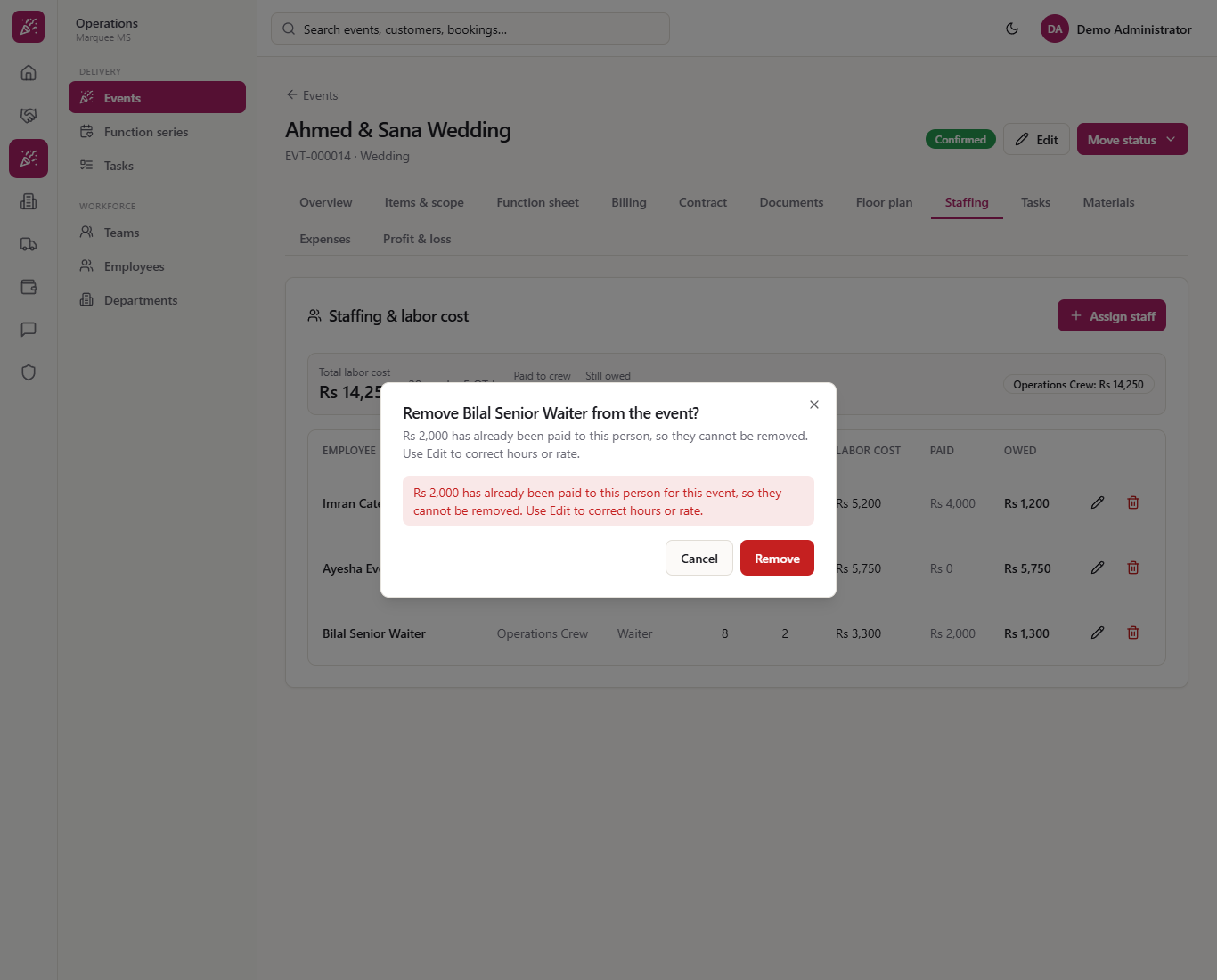
Press the bin on a person who has been paid. The dialog already says "Rs 2,000 has already been paid to this person, so they cannot be removed. Use Edit to correct hours or rate." If you press Remove anyway, a red message repeats it and the row, the total and Paid to crew stay as they were.
Remove dialog refusing a person who has been paid
12
See the cost in the event's profit and loss
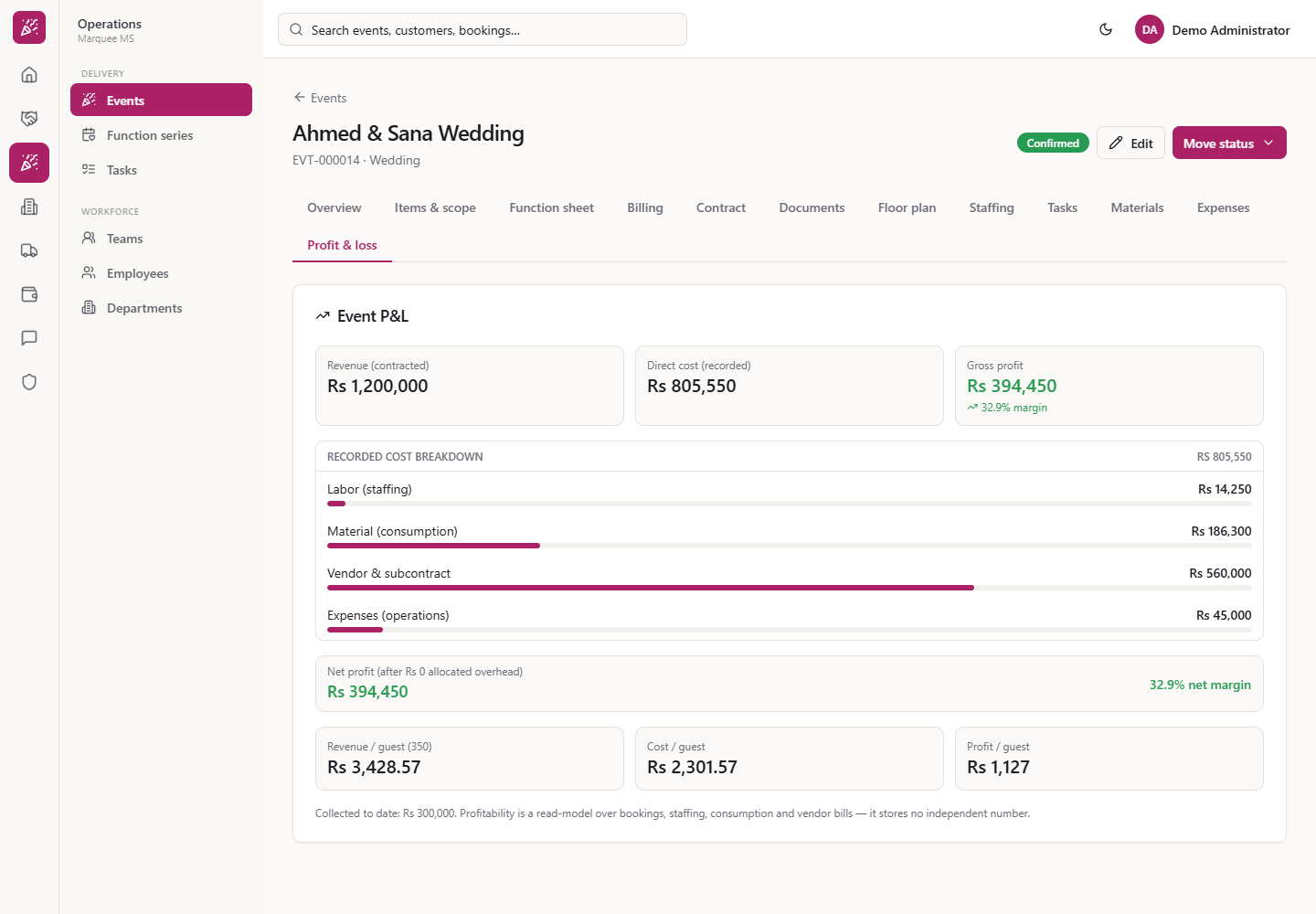
Open the Profit & loss tab. Under Recorded cost breakdown, Labor (staffing) reads Rs 14,250 as the first line, beside material, vendor and operating expenses, and it is part of the Direct cost of the event.
Event P&L with Labor (staffing) Rs 14,250
13
Know where the rates come from
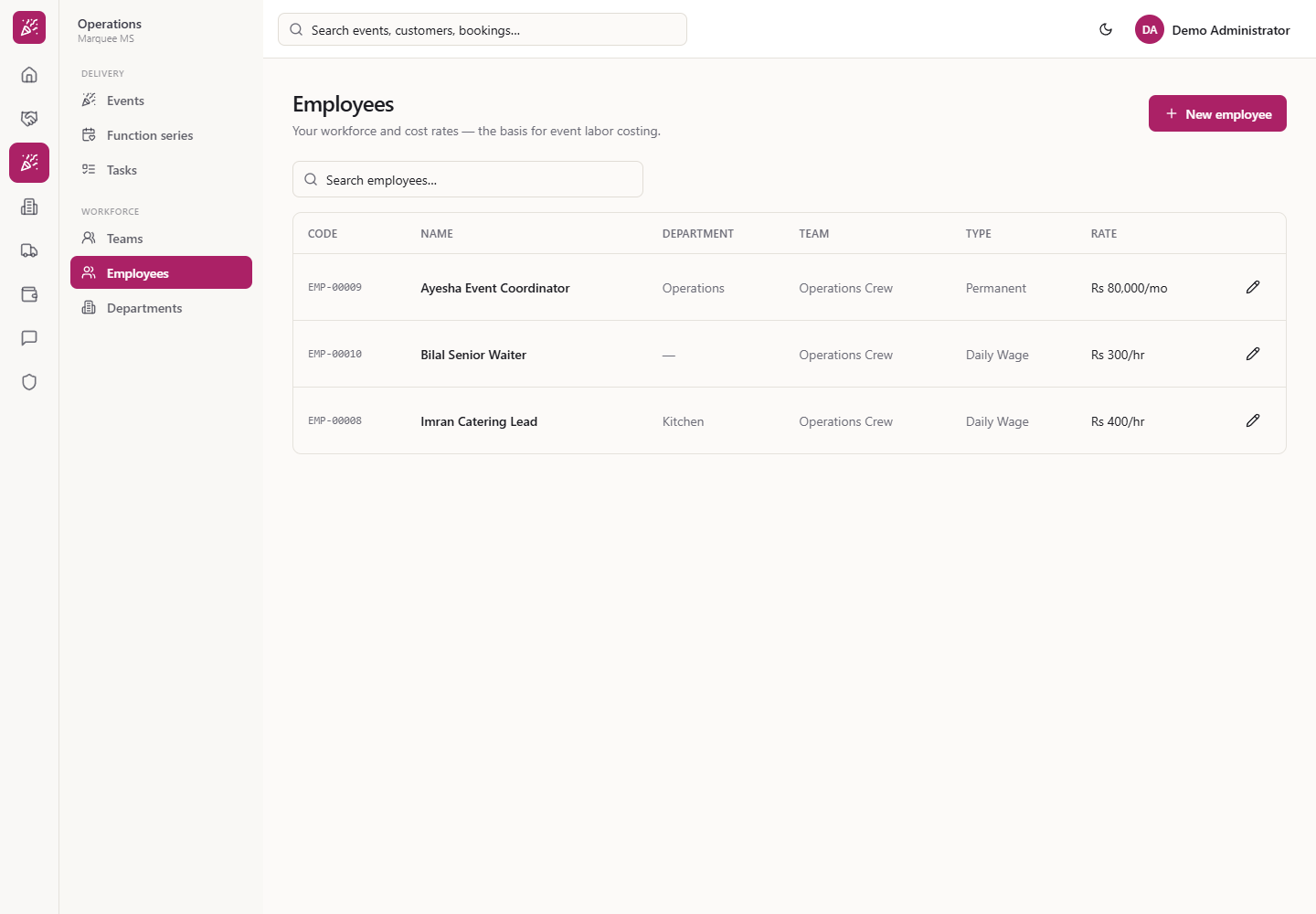
The rates come from Operations › Workforce › Employees, the page "Your workforce and cost rates — the basis for event labor costing." The assignment copies the rate when you make it, so changing an employee's rate later does not change rows already assigned.
Employees list with hourly rates
Check it worked
On Staffing, the new person is in the table and the Total labor cost equals the sum of the rows (Rs 5,200 + Rs 5,750 + Rs 3,300 = Rs 14,250).
After the payout, Paid to crew and Still owed add up to the total (Rs 6,000 + Rs 8,250 = Rs 14,250).
On Profit & loss, Labor (staffing) shows the same Rs 14,250.
Common mistakes
Mistake
What you see
Fix
Employee not in the list
Only your registered employees are offered
Add the person under Employees first
Hours typed wrongly
A larger or smaller labor cost than expected
Press the pencil and correct the hours or rate
Assigning the same person twice
"This employee is already assigned to this event. Edit the existing assignment instead."
Use the pencil on the existing row
Trying to remove a paid person
"Rs 2,000 has already been paid to this person ... cannot be removed."
One assignment per person per event; at most 24 regular and 24 overtime hours
Team badge
The labor cost of each team on this event; people without a team show as Unassigned
Rates
Filled from the employee record, editable for this assignment
Remove
The bin asks first; a person who has been paid cannot be removed
Paid / Owed
Payouts posted against the event's assignment, and the rest still owed
Frequently asked questions
How is the labor cost of an event calculated? For each person it is regular hours × regular rate plus overtime hours × overtime rate, and the Staffing tab adds them up. The total also appears under Labor (staffing) in the event's Profit & loss.
Do the rates change if I change the employee's rate later? No. An assignment keeps the rates it was made with; only new assignments use the new rate.
Does assigning staff create an accounting entry? No. Assigning only records the cost against the event. The accounts are posted when you pay the employee under Payments: Labor Cost is debited and Cash in Hand is credited.
How do I show what a crew member has been paid for an event? Pay the employee from Payments and choose the event in For event (optional). The Staffing tab then shows Paid and Owed for that person and for the whole crew.
Can I remove someone who has already been paid? No. The event refuses it and points you to Edit, so paid money never drops out of the totals.