How to book, report and sign off a radiology study
An imaging study goes from the booking desk to a signed report in a few clear steps: book and pay for it, answer the safety screening, find it on the worklist, write the report from a template, save a draft, sign it and, when a result is critical, record the read-back. This guide follows those steps with real patients and shows what to do when a signed report needs a correction.
Who it is forRadiologist and imaging technicianTime20 minutesProductHMSLevelIntermediate
Before you start
Steps
1
Open the radiology worklist
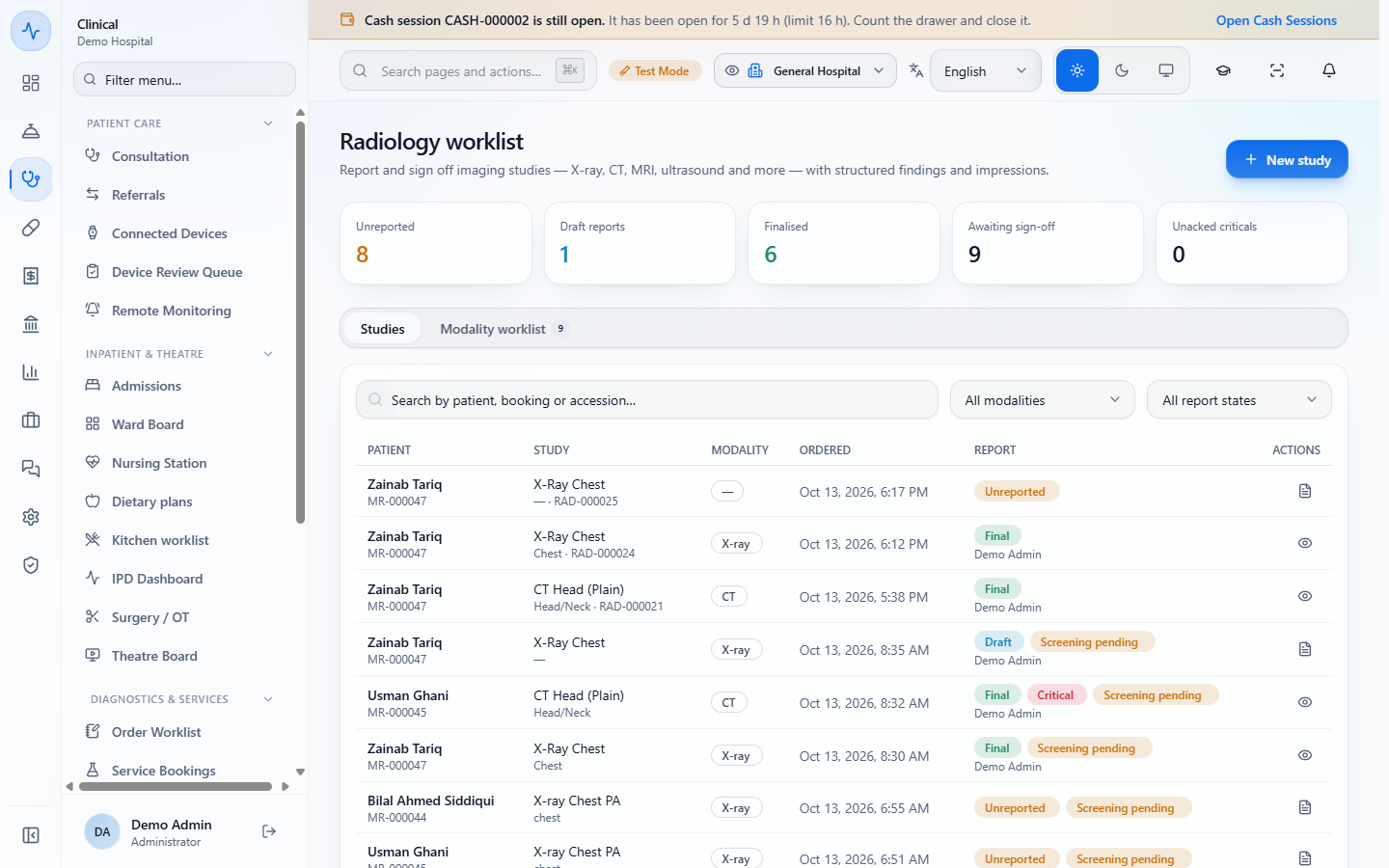
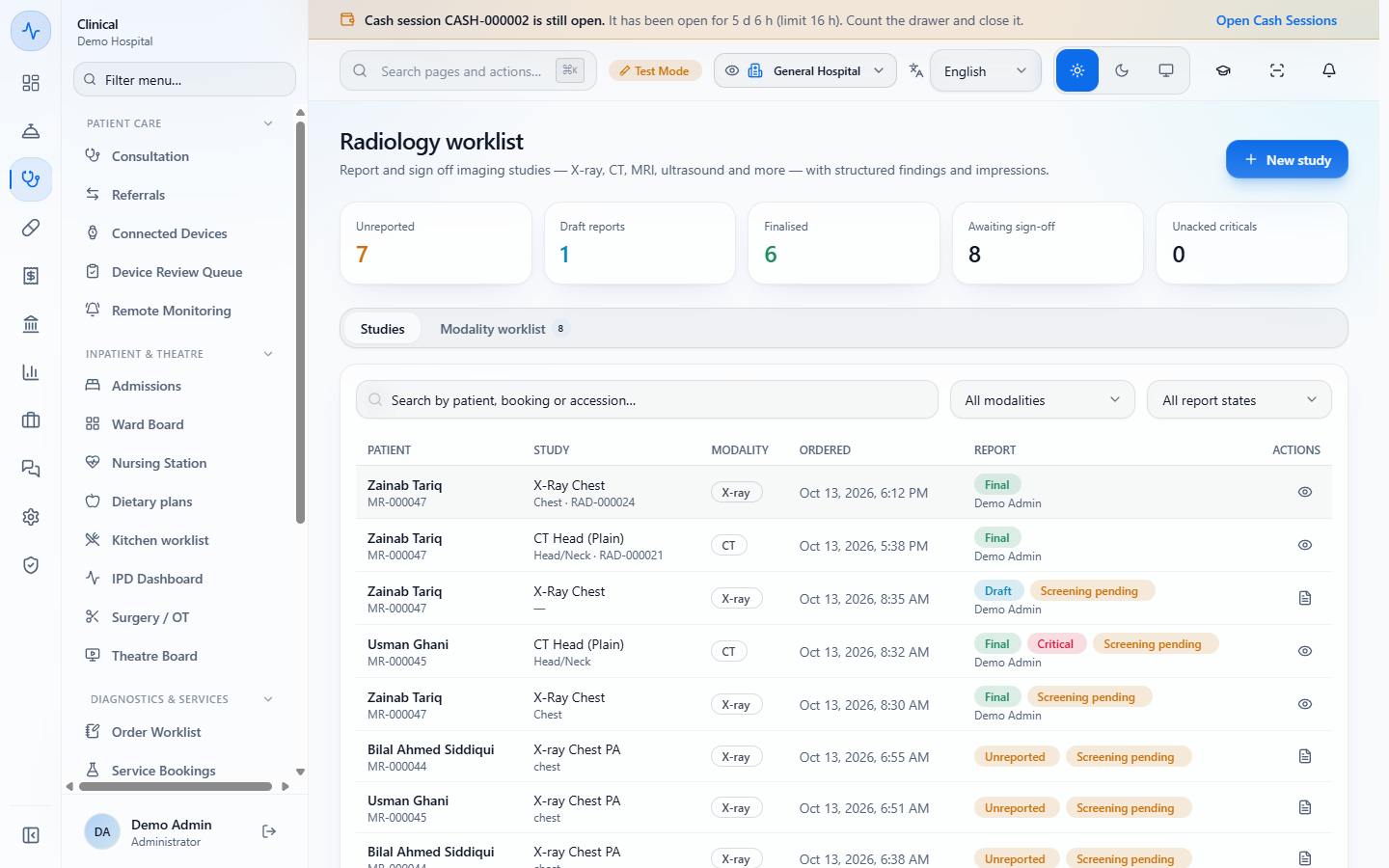
Open Clinical › Diagnostics & Services › Radiology. The tiles count the studies Unreported, Draft reports, Finalised, Awaiting sign-off (unreported plus draft) and Unacked criticals. The tabs are Studies and Modality worklist.
Radiology worklist with the tiles Unreported 8, Draft reports 1, Finalised 6, Awaiting sign-off 9 and Unacked criticals 0, and the Studies list below
2
Book a walk-in study
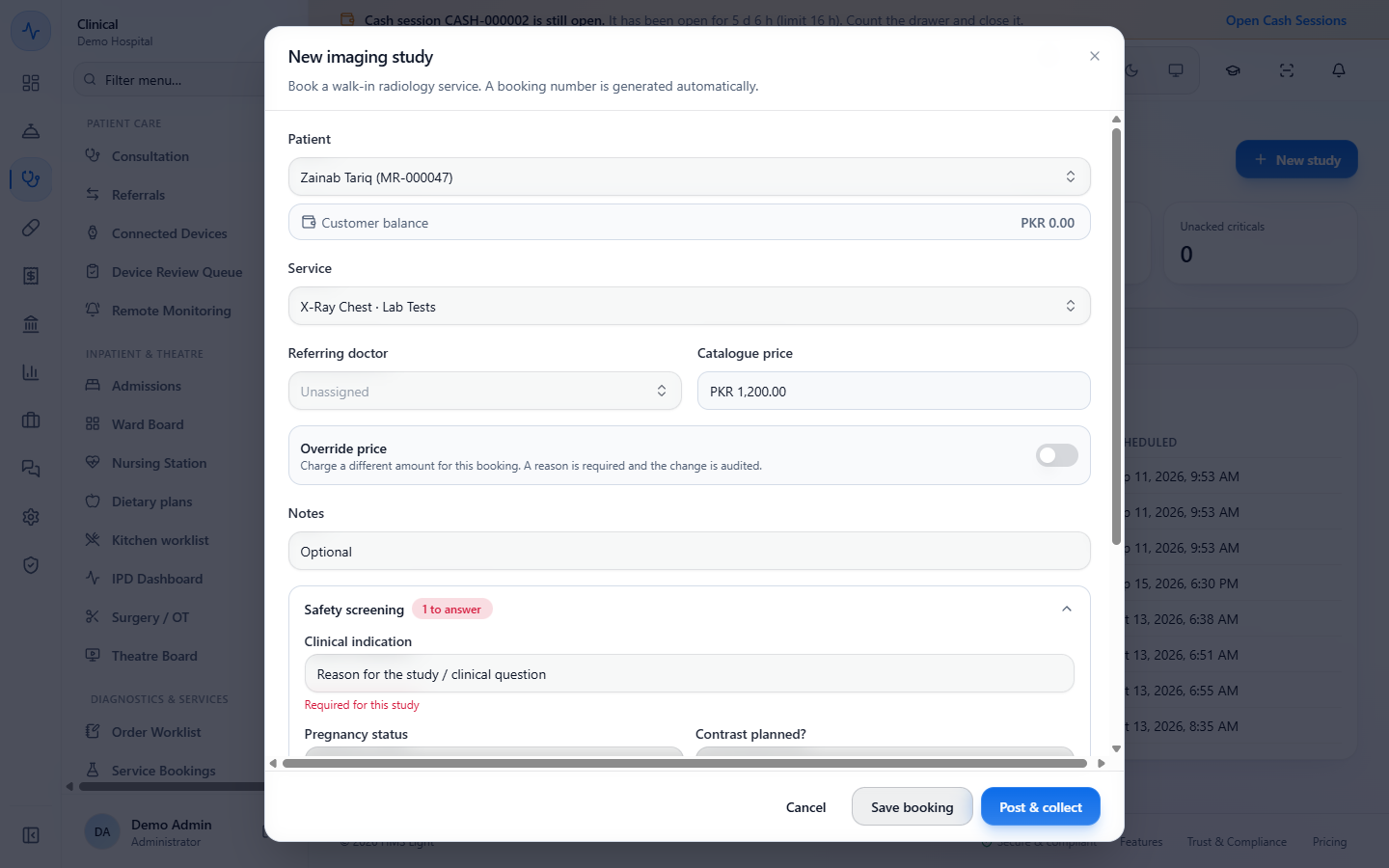
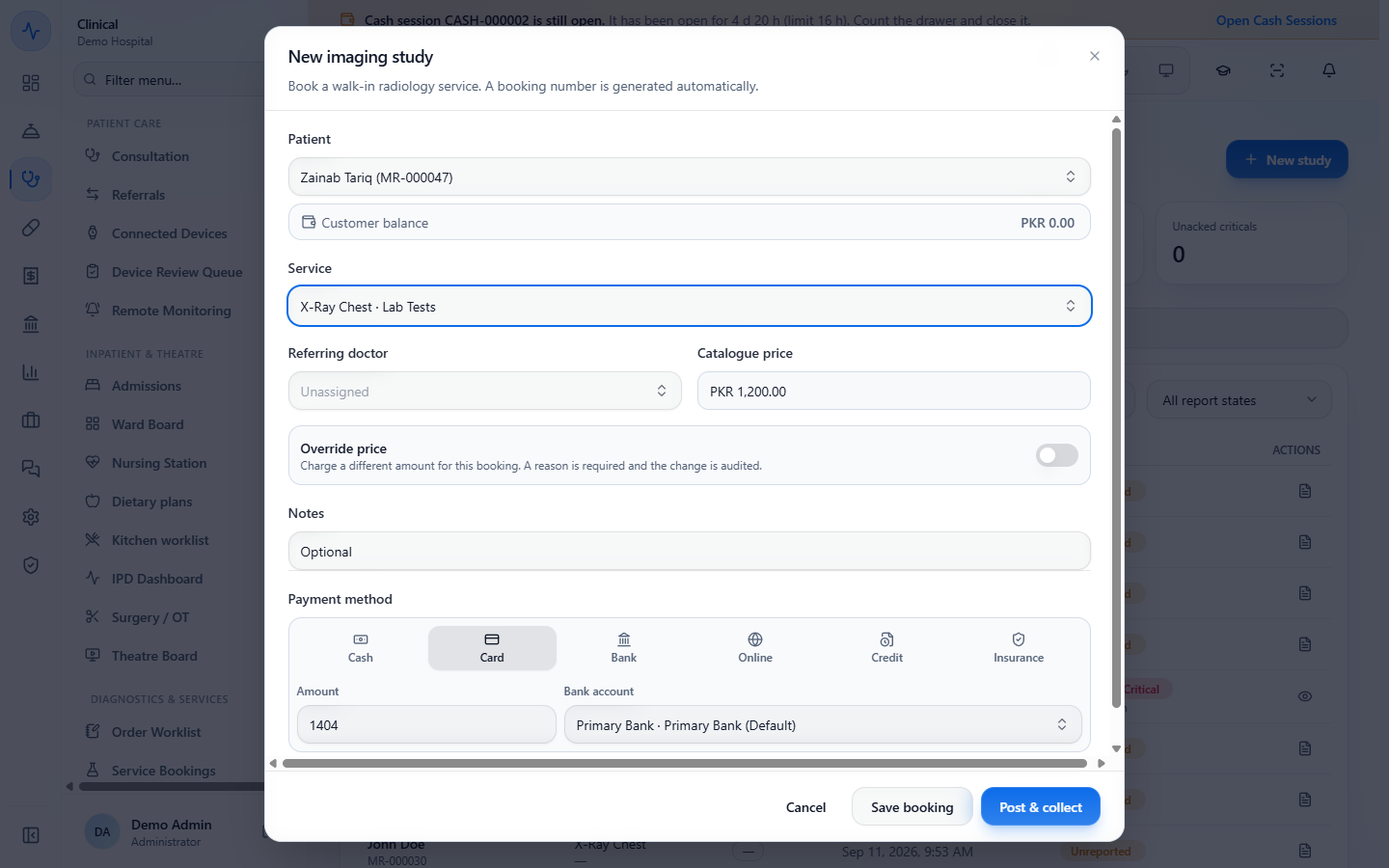
Press New study. Pick the Patient (Zainab Tariq, MR-000047) and the Service (X-Ray Chest). The Catalogue price fills in as PKR 1,200.00 from the Services master. Referring doctor can stay Unassigned. Add Notes if you need them.
New imaging study for Zainab Tariq with X-Ray Chest, the catalogue price PKR 1,200.00 and the Safety screening block
3
Answer the safety screening
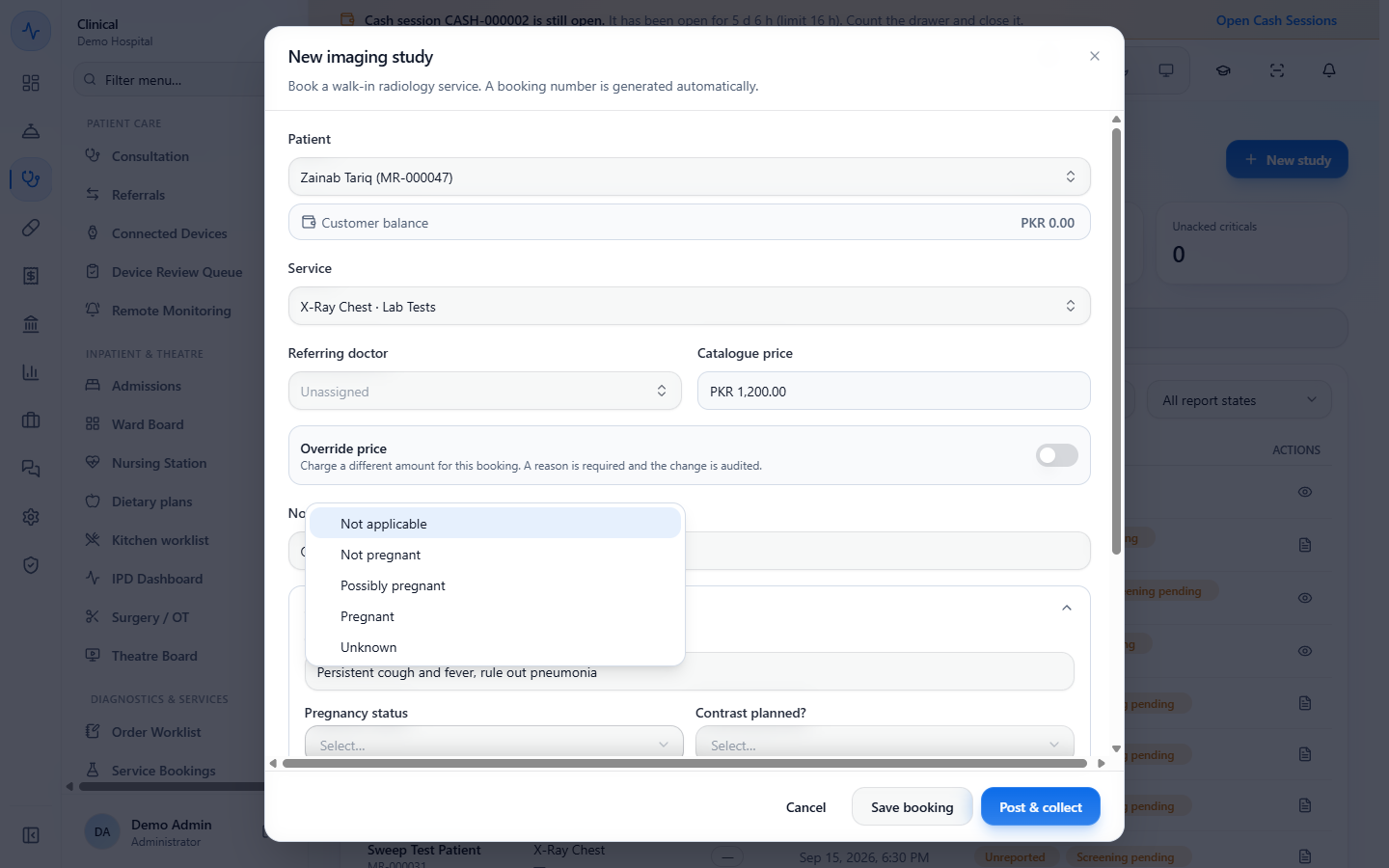
Open Safety screening and write the Clinical indication (for example "Persistent cough and fever, rule out pneumonia"). Choose the Pregnancy status: Not applicable, Not pregnant, Possibly pregnant, Pregnant or Unknown. For a CT or an MRI, also answer Contrast planned? with Yes or No.
Pregnancy status list with Not applicable, Not pregnant, Possibly pregnant, Pregnant and Unknown
4
Book a service that has no price
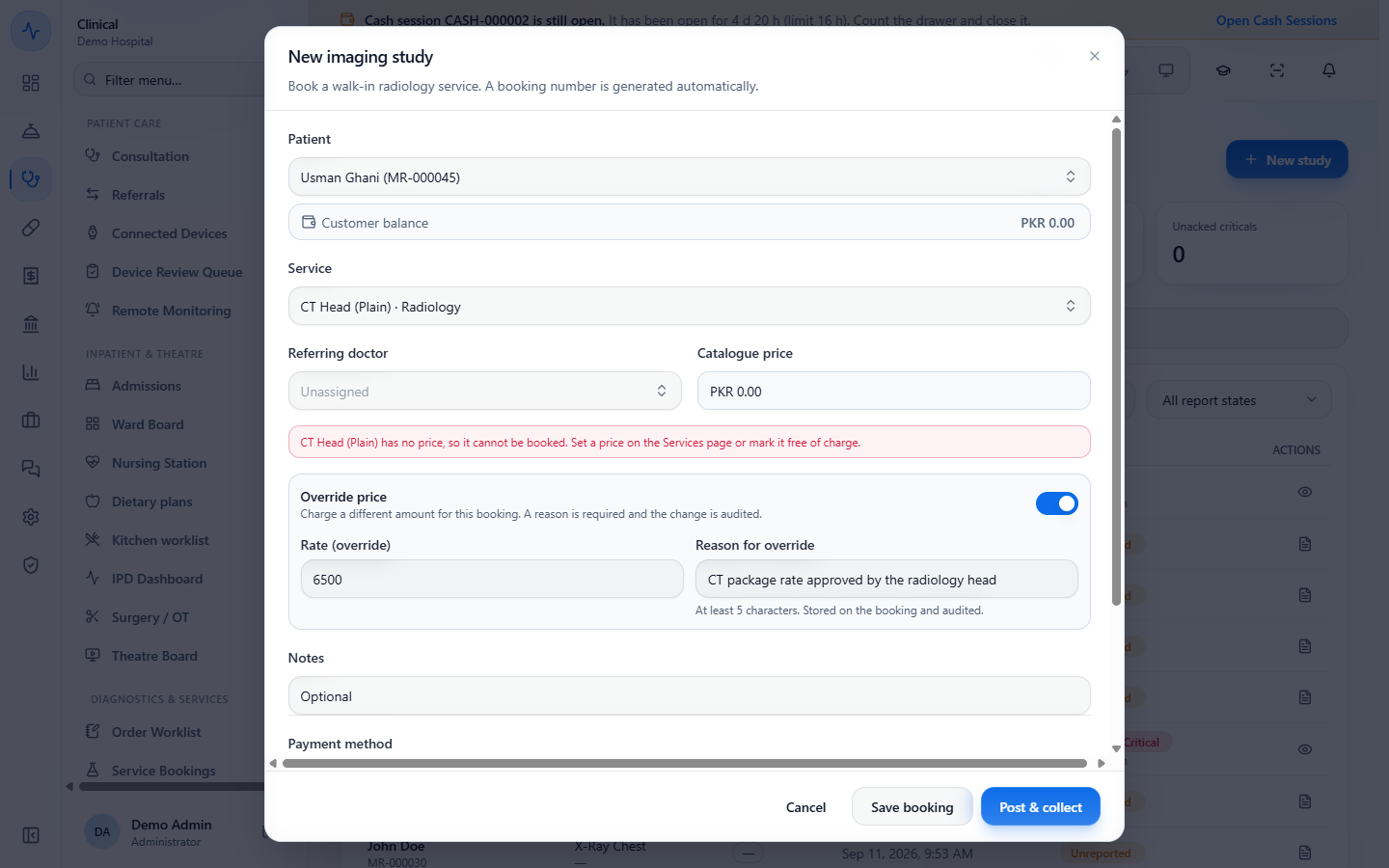
If a service has no price, the form says "CT Head (Plain) has no price, so it cannot be booked. Set a price on the Services page or mark it free of charge." A user who may override rates switches on Override price, enters the Rate (override) (6500) and a Reason for override of at least five characters.
Override price switched on with Rate (override) 6500 and the reason CT package rate approved by the radiology head
5
Take payment, or bill an insurer
Choose the Payment method: Cash, Card, Bank, Online, Credit or Insurance. The Amount is the price plus its tax (1404 for the X-Ray Chest). Card, Bank and Online ask for the Bank account (Primary Bank). With Insurance, pick the Payer: a payer that covers 80% proposes the split, so the insurer is billed its share and a second tender, Patient co-pay, takes the rest (PKR 1,123.20 and PKR 280.80). Press Post & collect, or Save booking to book it unbilled.
Payment method buttons with Card selected, Amount 1404 and Primary Bank as the bank account
6
The report opens at once
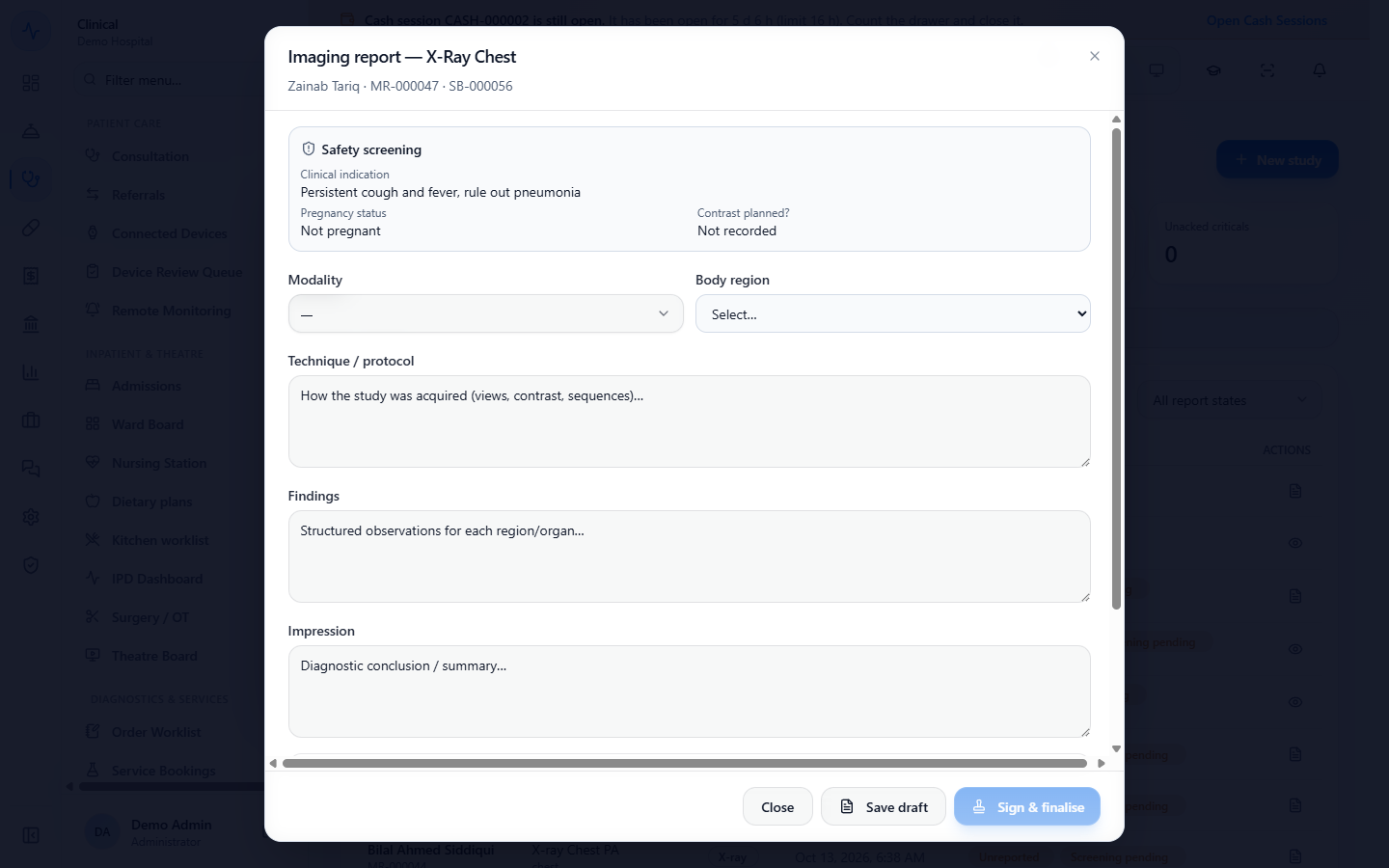
Right after booking, the Imaging report opens for the new study with the Safety screening answers at the top. You can close it and come back from the worklist: press Open study & report on the row.
Imaging report for Zainab Tariq, SB-000056, with the safety screening answers on top and empty report fields
7
Find the study on the worklists
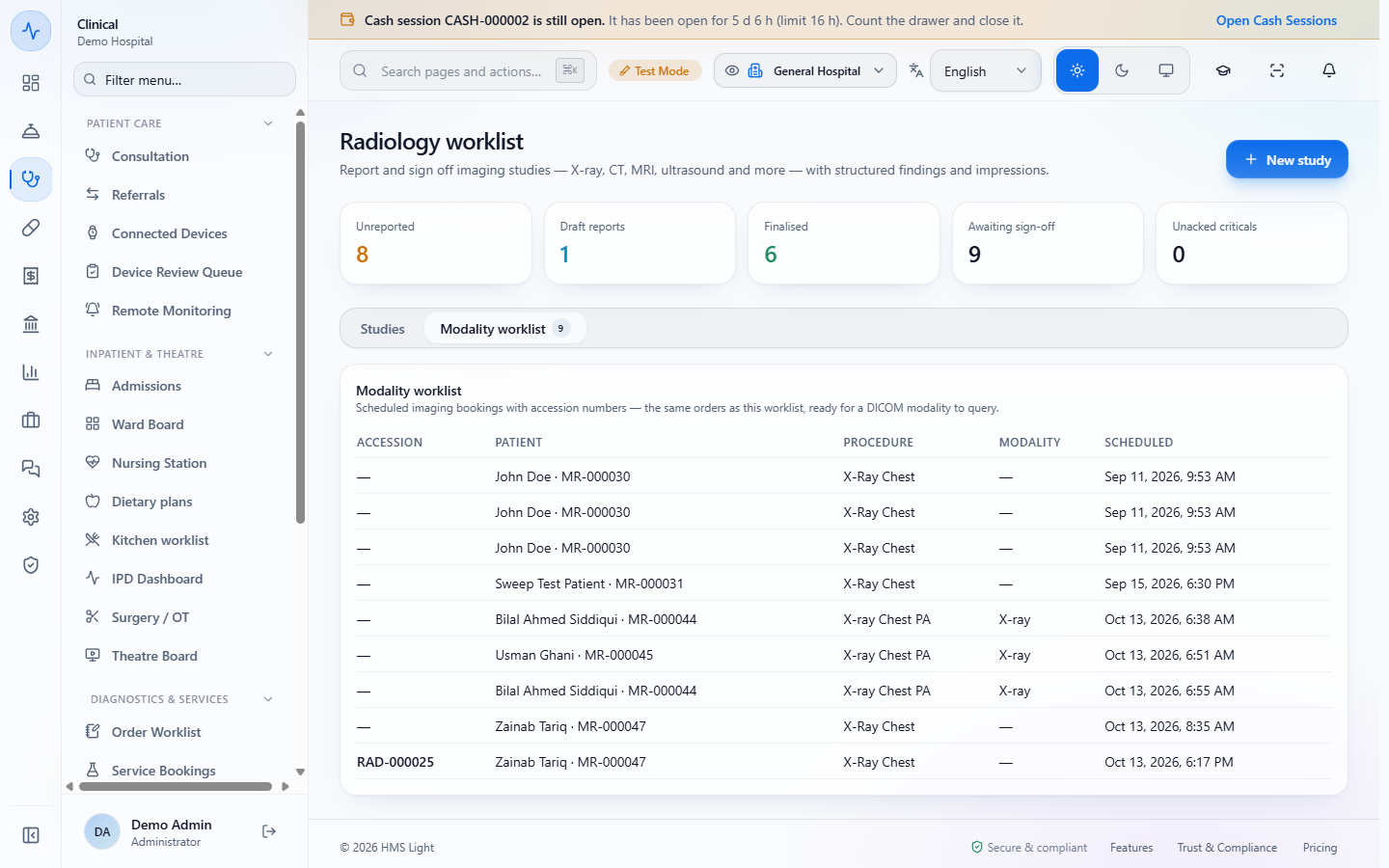
On Studies, each row shows the study and its body region (new studies also show the accession, for example "Chest · RAD-000024"), the Modality, the report state (Unreported, Draft, Final, Critical, Unacked) and the radiologist's name. On Modality worklist the same orders appear with an accession number, the patient, the procedure, the modality and the time, ready for the imaging machine to query. A signed study leaves that list.
Studies list with a Draft row marked Screening pending and Final rows, columns Patient, Study, Modality, Ordered, Report and Actions
Modality worklist with the accession RAD-000025 for Zainab Tariq
8
Write the report from a template
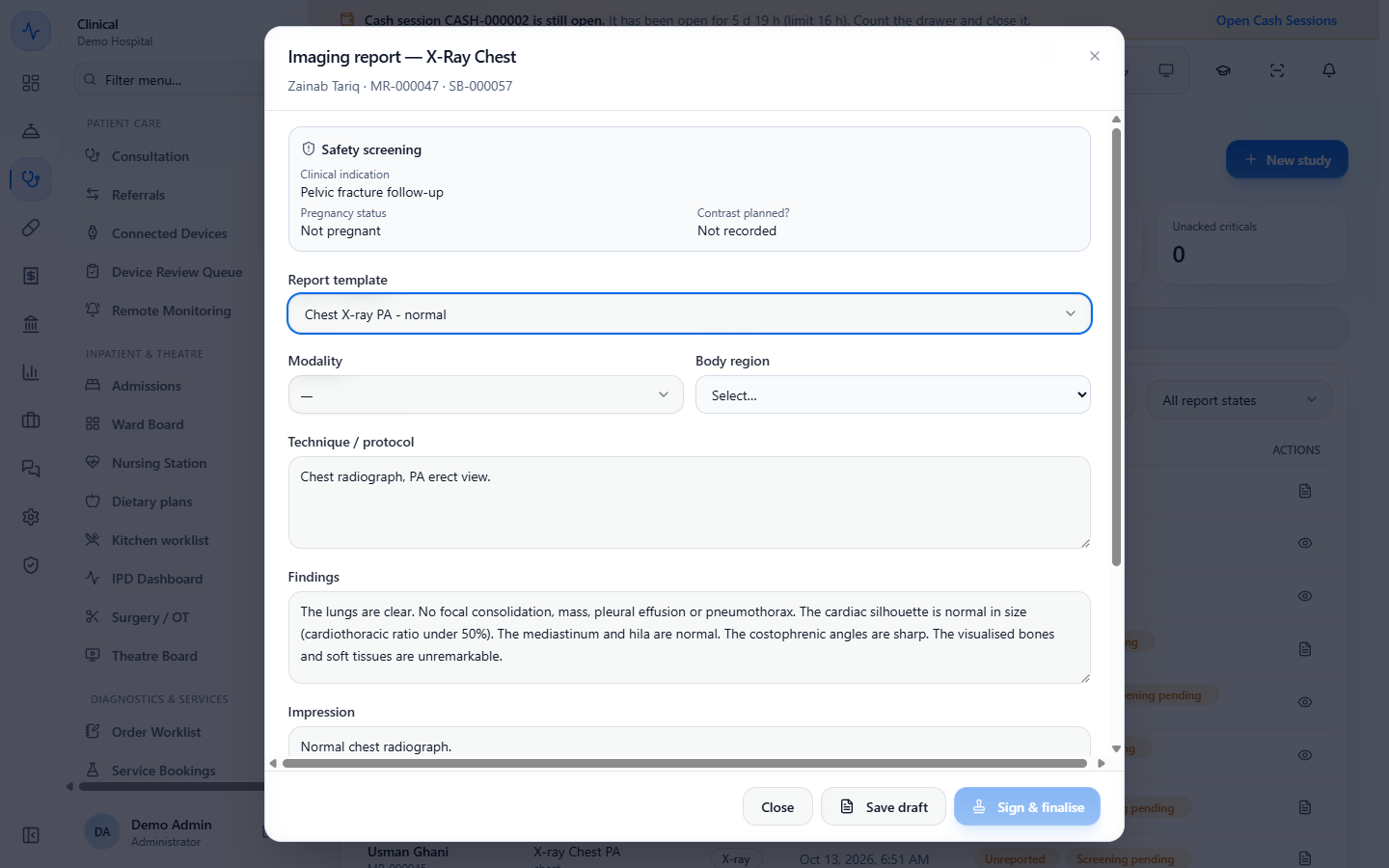
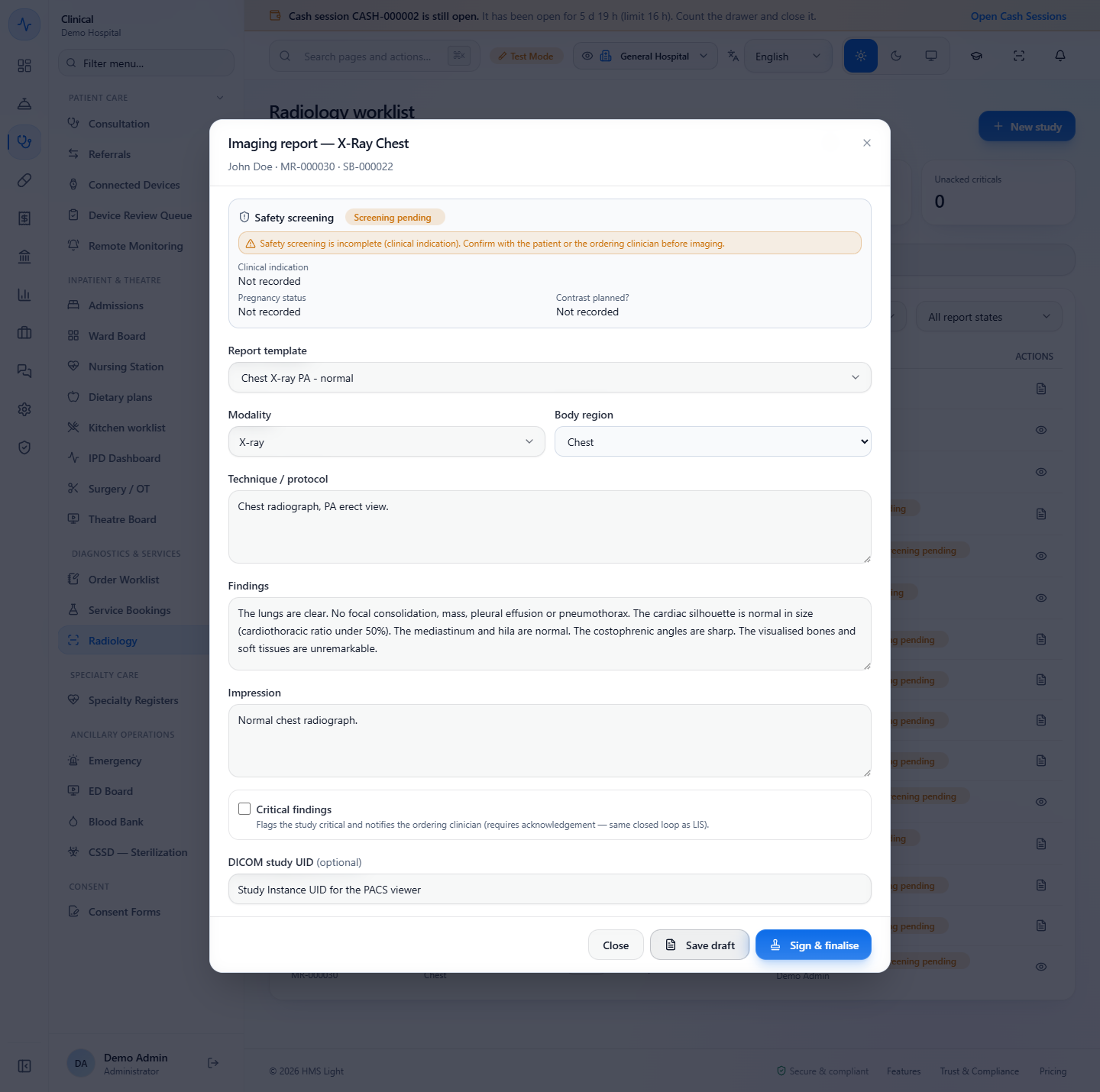
In the report, pick a Report template: Abdomen ultrasound - normal, CT head (non-contrast) - normal or Chest X-ray PA - normal. The Technique / protocol, Findings and Impression fill in. Then choose the Modality and the Body region, and edit the text so it describes this patient.
Imaging report with the template Chest X-ray PA - normal applied, with technique, findings and impression filled in
9
Save a draft, then sign
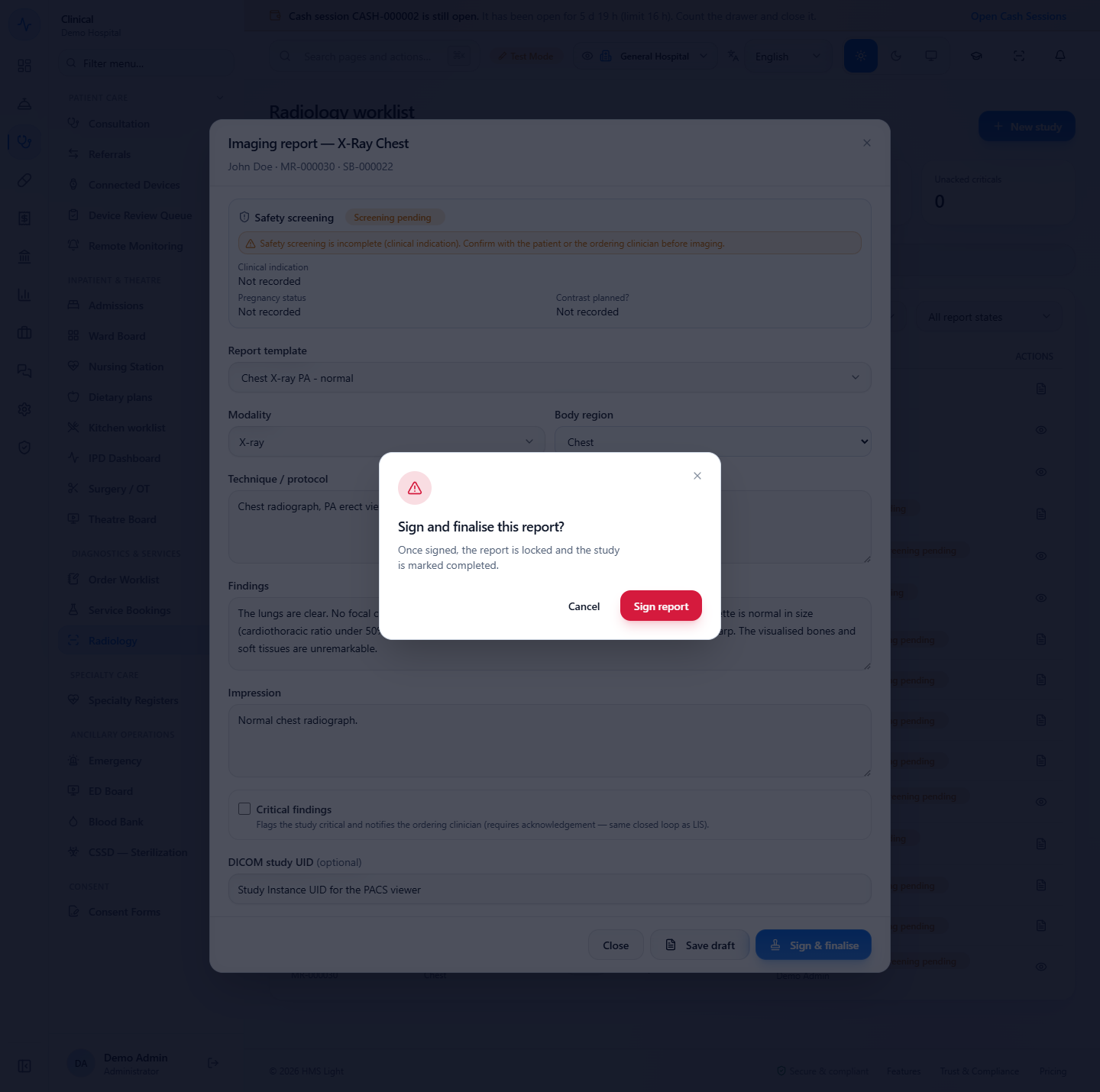
Press Save draft: the toast says "Report saved as draft" and Sign & finalise becomes available. Until a draft is saved the button stays disabled and the hint says "Save draft before signing". Press Sign & finalise, read "Sign and finalise this report? Once signed, the report is locked and the study is marked completed.", then press Sign report. The toast says "Report signed and finalised".
Report saved as draft toast with the Sign and finalise button now enabled
Sign and finalise confirmation with Cancel and Sign report
10
If billing is required first
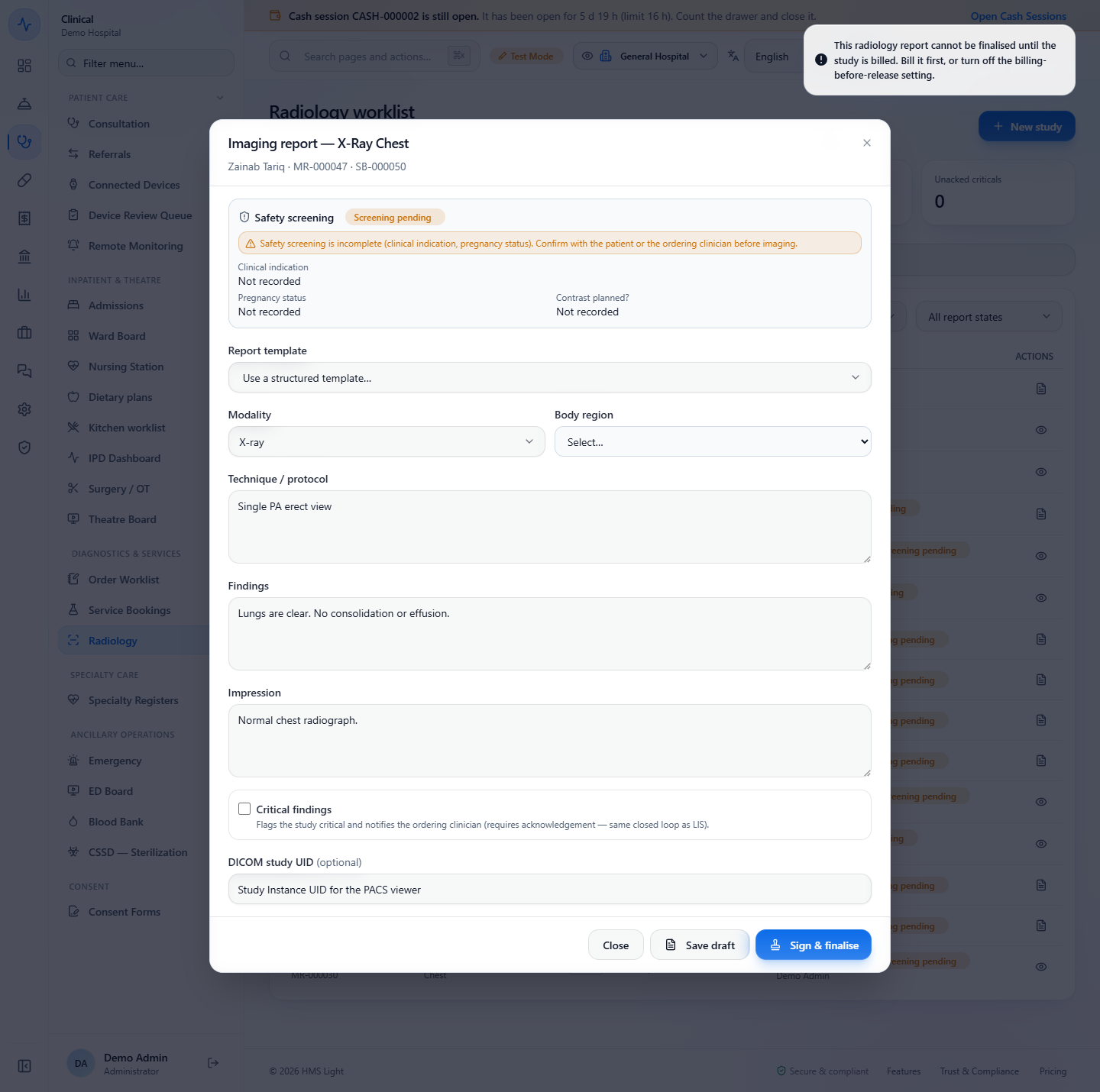
When Require billing before lab/radiology result release is on, an unbilled study cannot be finalised. The toast says "This radiology report cannot be finalised until the study is billed. Bill it first, or turn off the billing-before-release setting." The draft stays as it is.
Toast refusing to finalise an unbilled radiology report
11
Correct a signed report, and print it
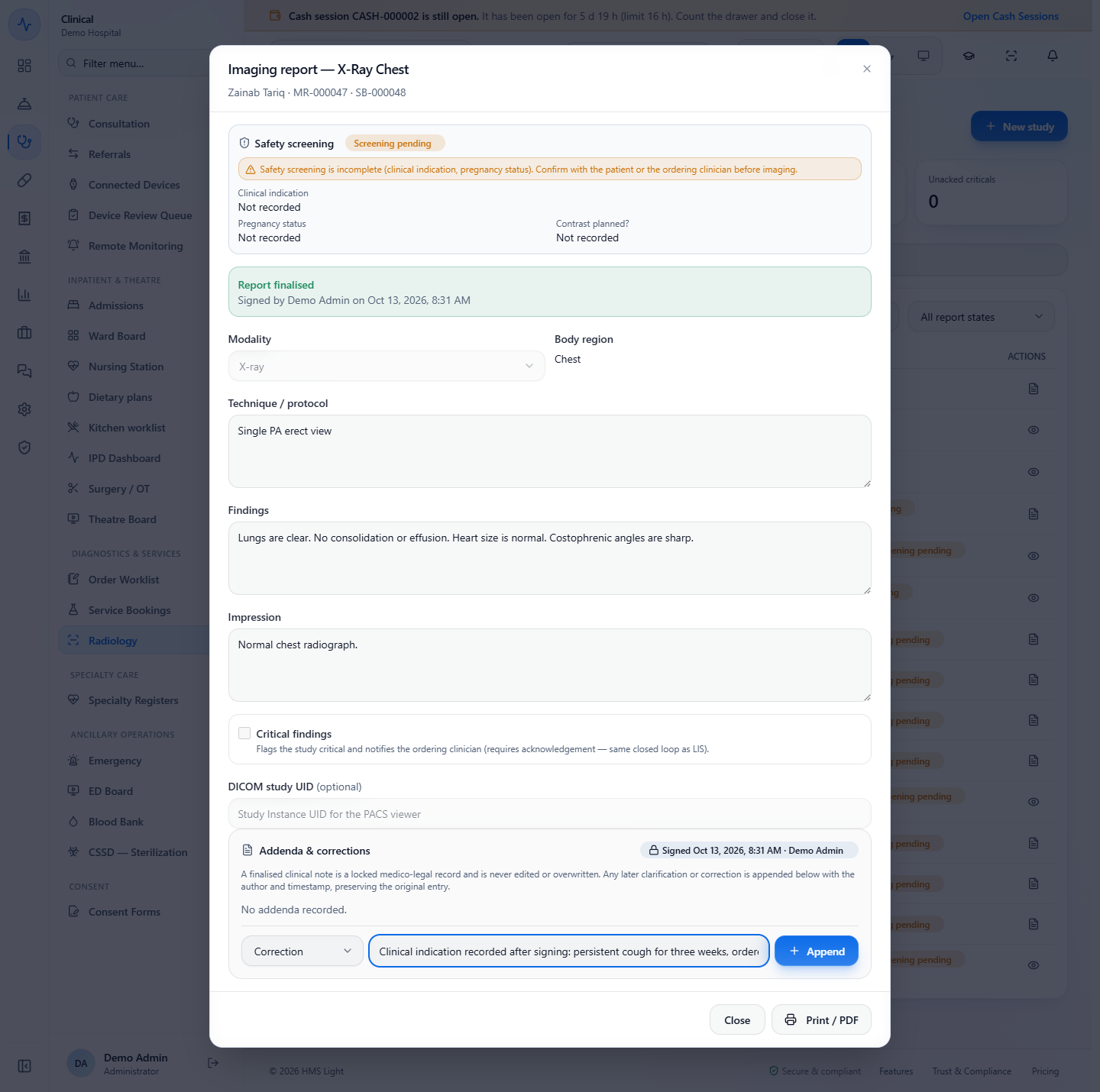
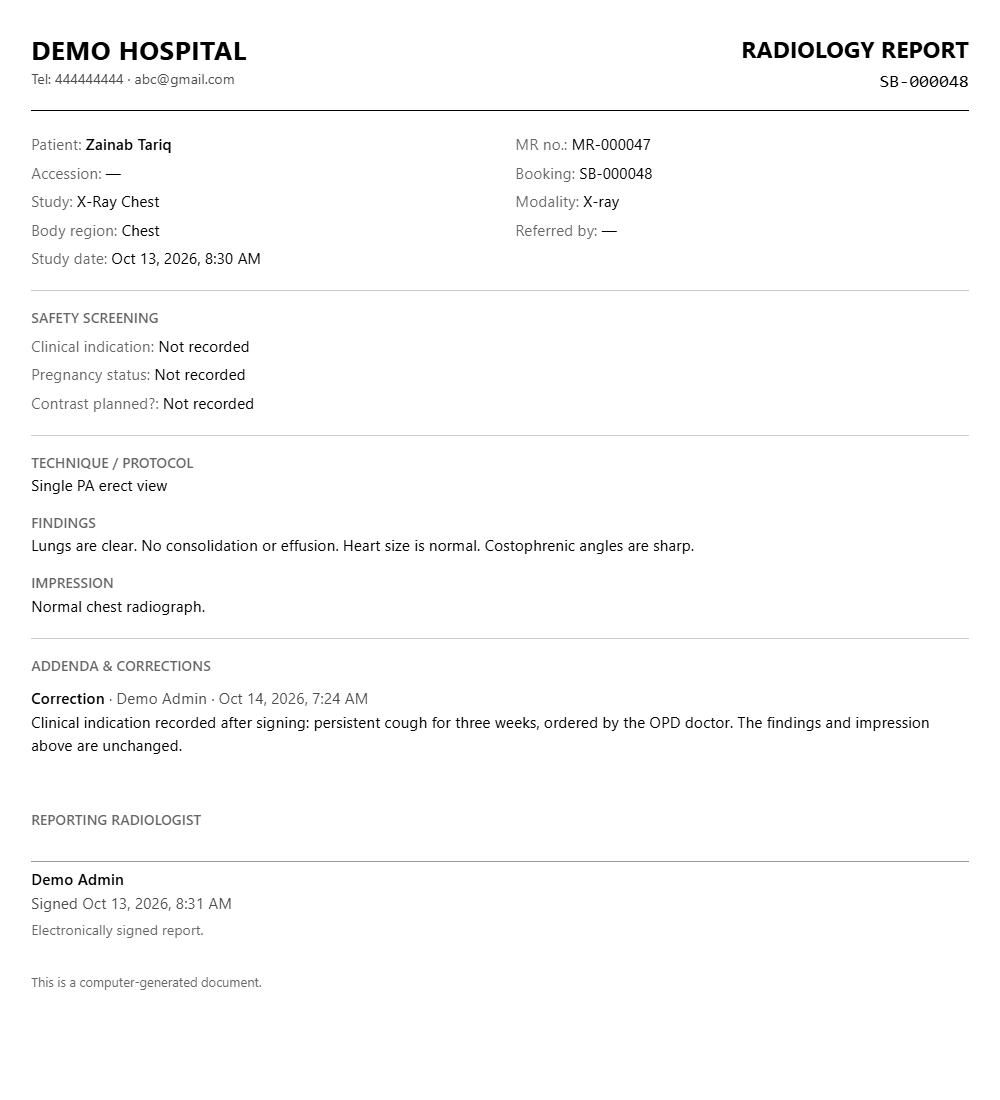
A signed report shows "Report finalised" with who signed it and when, and every field is read only. To add something later, choose Addendum or Correction in Addenda & corrections, type the text in "Add a clarification or correction…" and press Append. The toast says "Correction appended" and a card shows the type, your name and the time. Press Print / PDF: the sheet carries every addendum and correction between the Impression and the signature.
Addenda and corrections panel with the type Correction and a correction typed, below the signed text
Printed radiology report with the Addenda and corrections section between the impression and the reporting radiologist
12
Close a critical result with a read-back
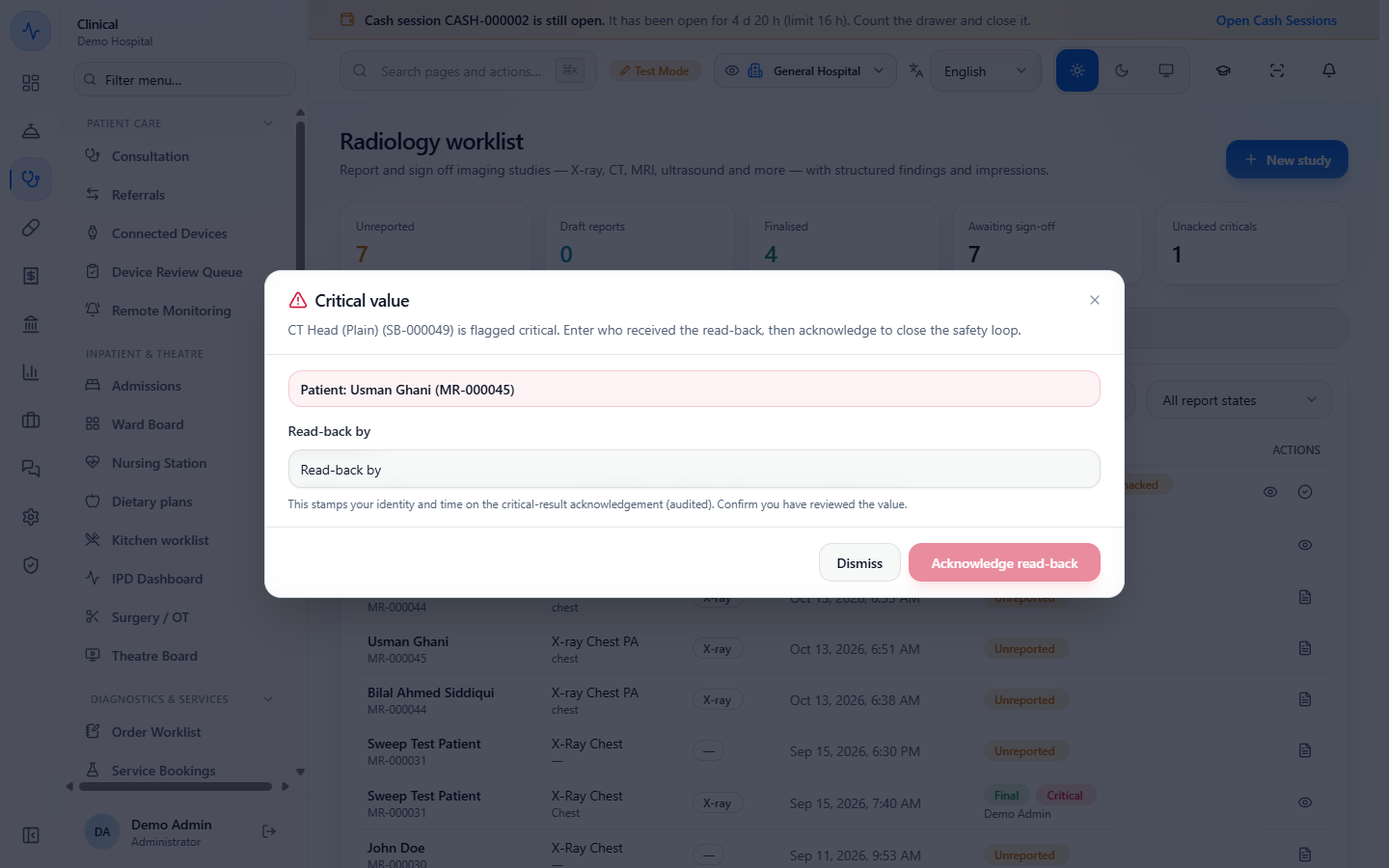
In the report, tick Critical findings, save the draft and sign. The row shows Final, Critical and Unacked, and the Unacked criticals tile counts it. Press Acknowledge read-back, type who received the result in Read-back by (for example "Dr. Kamran Yousaf, ICU, by phone") and press Acknowledge read-back again. The toast says "Critical acknowledged".
Critical value dialog for the CT Head with the Read-back by field
Check it worked
Booking: the toast "Study booked (SB-000048)", a receipt with PKR 1,404.00 and the invoice INV-000179.
Report: the row on Studies reads Final with the radiologist's name, and the Finalised tile has gone up by one.
Correction: the finalised report lists the Correction card, and the printed sheet shows it above the signature.
Critical: the Unacked criticals tile is back to 0 after "Critical acknowledged".
Common mistakes
Mistake
What you see
Fix
Booking an unpriced imaging service
"CT Head (Plain) has no price, so it cannot be booked."
Set the price on the Services page, or use Override price with a reason if you are allowed
Ordering the same study again without a reason
Already ordered shows the earlier order and asks for a reason
Type a reason of at least five characters, then press Order anyway
Trying to sign before saving
Sign & finalise is disabled with "Save draft before signing"
Press Save draft first
Finalising an unbilled study with the billing gate on
"This radiology report cannot be finalised until the study is billed."
Bill the study first, or switch the setting off
Leaving Modality and Body region empty after using a template
The template text is filled in but both fields still read — and Select…
Pick them before saving
Quick reference
Item
Meaning / rule
Awaiting sign-off
Unreported plus draft studies
Safety screening
Clinical indication, pregnancy status and, for CT and MRI, contrast planned
Report templates
Abdomen ultrasound - normal, CT head (non-contrast) - normal, Chest X-ray PA - normal
Draft
Saved, editable, not released
Final
Signed, locked; corrected only by an addendum or a correction
Critical
Flags the study and needs a read-back acknowledgement
Frequently asked questions
Can I change a signed radiology report? No. A signed report is locked. You append an Addendum or a Correction with your name and the time, and the original text stays as signed.
Does a correction appear on the printed report? Yes. Print / PDF lists every addendum and correction between the Impression and the signature. A study with none prints without that section.
Why is Sign & finalise greyed out? The report has no saved draft yet. Press Save draft, then the button becomes available.
What does the read-back record? The name of the person who received a critical result, with your identity and the time. It closes the critical alert and is audited.