How to place orders, use the Order Worklist, order sets and refer a patient
Every lab test, X-ray, procedure, drug and referral starts as an order that belongs to one visit and one patient. This guide follows an outpatient visit and an admitted patient: place the orders, see what they create, stop one, review everything on the Order Worklist, read a drug safety alert, build and apply an order set, and send a patient to a partner facility.
Who it is forDoctor, ward nurse and clinical administratorTime25 minutesProductHMSLevelIntermediate
Before you start
Steps
1
Place an order from the patient's chart
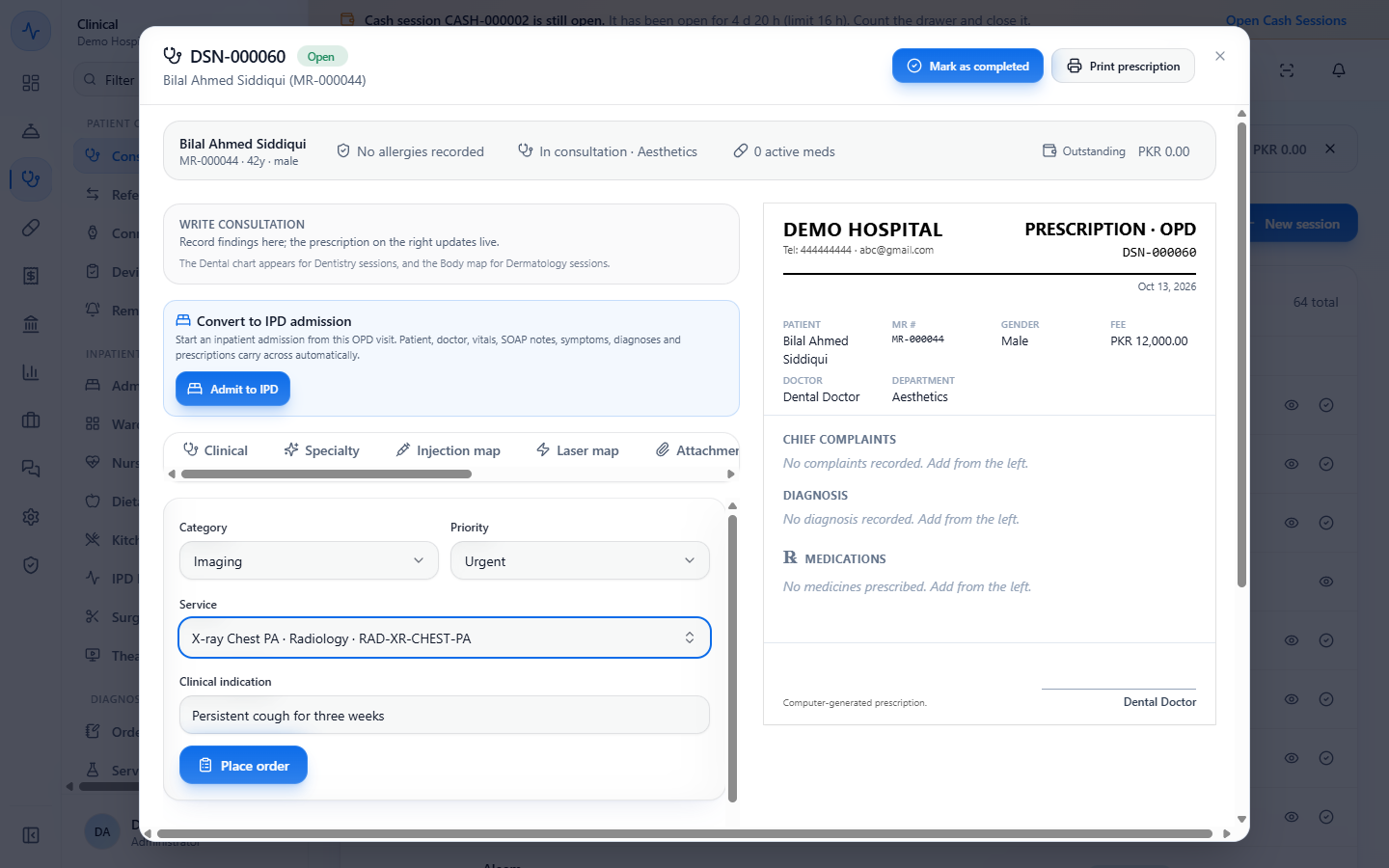
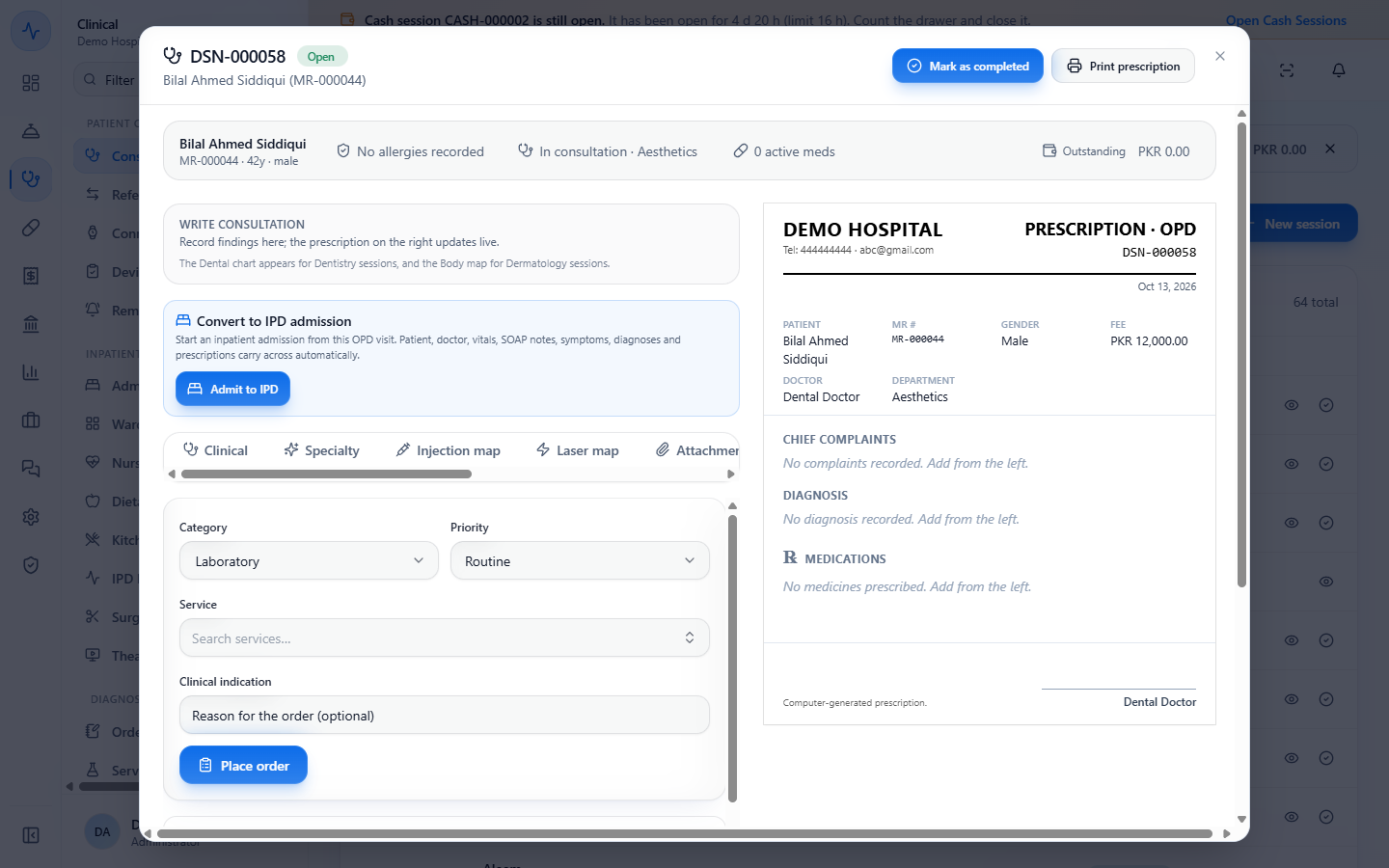
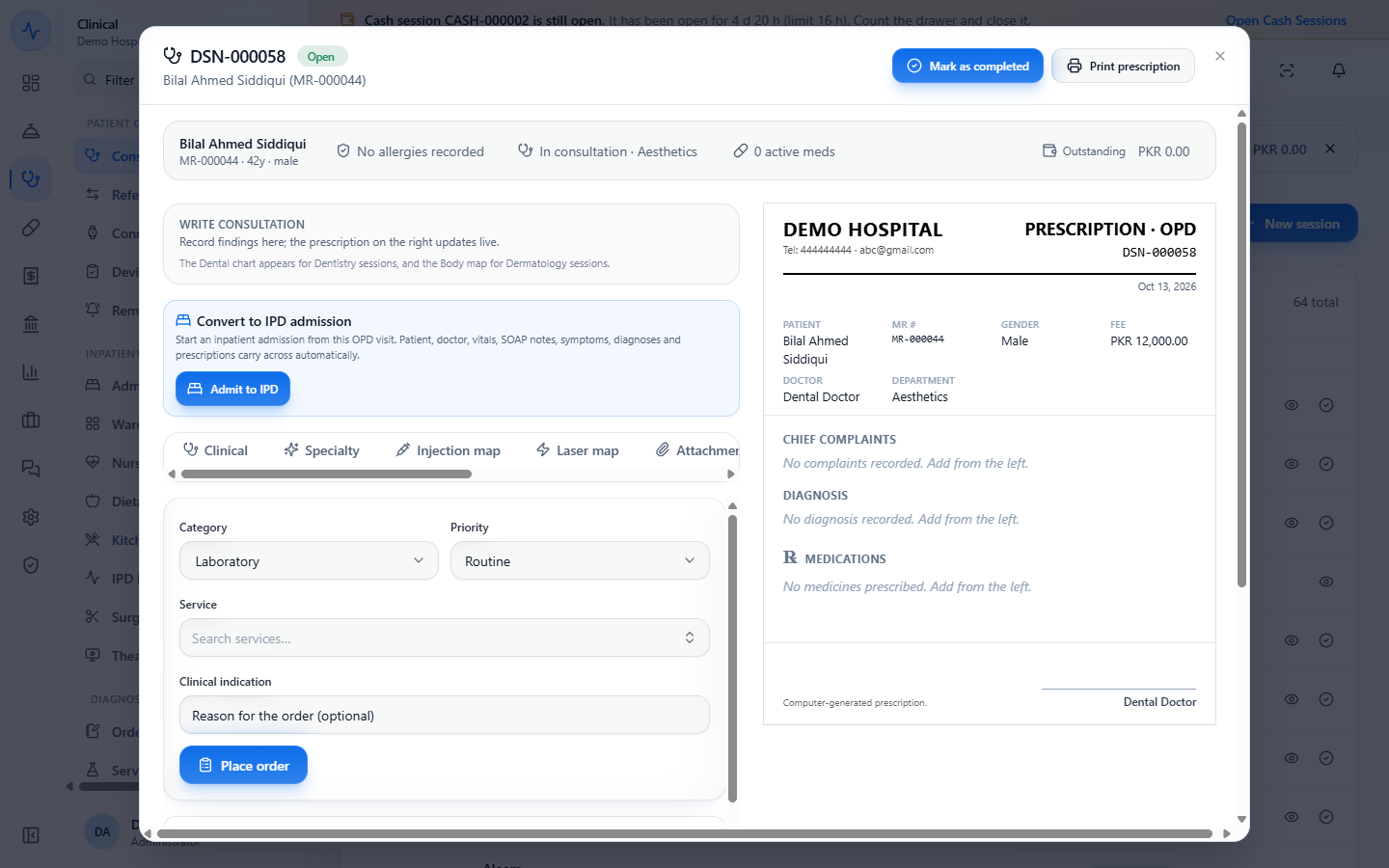
Open the visit (for example DSN-000058 for Bilal Ahmed Siddiqui) and click the Orders tab. Choose the Category (Laboratory, Imaging, Procedure or Consult), the Priority (Routine, Urgent or STAT), the Service and, if you want, the Clinical indication. Press Place order.
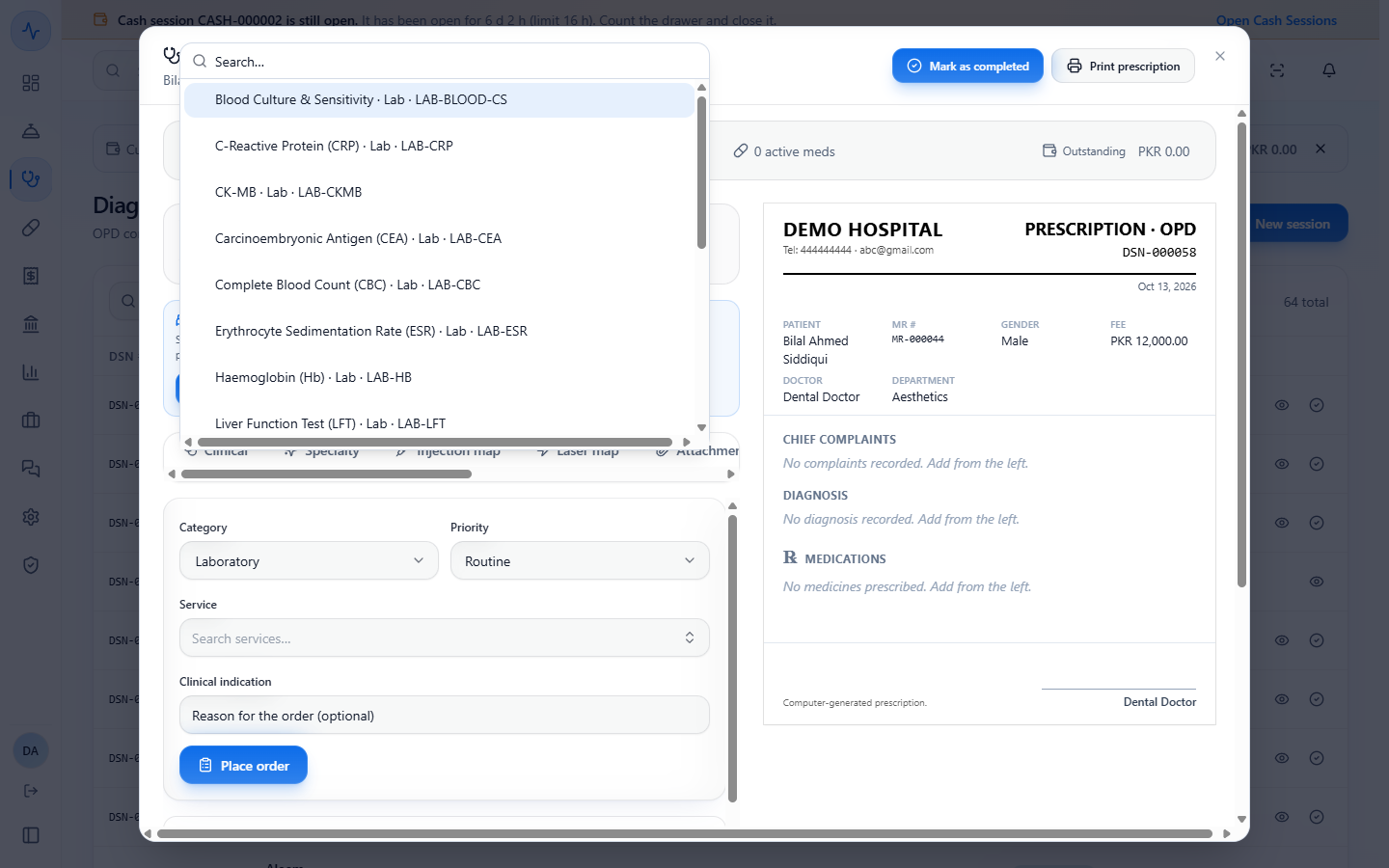
The Service box lists every active service of that category from the Services master, with its code, for example "Complete Blood Count (CBC) · Lab · LAB-CBC".
The Orders tab of the visit with Category, Priority, Service and Clinical indication
The Service list for Laboratory showing each test with its code
2
Place the orders and meet the duplicate check
Each order confirms with Order placed and appears in the list as Active, with the time it was ordered and the indication. An Urgent or STAT badge shows only when the priority is not Routine. Here: an urgent X-ray Chest PA ("Persistent cough for three weeks"), a routine Complete Blood Count (CBC), a Wound Dressing (Simple) and a Cardiology Consultation.
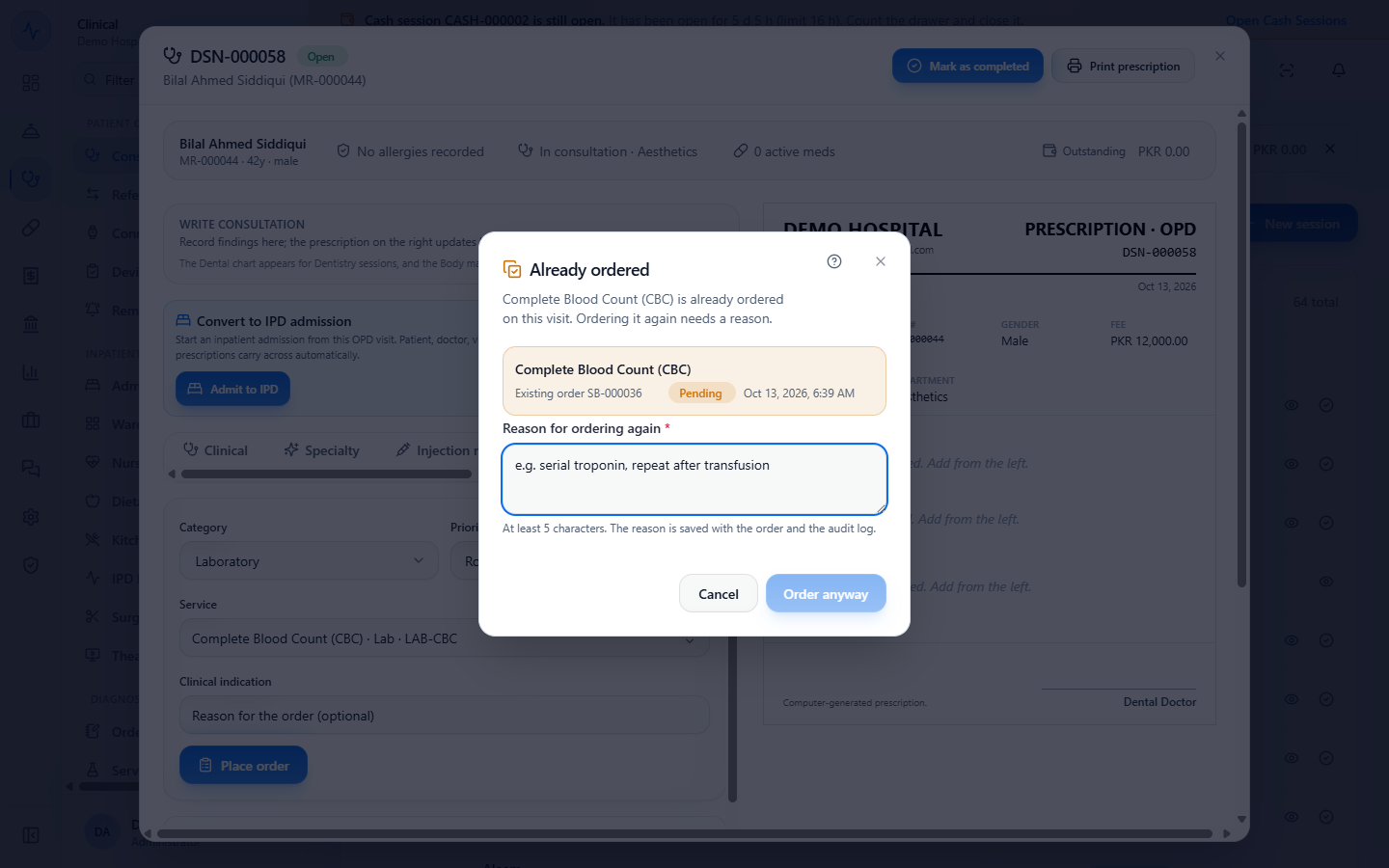
Ordering the same service again on the same visit opens Already ordered, naming the existing order (SB-000036). Type a reason of at least five characters and press Order anyway, or press Cancel.
The order list with X-ray Chest PA marked Urgent, the blood count, the wound dressing and the cardiology consultation
The Already ordered dialog asking for a reason before the same blood count is ordered again
3
See what each order created
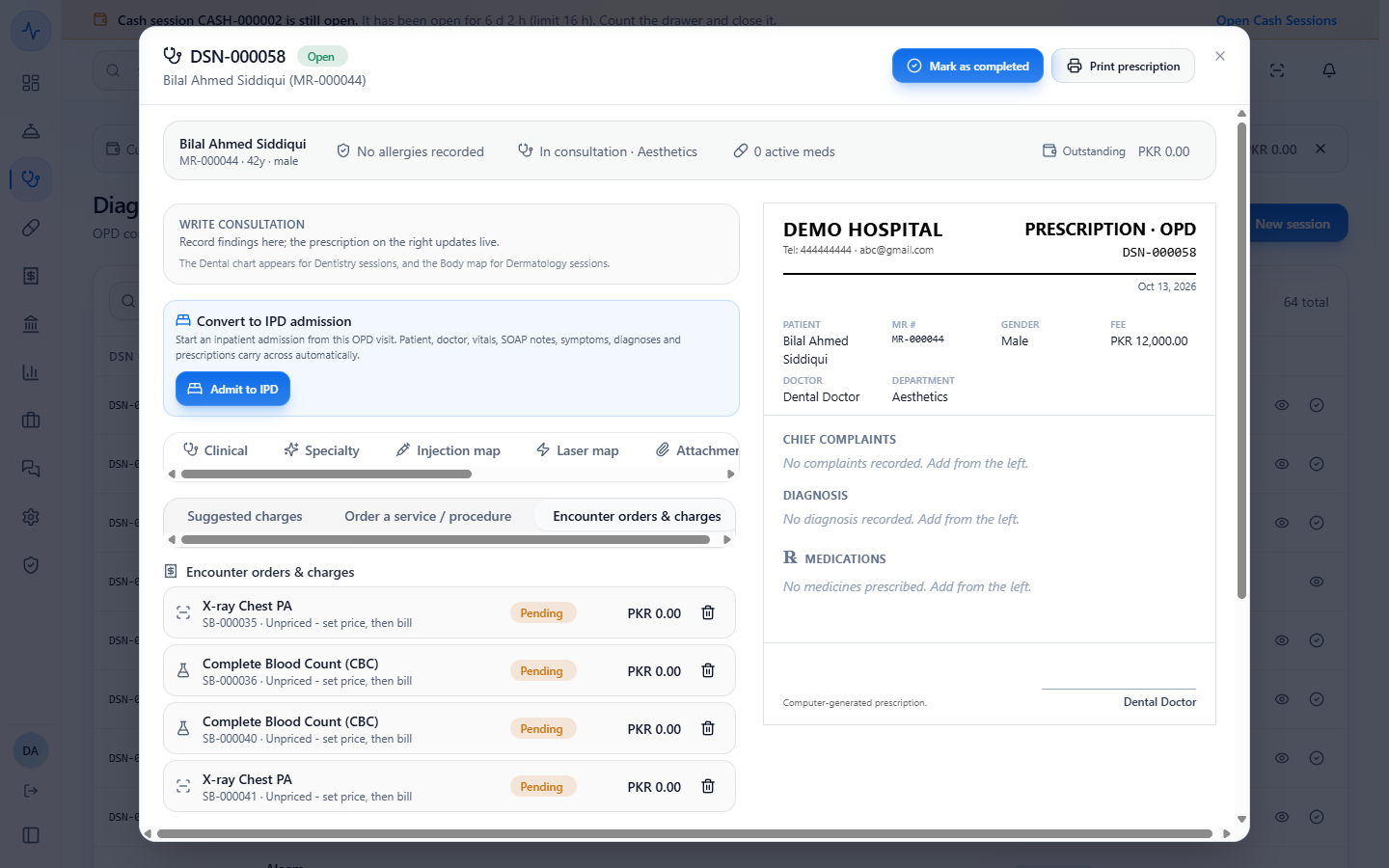
Open Orders & bill. Under Encounter orders & charges, a lab or imaging order is a booking: SB-000035 for the X-ray Chest PA and SB-000036 for the blood count, both "Unpriced - set price, then bill". The dressing and the consultation create no booking.
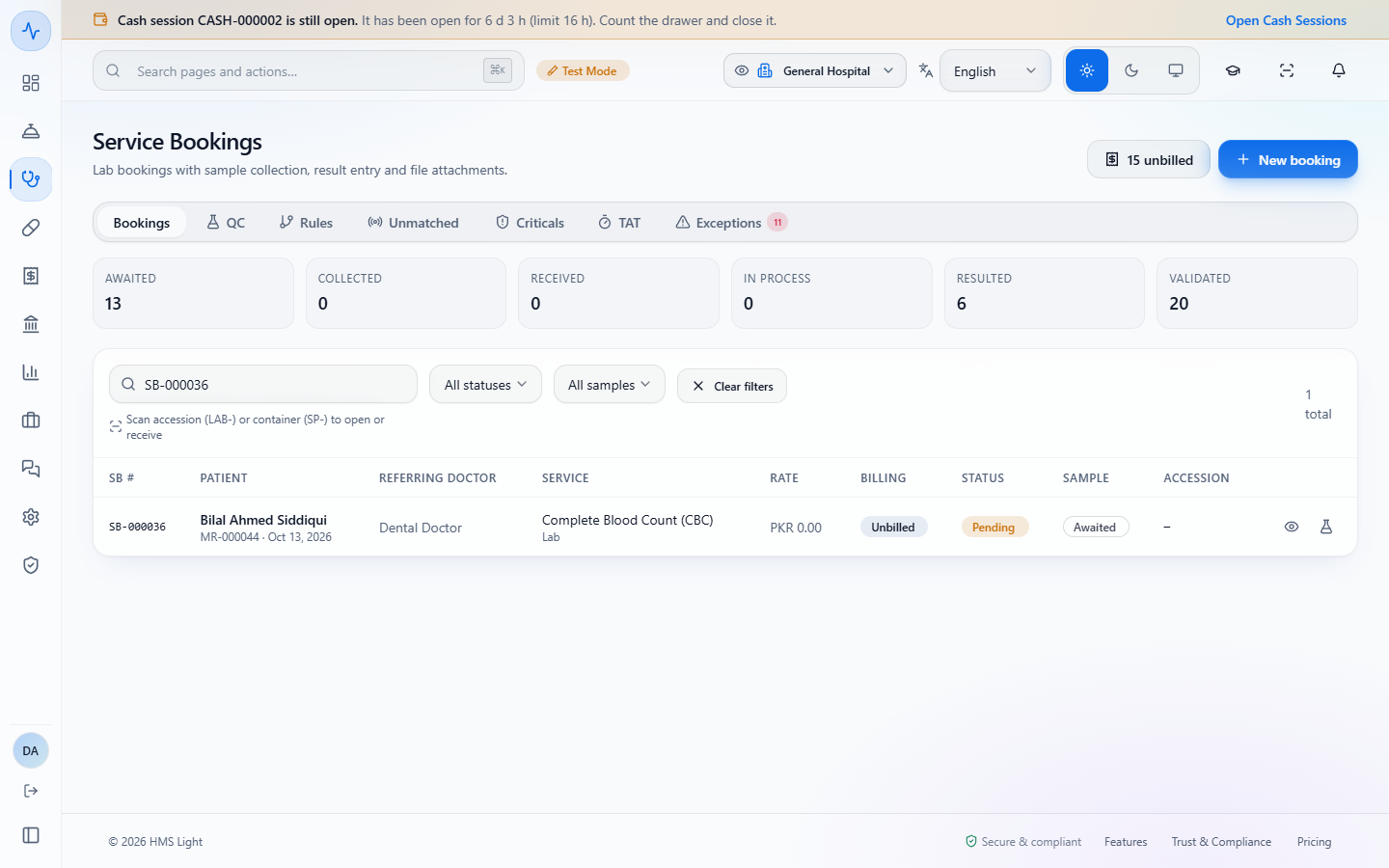
The blood count is on the lab list under Clinical › Diagnostics & Services › Service Bookings, with its sample Awaited.
The X-ray is on the Radiology worklist as Unreported.
Orders & bill listing the X-ray and the blood count with their booking numbers
Service Bookings list with the blood count booking, sample awaited
Radiology worklist with the X-ray Chest PA unreported
4
Stop an order
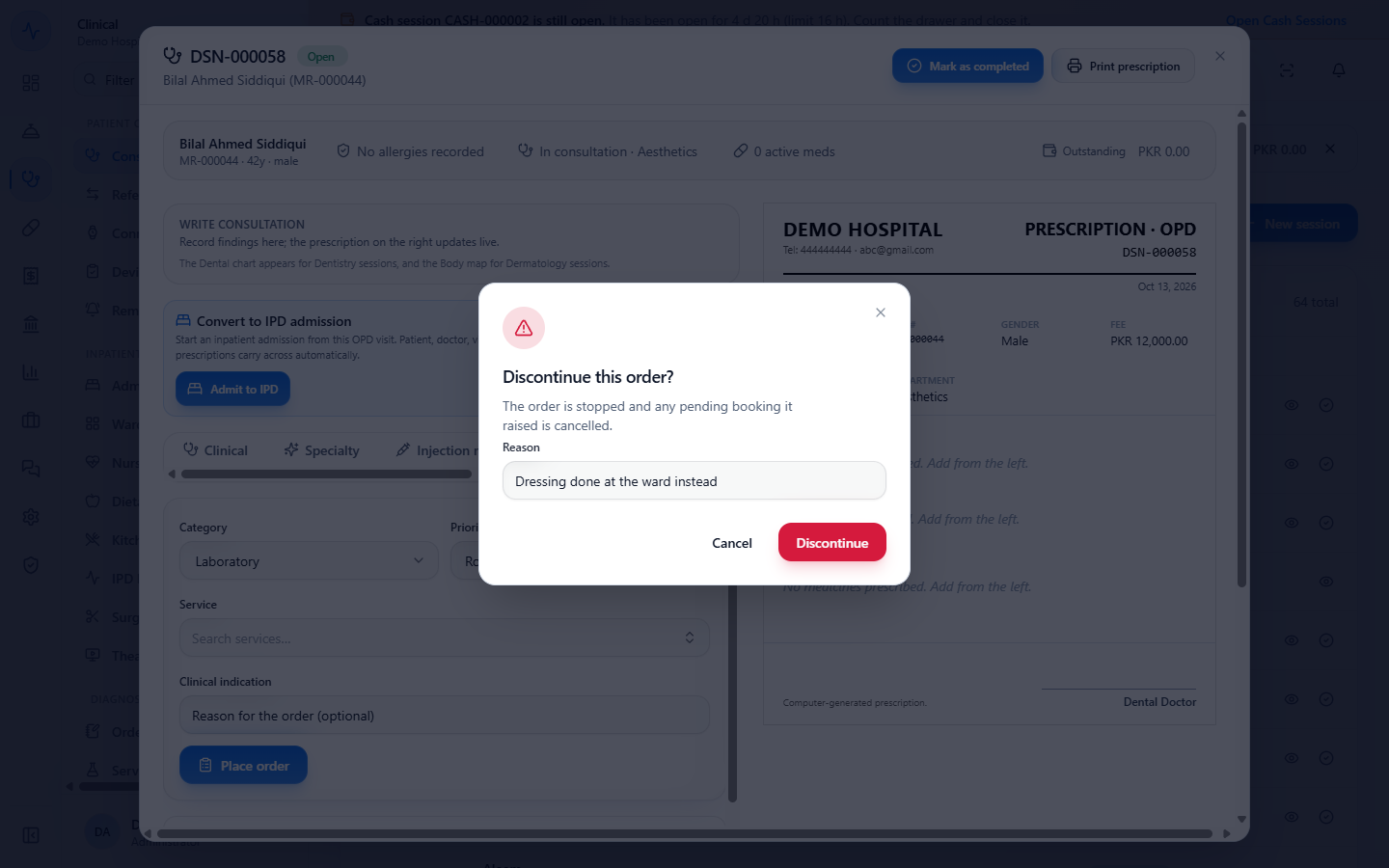
On an active order press Discontinue. The dialog says the order is stopped and any pending booking it raised is cancelled. Write the Reason (for example "Cardiology review arranged at the clinic instead") and press Discontinue. An empty reason is refused with "A reason is required to discontinue an order."
The toast says Order discontinued, and the row shows Discontinued with the reason.
Discontinue this order dialog with an empty Reason
The cardiology order shown as Discontinued with its reason
5
Review orders on the Order Worklist
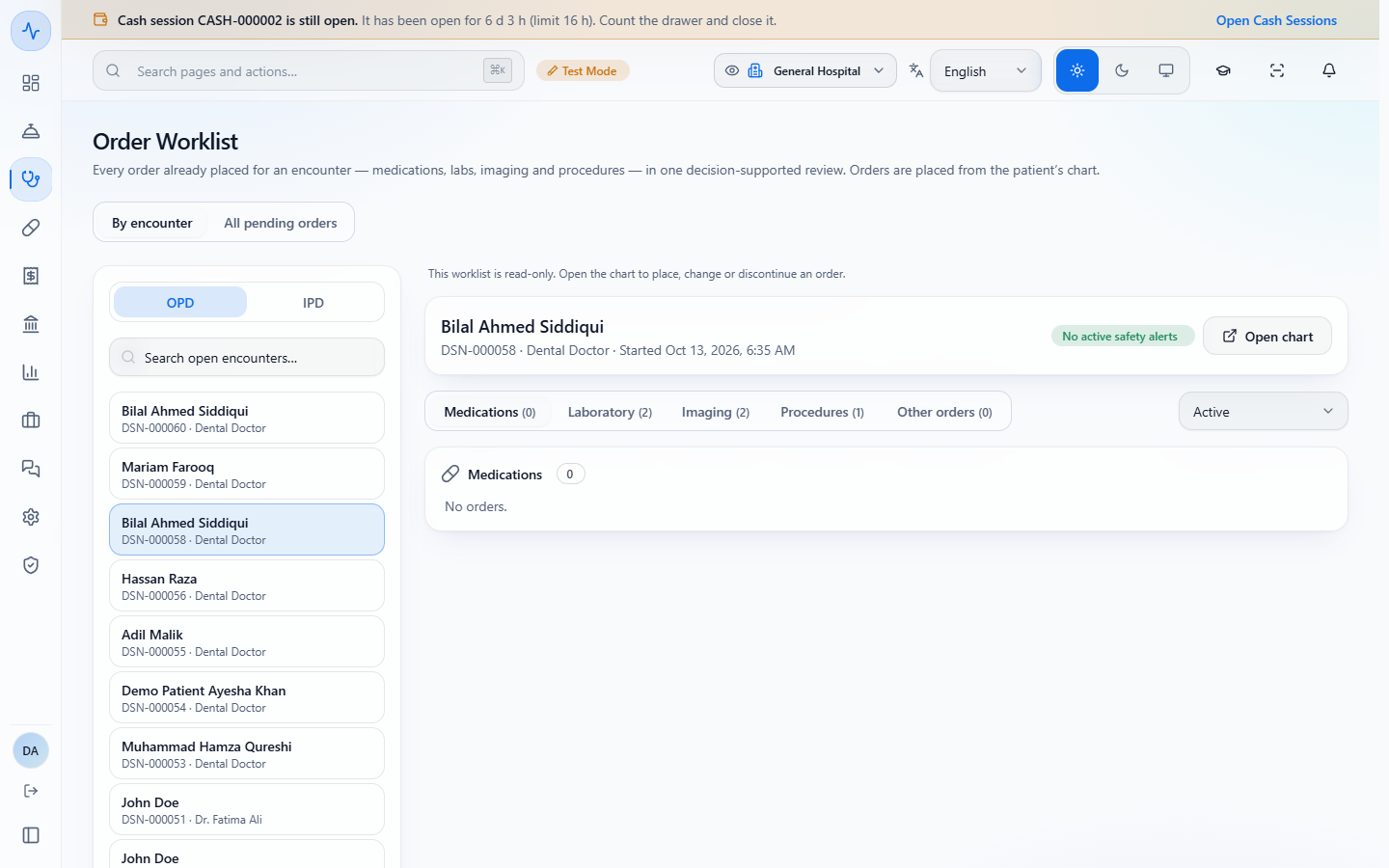
Open Clinical › Diagnostics & Services › Order Worklist. By encounter reviews one visit: choose OPD or IPD, search, and pick an open encounter. Its tabs (Medications, Laboratory, Imaging, Procedures, Other orders) show every order with its priority. The worklist is read only; Open chart takes you to the chart to change anything.
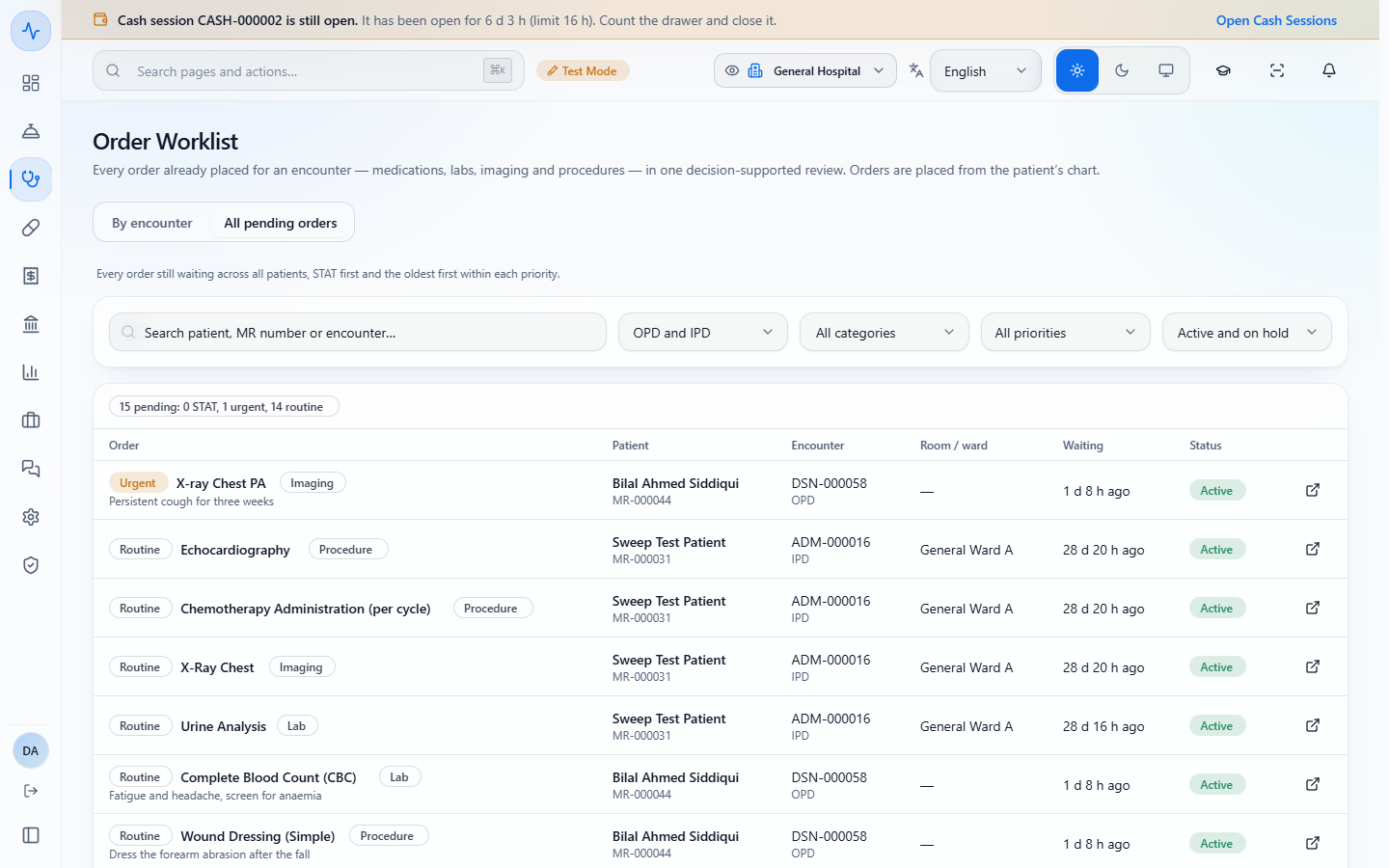
All pending orders lists every order still waiting across all patients: STAT first, then urgent, then routine, and the oldest first inside each priority. Filter by Encounter, Category, Priority and Status.
Order Worklist By encounter with the OPD list and the selected encounter
All pending orders with the summary chip and the filters
6
Read a drug safety alert on the worklist
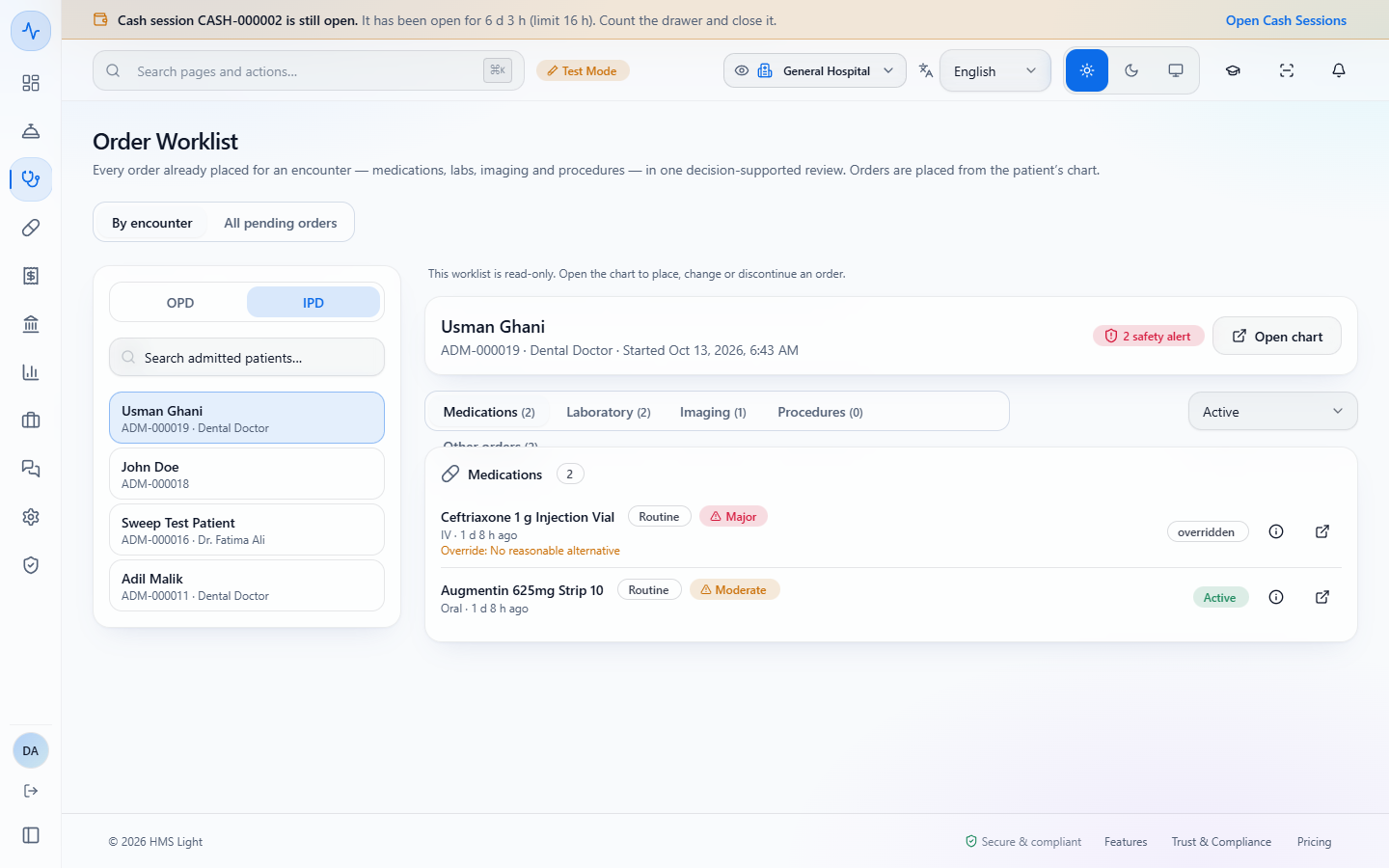
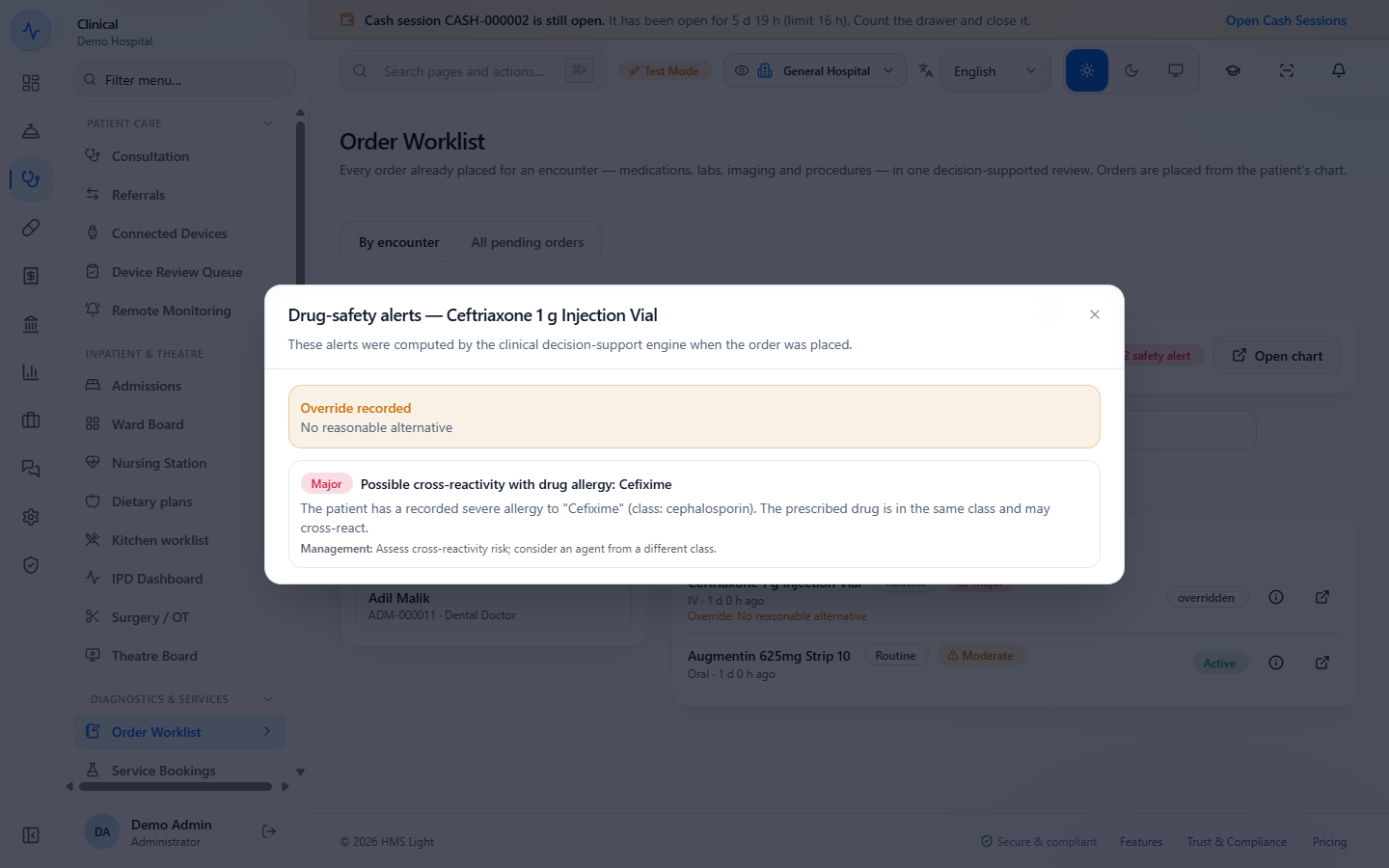
For an admitted patient the encounter header shows a red badge, here "2 safety alert". Under Medications, Ceftriaxone 1 g Injection Vial carries Major and the line "Override: No reasonable alternative". Diet and monitoring orders are under Other orders.
Press the information icon to open Drug-safety alerts. It keeps exactly what the decision-support engine found when the order was placed: "Possible cross-reactivity with drug allergy: Cefixime", the reason, and the suggested management.
IPD worklist with Usman Ghani, two safety alerts and the Major ceftriaxone order marked overridden
The Drug-safety alerts dialog with the cefixime cross-reactivity and the recorded override
7
Prescribe a drug that raises an alert
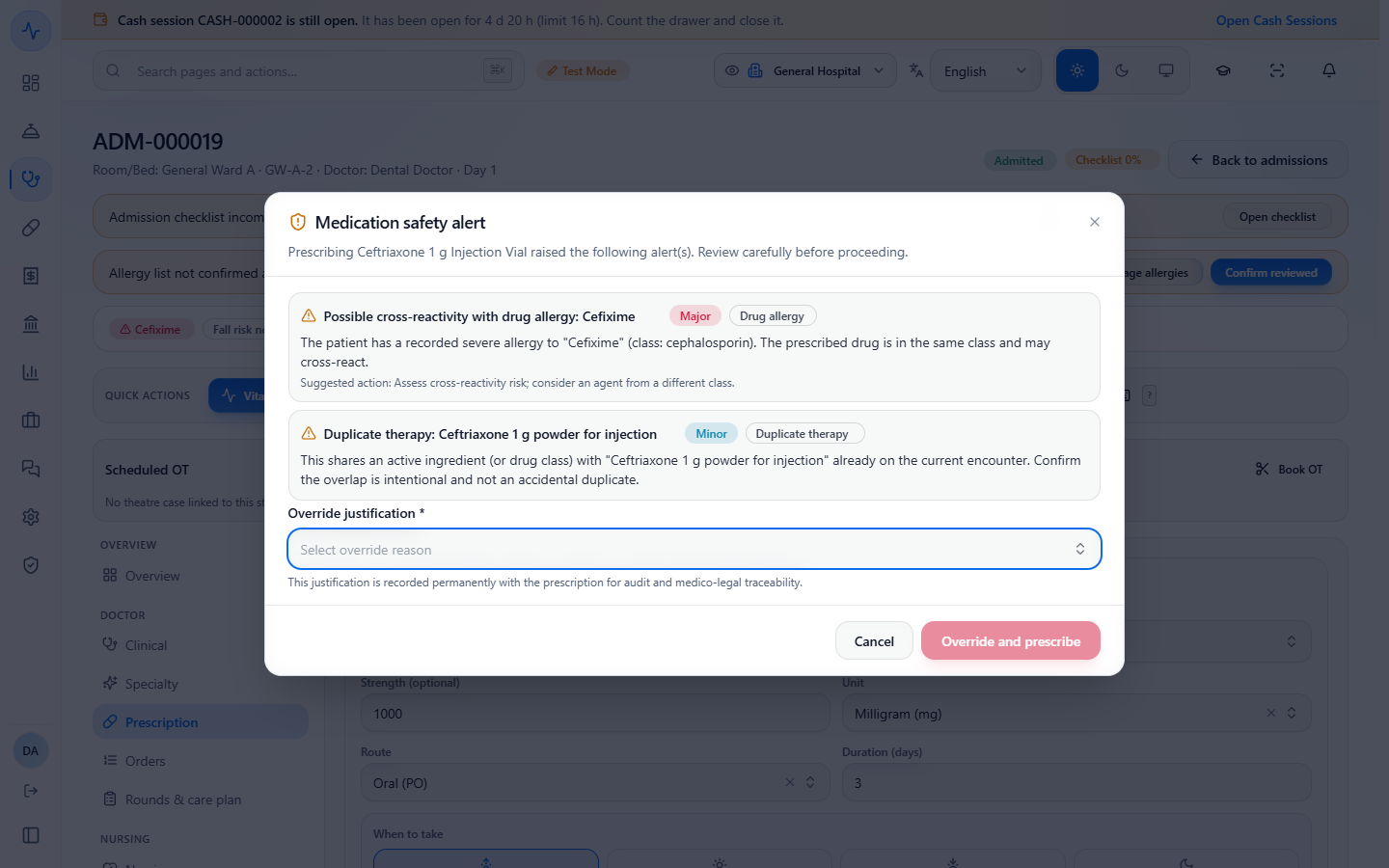
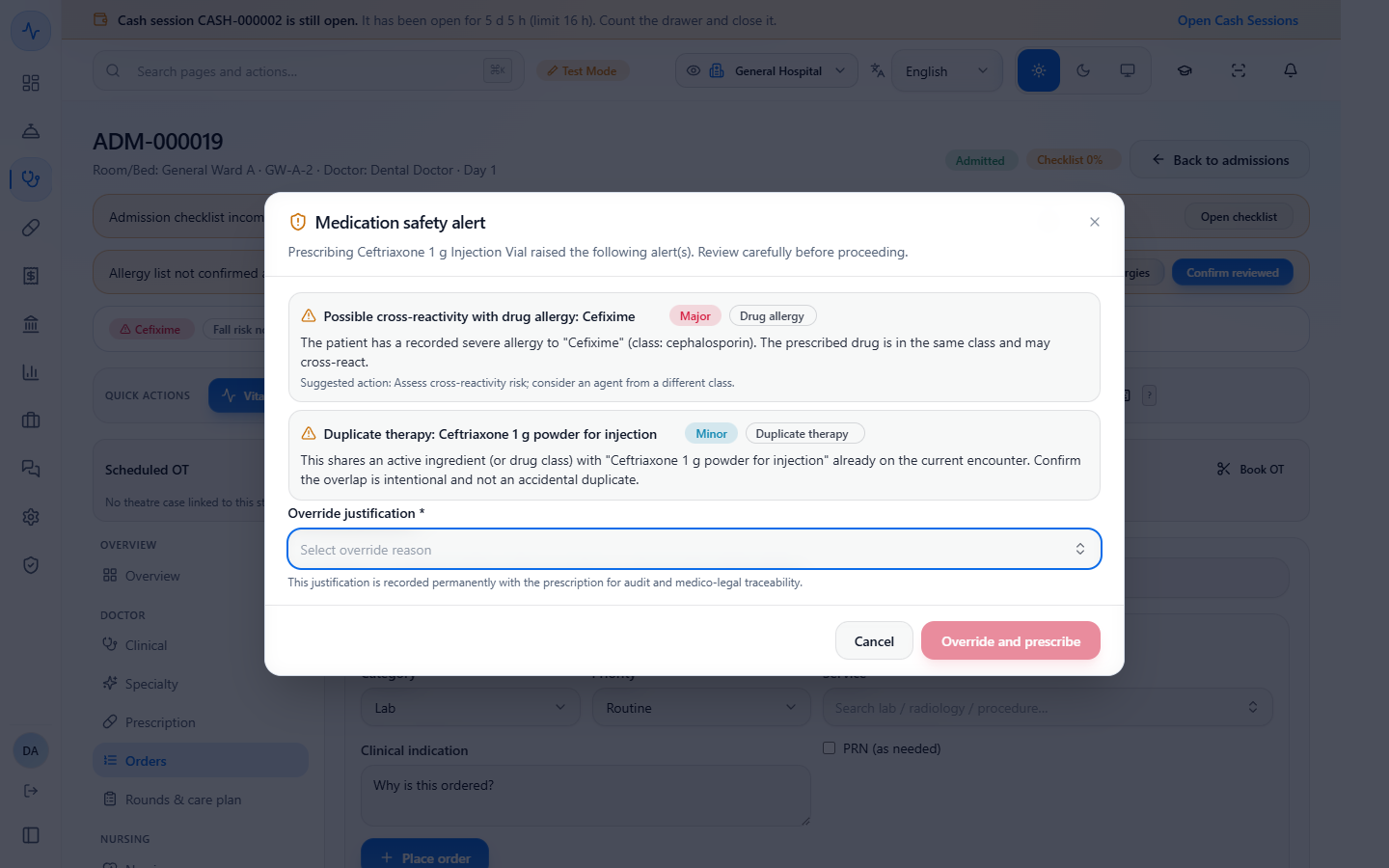
On the admission, open Prescription and press Add to prescription. A Medication safety alert appears before anything is saved. To go ahead you must choose an Override justification.
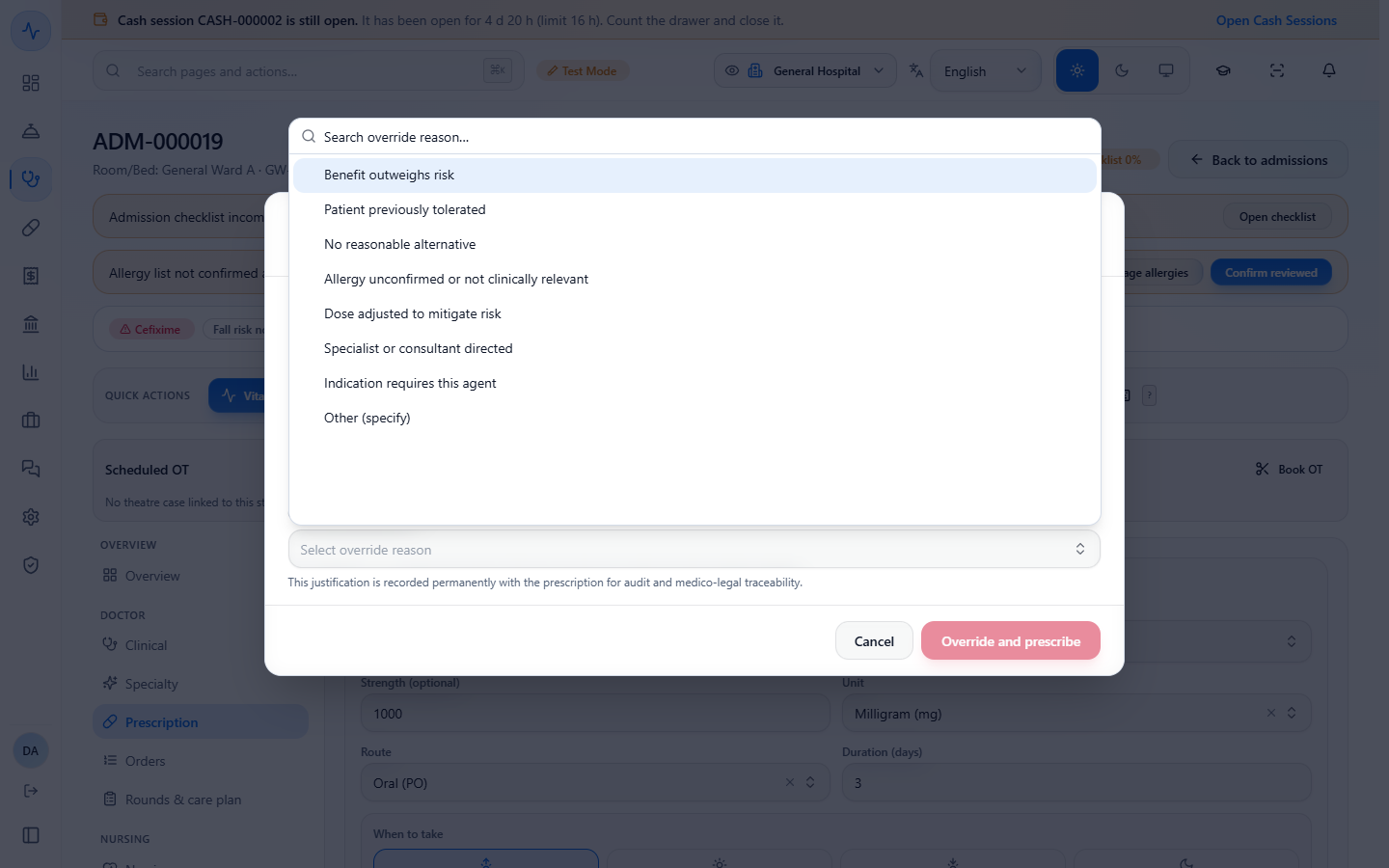
There are eight reasons, from Benefit outweighs risk to Other (specify). The choice is recorded permanently with the prescription and shown on the Order Worklist. Press Override and prescribe, or Cancel to leave the drug off.
Medication safety alert for Ceftriaxone with the Override justification field
The eight override reasons
8
Place clinical orders on an admission
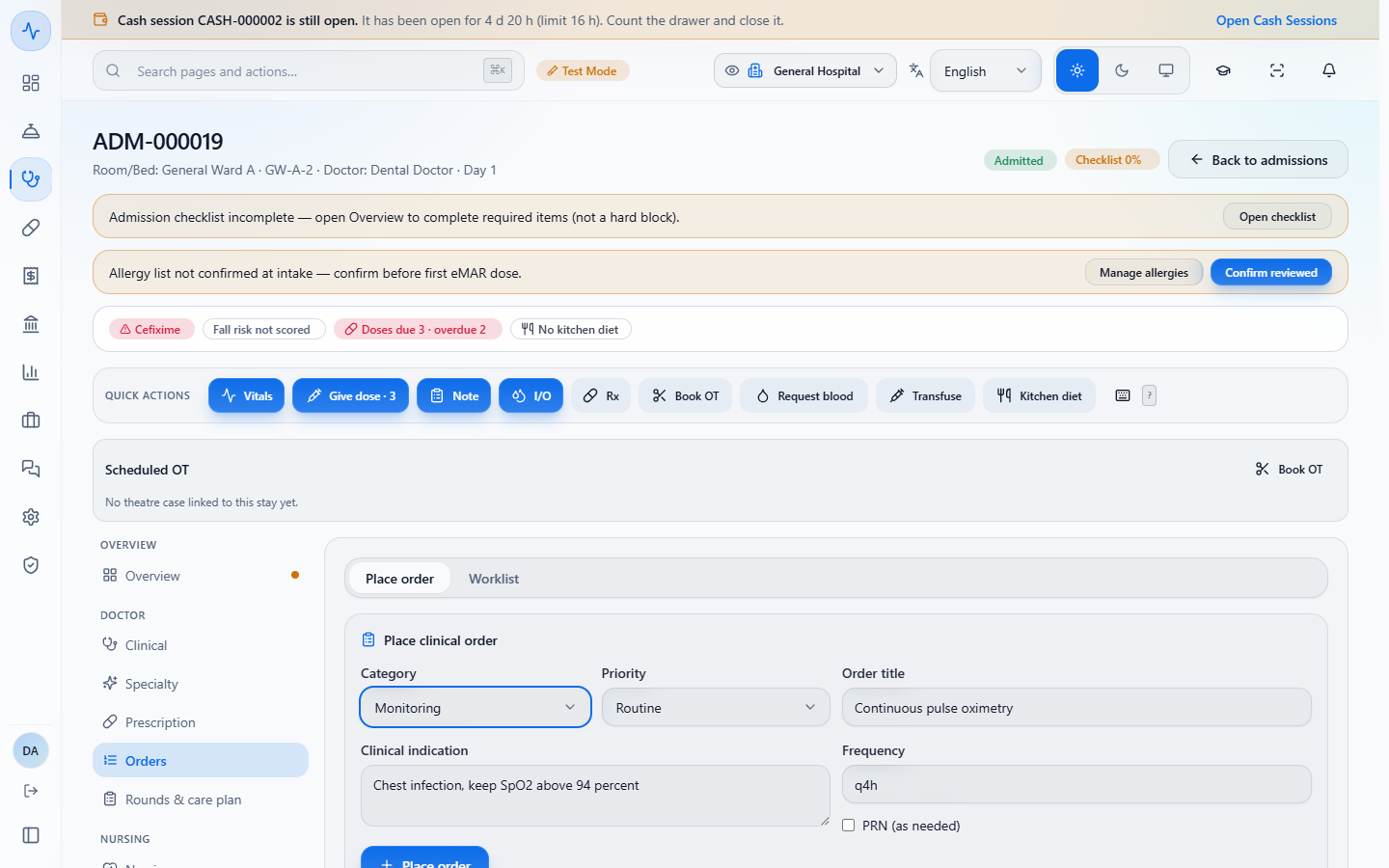
On the admission open the Orders tab, then Place order. The Category list is Lab, Radiology, Procedure, Diet, Consult, Monitoring, Activity, Isolation and Nursing. Lab, radiology and procedure ask for a Service; the others ask for an Order title such as "Soft diet, small frequent meals". Monitoring and the other clinical categories also take a Frequency (for example q4h); lab and radiology are single orders and have none.
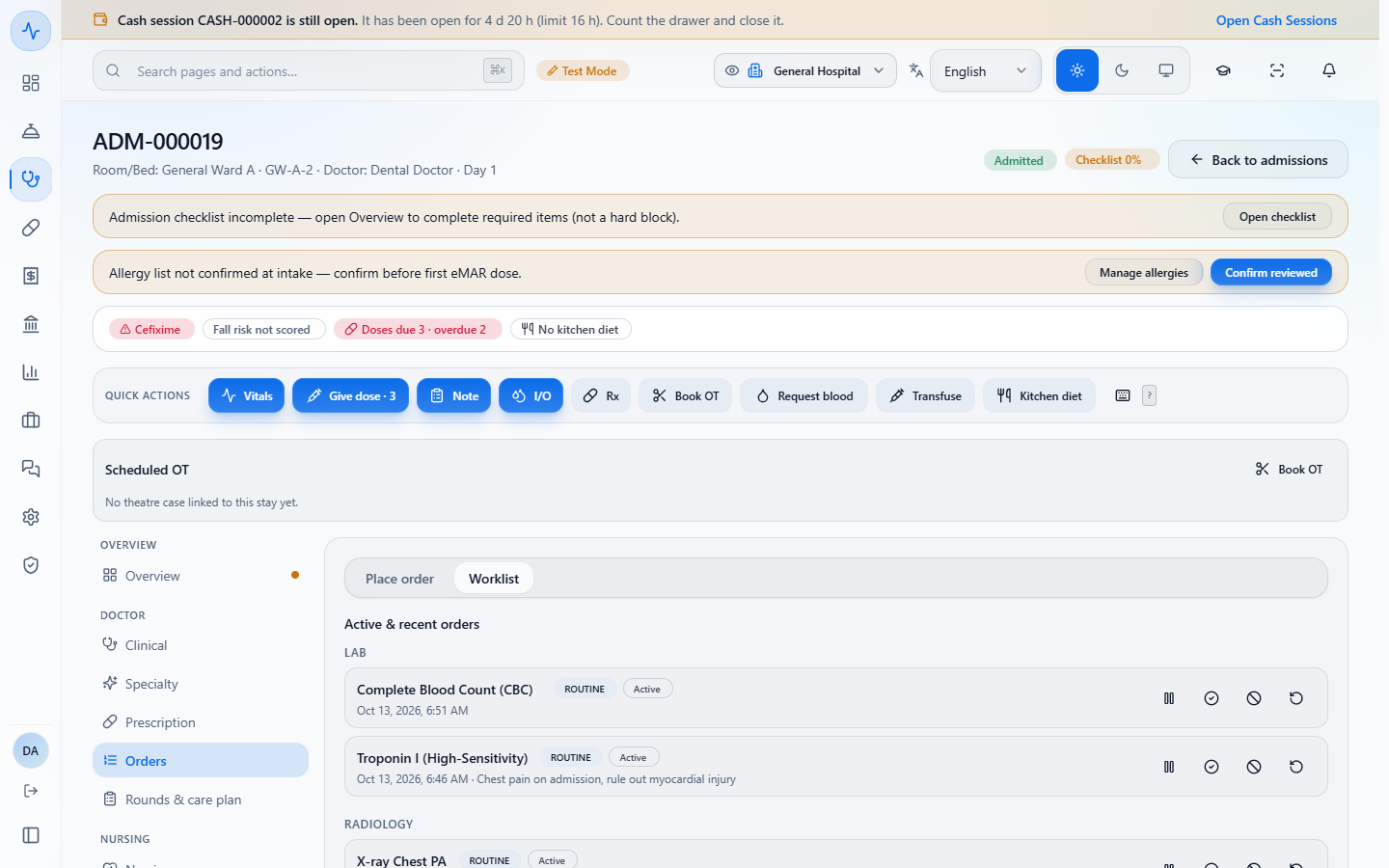
The Worklist sub-tab groups what was ordered under LAB, RADIOLOGY, DIET and MONITORING, with priority, status and time.
Place clinical order form on the admission with the Category list
The Worklist sub-tab grouping lab, radiology, diet and monitoring orders
9
Build an order set
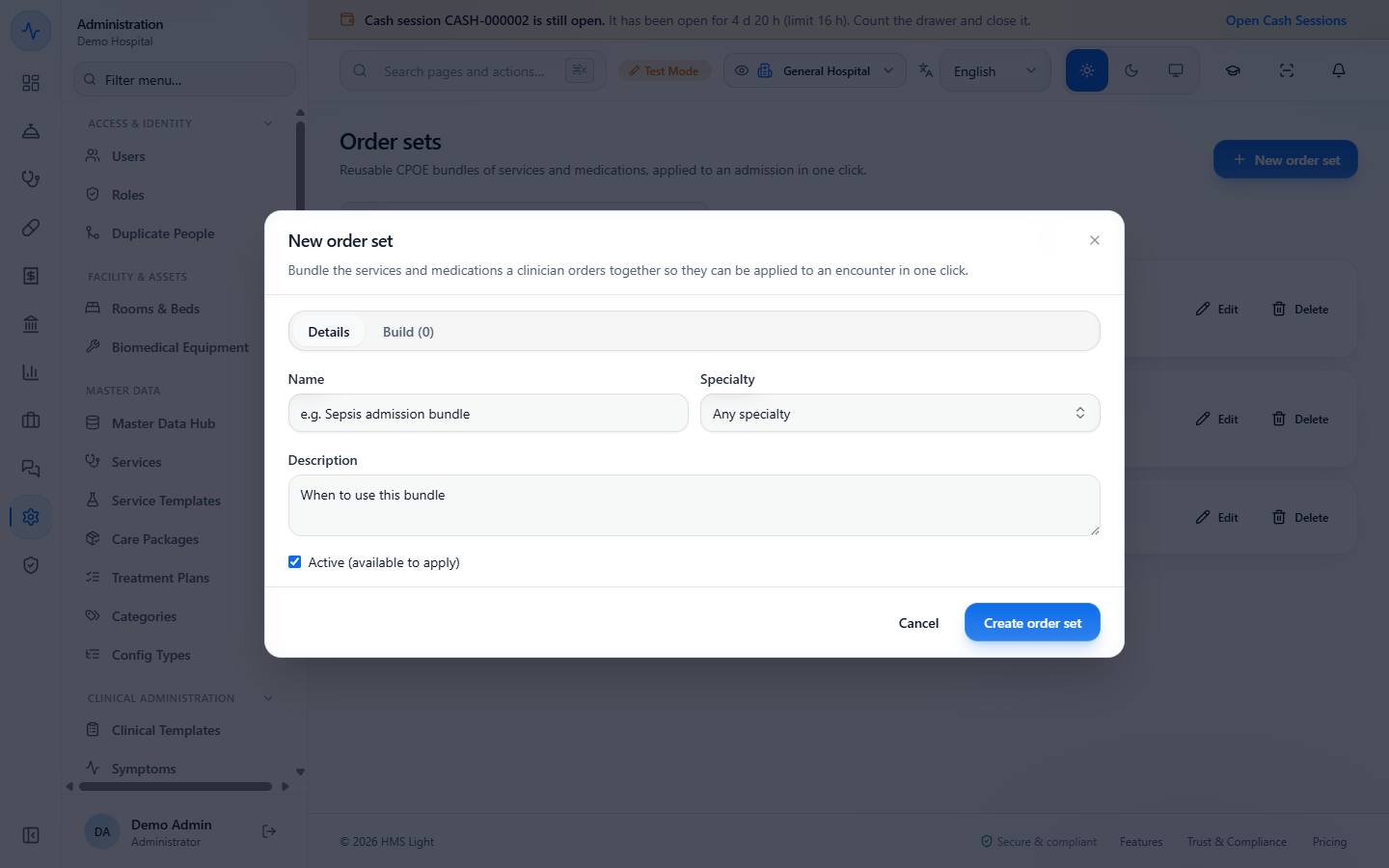
Open Administration › Clinical Administration › Order Sets and press New order set. On Details enter the Name (for example "Chest infection admission bundle"), the Specialty (Any specialty or one of the departments), the Description and Active (available to apply). An empty name is refused with "Enter a name".
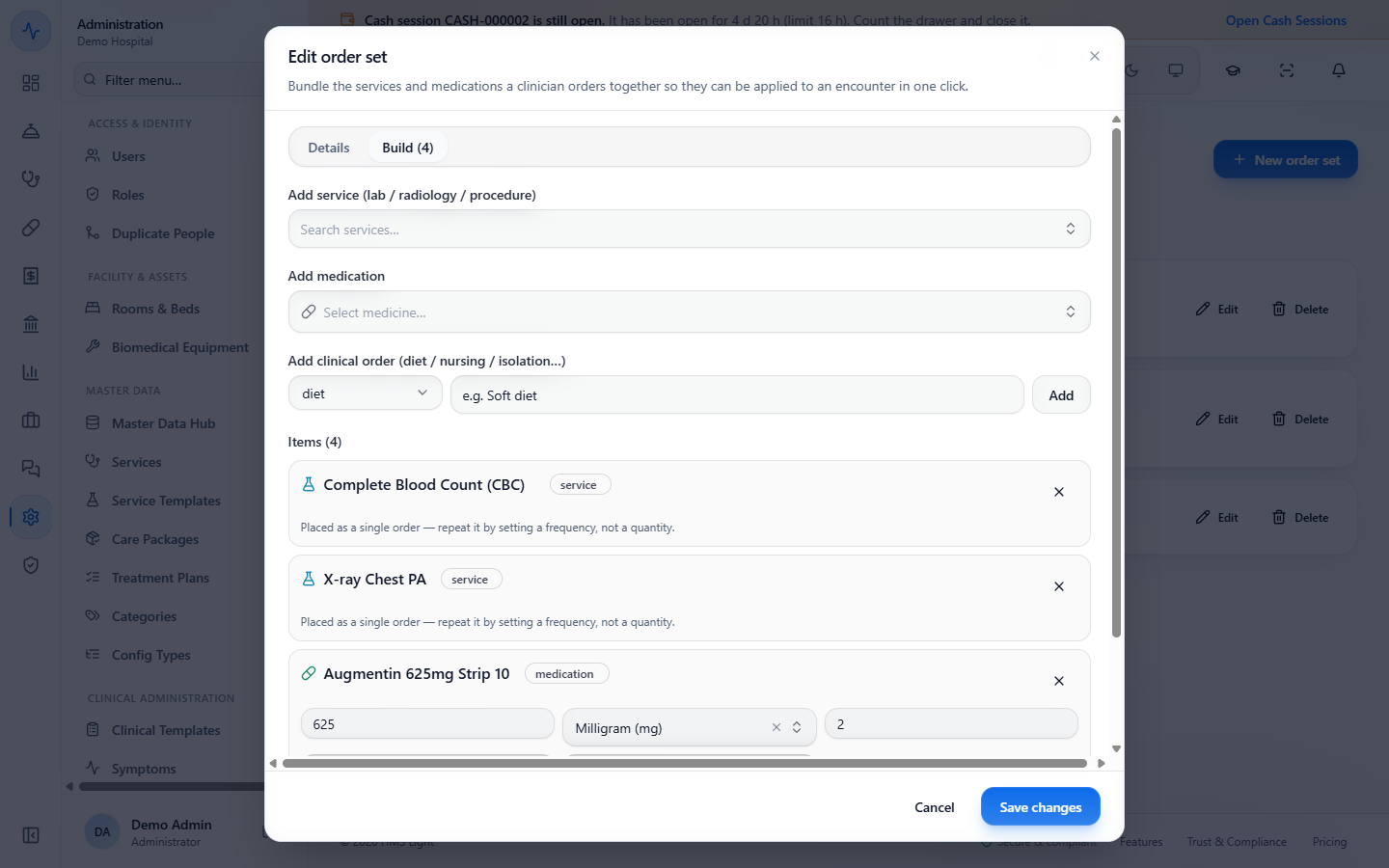
On Build, add services (the picker shows their price), medications (dose, unit, times a day, route and days) and clinical orders such as a soft diet. A service already in the bundle is refused with "Service already in this order set". Press Create order set; the toast says Order set created.
New order set dialog on the Details tab
Build tab with two services, a medication with dose and route, and a diet order
10
Apply an order set
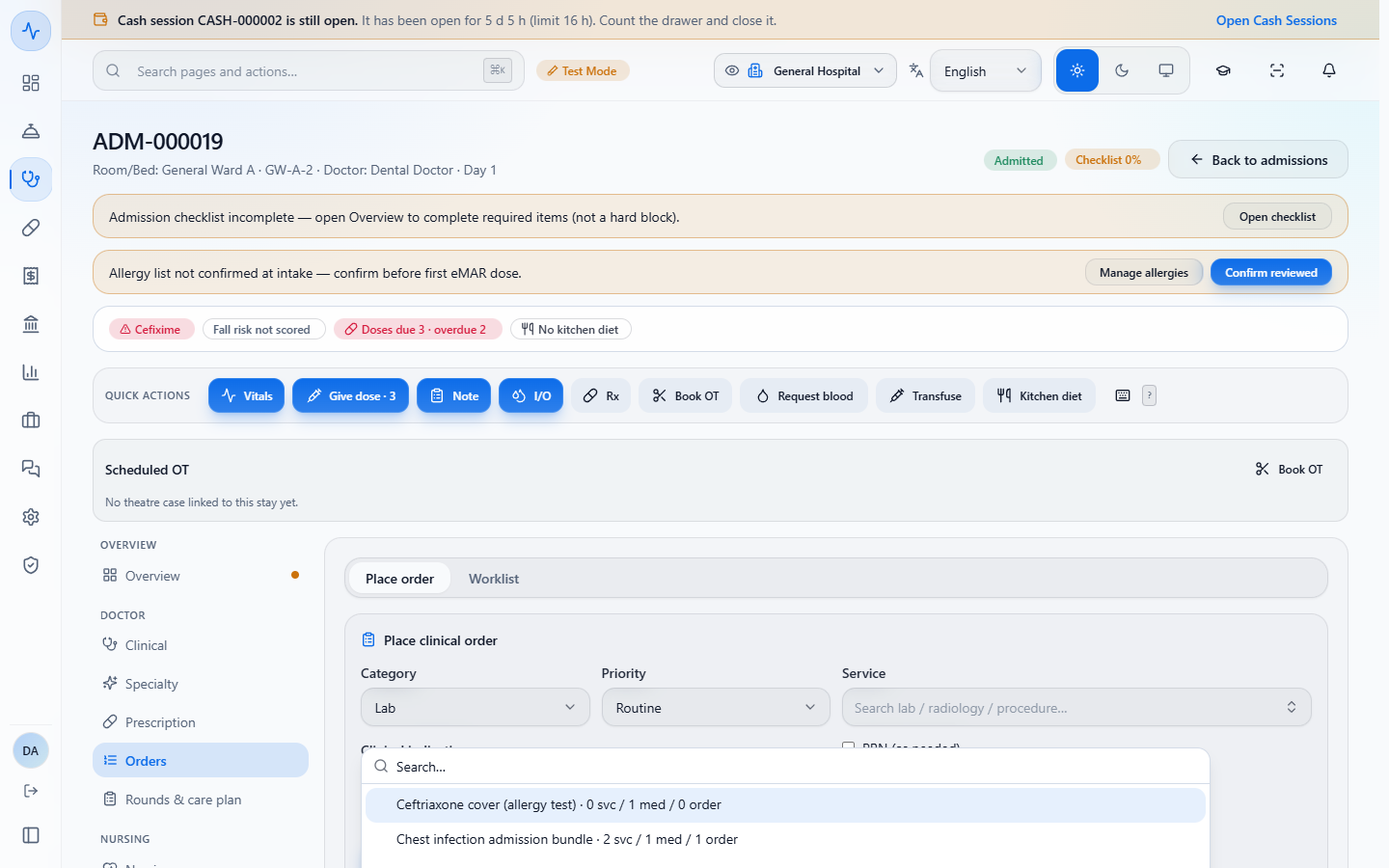
On the admission, choose a bundle in the Apply order set picker, which lists each one with its counts (for example "Chest infection admission bundle · 2 svc / 1 med / 1 order"), and press Apply. Confirm the dialog. Each line is ordered in one step.
A drug that trips a high-severity alert is not applied. The Bundle applied result lists it with its reason, and Override with a reason opens the Medication safety alert so the doctor can prescribe it anyway.
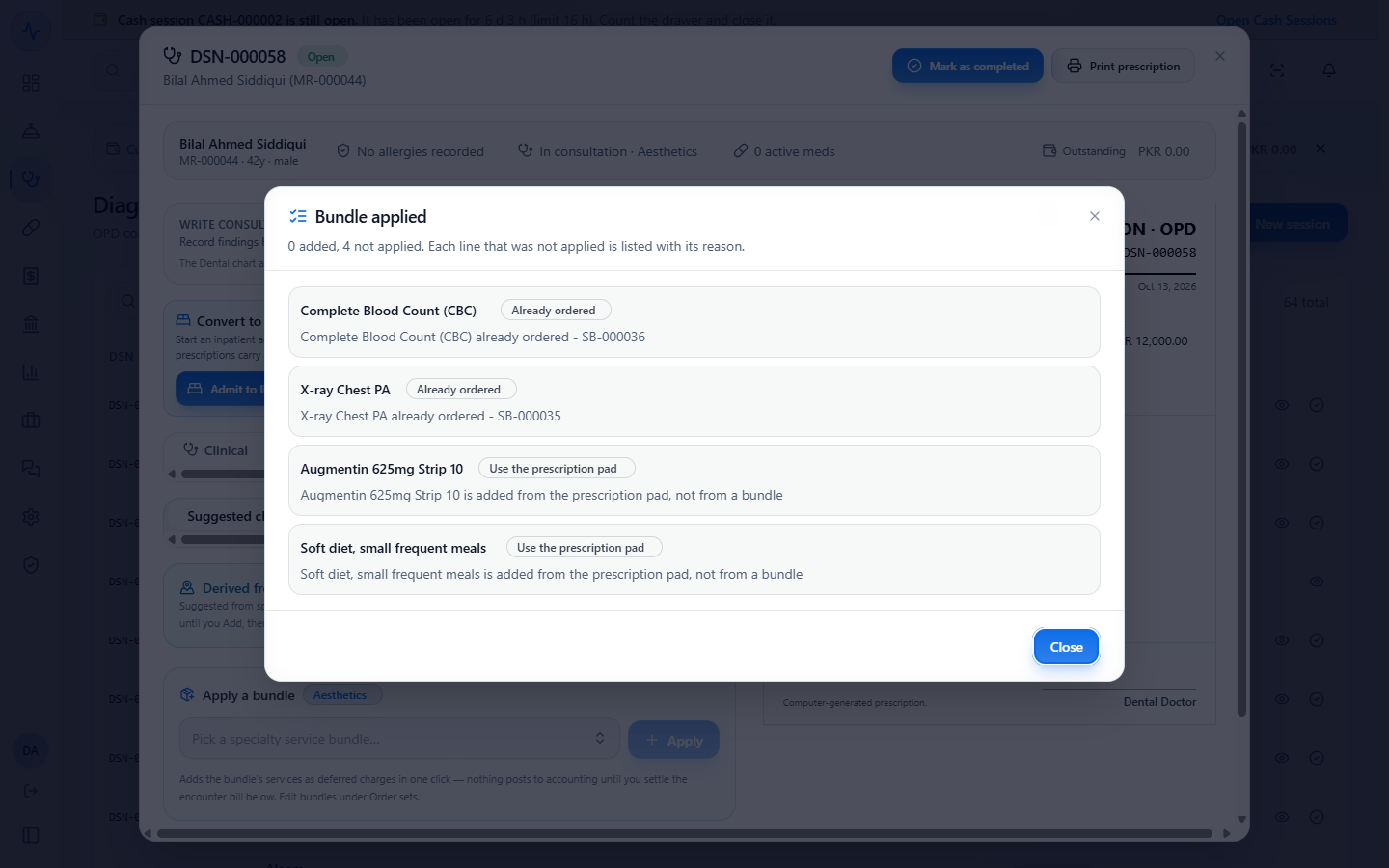
On an outpatient visit, bundles are offered under Orders & bill › Suggested charges › Apply a bundle. Services already ordered are refused ("Already ordered"), and medicines and diet lines are sent to the prescription pad.
The admission Orders tab with the Apply order set picker listing the bundles and their counts
Bundle applied dialog listing the ceftriaxone line that was not applied because of a safety alert, with Override with a reason
Bundle applied in an outpatient visit listing four lines that were not applied
11
Keep your partner facilities
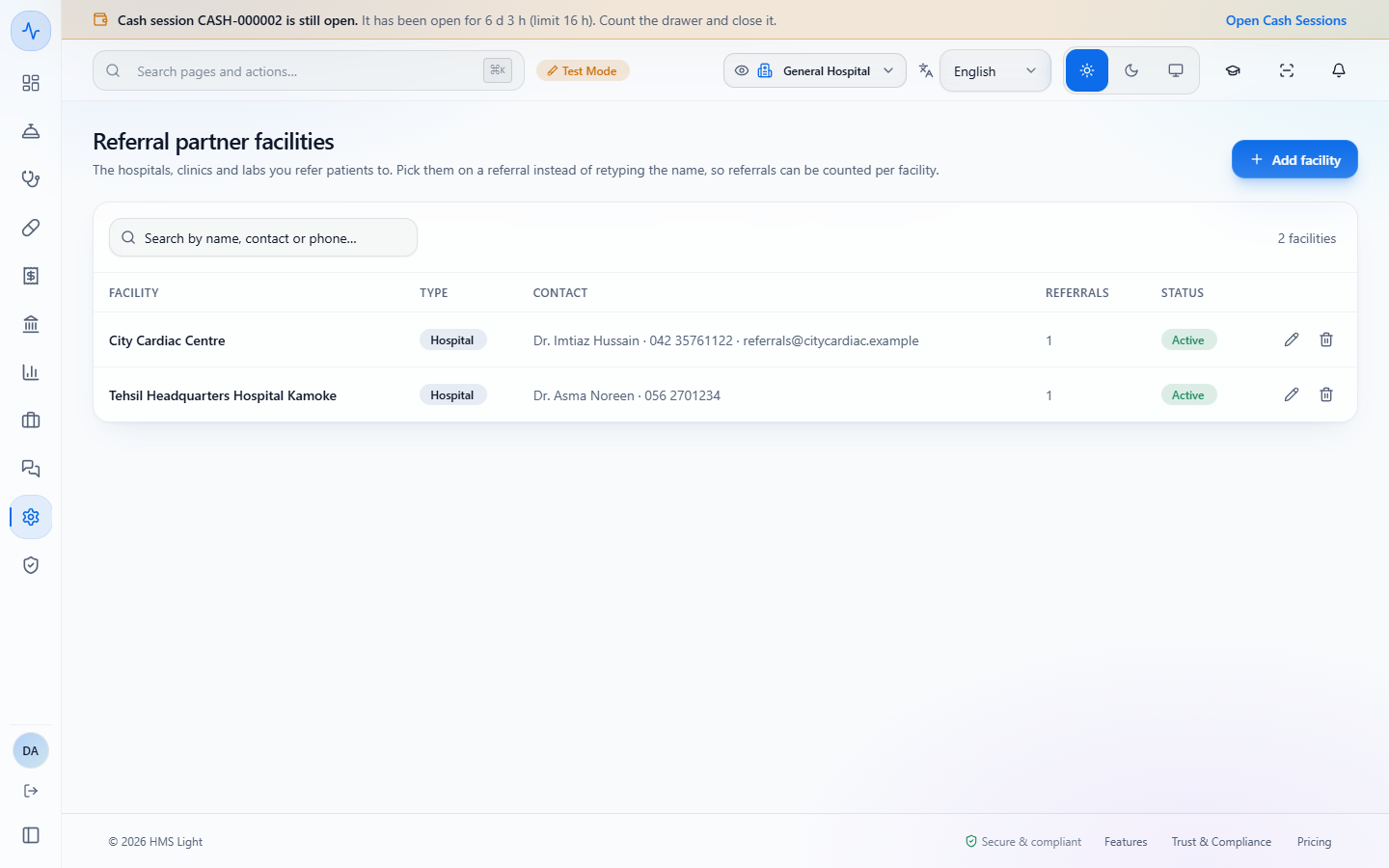
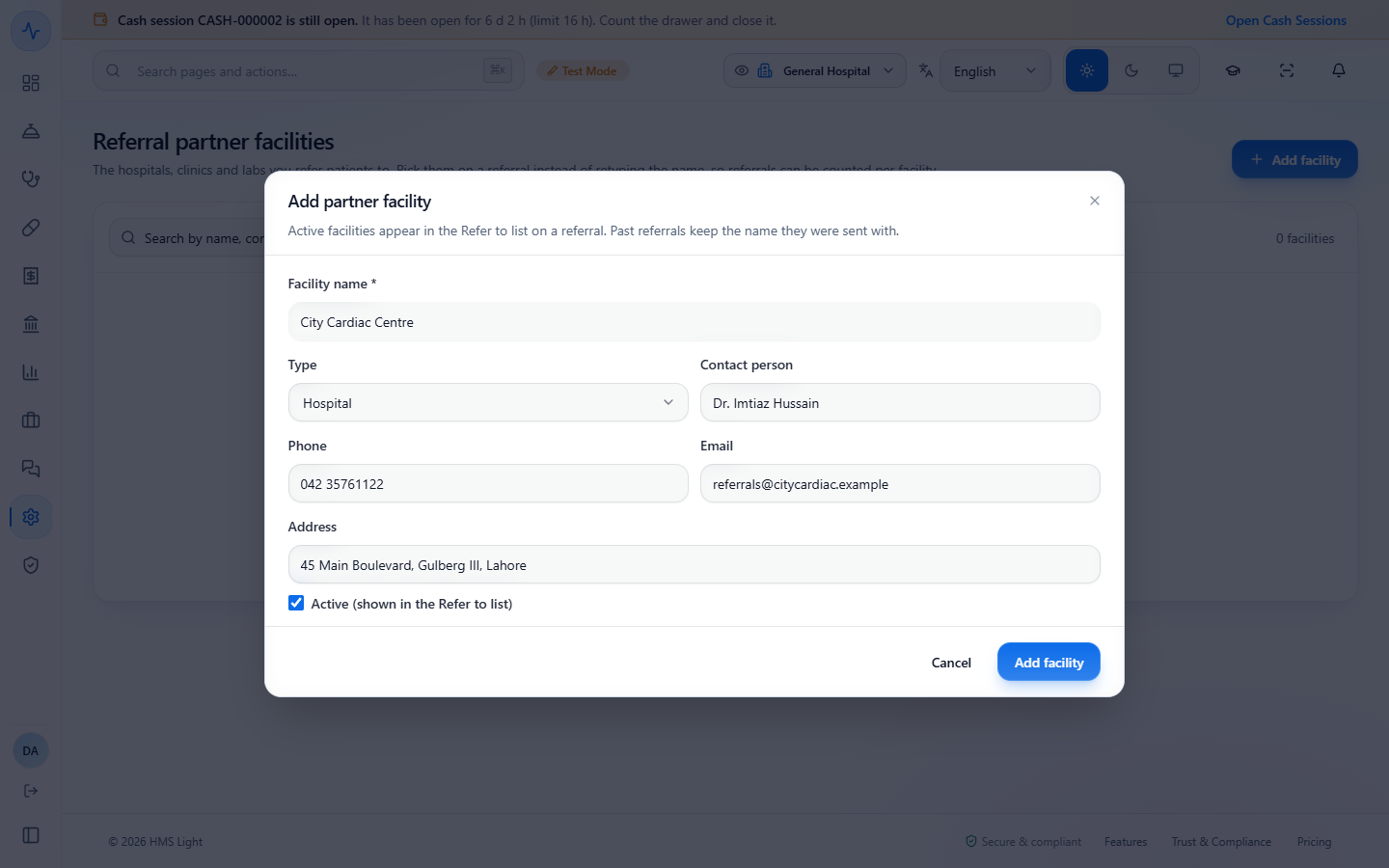
Open Administration › Master Data › Referral Facilities. Press Add facility and fill in Facility name, Type (Hospital, Clinic, Laboratory, Diagnostic centre, Specialist or Other), Contact person, Phone, Email and Address. Keep Active (shown in the Refer to list) on. The table counts how many referrals went to each facility.
Referral partner facilities list with City Cardiac Centre and Tehsil Headquarters Hospital Kamoke
The Add partner facility dialog filled in for City Cardiac Centre
12
Refer a patient out, and track it
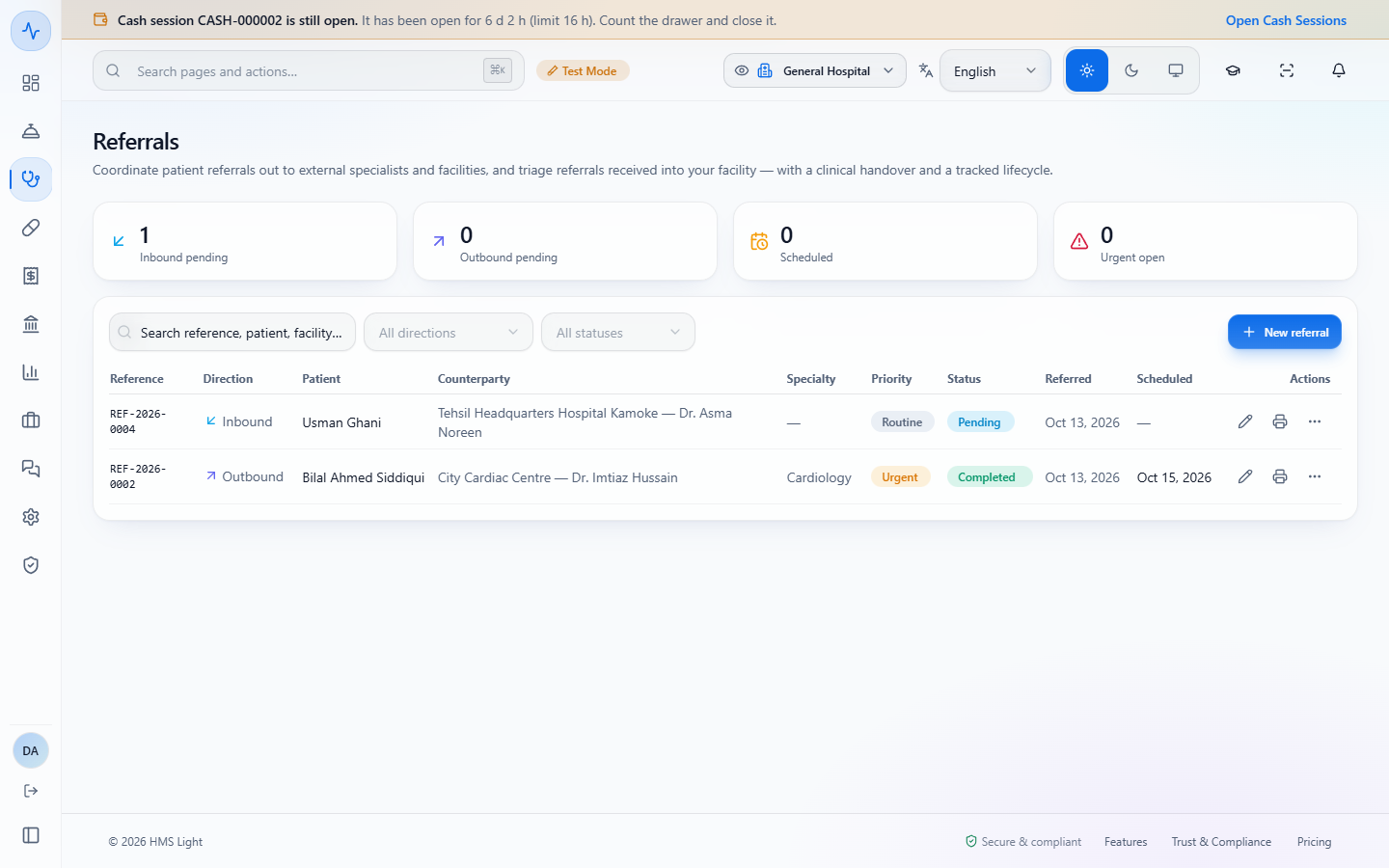
Open Clinical › Patient Care › Referrals. The tiles count Inbound pending, Outbound pending, Scheduled and Urgent open, and the filters narrow the list by direction and status. Press New referral.
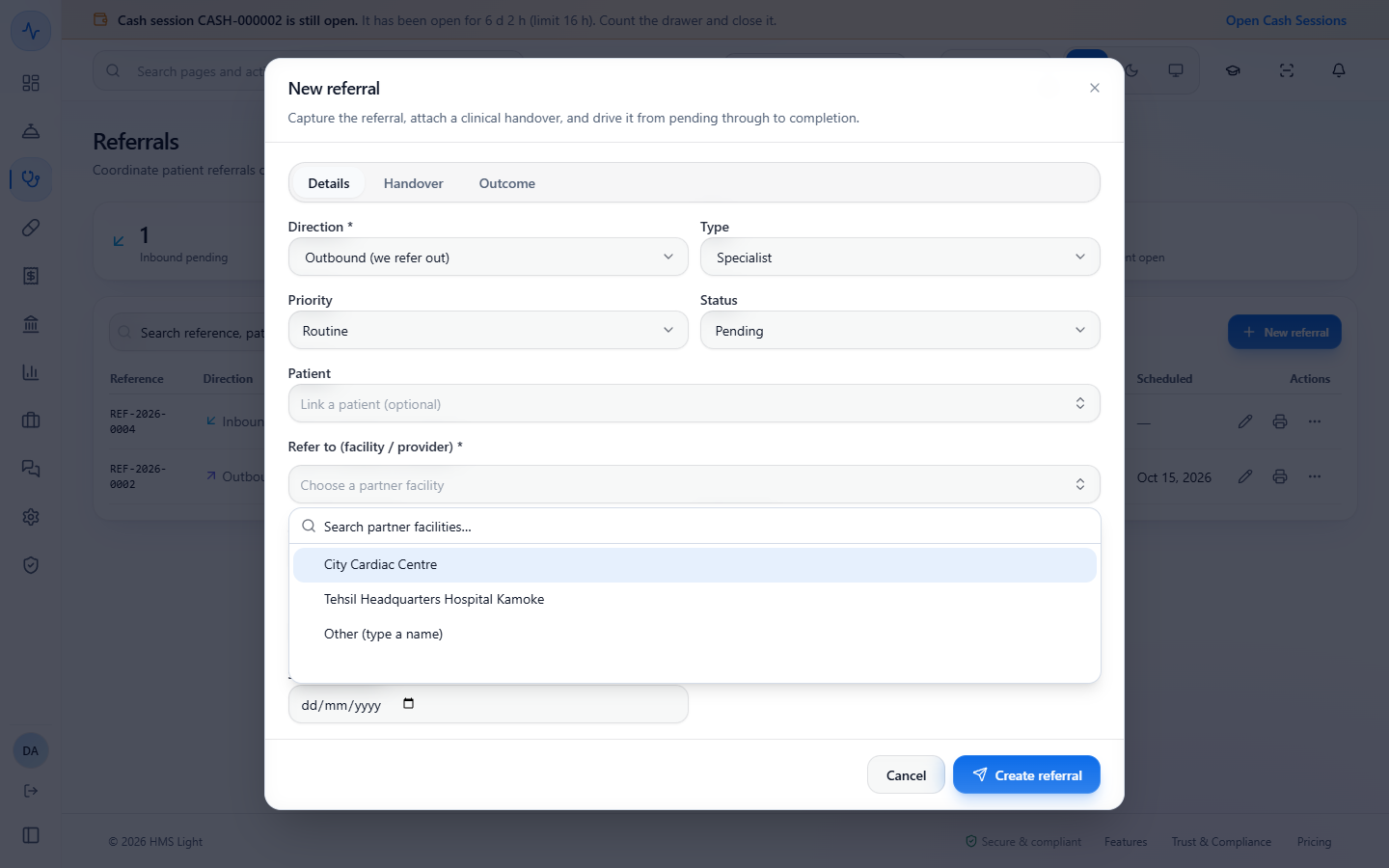
Set Direction (Outbound or Inbound), Type, Priority, Status and the Patient. For an outbound referral, pick the facility in Refer to, or choose Other (type a name). Use the Handover tab for the reason and the clinical summary, then press Create referral.
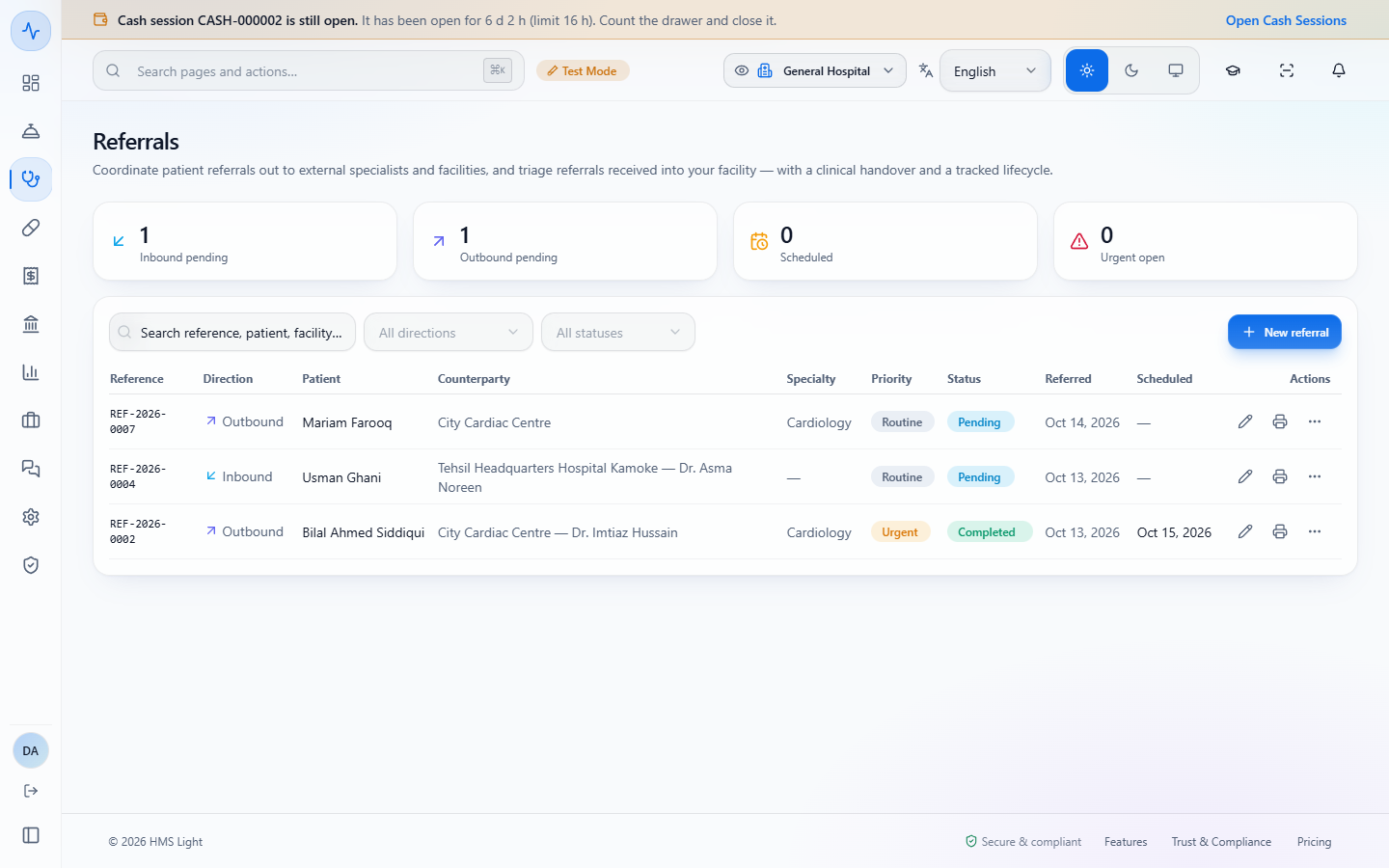
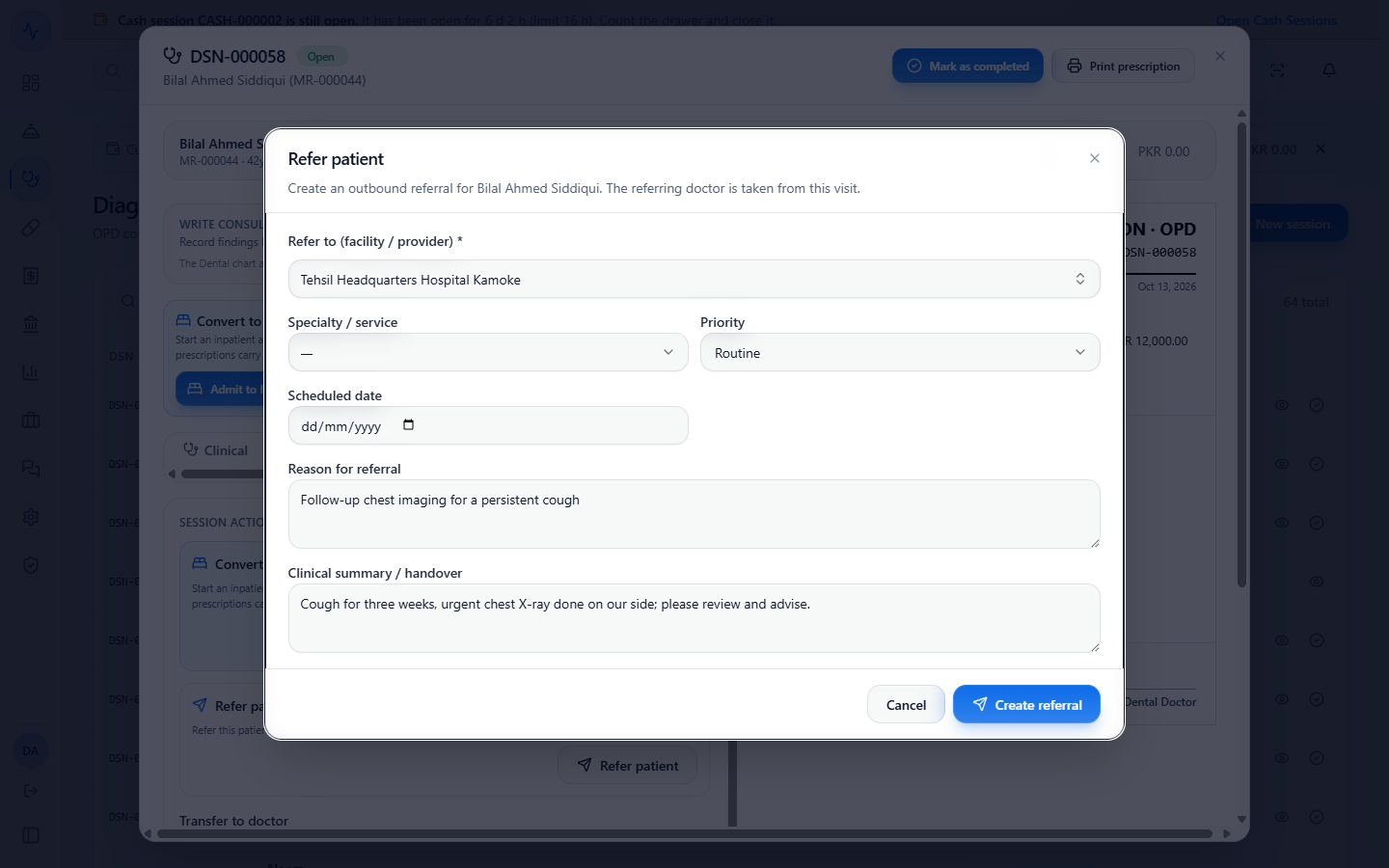
The toast says Referral created. Move it from Pending to Scheduled to Completed and write the reply on the Outcome tab. From a visit you can also press Refer patient on the Actions tab.
Referrals register with its tiles, filters and rows
Refer to picker listing the partner facilities and Other (type a name)
The register after the referral was created, showing City Cardiac Centre as the counterparty
Refer patient dialog opened from the visit
Check it worked
The visit's order list shows each order as Active, and the booking numbers (SB-000035, SB-000036) appear under Orders & bill, in Service Bookings and on the Radiology worklist.
A stopped order shows Discontinued with its reason.
The Order Worklist shows the visit's orders with their priority, and All pending orders counts them in its summary chip.
An admitted patient's header shows the number of safety alerts, and the drug line shows the override reason you chose.
A saved bundle appears as a card on Order sets with its counts, and an applied bundle lists every line it could not apply.
A new referral appears on Referrals with the facility name, its status and the dates.
Common mistakes
Mistake
What you see
Fix
Ordering the same test twice on a visit
Already ordered asks for a reason
Write a reason of at least five characters, or press Cancel
Discontinuing without a reason
"A reason is required to discontinue an order."
Type the reason and press Discontinue again
Applying a bundle that contains a drug the patient is allergic to
Bundle applied shows the drug as not applied, with a safety alert
Press Override with a reason, or leave the drug out
Trying to apply a bundle on an outpatient visit for medicines
Medicines and diet lines are listed as "Use the prescription pad"
Add the medicine from the prescription pad
Creating an order set without a name
"Enter a name"
Type a name and press Create order set
Raising an outbound referral without a facility
"Refer-to facility / provider is required for outbound"
Pick a partner facility or Other (type a name)
Quick reference
Item
Meaning / rule
Laboratory, Imaging
Create a booking that appears on the lab or radiology worklist
Procedure, Consult
Clinical records only, no booking
Priority
Routine, Urgent or STAT
Service price PKR 0.00
Unpriced: set the price before billing
Order Worklist
Read only: By encounter and All pending orders, with Open chart to make changes
Safety alert
Frozen when the order was placed, with the override reason shown
Order set
A bundle of services, medications and clinical orders, applied in one step
Referral
Outbound or Inbound; Pending, Accepted, Scheduled, Completed, Rejected or Cancelled
Frequently asked questions
What happens if I order the same test twice on one visit? The Already ordered dialog asks for a reason of at least five characters. Write one to continue, or press Cancel.
Can I change orders from the Order Worklist? No. The worklist is read only: use Open chart to go to the patient's chart and make changes there.
What if a bundle contains a drug the patient is allergic to?Bundle applied lists the drug as not applied with its safety alert. Press Override with a reason, or leave the drug out.
Do I need a partner facility to refer a patient out? An outbound referral needs a facility: pick a partner facility or Other (type a name).