How to charge further tax to Non-ATL buyers at the till
Pakistani goods retailers add a further tax on top of GST when they sell to a buyer who is not on the Active Taxpayer List. This guide shows how to switch the rule on, how the cashier marks the buyer as registered or unregistered, and where the tax shows up afterwards.
Who it is forCashier and shop ownerTime12 minutesProductPOSLevelIntermediate
Before you start
Steps
1
Switch on ATL further tax
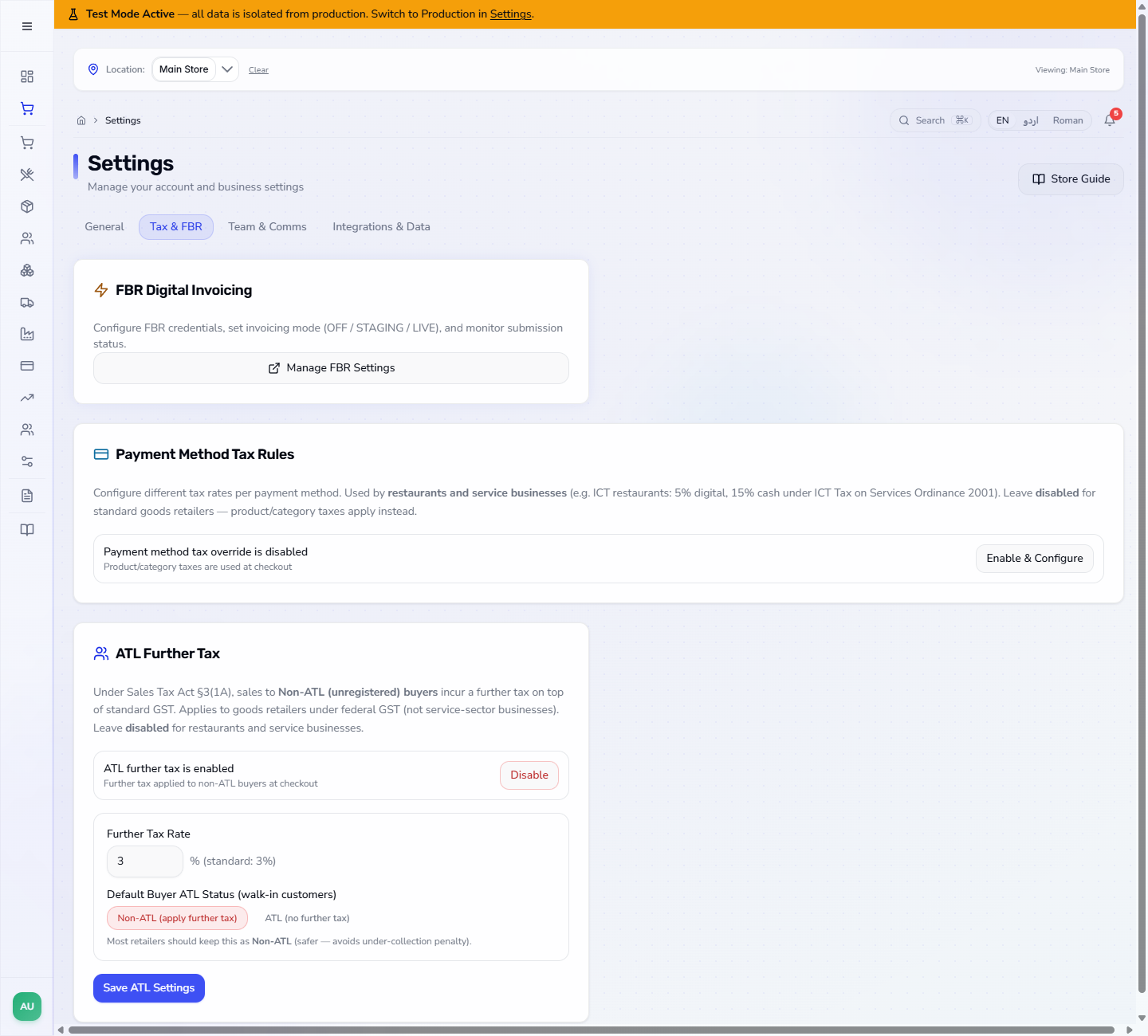
Open Settings and the tab Tax & FBR. On the card ATL Further Tax press Enable: the app says Tax settings saved. Keep Further Tax Rate at 3 (the card says standard: 3%) and keep Default Buyer ATL Status (walk-in customers) on Non-ATL (apply further tax). Press Save ATL Settings after any change.
ATL Further Tax card on Settings, Tax and FBR, enabled with a 3 percent rate and Non-ATL as the default buyer status
2
Read the tax on the cart
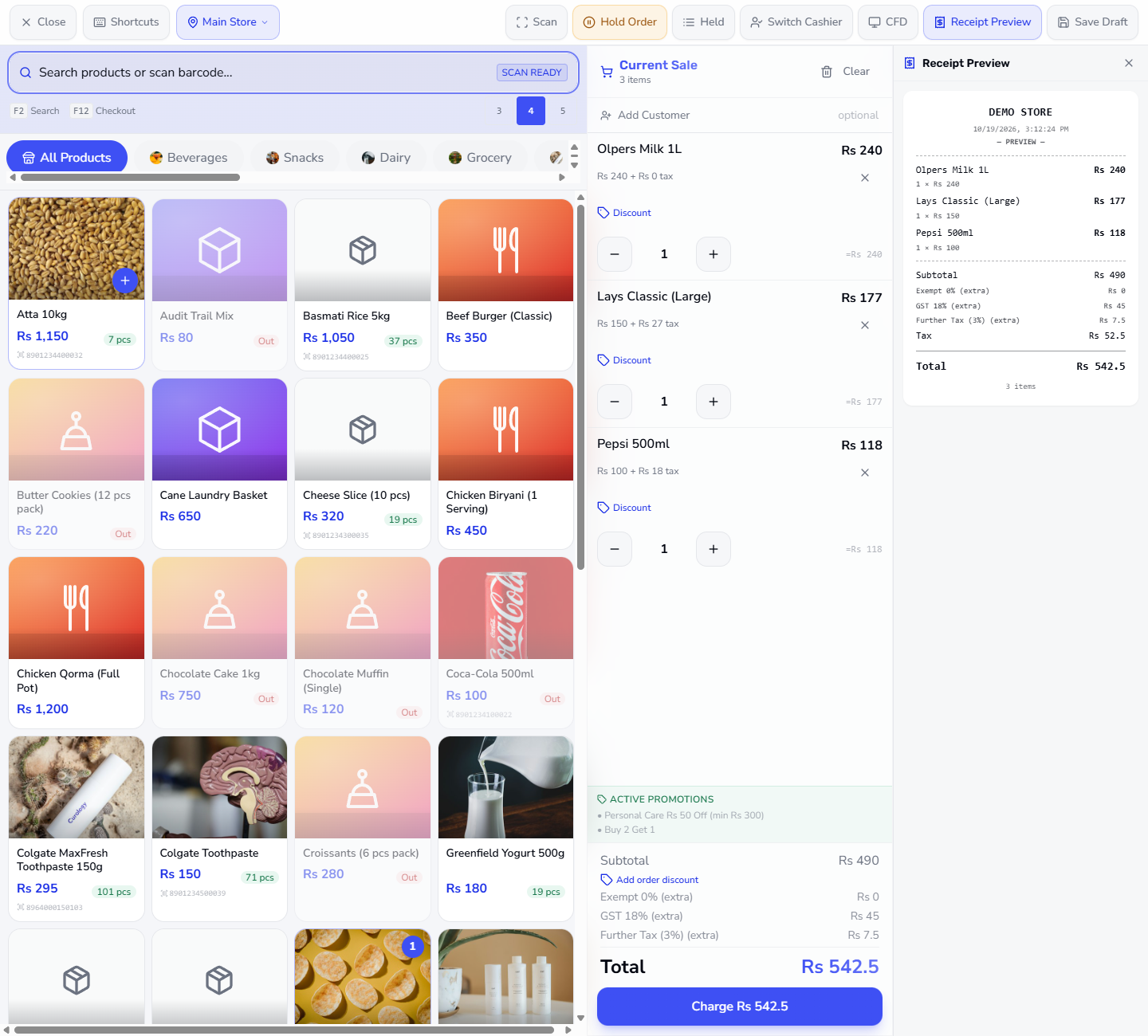
On the POS Terminal tap Olpers Milk 1L, Pepsi 500ml and Lays Classic (Large). Each line shows its own tax (Rs 240 + Rs 0 tax, Rs 100 + Rs 18 tax, Rs 150 + Rs 27 tax). Under the lines the cart shows Subtotal Rs 490, GST 18% (extra) Rs 45, Further Tax (3%) (extra) Rs 7.5 and Total Rs 542.5 for a walk-in buyer, who counts as Non-ATL by default.
Cart with Olpers Milk, Pepsi and Lays, Subtotal Rs 490, GST 18% Rs 45, Further Tax 3% Rs 7.5 and Total Rs 542.5
3
Open Payment and read the buyer status
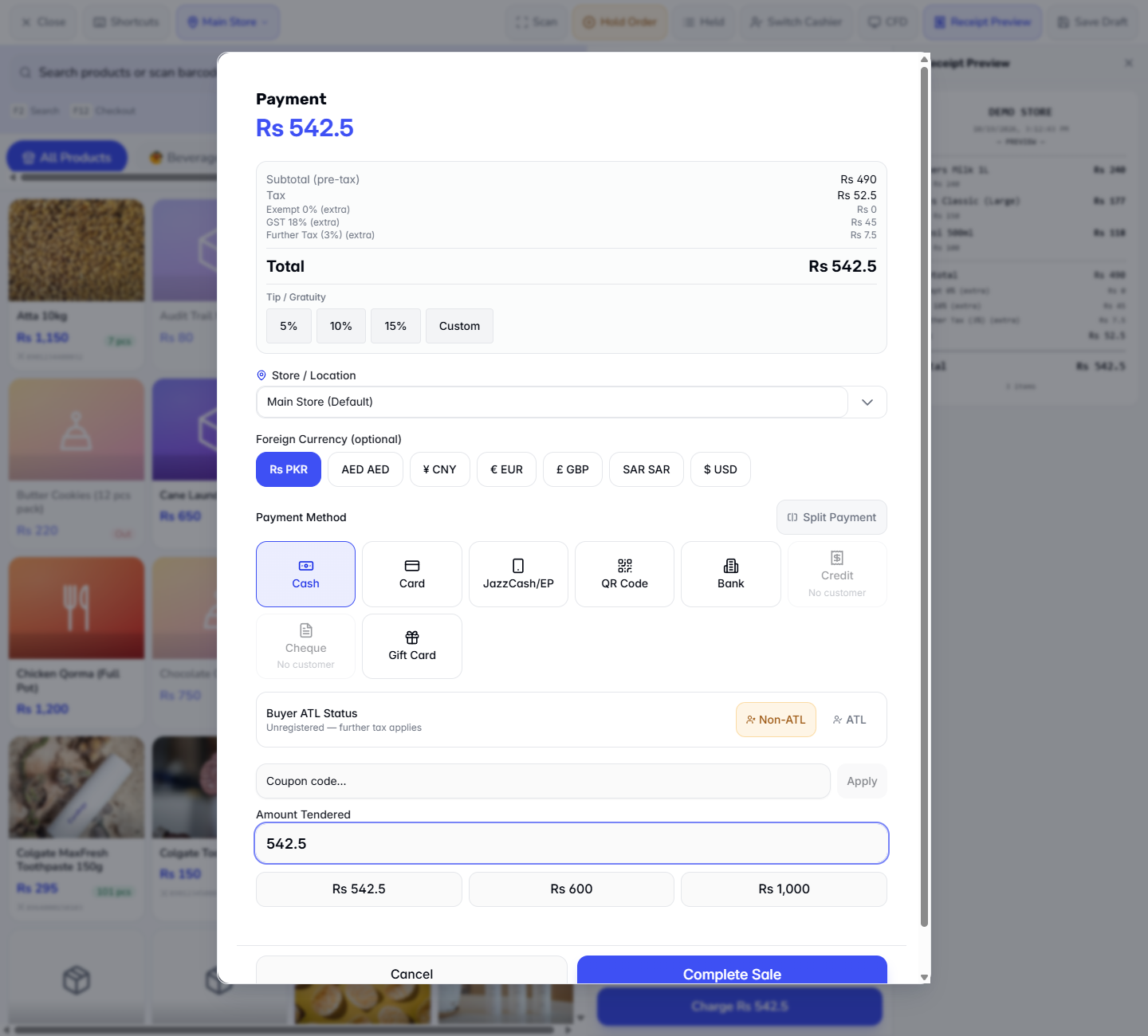
Press Charge Rs 542.5. In the Payment dialog find Buyer ATL Status. A walk-in customer starts as Non-ATL with the line Unregistered — further tax applies. The dialog quotes Tax Rs 52.5 and Total Rs 542.5.
Payment dialog with the Buyer ATL Status block reading Unregistered, further tax applies
4
Mark a registered buyer as ATL
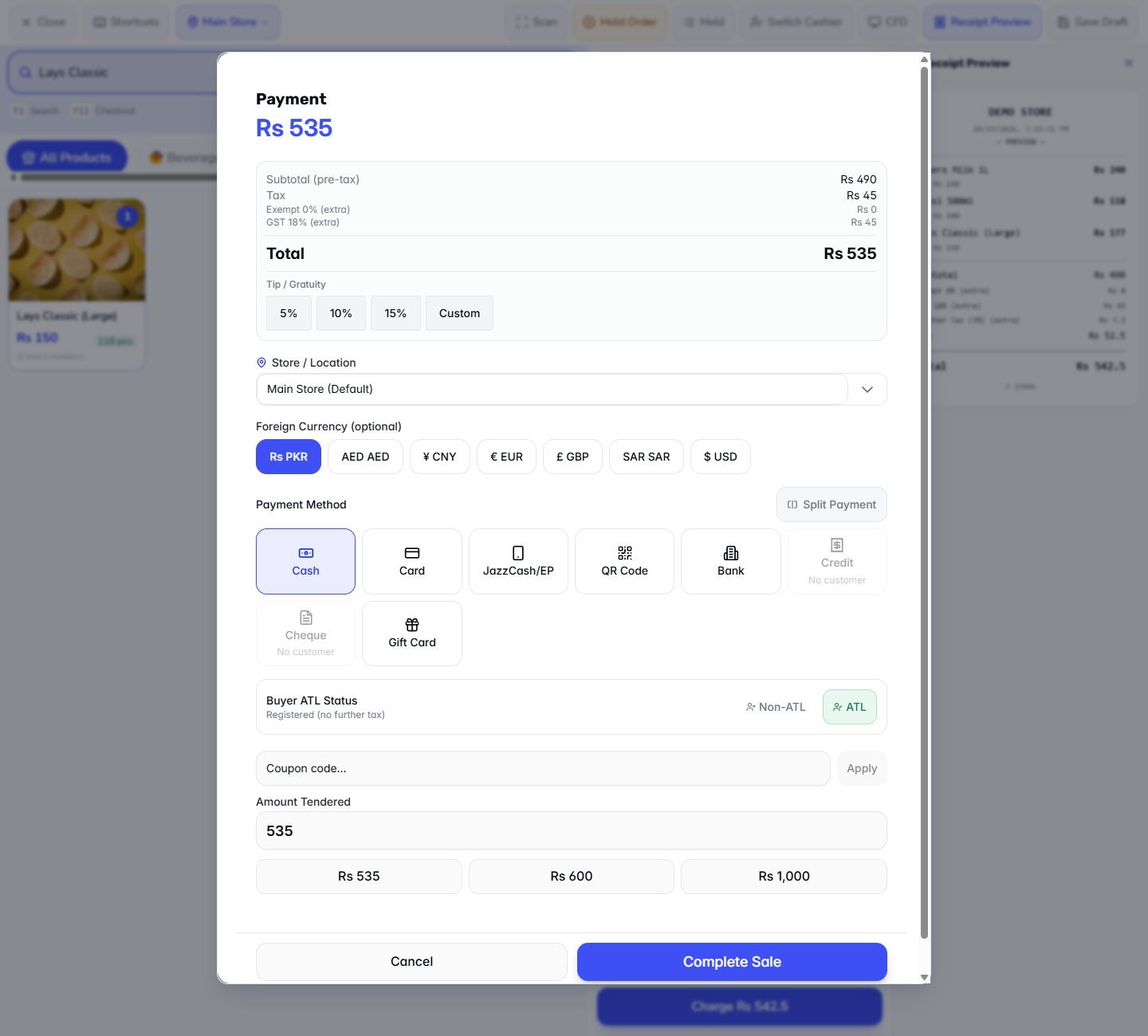
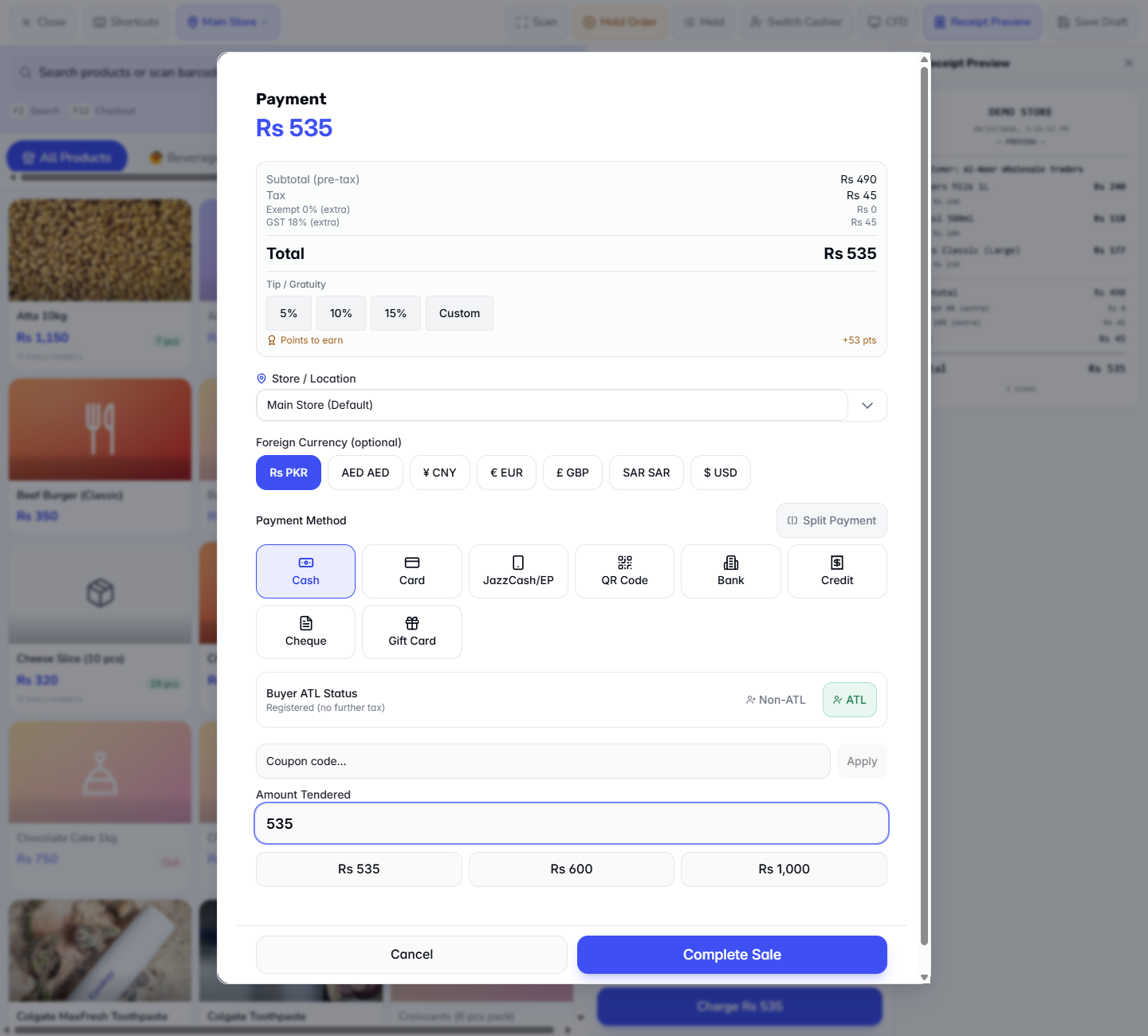
If the buyer gives you a tax number that is on the Active Taxpayer List, tap ATL. The line changes to Registered (no further tax), the ATL button turns green, Tax drops to Rs 45 and Total to Rs 535.
Payment dialog with ATL selected, the line Registered, no further tax, and Total Rs 535
5
Complete the sale and read the receipt
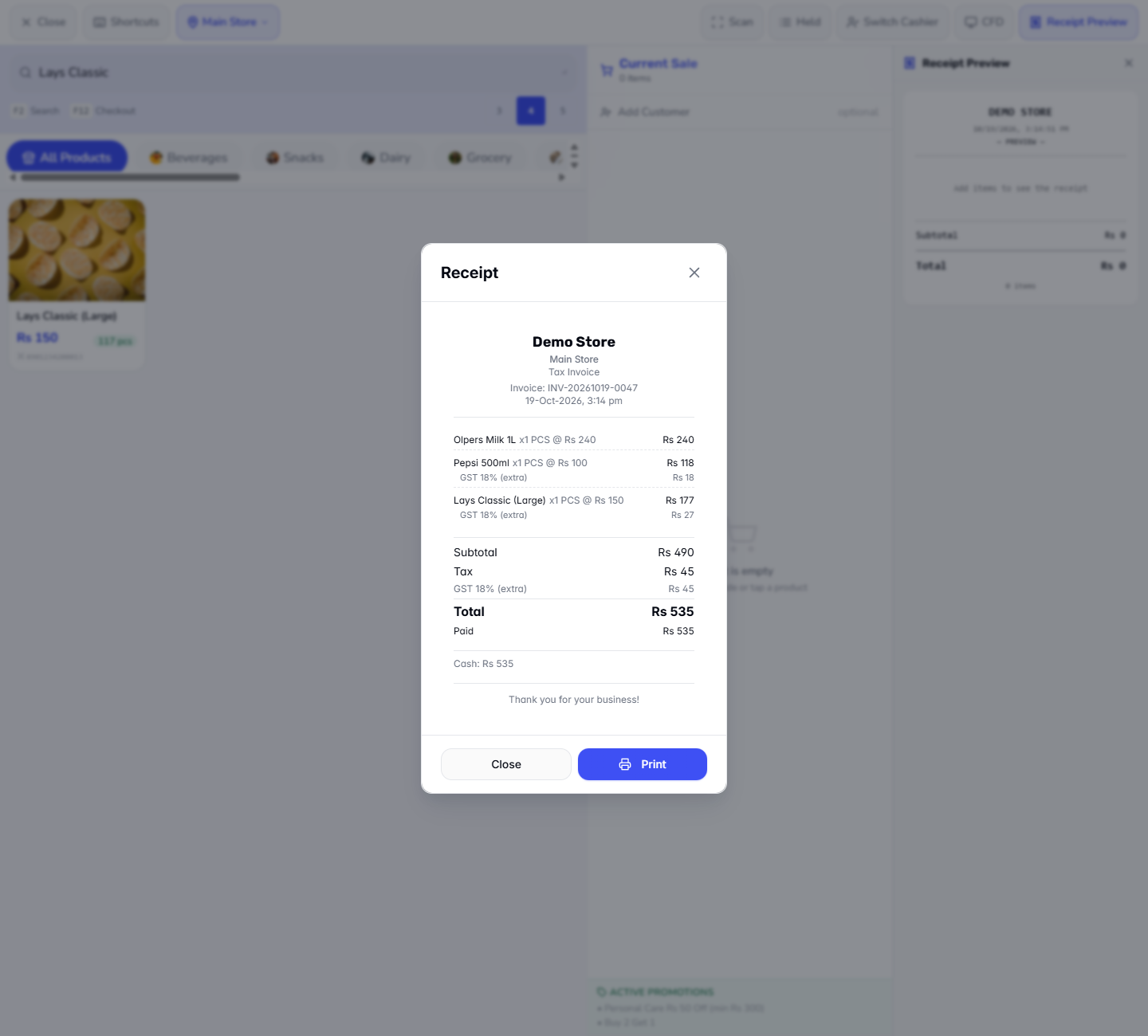
Choose Cash, take the first quick button Rs 535 and press Complete Sale. The receipt (here INV-20261019-0047) shows Tax Rs 45 (GST only), Total Rs 535 and Paid Rs 535.
Receipt for the registered buyer showing only GST 18 percent, Tax Rs 45 and Total Rs 535
6
See the further tax on an unregistered sale
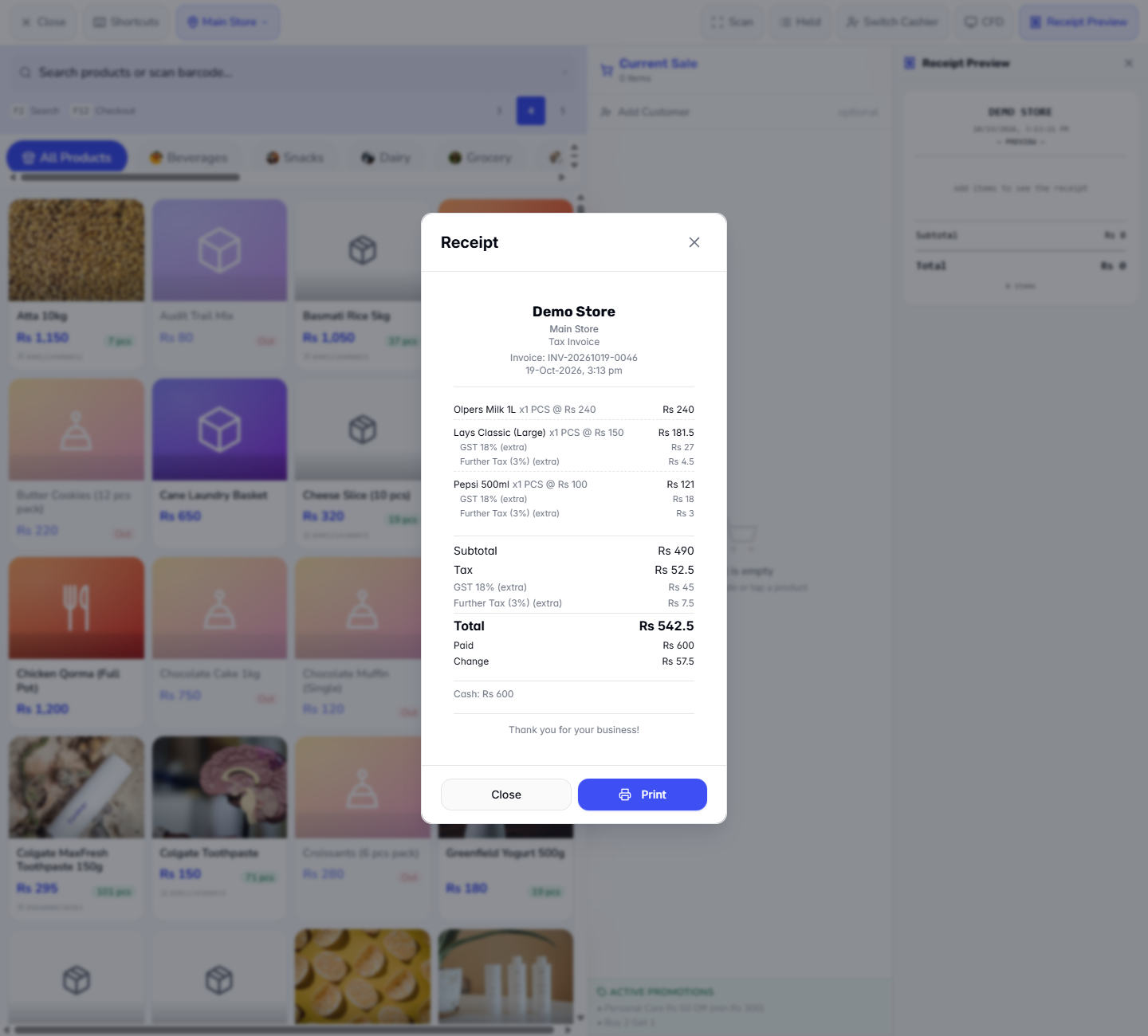
For the same cart and a Non-ATL buyer the receipt adds Further Tax (3%) (extra) under each taxed item: Rs 3 on Pepsi and Rs 4.5 on Lays. Tax becomes Rs 52.5 (GST Rs 45 plus further tax Rs 7.5) and Total becomes Rs 542.5. Here the buyer paid Rs 600 and got Change Rs 57.5 (INV-20261019-0046).
Receipt for the unregistered buyer with a Further Tax 3 percent line under each taxed item and Total Rs 542.5
7
Collect the real total
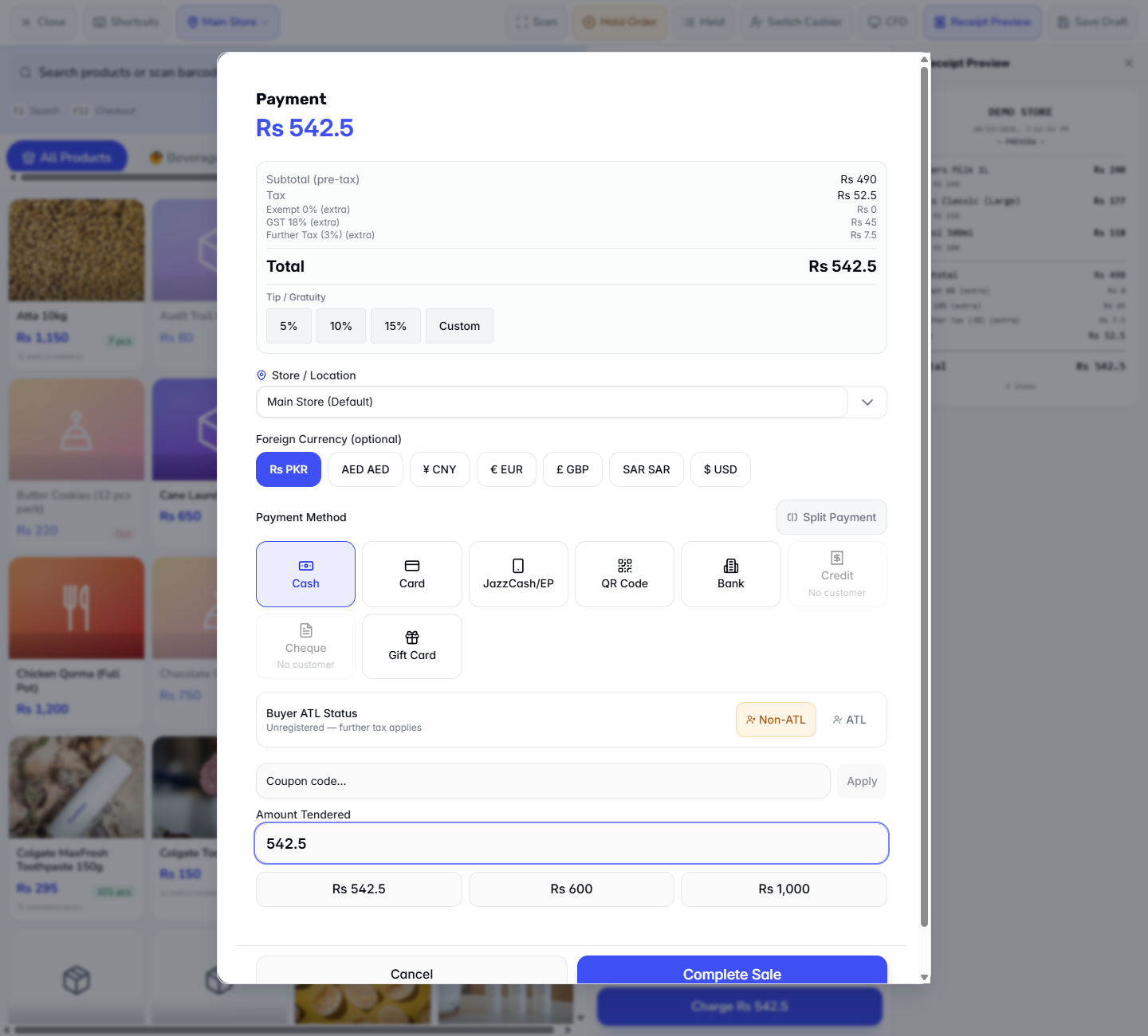
The Payment dialog, the Charge button and the quick buttons all quote the real total, further tax included: Rs 542.5, Rs 600 and Rs 1,000 for a Non-ATL buyer (Rs 535 first for an ATL buyer). The first button fills in the exact total, so you do not work out the further tax yourself.
Payment dialog for a Non-ATL buyer with the quick buttons Rs 542.5, Rs 600 and Rs 1,000
8
Save a regular business customer as registered
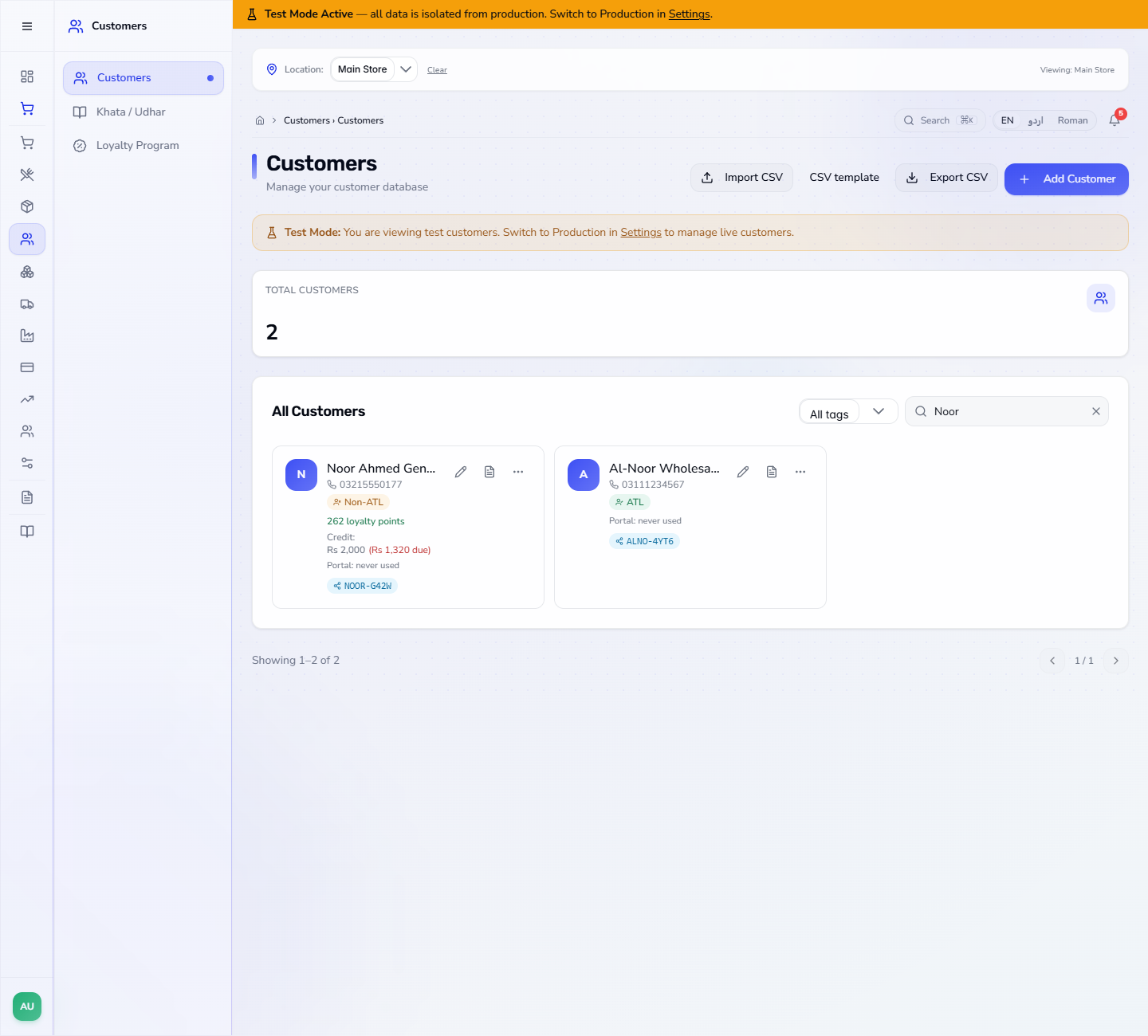
Open Customers, press Add Customer and fill Name (Al-Noor Wholesale Traders), Phone (03111234567) and NTN (Tax Number) (exactly 7 digits, here 4521096). In ATL (Active Taxpayer List) Status choose ATL (registered taxpayer) and press Save Customer. The customer card shows a green ATL badge.
Customers list with Al-Noor Wholesale Traders carrying a green ATL badge beside a Non-ATL customer
9
Pick the customer at the till
On the POS Terminal use Add Customer in the cart, type Noor and pick Al-Noor Wholesale Traders. The cart total drops to Rs 535. At Charge the Buyer ATL Status already reads Registered (no further tax).
Payment dialog for the customer Al-Noor Wholesale Traders already showing Registered, no further tax
10
Complete the sale for the registered customer
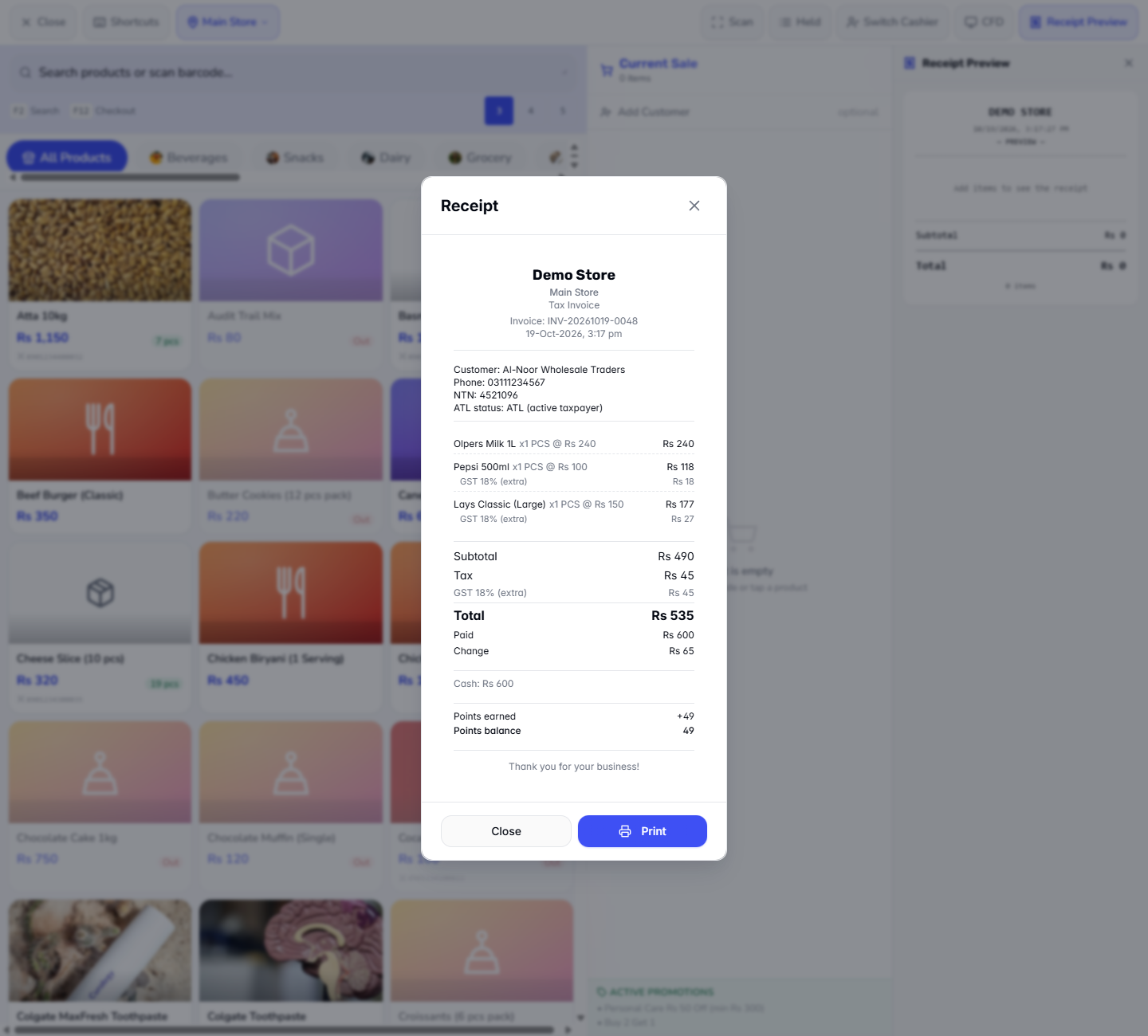
Pay Cash Rs 600. The receipt (INV-20261019-0048) carries Customer: Al-Noor Wholesale Traders, Phone, NTN: 4521096 and ATL status: ATL (active taxpayer), then Tax Rs 45, Total Rs 535, Paid Rs 600 and Change Rs 65.
Receipt naming the customer with NTN 4521096 and ATL status, Tax Rs 45 and Total Rs 535
11
Check the tax in Sales History, the report and the books
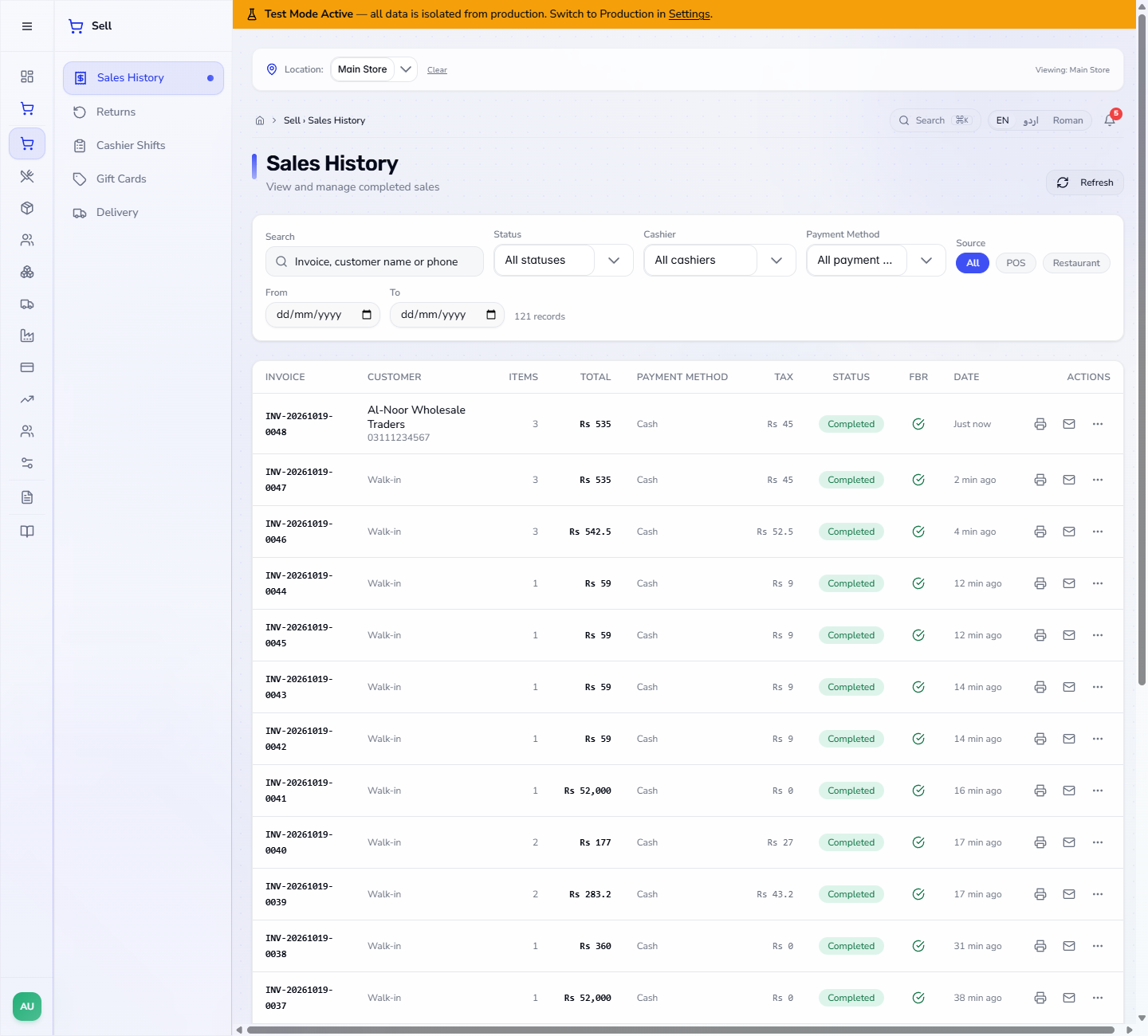
In Sell › Sales History the Tax column shows Rs 45 for the two registered sales and Rs 52.5 for the unregistered one (GST and further tax together), each with a check mark in the FBR column.
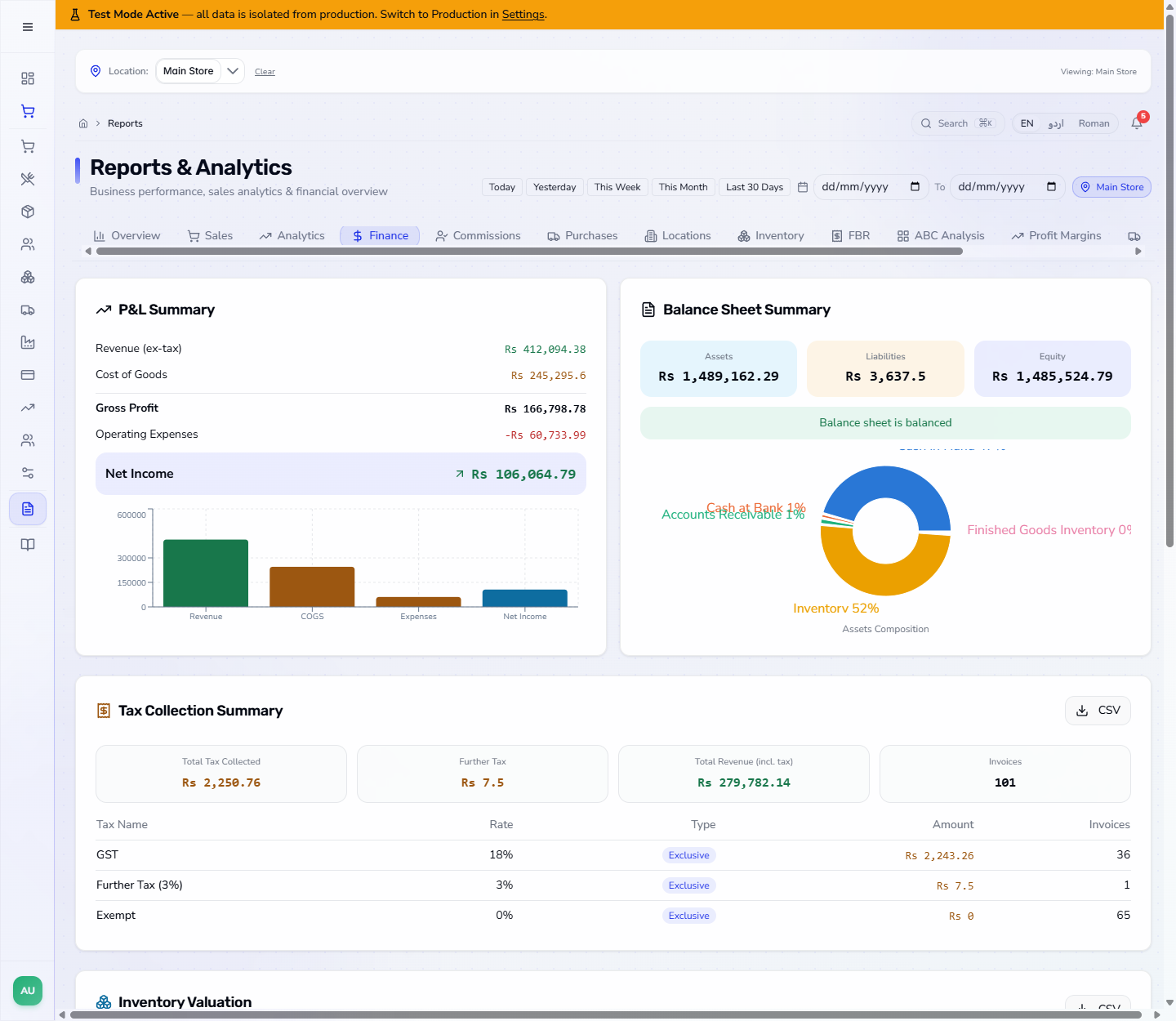
In Reports › Finance the Tax Collection Summary lists GST 18% and Further Tax (3%) on separate rows: on the day this guide was written the Further Tax card read Rs 7.5, all from the unregistered sale.
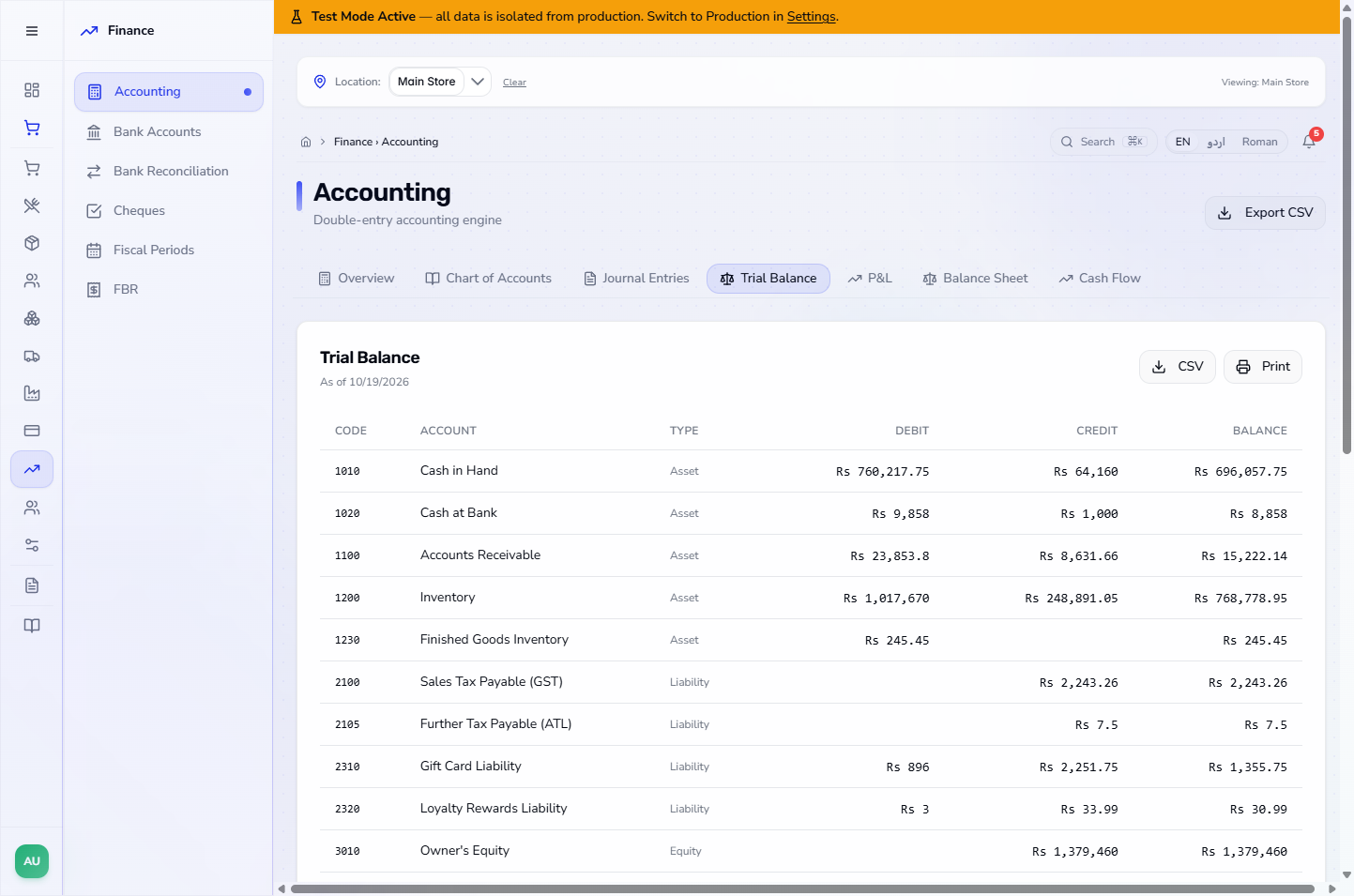
In Finance › Accounting › Trial Balance the further tax has its own account, 2105 Further Tax Payable (ATL), Rs 7.5, beside 2100 Sales Tax Payable (GST). The unregistered sale posts Cash in Hand Rs 542.5, Sales Revenue Rs 490, GST Rs 45 and further tax Rs 7.5.
Sales History with the Tax column showing Rs 45, Rs 45 and Rs 52.5
Reports Finance tab with the Tax Collection Summary listing GST and Further Tax (3%) on separate rows
Trial Balance with Sales Tax Payable and Further Tax Payable as separate accounts
12
Turn it off if it does not apply to you
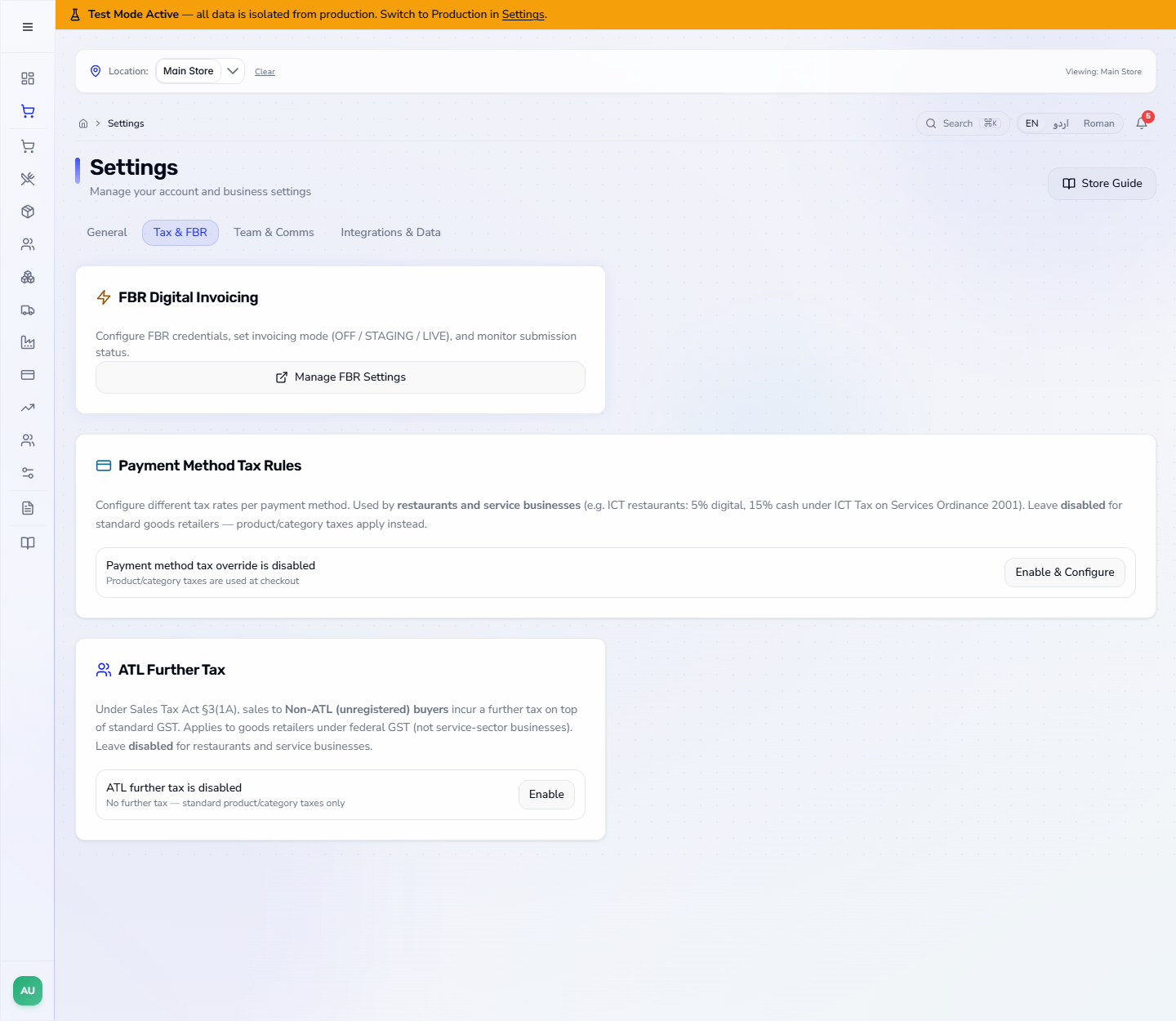
Restaurants and service businesses leave the card disabled. When you press Disable on the ATL Further Tax card it reads ATL further tax is disabled, the Buyer ATL Status block disappears from the Payment dialog and only the product taxes apply.
ATL Further Tax card reading ATL further tax is disabled with an Enable button
Check it worked
A sale to an ATL buyer shows Tax Rs 45 and Total Rs 535 on the receipt and in Sales History.
A sale to a Non-ATL buyer shows Further Tax (3%) (extra) lines, Tax Rs 52.5 and Total Rs 542.5.
Reports › Finance › Tax Collection Summary shows a Further Tax figure and the Trial Balance shows account 2105.
Common mistakes
Mistake
What you see
Fix
Taking Rs 535 from an unregistered buyer
The sale needs Rs 542.5, further tax included
Use the first quick button, which quotes the real total
Leaving a registered customer as Non-ATL
Further Tax lines on their receipt
Edit the customer and choose ATL (registered taxpayer)
Typing the NTN with a dash and a check digit
The customer is not saved
Enter exactly 7 digits
Enabling the rule for a restaurant
An extra tax block at payment
Press Disable on the card
Quick reference
Item
Meaning / rule
Further Tax Rate
3% by default, set on Settings › Tax & FBR
Default Buyer ATL Status
Status given to walk-in customers (Non-ATL by default)
Which customers pay further tax? Buyers marked Non-ATL (unregistered). A walk-in customer takes the default status from Settings, a saved customer takes the status on their record, and the cashier can change it in the Payment dialog.
Where do I set the further tax rate? On Settings › Tax & FBR, card ATL Further Tax: Further Tax Rate (3% is the standard) and Default Buyer ATL Status (walk-in customers), then Save ATL Settings.
Does the receipt show the further tax separately from GST? Yes. Each item gets a Further Tax (3%) (extra) line and the totals list GST 18% (extra) and Further Tax (3%) (extra) under Tax.
Can one branch use a different rule? Yes. In Inventory › Locations & Warehouses, Edit, open Tax Rule Overrides and use the ATL Further Tax switch for that branch.