Open the quotations list
Open Estimating › Quotes › Quotations. Click New quotation.
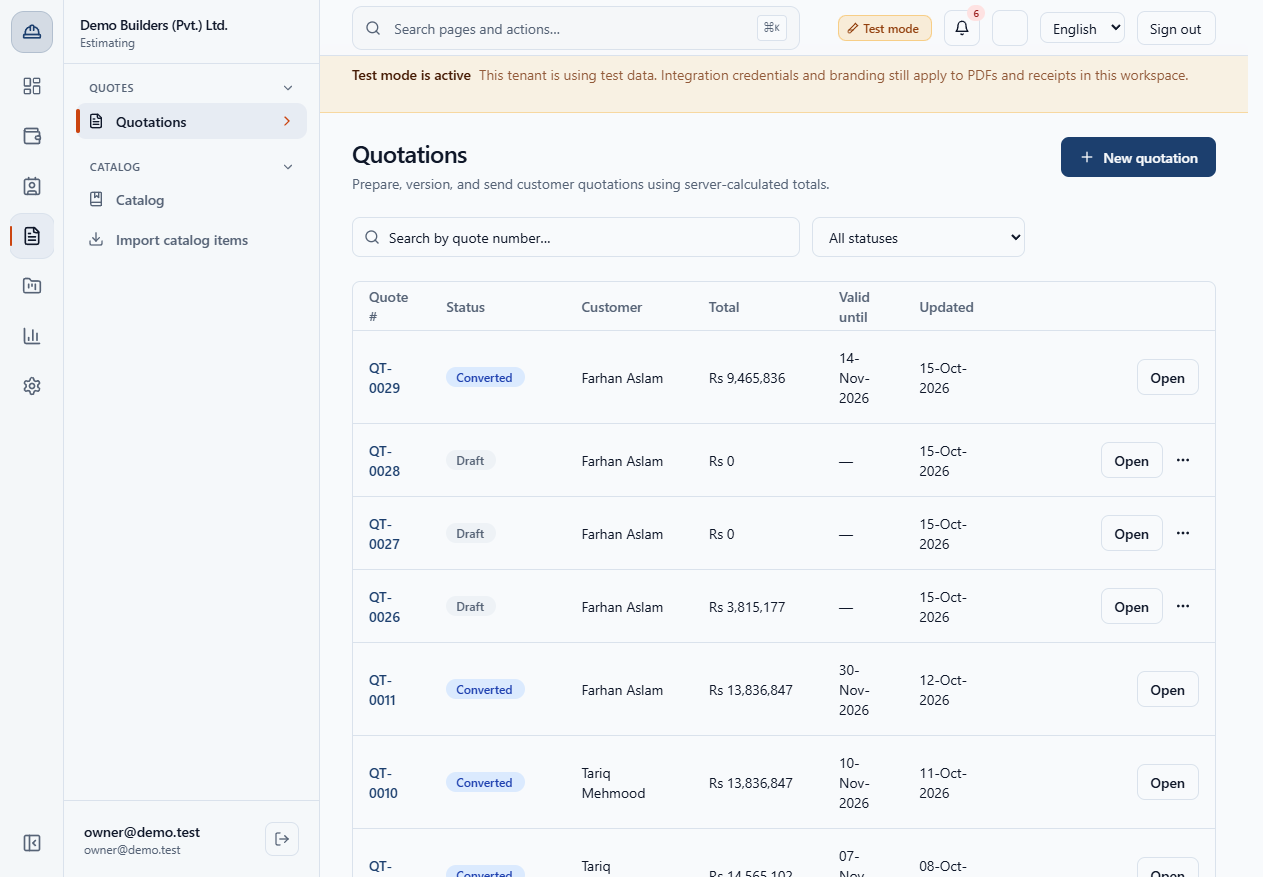
Every quotation has two pricing choices: how a line is priced and who supplies the materials. This guide shows where you set them, what each option does and what changes when you switch.
Open Estimating › Quotes › Quotations. Click New quotation.
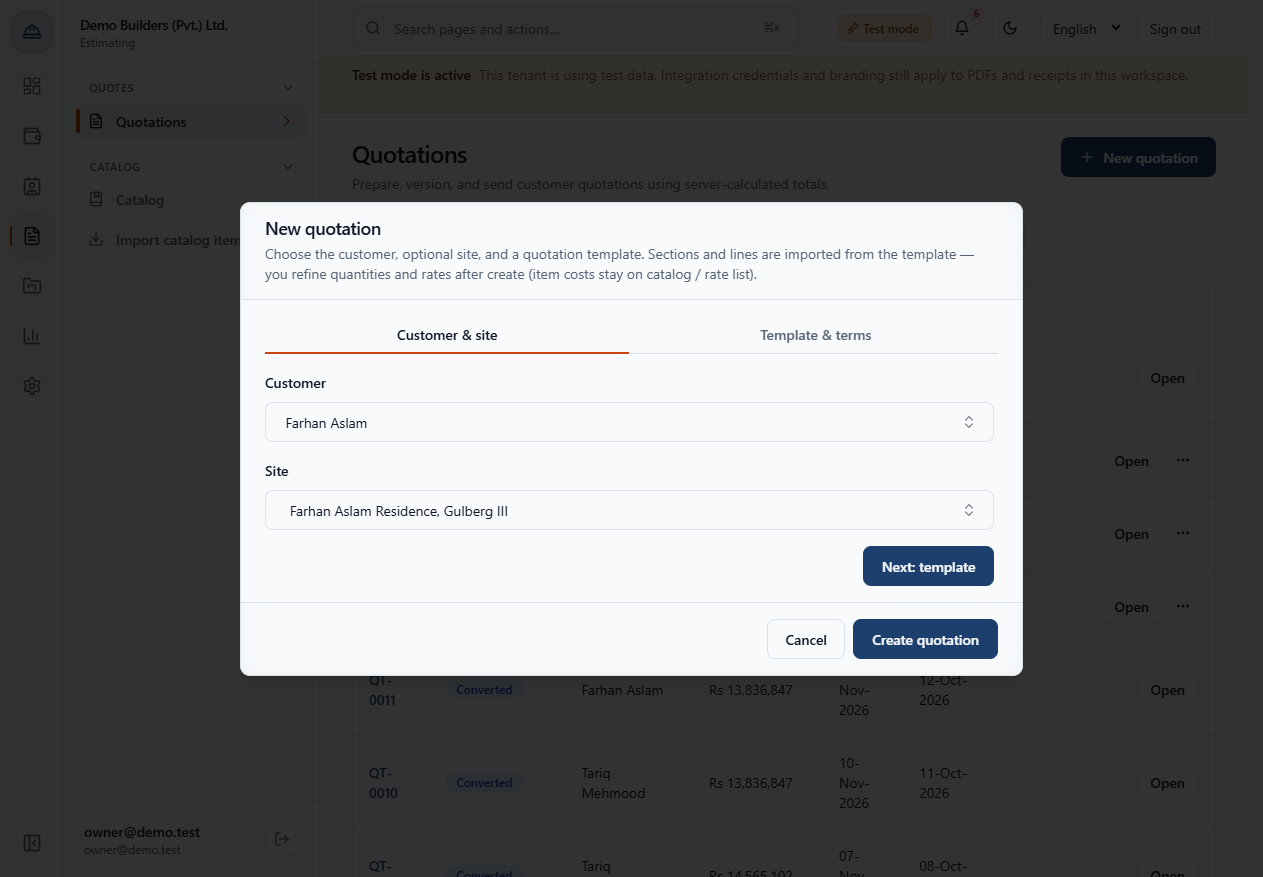
On Customer & site choose the Customer, then one of that customer's sites. Click Next: template.
On Template & terms choose a Quotation template. Its sections and lines are imported into the quote.
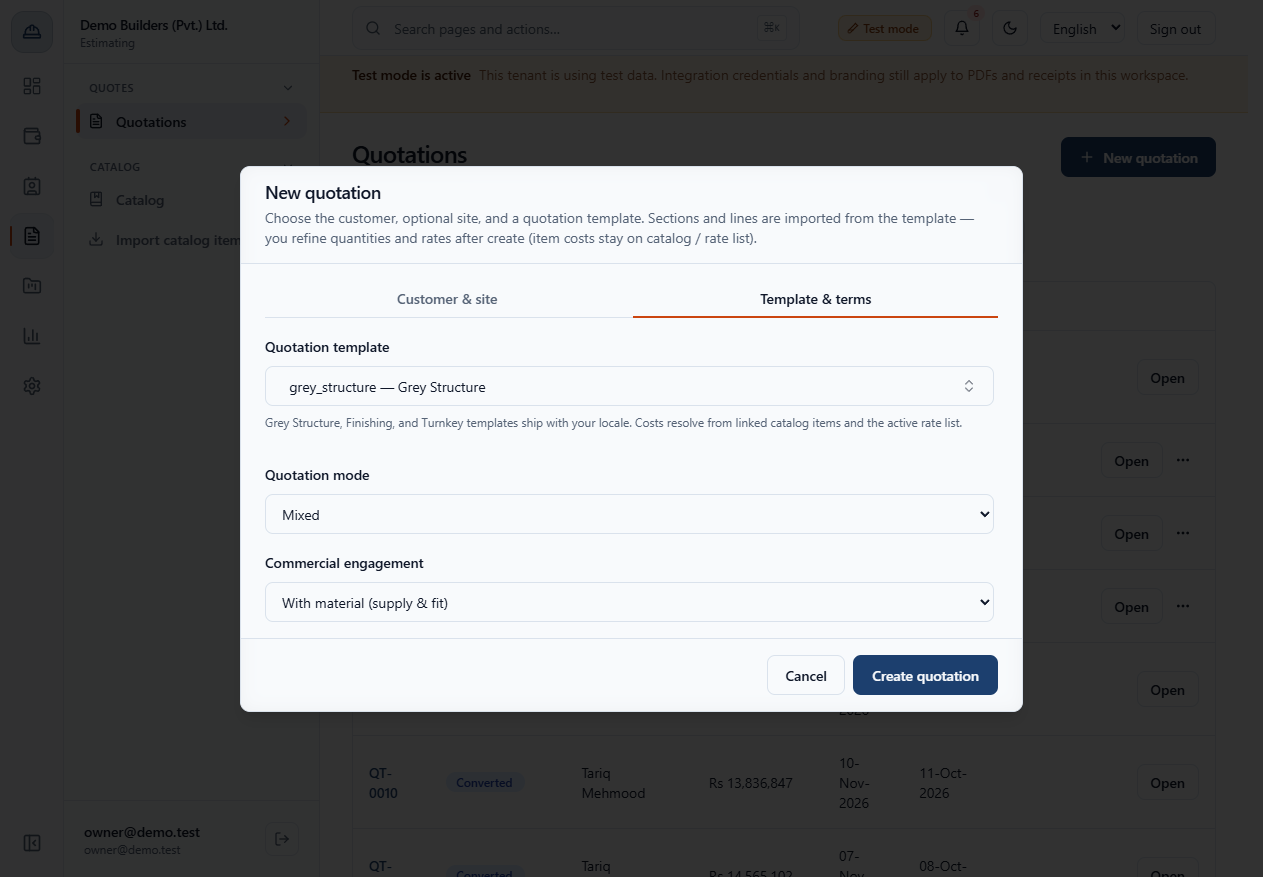
Area based multiplies rate by area, Itemized rate by quantity, Lump sum uses the rate as the amount and Mixed uses the area when there is one. Each line keeps its own mode.
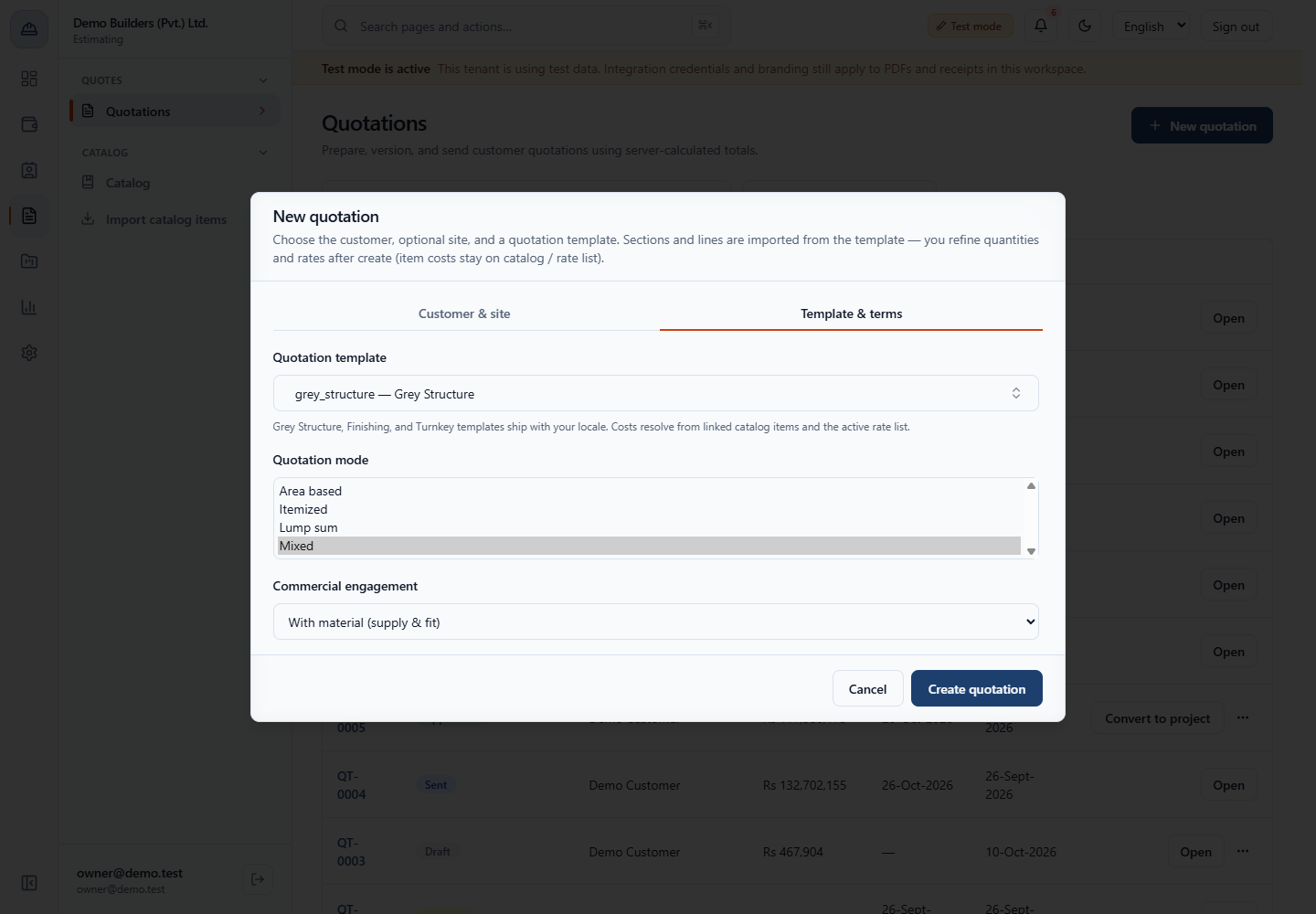
Without material (labour only) sells workmanship, Labour + formwork adds shuttering and With material (supply & fit) includes everything.
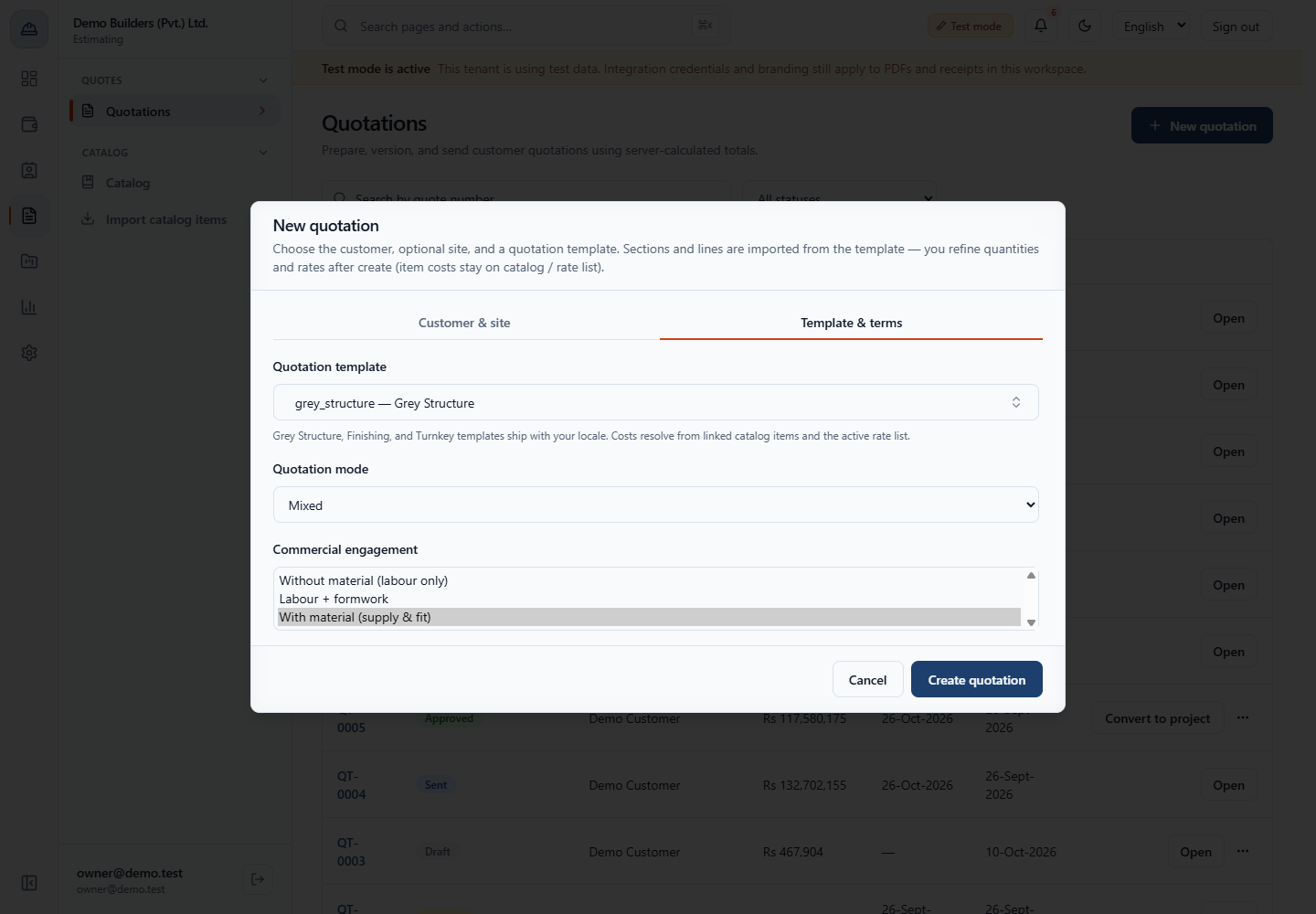
Click Create quotation. The builder opens with six steps. The quote already carries your workspace Default retention % and the customer's default discount, and the total stays zero until lines have quantities.
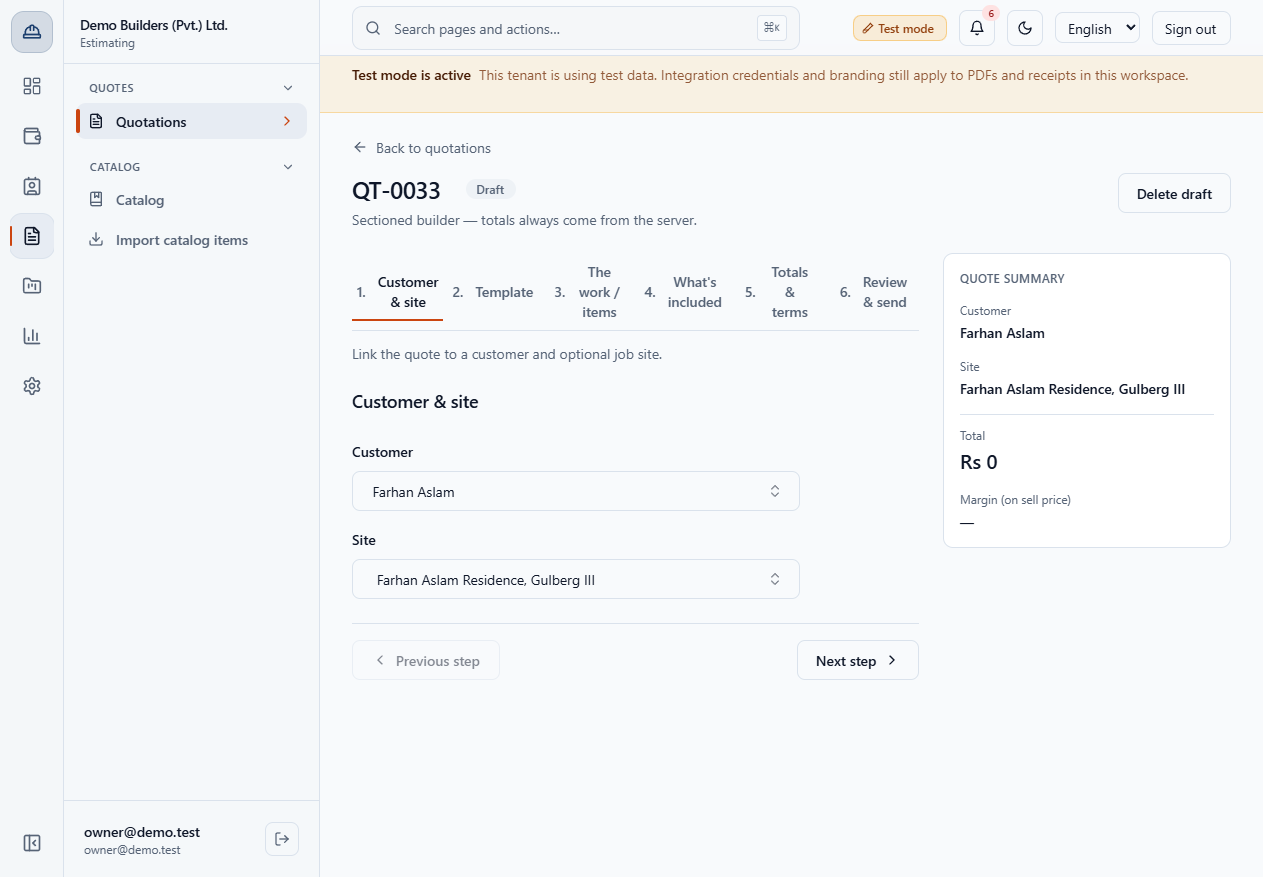
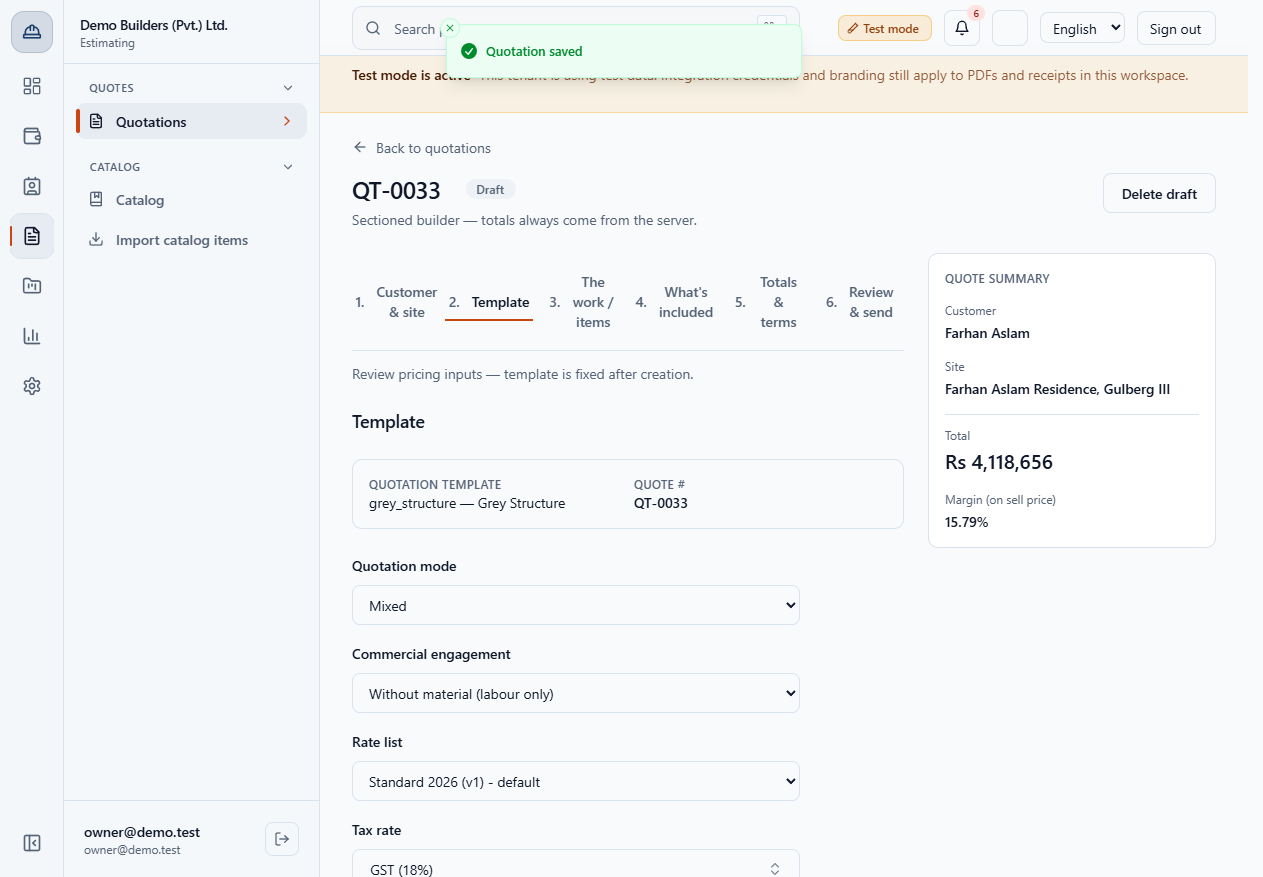
On step 2 Template you can still change Quotation mode, Commercial engagement, Rate list and Tax rate while the quote is a draft. Click Save changes.
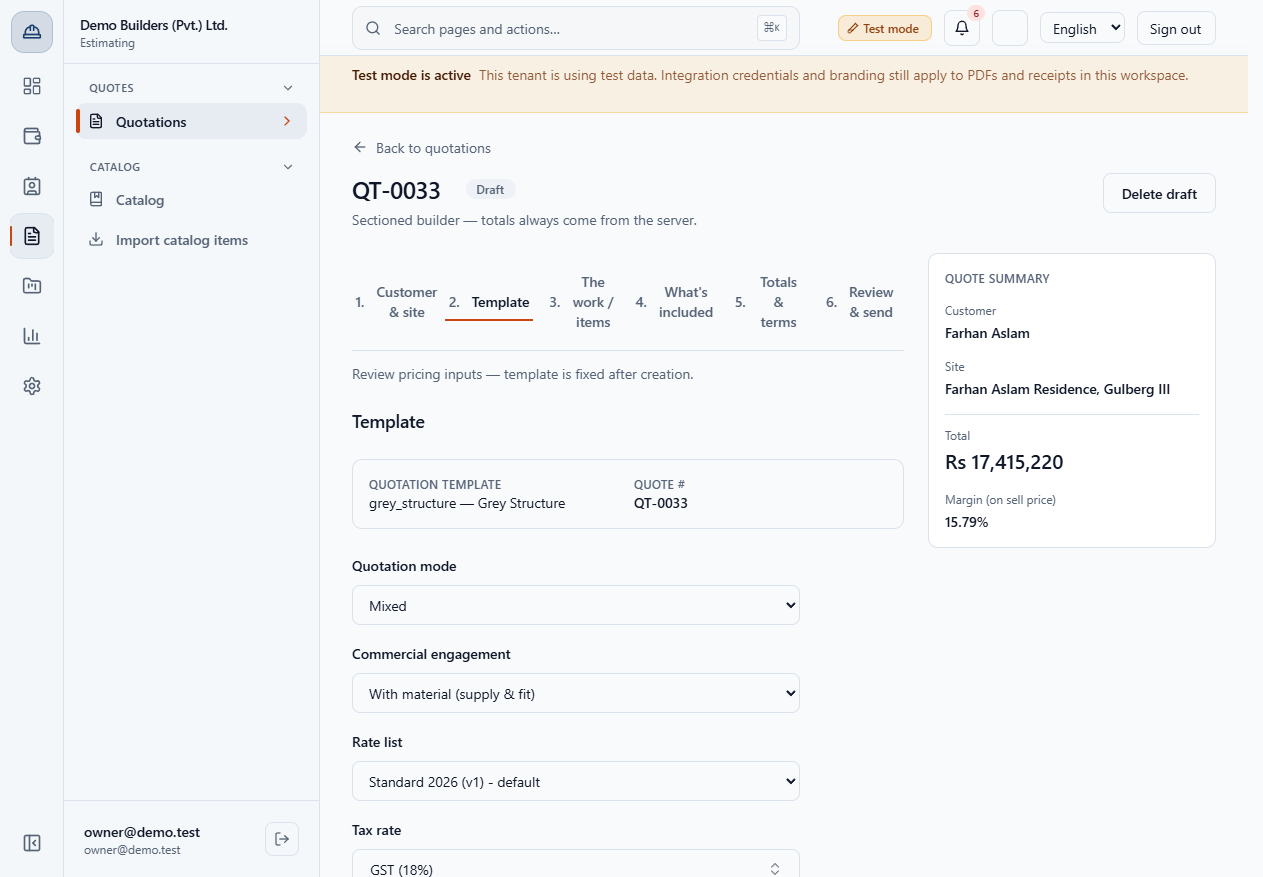
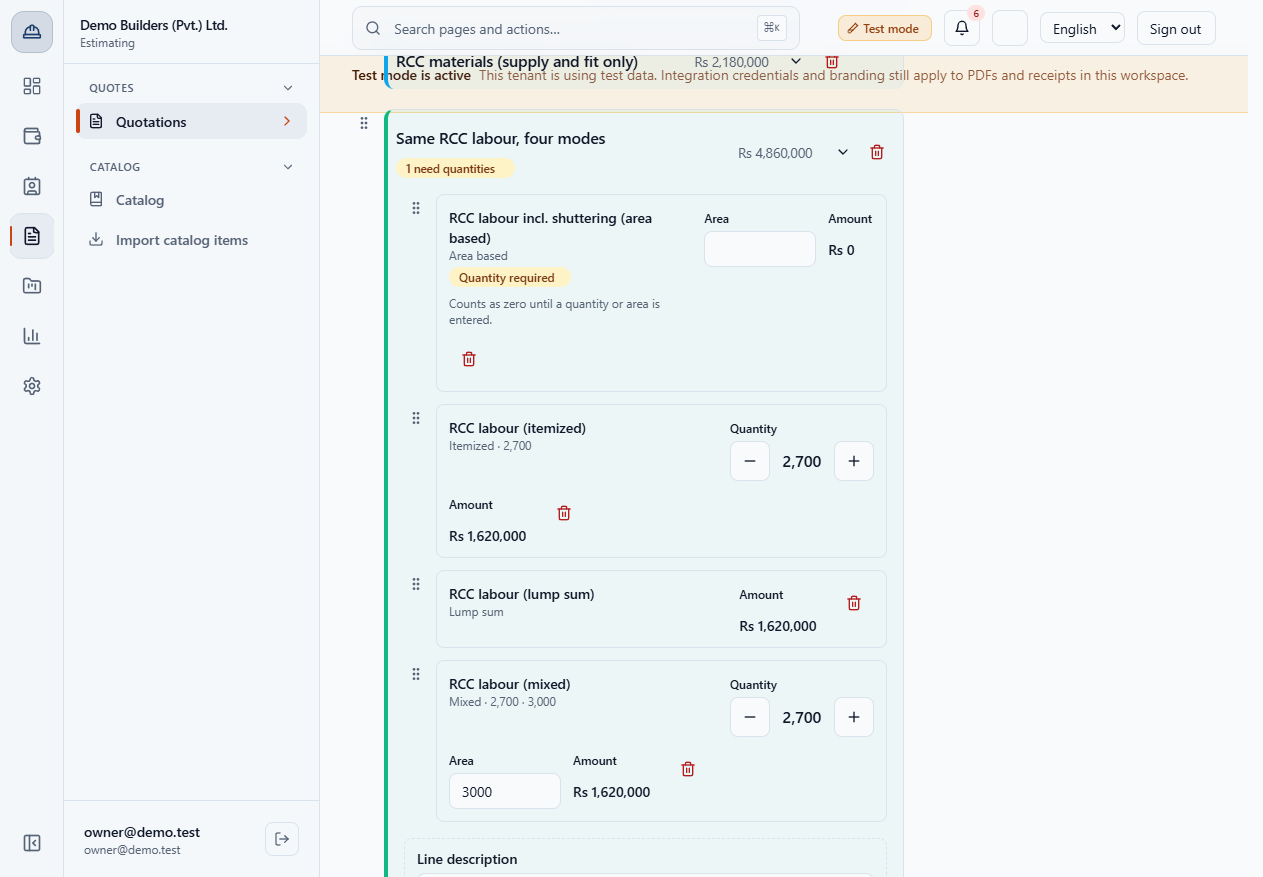
In the example the same RCC labour is priced four ways and each line comes to Rs 1,620,000: 3,000 × 540, 2,700 × 600, a lump sum, and a mixed line where the area wins.
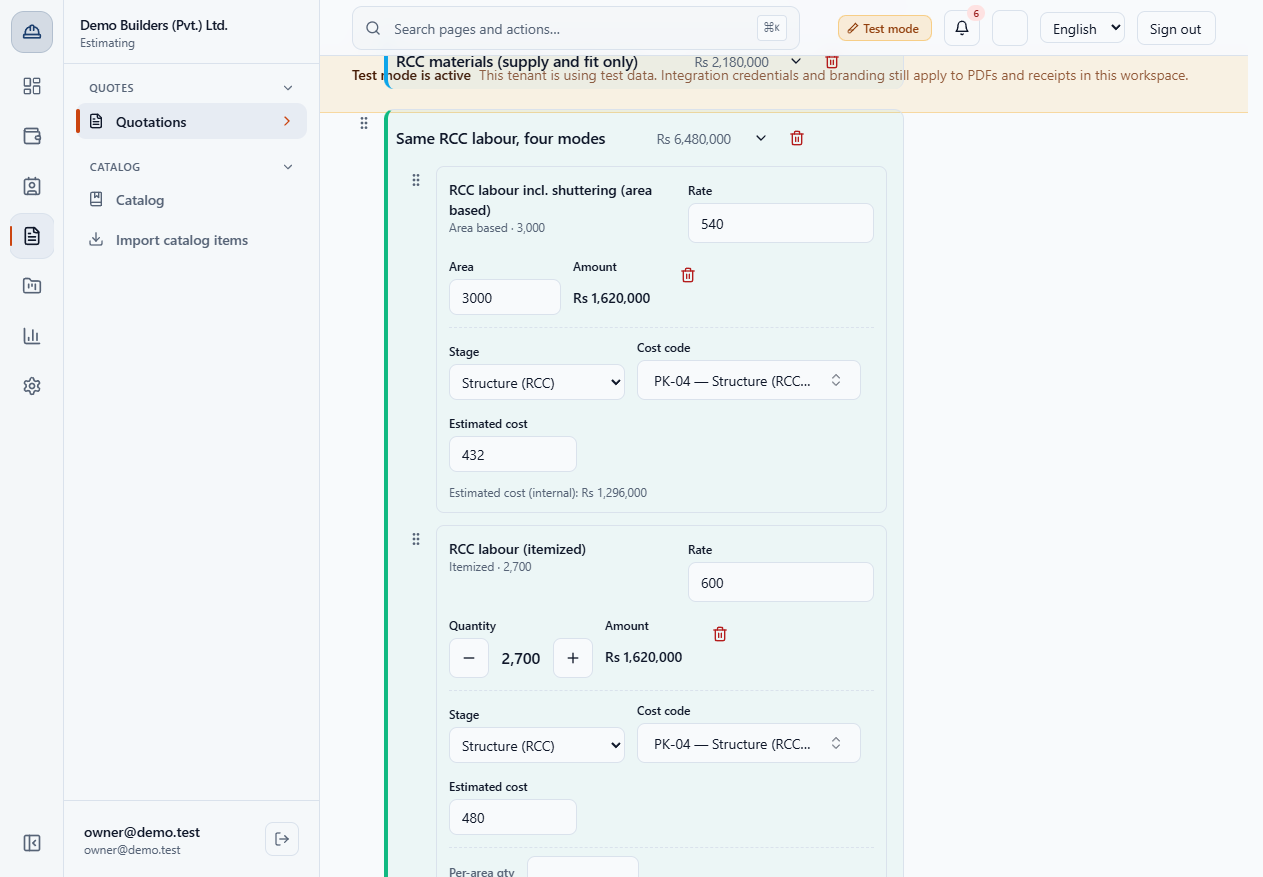
A line with no area or quantity says Quantity required and counts as zero. Review & send lists it under Not ready to send with a Fix link.
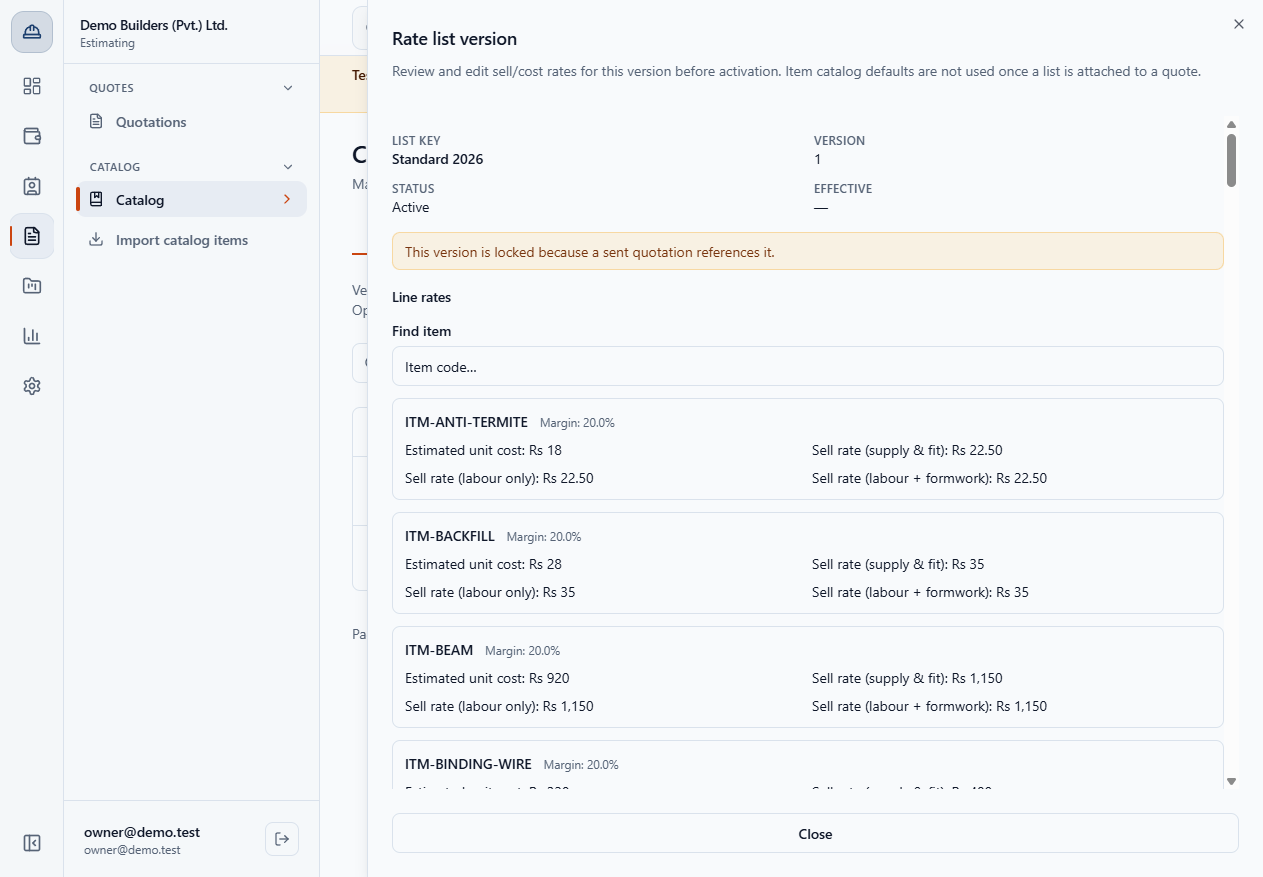
The rate list holds one cost and three sell columns: supply & fit, labour only and labour + formwork. In the starter list the three agree until you give an item its own labour rate, so a labour-only price is never below your cost.
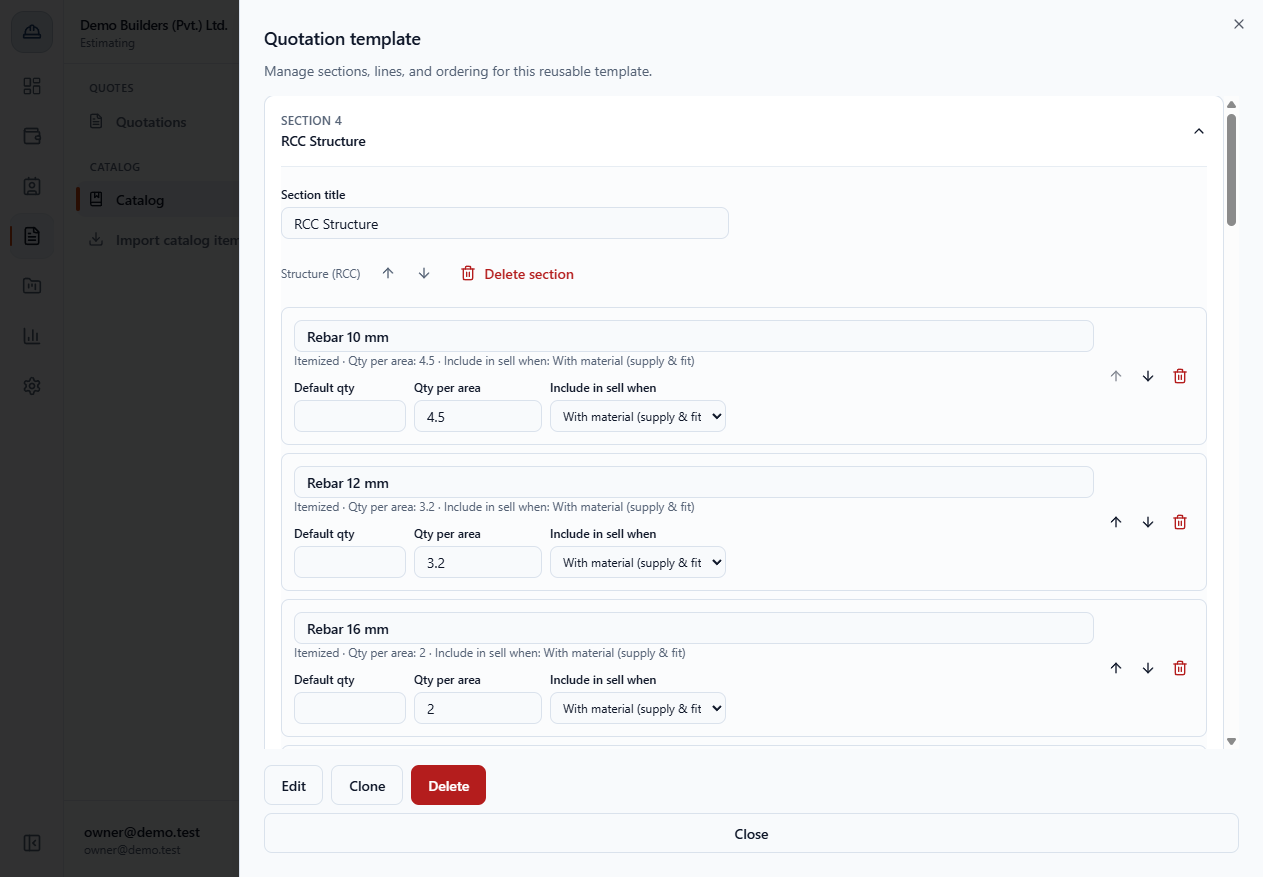
Template lines can be tagged Include in sell when With material. Rebar, cement and bricks are, so they leave a labour-only quote.
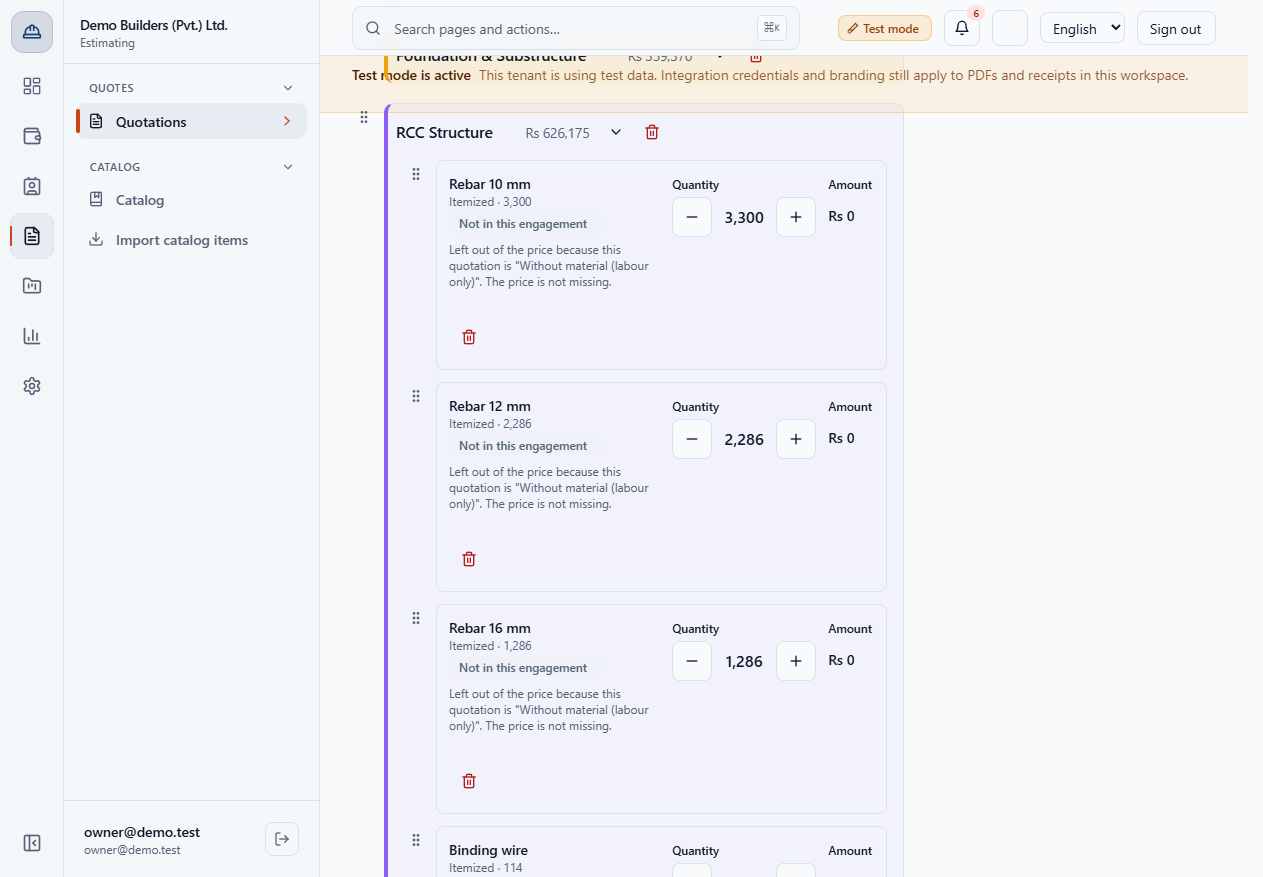
Set Without material (labour only) and Save changes. The steel, cement and brick lines go to Rs 0 and, on the example quote, the total falls from Rs 17,415,220 to Rs 4,118,656 with the margin still 15.79%.
On step 3 The work / items the supply lines keep their quantity and show Rs 0 with the badge Not in this engagement: "Left out of the price because this quotation is Without material (labour only). The price is not missing."
| Mistake | What you see | Fix |
|---|---|---|
| Left an area blank | Quantity required, line at zero | Enter the area or quantity |
| Mistook a zero for a missing price | A line at Rs 0 | Look for the Not in this engagement badge: the line belongs to another engagement |
| Changed the engagement and forgot to look at the margin | The summary rail margin moves | Check the margin and the review warnings before you send |
| Item | Meaning / rule |
|---|---|
| Area based | Rate × area |
| Itemized | Rate × quantity |
| Lump sum | The rate is the amount |
| Mixed | Area if given, else quantity |
| Labour only | Supply lines are left out |
Can I change the engagement after creating the quote? Yes, while it is a draft. Open step 2 Template, change it and click Save changes.
Why does a line show Rs 0 in a labour-only quote? It is tagged for supply and fit, so it is left out and marked Not in this engagement, but its quantity stays so you can switch back.
Can one quote mix several modes? Yes. Each line has its own mode.
BuildFlow runs this whole workflow. See what BuildFlow does and what it costs, or browse all step-by-step guides.