How to edit the messages your passengers and drivers receive
You will find the message for any booking or driver event, write your own wording with placeholders, test it, save it and check what was sent. You need this when you want your company name and tone in confirmations, or when a passenger says they never received a message.
Who it is forTaxi or fleet operator owner or dispatch managerTime10 minutesProductFMSLevelBeginner
Before you start
Steps
1
Open Communications
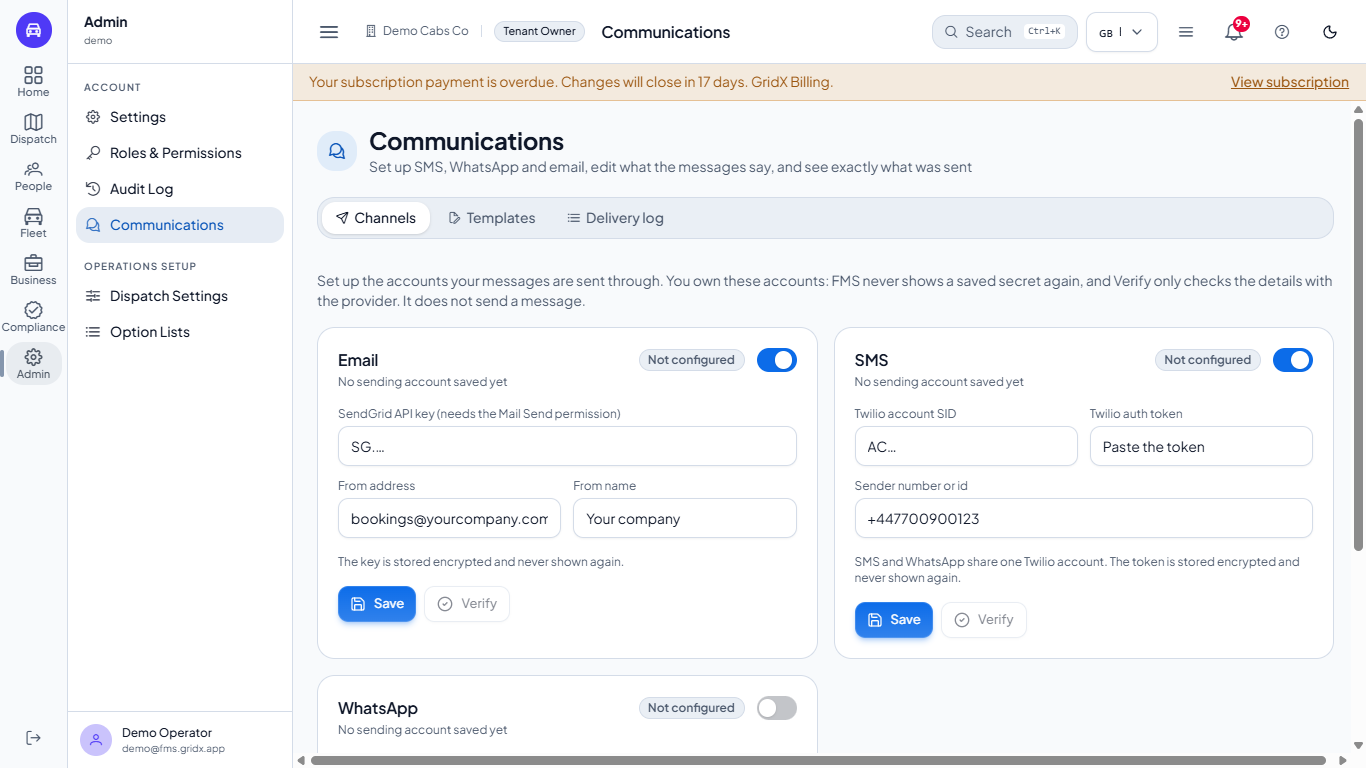
Go to Admin > Communications. There are three tabs: Channels, Templates and Delivery log. Channels holds the accounts your messages go through: email through SendGrid, SMS and WhatsApp through Twilio. The product never shows a saved secret again, and Verify only checks the details with the provider; it does not send a message.
Communications page, Channels tab, with the Email, SMS and WhatsApp cards each showing Not configured
2
Find the message
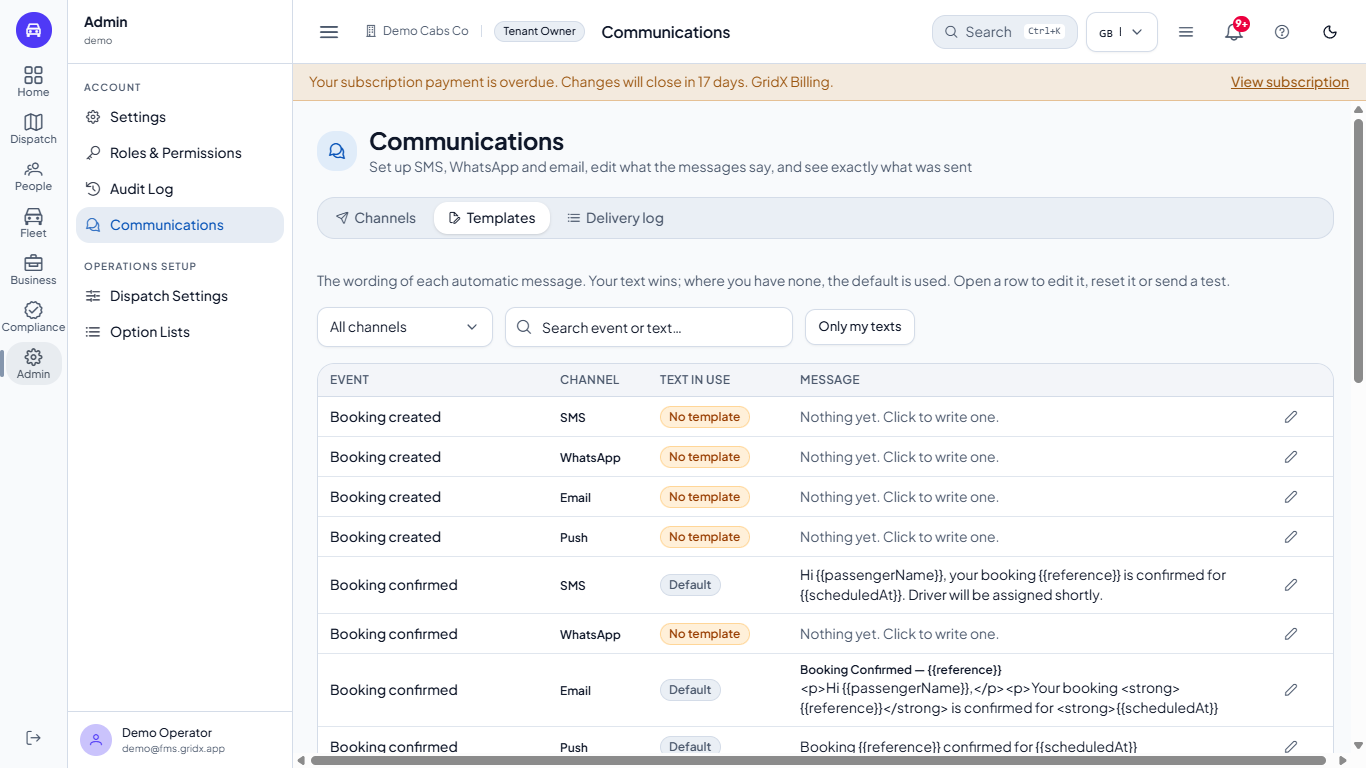
Open Templates. Every automatic message has a row: 17 events on four channels (SMS, WhatsApp, Email, Push), 68 rows over three pages. Text in use says Your text, Default (the built-in wording) or No template. Use All channels, the search box, or Only my texts to narrow the list.
Templates tab listing events by channel with Default and No template labels
3
Write your message
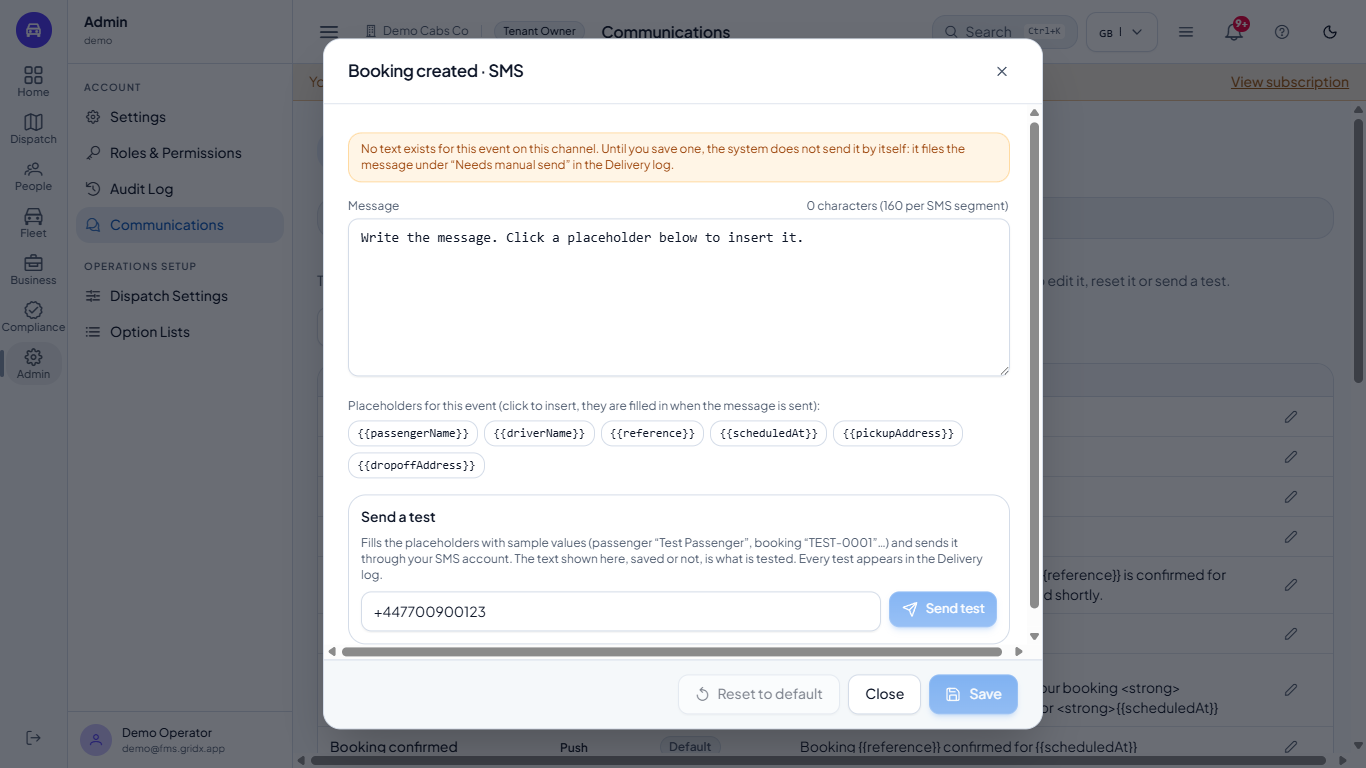
Click the pencil of a row, for example Booking created on SMS. Type your wording in Message, and click a chip such as {{passengerName}} or {{reference}} to insert it where the cursor is. The chips are filled in with the real booking details when the message goes out. The counter shows the characters against the 160 of one SMS segment.
Dialog for Booking created on SMS with an empty message box, placeholder chips and a Send a test box
4
Send a test before you save
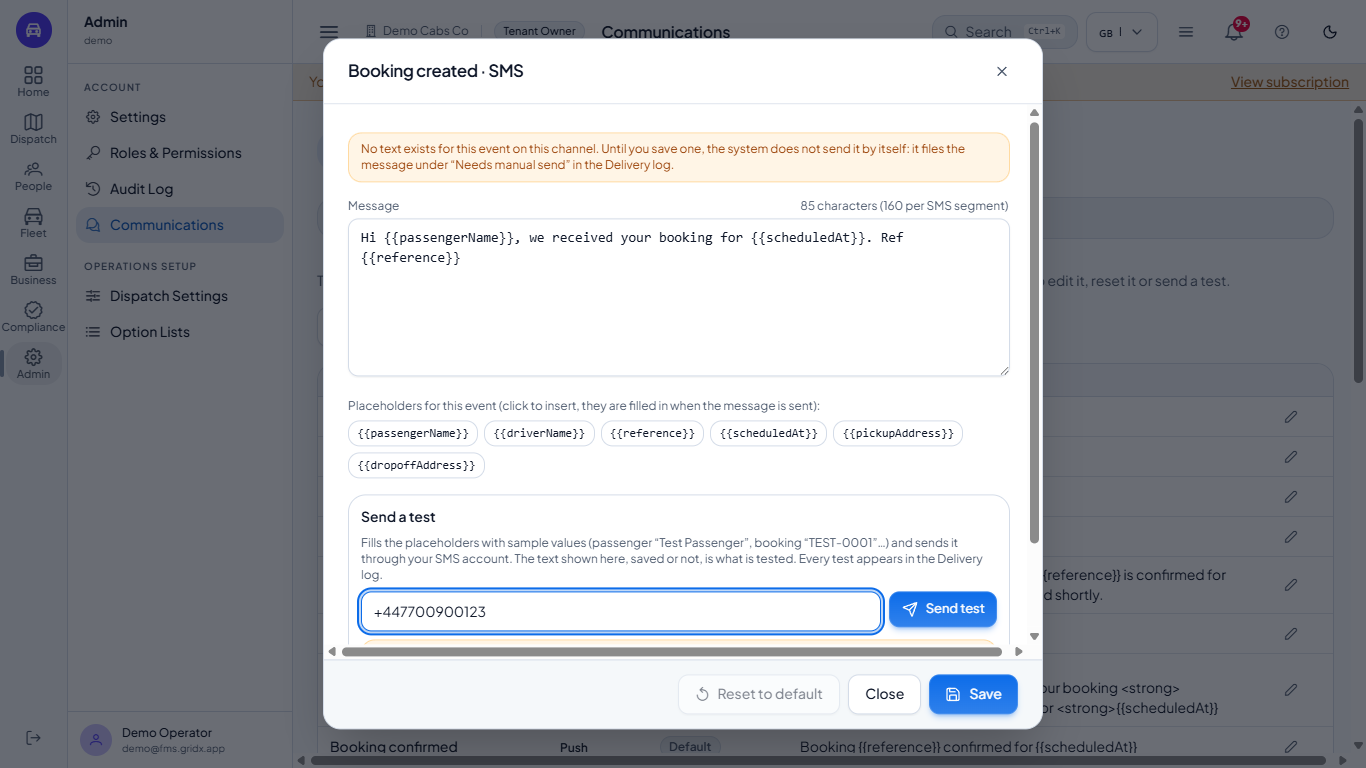
Type your own phone number in Send test to and press Send test. The system fills the placeholders with sample values (passenger "Test Passenger", booking "TEST-0001") and sends the text shown, saved or not. A wrong number is refused with a plain sentence. Without a connected account you see "Not sent: provider not configured" and the text, which is written to the delivery log so you can still check the wording.
The test result saying the provider is not configured and showing the text with sample values
5
Save
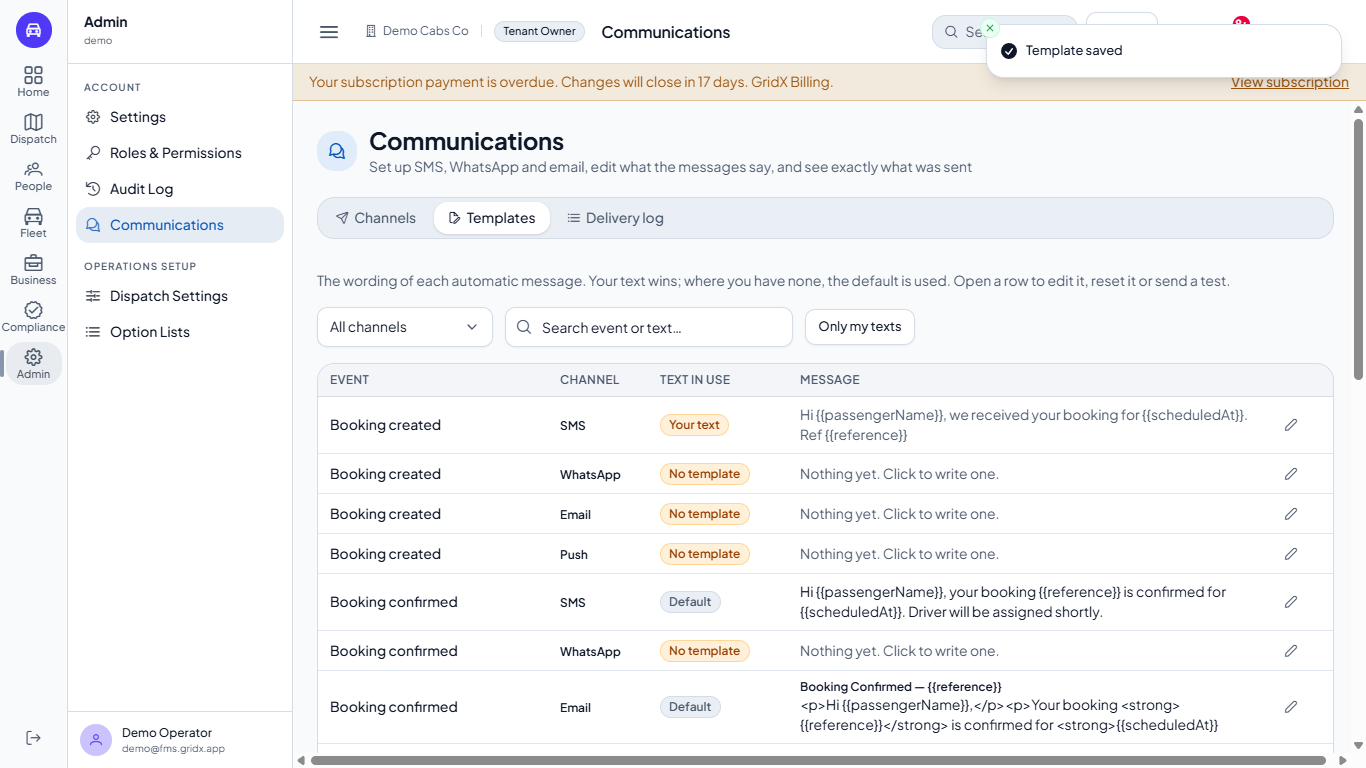
Press Save. The toast says Template saved, the dialog closes and the row now reads Your text. From now on this wording is used for that event on that channel.
The templates list after saving, the row now showing Your text
6
Show only your texts, or go back to the default
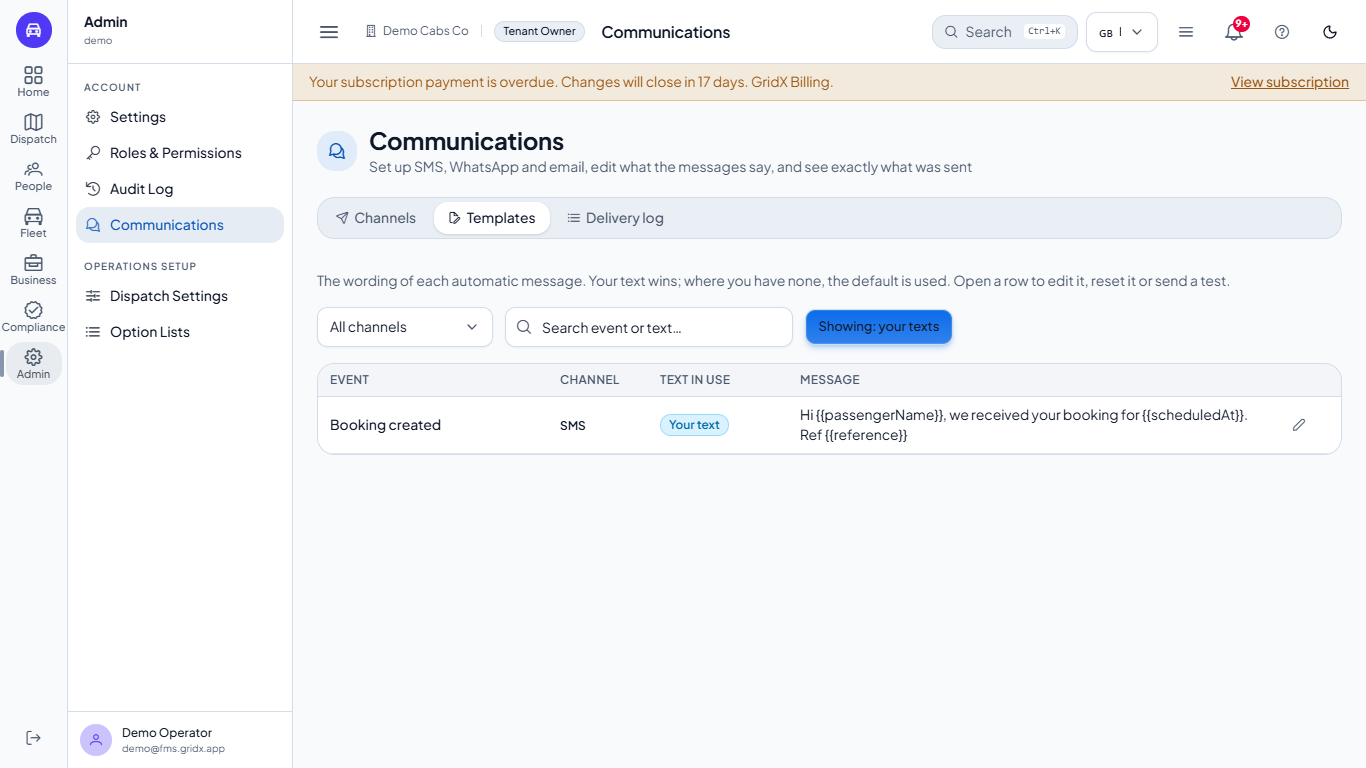
Only my texts lists just the rows you wrote. To undo one, open it and press Reset to default: there is no confirmation, the toast says Back to the default text, and the row returns to the built-in wording (or to No template).
Only my texts showing a single row, and the empty state after a reset
7
Edit an email
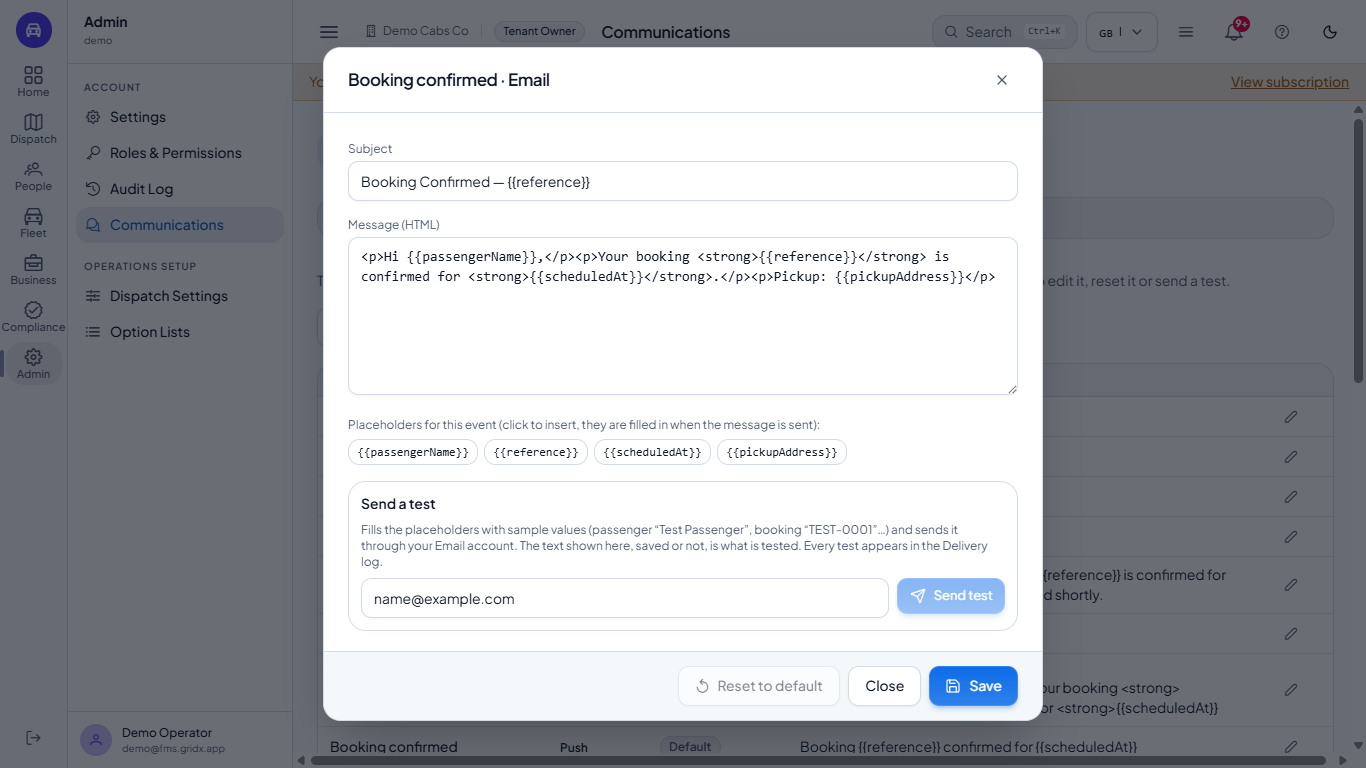
Email rows have a Subject and a Message (HTML) box. The default for Booking confirmed is "Booking Confirmed" followed by the booking reference. Write the body as simple HTML (paragraphs and bold). If you leave the subject empty, the event name is used.
Email template dialog with Subject and Message (HTML) fields and the placeholder chips
8
Read the delivery log
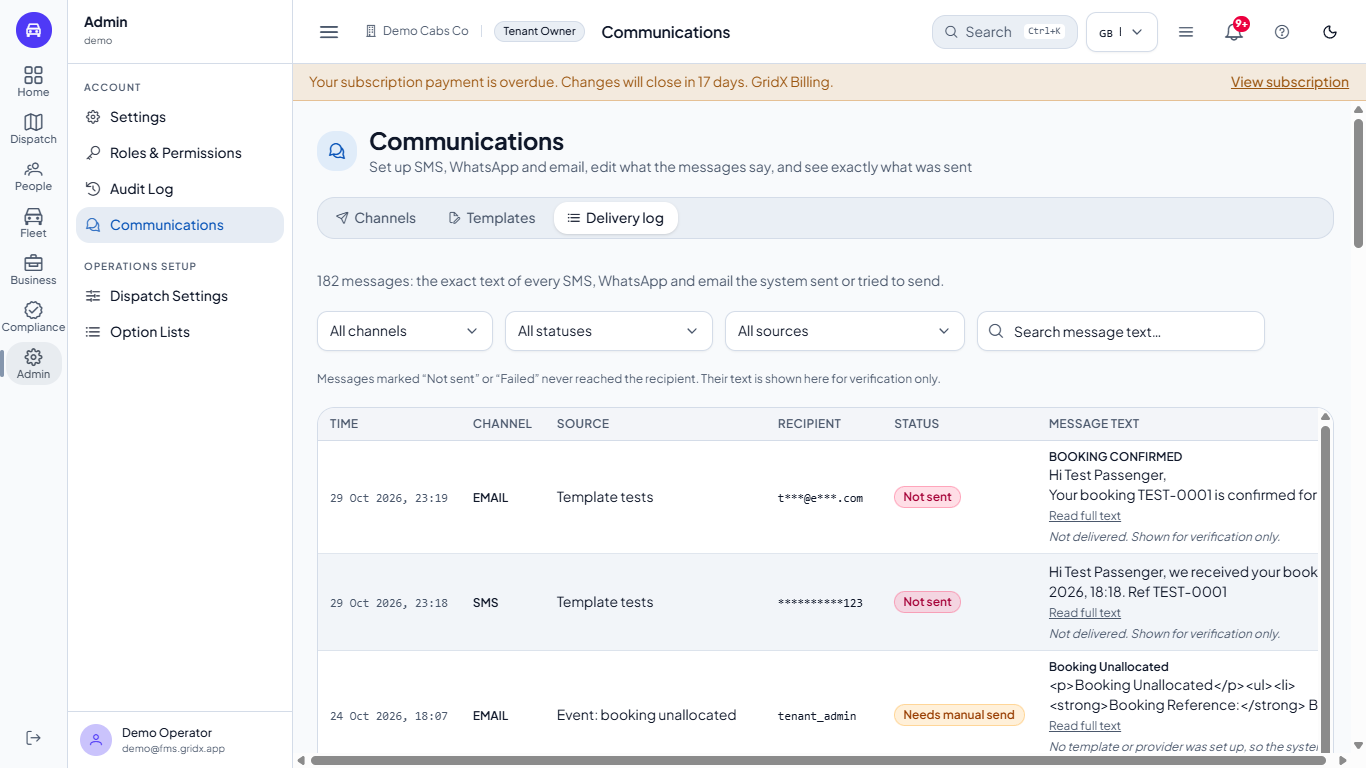
Open Delivery log. It lists the exact text of every SMS, WhatsApp and email the system sent or tried to send: time, channel, source, a masked recipient, status, the text with Read full text, and the failure reason. Filter by channel, status or source, or search the wording. Not sent and Failed messages never reached the recipient; their text is shown only so you can check it.
Delivery log with 182 messages, filters and the two test messages at the top marked Not sent
9
Switch channels on or off
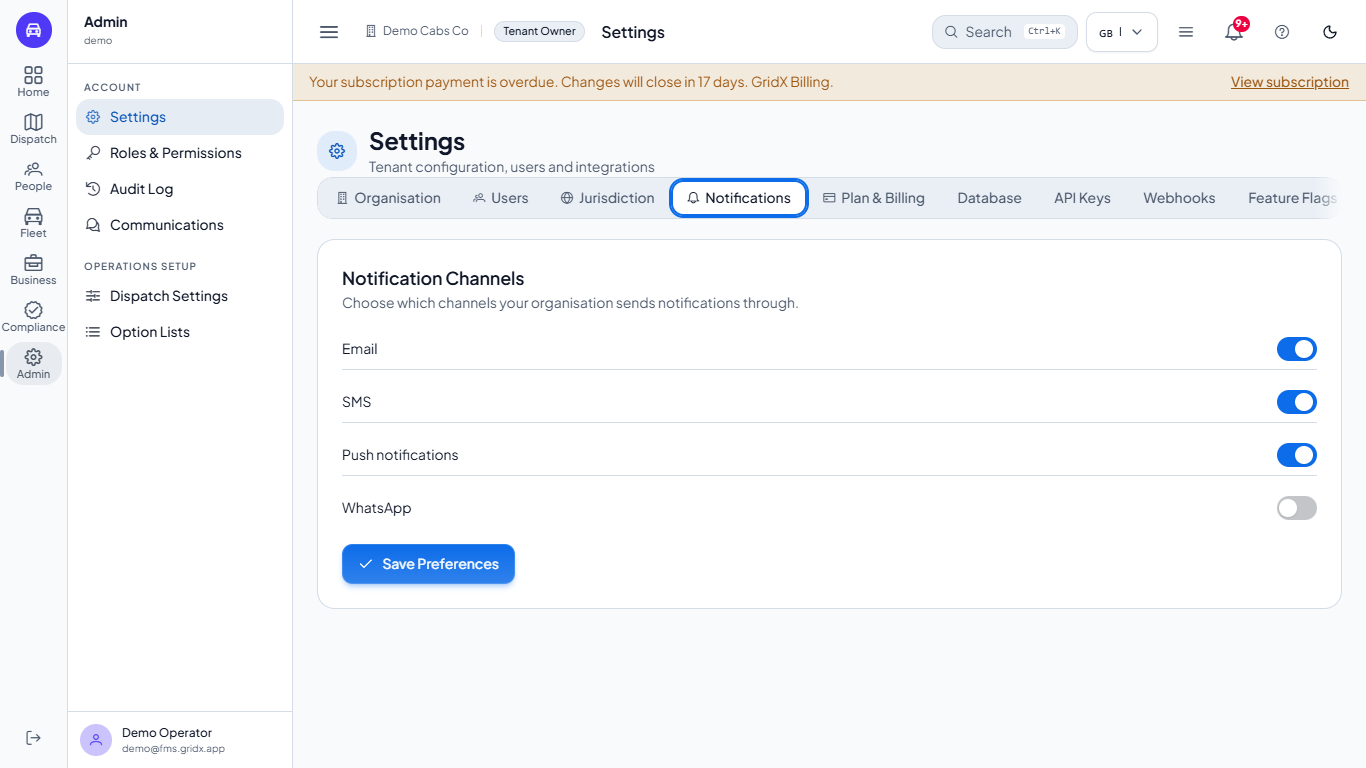
Go to Admin > Settings > Notifications. There is one switch per channel for the whole organisation: Email, SMS, Push notifications and WhatsApp. Change a switch and press Save Preferences; the toast says Notification preferences saved and the same switch changes on the Communications page.
Settings Notifications tab with four switches for Email, SMS, Push notifications and WhatsApp
Check it worked
The row of your event reads Your text on the channel you edited.
A test message appears at the top of the Delivery log with source Template tests.
The switch you changed on Settings > Notifications shows the same state on Communications > Channels.
Common mistakes
Mistake
What you see
Fix
Typing a test number without the country code
"Test not sent: Type a valid phone number for the test"
Use the full format, for example +447700900123
Expecting a message from a row with No template
Nothing is sent; the log says Needs manual send
Write a text for that event and channel and save it
Resetting a row by mistake
The row goes back to the default at once
Retype your wording and save again
Quick reference
Item
Meaning / rule
Your text
Your wording is used
Default
The built-in wording is used
No template
Nothing exists; the message waits under Needs manual send
Placeholder chip
Filled with the real booking details when the message is sent
Send test
Sends the text shown, saved or not, with sample values
Delivery log
The exact text of every message sent or tried
Frequently asked questions
Can I send a test before I connect an email or SMS account? Yes. The text is written to the delivery log with the reason "provider not configured", so you can check the wording; nothing is sent.
Which placeholders can I use? The chips under the message box. They differ per event, for example a booking event offers the passenger name, reference, pickup time and addresses.
How do I turn a channel off for the whole company? Use the switches in Settings under Notifications, or the switch on each card under Communications, then save.