How to find, reprint and void a sale in Sales History
When a customer comes back with a receipt, or a sale was rung up wrongly, you work from Sales History. This guide shows how to find the sale, reprint or send its receipt and void it, and what the void changes in the books.
Who it is forCashier, supervisor and shop ownerTime9 minutesProductPOSLevelBeginner
Before you start
Steps
1
Open Sales History
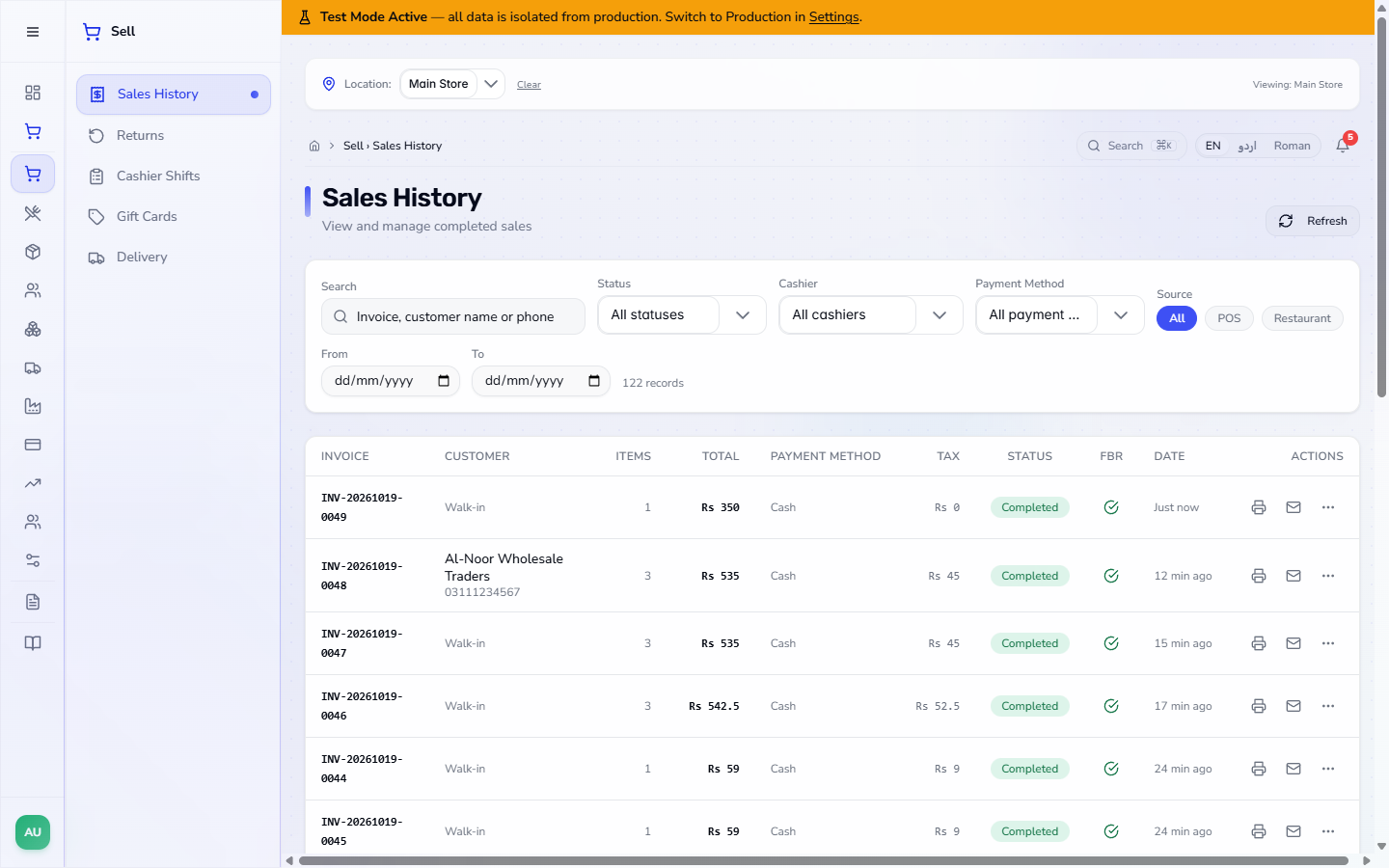
Open Sell › Sales History. The list shows the newest sale first with Invoice, Customer, Items, Total, Payment Method, Tax, Status, FBR and Date. The record count (122 records) is above the table and the list moves in pages of 20. Each row ends with three icons: print the receipt, send it, and more actions.
Sales History list with 122 records and the columns invoice, customer, items, total, payment method, tax, status, FBR and date
2
Narrow the list by status
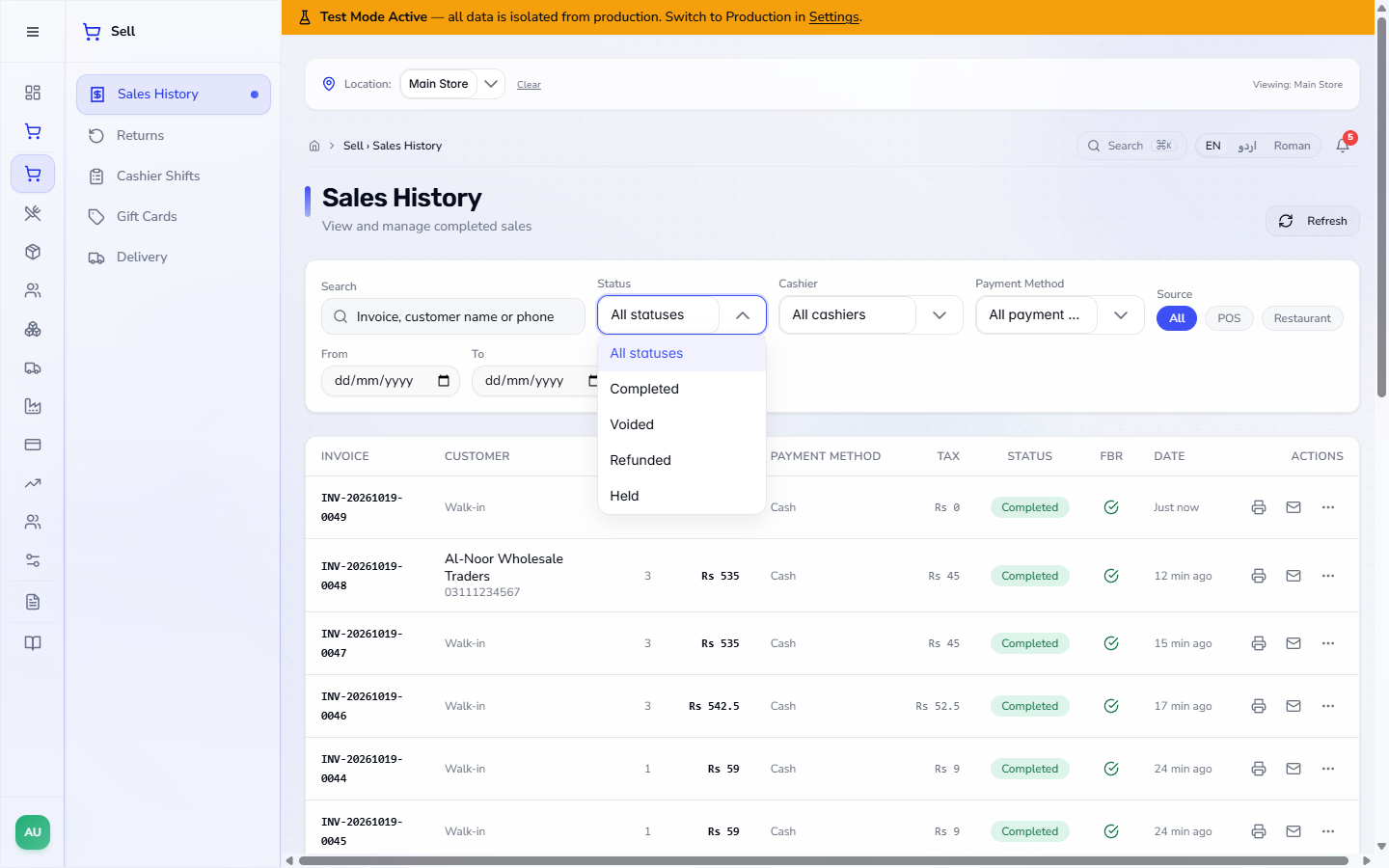
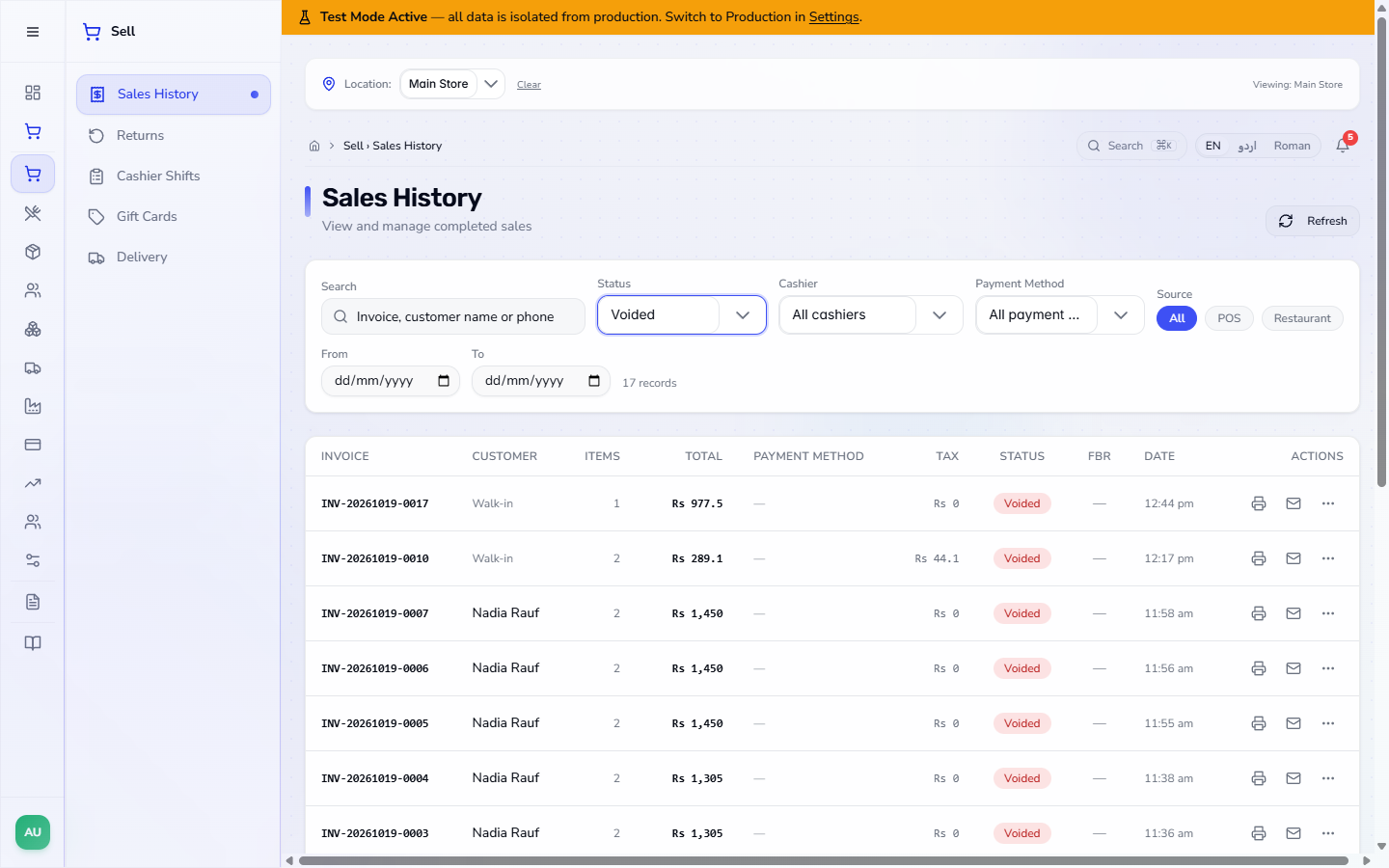
Open Status: All statuses, Completed, Voided, Refunded or Held. Choose Voided to review cancelled sales: 17 records, each with a red Voided chip.
Status filter open with All statuses, Completed, Voided, Refunded and Held
3
Filter by payment method and cashier
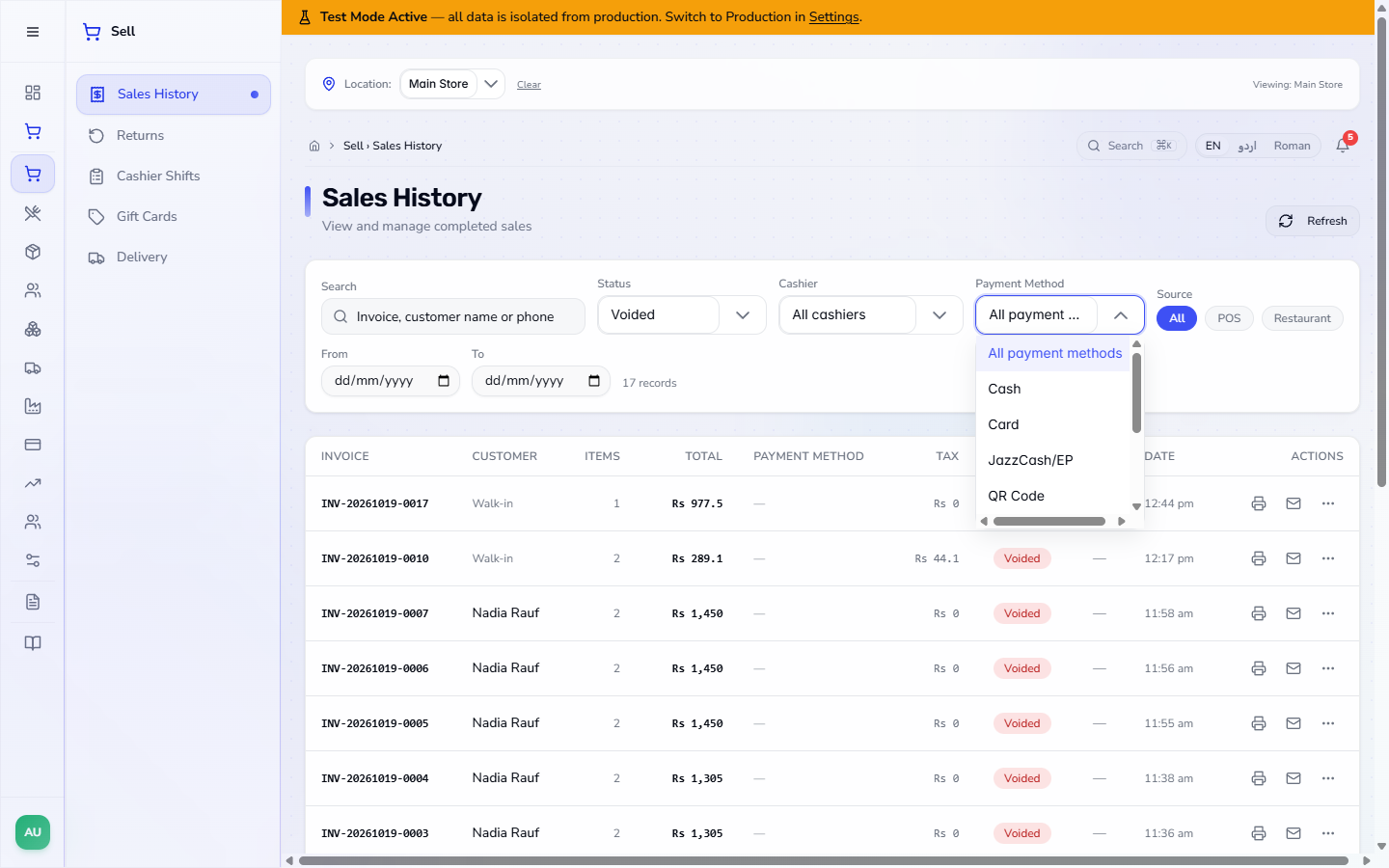
Payment Method offers Cash, Card, JazzCash/EP, QR Code, Bank transfer, On account (Credit), Cheque and Gift Card. Cashier offers All cashiers, Cashier User and Admin User, to see the sales one person rang up. Source switches between All, POS and Restaurant, and From and To limit the dates (the same day in both gives that day's sales).
Payment Method filter with Cash, Card, JazzCash/EP, QR Code, Bank transfer, On account (Credit), Cheque and Gift Card
4
When nothing matches
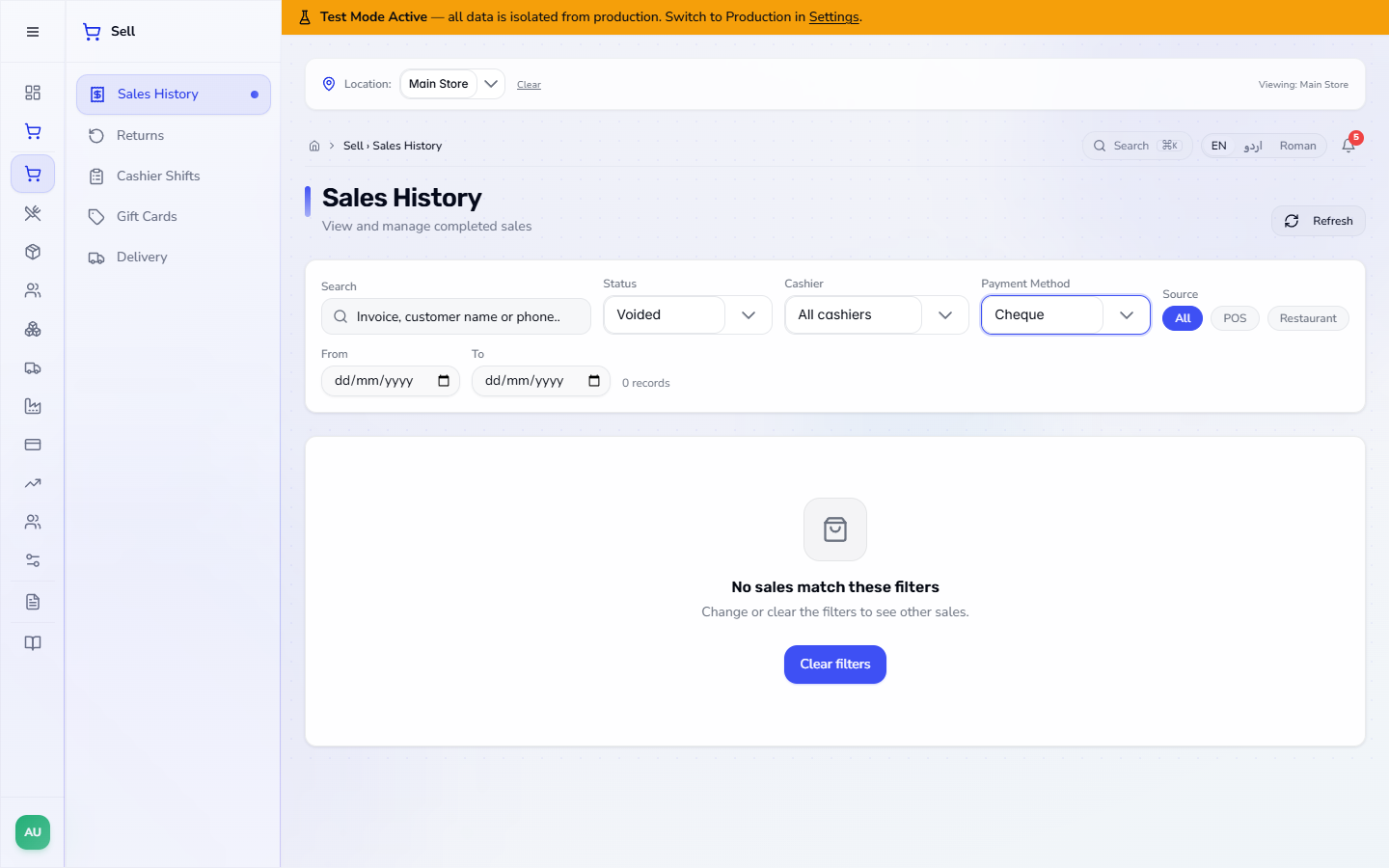
Filters combine. Voided together with Cheque matches nothing, and the page says No sales match these filters. Change or clear the filters to see other sales. Press Clear filters to start again.
Voided and Cheque filters together: No sales match these filters, with a Clear filters button
5
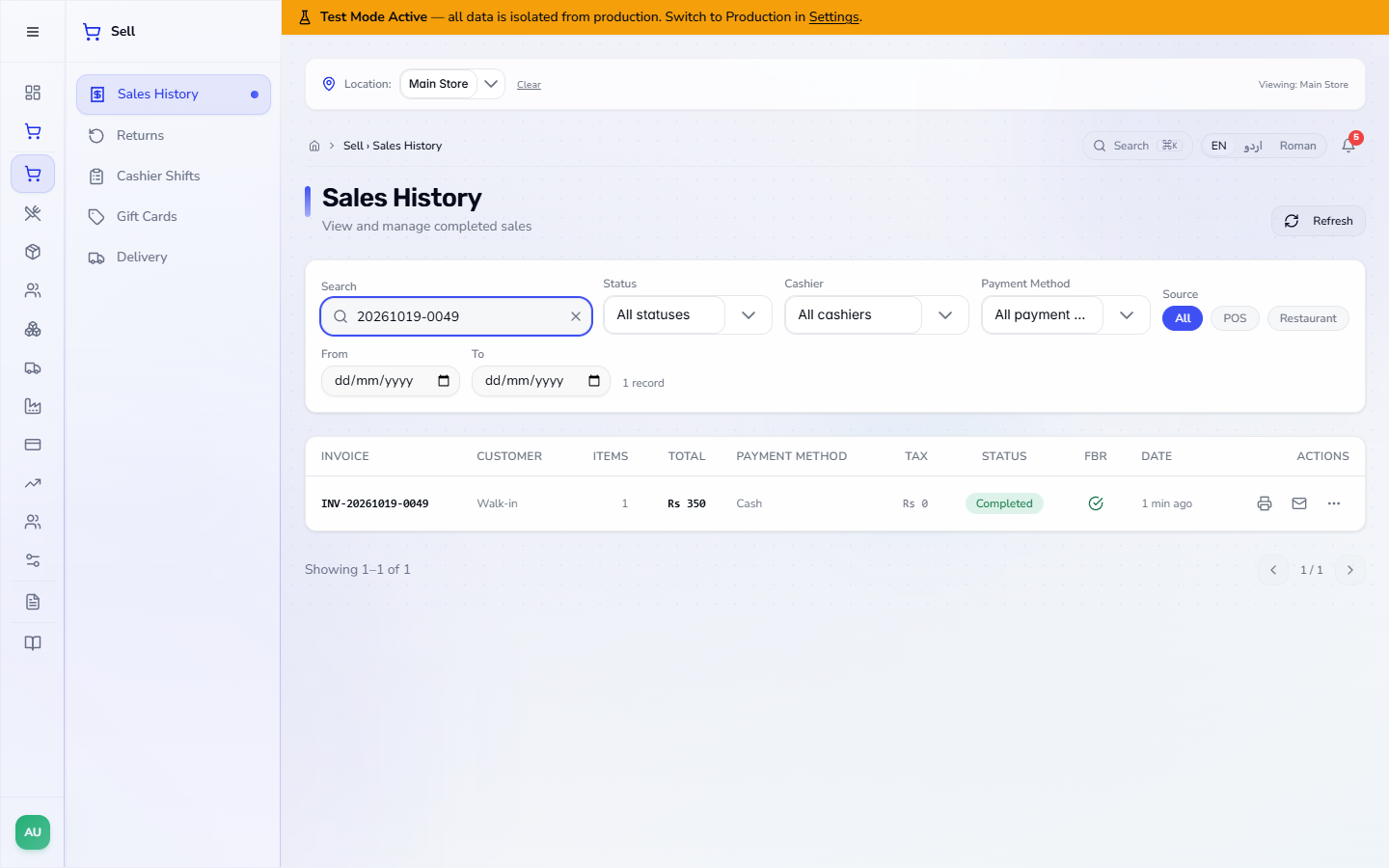
Find one sale by invoice or customer
Type part of the invoice number in the search box, for example 20261019-0049. One record appears: INV-20261019-0049, Rs 350, Cash, Completed. The same box also takes a customer's name or phone number: typing Al-Noor gives 1 record, the sale for Al-Noor Wholesale Traders.
Search box holding 20261019-0049 and the single matching sale
6
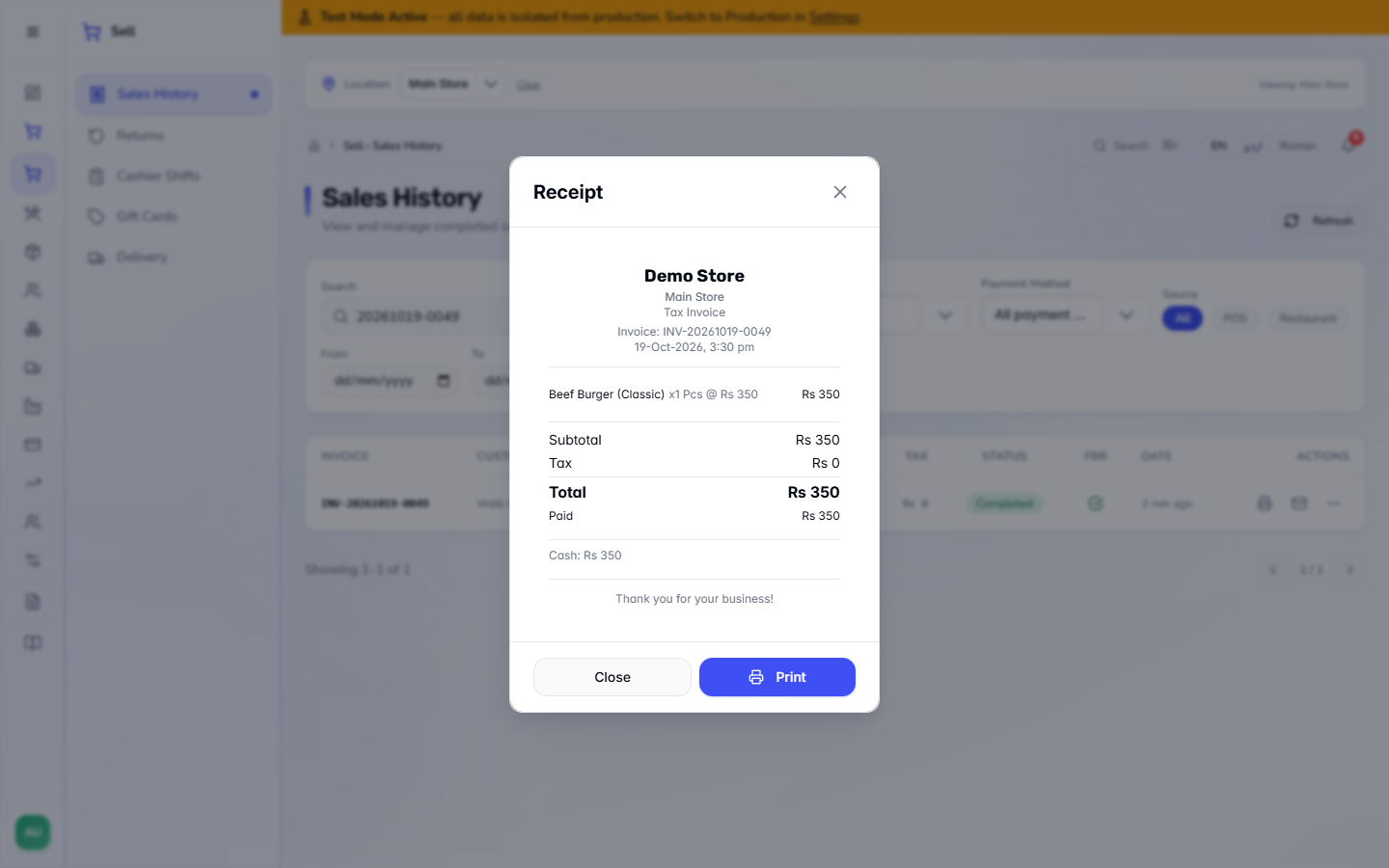
Reprint the receipt
Press the printer icon on the row. The Receipt opens as it was issued: Demo Store, the invoice number and time, the item (Beef Burger (Classic) x1 at Rs 350), Subtotal Rs 350, Tax Rs 0, Total Rs 350, Paid Rs 350 and Cash: Rs 350. A sale that had a discount also prints a Discount line and You saved. Press Print or Close.
Receipt for INV-20261019-0049 with the Beef Burger line, Subtotal Rs 350, Tax Rs 0, Total Rs 350 and Cash Rs 350
7
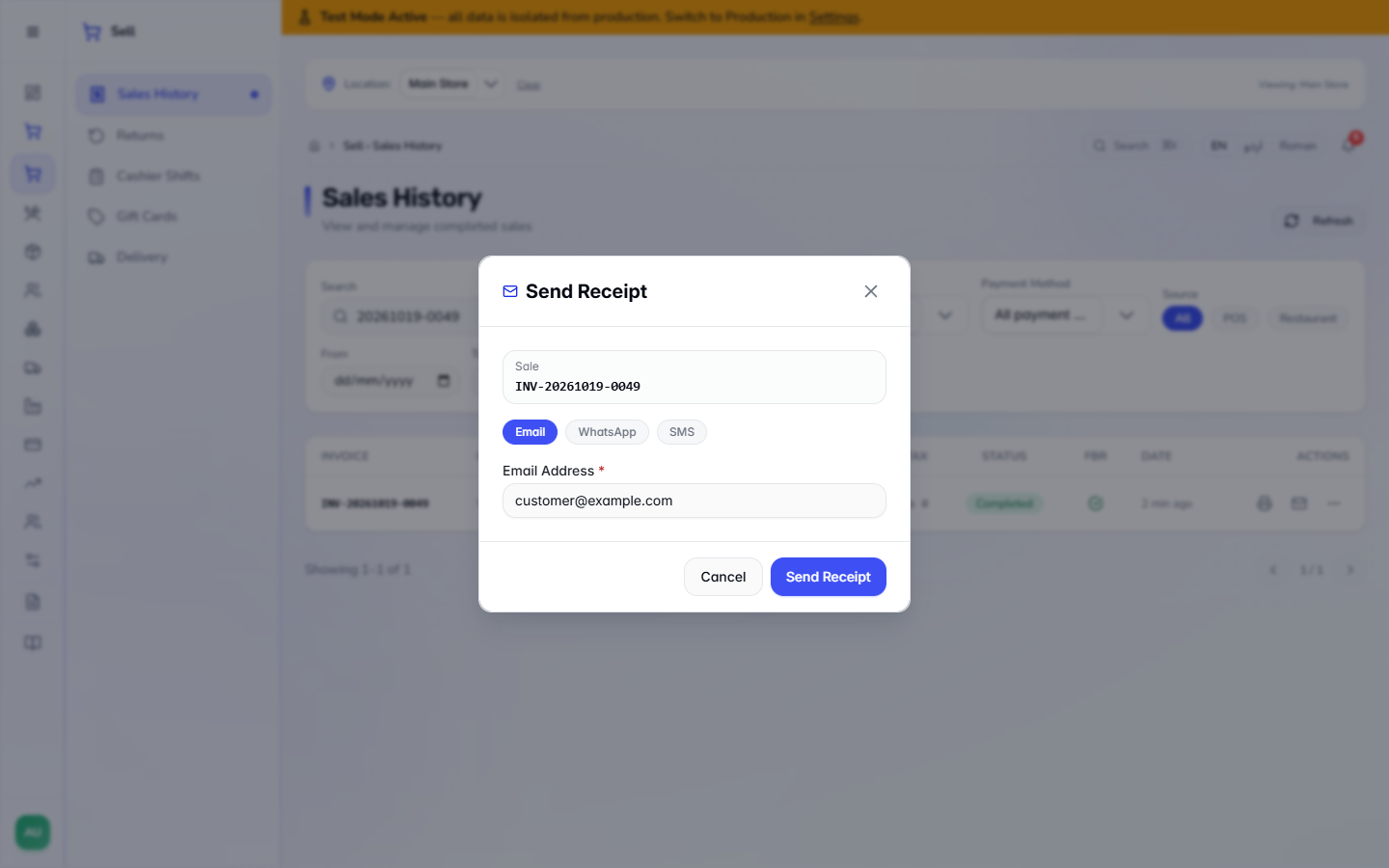
Send the receipt
Press the envelope icon. Send Receipt names the sale and offers three channels: Email (the default), WhatsApp and SMS. Email asks for the Email Address; WhatsApp and SMS ask for a Phone number. Fill it in and press Send Receipt, or Cancel.
Send Receipt dialog with Email, WhatsApp and SMS and an Email Address box
8
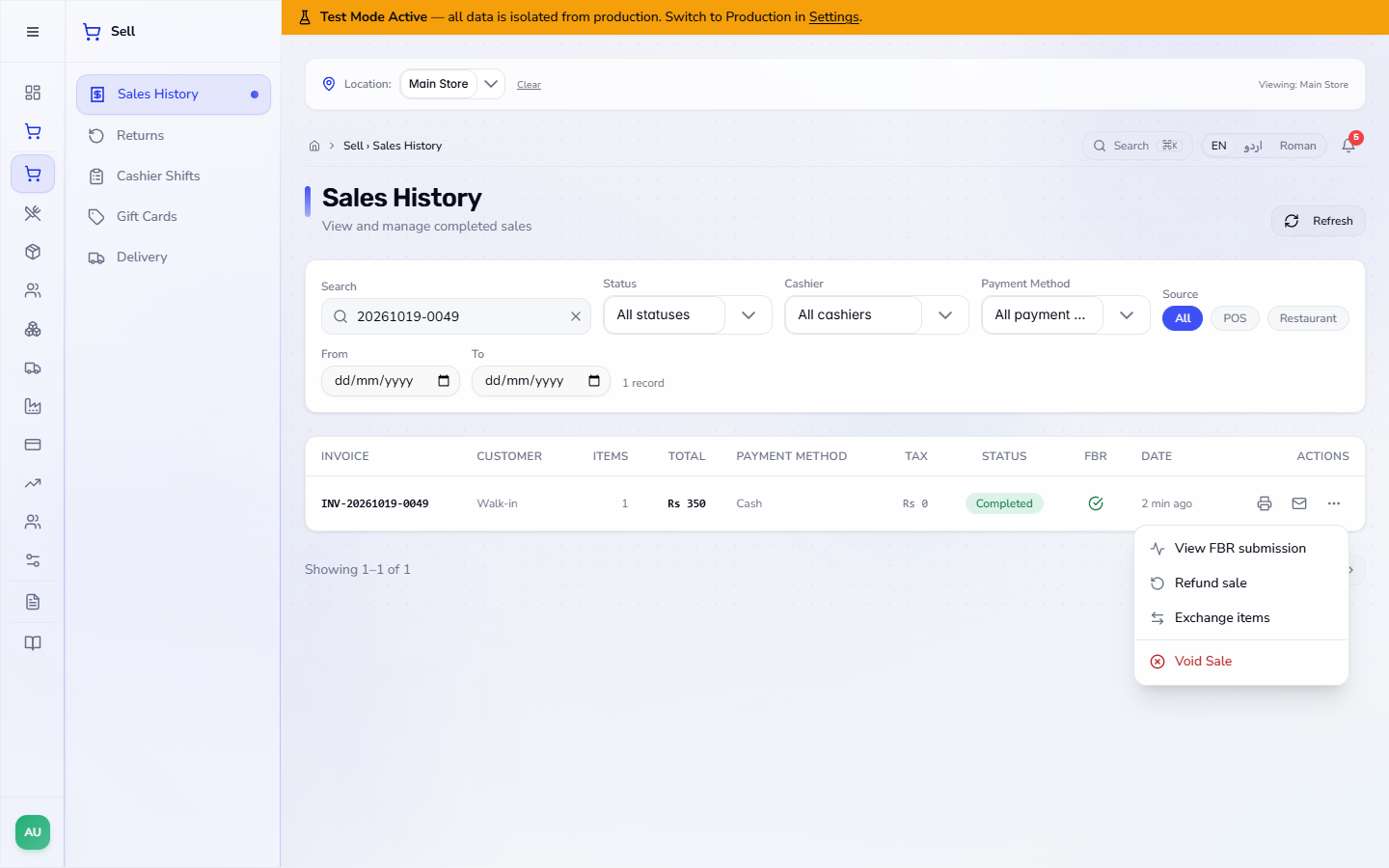
Open the row actions
Press the three dots. A completed sale offers View FBR submission, Refund sale, Exchange items and Void Sale. Use Refund sale when the customer keeps a receipt and returns goods; use Void Sale when the sale itself was a mistake.
Row menu with View FBR submission, Refund sale, Exchange items and Void Sale
9
Approve and void the sale with a reason
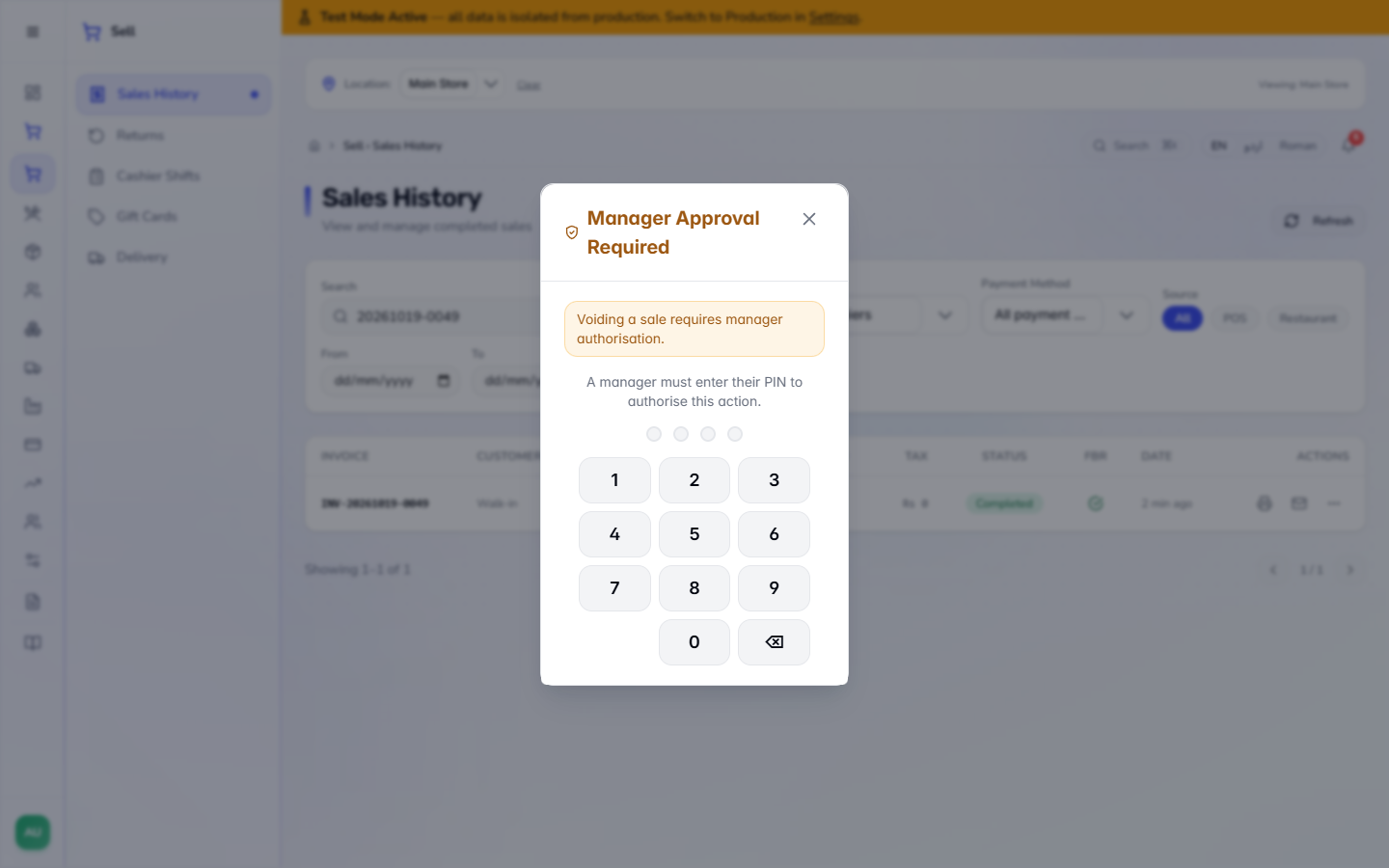
Choose Void Sale. With the Manager PIN switch on, the app first shows Manager Approval Required: Voiding a sale requires manager authorisation, and a manager must type their PIN on the pad. (Press the X to back out and leave the sale as it is.)
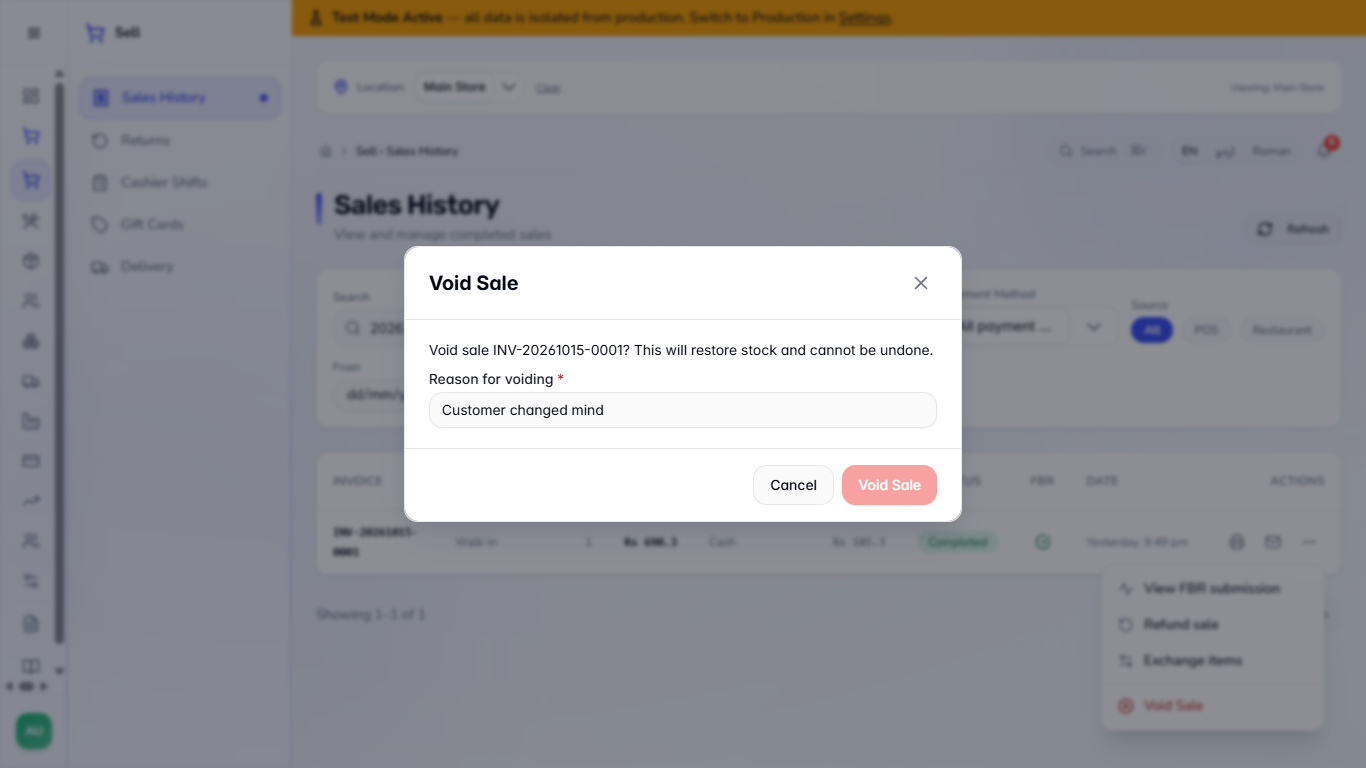
After the approval the app asks Void sale INV-20261015-0001? This will restore stock and cannot be undone. and wants a Reason for voiding. The Void Sale button stays off until you type one, for example Customer changed mind. Then press Void Sale, or Cancel. The screens of the void result below were checked on 14 to 16 October, before the manager PIN was switched on; the steps after approval are unchanged.
Manager Approval Required dialog with a four-digit PIN pad
Void Sale confirmation with the reason Customer changed mind typed in
10
Check the result
The row now reads Voided in red, with the reason, the user and the time under the chip (Customer changed mind · Admin User, Just now), and its FBR column shows a dash. Its three dots now offer only View FBR submission, so a voided sale cannot be voided or refunded again.
Voided sales list: every voided sale carries a red Voided chip
11
See the reversal in the books
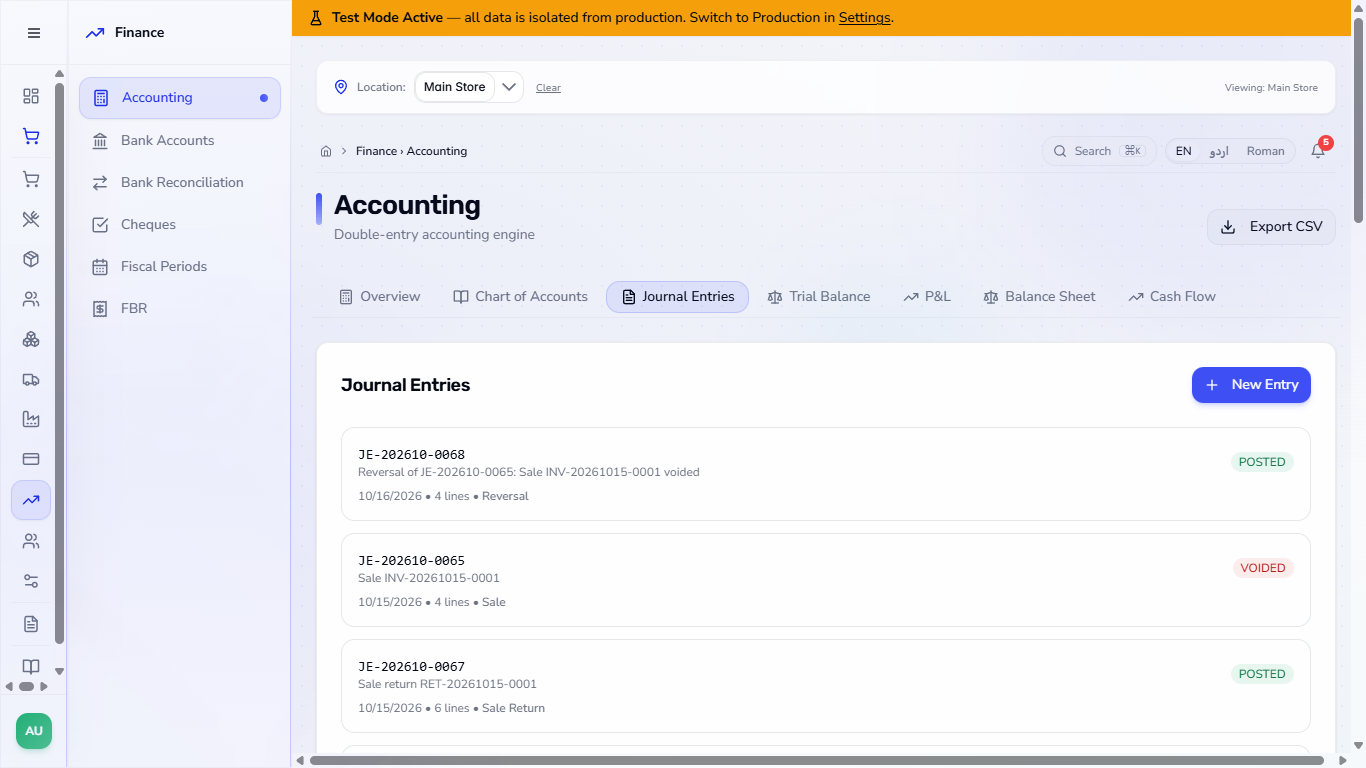
In Finance › Accounting › Journal Entries the original entry JE-202610-0065 is marked VOIDED and JE-202610-0068 (Reversal of JE-202610-0065: Sale INV-20261015-0001 voided) is POSTED. It flips each line: Cash in Hand, Sales Revenue, Promotional Discounts and Sales Tax Payable (GST) go back to where they were. In Cashier Shifts the shift's Live Sales fell from Rs 796.5 to Rs 106.2.
Journal Entries with the reversal JE-202610-0068 and the voided original JE-202610-0065
Check it worked
The sale shows Voided with the reason, the user and the time.
Journal Entries shows the reversal, and the original is VOIDED.
The shift's Live Sales no longer includes the sale.
Common mistakes
Mistake
What you see
Fix
Voiding instead of refunding a sale from yesterday
The cash leaves the shift and the sale cannot be changed
Use Refund sale for returned goods
Filters left on from an earlier search
No sales match these filters
Press Clear filters
Closing the PIN dialog and expecting the void to go through
The sale stays Completed
Ask a manager to enter their PIN
Looking for the void button on a voided sale
Only View FBR submission
A voided sale cannot be voided again
Quick reference
Item
Meaning / rule
Voided
The sale is cancelled and cannot be changed
Held
A held order, not yet paid
Void Sale
Needs a manager PIN (when the switch is on) and a reason; reverses the journal
Refund sale
Returns money for goods brought back
Frequently asked questions
How do I reprint a receipt? Find the sale in Sales History and press the printer icon on its row; the receipt opens as it was issued.
What does Void Sale do? It marks the sale Voided with your reason, the user and the time, takes the cash out of the shift and posts a reversing journal entry.
Why does Void Sale ask for a PIN? When the Manager PIN switch is on, voiding a sale needs a manager to type their PIN, so a cashier cannot cancel a sale alone. Pressing the X closes the dialog and nothing changes.
Can I undo a void? No. The confirmation says it cannot be undone.
Can I search a sale by customer? Yes. The search box takes the invoice number, the customer's name or the phone number.