Open the Contract tab
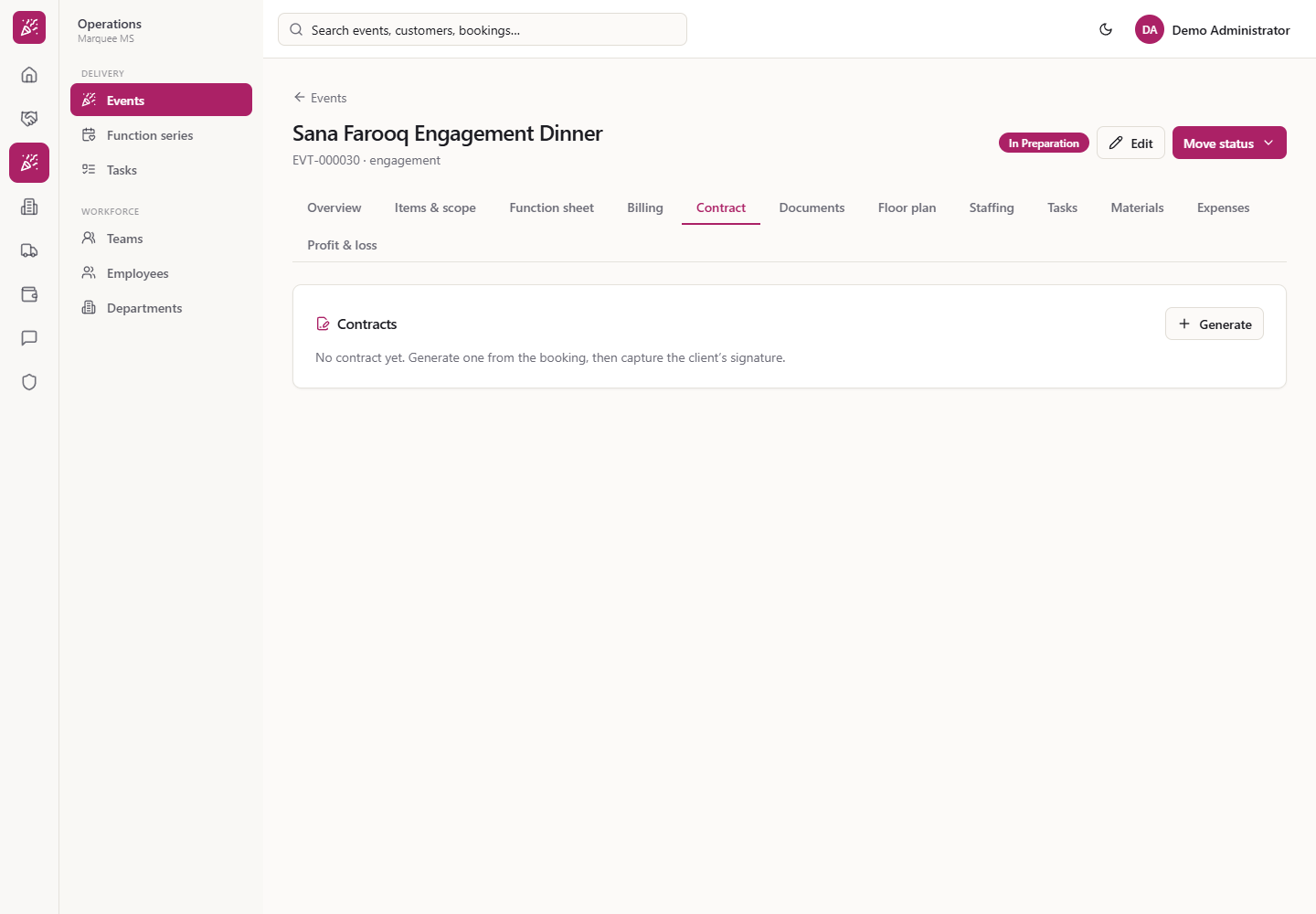
Open the event (here Sana Farooq Engagement Dinner, EVT-000030) and choose Contract. The card Contracts says "No contract yet. Generate one from the booking, then capture the client’s signature."
When a family confirms a booking, you want the agreement in writing. Marquee builds the event service agreement from the booking, and the customer signs it on your screen with a mouse or a finger, or on their own phone through a one-time link.
Open the event (here Sana Farooq Engagement Dinner, EVT-000030) and choose Contract. The card Contracts says "No contract yet. Generate one from the booking, then capture the client’s signature."
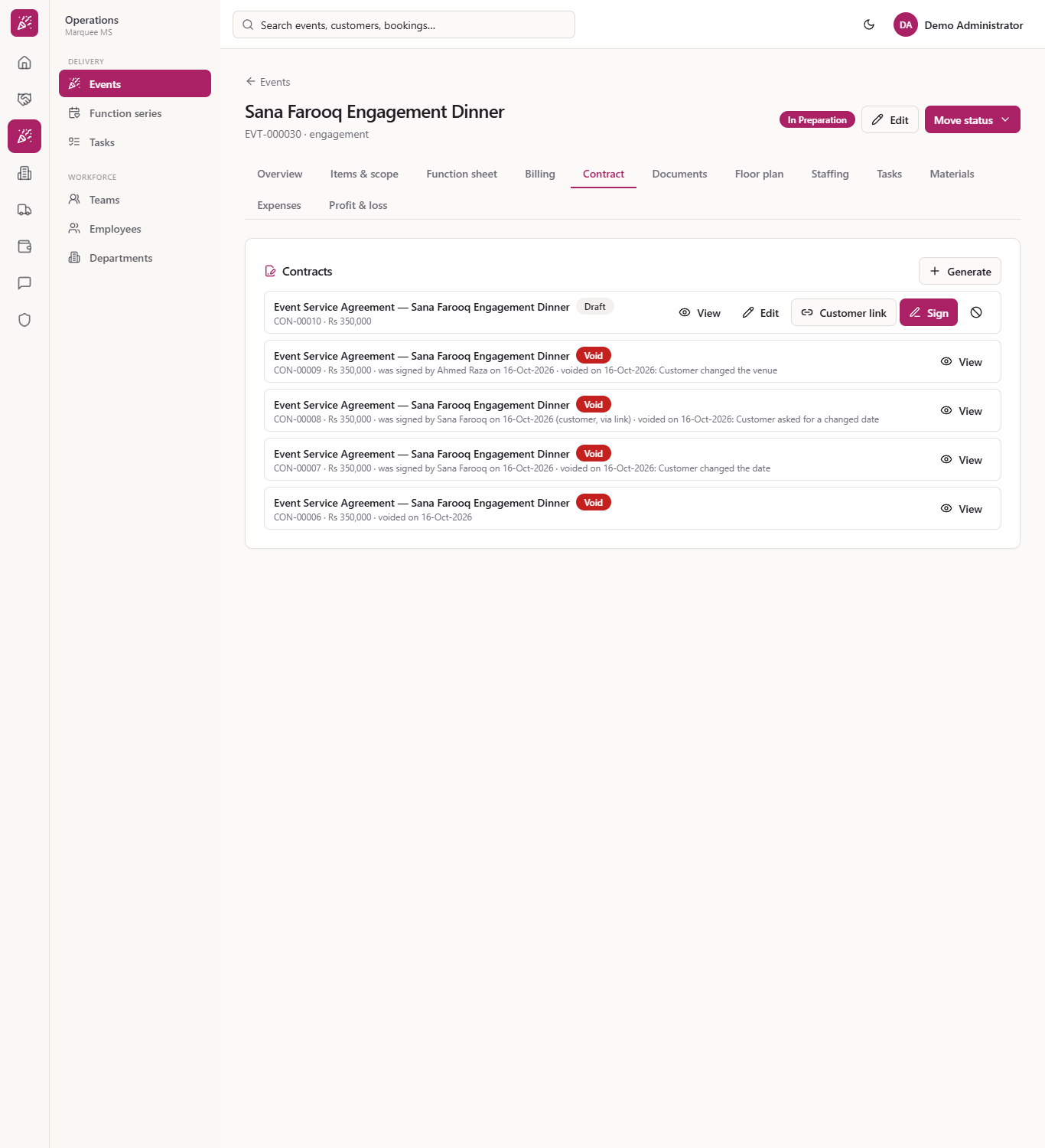
Press Generate. A row appears with the title "Event Service Agreement — Sana Farooq Engagement Dinner", the badge Draft, its CON number and the contract value, Rs 350,000. The row offers View, Edit, Customer link, Sign and a void icon, and Generate is now disabled: a booking keeps one active contract.
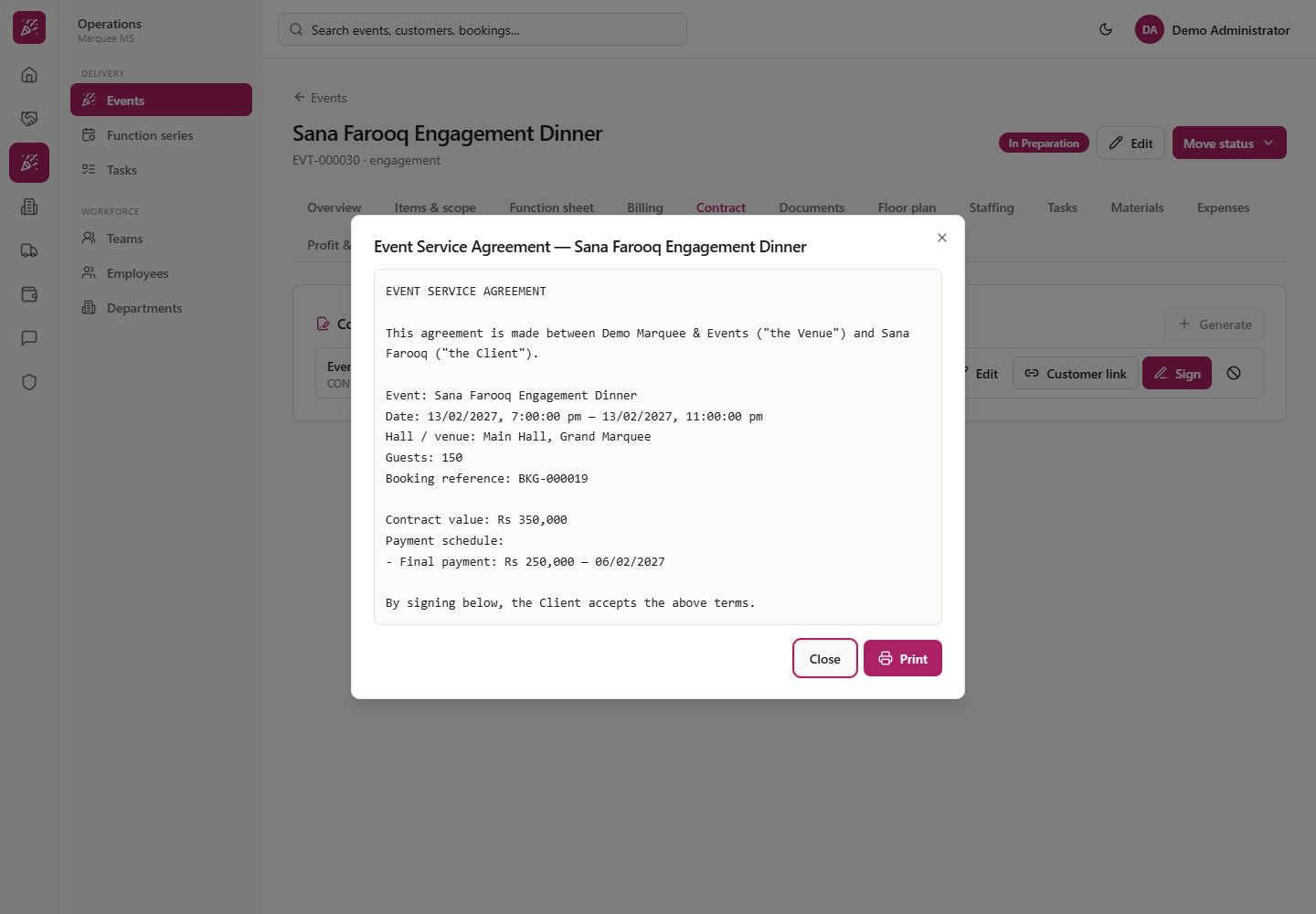
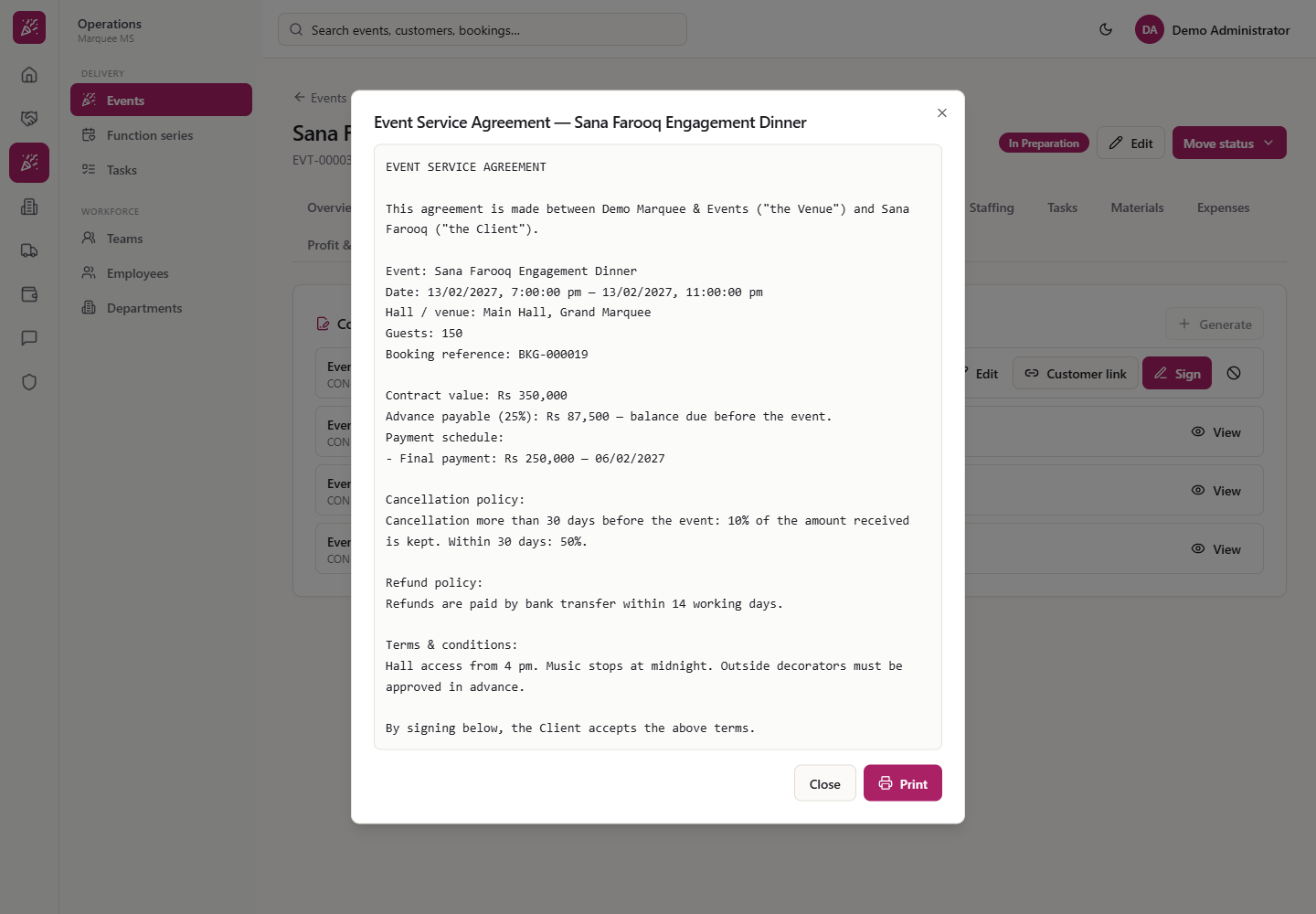
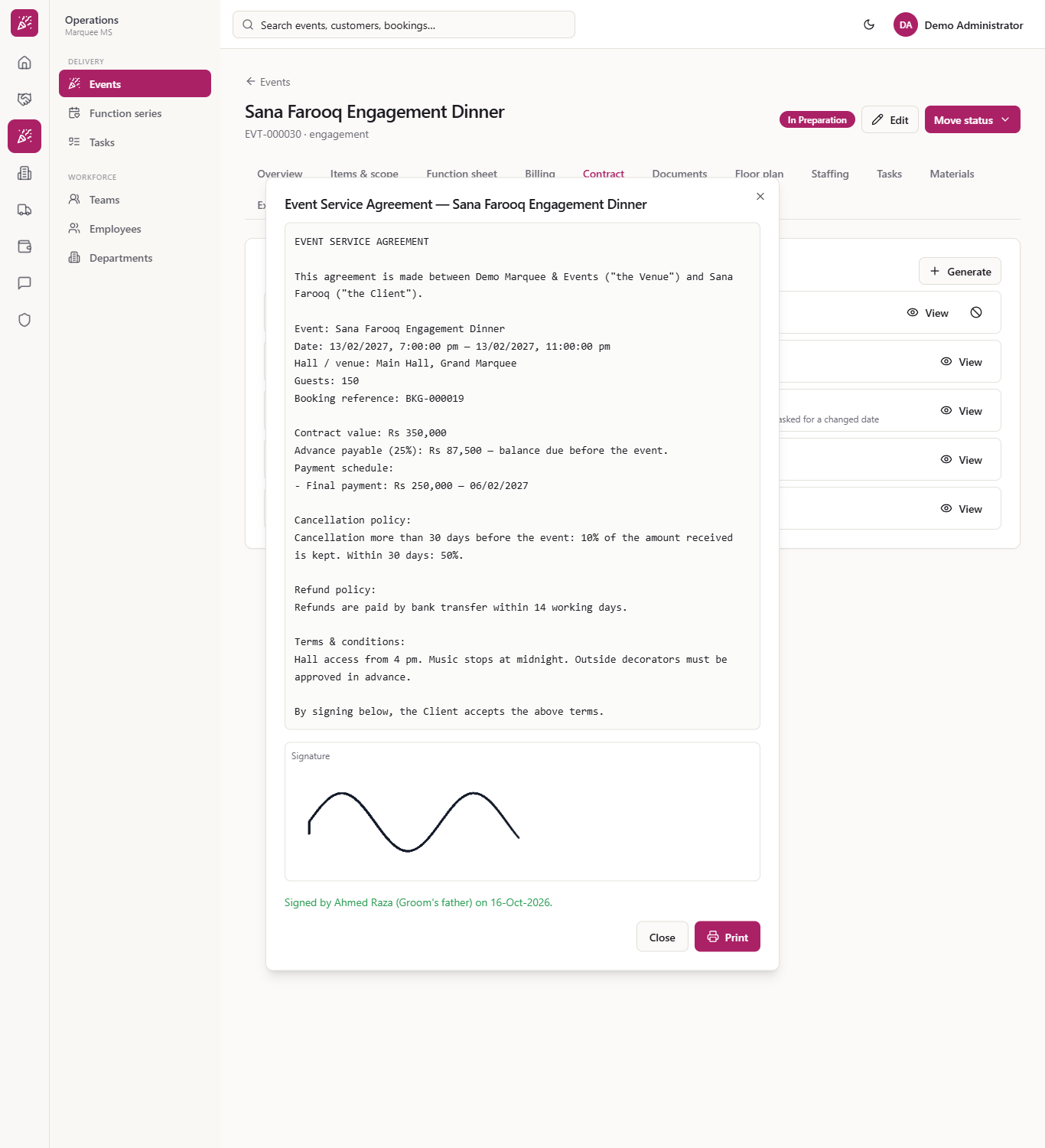
Press View. The text names the venue and the customer, the event and its date, the hall and venue (Main Hall, Grand Marquee), the guests (150), the booking reference (BKG-000019), the contract value and the payment schedule, and ends "By signing below, the Client accepts the above terms." Print prints the same text.
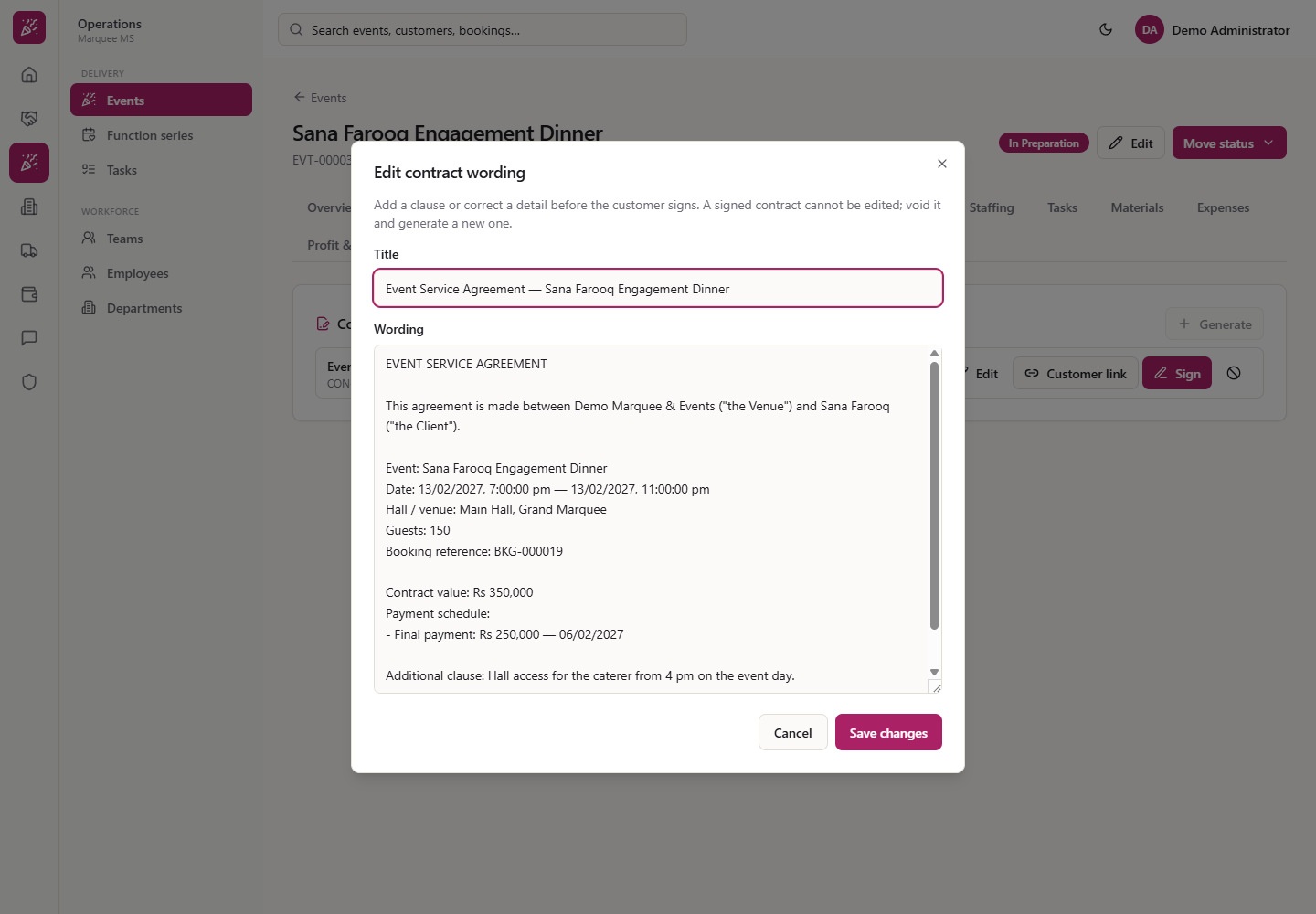
Press Edit. The dialog says "Add a clause or correct a detail before the customer signs. A signed contract cannot be edited; void it and generate a new one." Change the Title or the Wording, for example add "Additional clause: Hall access for the caterer from 4 pm on the event day.", and press Save changes.
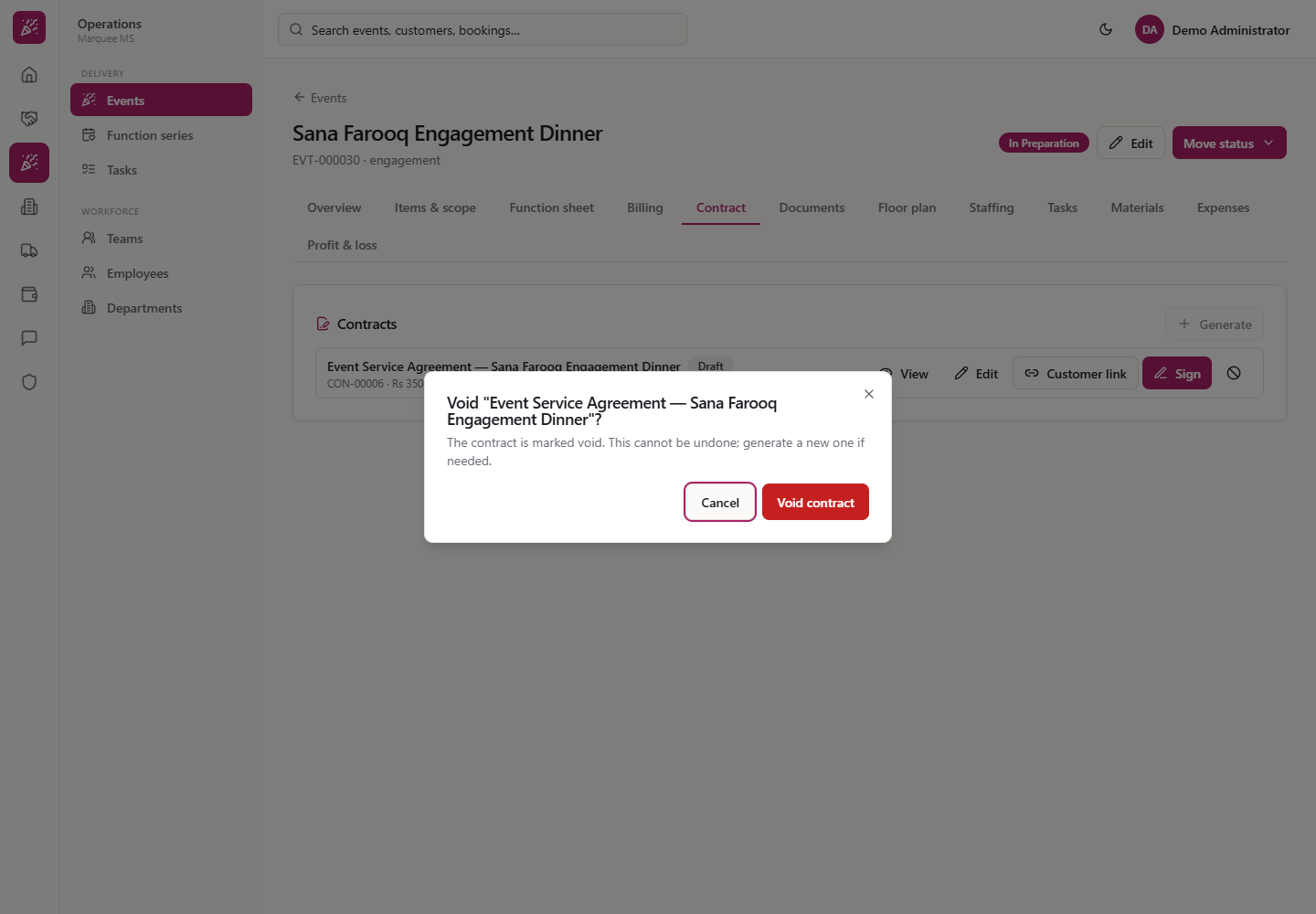
Press the void icon at the right of the row. The dialog says "The contract is marked void. This cannot be undone; generate a new one if needed." A draft needs no reason. Press Void contract.
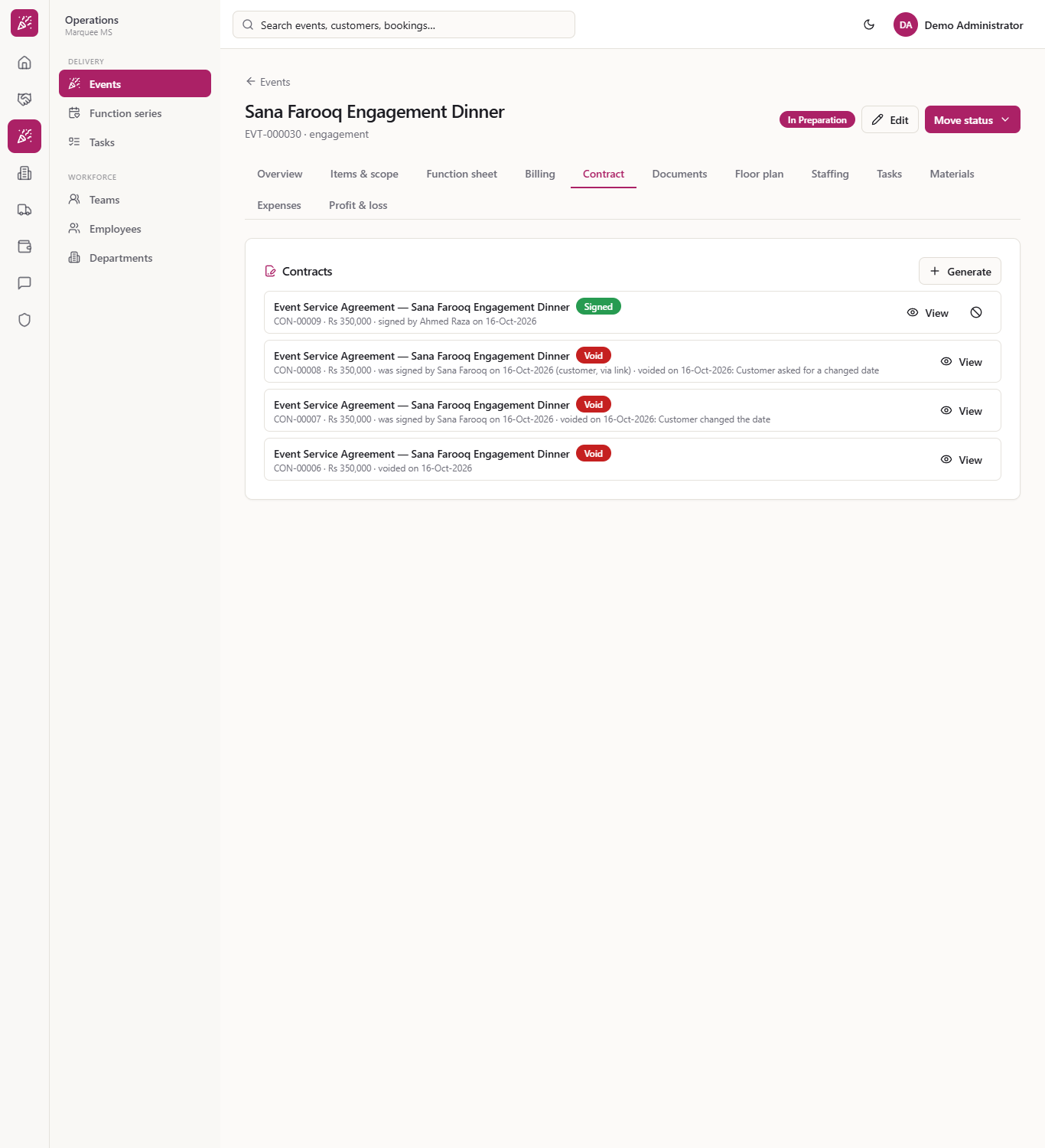
The row now shows the red badge Void and the void date, only View remains, and Generate is available again.
After setting the policies, press Generate again and open View. The text now has "Advance payable (25%): Rs 87,500 — balance due before the event.", then the Cancellation policy, Refund policy and Terms & conditions from Settings.
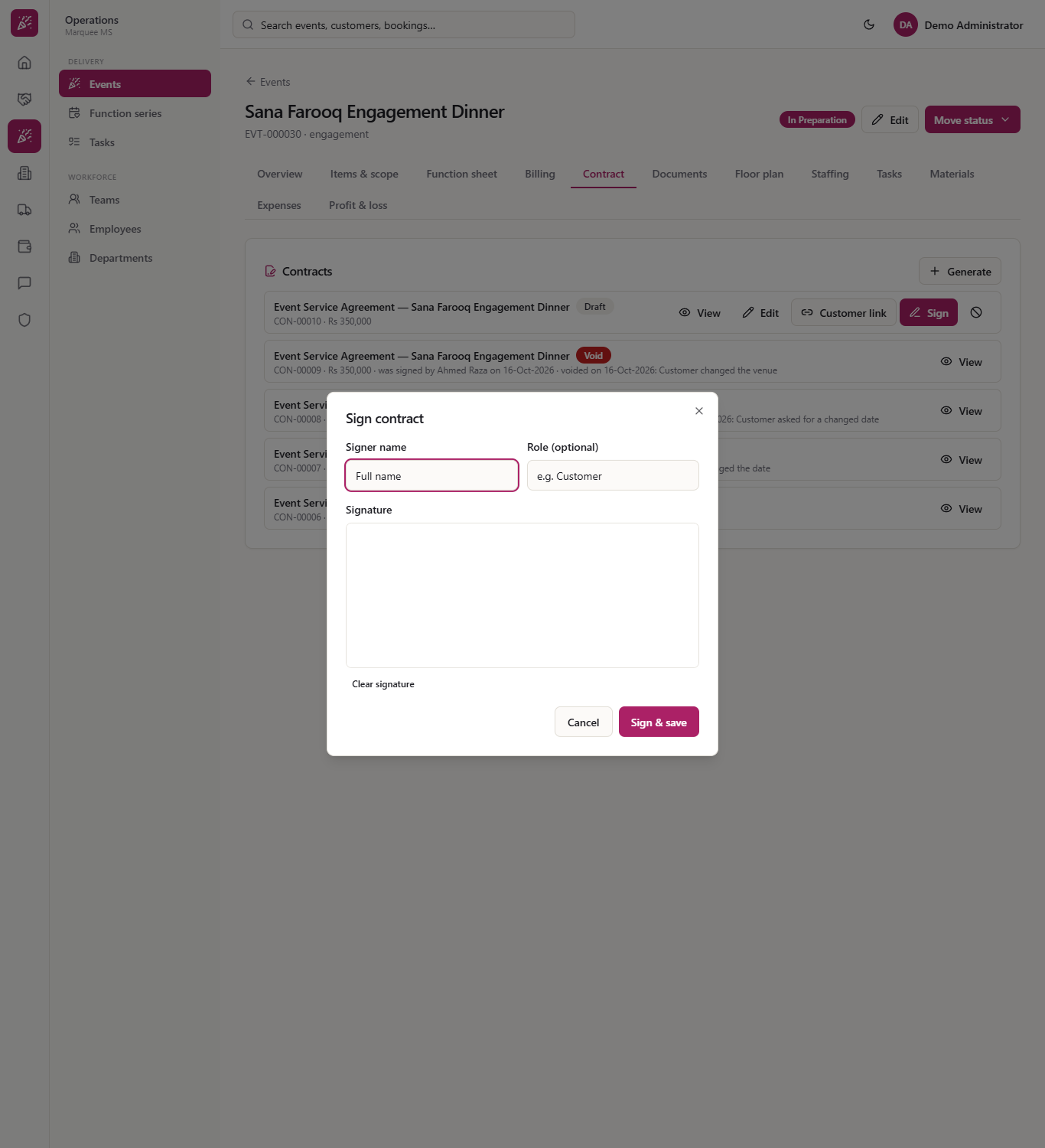
Press Sign on the draft. The form asks for the Signer name, an optional Role such as Customer, and a Signature box. Clear signature starts the drawing again.
Press Sign & save with nothing entered. The form says "Enter the signer’s name."
Enter a name and press Sign & save again. Now it says "Please draw the signature."
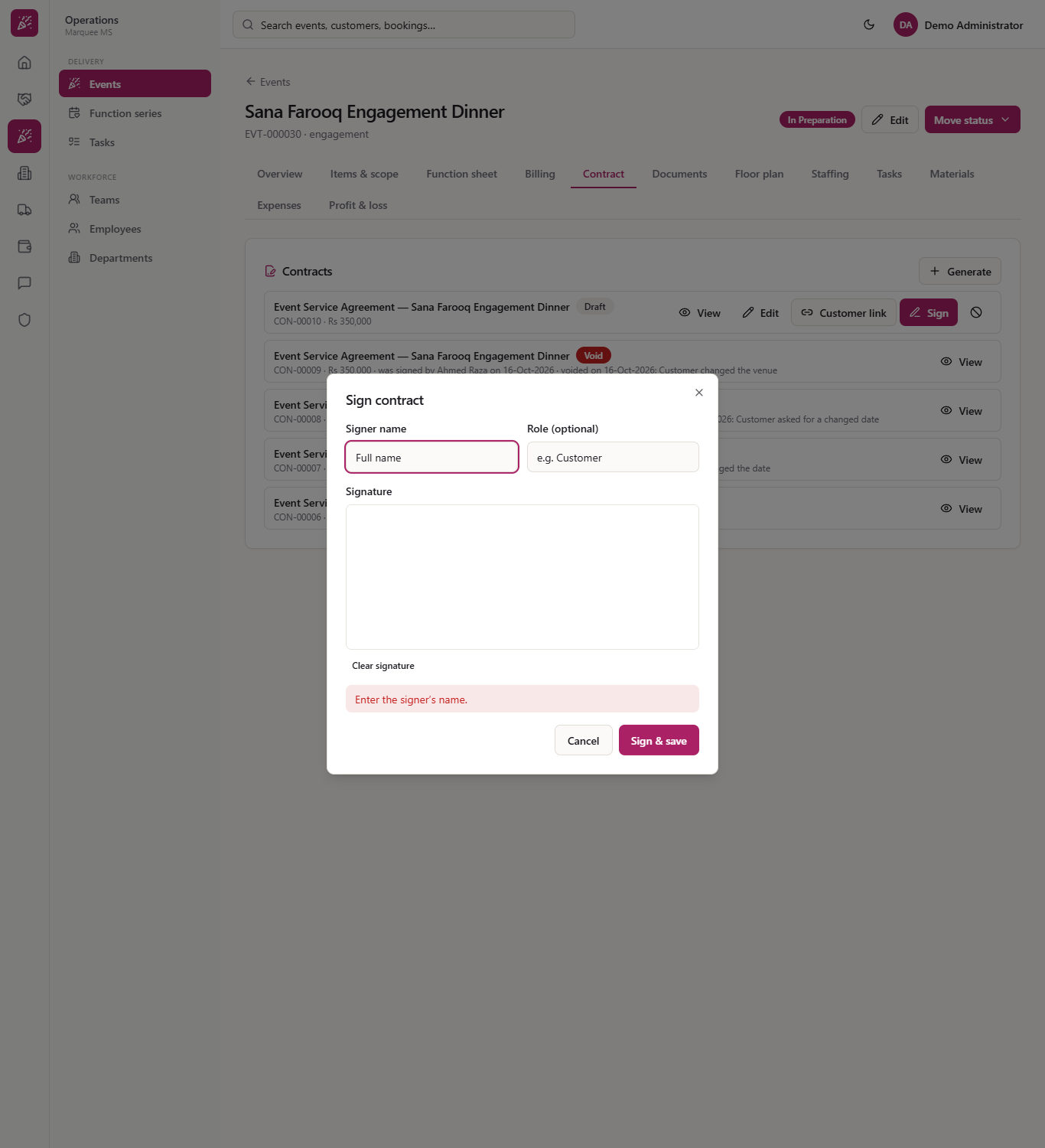
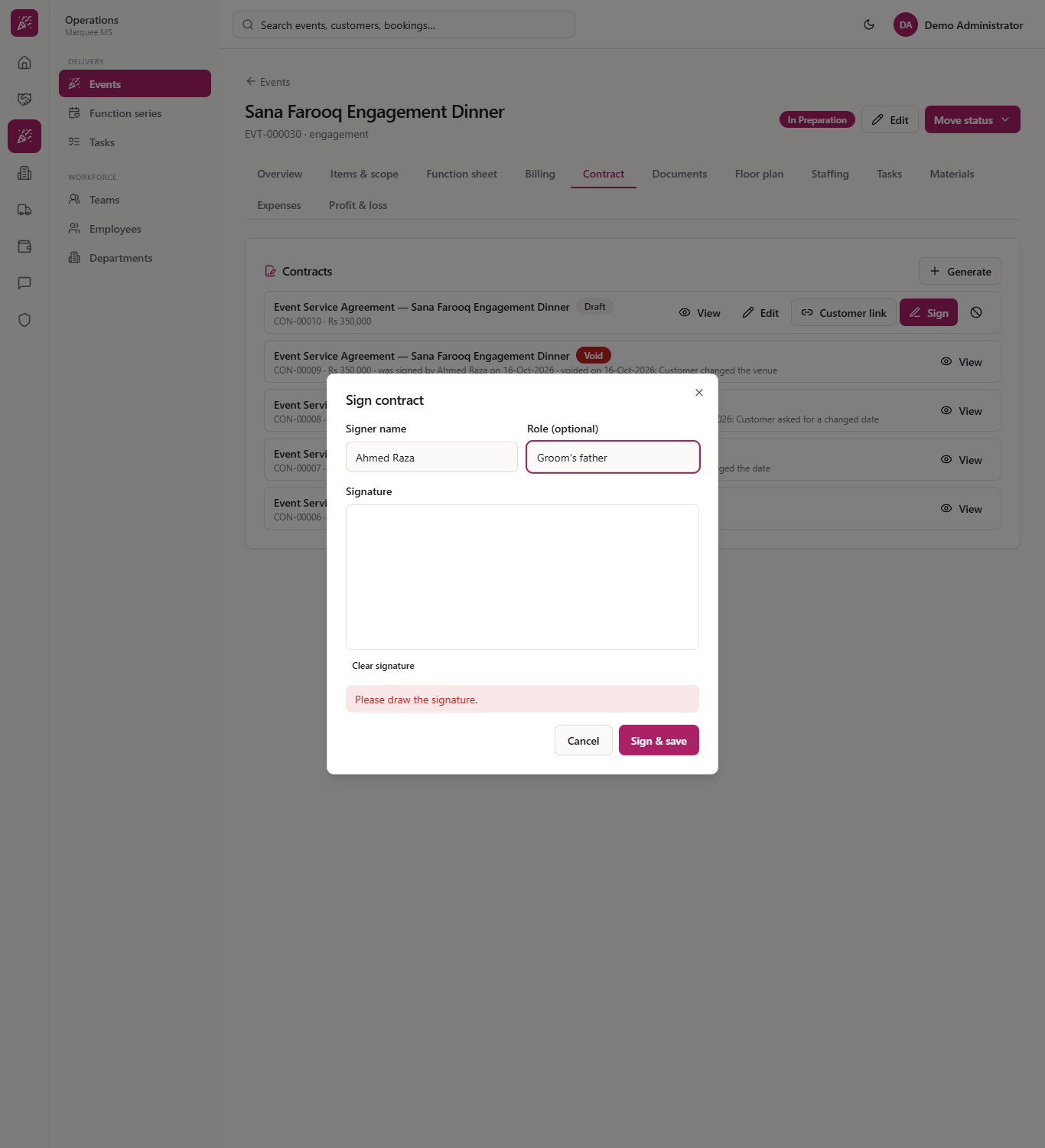
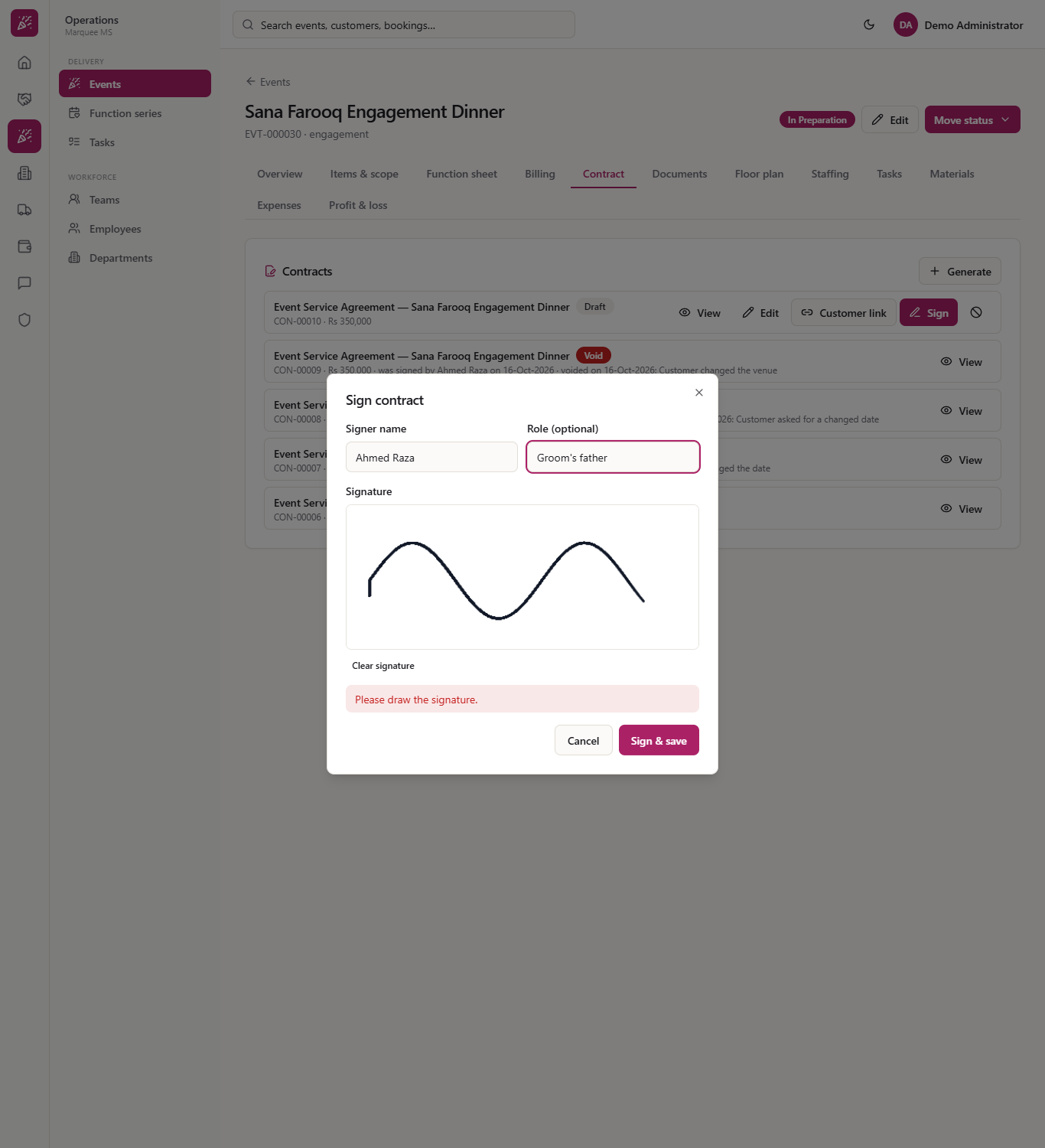
Type the Signer name (Ahmed Raza) and Role (Groom's father), then let the customer draw the signature in the box. Press Sign & save.
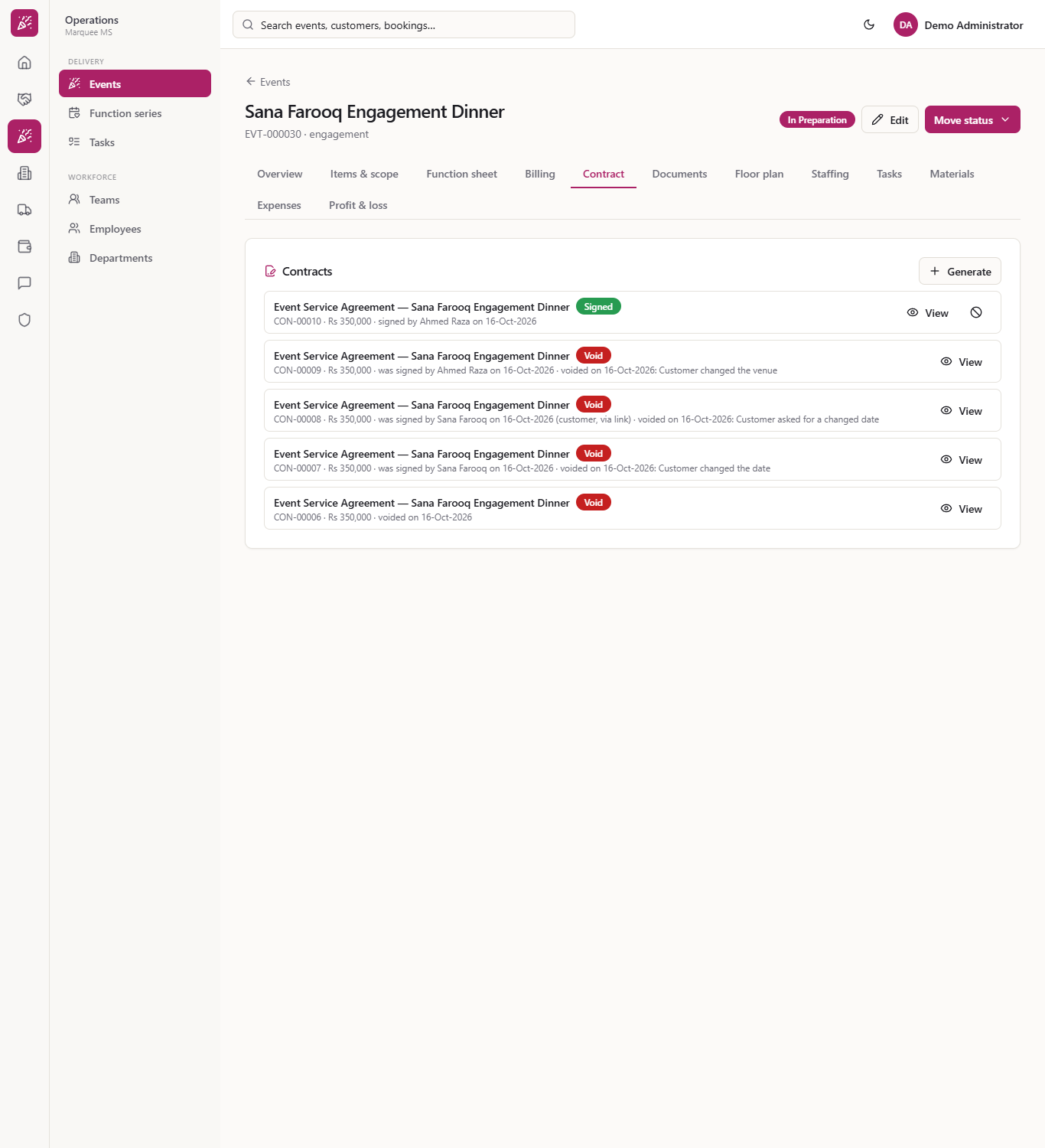
The row shows the green badge Signed and "signed by Ahmed Raza on 16-Oct-2026". Sign, Edit and Customer link are gone; View and the void icon remain.
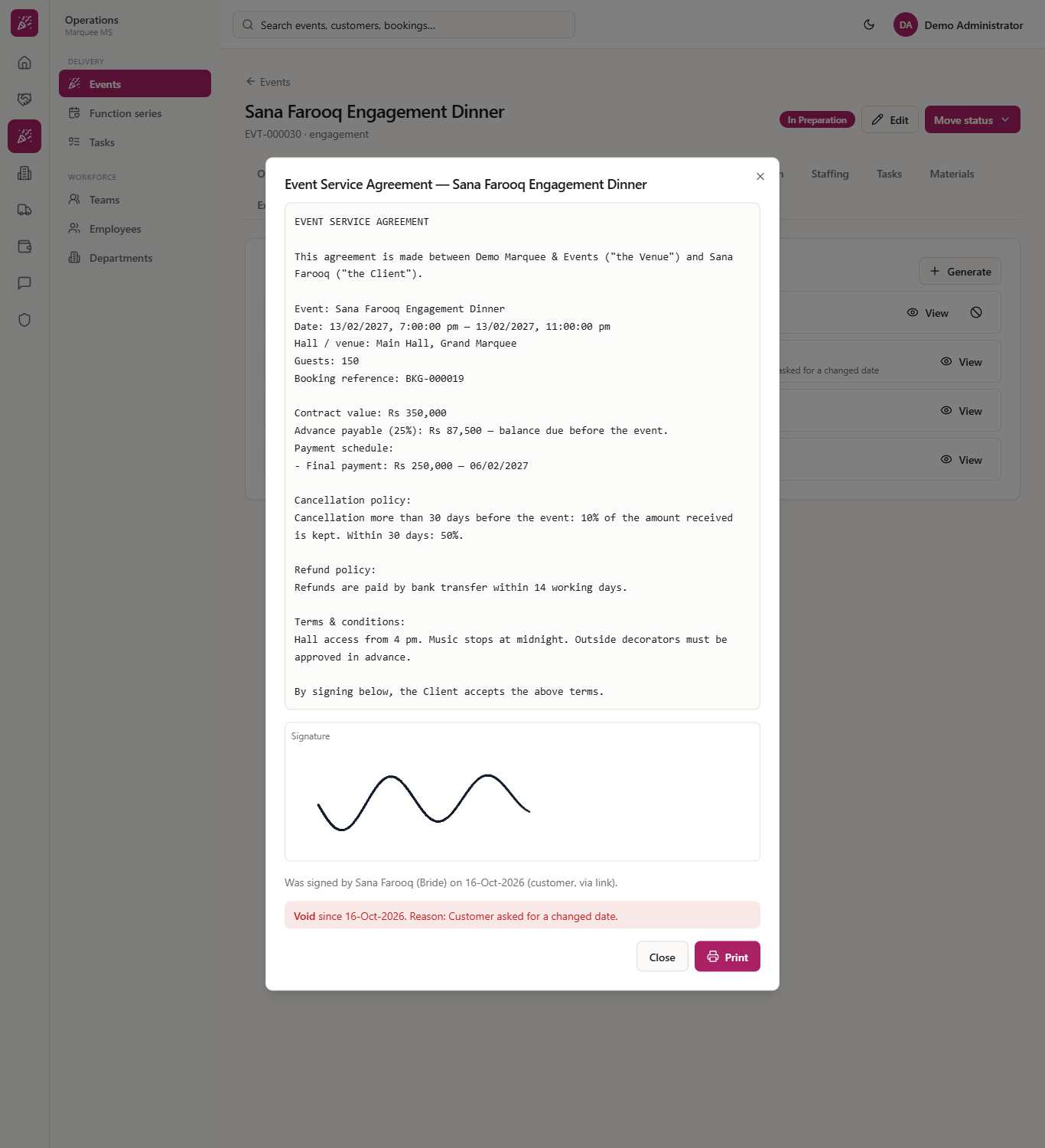
Press View. After the text you see the Signature box holding the drawn signature and the line "Signed by Ahmed Raza (Groom's father) on 16-Oct-2026." Print gives the same on paper.
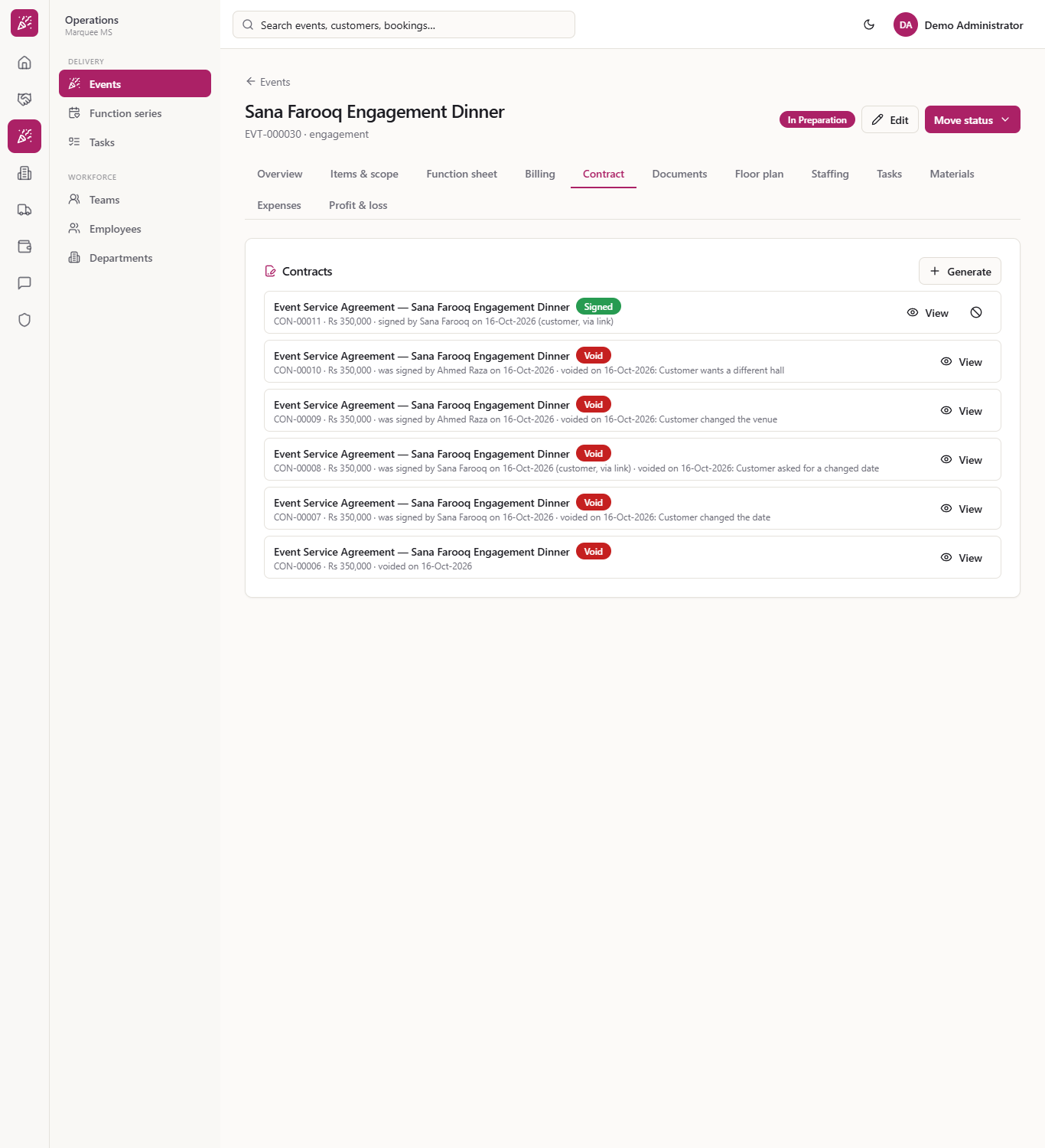
While a signed contract stands, Generate stays disabled and tells you to void the current contract first. Earlier contracts show Void.
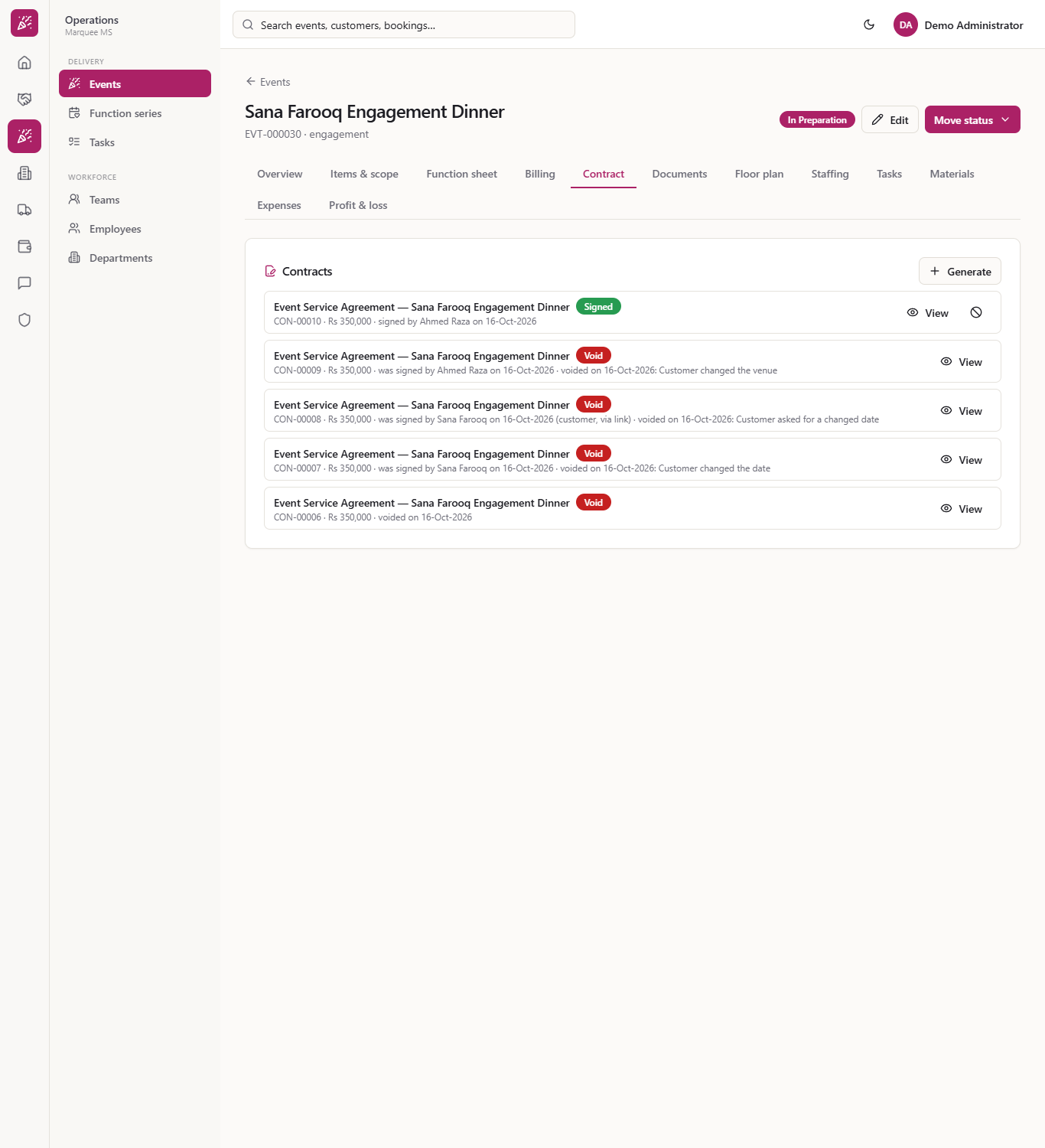
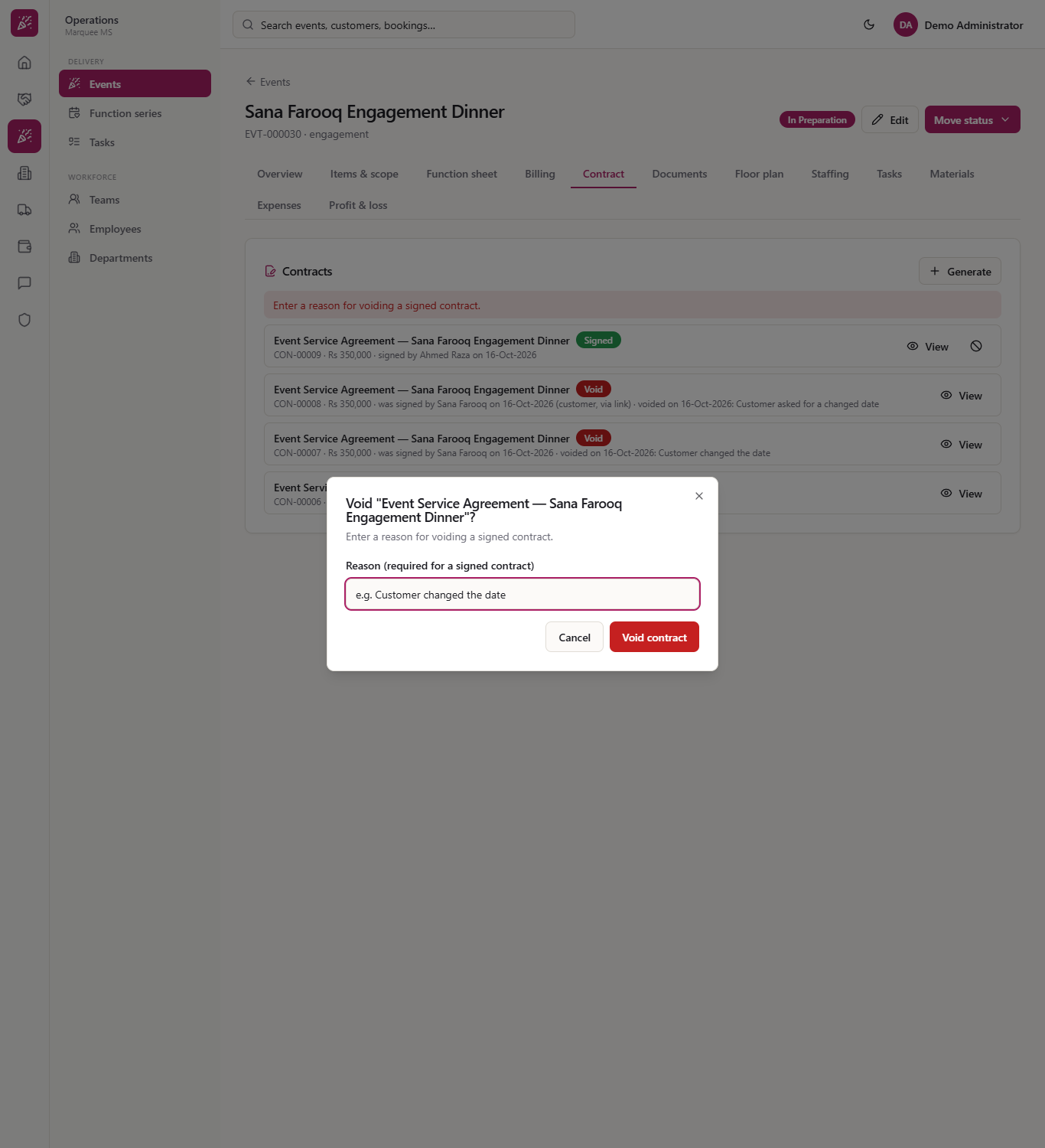
Press the void icon on the signed contract. The dialog adds a field Reason (required for a signed contract). With it empty, Void contract answers "Enter a reason for voiding a signed contract." Type the reason, for example "Customer changed the venue", and press Void contract.
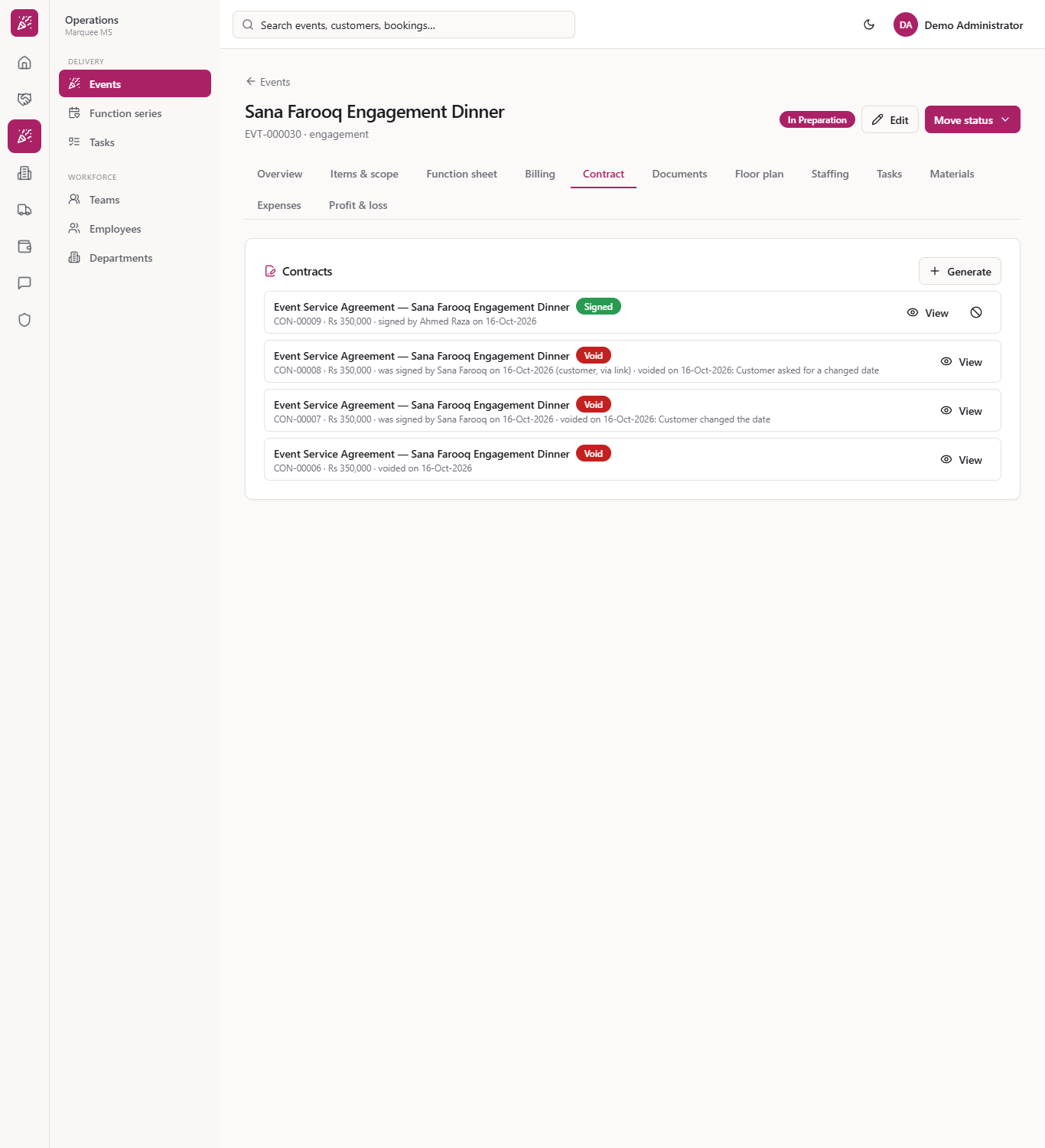
The row keeps who signed it, when it was voided and why: "was signed by Ahmed Raza on 16-Oct-2026 · voided on 16-Oct-2026: Customer changed the venue".
View still shows the drawn signature and the line "Was signed by …", with a red banner giving the void date and the reason.
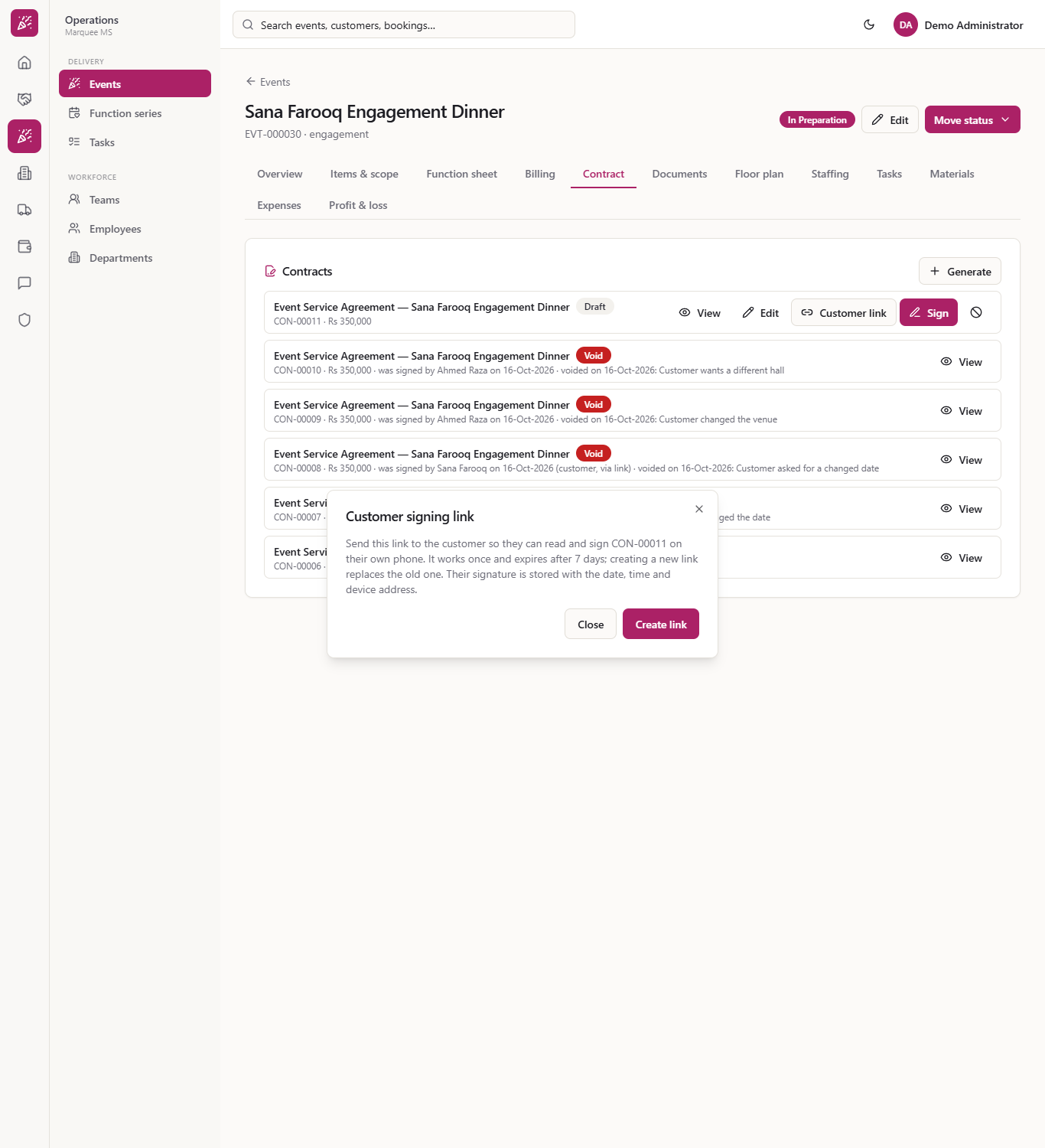
For a customer who is not in the office, generate a fresh contract and press Customer link, then Create link. The dialog explains that the link works once, expires after 7 days, and that a new link replaces the old one. Their signature is stored with the date, time and device address.
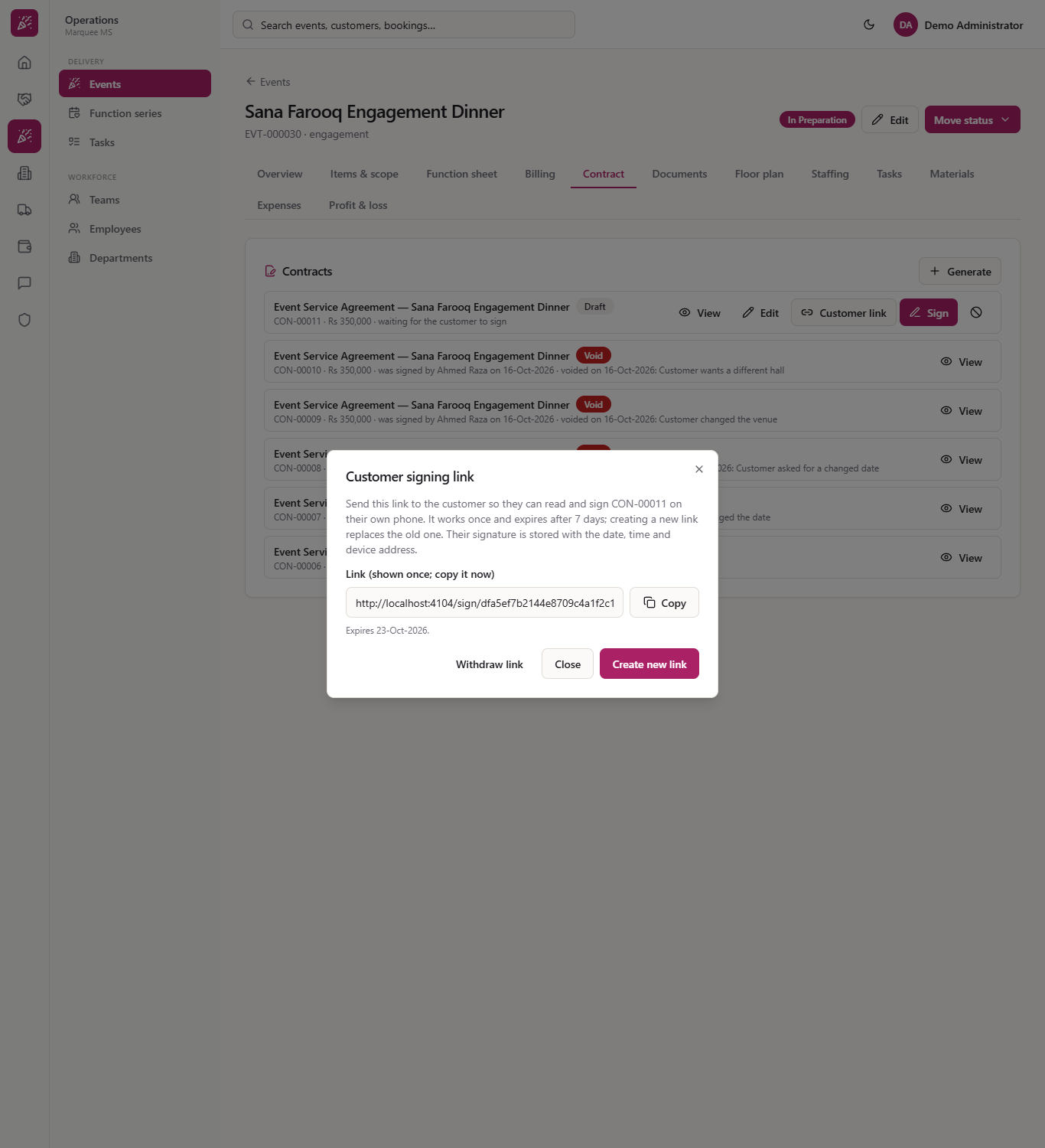
The link appears once under "Link (shown once; copy it now)" with the expiry date. Press Copy, or Withdraw link to cancel it, or Create new link to replace it.
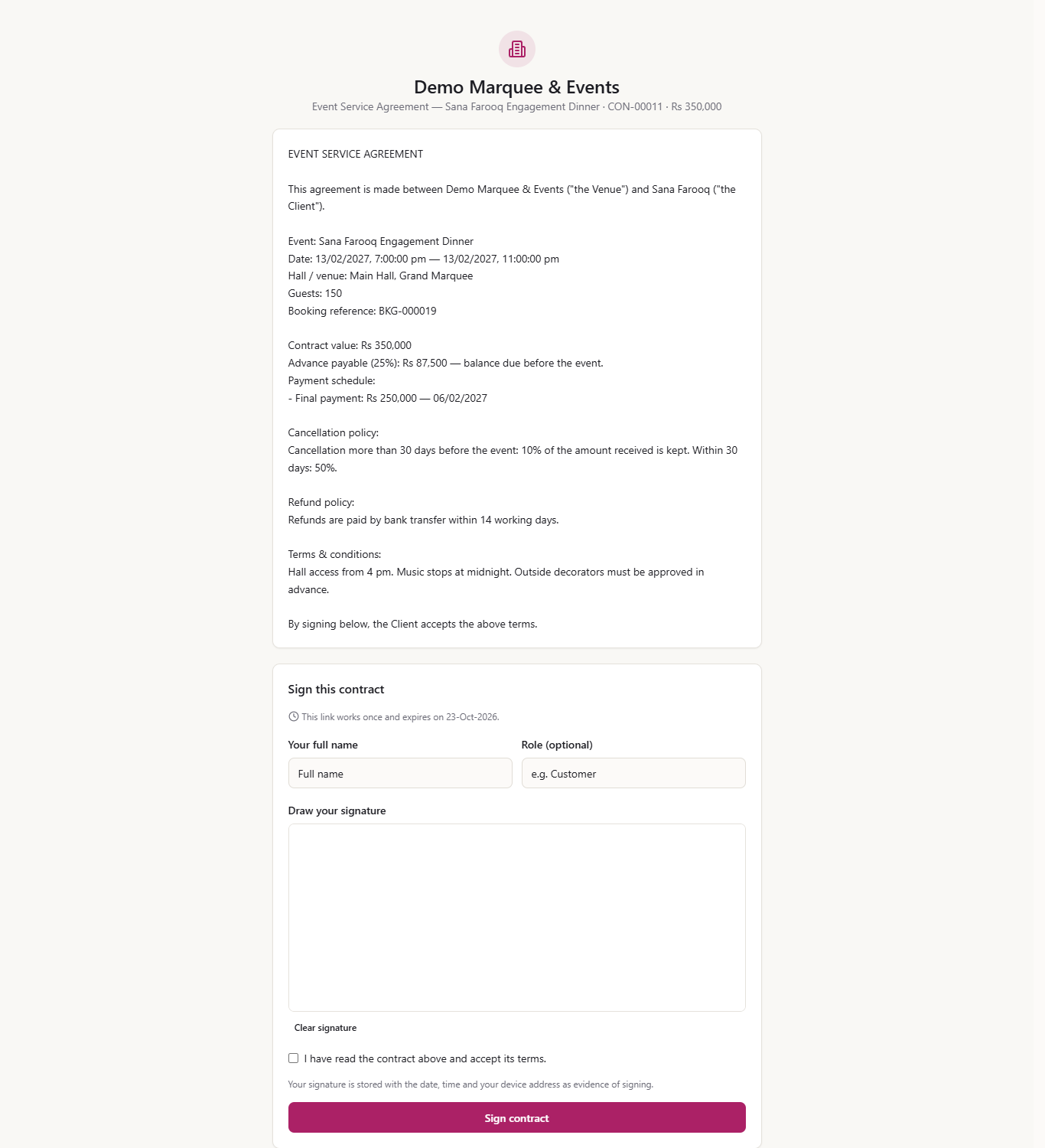
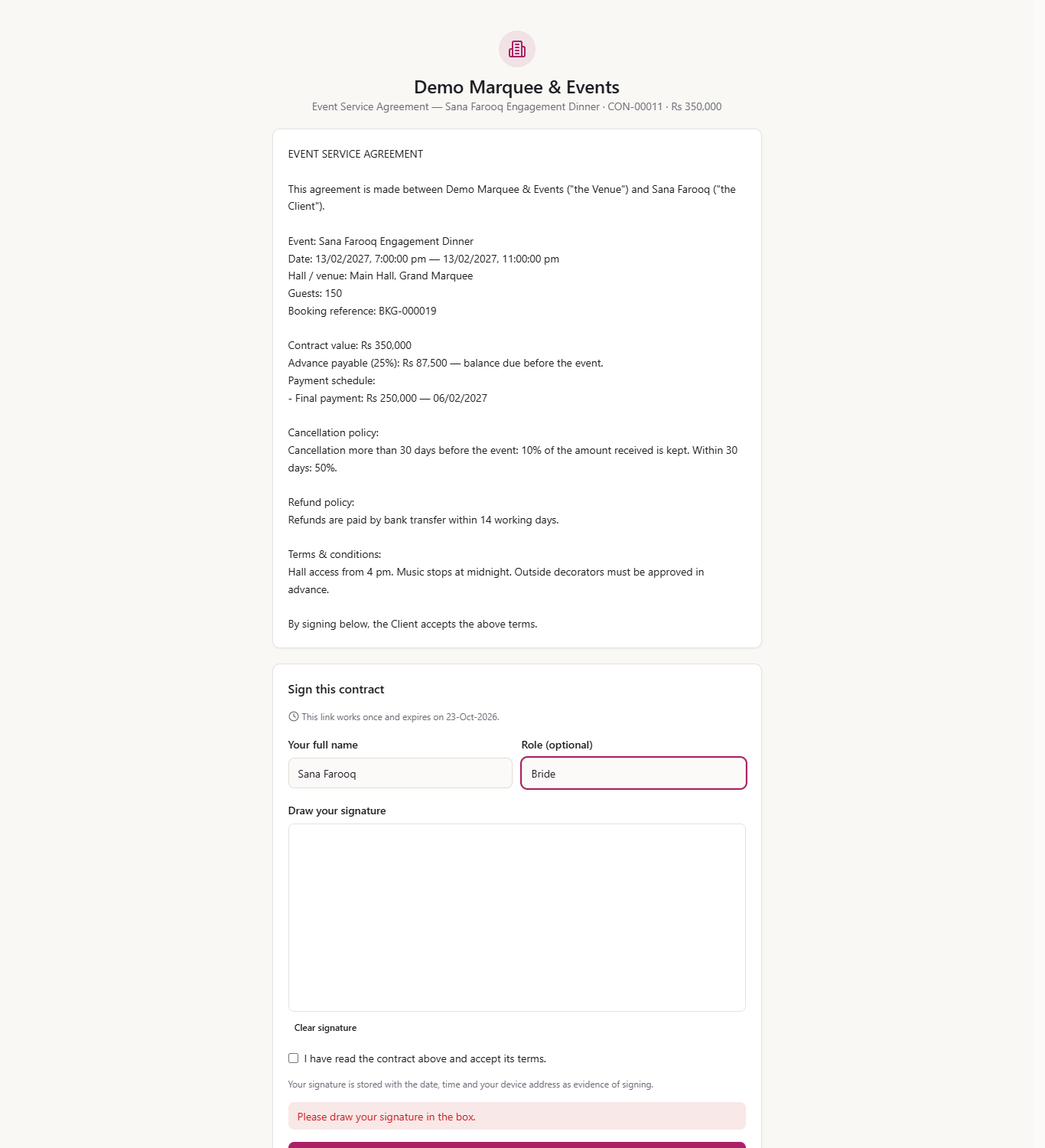
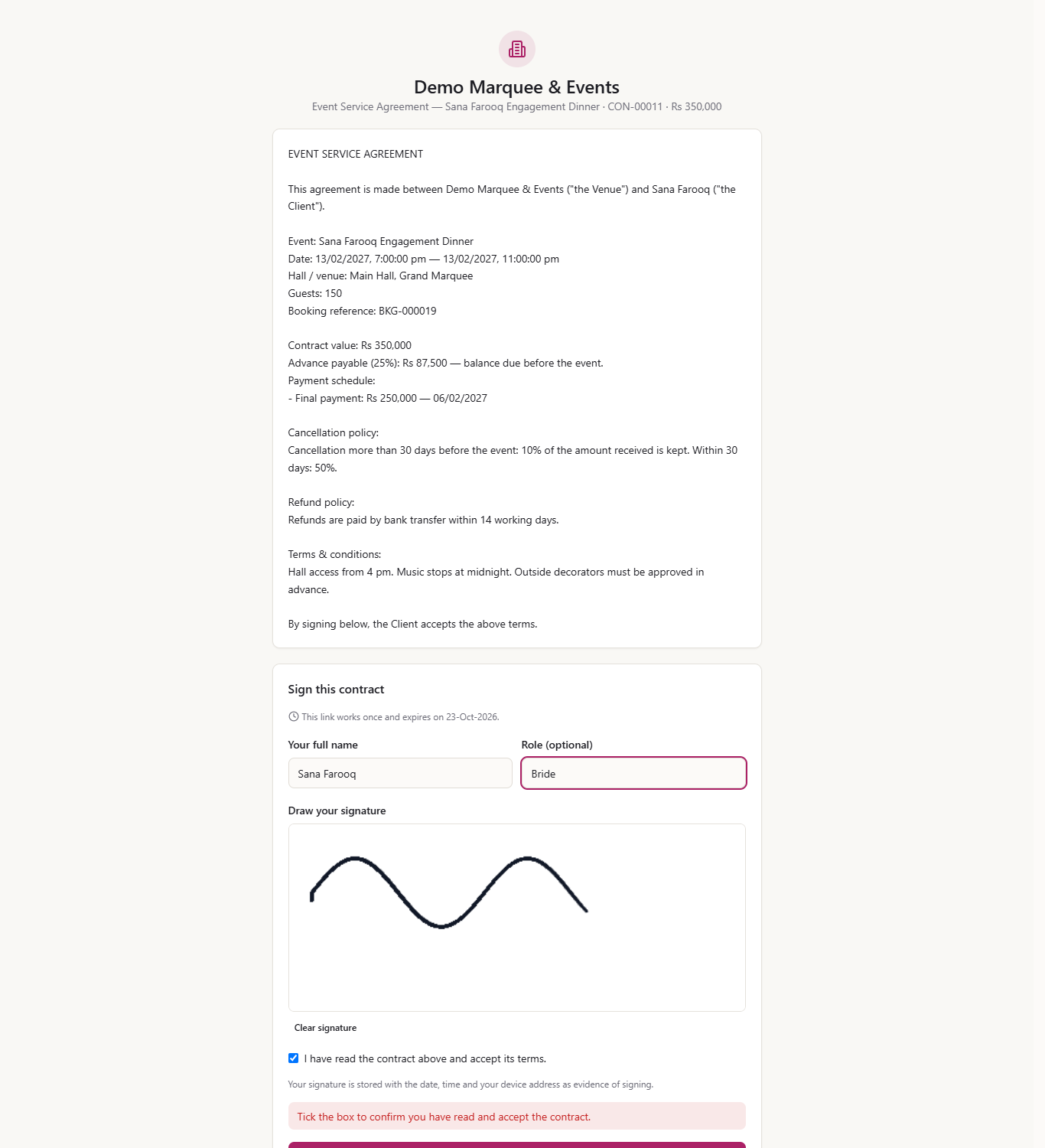
The customer opens the link with no sign-in. The page shows your business name, the contract title, the full text and "Sign this contract", with Your full name, Role (optional), Draw your signature, Clear signature and the tick box "I have read the contract above and accept its terms."
Missing pieces are named: "Enter your full name.", "Please draw your signature in the box." and "Tick the box to confirm you have read and accept the contract."
When the name, the drawn signature and the tick are in, the customer presses Sign contract.
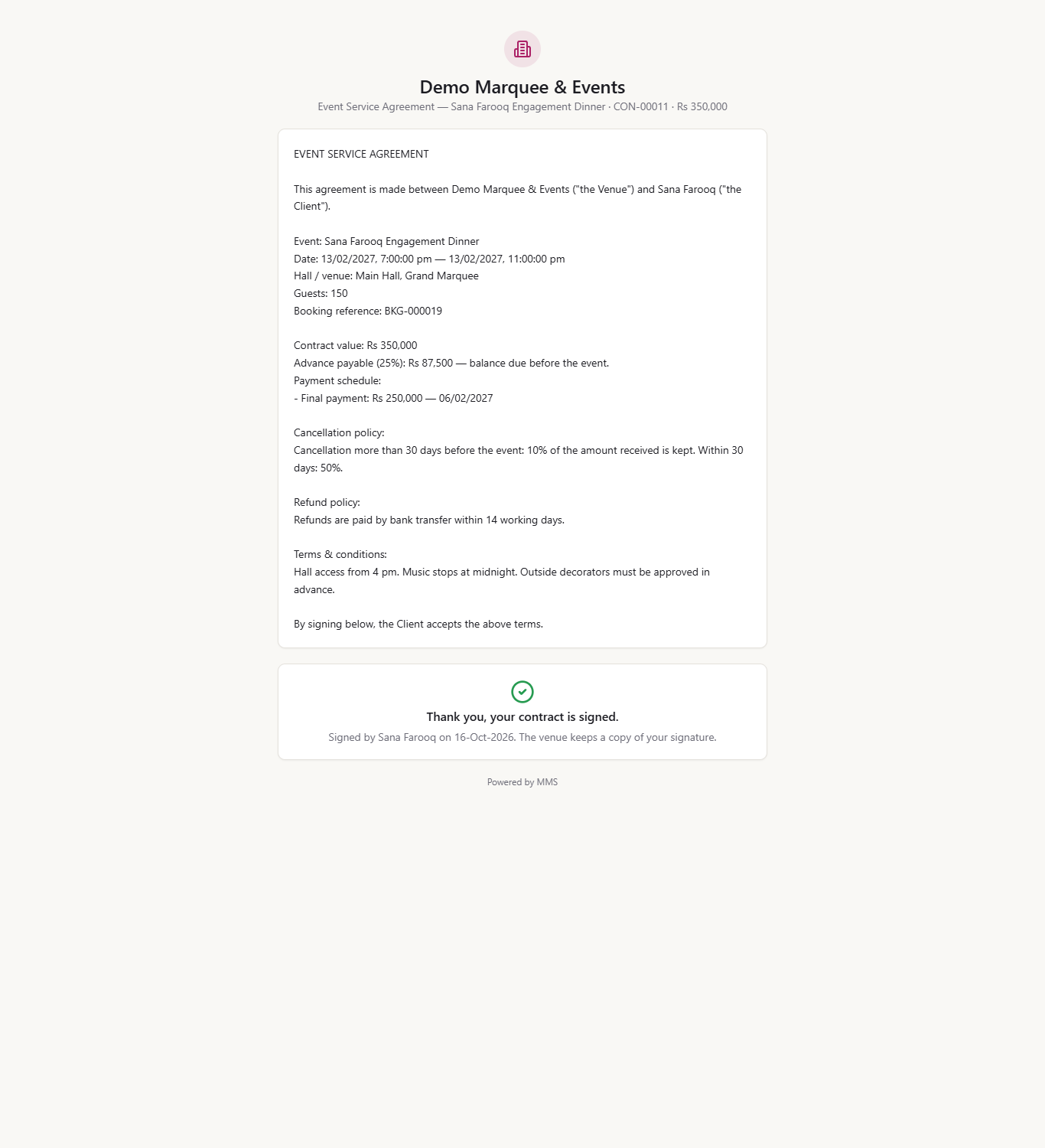
The customer sees "Thank you, your contract is signed." with their name and the date. Opening the link again says "This contract has been signed."
Back on the event the row reads Signed, "signed by Sana Farooq on 16-Oct-2026 (customer, via link)".
| Mistake | What you see | Fix |
|---|---|---|
| Generating before the policies are set | A contract without advance, cancellation, refund or terms | Void it, set the policies in Settings and generate again |
| Trying to generate a second contract | Generate is disabled | Void the current draft or signed contract first |
| Voiding a signed contract by accident | The row turns Void with the reason and date and cannot be restored | Generate a new contract and have it signed again |
| Sending a customer link twice | The first link stops working | Use the newest link, or Withdraw link |
| Item | Meaning / rule |
|---|---|
| Draft | Generated, not signed yet; can be read, edited, signed, sent by link or voided |
| Signed | Signed with a name, an optional role and a drawn signature |
| Void | Cancelled; it cannot be undone; a signed contract needs a reason |
| Customer link | Works once, expires after 7 days; a new link replaces the old one |
| Contract text | Fixed when it is generated (apart from a draft's edited wording); later changes in Settings do not change it |
Can the customer sign the contract from their own phone? Yes. Create a Customer link on the draft and send it; the customer reads the contract, draws the signature and ticks the box, with no sign-in. The link works once and expires after 7 days.
Can I change the contract text before it is signed? Yes, while it is a draft: press Edit to add a clause or correct a detail. A signed contract cannot be edited; void it and generate a new one.
What happens if I void a contract? It is marked Void and cannot be undone. A signed contract asks for a reason and keeps who signed it and why it was voided. Generate a new contract if you still need one.
Marquee runs this whole workflow. See what Marquee does and what it costs, or browse all step-by-step guides.