Let your customer review quotations, follow their job and see their payments, without ever sharing a password with your staff. You save their login email, send a one-time link, and the customer chooses their own password.
Who it is forOffice administrator or project managerTime10 minutesProductBuildFlowLevelBeginner
Before you start
Steps
1
Open the Portal Access tab and save the login
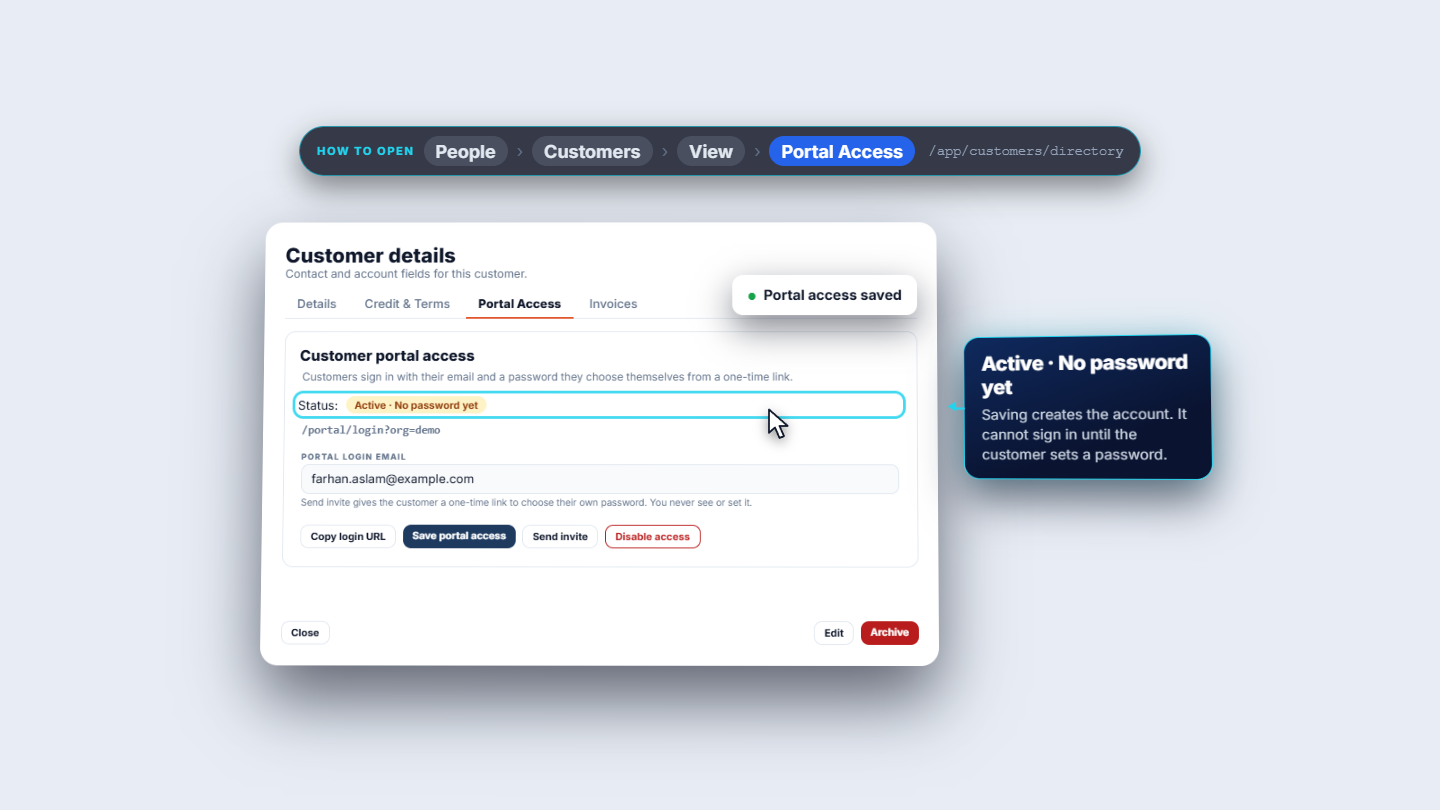
Go to People › Customers, open the row menu and choose View, then the tab Portal Access. A new customer shows Not set up · No password yet, and below it the one login address that every customer of your company uses (/portal/login?org=…). The Portal login email starts from the customer's own email. Click Save portal access. The toast says Portal access saved and the status becomes Active · No password yet.
Portal Access tab after saving, with Active and no password yet
2
Send the invite
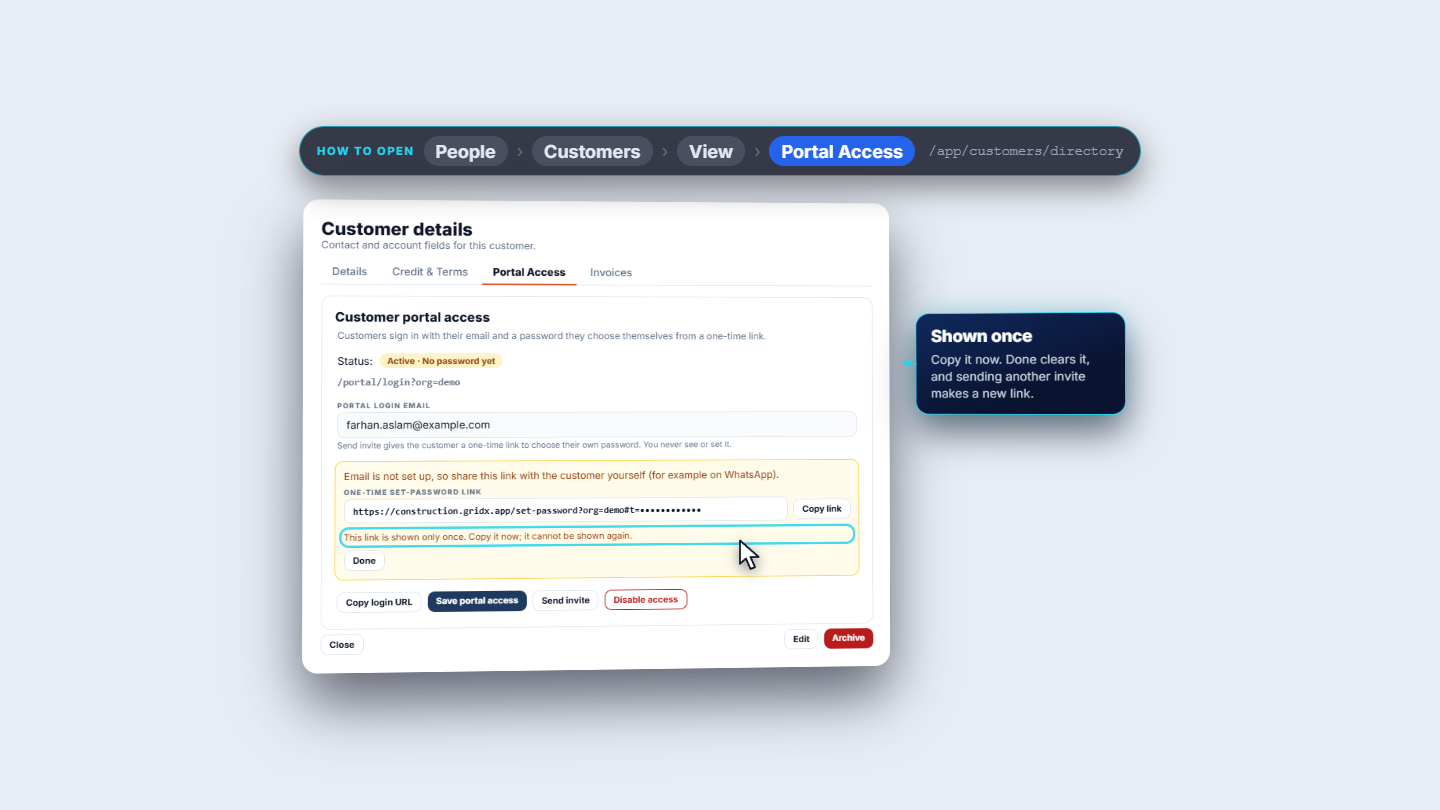
Click Send invite. It makes a one-time link. If your workspace has no email set up, the page says Email is not set up, so share this link with the customer yourself (for example on WhatsApp). and shows the One-time set-password link with a Copy link button. Copy it now. The link is shown only once. Done clears it, and sending another invite makes a new link.
One-time set-password link shown once with a Copy link button and Done
3
The customer chooses a password and signs in
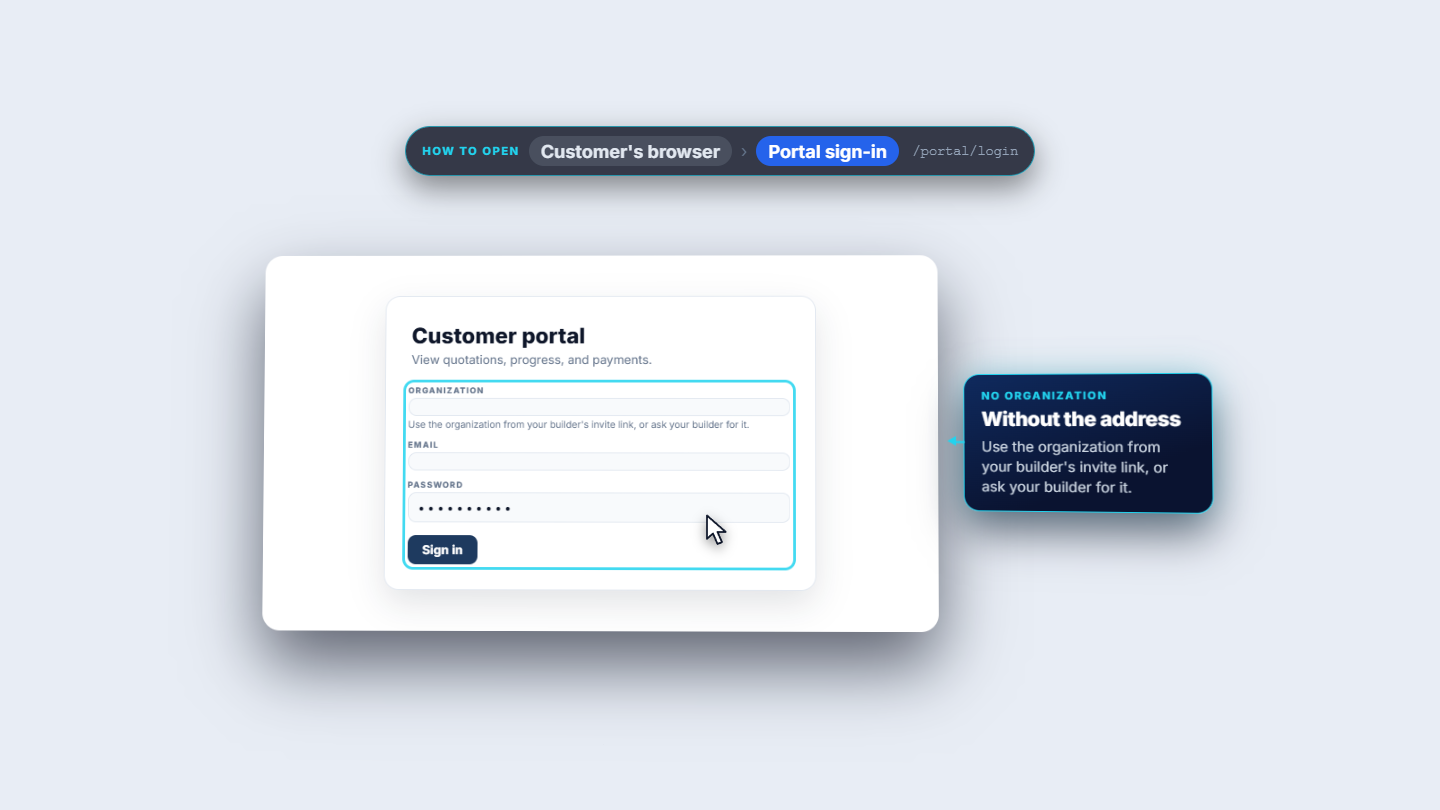
The customer opens the link. The page says Choose your password, and the link works once. There are two fields, New password and the repeat field, and the password needs at least 8 characters. Save password finishes it. The address bar drops the token as soon as the page opens. Then the customer signs in at the login address. The organisation is already chosen, so only Email and Password are asked. Without the organisation in the address, the page asks for it first. Inside the portal the header offers My Projects, Quotations, Change orders and Payments. A quotation you sent appears under Quotations with its total, the valid-until date and Review. Approve asks for a confirmation and an optional note. Once you convert the approved quotation, the job appears under My projects.
Customer portal sign-in page without the organisation chosen
4
Check the status in the office
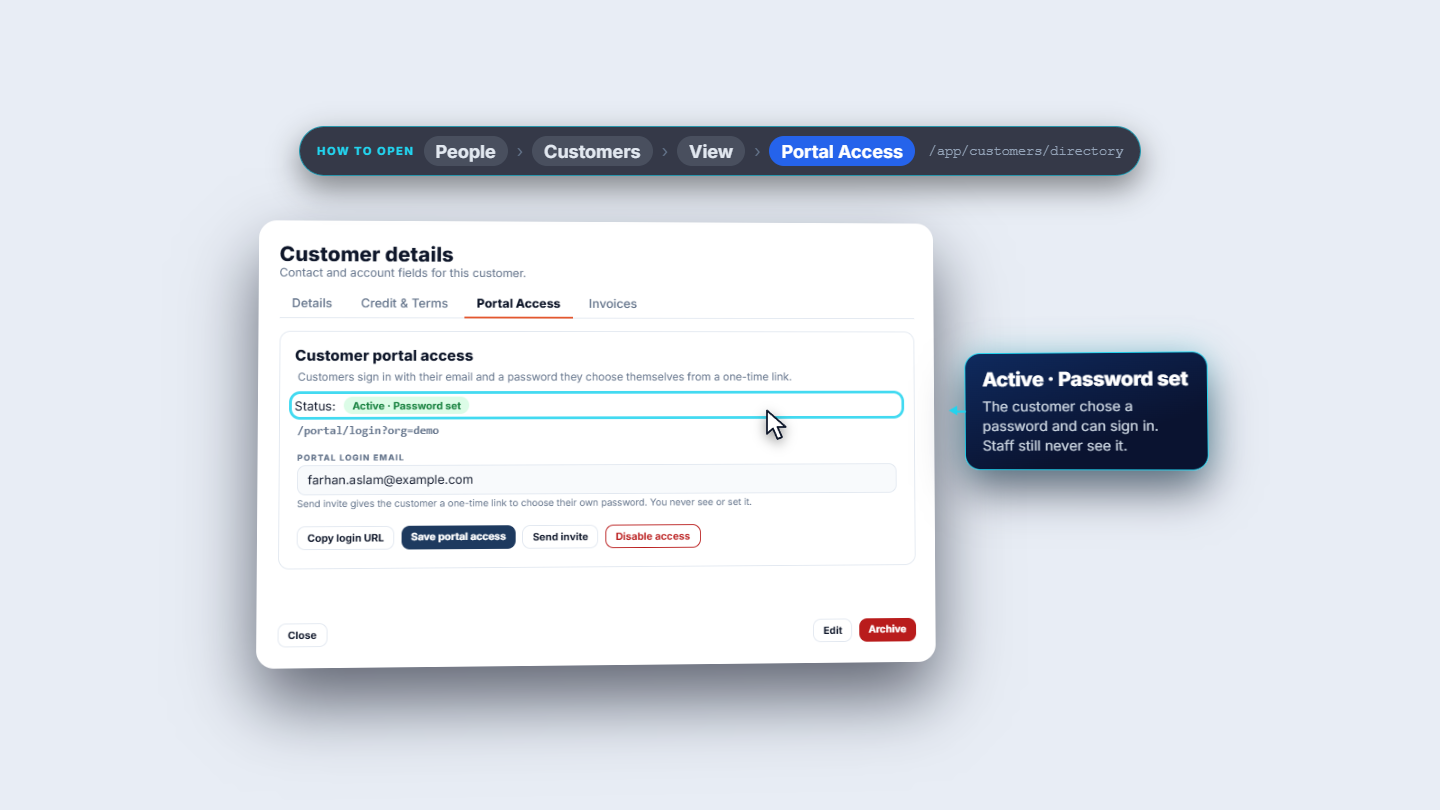
Back on the Portal Access tab, the status now says Active · Password set. The customer chose the password and can sign in. Staff still never see it.
Portal Access tab showing Active and Password set
5
Switch access off when you need to
Click Disable access (the red button on the tab). It acts at once. The toast says Portal access disabled, and Send invite goes away. The customer is signed out, and signing in again answers Invalid email or password.
The Disable access button on the Portal Access tab
6
Turn it back on
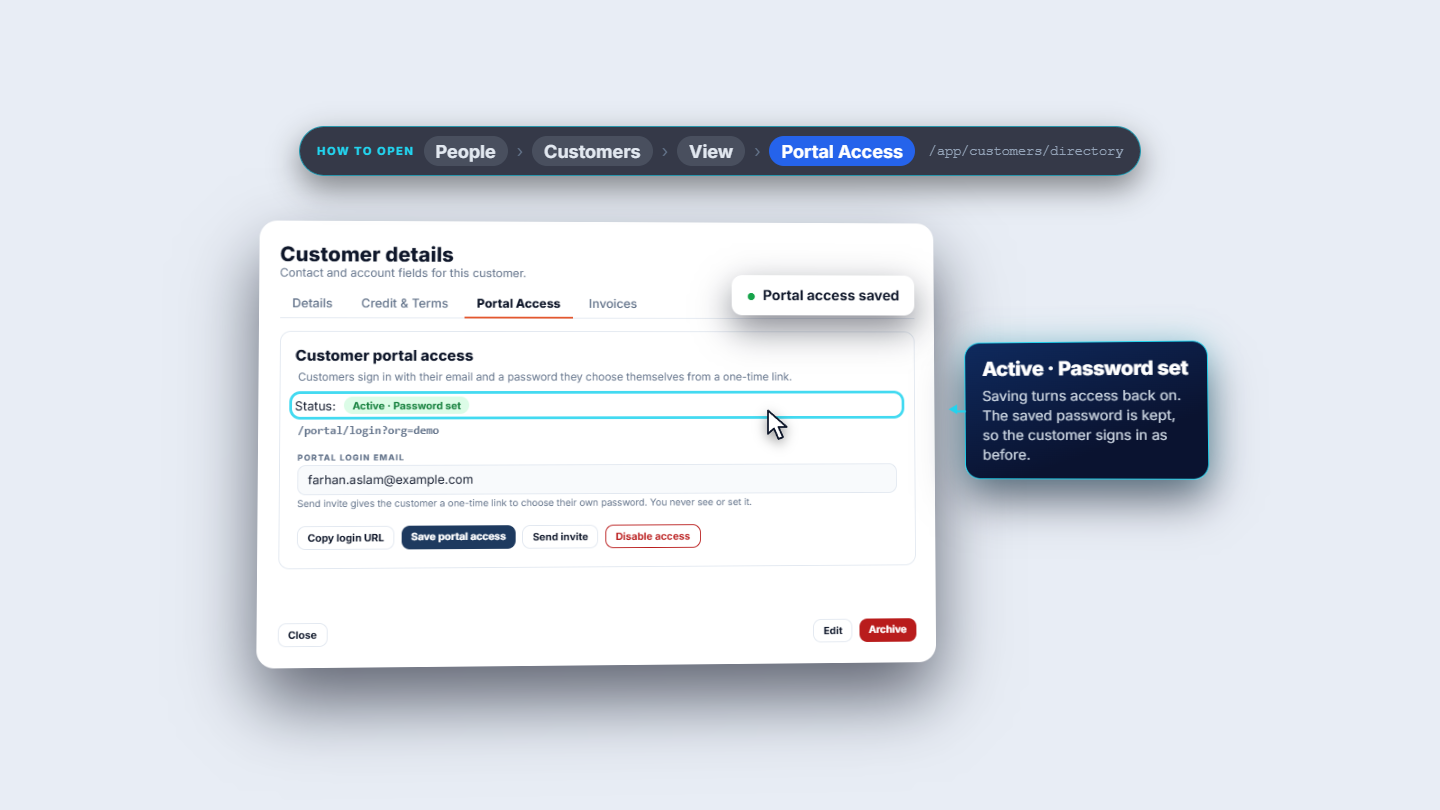
Click Save portal access again. The toast says Portal access saved and the status is Active · Password set again. The saved password is kept, so the customer's old password works again.
Portal Access tab after Save portal access turns access back on
Check it worked
The tab says Active · Password set after the customer chose a password.
The customer signs in at the login address and sees Quotations and My projects.
After Disable access, the customer is refused with Invalid email or password.
Common mistakes
Mistake
What you see
Fix
Using the same email for two customers
Another portal user already uses this email in this organization.
Give each customer their own portal login email
Closing the invite box before copying
The link is gone
Click Send invite again for a new link
Customer signs in without the organisation address
The page asks for the organisation first
Share the login address from the tab (Copy login URL)
Expecting to see the customer's password
Staff never see it
Send an invite so the customer sets it
Quick reference
Item
Meaning / rule
Not set up
No login yet
Active · No password yet
Account saved, customer has not chosen a password
Active · Password set
Customer can sign in
Disabled
Customer is signed out and refused
Invite link
One-time, shown once, a new invite makes a new link
Frequently asked questions
Can I see or set my customer's password? No. Staff never see or set it. You send an invite, and the customer chooses the password on the one-time link.
What if my workspace has no email set up? The page says Email is not set up, so share this link with the customer yourself (for example on WhatsApp). and shows the one-time link with a Copy link button. Copy it before you click Done, because it is shown only once.
Does disabling access delete the customer's password? No. Disable access signs the customer out and refuses their login with Invalid email or password. If you click Save portal access again, the saved password works again.
Why is my email refused for a second customer? One email belongs to one customer. The page answers Another portal user already uses this email in this organization. Give each customer their own portal login email.