How to manage the student register: export, import, add, edit and delete
The All Students list is the school's register. This guide shows how to read it, export it, import a batch of new students from a CSV file, add or correct one student and delete a record that should not exist.
Who it is forRegistrar / school adminTime15 minutesProductSCMLevelBeginner
Before you start
Steps
1
Read the register
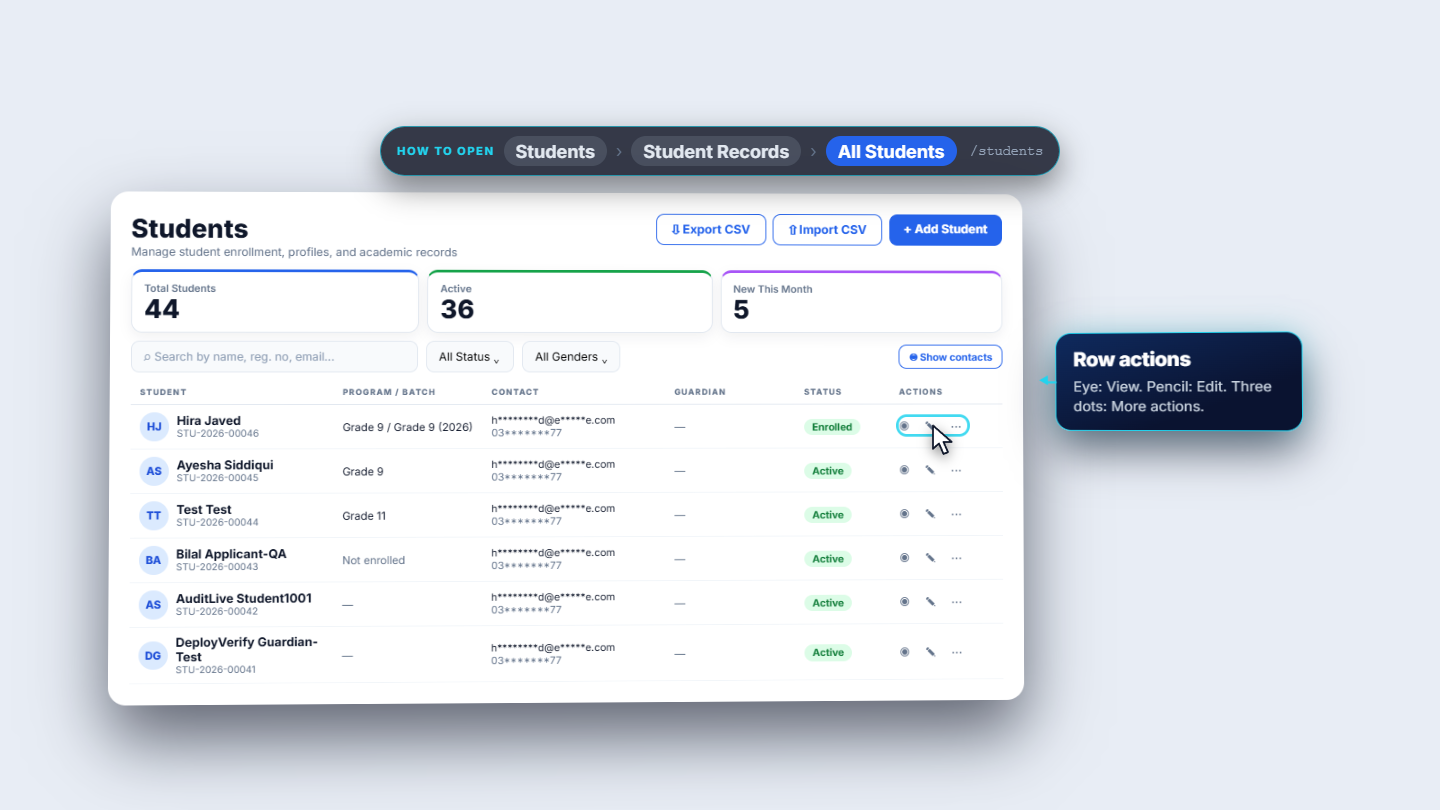
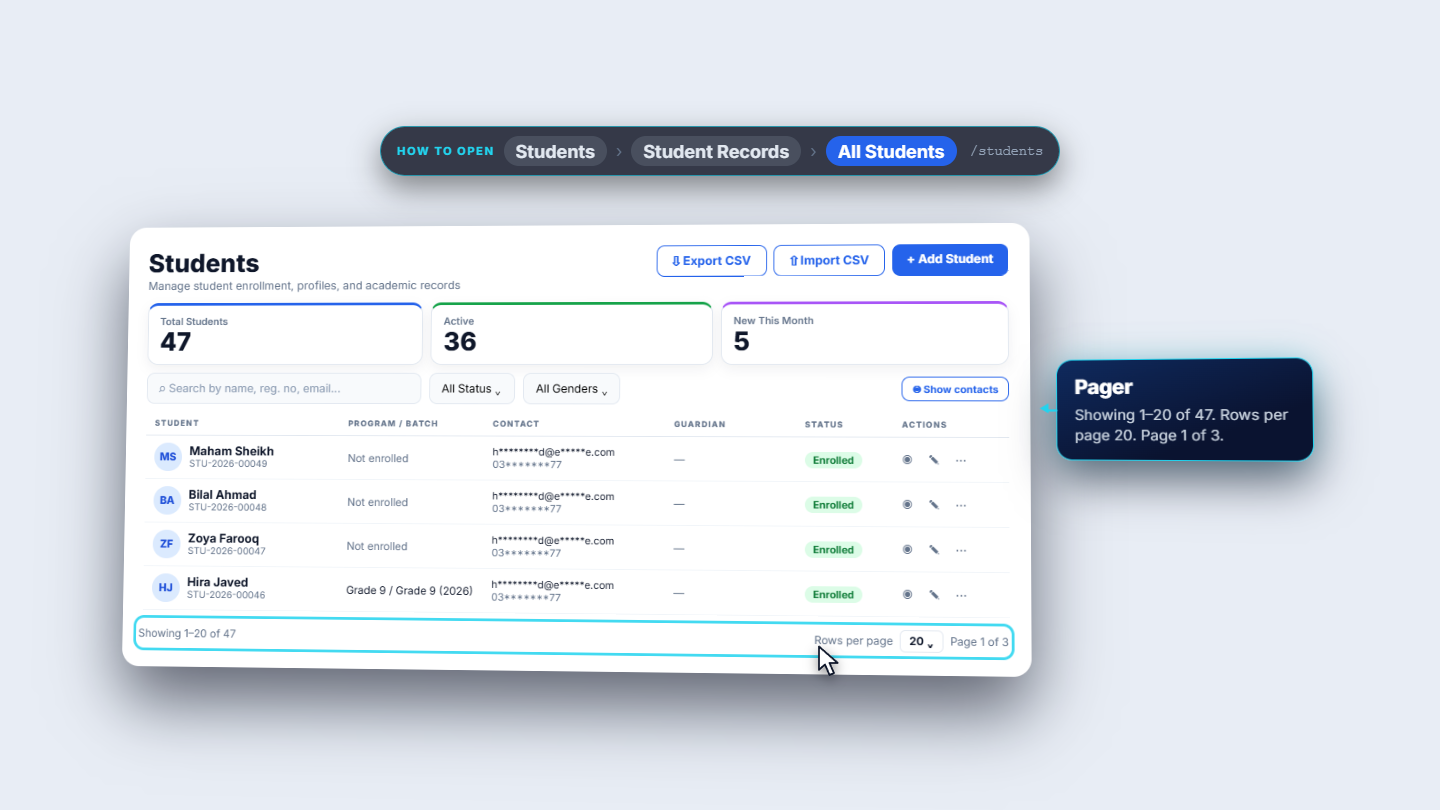
Click Students, then All Students. Export CSV, Import CSV and Add Student sit in the header. Three counters show Total Students, Active and New This Month; here forty-four, thirty-six and five. Columns are the student with registration number, program and batch, contact, guardian and status. Email and phone are masked; Show contacts reveals them and the button turns into Hide contacts. Each row has View, Edit and a menu for more actions.
Students list with counters, columns and row actions
2
Export the register
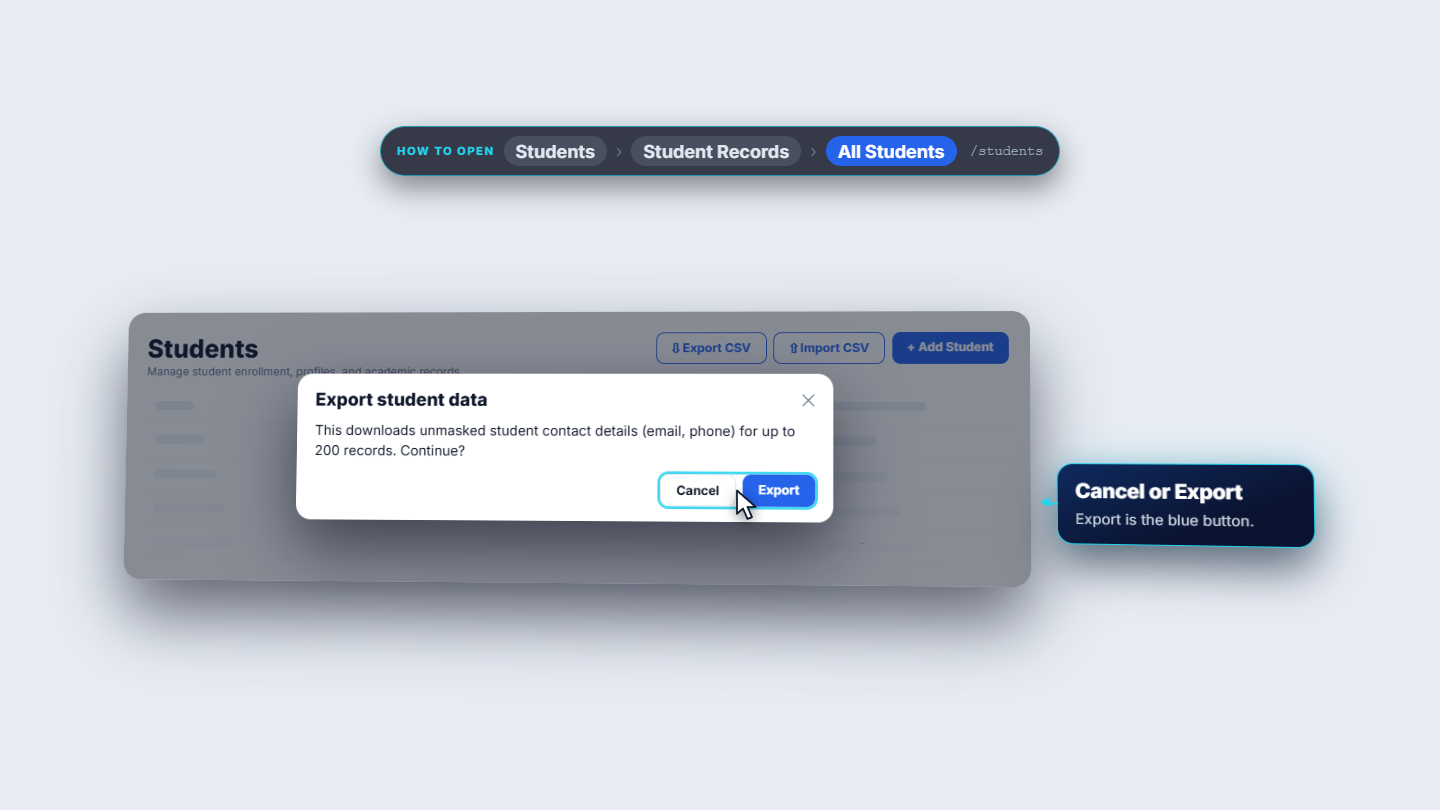
Export CSV asks first. It downloads unmasked email and phone for up to two hundred records. Cancel backs out; Export starts the download.
Export CSV confirmation
3
Import students from a CSV
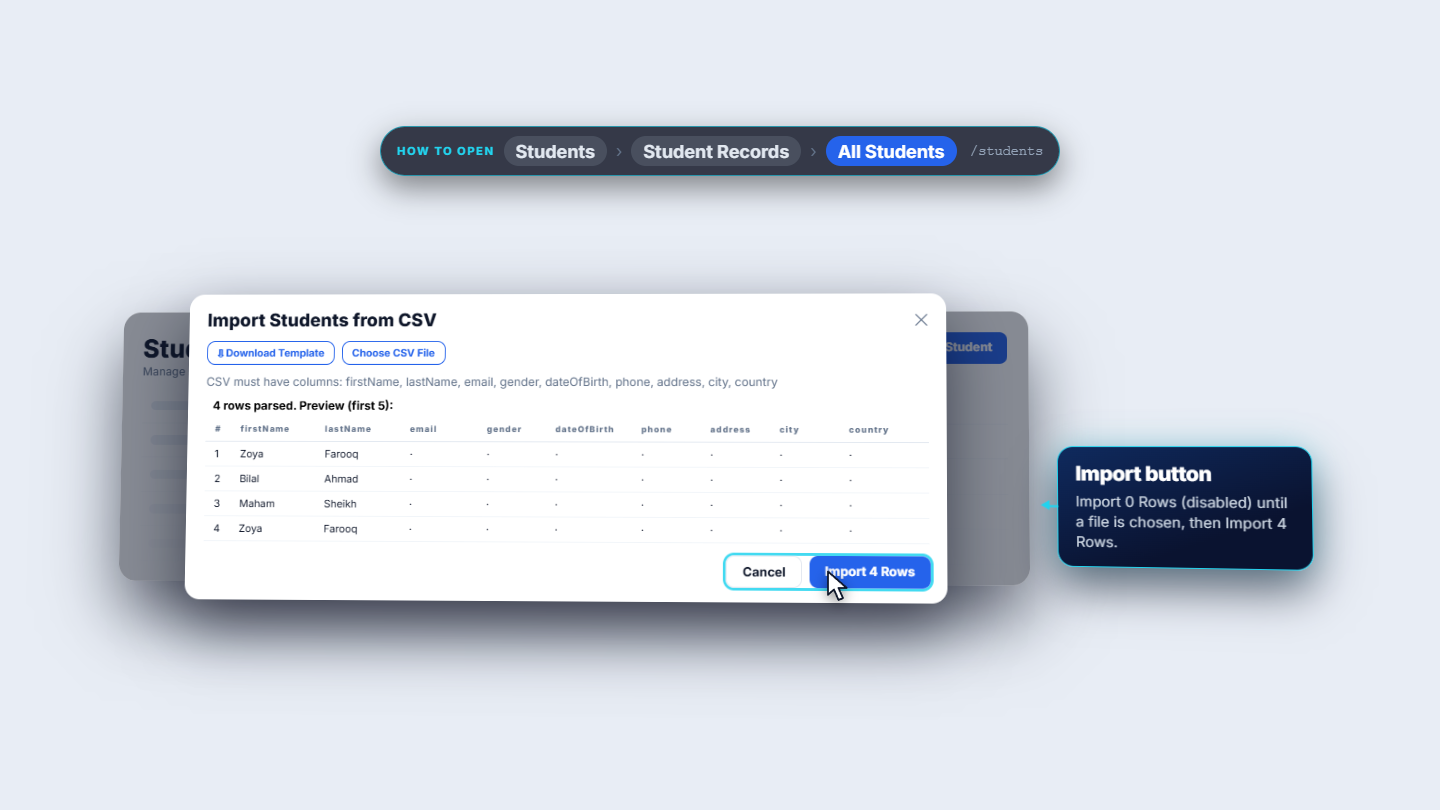
Import CSV lists the columns and offers Download Template. The columns are first name, last name, email, gender, date of birth, phone, address, city and country. After you choose a file it says how many rows it parsed (four in the example) and previews the first five. Before a file the button reads Import 0 Rows and is disabled; now it reads Import 4 Rows.
Import CSV dialog with the column list and template download
4
Check the import result
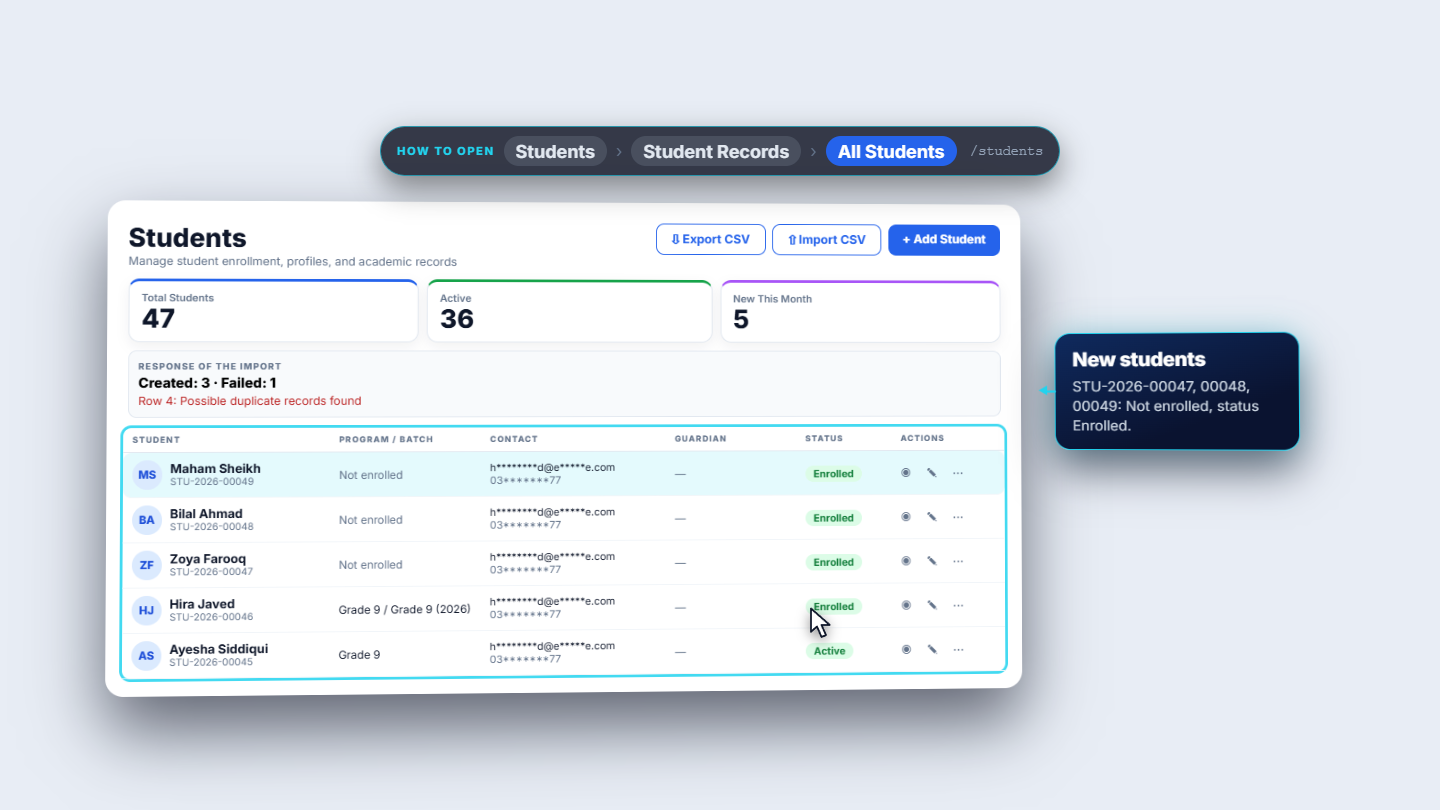
The import answers Created: 3 · Failed: 1, with the reason: Row 4, Possible duplicate records found. Row four was a second Zoya Farooq. The list now holds forty-seven students; the new ones, STU-2026-00047, 00048 and 00049, show Not enrolled with status Enrolled.
Import response: created 3, failed 1, and the new students in the list
5
Find a student
The search box takes a name, registration number or email; typing the full name Zoya Farooq finds Zoya Farooq. The status filter offers All Status, Active, Enrolled, Graduated, Withdrawn and Suspended; the gender filter All Genders, Male and Female. At the bottom: showing one to twenty of forty-seven, twenty rows per page, page one of three.
Search and filter bar with status filter and paging
6
Add one student
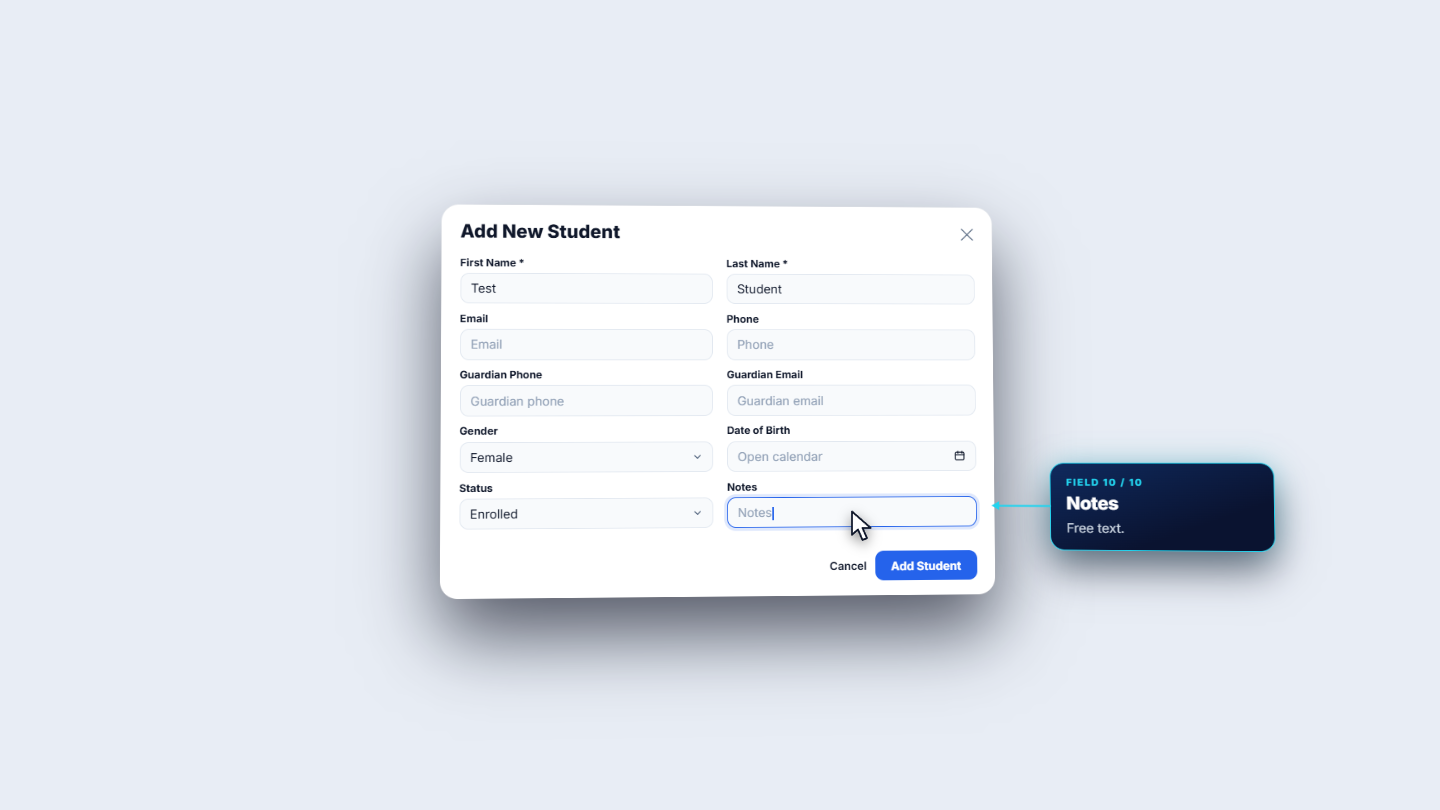
Add Student opens one page with no tabs. First Name and Last Name are required; email and phone are optional. Add the Guardian Phone and Guardian Email, then Gender (Male, Female or Other), Date of Birth, Status (starts as Enrolled; Active and Prospective are the others) and Notes. Press Add Student.
Add New Student form
7
Edit a student
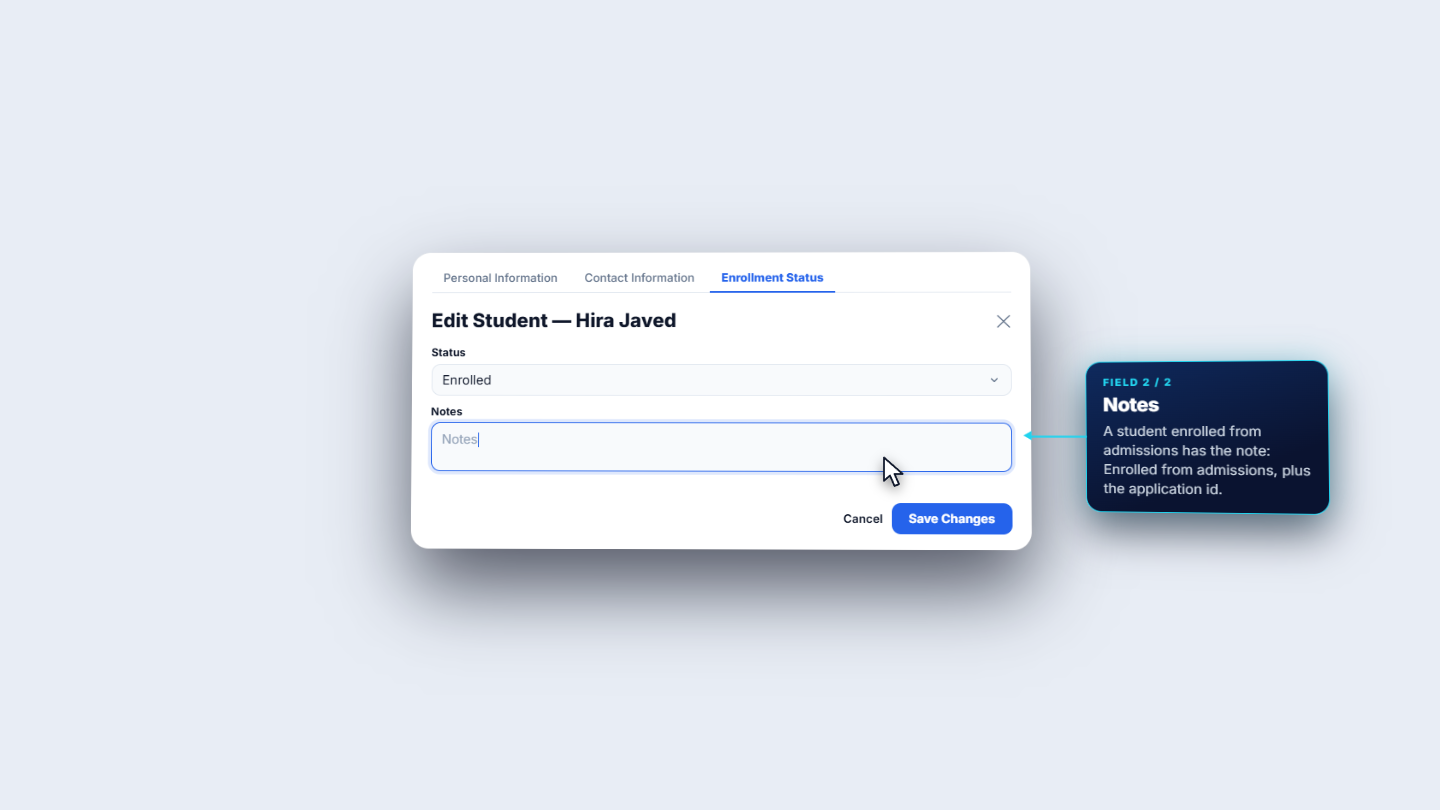
Edit opens a dialog with three tabs. Personal Information: first name and last name (required), date of birth, gender, National ID or CNIC, nationality and religion. Contact Information: email, phone, address (a field the Add page does not have), guardian phone and guardian email. Enrollment Status: status (Active, Enrolled, Prospective, Graduated, Withdrawn or Suspended) and notes. A student enrolled from admissions carries a note saying so. Press Save Changes.
Edit dialog with three tabs
8
Delete a student
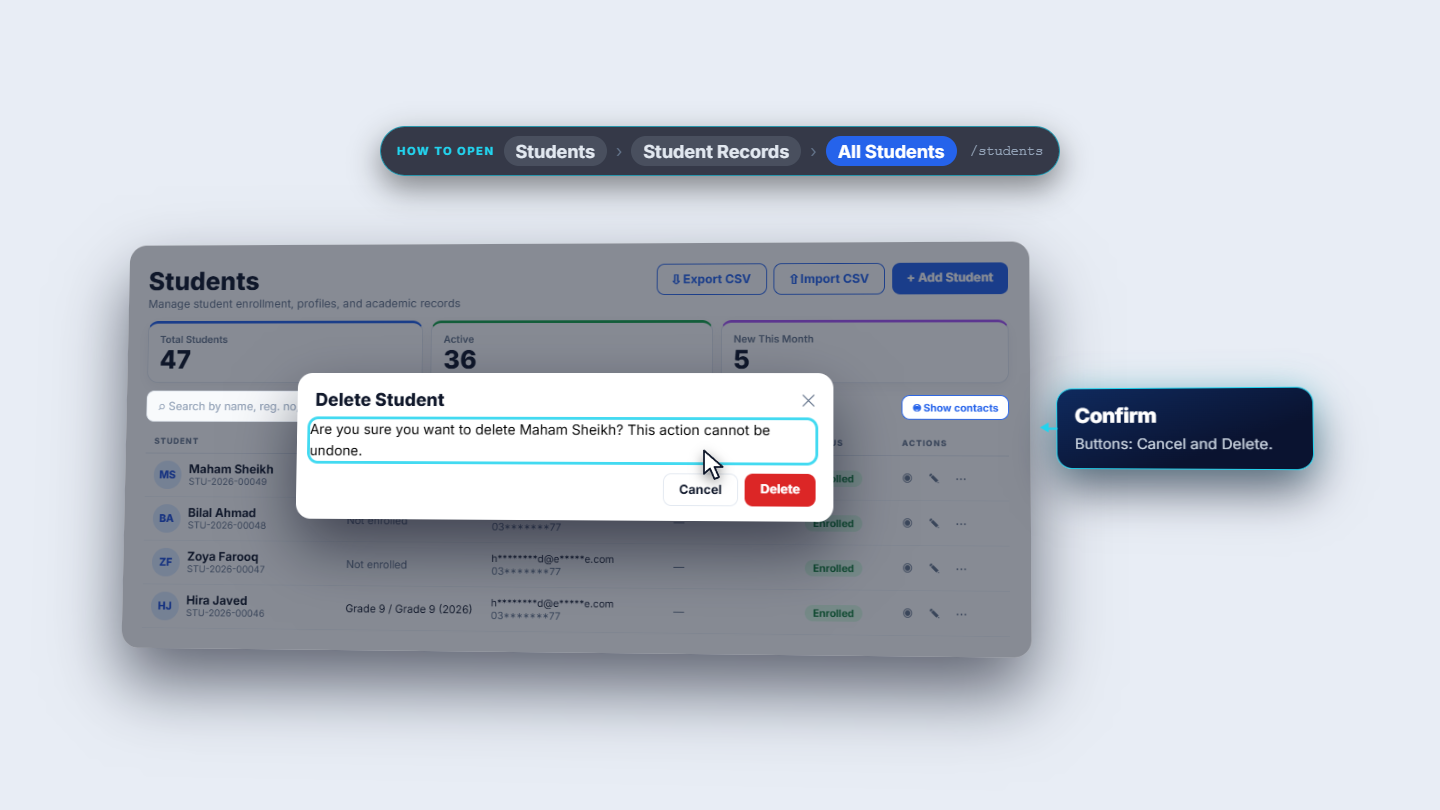
The more-actions menu has one item: Delete, in red. It asks: Are you sure you want to delete Maham Sheikh? This action cannot be undone. Press Delete only if you are certain.
Delete Student confirmation
Check it worked
The counters and the pager match the number of students you expect (forty-seven after the import).
Imported students appear with registration numbers in sequence.
An edited student shows the new status in the list.
Common mistakes
Mistake
What you see
Fix
A row repeats a student already on the register
Possible duplicate records found for that row
Remove the row from the file; the others are imported
Looking for the address on Add Student
The field is missing
Use Edit › Contact Information
Deleting the wrong row
The record is gone
Deleting cannot be undone, so read the confirmation name
Quick reference
Item
Meaning / rule
Export CSV
Unmasked email and phone, up to 200 records
Import columns
First name, last name, email, gender, date of birth, phone, address, city, country
Why does an import row fail with Possible duplicate records found? That row matches a student already on the register. Remove it from the file; the other rows are still imported.
Does Export CSV show phone numbers and emails? Yes, unmasked, for up to 200 records. Keep the file safe and share it only with people who may see it.
Where is the address field when I add a student? The Add Student page does not have it. Use Edit, then Contact Information.
Can I undo a delete? No. Deleting a student cannot be undone and releases the seat in the batch, so read the name in the confirmation first.