How to read a student's 360 profile: academics, promotion and transfer
Student 360 gathers everything about one student on one page. This guide covers the page frame, the Overview and Academic tabs, attendance, and the two actions teachers and registrars start from there: promoting a student and initiating a transfer.
Who it is forClass teacher / registrarTime15 minutesProductSCMLevelBeginner
Before you start
Steps
1
Open the profile and read the header
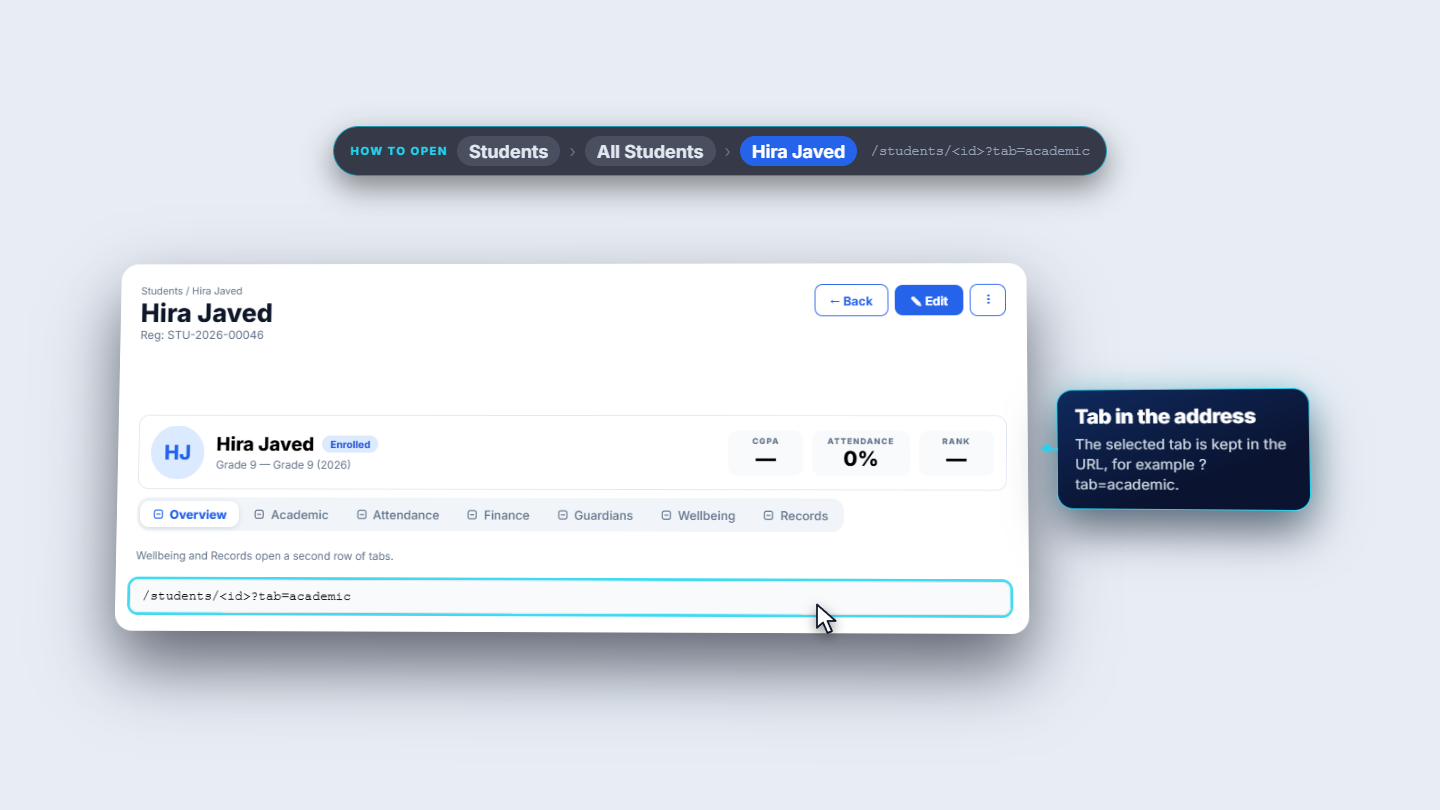
Click Students, then a student. The page shows the breadcrumb, the name and the Reg line with the registration number. Header buttons are Back, Edit and a three-dot menu holding Export personal data and Erase personal data (in red). The header card shows initials, the name, a status pill and the grade and batch line; a new student is Enrolled. Three figures sit on the right: CGPA (a dash until results are released), Attendance and Rank. Seven tabs follow: Overview, Academic, Attendance, Finance, Guardians, Wellbeing and Records. The tab is kept in the address, for example tab equals academic.
Student 360 page frame with header buttons and seven tabs
2
Overview: who the student is
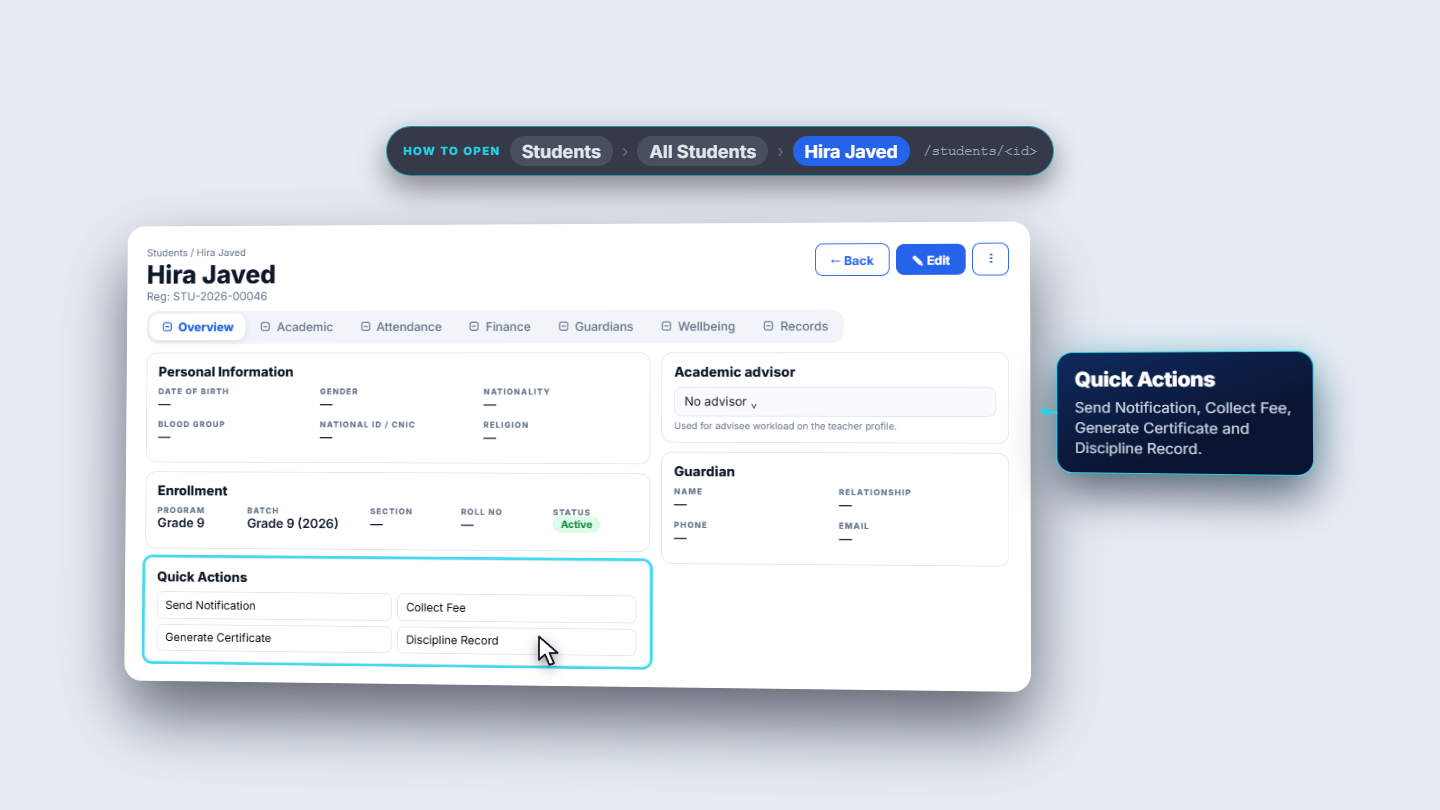
Overview starts with Personal Information: date of birth, gender, nationality, blood group, CNIC and religion. For a new student such as Hira Javed every value shows a dash. The Enrollment card shows program Grade 9, batch Grade 9 2026, section and roll number, and status. Academic advisor is a select, No advisor by default, used for advisee workload on the teacher profile. The Guardian card shows name, relationship, phone and email. Quick Actions: Send Notification, Collect Fee, Generate Certificate and Discipline Record.
Overview tab with Personal Information, Enrollment, Academic advisor and Guardian
3
Know what a new student looks like
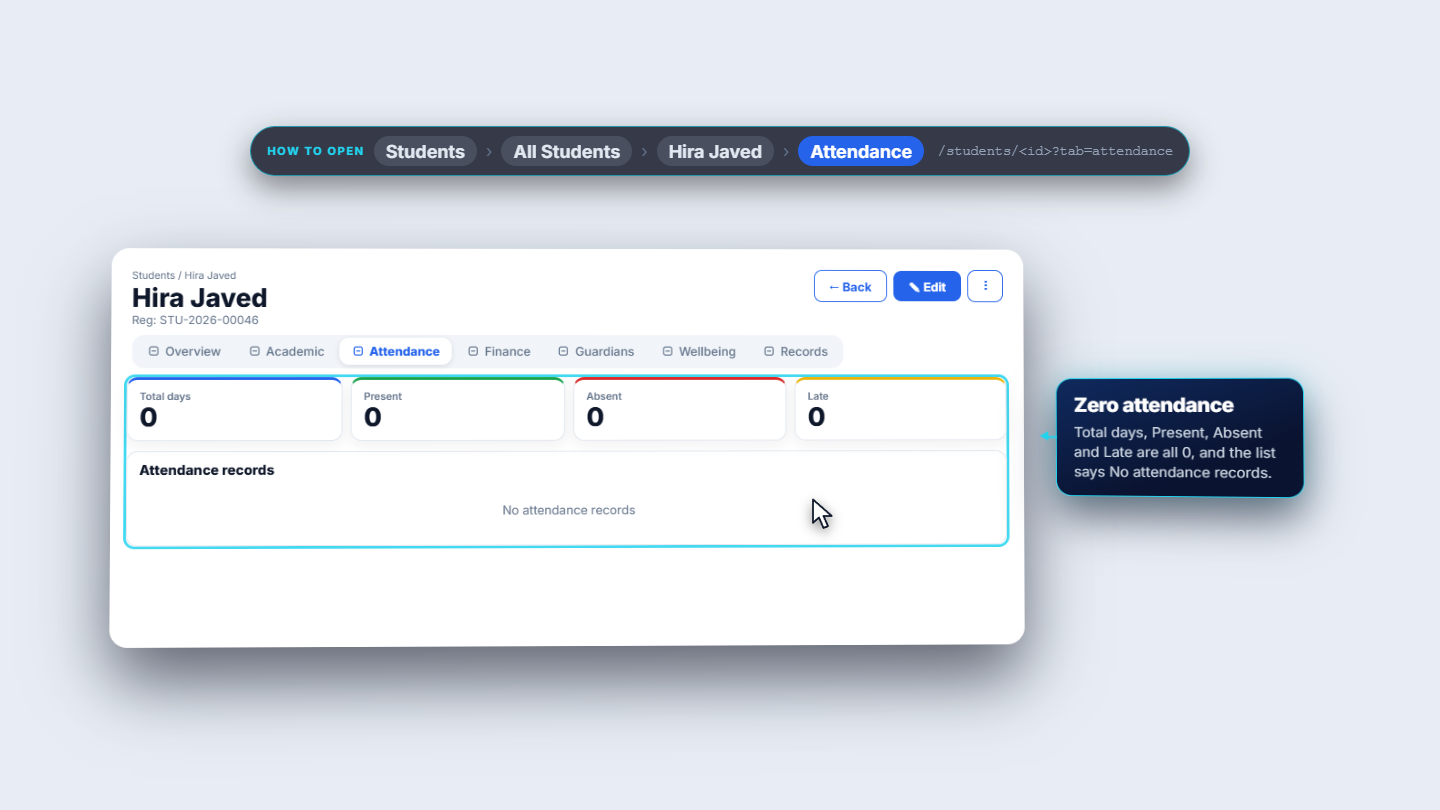
For a new student the Academic tab shows Latest term GPA and CGPA as dashes with No released results yet, Subject Performance says No academic records yet and Class Rank is a dash. Attendance shows zero in every tile and No attendance records.
Empty Academic and Attendance tabs for a new student
4
Academic tab with real results
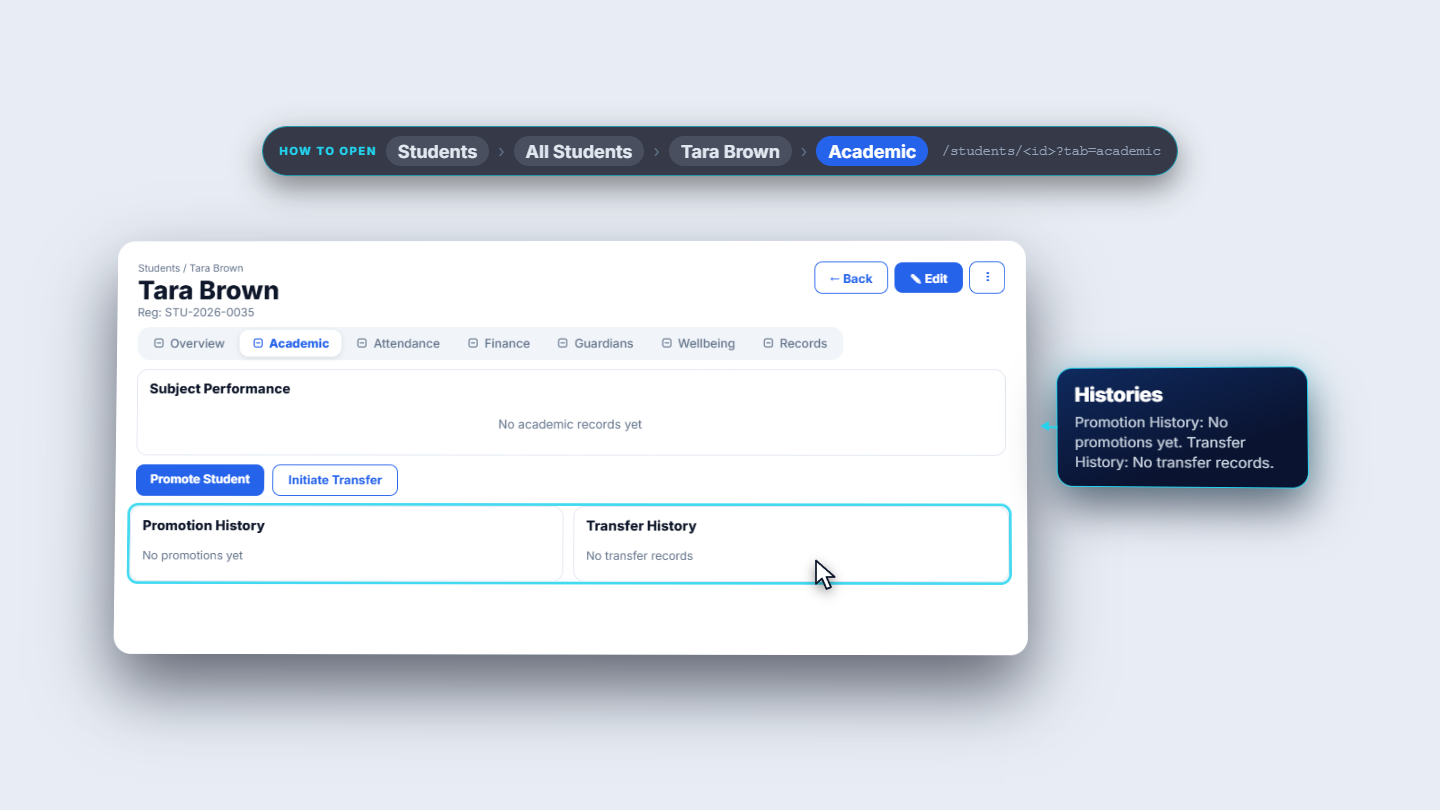
Tara Brown has data: her header says CGPA 1.97 and attendance 71 percent. Academic opens with Latest term GPA and CGPA, both 1.97, and 9 credits earned. Issue and print official transcript says it creates a permanent, verifiable record, so press it only when you mean it. Degree progress says No program requirements configured yet. Charts follow: Performance Trend across her subjects, Grade Distribution as a pie, and Attendance Rate with its label. Below sit Promote Student and Initiate Transfer, with Promotion History and Transfer History underneath.
Academic tab with Promote Student and Initiate Transfer buttons
5
Promote a student
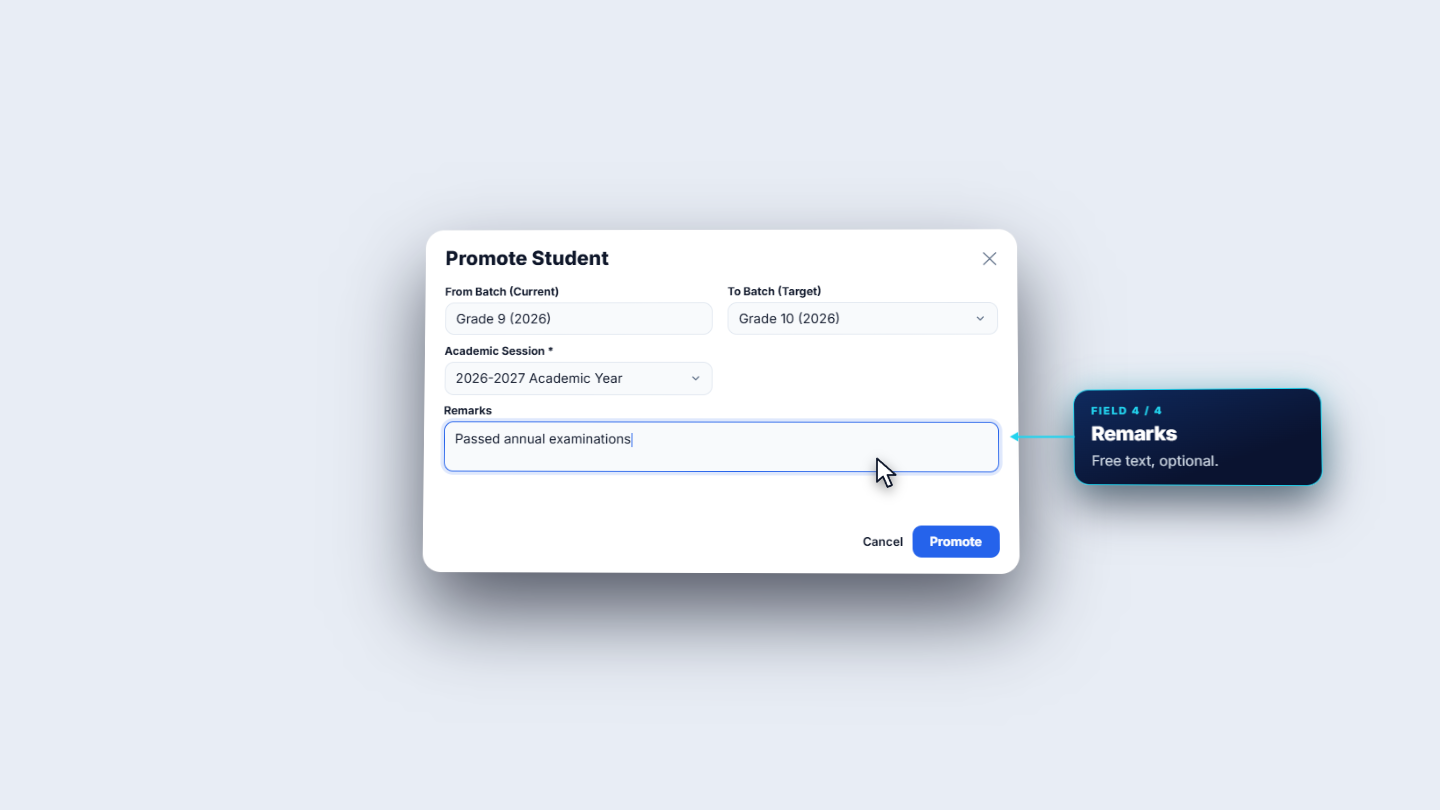
Press Promote Student. From Batch (Current) is read only and filled in for you. Choose To Batch (Target), for example Grade 10 (2026). Academic Session is required; the list offers 2026-2027 Academic Year. Remarks is free text, optional. Then Cancel or Promote.
Promote Student dialog: from batch, to batch, session, remarks
6
Start a transfer
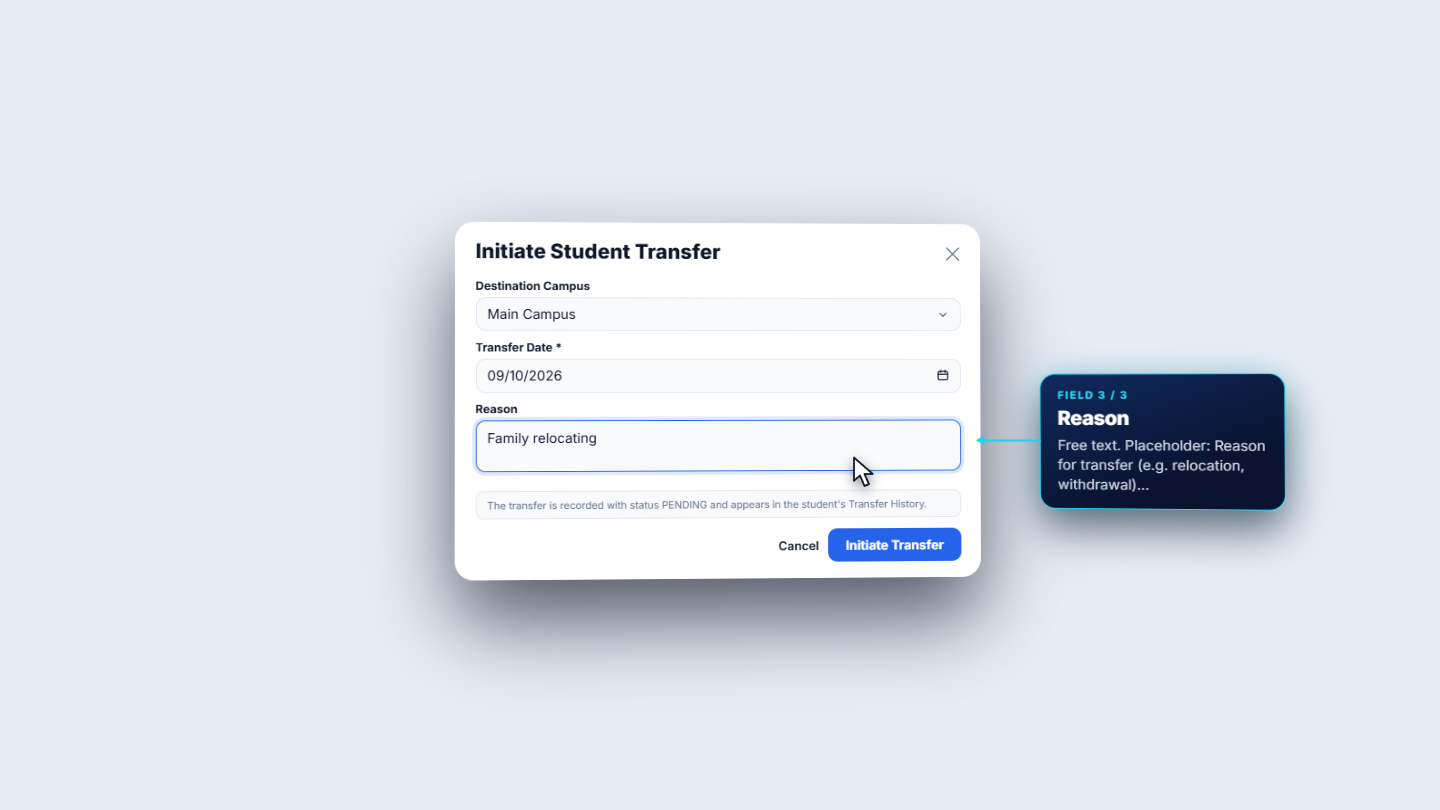
Press Initiate Transfer. Destination Campus is External / Other school or Main Campus. Transfer Date is required, in day, month, year. Reason is free text. A note says the transfer is recorded as Pending and shows in Transfer History.
Initiate Transfer dialog: destination, date, reason
7
Check attendance and ask for a correction
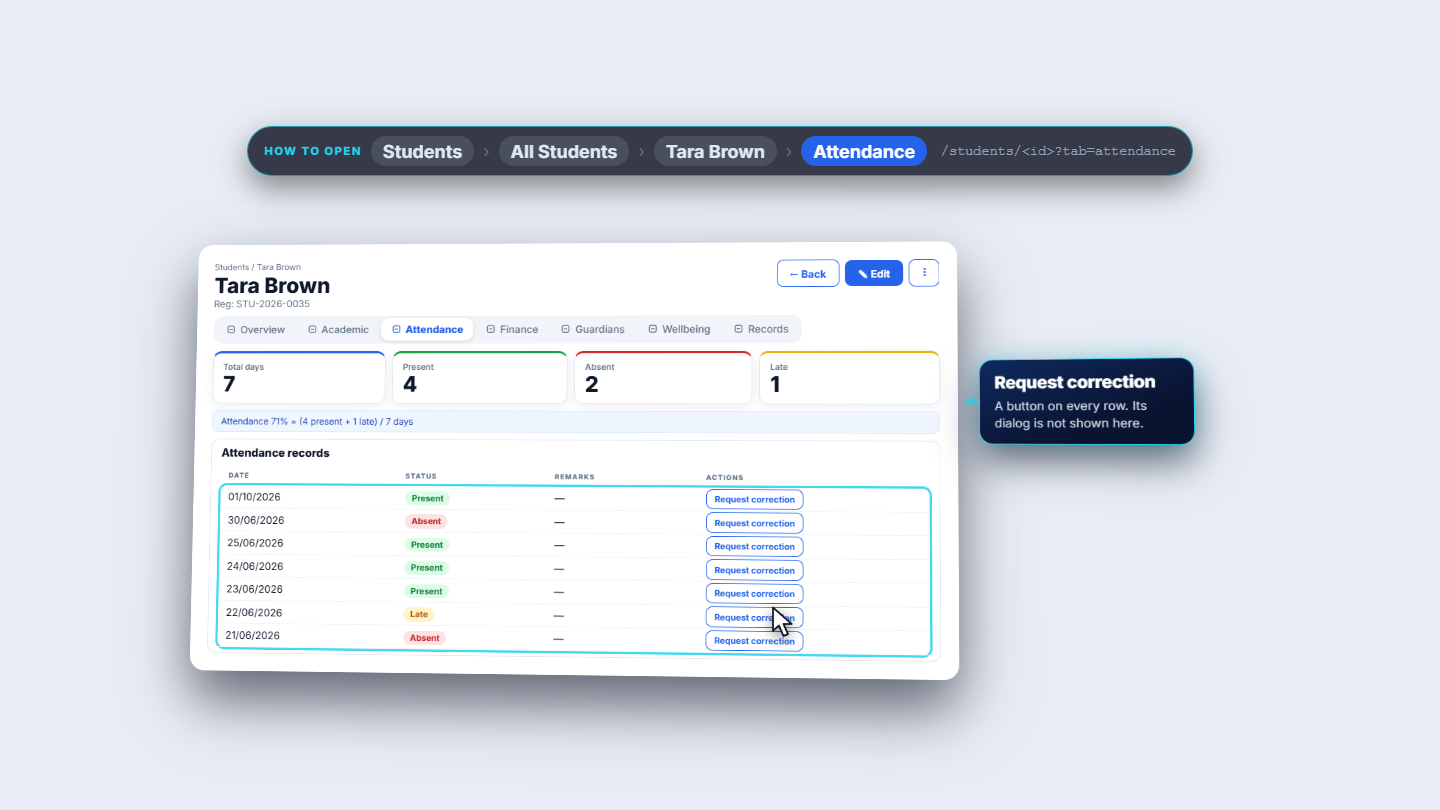
On the Attendance tab Tara's tiles read Total days 7, Present 4, Absent 2, Late 1. Present plus late is five of seven days, seventy-one percent, the same as the header. The records list Date, Status and Remarks, and every row has a Request correction button.
Attendance tab with totals, percentage and records
Check it worked
The header shows the right name, registration number, status pill and CGPA.
The percentage on the Attendance tab matches the header figure.
After a promotion or transfer, the matching history card lists it.
Common mistakes
Mistake
What you see
Fix
Expecting CGPA for a new student
A dash and "No released results yet"
Publish results first
Promoting without choosing a session
The required field blocks it
Choose the Academic Session
Transfer reason left out
The reason is optional free text
Add a reason so the history explains it
Quick reference
Item
Meaning / rule
Tabs
Overview, Academic, Attendance, Finance, Guardians, Wellbeing, Records
Attendance %
Present plus late, out of marked days
Transfer status
Recorded as Pending
Frequently asked questions
Why does a new student show dashes for CGPA and rank? Those figures appear only after results are released. Until then the Academic tab says there are no released results yet, which is normal.
What happens when I start a transfer? The transfer is recorded as Pending and shows in Transfer History. It changes the student's record, so check the student before you submit.